
Installing Floppy Drive Installing Floppy Drives Floppy drives

- Slides: 16
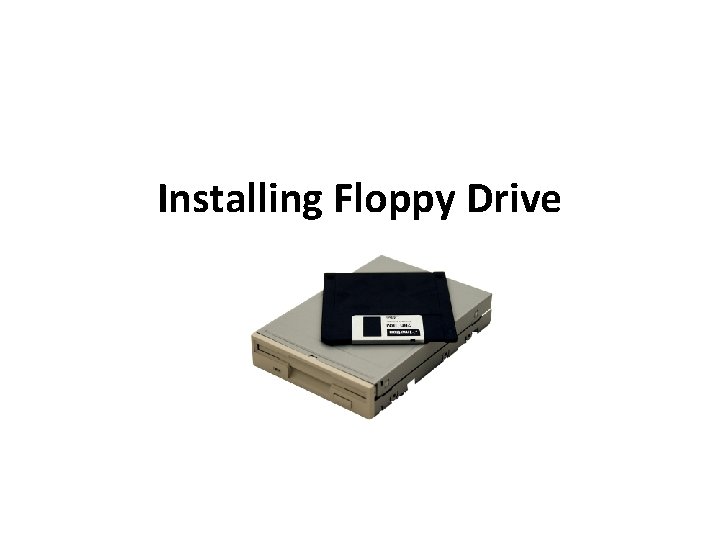
Installing Floppy Drive
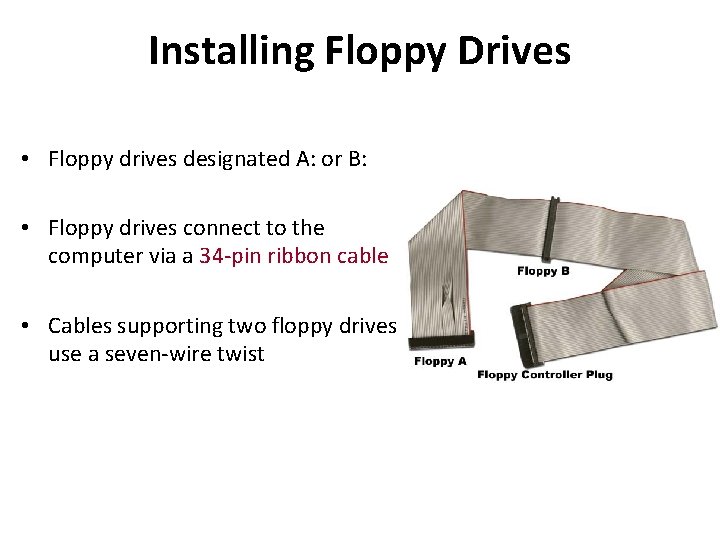
Installing Floppy Drives • Floppy drives designated A: or B: • Floppy drives connect to the computer via a 34 -pin ribbon cable • Cables supporting two floppy drives use a seven-wire twist
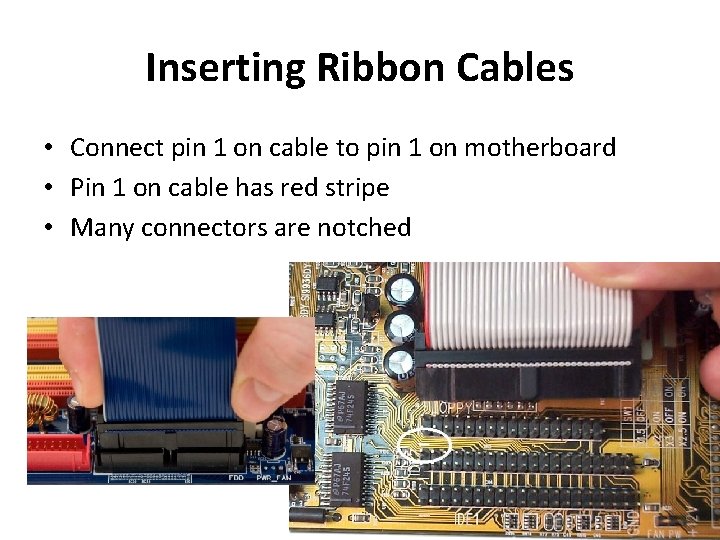
Inserting Ribbon Cables • Connect pin 1 on cable to pin 1 on motherboard • Pin 1 on cable has red stripe • Many connectors are notched
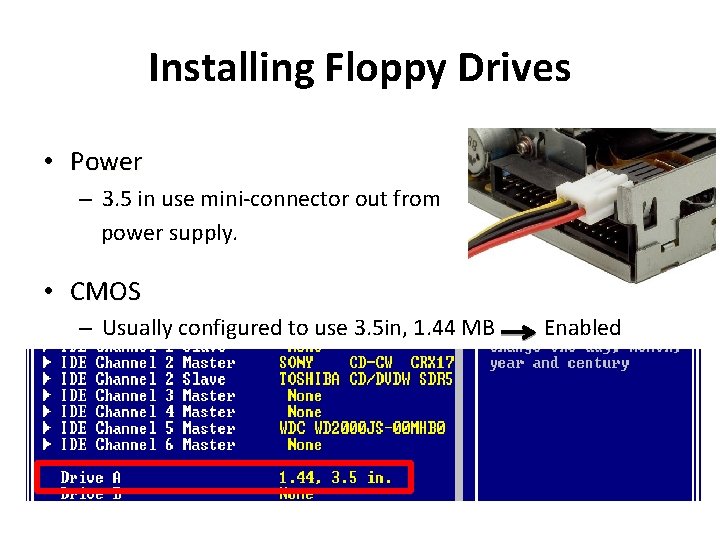
Installing Floppy Drives • Power – 3. 5 in use mini-connector out from power supply. • CMOS – Usually configured to use 3. 5 in, 1. 44 MB Enabled
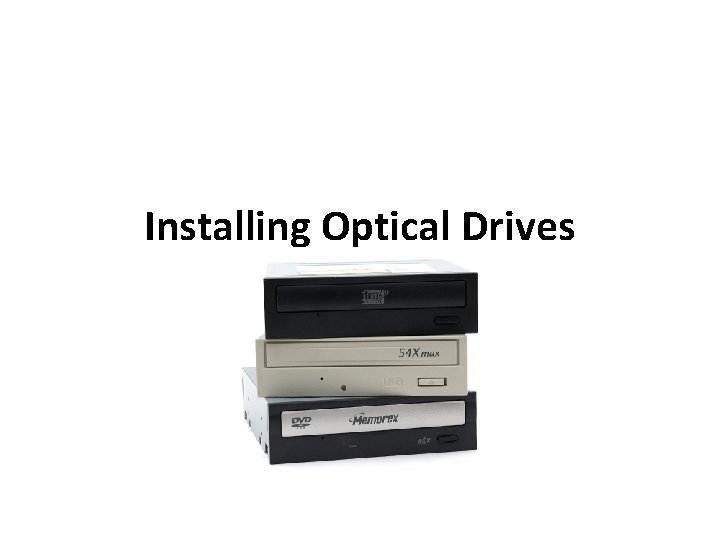
Installing Optical Drives
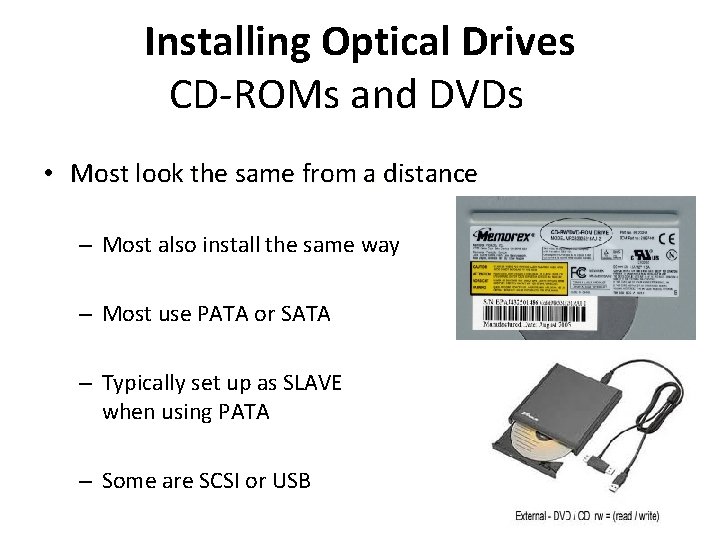
Installing Optical Drives CD-ROMs and DVDs • Most look the same from a distance – Most also install the same way – Most use PATA or SATA – Typically set up as SLAVE when using PATA – Some are SCSI or USB
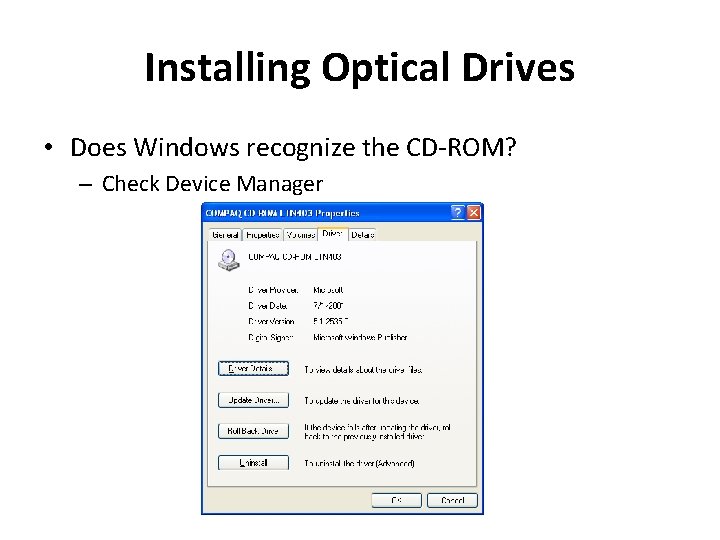
Installing Optical Drives • Does Windows recognize the CD-ROM? – Check Device Manager
Troubleshooting Removable Media
Floppy Drive Maintenance • Frequently fails – Exposure to outside environment, and mechanical damage are common causes • Floppy cleaning kits can be used to clean floppy drives – Can also use cotton swab with denatured alcohol
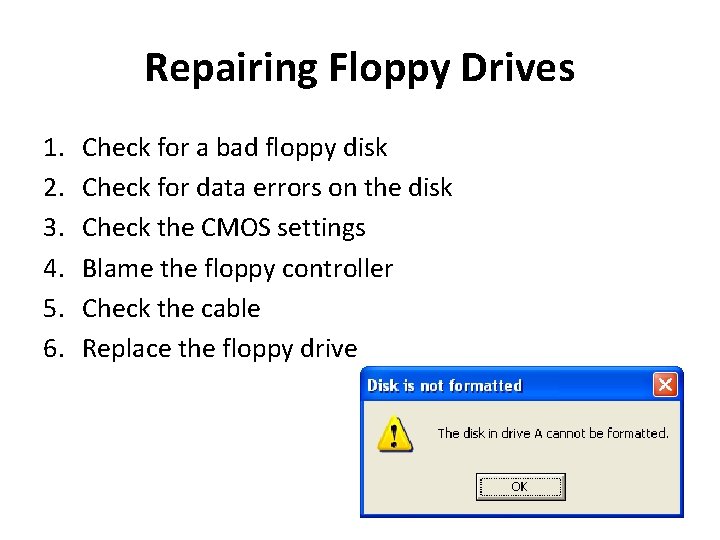
Repairing Floppy Drives 1. 2. 3. 4. 5. 6. Check for a bad floppy disk Check for data errors on the disk Check the CMOS settings Blame the floppy controller Check the cable Replace the floppy drive
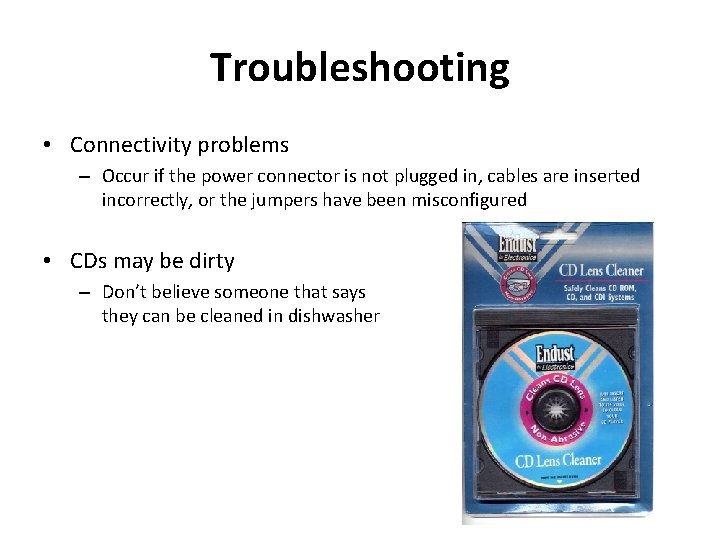
Troubleshooting • Connectivity problems – Occur if the power connector is not plugged in, cables are inserted incorrectly, or the jumpers have been misconfigured • CDs may be dirty – Don’t believe someone that says they can be cleaned in dishwasher
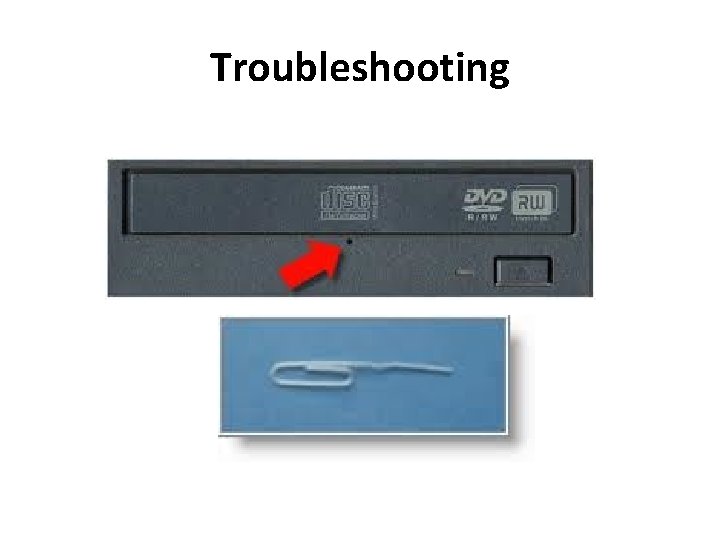
Troubleshooting • Most modern CD media drives have a built-in cleaning mechanism • CD media disks can be easily cleaned using a damp cloth, or mild detergent • Problems such as stuck discs can be resolved with paper clip – There is a small hole on the front of the CD drive – Insert a small wire like a paper click in the hole to manually eject the CD media from the drive
Troubleshooting
Burning Issues • Know What It Can Do (DVD-RW, DVD-R, DVD-W) – Check out technical documentation before making a purchase – Type “review” and the model number in a search engine to get other opinions
Buffer Underrun • Most often occurs when copying from CD-ROM to CD -R or CD-RW – Inability of the source device to keep the burner loaded with data – Make sure your CD-RW drive has 2 MB or larger buffer
Firmware Updates • Most drives come with an upgradeable flash ROM chip • Check the manufacturer’s website for an update