
Installing and Managing Software Different types of software
![Script 'shebang' lines • The first line of a script file starts with #![interpreter]](https://slidetodoc.com/presentation_image_h2/a30cb4eb8f789e5c787064b3e2cf5576/image-31.jpg "Script 'shebang' lines • The first line of a script file starts with #![interpreter]")
- Slides: 42
Installing and Managing Software
Different types of software • Software comes in different types • Interpreted scripts • Pre-compiled binary software • Source code requiring compilation • Software comes from different sources • Distributed with your operating system • Distributed by some other software management system • Downloaded from a specific site on the internet
Users, roles and permissions • Software can be installed just for an individual user • Most software is installed in a way which allows all users to run it • You need to understand users, roles and permissions to install software
Users and Roles • For security and privacy most users run with restricted privileges most of the time • They can only read some parts of the filesystem (eg: not other users data for) • They can only write to some parts of the filesystem (eg: can’t overwrite important programs) • The ‘root’ user is an account which has full privileges on the system and is used for administrative purposes
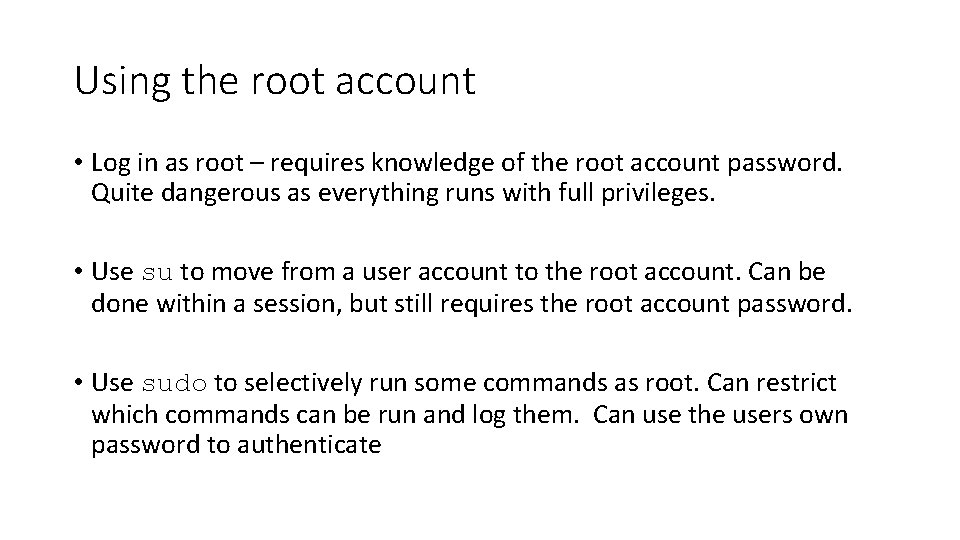
Using the root account • Log in as root – requires knowledge of the root account password. Quite dangerous as everything runs with full privileges. • Use su to move from a user account to the root account. Can be done within a session, but still requires the root account password. • Use sudo to selectively run some commands as root. Can restrict which commands can be run and log them. Can use the users own password to authenticate
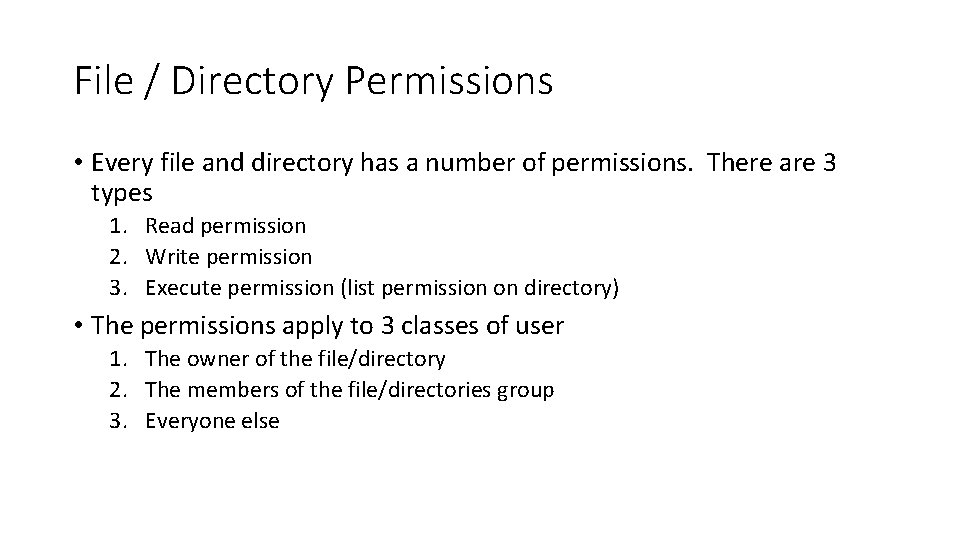
File / Directory Permissions • Every file and directory has a number of permissions. There are 3 types 1. Read permission 2. Write permission 3. Execute permission (list permission on directory) • The permissions apply to 3 classes of user 1. The owner of the file/directory 2. The members of the file/directories group 3. Everyone else
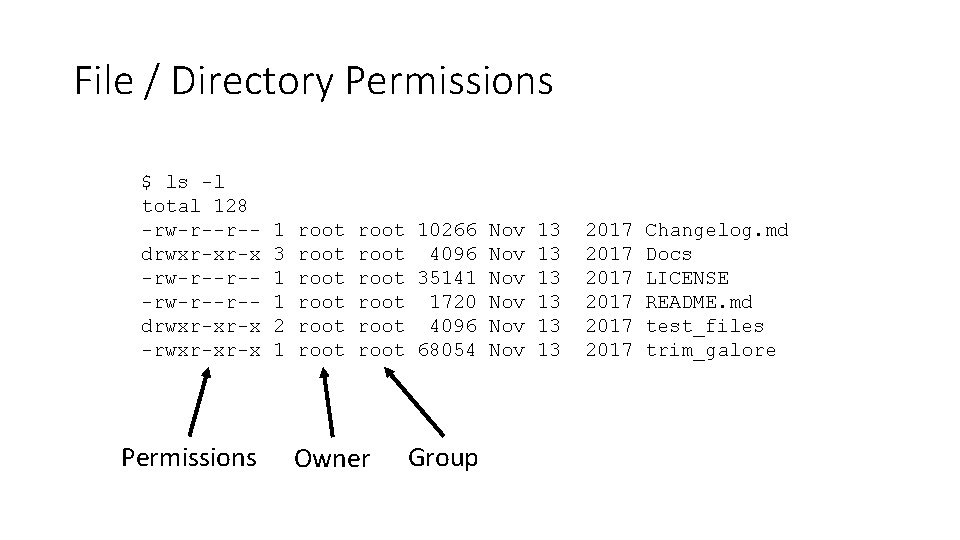
File / Directory Permissions $ ls -l total 128 -rw-r--r-drwxr-xr-x -rwxr-xr-x Permissions 1 3 1 1 2 1 root root 10266 Nov 13 root 4096 Nov 13 root 35141 Nov 13 root 1720 Nov 13 root 4096 Nov 13 root 68054 Nov 13 Owner Group 2017 2017 Changelog. md Docs LICENSE README. md test_files trim_galore
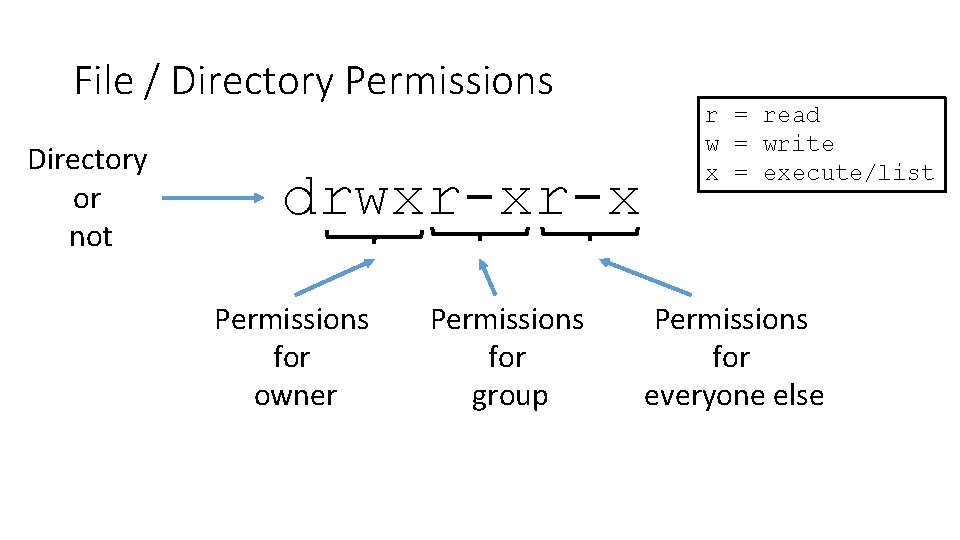
File / Directory Permissions Directory or not drwxr-xr-x Permissions for owner Permissions for group r = read w = write x = execute/list Permissions for everyone else
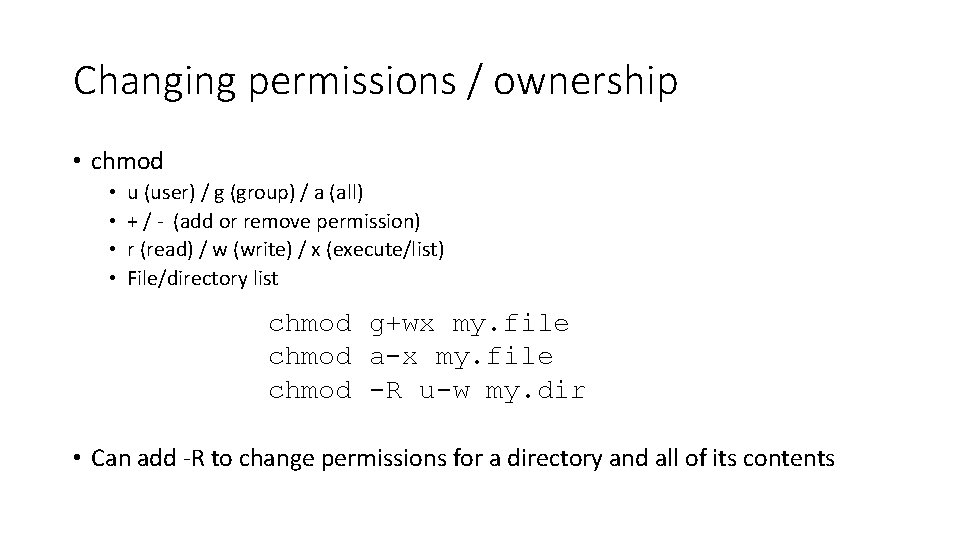
Changing permissions / ownership • chmod • • u (user) / g (group) / a (all) + / - (add or remove permission) r (read) / w (write) / x (execute/list) File/directory list chmod g+wx my. file chmod a-x my. file chmod -R u-w my. dir • Can add -R to change permissions for a directory and all of its contents
Where to install software • In theory you can install software anywhere on the system, but there are places where software is expected to be installed. • If you don't have admin access, or you are installing just for yourself you can install into your home directory. • For site-wide packages you should follow the rules set out by the File Hierarchy Standard (FHS), which defines the expected locations of software on a POSIX system
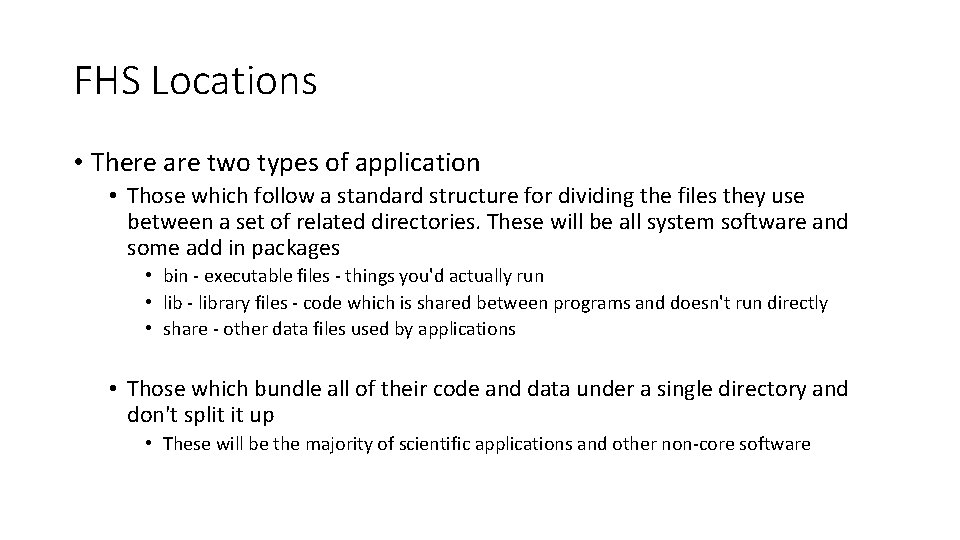
FHS Locations • There are two types of application • Those which follow a standard structure for dividing the files they use between a set of related directories. These will be all system software and some add in packages • bin - executable files - things you'd actually run • lib - library files - code which is shared between programs and doesn't run directly • share - other data files used by applications • Those which bundle all of their code and data under a single directory and don't split it up • These will be the majority of scientific applications and other non-core software
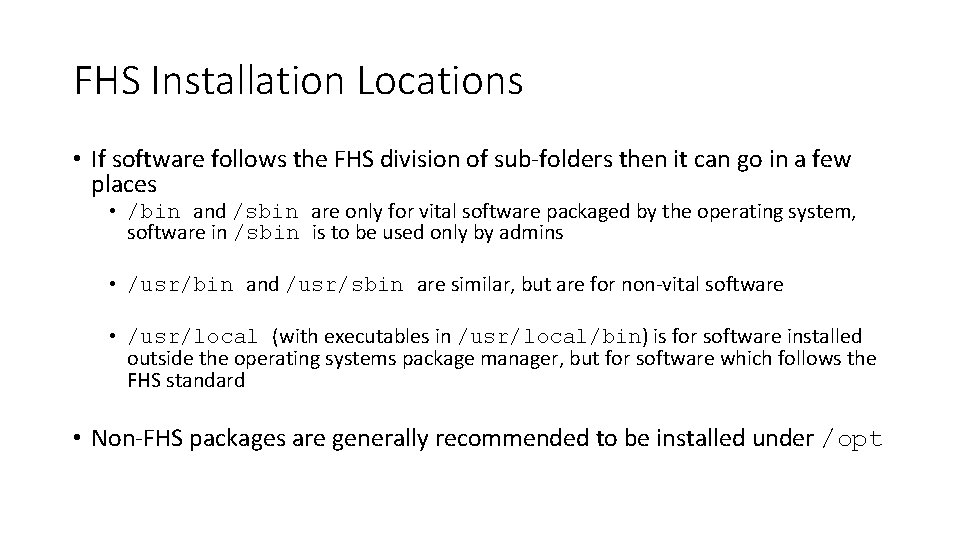
FHS Installation Locations • If software follows the FHS division of sub-folders then it can go in a few places • /bin and /sbin are only for vital software packaged by the operating system, software in /sbin is to be used only by admins • /usr/bin and /usr/sbin are similar, but are for non-vital software • /usr/local (with executables in /usr/local/bin) is for software installed outside the operating systems package manager, but for software which follows the FHS standard • Non-FHS packages are generally recommended to be installed under /opt
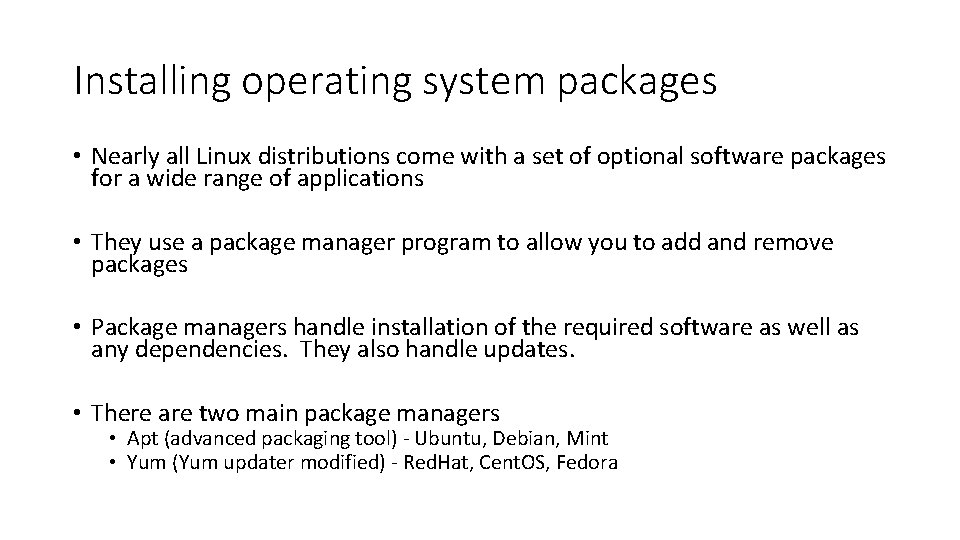
Installing operating system packages • Nearly all Linux distributions come with a set of optional software packages for a wide range of applications • They use a package manager program to allow you to add and remove packages • Package managers handle installation of the required software as well as any dependencies. They also handle updates. • There are two main package managers • Apt (advanced packaging tool) - Ubuntu, Debian, Mint • Yum (Yum updater modified) - Red. Hat, Cent. OS, Fedora
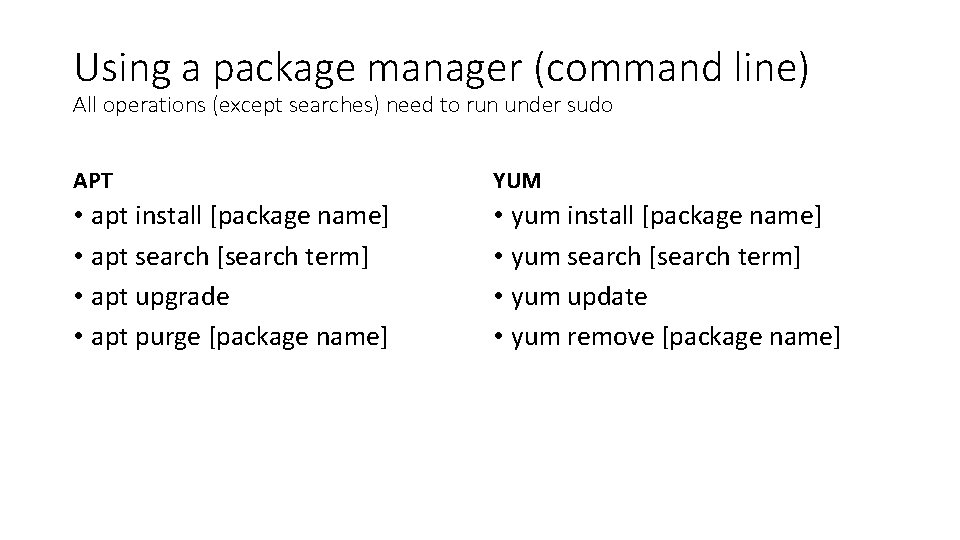
Using a package manager (command line) All operations (except searches) need to run under sudo APT YUM • apt install [package name] • apt search [search term] • apt upgrade • apt purge [package name] • yum install [package name] • yum search [search term] • yum update • yum remove [package name]
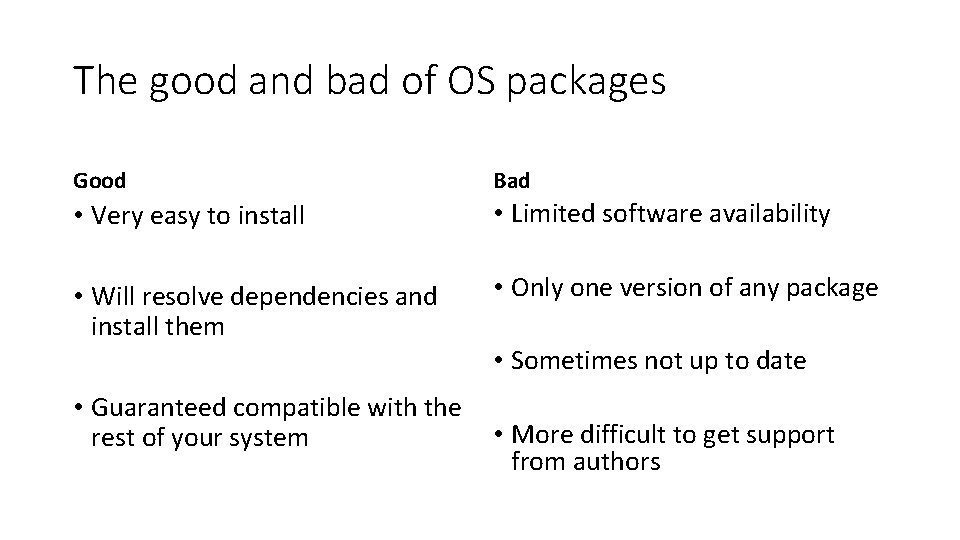
The good and bad of OS packages Good Bad • Very easy to install • Limited software availability • Will resolve dependencies and install them • Only one version of any package • Sometimes not up to date • Guaranteed compatible with the rest of your system • More difficult to get support from authors
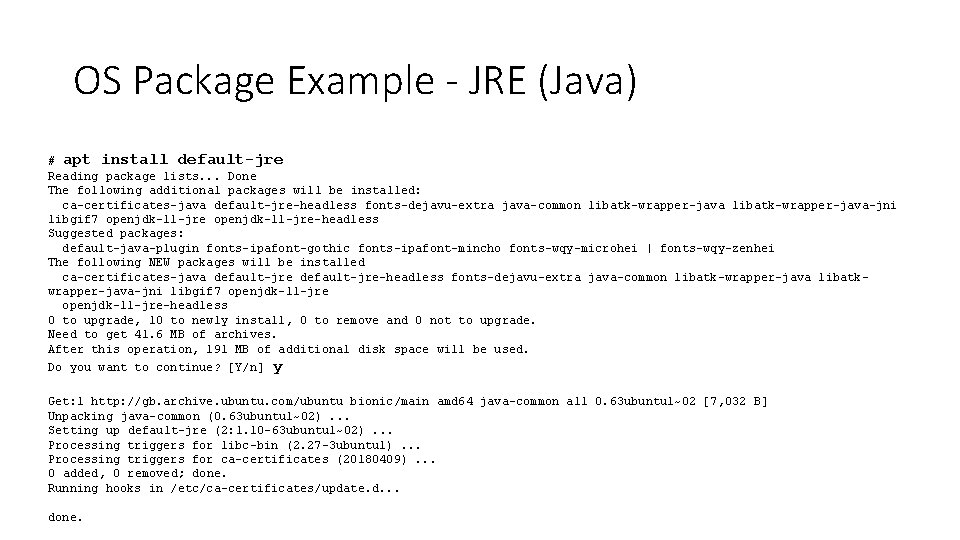
OS Package Example - JRE (Java) # apt install default-jre Reading package lists. . . Done The following additional packages will be installed: ca-certificates-java default-jre-headless fonts-dejavu-extra java-common libatk-wrapper-java-jni libgif 7 openjdk-11 -jre-headless Suggested packages: default-java-plugin fonts-ipafont-gothic fonts-ipafont-mincho fonts-wqy-microhei | fonts-wqy-zenhei The following NEW packages will be installed ca-certificates-java default-jre-headless fonts-dejavu-extra java-common libatk-wrapper-java libatkwrapper-java-jni libgif 7 openjdk-11 -jre-headless 0 to upgrade, 10 to newly install, 0 to remove and 0 not to upgrade. Need to get 41. 6 MB of archives. After this operation, 191 MB of additional disk space will be used. Do you want to continue? [Y/n] y Get: 1 http: //gb. archive. ubuntu. com/ubuntu bionic/main amd 64 java-common all 0. 63 ubuntu 1~02 [7, 032 B] Unpacking java-common (0. 63 ubuntu 1~02). . . Setting up default-jre (2: 1. 10 -63 ubuntu 1~02). . . Processing triggers for libc-bin (2. 27 -3 ubuntu 1). . . Processing triggers for ca-certificates (20180409). . . 0 added, 0 removed; done. Running hooks in /etc/ca-certificates/update. d. . . done.
Exercise 7
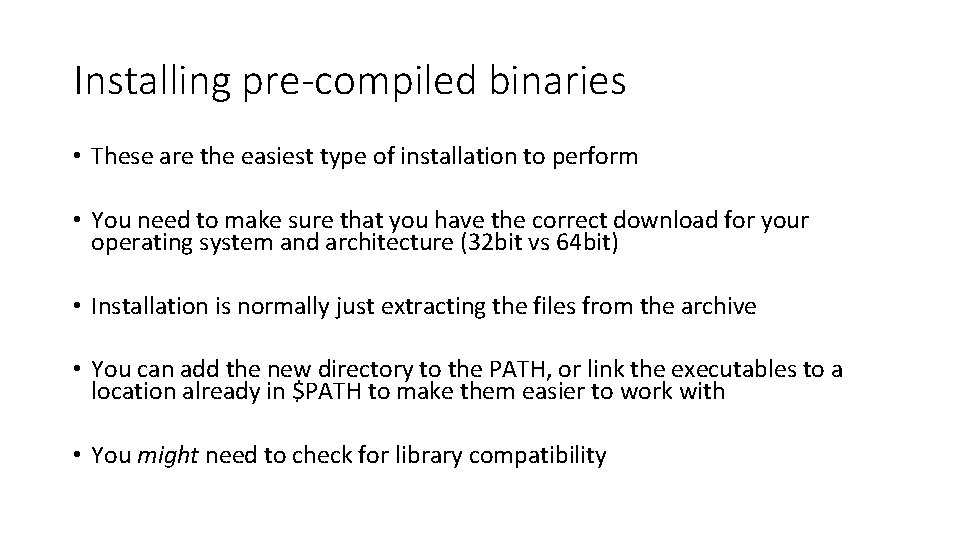
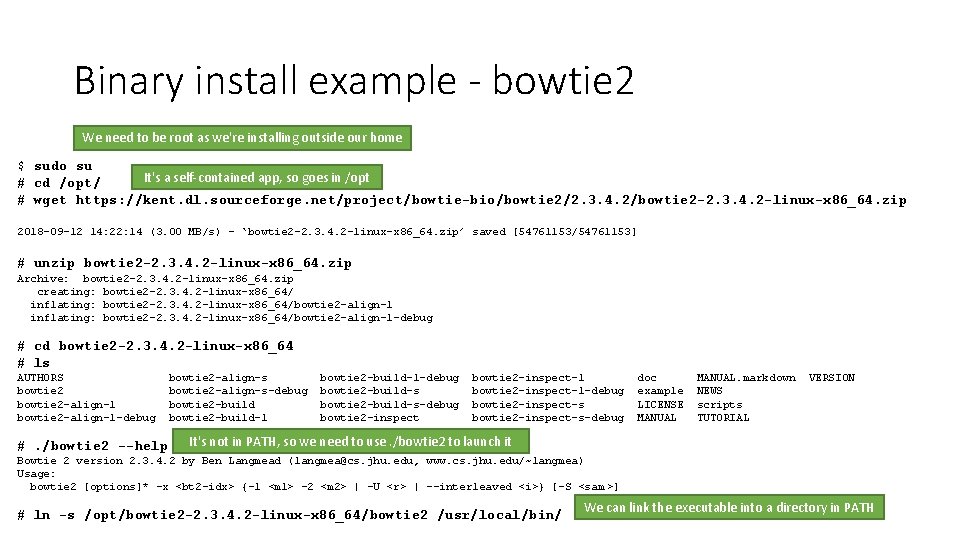
Installing pre-compiled binaries • These are the easiest type of installation to perform • You need to make sure that you have the correct download for your operating system and architecture (32 bit vs 64 bit) • Installation is normally just extracting the files from the archive • You can add the new directory to the PATH, or link the executables to a location already in $PATH to make them easier to work with • You might need to check for library compatibility
Some useful related functions • Downloading files from the internet via command line • Compression systems and archive files
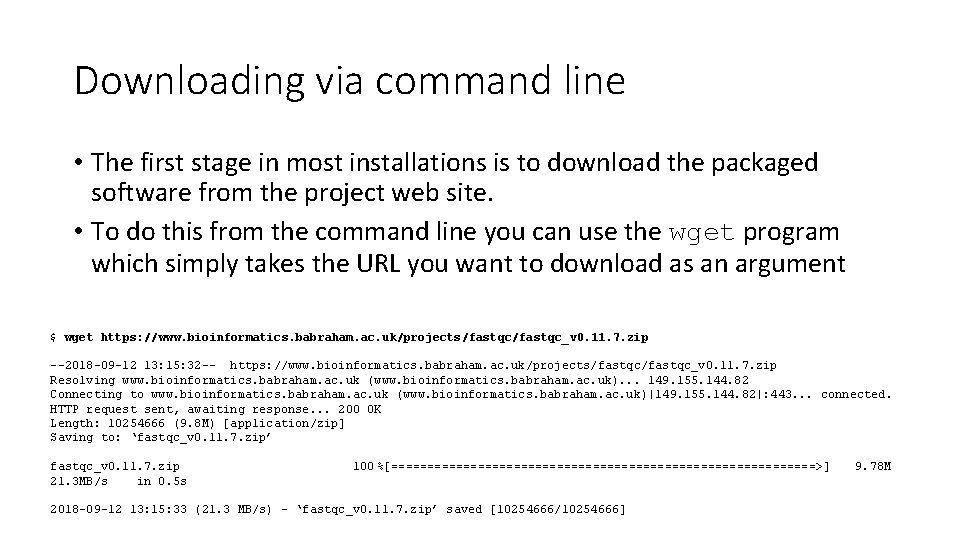
Downloading via command line • The first stage in most installations is to download the packaged software from the project web site. • To do this from the command line you can use the wget program which simply takes the URL you want to download as an argument $ wget https: //www. bioinformatics. babraham. ac. uk/projects/fastqc_v 0. 11. 7. zip --2018 -09 -12 13: 15: 32 -- https: //www. bioinformatics. babraham. ac. uk/projects/fastqc_v 0. 11. 7. zip Resolving www. bioinformatics. babraham. ac. uk (www. bioinformatics. babraham. ac. uk). . . 149. 155. 144. 82 Connecting to www. bioinformatics. babraham. ac. uk (www. bioinformatics. babraham. ac. uk)|149. 155. 144. 82|: 443. . . connected. HTTP request sent, awaiting response. . . 200 OK Length: 10254666 (9. 8 M) [application/zip] Saving to: ‘fastqc_v 0. 11. 7. zip’ fastqc_v 0. 11. 7. zip 21. 3 MB/s in 0. 5 s 100 %[==============================>] 2018 -09 -12 13: 15: 33 (21. 3 MB/s) - ‘fastqc_v 0. 11. 7. zip’ saved [10254666/10254666] 9. 78 M
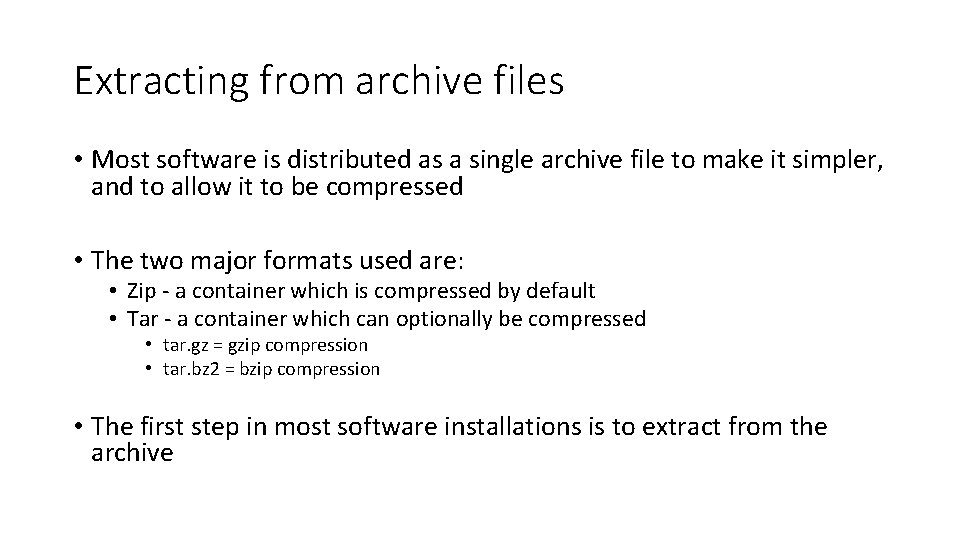
Extracting from archive files • Most software is distributed as a single archive file to make it simpler, and to allow it to be compressed • The two major formats used are: • Zip - a container which is compressed by default • Tar - a container which can optionally be compressed • tar. gz = gzip compression • tar. bz 2 = bzip compression • The first step in most software installations is to extract from the archive
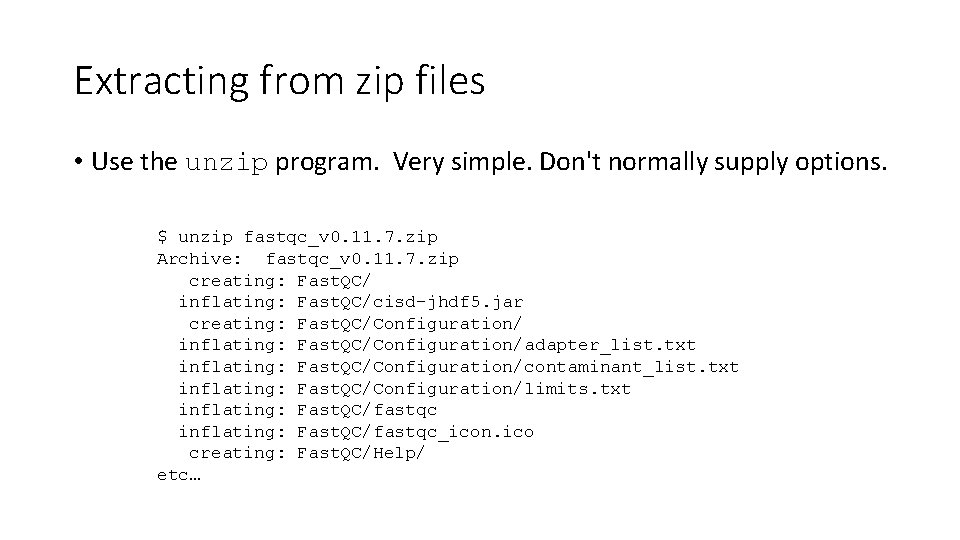
Extracting from zip files • Use the unzip program. Very simple. Don't normally supply options. $ unzip fastqc_v 0. 11. 7. zip Archive: fastqc_v 0. 11. 7. zip creating: Fast. QC/ inflating: Fast. QC/cisd-jhdf 5. jar creating: Fast. QC/Configuration/ inflating: Fast. QC/Configuration/adapter_list. txt inflating: Fast. QC/Configuration/contaminant_list. txt inflating: Fast. QC/Configuration/limits. txt inflating: Fast. QC/fastqc_icon. ico creating: Fast. QC/Help/ etc…
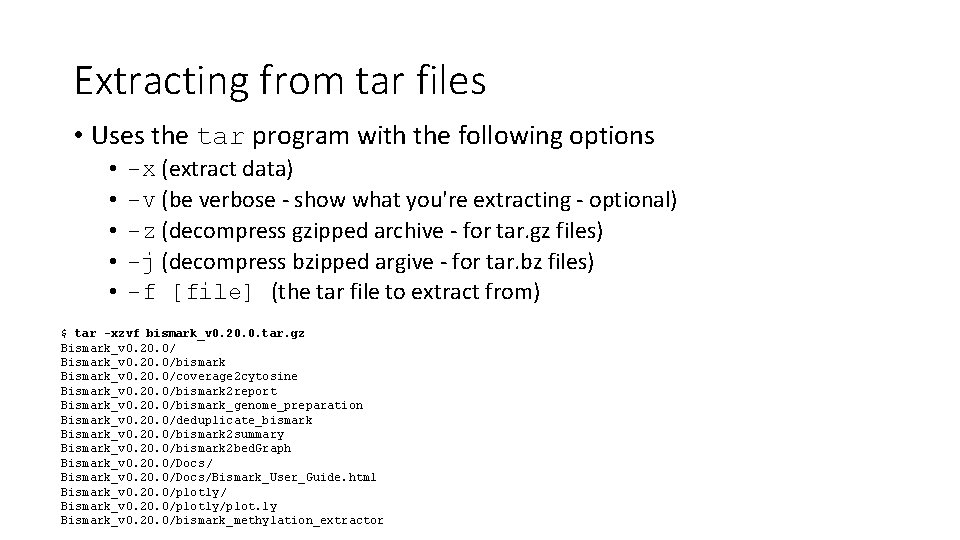
Extracting from tar files • Uses the tar program with the following options • • • -x (extract data) -v (be verbose - show what you're extracting - optional) -z (decompress gzipped archive - for tar. gz files) -j (decompress bzipped argive - for tar. bz files) -f [file] (the tar file to extract from) $ tar -xzvf bismark_v 0. 20. 0. tar. gz Bismark_v 0. 20. 0/bismark Bismark_v 0. 20. 0/coverage 2 cytosine Bismark_v 0. 20. 0/bismark 2 report Bismark_v 0. 20. 0/bismark_genome_preparation Bismark_v 0. 20. 0/deduplicate_bismark Bismark_v 0. 20. 0/bismark 2 summary Bismark_v 0. 20. 0/bismark 2 bed. Graph Bismark_v 0. 20. 0/Docs/Bismark_User_Guide. html Bismark_v 0. 20. 0/plotly/plot. ly Bismark_v 0. 20. 0/bismark_methylation_extractor
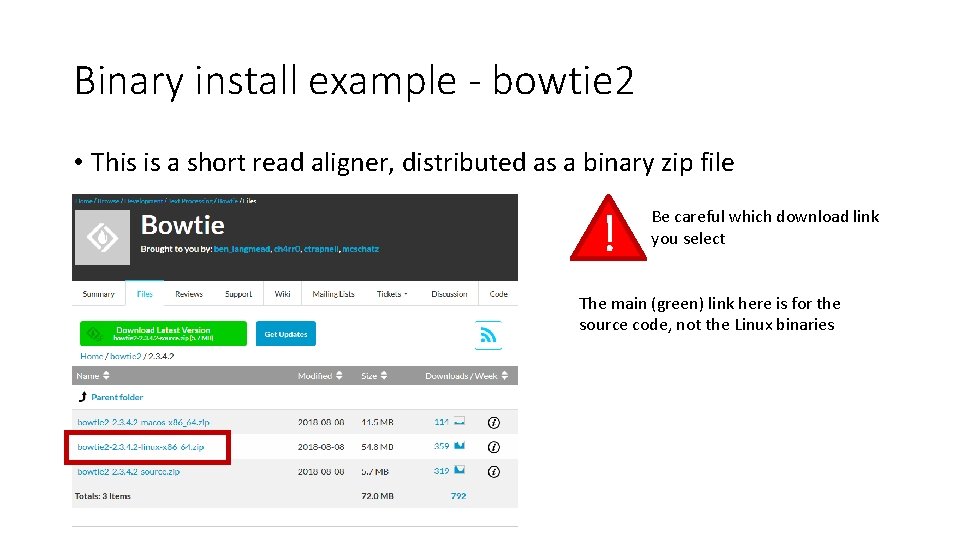
Binary install example - bowtie 2 • This is a short read aligner, distributed as a binary zip file ! Be careful which download link you select The main (green) link here is for the source code, not the Linux binaries
Binary install example - bowtie 2 We need to be root as we're installing outside our home $ sudo su It's a self-contained app, so goes in /opt # cd /opt/ # wget https: //kent. dl. sourceforge. net/project/bowtie-bio/bowtie 2/2. 3. 4. 2/bowtie 2 -2. 3. 4. 2 -linux-x 86_64. zip 2018 -09 -12 14: 22: 14 (3. 00 MB/s) - ‘bowtie 2 -2. 3. 4. 2 -linux-x 86_64. zip’ saved [54761153/54761153] # unzip bowtie 2 -2. 3. 4. 2 -linux-x 86_64. zip Archive: bowtie 2 -2. 3. 4. 2 -linux-x 86_64. zip creating: bowtie 2 -2. 3. 4. 2 -linux-x 86_64/ inflating: bowtie 2 -2. 3. 4. 2 -linux-x 86_64/bowtie 2 -align-l-debug # cd bowtie 2 -2. 3. 4. 2 -linux-x 86_64 # ls AUTHORS bowtie 2 -align-l-debug #. /bowtie 2 --help bowtie 2 -align-s-debug bowtie 2 -build-l-debug bowtie 2 -build-s-debug bowtie 2 -inspect-l-debug bowtie 2 -inspect-s-debug doc example LICENSE MANUAL. markdown NEWS scripts TUTORIAL VERSION It's not in PATH, so we need to use. /bowtie 2 to launch it Bowtie 2 version 2. 3. 4. 2 by Ben Langmead (langmea@cs. jhu. edu, www. cs. jhu. edu/~langmea) Usage: bowtie 2 [options]* -x <bt 2 -idx> {-1 <m 1> -2 <m 2> | -U <r> | --interleaved <i>} [-S <sam >] # ln -s /opt/bowtie 2 -2. 3. 4. 2 -linux-x 86_64/bowtie 2 /usr/local/bin/ We can link the executable into a directory in PATH
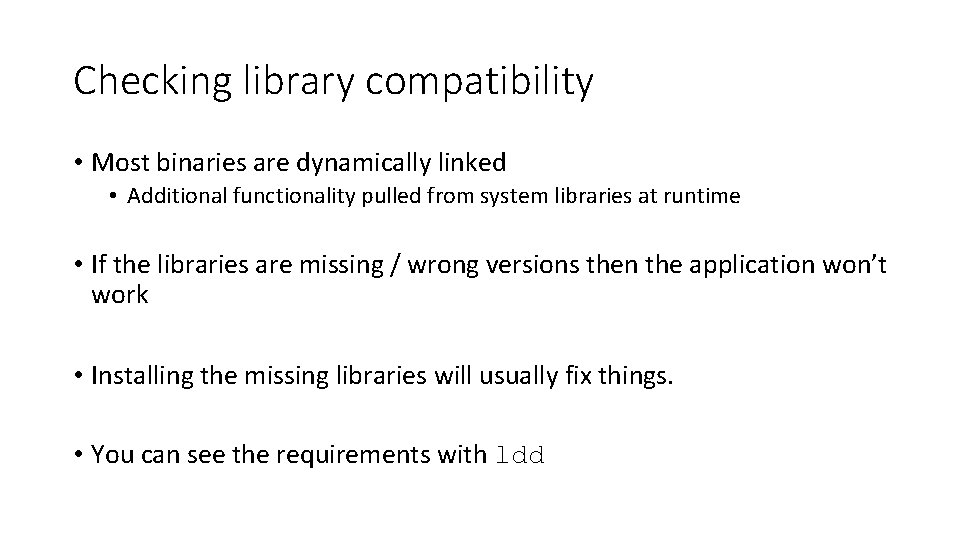
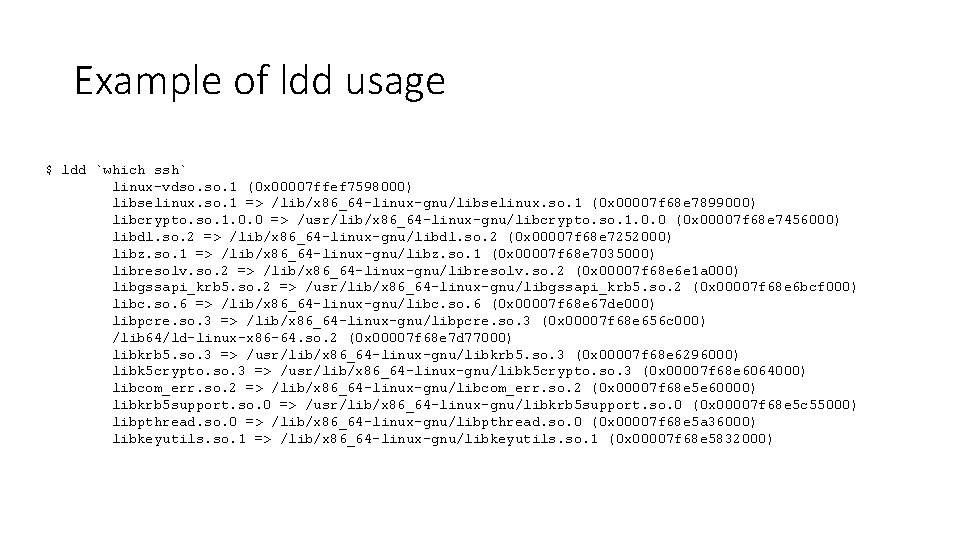
Checking library compatibility • Most binaries are dynamically linked • Additional functionality pulled from system libraries at runtime • If the libraries are missing / wrong versions then the application won’t work • Installing the missing libraries will usually fix things. • You can see the requirements with ldd
Example of ldd usage $ ldd `which ssh` linux-vdso. 1 (0 x 00007 ffef 7598000) libselinux. so. 1 => /lib/x 86_64 -linux-gnu/libselinux. so. 1 (0 x 00007 f 68 e 7899000) libcrypto. so. 1. 0. 0 => /usr/lib/x 86_64 -linux-gnu/libcrypto. so. 1. 0. 0 (0 x 00007 f 68 e 7456000) libdl. so. 2 => /lib/x 86_64 -linux-gnu/libdl. so. 2 (0 x 00007 f 68 e 7252000) libz. so. 1 => /lib/x 86_64 -linux-gnu/libz. so. 1 (0 x 00007 f 68 e 7035000) libresolv. so. 2 => /lib/x 86_64 -linux-gnu/libresolv. so. 2 (0 x 00007 f 68 e 6 e 1 a 000) libgssapi_krb 5. so. 2 => /usr/lib/x 86_64 -linux-gnu/libgssapi_krb 5. so. 2 (0 x 00007 f 68 e 6 bcf 000) libc. so. 6 => /lib/x 86_64 -linux-gnu/libc. so. 6 (0 x 00007 f 68 e 67 de 000) libpcre. so. 3 => /lib/x 86_64 -linux-gnu/libpcre. so. 3 (0 x 00007 f 68 e 656 c 000) /lib 64/ld-linux-x 86 -64. so. 2 (0 x 00007 f 68 e 7 d 77000) libkrb 5. so. 3 => /usr/lib/x 86_64 -linux-gnu/libkrb 5. so. 3 (0 x 00007 f 68 e 6296000) libk 5 crypto. so. 3 => /usr/lib/x 86_64 -linux-gnu/libk 5 crypto. so. 3 (0 x 00007 f 68 e 6064000) libcom_err. so. 2 => /lib/x 86_64 -linux-gnu/libcom_err. so. 2 (0 x 00007 f 68 e 5 e 60000) libkrb 5 support. so. 0 => /usr/lib/x 86_64 -linux-gnu/libkrb 5 support. so. 0 (0 x 00007 f 68 e 5 c 55000) libpthread. so. 0 => /lib/x 86_64 -linux-gnu/libpthread. so. 0 (0 x 00007 f 68 e 5 a 36000) libkeyutils. so. 1 => /lib/x 86_64 -linux-gnu/libkeyutils. so. 1 (0 x 00007 f 68 e 5832000)
Installing script files • Some software is written as cross-platform scripts. • These are distributed as source code, but do not need to be compiled to run. They are written in interpreted languages such as perl, python, ruby etc. • Installation is similar to that for binary executables
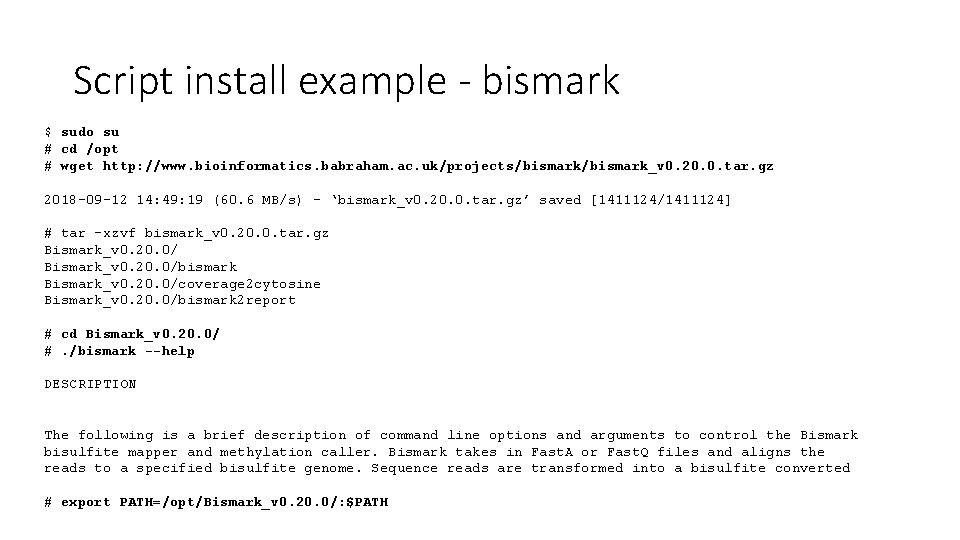
Script install example - bismark $ sudo su # cd /opt # wget http: //www. bioinformatics. babraham. ac. uk/projects/bismark_v 0. 20. 0. tar. gz 2018 -09 -12 14: 49: 19 (60. 6 MB/s) - ‘bismark_v 0. 20. 0. tar. gz’ saved [1411124/1411124] # tar -xzvf bismark_v 0. 20. 0. tar. gz Bismark_v 0. 20. 0/bismark Bismark_v 0. 20. 0/coverage 2 cytosine Bismark_v 0. 20. 0/bismark 2 report # cd Bismark_v 0. 20. 0/ #. /bismark --help DESCRIPTION The following is a brief description of command line options and arguments to control the Bismark bisulfite mapper and methylation caller. Bismark takes in Fast. A or Fast. Q files and aligns the reads to a specified bisulfite genome. Sequence reads are transformed into a bisulfite converted # export PATH=/opt/Bismark_v 0. 20. 0/: $PATH
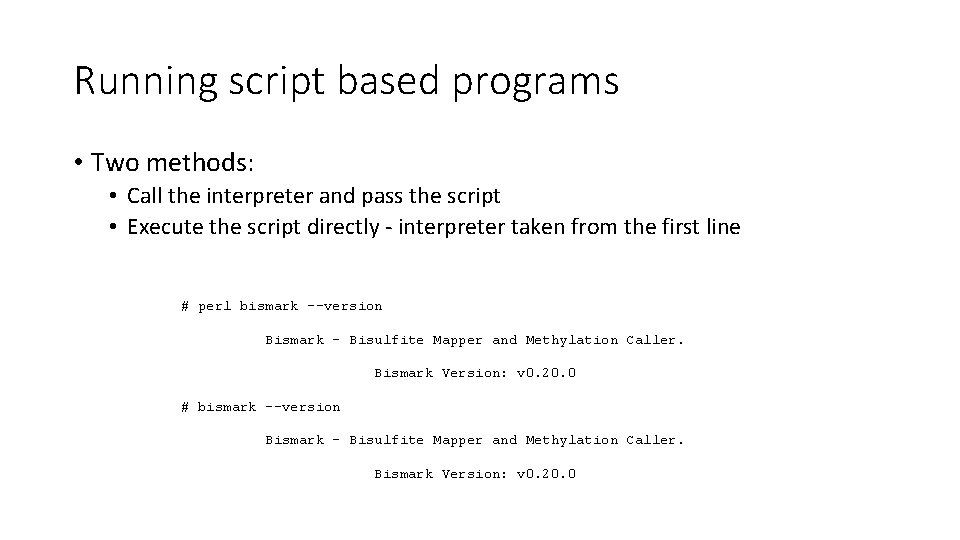
Running script based programs • Two methods: • Call the interpreter and pass the script • Execute the script directly - interpreter taken from the first line # perl bismark --version Bismark - Bisulfite Mapper and Methylation Caller. Bismark Version: v 0. 20. 0 # bismark --version Bismark - Bisulfite Mapper and Methylation Caller. Bismark Version: v 0. 20. 0
Script 'shebang' lines • The first line of a script file starts with #![interpreter] • If your interpreter is in a different location you can edit the first line • You can also use the env program to take the first instance from your PATH #!/usr/bin/perl #!/opt/perl_5. 28. 0/bin/perl #!/usr/bin/env perl
Exercise 8
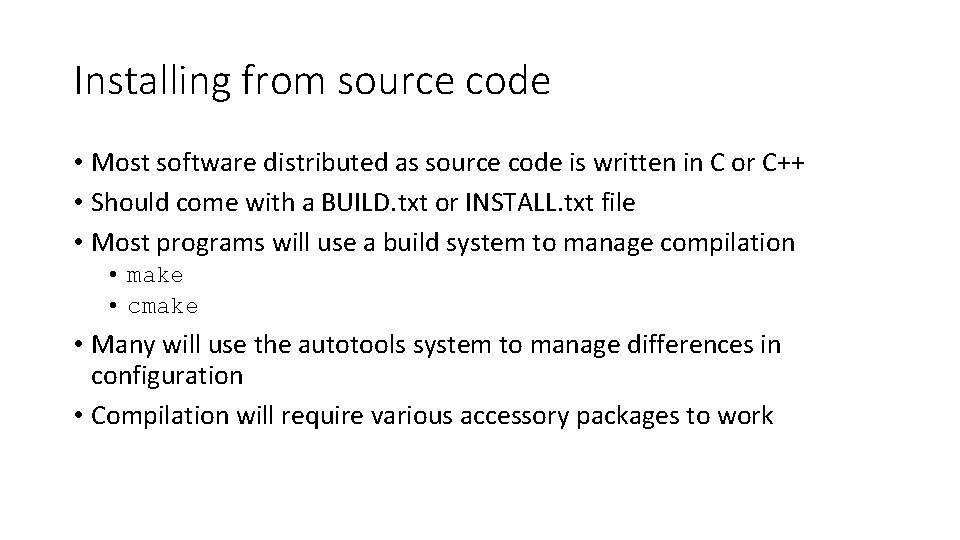
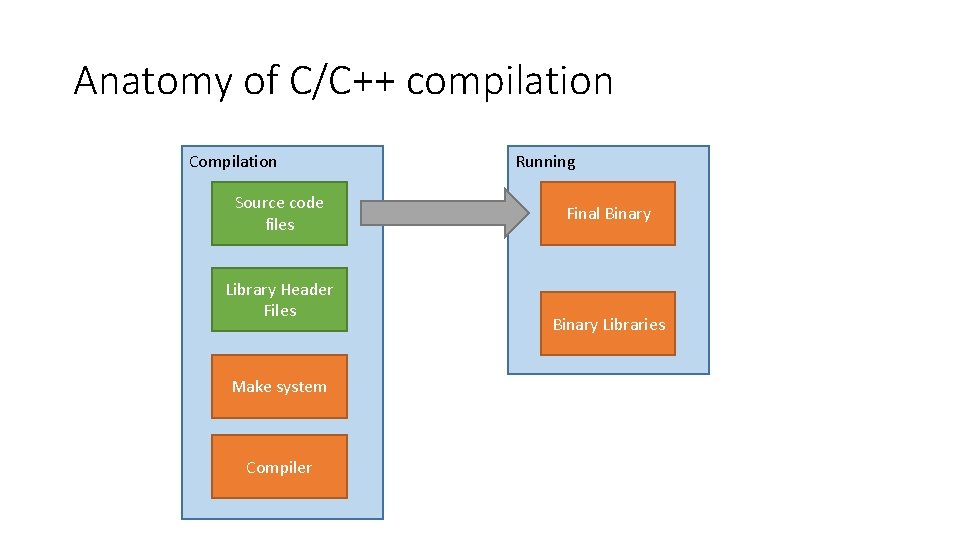
Installing from source code • Most software distributed as source code is written in C or C++ • Should come with a BUILD. txt or INSTALL. txt file • Most programs will use a build system to manage compilation • make • cmake • Many will use the autotools system to manage differences in configuration • Compilation will require various accessory packages to work
Anatomy of C/C++ compilation Compilation Source code files Library Header Files Make system Compiler Running Final Binary Libraries
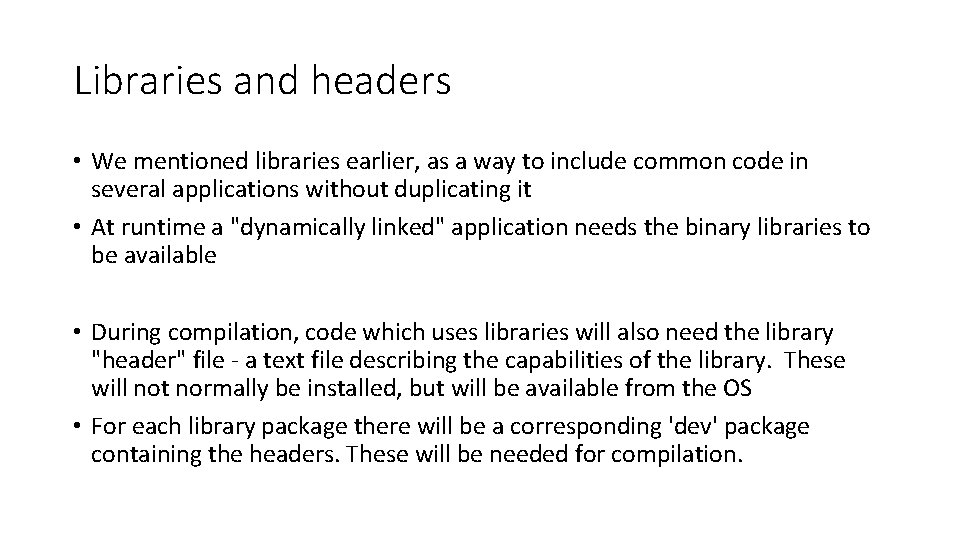
Libraries and headers • We mentioned libraries earlier, as a way to include common code in several applications without duplicating it • At runtime a "dynamically linked" application needs the binary libraries to be available • During compilation, code which uses libraries will also need the library "header" file - a text file describing the capabilities of the library. These will not normally be installed, but will be available from the OS • For each library package there will be a corresponding 'dev' package containing the headers. These will be needed for compilation.
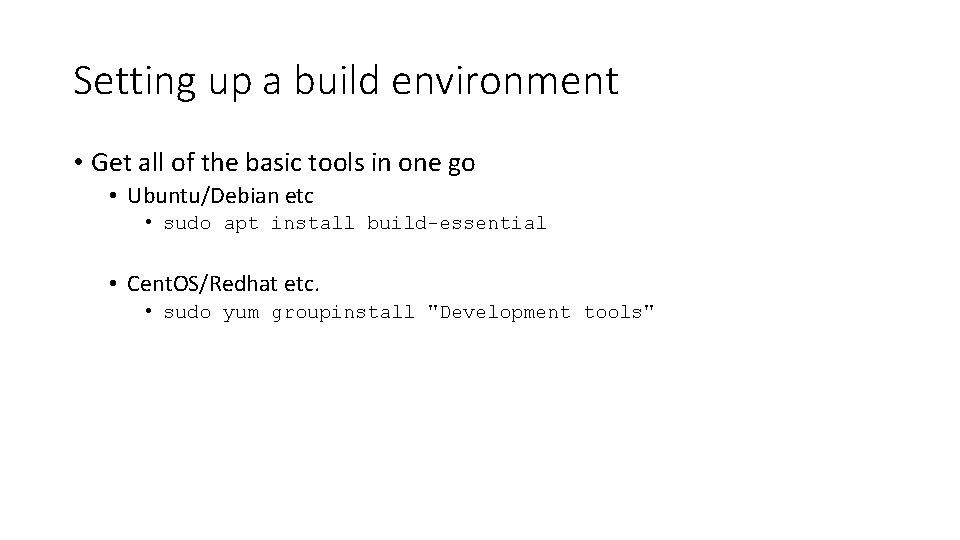
Setting up a build environment • Get all of the basic tools in one go • Ubuntu/Debian etc • sudo apt install build-essential • Cent. OS/Redhat etc. • sudo yum groupinstall "Development tools"
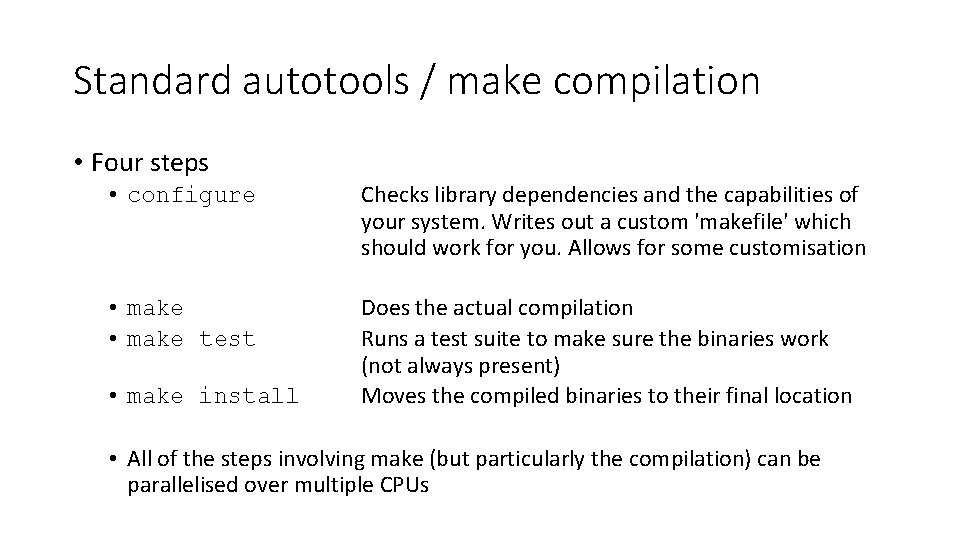
Standard autotools / make compilation • Four steps • configure Checks library dependencies and the capabilities of your system. Writes out a custom 'makefile' which should work for you. Allows for some customisation • make test Does the actual compilation Runs a test suite to make sure the binaries work (not always present) Moves the compiled binaries to their final location • make install • All of the steps involving make (but particularly the compilation) can be parallelised over multiple CPUs
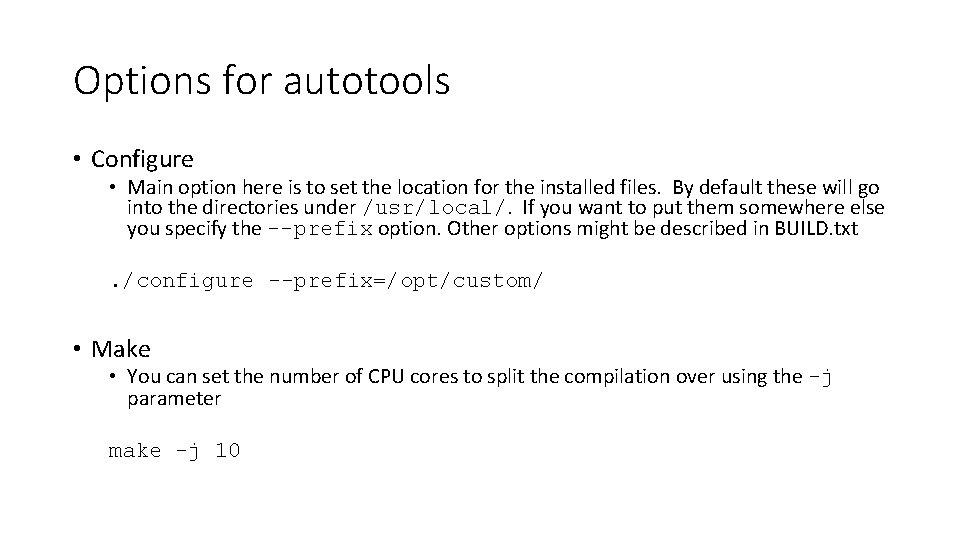
Options for autotools • Configure • Main option here is to set the location for the installed files. By default these will go into the directories under /usr/local/. If you want to put them somewhere else you specify the --prefix option. Other options might be described in BUILD. txt. /configure --prefix=/opt/custom/ • Make • You can set the number of CPU cores to split the compilation over using the -j parameter make -j 10
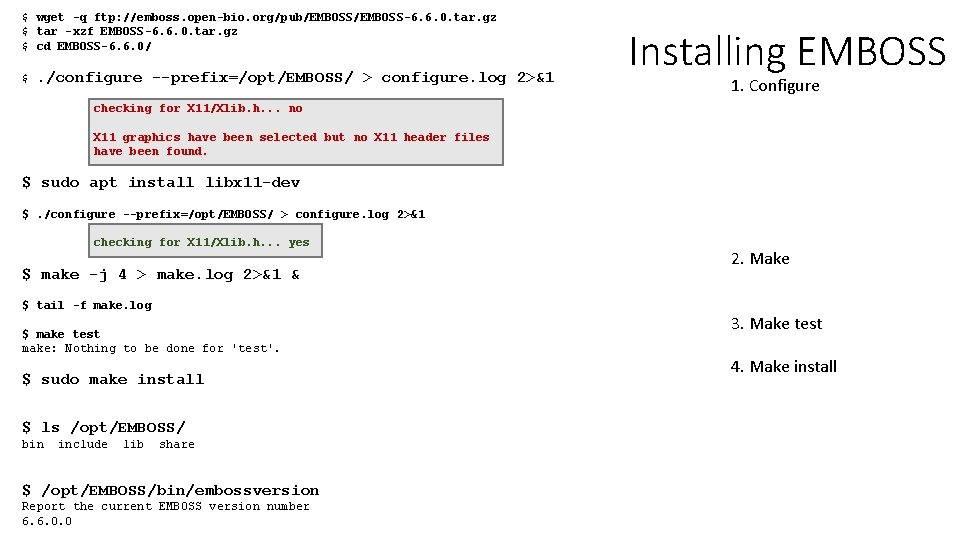
$ wget -q ftp: //emboss. open-bio. org/pub/EMBOSS-6. 6. 0. tar. gz $ tar -xzf EMBOSS-6. 6. 0. tar. gz $ cd EMBOSS-6. 6. 0/ $ . /configure --prefix=/opt/EMBOSS/ > configure. log 2>&1 Installing EMBOSS 1. Configure checking for X 11/Xlib. h. . . no X 11 graphics have been selected but no X 11 header files have been found. $ sudo apt install libx 11 -dev $. /configure --prefix=/opt/EMBOSS/ > configure. log 2>&1 checking for X 11/Xlib. h. . . yes $ make -j 4 > make. log 2>&1 & $ tail -f make. log $ make test make: Nothing to be done for 'test'. $ sudo make install $ ls /opt/EMBOSS/ bin include lib share $ /opt/EMBOSS/bin/embossversion Report the current EMBOSS version number 6. 6. 0. 0 2. Make 3. Make test 4. Make install
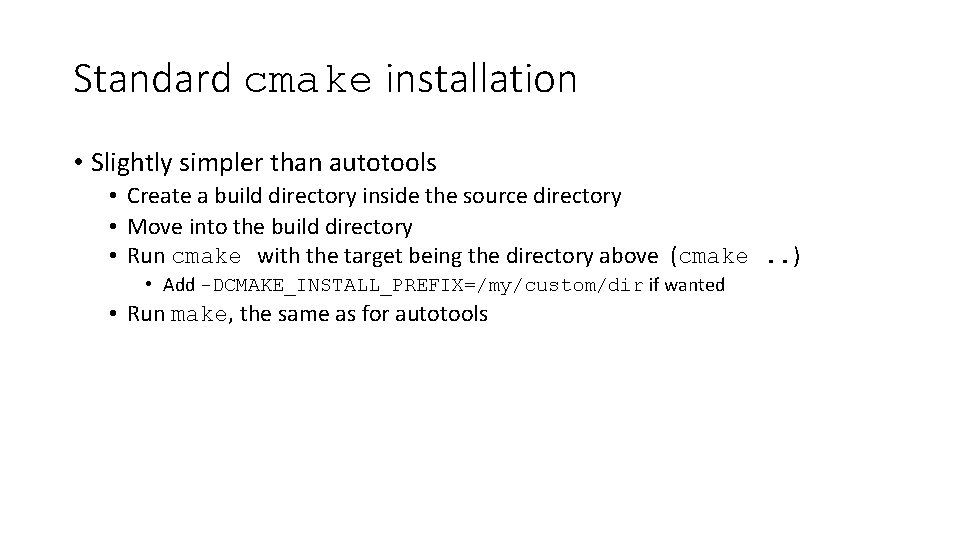
Standard cmake installation • Slightly simpler than autotools • Create a build directory inside the source directory • Move into the build directory • Run cmake with the target being the directory above (cmake. . ) • Add -DCMAKE_INSTALL_PREFIX=/my/custom/dir if wanted • Run make, the same as for autotools
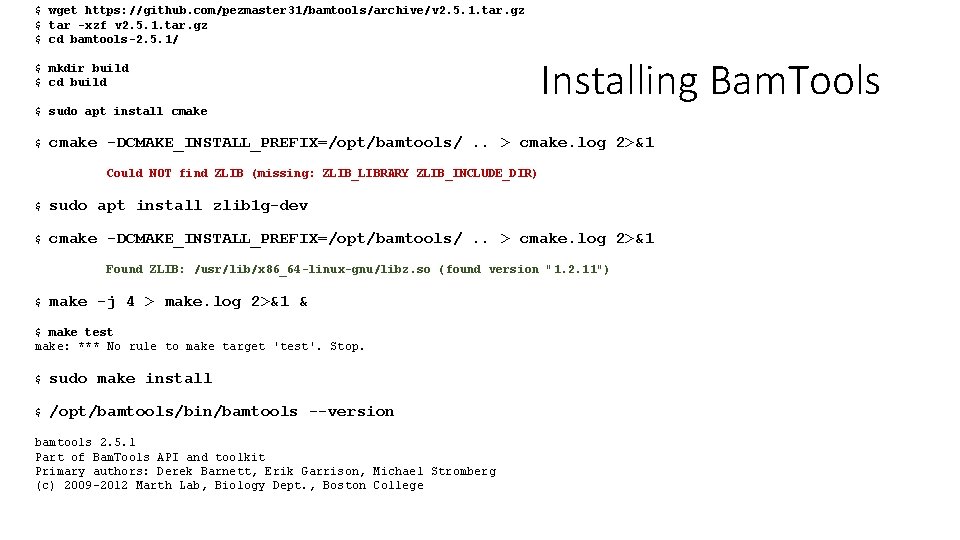
$ wget https: //github. com/pezmaster 31/bamtools/archive/v 2. 5. 1. tar. gz $ tar -xzf v 2. 5. 1. tar. gz $ cd bamtools-2. 5. 1/ $ mkdir build $ cd build $ sudo apt install cmake $ Installing Bam. Tools cmake -DCMAKE_INSTALL_PREFIX=/opt/bamtools/. . > cmake. log 2>&1 Could NOT find ZLIB (missing: ZLIB_LIBRARY ZLIB_INCLUDE_DIR) $ sudo apt install zlib 1 g-dev $ cmake -DCMAKE_INSTALL_PREFIX=/opt/bamtools/. . > cmake. log 2>&1 Found ZLIB: /usr/lib/x 86_64 -linux-gnu/libz. so (found version "1. 2. 11") $ make -j 4 > make. log 2>&1 & $ make test make: *** No rule to make target 'test'. Stop. $ sudo make install $ /opt/bamtools/bin/bamtools --version bamtools 2. 5. 1 Part of Bam. Tools API and toolkit Primary authors: Derek Barnett, Erik Garrison, Michael Stromberg (c) 2009 -2012 Marth Lab, Biology Dept. , Boston College
Exercise 9