
Installing ADDS roleDomain controller Click manage server manager
- Slides: 8
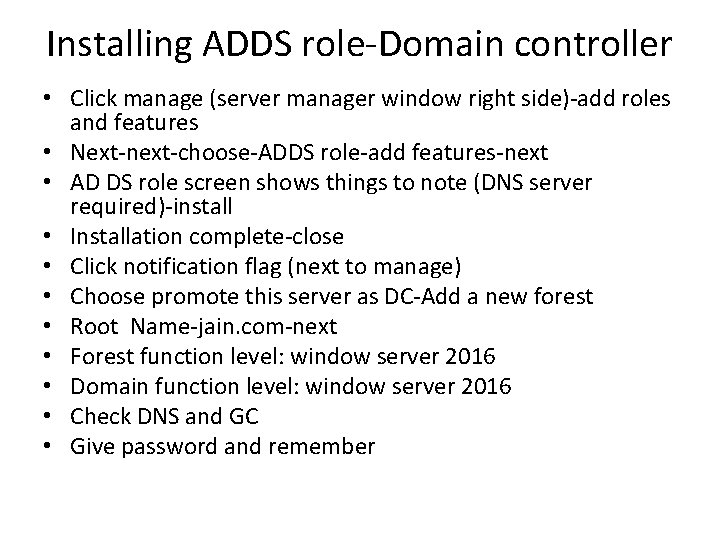
Installing ADDS role-Domain controller • Click manage (server manager window right side)-add roles and features • Next-next-choose-ADDS role-add features-next • AD DS role screen shows things to note (DNS server required)-install • Installation complete-close • Click notification flag (next to manage) • Choose promote this server as DC-Add a new forest • Root Name-jain. com-next • Forest function level: window server 2016 • Domain function level: window server 2016 • Check DNS and GC • Give password and remember
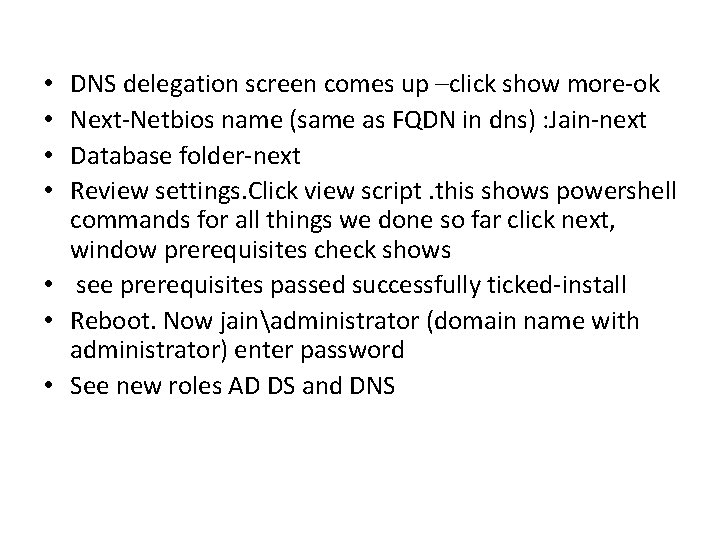
DNS delegation screen comes up –click show more-ok Next-Netbios name (same as FQDN in dns) : Jain-next Database folder-next Review settings. Click view script. this shows powershell commands for all things we done so far click next, window prerequisites check shows • see prerequisites passed successfully ticked-install • Reboot. Now jainadministrator (domain name with administrator) enter password • See new roles AD DS and DNS • •
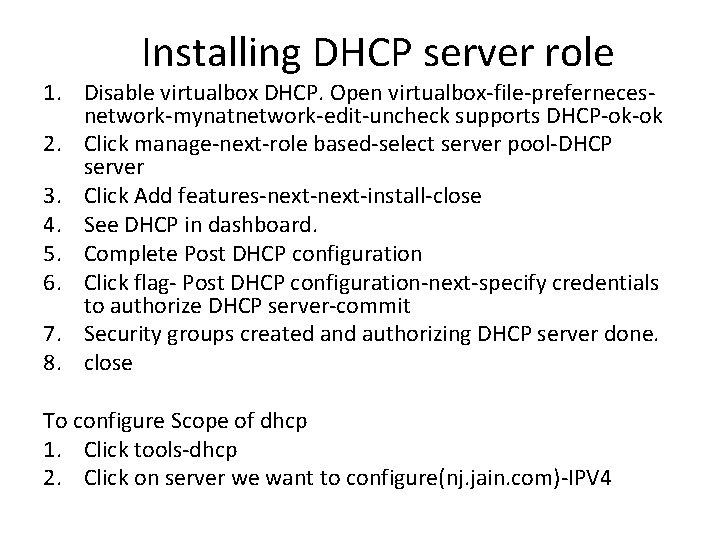
Installing DHCP server role 1. Disable virtualbox DHCP. Open virtualbox-file-prefernecesnetwork-mynatnetwork-edit-uncheck supports DHCP-ok-ok 2. Click manage-next-role based-select server pool-DHCP server 3. Click Add features-next-install-close 4. See DHCP in dashboard. 5. Complete Post DHCP configuration 6. Click flag- Post DHCP configuration-next-specify credentials to authorize DHCP server-commit 7. Security groups created and authorizing DHCP server done. 8. close To configure Scope of dhcp 1. Click tools-dhcp 2. Click on server we want to configure(nj. jain. com)-IPV 4
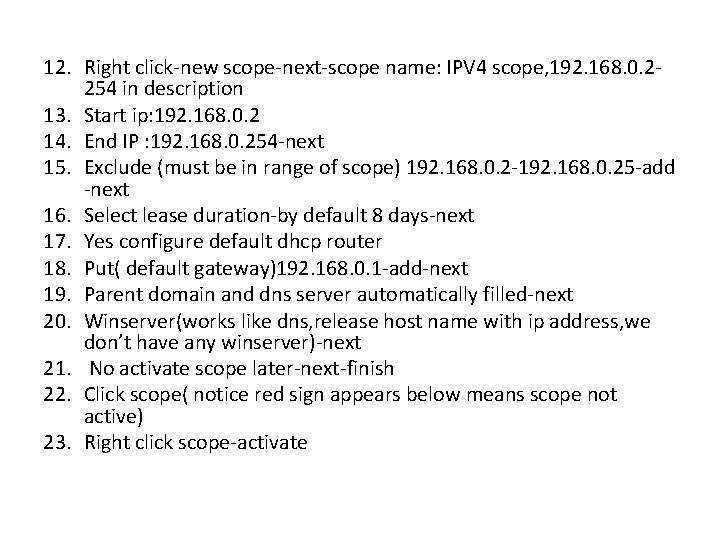
12. Right click-new scope-next-scope name: IPV 4 scope, 192. 168. 0. 2254 in description 13. Start ip: 192. 168. 0. 2 14. End IP : 192. 168. 0. 254 -next 15. Exclude (must be in range of scope) 192. 168. 0. 2 -192. 168. 0. 25 -add -next 16. Select lease duration-by default 8 days-next 17. Yes configure default dhcp router 18. Put( default gateway)192. 168. 0. 1 -add-next 19. Parent domain and dns server automatically filled-next 20. Winserver(works like dns, release host name with ip address, we don’t have any winserver)-next 21. No activate scope later-next-finish 22. Click scope( notice red sign appears below means scope not active) 23. Right click scope-activate
DNS manager 1. 2. 3. 4. 5. 6. 7. 8. Click tools-dns Select forward zone-right click-new zone Primary zone, tick store in AD Select to all dns servers running on DC in this domain -next Zone name: mytest zone-allow secure dynamic updates-finish Reverse lookup zone-enter same as forward zone Network id: 192. 168. 0 as that is my dns server-next-finish Resource record
Install Active Directory Certificate Services • In Server Manager, click Manage, and then click Add Roles and Features. • In Before You Begin, click Next. • In Select Installation Type, ensure that Role-Based or feature-based installation is selected, and then click Next. • In Select destination server, ensure that Select a server from the server pool is selected. In Server Pool, ensure that the local computer is selected. Click Next. • In Select Server Roles, in Roles, select Active Directory Certificate Services. When you are prompted to add required features, click Add Features, and then click Next. • In Select features, click Next. • In Active Directory Certificate Services, read the provided information, and then click Next. • In Confirm installation selections, click Install. Do not close the wizard during the installation process. When installation is complete, click Configure Active Directory Certificate Services on the destination server. The AD CS Configuration wizard opens. Read the credentials information and, if needed, provide the credentials for an account that is a member of the Enterprise Admins group. Click Next.
• In Role Services, click Certification Authority, and then click Next. • On the Setup Type page, verify that Enterprise CA is selected, and then click Next. • On the Specify the type of the CA page, verify that Root CA is selected, and then click Next. • On the Specify the type of the private key page, verify that Create a new private key is selected, and then click Next. • On the Cryptography for CA page, keep the default settings for CSP (RSA#Microsoft Software Key Storage Provider) and hash algorithm (SHA 2), and determine the best key character length for your deployment. Large key character lengths provide optimal security; however, they can impact server performance and might not be compatible with legacy applications. It is recommended that you keep the default setting of 2048. Click Next.
• On the CA Name page, keep the suggested common name for the CA or change the name according to your requirements. Ensure that you are certain the CA name is compatible with your naming conventions and purposes, because you cannot change the CA name after you have installed AD CS. Click Next. • On the Validity Period page, in Specify the validity period, type the number and select a time value (Years, Months, Weeks, or Days). The default setting of five years is recommended. Click Next. • On the CA Database page, in Specify the database locations, specify the folder location for the certificate database and the certificate database log. If you specify locations other than the default locations, ensure that the folders are secured with access control lists (ACLs) that prevent unauthorized users or computers from accessing the CA database and log files. Click Next. • In Confirmation, click Configure to apply your selections, and then click Close.