
Installation of virtual box Virtual Box This documentation
Installation of virtual box
Virtual Box This documentation and training is provided to you by beas gmbh. The documents are neither approved nor in any way acknowledged or endorsed by SAP. For SAP Business One, only the documentation and training officially released by SAP shall be binding upon SAP shall not be responsible for any content of this documentation and training and this documentation and training shall not be binding upon SAP in any way. The official current SAP Business One documentation and training for SAP Business One is available at http: //service. sap. com/sbocustomer/documentation and http: //service. sap. com/sbocustomer/training. © beas 2009 / Page 2
Learning targets After working through the lesson, you will be able to: n Setup and manage virtual machines © beas 2009 / Page 3
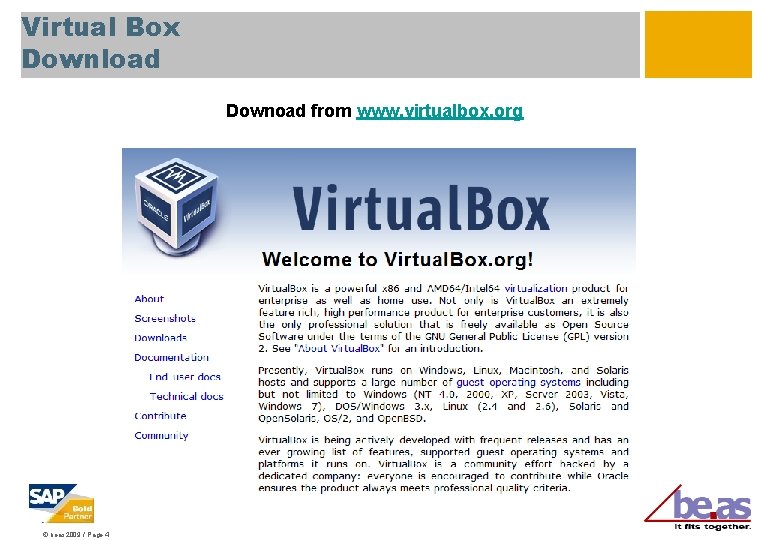
Virtual Box Download Downoad from www. virtualbox. org © beas 2009 / Page 4
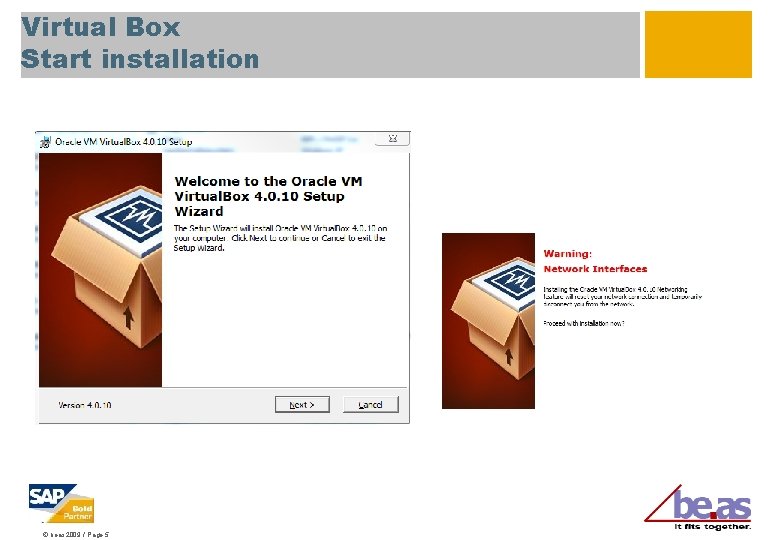
Virtual Box Start installation © beas 2009 / Page 5
Virtual Box Security queries • Windows will ask if you, if Virtual Box may install hardware drivers ( USB, network) – please allow this • For communication between virtual machine and the host a network is created: allow access to that network. • If you have a firewall installed, define the new Virtual Box network as secure or trusted • For using USB 2 you need to download and install the extension pack (one click installation) © beas 2009 / Page 6
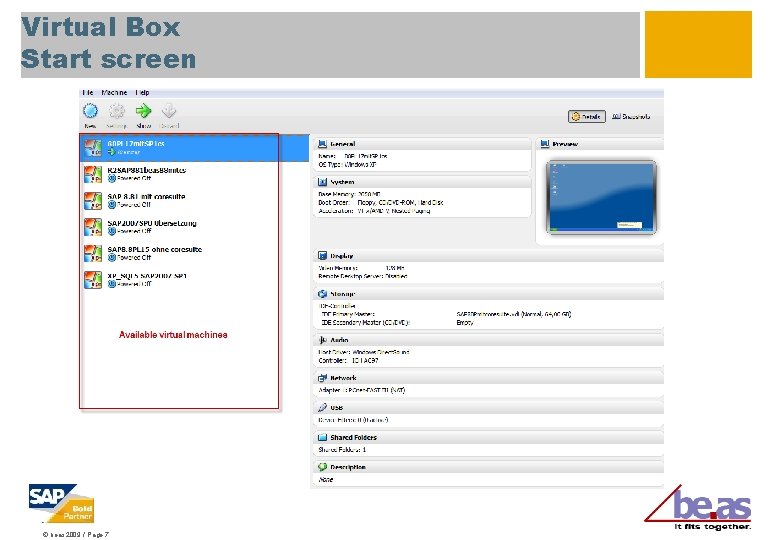
Virtual Box Start screen © beas 2009 / Page 7
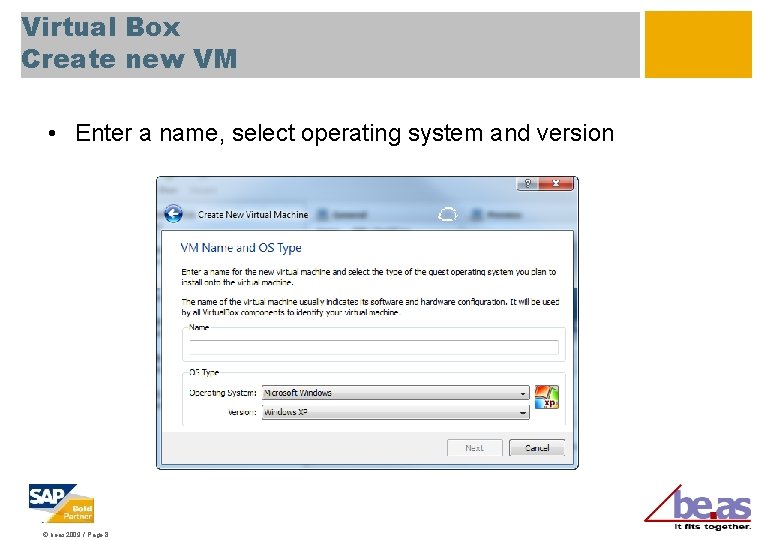
Virtual Box Create new VM • Enter a name, select operating system and version © beas 2009 / Page 8

Virtual Box Create new VM • Allocate memory to the VM (is removed from total physical memory of the host system and assigned firmly) • Minimum 1500 MB is required, 2000 MB recommended • Assign number of processors to VM (usually one is enough) • Enable hardware accelleration © beas 2009 / Page 9
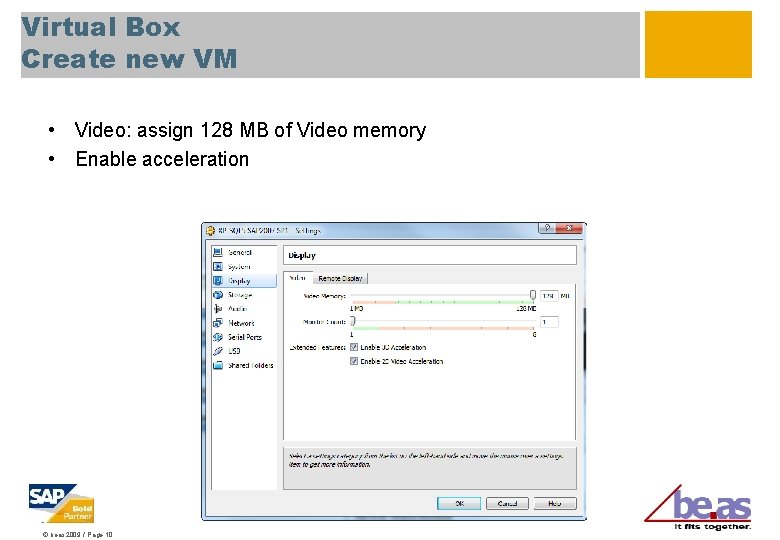
Virtual Box Create new VM • Video: assign 128 MB of Video memory • Enable acceleration © beas 2009 / Page 10
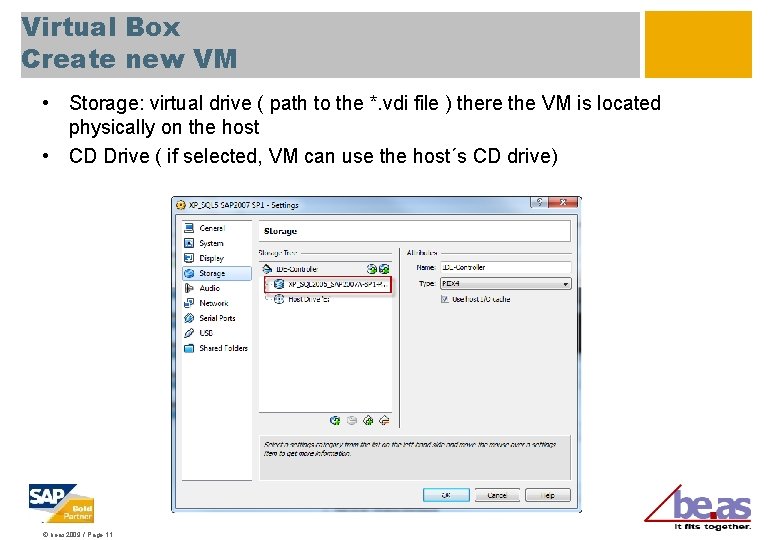
Virtual Box Create new VM • Storage: virtual drive ( path to the *. vdi file ) there the VM is located physically on the host • CD Drive ( if selected, VM can use the host´s CD drive) © beas 2009 / Page 11
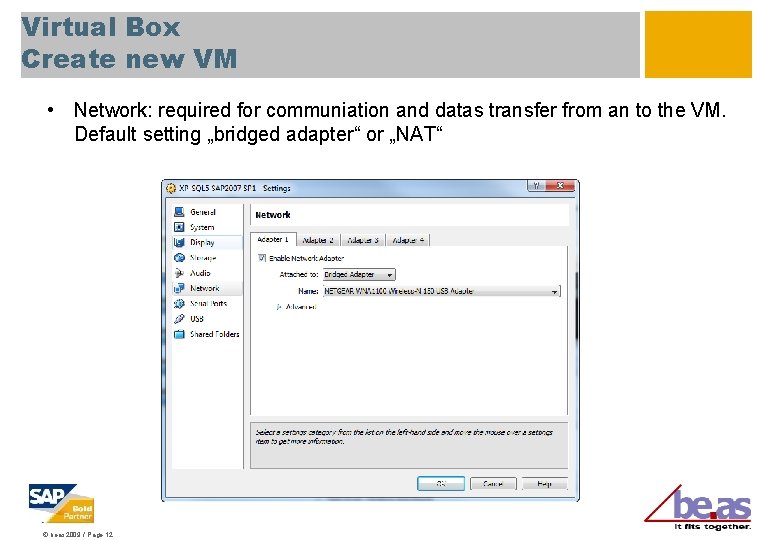
Virtual Box Create new VM • Network: required for communiation and datas transfer from an to the VM. Default setting „bridged adapter“ or „NAT“ © beas 2009 / Page 12
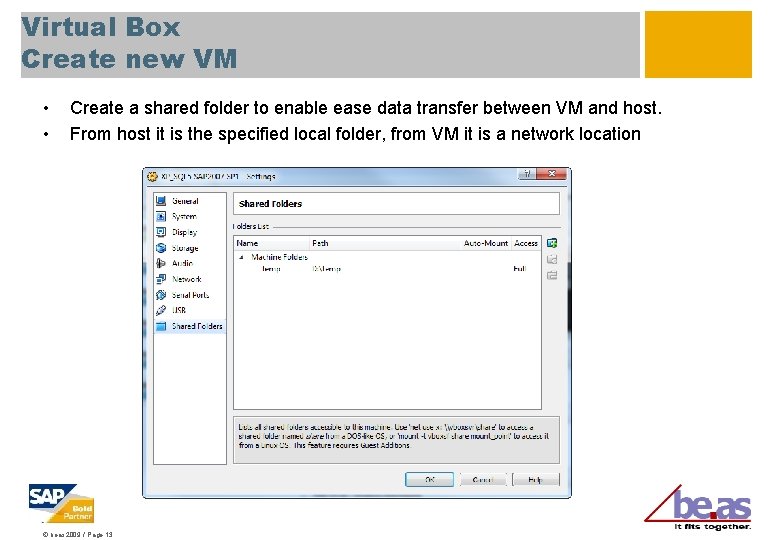
Virtual Box Create new VM • • Create a shared folder to enable ease data transfer between VM and host. From host it is the specified local folder, from VM it is a network location © beas 2009 / Page 13
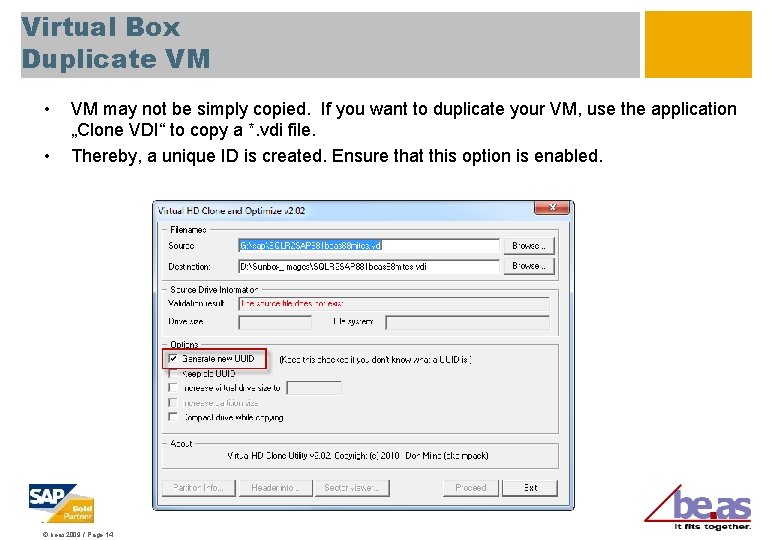
Virtual Box Duplicate VM • • VM may not be simply copied. If you want to duplicate your VM, use the application „Clone VDI“ to copy a *. vdi file. Thereby, a unique ID is created. Ensure that this option is enabled. © beas 2009 / Page 14
Thank you for your cooperation!
- Slides: 15