
Installation Configuration and Maintenance of Web Sphere Application
Installation, Configuration and Maintenance of Web. Sphere Application Server 8. 5 ESIS Consulting LLC (C) ESIS Consulting LLC. All rights reserved
Section 2 Installation, Configuration and Maintenance
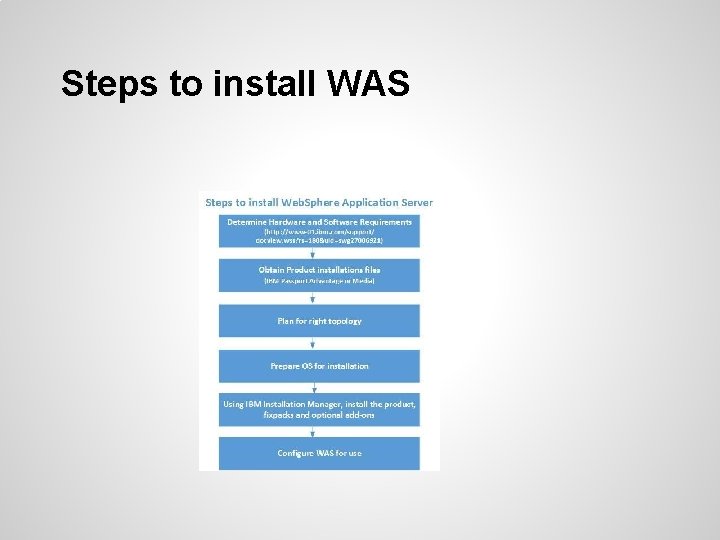
Installation process overview ● Determine software and hardware prerequisites ● Obtain product installation files from IBM Passport advantage site or local media ● Plan for the right topology ● Prepare the OS for installation ● Using IBM Installation Manager, install the product and any optional components. Update to the latest fix pack possible ● Configure the product for use http: //www-01. ibm. com/support/docview. wss? rs=180&uid=swg 27006921
Steps to install WAS
Choosing topology Questions to ask: 1. Where will you place the DMGR ? 2. How many ‘hosts’ are in your cell ? 3. Do you need Flexible management ? (i. e) Do you need to install Job Manager and Administrative Agents ? 4. Do you need a Web Server ? Where is it located ? (i. e) DMZ or LAN
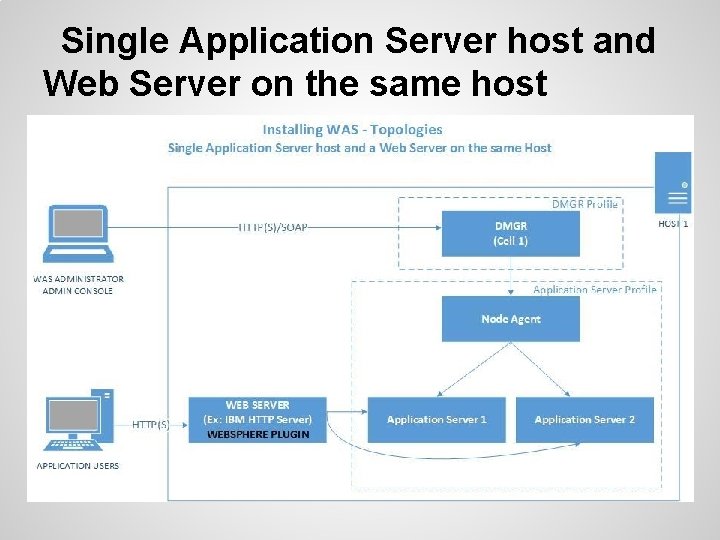
Single Application Server host and Web Server on the same host
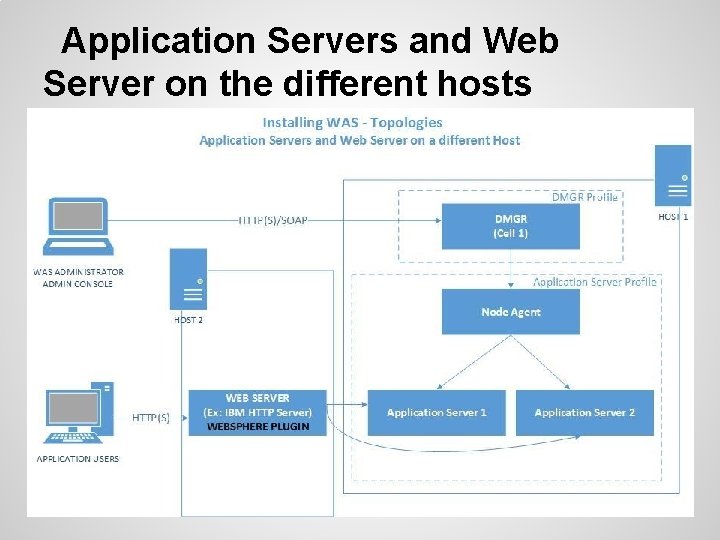
Application Servers and Web Server on the different hosts
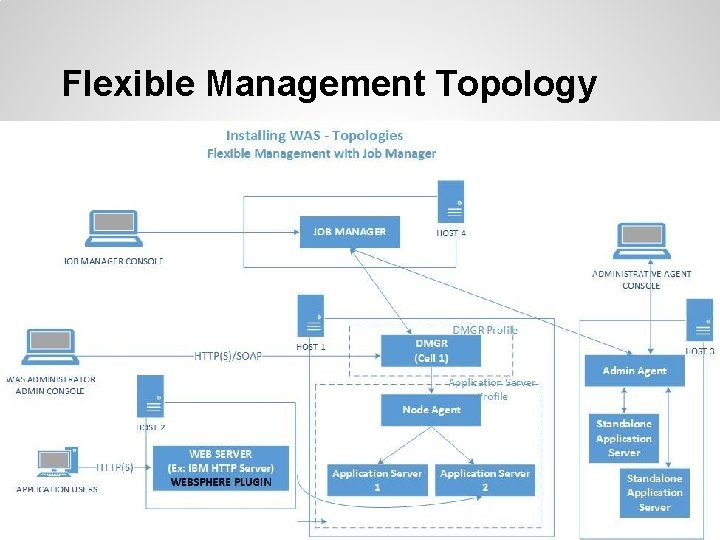
Flexible Management Topology
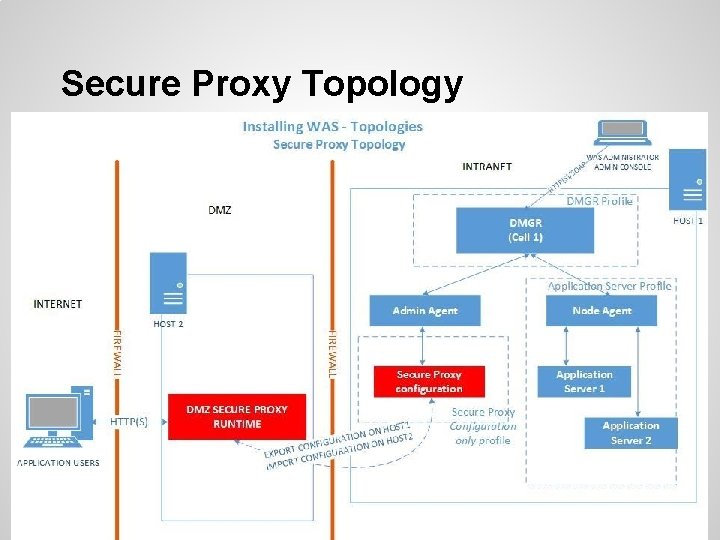
Secure Proxy Topology
Prepare Operating System ● Ensure sufficient disk space exists ● Ensure Operating System Patches meet the requirements ● Ensure WAS will be installed in a SINGLE File system (i. e the files cannot span file systems) ● If you are going to be installing as administrator/root, ensure you have necessary passwords ● Make sure the host name is resolvable using dns or local hosts files.
IBM Installation Manager ● A Tool to centrally manage installing, updating and uninstalling range of Web. Sphere products ● Can use local or remote file repositories ● Can connect to IBM website to query latest fix packs ● Three modes: GUI, Command Line, Silent install ● Can be installed by an Administrator (root) or a regular user (non root)
IBM Installation Manager Cont. . . ● Software product that can be installed with Installation manager is referred to as Package ● Each package has a 'install location' and 'product level' ● Package group consists of packages that are installed in a single location ● Packages are stored in flat file repositories that contain meta data and product binaries
IBM Installation Manager Cont. . . ● Using IBM Packaging utility, you can create custom repositories for installing through Installation manager ● For example, you can combine Web. Sphere Application Server, fix pack files and Web Server Plugin in one custom repository ● Installation Manager can install any fix pack without installation any interim levels ● Obtain the Installation Manager from IBM Passport Advantage, media or from IBM download site
Install IBM Installation Manager ● Obtain the software; unzip if required ● Run the 'install' command follow prompts ● Three modes for install: Admin, User, Group ● Group Mode is not available on Windows ● You can install IBM Installation manager silently using 'installc' command
Add repositories to Installation manager ● You can use Web Based repositories if your computer has internet access ● For local repositories (typical), obtain the software binaries and store them in a directory locally ● Each product will have a file named repository. config ● In Installation manager GUI, click File>Preferences->Repositories->Add repository to select the repository. config file
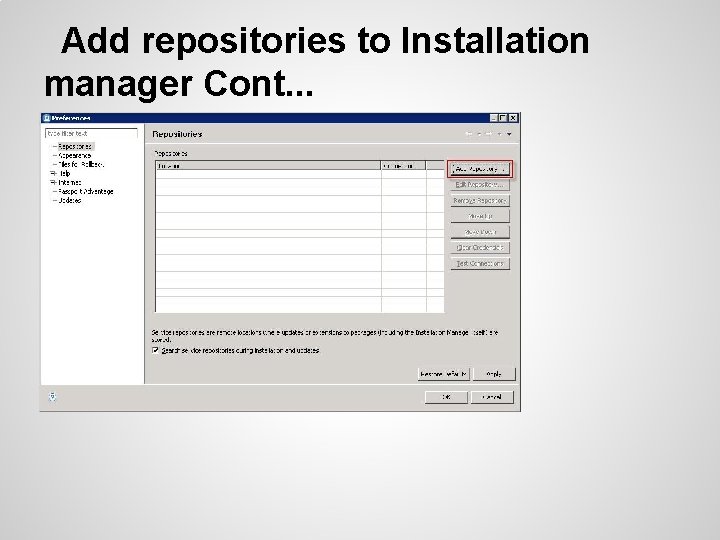
Add repositories to Installation manager Cont. . .
Installing WAS using GUI ● Start the IBM Installation Manager o You can use the shortcut created during install or use IBMIM command ● Click 'install' ● IBM Installation manager searches the repositories configured and displays the available packages to install ● Select "IBM Web. Sphere Application Server Network Deployment" and appropriate version
Installing WAS using GUI Cont. . . ● Accept the license agreement ● Choose the root directory for the product install ● If this is the first time you are installing a package, specify the shared resources directory (this is where artifacts that are common to one or more package groups are stored) ● Select "Web. Sphere Application Server Full Profile"
Installing WAS using GUI Cont. . . ● Optionally select EJB Deploy Tool, Sample Applications and Standalone clients ● If you are installing on a 64 bit architecture, option to install 32 bit or 64 bit Java 6. 0 SDK is provided ● Optionally install Web. Sphere Application Server Liberty Profile - A lightweight Application Server profile suited for fast development and simplified configuration ● Review summary and click Install
Installing WAS using GUI Cont. . . ● You can choose to view the install log file at the end ● You can choose to run the profile management tool to start creating and managing profiles ● Click Finish ● If you need to view the log file, click File -> View Log
Installing silently using response file ● You can install the product silently using response files ● Response files can be generated using the GUI or you can manually create them ● To install silently, use the command <install manager home>/eclipse/tools/imcl. exe accept. License input <response file> -log <logfile> ● To record a response file, use the command IBMIM. exe -record response. File skip. Install agent. Data. Location
Installing silently using response file Cont. . . ● While creating the response file, you can choose the directory location, options to install etc ● Ensure that all product disk directories are on the same parent directory (i. e the install process should not prompt for inserting disk) ● Once the installation is successful, you can proceed with creating and managing profiles
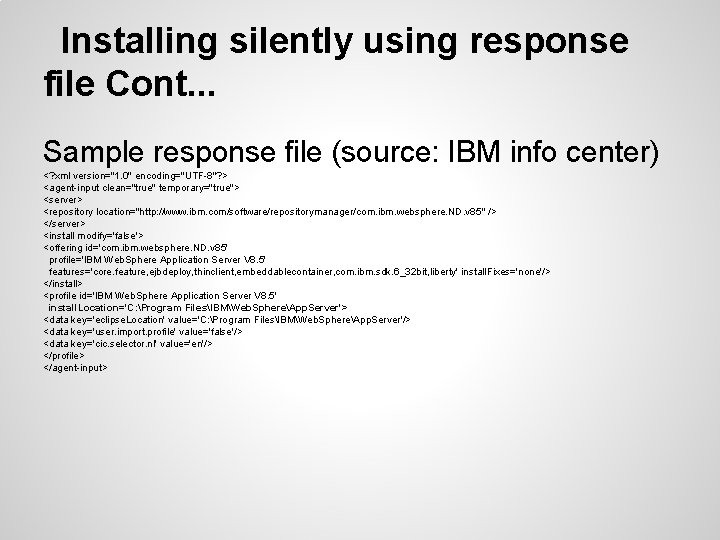
Installing silently using response file Cont. . . Sample response file (source: IBM info center) <? xml version="1. 0" encoding="UTF-8"? > <agent-input clean="true" temporary="true"> <server> <repository location="http: //www. ibm. com/software/repositorymanager/com. ibm. websphere. ND. v 85" /> </server> <install modify='false'> <offering id='com. ibm. websphere. ND. v 85' profile='IBM Web. Sphere Application Server V 8. 5' features='core. feature, ejbdeploy, thinclient, embeddablecontainer, com. ibm. sdk. 6_32 bit, liberty' install. Fixes='none'/> </install> <profile id='IBM Web. Sphere Application Server V 8. 5' install. Location='C: Program FilesIBMWeb. SphereApp. Server'> <data key='eclipse. Location' value='C: Program FilesIBMWeb. SphereApp. Server'/> <data key='user. import. profile' value='false'/> <data key='cic. selector. nl' value='en'/> </profile> </agent-input>
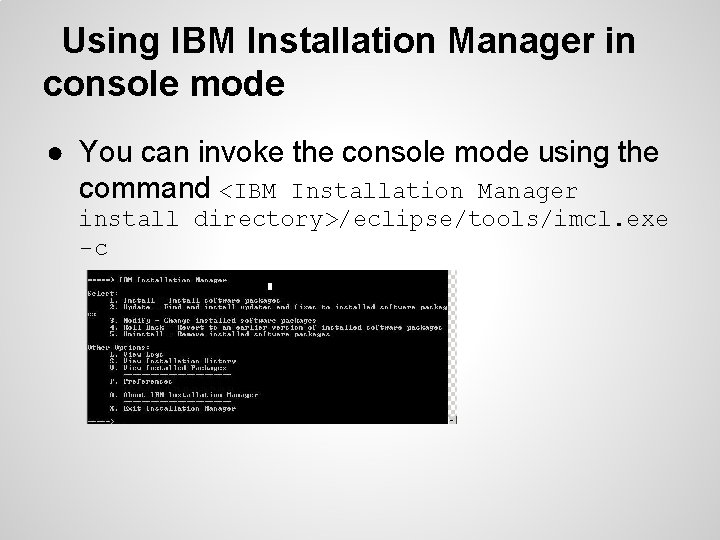
Using IBM Installation Manager in console mode ● You can invoke the console mode using the command <IBM Installation Manager install directory>/eclipse/tools/imcl. exe -c
Installation verification ● The installver command used in Websphere 7 and prior has been replaced by the verification capabilities of IBM Installation Manager ● Start the IBM Installation manager, click File -> view installed packages to verify successfully installed packages ● The file 'installed. xml' should contain a 'location' element. (Example: <WAS Root>/properties/version/installe d. xml)
Creating and Managing profiles ● Profiles define the runtime environment for WAS. Multiple profiles share the same product binaries ● At least one profile must exist to have a working application serving environment ● Two ways to create and manage profiles o Profile Creation Tool (GUI) o manageprofiles command ● You can start the profile creation tool GUI using the shortcuts created during install
Creating and Managing Nodes ● You can create managed or unmanaged node using WAS Admin Console or using add. Node command. Managed node is the one that is federated to a Cell ● By default nodes belong to default node group and default core group ● On Windows, managed nodes can be configured to run as Windows Service ● You can use as. Existing. Node option of add. Node command to recover a damaged Node
Creating and Managing Nodes Cont. . . ● You can start a node using the command start. Node ● You can stop a node using the command stop. Node ● You can stop and restart a node using Admin Console. You cannot start a node using Admin Console that is already stopped
Backup and restore configuration ● Configuration is automatically backed up whenever a change occurs (such as adding a node). The default backup direcotry is <profile root>/config/backup ● Use <profile root>/bin/backup. Config command to backup configuration ● Use <profile root>/bin/restore. Config command to restore configuration
- Slides: 29