
Inspections Overview We will review how to create

- Slides: 7
Inspections Overview We will review how to create inspection records on customers, and how to generate the inspection tickets for them in the service module. We will cover • How to create an inspection record • When the next inspection can be generated • The different ways an inspection can be billed • Adding inspection reports • How to generate an inspection ticket Webinar date: 6/1/2017 Presented By: Jesslynn
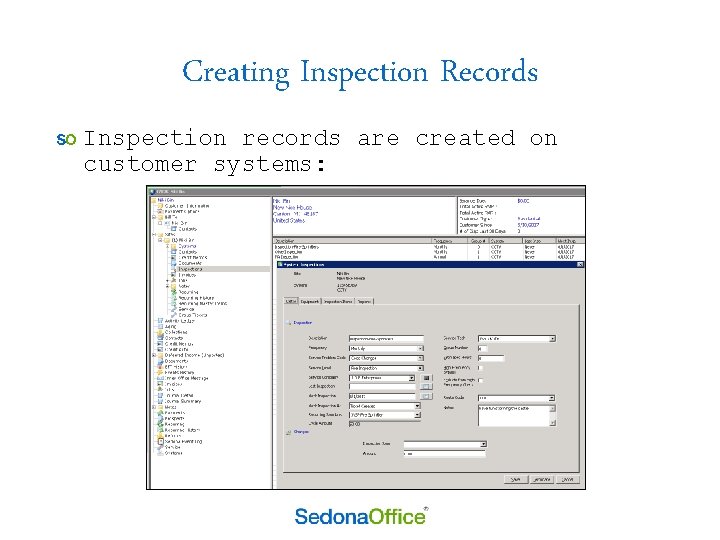
Creating Inspection Records Inspection records are created on customer systems:
4 Ways to Advance the Next Inspection Date The Next Inspection At field controls when the Next Inspection date field updates. But it does not control what that date will be updated to. For example, for a monthly inspection due June 1 st, the next inspection date will be July 1 st. What you are telling the system is when you want the date to change to July 1 st. Do you want it to update… When the June ticket is created? – Select Ticket Created (this is the default). When an appointment is added to the June ticket? – Select Ticket Scheduled. When the June ticket is resolved? – Select Ticket Resolved. When the June ticket is closed? – Select Ticket Closed This is important because the July 1 st inspection ticket cannot be generated until the next inspection date is updated to July 1 st.
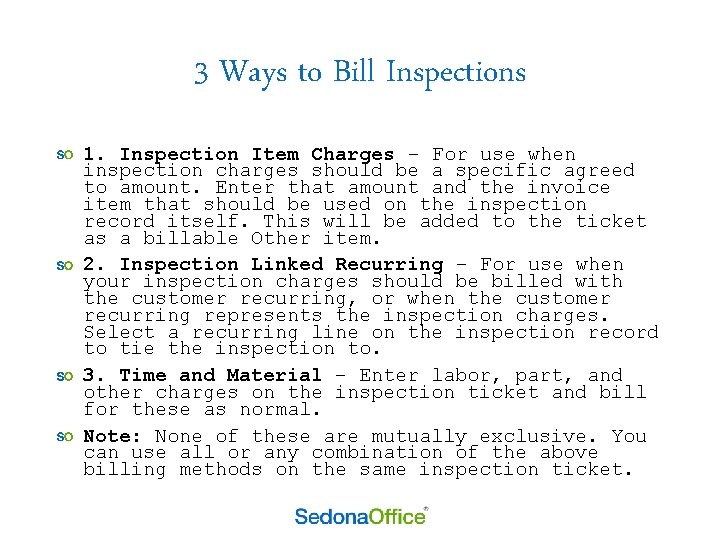
3 Ways to Bill Inspections 1. Inspection Item Charges – For use when inspection charges should be a specific agreed to amount. Enter that amount and the invoice item that should be used on the inspection record itself. This will be added to the ticket as a billable Other item. 2. Inspection Linked Recurring – For use when your inspection charges should be billed with the customer recurring, or when the customer recurring represents the inspection charges. Select a recurring line on the inspection record to tie the inspection to. 3. Time and Material – Enter labor, part, and other charges on the inspection ticket and bill for these as normal. Note: None of these are mutually exclusive. You can use all or any combination of the above billing methods on the same inspection ticket.
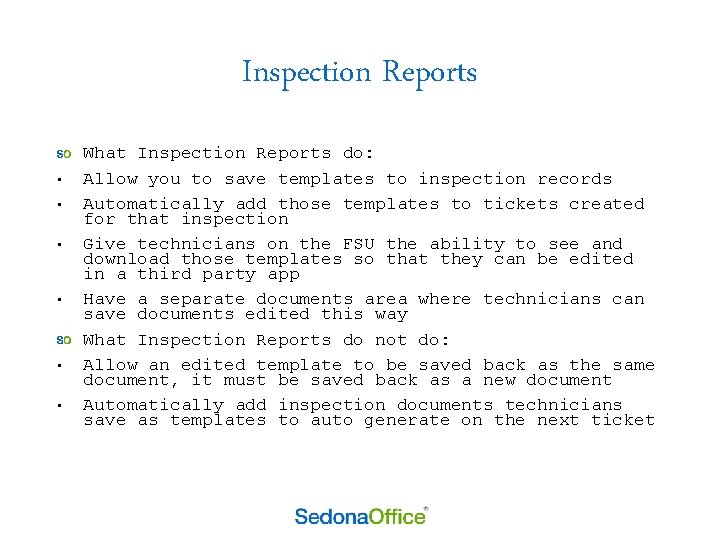
Inspection Reports • • • What Inspection Reports do: Allow you to save templates to inspection records Automatically add those templates to tickets created for that inspection Give technicians on the FSU the ability to see and download those templates so that they can be edited in a third party app Have a separate documents area where technicians can save documents edited this way What Inspection Reports do not do: Allow an edited template to be saved back as the same document, it must be saved back as a new document Automatically add inspection documents technicians save as templates to auto generate on the next ticket
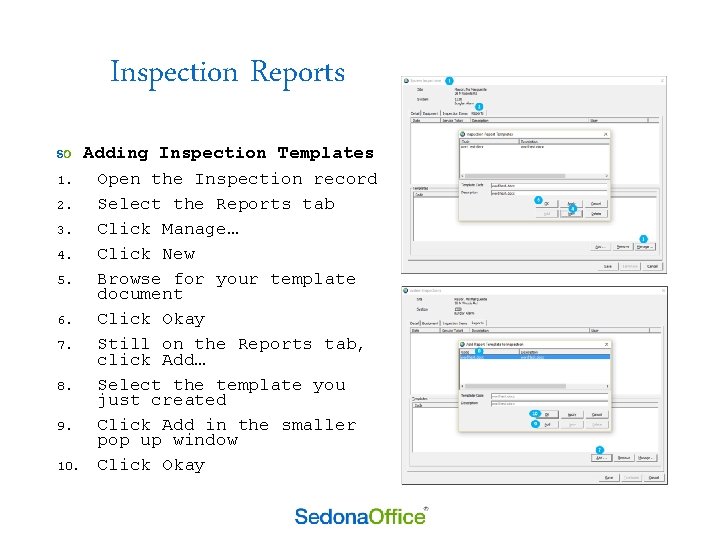
Inspection Reports Adding Inspection Templates 1. Open the Inspection record 2. Select the Reports tab 3. Click Manage… 4. Click New 5. Browse for your template document 6. Click Okay 7. Still on the Reports tab, click Add… 8. Select the template you just created 9. Click Add in the smaller pop up window 10. Click Okay
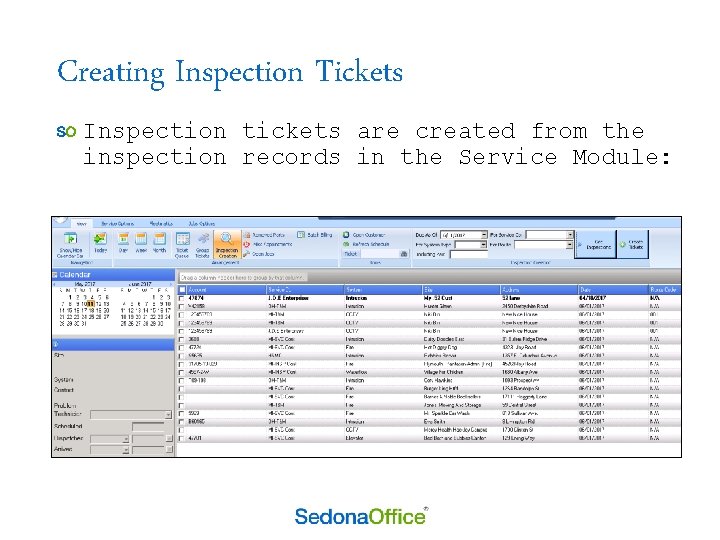
Creating Inspection Tickets Inspection tickets are created from the inspection records in the Service Module: