
Inserting Tables Microsoft Office 2010 Overview of Organizing
Inserting Tables Microsoft Office 2010 ®
Overview of Organizing Information in Tables New Perspectives on Microsoft Word 2010 XP 2
Overview of Organizing Information in Tables New Perspectives on Microsoft Word 2010 XP 3
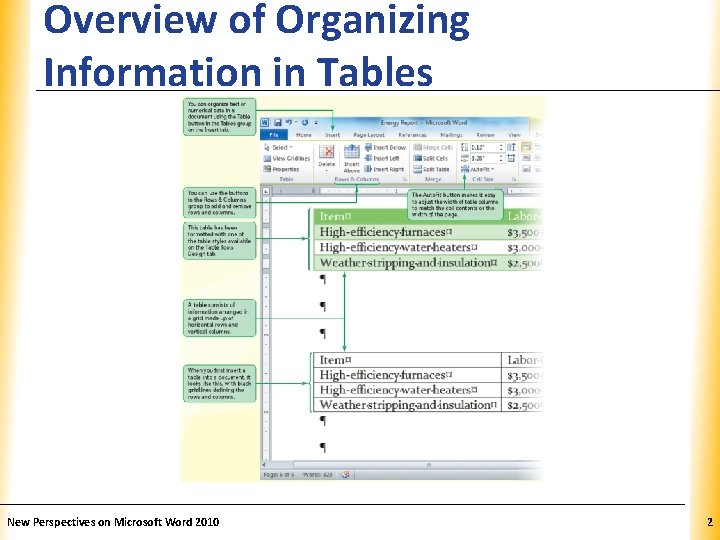
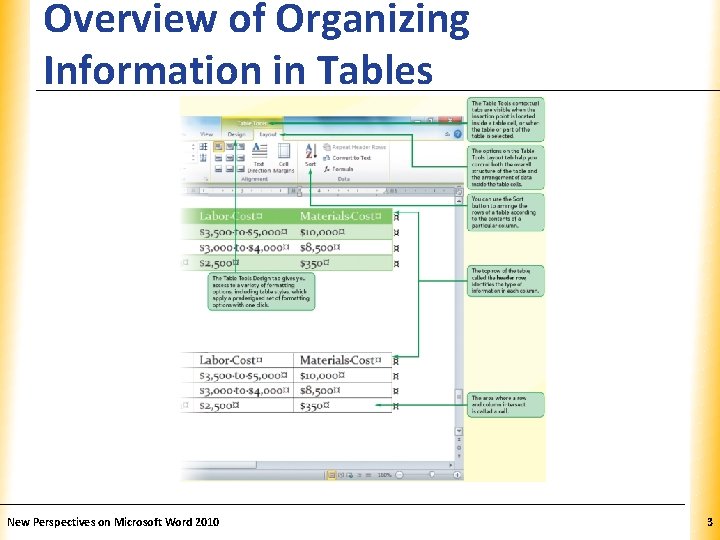
Inserting a Blank Table XP • A table is information arranged in horizontal rows and vertical columns; this is a useful way to present information that is organized into categories, or fields • The complete set of information about a particular subject is called a record. • In a typical table, each column is a separate field, and each row is a record • A header row contains the names of each field • When you first insert a table into a document, it appears as a simple grid structure, with black gridlines defining the rows and columns • The area where a row and column intersect is called a cell New Perspectives on Microsoft Word 2010 4
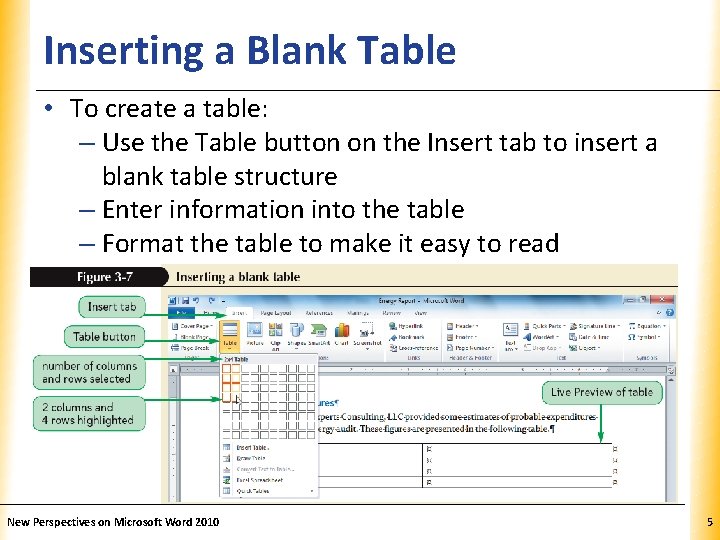
Inserting a Blank Table XP • To create a table: – Use the Table button on the Insert tab to insert a blank table structure – Enter information into the table – Format the table to make it easy to read New Perspectives on Microsoft Word 2010 5

Entering Data in a Table XP • Enter data in a table by moving the insertion point to a cell and typing • Move the insertion point to another cell in the table by clicking in that cell, using the arrow keys, or using the Tab key New Perspectives on Microsoft Word 2010 6
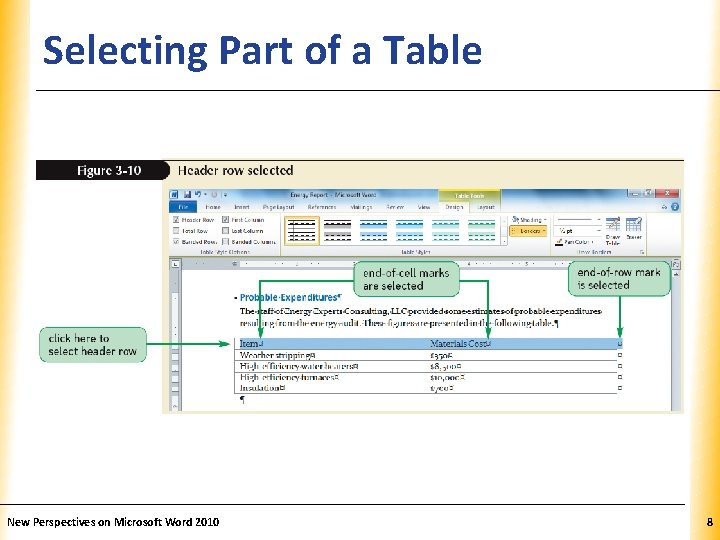
Selecting Part of a Table XP • Select the entire table by clicking the Table Move handle • Select part of a table by dragging the mouse pointer, but make sure you select the end-of-cell mark or the end-of-row mark • You can also select part of a table by clicking the Select button on the Table Tools Layout tab and then either Select Cell, Select Column, or Select Row • Another way to select an entire row is to click in the left margin next to the row • Another way to select a column is to click just above a column • After you’ve selected an entire row, column, or cell, you can drag the mouse to select adjacent rows, columns, or cells New Perspectives on Microsoft Word 2010 7
Selecting Part of a Table New Perspectives on Microsoft Word 2010 XP 8
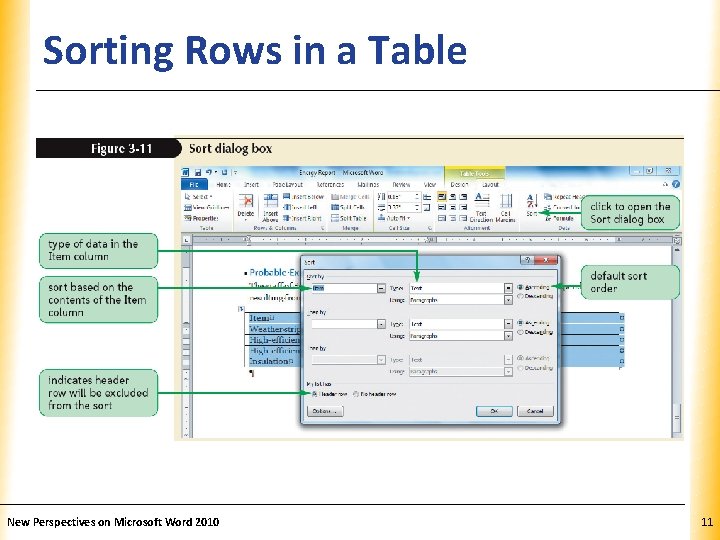
Sorting Rows in a Table XP • The term sort refers to the process of rearranging information in alphabetical, numerical, or chronological order • To sort a table: – Select the entire table – In the Data group on the Table Tools Layout tab, click the Sort button – In the Sort dialog box, click the Sort by arrow, and then select the header for the column you want to sort by – In the Type list box, select the type of information stored in the column you want to sort by (you can choose to sort text, dates, or numbers) New Perspectives on Microsoft Word 2010 9
Sorting Rows in a Table XP • To sort a table (continued): – To sort in alphabetical, chronological, or numerical order, click the Ascending option button – To sort in reverse order, click the Descending option button – To also sort by a second column, click the Then by arrow and click a column header – You can also specify the type of information in the Then by column, and whether you want to sort in ascending or descending order – If your table has a header row, make sure the Header row option button is selected so the header row will not be sorted along with the other rows – Click the OK button in the Sort dialog box New Perspectives on Microsoft Word 2010 10
Sorting Rows in a Table New Perspectives on Microsoft Word 2010 XP 11
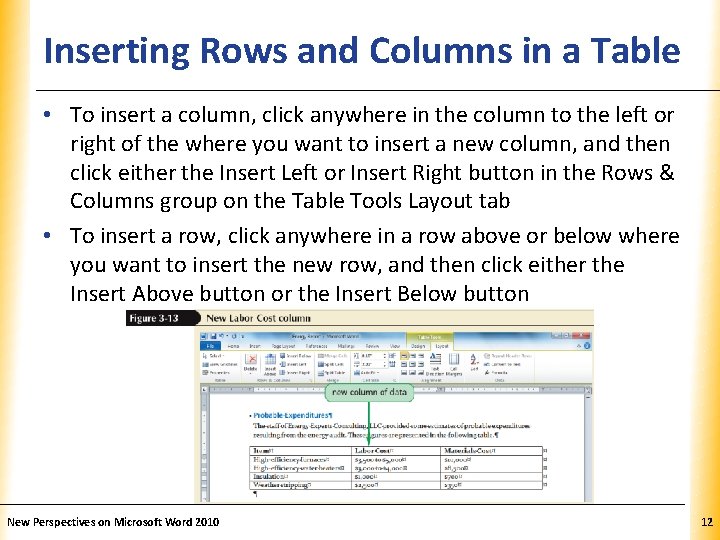
XP Inserting Rows and Columns in a Table • To insert a column, click anywhere in the column to the left or right of the where you want to insert a new column, and then click either the Insert Left or Insert Right button in the Rows & Columns group on the Table Tools Layout tab • To insert a row, click anywhere in a row above or below where you want to insert the new row, and then click either the Insert Above button or the Insert Below button New Perspectives on Microsoft Word 2010 12
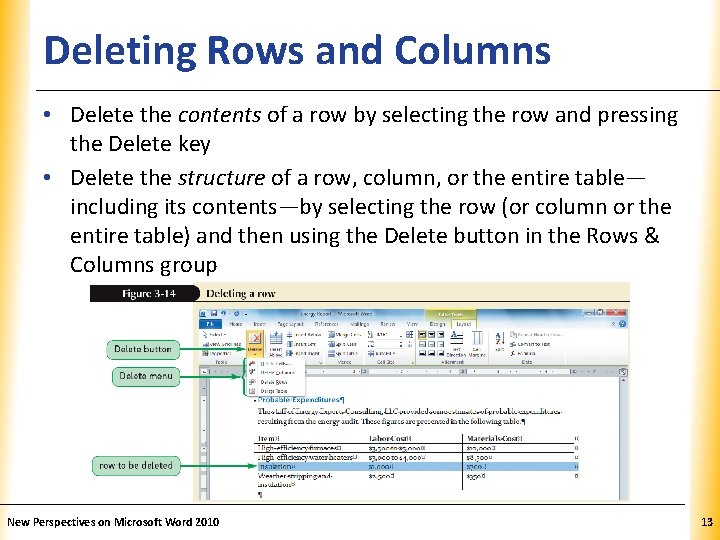
Deleting Rows and Columns XP • Delete the contents of a row by selecting the row and pressing the Delete key • Delete the structure of a row, column, or the entire table— including its contents—by selecting the row (or column or the entire table) and then using the Delete button in the Rows & Columns group New Perspectives on Microsoft Word 2010 13
Changing Column Widths XP • Change a column’s width by dragging the column’s right border to a new position • You can also double-click a column border to make the column width adjust automatically to accommodate the widest entry in the column • To adjust the width of all the columns to match their widest entries, click anywhere in the table, click the Auto. Fit button in the Cell Size group on the Table Tools Layout tab, and then click Auto. Fit Contents • To adjust the width of the entire table to span the width of the page click the Auto. Fit Contents button and then click Auto. Fit Window New Perspectives on Microsoft Word 2010 14
Formatting Tables with Styles XP • Word has built-in table styles that you can use to add shading, color, borders, and other design elements • Some styles include different formatting for the header row • Some styles apply different formatting to the first column, or header column • Some styles format the rows in alternating colors, called banded rows, while others format the columns in alternating colors, called banded columns New Perspectives on Microsoft Word 2010 15
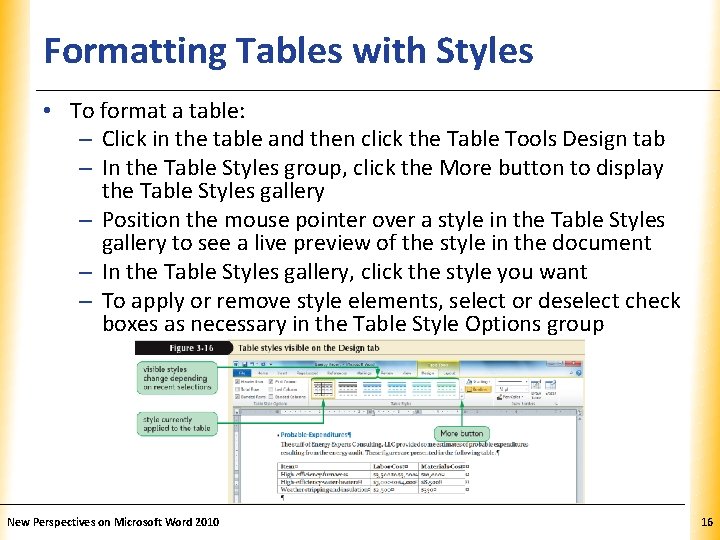
Formatting Tables with Styles XP • To format a table: – Click in the table and then click the Table Tools Design tab – In the Table Styles group, click the More button to display the Table Styles gallery – Position the mouse pointer over a style in the Table Styles gallery to see a live preview of the style in the document – In the Table Styles gallery, click the style you want – To apply or remove style elements, select or deselect check boxes as necessary in the Table Style Options group New Perspectives on Microsoft Word 2010 16
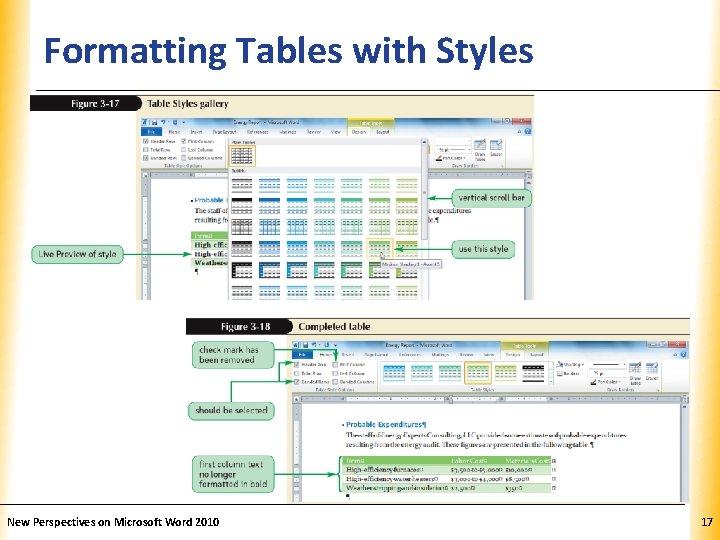
Formatting Tables with Styles New Perspectives on Microsoft Word 2010 XP 17
- Slides: 17