
Insert Photo Here For directions on inserting photos
- Slides: 19
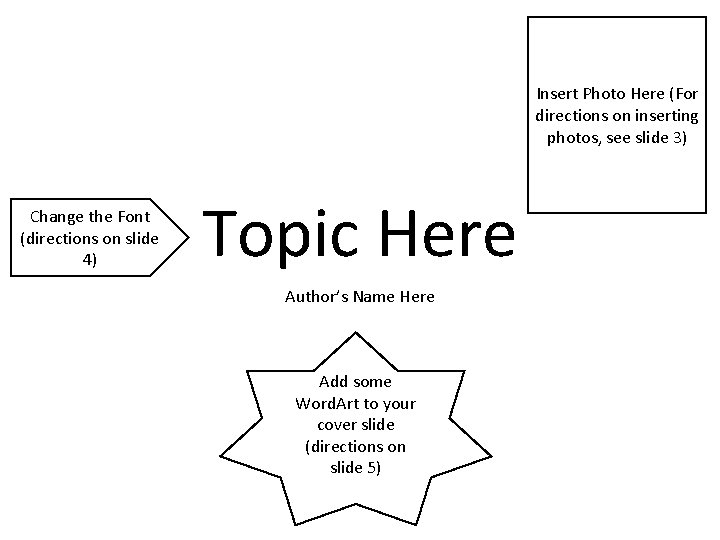
Insert Photo Here (For directions on inserting photos, see slide 3) Change the Font (directions on slide 4) Topic Here Author’s Name Here Add some Word. Art to your cover slide (directions on slide 5)
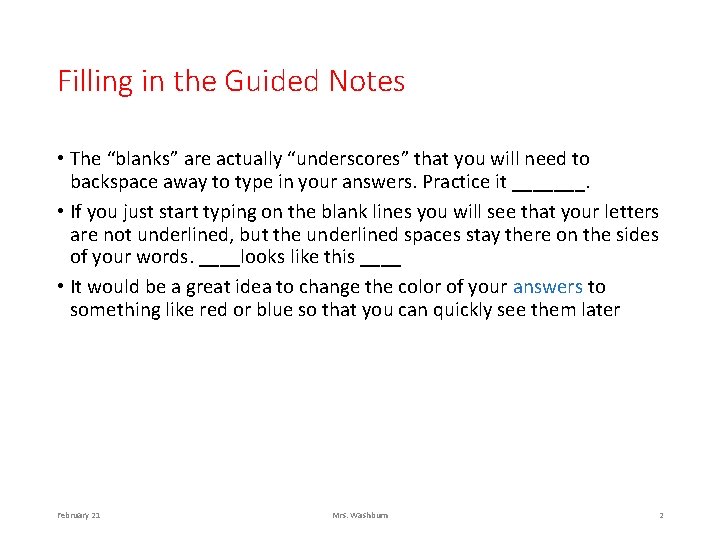
Filling in the Guided Notes • The “blanks” are actually “underscores” that you will need to backspace away to type in your answers. Practice it _______. • If you just start typing on the blank lines you will see that your letters are not underlined, but the underlined spaces stay there on the sides of your words. ____looks like this ____ • It would be a great idea to change the color of your answers to something like red or blue so that you can quickly see them later February 21 Mrs. Washburn 2
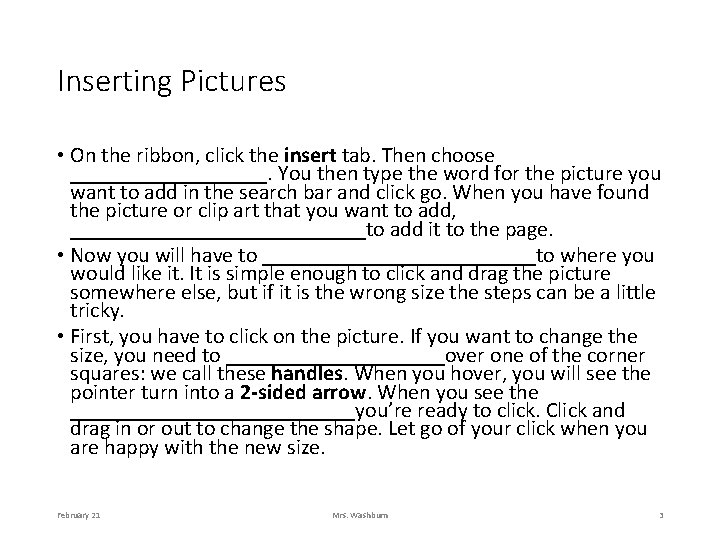
Inserting Pictures • On the ribbon, click the insert tab. Then choose _________. You then type the word for the picture you want to add in the search bar and click go. When you have found the picture or clip art that you want to add, ______________to add it to the page. • Now you will have to _____________to where you would like it. It is simple enough to click and drag the picture somewhere else, but if it is the wrong size the steps can be a little tricky. • First, you have to click on the picture. If you want to change the size, you need to __________over one of the corner squares: we call these handles. When you hover, you will see the pointer turn into a 2 -sided arrow. When you see the _____________you’re ready to click. Click and drag in or out to change the shape. Let go of your click when you are happy with the new size. February 21 Mrs. Washburn 3
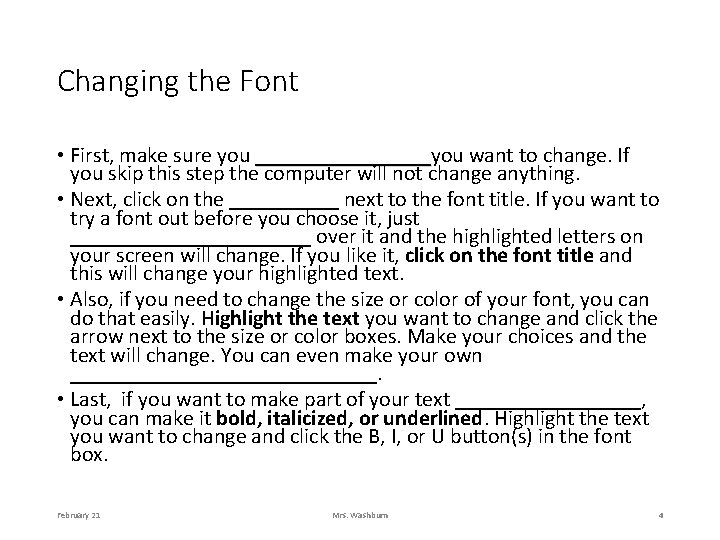
Changing the Font • First, make sure you ________you want to change. If ________ you skip this step the computer will not change anything. • Next, click on the _____ next to the font title. If you want to try a font out before you choose it, just ___________ over it and the highlighted letters on your screen will change. If you like it, click on the font title and this will change your highlighted text. • Also, if you need to change the size or color of your font, you can do that easily. Highlight the text you want to change and click the arrow next to the size or color boxes. Make your choices and the text will change. You can even make your own ______________. • Last, if you want to make part of your text _________, you can make it bold, italicized, or underlined. Highlight the text you want to change and click the B, I, or U button(s) in the font box. February 21 Mrs. Washburn 4
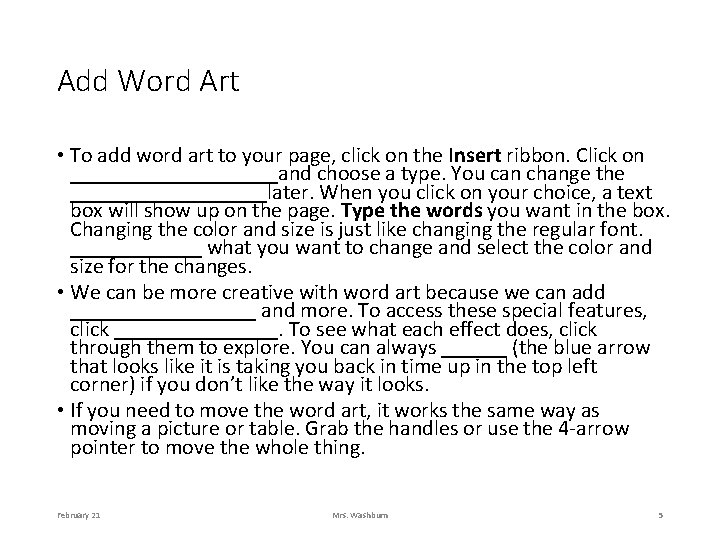
Add Word Art • To add word art to your page, click on the Insert ribbon. Click on __________and choose a type. You can change the _________later. When you click on your choice, a text box will show up on the page. Type the words you want in the box. Changing the color and size is just like changing the regular font. ______ what you want to change and select the color and size for the changes. • We can be more creative with word art because we can add _________ and more. To access these special features, click ________. To see what each effect does, click through them to explore. You can always ______ (the blue arrow that looks like it is taking you back in time up in the top left corner) if you don’t like the way it looks. • If you need to move the word art, it works the same way as moving a picture or table. Grab the handles or use the 4 -arrow pointer to move the whole thing. February 21 Mrs. Washburn 5
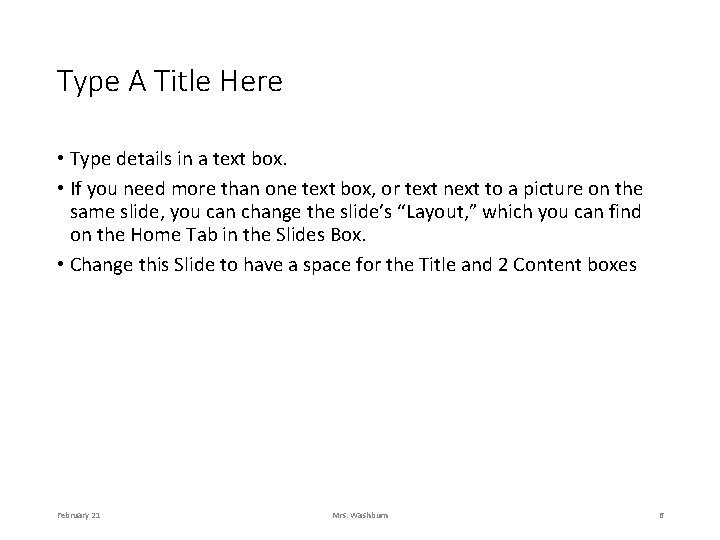
Type A Title Here • Type details in a text box. • If you need more than one text box, or text next to a picture on the same slide, you can change the slide’s “Layout, ” which you can find on the Home Tab in the Slides Box. • Change this Slide to have a space for the Title and 2 Content boxes February 21 Mrs. Washburn 6
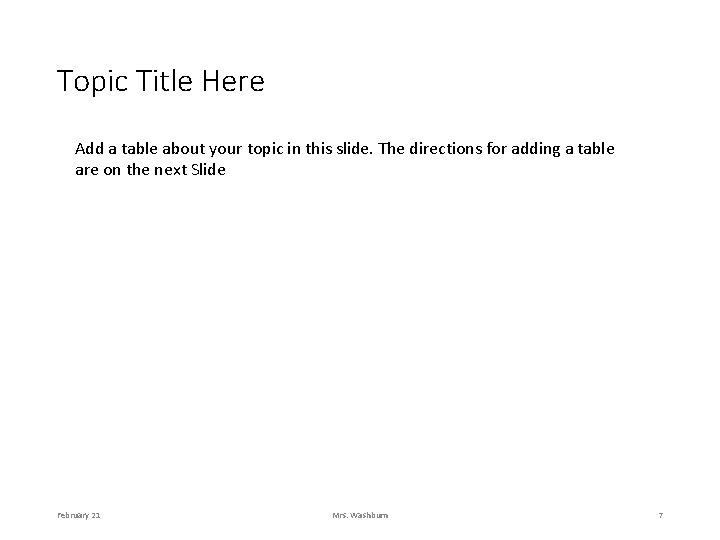
Topic Title Here Add a table about your topic in this slide. The directions for adding a table are on the next Slide February 21 Mrs. Washburn 7
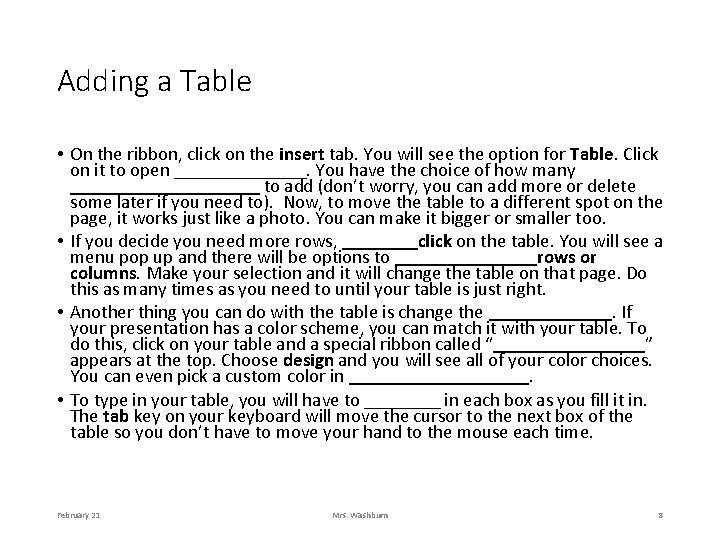
Adding a Table • On the ribbon, click on the insert tab. You will see the option for Table. Click on it to open _______. You have the choice of how many __________ to add (don’t worry, you can add more or delete some later if you need to). Now, to move the table to a different spot on the page, it works just like a photo. You can make it bigger or smaller too. • If you decide you need more rows, ____click on the table. You will see a menu pop up and there will be options to ________rows or columns. Make your selection and it will change the table on that page. Do this as many times as you need to until your table is just right. • Another thing you can do with the table is change the _______. If your presentation has a color scheme, you can match it with your table. To do this, click on your table and a special ribbon called “________” appears at the top. Choose design and you will see all of your color choices. You can even pick a custom color in __________. • To type in your table, you will have to ____ in each box as you fill it in. The tab key on your keyboard will move the cursor to the next box of the table so you don’t have to move your hand to the mouse each time. February 21 Mrs. Washburn 8
Slide Title This slide will contain your graphic organizer (or Smart. Art). Directions are below. February 21 Mrs. Washburn 9
Smart. Art or Graphic Organizers • Smart. Art is on the Insert tab. Start with a _______ of how you want to organize your information. Is it a list of similar things? A progression of first, next, last? A wheel of information that is cyclic? Once you have an idea of how you want to show the information, choose the _________ that will support it. • When you click on your choice and it comes on the page, it will be big and right in the middle. You can ______ your information into the place holder text boxes before you move and resize it. The more you type, the smaller your font size will be. It does this automatically. • Once you have your information typed in, you may want to change the ____. When you are clicked on your graphic, a special tab on the ribbon appears called _____. Use these tabs to change the colors or the design. Remember to use colors that are easy to look at. February 21 Mrs. Washburn 10
On this Slide you will add a Video Clip • Directions are on the slide below. February 21 Mrs. Washburn 11
Adding A Video • In recent versions of Power. Point there are two choices for adding a video clip. You can load a video that you have ______ on your computer, and you can add an online video, like from You. Tube. • To add a video, click on the Insert tab on the ribbon and click on _____. Make your choice of the type of video you want on the page and click it. If you choose to upload something from your computer, the box will pop up to let you look through your digital files and find the video. Select it and let it load onto the page. You can _________ around like you would with a photo. • If you choose to use a video from the internet you will need to _____ for it, or have the embed code. Copy and paste the information into the box or select your video clip from the search. It will then be added to your current page. • You can choose whether to have the video start ______ when the slide comes up, or when you click on it. To do this, right-click on the video and the option will appear on the menu. You can also set this when you do your animations. February 21 Mrs. Washburn 12
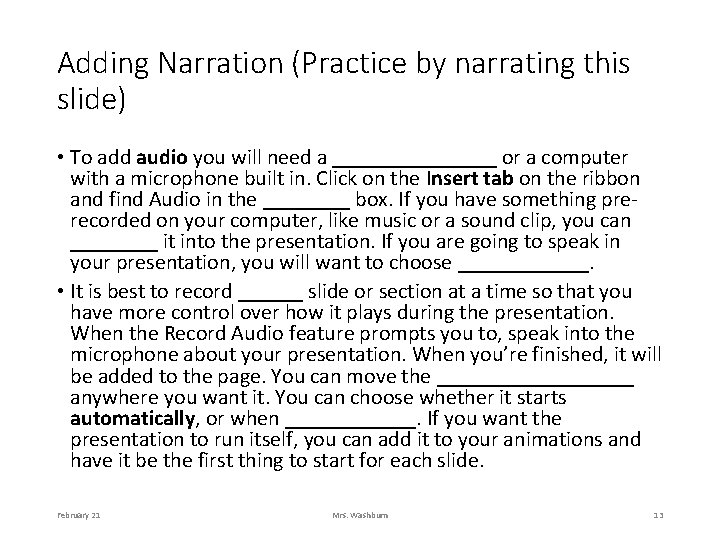
Adding Narration (Practice by narrating this slide) • To add audio you will need a ________ or a computer with a microphone built in. Click on the Insert tab on the ribbon and find Audio in the ____ box. If you have something prerecorded on your computer, like music or a sound clip, you can ____ it into the presentation. If you are going to speak in your presentation, you will want to choose ______. • It is best to record ______ slide or section at a time so that you have more control over how it plays during the presentation. When the Record Audio feature prompts you to, speak into the microphone about your presentation. When you’re finished, it will be added to the page. You can move the _________ anywhere you want it. You can choose whether it starts automatically, or when ______. If you want the presentation to run itself, you can add it to your animations and have it be the first thing to start for each slide. February 21 Mrs. Washburn 13
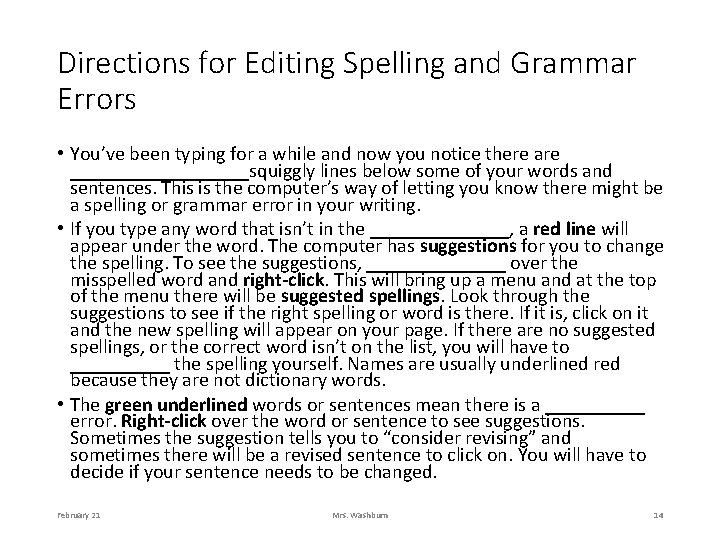
Directions for Editing Spelling and Grammar Errors • You’ve been typing for a while and now you notice there are _________squiggly lines below some of your words and sentences. This is the computer’s way of letting you know there might be a spelling or grammar error in your writing. • If you type any word that isn’t in the _______, a red line will appear under the word. The computer has suggestions for you to change the spelling. To see the suggestions, _______ over the misspelled word and right-click. This will bring up a menu and at the top of the menu there will be suggested spellings. Look through the suggestions to see if the right spelling or word is there. If it is, click on it and the new spelling will appear on your page. If there are no suggested spellings, or the correct word isn’t on the list, you will have to _____ the spelling yourself. Names are usually underlined red because they are not dictionary words. • The green underlined words or sentences mean there is a _____ error. Right-click over the word or sentence to see suggestions. Sometimes the suggestion tells you to “consider revising” and sometimes there will be a revised sentence to click on. You will have to decide if your sentence needs to be changed. February 21 Mrs. Washburn 14
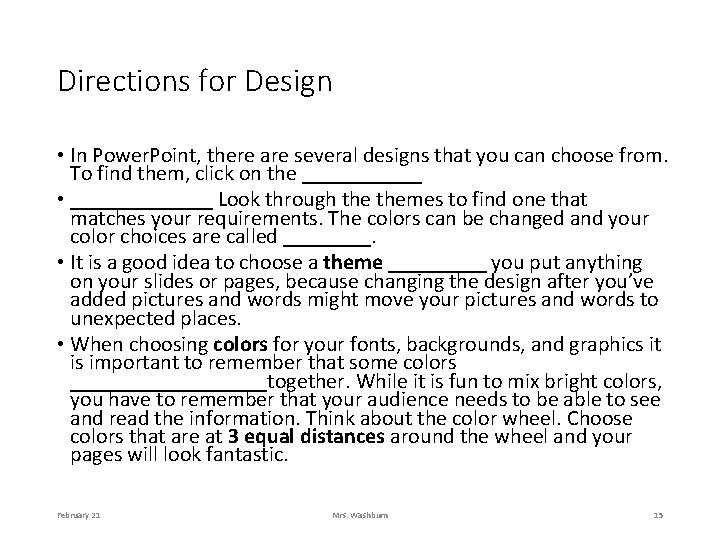
Directions for Design • In Power. Point, there are several designs that you can choose from. To find them, click on the ______ • _______ Look through themes to find one that matches your requirements. The colors can be changed and your color choices are called ____. • It is a good idea to choose a theme _____ you put anything on your slides or pages, because changing the design after you’ve added pictures and words might move your pictures and words to unexpected places. • When choosing colors for your fonts, backgrounds, and graphics it is important to remember that some colors _________together. While it is fun to mix bright colors, you have to remember that your audience needs to be able to see and read the information. Think about the color wheel. Choose colors that are at 3 equal distances around the wheel and your pages will look fantastic. February 21 Mrs. Washburn 15
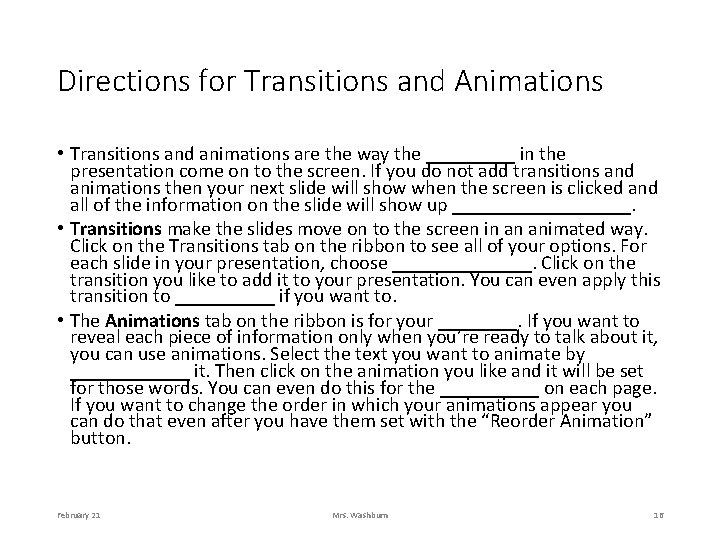
Directions for Transitions and Animations • Transitions and animations are the way the _____ in the presentation come on to the screen. If you do not add transitions and animations then your next slide will show when the screen is clicked and all of the information on the slide will show up _________. • Transitions make the slides move on to the screen in an animated way. Click on the Transitions tab on the ribbon to see all of your options. For each slide in your presentation, choose _______. Click on the transition you like to add it to your presentation. You can even apply this transition to _____ if you want to. • The Animations tab on the ribbon is for your ____. If you want to reveal each piece of information only when you’re ready to talk about it, you can use animations. Select the text you want to animate by ______ it. Then click on the animation you like and it will be set for those words. You can even do this for the _____ on each page. If you want to change the order in which your animations appear you can do that even after you have them set with the “Reorder Animation” button. February 21 Mrs. Washburn 16
Save your Work! • When it is time to save for the FIRST time, click on the _______ button and choose ______. Then find __________ when the window pops up, choose ________, give your file a _______ and press save. • The NEXT time you want to work in your file, open your _______ folder, which you can find on the ______. • When you are done working on your file for the day, click on the ______ button and choose ________. February 21 Mrs. Washburn 17
Works Cited • Order of information for each Citation: Author of article, article title, Website title, Publisher, Date article was published, Web, Date you read the article online, URL of the page you used. See the example for details. • Guenther, Leanne. “Penguin Fact Index. ” Kid Zone, DLTK’s Inc. ND. Web. July 17 th, 2015. http: //www. kidzone. ws/animals/penguins/facts 4. htm. February 21 Mrs. Washburn 18
Printing (Do you really need to? ) • The first thing to know when you print is that your transitions, animations, videos, and sounds ____ print. They only work in the software program. It is still a good idea to print the notes pages if you are going to be teaching a topic that other people are required to learn. We all learn best when we take notes. • To print your presentation, click on the _______ Button and select Print or Print Preview. • You have the choice of printing one page at a time (great choice if you have to turn it in to the teacher) or _______ slides on a page (saves printer ink). If you want to have space for notes, the 3 slide notes pages are ideal. This gives lines to write on and a small picture of what the slide looks like. February 21 Mrs. Washburn 19