
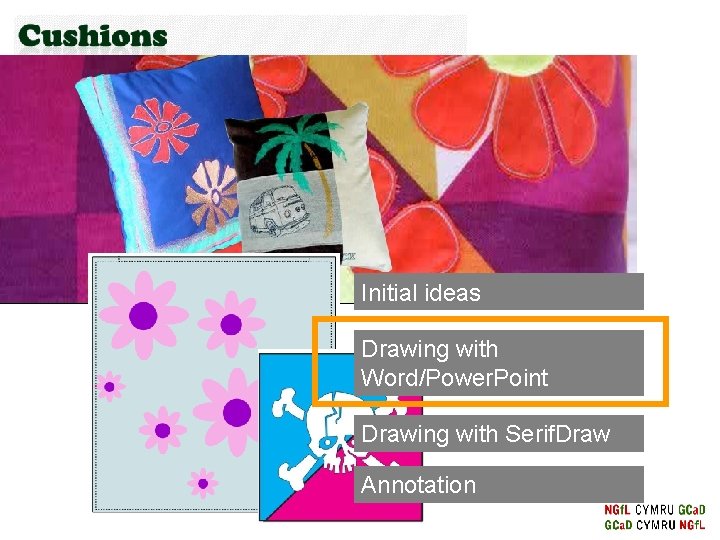
Initial ideas Drawing with WordPower Point Drawing with
- Slides: 12
Initial ideas Drawing with Word/Power. Point Drawing with Serif. Draw Annotation
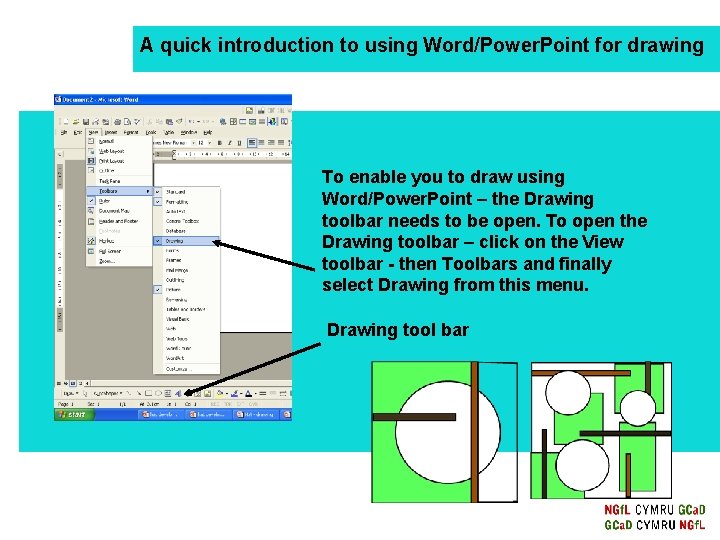
A quick introduction to using Word/Power. Point for drawing To enable you to draw using Word/Power. Point – the Drawing toolbar needs to be open. To open the Drawing toolbar – click on the View toolbar - then Toolbars and finally select Drawing from this menu. Drawing tool bar
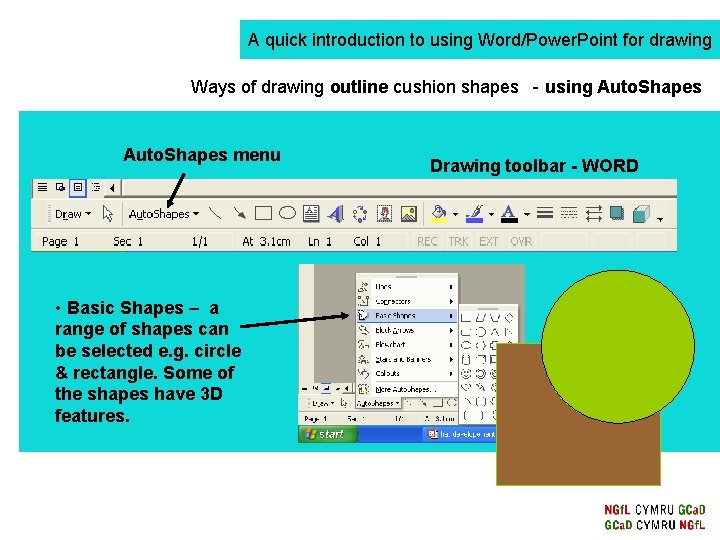
A quick introduction to using Word/Power. Point for drawing Ways of drawing outline cushion shapes - using Auto. Shapes menu • Basic Shapes – a range of shapes can be selected e. g. circle & rectangle. Some of the shapes have 3 D features. Drawing toolbar - WORD
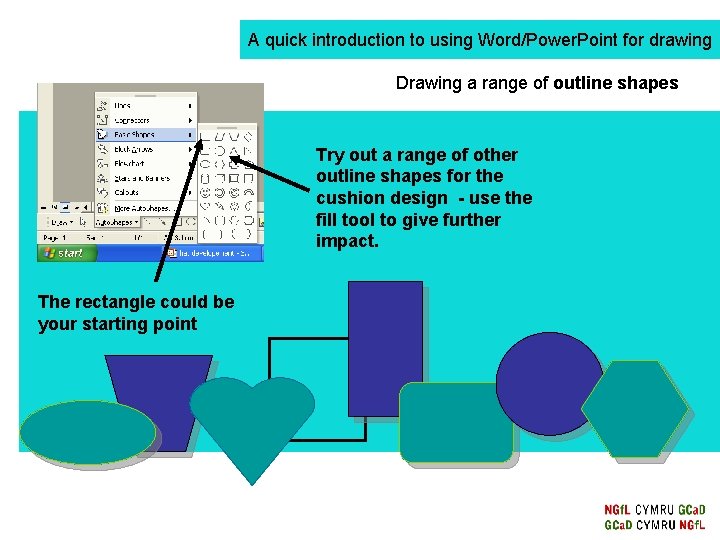
A quick introduction to using Word/Power. Point for drawing Drawing a range of outline shapes Try out a range of other outline shapes for the cushion design - use the fill tool to give further impact. The rectangle could be your starting point
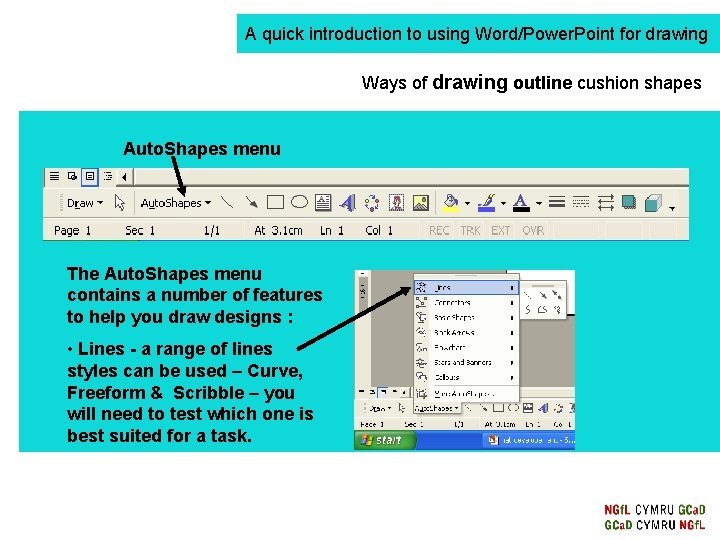
A quick introduction to using Word/Power. Point for drawing Ways of drawing outline cushion shapes Auto. Shapes menu The Auto. Shapes menu contains a number of features to help you draw designs : • Lines - a range of lines styles can be used – Curve, Freeform & Scribble – you will need to test which one is best suited for a task.
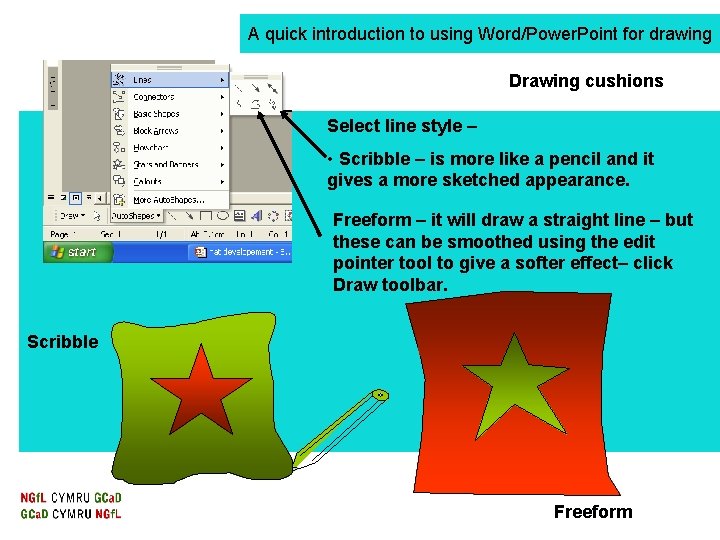
A quick introduction to using Word/Power. Point for drawing Drawing cushions Select line style – • Scribble – is more like a pencil and it gives a more sketched appearance. Freeform – it will draw a straight line – but these can be smoothed using the edit pointer tool to give a softer effect– click Draw toolbar. Scribble Freeform
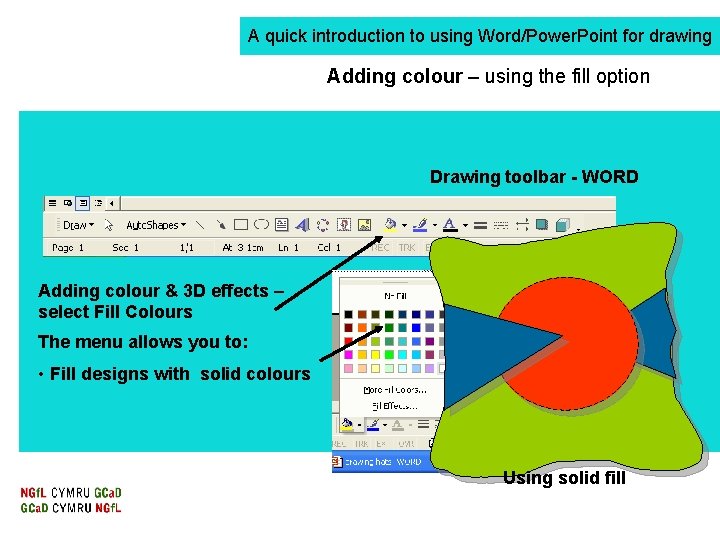
A quick introduction to using Word/Power. Point for drawing Adding colour – using the fill option Drawing toolbar - WORD Adding colour & 3 D effects – select Fill Colours The menu allows you to: • Fill designs with solid colours Using solid fill
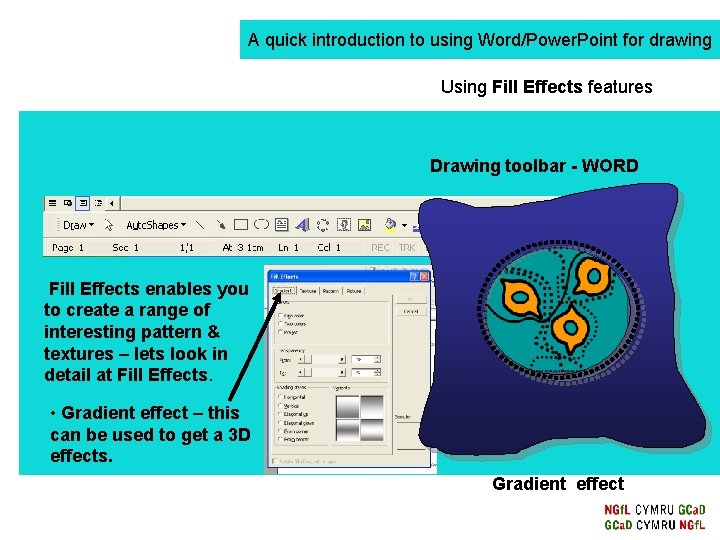
A quick introduction to using Word/Power. Point for drawing Using Fill Effects features Drawing toolbar - WORD Fill Effects enables you to create a range of interesting pattern & textures – lets look in detail at Fill Effects. • Gradient effect – this can be used to get a 3 D effects. Gradient effect
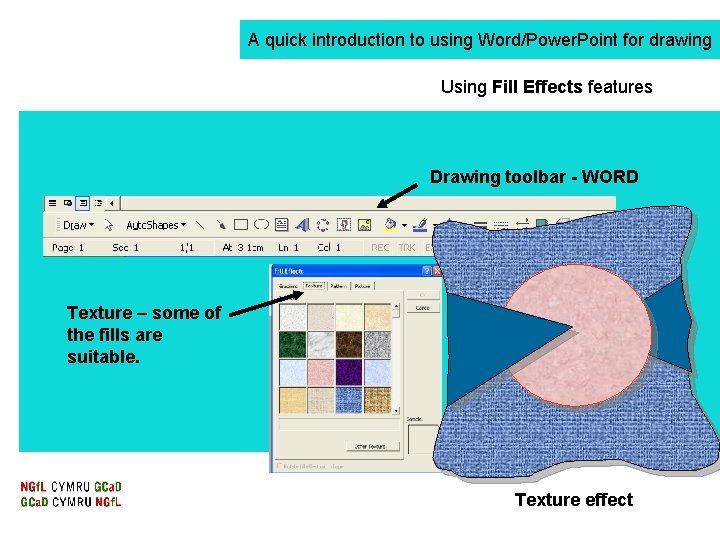
A quick introduction to using Word/Power. Point for drawing Using Fill Effects features Drawing toolbar - WORD Texture – some of the fills are suitable. Texture effect
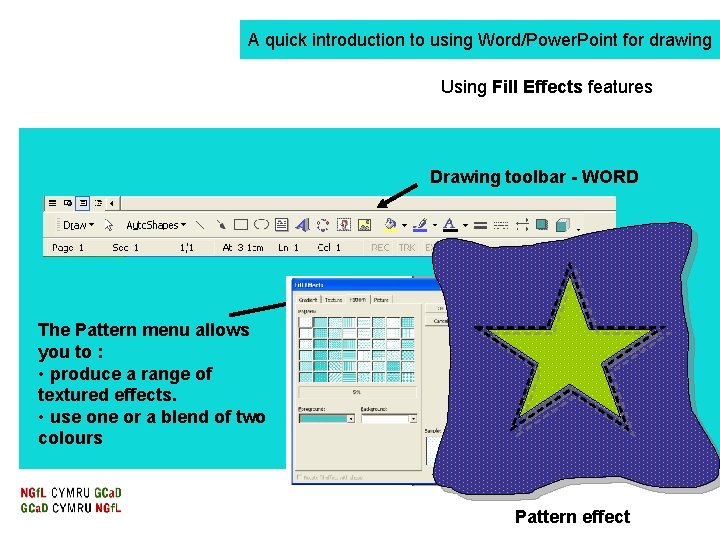
A quick introduction to using Word/Power. Point for drawing Using Fill Effects features Drawing toolbar - WORD The Pattern menu allows you to : • produce a range of textured effects. • use one or a blend of two colours Pattern effect
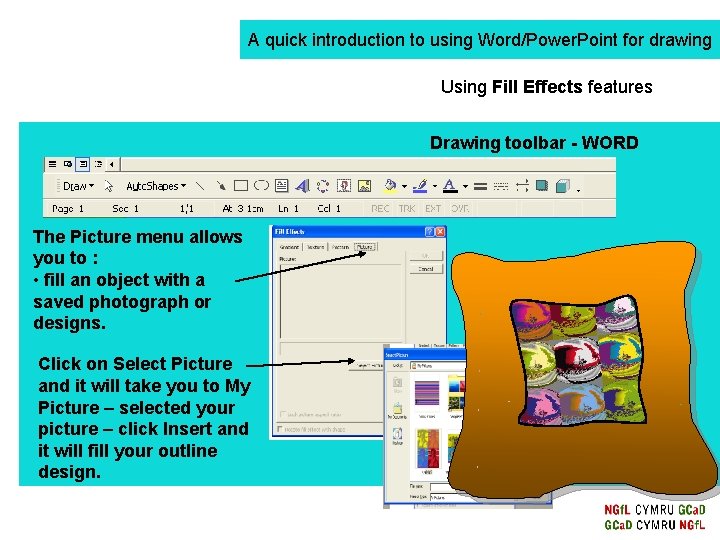
A quick introduction to using Word/Power. Point for drawing Using Fill Effects features Drawing toolbar - WORD The Picture menu allows you to : • fill an object with a saved photograph or designs. Click on Select Picture and it will take you to My Picture – selected your picture – click Insert and it will fill your outline design.
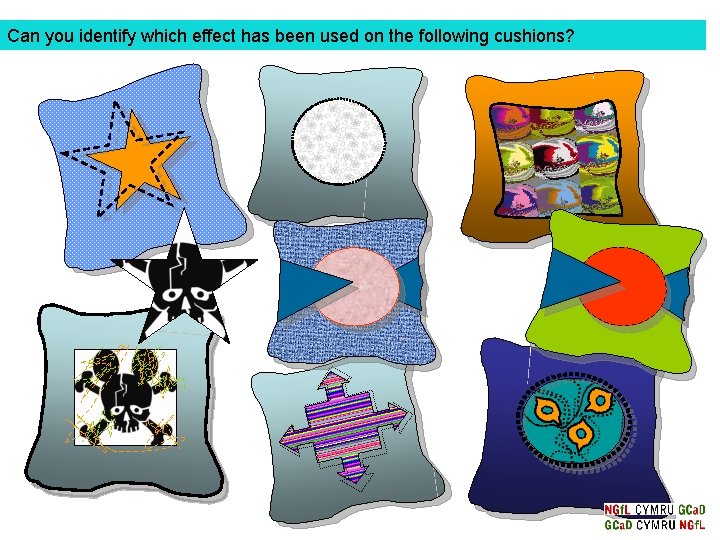
Can you identify which effect has been used on the following cushions?