
Initial Configuration The Intercompany Integration Solution for SAP
- Slides: 50
Initial Configuration The Intercompany Integration Solution for SAP Business One Version 2. 0 for SAP Business One 9. 1
Topic Objective At the end of this topic, you will be able to: Follow the process of initializing the branch, head office and consolidation companies. Plan the landscape of companies © 2015 SAP SE or an SAP affiliate company. All rights reserved. Public 2
Intercompany Integration Solution: Business Scenario n The intercompany solution is installed on all the branch companies. n Now we need to perform initial configuration for the branch, head office and consolidation companies. © 2015 SAP SE or an SAP affiliate company. All rights reserved. Public 3
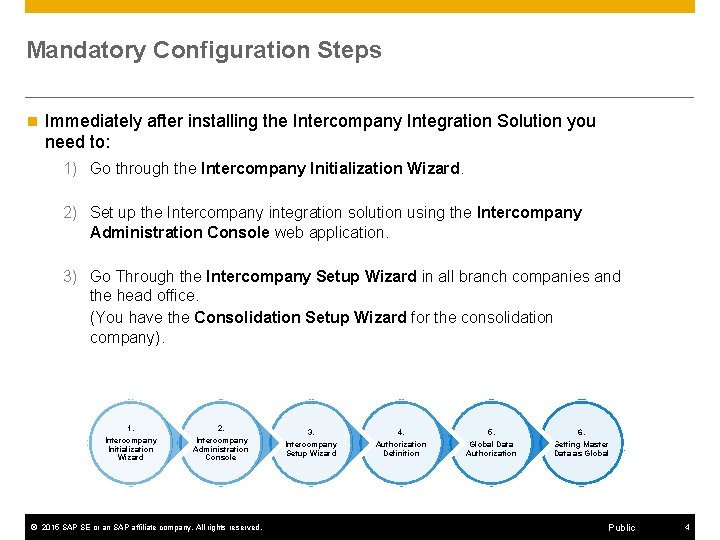
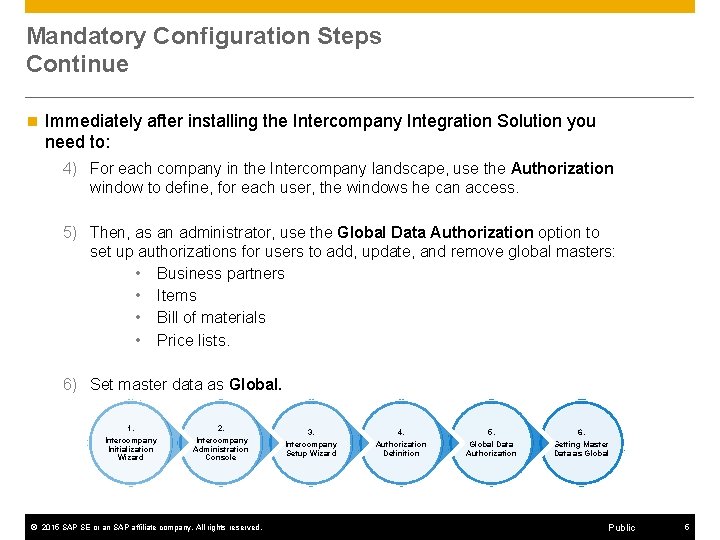
Mandatory Configuration Steps n Immediately after installing the Intercompany Integration Solution you need to: 1) Go through the Intercompany Initialization Wizard. 2) Set up the Intercompany integration solution using the Intercompany Administration Console web application. 3) Go Through the Intercompany Setup Wizard in all branch companies and the head office. (You have the Consolidation Setup Wizard for the consolidation company). 1. Intercompany Initialization Wizard 2. Intercompany Administration Console © 2015 SAP SE or an SAP affiliate company. All rights reserved. 3. 4. 5. 6. Intercompany Setup Wizard Authorization Definition Global Data Authorization Setting Master Data as Global Public 4
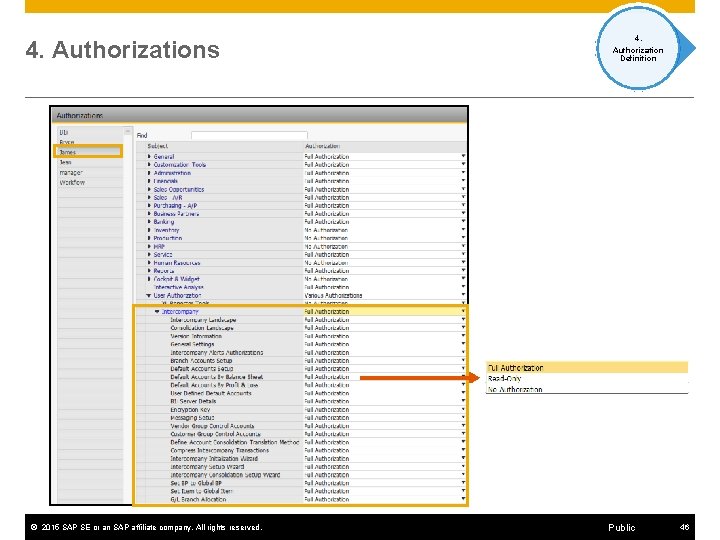
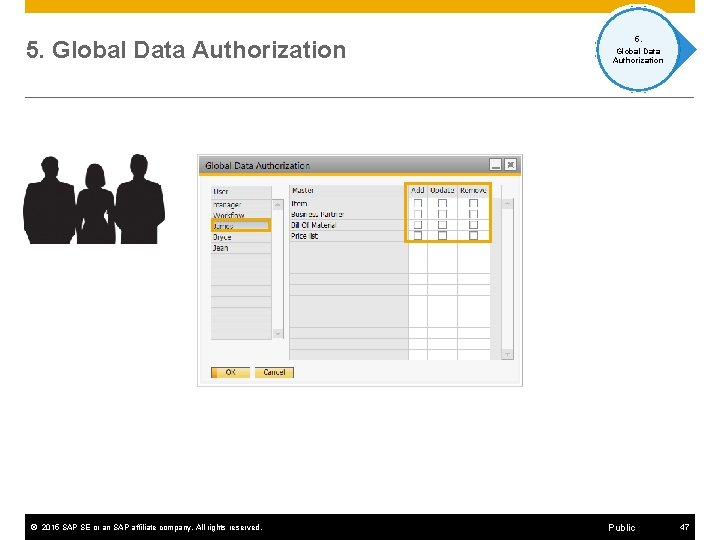
Mandatory Configuration Steps Continue n Immediately after installing the Intercompany Integration Solution you need to: 4) For each company in the Intercompany landscape, use the Authorization window to define, for each user, the windows he can access. 5) Then, as an administrator, use the Global Data Authorization option to set up authorizations for users to add, update, and remove global masters: • Business partners • Items • Bill of materials • Price lists. 6) Set master data as Global. 1. Intercompany Initialization Wizard 2. Intercompany Administration Console © 2015 SAP SE or an SAP affiliate company. All rights reserved. 3. 4. 5. 6. Intercompany Setup Wizard Authorization Definition Global Data Authorization Setting Master Data as Global Public 5
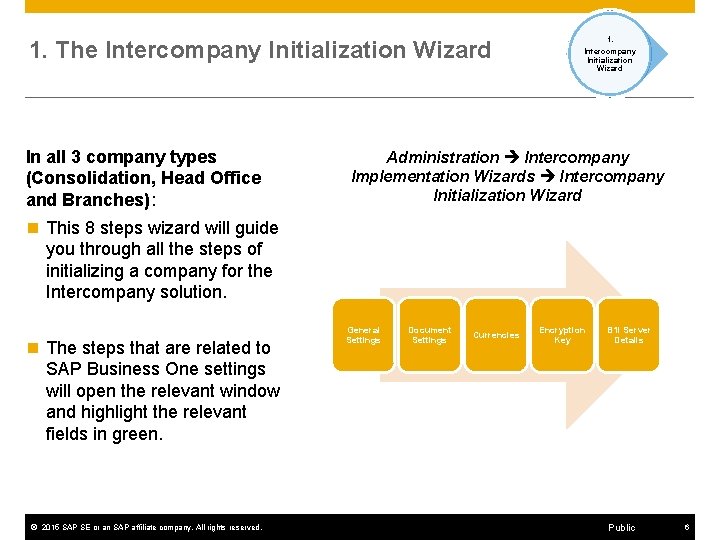
1. The Intercompany Initialization Wizard In all 3 company types (Consolidation, Head Office and Branches): 1. Intercompany Initialization Wizard Administration Intercompany Implementation Wizards Intercompany Initialization Wizard n This 8 steps wizard will guide you through all the steps of initializing a company for the Intercompany solution. n The steps that are related to SAP Business One settings will open the relevant window and highlight the relevant fields in green. © 2015 SAP SE or an SAP affiliate company. All rights reserved. General Settings Document Settings Currencies Encryption Key B 1 i Server Details Public 6
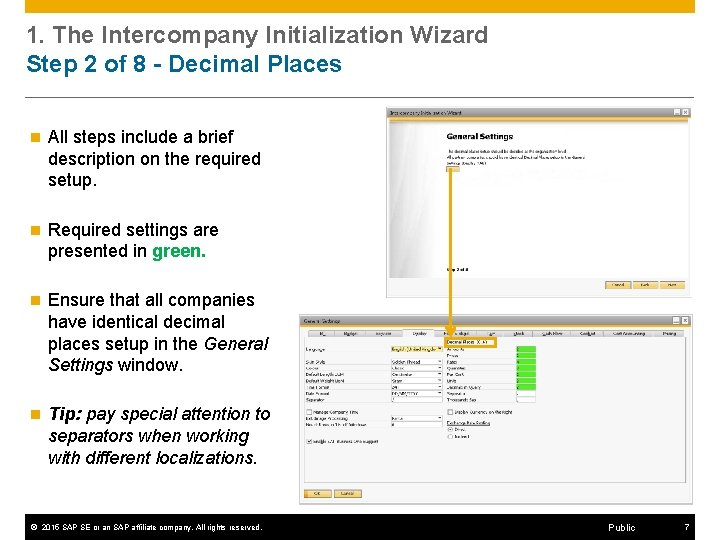
1. The Intercompany Initialization Wizard Step 2 of 8 - Decimal Places n All steps include a brief description on the required setup. n Required settings are presented in green. n Ensure that all companies have identical decimal places setup in the General Settings window. n Tip: pay special attention to separators when working with different localizations. © 2015 SAP SE or an SAP affiliate company. All rights reserved. Public 7
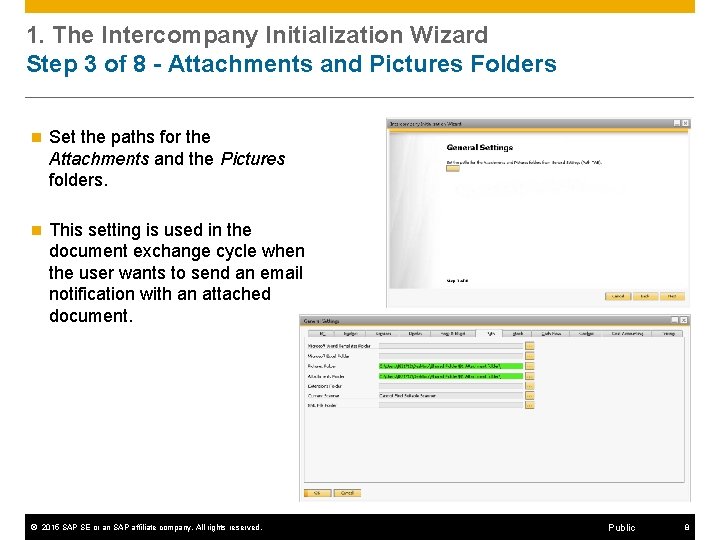
1. The Intercompany Initialization Wizard Step 3 of 8 - Attachments and Pictures Folders n Set the paths for the Attachments and the Pictures folders. n This setting is used in the document exchange cycle when the user wants to send an email notification with an attached document. © 2015 SAP SE or an SAP affiliate company. All rights reserved. Public 8
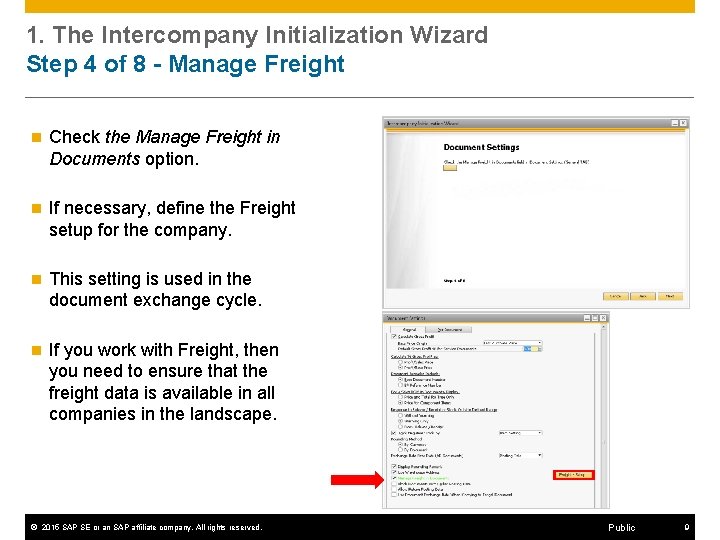
1. The Intercompany Initialization Wizard Step 4 of 8 - Manage Freight n Check the Manage Freight in Documents option. n If necessary, define the Freight setup for the company. n This setting is used in the document exchange cycle. n If you work with Freight, then you need to ensure that the freight data is available in all companies in the landscape. © 2015 SAP SE or an SAP affiliate company. All rights reserved. Public 9
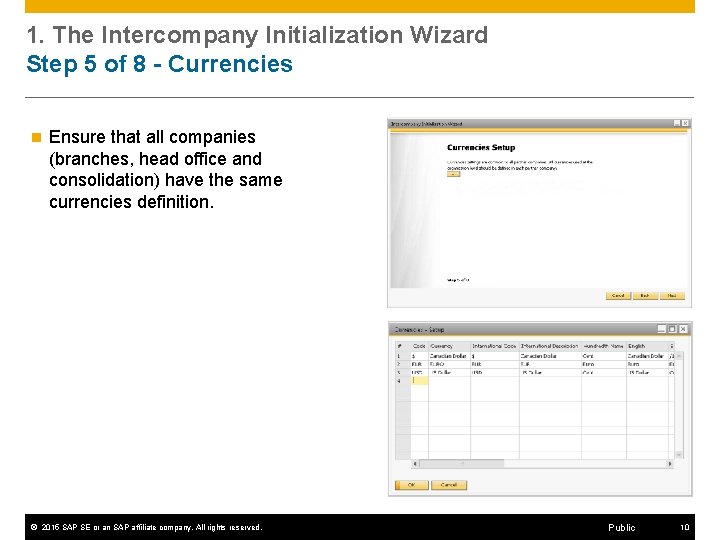
1. The Intercompany Initialization Wizard Step 5 of 8 - Currencies n Ensure that all companies (branches, head office and consolidation) have the same currencies definition. © 2015 SAP SE or an SAP affiliate company. All rights reserved. Public 10
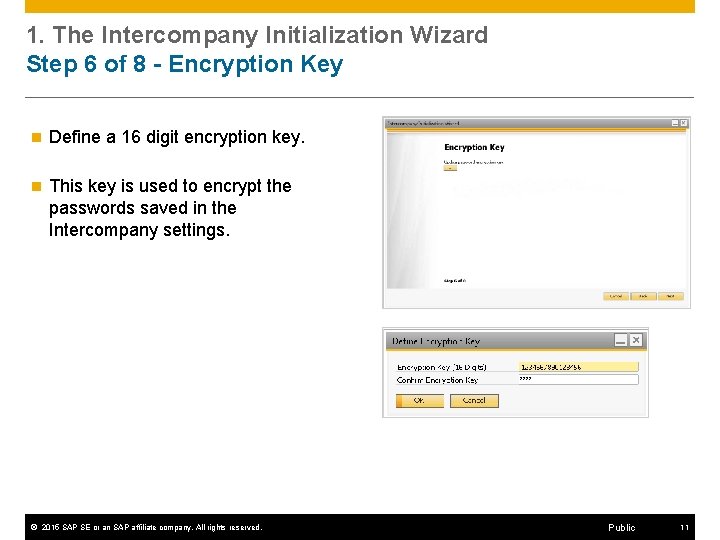
1. The Intercompany Initialization Wizard Step 6 of 8 - Encryption Key n Define a 16 digit encryption key. n This key is used to encrypt the passwords saved in the Intercompany settings. © 2015 SAP SE or an SAP affiliate company. All rights reserved. Public 11
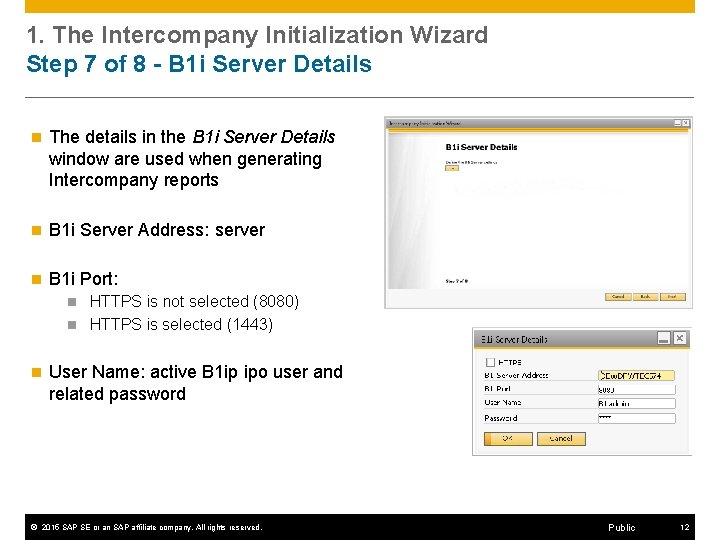
1. The Intercompany Initialization Wizard Step 7 of 8 - B 1 i Server Details n The details in the B 1 i Server Details window are used when generating Intercompany reports n B 1 i Server Address: server n B 1 i Port: HTTPS is not selected (8080) n HTTPS is selected (1443) n n User Name: active B 1 ip ipo user and related password © 2015 SAP SE or an SAP affiliate company. All rights reserved. Public 12
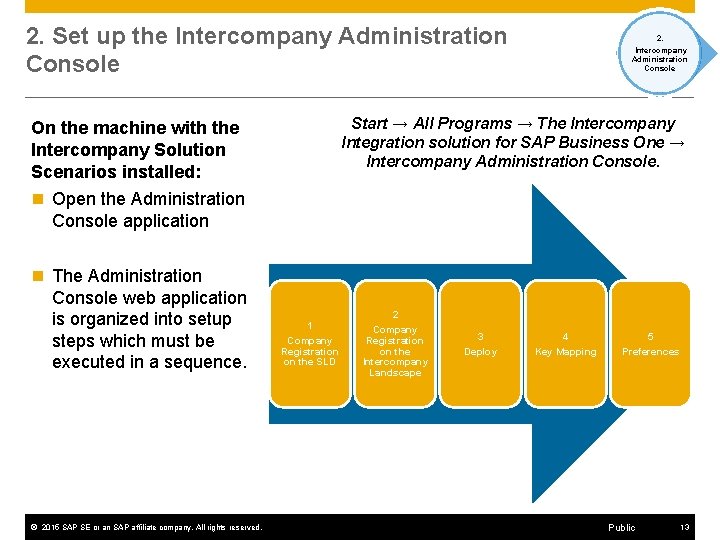
2. Set up the Intercompany Administration Console 2. Intercompany Administration Console Start → All Programs → The Intercompany Integration solution for SAP Business One → Intercompany Administration Console. On the machine with the Intercompany Solution Scenarios installed: n Open the Administration Console application n The Administration Console web application is organized into setup steps which must be executed in a sequence. © 2015 SAP SE or an SAP affiliate company. All rights reserved. 1 Company Registration on the SLD 2 Company Registration on the Intercompany Landscape 3 4 5 Deploy Key Mapping Preferences Public 13
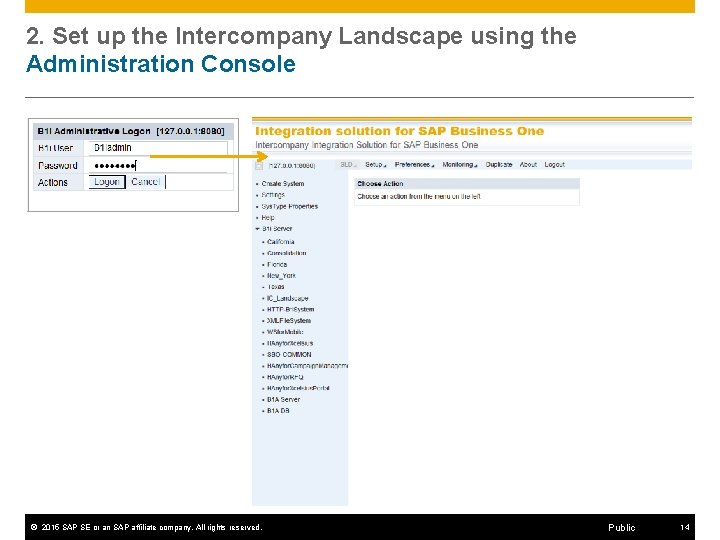
2. Set up the Intercompany Landscape using the Administration Console © 2015 SAP SE or an SAP affiliate company. All rights reserved. Public 14
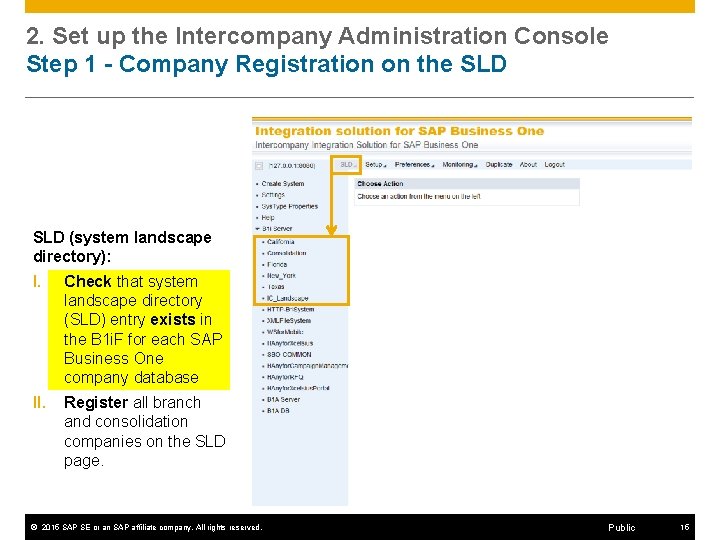
2. Set up the Intercompany Administration Console Step 1 - Company Registration on the SLD (system landscape directory): I. Check that system landscape directory (SLD) entry exists in the B 1 i. F for each SAP Business One company database II. Register all branch and consolidation companies on the SLD page. © 2015 SAP SE or an SAP affiliate company. All rights reserved. Public 15
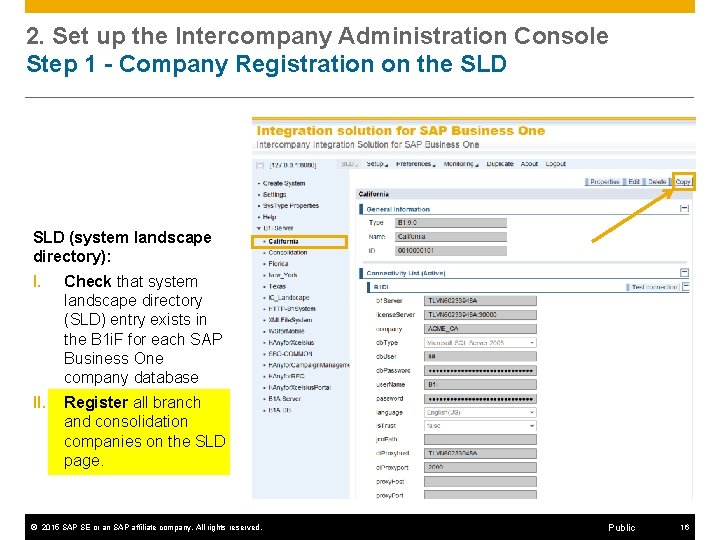
2. Set up the Intercompany Administration Console Step 1 - Company Registration on the SLD (system landscape directory): I. Check that system landscape directory (SLD) entry exists in the B 1 i. F for each SAP Business One company database II. Register all branch and consolidation companies on the SLD page. © 2015 SAP SE or an SAP affiliate company. All rights reserved. Public 16
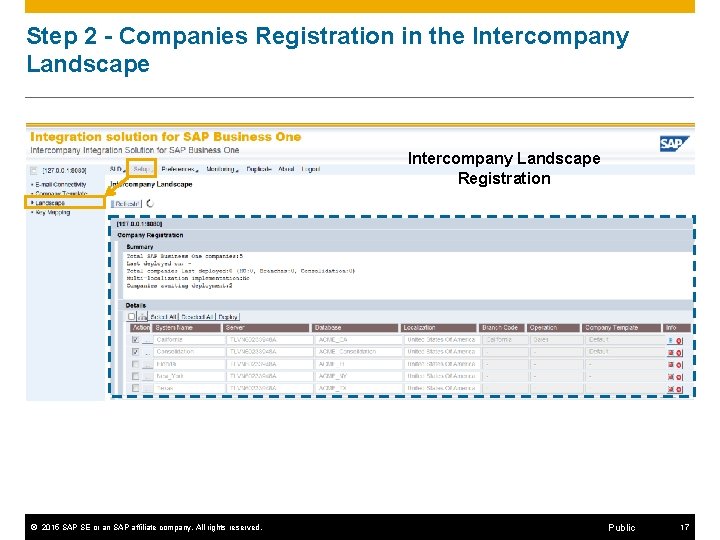
Step 2 - Companies Registration in the Intercompany Landscape Registration © 2015 SAP SE or an SAP affiliate company. All rights reserved. Public 17
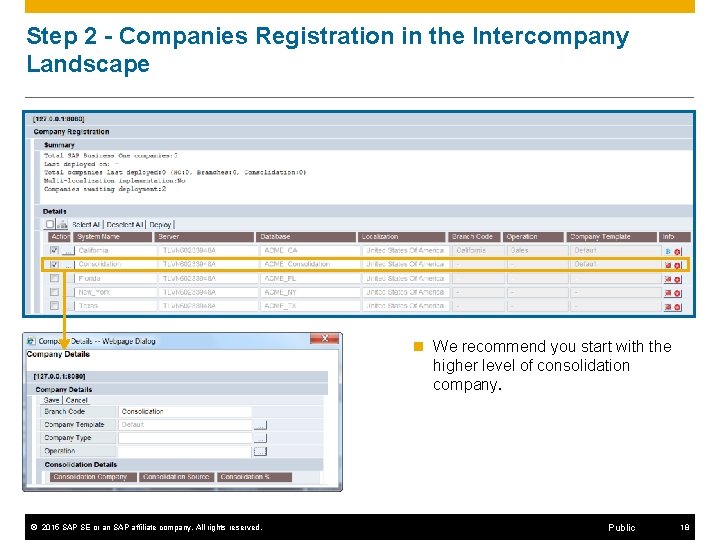
Step 2 - Companies Registration in the Intercompany Landscape n We recommend you start with the higher level of consolidation company. © 2015 SAP SE or an SAP affiliate company. All rights reserved. Public 18
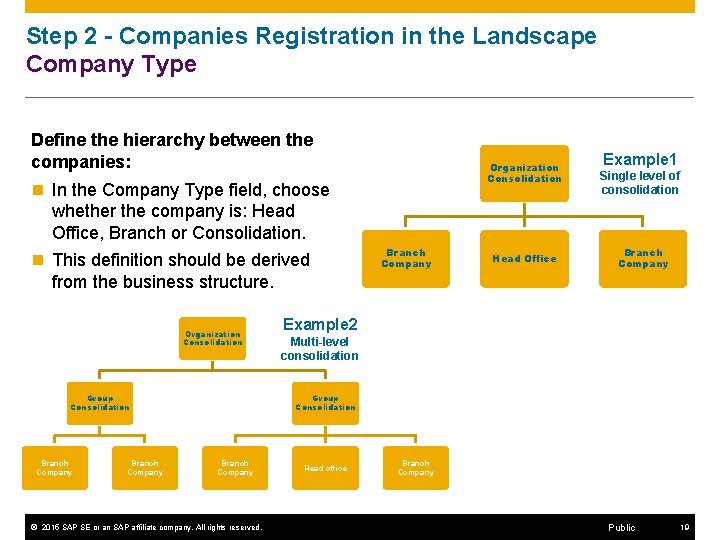
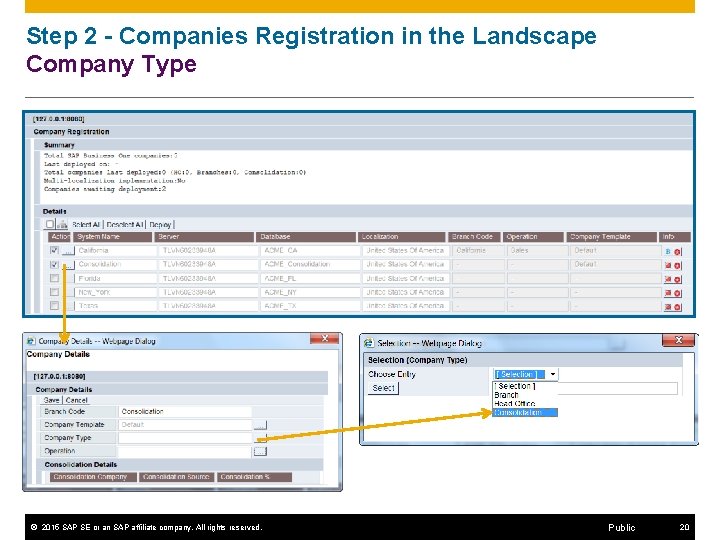
Step 2 - Companies Registration in the Landscape Company Type Define the hierarchy between the companies: n In the Company Type field, choose whether the company is: Head Office, Branch or Consolidation. n This definition should be derived from the business structure. Organization Consolidation Group Consolidation Branch Company Organization Consolidation Branch Company Head Office Example 1 Single level of consolidation Branch Company Example 2 Multi-level consolidation Group Consolidation Branch Company © 2015 SAP SE or an SAP affiliate company. All rights reserved. Head office Branch Company Public 19
Step 2 - Companies Registration in the Landscape Company Type © 2015 SAP SE or an SAP affiliate company. All rights reserved. Public 20
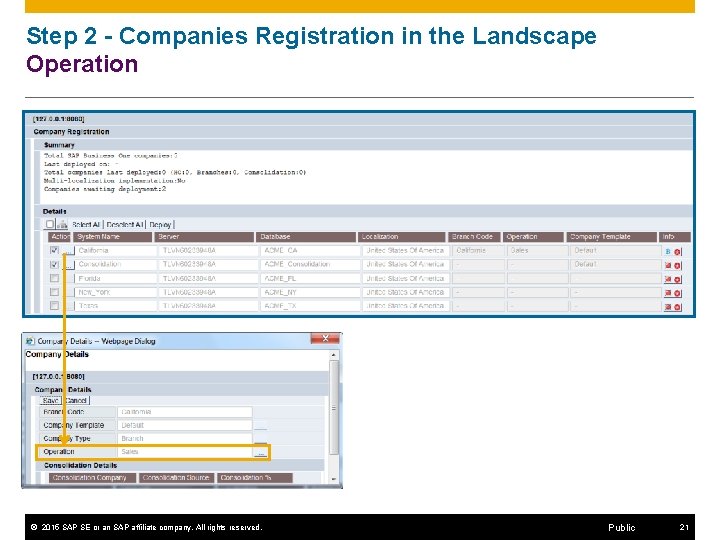
Step 2 - Companies Registration in the Landscape Operation © 2015 SAP SE or an SAP affiliate company. All rights reserved. Public 21
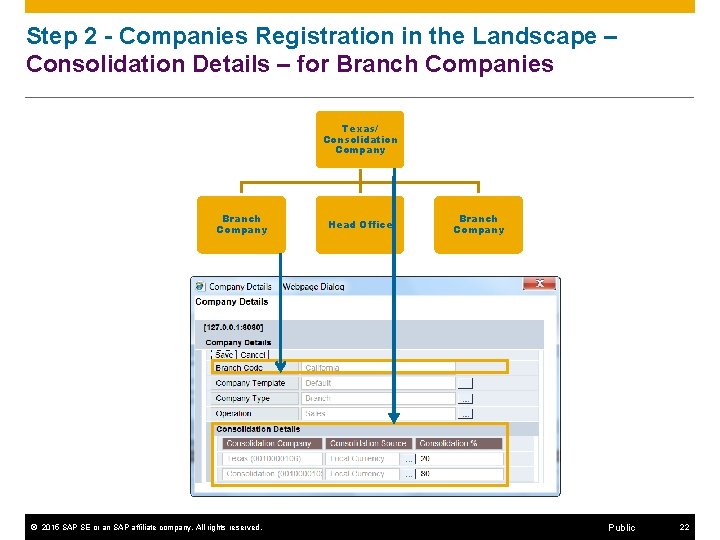
Step 2 - Companies Registration in the Landscape – Consolidation Details – for Branch Companies Texas/ Consolidation Company Branch Company © 2015 SAP SE or an SAP affiliate company. All rights reserved. Head Office Branch Company Public 22
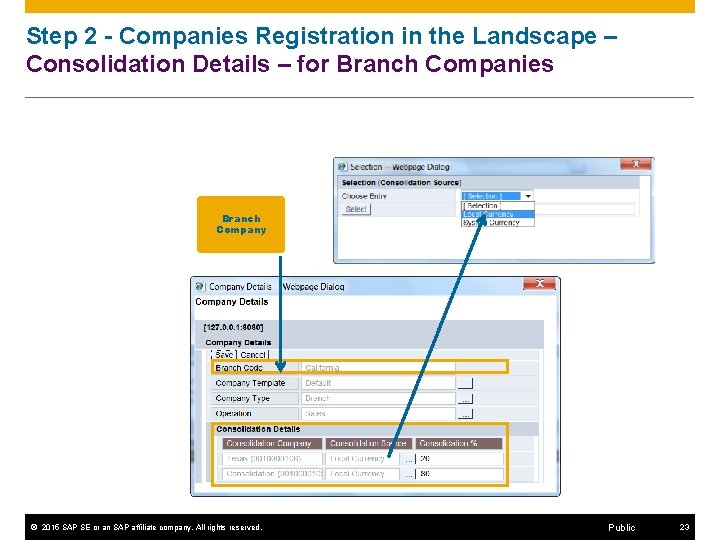
Step 2 - Companies Registration in the Landscape – Consolidation Details – for Branch Companies Branch Company © 2015 SAP SE or an SAP affiliate company. All rights reserved. Public 23
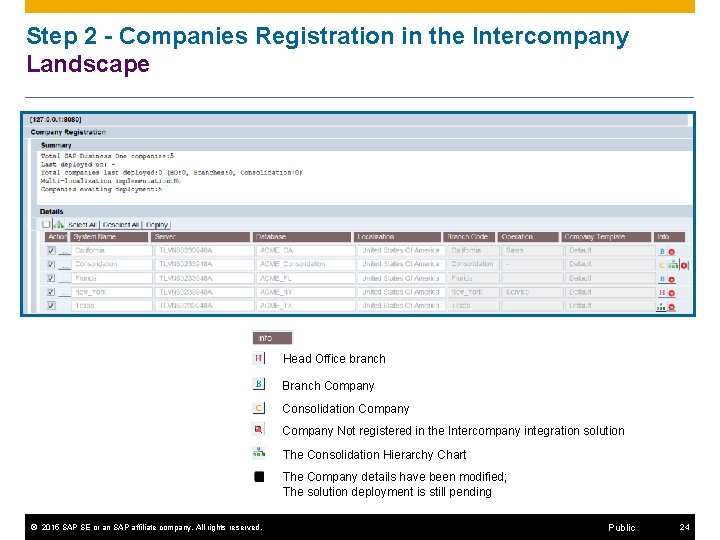
Step 2 - Companies Registration in the Intercompany Landscape Head Office branch Branch Company Consolidation Company Not registered in the Intercompany integration solution The Consolidation Hierarchy Chart The Company details have been modified; The solution deployment is still pending © 2015 SAP SE or an SAP affiliate company. All rights reserved. Public 24
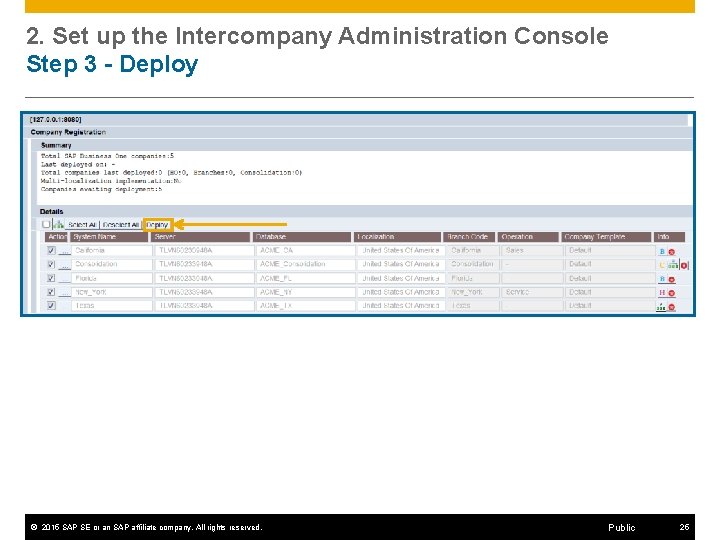
2. Set up the Intercompany Administration Console Step 3 - Deploy © 2015 SAP SE or an SAP affiliate company. All rights reserved. Public 25
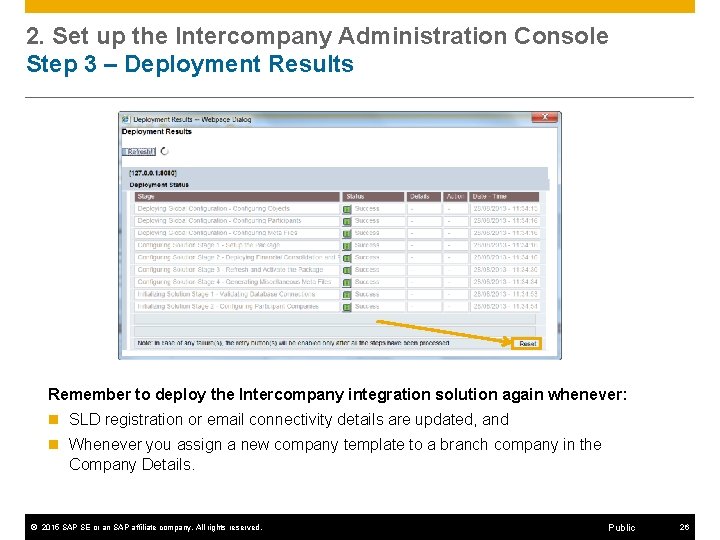
2. Set up the Intercompany Administration Console Step 3 – Deployment Results Remember to deploy the Intercompany integration solution again whenever: n SLD registration or email connectivity details are updated, and n Whenever you assign a new company template to a branch company in the Company Details. © 2015 SAP SE or an SAP affiliate company. All rights reserved. Public 26
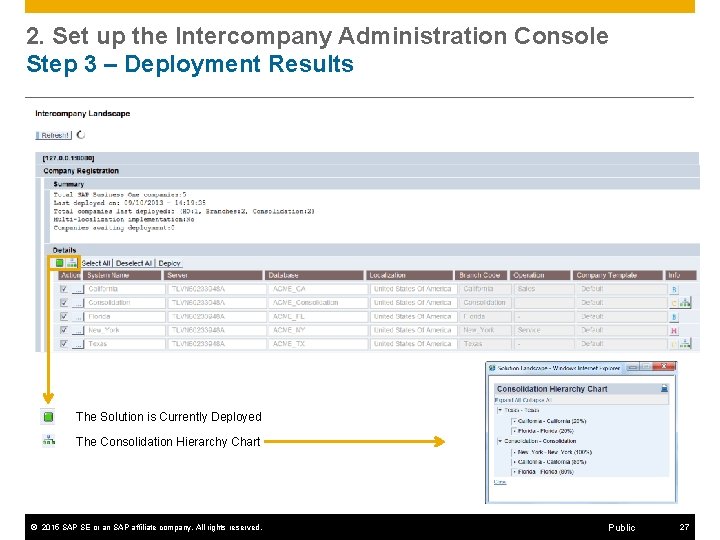
2. Set up the Intercompany Administration Console Step 3 – Deployment Results The Solution is Currently Deployed The Consolidation Hierarchy Chart © 2015 SAP SE or an SAP affiliate company. All rights reserved. Public 27
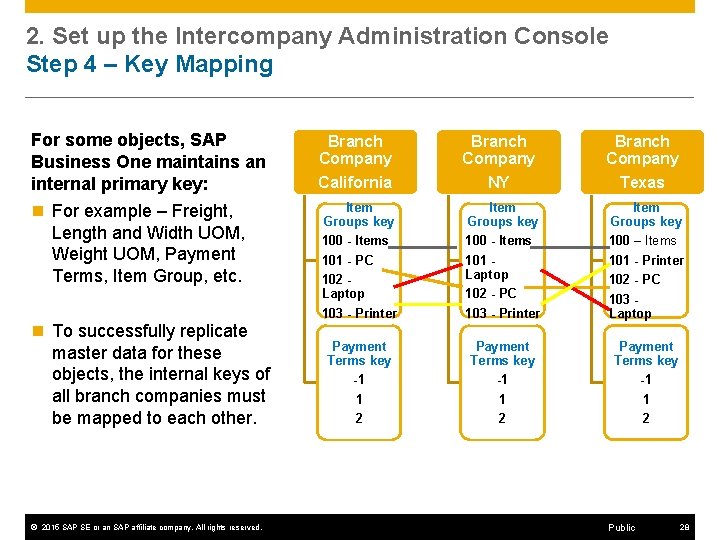
2. Set up the Intercompany Administration Console Step 4 – Key Mapping For some objects, SAP Business One maintains an internal primary key: n For example – Freight, Length and Width UOM, Weight UOM, Payment Terms, Item Group, etc. n To successfully replicate master data for these objects, the internal keys of all branch companies must be mapped to each other. © 2015 SAP SE or an SAP affiliate company. All rights reserved. Branch Company California NY Texas Item Groups key 100 - Items 101 - PC 102 Laptop 103 - Printer Item Groups key 100 - Items 101 Laptop 102 - PC 103 - Printer Item Groups key 100 – Items 101 - Printer 102 - PC 103 Laptop Payment Terms key -1 1 2 Public 28
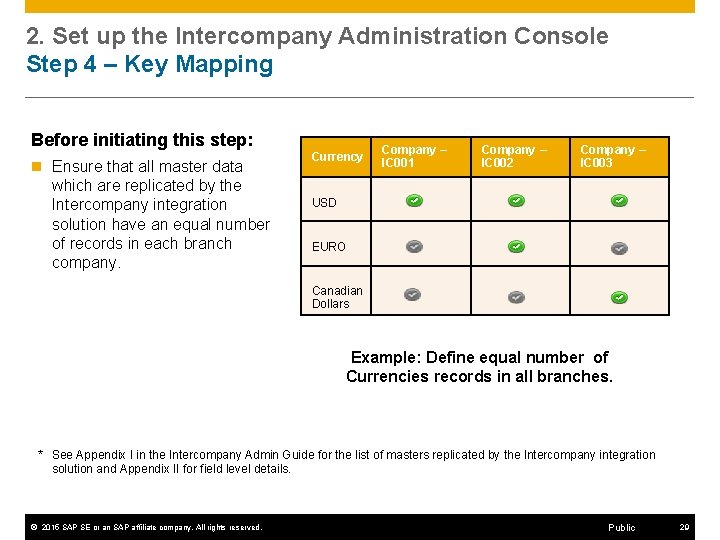
2. Set up the Intercompany Administration Console Step 4 – Key Mapping Before initiating this step: n Ensure that all master data which are replicated by the Intercompany integration solution have an equal number of records in each branch company. Currency Company – IC 001 Company – IC 002 Company – IC 003 USD EURO Canadian Dollars Example: Define equal number of Currencies records in all branches. * See Appendix I in the Intercompany Admin Guide for the list of masters replicated by the Intercompany integration solution and Appendix II for field level details. © 2015 SAP SE or an SAP affiliate company. All rights reserved. Public 29
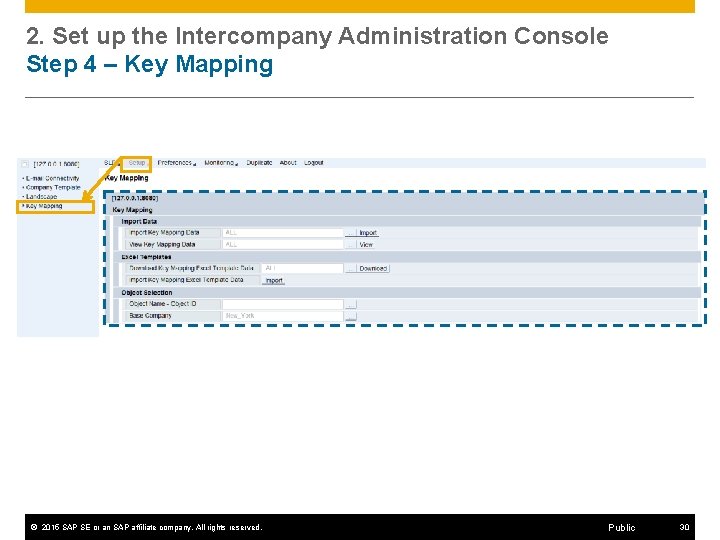
2. Set up the Intercompany Administration Console Step 4 – Key Mapping © 2015 SAP SE or an SAP affiliate company. All rights reserved. Public 30
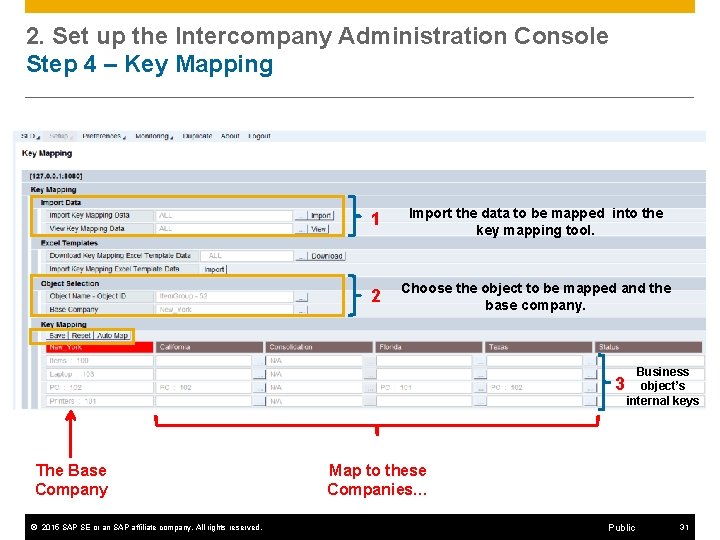
2. Set up the Intercompany Administration Console Step 4 – Key Mapping 1 Import the data to be mapped into the key mapping tool. 2 Choose the object to be mapped and the base company. 3 The Base Company © 2015 SAP SE or an SAP affiliate company. All rights reserved. Business object’s internal keys Map to these Companies… Public 31
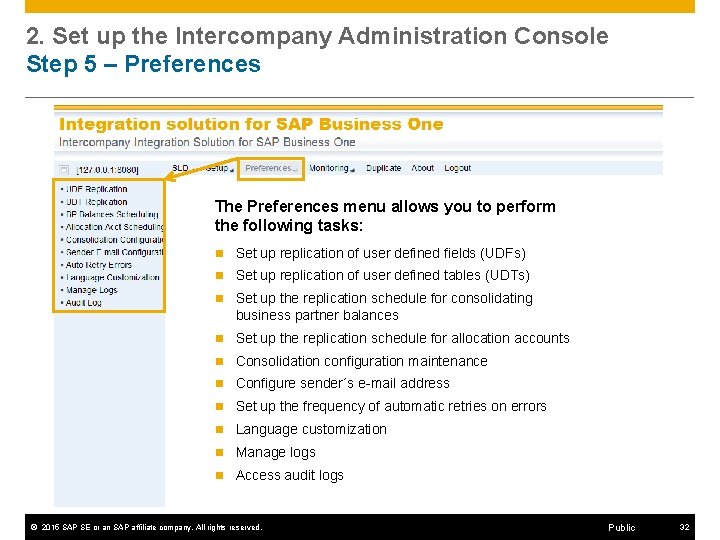
2. Set up the Intercompany Administration Console Step 5 – Preferences The Preferences menu allows you to perform the following tasks: n Set up replication of user defined fields (UDFs) n Set up replication of user defined tables (UDTs) n Set up the replication schedule for consolidating business partner balances n Set up the replication schedule for allocation accounts n Consolidation configuration maintenance n Configure sender´s e-mail address n Set up the frequency of automatic retries on errors n Language customization n Manage logs n Access audit logs © 2015 SAP SE or an SAP affiliate company. All rights reserved. Public 32
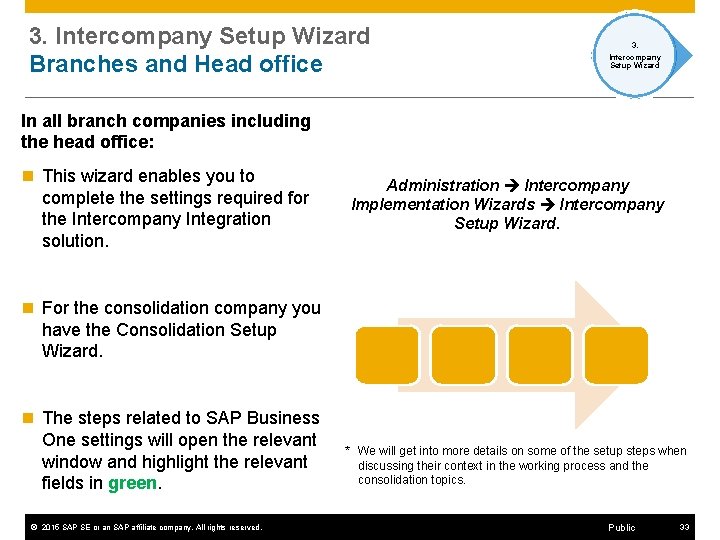
3. Intercompany Setup Wizard Branches and Head office 3. Intercompany Setup Wizard In all branch companies including the head office: n This wizard enables you to complete the settings required for the Intercompany Integration solution. Administration Intercompany Implementation Wizards Intercompany Setup Wizard. n For the consolidation company you have the Consolidation Setup Wizard. n The steps related to SAP Business One settings will open the relevant window and highlight the relevant fields in green. © 2015 SAP SE or an SAP affiliate company. All rights reserved. * We will get into more details on some of the setup steps when discussing their context in the working process and the consolidation topics. Public 33
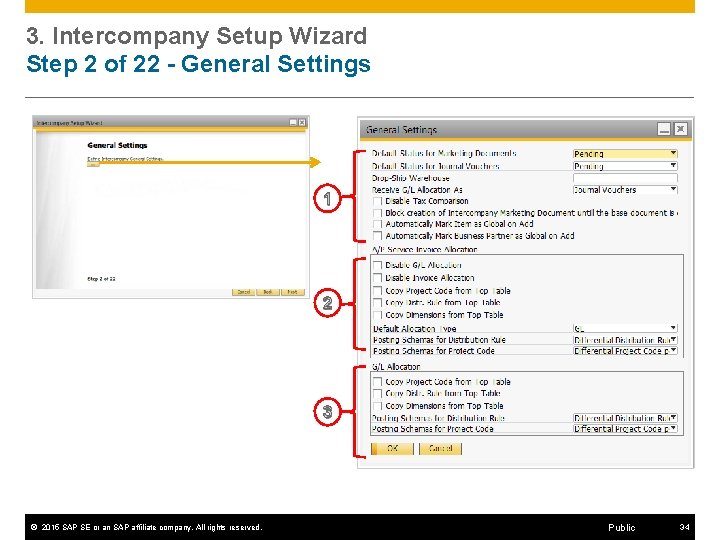
3. Intercompany Setup Wizard Step 2 of 22 - General Settings 1 2 3 © 2015 SAP SE or an SAP affiliate company. All rights reserved. Public 34
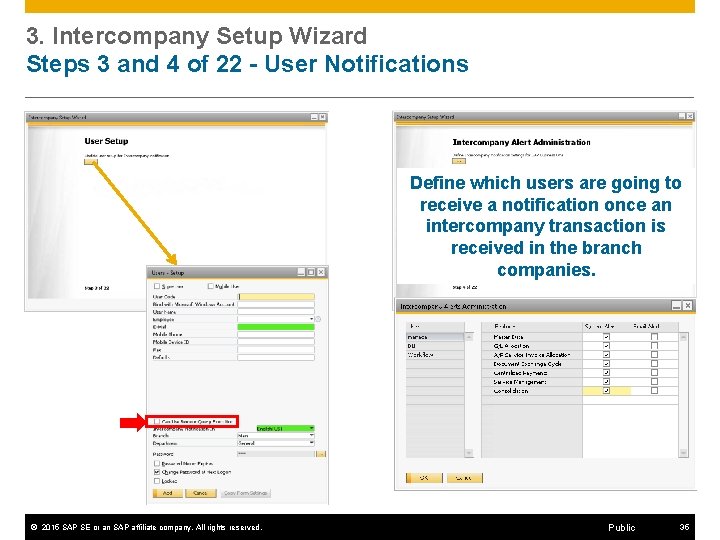
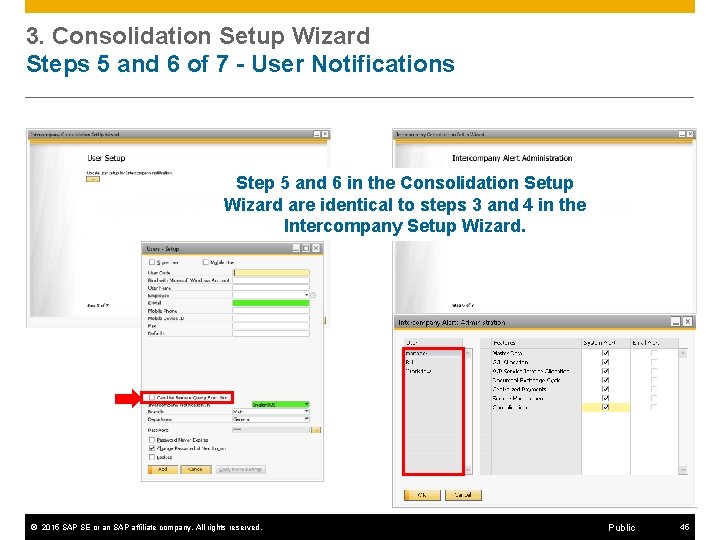
3. Intercompany Setup Wizard Steps 3 and 4 of 22 - User Notifications Define which users are going to receive a notification once an intercompany transaction is received in the branch companies. © 2015 SAP SE or an SAP affiliate company. All rights reserved. Public 35
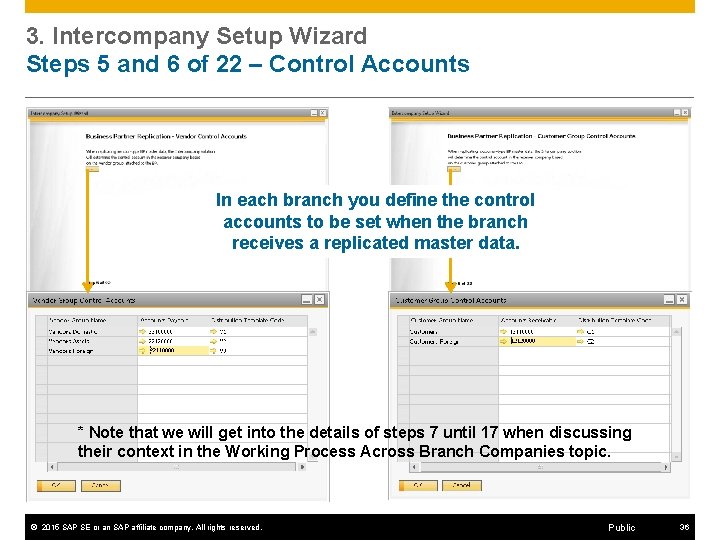
3. Intercompany Setup Wizard Steps 5 and 6 of 22 – Control Accounts In each branch you define the control accounts to be set when the branch receives a replicated master data. * Note that we will get into the details of steps 7 until 17 when discussing their context in the Working Process Across Branch Companies topic. © 2015 SAP SE or an SAP affiliate company. All rights reserved. Public 36
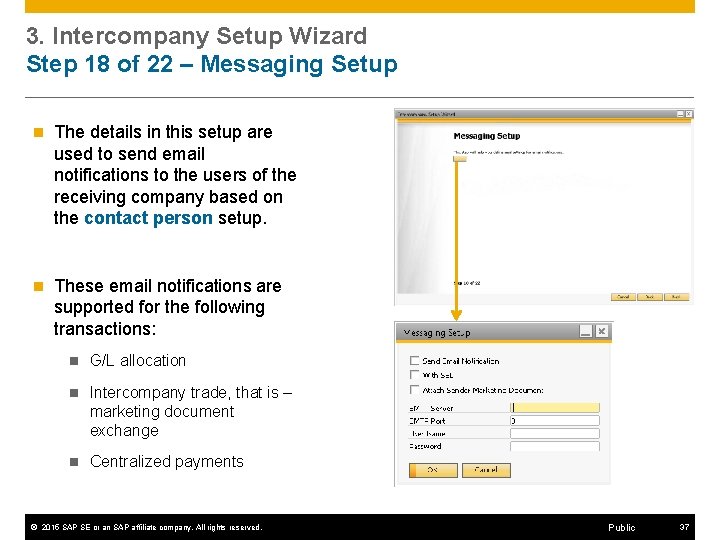
3. Intercompany Setup Wizard Step 18 of 22 – Messaging Setup n The details in this setup are used to send email notifications to the users of the receiving company based on the contact person setup. n These email notifications are supported for the following transactions: n G/L allocation n Intercompany trade, that is – marketing document exchange n Centralized payments © 2015 SAP SE or an SAP affiliate company. All rights reserved. Public 37
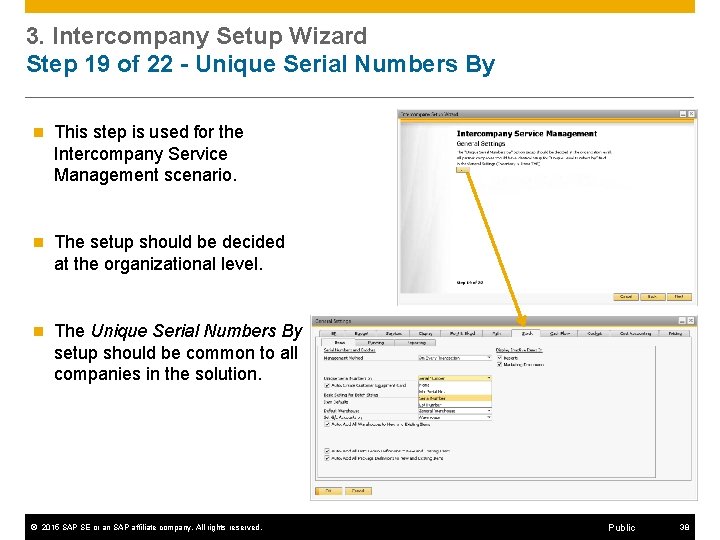
3. Intercompany Setup Wizard Step 19 of 22 - Unique Serial Numbers By n This step is used for the Intercompany Service Management scenario. n The setup should be decided at the organizational level. n The Unique Serial Numbers By setup should be common to all companies in the solution. © 2015 SAP SE or an SAP affiliate company. All rights reserved. Public 38
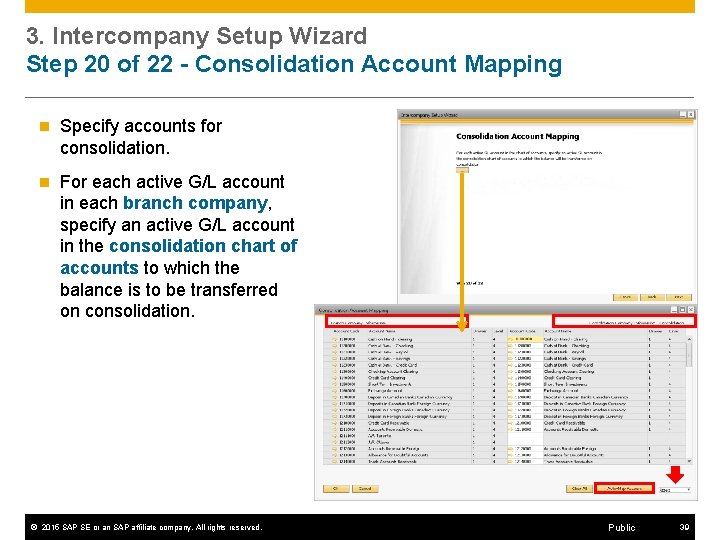
3. Intercompany Setup Wizard Step 20 of 22 - Consolidation Account Mapping n Specify accounts for consolidation. n For each active G/L account in each branch company, specify an active G/L account in the consolidation chart of accounts to which the balance is to be transferred on consolidation. © 2015 SAP SE or an SAP affiliate company. All rights reserved. Public 39
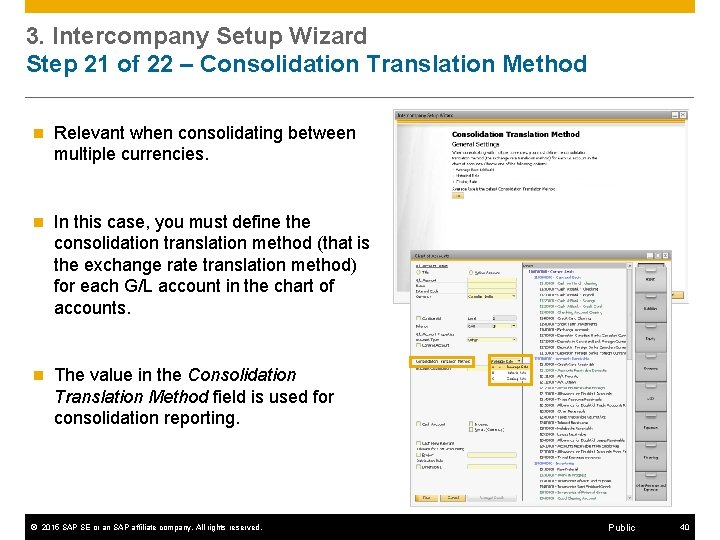
3. Intercompany Setup Wizard Step 21 of 22 – Consolidation Translation Method n Relevant when consolidating between multiple currencies. n In this case, you must define the consolidation translation method (that is the exchange rate translation method) for each G/L account in the chart of accounts. n The value in the Consolidation Translation Method field is used for consolidation reporting. © 2015 SAP SE or an SAP affiliate company. All rights reserved. Public 40
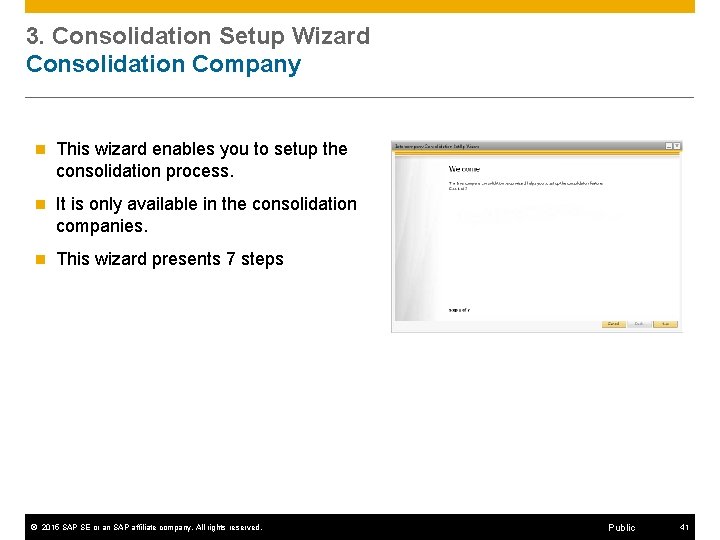
3. Consolidation Setup Wizard Consolidation Company n This wizard enables you to setup the consolidation process. n It is only available in the consolidation companies. n This wizard presents 7 steps © 2015 SAP SE or an SAP affiliate company. All rights reserved. Public 41
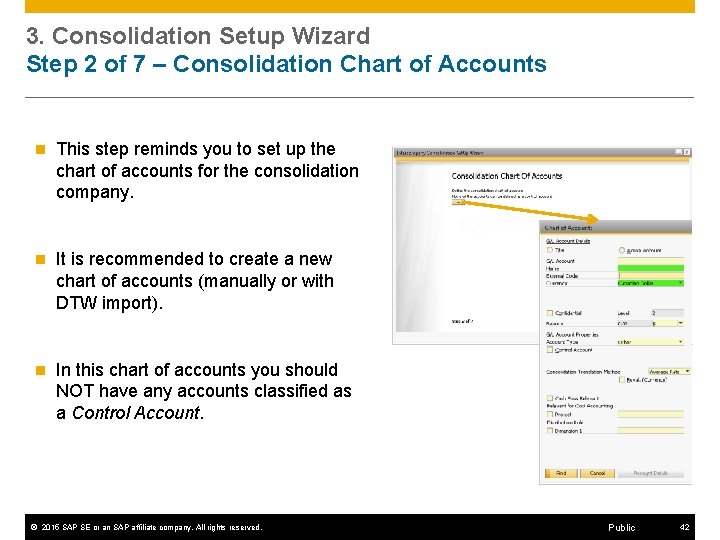
3. Consolidation Setup Wizard Step 2 of 7 – Consolidation Chart of Accounts n This step reminds you to set up the chart of accounts for the consolidation company. n It is recommended to create a new chart of accounts (manually or with DTW import). n In this chart of accounts you should NOT have any accounts classified as a Control Account. © 2015 SAP SE or an SAP affiliate company. All rights reserved. Public 42
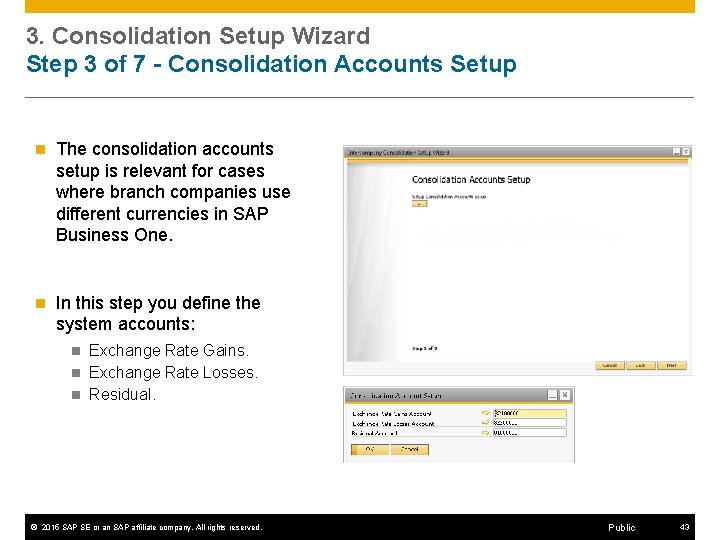
3. Consolidation Setup Wizard Step 3 of 7 - Consolidation Accounts Setup n The consolidation accounts setup is relevant for cases where branch companies use different currencies in SAP Business One. n In this step you define the system accounts: Exchange Rate Gains. n Exchange Rate Losses. n Residual. n © 2015 SAP SE or an SAP affiliate company. All rights reserved. Public 43
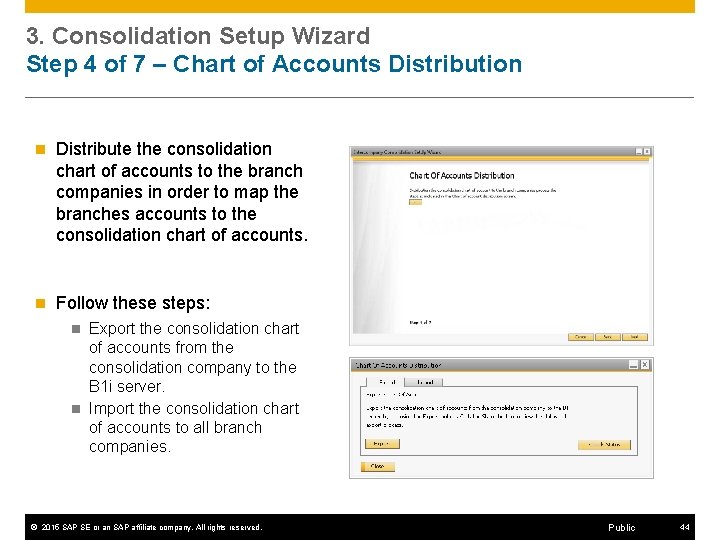
3. Consolidation Setup Wizard Step 4 of 7 – Chart of Accounts Distribution n Distribute the consolidation chart of accounts to the branch companies in order to map the branches accounts to the consolidation chart of accounts. n Follow these steps: Export the consolidation chart of accounts from the consolidation company to the B 1 i server. n Import the consolidation chart of accounts to all branch companies. n © 2015 SAP SE or an SAP affiliate company. All rights reserved. Public 44
3. Consolidation Setup Wizard Steps 5 and 6 of 7 - User Notifications Step 5 and 6 in the Consolidation Setup Wizard are identical to steps 3 and 4 in the Intercompany Setup Wizard. © 2015 SAP SE or an SAP affiliate company. All rights reserved. Public 45
4. Authorizations © 2015 SAP SE or an SAP affiliate company. All rights reserved. 4. Authorization Definition Public 46
5. Global Data Authorization © 2015 SAP SE or an SAP affiliate company. All rights reserved. 5. Global Data Authorization Public 47
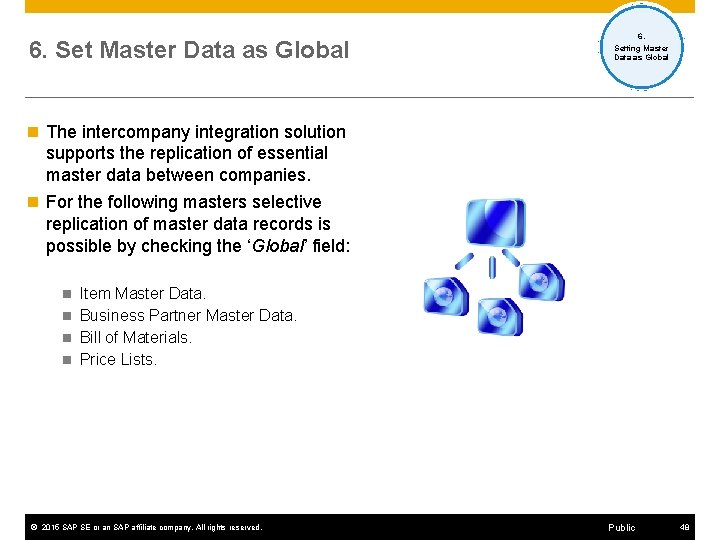
6. Set Master Data as Global 6. Setting Master Data as Global n The intercompany integration solution supports the replication of essential master data between companies. n For the following masters selective replication of master data records is possible by checking the ‘Global’ field: Item Master Data. n Business Partner Master Data. n Bill of Materials. n Price Lists. n © 2015 SAP SE or an SAP affiliate company. All rights reserved. Public 48
6. Set Master Data as Global n To synchronize master data records, you must mark the relevant master data. n You can set all items and business partners as Global simultaneously. n You can also choose the option: Automatically Mark Business Partner as Global on Add and Automatically Mark Item as Global on Add. n If a global price list is based on another price list then the base price list must also be marked as Global n To replicate the exchange rate across companies choose the Sync Button available on Exchange Rates and Indexes Window. © 2015 SAP SE or an SAP affiliate company. All rights reserved. Public 49
Intercompany Tools n Intercompany integration solution provides you with the following Microsoft Excel based tools: n n n Branch Accounts Setup Tool Account Classification Mapping Tool Consolidation Account Mapping Tool Custom Language Tool © 2015 SAP SE or an SAP affiliate company. All rights reserved. Public 50