
Information Technology Hardware 1 Learning Objectives n When
Information Technology Hardware 1
Learning Objectives n When you finish this chapter, you will: ¨ Recognize major components of an electronic computer. ¨ Understand how the different components work. ¨ Know the functions of peripheral equipment. 2
Learning Objectives ¨ Be able to classify computers into major categories, and identify their strengths and weaknesses. ¨ Be able to identify and evaluate key criteria when deciding what computers to purchase. ¨ Know the controversy regarding the health hazards of computers. ¨ Recognize how to evaluate hardware so that you can harness it to improve managerial processes. 3
The Central Tool of Modern IS n Four Basic Functions of Computers ¨ Accept data ¨ Process data ¨ Store data and instructions ¨ Output data 4
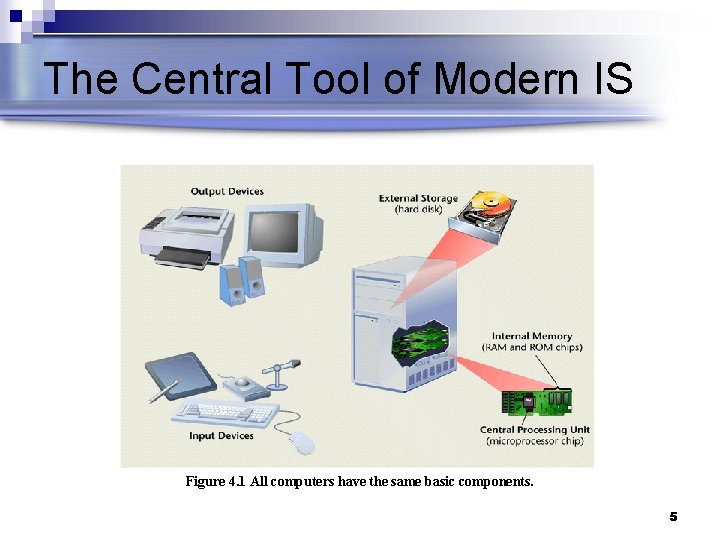
The Central Tool of Modern IS Figure 4. 1 All computers have the same basic components. 5
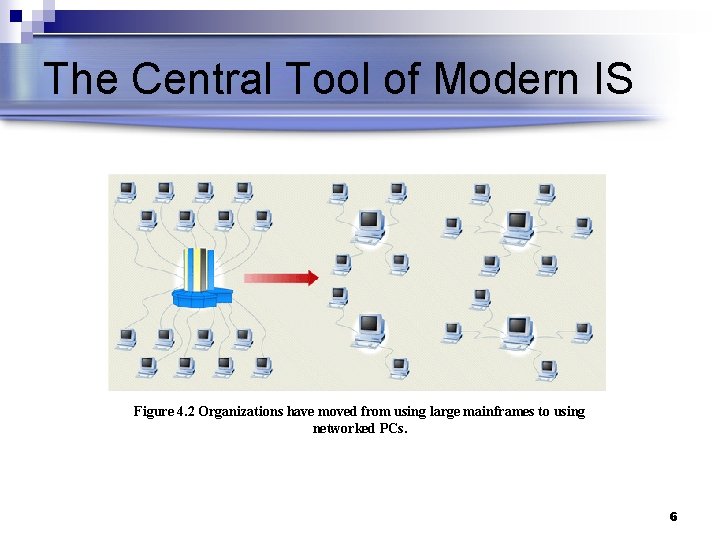
The Central Tool of Modern IS Figure 4. 2 Organizations have moved from using large mainframes to using networked PCs. 6
Computers Communicating: Bits And Bytes n Computer recognizes two states: on or off ¨ Each n on or off signal represents a bit (binary digit) Encoding Schemes ¨ Representation n of symbols by unique strings of bits Counting Bases ¨ Decimal system is “base 10” ¨ Binary system is “base 2” n Used by computers 7
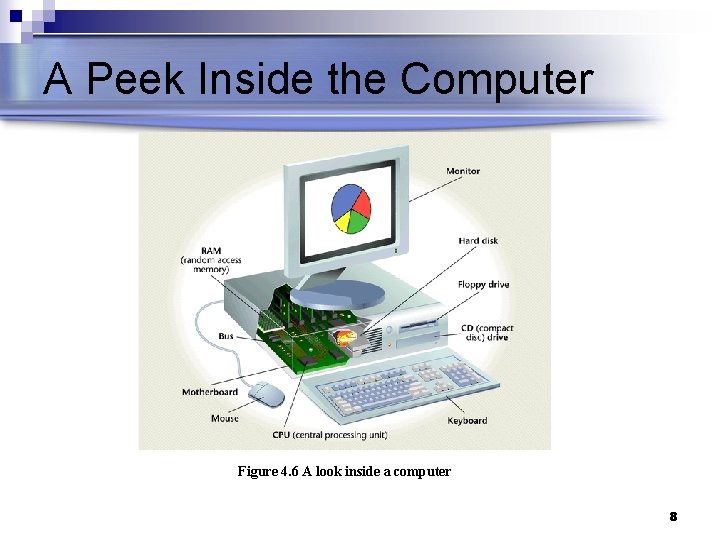
A Peek Inside the Computer Figure 4. 6 A look inside a computer 8
A Peek Inside the Computer n The Central Processing Unit (CPU) ¨ The brain of the computer ¨ Microprocessor n Carries signals that execute all processing ¨ Two Components: Control unit n Arithmetic logic unit (ALU) n 9
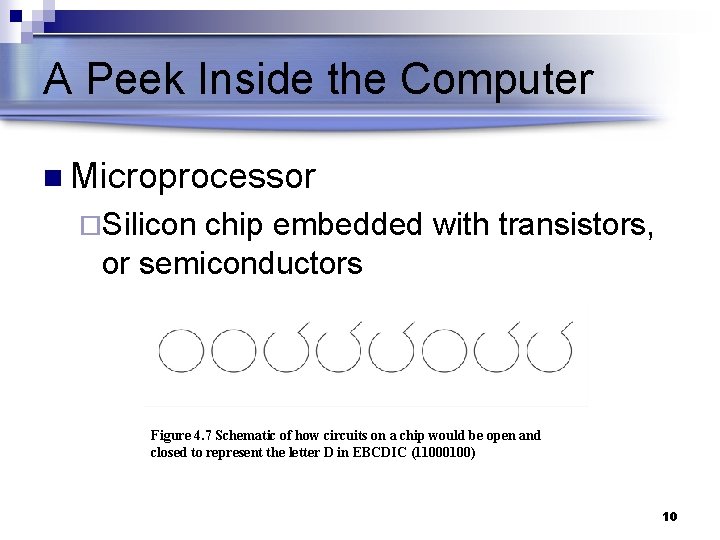
A Peek Inside the Computer n Microprocessor ¨Silicon chip embedded with transistors, or semiconductors Figure 4. 7 Schematic of how circuits on a chip would be open and closed to represent the letter D in EBCDIC (11000100) 10
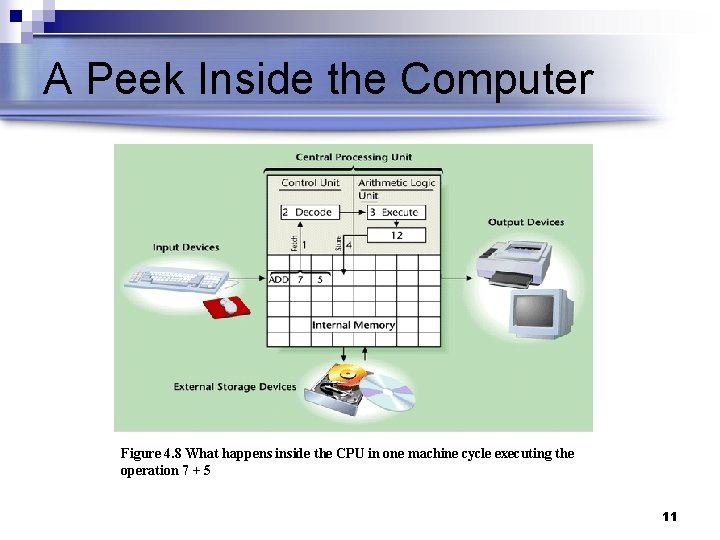
A Peek Inside the Computer Figure 4. 8 What happens inside the CPU in one machine cycle executing the operation 7 + 5 11
A Peek Inside the Computer n Machine Cycle ¨ CPU’s execution of four functions: Fetch n Decode n Execute n Store n ¨ Functions measured in small fractions of a second 12
A Peek Inside the Computer n Memory ¨ CPU Registers ¨ Internal Memory Random access memory (RAM) n Read-only memory (ROM) n ¨ External n Memory Magnetic disks, magnetic tapes, optical discs 13
A Peek Inside the Computer n Computer Power ¨Clock rate (measured in cycles per second) ¨Amount of information the CPU can process per second ¨Speed determined only by combination of both factors 14
Input Devices Keyboard n Mouse, Trackball, and Track Pad n Touch Screen n Source Data Input Devices n Imaging n Speech Recognition n 15
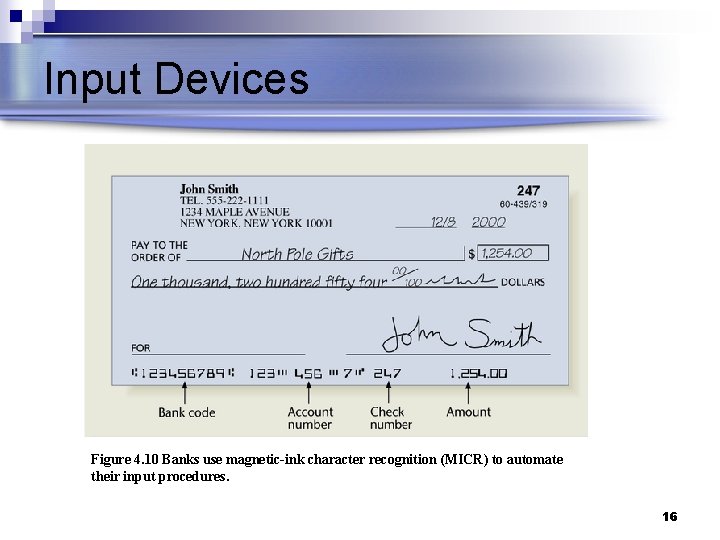
Input Devices Figure 4. 10 Banks use magnetic-ink character recognition (MICR) to automate their input procedures. 16
Output Devices n Soft-Copy Output Devices ¨ Cathode-Ray Tube (CRT) Monitor ¨ Flat-Panel Monitor ¨ Speech Output n Hardcopy Output Devices ¨ Nonimpact Printers (most common) ¨ Impact Printers 17
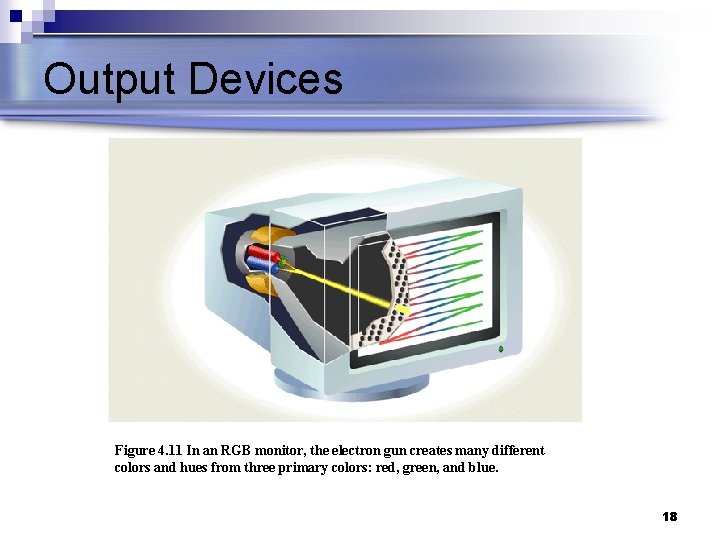
Output Devices Figure 4. 11 In an RGB monitor, the electron gun creates many different colors and hues from three primary colors: red, green, and blue. 18
External Storage Media n Important Properties to Consider ¨Capacity ¨Speed ¨Cost 19
External Storage Media Magnetic Tapes n Magnetic Disks n Optical Discs (Compact Discs) n Optical Tapes n 20
External Storage Media n Business Considerations of Storage Media ¨Trade-offs ¨Modes of Access n Sequential Access n Direct Access 21
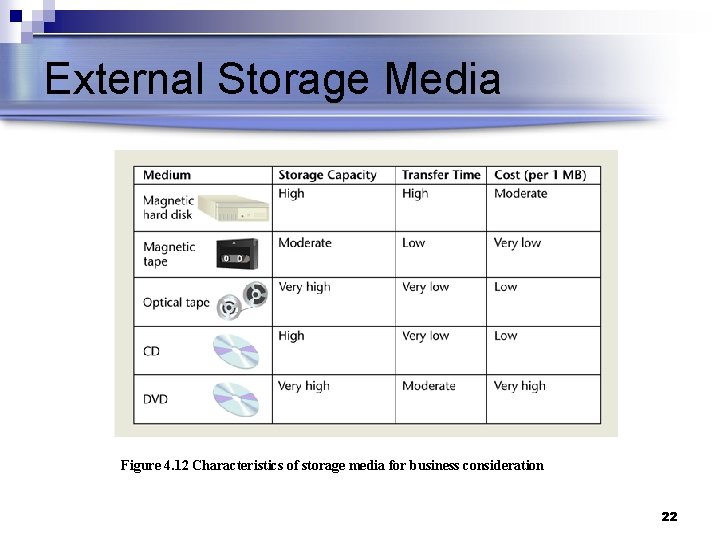
External Storage Media Figure 4. 12 Characteristics of storage media for business consideration 22
Classification of Computers n Supercomputers ¨ The largest, most powerful, and most expensive ¨ Used by universities, research institutions, and large corporations n Mainframe Computers ¨ Less powerful and less expensive than supercomputers ¨ Used by businesses with large amounts of data that need to be stored in a central computer 23
Classification of Computers n Minicomputers ¨ Often used as the host computer in a network of smaller computers ¨ Priced in the tens of thousands to a few hundred thousand dollars ¨ Manufacturers: DEC (VAX), IBM (AS/400), and Hewlett-Packard 24
Classification of Computers n Compatibility ¨ Software and peripheral devices from one computer can be used with another computer. ¨ In a networked environment, computers need to communicate to share databases and other computing resources. ¨ In addition to power and cost, compatibility is an extremely important factor in purchasing decisions. 25
Considerations in Purchasing Hardware n What should you consider when buying hardware? ¨ Power -- speed, size of memory, storage capacity ¨ Expansion and upgrade capability ¨ Ports for external devices like printers, hard disks, communication devices ¨ Ergonomics: Keyboard, Monitor ¨ Vendor reliability, warranty policy, vendor support 26
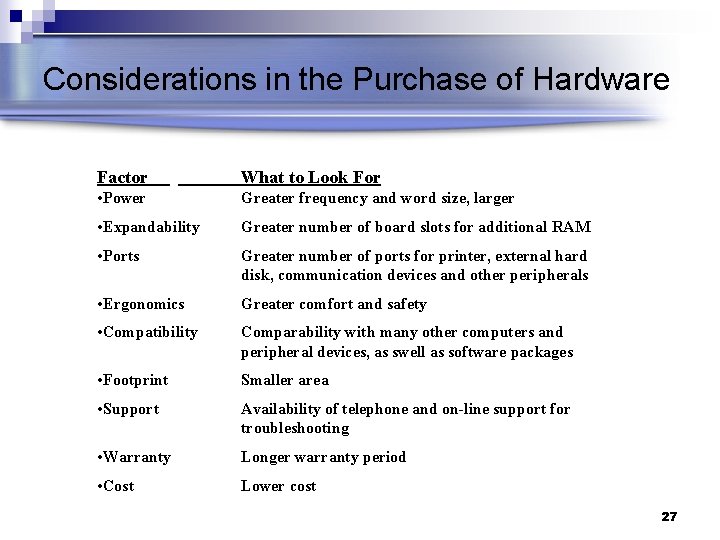
Considerations in the Purchase of Hardware Factor What to Look For • Power Greater frequency and word size, larger • Expandability Greater number of board slots for additional RAM • Ports Greater number of ports for printer, external hard disk, communication devices and other peripherals • Ergonomics Greater comfort and safety • Compatibility Comparability with many other computers and peripheral devices, as swell as software packages • Footprint Smaller area • Support Availability of telephone and on-line support for troubleshooting • Warranty Longer warranty period • Cost Lower cost 27
Ethical and Societal Issues Computers May Be Hazardous to Your Health n Physical and Emotional Stress ¨ General physical and emotional stress ¨ Muscular-skeletal problems n Repetitive Stress Injuries (RSI) ¨ Vision problems 28
- Slides: 28