
Information System Analysis Lab 1 LAB PROTOCOL Mobiles
Information System Analysis Lab 1

LAB PROTOCOL Mobiles should be silent during lab Please Keep Quite Find your computer and turn on Make sure to understand the lab topic and feel free to interrupt and ask me.
Objectives In this lab we will learn : Ø Gantt charts Øthe Microsoft Office Visio environment. ØHow to create diagrams. ØHow to create shapes, stencils, and templates. ØExamples.
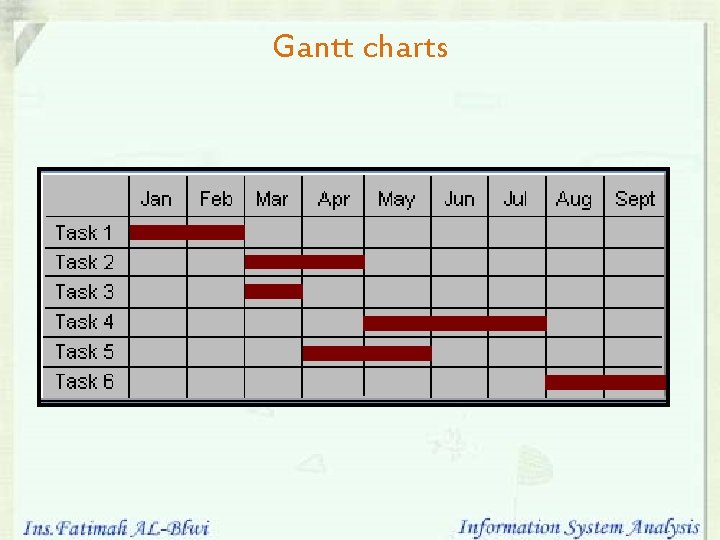
Gantt charts ØGant chart is one of project management tools. ØA Gant chart, named after the engineer Henry Gantt. Ø A Gant chart, uses to plan the time scale for a project and Displays the time relationships between tasks in a project.
Gantt charts
Gantt charts (cont…) A Gantt chart, each task takes up one row. Ø Dates run along the top in increments of days, weeks or months, depending on the total length of the project. Ø The expected time for each task is represented by a horizontal bar Ø Tasks may run sequentially, in parallel or overlapping.
The Gantt Chart’s Limitations Ø Gantt does not show the inter-relationship between activities. Ø the Gantt chart cannot show the results of either an early or a late start in the activities. It does not reflect true project status because elements behind schedule do not mean that the project is behind schedule.
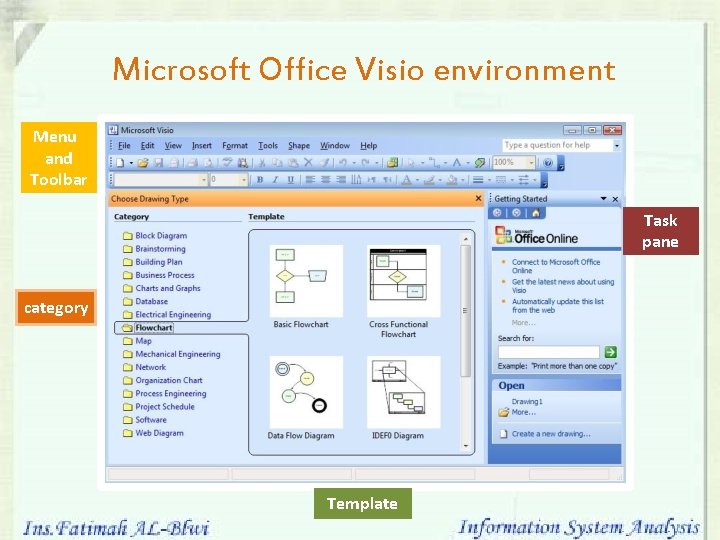
Microsoft Office Visio environment Menu and Toolbar Task pane category Template
Category Contains 16 different types of areas that enable us to make diagrams such as Ønetwork ØFlow Chart ØMap ØCharts and graphs
Templates ØA template opens one or more stencils to the left of the drawing page. The stencils contain the shapes you need to create your diagram.
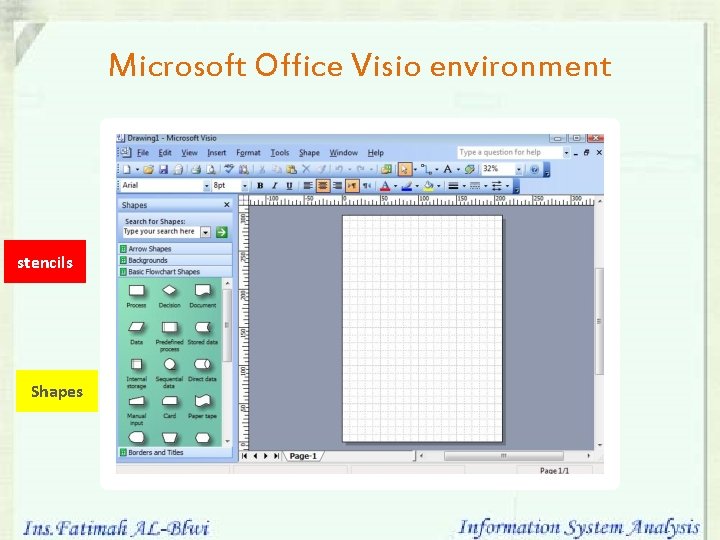
Microsoft Office Visio environment stencils Shapes
Stencils and Shapes After you open a template, you drag shapes from stencils onto the drawing page to create your diagram.
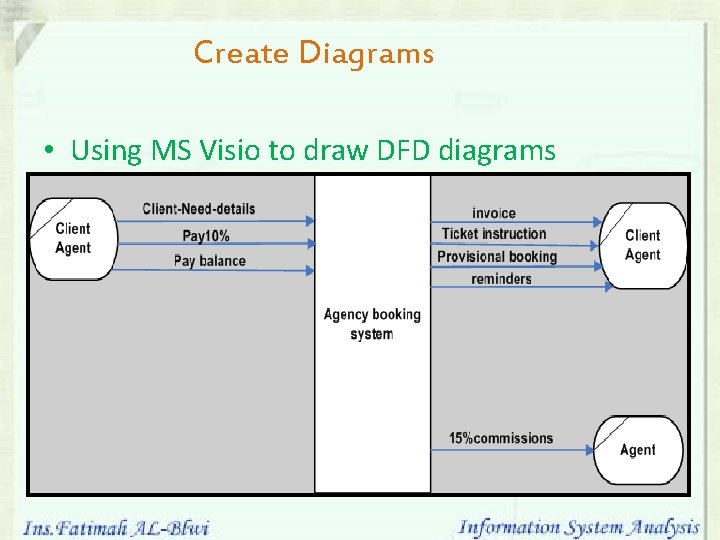
Create Diagrams • Using MS Visio to draw DFD diagrams
Begin diagrams Open templates – File New Choose Drawing Type. – In the Choose Drawing Type window, under Category, click Flowchart. – Under Template, click Basic Flowchart. Add shapes – Add shapes to your diagram by dragging shapes from stencils in the Shapes window onto the drawing page.
Begin diagrams Delete shapes – How can I delete shape? Find shapes – You can look for more shapes on other stencils Add text ــ text tool
Connect shapes v. Diagrams such as flowcharts, organization charts, block diagrams, and network diagrams all have one thing in common: connections. ØConnect shapes with the Connector tool. ØConnect shapes with connectors from stencils. v. Add text to connectors
any Q
– Email: fatimahal-blwi@hotmail. com
- Slides: 18