
Information about the LO Subject Electronics circuits design
Information about the LO Subject: Electronics circuits design Sub-Domain(optional): BJT amplifier design Course name : Electronics Circuit Education Level(UG/PG): UG 2 -3 line description of the topic of the LO: Defines Q point and its location on the load line. This LO explains relation between Q point location and amplification of the input signal. Author/s : Madhuri Mavinkurve Mentor: Prof. Sahana Murthy 24/12/11 Project OSCAR IDD Template 4. 7 1
Introduction of Q point This learning object is created to explain concept of Q point and how to locate Q point graphically and how its location is related to amplification 24/12/11 Project OSCAR IDD Template 4. 7 2

Learning objectives. After interacting with this Learning Object, the learner will be able to 1. Locate Q point of the given circuit. 2. Draw output voltage for given input voltage 3. Draw output current for given input voltage. 4. Explain relation between Q point and amplification of input voltage. 24/12/11 Project OSCAR IDD Template 4. 7 4

Key words in this LO These are the keywords and their description in this LO Output characteristics –This is graphical representation of relation between output current and output voltage for change in input current of given transistor. Dc load line- This line is drawn on transistor characteristics to study voltages and currents in the given circuit under dc conditions. This line joins two points as VCC ON X axis and Ic = VCC/Rc on Y axis. Q POINT—It is dc operating point of BJT amplifier. It represents output voltage and current of given circuit under no signal(quiescent) condition 05/09/11 Project OSCAR IDD Template 4. 7 5

IMPORTANT NOTE TO THE ANIMATOR: • Please see the design template provided in slide no 7. • This is a sample template, and you are free to change as per your design requirements. • Each slide with yellow background and red text are instructions to animator specific to slide. • All the instructions/labels or anything WRITTEN in blue are CONTENT NOT TO BE DISPLAYED! • All the instructions WRITTEN in black are CONTENT TO BE DISPLAYED! • This is not applicable for images as there can be overlapping of these colours there. This should be followed for all the instructions, labels, etc… • Kindly keep a note of this while displaying text in the animation. 05/09/11 Project OSCAR IDD Template 4. 7 6
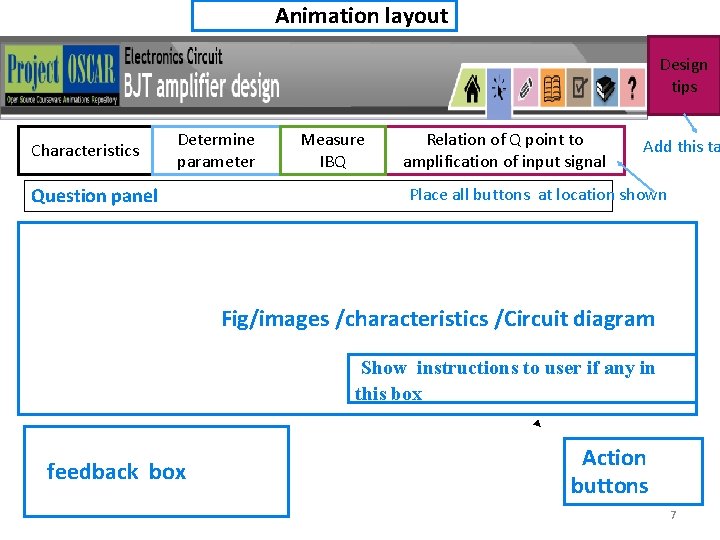
Animation layout Design tips Characteristics Determine parameter Question panel Measure IBQ Relation of Q point to amplification of input signal Add this ta Place all buttons at location shown Fig/images /characteristics /Circuit diagram Show instructions to user if any in this box feedback box Action buttons 7
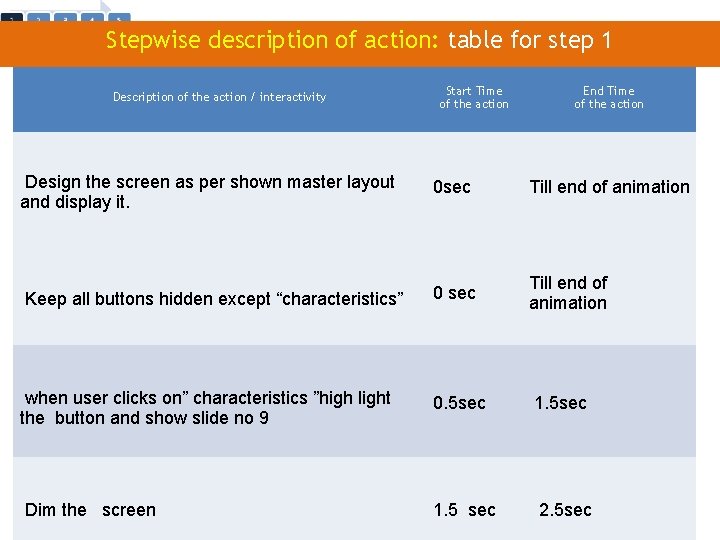
Stepwise description of action: table for step 1 Description of the action / interactivity Start Time of the action End Time of the action Design the screen as per shown master layout and display it. 0 sec Till end of animation Keep all buttons hidden except “characteristics” 0 sec Till end of animation when user clicks on” characteristics ”high light the button and show slide no 9 0. 5 sec 1. 5 sec Dim the screen 05/09/11 Project OSCAR IDD Template 4. 71. 5 Project OSCAR IDD Template 4. 7 sec 2. 5 sec 8
Characteristics
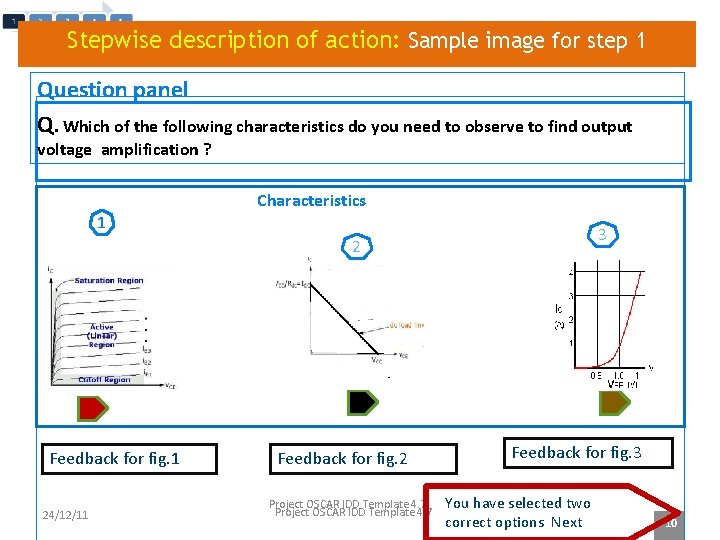
Stepwise description of action: Sample image for step 1 Question panel Q. Which of the following characteristics do you need to observe to find output voltage amplification ? Characteristics 1 3 2 Feedback for fig. 1 24/12/11 Feedback for fig. 2 Project OSCAR IDD Template 4. 7 Feedback for fig. 3 You have selected two correct options Next 10
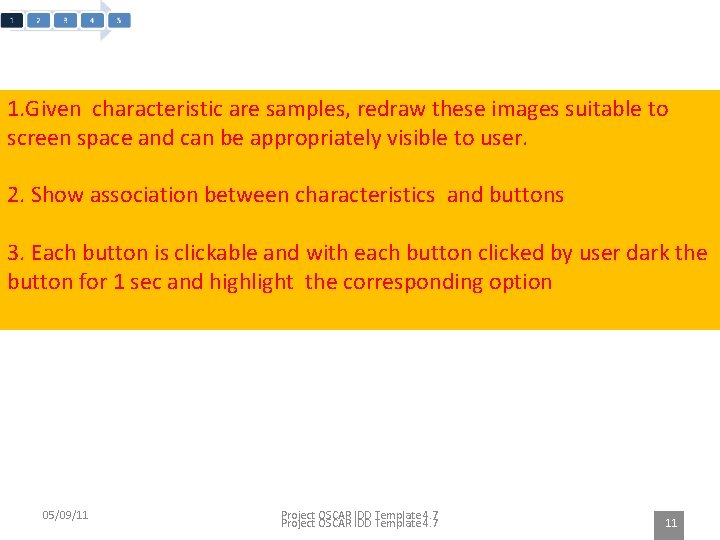
1. Given characteristic are samples, redraw these images suitable to screen space and can be appropriately visible to user. 2. Show association between characteristics and buttons 3. Each button is clickable and with each button clicked by user dark the button for 1 sec and highlight the corresponding option 05/09/11 Project OSCAR IDD Template 4. 7 11
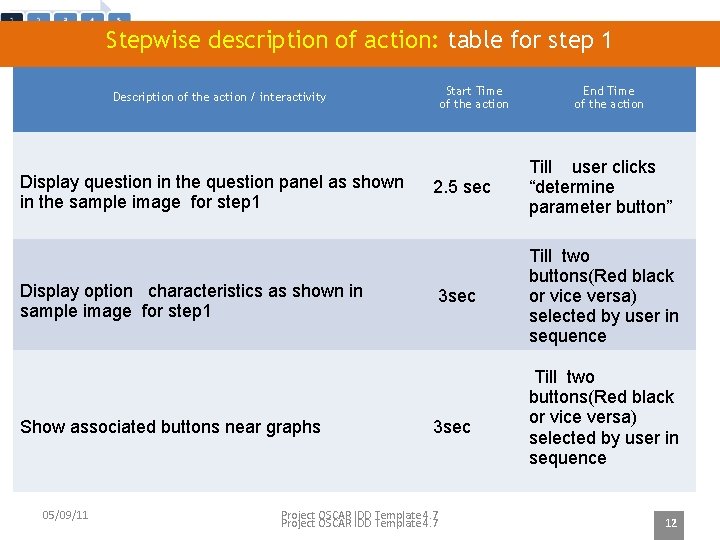
Stepwise description of action: table for step 1 Start Time of the action Description of the action / interactivity Display question in the question panel as shown in the sample image for step 1 Display option characteristics as shown in sample image for step 1 Show associated buttons near graphs 05/09/11 End Time of the action 2. 5 sec Till user clicks “determine parameter button” 3 sec Till two buttons(Red black or vice versa) selected by user in sequence 3 sec Project OSCAR IDD Template 4. 7 Till two buttons(Red black or vice versa) selected by user in sequence 12

Description of the action / interactivity Start Time of the action When user clicks the When user button dark the button and clicks it highlight the option End Time of the action On screen text 1 sec If red button is clicked by user then show option . till user good this is the correct answer, these clicks When user are output characteristics. But these clicks button next characteristics alone are not button sufficient to predict amplification. Select one more option” If green button is clicked by user then show following feedback When user clicks the button till user “These are input characteristics and selects are not at all useful to decide amplification. Select other options” next option When user clicks the button till user clicks next button If black button is clicked by user then show following feedback 05/09/11 “Good this is correct option , this is a load line. But this load line alone cannot predict amplification, so select one more option ” Project OSCAR IDD Template 4. 7 13
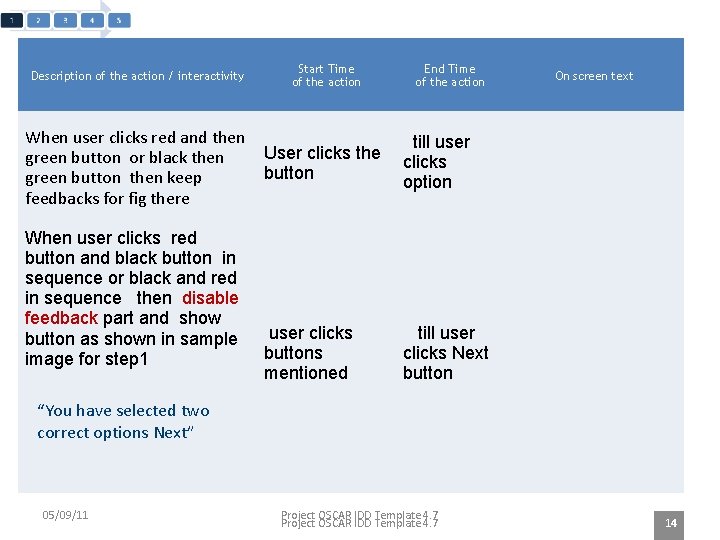
Description of the action / interactivity Start Time of the action When user clicks red and then User clicks the green button or black then button green button then keep feedbacks for fig there When user clicks red button and black button in sequence or black and red in sequence then disable feedback part and show button as shown in sample image for step 1 user clicks buttons mentioned End Time of the action On screen text till user clicks option till user clicks Next button “You have selected two correct options Next” 05/09/11 Project OSCAR IDD Template 4. 7 14
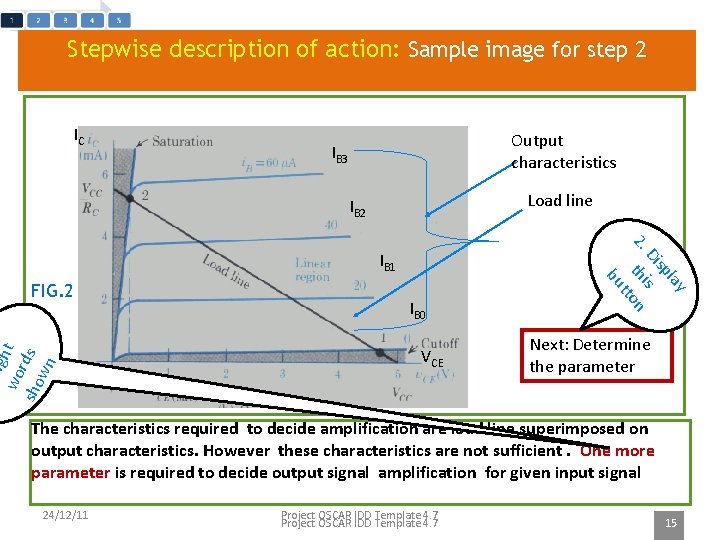
Stepwise description of action: Sample image for step 2 IC Output characteristics IB 3 Load line IB 2 lig wo ht sho rds wn FIG. 2 IB 0 VCE lay sp Di s 2. hi n t tto bu IB 1 Next: Determine the parameter The characteristics required to decide amplification are load line superimposed on output characteristics. However these characteristics are not sufficient. One more parameter is required to decide output signal amplification for given input signal 24/12/11 Project OSCAR IDD Template 4. 7 15
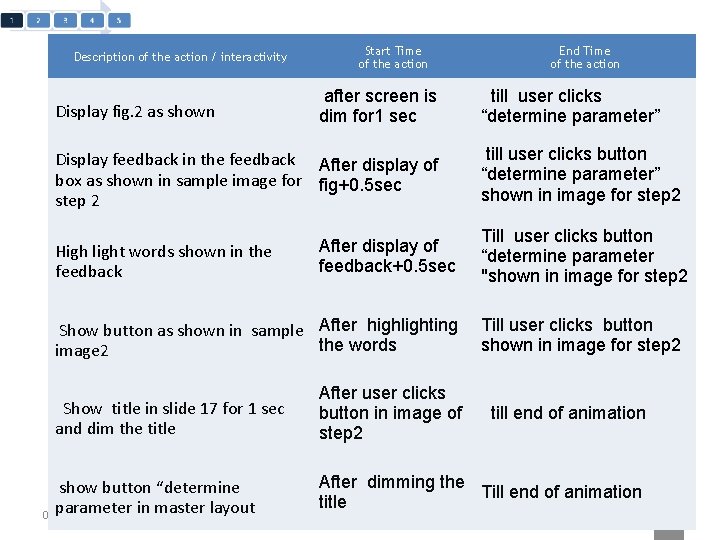
Description of the action / interactivity Start Time of the action after screen is dim for 1 sec Display fig. 2 as shown Display feedback in the feedback After display of box as shown in sample image for fig+0. 5 sec step 2 After display of feedback+0. 5 sec High light words shown in the feedback Show button as shown in sample After highlighting the words image 2 Show title in slide 17 for 1 sec and dim the title show button “determine parameter in master layout 05/09/11 After user clicks button in image of step 2 End Time of the action till user clicks “determine parameter” till user clicks button “determine parameter” shown in image for step 2 Till user clicks button “determine parameter "shown in image for step 2 Till user clicks button shown in image for step 2 till end of animation After dimming the Till end of animation title Project OSCAR IDD Template 4. 7 16
Determine parameter
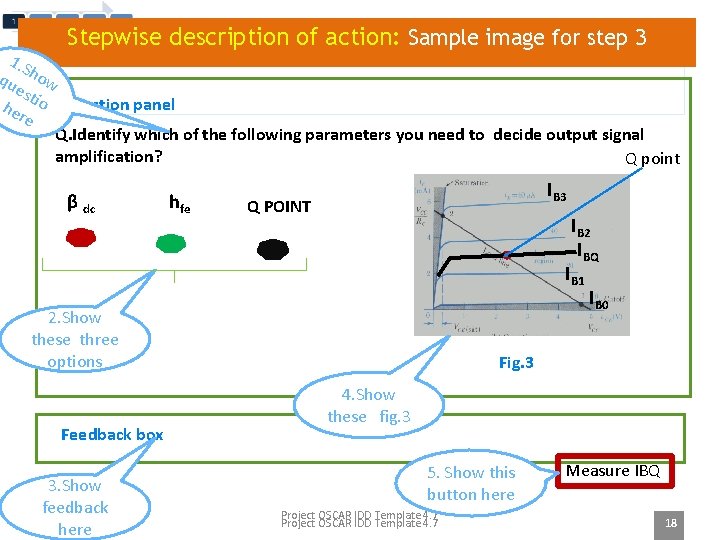
Stepwise description of action: Sample image for step 3 1. S qu how est he io Question panel re Q. Identify which of the following parameters you need to decide output signal amplification? Q point β dc hfe IB 3 Q POINT IB 2 IBQ IB 1 2. Show these three options Feedback box 3. Show feedback 24/12/11 here IB 0 Fig. 3 4. Show these fig. 3 5. Show this button here Project OSCAR IDD Template 4. 7 Measure IBQ 18
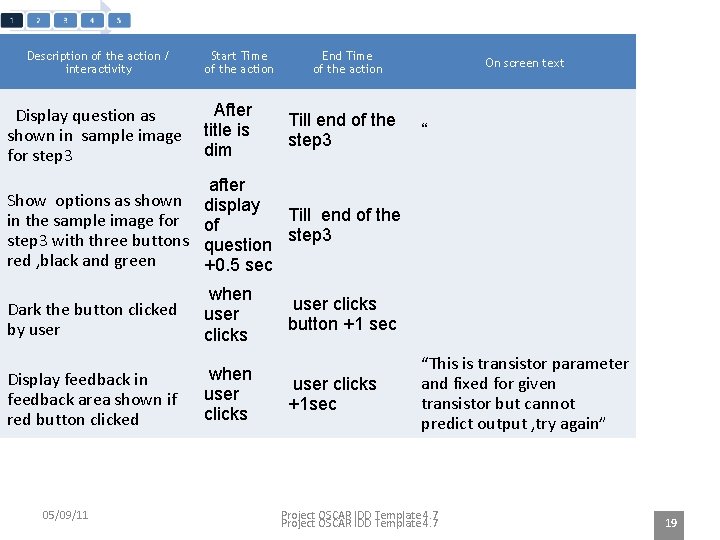
Description of the action / interactivity Display question as shown in sample image for step 3 Start Time of the action After title is dim End Time of the action Till end of the step 3 On screen text “ after Show options as shown display Till end of the in the sample image for of step 3 with three buttons question step 3 red , black and green +0. 5 sec Dark the button clicked by user when user clicks Display feedback in feedback area shown if red button clicked when user clicks 05/09/11 user clicks button +1 sec user clicks +1 sec “This is transistor parameter and fixed for given transistor but cannot predict output , try again” Project OSCAR IDD Template 4. 7 19
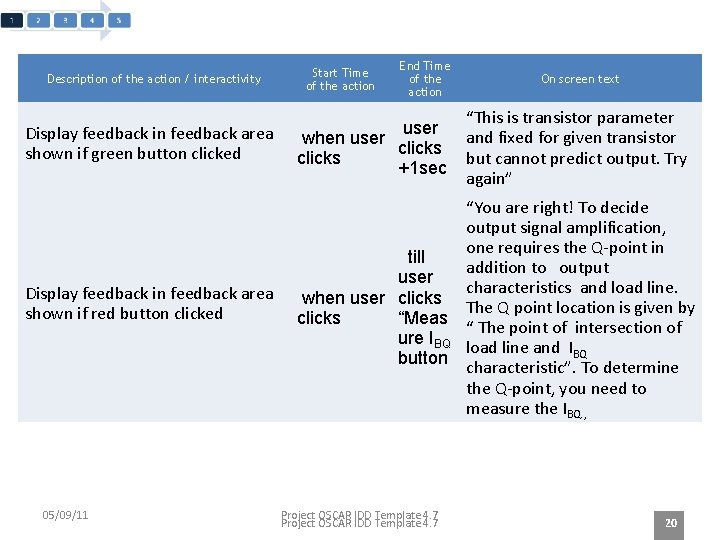
Description of the action / interactivity Start Time of the action End Time of the action On screen text “This is transistor parameter and fixed for given transistor but cannot predict output. Try again” Display feedback in feedback area shown if green button clicked user when user clicks +1 sec Display feedback in feedback area shown if red button clicked “You are right! To decide output signal amplification, one requires the Q-point in till addition to output user characteristics and load line. when user clicks The Q point location is given by “Meas clicks “ The point of intersection of ure IBQ load line and IBQ button characteristic”. To determine the Q-point, you need to measure the IBQ. , 05/09/11 Project OSCAR IDD Template 4. 7 20
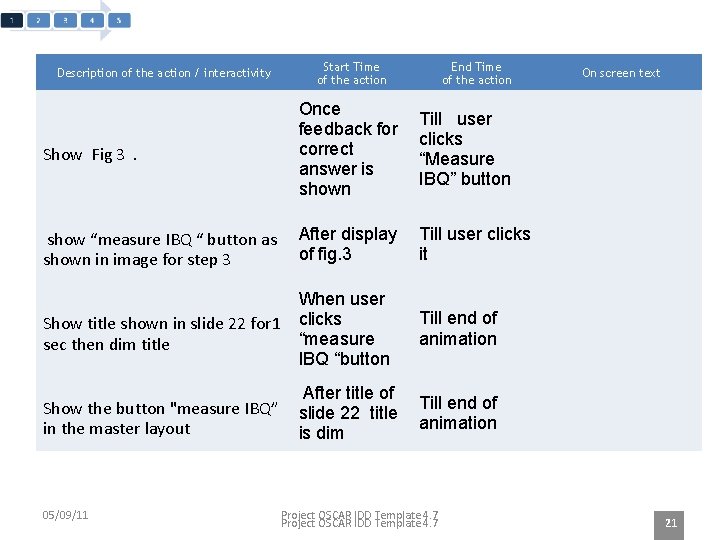
Description of the action / interactivity Start Time of the action End Time of the action Show Fig 3. Once feedback for correct answer is shown Till user clicks “Measure IBQ” button show “measure IBQ “ button as shown in image for step 3 After display of fig. 3 Till user clicks it When user Show title shown in slide 22 for 1 clicks “measure sec then dim title IBQ “button Show the button "measure IBQ” in the master layout 05/09/11 After title of slide 22 title is dim On screen text Till end of animation Project OSCAR IDD Template 4. 7 21
Measure IBQ
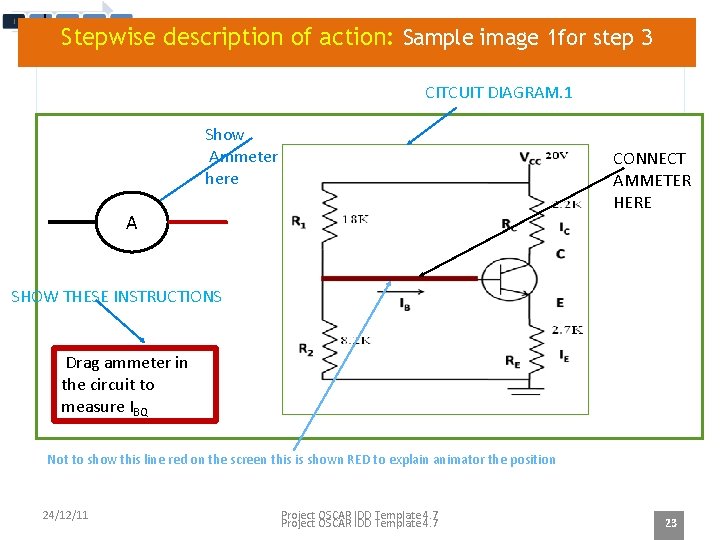
Measure IBQ Stepwise description of action: Sample image 1 for step 3 CITCUIT DIAGRAM. 1 Show Ammeter here CONNECT AMMETER HERE 1 A Feedback SHOW THESE INSTRUCTIONS Drag ammeter in the circuit to measure IBQ Not to show this line red on the screen this is shown RED to explain animator the position 24/12/11 Project OSCAR IDD Template 4. 7 23
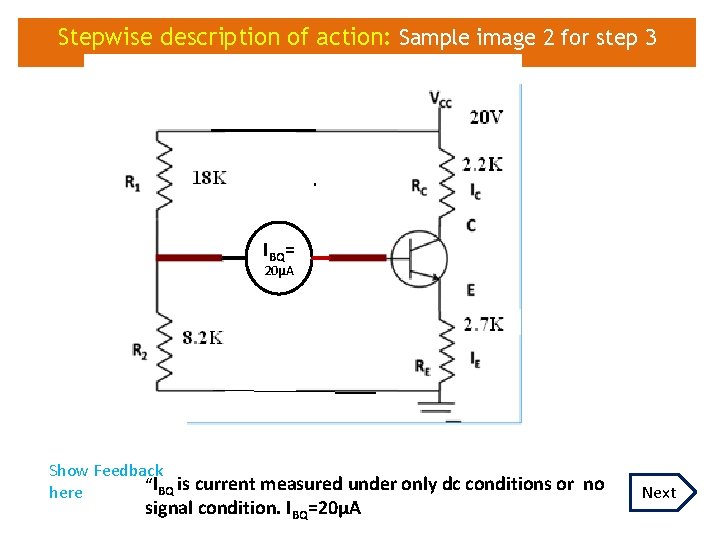
Stepwise description of action: Sample image 2 for step 3 IBQ= 20µA Show Feedback “IBQ is current measured under only dc conditions or no here signal condition. IBQ=20µA Next
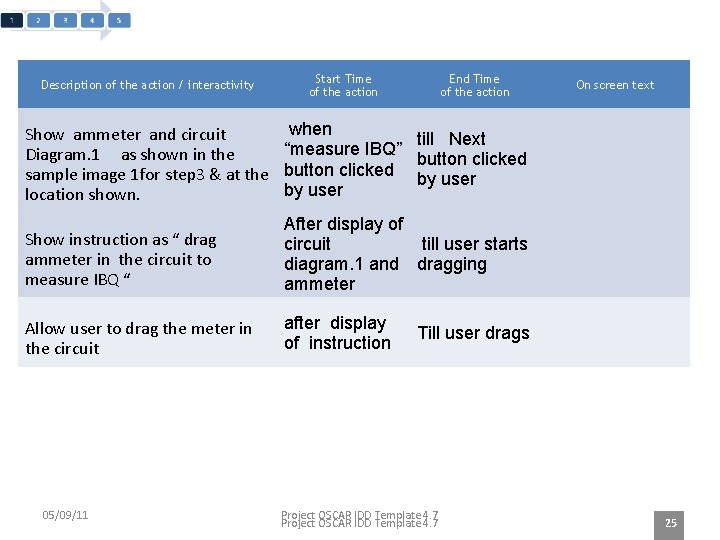
Description of the action / interactivity Start Time of the action End Time of the action On screen text when Show ammeter and circuit till Next “measure IBQ” Diagram. 1 as shown in the button clicked sample image 1 for step 3 & at the by user location shown. Show instruction as “ drag ammeter in the circuit to measure IBQ “ After display of till user starts circuit diagram. 1 and dragging ammeter Allow user to drag the meter in the circuit after display of instruction 05/09/11 Till user drags Project OSCAR IDD Template 4. 7 25
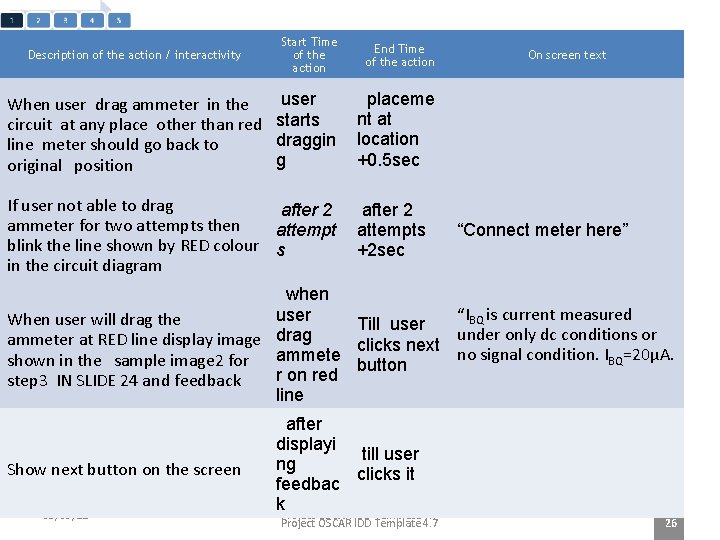
Start Time of the action End Time of the action user When user drag ammeter in the circuit at any place other than red starts draggin line meter should go back to g original position placeme nt at location +0. 5 sec If user not able to drag after 2 ammeter for two attempts then attempt blink the line shown by RED colour s in the circuit diagram after 2 attempts +2 sec Description of the action / interactivity On screen text “Connect meter here” when “IBQ is current measured user When user will drag the Till user under only dc conditions or ammeter at RED line display image drag clicks next no signal condition. IBQ=20µA. shown in the sample image 2 for ammete button red step 3 IN SLIDE 24 and feedback line Show next button on the screen 05/09/11 after displayi till user ng clicks it feedbac k. Project OSCAR IDD Template 4. 7 26
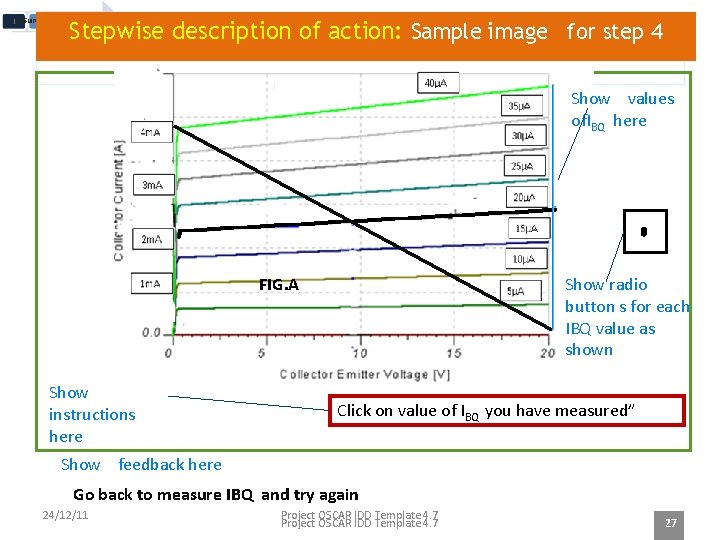
Measure IBQ Stepwise description of action: Sample image for step 4 Show values of. IBQ here FIG. A Show instructions here Show radio button s for each IBQ value as shown Click on value of IBQ you have measured” Show feedback here Go back to measure IBQ and try again 24/12/11 Project OSCAR IDD Template 4. 7 27
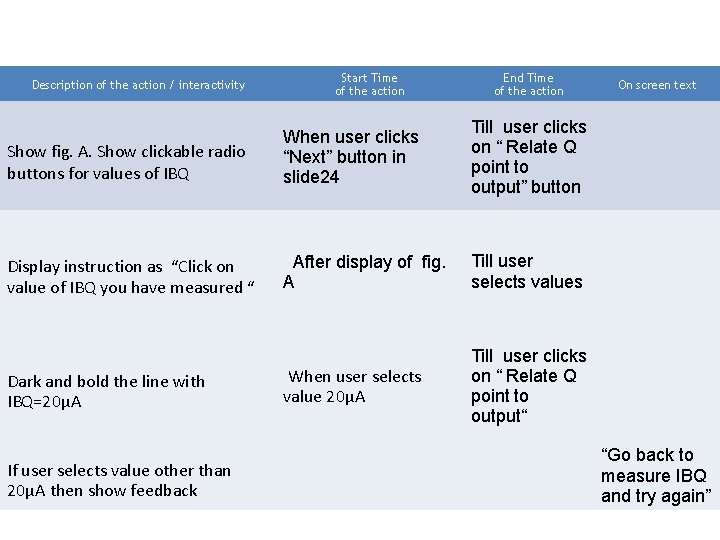
Description of the action / interactivity Start Time of the action End Time of the action Show fig. A. Show clickable radio buttons for values of IBQ When user clicks “Next” button in slide 24 Till user clicks on “ Relate Q point to output” button Display instruction as “Click on value of IBQ you have measured “ After display of fig. A Till user selects values When user selects value 20µA Till user clicks on “ Relate Q point to output“ Dark and bold the line with IBQ=20µA If user selects value other than 20µA then show feedback On screen text “Go back to measure IBQ and try again”
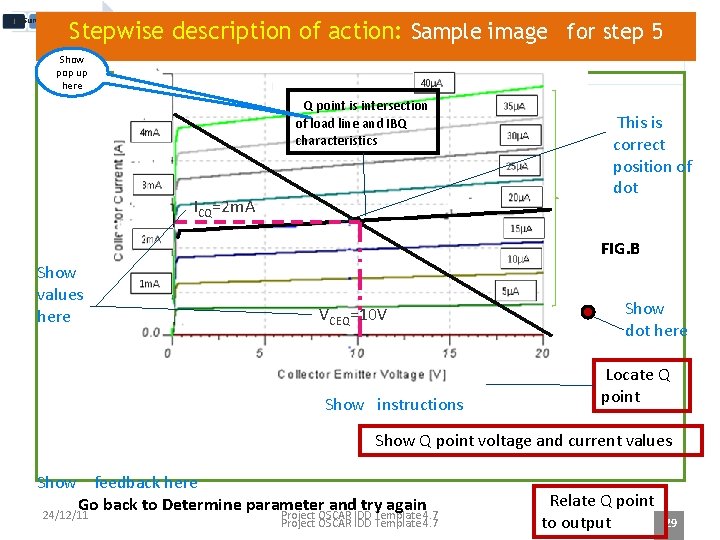
Measure IBQ Stepwise description of action: Sample image for step 5 Show pop up here Q point is intersection of load line and IBQ characteristics ICQ=2 m. A This is correct position of dot FIG. B Show values here VCEQ=10 V Show instructions Show dot here Locate Q point Show Q point voltage and current values Show feedback here Go back to Determine parameter and try again 24/12/11 Project OSCAR IDD Template 4. 7 Relate Q point to output 29
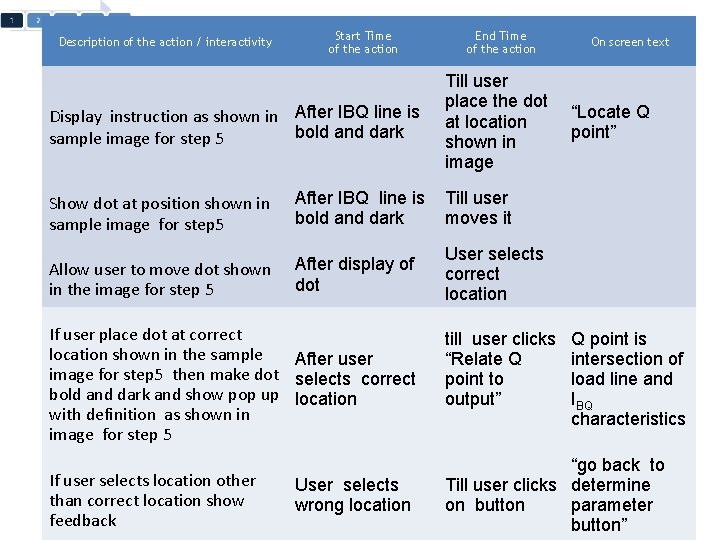
Description of the action / interactivity Start Time of the action Display instruction as shown in After IBQ line is bold and dark sample image for step 5 End Time of the action Till user place the dot at location shown in image Show dot at position shown in sample image for step 5 After IBQ line is bold and dark Till user moves it Allow user to move dot shown in the image for step 5 After display of dot User selects correct location If user place dot at correct location shown in the sample After user image for step 5 then make dot selects correct bold and dark and show pop up location with definition as shown in image for step 5 If user selects location other than correct location show 05/09/11 feedback User selects wrong location Project OSCAR IDD Template 4. 7 till user clicks “Relate Q point to output” On screen text “Locate Q point” Q point is intersection of load line and IBQ characteristics “go back to Till user clicks determine on button parameter 30 button”
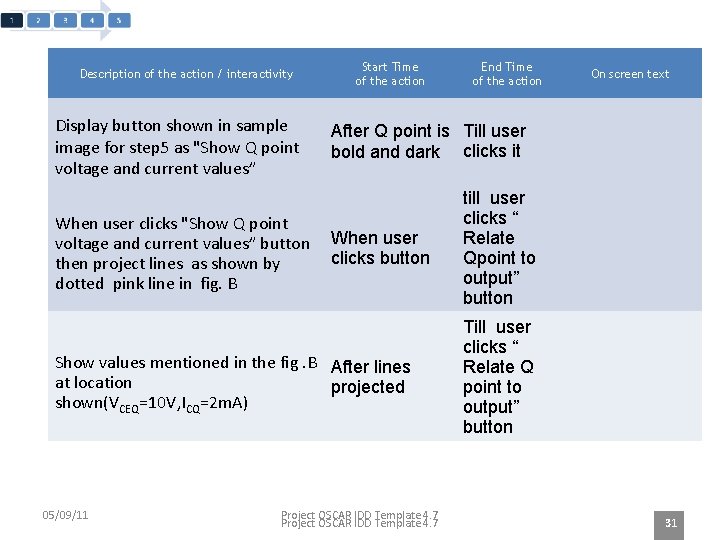
Description of the action / interactivity Display button shown in sample image for step 5 as "Show Q point voltage and current values” When user clicks "Show Q point voltage and current values” button then project lines as shown by dotted pink line in fig. B Start Time of the action On screen text After Q point is Till user bold and dark clicks it When user clicks button Show values mentioned in the fig. B After lines at location projected shown(VCEQ=10 V, ICQ=2 m. A) 05/09/11 End Time of the action Project OSCAR IDD Template 4. 7 till user clicks “ Relate Qpoint to output” button Till user clicks “ Relate Q point to output” button 31
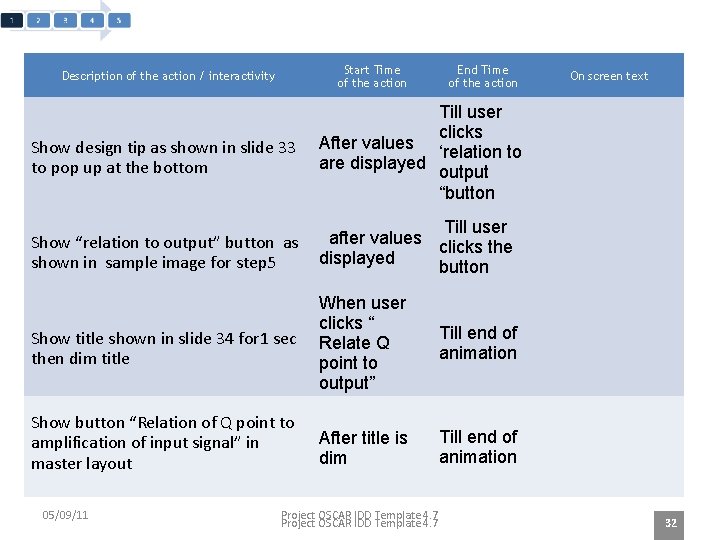
Start Time of the action Description of the action / interactivity End Time of the action Show design tip as shown in slide 33 to pop up at the bottom Till user clicks After values ‘relation to are displayed output “button Show “relation to output” button as shown in sample image for step 5 Till user after values clicks the displayed button Show title shown in slide 34 for 1 sec then dim title When user clicks “ Relate Q point to output” Till end of animation Show button “Relation of Q point to amplification of input signal” in master layout After title is dim Till end of animation 05/09/11 Project OSCAR IDD Template 4. 7 On screen text 32
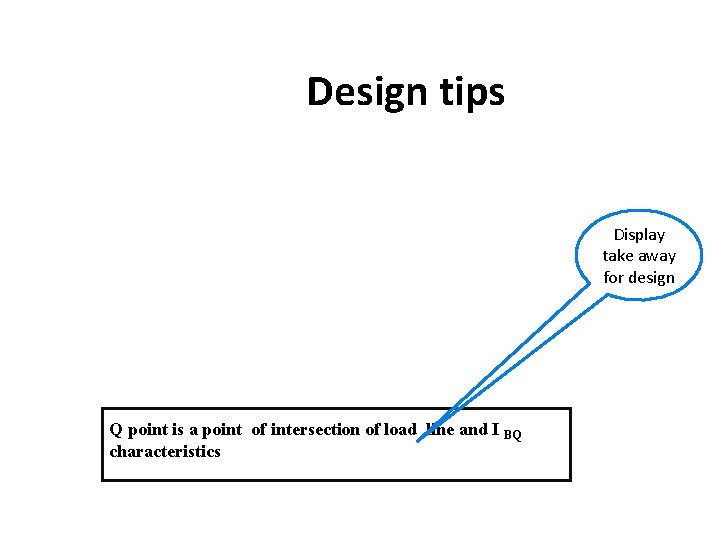
Additional tab in LO Design tips Display take away for design Q point is a point of intersection of load line and I BQ characteristics
Relation of Qpoint to amplification of input signal
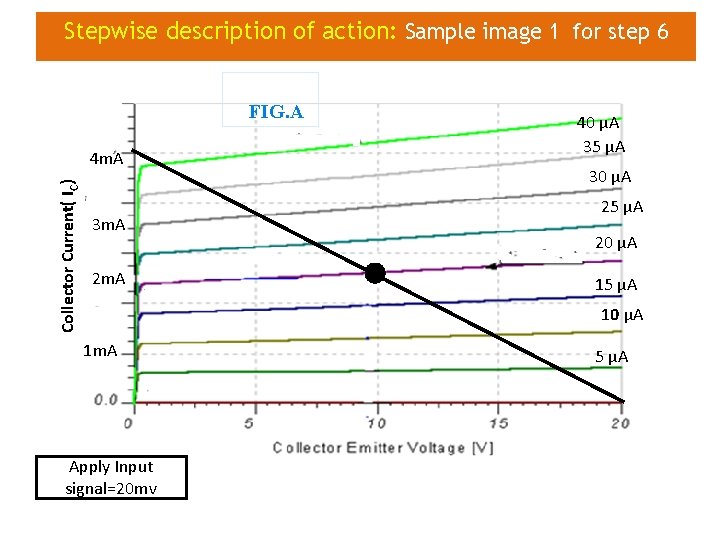
Stepwise description of action: Sample image 1 for step 6 FIG. A Collector Current( IC) 4 m. A 3 m. A 2 m. A 40 µA 35 µA 30 µA 25 µA 20 µA 15 µA 10 µA 1 m. A Apply Input signal=20 mv 5 µA
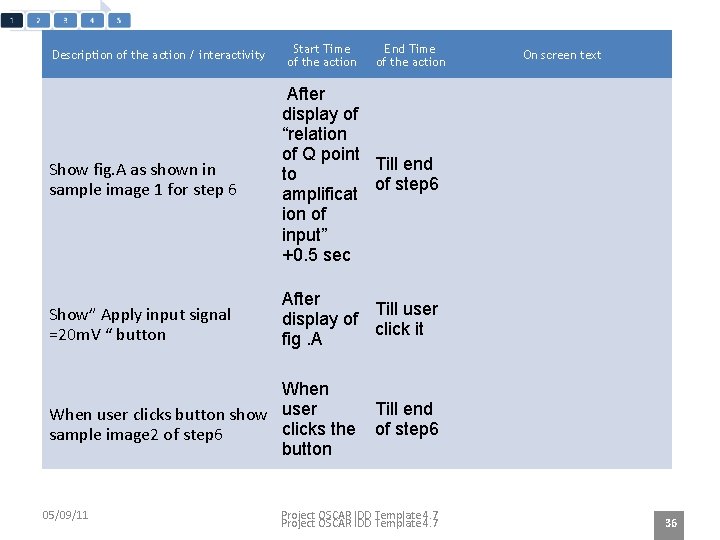
Description of the action / interactivity Start Time of the action End Time of the action Show fig. A as shown in sample image 1 for step 6 After display of “relation of Q point Till end to of step 6 amplificat ion of input” +0. 5 sec Show” Apply input signal =20 m. V “ button After Till user display of click it fig. A When user clicks button show user clicks the sample image 2 of step 6 button 05/09/11 On screen text Till end of step 6 Project OSCAR IDD Template 4. 7 36
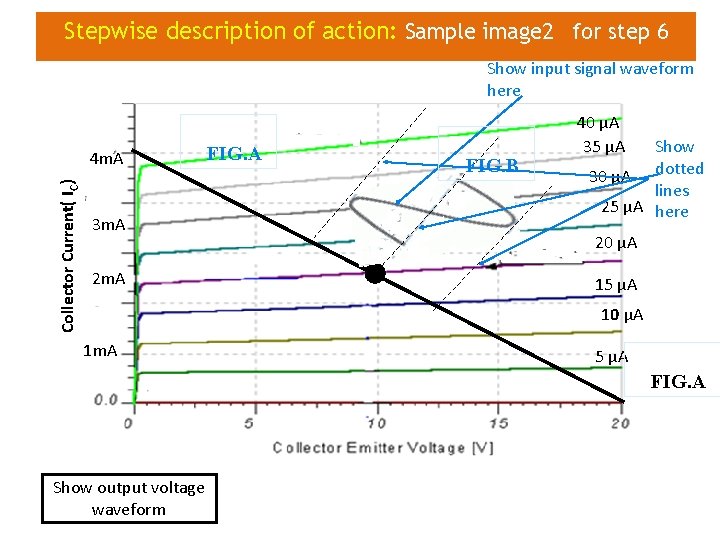
Stepwise description of action: Sample image 2 for step 6 Show input signal waveform here Collector Current( IC) 4 m. A 3 m. A 2 m. A FIG. B 40 µA 35 µA Show 30 µA dotted lines 25 µA here 20 µA 15 µA 10 µA 1 m. A 5 µA FIG. A Show output voltage waveform
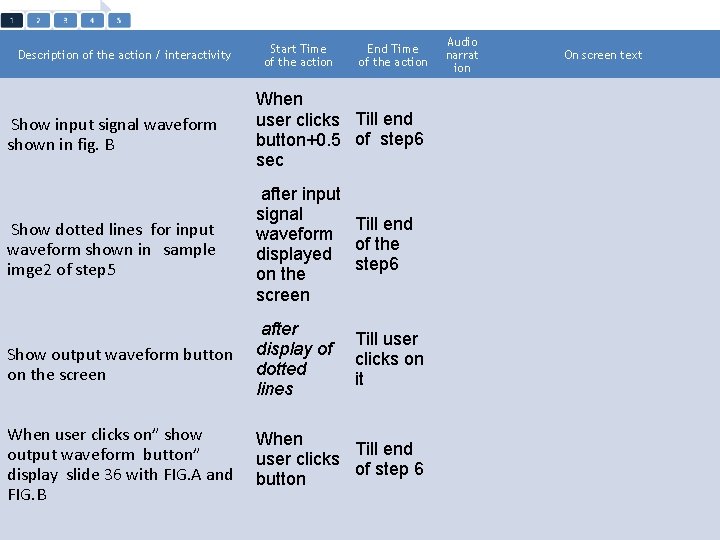
Description of the action / interactivity Start Time of the action End Time of the action Show input signal waveform shown in fig. B When user clicks Till end button+0. 5 of step 6 sec Show dotted lines for input waveform shown in sample imge 2 of step 5 after input signal Till end waveform of the displayed step 6 on the screen Show output waveform button on the screen after display of dotted lines When user clicks on” show output waveform button” display slide 36 with FIG. A and FIG. B When Till end user clicks of step 6 button 05/09/11 Audio narrat ion On screen text Till user clicks on it Project OSCAR IDD Template 4. 7 38
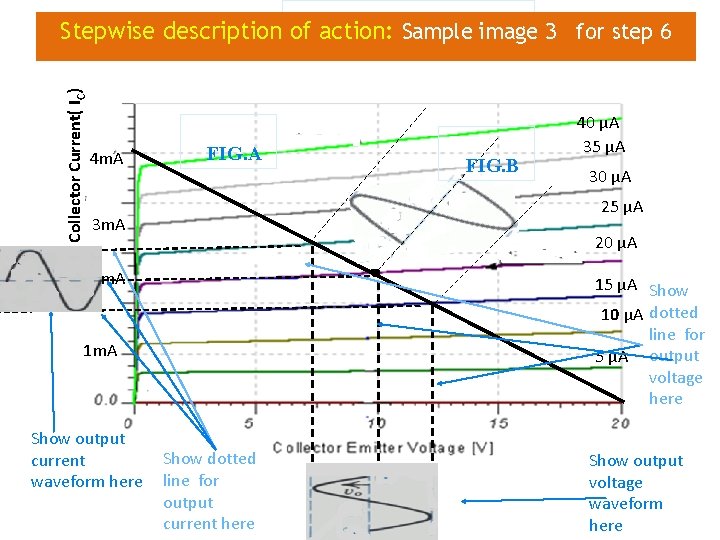
Collector Current( IC) Stepwise description of action: Sample image 3 for step 6 4 m. A FIG. A 30 µA 25 µA 3 m. A 20 µA 2 m. A 15 µA Show 10 µA dotted line for 5 µA output voltage here 1 m. A Show output current waveform here FIG. B 40 µA 35 µA Show dotted line for output current here Show output voltage waveform here
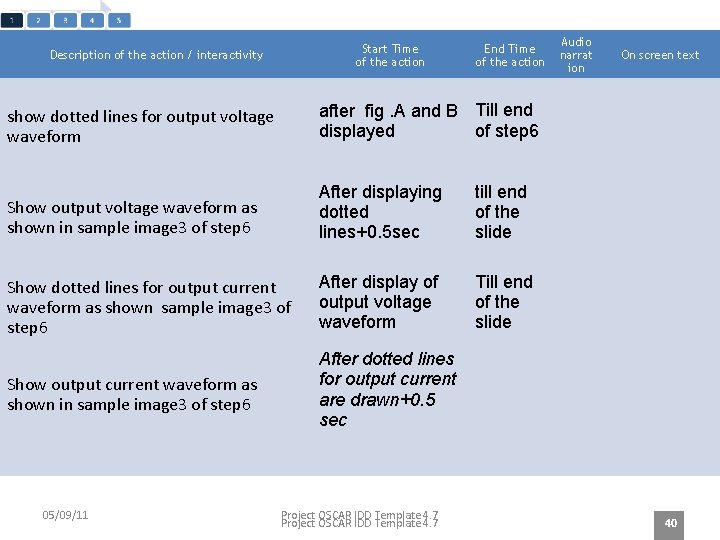
Start Time of the action Description of the action / interactivity End Time of the action show dotted lines for output voltage waveform after fig. A and B Till end of step 6 displayed Show output voltage waveform as shown in sample image 3 of step 6 After displaying dotted lines+0. 5 sec till end of the slide Show dotted lines for output current waveform as shown sample image 3 of step 6 After display of output voltage waveform Till end of the slide Show output current waveform as shown in sample image 3 of step 6 After dotted lines for output current are drawn+0. 5 sec 05/09/11 Project OSCAR IDD Template 4. 7 Audio narrat ion On screen text 40
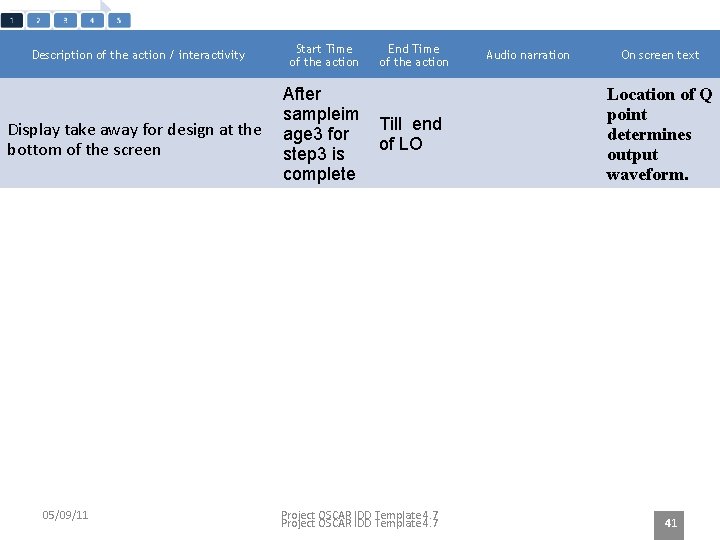
Description of the action / interactivity Display take away for design at the bottom of the screen 05/09/11 Start Time of the action After sampleim age 3 for step 3 is complete End Time of the action Till end of LO Project OSCAR IDD Template 4. 7 Audio narration On screen text Location of Q point determines output waveform. 41
Display take away for design Location of Q point determines output waveform
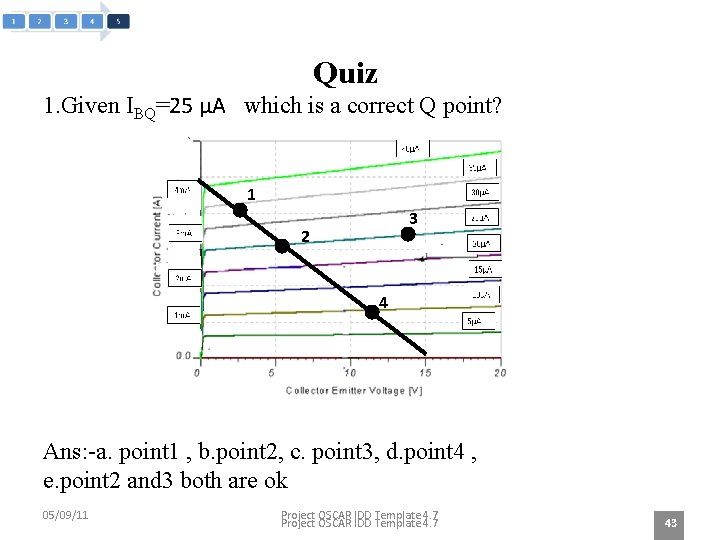
Quiz 1. Given IBQ=25 µA which is a correct Q point? 1 3 2 4 Ans: -a. point 1 , b. point 2, c. point 3, d. point 4 , e. point 2 and 3 both are ok 05/09/11 Project OSCAR IDD Template 4. 7 43
Answers: a. b. c. d. e. Correct answer: b Feedback/Justification to be displayed: • If user clicks correct answer then display_ You are right Q point is intersection of load line and IBQ characteristics • If user clicks incorrect answer then display_ look at the part Determine parameter in the LO. •
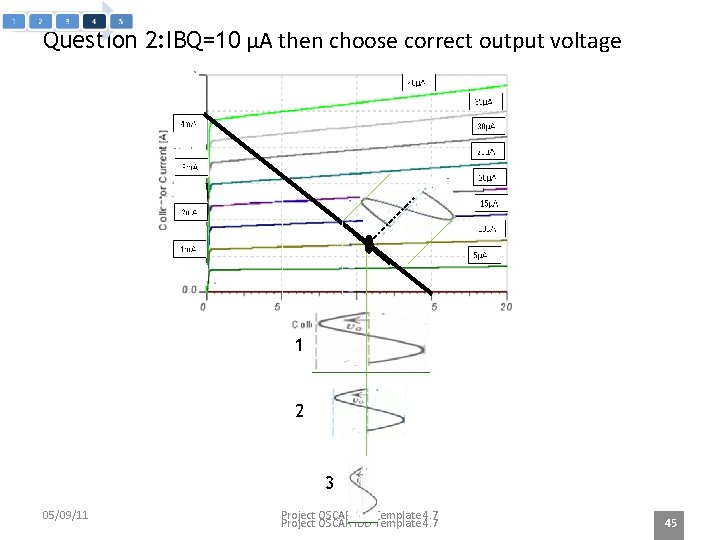
Question 2: IBQ=10 µA then choose correct output voltage 1 2 3 05/09/11 Project OSCAR IDD Template 4. 7 45
Answers: 1. 2. 3. Correct answer: 2. Feedback/Justification to be displayed: • If user clicks correct answer then display_ You are right Output voltage can be drawn from lines projected from load line and these projection lines are decided by input current swing and its projection on load line • If user clicks incorrect answer then display_ look at the part related to relation of Q point with amplification of input signal.
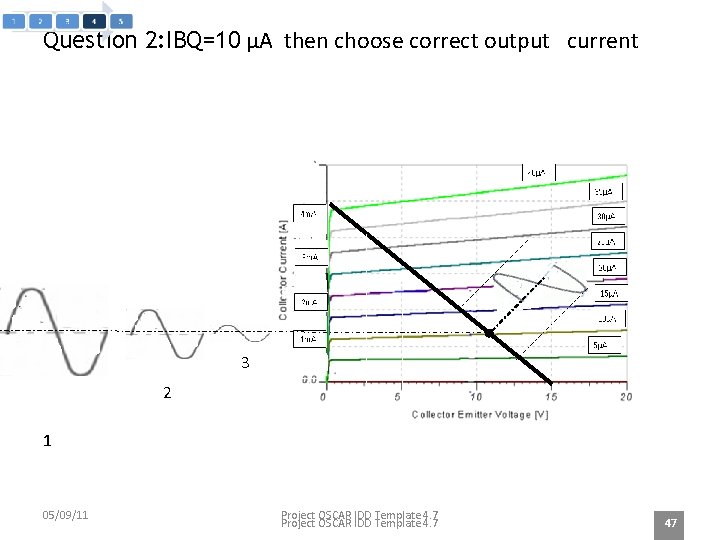
Question 2: IBQ=10 µA then choose correct output current 3 2 1 05/09/11 Project OSCAR IDD Template 4. 7 47
Answers: 1. 2. 3. Correct answer: 2. Feedback/Justification to be displayed: • If user clicks correct answer then display_ You are right Output voltage can be drawn from lines projected from load line and these projection lines are decided by input current swing and its projection on load line • If user clicks incorrect answer then display_ look at the part related to relation of Q point with amplification of input signal. Show this arrow • when user clicks arrow it will open slide no 34 in LO
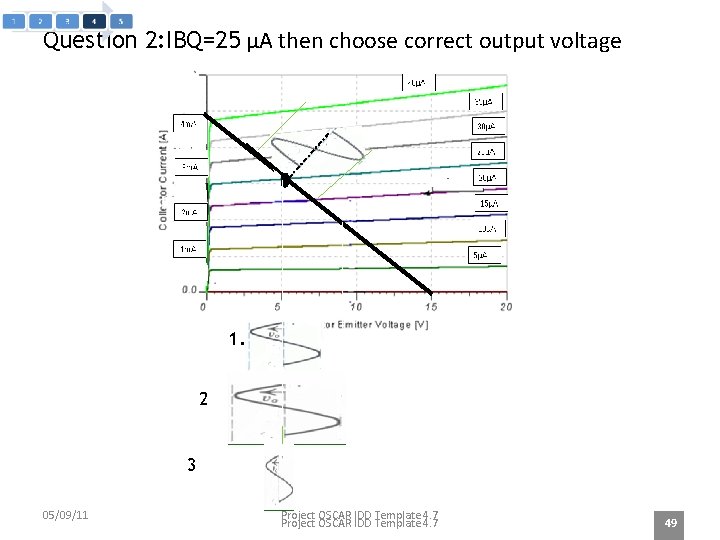
Question 2: IBQ=25 µA then choose correct output voltage 1. 2 3 05/09/11 Project OSCAR IDD Template 4. 7 49
Answers: 1. 2. 3. Correct answer: 1 Feedback/Justification to be displayed: • If user clicks correct answer then display_ You are right Output voltage can be drawn from lines projected from load line and these projection lines are decided by input current swing and its projection on load line • If user clicks incorrect answer then display_ look at the part related to relation of Q point with amplification of input signal.
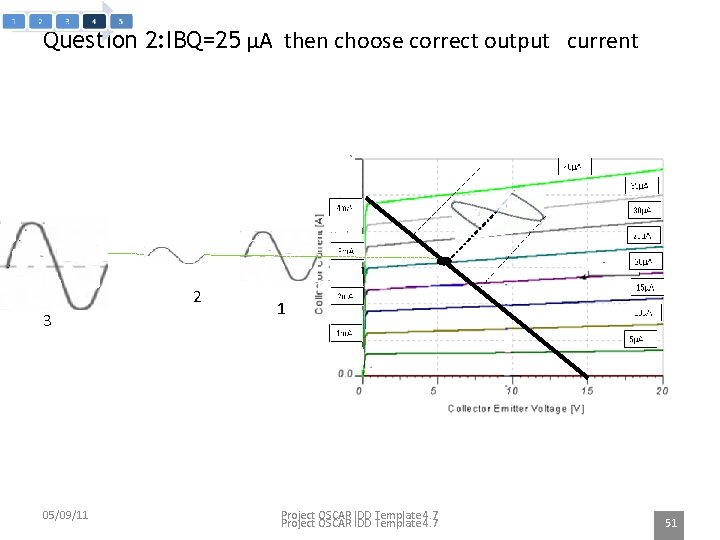
Question 2: IBQ=25 µA then choose correct output current 2 3 05/09/11 1 Project OSCAR IDD Template 4. 7 51
Answers: 1. 2. 3. Correct answer: 1. Feedback/Justification to be displayed: • If user clicks correct answer then display_ You are right Output voltage can be drawn from lines projected from load line and these projection lines are decided by input current swing and its projection on load line • If user clicks incorrect answer then display_ look at the part related to relation of Q point with amplification of input signal.
References Books: 1. Electronics Devices and Circuits—David Bell 2. Electronics circuit analysis and design-William Hayt, Gerold Neudeck 05/09/11 Project OSCAR IDD Template 4. 7 53
- Slides: 52