
Info Exchange Workflow Examples for External Users RFIs
- Slides: 35
Info Exchange Workflow Examples for External Users: RFIs Company Confidential
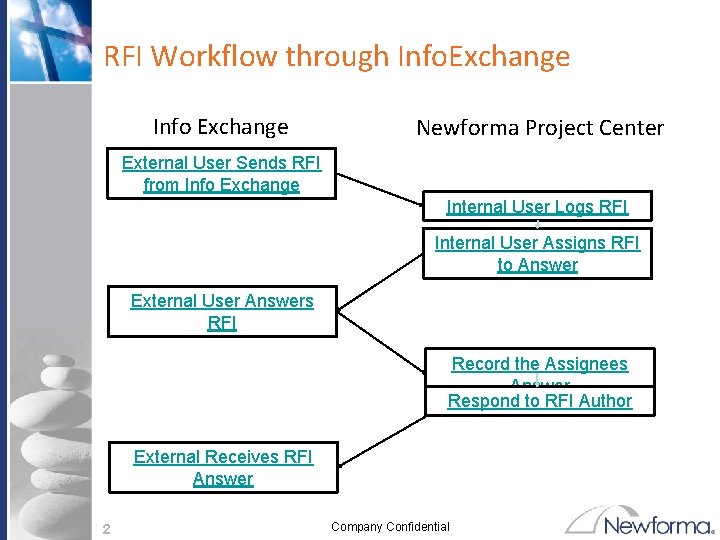
RFI Workflow through Info. Exchange Info Exchange Newforma Project Center External User Sends RFI from Info Exchange Internal User Logs RFI Internal User Assigns RFI to Answer External User Answers RFI Record the Assignees Answer Respond to RFI Author External Receives RFI Answer 2 Company Confidential
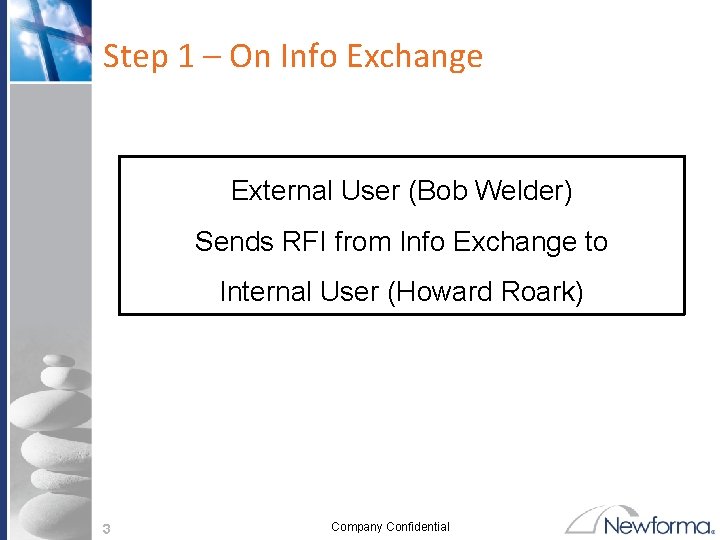
Step 1 – On Info Exchange External User (Bob Welder) Sends RFI from Info Exchange to Internal User (Howard Roark) 3 Company Confidential
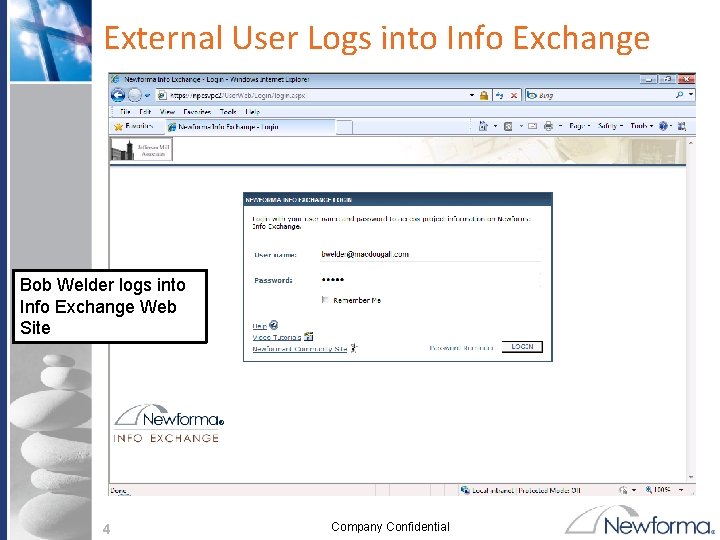
External User Logs into Info Exchange Bob Welder logs into Info Exchange Web Site 4 Company Confidential
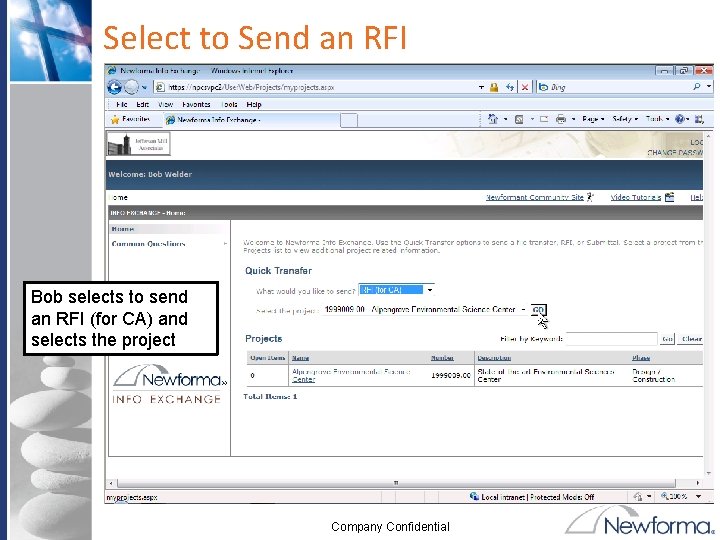
Select to Send an RFI Bob selects to send an RFI (for CA) and selects the project Company Confidential
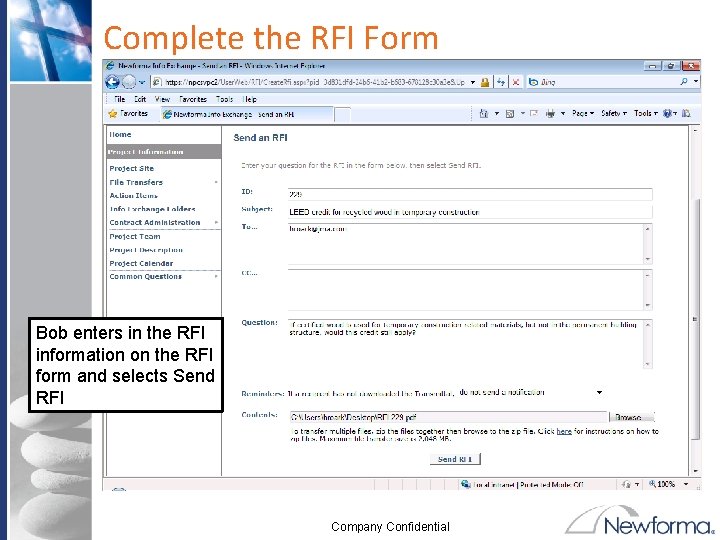
Complete the RFI Form Bob enters in the RFI information on the RFI form and selects Send RFI Company Confidential
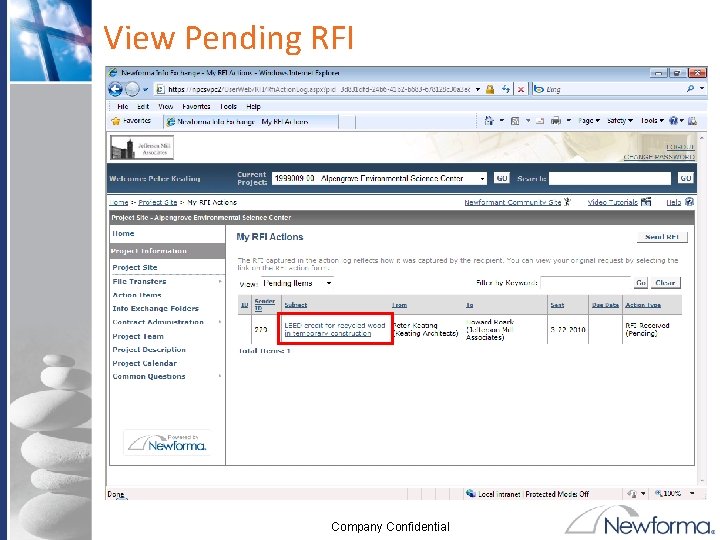
View Pending RFI The RFI appears as a pending item in the My RFI Actions until an internal user receives and logs the RFI. Company Confidential
Step 2 – On Newforma Project Center Internal User (Howard Roark) receives the incoming RFI 8 Company Confidential
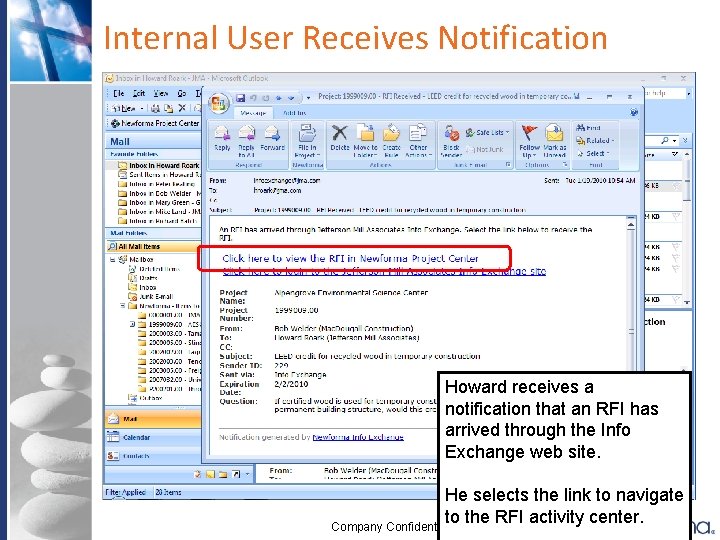
Internal User Receives Notification Howard receives a notification that an RFI has arrived through the Info Exchange web site. He selects the link to navigate to the RFI activity center. Company Confidential
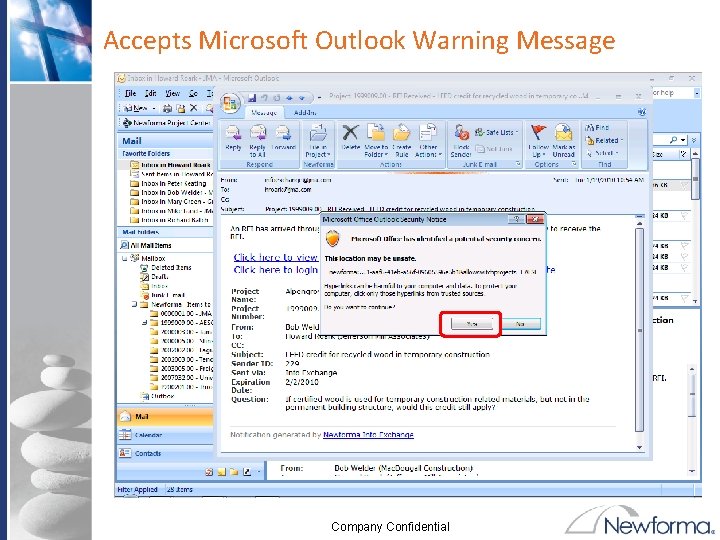
Accepts Microsoft Outlook Warning Message Company Confidential
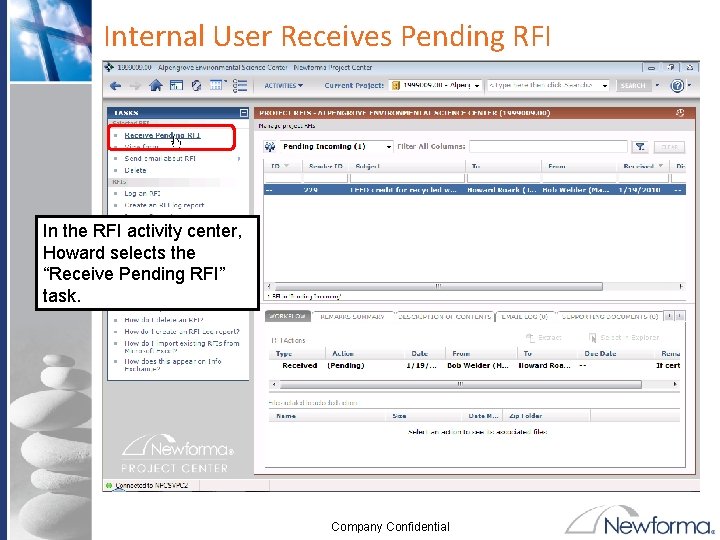
Internal User Receives Pending RFI In the RFI activity center, Howard selects the “Receive Pending RFI” task. Company Confidential
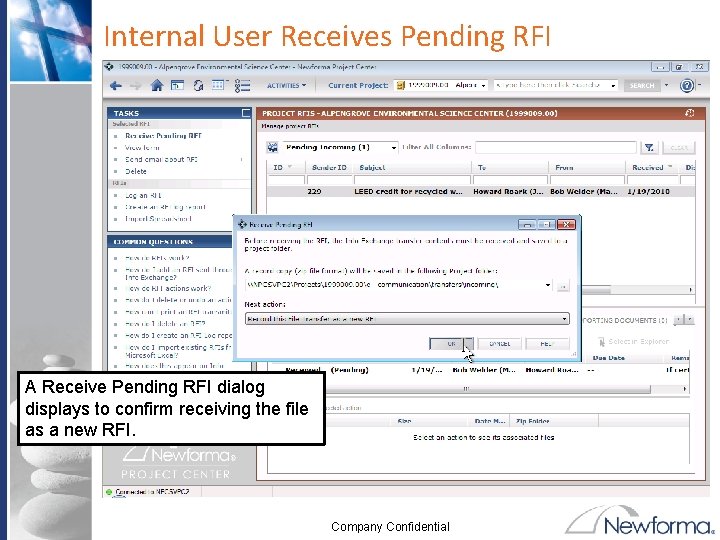
Internal User Receives Pending RFI A Receive Pending RFI dialog displays to confirm receiving the file as a new RFI. Company Confidential
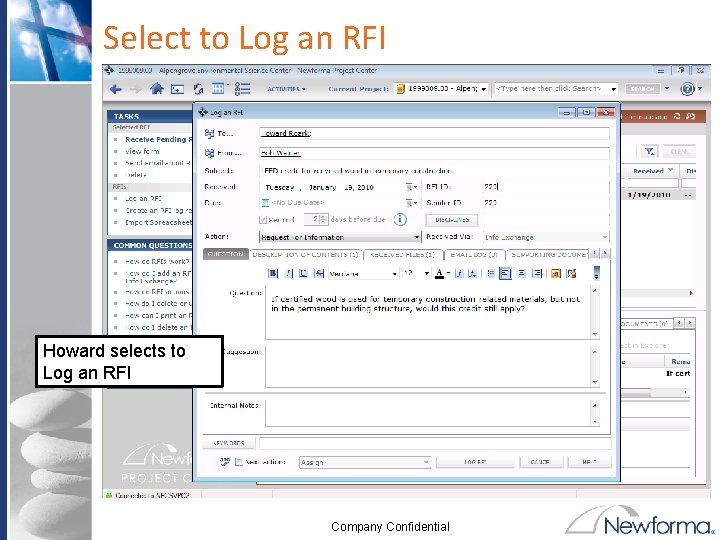
Select to Log an RFI Howard selects to Log an RFI Company Confidential
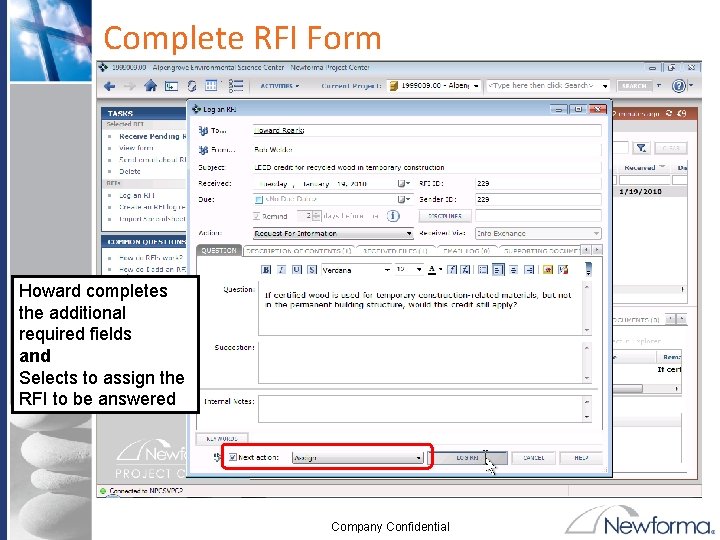
Complete RFI Form Howard completes the additional required fields and Selects to assign the RFI to be answered Company Confidential
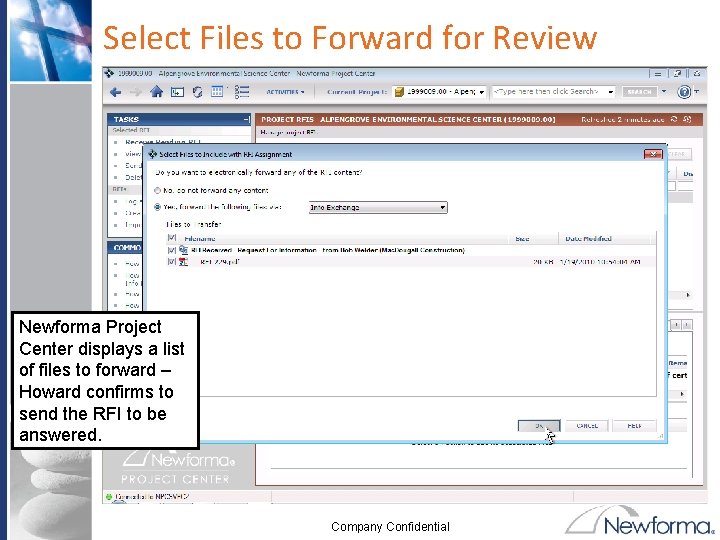
Select Files to Forward for Review Newforma Project Center displays a list of files to forward – Howard confirms to send the RFI to be answered. Company Confidential
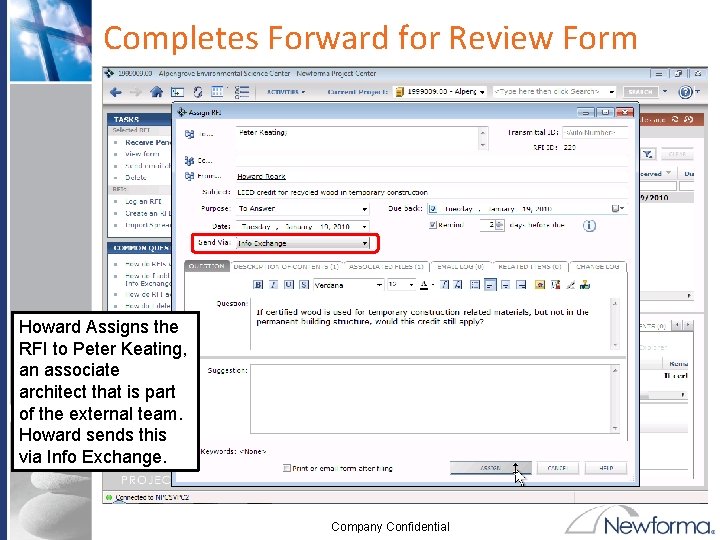
Completes Forward for Review Form Howard Assigns the RFI to Peter Keating, an associate architect that is part of the external team. Howard sends this via Info Exchange. Company Confidential
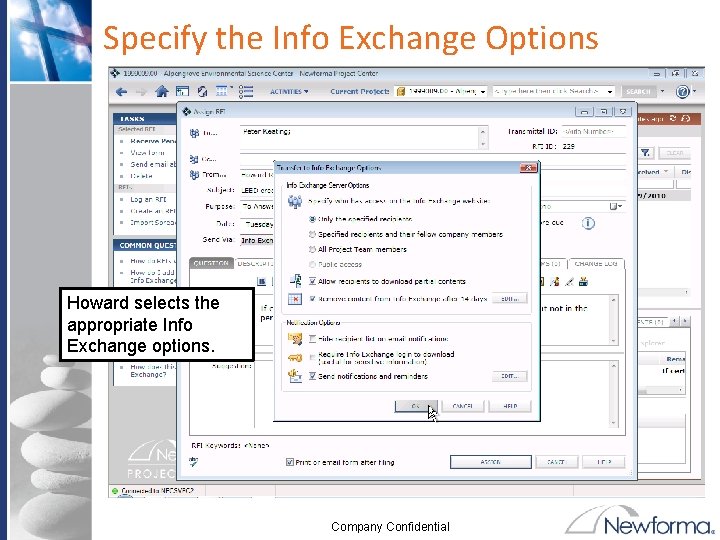
Specify the Info Exchange Options Howard selects the appropriate Info Exchange options. Company Confidential
Step 3 – On Info Exchange External User (Peter Keating) Answers RFI 18 Company Confidential
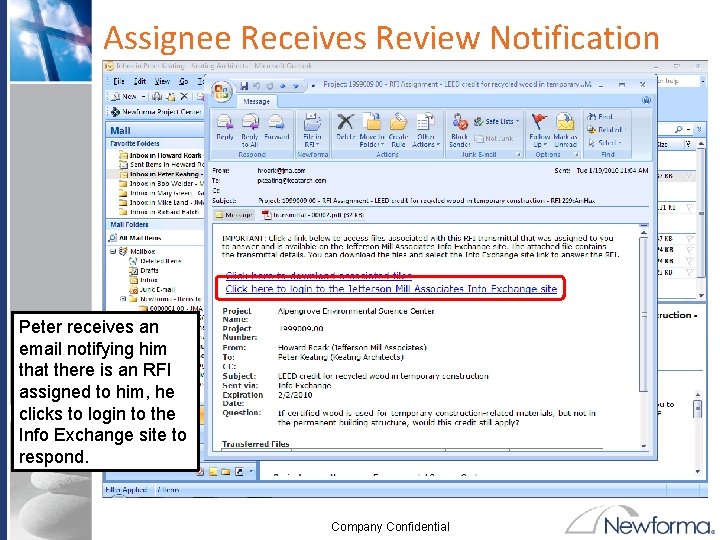
Assignee Receives Review Notification Peter receives an email notifying him that there is an RFI assigned to him, he clicks to login to the Info Exchange site to respond. Company Confidential
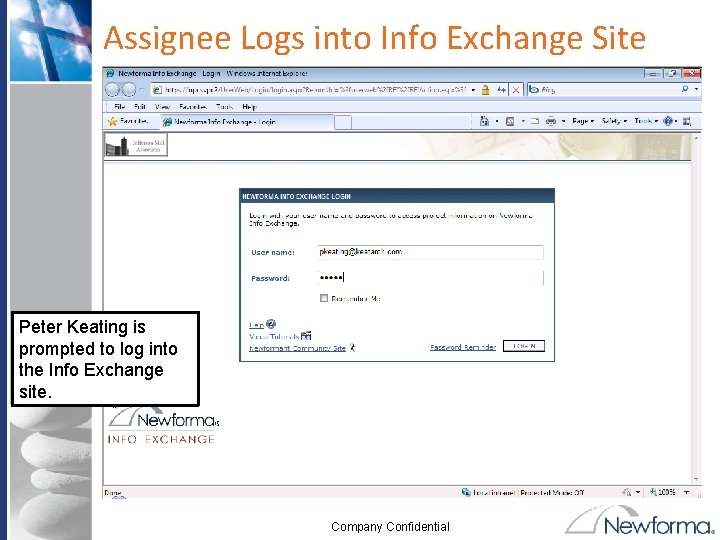
Assignee Logs into Info Exchange Site Peter Keating is prompted to log into the Info Exchange site. Company Confidential
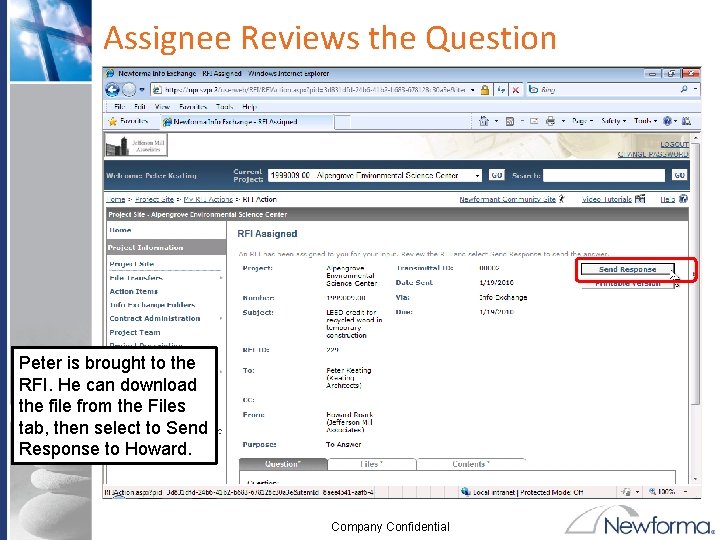
Assignee Reviews the Question Peter is brought to the RFI. He can download the file from the Files tab, then select to Send Response to Howard. Company Confidential
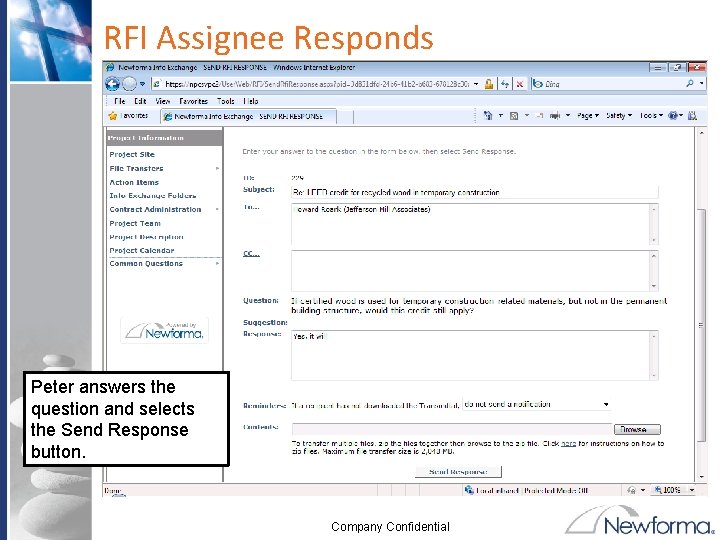
RFI Assignee Responds Peter answers the question and selects the Send Response button. Company Confidential
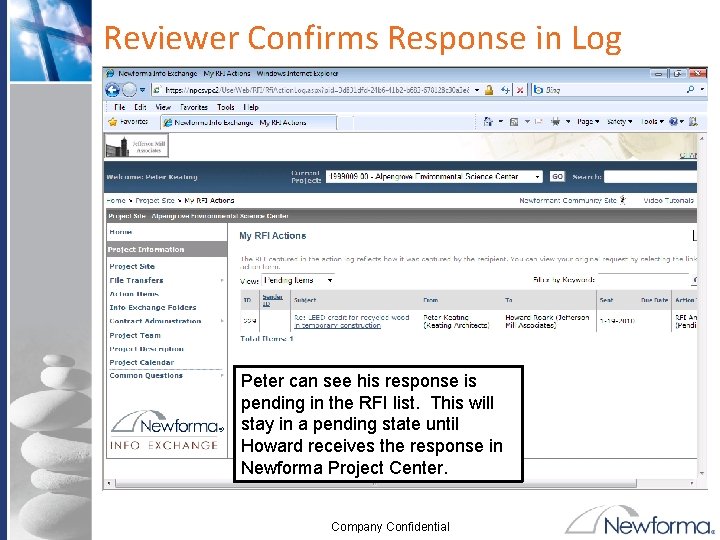
Reviewer Confirms Response in Log Peter can see his response is pending in the RFI list. This will stay in a pending state until Howard receives the response in Newforma Project Center. Company Confidential
Step 4 – On Newforma Project Center Internal User (Howard Roark) Logs Answer and Responds to RFI Author (Bob Welder) 24 Company Confidential
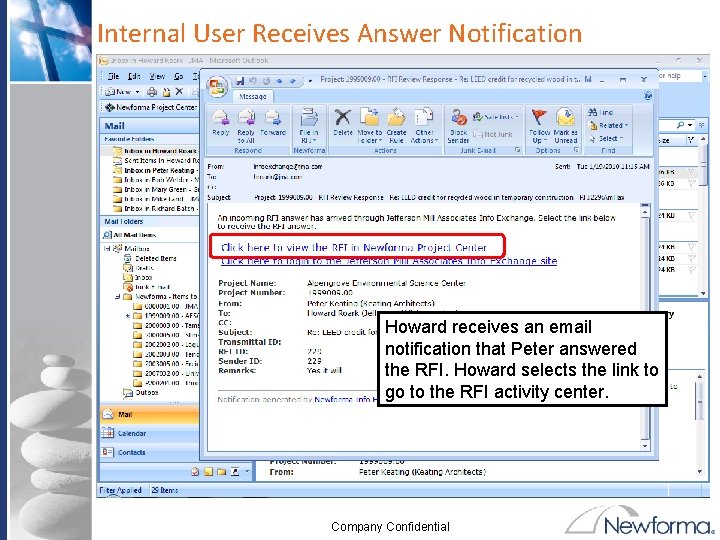
Internal User Receives Answer Notification Howard receives an email notification that Peter answered the RFI. Howard selects the link to go to the RFI activity center. Company Confidential
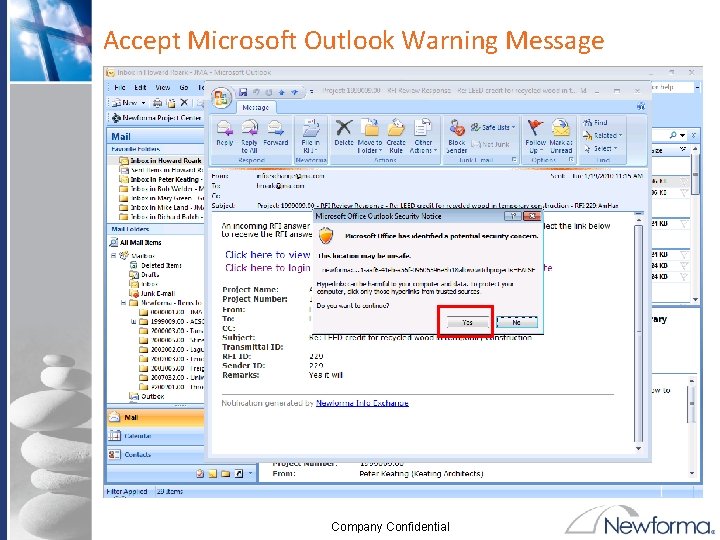
Accept Microsoft Outlook Warning Message Company Confidential
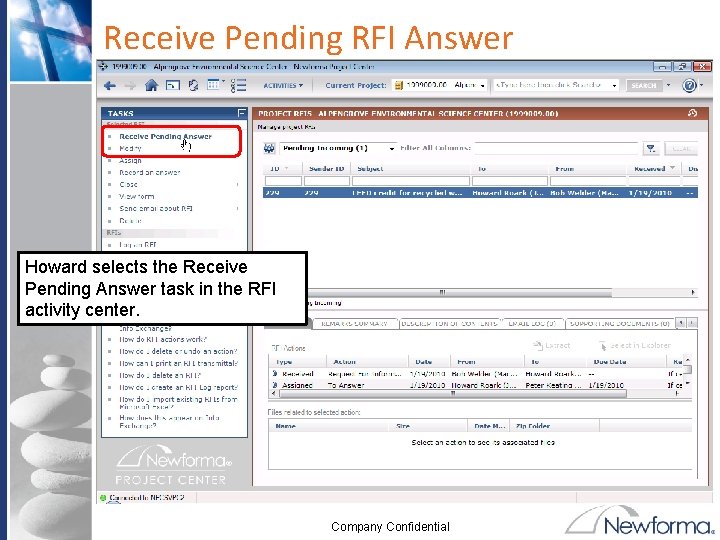
Receive Pending RFI Answer Howard selects the Receive Pending Answer task in the RFI activity center. Company Confidential
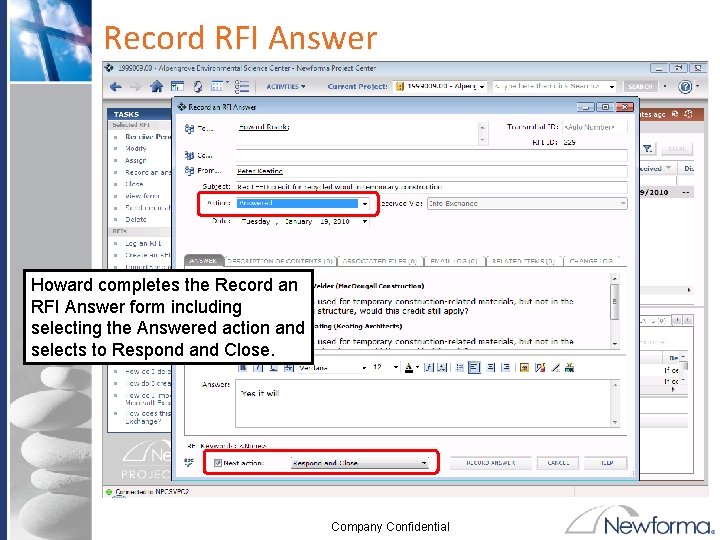
Record RFI Answer Howard completes the Record an RFI Answer form including selecting the Answered action and selects to Respond and Close. Company Confidential
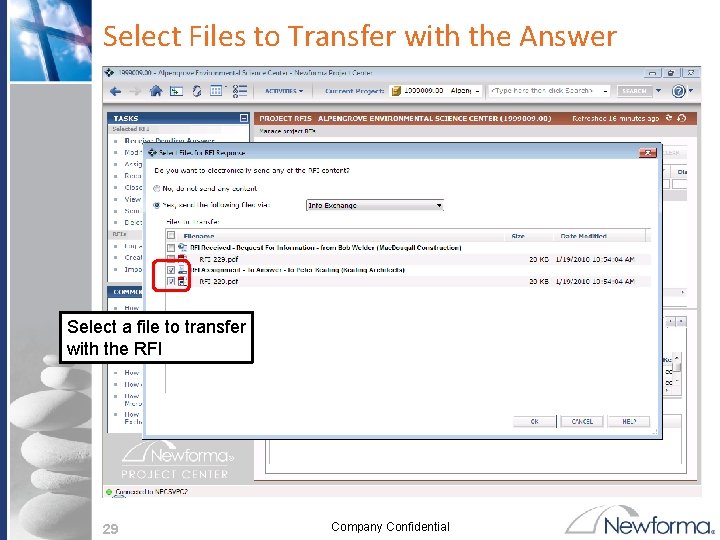
Select Files to Transfer with the Answer Select a file to transfer with the RFI 29 Company Confidential
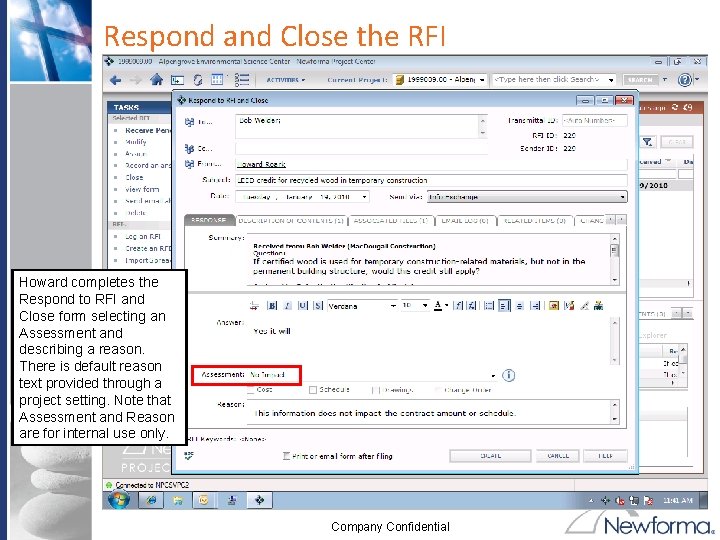
Respond and Close the RFI Howard completes the Respond to RFI and Close form selecting an Assessment and describing a reason. There is default reason text provided through a project setting. Note that Assessment and Reason are for internal use only. Company Confidential
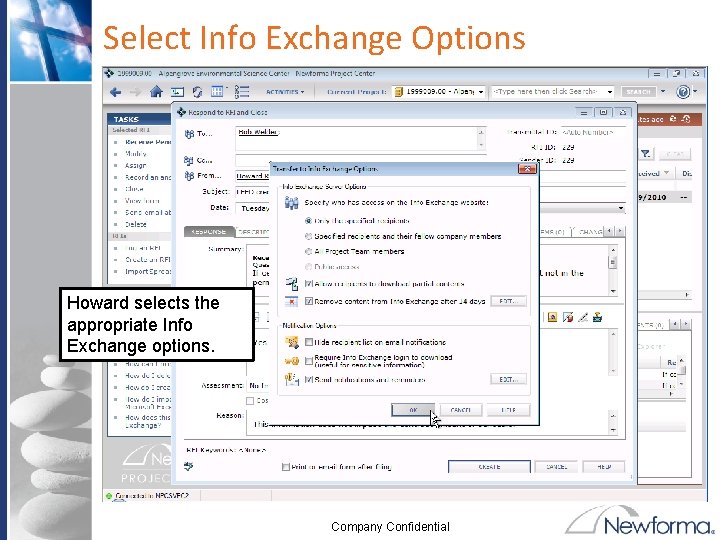
Select Info Exchange Options Howard selects the appropriate Info Exchange options. Company Confidential
Step 5 – On Info Exchange External User (Bob Welder) Receives RFI Answer 32 Company Confidential
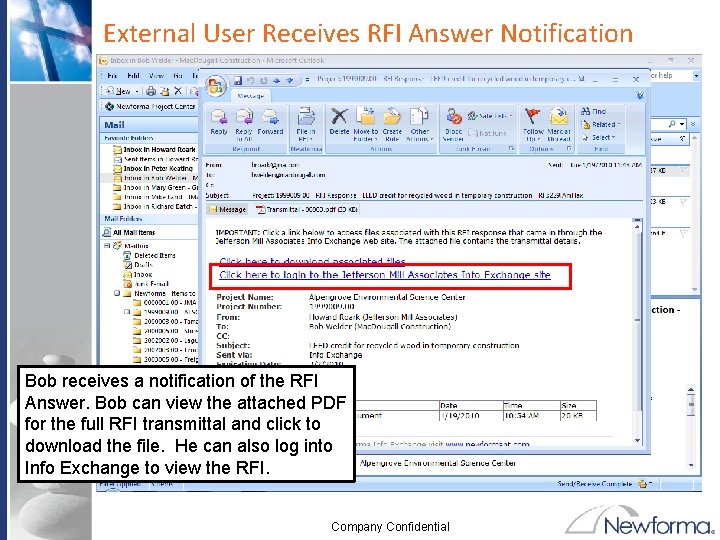
External User Receives RFI Answer Notification Bob receives a notification of the RFI Answer. Bob can view the attached PDF for the full RFI transmittal and click to download the file. He can also log into Info Exchange to view the RFI. Company Confidential
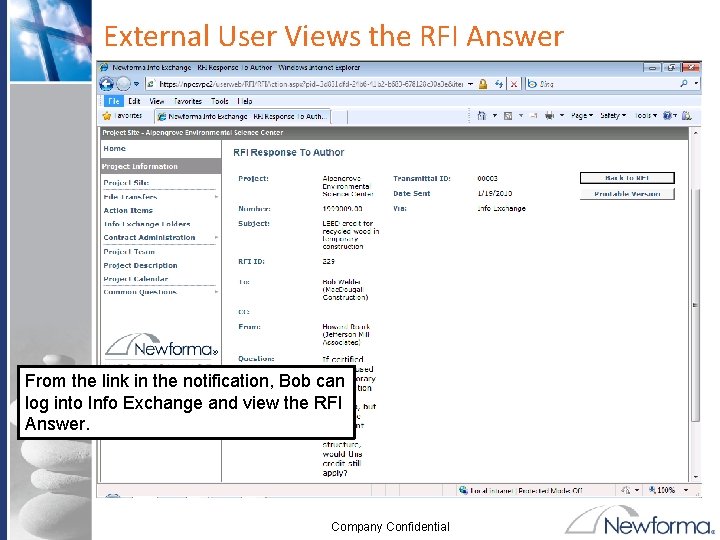
External User Views the RFI Answer From the link in the notification, Bob can log into Info Exchange and view the RFI Answer. Company Confidential
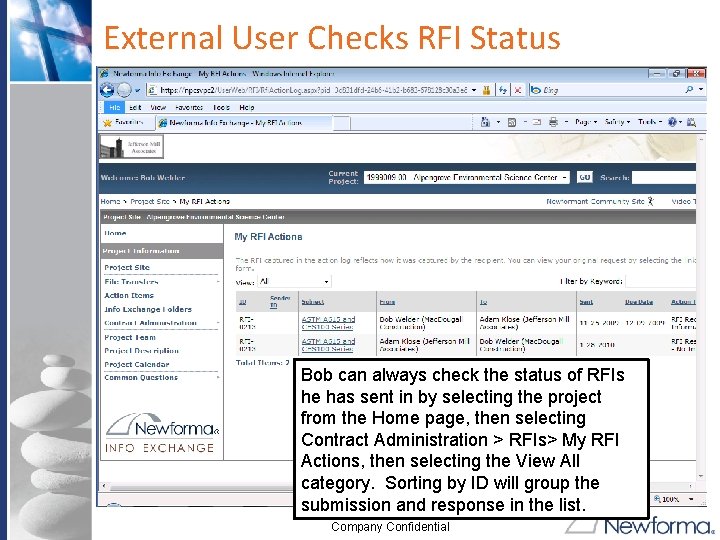
External User Checks RFI Status Bob can always check the status of RFIs he has sent in by selecting the project from the Home page, then selecting Contract Administration > RFIs> My RFI Actions, then selecting the View All category. Sorting by ID will group the submission and response in the list. Company Confidential