
Info Exchange Workflow Examples for External Users File
- Slides: 20
Info Exchange Workflow Examples for External Users: File Transfers Company Confidential
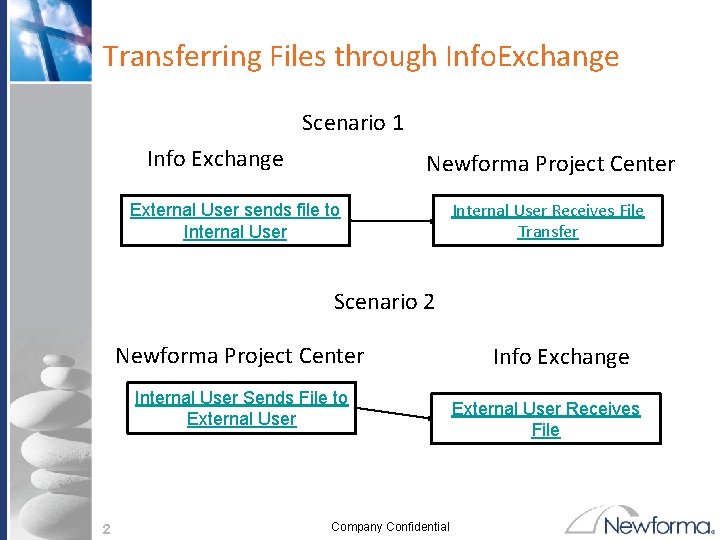
Transferring Files through Info. Exchange Scenario 1 Info Exchange Newforma Project Center External User sends file to Internal User Receives File Transfer Scenario 2 Newforma Project Center Internal User Sends File to External User 2 Company Confidential Info Exchange External User Receives File
Scenario 1: Step 1 – On Info Exchange External User (Peter Keating) Transfers a file to Internal User (Howard Roark) 3 Company Confidential
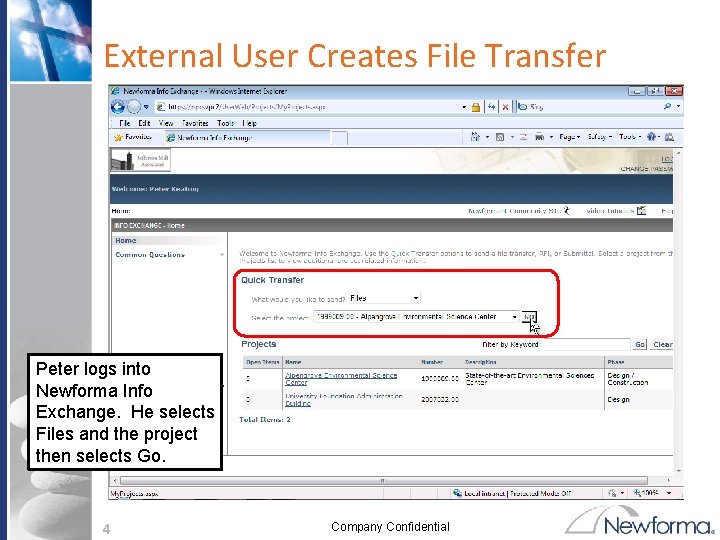
External User Creates File Transfer Peter logs into Newforma Info Exchange. He selects Files and the project then selects Go. 4 Company Confidential
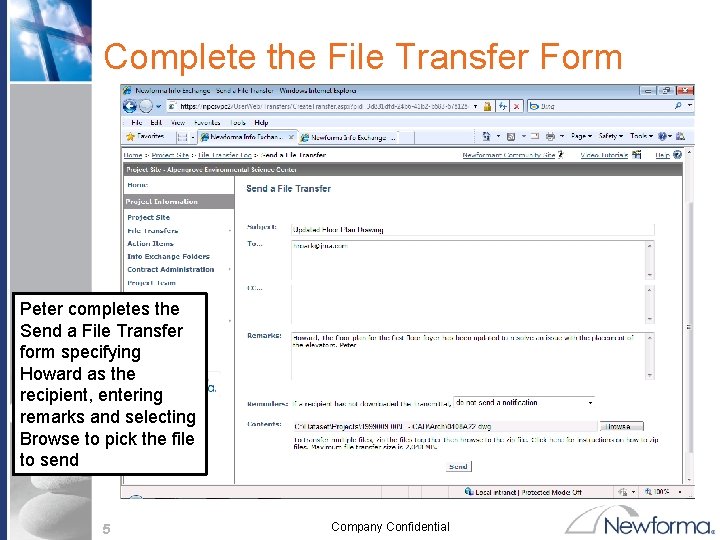
Complete the File Transfer Form Peter completes the Send a File Transfer form specifying Howard as the recipient, entering remarks and selecting Browse to pick the file to send 5 Company Confidential
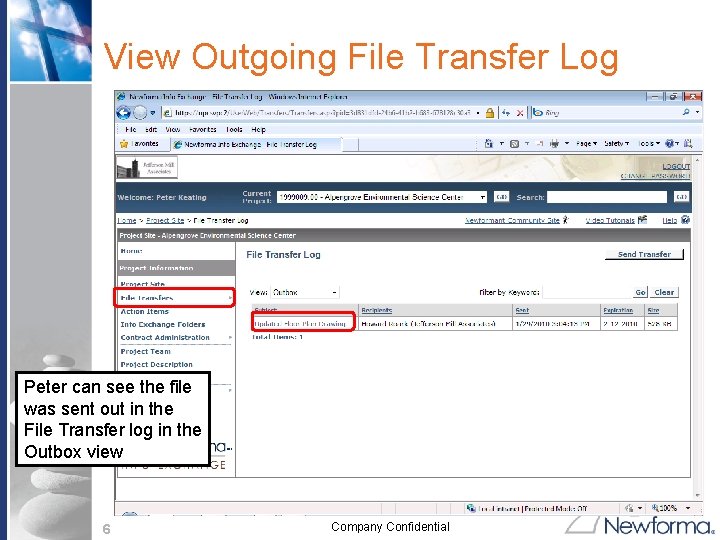
View Outgoing File Transfer Log Peter can see the file was sent out in the File Transfer log in the Outbox view 6 Company Confidential
Scenario 1: Step 2 – On Newforma Project Center Internal User (Architect – Howard Roark) Receives File 7 Company Confidential
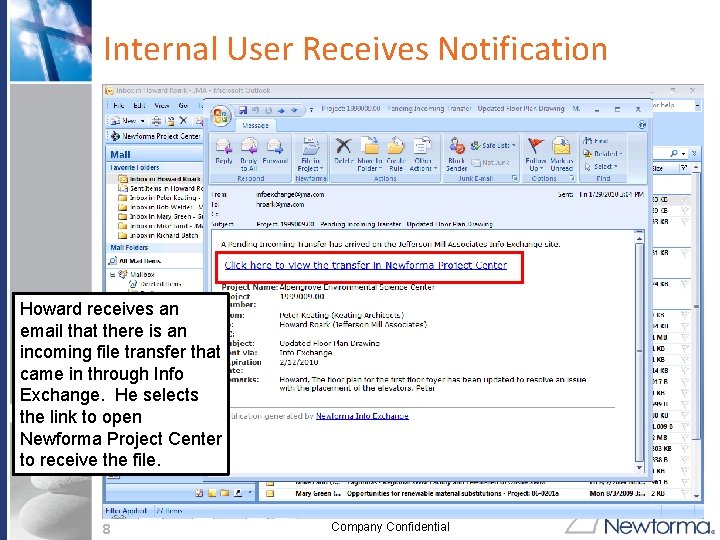
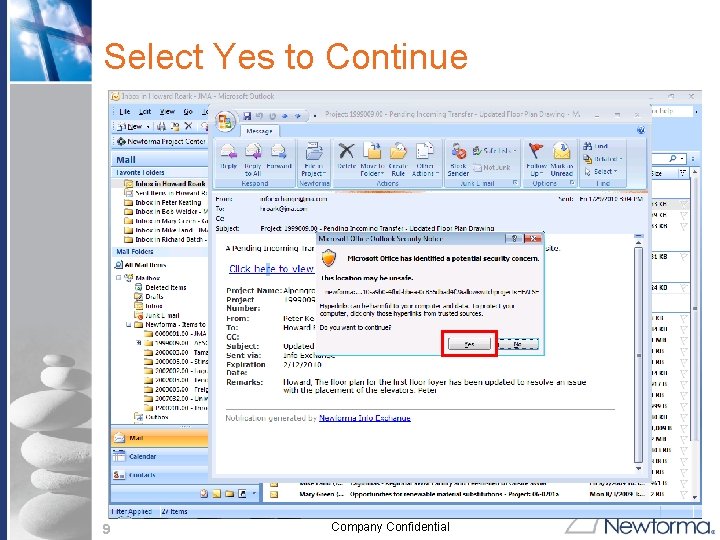
Internal User Receives Notification Howard receives an email that there is an incoming file transfer that came in through Info Exchange. He selects the link to open Newforma Project Center to receive the file. 8 Company Confidential
Select Yes to Continue 9 Company Confidential
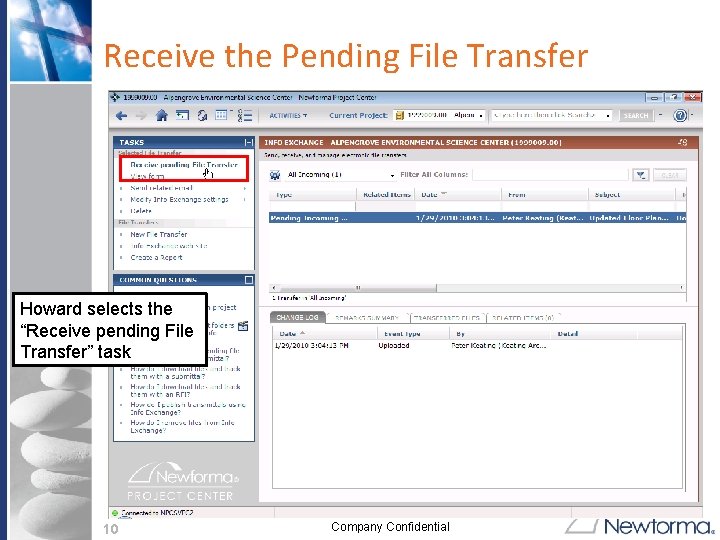
Receive the Pending File Transfer Howard selects the “Receive pending File Transfer” task 10 Company Confidential
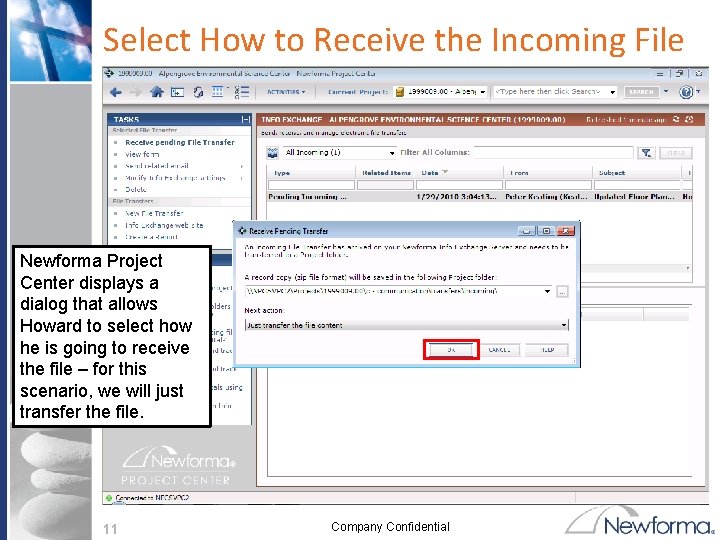
Select How to Receive the Incoming File Newforma Project Center displays a dialog that allows Howard to select how he is going to receive the file – for this scenario, we will just transfer the file. 11 Company Confidential
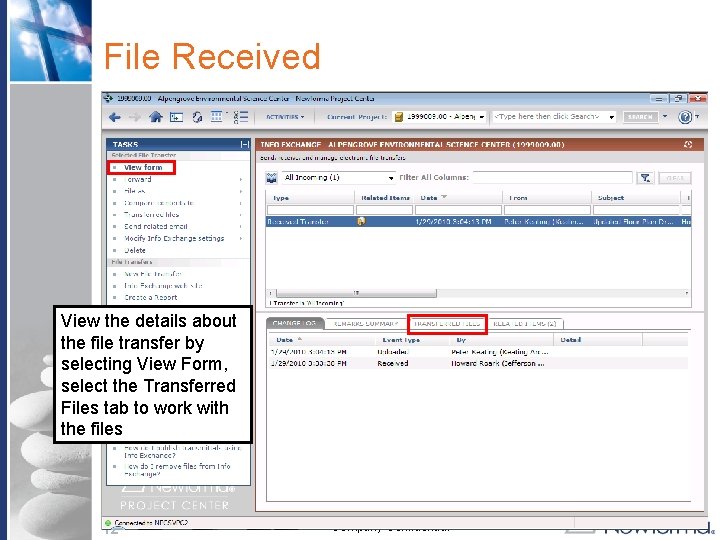
File Received View the details about the file transfer by selecting View Form, select the Transferred Files tab to work with the files 12 Company Confidential
Scenario 2: Step 1 – On Newforma Project Center Internal User (Howard Roark) transfers a file to External User (Peter Keating) 13 Company Confidential
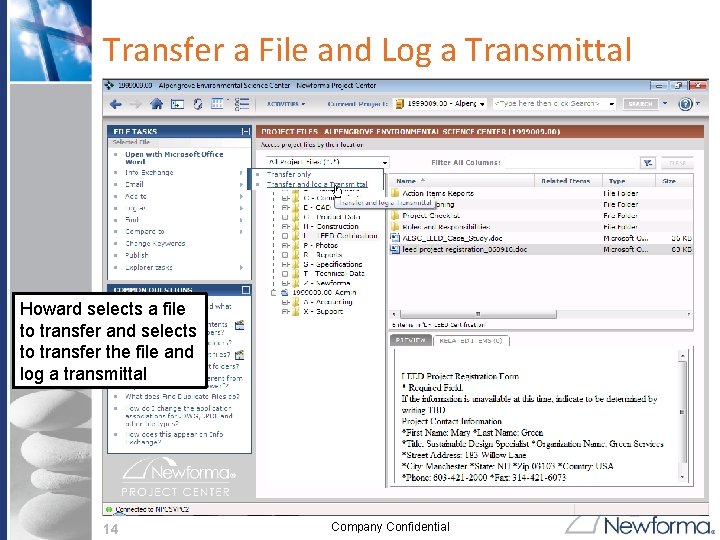
Transfer a File and Log a Transmittal Howard selects a file to transfer and selects to transfer the file and log a transmittal 14 Company Confidential
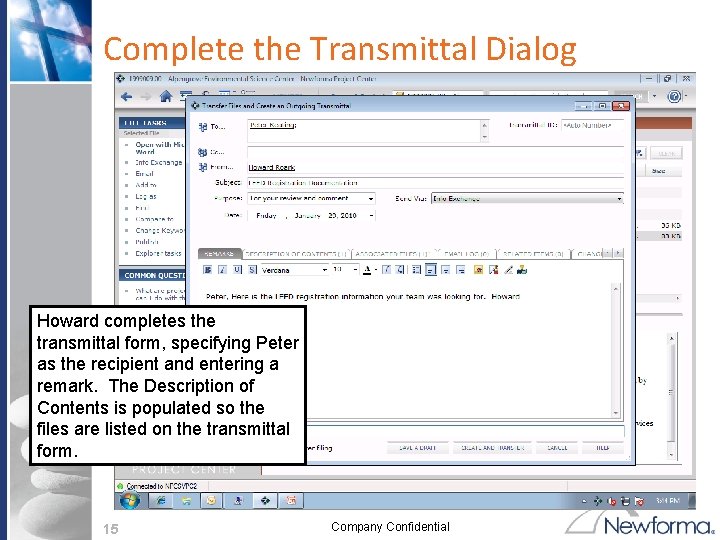
Complete the Transmittal Dialog Howard completes the transmittal form, specifying Peter as the recipient and entering a remark. The Description of Contents is populated so the files are listed on the transmittal form. 15 Company Confidential
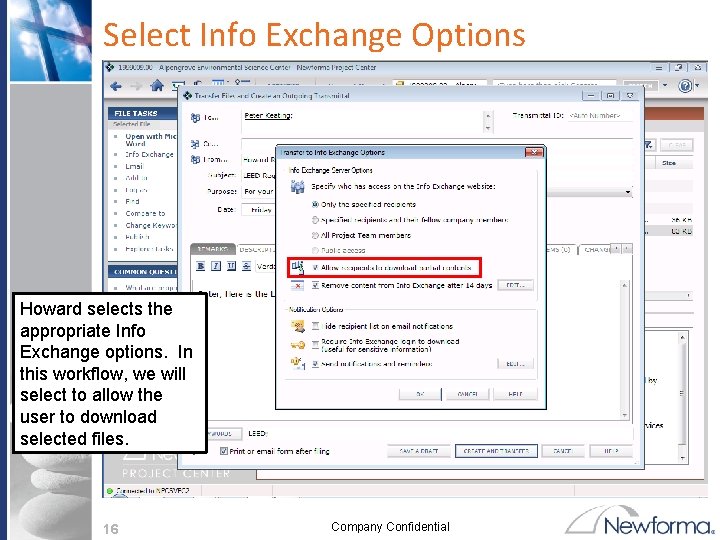
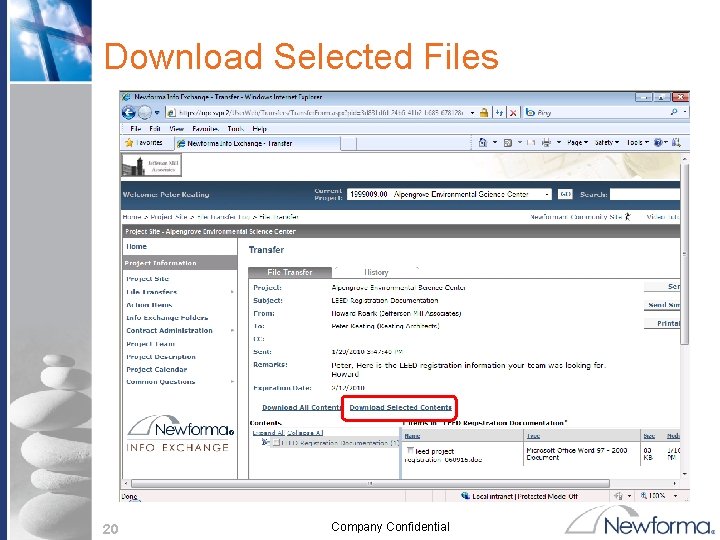
Select Info Exchange Options Howard selects the appropriate Info Exchange options. In this workflow, we will select to allow the user to download selected files. 16 Company Confidential
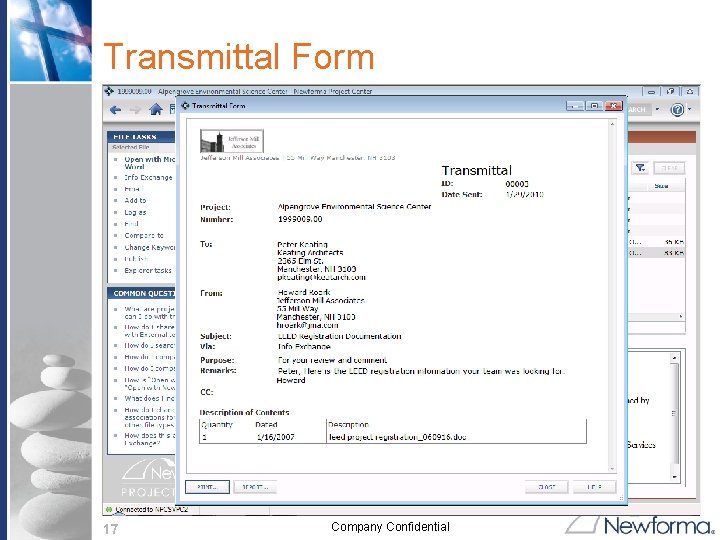
Transmittal Form 17 Company Confidential
Scenario 2: Step 2 – On Info Exchange External User (Peter Keating) Receives File 18 Company Confidential
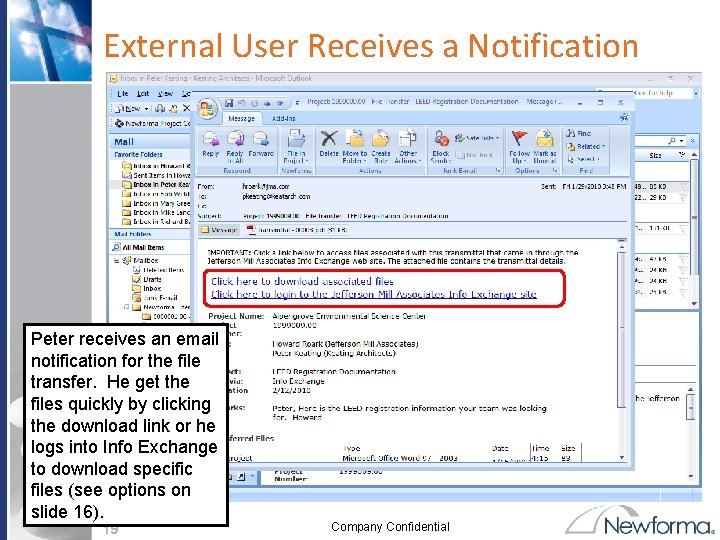
External User Receives a Notification Peter receives an email notification for the file transfer. He get the files quickly by clicking the download link or he logs into Info Exchange to download specific files (see options on slide 16). 19 Company Confidential
Download Selected Files 20 Company Confidential