
Industrial Engineering Drawing Chapter 6 Mirror Command Scale
- Slides: 18
Industrial Engineering Drawing Chapter 6 Mirror Command , Scale Command , Rotate Command ,
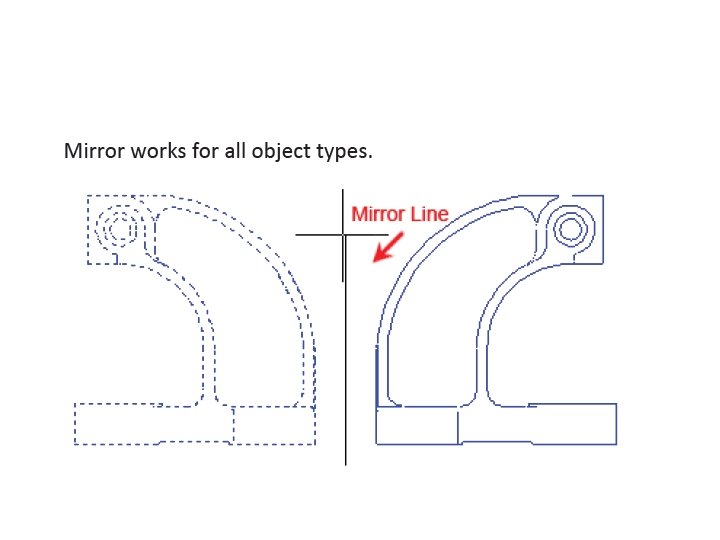
Mirroring Objects Using the Mirror command, you can create symmetric versions of geometry. When you activate the Mirror command, you are prompted to select the objects to mirror and to define a mirror line. The mirror line defines a vector across which all selected geometry is mirrored. After defining the mirror line, you can decide whether to erase or retain the source geometry.
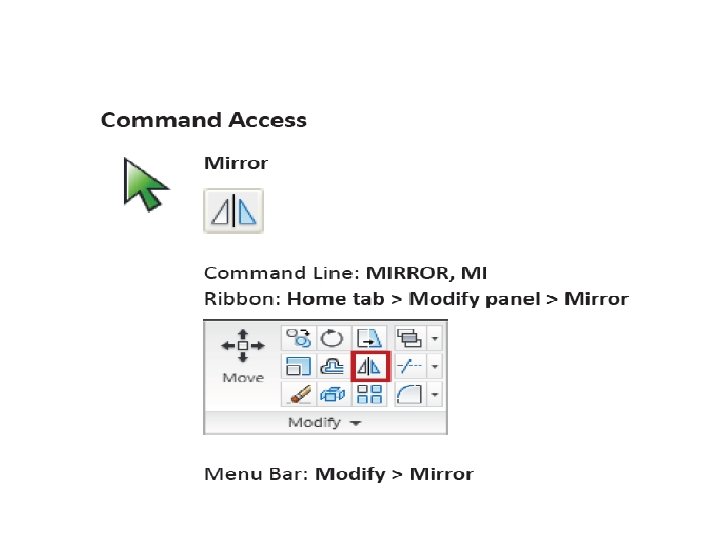
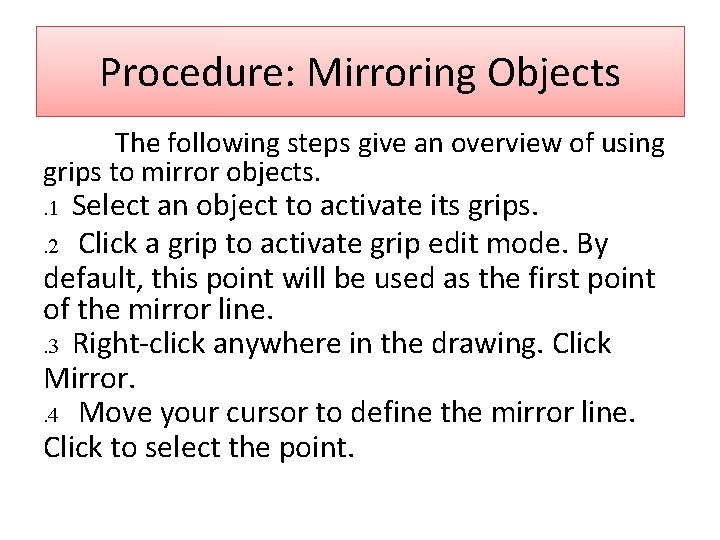
Procedure: Mirroring Objects The following steps give an overview of using grips to mirror objects. . 1 Select an object to activate its grips. . 2 Click a grip to activate grip edit mode. By default, this point will be used as the first point of the mirror line. . 3 Right-click anywhere in the drawing. Click Mirror. . 4 Move your cursor to define the mirror line. Click to select the point.
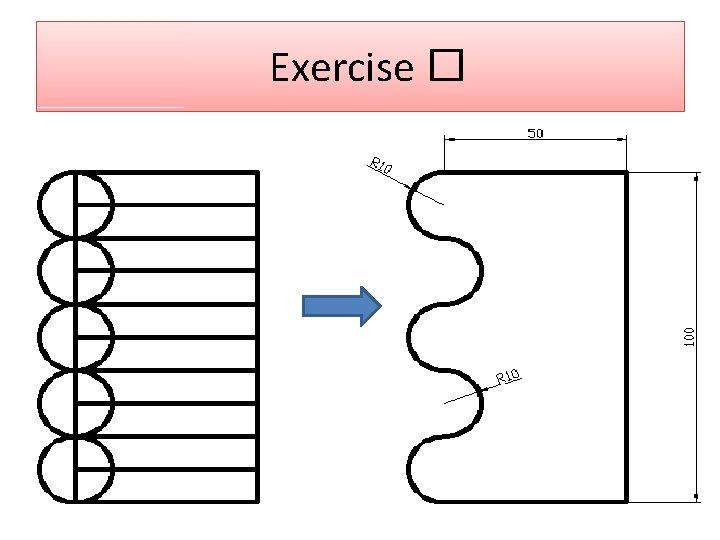
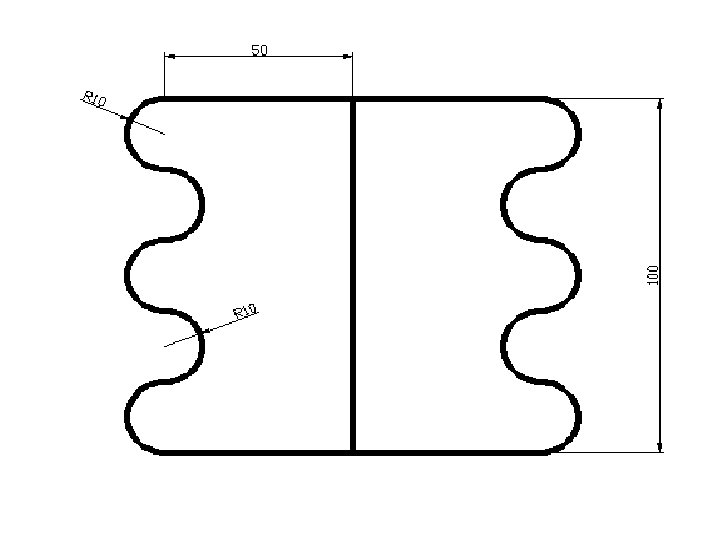
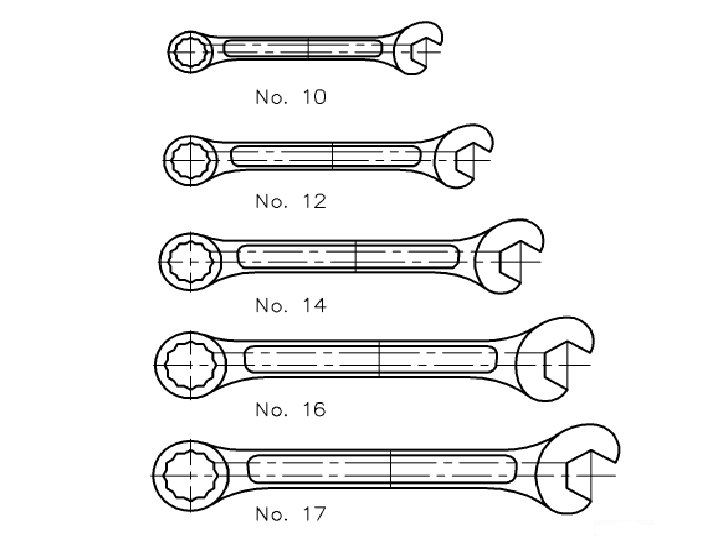
Exercise �
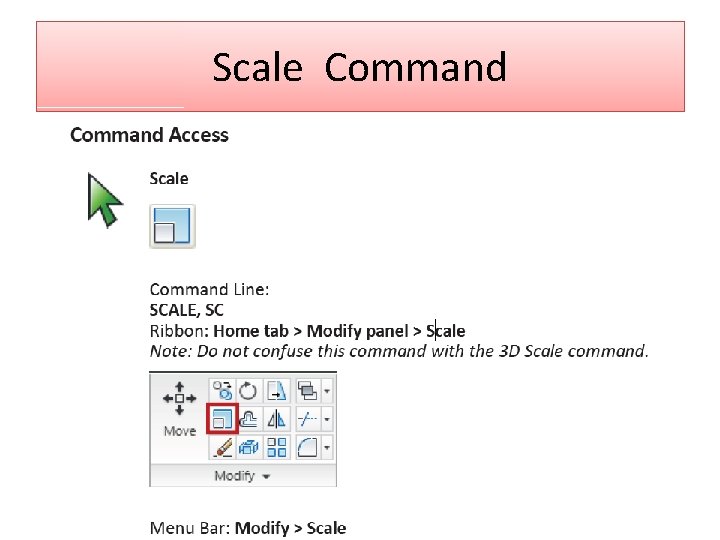
Scale Command
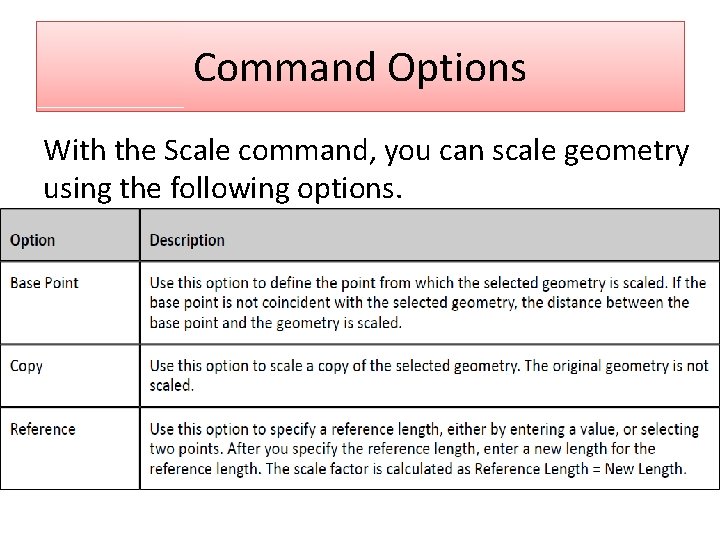
Command Options With the Scale command, you can scale geometry using the following options.
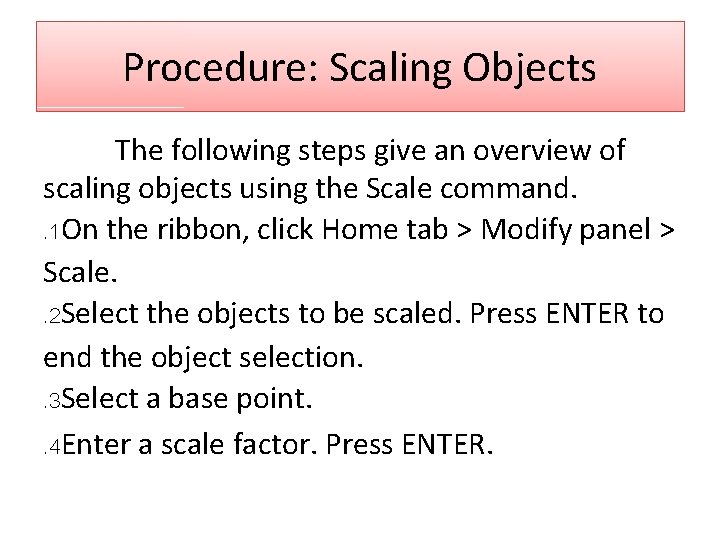
Procedure: Scaling Objects The following steps give an overview of scaling objects using the Scale command. . 1 On the ribbon, click Home tab > Modify panel > Scale. . 2 Select the objects to be scaled. Press ENTER to end the object selection. . 3 Select a base point. . 4 Enter a scale factor. Press ENTER.
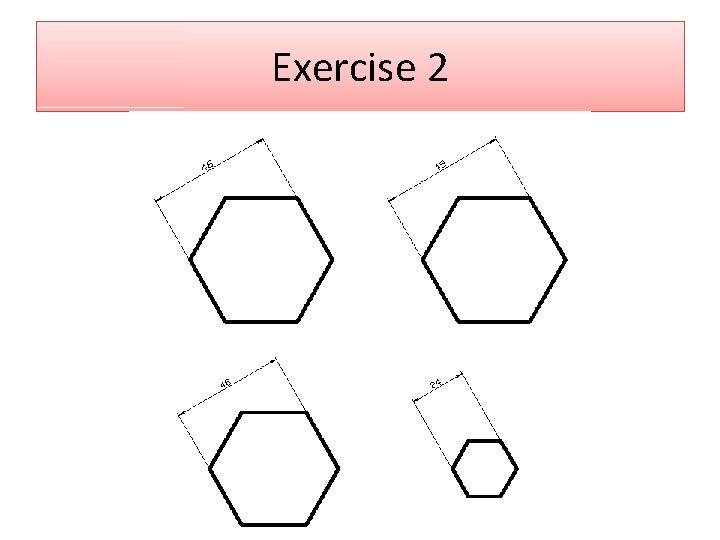
Exercise 2
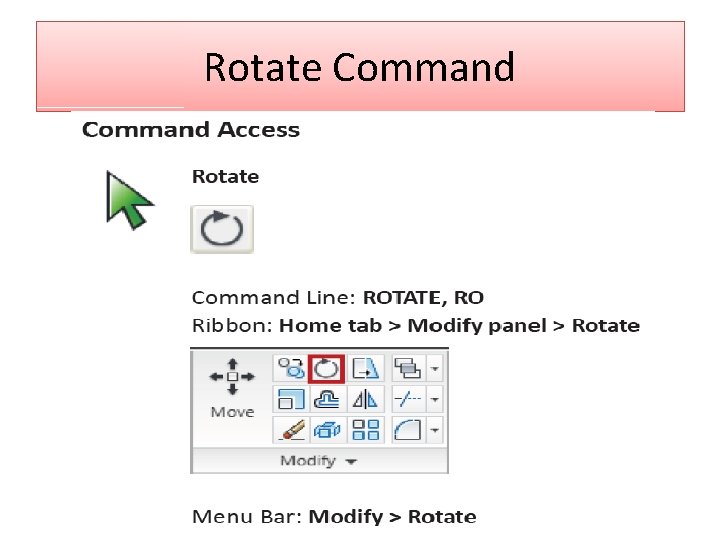
Rotate Command
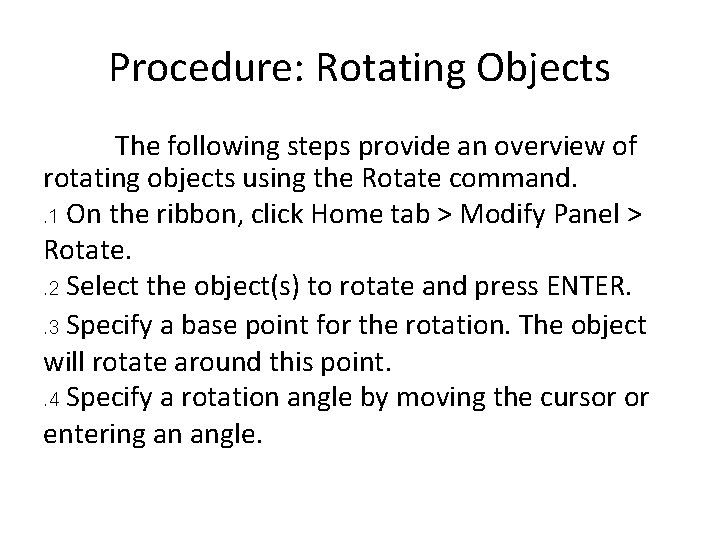
Procedure: Rotating Objects The following steps provide an overview of rotating objects using the Rotate command. . 1 On the ribbon, click Home tab > Modify Panel > Rotate. . 2 Select the object(s) to rotate and press ENTER. . 3 Specify a base point for the rotation. The object will rotate around this point. . 4 Specify a rotation angle by moving the cursor or entering an angle.
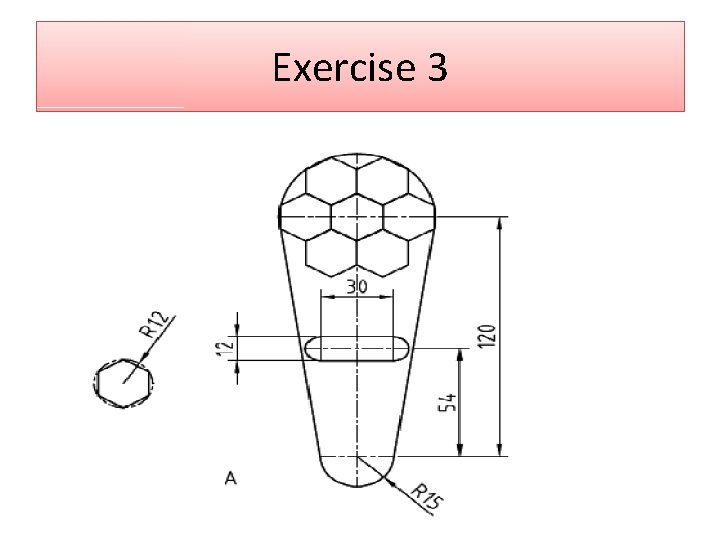
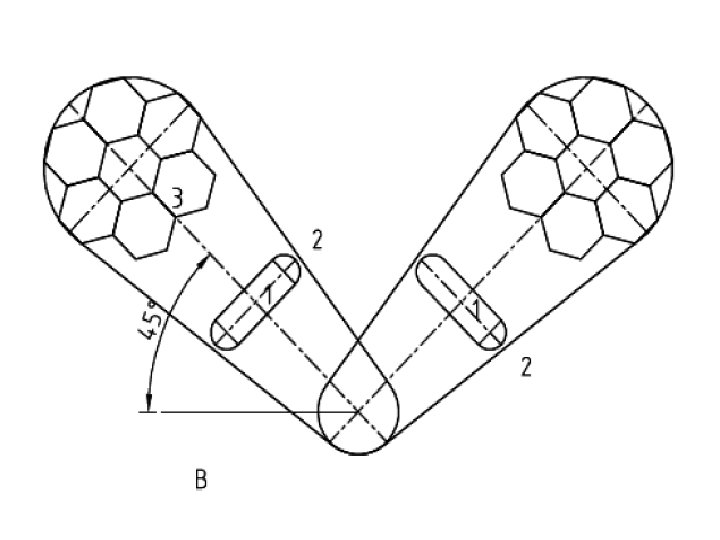
Exercise 3
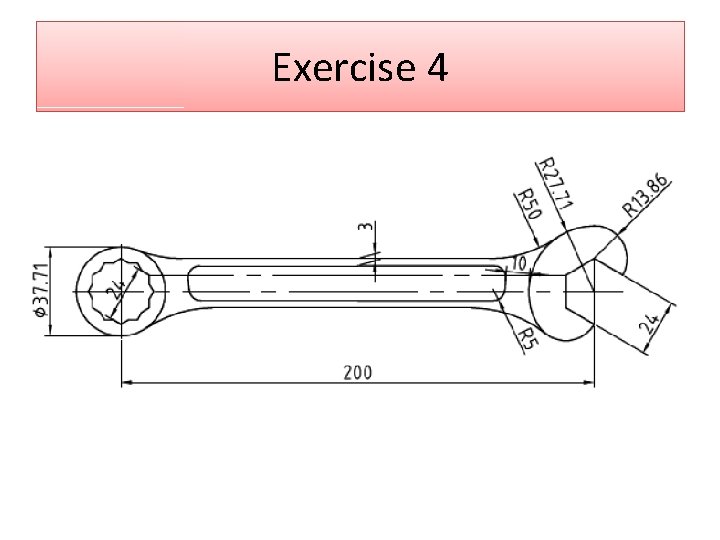
Exercise 4