
IN COUNTY TRAVEL 1 Online In County Travel

- Slides: 28
IN COUNTY TRAVEL 1
Online In County Travel Process Employee Self Service (ESS) Business Services Department- Accounts Payable 2
What is ESS? Employee Self Service (ESS) is an online application that allows employees to process in county mileage in a timely and more efficient manner. ESS provides access to On Line Travel through the DCPS intranet (DCPS network). The application is not supported on mobile devices at this time. 3
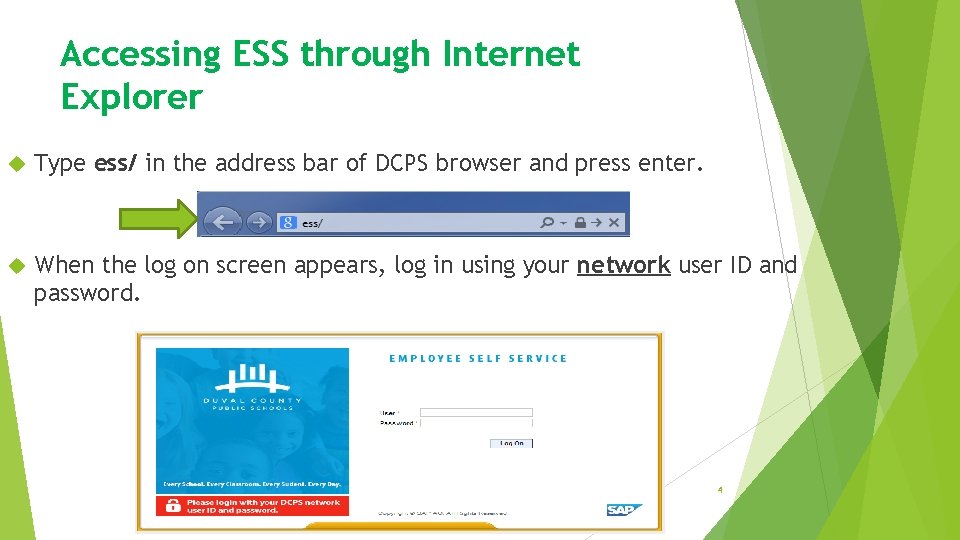
Accessing ESS through Internet Explorer Type ess/ in the address bar of DCPS browser and press enter. When the log on screen appears, log in using your network user ID and password. 4
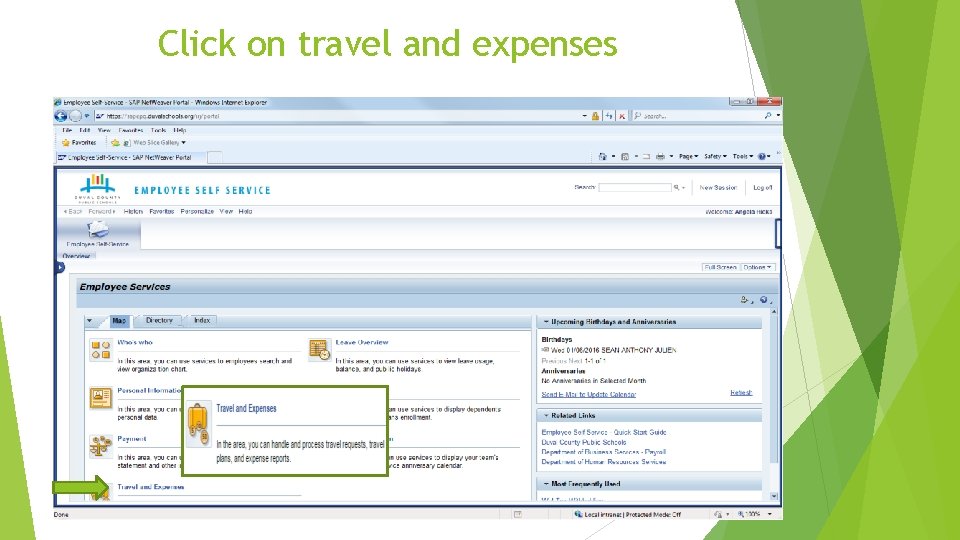
Click on travel and expenses 5
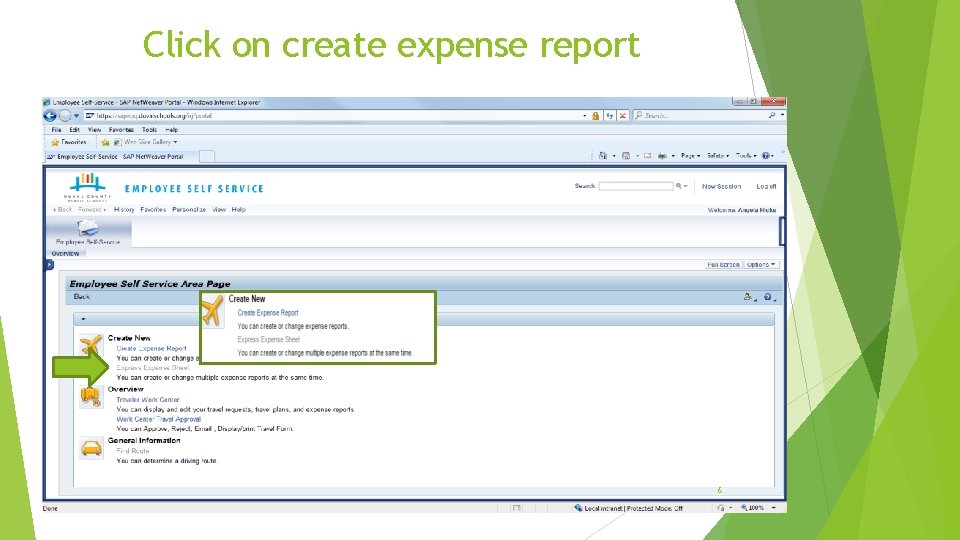
Click on create expense report 6
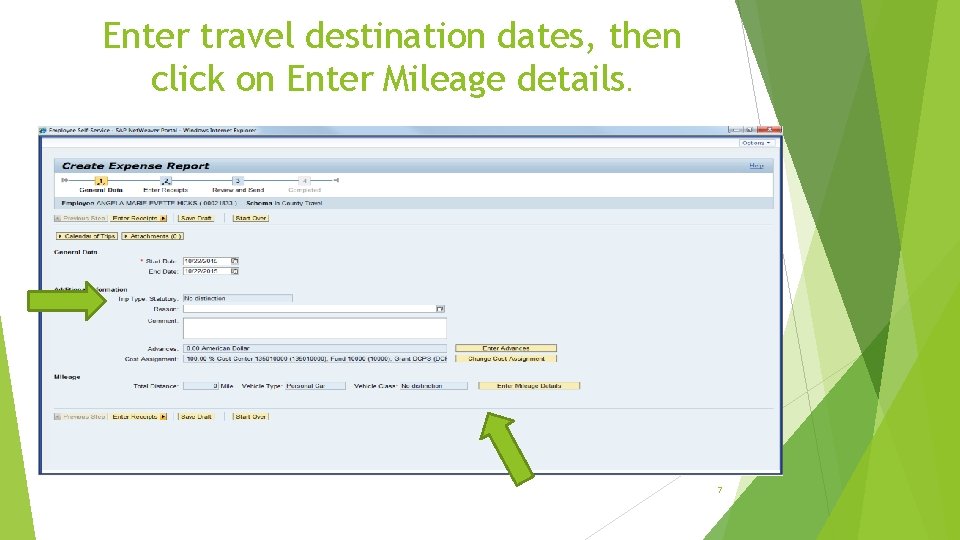
Enter travel destination dates, then click on Enter Mileage details. 7
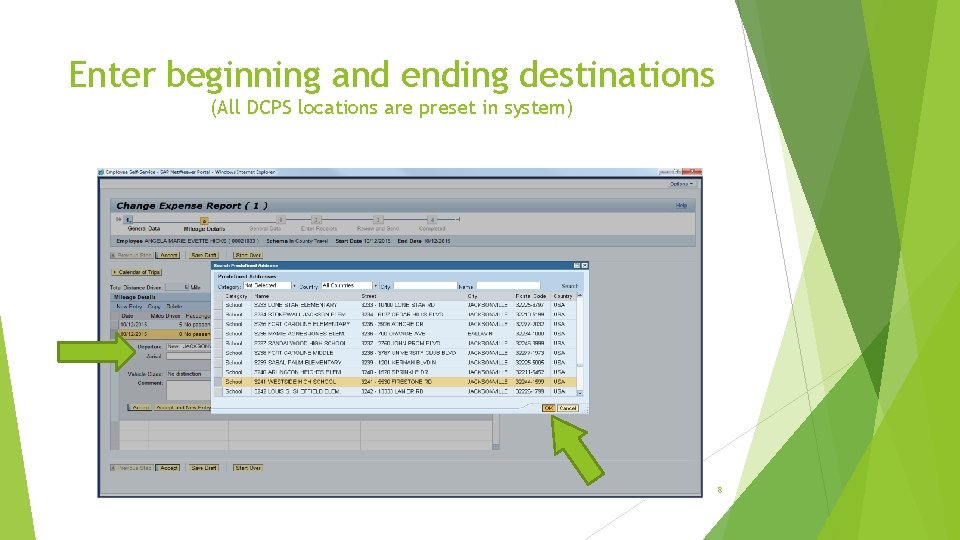
Enter beginning and ending destinations (All DCPS locations are preset in system) 8
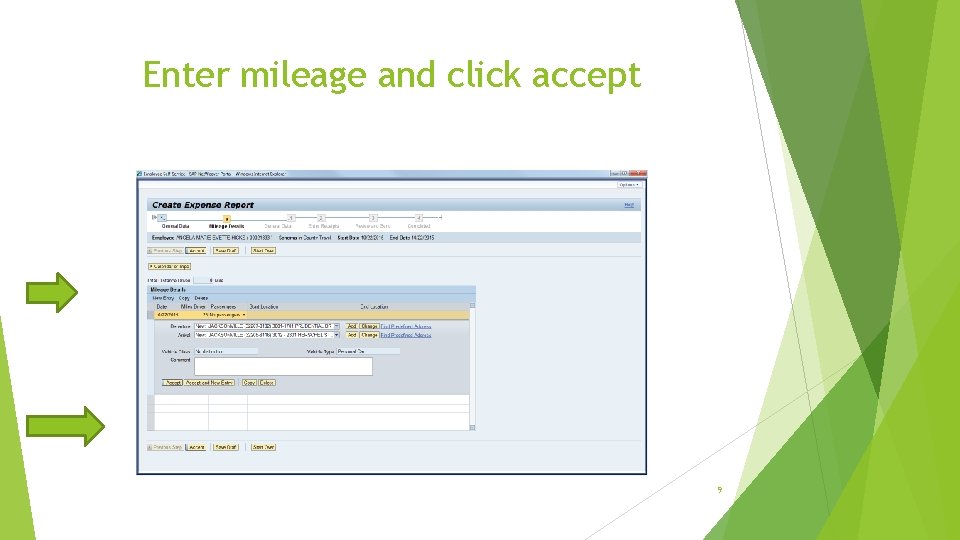
Enter mileage and click accept 9
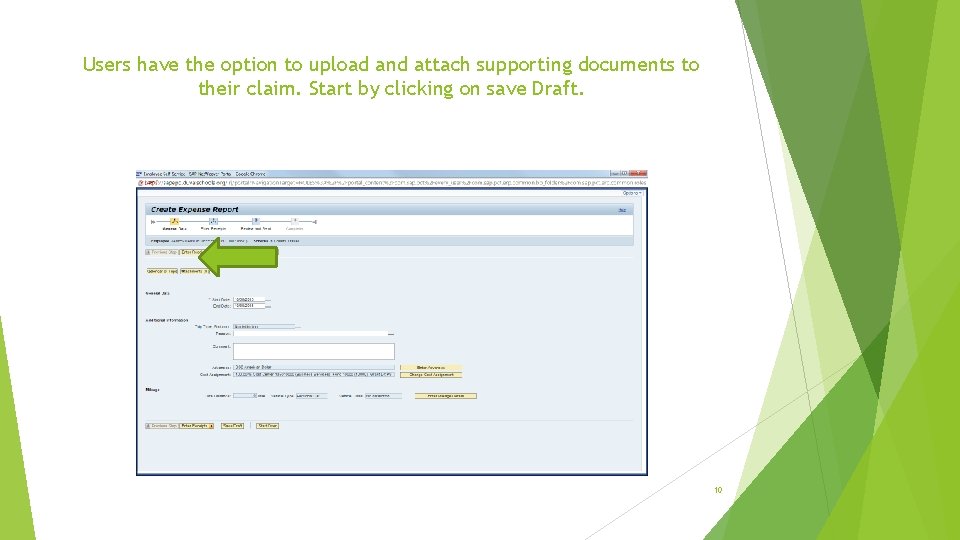
Users have the option to upload and attach supporting documents to their claim. Start by clicking on save Draft. 10
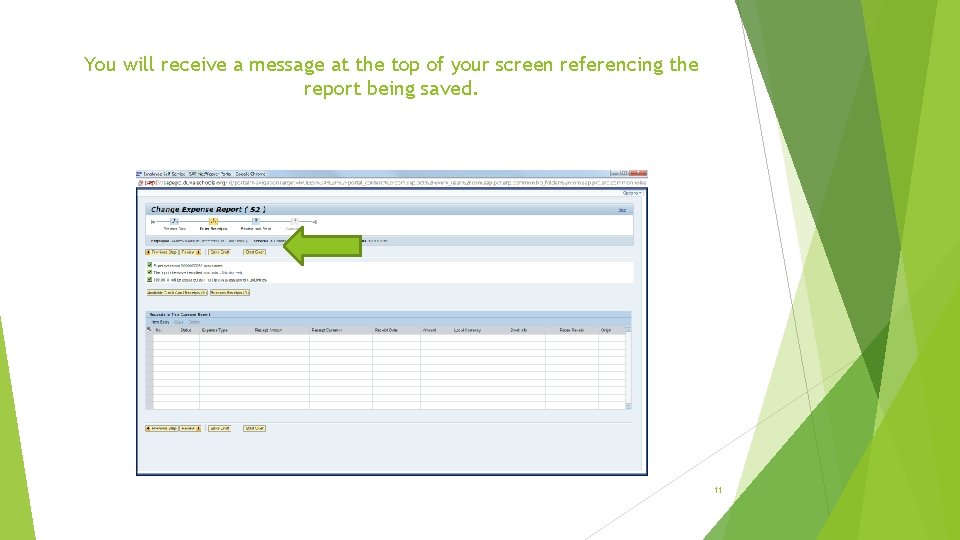
You will receive a message at the top of your screen referencing the report being saved. 11
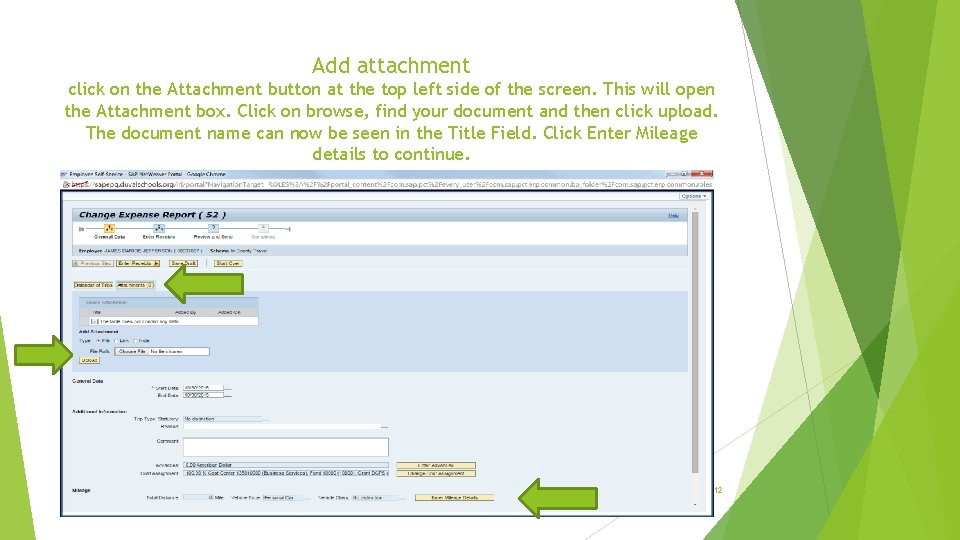
Add attachment click on the Attachment button at the top left side of the screen. This will open the Attachment box. Click on browse, find your document and then click upload. The document name can now be seen in the Title Field. Click Enter Mileage details to continue. 12
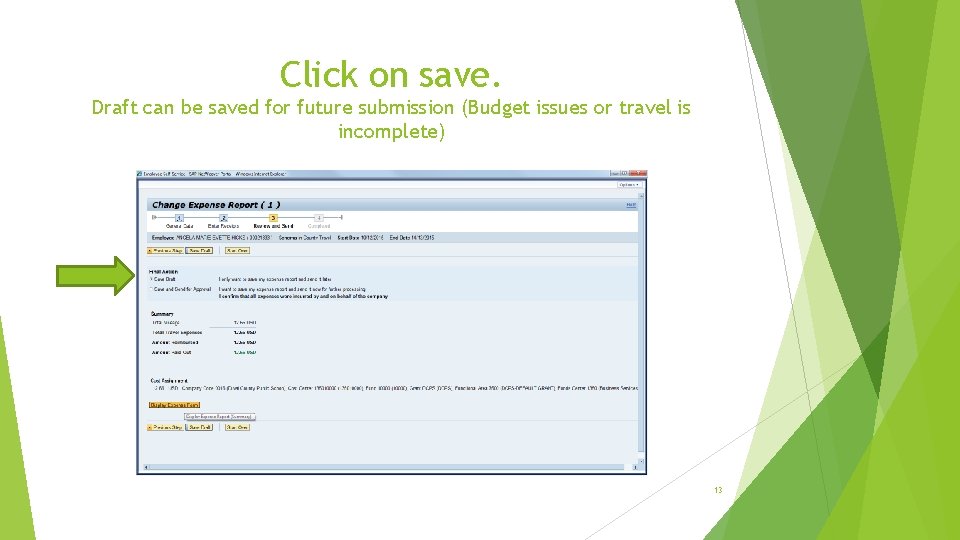
Click on save. Draft can be saved for future submission (Budget issues or travel is incomplete) 13
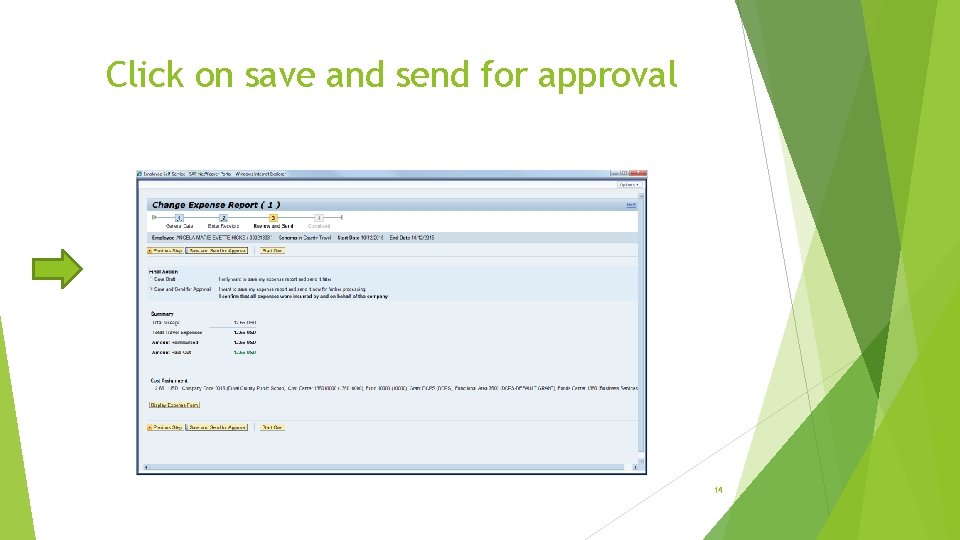
Click on save and send for approval 14
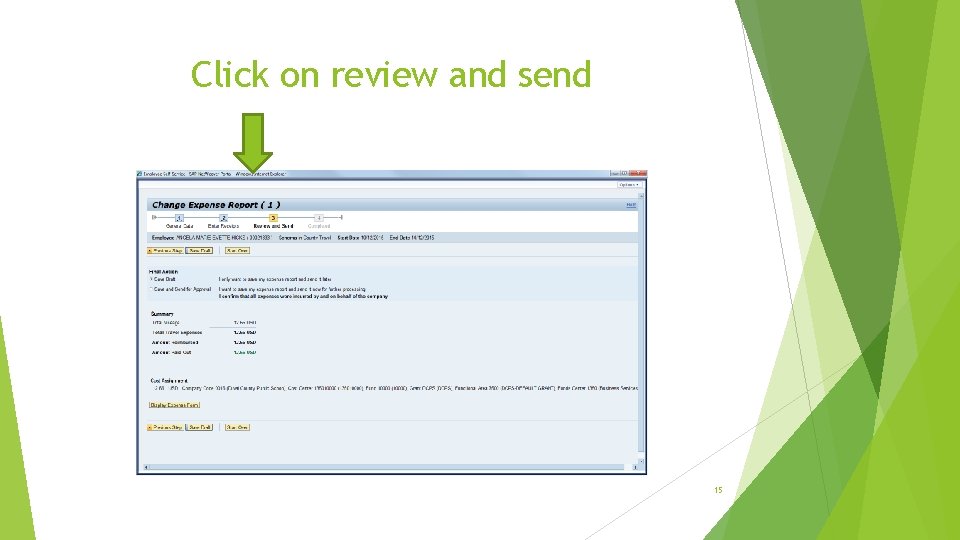
Click on review and send 15
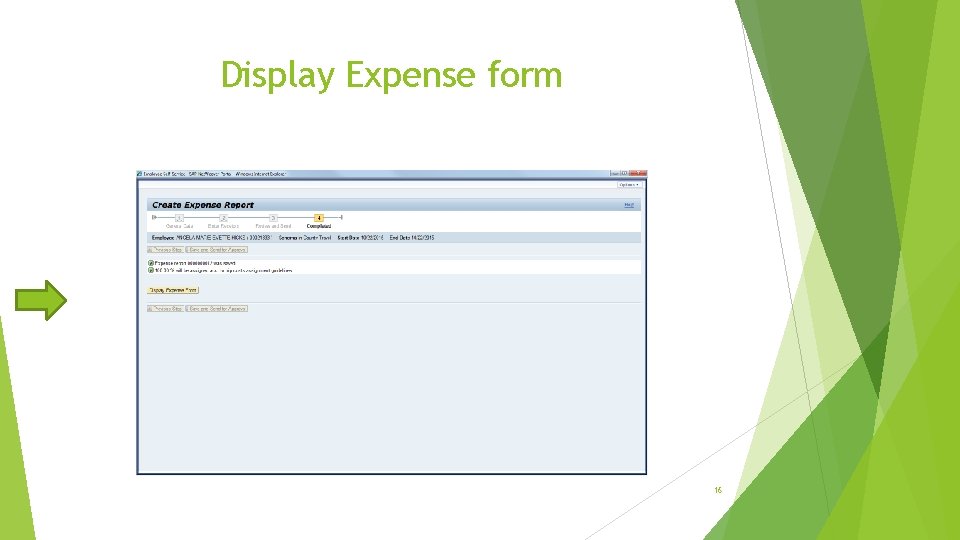
Display Expense form 16
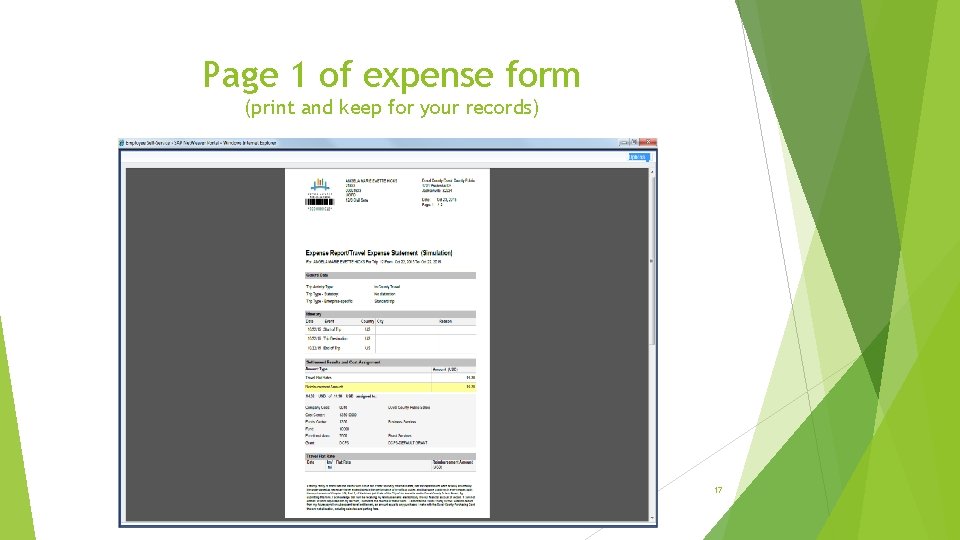
Page 1 of expense form (print and keep for your records) 17
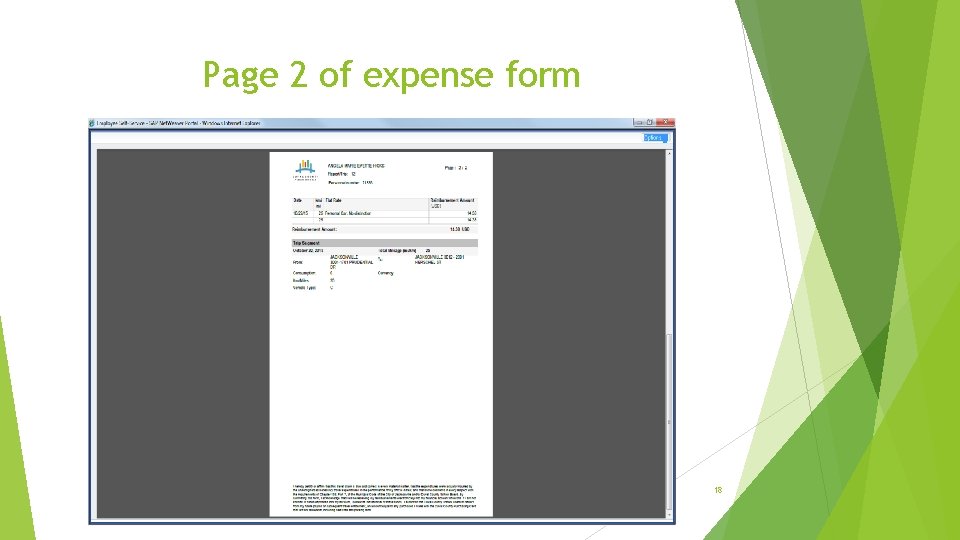
Page 2 of expense form 18
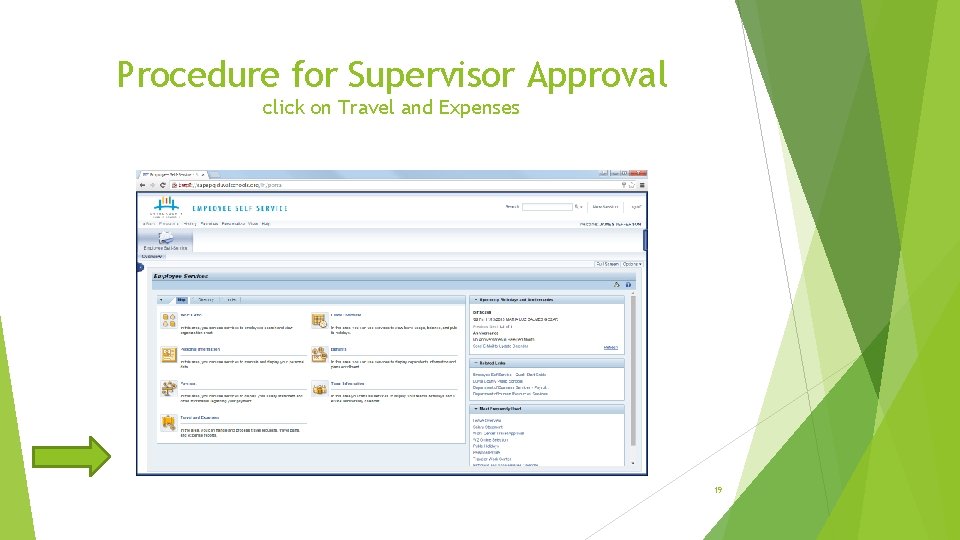
Procedure for Supervisor Approval click on Travel and Expenses 19
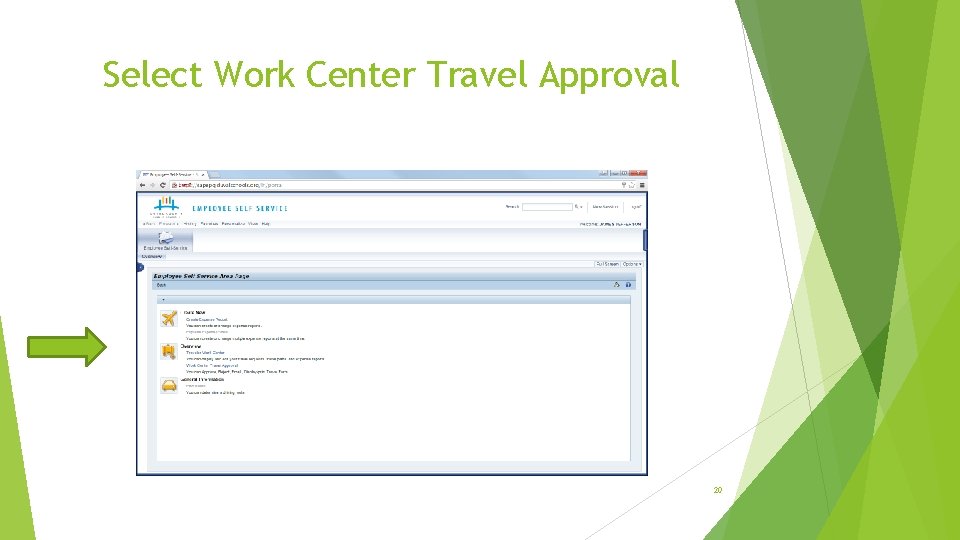
Select Work Center Travel Approval 20
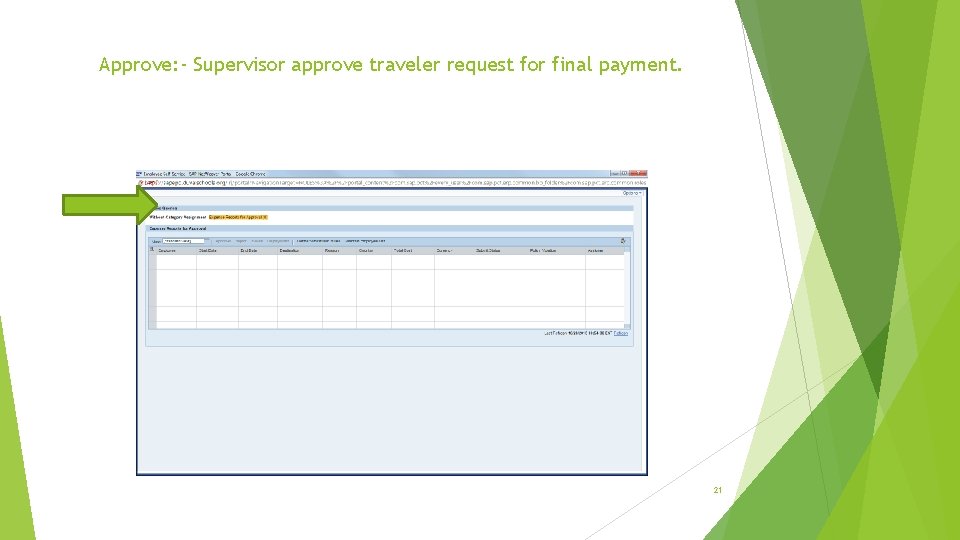
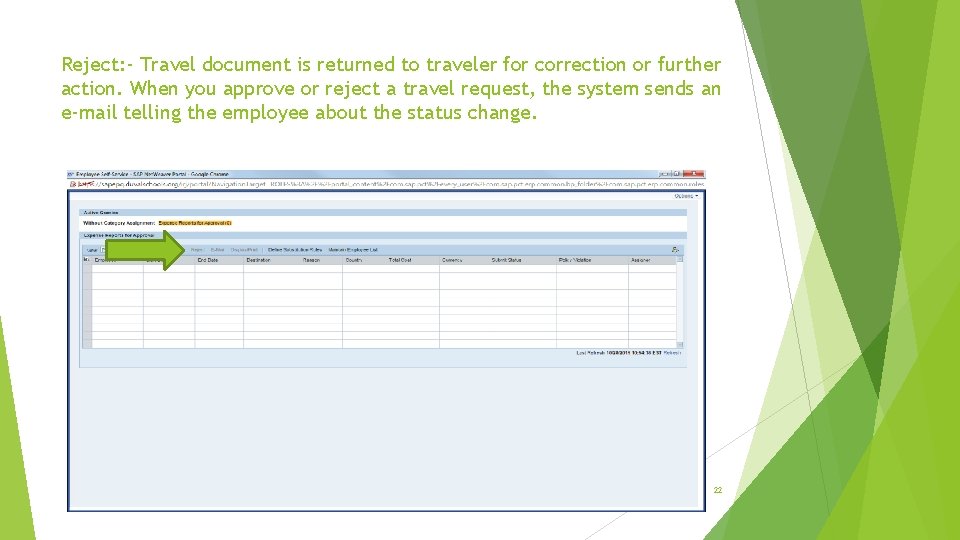
Approve: - Supervisor approve traveler request for final payment. 21
Reject: - Travel document is returned to traveler for correction or further action. When you approve or reject a travel request, the system sends an e-mail telling the employee about the status change. 22
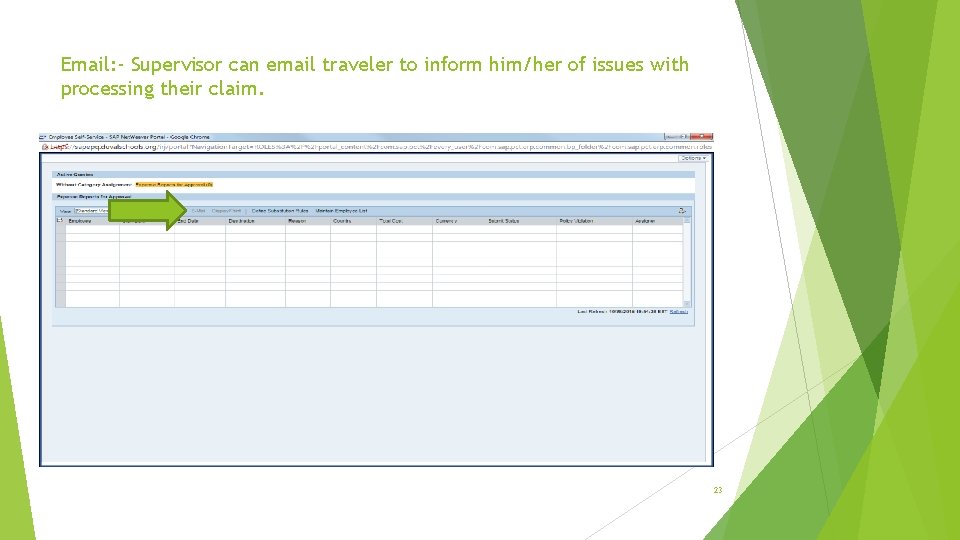
Email: - Supervisor can email traveler to inform him/her of issues with processing their claim. 23
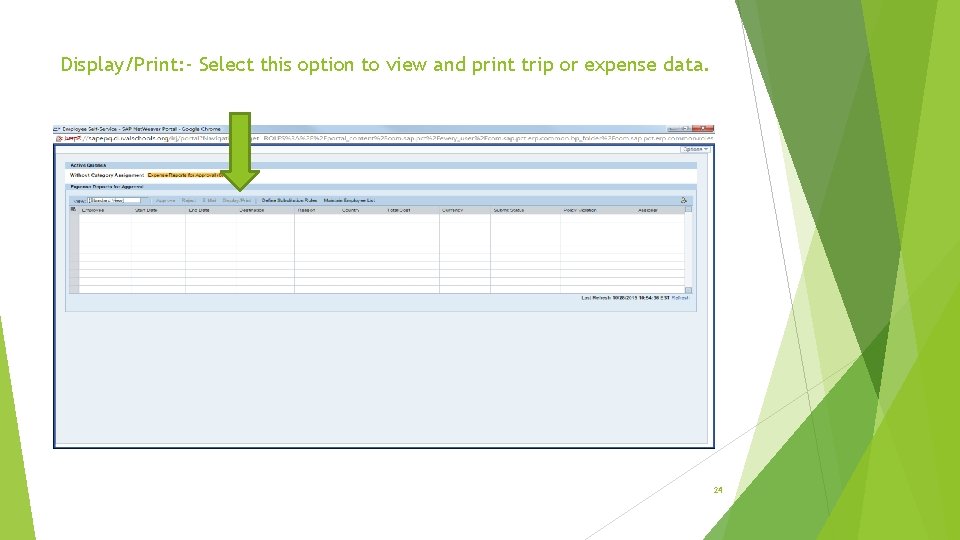
Display/Print: - Select this option to view and print trip or expense data. 24
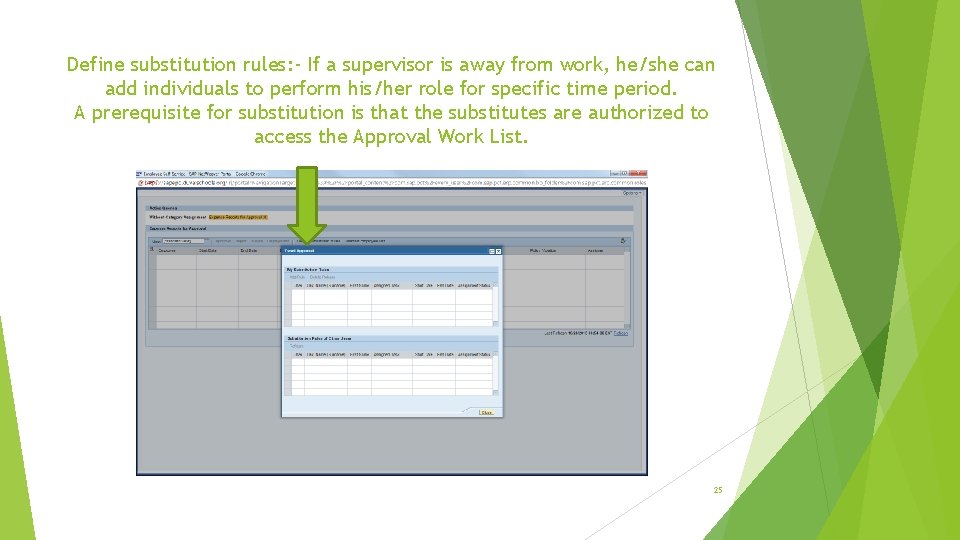
Define substitution rules: - If a supervisor is away from work, he/she can add individuals to perform his/her role for specific time period. A prerequisite for substitution is that the substitutes are authorized to access the Approval Work List. 25
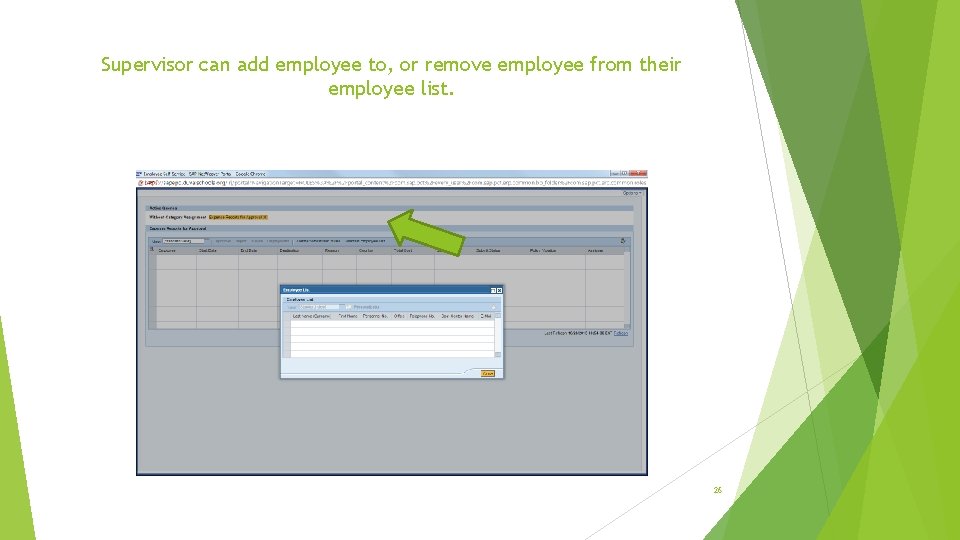
Supervisor can add employee to, or remove employee from their employee list. 26
QUESTIONS? ? Please feel free to contact Accounts Payable 27
Procedures Log onto DCPS web site: http: //www. duvalschools. org Enter ess in address bar. Log into Employee Self Service using you network ID and password. Click on travel expenses. Click on create expense report (new window will open) Enter general data: a) Start date b) End date Click on mileage details (Bottom of the page) Enter beginning location and ending destination. Enter mileage amount (whole numbers only) Click on accept. Click review and send (top menu bar) Final action: a) Save draft - select this option if travel is not complete or experiencing budget issues. 1. Once saved, menu bar will indicate completed. 2. Exit 3. Return to main menu and select Travel work center. 4. Double click on travel dates. 5. Select change. 6. Enter changes. 7. Once completed, review and send. Save and send for approval – select this option once travel is complete and ready to be forwarded for management approval. b) 28