
IMPORTING SCALED DRAWINGS INTO ADOBE ILLUSTRATOR CAD FILES
IMPORTING SCALED DRAWINGS INTO ADOBE ILLUSTRATOR CAD FILES TO PAINT ELEVATIONS READY TO PRINT FOR THE SHOP. By Professor Bruce B. Brown
LEARNING OUTCOMES BY THE CONCLUSION OF THIS LESSON DESIGNERS WILL: v Attain basic knowledge of the differences between Raster & Vector Images and RGB & CYMK Color Spaces in relation to projections and printing. v Understand how to create a new Artboard in Adobe Illustrator (AI) and import and manipulate the scale of a CAD drawing within the program. v Gain insight on how to apply color on in-scale, Vector drawings using tools and functions of AI. v Understand the process of exporting scaled, printer ready, Paint Elevations in. PDF format.
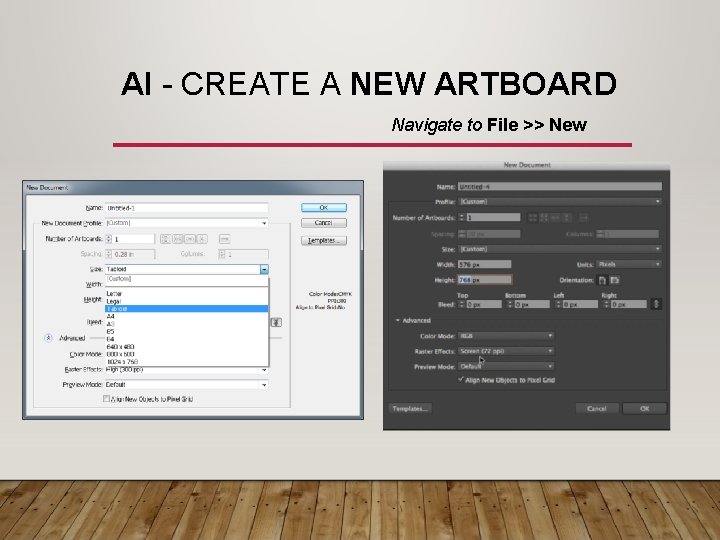
AI - CREATE A NEW ARTBOARD Navigate to File >> New
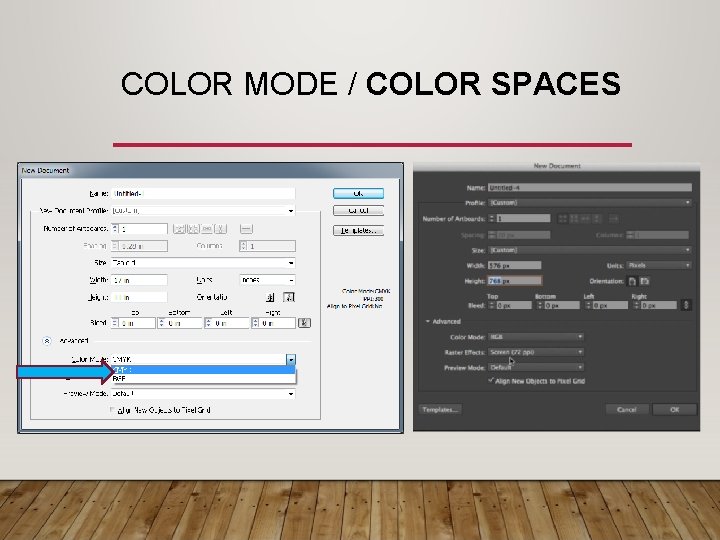
COLOR MODE / COLOR SPACES

RASTER EFFECT
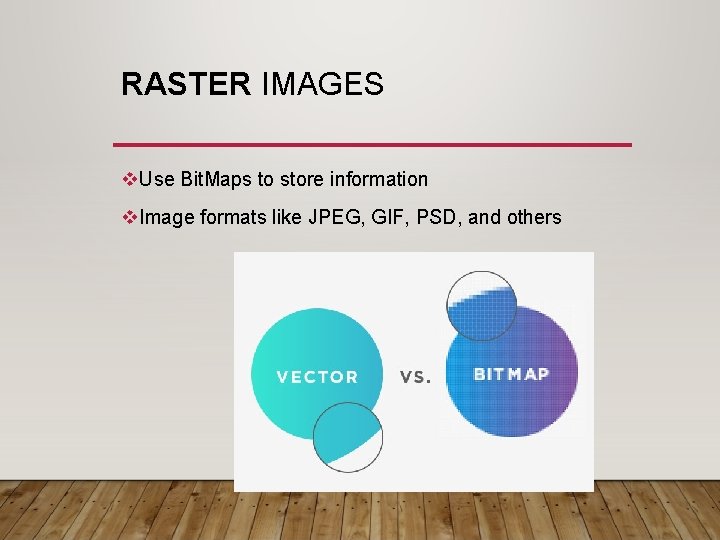
RASTER IMAGES v. Use Bit. Maps to store information v. Image formats like JPEG, GIF, PSD, and others
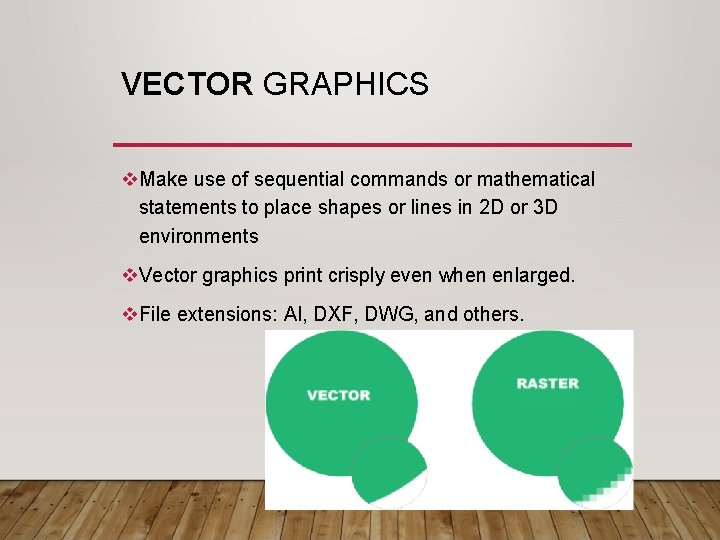
VECTOR GRAPHICS v. Make use of sequential commands or mathematical statements to place shapes or lines in 2 D or 3 D environments v. Vector graphics print crisply even when enlarged. v. File extensions: AI, DXF, DWG, and others.
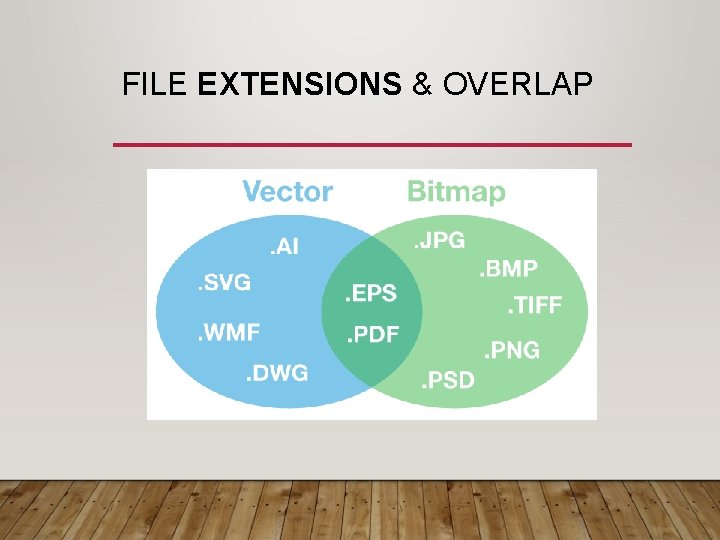
FILE EXTENSIONS & OVERLAP

NAME NEW DOCUMENT

SET UP YOUR AI DOCUMENT

NEXT, OPEN CAD FILE

DEFINING THE SCALE

OPEN DOCUMENT - SELECTED
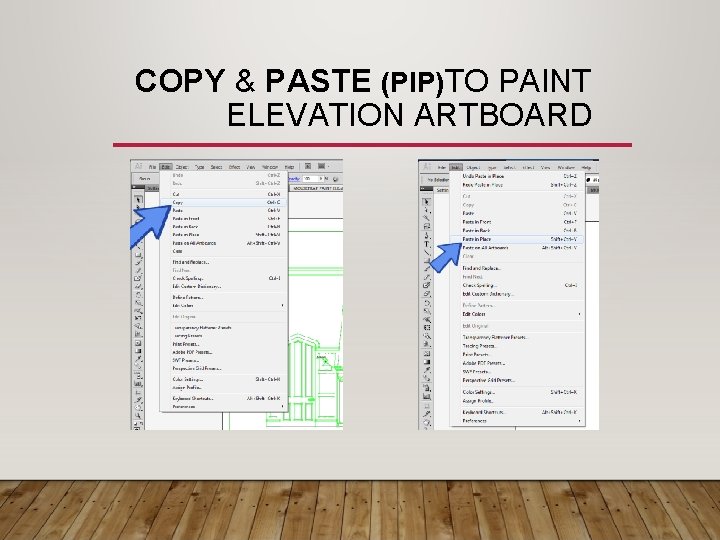
COPY & PASTE (PIP)TO PAINT ELEVATION ARTBOARD

AFTER PASTE IN PLACE

CREATING LAYERS AI CS-5 AI 2020

RECTANGLE TOOL
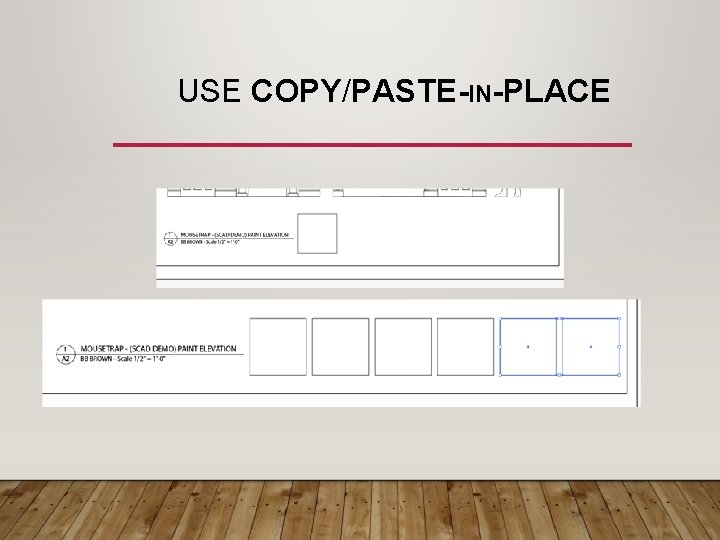
USE COPY/PASTE-IN-PLACE

PAINTING IN LAYERS
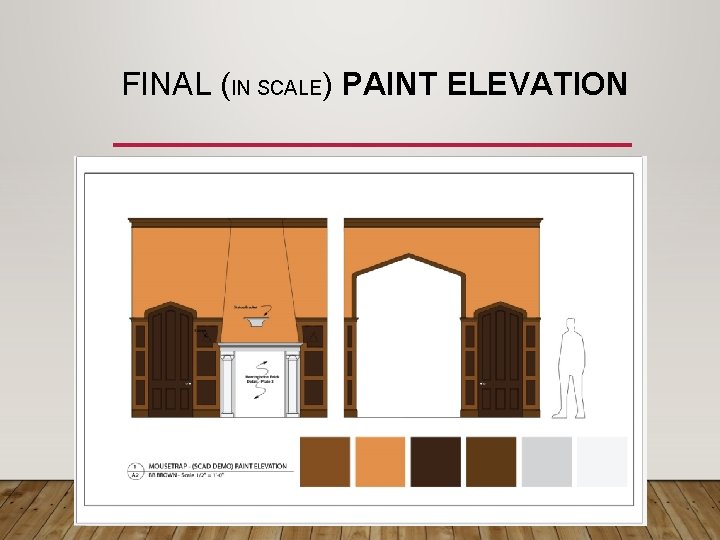
FINAL (IN SCALE) PAINT ELEVATION
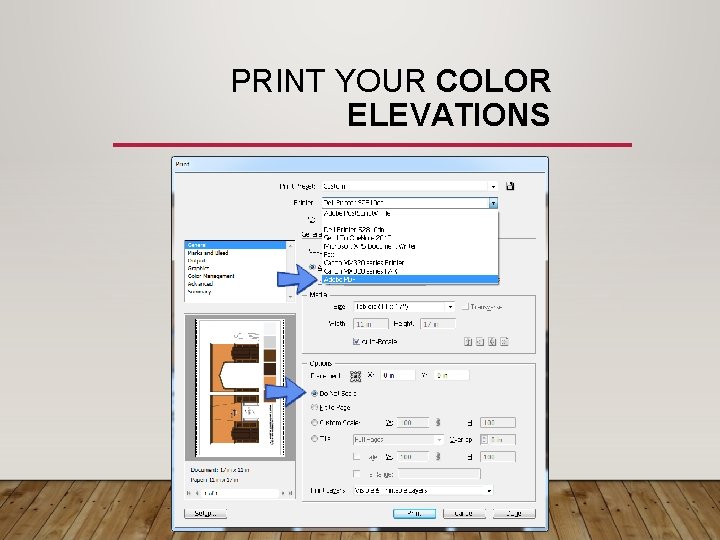
PRINT YOUR COLOR ELEVATIONS
- Slides: 21