
Importing Open Street Map data into Arc GIS


- Slides: 20
Importing Open. Street. Map data into Arc. GIS
Different Arc. GIS versions • This process is different for different Arc. GIS versions. Click below for your version: – Arc. GIS v 9. 3. 1 SP 1 – Arc. GIS v 10
Arc. GIS v 9. 3. 1 SP 1 is required! • Arc. GIS v 9. 3. 1 Service Pack 1 (or higher) is required to import Open. Street. Map. org (. osm) data • Also make sure the Data Interoperability Extension is installed and enabled (From Arc. Catalog, Tools->Extensions, then check “Data Interoperability”) • You must use Arc. Catalog to create a geodatabase and import the OSM into this geodatabase • Do NOT try to import OSM data directly into Arc. Map. There is currently a bug in ESRI’s software that prevents this from working correctly • The following steps detail the process of exporting data from OSM website into an XML format, and then importing this XML data into Arc. GIS.
• • • Go to the Open. Street. Map website (link centered on USF campus: http: //www. openstreetmap. org/? lat=28. 06173&lon=-82. 41359&zoom=16&layers=00 B 0 FTF Login with your user account (free to create, if you don’t have one), then select the Export tab at the top of the page. Choose the area that you want to export, select the “Open. Street. Map XML Data” format, and click the “Export” button to save the. osm file to your computer
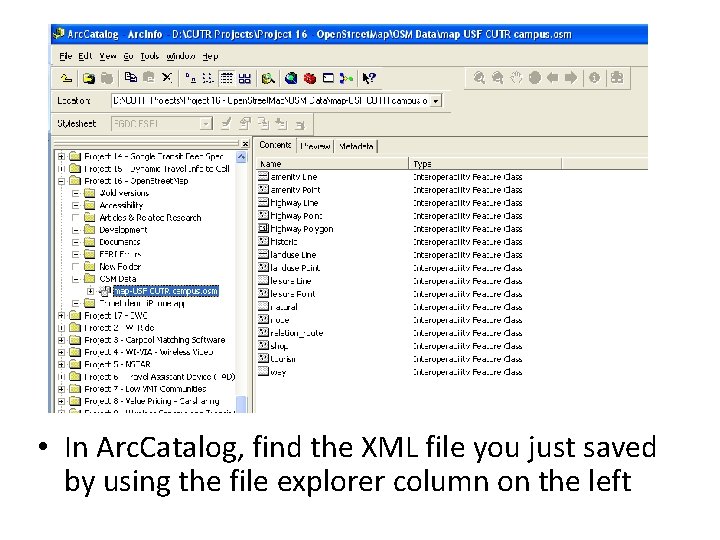
• In Arc. Catalog, find the XML file you just saved by using the file explorer column on the left
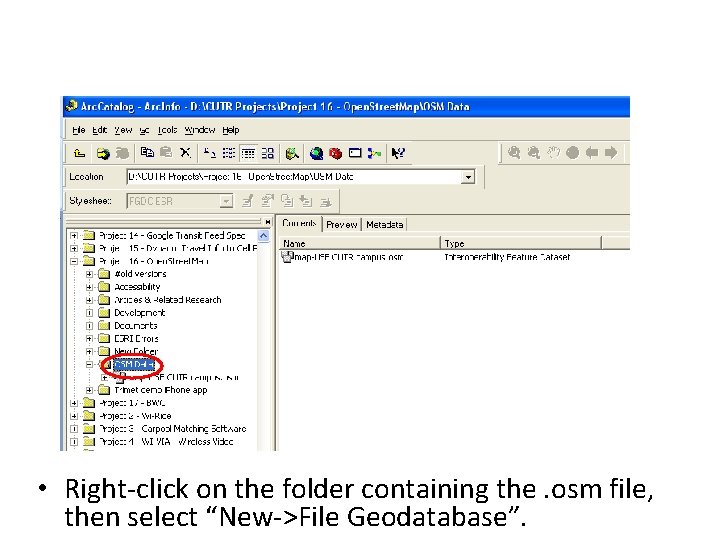
• Right-click on the folder containing the. osm file, then select “New->File Geodatabase”.
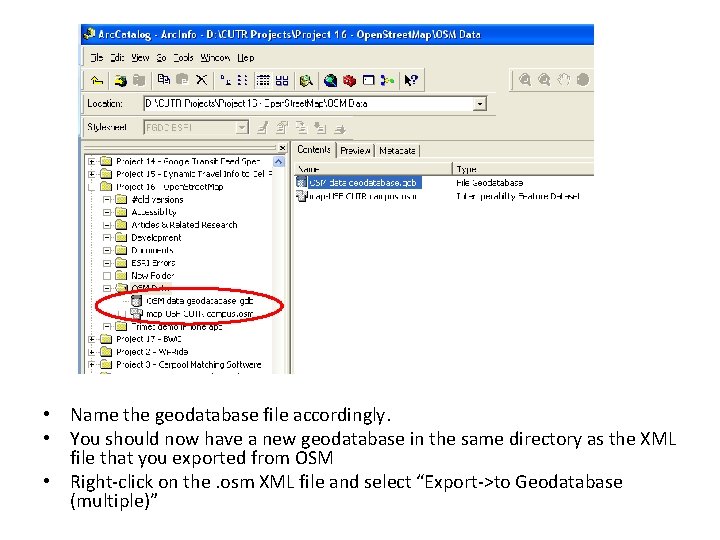
• Name the geodatabase file accordingly. • You should now have a new geodatabase in the same directory as the XML file that you exported from OSM • Right-click on the. osm XML file and select “Export->to Geodatabase (multiple)”
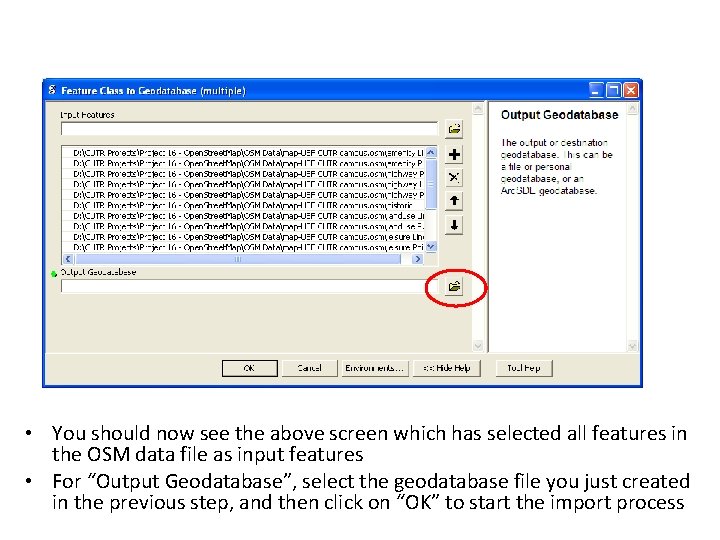
• You should now see the above screen which has selected all features in the OSM data file as input features • For “Output Geodatabase”, select the geodatabase file you just created in the previous step, and then click on “OK” to start the import process
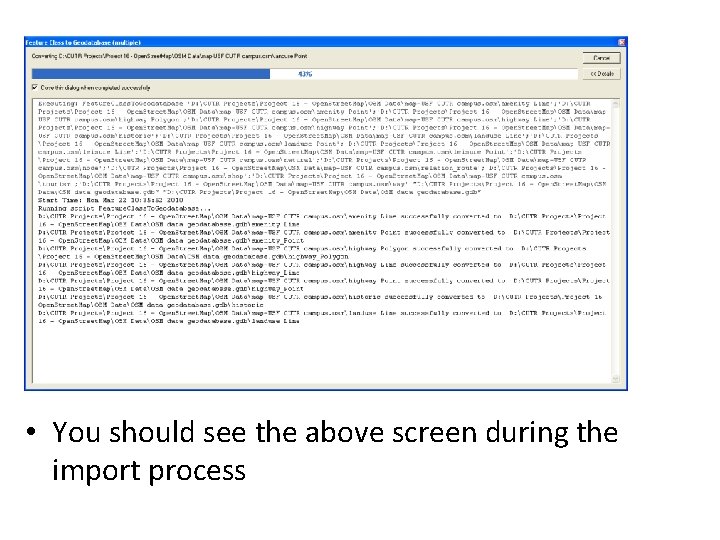
• You should see the above screen during the import process
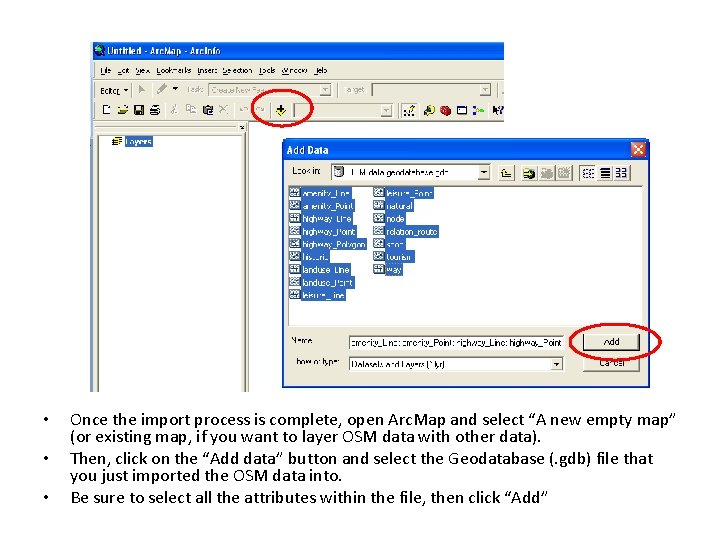
• • • Once the import process is complete, open Arc. Map and select “A new empty map” (or existing map, if you want to layer OSM data with other data). Then, click on the “Add data” button and select the Geodatabase (. gdb) file that you just imported the OSM data into. Be sure to select all the attributes within the file, then click “Add”
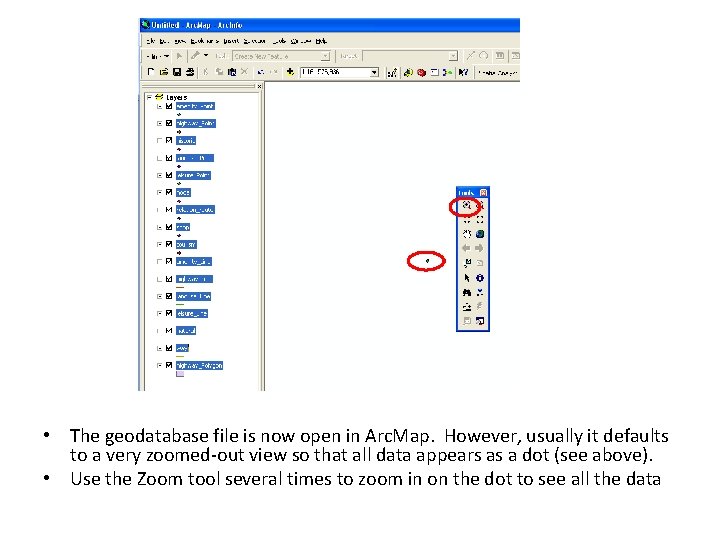
• The geodatabase file is now open in Arc. Map. However, usually it defaults to a very zoomed-out view so that all data appears as a dot (see above). • Use the Zoom tool several times to zoom in on the dot to see all the data
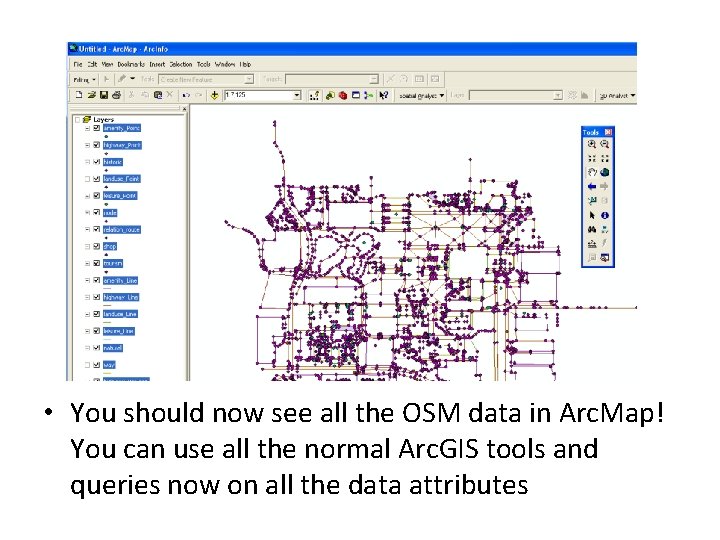
• You should now see all the OSM data in Arc. Map! You can use all the normal Arc. GIS tools and queries now on all the data attributes
Following slides are for Arc. GIS 10
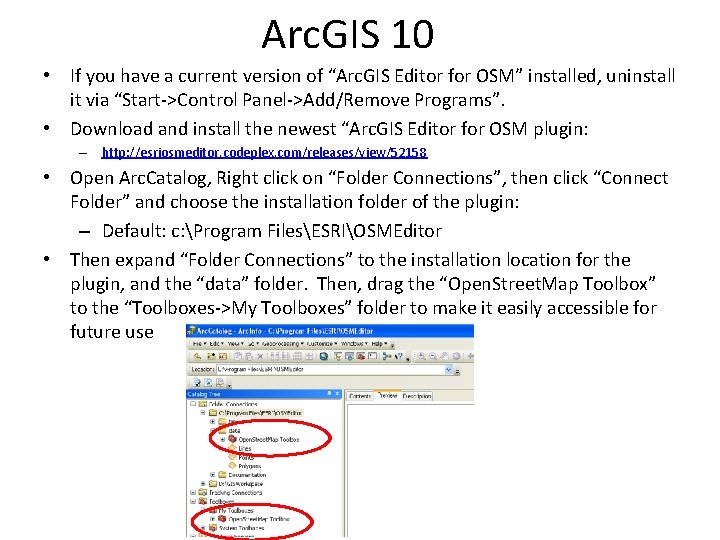
Arc. GIS 10 • If you have a current version of “Arc. GIS Editor for OSM” installed, uninstall it via “Start->Control Panel->Add/Remove Programs”. • Download and install the newest “Arc. GIS Editor for OSM plugin: – http: //esriosmeditor. codeplex. com/releases/view/52158 • Open Arc. Catalog, Right click on “Folder Connections”, then click “Connect Folder” and choose the installation folder of the plugin: – Default: c: Program FilesESRIOSMEditor • Then expand “Folder Connections” to the installation location for the plugin, and the “data” folder. Then, drag the “Open. Street. Map Toolbox” to the “Toolboxes->My Toolboxes” folder to make it easily accessible for future use
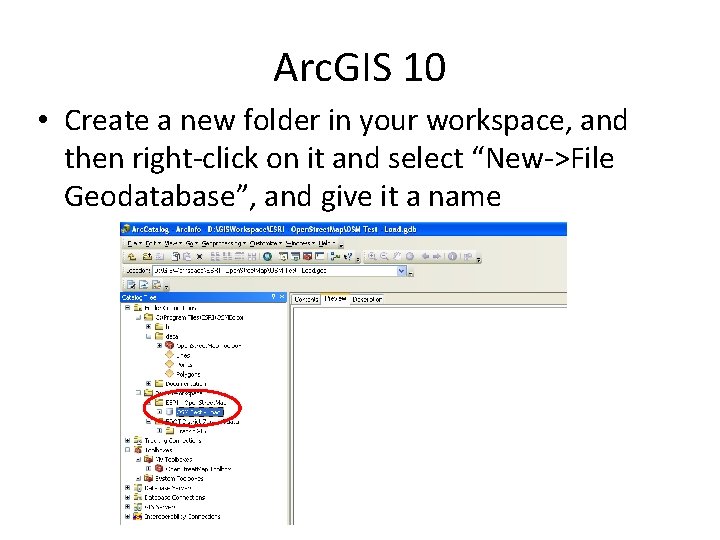
Arc. GIS 10 • Create a new folder in your workspace, and then right-click on it and select “New->File Geodatabase”, and give it a name
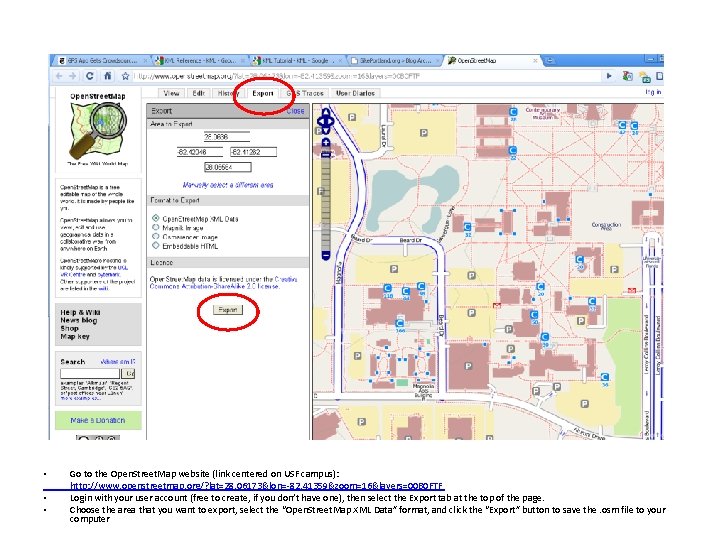
• • • Go to the Open. Street. Map website (link centered on USF campus): http: //www. openstreetmap. org/? lat=28. 06173&lon=-82. 41359&zoom=16&layers=00 B 0 FTF Login with your user account (free to create, if you don’t have one), then select the Export tab at the top of the page. Choose the area that you want to export, select the “Open. Street. Map XML Data” format, and click the “Export” button to save the. osm file to your computer
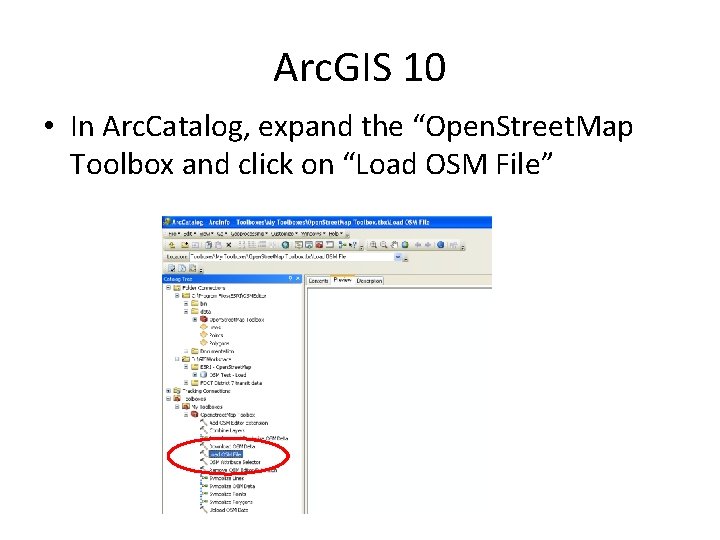
Arc. GIS 10 • In Arc. Catalog, expand the “Open. Street. Map Toolbox and click on “Load OSM File”
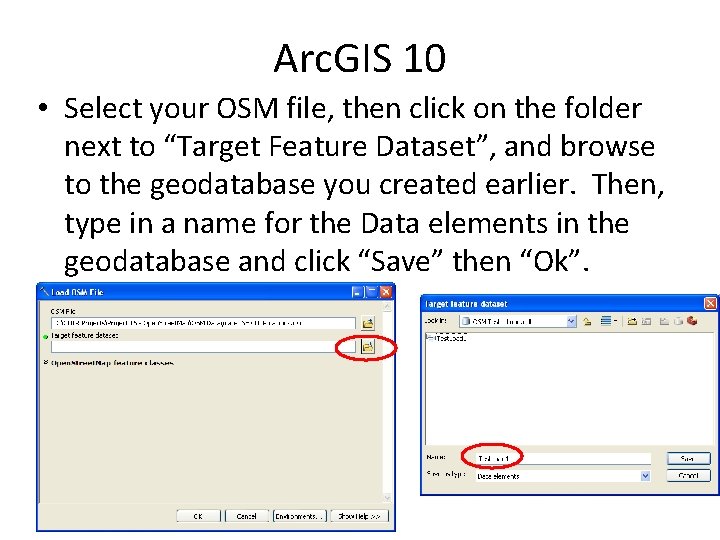
Arc. GIS 10 • Select your OSM file, then click on the folder next to “Target Feature Dataset”, and browse to the geodatabase you created earlier. Then, type in a name for the Data elements in the geodatabase and click “Save” then “Ok”.
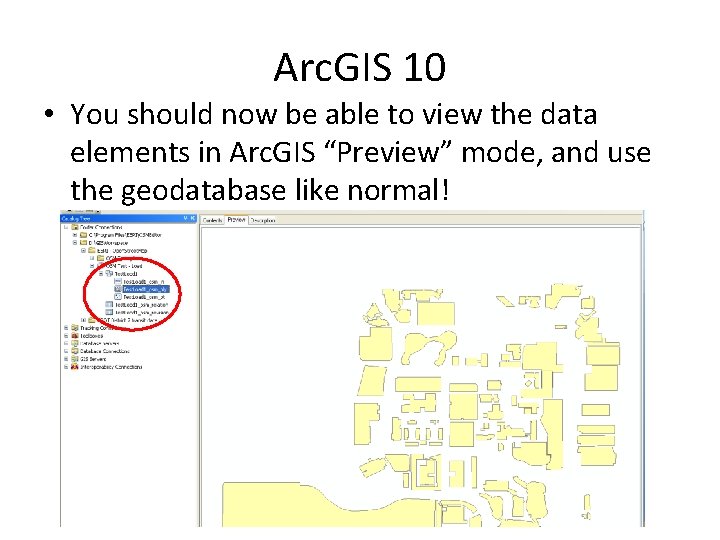
Arc. GIS 10 • You should now be able to view the data elements in Arc. GIS “Preview” mode, and use the geodatabase like normal!
About V 2. 0 Created by: Sean J. Barbeau, M. S. Comp. Sci. Research Associate Center for Urban Transportation Research University of South Florida 4202 E. Fowler Avenue, CUT 100 Tampa, FL 33620 -5375 813. 974. 7208 2 D barcode 813. 974. 5168 (fax) barbeau@cutr. usf. edu USF Location-Aware Information Systems Lab