
Importing 8 b ADC Data for Analysis in
Importing 8 b ADC Data for Analysis in Wavevision 5 and High Speed Data Converter Pro software tools

IMPORTING WITH WAVEVISION 5 2
Locating Data Files for easy import • Copy the data files here: • C: UsersPublicDocumentsNational SemiconductorWave. Vision 5DataImports 3
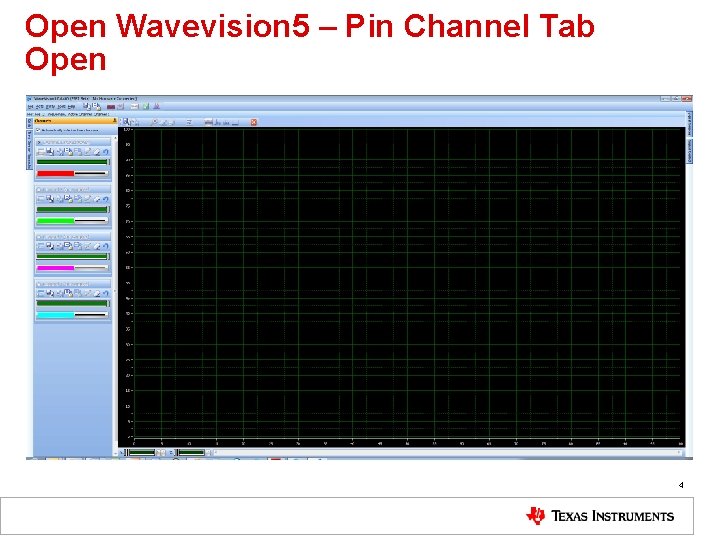
Open Wavevision 5 – Pin Channel Tab Open 4
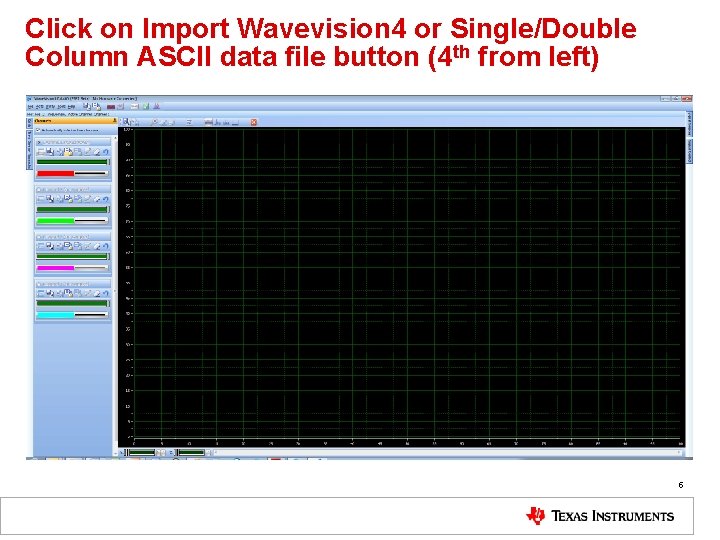
Click on Import Wavevision 4 or Single/Double Column ASCII data file button (4 th from left) 5
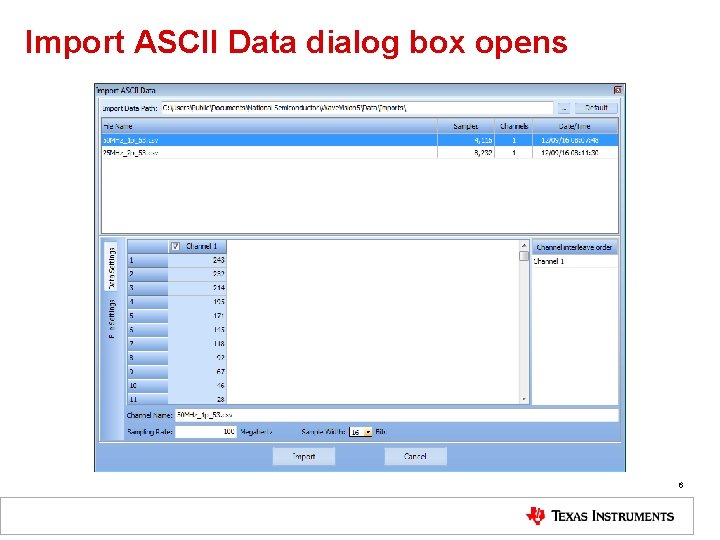
Import ASCII Data dialog box opens 6
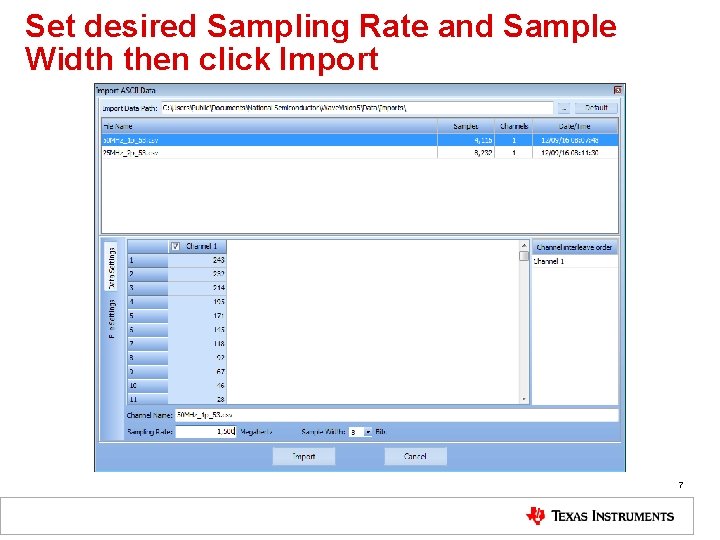
Set desired Sampling Rate and Sample Width then click Import 7
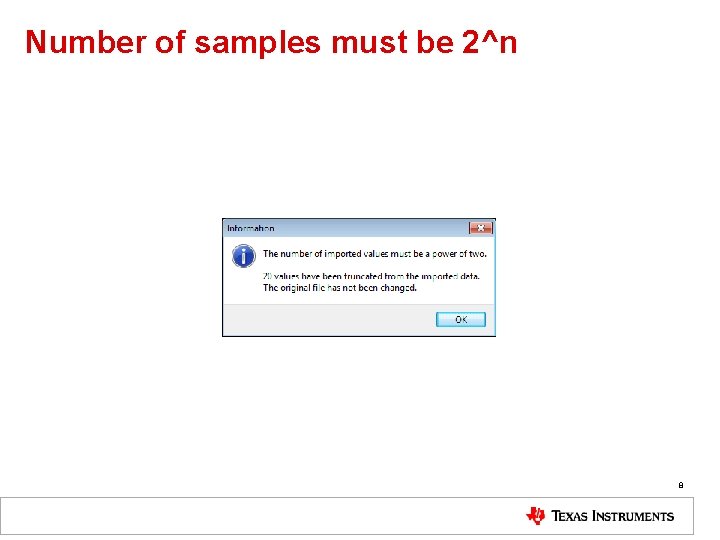
Number of samples must be 2^n 8
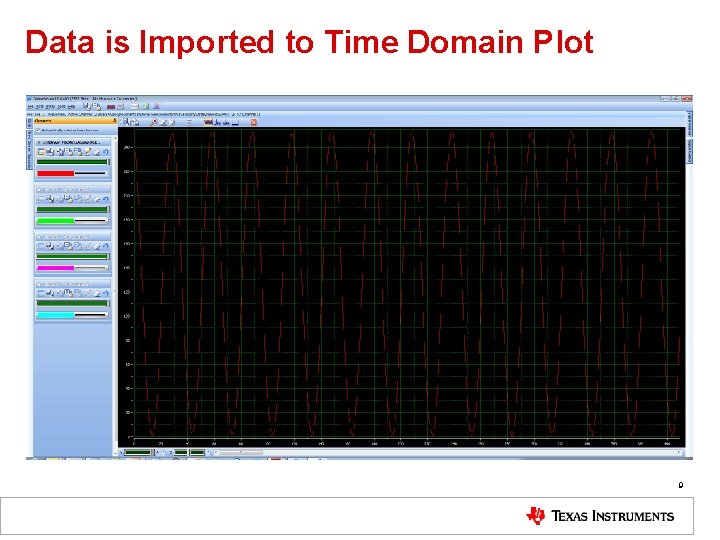
Data is Imported to Time Domain Plot 9
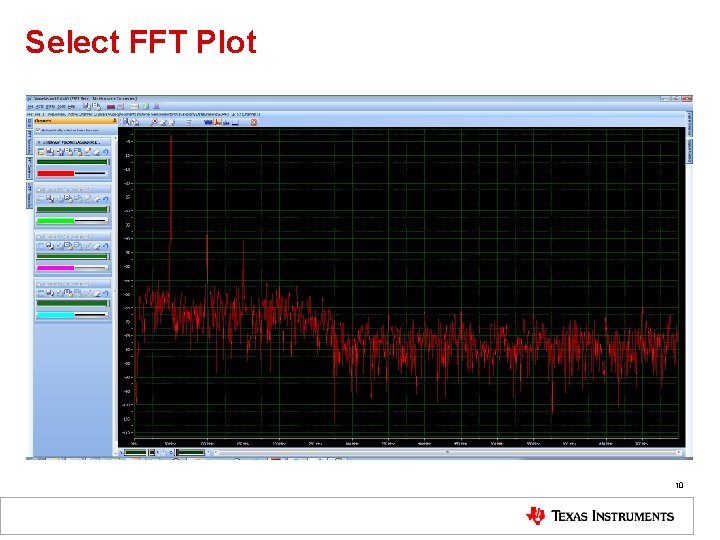
Select FFT Plot 10
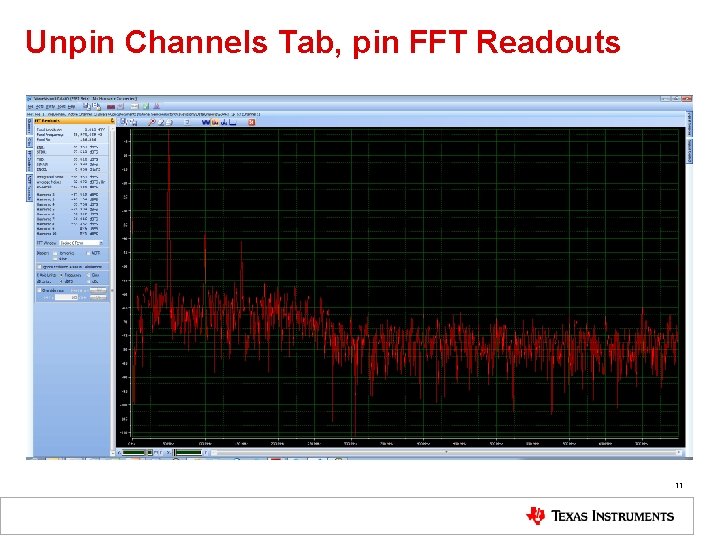
Unpin Channels Tab, pin FFT Readouts 11
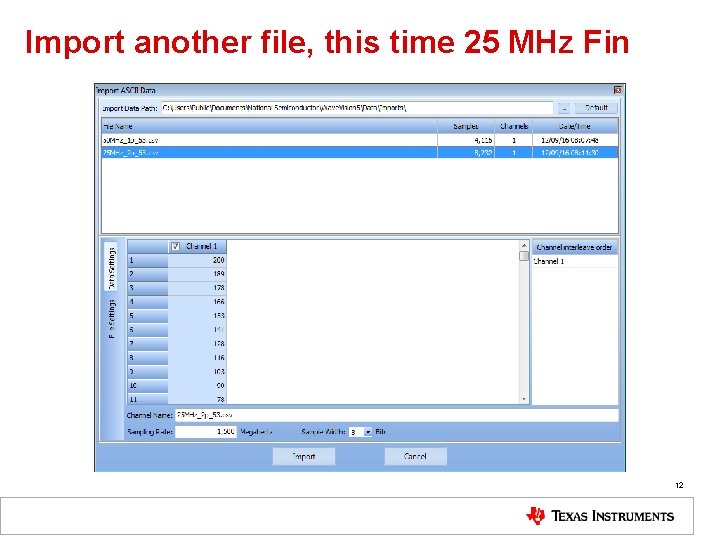
Import another file, this time 25 MHz Fin 12
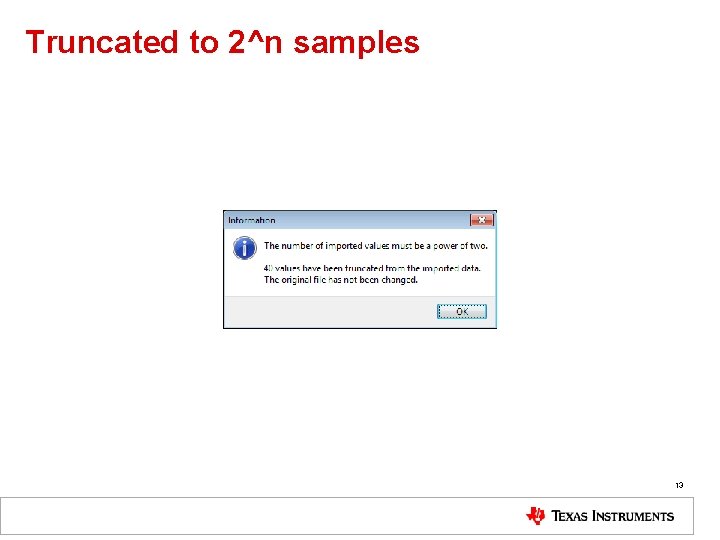
Truncated to 2^n samples 13
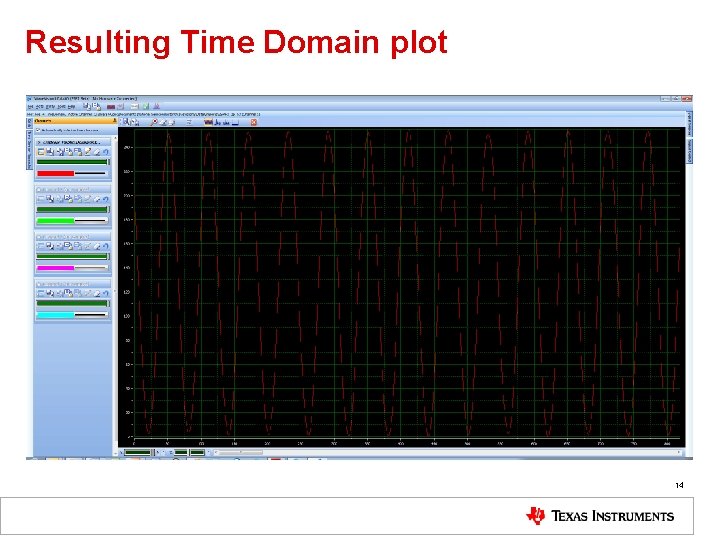
Resulting Time Domain plot 14
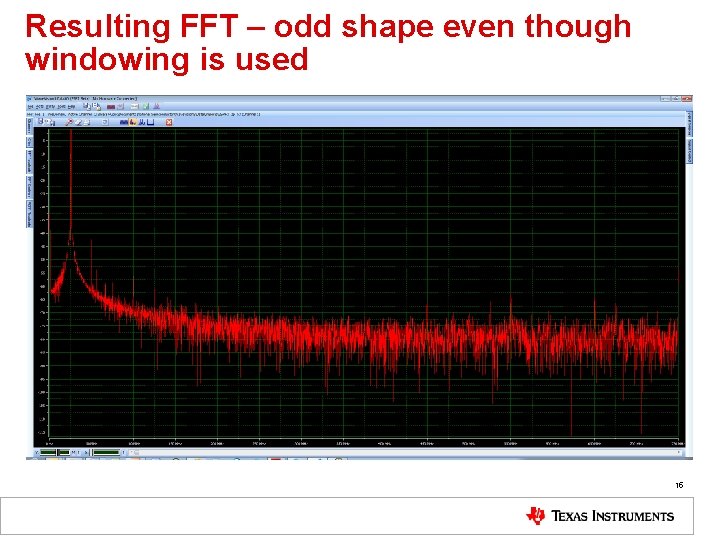
Resulting FFT – odd shape even though windowing is used 15
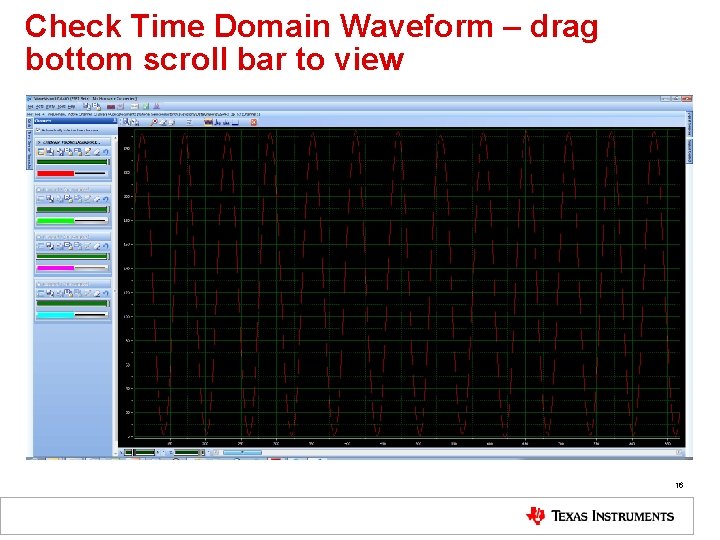
Check Time Domain Waveform – drag bottom scroll bar to view 16
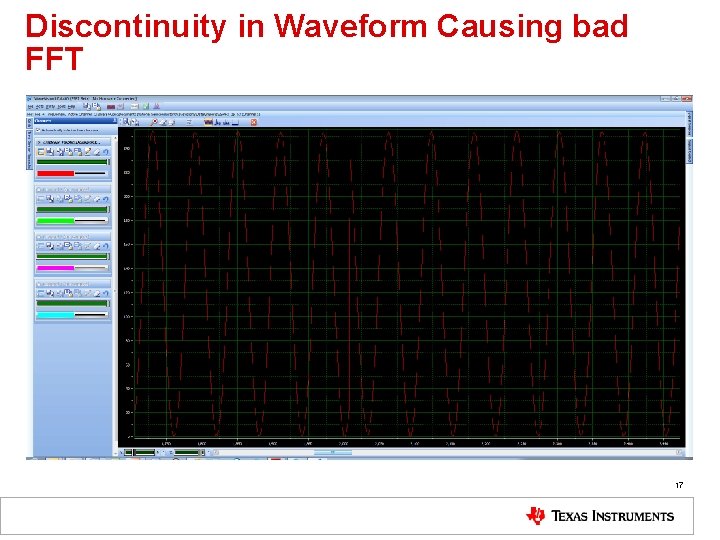
Discontinuity in Waveform Causing bad FFT 17

IMPORTING WITH HSDC PRO 18
Copy data to location below: • LibrariesDocuments 19
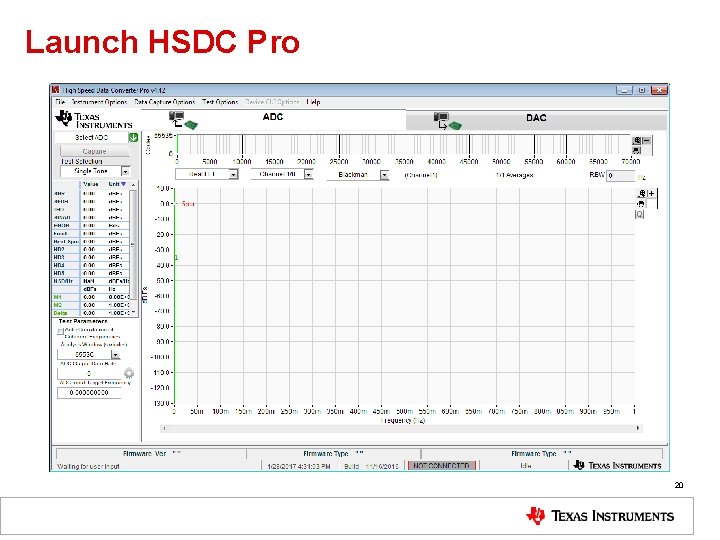
Launch HSDC Pro 20
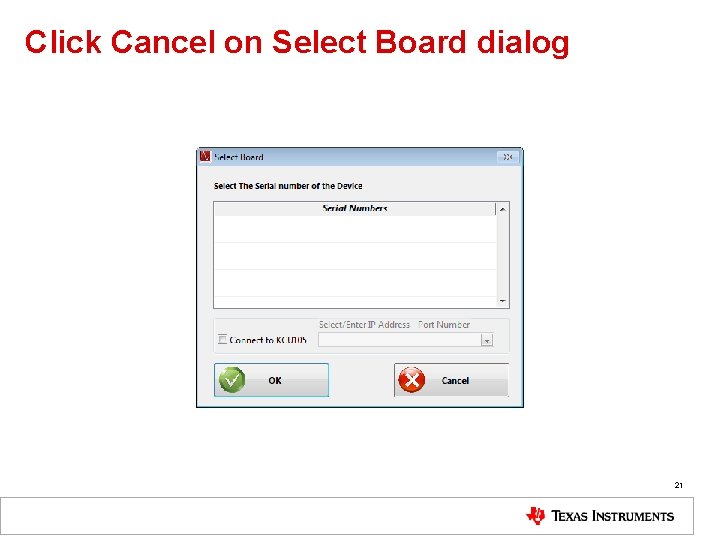
Click Cancel on Select Board dialog 21
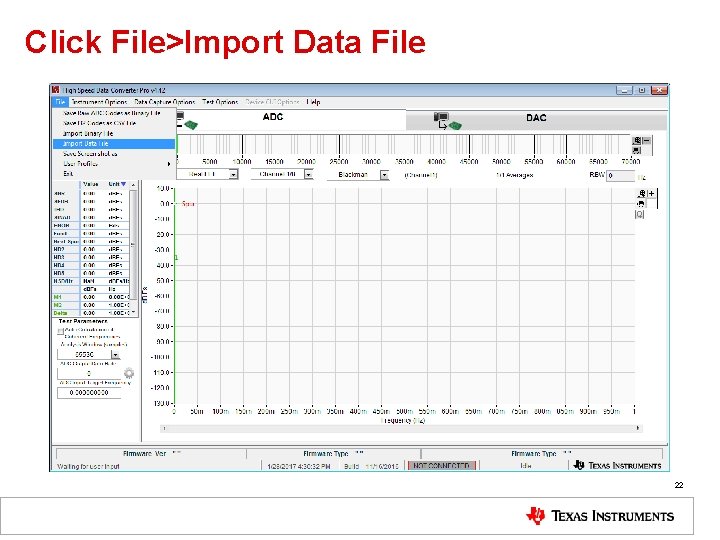
Click File>Import Data File 22
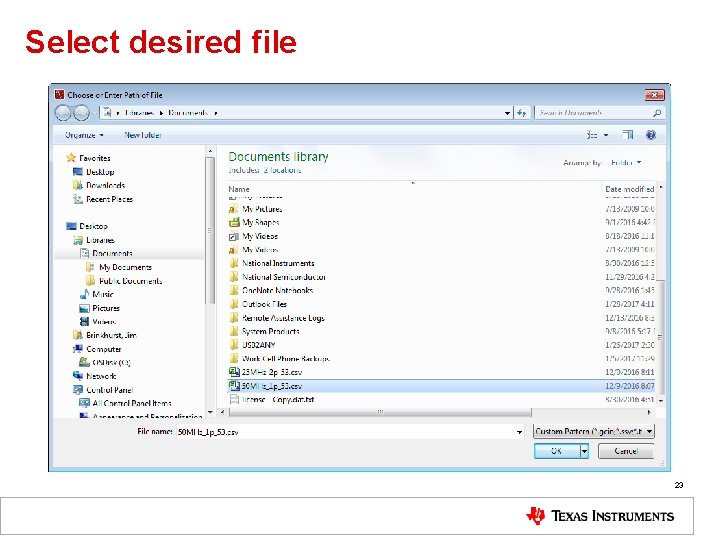
Select desired file 23
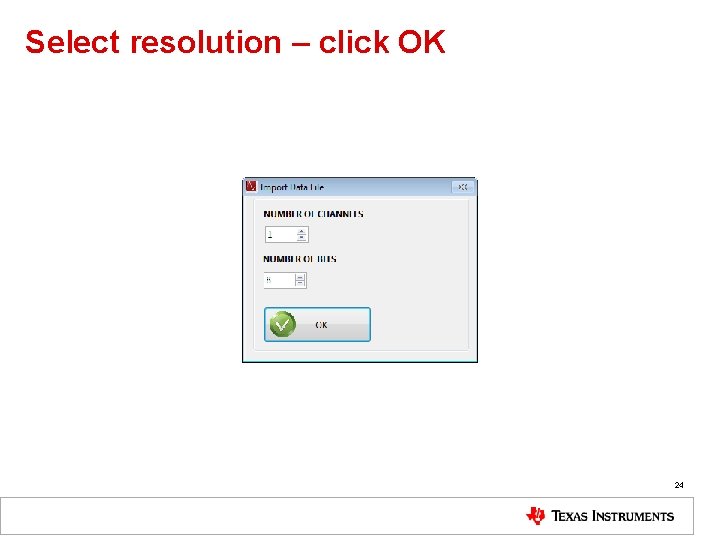
Select resolution – click OK 24
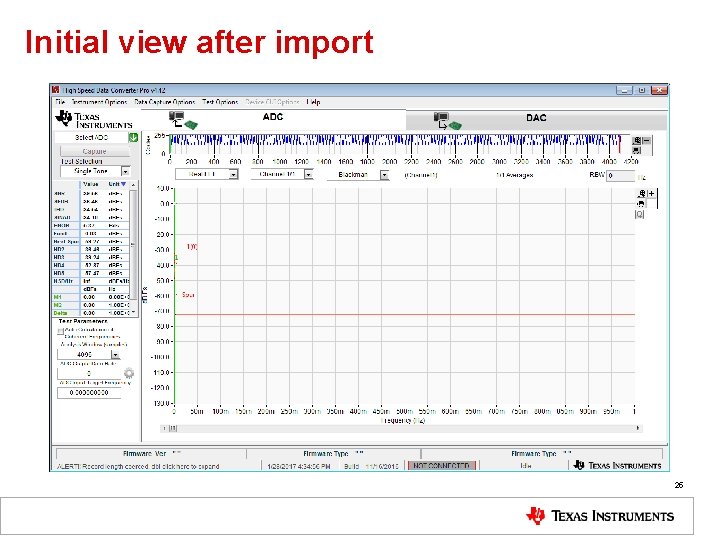
Initial view after import 25
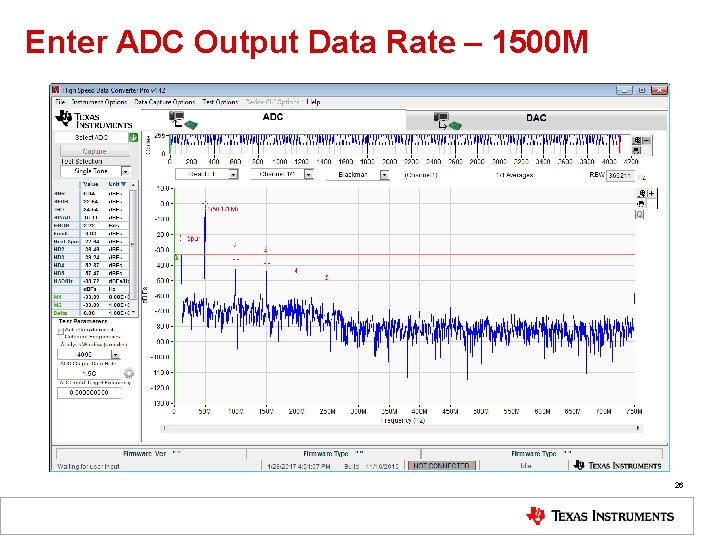
Enter ADC Output Data Rate – 1500 M 26
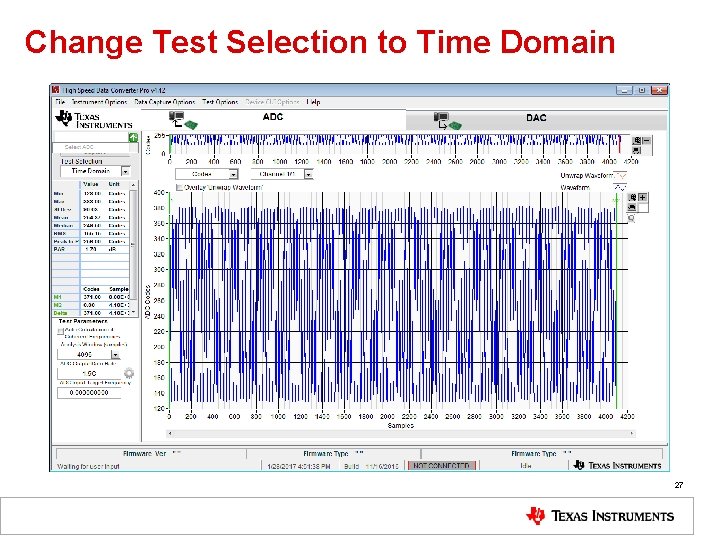
Change Test Selection to Time Domain 27
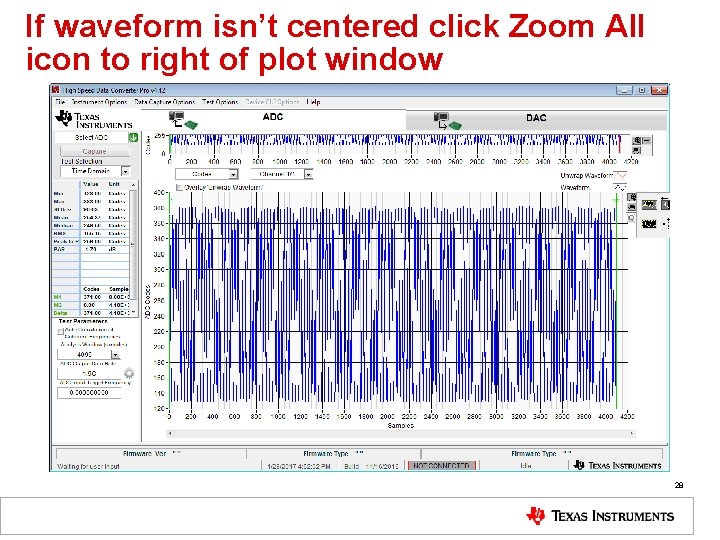
If waveform isn’t centered click Zoom All icon to right of plot window 28
HSDC Pro Import Data Processing • Data file used for these examples is decimal representation of offset binary data from ADC 08 D 1520 ADC • HSDC Pro expects data centered around 0. For an 8 bit converter this corresponds to -128 to +127 • Upon import HSDC Pro shifts this data to show sample values from 0 to 255 • Since data imported was already from 0 to 255, the up-shifted version is centered around 255 instead of 128 • The FFT results are still calculated properly 29
- Slides: 29