
Important features of Word and Power Point Chapter
- Slides: 26
Important features of Word and Power. Point Chapter 10
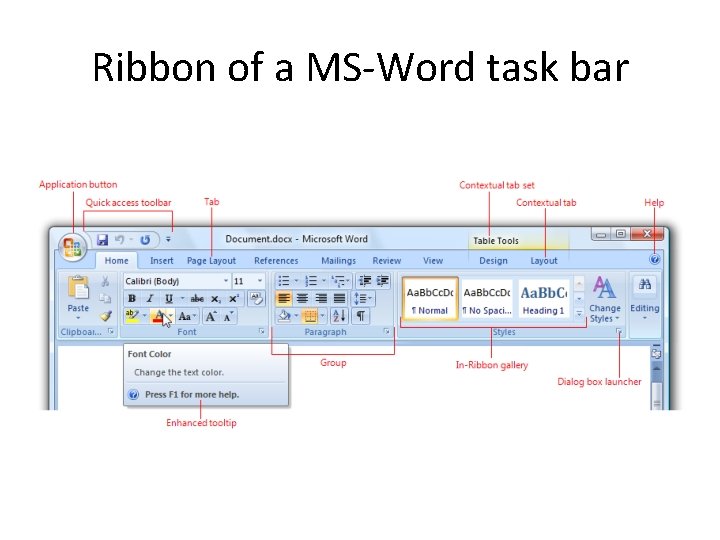
Ribbon of a MS-Word task bar
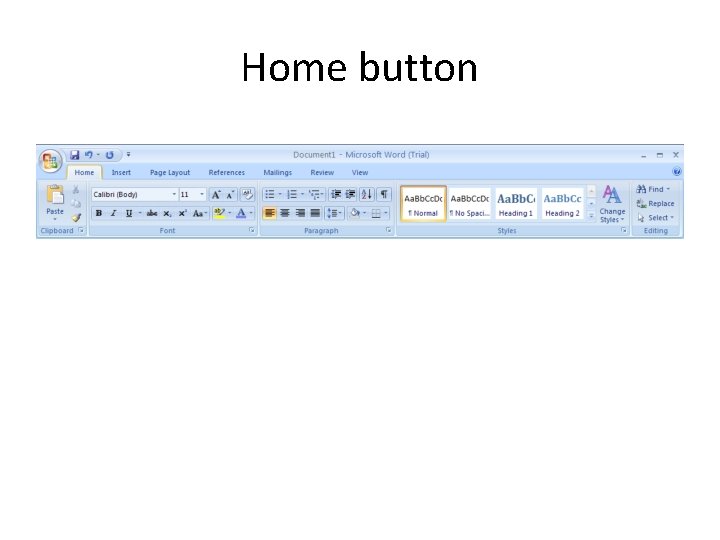
Home button
Home button • Home button is grouped into 4 types of tasks namely clipboard, font, paragraph, styles, • Clipboard manager has paste options. • Font has font name , font size, grow font, shrink font, change case, and three font type styles e. g. bold, italic, underline, strikethrough, subscript and superscript, clear formatting, text highlight color, font color functions
Paragraph task group of home button • Bullets and numbering • Decrease indent, Change indent, (left Indent is the distance between left border of the document area and where text starts and right indent is the distance between right border of the document area and where text ends) • 4 types of alignment : left, right, center and justified. • Line spacing: changes the spacing between lines usually kept at 1
Paragraph task group of home button • Shading: color the background behind the selected text or paragraph • Insert a horizontal line: Bordering bottom border, top border, left border, right border, no borders, outside borders, inside horizontal borders,
Styles of home button • Styles contain a in ribbon gallery of different styles of text such as Normal, no spacing, heading 1, 2, 3, 4, title, subtitle, emphasis, intense emphasis , strong, Subtle reference, intense reference, book title, quote, intense quote • There is CHANGE STYLES button next to the gallery
Insert task
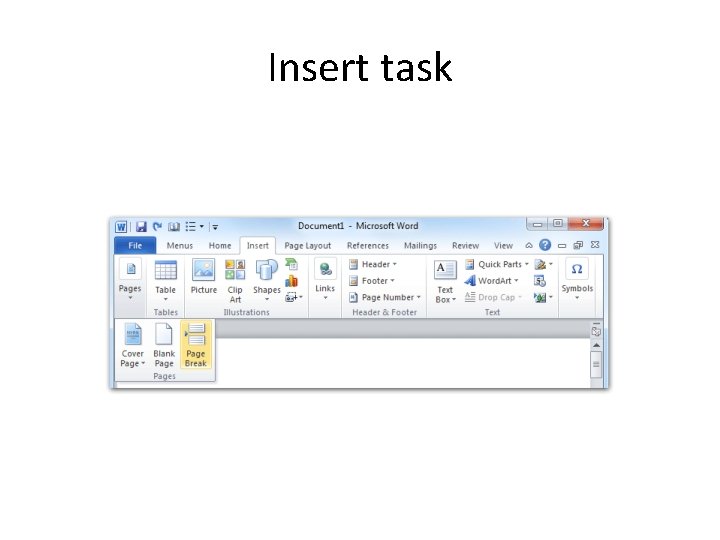
Insert task • Insert cover page namely Alphabet, annual, austere, Austin, conservative, contrast, mod, motion, newsprint, etc. • Insert a blank page • Insert a page break. It will begin a new page right where the cursor was placed. • Insert table you can insert a table either clicking on the grid or draw a table by the paintbrush.
insert • Insert picture from existing files. • Insert clipart(simple pictures and symbols made available for computer users to add to their documents) • Insert shapes: Lines, basic shapes, flowchart, callouts, and stars and banners • Insert Smart. Art graphics • Insert chart: column, line, pie, bar, area,
insert • Insert Header, footer, page number, text box, word Art,
Page Layout Task • Page layout is grouped into 4 tasks : Built-in themes, page setup, page background, and paragraph formatting. • Page setup: • Margin: sets up the invisible border around the text that delineates actual document area. • Orientation: 2 types of orientation: landscape and portrait. • Size of the printout paper: letter, legal, A 4, A 5, A 6 • executive, usually set in A 4 because this is the usual size of the paper we print on.
Page Layout • Columns: one, two, three, usually for publishers, newspaper or magazine column writers • Breaks: page breaks • Line number: not necessary unless required absolutely • Hyphenation: practice of putting hyphen in between syllables of the word. self-con·scious, un·self·con·scious, long-stand·ing). hyphens may be used to indicate a word is being or should be spelled or pronounced.
Page background • Watermark: background lettering used as security measures e. g. confidential, do not copy, security, • Page color: changes the background color. • Page border: puts border around text in actual bordering
Paragraph formatting: • Indent: Change left and right indent. Set in increments of 0. 1 inches or minus. • Paragraph Spacing: spacing before and after the paragrapgh.
References • 6 types of references: table of contents, footnotes, citations and bibliography, captions, index, table of authorities, • Table of contents: • Insert Footnote: descriptive writing at the end of each page of document below underline. • Insert endnote: footnote at the end of document • Next footnote: another footnote right below no 1 footnote.
references. • Citation: cite a book, journal article or periodical as the source of information • Manage source: manage a table/master list/database of sources • Citation style: usually APA(American Psychology Association) default style.
Mailings • Envelopes: • labels
Review • 4 types of review: • Proofing, Language, Comments, tracking, changes • Spelling & grammar: press F 7 Spelling mistakes in green wavy underline, grammatical errors in red wavy underline. Press autocorrect or correct one by one. • Thesaurus: a type of American dictionary just like oxford English dictionary. • Word count: counts no of word.
• Translator: sent to microsofttranslator. com to translate to some other language. • Set proofing Language: set proofing language at English (US) • Set language Preference: • Word options: Save files in this format*. docx xml enabled default format since 2007. earlier format was *. doc which was not xml enabled used until 2007. • Save Auto. Recover option every 10 minutes increase/ decrease
• Customize Ribbon: Choose commands from: create new customized tab and group • Customize the ribbon: • All tabs: • Main tabs • Tool tabs
comments • New Comment: select a word/ group of word, then insert new comment and write comment at the right hand side of margin. • Delete all comments so far in the document
Changes • Accept or Reject Comment changes.
View: • • • Document Views: Print layout Full Screen reading Web Layout Outline Draft • Show • Ruler • Navigation pane: Find and Replace button CTRL+F and Ctrl +H
Zoom • Zoom the document to the 100% of the normal size. • Zoom to 200%, 100%, 75% • Page width • Text width • Whole page • Many pages: • One page • Two page; • Page width
Window: • • New Window: create a duplicate window. Arrange All: Tile all open windows side by side. Split: split into two part. Remove split: revert to without split.