
Implementing a World of GUIs Using the ARM



- Slides: 35
Implementing a World of GUIs Using the ARM Cortex. M 3. Dave Wilson Luminary Micro, Inc.
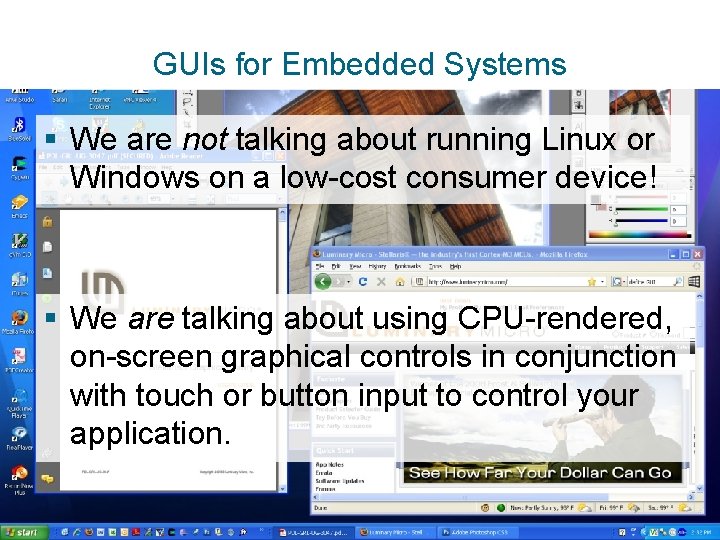
GUIs for Embedded Systems § We are not talking about running Linux or Windows on a low-cost consumer device! § We are talking about using CPU-rendered, on-screen graphical controls in conjunction with touch or button input to control your application.
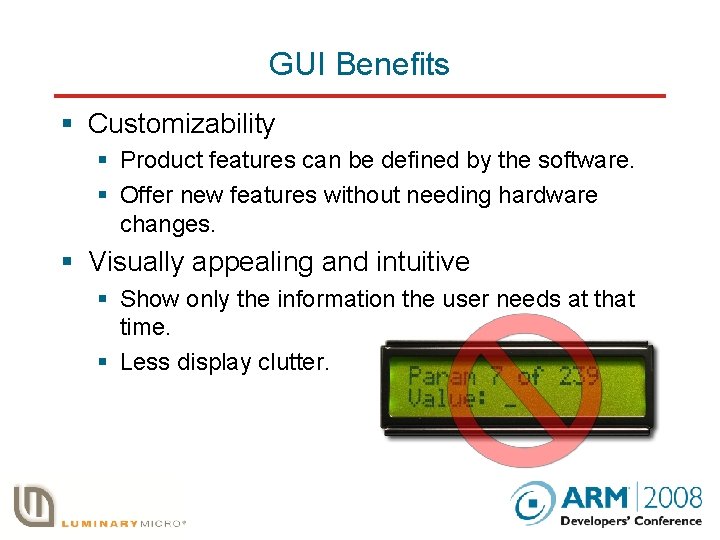
GUI Benefits § Customizability § Product features can be defined by the software. § Offer new features without needing hardware changes. § Visually appealing and intuitive § Show only the information the user needs at that time. § Less display clutter.
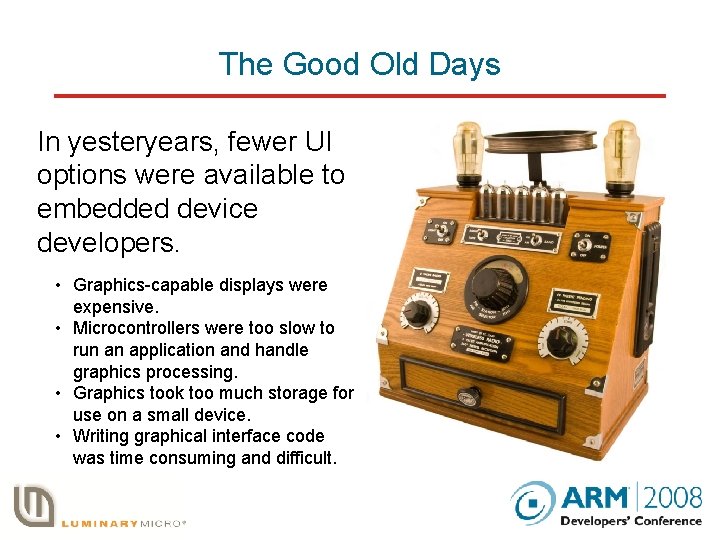
The Good Old Days In yesteryears, fewer UI options were available to embedded device developers. • Graphics-capable displays were expensive. • Microcontrollers were too slow to run an application and handle graphics processing. • Graphics took too much storage for use on a small device. • Writing graphical interface code was time consuming and difficult.
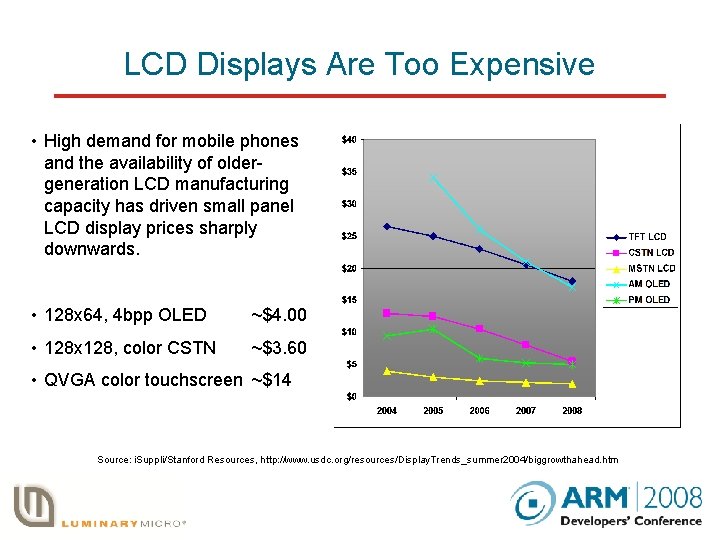
LCD Displays Are Too Expensive • High demand for mobile phones and the availability of oldergeneration LCD manufacturing capacity has driven small panel LCD display prices sharply downwards. • 128 x 64, 4 bpp OLED ~$4. 00 • 128 x 128, color CSTN ~$3. 60 • QVGA color touchscreen ~$14 Source: i. Suppli/Stanford Resources, http: //www. usdc. org/resources/Display. Trends_summer 2004/biggrowthahead. htm
Graphics Need Too Many MIPs Consider a worst case: § 320 x 240 x 16 bpp using an 8 bit parallel interface, 2 cycle GPIO operations, 15 Hz refresh. § This requires about 14 MIPS. § 28% of the Cortex. M 3 CPU bandwidth at 50 MHz. § 72% of the CPU is left for application use. § BUT - we are not in the video business! § Updates are seldom at 15 Hz and seldom full screen. § Interface is often 16 bits wide with single cycle GPIOs § 15 Hz overhead drops to about 9. 5% in this case.
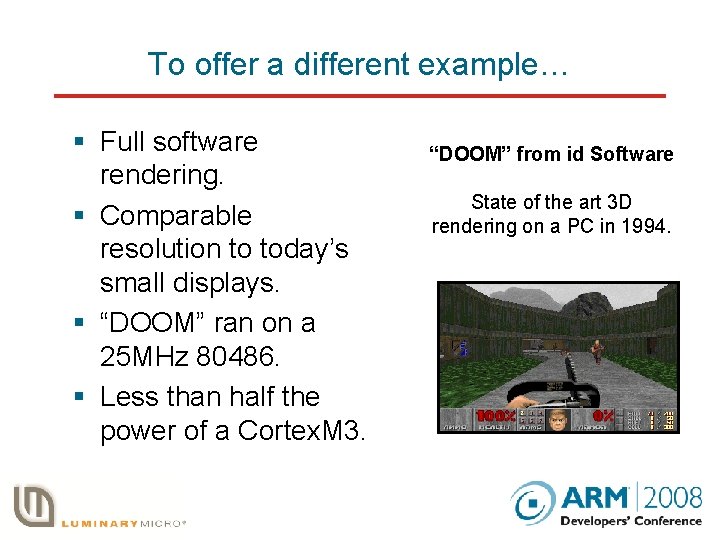
To offer a different example… § Full software rendering. § Comparable resolution to today’s small displays. § “DOOM” ran on a 25 MHz 80486. § Less than half the power of a Cortex. M 3. “DOOM” from id Software State of the art 3 D rendering on a PC in 1994.
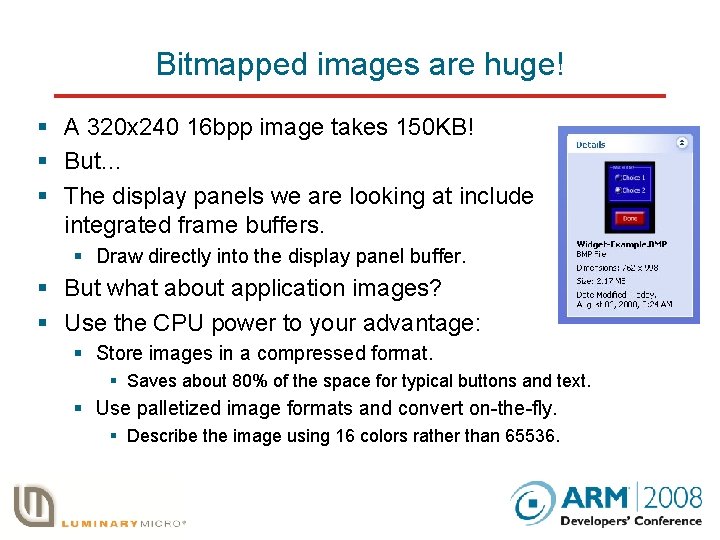
Bitmapped images are huge! § A 320 x 240 16 bpp image takes 150 KB! § But… § The display panels we are looking at include integrated frame buffers. § Draw directly into the display panel buffer. § But what about application images? § Use the CPU power to your advantage: § Store images in a compressed format. § Saves about 80% of the space for typical buttons and text. § Use palletized image formats and convert on-the-fly. § Describe the image using 16 colors rather than 65536.
Graphics library software is big § True if you want Bezier curves, non-rectangular clipping regions, support for 15 image formats, pie charts, metafile generation, complex pens, customizable line endcaps, double byte fonts…. . § You don’t need the Windows GDI or Open. GL to implement a very usable, compelling graphical user interface. § Luminary Stellaris Graphics Library compiles to about 10 KB of code and needs about 400 bytes of RAM workspace. § ASCII fonts are between 1. 5 KB and 6 KB depending upon glyph size.
GUI Software Aims § Develop a minimum subset of graphics primitives that you will need for your interface. § Keeps code size to a minimum. § Keeps work to a minimum! § Isolate the control definitions and appearance from the code that manages them. § Allows rapid prototyping. § Get the application working with basic controls then spend time making them pretty. § Be consistent in how controls are defined and used. § Learn one set of concepts and use them in different areas. A widget-based architecture makes a lot of sense.
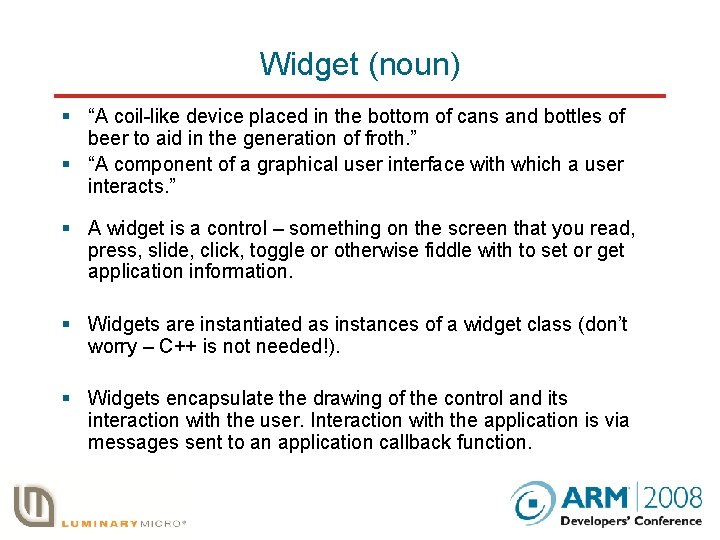
Widget (noun) § “A coil-like device placed in the bottom of cans and bottles of beer to aid in the generation of froth. ” § “A component of a graphical user interface with which a user interacts. ” § A widget is a control – something on the screen that you read, press, slide, click, toggle or otherwise fiddle with to set or get application information. § Widgets are instantiated as instances of a widget class (don’t worry – C++ is not needed!). § Widgets encapsulate the drawing of the control and its interaction with the user. Interaction with the application is via messages sent to an application callback function.
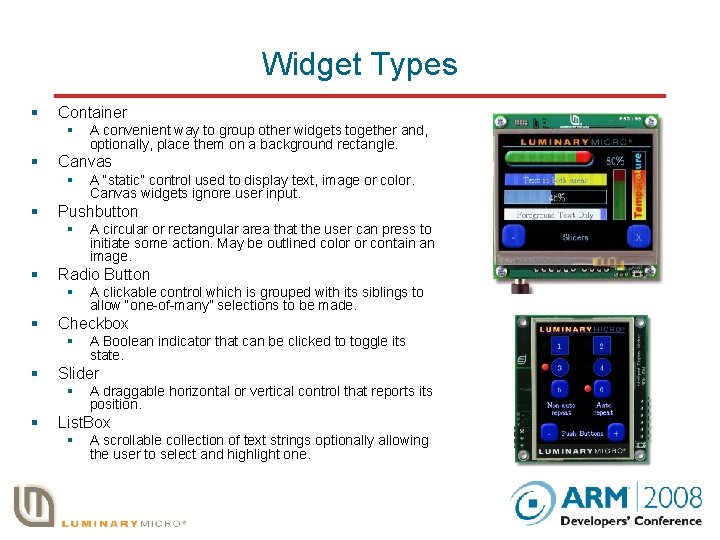
Widget Types § Container § § Canvas § § A Boolean indicator that can be clicked to toggle its state. Slider § § A clickable control which is grouped with its siblings to allow “one-of-many” selections to be made. Checkbox § § A circular or rectangular area that the user can press to initiate some action. May be outlined color or contain an image. Radio Button § § A “static” control used to display text, image or color. Canvas widgets ignore user input. Pushbutton § § A convenient way to group other widgets together and, optionally, place them on a background rectangle. A draggable horizontal or vertical control that reports its position. List. Box § A scrollable collection of text strings optionally allowing the user to select and highlight one.
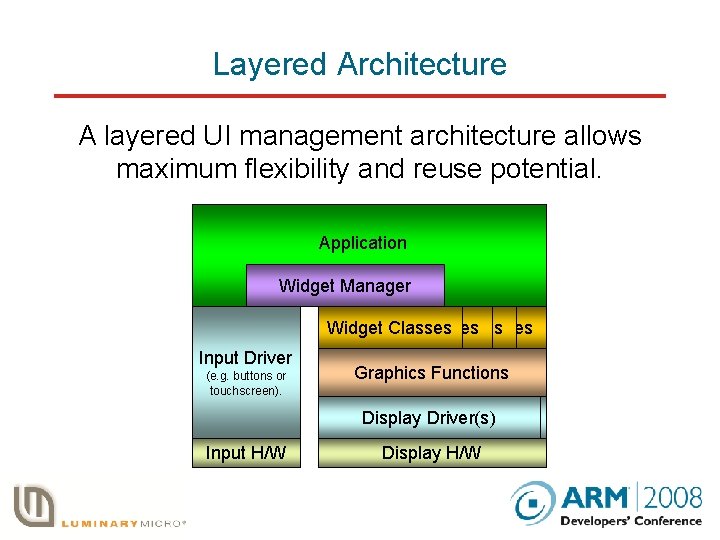
Layered Architecture A layered UI management architecture allows maximum flexibility and reuse potential. Application Widget Manager Widget Classes Input Driver (e. g. buttons or touchscreen). Graphics Functions Display. Driver(s) Driver Input H/W Display H/W
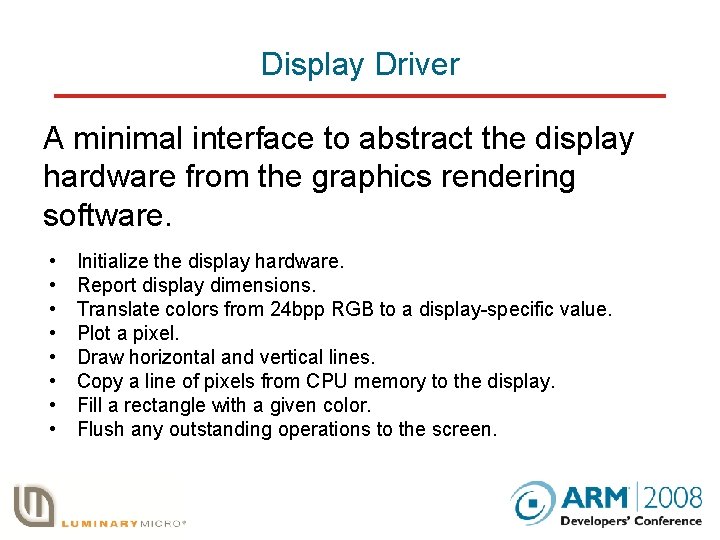
Display Driver A minimal interface to abstract the display hardware from the graphics rendering software. • • Initialize the display hardware. Report display dimensions. Translate colors from 24 bpp RGB to a display-specific value. Plot a pixel. Draw horizontal and vertical lines. Copy a line of pixels from CPU memory to the display. Fill a rectangle with a given color. Flush any outstanding operations to the screen.
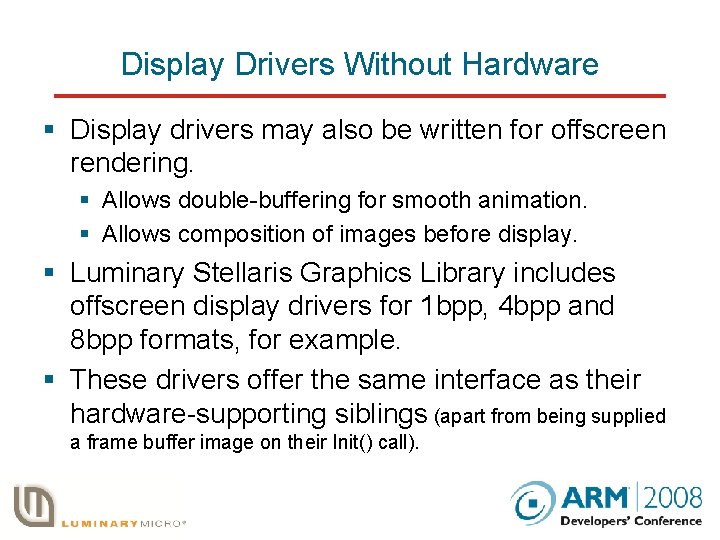
Display Drivers Without Hardware § Display drivers may also be written for offscreen rendering. § Allows double-buffering for smooth animation. § Allows composition of images before display. § Luminary Stellaris Graphics Library includes offscreen display drivers for 1 bpp, 4 bpp and 8 bpp formats, for example. § These drivers offer the same interface as their hardware-supporting siblings (apart from being supplied a frame buffer image on their Init() call).
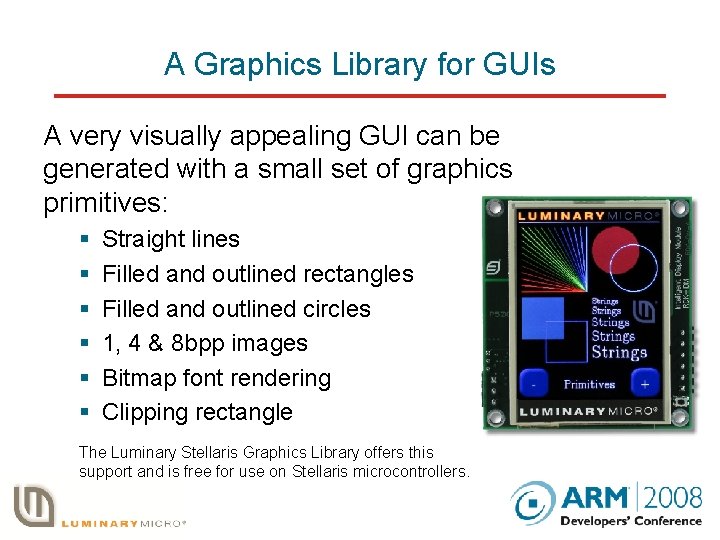
A Graphics Library for GUIs A very visually appealing GUI can be generated with a small set of graphics primitives: § § § Straight lines Filled and outlined rectangles Filled and outlined circles 1, 4 & 8 bpp images Bitmap font rendering Clipping rectangle The Luminary Stellaris Graphics Library offers this support and is free for use on Stellaris microcontrollers.
Graphics Context § All graphics functions take a context pointer as first parameter. § Graphics operations can take a large number of parameters: § § Background and Foreground Colors Fonts Clipping rectangle Display driver to use § These parameters are used frequently but seldom changed. § Rather than passing them as parameters on each call, they are stored in a “graphics context” structure. § Context parameters are changed via access functions: § Gr. Context. Background. Set() § Gr. Context. Clip. Region. Set() § Context parameters remain active until the application changes them.
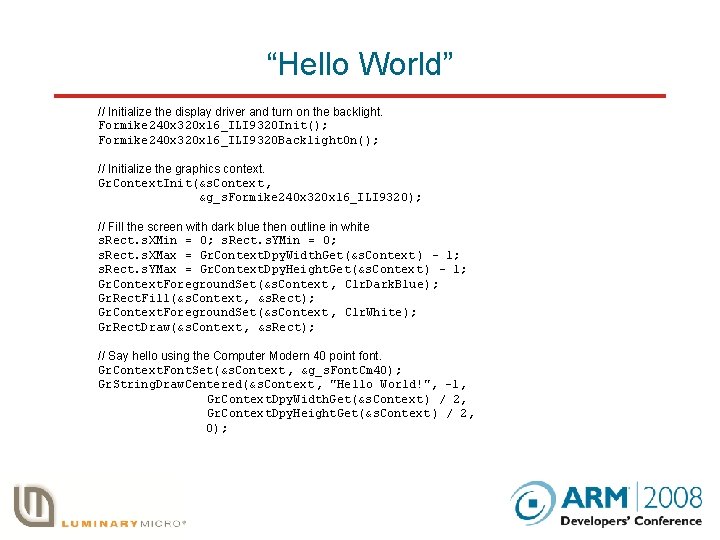
“Hello World” // Initialize the display driver and turn on the backlight. Formike 240 x 320 x 16_ILI 9320 Init(); Formike 240 x 320 x 16_ILI 9320 Backlight. On(); // Initialize the graphics context. Gr. Context. Init(&s. Context, &g_s. Formike 240 x 320 x 16_ILI 9320); // Fill the screen with dark blue then outline in white s. Rect. s. XMin = 0; s. Rect. s. YMin = 0; s. Rect. s. XMax = Gr. Context. Dpy. Width. Get(&s. Context ) - 1; s. Rect. s. YMax = Gr. Context. Dpy. Height. Get(&s. Context ) - 1; Gr. Context. Foreground. Set(&s. Context , Clr. Dark. Blue); Gr. Rect. Fill(&s. Context, &s. Rect); Gr. Context. Foreground. Set(&s. Context , Clr. White); Gr. Rect. Draw(&s. Context, &s. Rect); // Say hello using the Computer Modern 40 point font. Gr. Context. Font. Set(&s. Context , &g_s. Font. Cm 40); Gr. String. Draw. Centered(&s. Context , "Hello World!", -1, Gr. Context. Dpy. Width. Get(&s. Context ) / 2, Gr. Context. Dpy. Height. Get(&s. Context ) / 2, 0);
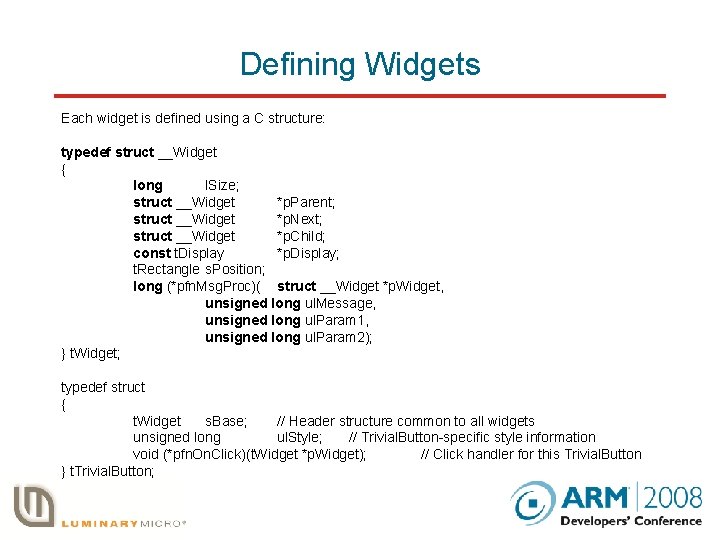
I can draw stuff. Now what? § Graphics primitives offer the tools needed to draw the user interface. Now we need to generate usable controls. § The Widget Manager and Widget Classes turn graphics primitives and user input into working controls. § Each widget is defined in terms of a structure defining properties of the control and a message callback function. § The structure contains a standard widget header used by the Widget Manager and a class-specific section.
Defining Widgets Each widget is defined using a C structure: typedef struct __Widget { long l. Size; struct __Widget *p. Parent; struct __Widget *p. Next; struct __Widget *p. Child; const t. Display *p. Display; t. Rectangle s. Position; long (*pfn. Msg. Proc)( struct __Widget *p. Widget, unsigned long ul. Message, unsigned long ul. Param 1, unsigned long ul. Param 2); } t. Widget; typedef struct { t. Widget s. Base; // Header structure common to all widgets unsigned long ul. Style; // Trivial. Button-specific style information void (*pfn. On. Click)(t. Widget *p. Widget); // Click handler for this Trivial. Button } t. Trivial. Button;
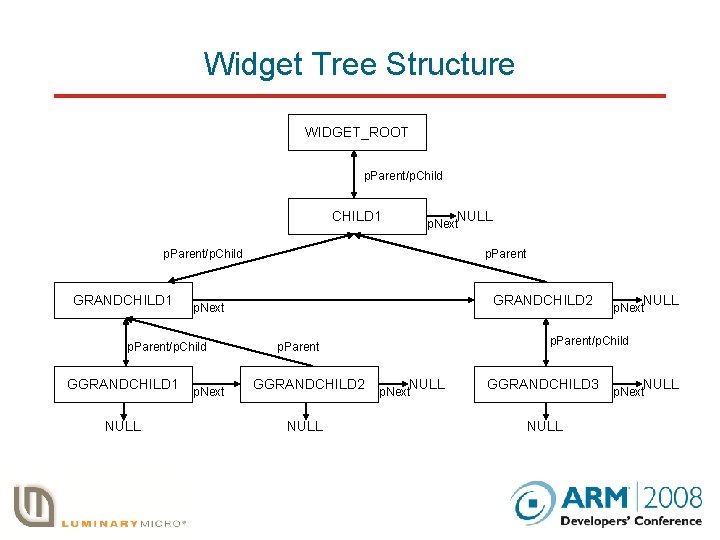
Widget Tree Structure WIDGET_ROOT p. Parent/p. Child CHILD 1 NULL p. Next p. Parent/p. Child GRANDCHILD 1 NULL GRANDCHILD 2 p. Next p. Parent/p. Child GGRANDCHILD 1 p. Parent p. Next p. Parent/p. Child p. Parent GGRANDCHILD 2 NULL p. Next GGRANDCHILD 3 NULL p. Next
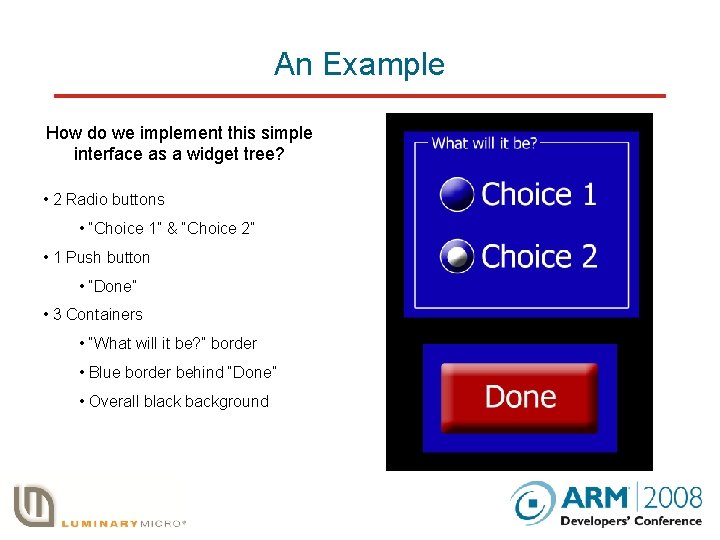
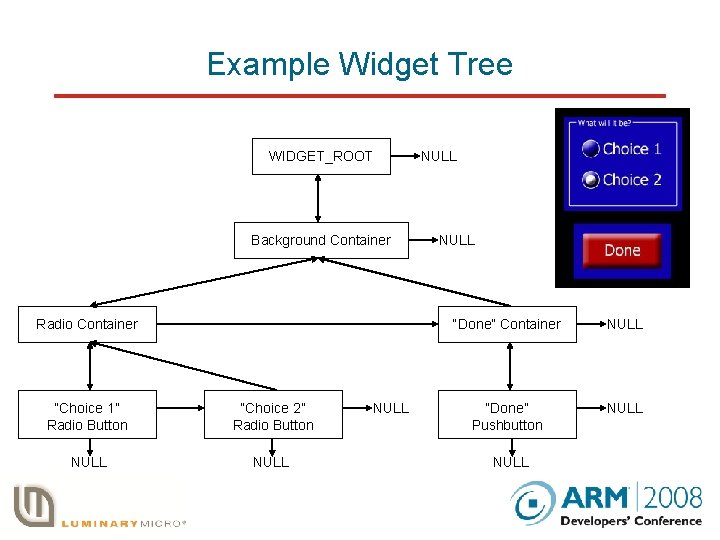
An Example How do we implement this simple interface as a widget tree? • 2 Radio buttons • “Choice 1” & “Choice 2” • 1 Push button • “Done” • 3 Containers • “What will it be? ” border • Blue border behind “Done” • Overall black background
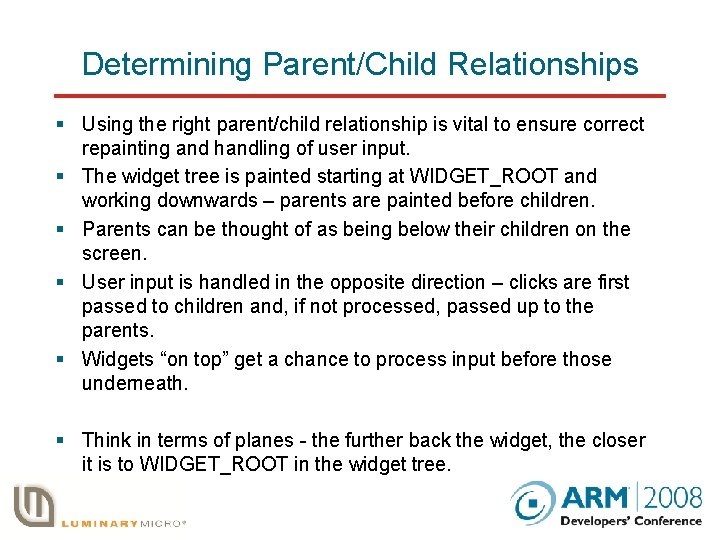
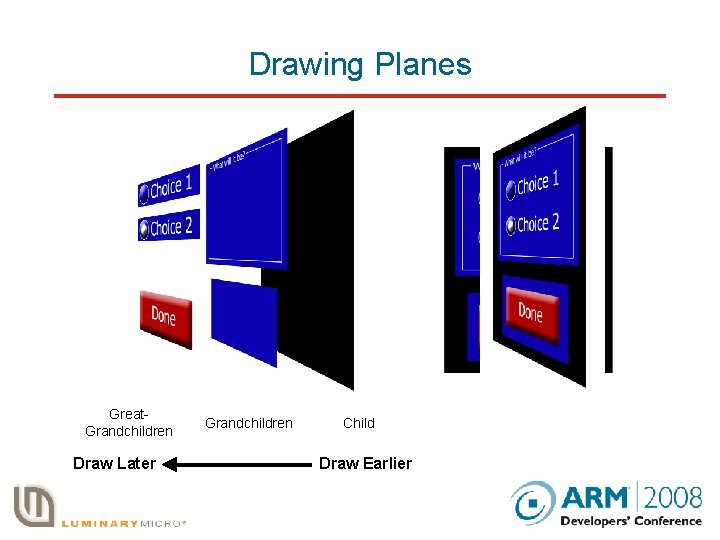
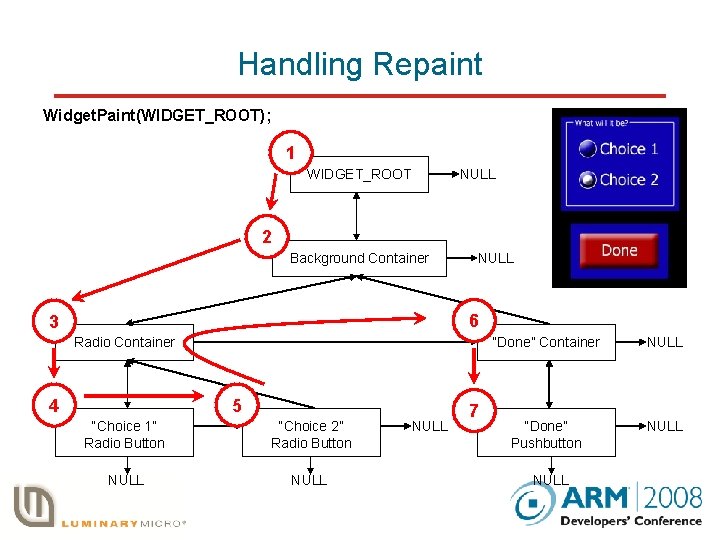
Determining Parent/Child Relationships § Using the right parent/child relationship is vital to ensure correct repainting and handling of user input. § The widget tree is painted starting at WIDGET_ROOT and working downwards – parents are painted before children. § Parents can be thought of as being below their children on the screen. § User input is handled in the opposite direction – clicks are first passed to children and, if not processed, passed up to the parents. § Widgets “on top” get a chance to process input before those underneath. § Think in terms of planes - the further back the widget, the closer it is to WIDGET_ROOT in the widget tree.
Drawing Planes Great. Grandchildren Draw Later Grandchildren Child Draw Earlier
Example Widget Tree WIDGET_ROOT NULL Background Container Radio Container “Choice 1” Radio Button “Choice 2” Radio Button NULL “Done” Container NULL “Done” Pushbutton NULL
Handling Repaint Widget. Paint(WIDGET_ROOT); 1 WIDGET_ROOT NULL 2 Background Container NULL 6 3 Radio Container 4 5 “Choice 1” Radio Button “Choice 2” Radio Button NULL 7 “Done” Container NULL “Done” Pushbutton NULL
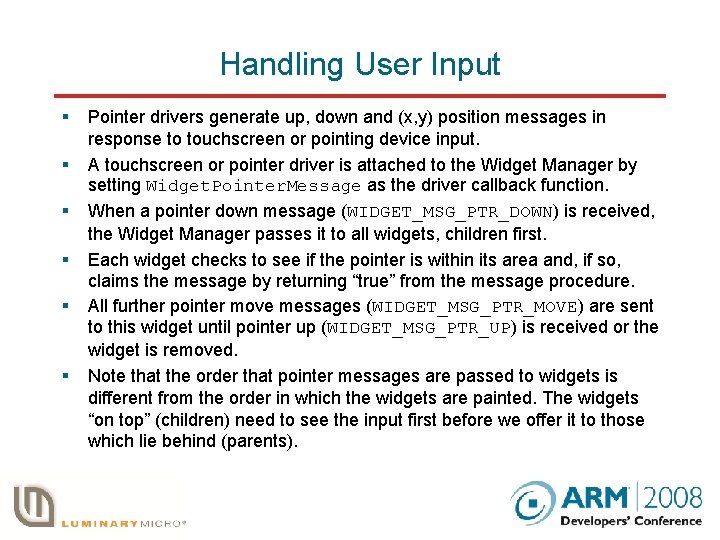
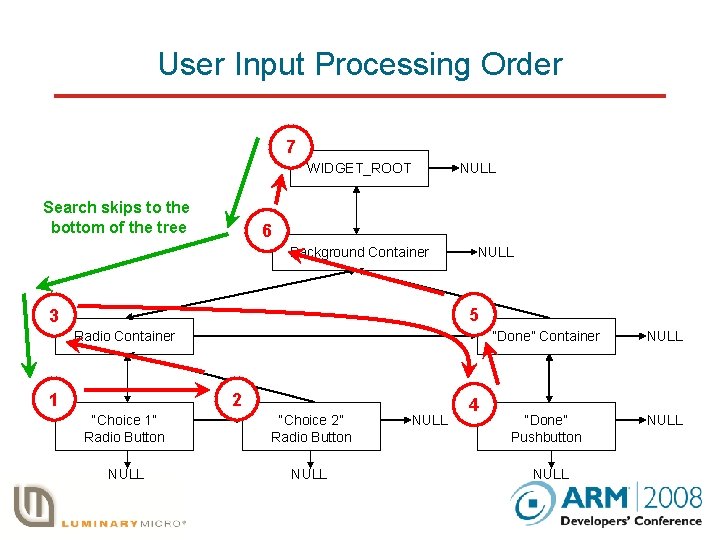
Handling User Input § § § Pointer drivers generate up, down and (x, y) position messages in response to touchscreen or pointing device input. A touchscreen or pointer driver is attached to the Widget Manager by setting Widget. Pointer. Message as the driver callback function. When a pointer down message (WIDGET_MSG_PTR_DOWN) is received, the Widget Manager passes it to all widgets, children first. Each widget checks to see if the pointer is within its area and, if so, claims the message by returning “true” from the message procedure. All further pointer move messages (WIDGET_MSG_PTR_MOVE) are sent to this widget until pointer up (WIDGET_MSG_PTR_UP) is received or the widget is removed. Note that the order that pointer messages are passed to widgets is different from the order in which the widgets are painted. The widgets “on top” (children) need to see the input first before we offer it to those which lie behind (parents).
User Input Processing Order 7 WIDGET_ROOT Search skips to the bottom of the tree NULL 6 Background Container NULL 5 3 Radio Container 1 2 “Choice 1” Radio Button “Choice 2” Radio Button NULL 4 “Done” Container NULL “Done” Pushbutton NULL
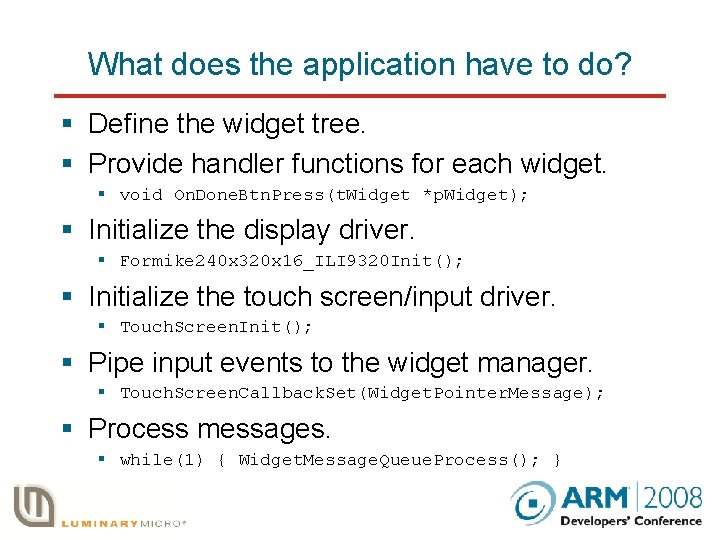
What does the application have to do? § Define the widget tree. § Provide handler functions for each widget. § void On. Done. Btn. Press(t. Widget *p. Widget); § Initialize the display driver. § Formike 240 x 320 x 16_ILI 9320 Init(); § Initialize the touch screen/input driver. § Touch. Screen. Init(); § Pipe input events to the widget manager. § Touch. Screen. Callback. Set(Widget. Pointer. Message); § Process messages. § while(1) { Widget. Message. Queue. Process(); }
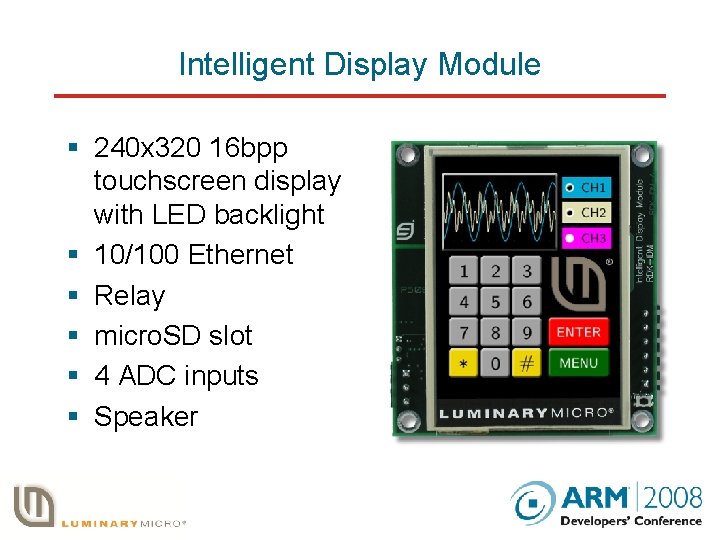
Intelligent Display Module § 240 x 320 16 bpp touchscreen display with LED backlight § 10/100 Ethernet § Relay § micro. SD slot § 4 ADC inputs § Speaker
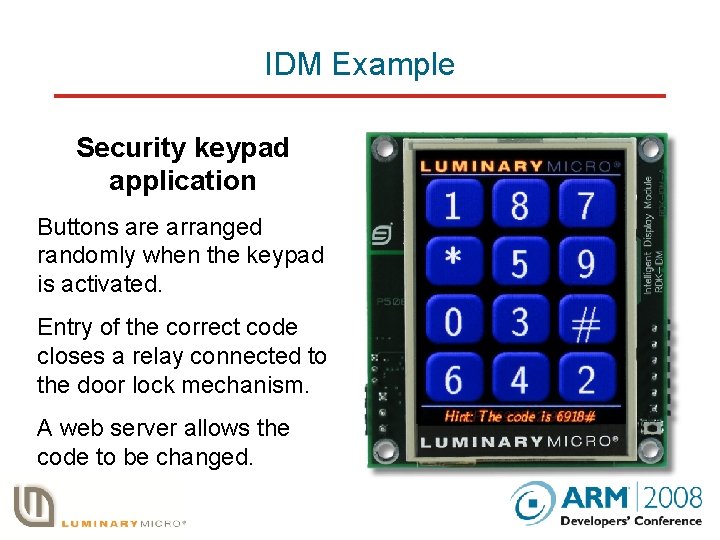
IDM Example Security keypad application Buttons are arranged randomly when the keypad is activated. Entry of the correct code closes a relay connected to the door lock mechanism. A web server allows the code to be changed.
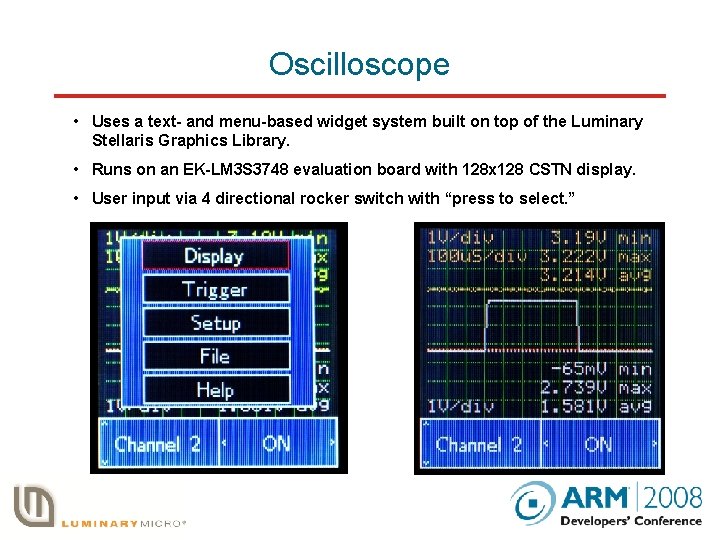
Oscilloscope • Uses a text- and menu-based widget system built on top of the Luminary Stellaris Graphics Library. • Runs on an EK-LM 3 S 3748 evaluation board with 128 x 128 CSTN display. • User input via 4 directional rocker switch with “press to select. ”
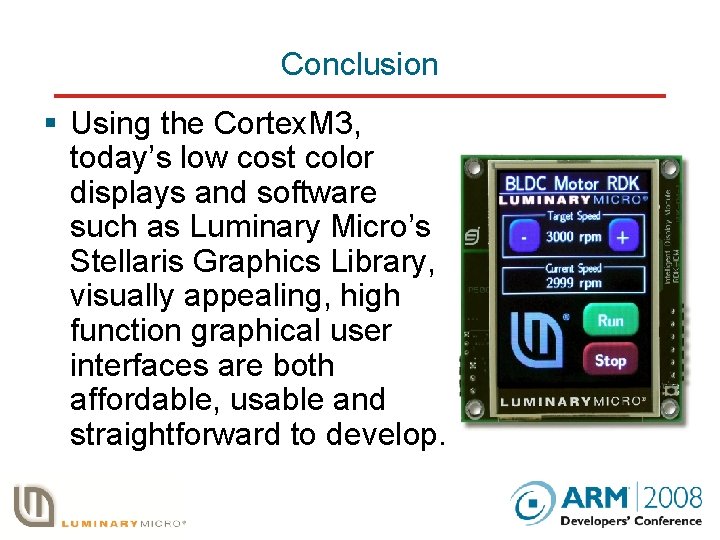
Conclusion § Using the Cortex. M 3, today’s low cost color displays and software such as Luminary Micro’s Stellaris Graphics Library, visually appealing, high function graphical user interfaces are both affordable, usable and straightforward to develop.
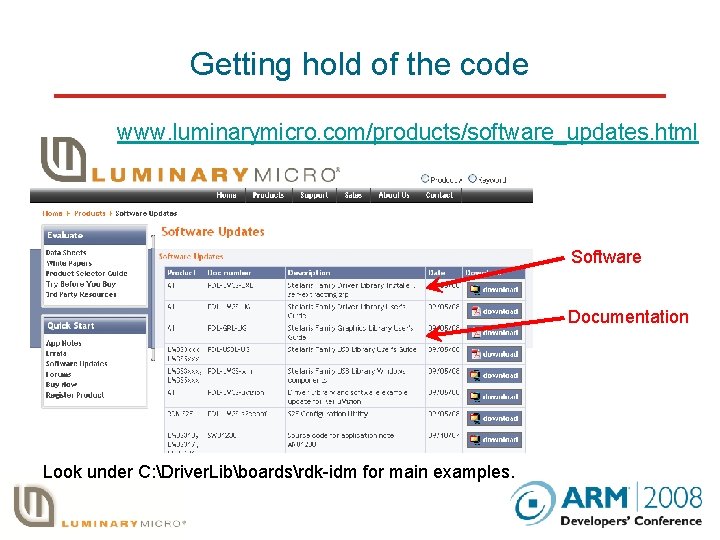
Getting hold of the code www. luminarymicro. com/products/software_updates. html Software Documentation Look under C: Driver. Libboardsrdk-idm for main examples.
Questions?