
Images The img Element To place an image

- Slides: 9
Images
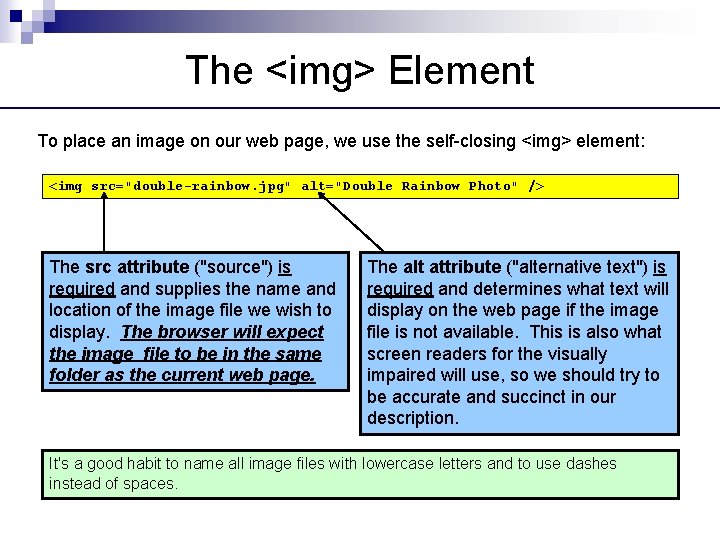
The <img> Element To place an image on our web page, we use the self-closing <img> element: <img src="double-rainbow. jpg" alt="Double Rainbow Photo" /> The src attribute ("source") is required and supplies the name and location of the image file we wish to display. The browser will expect the image file to be in the same folder as the current web page. The alt attribute ("alternative text") is required and determines what text will display on the web page if the image file is not available. This is also what screen readers for the visually impaired will use, so we should try to be accurate and succinct in our description. It's a good habit to name all image files with lowercase letters and to use dashes instead of spaces.
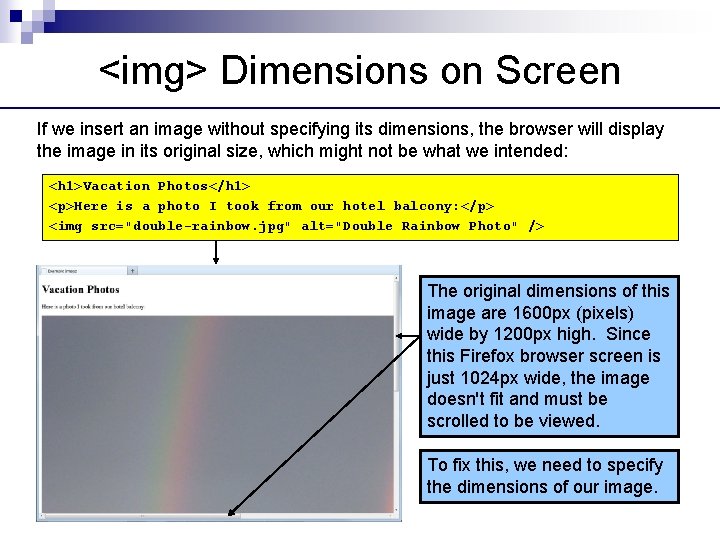
<img> Dimensions on Screen If we insert an image without specifying its dimensions, the browser will display the image in its original size, which might not be what we intended: <h 1>Vacation Photos</h 1> <p>Here is a photo I took from our hotel balcony: </p> <img src="double-rainbow. jpg" alt="Double Rainbow Photo" /> The original dimensions of this image are 1600 px (pixels) wide by 1200 px high. Since this Firefox browser screen is just 1024 px wide, the image doesn't fit and must be scrolled to be viewed. To fix this, we need to specify the dimensions of our image.
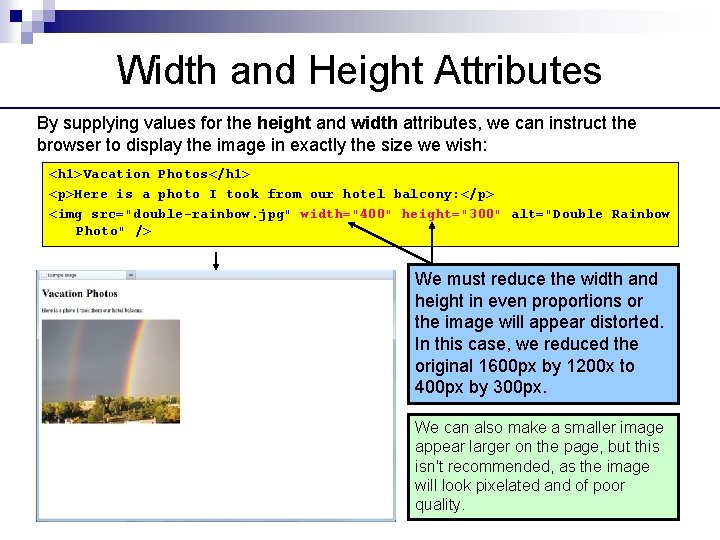
Width and Height Attributes By supplying values for the height and width attributes, we can instruct the browser to display the image in exactly the size we wish: <h 1>Vacation Photos</h 1> <p>Here is a photo I took from our hotel balcony: </p> <img src="double-rainbow. jpg" width="400" height="300" alt="Double Rainbow Photo" /> We must reduce the width and height in even proportions or the image will appear distorted. In this case, we reduced the original 1600 px by 1200 x to 400 px by 300 px. We can also make a smaller image appear larger on the page, but this isn't recommended, as the image will look pixelated and of poor quality.
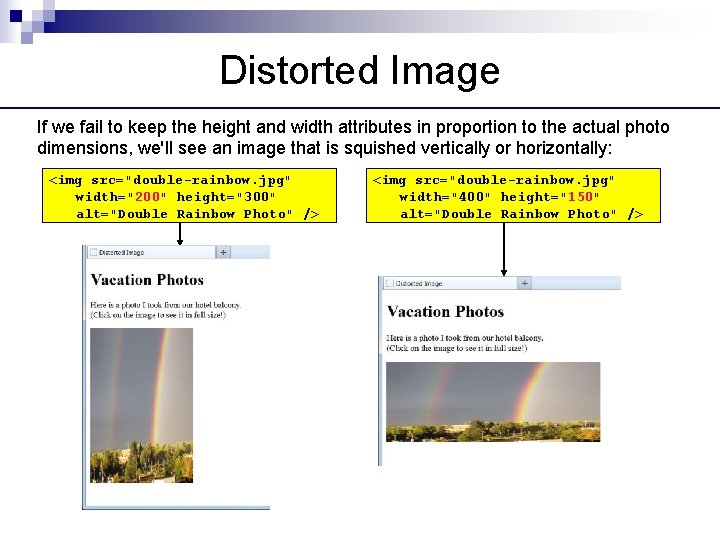
Distorted Image If we fail to keep the height and width attributes in proportion to the actual photo dimensions, we'll see an image that is squished vertically or horizontally: <img src="double-rainbow. jpg" width="200" height="300" alt="Double Rainbow Photo" /> <img src="double-rainbow. jpg" width="400" height="150" alt="Double Rainbow Photo" />
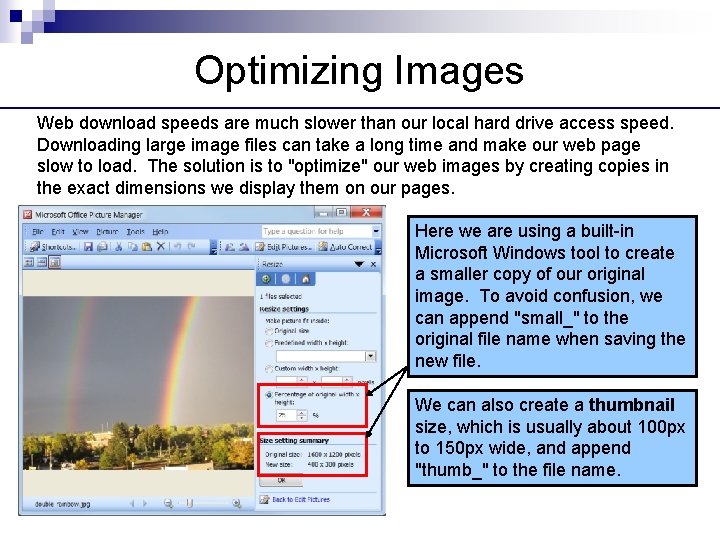
Optimizing Images Web download speeds are much slower than our local hard drive access speed. Downloading large image files can take a long time and make our web page slow to load. The solution is to "optimize" our web images by creating copies in the exact dimensions we display them on our pages. Here we are using a built-in Microsoft Windows tool to create a smaller copy of our original image. To avoid confusion, we can append "small_" to the original file name when saving the new file. We can also create a thumbnail size, which is usually about 100 px to 150 px wide, and append "thumb_" to the file name.
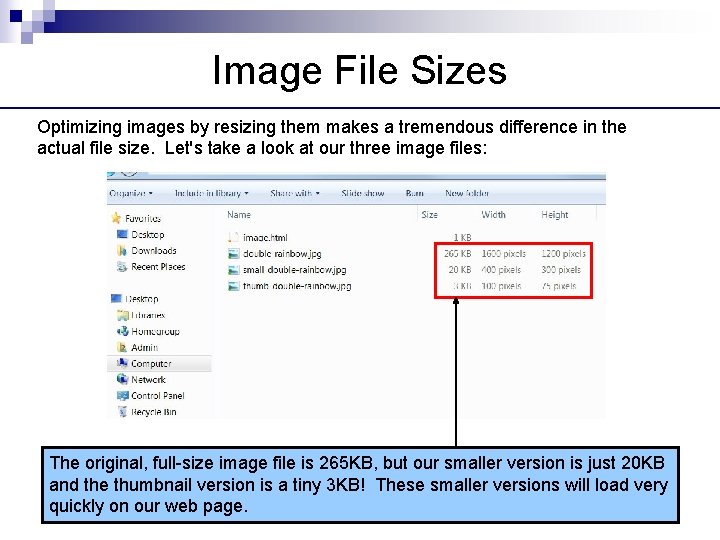
Image File Sizes Optimizing images by resizing them makes a tremendous difference in the actual file size. Let's take a look at our three image files: The original, full-size image file is 265 KB, but our smaller version is just 20 KB and the thumbnail version is a tiny 3 KB! These smaller versions will load very quickly on our web page.
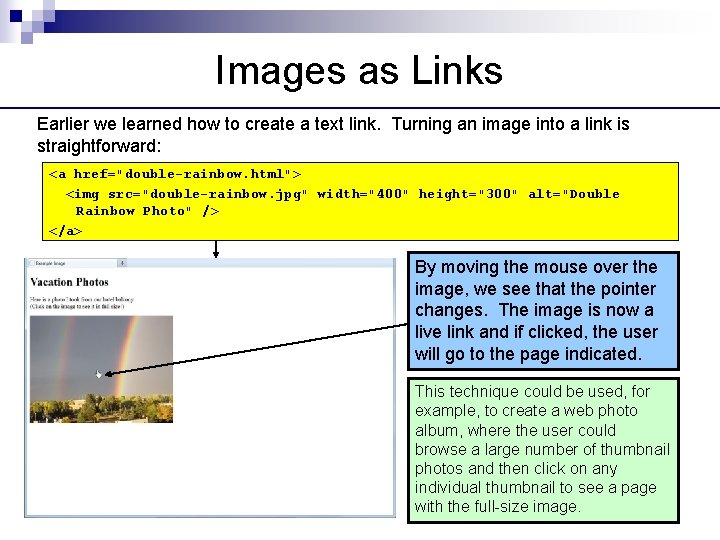
Images as Links Earlier we learned how to create a text link. Turning an image into a link is straightforward: <a href="double-rainbow. html"> <img src="double-rainbow. jpg" width="400" height="300" alt="Double Rainbow Photo" /> </a> By moving the mouse over the image, we see that the pointer changes. The image is now a live link and if clicked, the user will go to the page indicated. This technique could be used, for example, to create a web photo album, where the user could browse a large number of thumbnail photos and then click on any individual thumbnail to see a page with the full-size image.
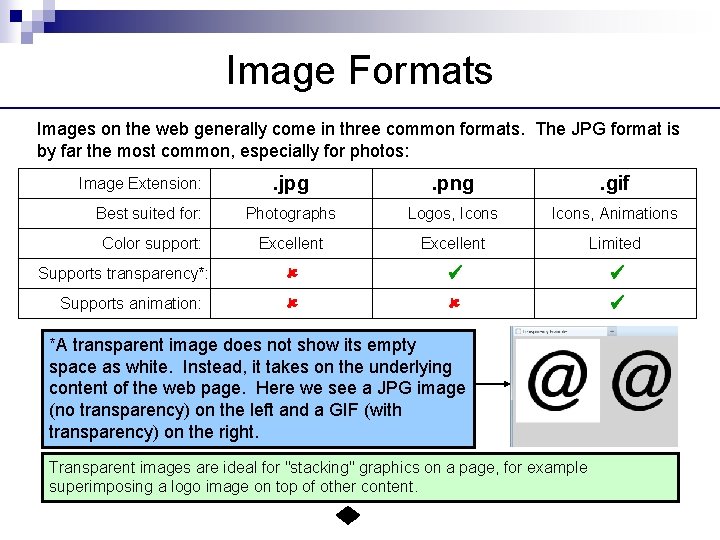
Image Formats Images on the web generally come in three common formats. The JPG format is by far the most common, especially for photos: . jpg . png . gif Best suited for: Photographs Logos, Icons, Animations Color support: Excellent Limited û û ü ü Image Extension: Supports transparency*: Supports animation: *A transparent image does not show its empty space as white. Instead, it takes on the underlying content of the web page. Here we see a JPG image (no transparency) on the left and a GIF (with transparency) on the right. Transparent images are ideal for "stacking" graphics on a page, for example superimposing a logo image on top of other content.