
Images in Binary Bitmap images Binary can be
Images in Binary
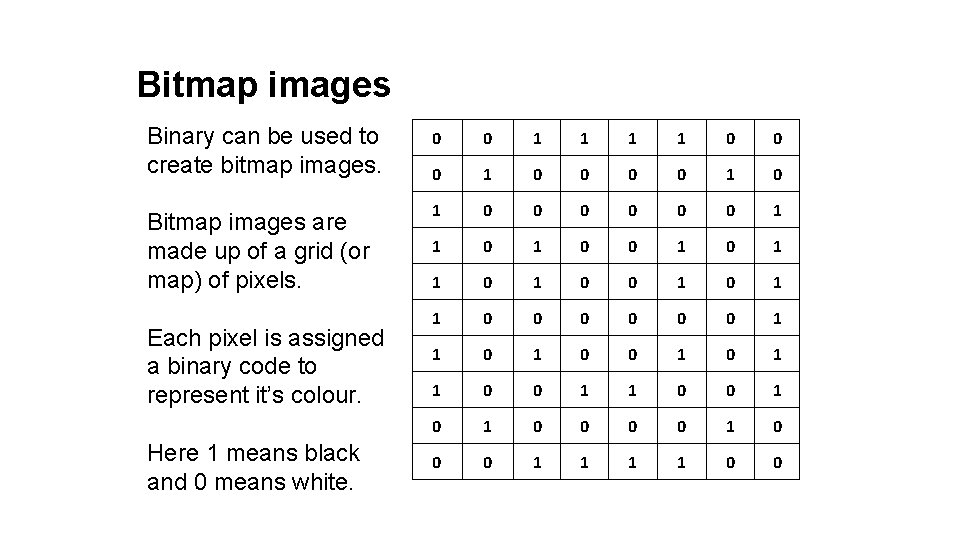
Bitmap images Binary can be used to create bitmap images. Bitmap images are made up of a grid (or map) of pixels. Each pixel is assigned a binary code to represent it’s colour. Here 1 means black and 0 means white. 0 0 1 1 0 0 0 1 0 1 0 0 0 1 1 0 1 0 1 1 0 0 0 1 1 0 0 1 0 1 0 0 0 1 1 0 0
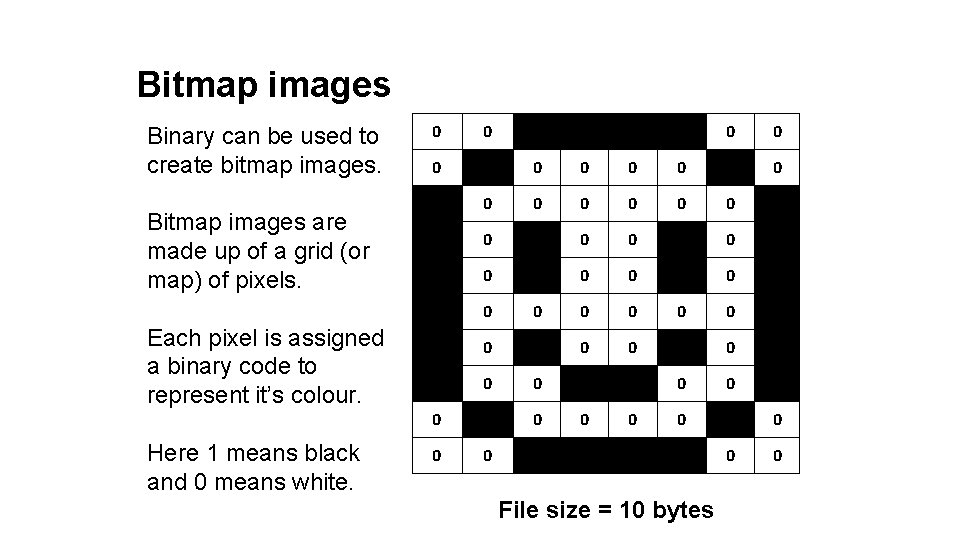
Bitmap images Binary can be used to create bitmap images. Bitmap images are made up of a grid (or map) of pixels. Each pixel is assigned a binary code to represent it’s colour. Here 1 means black and 0 means white. 0 0 1 1 0 0 0 1 0 1 0 0 0 1 1 0 1 0 1 1 0 0 0 1 1 0 0 1 0 1 0 0 0 1 1 0 0 File size = 10 bytes
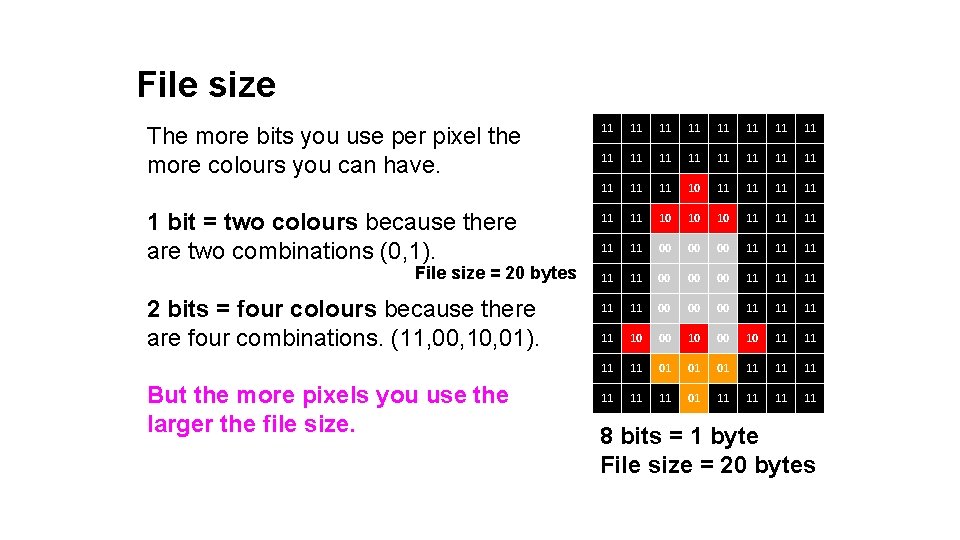
File size The more bits you use per pixel the more colours you can have. 1 bit = two colours because there are two combinations (0, 1). File size = 20 bytes 2 bits = four colours because there are four combinations. (11, 00, 10, 01). But the more pixels you use the larger the file size. 11 11 11 11 11 10 11 11 11 10 10 10 11 11 11 00 00 00 11 11 10 00 10 11 11 01 01 01 11 11 11 01 11 11 8 bits = 1 byte File size = 20 bytes
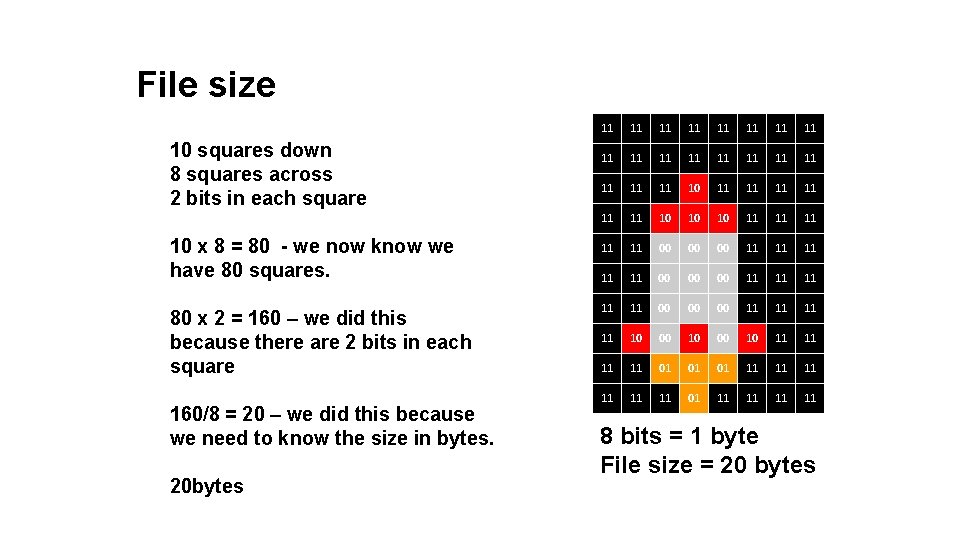
File size 10 squares down 8 squares across 2 bits in each square 10 x 8 = 80 - we now know we have 80 squares. 80 x 2 = 160 – we did this because there are 2 bits in each square 160/8 = 20 – we did this because we need to know the size in bytes. 20 bytes 11 11 11 11 11 10 11 11 11 10 10 10 11 11 11 00 00 00 11 11 10 00 10 11 11 01 01 01 11 11 11 01 11 11 8 bits = 1 byte File size = 20 bytes

Pixel art
Challenge 1: Use the spreadsheet in activity 1 to create some pixel art using binary.
Challenge 2: Use the spreadsheet in activity 2 to help you calculate the file size of an image.
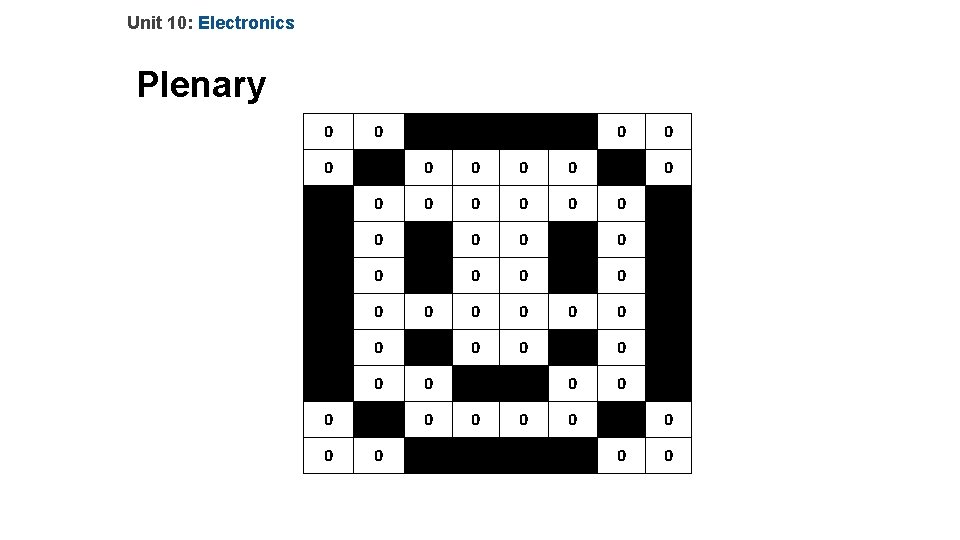
Unit 10: Electronics Plenary 0 0 1 1 0 0 0 1 0 1 0 0 0 1 1 0 1 0 1 1 0 0 0 1 1 0 0 1 0 1 0 0 0 1 1 0 0
- Slides: 9