
Images David Meredith davecreate aau dk Aalborg University
Images David Meredith dave@create. aau. dk Aalborg University
Source • This lecture is based on Chapter 15 of Shiffman, D. (2008). Learning Processing. Morgan Kaufmann. ISBN: 978 -0 -12 -373602 -4.
Overview • • • The PImage class Displaying images Changing image colour The pixels of an image Simple image processing Interactive image processing
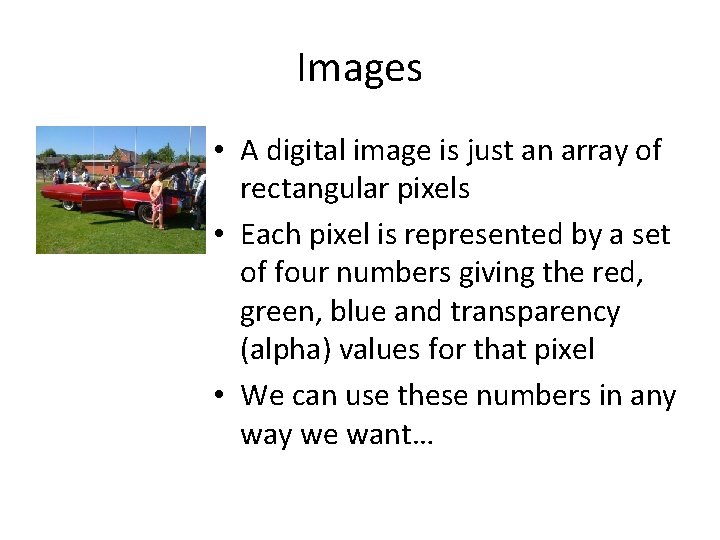
Images • A digital image is just an array of rectangular pixels • Each pixel is represented by a set of four numbers giving the red, green, blue and transparency (alpha) values for that pixel • We can use these numbers in any way we want…
The PImage class • PImage is a class just like the classes you’ve defined yourself, except that PImage is provided, ready-made by Processing • A PImage object is designed to represent an image • A PImage object has methods and variables that let you manipulate images
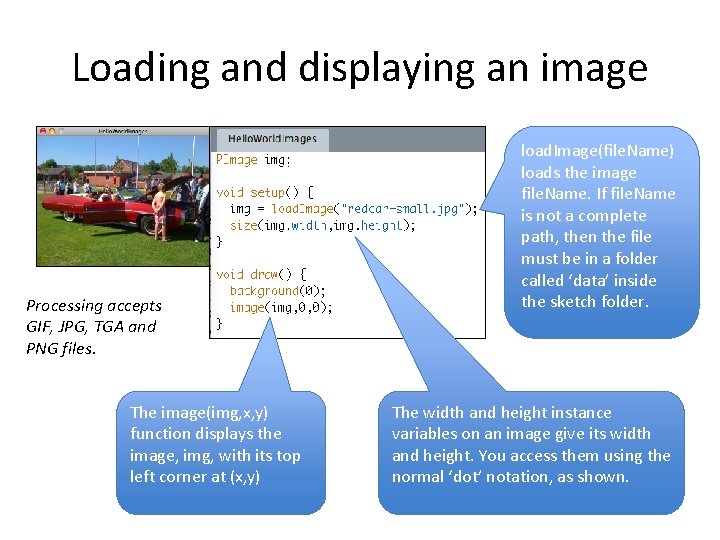
Loading and displaying an image Processing accepts GIF, JPG, TGA and PNG files. The image(img, x, y) function displays the image, img, with its top left corner at (x, y) load. Image(file. Name) loads the image file. Name. If file. Name is not a complete path, then the file must be in a folder called ‘data’ inside the sketch folder. The width and height instance variables on an image give its width and height. You access them using the normal ‘dot’ notation, as shown.
Loading and creating an image • The load. Image(file. Name) function reads the image file from the file called file. Name and returns a PImage object holding the image – This is a slow process, so don’t do it on every frame (i. e. , in the draw() function)! – You should do all image loading in the setup function • The image(img, x, y) function displays the image stored in img in the display area with its top left corner at (x, y) • If you want to create a blank image (which you can later paint as you like), use the function create. Image(w, h, col)
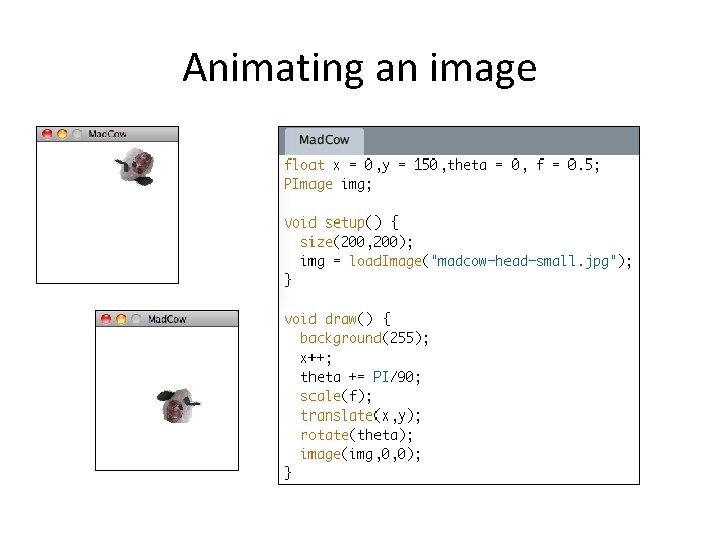
Animating an image
tint() • We can change the global colour and transparency properties of an image by calling tint() before we display the image, e. g. tint(100); image(img, 0, 0); This would darken the image • tint() can take 1, 2, 3 or 4 arguments depending on whether you want to change brightness, colour or transparency
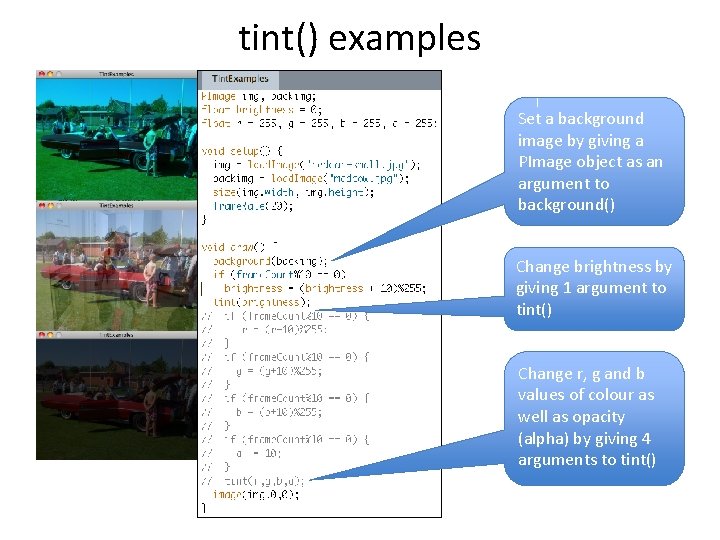
tint() examples Set a background image by giving a PImage object as an argument to background() Change brightness by giving 1 argument to tint() Change r, g and b values of colour as well as opacity (alpha) by giving 4 arguments to tint()
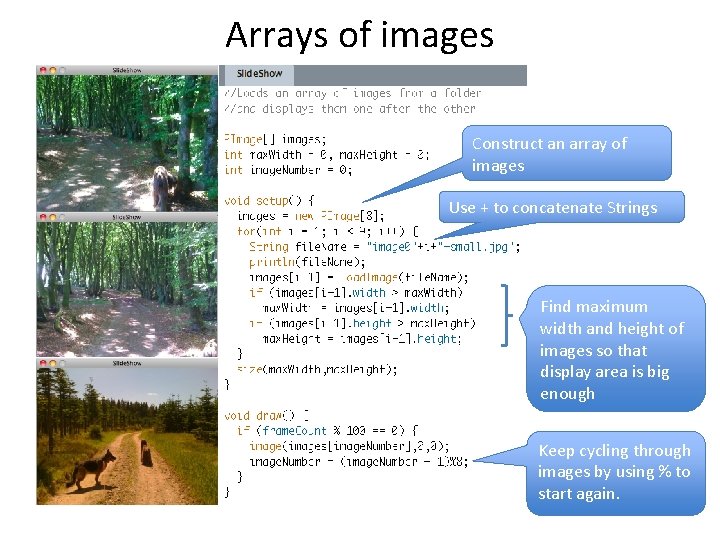
Arrays of images Construct an array of images Use + to concatenate Strings Find maximum width and height of images so that display area is big enough Keep cycling through images by using % to start again.
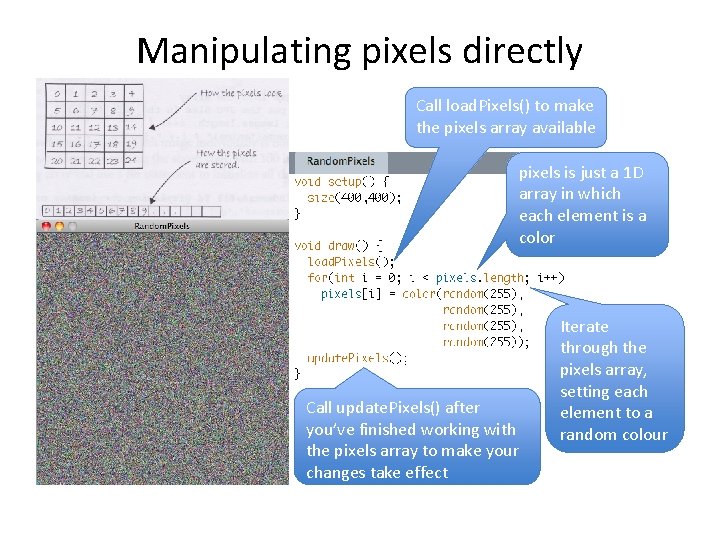
Manipulating pixels directly Call load. Pixels() to make the pixels array available pixels is just a 1 D array in which each element is a color Call update. Pixels() after you’ve finished working with the pixels array to make your changes take effect Iterate through the pixels array, setting each element to a random colour
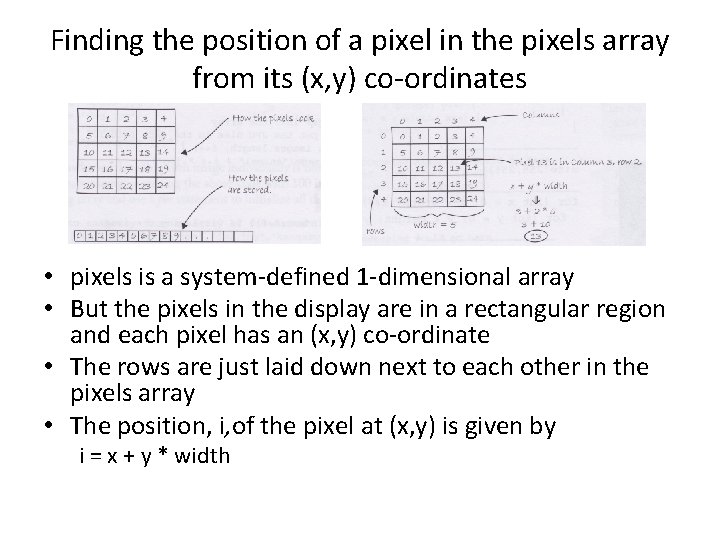
Finding the position of a pixel in the pixels array from its (x, y) co-ordinates • pixels is a system-defined 1 -dimensional array • But the pixels in the display are in a rectangular region and each pixel has an (x, y) co-ordinate • The rows are just laid down next to each other in the pixels array • The position, i, of the pixel at (x, y) is given by i = x + y * width
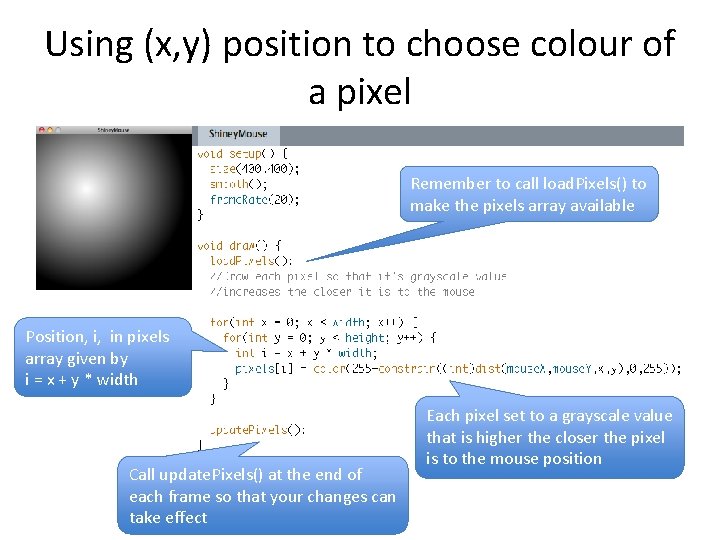
Using (x, y) position to choose colour of a pixel Remember to call load. Pixels() to make the pixels array available Position, i, in pixels array given by i = x + y * width Call update. Pixels() at the end of each frame so that your changes can take effect Each pixel set to a grayscale value that is higher the closer the pixel is to the mouse position
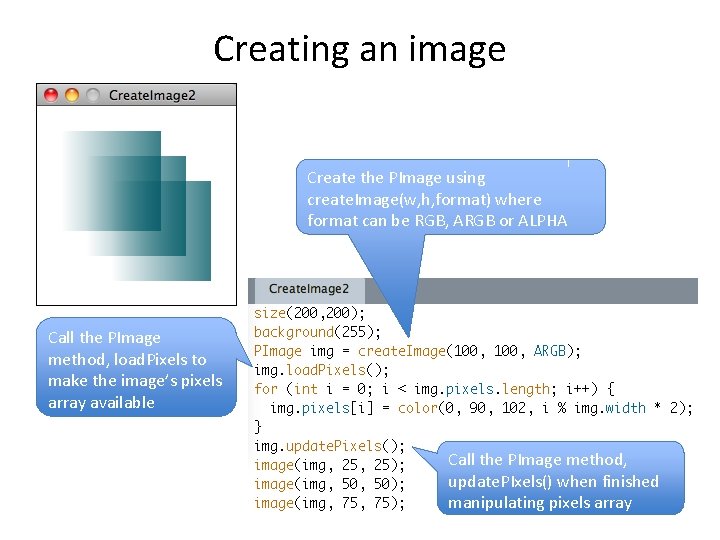
Creating an image Create the PImage using create. Image(w, h, format) where format can be RGB, ARGB or ALPHA Call the PImage method, load. Pixels to make the image’s pixels array available Call the PImage method, update. PIxels() when finished manipulating pixels array
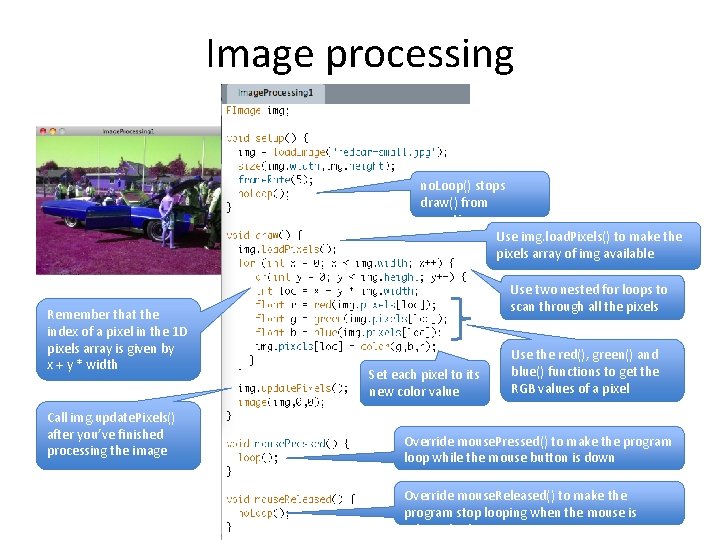
Image processing no. Loop() stops draw() from repeating Use img. load. Pixels() to make the pixels array of img available Remember that the index of a pixel in the 1 D pixels array is given by x + y * width Call img. update. Pixels() after you’ve finished processing the image Use two nested for loops to scan through all the pixels Set each pixel to its new color value Use the red(), green() and blue() functions to get the RGB values of a pixel Override mouse. Pressed() to make the program loop while the mouse button is down Override mouse. Released() to make the program stop looping when the mouse is releasedis down
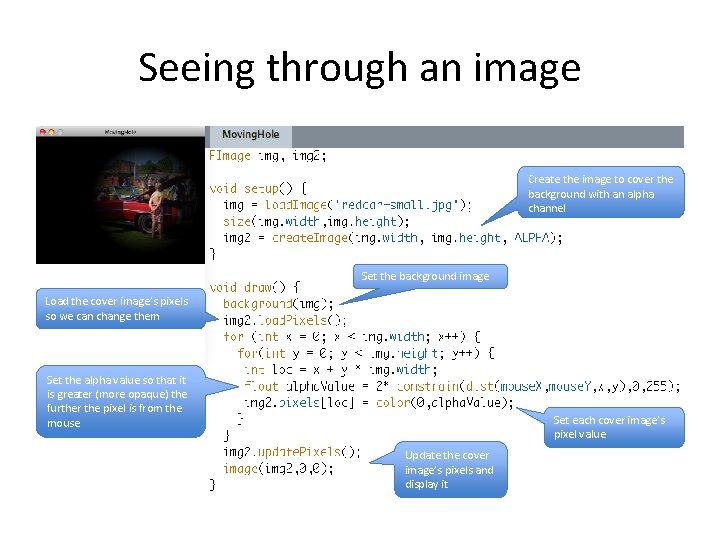
Seeing through an image Create the image to cover the background with an alpha channel Set the background image Load the cover image’s pixels so we can change them Set the alpha value so that it is greater (more opaque) the further the pixel is from the mouse Set each cover image’s pixel value Update the cover image’s pixels and display it
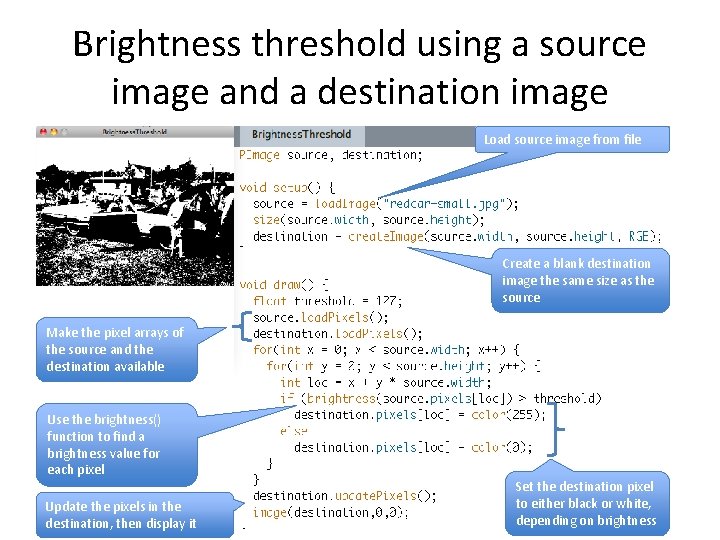
Brightness threshold using a source image and a destination image Load source image from file Create a blank destination image the same size as the source Make the pixel arrays of the source and the destination available Use the brightness() function to find a brightness value for each pixel Update the pixels in the destination, then display it Set the destination pixel to either black or white, depending on brightness
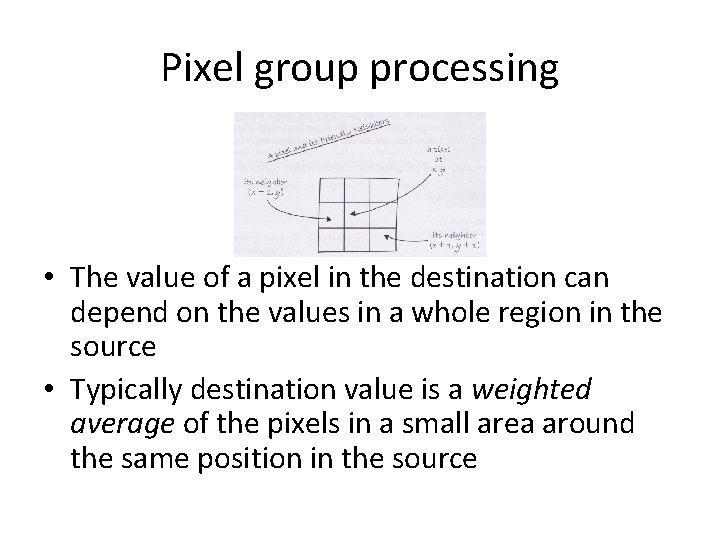
Pixel group processing • The value of a pixel in the destination can depend on the values in a whole region in the source • Typically destination value is a weighted average of the pixels in a small area around the same position in the source
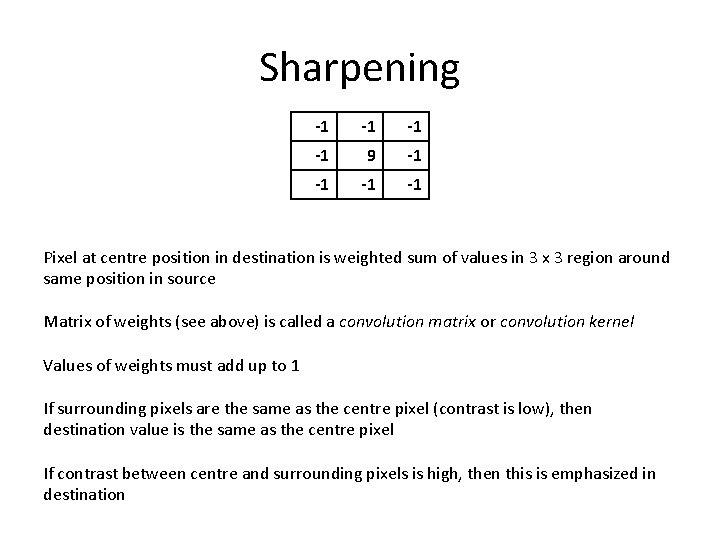
Sharpening -1 -1 9 -1 -1 Pixel at centre position in destination is weighted sum of values in 3 x 3 region around same position in source Matrix of weights (see above) is called a convolution matrix or convolution kernel Values of weights must add up to 1 If surrounding pixels are the same as the centre pixel (contrast is low), then destination value is the same as the centre pixel If contrast between centre and surrounding pixels is high, then this is emphasized in destination
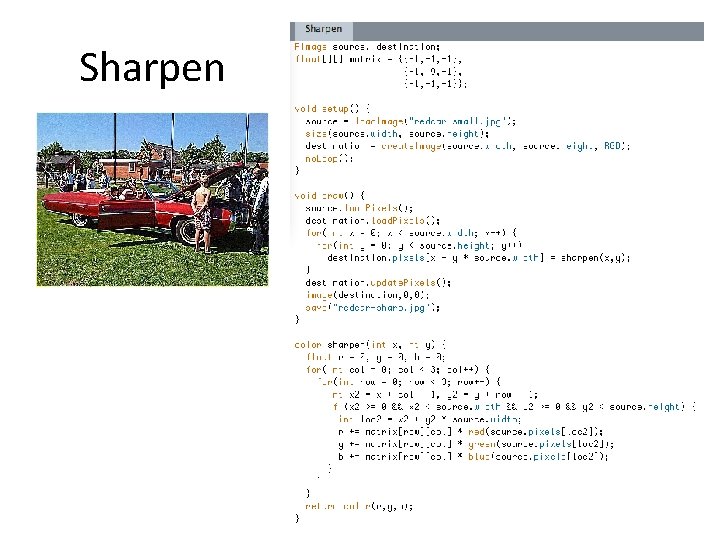
Sharpen
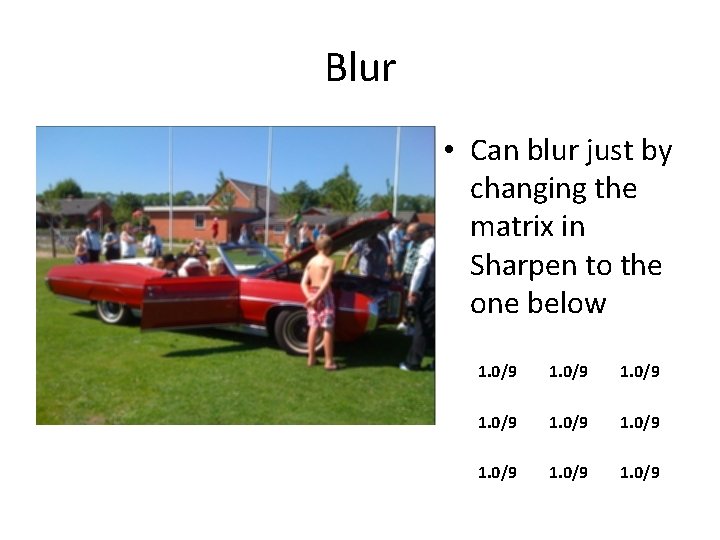
Blur • Can blur just by changing the matrix in Sharpen to the one below 1. 0/9 1. 0/9
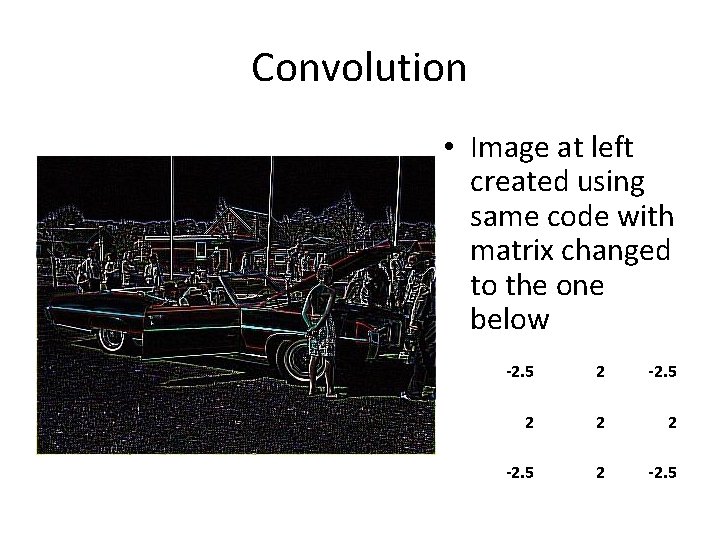
Convolution • Image at left created using same code with matrix changed to the one below -2. 5 2 2 2 -2. 5
- Slides: 23