
Image src http islandora ca Islandora Learning Objectives

Image src: http: //islandora. ca
Islandora Learning Objectives ✘Introduction to Islandora ✗What is Islandora? ✗Core technologies and architecture ✘Use online sandbox: ✗Create Collection ✗Ingest Object(s) ✗Delete Content ✘Introduce Virtual Machine
What is Islandora? ✘Open-source software framework ✘Developed by the University of Prince Edward Island's Robertson Library in 2006 ✘Built on a Drupal , Fedora , and Solr technology base ✘Designed to manage digital assets ✘provides a robust environment to preserve or create online digital collections. ✘The bulk users: libraries, museums, archives & private companies
Islandora: Core Technologies Islandora uses three core technologies: 1. Fedora. Commons repository software 2. Drupal 3. Solr Introduction
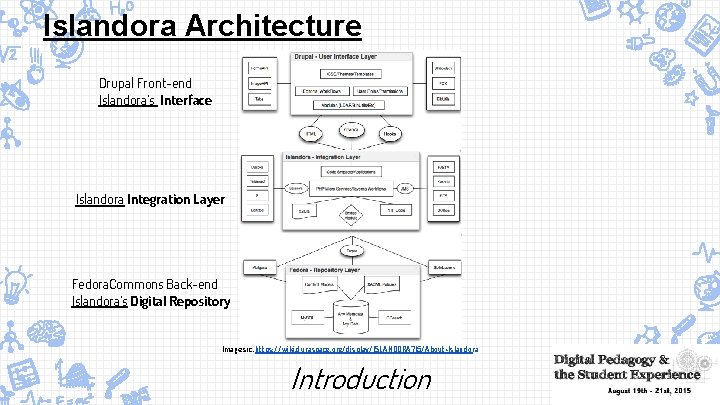
Islandora Architecture Drupal Front-end Islandora’s Interface Islandora Integration Layer Fedora. Commons Back-end Islandora’s Digital Repository Image src: https: //wiki. duraspace. org/display/ISLANDORA 715/About+Islandora Introduction
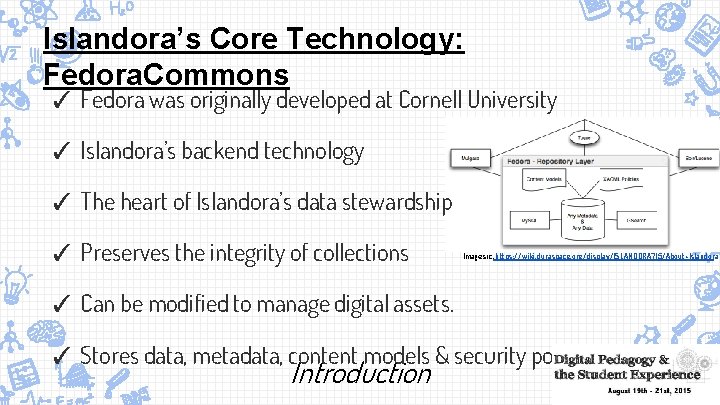
Islandora’s Core Technology: Fedora. Commons ✓ Fedora was originally developed at Cornell University ✓ Islandora’s backend technology ✓ The heart of Islandora’s data stewardship ✓ Preserves the integrity of collections Image src: https: //wiki. duraspace. org/display/ISLANDORA 715/About+Islandora ✓ Can be modified to manage digital assets. ✓ Stores data, metadata, content models & security policies. Introduction
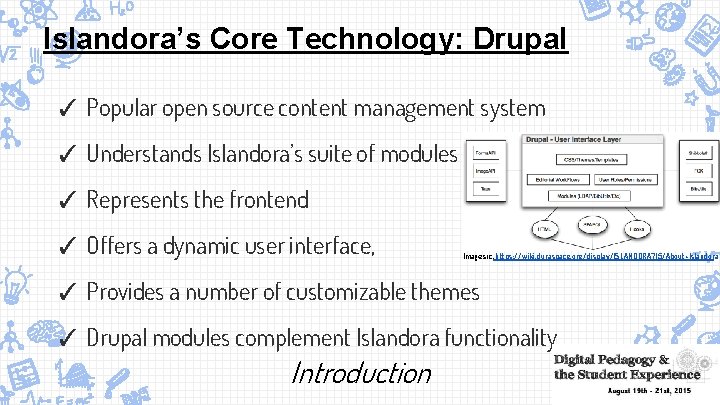
Islandora’s Core Technology: Drupal ✓ Popular open source content management system ✓ Understands Islandora’s suite of modules ✓ Represents the frontend ✓ Offers a dynamic user interface, Image src: https: //wiki. duraspace. org/display/ISLANDORA 715/About+Islandora ✓ Provides a number of customizable themes ✓ Drupal modules complement Islandora functionality Introduction
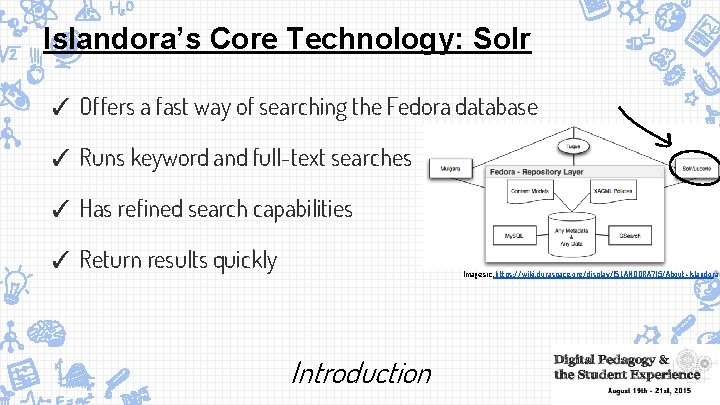
Islandora’s Core Technology: Solr ✓ Offers a fast way of searching the Fedora database ✓ Runs keyword and full-text searches ✓ Has refined search capabilities ✓ Return results quickly Image src: https: //wiki. duraspace. org/display/ISLANDORA 715/About+Islandora Introduction
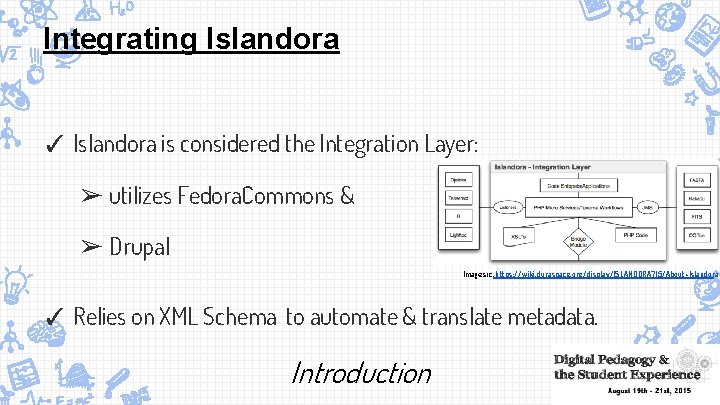
Integrating Islandora ✓ Islandora is considered the Integration Layer: ➢ utilizes Fedora. Commons & ➢ Drupal Image src: https: //wiki. duraspace. org/display/ISLANDORA 715/About+Islandora ✓ Relies on XML Schema to automate & translate metadata. Introduction
Islandora Solution Packs ✓ Provide functionality to ingest, and organize then display the digital assets in Fedora commons using the drupal interface. ✓ Customizable to meet institutional/organizational collection or repository needs. ✓ Need to be installed and configured to operate smoothly ✓ Rely on additional applications ✓ Eg: Audio solutions pack, Basic collection Solution pack, Basic image solution pack, etc. ✓ Accessd from the Release Notes and Downloads site: https: //wiki. duraspace. org/display/ISLANDORA 715/Release+Notes+and+Downloads Introduction
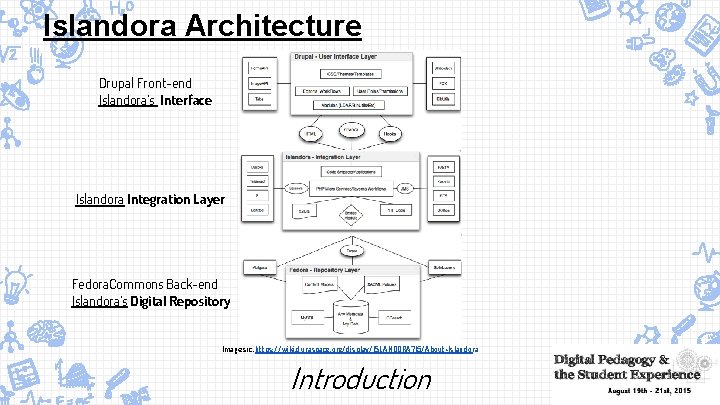
Islandora Architecture Drupal Front-end Islandora’s Interface Islandora Integration Layer Fedora. Commons Back-end Islandora’s Digital Repository Image src: https: //wiki. duraspace. org/display/ISLANDORA 715/About+Islandora Introduction
Why Use Islandora? 1. Stewardship ➢ Manage & Store digital assets securely 2. Collaboration ➢ Facilitates collaboration and community engagement with digital collections. ➢ Enables collaborative work to create, edit, review, and catalog information assets. Introduction
Why Use Islandora? (cont’d) 3. Access ➢ open standards, information sharing and retrieval ➢ solr aids in searching and acquiring data quicker. 4. Flexibility ➢ Islandora is open source. It’s core is transparent and customizable to institutional needs. Introduction
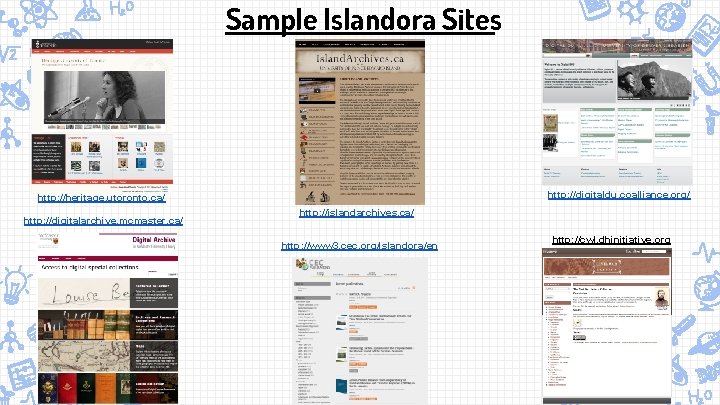
Sample Islandora Sites http: //digitaldu. coalliance. org/ http: //heritage. utoronto. ca/ http: //digitalarchive. mcmaster. ca/ http: //islandarchives. ca/ http: //www 3. cec. org/islandora/en http: //cwl. dhinitiative. org
How Islandora Understands Content? ➢ Interprets everything in Fedora. Commons repository as objects. ➢ Objects are made up of datastreams (aka files) ➢ Objects are connected to each other through relationships. ➢ Each object has a unique identifier in the repository Introduction
Islandora Sandbox ✘Islandora sandbox is the most recent online installation of Islandora ✘The installation is updated nightly with new code. ✘Offers users a place try Islandora without committing to a server install. ✘The projects are NOT retained.
Islandora Sandbox Login ➢ To access the Islandora Sandbox visit: http: //sandbox. islandora. ca ➢ Use the following credentials: username: admin password: islandora Islandora Sandbox
Islandora: Getting Started ✘Explore the collections installed as part of a solution Pack ✘Create and manage a new collection ✗Add a new item to a digital collection ✗learn how to batch ingest files ✗Edit object’s metadata ✗Delete/Purge an object or multiple objects
Islandora: Log in Screen ➢ Administrative bar at the top of the screen similar to a drupal site. ➢ Administrative functions: ○ On the right: ○ On the left: ↳ “Hello” ↳ Home ↳ Log out ↳ Structure ↳ Configuration ↳ Help menu Islandora Sandbox
Islandora: Log in Screen Menus ↳ Home: Link to landing page ↳ Structure: Create Blocks, menus, taxonomies and views. ↳ Configuration: ◆ Modify search settings & indexing options ◆ Controls interface & modules appearance on the page ↳ Help: Offers additional documentation & links help topics ↳ “Hello”strips the page down to easily locate features & menu options ↳ Log out: Logging out of the administrative view ↳ Navigation: lists options available to add content, import entities etc. Islandora Sandbox
Islandora: Collections To Browse collections in Islandora: ➢ Under Navigation Block: ↳ Select Islandora Repositories This view provides a root view of the types of collections available and installed through the solution packs Types of collections: ↳ Audio Collections, Image Collections, Book Collections Can appears in Grid view or List view Islandora Sandbox
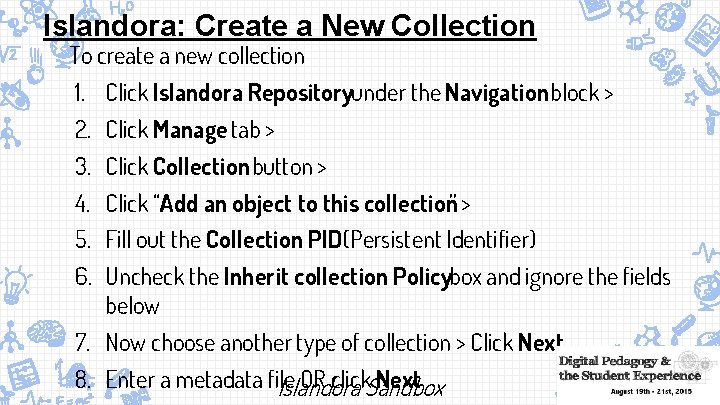
Islandora: Create a New Collection To create a new collection 1. Click Islandora Repositoryunder the Navigation block > 2. Click Manage tab > 3. Click Collection button > 4. Click “Add an object to this collection” > 5. Fill out the Collection PID (Persistent Identifier) 6. Uncheck the Inherit collection Policybox and ignore the fields below 7. Now choose another type of collection > Click Next 8. Enter a metadata file OR click. Sandbox Next Islandora
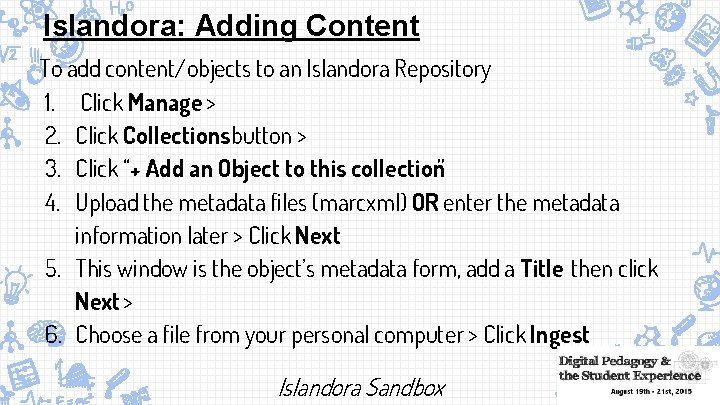
Islandora: Adding Content To add content/objects to an Islandora Repository 1. Click Manage > 2. Click Collections button > 3. Click “+ Add an Object to this collection” 4. Upload the metadata files (marcxml) OR enter the metadata information later > Click Next 5. This window is the object’s metadata form, add a Title then click Next > 6. Choose a file from your personal computer > Click Ingest Islandora Sandbox
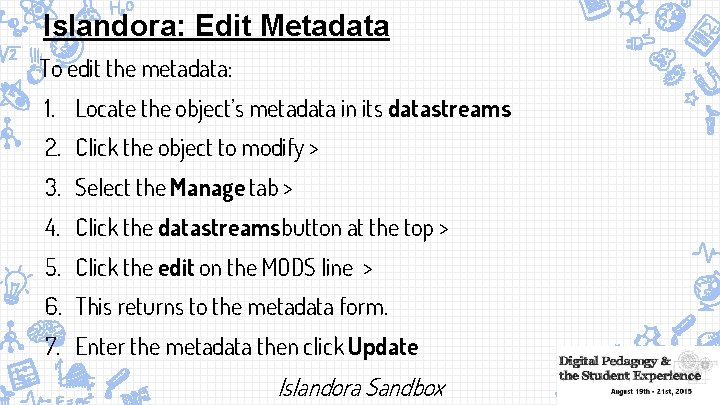
Islandora: Edit Metadata To edit the metadata: 1. Locate the object’s metadata in its datastreams 2. Click the object to modify > 3. Select the Manage tab > 4. Click the datastreams button at the top > 5. Click the edit on the MODS line > 6. This returns to the metadata form. 7. Enter the metadata then click Update Islandora Sandbox
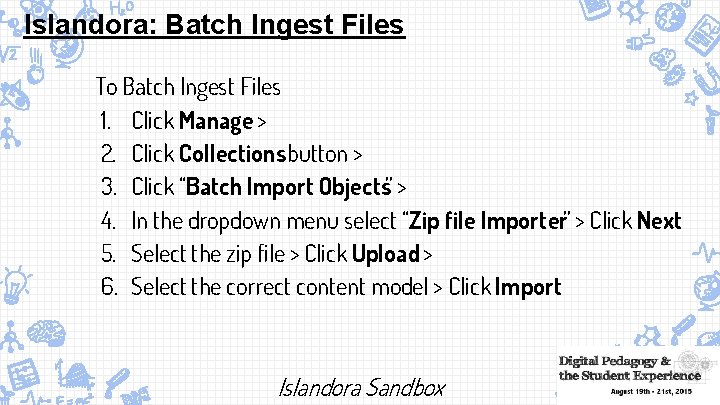
Islandora: Batch Ingest Files To Batch Ingest Files 1. Click Manage > 2. Click Collections button > 3. Click “Batch Import Objects” > 4. In the dropdown menu select “Zip file Importer” > Click Next 5. Select the zip file > Click Upload > 6. Select the correct content model > Click Import Islandora Sandbox
Islandora: Delete/Purge an Object OR Multiple Objects ➢ No trash bin in Islandora: ○ Once an object is deleted, it is permanently gone. To delete an object: 1. Click Manage tab > 2. Click Properties button 3. Click Permanently remove “name of your Object Here” from repository” 4. Confirm by clicking Delete Islandora Sandbox
Islandora: Virtual Machine (VM) To Play More: ➢ The VM runs with a Virtual. Box (a robust, open source & free). ➢ The Virtual. Box needs to be installed first, then download Virtual Machine Image. ➢ This is a quick way to get Islandora up and running but only for testing purposes NOT for public consumption. ***NOTE: Islandora is a server NOT a desktop application*** Islandora Sandbox
Islandora: Virtual Machine (VM) (cont’d) To Install the VM Use the Following Guides: OSX http: //islandora. ca/virtual_machine_install_guide_osx Windows http: //islandora. ca/virtual_machine_install_guide_windows Islandora Sandbox
Islandora more Resources Islandora Documentation: https: //wiki. duraspace. org/display/ISLANDORA/Islandora Solution Packs: https: //wiki. duraspace. org/display/ISLANDORA 715/Release+Notes+and+Downloads Github: https: //github. com/Islandora web site: http: //islandora. ca Youtube: https: //www. youtube. com/user/Islandora Facebook: http: //www. facebook. com/Islandora Twitter: http: //twitter. com/Islandora

In Participation with: This research was supported by the Social Sciences and Humanities Research Council of Canada:
Islandora DPI Workshop Module by Mona Elayyan for the Digital Pedagogy Institute: Improving the Student Experience is licensed under a Creative Commons Attribution-Non. Commercial-Share. Alike 4. 0 International License.
- Slides: 31