
Image Processing Tutorial Bernard Miller CCDStack Work Flow
Image Processing Tutorial Bernard Miller
CCDStack Work Flow • • Create Master Dark, Bias, and Flat Calibrate Hot/Cold Pixel Rejection(Optional) Debloom (Optional) Register Normalize Data Reject Combine
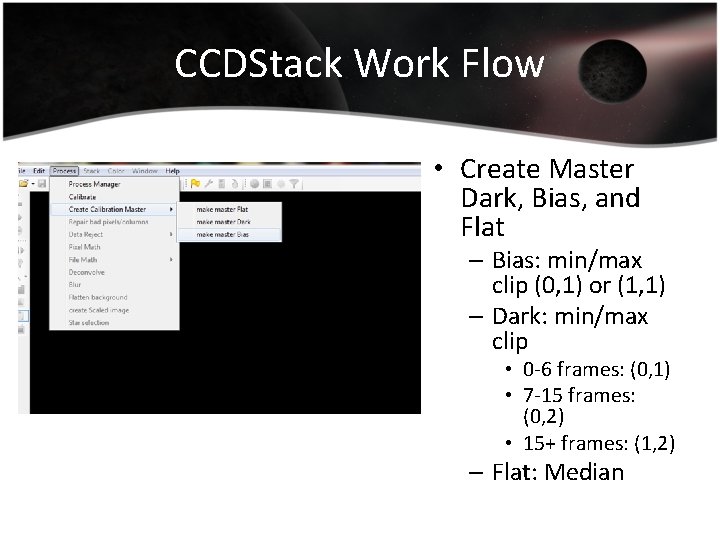
CCDStack Work Flow • Create Master Dark, Bias, and Flat – Bias: min/max clip (0, 1) or (1, 1) – Dark: min/max clip • 0 -6 frames: (0, 1) • 7 -15 frames: (0, 2) • 15+ frames: (1, 2) – Flat: Median
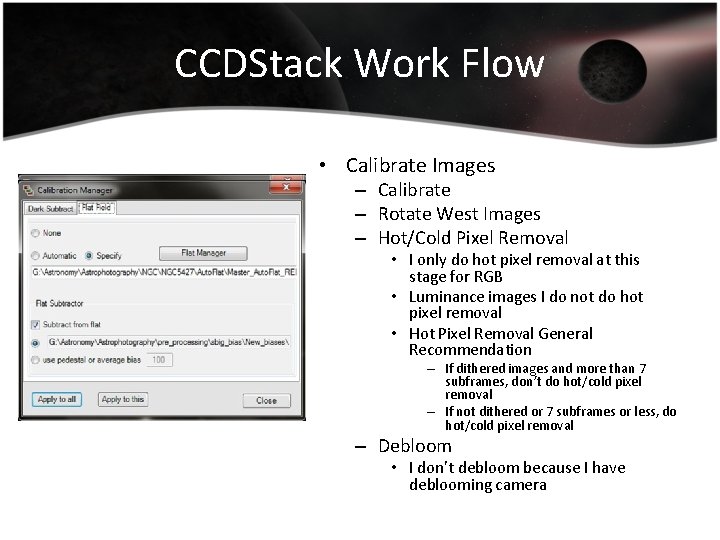
CCDStack Work Flow • Calibrate Images – Calibrate – Rotate West Images – Hot/Cold Pixel Removal • I only do hot pixel removal at this stage for RGB • Luminance images I do not do hot pixel removal • Hot Pixel Removal General Recommendation – If dithered images and more than 7 subframes, don’t do hot/cold pixel removal – If not dithered or 7 subframes or less, do hot/cold pixel removal – Debloom • I don’t debloom because I have deblooming camera
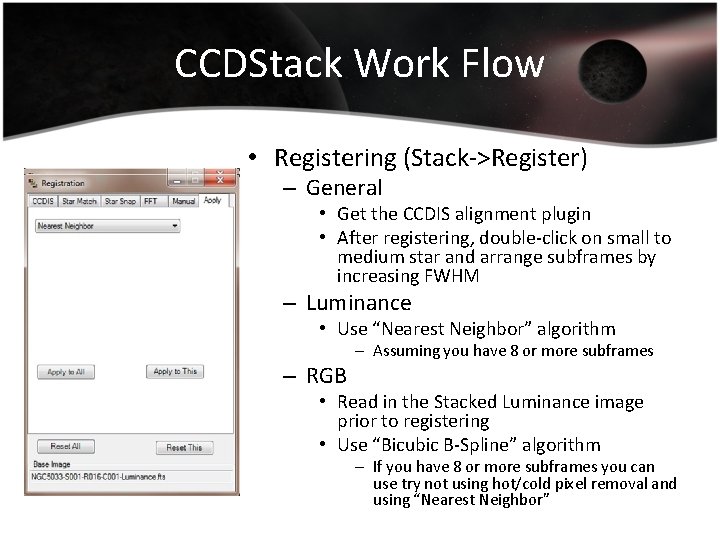
CCDStack Work Flow • Registering (Stack->Register) – General • Get the CCDIS alignment plugin • After registering, double-click on small to medium star and arrange subframes by increasing FWHM – Luminance • Use “Nearest Neighbor” algorithm – RGB – Assuming you have 8 or more subframes • Read in the Stacked Luminance image prior to registering • Use “Bicubic B-Spline” algorithm – If you have 8 or more subframes you can use try not using hot/cold pixel removal and using “Nearest Neighbor”
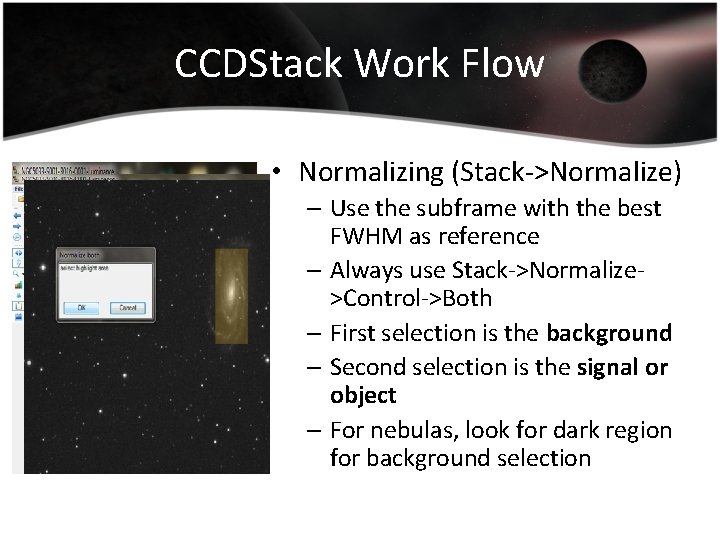
CCDStack Work Flow • Normalizing (Stack->Normalize) – Use the subframe with the best FWHM as reference – Always use Stack->Normalize>Control->Both – First selection is the background – Second selection is the signal or object – For nebulas, look for dark region for background selection
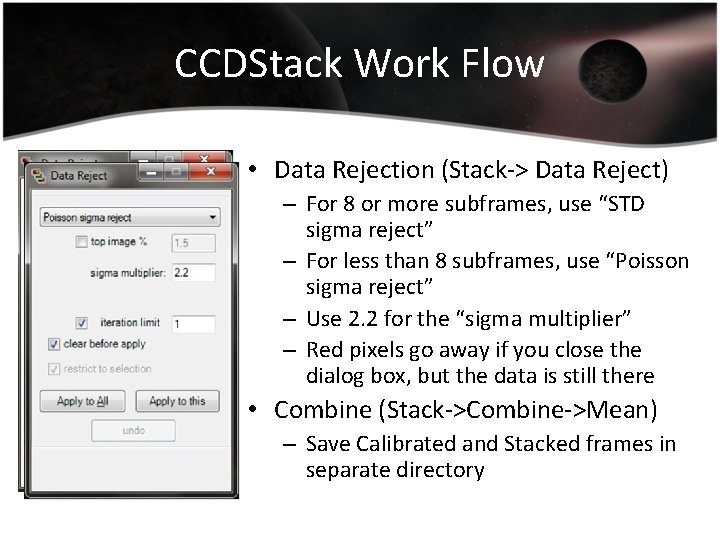
CCDStack Work Flow • Data Rejection (Stack-> Data Reject) – For 8 or more subframes, use “STD sigma reject” – For less than 8 subframes, use “Poisson sigma reject” – Use 2. 2 for the “sigma multiplier” – Red pixels go away if you close the dialog box, but the data is still there • Combine (Stack->Combine->Mean) – Save Calibrated and Stacked frames in separate directory
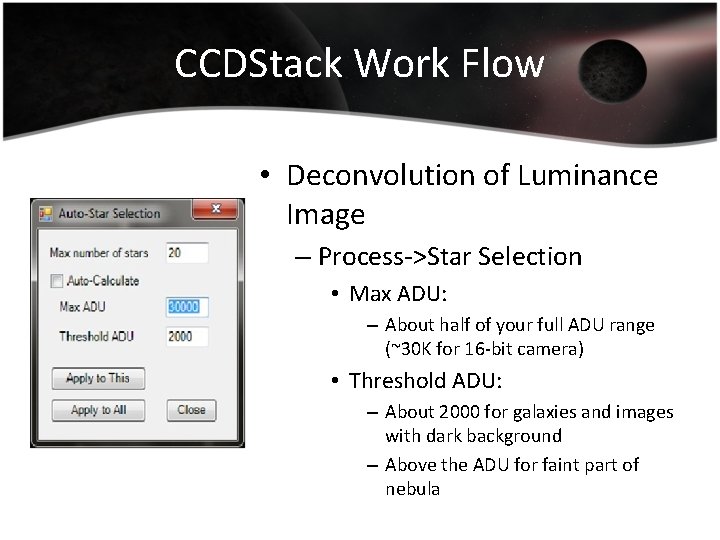
CCDStack Work Flow • Deconvolution of Luminance Image – Process->Star Selection • Max ADU: – About half of your full ADU range (~30 K for 16 -bit camera) • Threshold ADU: – About 2000 for galaxies and images with dark background – Above the ADU for faint part of nebula
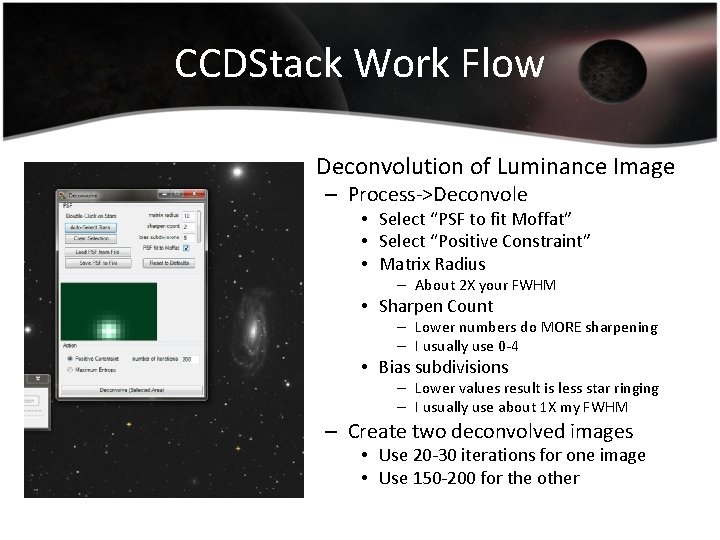
CCDStack Work Flow • Deconvolution of Luminance Image – Process->Deconvole • Select “PSF to fit Moffat” • Select “Positive Constraint” • Matrix Radius – About 2 X your FWHM • Sharpen Count – Lower numbers do MORE sharpening – I usually use 0 -4 • Bias subdivisions – Lower values result is less star ringing – I usually use about 1 X my FWHM – Create two deconvolved images • Use 20 -30 iterations for one image • Use 150 -200 for the other
CCDStack Work Flow • Applying DDP and Saving Images – Should have original luminance and both deconvolved images – Adjust original luminance image • Window->Adjust Display – – Make sure DDP is selected Background slider adjusts background brightness DDP slider adjusts image brightness Gamma set to 0. 90 • Brightest part of image should be about 200 counts – Not including saturated parts of image like galaxy cores • Background should be between 20 -30 • Use Histogram window to make sure you are not clipping • When finished with original image, click “apply to all” – File->Save Scaled Data->This • Save all three luminance images as 32 -bit float and TIF
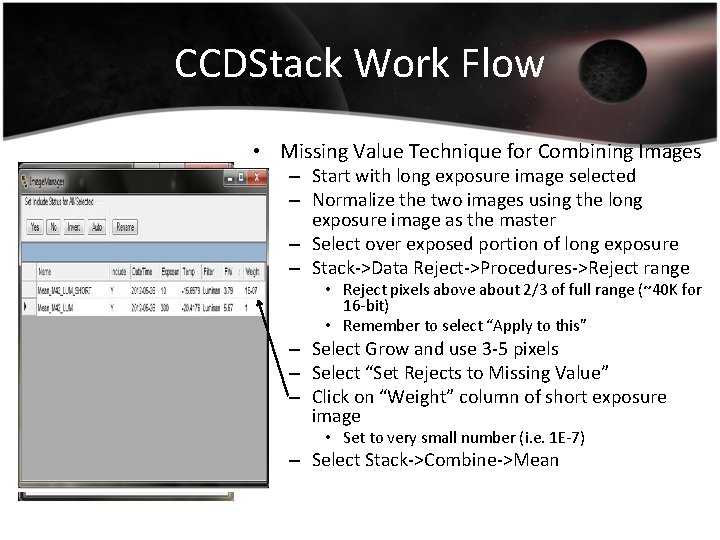
CCDStack Work Flow • Missing Value Technique for Combining Images – Start with long exposure image selected – Normalize the two images using the long exposure image as the master – Select over exposed portion of long exposure – Stack->Data Reject->Procedures->Reject range • Reject pixels above about 2/3 of full range (~40 K for 16 -bit) • Remember to select “Apply to this” – Select Grow and use 3 -5 pixels – Select “Set Rejects to Missing Value” – Click on “Weight” column of short exposure image • Set to very small number (i. e. 1 E-7) – Select Stack->Combine->Mean
Recommended Plugins • CCDStack – www. ccdware. com/products/ccdstack • CCDIS Plugin for CCDSTACK – http: //www. ccdware. com/buy/
- Slides: 12