
Image J and Fiji the new Image J
- Slides: 40
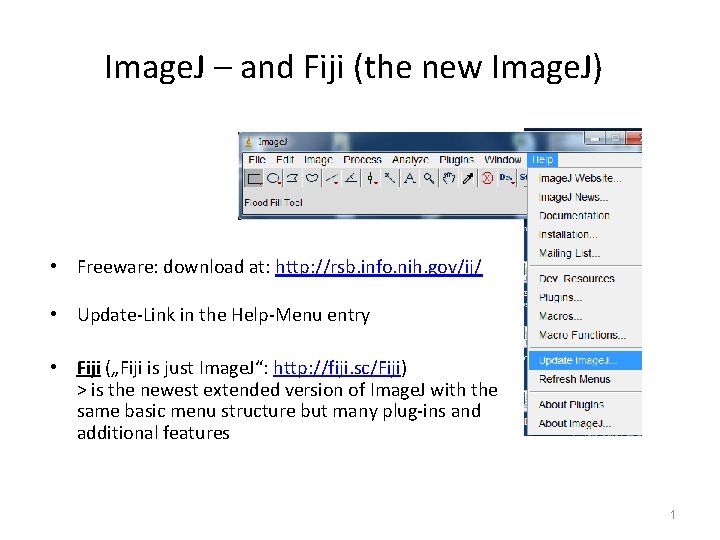
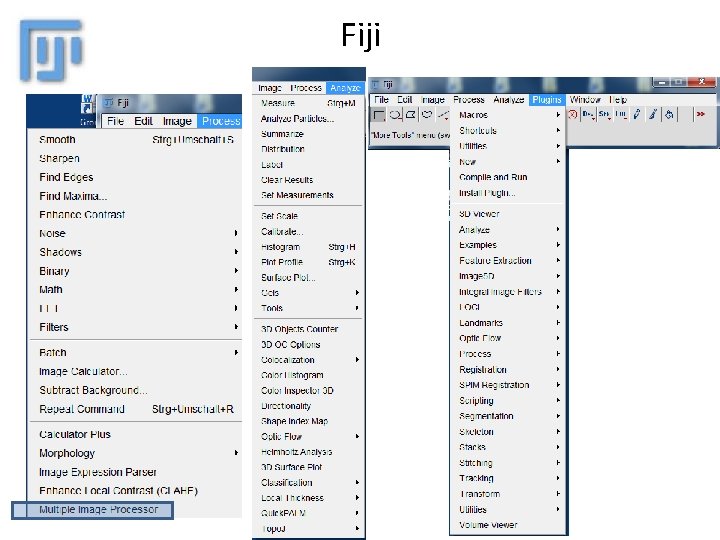
Image. J – and Fiji (the new Image. J) • Freeware: download at: http: //rsb. info. nih. gov/ij/ • Update-Link in the Help-Menu entry • Fiji („Fiji is just Image. J“: http: //fiji. sc/Fiji) > is the newest extended version of Image. J with the same basic menu structure but many plug-ins and additional features 1
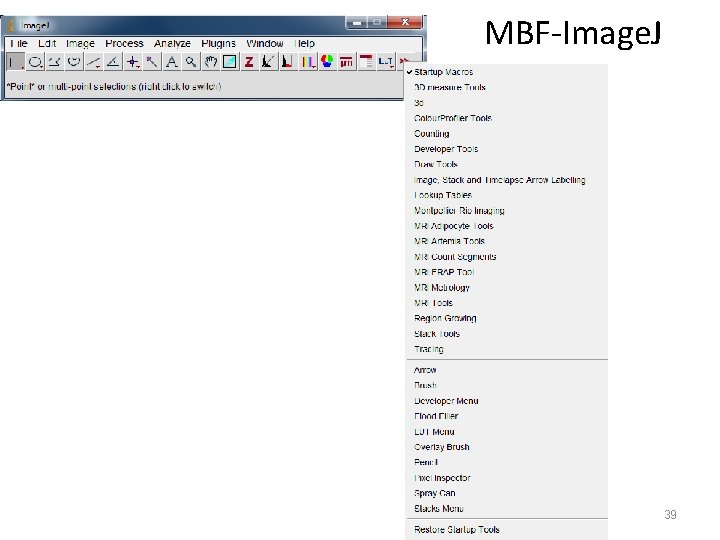
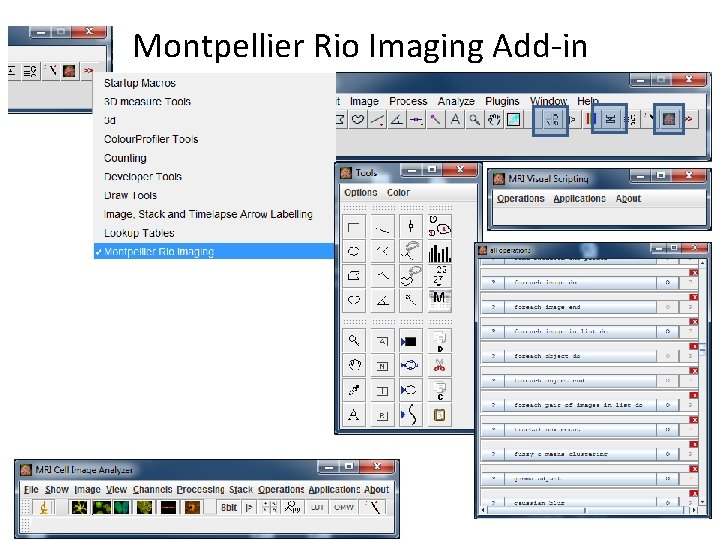
Image. J Plugins and Macros • Many plugins and macros available: Acquisition Analysis Collections Color Filters Graphics Input/Output Programming Examples Stacks Utilities • Improved Versions with additional built-in plugins: - Fiji: http: //fiji. sc/Fiji - EMBL Image. J: http: //www. embl. de/services/core_facilities/almf/services/downloads/image. J/ - Montpellier Rio Imaging: http: //www. mri. cnrs. fr/index. php? m=38 (additional toolsets, better batch processing features and scripting) 2
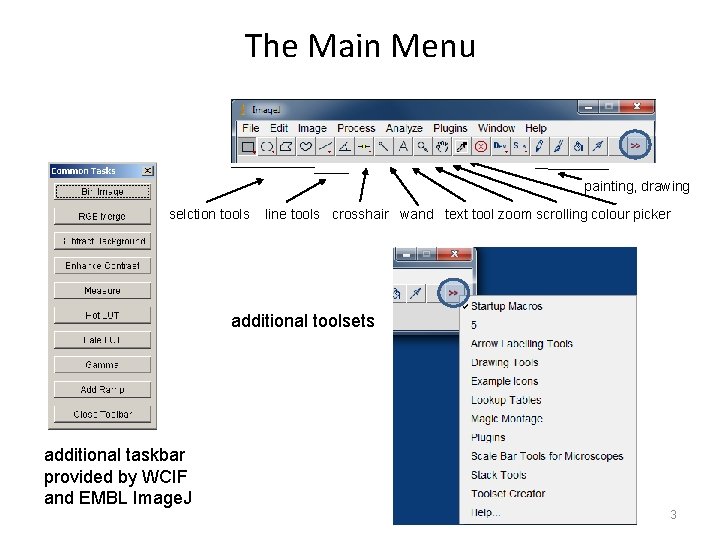
The Main Menu painting, drawing selction tools line tools crosshair wand text tool zoom scrolling colour picker additional toolsets additional taskbar provided by WCIF and EMBL Image. J 3
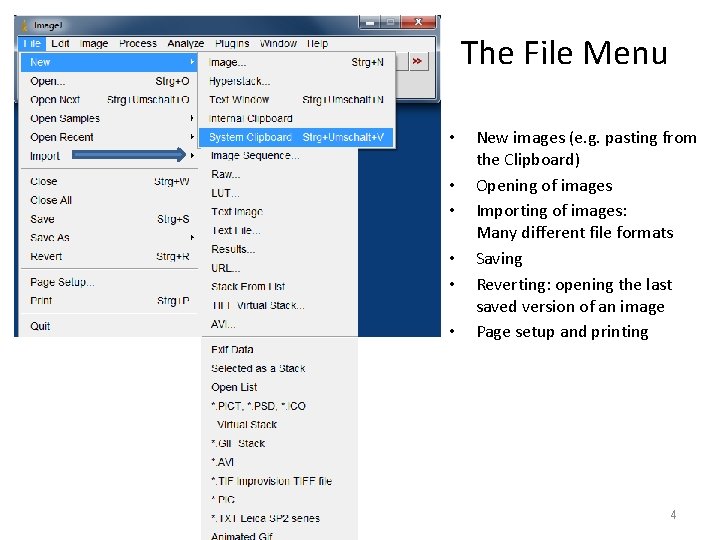
The File Menu • • • New images (e. g. pasting from the Clipboard) Opening of images Importing of images: Many different file formats Saving Reverting: opening the last saved version of an image Page setup and printing 4
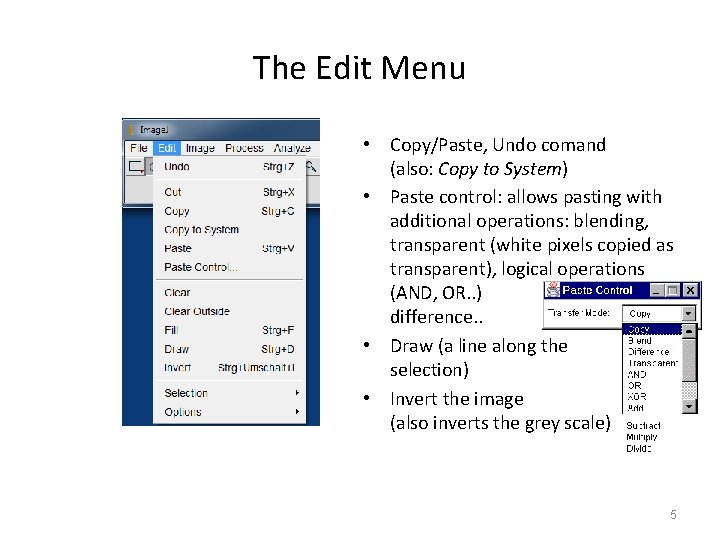
The Edit Menu • Copy/Paste, Undo comand (also: Copy to System) • Paste control: allows pasting with additional operations: blending, transparent (white pixels copied as transparent), logical operations (AND, OR. . ) difference. . • Draw (a line along the selection) • Invert the image (also inverts the grey scale) 5
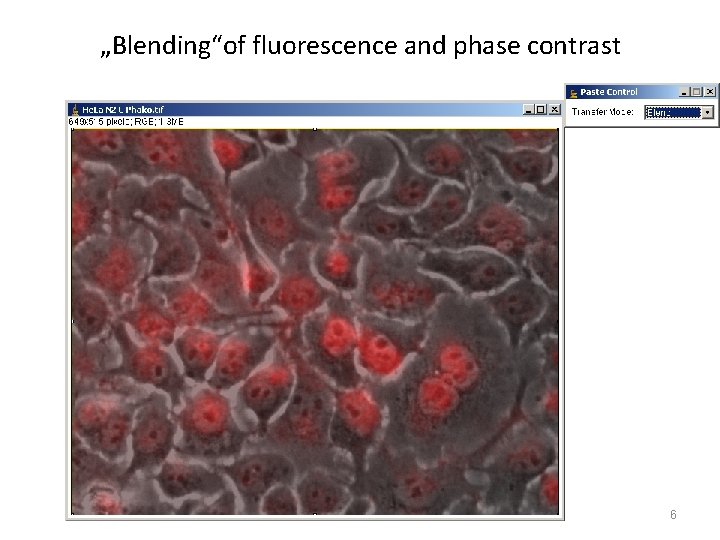
„Blending“of fluorescence and phase contrast 6
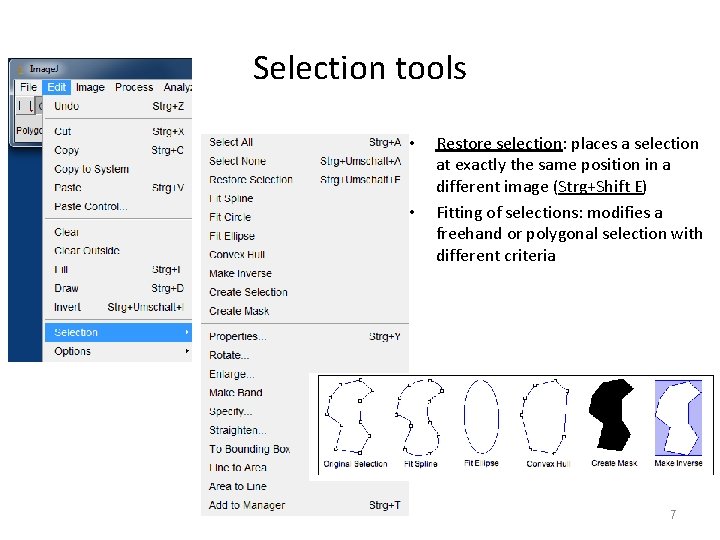
Selection tools • • Restore selection: places a selection at exactly the same position in a different image (Strg+Shift E) Fitting of selections: modifies a freehand or polygonal selection with different criteria 7
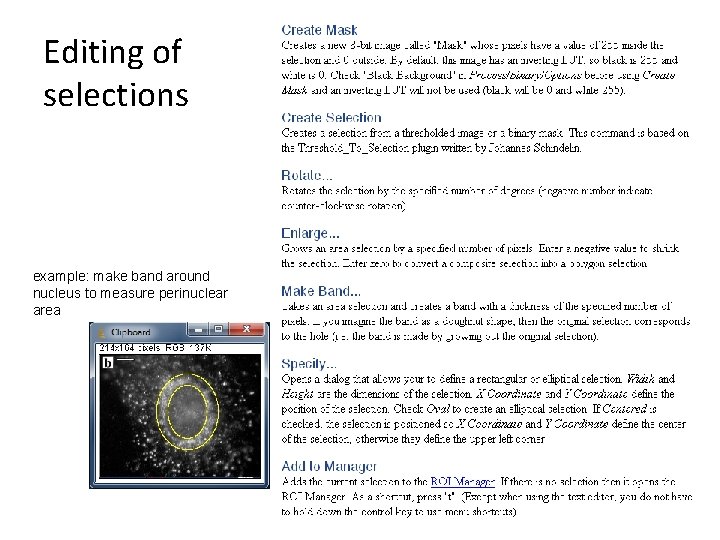
Editing of selections example: make band around nucleus to measure perinuclear area 8
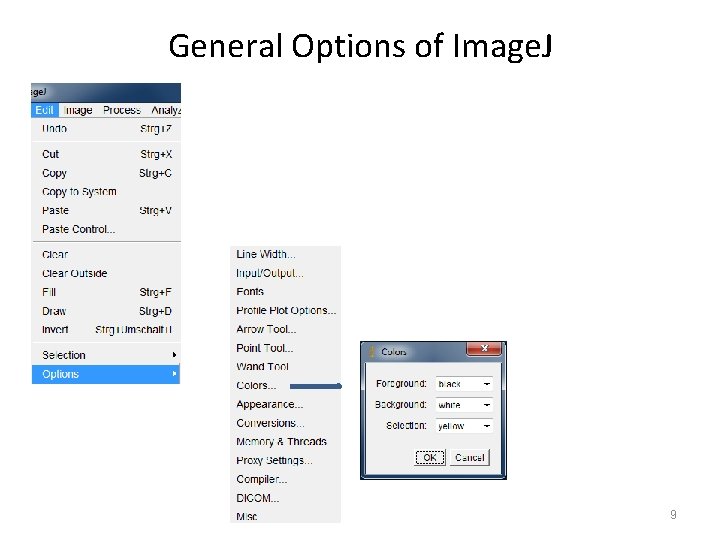
General Options of Image. J 9
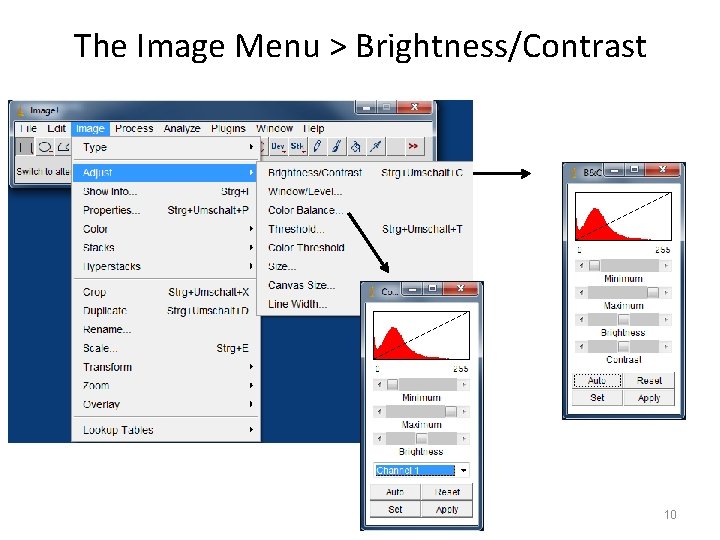
The Image Menu > Brightness/Contrast 10
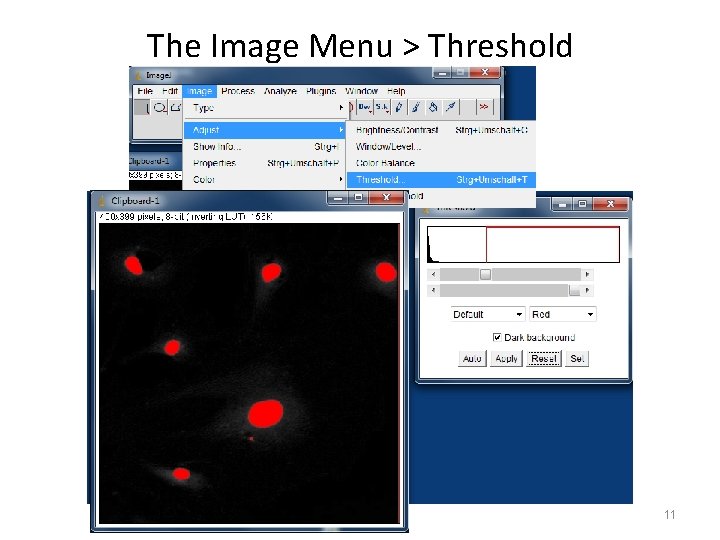
The Image Menu > Threshold 11
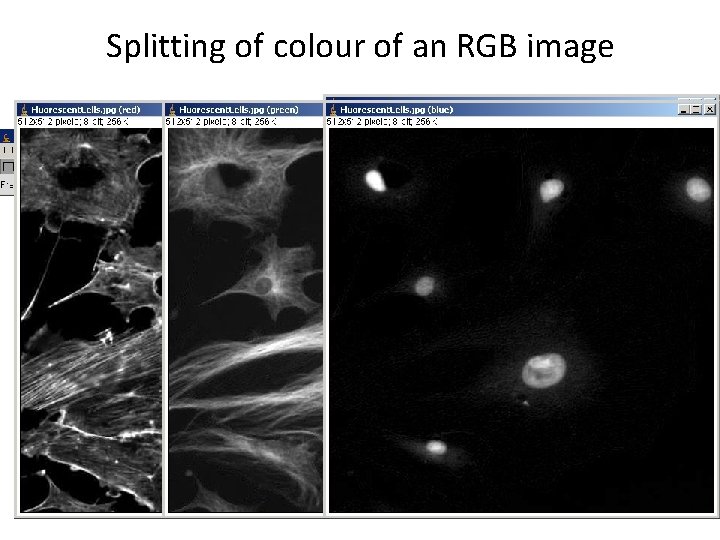
Splitting of colour of an RGB image 12
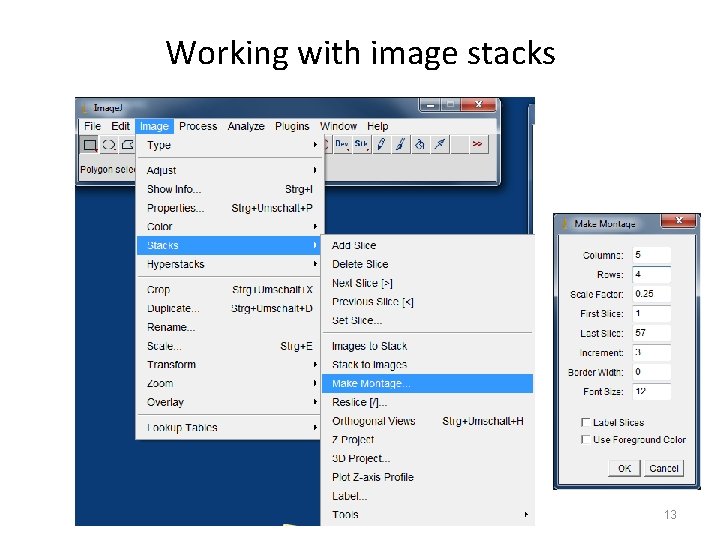
Working with image stacks 13
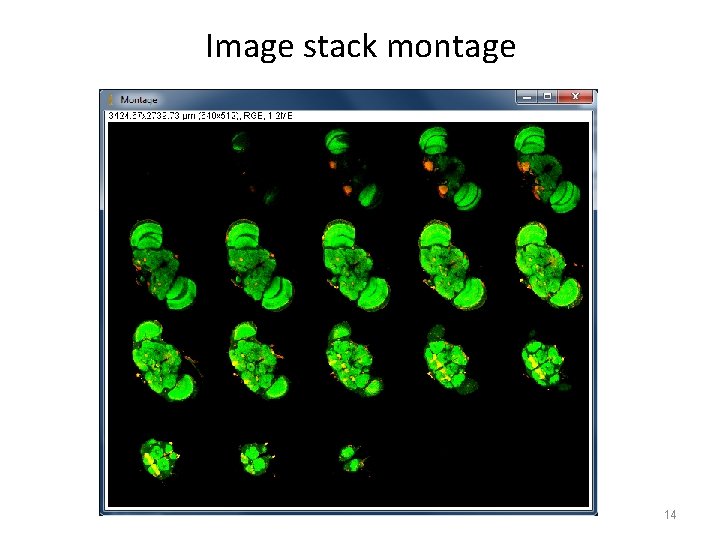
Image stack montage 14
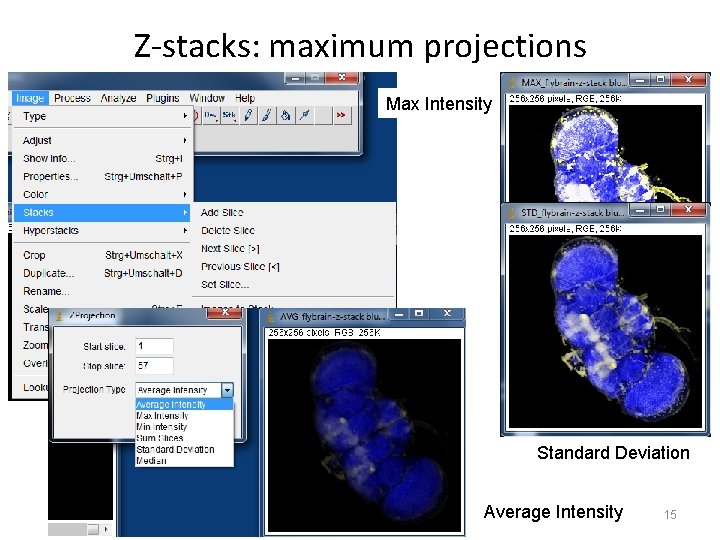
Z-stacks: maximum projections Max Intensity Standard Deviation Average Intensity 15
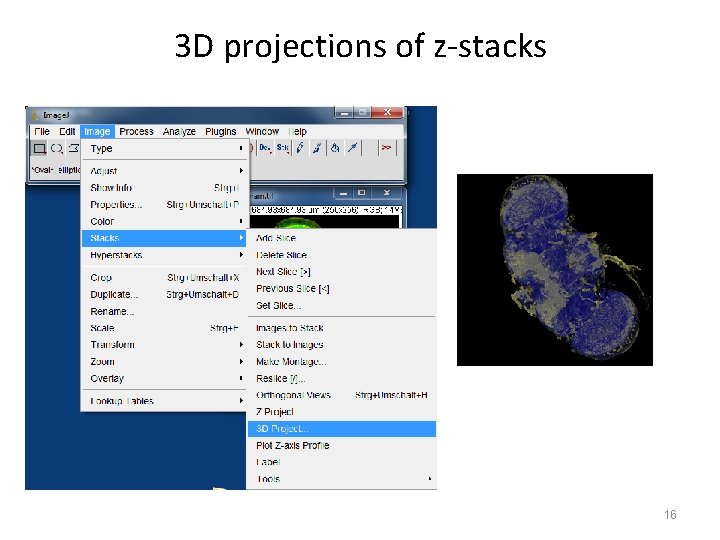
3 D projections of z-stacks 16
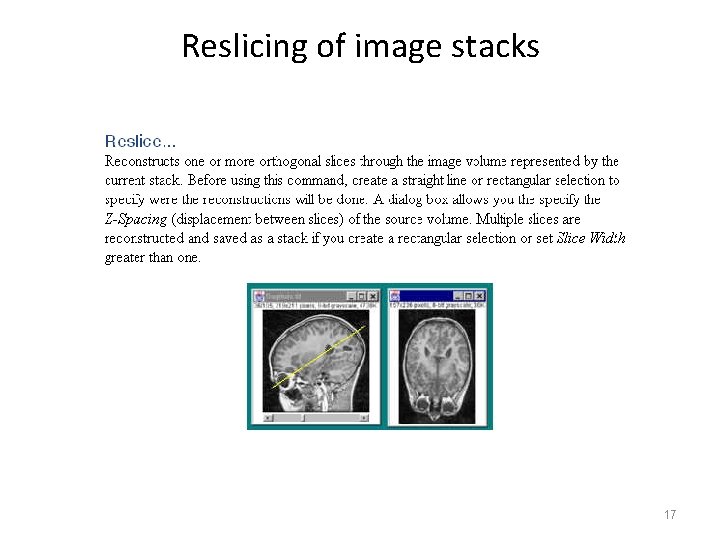
Reslicing of image stacks 17
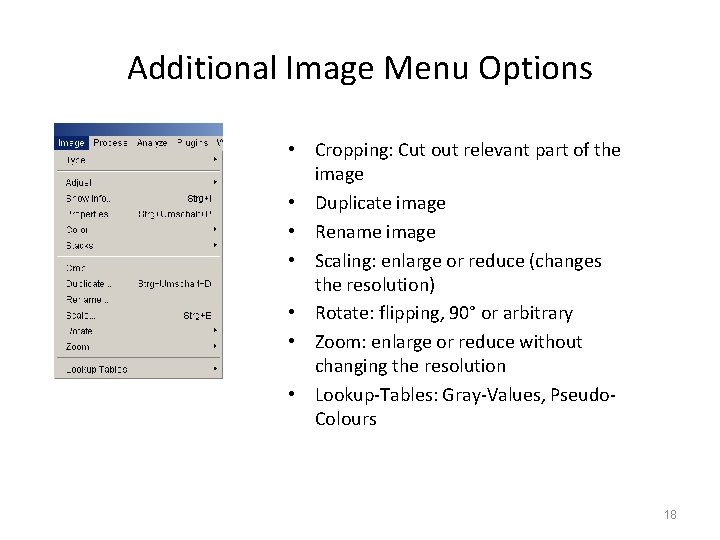
Additional Image Menu Options • Cropping: Cut out relevant part of the image • Duplicate image • Rename image • Scaling: enlarge or reduce (changes the resolution) • Rotate: flipping, 90° or arbitrary • Zoom: enlarge or reduce without changing the resolution • Lookup-Tables: Gray-Values, Pseudo. Colours 18
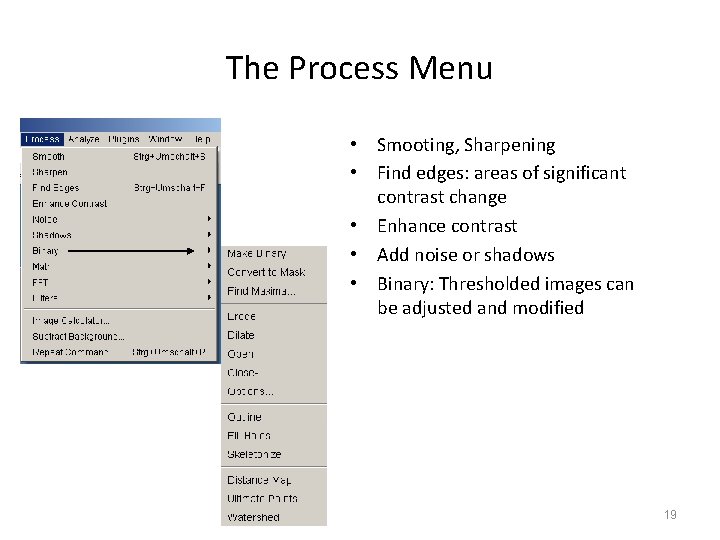
The Process Menu • Smooting, Sharpening • Find edges: areas of significant contrast change • Enhance contrast • Add noise or shadows • Binary: Thresholded images can be adjusted and modified 19
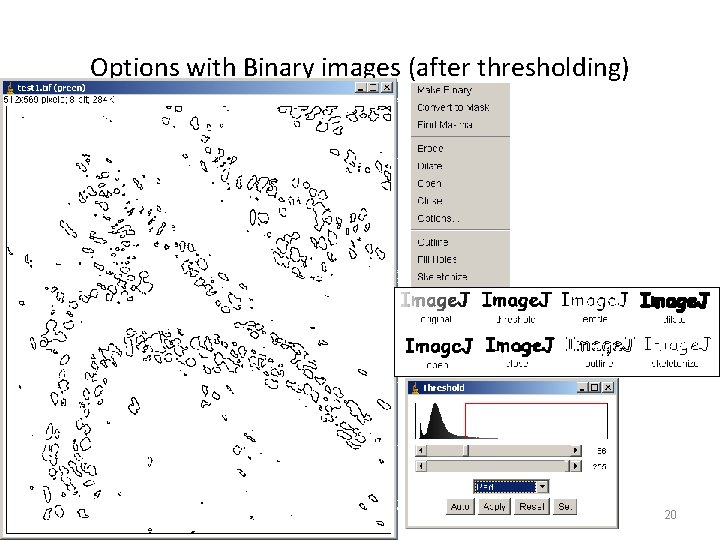
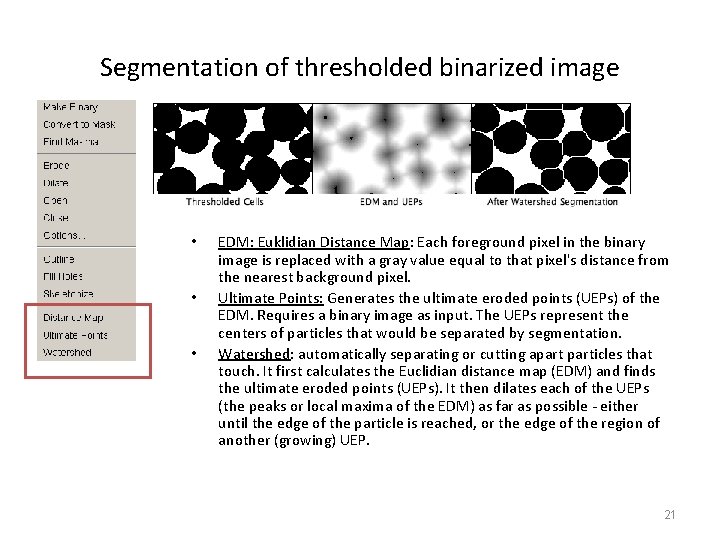
Options with Binary images (after thresholding) 20
Segmentation of thresholded binarized image • • • EDM: Euklidian Distance Map: Each foreground pixel in the binary image is replaced with a gray value equal to that pixel's distance from the nearest background pixel. Ultimate Points: Generates the ultimate eroded points (UEPs) of the EDM. Requires a binary image as input. The UEPs represent the centers of particles that would be separated by segmentation. Watershed: automatically separating or cutting aparticles that touch. It first calculates the Euclidian distance map (EDM) and finds the ultimate eroded points (UEPs). It then dilates each of the UEPs (the peaks or local maxima of the EDM) as far as possible - either until the edge of the particle is reached, or the edge of the region of another (growing) UEP. 21
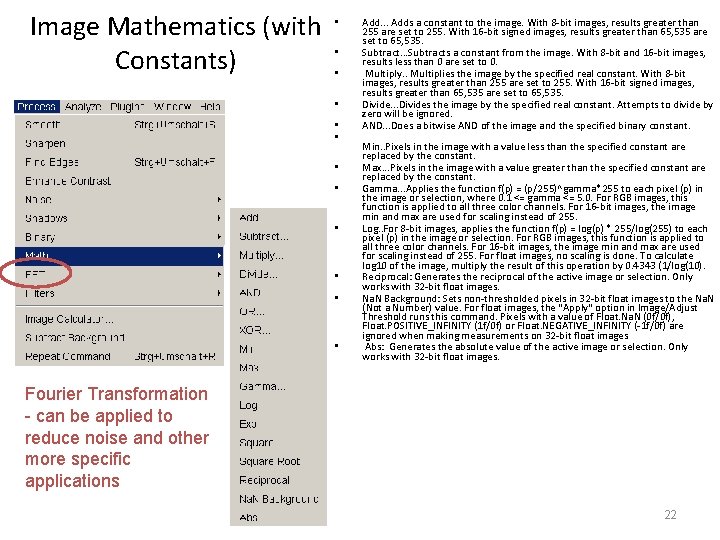
Image Mathematics (with Constants) • • • Add. . . Adds a constant to the image. With 8 -bit images, results greater than 255 are set to 255. With 16 -bit signed images, results greater than 65, 535 are set to 65, 535. Subtract. . . Subtracts a constant from the image. With 8 -bit and 16 -bit images, results less than 0 are set to 0. Multiply. . Multiplies the image by the specified real constant. With 8 -bit images, results greater than 255 are set to 255. With 16 -bit signed images, results greater than 65, 535 are set to 65, 535. Divide. . . Divides the image by the specified real constant. Attempts to divide by zero will be ignored. AND. . . Does a bitwise AND of the image and the specified binary constant. Min. . Pixels in the image with a value less than the specified constant are replaced by the constant. Max. . . Pixels in the image with a value greater than the specified constant are replaced by the constant. Gamma. . . Applies the function f(p) = (p/255)^gamma*255 to each pixel (p) in the image or selection, where 0. 1 <= gamma <= 5. 0. For RGB images, this function is applied to all three color channels. For 16 -bit images, the image min and max are used for scaling instead of 255. Log. . For 8 -bit images, applies the function f(p) = log(p) * 255/log(255) to each pixel (p) in the image or selection. For RGB images, this function is applied to all three color channels. For 16 -bit images, the image min and max are used for scaling instead of 255. For float images, no scaling is done. To calculate log 10 of the image, multiply the result of this operation by 0. 4343 (1/log(10). Reciprocal: Generates the reciprocal of the active image or selection. Only works with 32 -bit float images. Na. N Background: Sets non-thresholded pixels in 32 -bit float images to the Na. N (Not a Number) value. For float images, the "Apply" option in Image/Adjust Threshold runs this command. Pixels with a value of Float. Na. N (0 f/0 f), Float. POSITIVE_INFINITY (1 f/0 f) or Float. NEGATIVE_INFINITY (-1 f/0 f) are ignored when making measurements on 32 -bit float images Abs: Generates the absolute value of the active image or selection. Only works with 32 -bit float images. Fourier Transformation - can be applied to reduce noise and other more specific applications 22
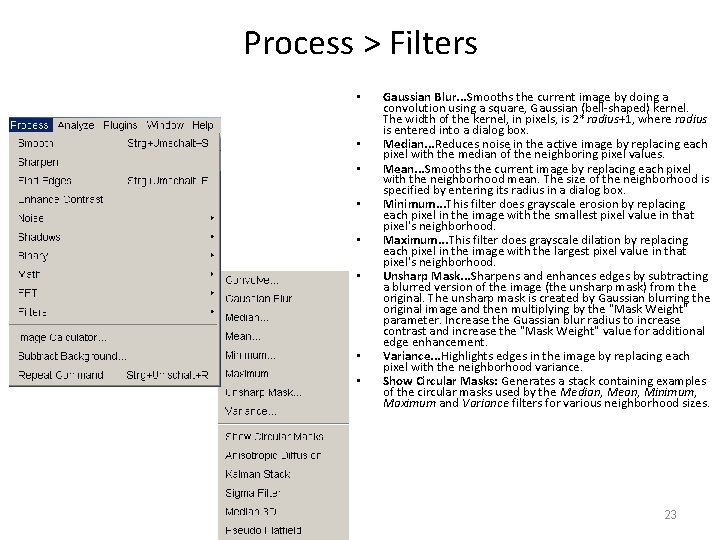
Process > Filters • • Gaussian Blur. . . Smooths the current image by doing a convolution using a square, Gaussian (bell-shaped) kernel. The width of the kernel, in pixels, is 2* radius+1, where radius is entered into a dialog box. Median. . . Reduces noise in the active image by replacing each pixel with the median of the neighboring pixel values. Mean. . . Smooths the current image by replacing each pixel with the neighborhood mean. The size of the neighborhood is specified by entering its radius in a dialog box. Minimum. . . This filter does grayscale erosion by replacing each pixel in the image with the smallest pixel value in that pixel's neighborhood. Maximum. . . This filter does grayscale dilation by replacing each pixel in the image with the largest pixel value in that pixel's neighborhood. Unsharp Mask. . . Sharpens and enhances edges by subtracting a blurred version of the image (the unsharp mask) from the original. The unsharp mask is created by Gaussian blurring the original image and then multiplying by the "Mask Weight" parameter. Increase the Guassian blur radius to increase contrast and increase the "Mask Weight" value for additional edge enhancement. Variance. . . Highlights edges in the image by replacing each pixel with the neighborhood variance. Show Circular Masks: Generates a stack containing examples of the circular masks used by the Median, Mean, Minimum, Maximum and Variance filters for various neighborhood sizes. 23
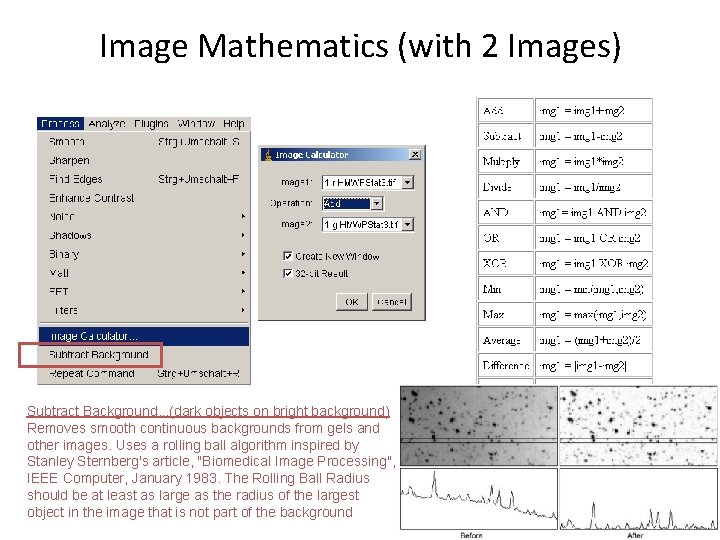
Image Mathematics (with 2 Images) Subtract Background. . . (dark objects on bright background) Removes smooth continuous backgrounds from gels and other images. Uses a rolling ball algorithm inspired by Stanley Sternberg's article, "Biomedical Image Processing", IEEE Computer, January 1983. The Rolling Ball Radius should be at least as large as the radius of the largest object in the image that is not part of the background 24
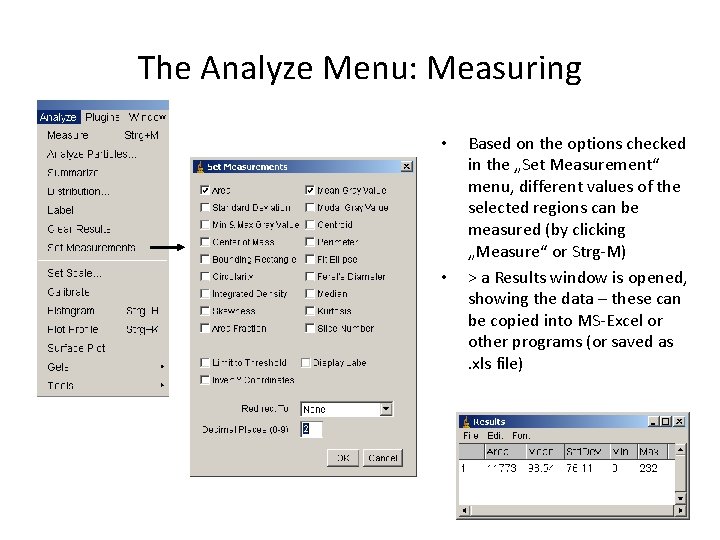
The Analyze Menu: Measuring • • Based on the options checked in the „Set Measurement“ menu, different values of the selected regions can be measured (by clicking „Measure“ or Strg-M) > a Results window is opened, showing the data – these can be copied into MS-Excel or other programs (or saved as. xls file) 25
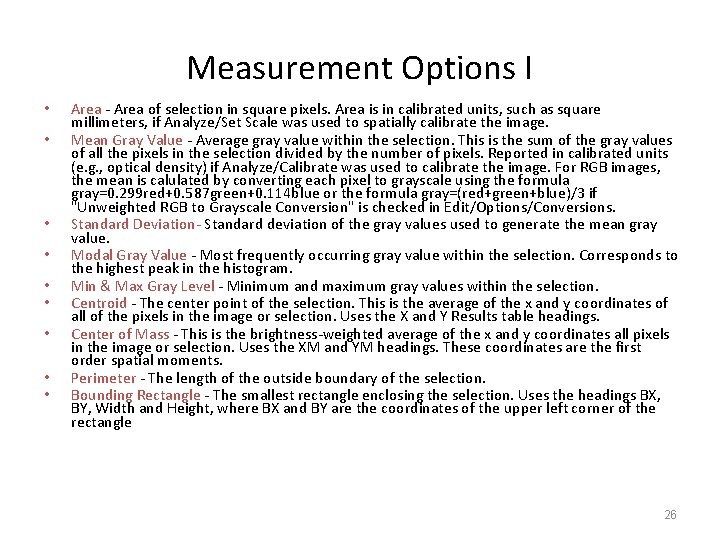
Measurement Options I • • • Area - Area of selection in square pixels. Area is in calibrated units, such as square millimeters, if Analyze/Set Scale was used to spatially calibrate the image. Mean Gray Value - Average gray value within the selection. This is the sum of the gray values of all the pixels in the selection divided by the number of pixels. Reported in calibrated units (e. g. , optical density) if Analyze/Calibrate was used to calibrate the image. For RGB images, the mean is calulated by converting each pixel to grayscale using the formula gray=0. 299 red+0. 587 green+0. 114 blue or the formula gray=(red+green+blue)/3 if "Unweighted RGB to Grayscale Conversion" is checked in Edit/Options/Conversions. Standard Deviation- Standard deviation of the gray values used to generate the mean gray value. Modal Gray Value - Most frequently occurring gray value within the selection. Corresponds to the highest peak in the histogram. Min & Max Gray Level - Minimum and maximum gray values within the selection. Centroid - The center point of the selection. This is the average of the x and y coordinates of all of the pixels in the image or selection. Uses the X and Y Results table headings. Center of Mass - This is the brightness-weighted average of the x and y coordinates all pixels in the image or selection. Uses the XM and YM headings. These coordinates are the first order spatial moments. Perimeter - The length of the outside boundary of the selection. Bounding Rectangle - The smallest rectangle enclosing the selection. Uses the headings BX, BY, Width and Height, where BX and BY are the coordinates of the upper left corner of the rectangle 26
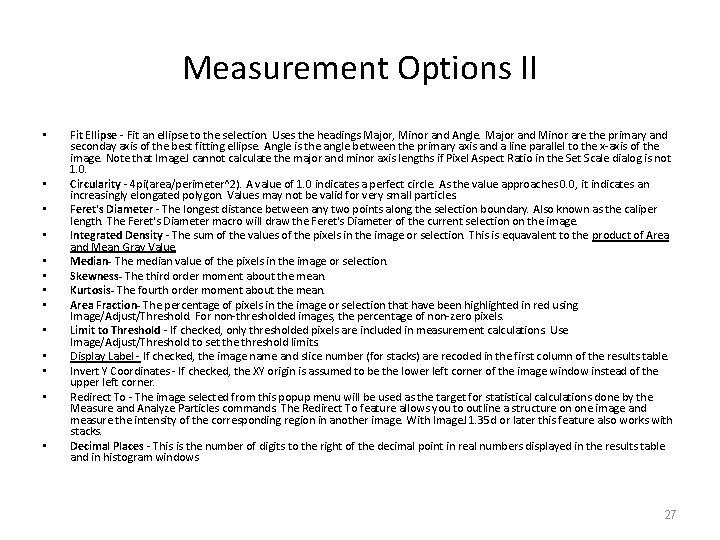
Measurement Options II • • • • Fit Ellipse - Fit an ellipse to the selection. Uses the headings Major, Minor and Angle. Major and Minor are the primary and seconday axis of the best fitting ellipse. Angle is the angle between the primary axis and a line parallel to the x-axis of the image. Note that Image. J cannot calculate the major and minor axis lengths if Pixel Aspect Ratio in the Set Scale dialog is not 1. 0. Circularity - 4 pi(area/perimeter^2). A value of 1. 0 indicates a perfect circle. As the value approaches 0. 0, it indicates an increasingly elongated polygon. Values may not be valid for very small particles. Feret's Diameter - The longest distance between any two points along the selection boundary. Also known as the caliper length. The Feret's Diameter macro will draw the Feret's Diameter of the current selection on the image. Integrated Density - The sum of the values of the pixels in the image or selection. This is equavalent to the product of Area and Mean Gray Value. Median- The median value of the pixels in the image or selection. Skewness- The third order moment about the mean. Kurtosis- The fourth order moment about the mean. Area Fraction- The percentage of pixels in the image or selection that have been highlighted in red using Image/Adjust/Threshold. For non-thresholded images, the percentage of non-zero pixels. Limit to Threshold - If checked, only thresholded pixels are included in measurement calculations. Use Image/Adjust/Threshold to set the threshold limits. Display Label - If checked, the image name and slice number (for stacks) are recoded in the first column of the results table. Invert Y Coordinates - If checked, the XY origin is assumed to be the lower left corner of the image window instead of the upper left corner. Redirect To - The image selected from this popup menu will be used as the target for statistical calculations done by the Measure and Analyze Particles commands. The Redirect To feature allows you to outline a structure on one image and measure the intensity of the corresponding region in another image. With Image. J 1. 35 d or later this feature also works with stacks. Decimal Places - This is the number of digits to the right of the decimal point in real numbers displayed in the results table and in histogram windows 27
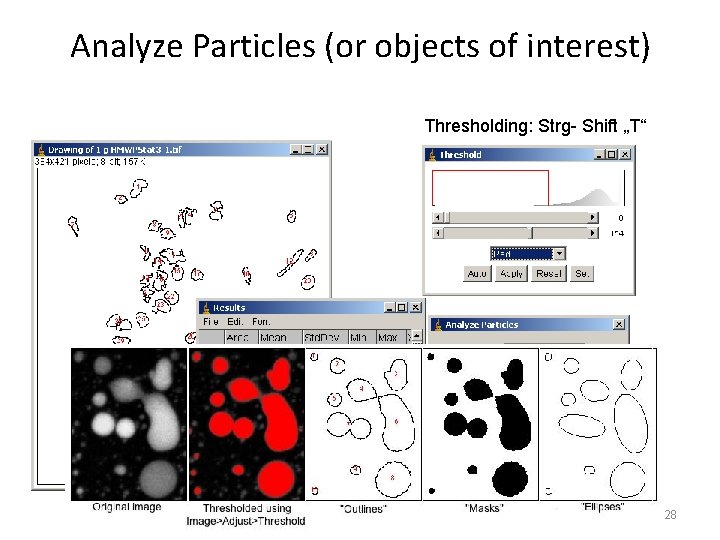
Analyze Particles (or objects of interest) Thresholding: Strg- Shift „T“ 28
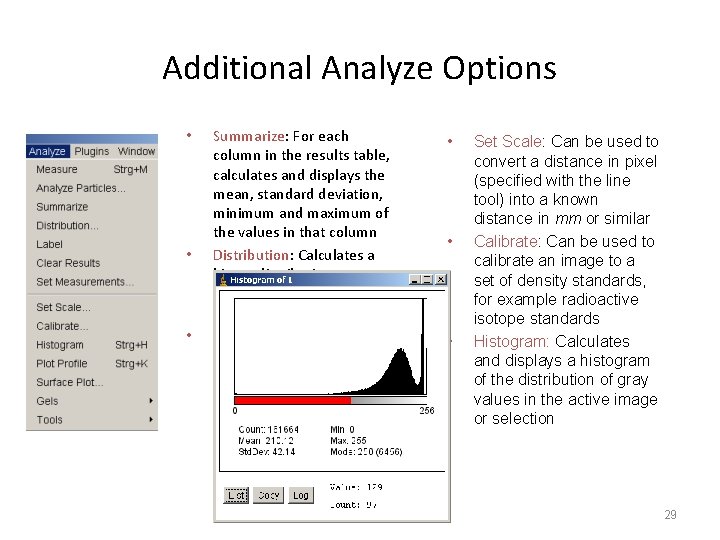
Additional Analyze Options • • • Summarize: For each column in the results table, calculates and displays the mean, standard deviation, minimum and maximum of the values in that column Distribution: Calculates a binary distribution (histogram) for a list of results Label: labels the analyzed objects in the image (“Centroid” option has to be checked in “Set Measurements” options) • • • Set Scale: Can be used to convert a distance in pixel (specified with the line tool) into a known distance in mm or similar Calibrate: Can be used to calibrate an image to a set of density standards, for example radioactive isotope standards Histogram: Calculates and displays a histogram of the distribution of gray values in the active image or selection 29
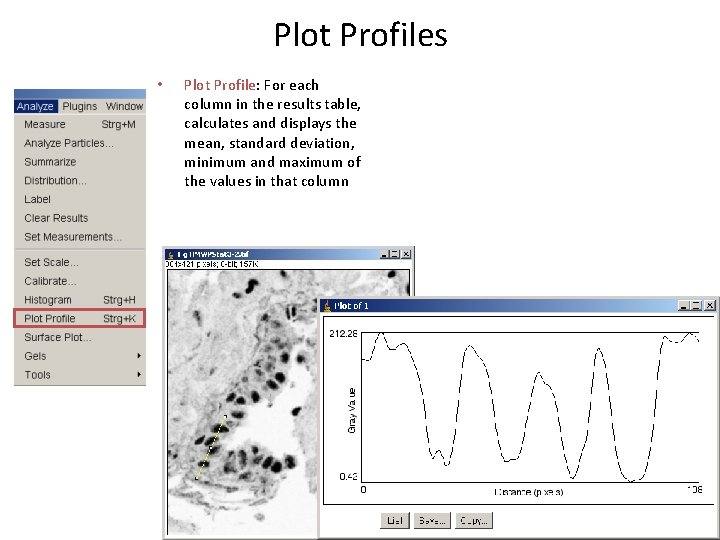
Plot Profiles • Plot Profile: For each column in the results table, calculates and displays the mean, standard deviation, minimum and maximum of the values in that column 30
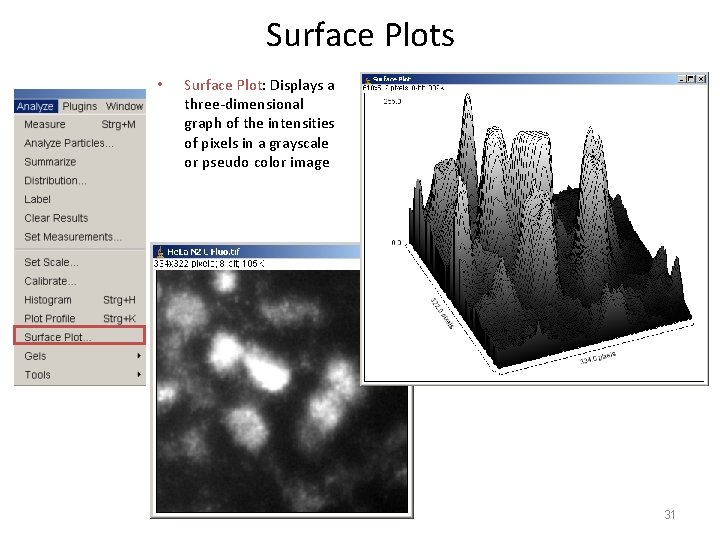
Surface Plots • Surface Plot: Displays a three-dimensional graph of the intensities of pixels in a grayscale or pseudo color image 31
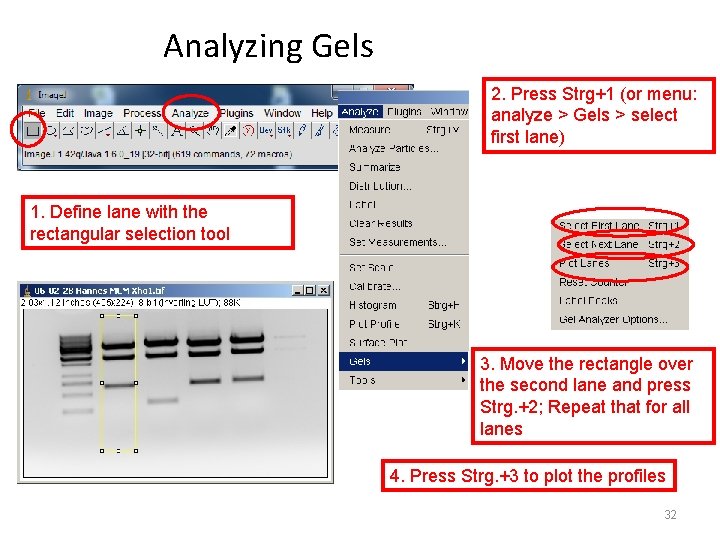
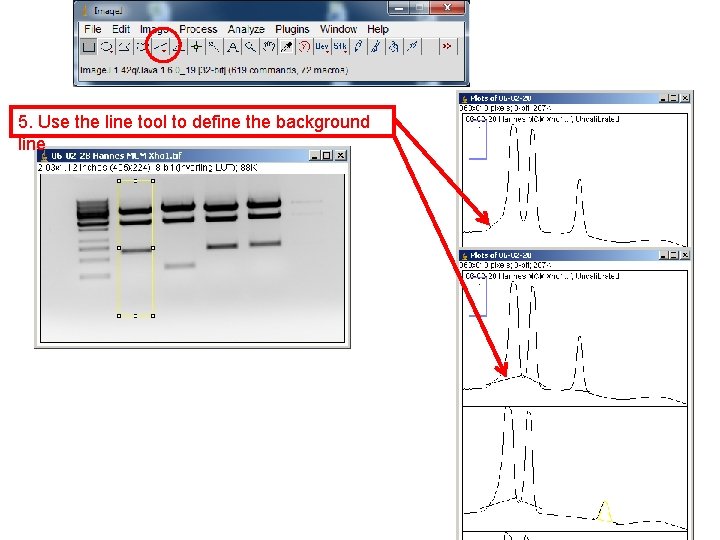
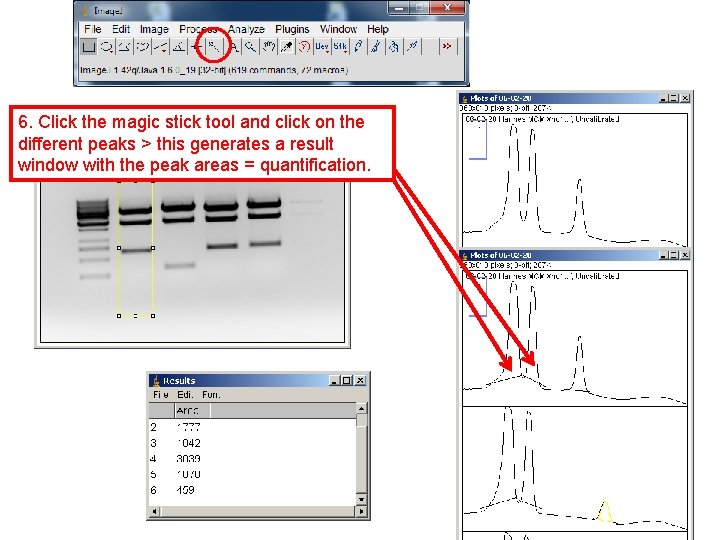
Analyzing Gels 2. Press Strg+1 (or menu: analyze > Gels > select first lane) 1. Define lane with the rectangular selection tool 3. Move the rectangle over the second lane and press Strg. +2; Repeat that for all lanes 4. Press Strg. +3 to plot the profiles 32
Analyzing Gels 5. Use the line tool to define the background line 33
Analyzing Gels 6. Click the magic stick tool and click on the different peaks > this generates a result window with the peak areas = quantification. 34
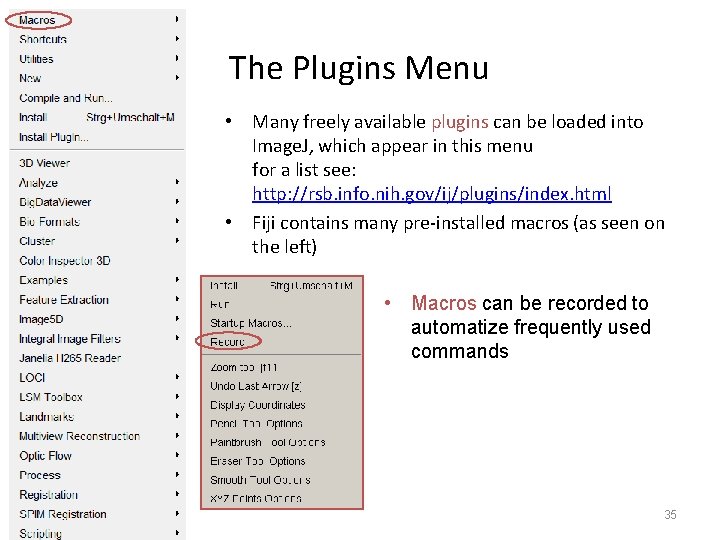
The Plugins Menu • Many freely available plugins can be loaded into Image. J, which appear in this menu for a list see: http: //rsb. info. nih. gov/ij/plugins/index. html • Fiji contains many pre-installed macros (as seen on the left) • Macros can be recorded to automatize frequently used commands 35
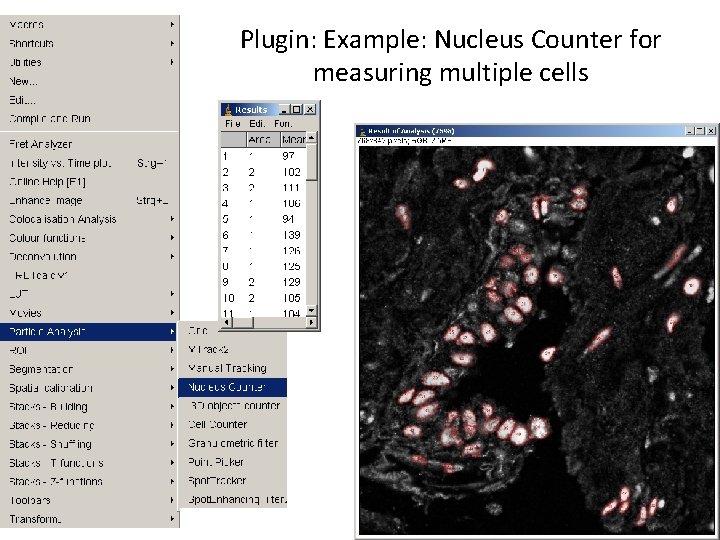
Plugin: Example: Nucleus Counter for measuring multiple cells 36
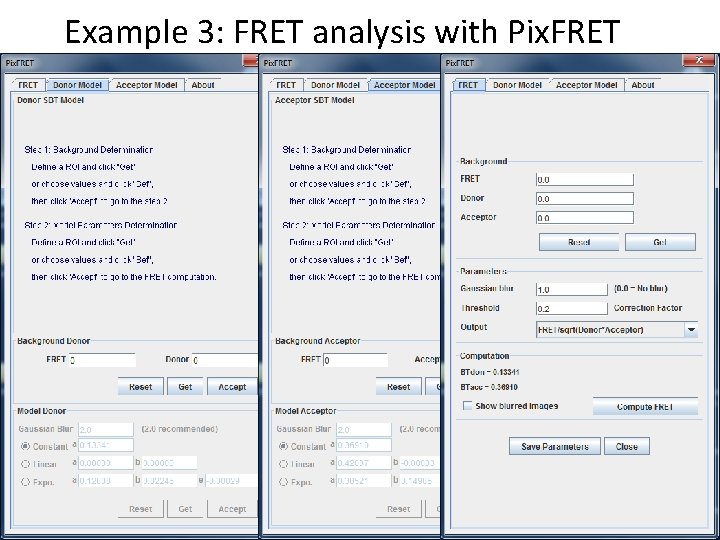
Example 3: FRET analysis with Pix. FRET 37
Fiji 38
MBF-Image. J 39
Montpellier Rio Imaging Add-in 40