
Image Editing 2 01 UNDERSTAND DIGITAL RASTER GRAPHICS
- Slides: 30
Image Editing 2. 01 UNDERSTAND DIGITAL RASTER GRAPHICS
Essential Questions: What are the appropriate units of measurement, color mode, and resolution for raster graphics? What are the characteristics of the different raster file formats? How do you edit and manipulate raster graphics?
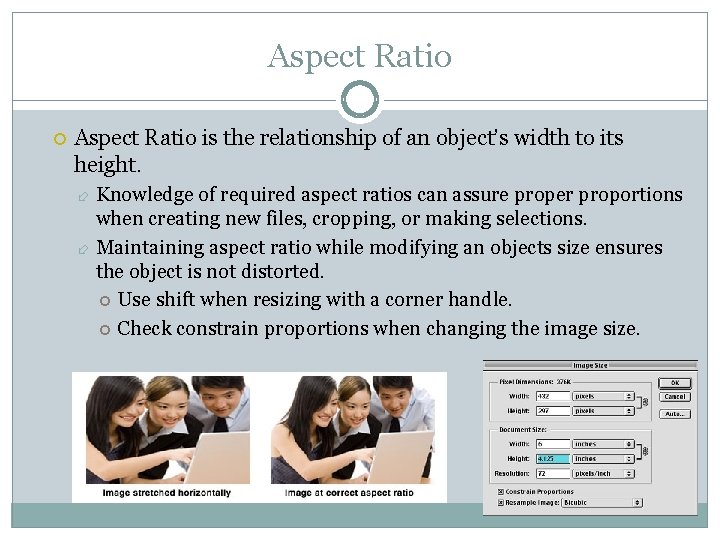
Aspect Ratio is the relationship of an object’s width to its height. Knowledge of required aspect ratios can assure proper proportions when creating new files, cropping, or making selections. Maintaining aspect ratio while modifying an objects size ensures the object is not distorted. Use shift when resizing with a corner handle. Check constrain proportions when changing the image size.
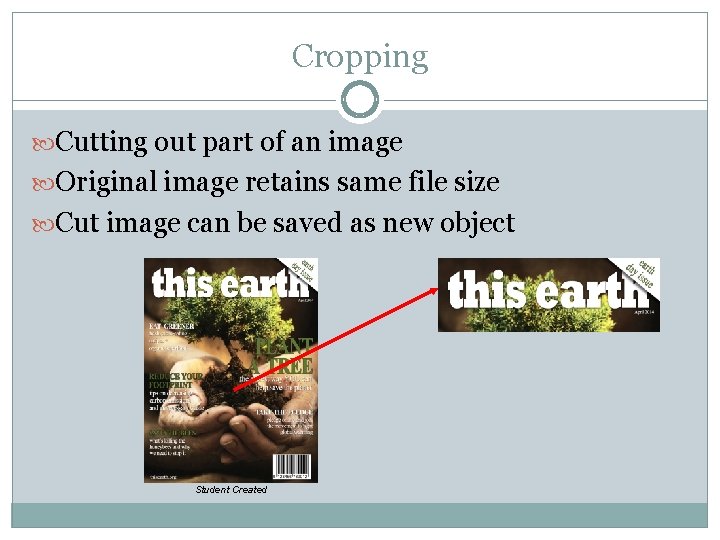
Cropping Cutting out part of an image Original image retains same file size Cut image can be saved as new object Student Created
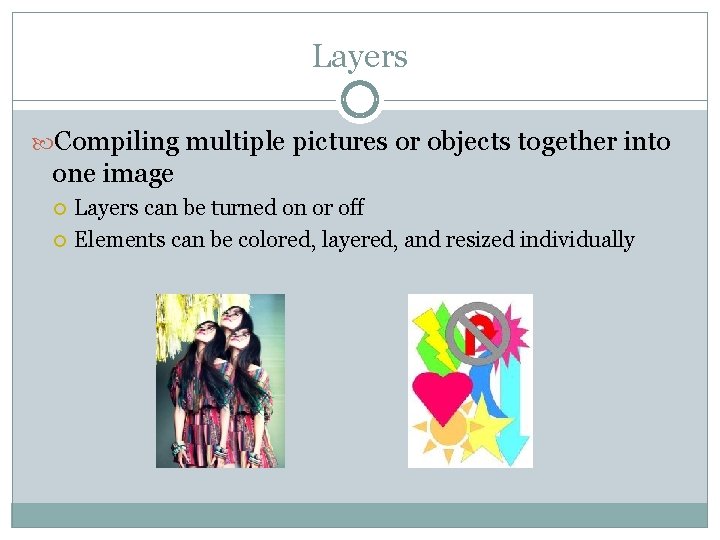
Layers Compiling multiple pictures or objects together into one image Layers can be turned on or off Elements can be colored, layered, and resized individually
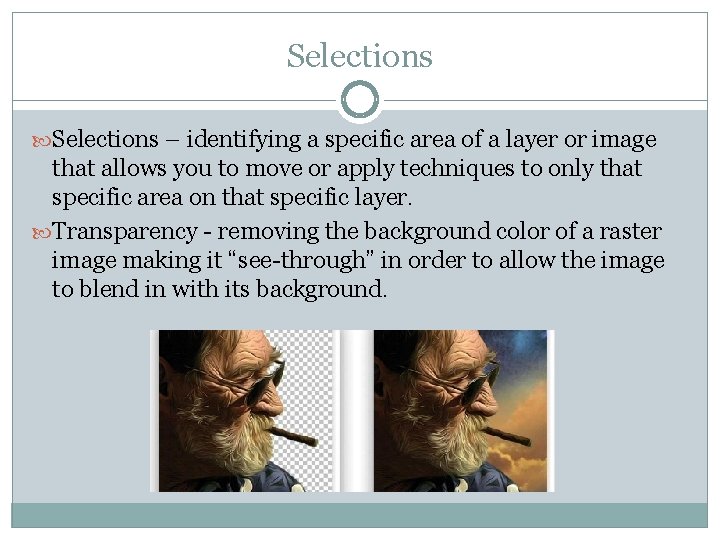
Selections – identifying a specific area of a layer or image that allows you to move or apply techniques to only that specific area on that specific layer. Transparency - removing the background color of a raster image making it “see-through” in order to allow the image to blend in with its background.
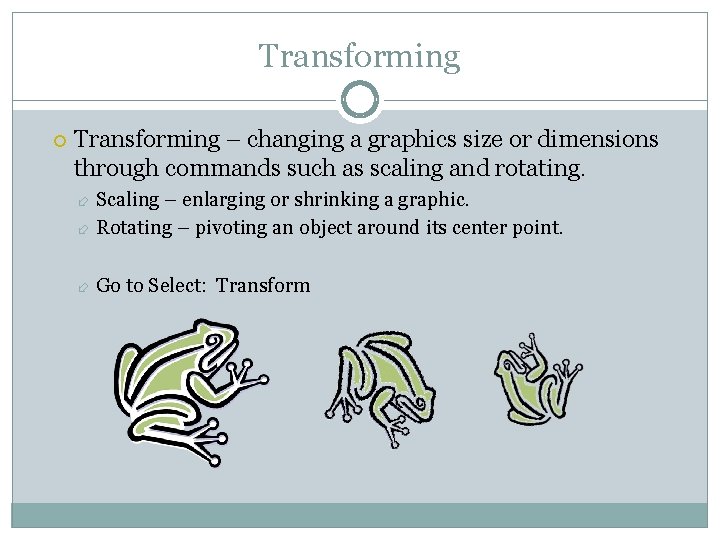
Transforming – changing a graphics size or dimensions through commands such as scaling and rotating. Scaling – enlarging or shrinking a graphic. Rotating – pivoting an object around its center point. Go to Select: Transform
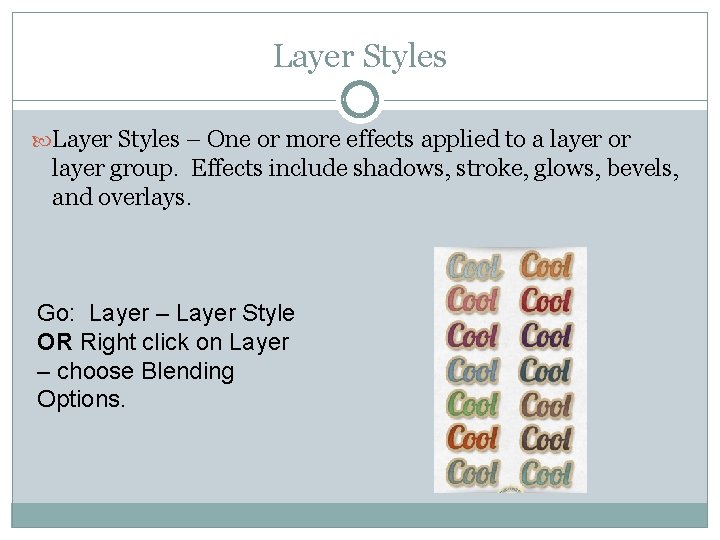
Layer Styles – One or more effects applied to a layer or layer group. Effects include shadows, stroke, glows, bevels, and overlays. Go: Layer – Layer Style OR Right click on Layer – choose Blending Options.
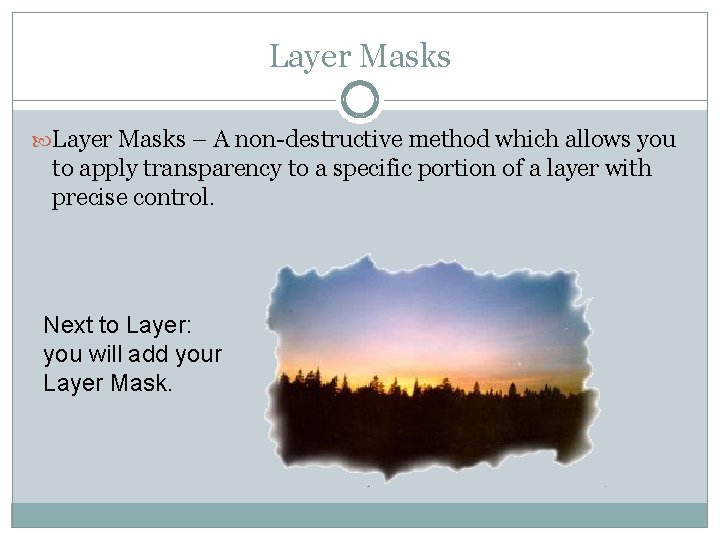
Layer Masks – A non-destructive method which allows you to apply transparency to a specific portion of a layer with precise control. Next to Layer: you will add your Layer Mask.
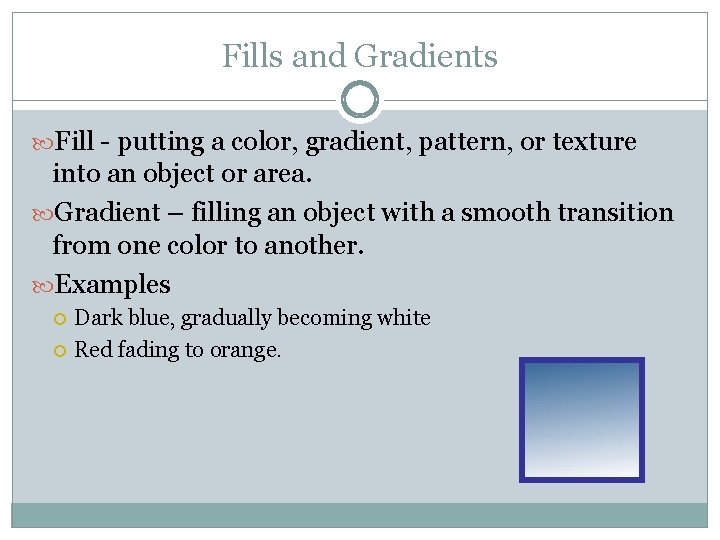
Fills and Gradients Fill - putting a color, gradient, pattern, or texture into an object or area. Gradient – filling an object with a smooth transition from one color to another. Examples Dark blue, gradually becoming white Red fading to orange.
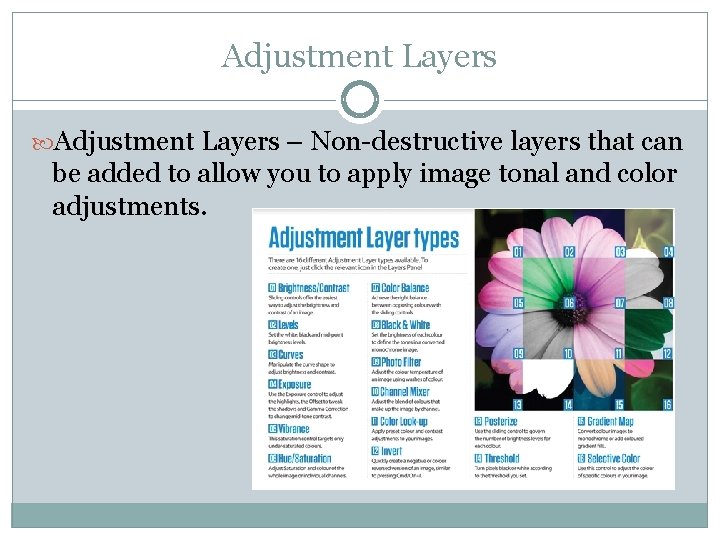
Adjustment Layers – Non-destructive layers that can be added to allow you to apply image tonal and color adjustments.
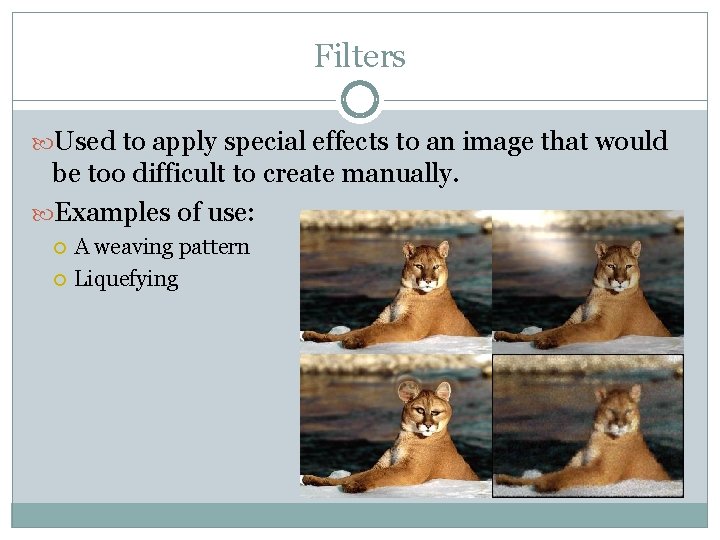
Filters Used to apply special effects to an image that would be too difficult to create manually. Examples of use: A weaving pattern Liquefying
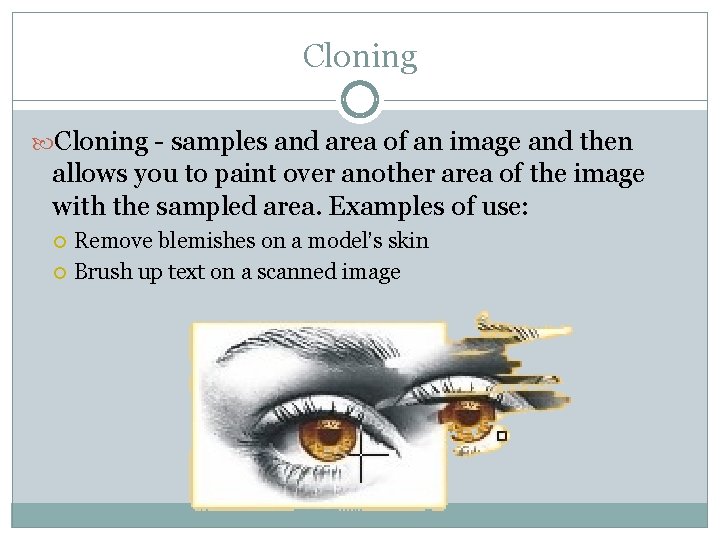
Cloning - samples and area of an image and then allows you to paint over another area of the image with the sampled area. Examples of use: Remove blemishes on a model’s skin Brush up text on a scanned image
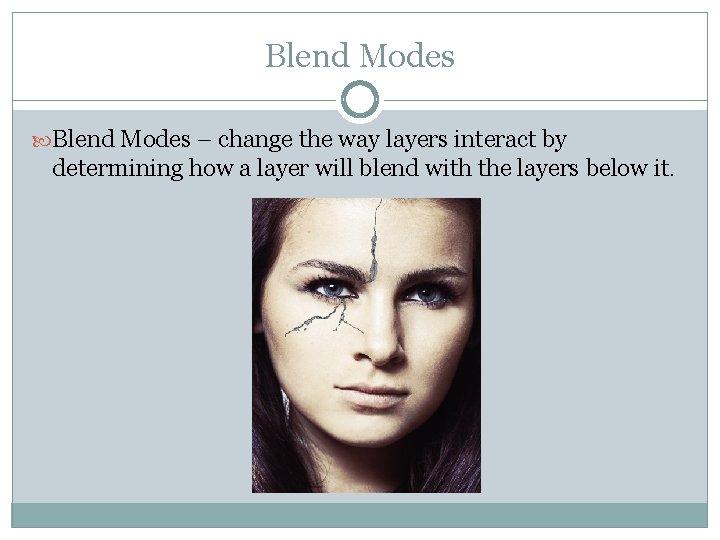
Blend Modes – change the way layers interact by determining how a layer will blend with the layers below it.
Elements Question: A bride wants the photographer to make some of her wedding photos black and white. Which image editing technique should the photographer use? A. Adjustment Layer B. Cropping C. Aspect Ratio D. Transparency
Elements Question: A student would like to remove a stranger from the edge of a beach photo. Which image editing technique should she use? A. Adjustment Layer B. Cropping C. Filters D. Transparency
Elements Question: Janice created a collage of her friends for a school project. She used individual pictures of each friend to create one picture. Which editing feature did she use? A. Cloning B. Scaling C. Layering D. Rotating
Elements Question: A photographer would like to apply a brick wall texture to the background of a photo. What image editing technique should be used? A. Fill B. Clone Stamp C. Adjustment Layer D. Blend Mode
Elements Question: Jack would like to apply a stained glass effect to his photograph. Which image editing technique should he use? A. Adjustment Layer B. Cropping C. Filters D. Transparency
Elements Question: A student needs to reduce the size of a object in his graphic design project. Which image editing technique should he use? A. Scaling B. Layering C. Fill D. Gradient
What have you learned? What is aspect ratio? What is adjustment What is cropping? layers? What are filters? What is cloning? What is blend modes? What is layers? What is selection? What is transforming? What is layer styles? What is layer masks? What is fills and gradients?
Cropping and Aspect Ratio Canvas Files Needed: Tiger, Orange background. Assignment for today: Find picture and background of your choice. Use template to create your project
Missing Assignments 1. 01 Song Lyrics: Alexis Constitution Day: Alexis, Bradley 2. 02 Image Trace: Alexis, Kaiya (maybe) 2. 02 Drawing Tools: Alexis (yes), Kaiya, 2. 02 Pathfinder: Alexis (yes), Bradley, Kaiya, Marlin (yes) , Jackson (yes) 2. 02 Quiz: Kaiya (yes) Progress Reports: Jeffrey, Alexis, Asia, Joshua
Masking Incongrous Image 2. 01 Masking-Incongrous Image Retrieve images from Canvas Files – 2. 01 Information – Masking Assignment: Find images of your choice to create a different picture. Use images that would normally not go together but when finished look like they belong together. Choose correctly. Must use 3 or more images.
Selective Saturation As a class, we will create a sample ecotourism poster In Canvas – Under Saturation, get image 2. 01 Selective Saturation Ecotourism Poster
Working with Filters 2. 01 Working with Filters-The World's Greatest
Retouching & Blend Modes: As a class, we will take a photo and do a digital makeover. Go to Canvas – Retouching files – retrieve image 2. 01 Retouching & Blend Modes - Digital Makeover
2. 01 Layer styles Activity
Activity & Magazine Cover 2. 01 Image Editing Matching Activity 2. 01 Design a Magazine Cover 2. 01 Create a Magazine Cover Client Questionnaire
Museum Prints ***Just for Fun: Create a collection of paintings for a famous artist at the museum. Use Template from Canvas – Museum Place prints onto the wall of the museum Must make prints look realistic on each wall.