
IFR COM120 B Training Program 1 st Jan
IFR COM-120 B Training Program 1 st Jan 01 advancing wireless test

2 1 st Jan 01 advancing wireless test
3 Course Outline n n n 1 st Jan 01 Basic Instrument Front Panel Connections Rear Panel Connections Navigation RF Generator Screen Zooming Meter Functions Receiver Screen Duplex Operation Scope Spectrum Analyzer Tracking Generator Applications n n n Stored Setups Stored Frequency List Memory System Storing and Retrieving Images PCMCIA Card Slot Printing and Capturing EDACS BER Applications Library Easy. Span for Windows Easy. Sweep advancing wireless test
4 COM-120 B Basic Instrument n n n n n 1 st Jan 01 250 k. Hz to 1 GHz Full Featured Service Monitor RF Signal Generator Sensitive 2 u. V Receiver Cross Band Duplex High Speed Digitized Spectrum Analyzer High Speed Digitized Scope Generate and Demod FM, AM, PM AC, Battery and Ext. DC operation 38. 5 lbs. advancing wireless test
5 COM-120 B Standard Features n n n n n 1 st Jan 01 RF Signal Generator l Output Level +13 to -130 0. 2 PPM TCXO 2 u. V Receiver with 15, 30 and 300 k. Hz IF filters 50 k. Hz Scope Full band / Dual Mode Spectrum Analyzer Digital Voltmeter Audio Level Meter Dual Audio Function Generators Data Generator DCS, DCS INV DTMF Generator n n n Encode / Decode l DCS, DTMF, CTCSS RF Frequency Error Meter and Counter FM Deviation Meter AM Modulation Meter Phase Modulation Meter Audio Frequency Counter RF Power Meter (2 m. W - 200 W) l 50 W Continuous RF Level Meter Distortion Meter SINAD Meter RS-232 advancing wireless test
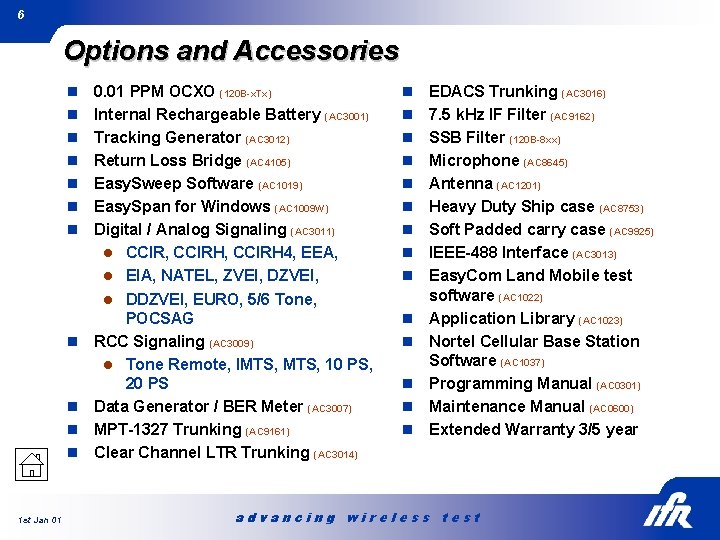
6 Options and Accessories n n n 1 st Jan 01 0. 01 PPM OCXO (120 B-x. Tx) Internal Rechargeable Battery (AC 3001) Tracking Generator (AC 3012) Return Loss Bridge (AC 4105) Easy. Sweep Software (AC 1019) Easy. Span for Windows (AC 1009 W) Digital / Analog Signaling (AC 3011) l CCIR, CCIRH 4, EEA, l EIA, NATEL, ZVEI, DZVEI, l DDZVEI, EURO, 5/6 Tone, POCSAG RCC Signaling (AC 3009) l Tone Remote, IMTS, 10 PS, 20 PS Data Generator / BER Meter (AC 3007) MPT-1327 Trunking (AC 9161) Clear Channel LTR Trunking (AC 3014) n n n n EDACS Trunking (AC 3016) 7. 5 k. Hz IF Filter (AC 9162) SSB Filter (120 B-8 xx) Microphone (AC 8645) Antenna (AC 1201) Heavy Duty Ship case (AC 8753) Soft Padded carry case (AC 9925) IEEE-488 Interface (AC 3013) Easy. Com Land Mobile test software (AC 1022) Application Library (AC 1023) Nortel Cellular Base Station Software (AC 1037) Programming Manual (AC 0301) Maintenance Manual (AC 0600) Extended Warranty 3/5 year advancing wireless test
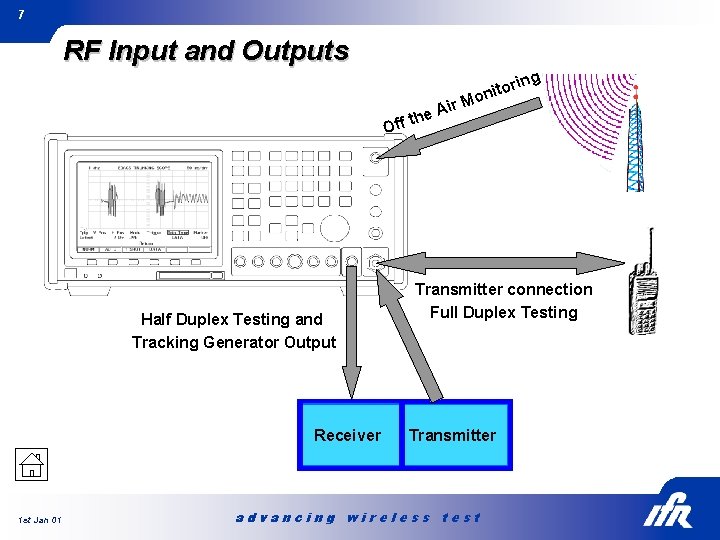
7 RF Input and Outputs ing r o t oni ir M A he t Off Half Duplex Testing and Tracking Generator Output Receiver 1 st Jan 01 Transmitter connection Full Duplex Testing Transmitter advancing wireless test
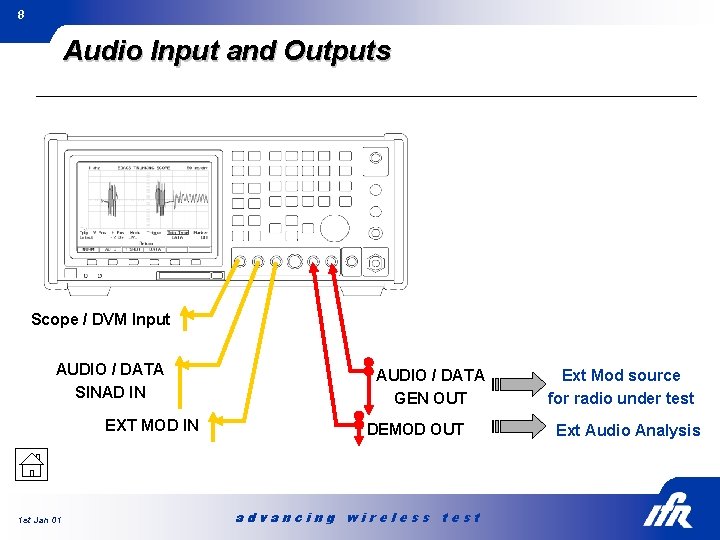
8 Audio Input and Outputs Scope / DVM Input AUDIO / DATA SINAD IN EXT MOD IN 1 st Jan 01 AUDIO / DATA GEN OUT DEMOD OUT advancing wireless test Ext Mod source for radio under test Ext Audio Analysis
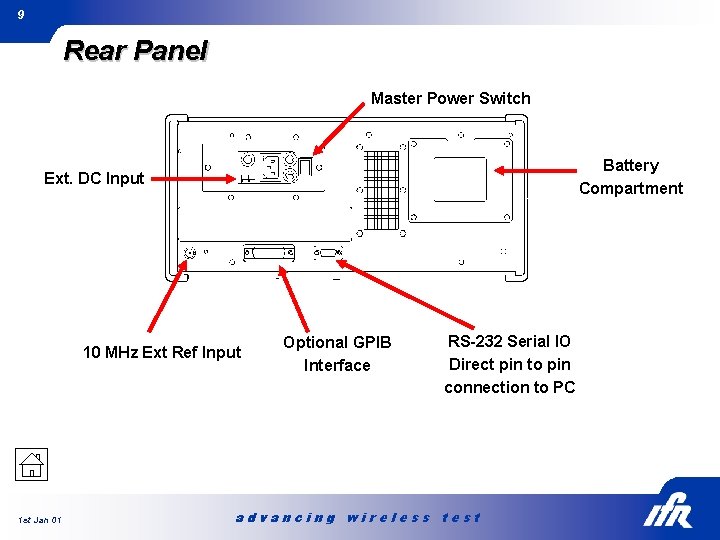
9 Rear Panel Master Power Switch Battery Compartment Ext. DC Input 10 MHz Ext Ref Input 1 st Jan 01 Optional GPIB Interface RS-232 Serial IO Direct pin to pin connection to PC advancing wireless test

10 Navigation The Arrow keys are used to position a cursor to an EDIT FIELD. The TAB Key allows direct access to any field on the screen and is an alternative to incrementing the cursor through other fields. Function Keys pertain to the Field Selection. 1 st Jan 01 advancing wireless test
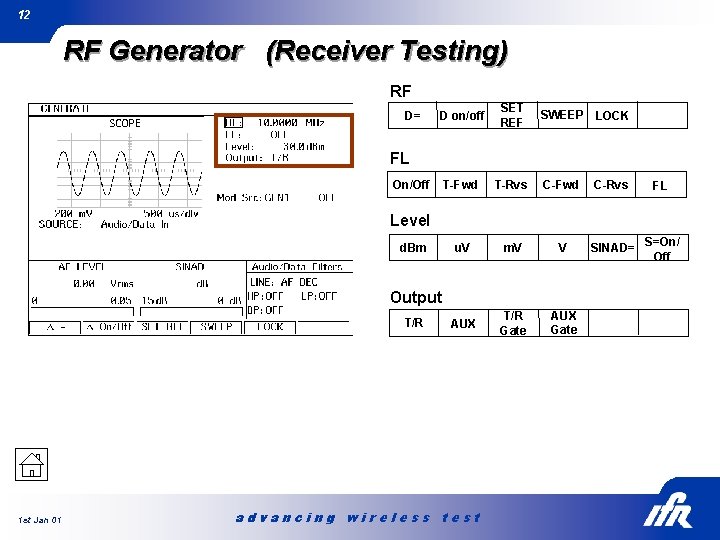
12 RF Generator (Receiver Testing) RF D= D on/off SET REF T-Fwd T-Rvs C-Fwd u. V m. V V AUX T/R Gate AUX Gate SWEEP LOCK FL On/Off C-Rvs FL Level d. Bm Output T/R 1 st Jan 01 advancing wireless test SINAD= S=On/ Off
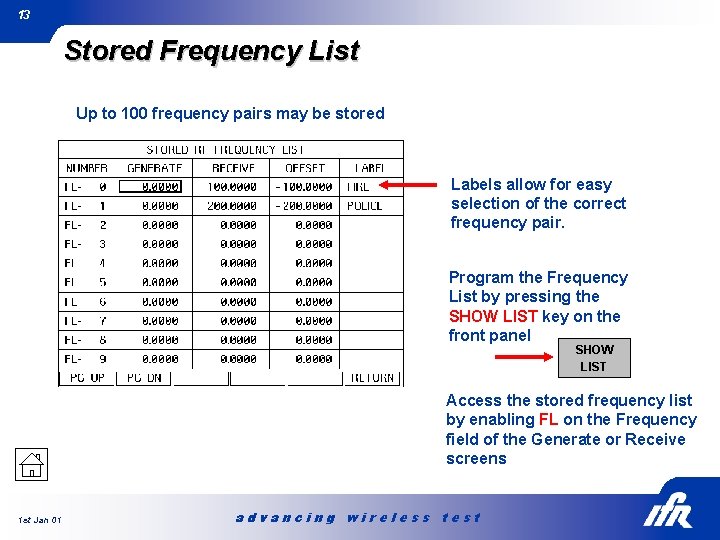
13 Stored Frequency List Up to 100 frequency pairs may be stored Labels allow for easy selection of the correct frequency pair. Program the Frequency List by pressing the SHOW LIST key on the front panel SHOW LIST Access the stored frequency list by enabling FL on the Frequency field of the Generate or Receive screens 1 st Jan 01 advancing wireless test
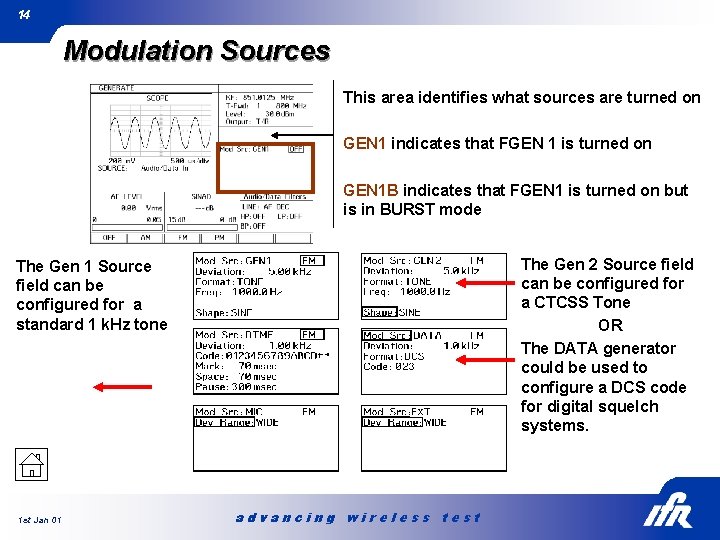
14 Modulation Sources This area identifies what sources are turned on GEN 1 indicates that FGEN 1 is turned on GEN 1 B indicates that FGEN 1 is turned on but is in BURST mode The Gen 2 Source field can be configured for a CTCSS Tone OR The DATA generator could be used to configure a DCS code for digital squelch systems. The Gen 1 Source field can be configured for a standard 1 k. Hz tone 1 st Jan 01 advancing wireless test
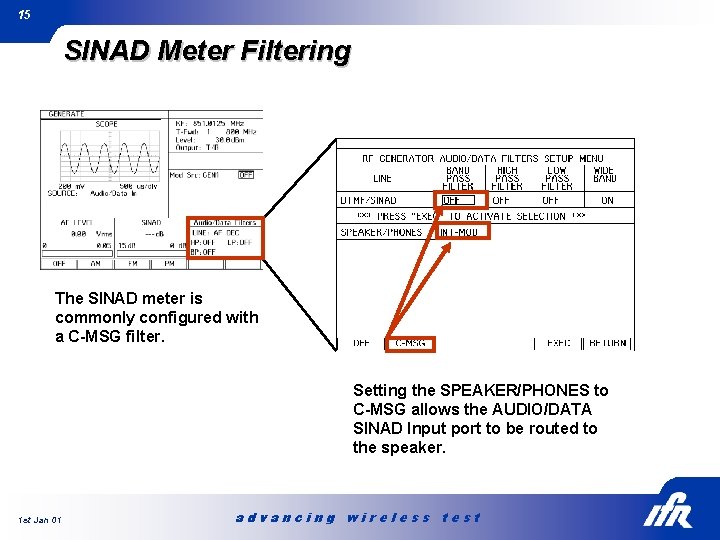
15 SINAD Meter Filtering The SINAD meter is commonly configured with a C-MSG filter. Setting the SPEAKER/PHONES to C-MSG allows the AUDIO/DATA SINAD Input port to be routed to the speaker. 1 st Jan 01 advancing wireless test
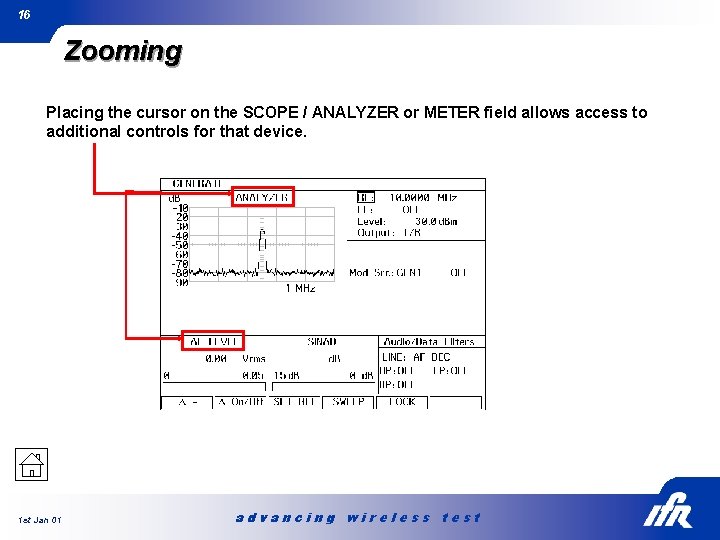
16 Zooming Placing the cursor on the SCOPE / ANALYZER or METER field allows access to additional controls for that device. 1 st Jan 01 advancing wireless test
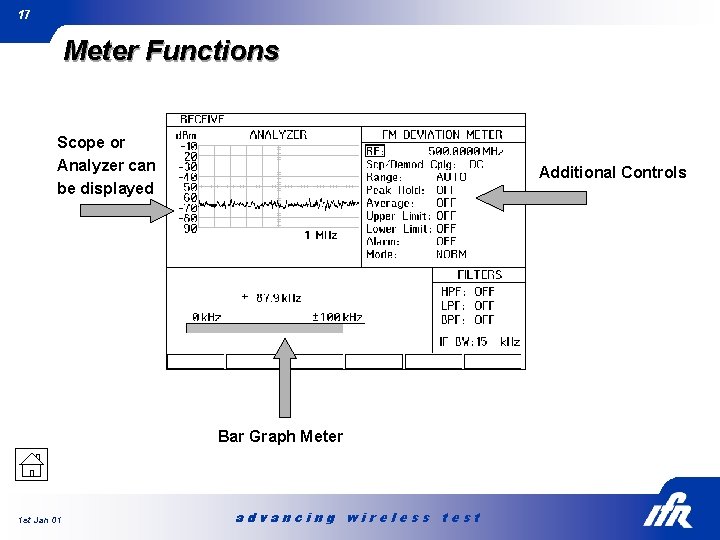
17 Meter Functions Scope or Analyzer can be displayed Additional Controls Bar Graph Meter 1 st Jan 01 advancing wireless test
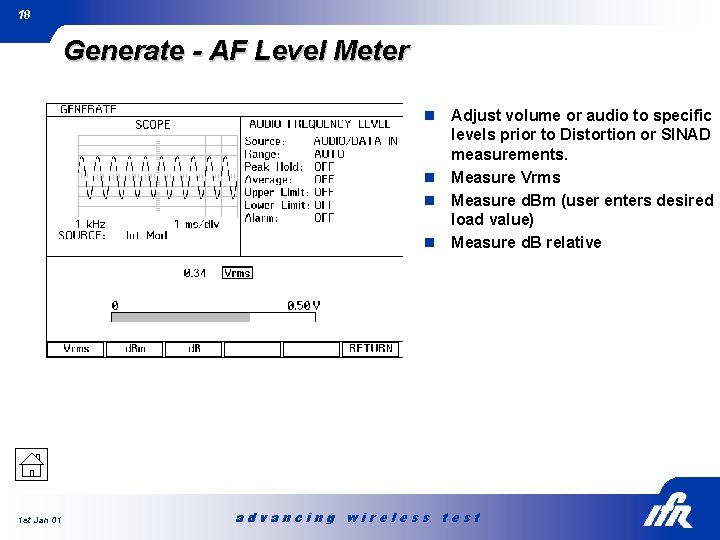
18 Generate - AF Level Meter Adjust volume or audio to specific levels prior to Distortion or SINAD measurements. n Measure Vrms n Measure d. Bm (user enters desired load value) n Measure d. B relative n 1 st Jan 01 advancing wireless test
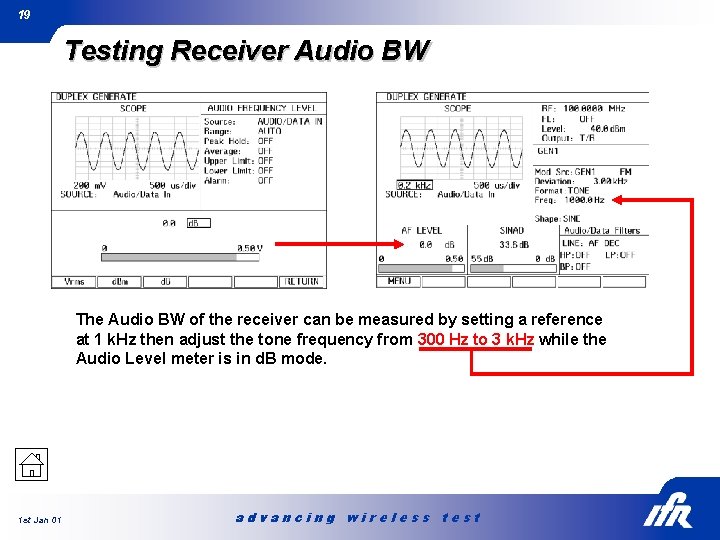
19 Testing Receiver Audio BW The Audio BW of the receiver can be measured by setting a reference at 1 k. Hz then adjust the tone frequency from 300 Hz to 3 k. Hz while the Audio Level meter is in d. B mode. 1 st Jan 01 advancing wireless test
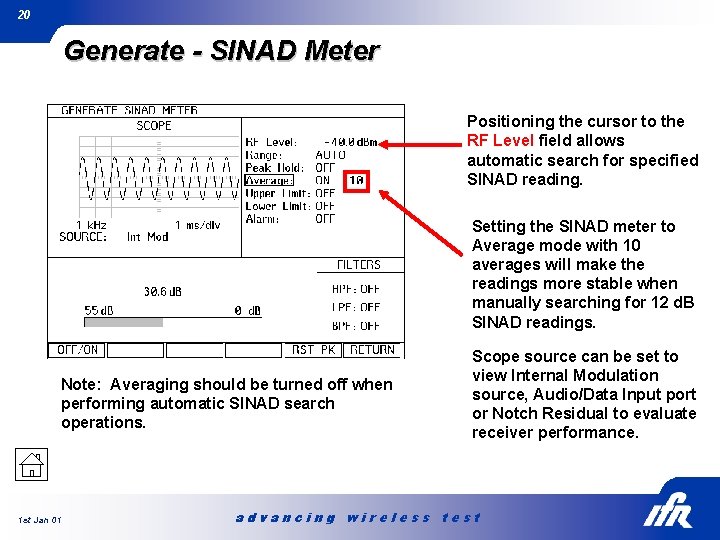
20 Generate - SINAD Meter Positioning the cursor to the RF Level field allows automatic search for specified SINAD reading. Setting the SINAD meter to Average mode with 10 averages will make the readings more stable when manually searching for 12 d. B SINAD readings. Note: Averaging should be turned off when performing automatic SINAD search operations. 1 st Jan 01 Scope source can be set to view Internal Modulation source, Audio/Data Input port or Notch Residual to evaluate receiver performance. advancing wireless test
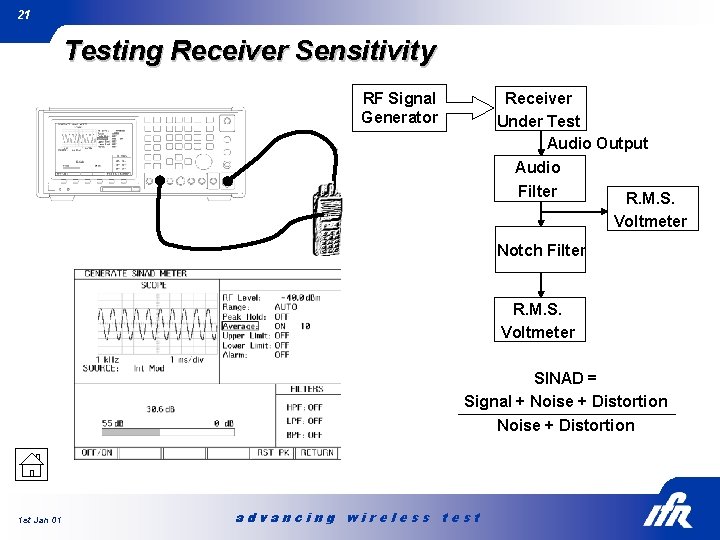
21 Testing Receiver Sensitivity RF Signal Generator Receiver Under Test Audio Output Audio Filter R. M. S. Voltmeter Notch Filter R. M. S. Voltmeter SINAD = Signal + Noise + Distortion 1 st Jan 01 advancing wireless test
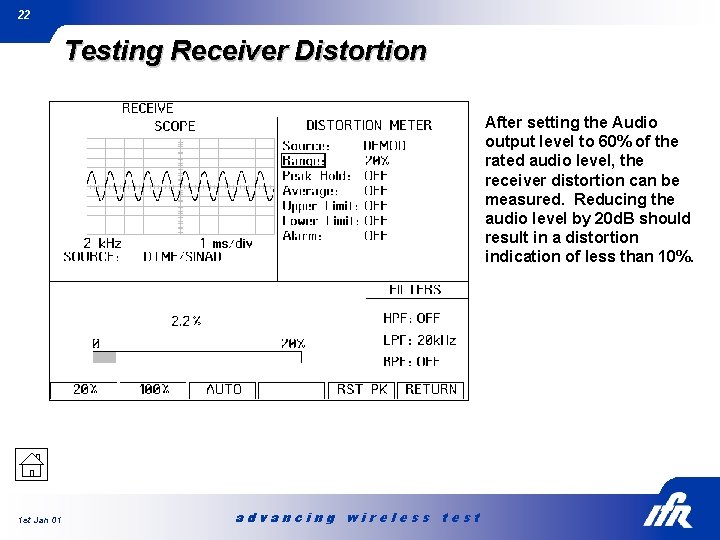
22 Testing Receiver Distortion After setting the Audio output level to 60% of the rated audio level, the receiver distortion can be measured. Reducing the audio level by 20 d. B should result in a distortion indication of less than 10%. 1 st Jan 01 advancing wireless test
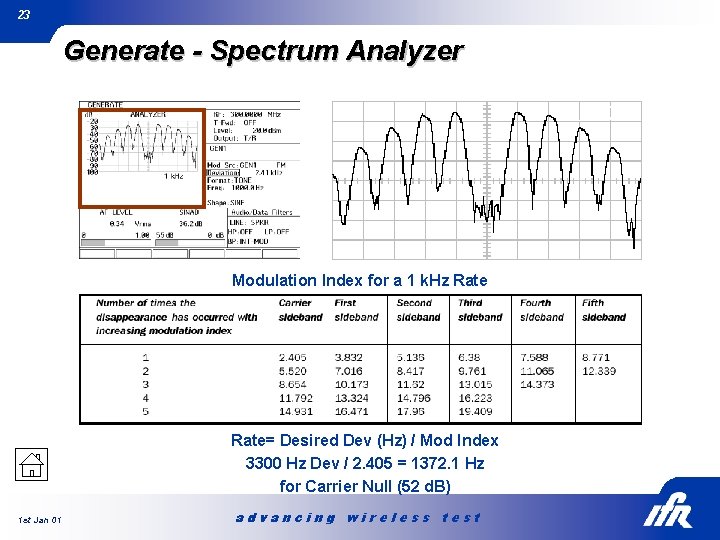
23 Generate - Spectrum Analyzer Modulation Index for a 1 k. Hz Rate= Desired Dev (Hz) / Mod Index 3300 Hz Dev / 2. 405 = 1372. 1 Hz for Carrier Null (52 d. B) 1 st Jan 01 advancing wireless test
24 Questions? 1 st Jan 01 advancing wireless test
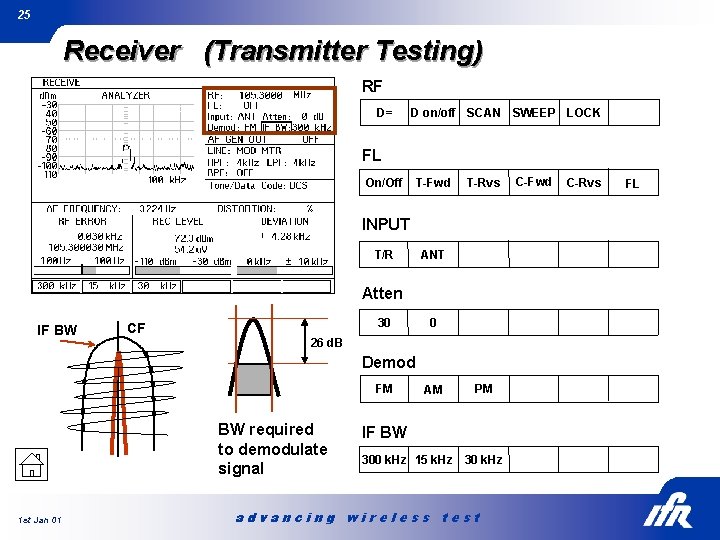
25 Receiver (Transmitter Testing) RF D= D on/off SCAN SWEEP LOCK FL On/Off T-Fwd T-Rvs INPUT T/R ANT Atten IF BW CF 30 0 26 d. B Demod FM BW required to demodulate signal 1 st Jan 01 AM PM IF BW 300 k. Hz 15 k. Hz 30 k. Hz advancing wireless test C-Fwd C-Rvs FL
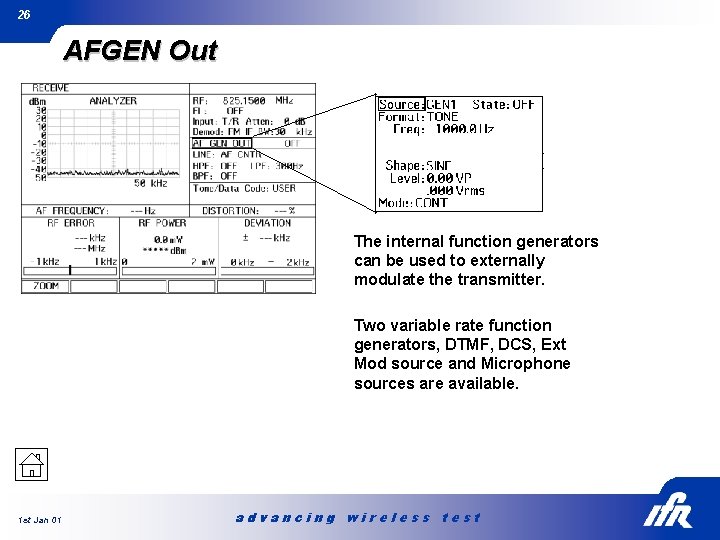
26 AFGEN Out The internal function generators can be used to externally modulate the transmitter. Two variable rate function generators, DTMF, DCS, Ext Mod source and Microphone sources are available. 1 st Jan 01 advancing wireless test
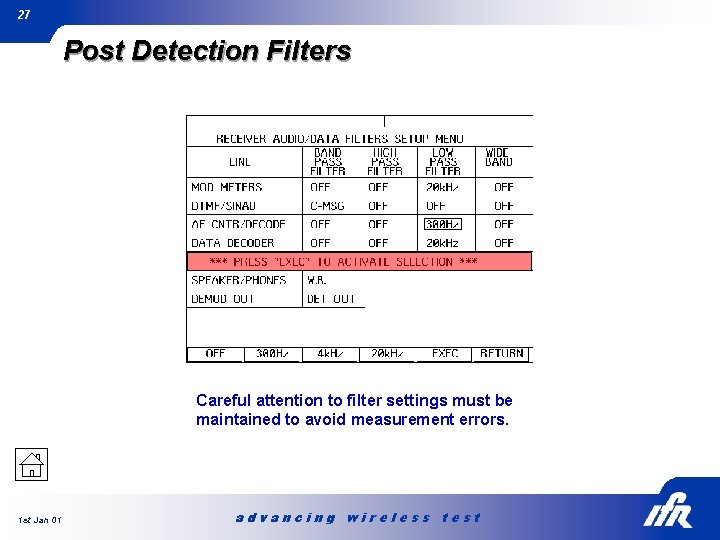
27 Post Detection Filters Careful attention to filter settings must be maintained to avoid measurement errors. 1 st Jan 01 advancing wireless test
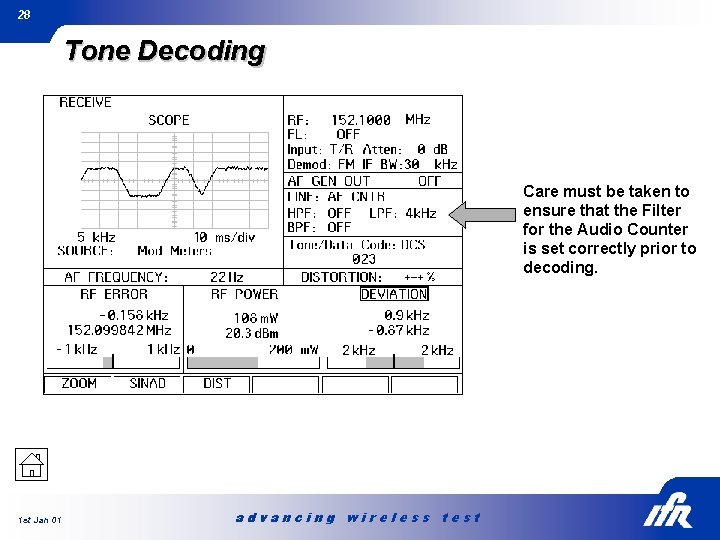
28 Tone Decoding Care must be taken to ensure that the Filter for the Audio Counter is set correctly prior to decoding. 1 st Jan 01 advancing wireless test
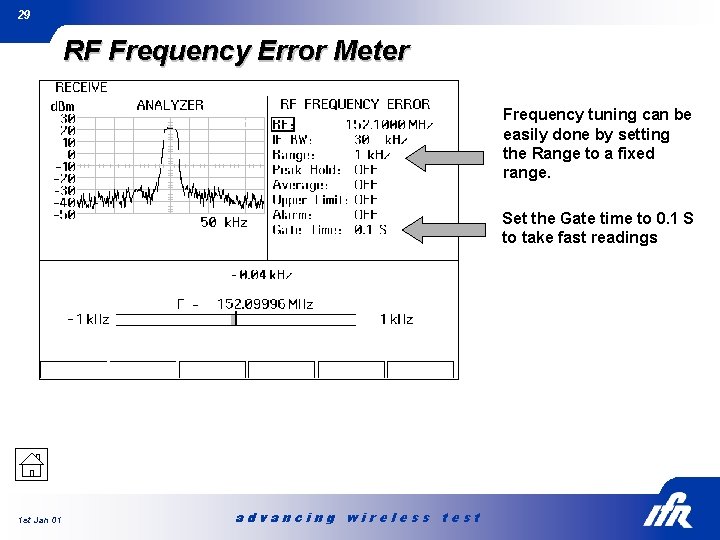
29 RF Frequency Error Meter Frequency tuning can be easily done by setting the Range to a fixed range. Set the Gate time to 0. 1 S to take fast readings 1 st Jan 01 advancing wireless test
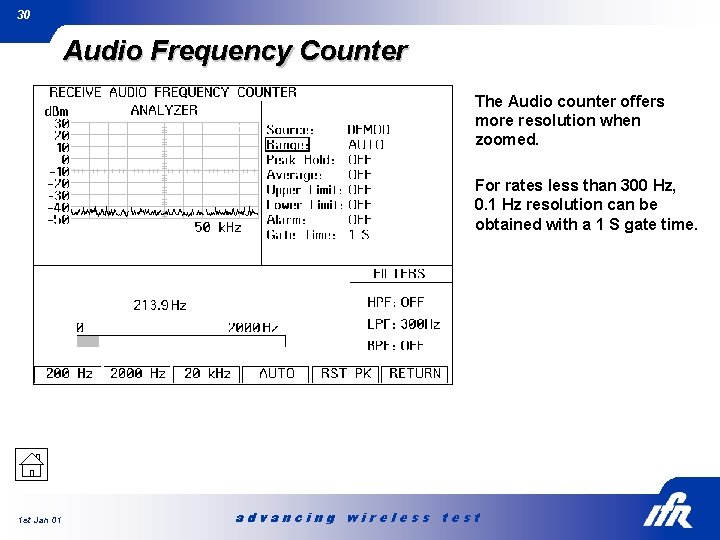
30 Audio Frequency Counter The Audio counter offers more resolution when zoomed. For rates less than 300 Hz, 0. 1 Hz resolution can be obtained with a 1 S gate time. 1 st Jan 01 advancing wireless test
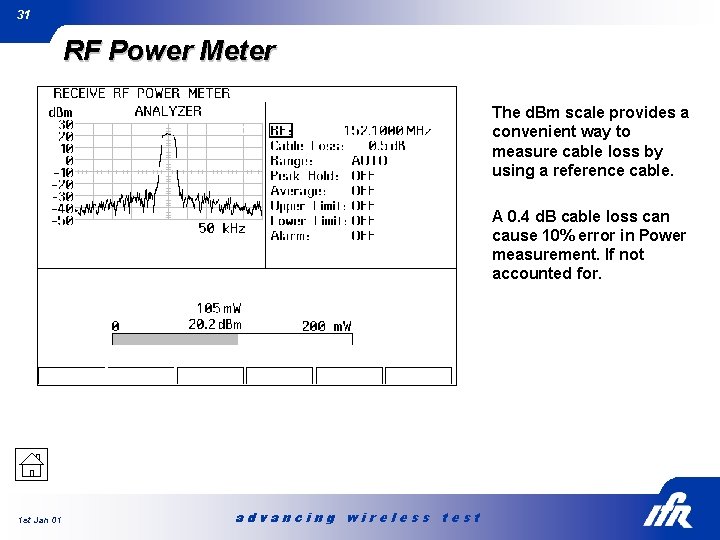
31 RF Power Meter The d. Bm scale provides a convenient way to measure cable loss by using a reference cable. A 0. 4 d. B cable loss can cause 10% error in Power measurement. If not accounted for. 1 st Jan 01 advancing wireless test
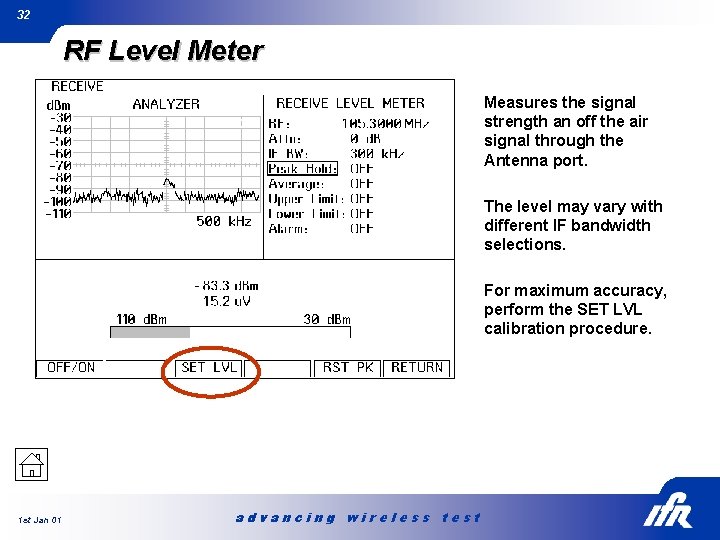
32 RF Level Meter Measures the signal strength an off the air signal through the Antenna port. The level may vary with different IF bandwidth selections. For maximum accuracy, perform the SET LVL calibration procedure. 1 st Jan 01 advancing wireless test
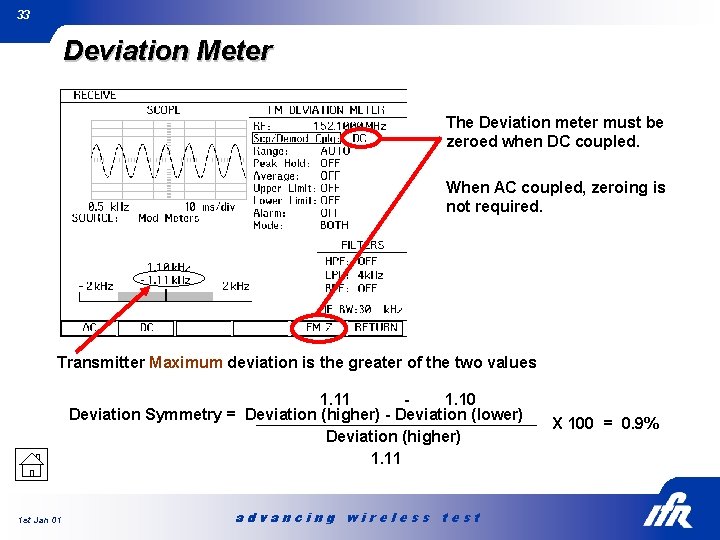
33 Deviation Meter The Deviation meter must be zeroed when DC coupled. When AC coupled, zeroing is not required. Transmitter Maximum deviation is the greater of the two values 1. 11 1. 10 Deviation Symmetry = Deviation (higher) - Deviation (lower) Deviation (higher) 1. 11 1 st Jan 01 advancing wireless test X 100 = 0. 9%
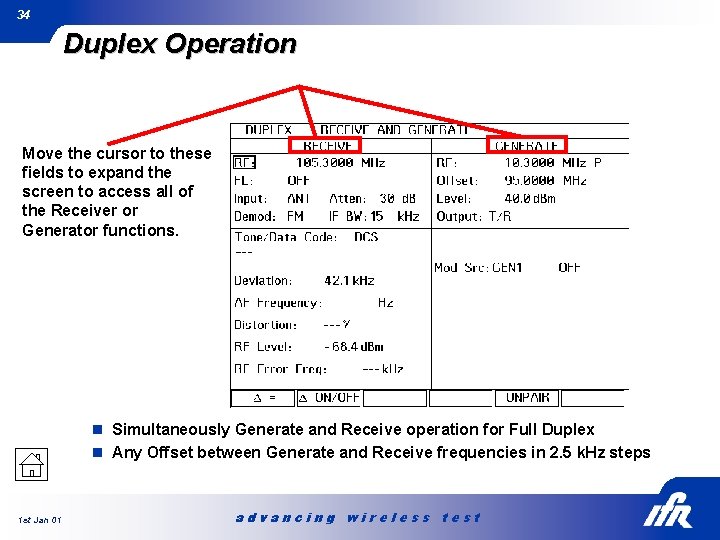
34 Duplex Operation Move the cursor to these fields to expand the screen to access all of the Receiver or Generator functions. n Simultaneously Generate and Receive operation for Full Duplex n Any Offset between Generate and Receive frequencies in 2. 5 k. Hz steps 1 st Jan 01 advancing wireless test
35 Questions? 1 st Jan 01 advancing wireless test
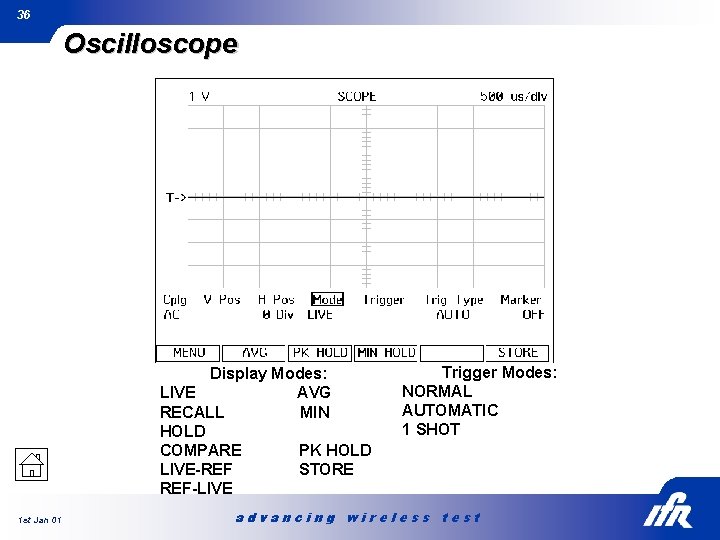
36 Oscilloscope Display Modes: LIVE AVG RECALL MIN HOLD COMPARE PK HOLD LIVE-REF STORE REF-LIVE 1 st Jan 01 Trigger Modes: NORMAL AUTOMATIC 1 SHOT advancing wireless test
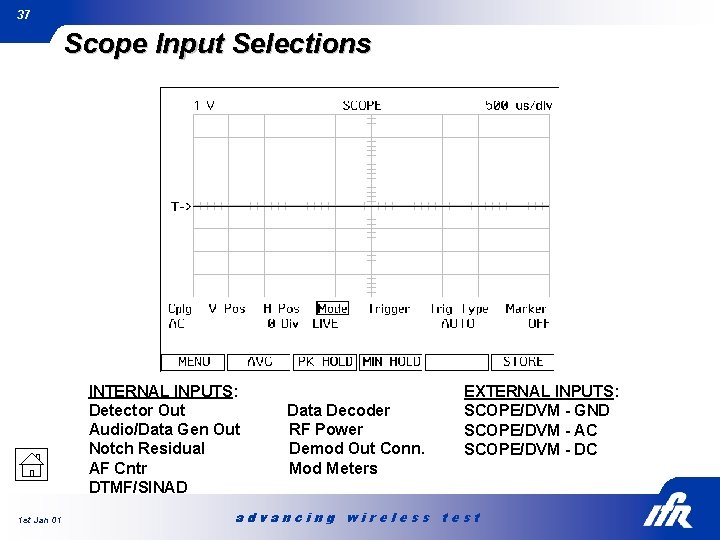
37 Scope Input Selections INTERNAL INPUTS: Detector Out Audio/Data Gen Out Notch Residual AF Cntr DTMF/SINAD 1 st Jan 01 Data Decoder RF Power Demod Out Conn. Mod Meters EXTERNAL INPUTS: SCOPE/DVM - GND SCOPE/DVM - AC SCOPE/DVM - DC advancing wireless test
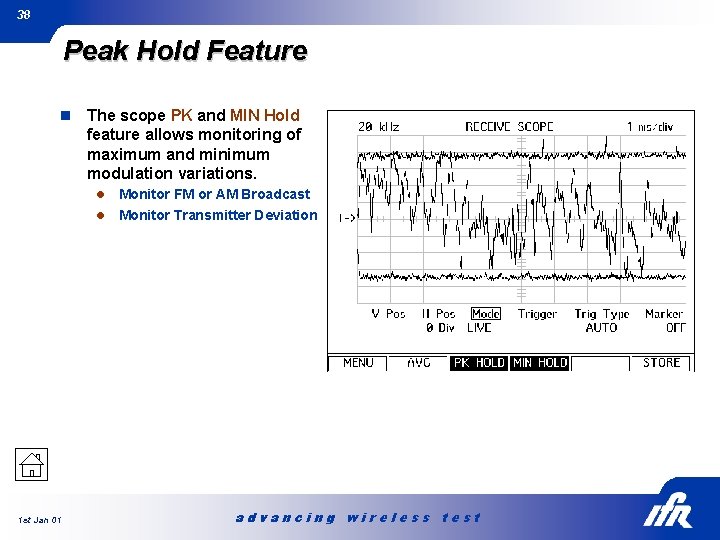
38 Peak Hold Feature n The scope PK and MIN Hold feature allows monitoring of maximum and minimum modulation variations. Monitor FM or AM Broadcast l Monitor Transmitter Deviation l 1 st Jan 01 advancing wireless test
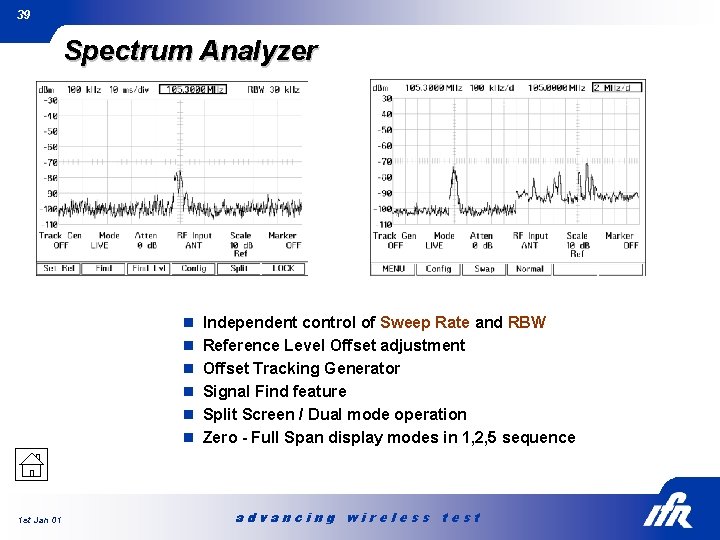
39 Spectrum Analyzer n Independent control of Sweep Rate and RBW n Reference Level Offset adjustment n Offset Tracking Generator n Signal Find feature n Split Screen / Dual mode operation n Zero - Full Span display modes in 1, 2, 5 sequence 1 st Jan 01 advancing wireless test
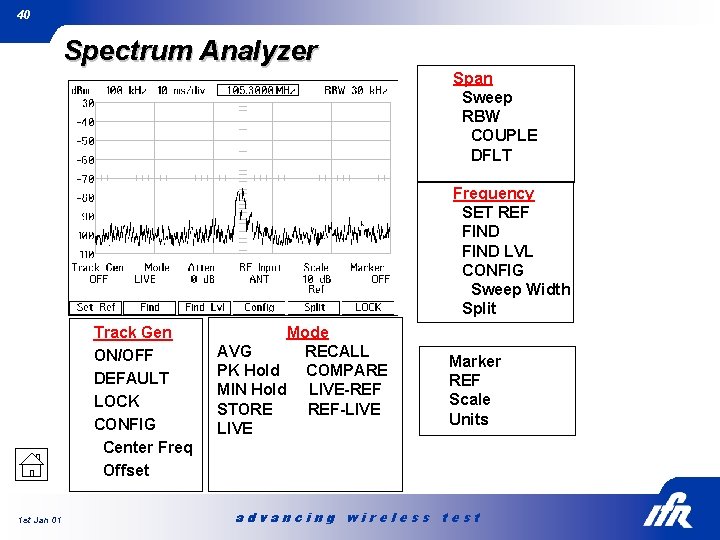
40 Spectrum Analyzer Span Sweep RBW COUPLE DFLT Frequency SET REF FIND LVL CONFIG Sweep Width Split Track Gen ON/OFF DEFAULT LOCK CONFIG Center Freq Offset 1 st Jan 01 Mode AVG RECALL PK Hold COMPARE MIN Hold LIVE-REF STORE REF-LIVE Marker REF Scale Units advancing wireless test
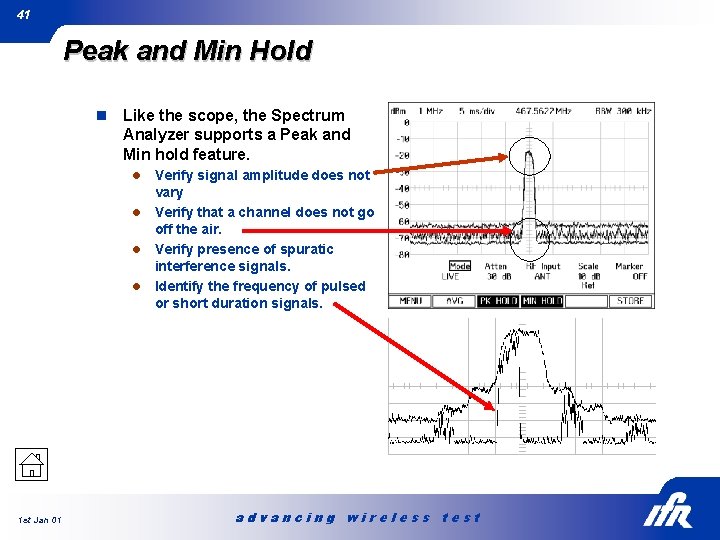
41 Peak and Min Hold n Like the scope, the Spectrum Analyzer supports a Peak and Min hold feature. Verify signal amplitude does not vary l Verify that a channel does not go off the air. l Verify presence of spuratic interference signals. l Identify the frequency of pulsed or short duration signals. l 1 st Jan 01 advancing wireless test
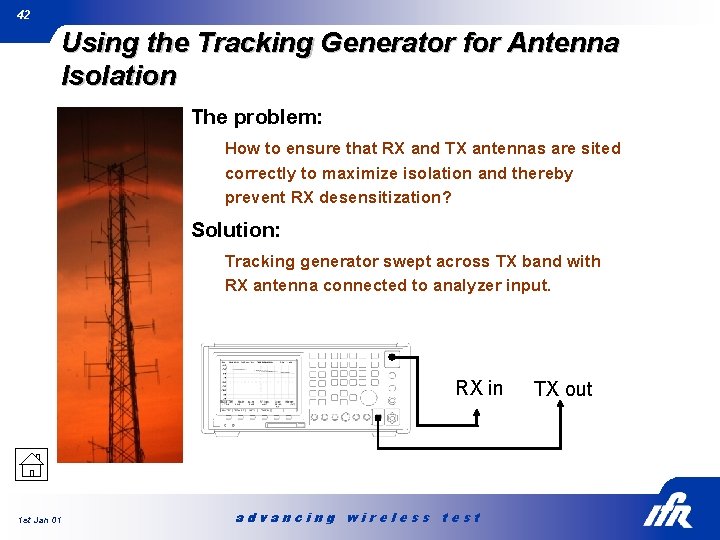
42 Using the Tracking Generator for Antenna Isolation The problem: How to ensure that RX and TX antennas are sited correctly to maximize isolation and thereby prevent RX desensitization? Solution: Tracking generator swept across TX band with RX antenna connected to analyzer input. RX in 1 st Jan 01 advancing wireless test TX out
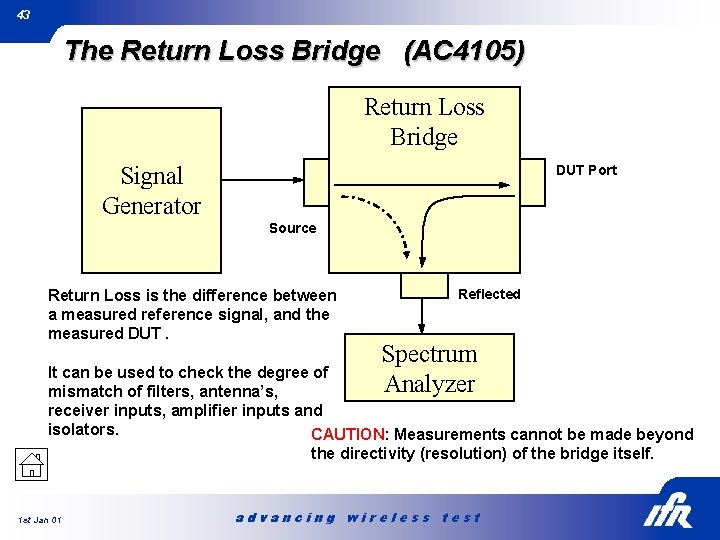
43 The Return Loss Bridge (AC 4105) Return Loss Bridge Signal Generator DUT Port Source Return Loss is the difference between a measured reference signal, and the measured DUT. Reflected Spectrum Analyzer It can be used to check the degree of mismatch of filters, antenna’s, receiver inputs, amplifier inputs and isolators. CAUTION: Measurements cannot be made beyond the directivity (resolution) of the bridge itself. 1 st Jan 01 advancing wireless test
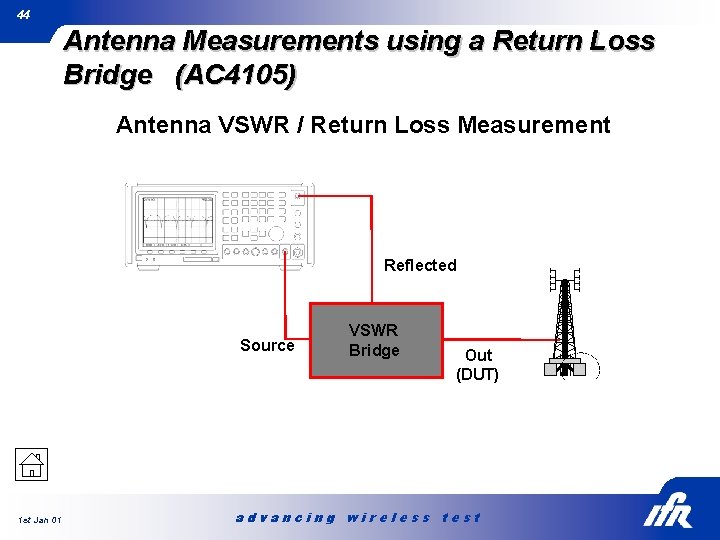
44 Antenna Measurements using a Return Loss Bridge (AC 4105) Antenna VSWR / Return Loss Measurement Reflected Source 1 st Jan 01 VSWR Bridge Out (DUT) advancing wireless test
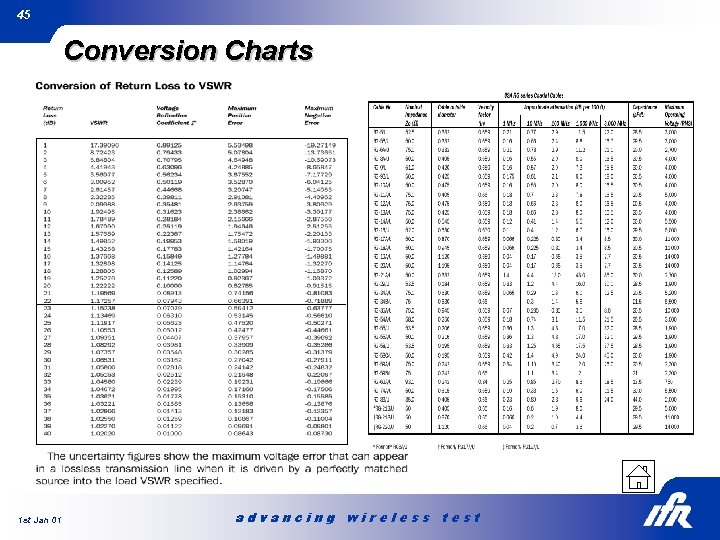
45 Conversion Charts 1 st Jan 01 advancing wireless test
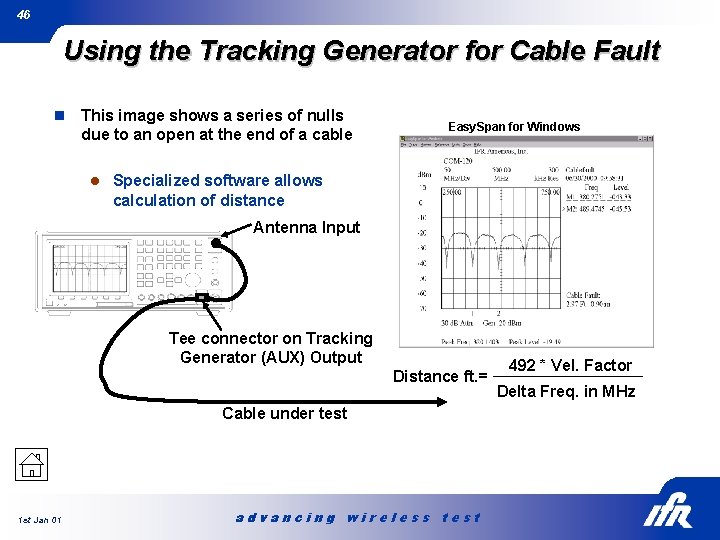
46 Using the Tracking Generator for Cable Fault n This image shows a series of nulls due to an open at the end of a cable Easy. Span for Windows l Specialized software allows calculation of distance Antenna Input Tee connector on Tracking Generator (AUX) Output Distance ft. = Cable under test 1 st Jan 01 advancing wireless test 492 * Vel. Factor Delta Freq. in MHz
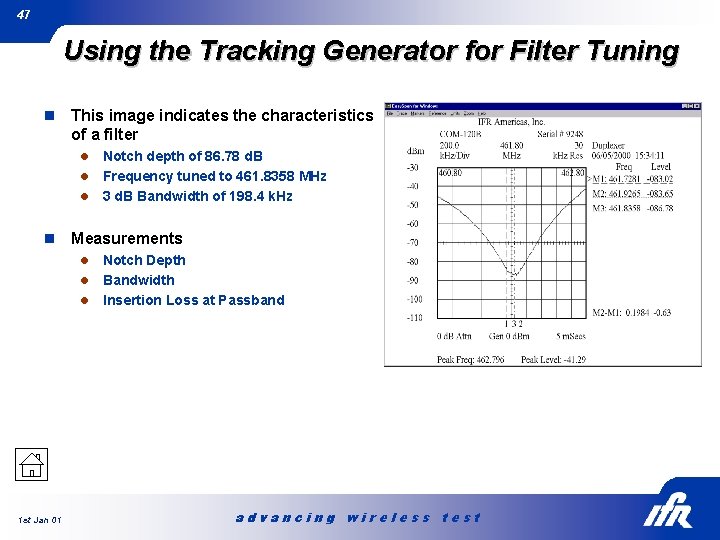
47 Using the Tracking Generator for Filter Tuning n This image indicates the characteristics of a filter Notch depth of 86. 78 d. B l Frequency tuned to 461. 8358 MHz l 3 d. B Bandwidth of 198. 4 k. Hz l n Measurements Notch Depth l Bandwidth l Insertion Loss at Passband l 1 st Jan 01 advancing wireless test
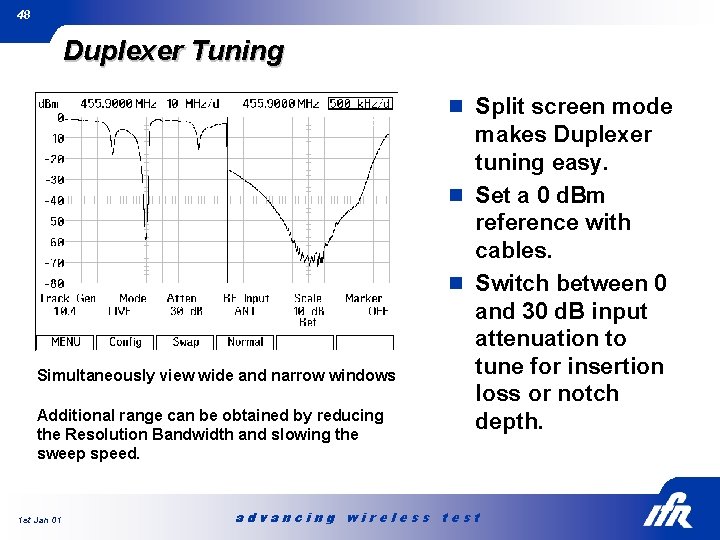
48 Duplexer Tuning n Split screen mode Simultaneously view wide and narrow windows Additional range can be obtained by reducing the Resolution Bandwidth and slowing the sweep speed. 1 st Jan 01 makes Duplexer tuning easy. n Set a 0 d. Bm reference with cables. n Switch between 0 and 30 d. B input attenuation to tune for insertion loss or notch depth. advancing wireless test
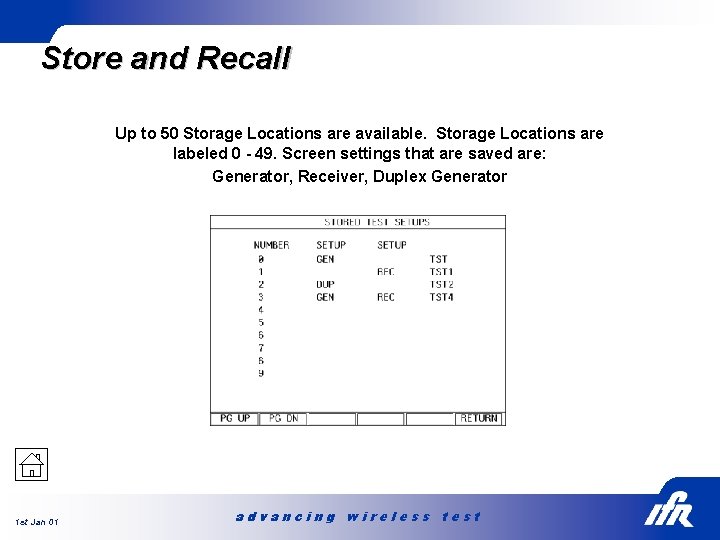
Store and Recall Up to 50 Storage Locations are available. Storage Locations are labeled 0 - 49. Screen settings that are saved are: Generator, Receiver, Duplex Generator 1 st Jan 01 advancing wireless test
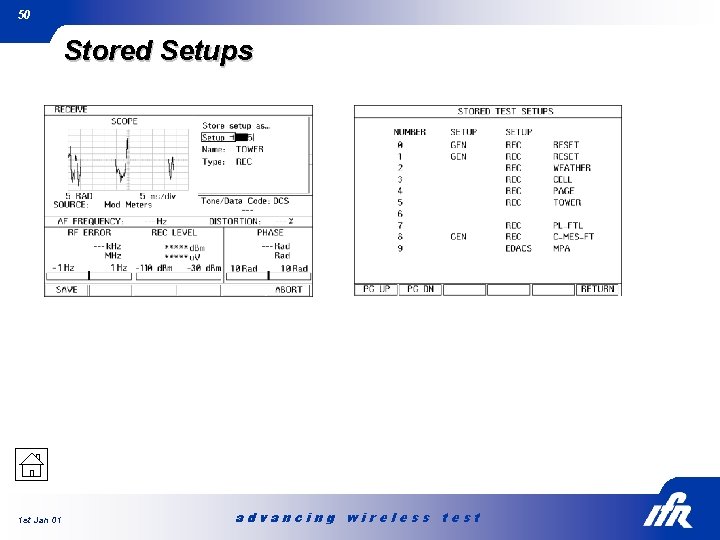
50 Stored Setups 1 st Jan 01 advancing wireless test
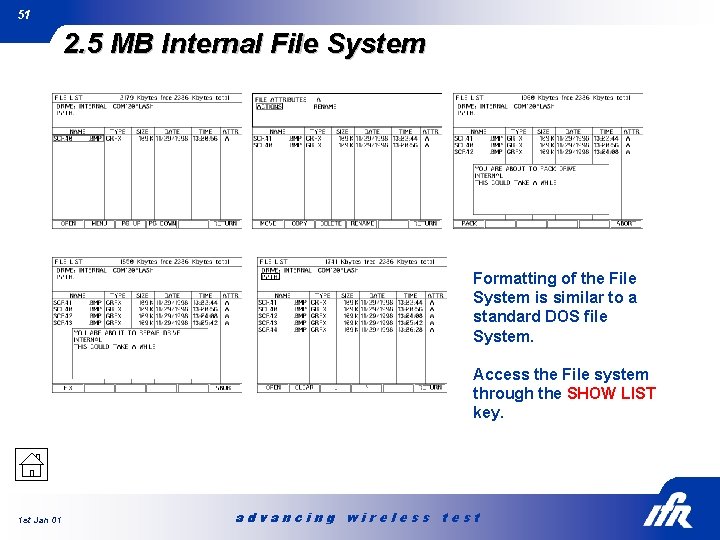
51 2. 5 MB Internal File System Formatting of the File System is similar to a standard DOS file System. Access the File system through the SHOW LIST key. 1 st Jan 01 advancing wireless test
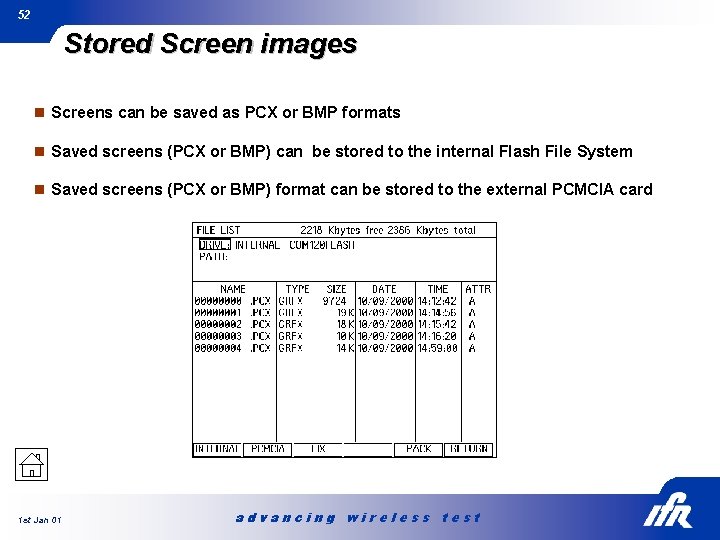
52 Stored Screen images n Screens can be saved as PCX or BMP formats n Saved screens (PCX or BMP) can be stored to the internal Flash File System n Saved screens (PCX or BMP) format can be stored to the external PCMCIA card 1 st Jan 01 advancing wireless test
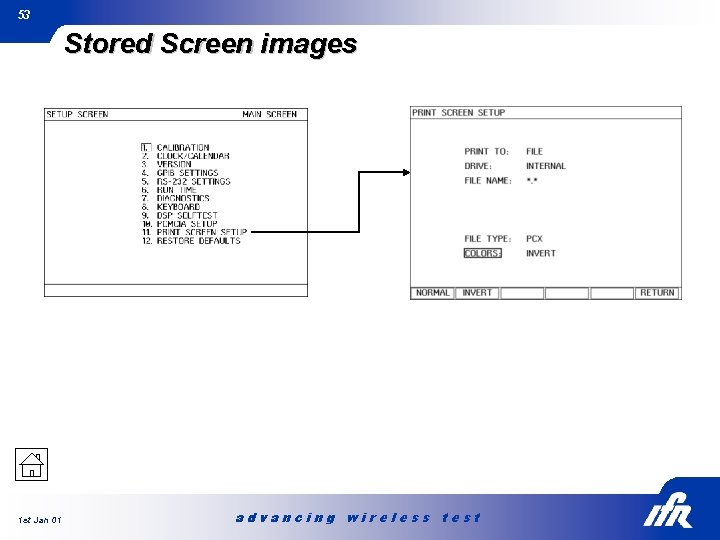
53 Stored Screen images 1 st Jan 01 advancing wireless test
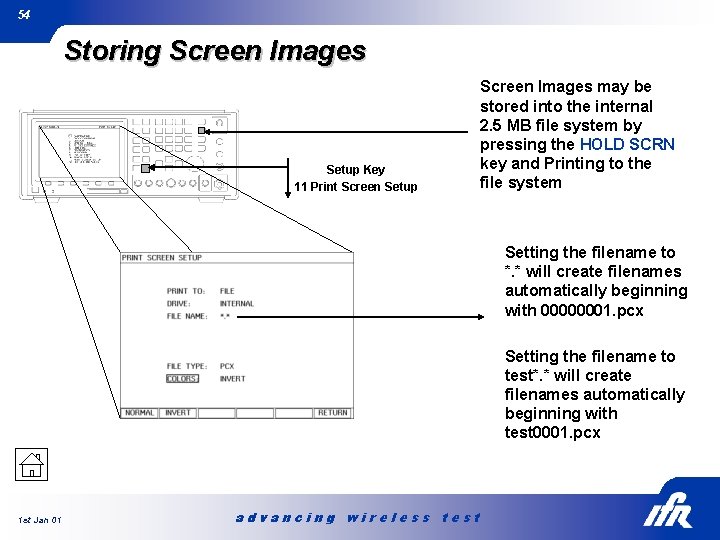
54 Storing Screen Images Setup Key 11 Print Screen Setup Screen Images may be stored into the internal 2. 5 MB file system by pressing the HOLD SCRN key and Printing to the file system Setting the filename to *. * will create filenames automatically beginning with 00000001. pcx Setting the filename to test*. * will create filenames automatically beginning with test 0001. pcx 1 st Jan 01 advancing wireless test
55 Retrieving Screen Images n Screen Images may be extracted from the COM-120 B internal File system with a standard terminal program using XMODEM and a pin-to -pin RS-232 connection. l Setup the COM-120 B RS-232 n Host, 9600, 8 Data Bits 1, Stop Bit, Parity None, CTS/RTS Handshake, RCI Echo OFF, RCI Control ON l Setup Hyperterminal for Direct connection n Mode Direct n Baud 9600, 8 Data Bits, 1 Stop Bit, Parity None, Hardware Handshake l In Hyperterminal type the following command n mmem: down: xmode “filename. pcx” l filename. pcx would be substituted with a valid filename that appears in the COM-120 B file directory. l 1 st Jan 01 In Hyperterminal select File Transfer via XModem advancing wireless test
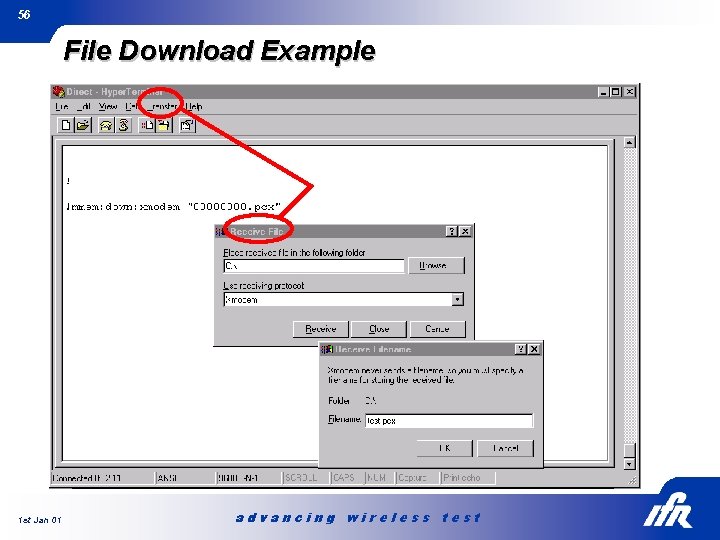
56 File Download Example 1 st Jan 01 advancing wireless test
57 PCMCIA Card Slot 1 st Jan 01 n Standard Computer PC Type 1 or type 2 card interface. n Will accept either Flash or Static RAM Memory Cards. n Can be configured to use Hays Compatible PCMCIA Modem or a Serial card. Use to connect to a remote computer running Easy. Span for Windows. n Can be used to Load the Test Set Operating System or transfer screen images to a PC. advancing wireless test
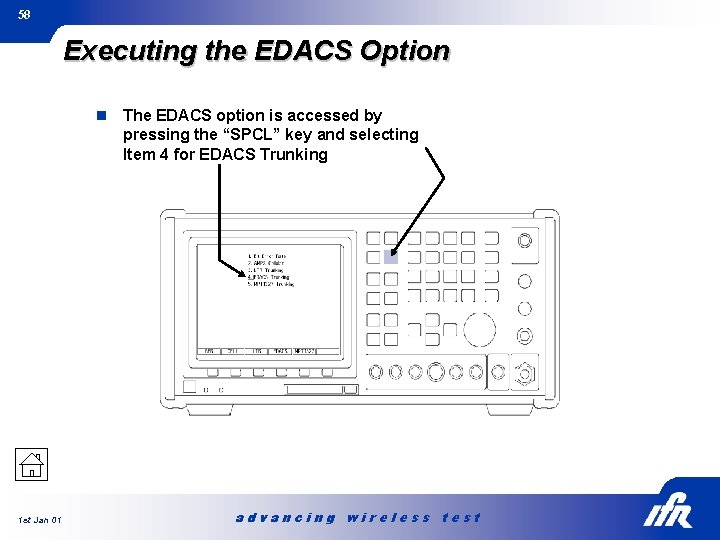
58 Executing the EDACS Option n 1 st Jan 01 The EDACS option is accessed by pressing the “SPCL” key and selecting Item 4 for EDACS Trunking advancing wireless test
59 EDACS Option n n 1 st Jan 01 Auto-test l Radio or Repeater Simulator l Manual test for Radio Simulator l Manual test for Repeater Setup Screen l Required for both Manual and Automatic tests n Configure system parameters n Configure Frequency list Store and Label Setups advancing wireless test
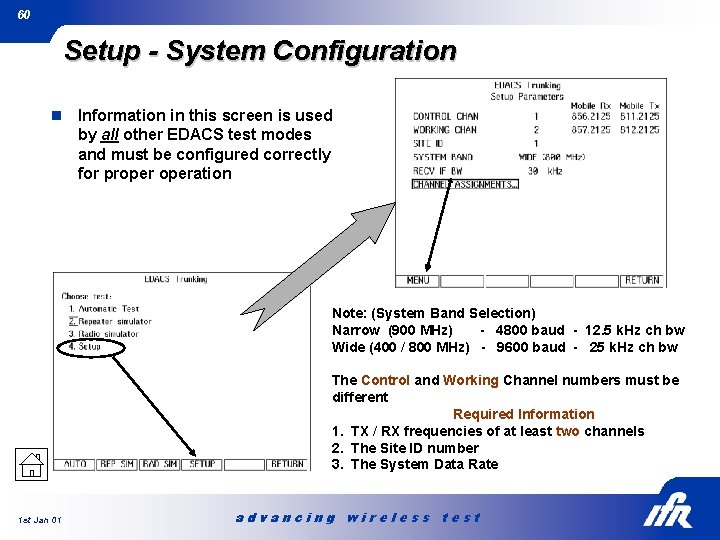
60 Setup - System Configuration n Information in this screen is used by all other EDACS test modes and must be configured correctly for properation Note: (System Band Selection) Narrow (900 MHz) - 4800 baud - 12. 5 k. Hz ch bw Wide (400 / 800 MHz) - 9600 baud - 25 k. Hz ch bw The Control and Working Channel numbers must be different Required Information 1. TX / RX frequencies of at least two channels 2. The Site ID number 3. The System Data Rate 1 st Jan 01 advancing wireless test
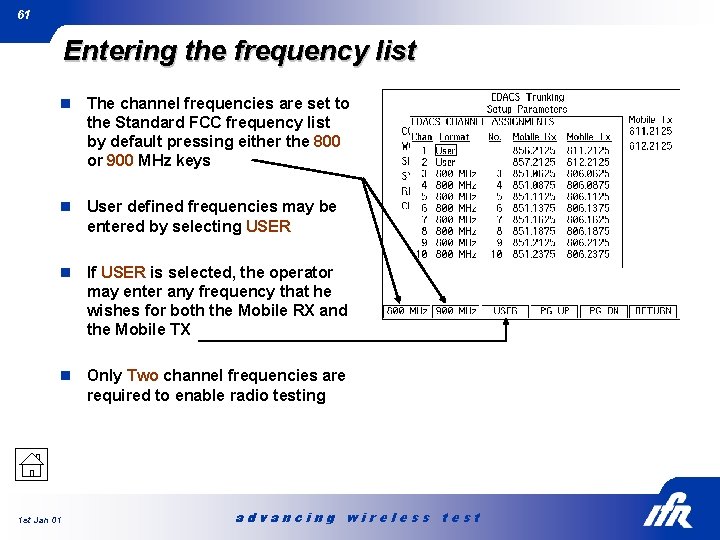
61 Entering the frequency list n The channel frequencies are set to the Standard FCC frequency list by default pressing either the 800 or 900 MHz keys n User defined frequencies may be entered by selecting USER n If USER is selected, the operator may enter any frequency that he wishes for both the Mobile RX and the Mobile TX n Only Two channel frequencies are required to enable radio testing 1 st Jan 01 advancing wireless test
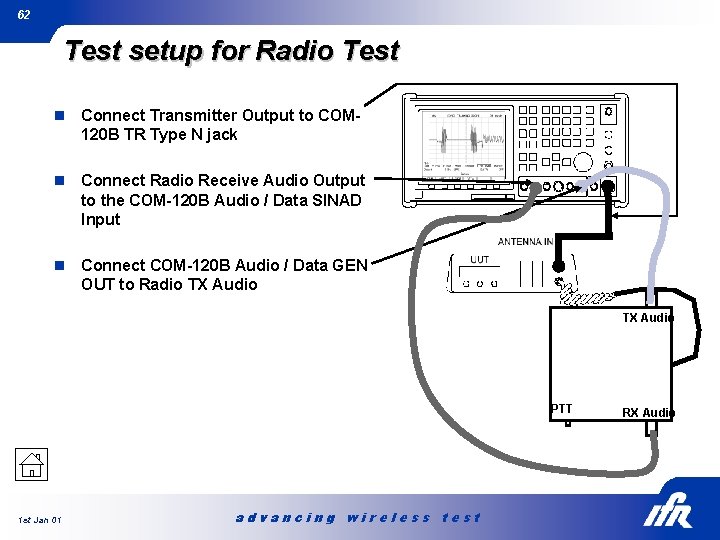
62 Test setup for Radio Test n Connect Transmitter Output to COM 120 B TR Type N jack n Connect Radio Receive Audio Output to the COM-120 B Audio / Data SINAD Input n Connect COM-120 B Audio / Data GEN OUT to Radio TX Audio PTT 1 st Jan 01 advancing wireless test RX Audio
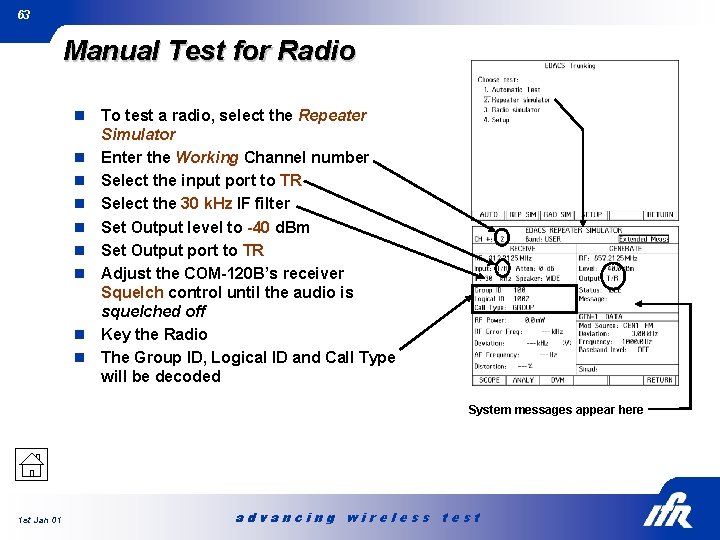
63 Manual Test for Radio n n n n n To test a radio, select the Repeater Simulator Enter the Working Channel number Select the input port to TR Select the 30 k. Hz IF filter Set Output level to -40 d. Bm Set Output port to TR Adjust the COM-120 B’s receiver Squelch control until the audio is squelched off Key the Radio The Group ID, Logical ID and Call Type will be decoded System messages appear here 1 st Jan 01 advancing wireless test
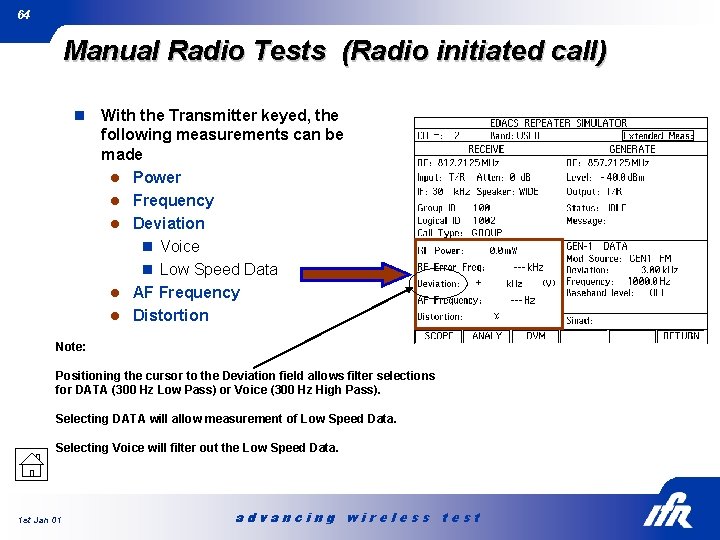
64 Manual Radio Tests (Radio initiated call) n With the Transmitter keyed, the following measurements can be made l Power l Frequency l Deviation n Voice n Low Speed Data l AF Frequency l Distortion Note: Positioning the cursor to the Deviation field allows filter selections for DATA (300 Hz Low Pass) or Voice (300 Hz High Pass). Selecting DATA will allow measurement of Low Speed Data. Selecting Voice will filter out the Low Speed Data. 1 st Jan 01 advancing wireless test
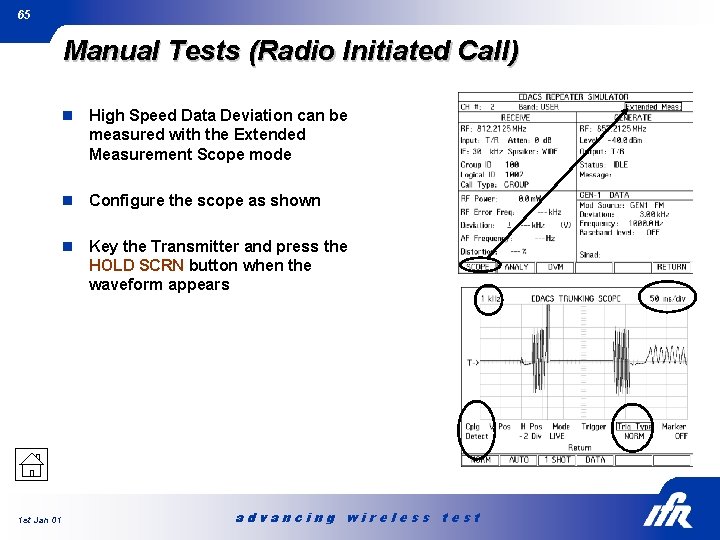
65 Manual Tests (Radio Initiated Call) 1 st Jan 01 n High Speed Data Deviation can be measured with the Extended Measurement Scope mode n Configure the scope as shown n Key the Transmitter and press the HOLD SCRN button when the waveform appears advancing wireless test
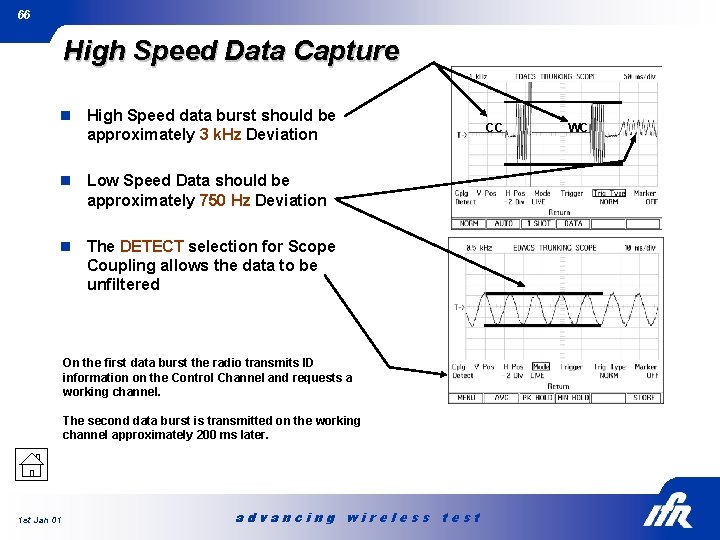
66 High Speed Data Capture n High Speed data burst should be approximately 3 k. Hz Deviation n Low Speed Data should be approximately 750 Hz Deviation n The DETECT selection for Scope Coupling allows the data to be unfiltered On the first data burst the radio transmits ID information on the Control Channel and requests a working channel. The second data burst is transmitted on the working channel approximately 200 ms later. 1 st Jan 01 advancing wireless test CC WC
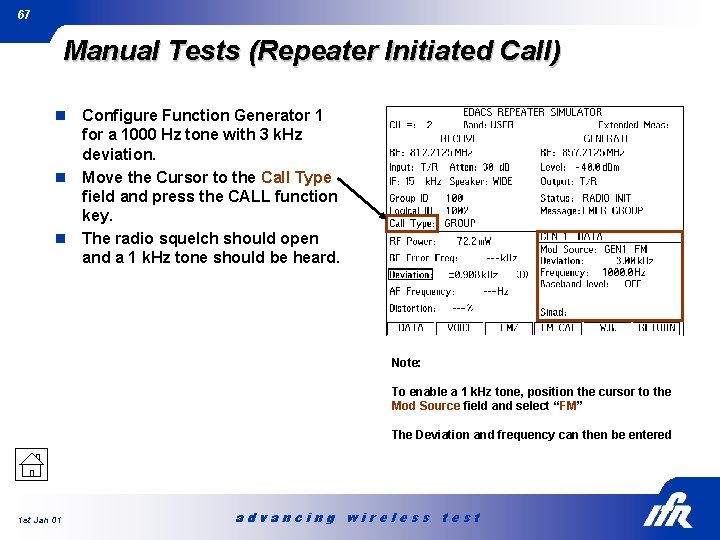
67 Manual Tests (Repeater Initiated Call) Configure Function Generator 1 for a 1000 Hz tone with 3 k. Hz deviation. n Move the Cursor to the Call Type field and press the CALL function key. n The radio squelch should open and a 1 k. Hz tone should be heard. n Note: To enable a 1 k. Hz tone, position the cursor to the Mod Source field and select “FM” The Deviation and frequency can then be entered 1 st Jan 01 advancing wireless test
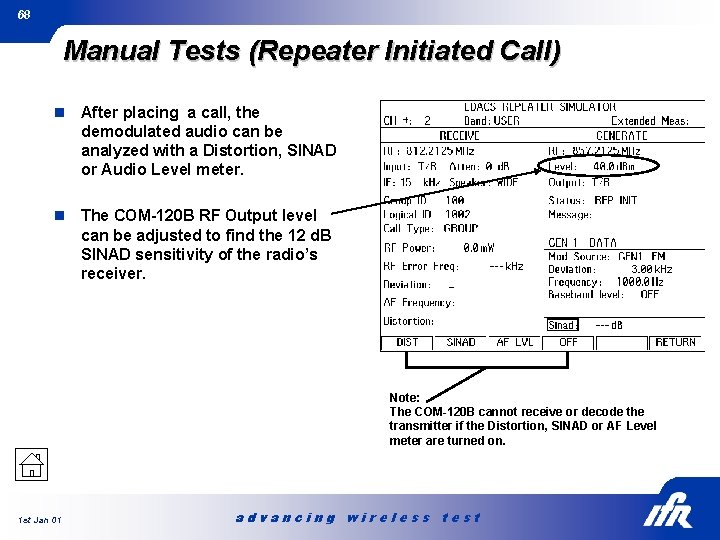
68 Manual Tests (Repeater Initiated Call) n After placing a call, the demodulated audio can be analyzed with a Distortion, SINAD or Audio Level meter. n The COM-120 B RF Output level can be adjusted to find the 12 d. B SINAD sensitivity of the radio’s receiver. Note: The COM-120 B cannot receive or decode the transmitter if the Distortion, SINAD or AF Level meter are turned on. 1 st Jan 01 advancing wireless test
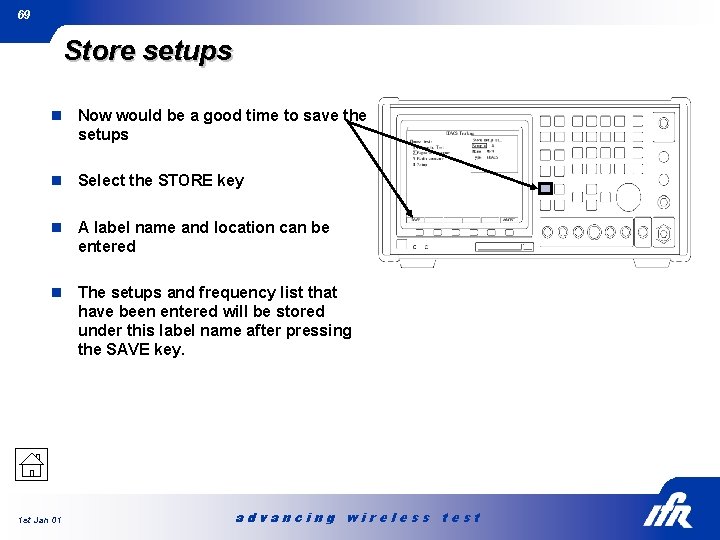
69 Store setups n Now would be a good time to save the setups n Select the STORE key n A label name and location can be entered n The setups and frequency list that have been entered will be stored under this label name after pressing the SAVE key. 1 st Jan 01 advancing wireless test
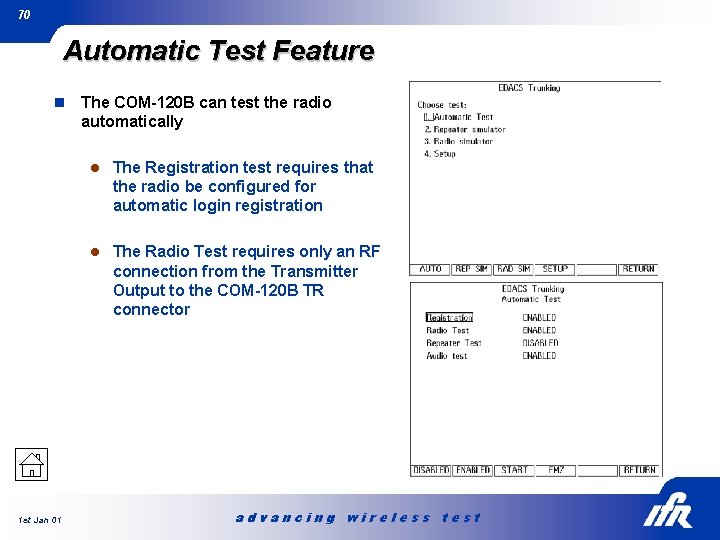
70 Automatic Test Feature n The COM-120 B can test the radio automatically l The Registration test requires that the radio be configured for automatic login registration l The Radio Test requires only an RF connection from the Transmitter Output to the COM-120 B TR connector 1 st Jan 01 advancing wireless test
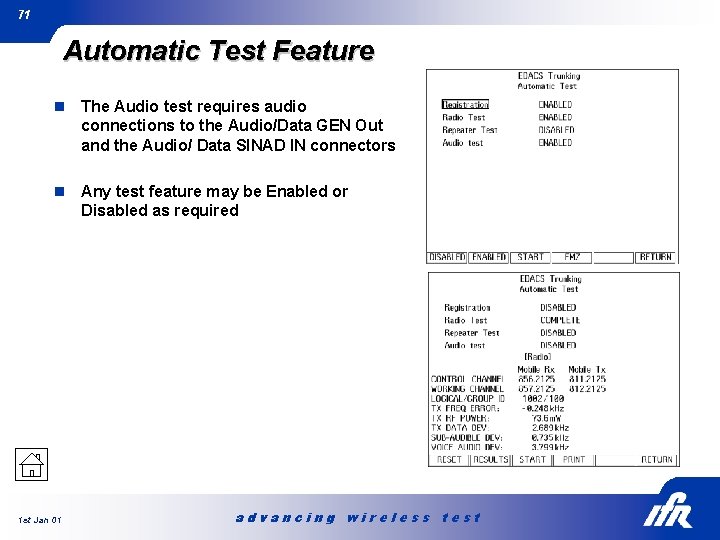
71 Automatic Test Feature n The Audio test requires audio connections to the Audio/Data GEN Out and the Audio/ Data SINAD IN connectors n Any test feature may be Enabled or Disabled as required 1 st Jan 01 advancing wireless test
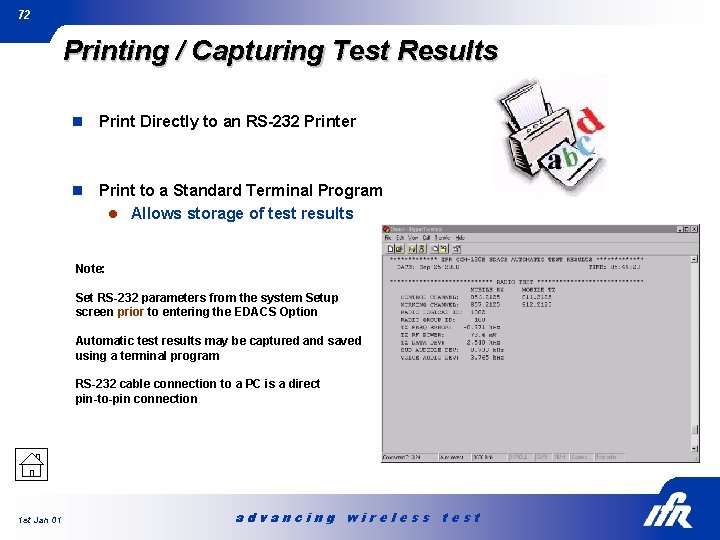
72 Printing / Capturing Test Results n Print Directly to an RS-232 Printer n Print to a Standard Terminal Program l Allows storage of test results Note: Set RS-232 parameters from the system Setup screen prior to entering the EDACS Option Automatic test results may be captured and saved using a terminal program RS-232 cable connection to a PC is a direct pin-to-pin connection 1 st Jan 01 advancing wireless test
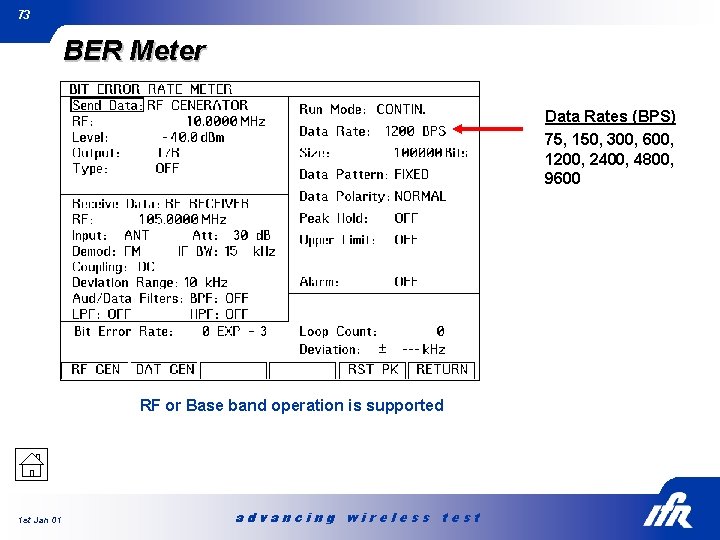
73 BER Meter Data Rates (BPS) 75, 150, 300, 600, 1200, 2400, 4800, 9600 RF or Base band operation is supported 1 st Jan 01 advancing wireless test
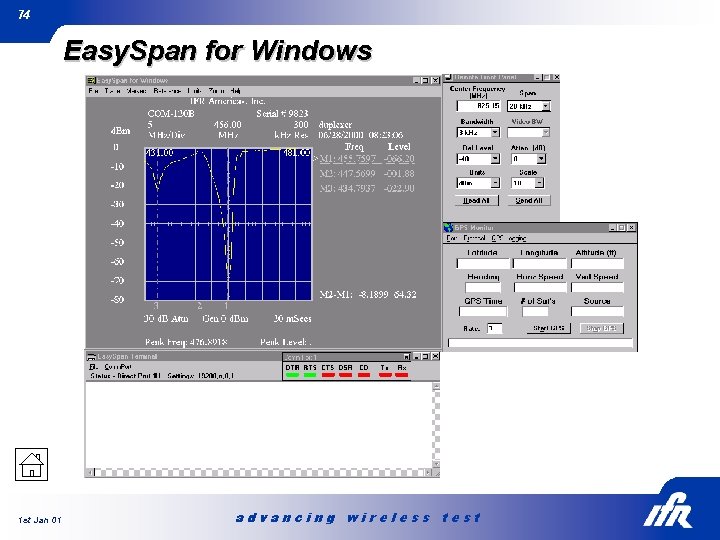
74 Easy. Span for Windows 1 st Jan 01 advancing wireless test
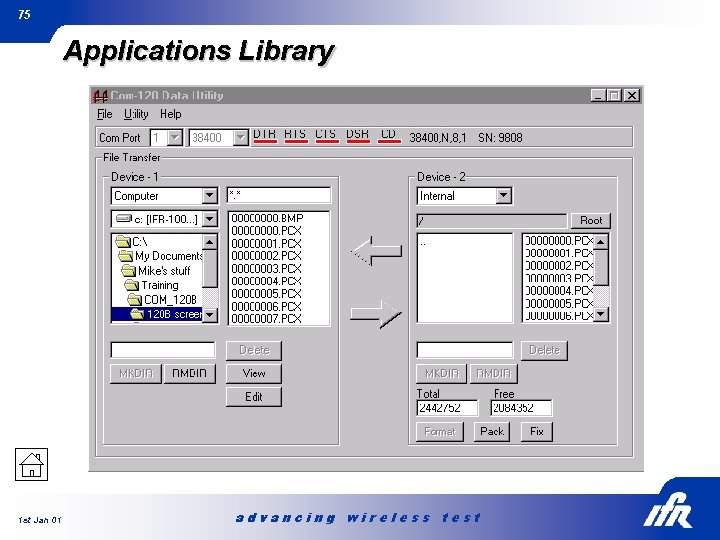
75 Applications Library 1 st Jan 01 advancing wireless test
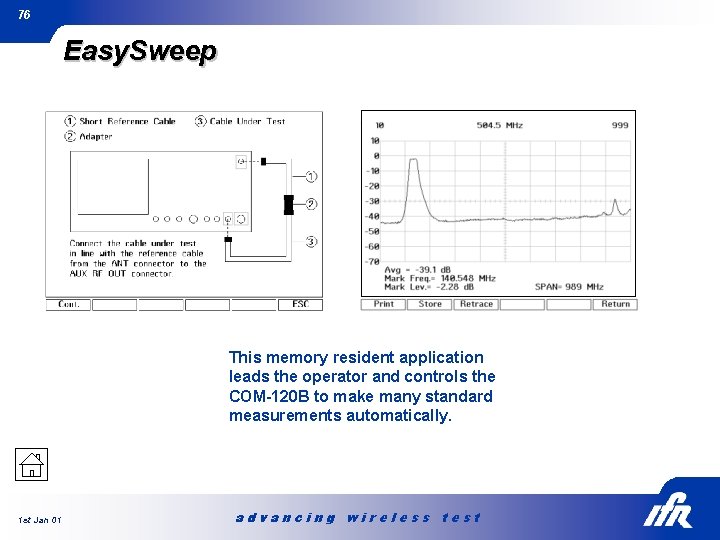
76 Easy. Sweep This memory resident application leads the operator and controls the COM-120 B to make many standard measurements automatically. 1 st Jan 01 advancing wireless test
77 Common Operator Problems n n n 1 st Jan 01 Unit will not Decode tone formats l Improper filter settings for the AF Counter l The Squelch is not set correctly The Analyzer display does not look correct l The COUPLE function needs to be selected for the SCAN width selected l The SET REF function was activated with a signal connected Nothing shows up when I turn on the Tracking Generator l An offset has been entered into the Tracking Generator The RF Signal Generator has no output l Output port is set to TR Gate or AUX Gate The Function generator is turned on but has no output l The Function generator is set to Burst mode advancing wireless test
78 Common Operator Problems The Power meter reading is not correct l The Frequency is not entered l The cable loss was not compensated for l The cable loss was compensated as negative value instead of positive n The SINAD meter is too unstable to use l Averaging has not been turned on n The Deviation meter is not accurate l They have not taken residual FM into account n The Scope Demod is not centered l The Deviation meter is DC coupled and needs to have an FMZ operation performed l The Scope vertical position needs to be adjust with the receiver squelched off n 1 st Jan 01 advancing wireless test
79 Questions? 1 st Jan 01 advancing wireless test
- Slides: 78