
IBM Virtual Desktop for Smart Business Overview IBM
IBM Virtual Desktop for Smart Business Overview IBM Virtual Desktop for Smart Business
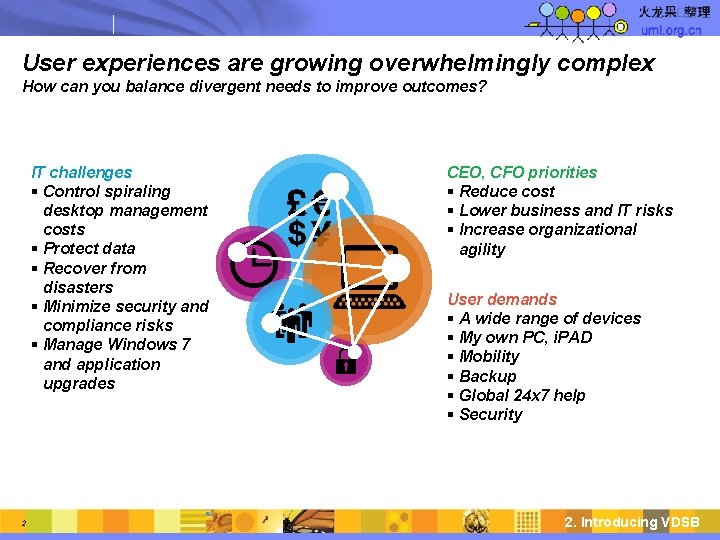
User experiences are growing overwhelmingly complex How can you balance divergent needs to improve outcomes? IT challenges Control spiraling desktop management costs Protect data Recover from disasters Minimize security and compliance risks Manage Windows 7 and application upgrades 2 CEO, CFO priorities Reduce cost Lower business and IT risks Increase organizational agility User demands A wide range of devices My own PC, i. PAD Mobility Backup Global 24 x 7 help Security 2. Introducing VDSB
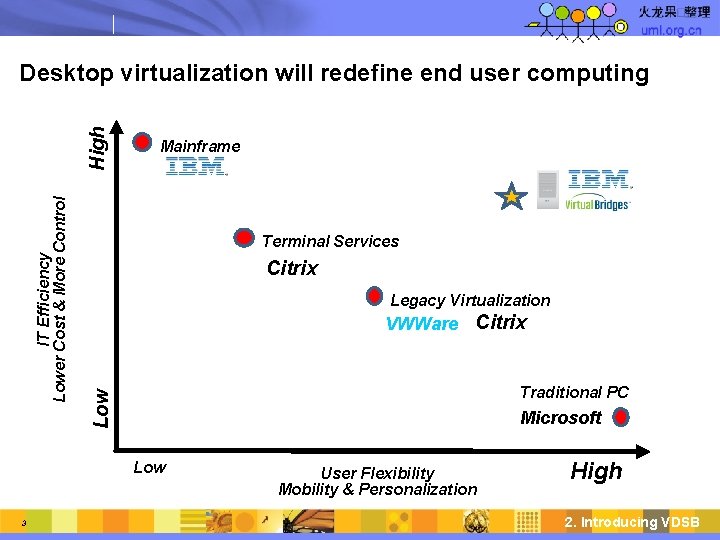
Mainframe Terminal Services Citrix Legacy Virtualization VWWare Citrix Traditional PC Low IT Efficiency Lower Cost & More Control High Desktop virtualization will redefine end user computing Microsoft Low 3 User Flexibility Mobility & Personalization High 2. Introducing VDSB
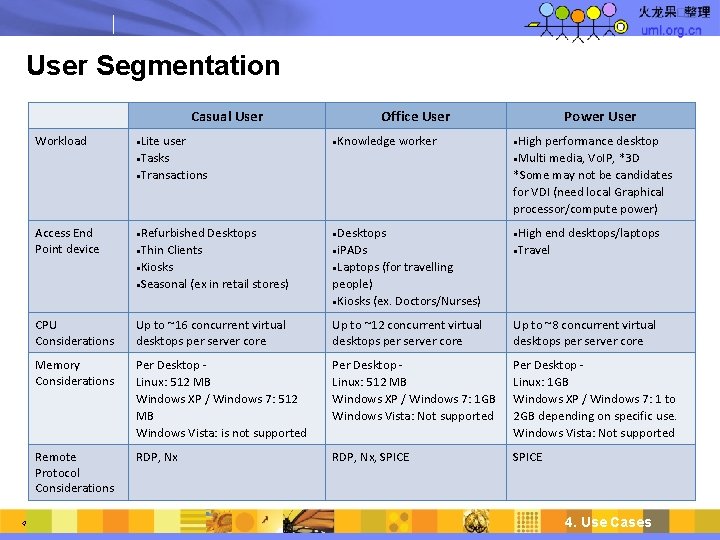
User Segmentation Casual User Workload Access End Point device 4 Lite user Tasks Transactions Refurbished Desktops Thin Clients Kiosks Seasonal (ex in retail stores) Office User Knowledge worker Desktops i. PADs Laptops (for travelling people) Kiosks (ex. Doctors/Nurses) Power User High performance desktop Multi media, Vo. IP, *3 D *Some may not be candidates for VDI (need local Graphical processor/compute power) High end desktops/laptops Travel CPU Considerations Up to ~16 concurrent virtual desktops per server core Up to ~12 concurrent virtual desktops per server core Up to ~8 concurrent virtual desktops per server core Memory Considerations Per Desktop Linux: 512 MB Windows XP / Windows 7: 512 MB Windows Vista: is not supported Per Desktop Linux: 512 MB Windows XP / Windows 7: 1 GB Windows Vista: Not supported Per Desktop Linux: 1 GB Windows XP / Windows 7: 1 to 2 GB depending on specific use. Windows Vista: Not supported Remote Protocol Considerations RDP, Nx, SPICE 4. Use Cases
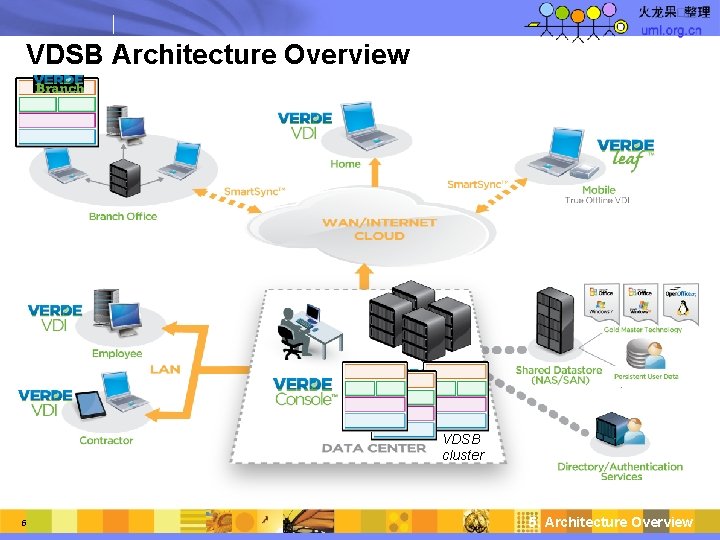
VDSB Architecture Overview VDSB cluster 5 5. Architecture Overview
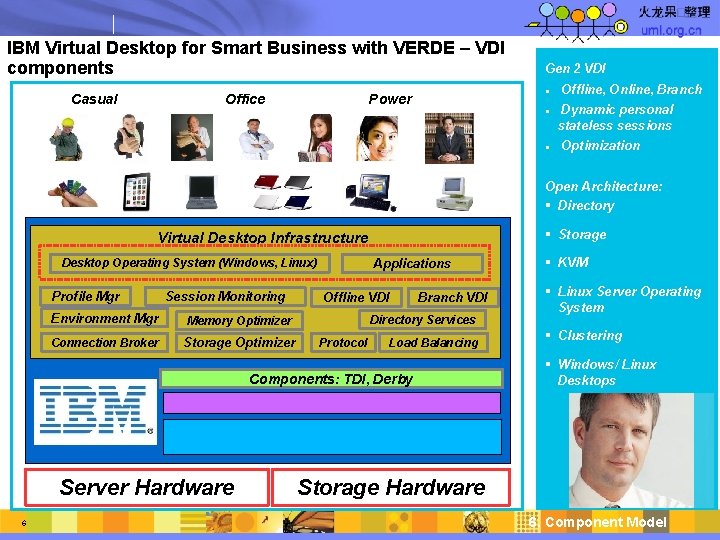
IBM Virtual Desktop for Smart Business with VERDE – VDI components Casual Office Gen 2 VDI Power Offline, Online, Branch Dynamic personal stateless sessions Optimization Open Architecture: Directory Storage Virtual Desktop Infrastructure Applications Desktop Operating System (Windows, Linux) Profile Mgr Session Monitoring Environment Mgr Memory Optimizer Connection Broker Storage Optimizer Offline VDI Branch VDI Directory Services Protocol Load Balancing Components: TDI, Derby Server Hardware 6 KVM Linux Server Operating System Clustering Windows/ Linux Desktops Storage Hardware 6. Component Model
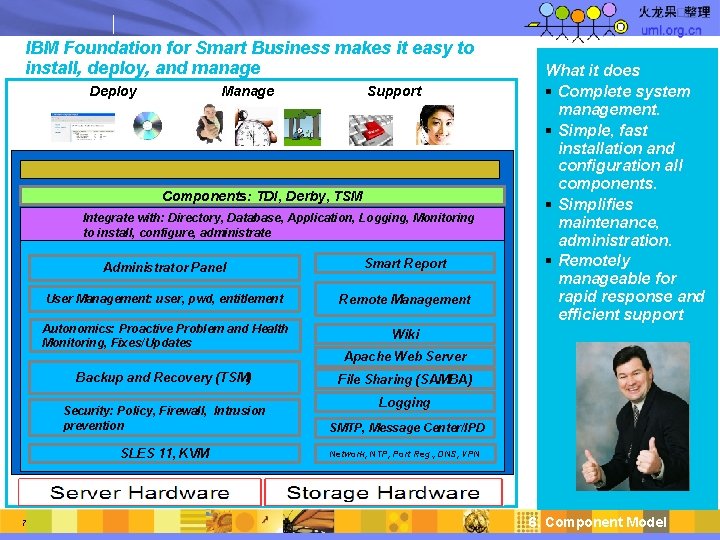
IBM Foundation for Smart Business makes it easy to install, deploy, and manage Deploy Manage Support Components: TDI, Derby, TSM Integrate with: Directory, Database, Application, Logging, Monitoring to install, configure, administrate Administrator Panel Smart Report User Management: user, pwd, entitlement Remote Management Autonomics: Proactive Problem and Health Monitoring, Fixes/Updates Wiki What it does Complete system management. Simple, fast installation and configuration all components. Simplifies maintenance, administration. Remotely manageable for rapid response and efficient support Apache Web Server Backup and Recovery (TSM) 7 File Sharing (SAMBA) Logging Security: Policy, Firewall, Intrusion prevention SMTP, Message Center/IPD SLES 11, KVM Network, NTP, Port Reg. , DNS, VPN 6. Component Model
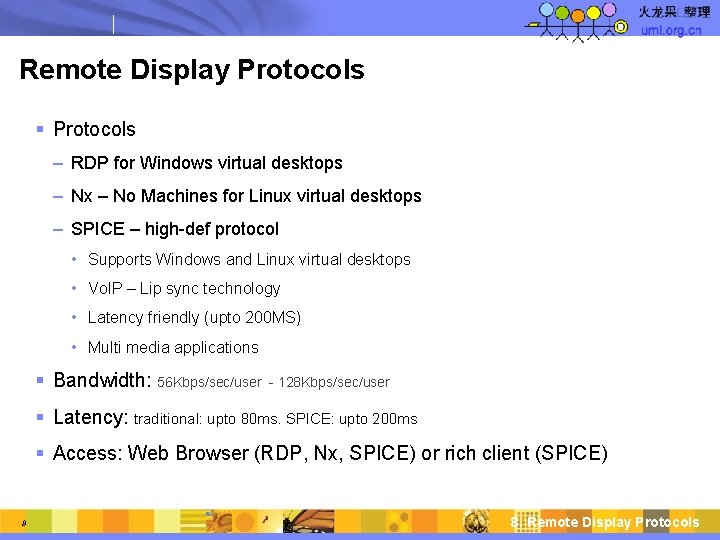
Remote Display Protocols – RDP for Windows virtual desktops – Nx – No Machines for Linux virtual desktops – SPICE – high-def protocol • Supports Windows and Linux virtual desktops • Vo. IP – Lip sync technology • Latency friendly (upto 200 MS) • Multi media applications Bandwidth: 56 Kbps/sec/user - 128 Kbps/sec/user Latency: traditional: upto 80 ms. SPICE: upto 200 ms Access: Web Browser (RDP, Nx, SPICE) or rich client (SPICE) 8 8. Remote Display Protocols
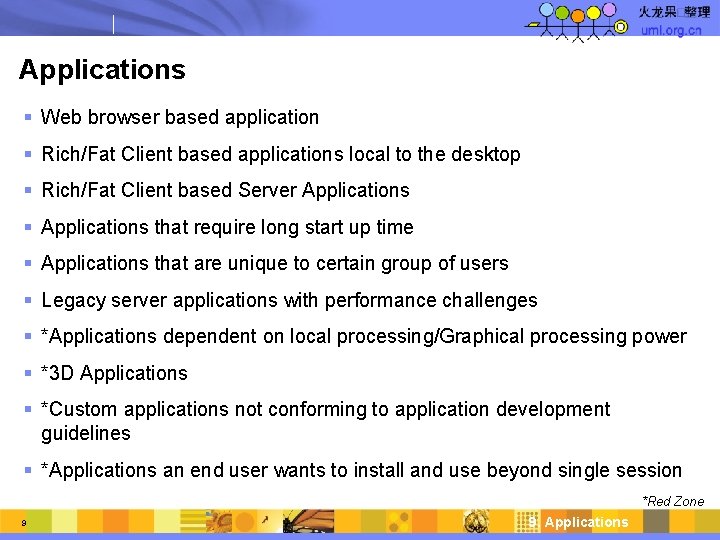
Applications Web browser based application Rich/Fat Client based applications local to the desktop Rich/Fat Client based Server Applications that require long start up time Applications that are unique to certain group of users Legacy server applications with performance challenges *Applications dependent on local processing/Graphical processing power *3 D Applications *Custom applications not conforming to application development guidelines *Applications an end user wants to install and use beyond single session *Red Zone 9 9. Applications
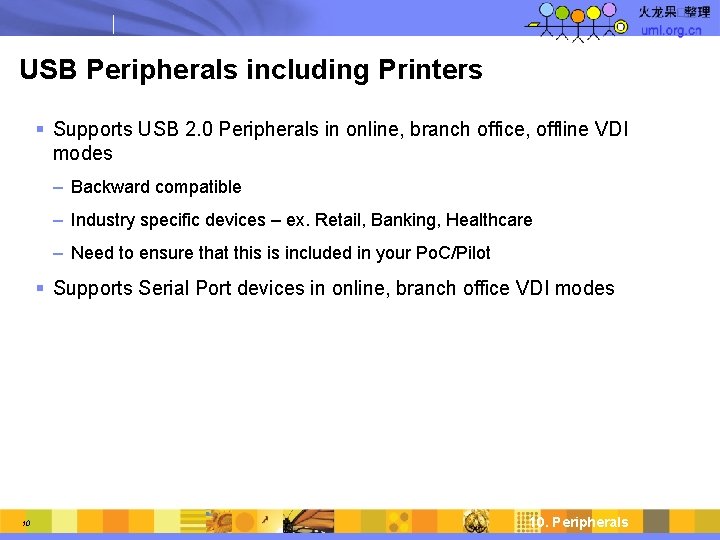
USB Peripherals including Printers Supports USB 2. 0 Peripherals in online, branch office, offline VDI modes – Backward compatible – Industry specific devices – ex. Retail, Banking, Healthcare – Need to ensure that this is included in your Po. C/Pilot Supports Serial Port devices in online, branch office VDI modes 10 10. Peripherals
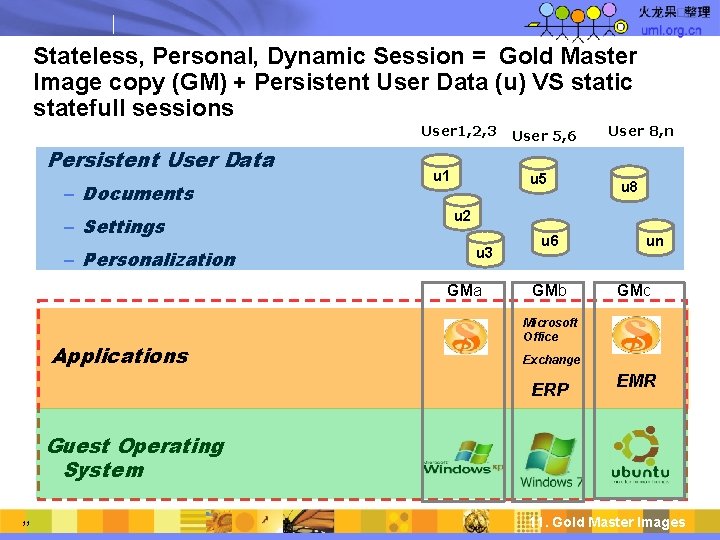
Stateless, Personal, Dynamic Session = Gold Master Image copy (GM) + Persistent User Data (u) VS static statefull sessions User 1, 2, 3 Persistent User Data – Documents – Settings – Personalization u 1 u 5 User 8, n u 8 u 2 u 3 GMa Applications User 5, 6 u 6 GMb un GMc Microsoft Office Exchange ERP EMR Guest Operating System 11 11. Gold Master Images
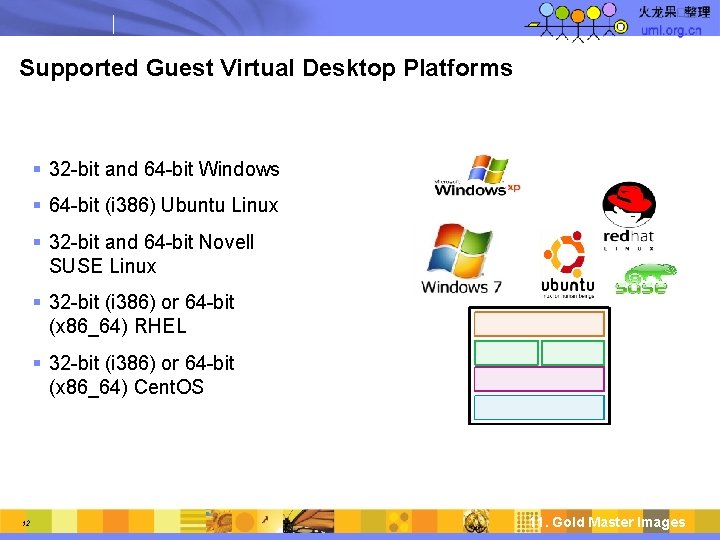
Supported Guest Virtual Desktop Platforms 32 -bit and 64 -bit Windows 64 -bit (i 386) Ubuntu Linux 32 -bit and 64 -bit Novell SUSE Linux 32 -bit (i 386) or 64 -bit (x 86_64) RHEL 32 -bit (i 386) or 64 -bit (x 86_64) Cent. OS 12 11. Gold Master Images
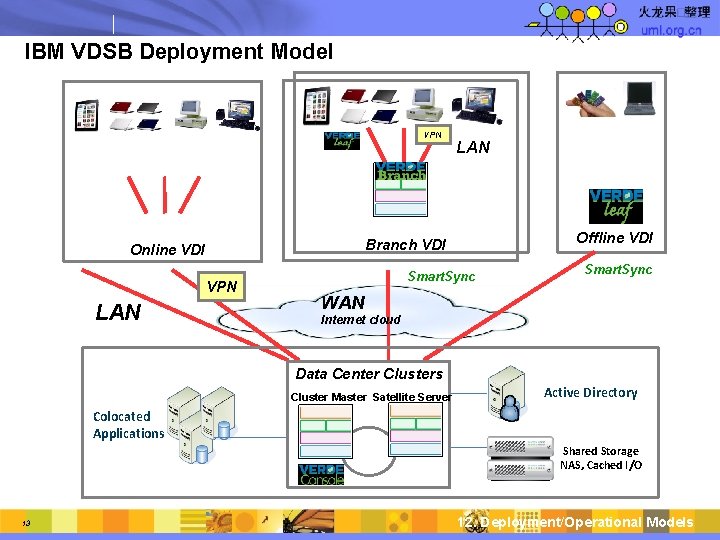
IBM VDSB Deployment Model VPN Offline VDI Branch VDI Online VDI VPN LAN Smart. Sync WAN Internet cloud Data Center Clusters Cluster Master Satellite Server Active Directory Colocated Applications Shared Storage NAS, Cached I/O 13 12. Deployment/Operational Models
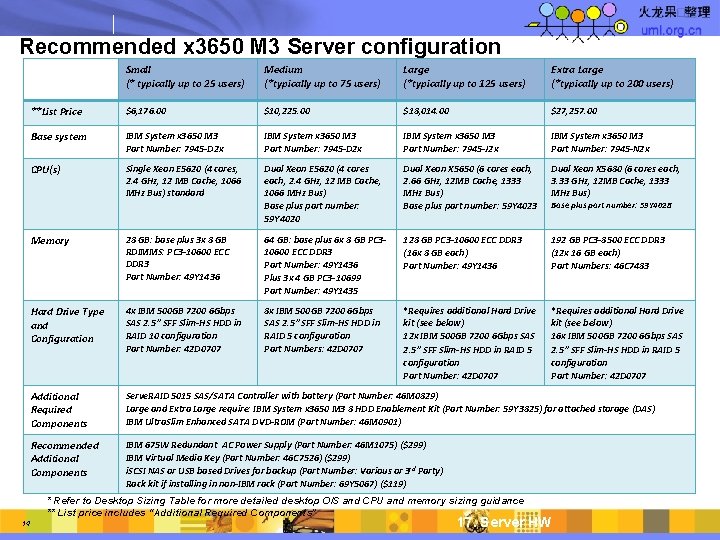
Recommended x 3650 M 3 Server configuration Small (* typically up to 25 users) Medium (*typically up to 75 users) Large (*typically up to 125 users) Extra Large (*typically up to 200 users) **List Price $6, 176. 00 $10, 225. 00 $18, 014. 00 $27, 257. 00 Base system IBM System x 3650 M 3 Part Number: 7945 -D 2 x IBM System x 3650 M 3 Part Number: 7945 -J 2 x IBM System x 3650 M 3 Part Number: 7945 -N 2 x CPU(s) Single Xeon E 5620 (4 cores, 2. 4 GHz, 12 MB Cache, 1066 MHz Bus) standard Dual Xeon E 5620 (4 cores each, 2. 4 GHz, 12 MB Cache, 1066 MHz Bus) Base plus part number: 59 Y 4020 Dual Xeon X 5650 (6 cores each, 2. 66 GHz, 12 MB Cache, 1333 MHz Bus) Base plus part number: 59 Y 4023 Dual Xeon X 5680 (6 cores each, 3. 33 GHz, 12 MB Cache, 1333 MHz Bus) Memory 28 GB: base plus 3 x 8 GB RDIMMS: PC 3 -10600 ECC DDR 3 Part Number: 49 Y 1436 64 GB: base plus 6 x 8 GB PC 310600 ECC DDR 3 Part Number: 49 Y 1436 Plus 3 x 4 GB PC 3 -10699 Part Number: 49 Y 1435 128 GB PC 3 -10600 ECC DDR 3 (16 x 8 GB each) Part Number: 49 Y 1436 192 GB PC 3 -8500 ECC DDR 3 (12 x 16 GB each) Part Numbers: 46 C 7483 Hard Drive Type and Configuration 4 x IBM 500 GB 7200 6 Gbps SAS 2. 5” SFF Slim-HS HDD in RAID 10 configuration Part Number: 42 D 0707 8 x IBM 500 GB 7200 6 Gbps SAS 2. 5” SFF Slim-HS HDD in RAID 5 configuration Part Numbers: 42 D 0707 *Requires additional Hard Drive kit (see below) 12 x IBM 500 GB 7200 6 Gbps SAS 2. 5” SFF Slim-HS HDD in RAID 5 configuration Part Number: 42 D 0707 *Requires additional Hard Drive kit (see below) 16 x IBM 500 GB 7200 6 Gbps SAS 2. 5” SFF Slim-HS HDD in RAID 5 configuration Part Number: 42 D 0707 Additional Required Components Serve. RAID 5015 SAS/SATA Controller with battery (Part Number: 46 M 0829) Large and Extra Large require: IBM System x 3650 M 3 8 HDD Enablement Kit (Part Number: 59 Y 3825) for attached storage (DAS) IBM Ultra. Slim Enhanced SATA DVD-ROM (Part Number: 46 M 0901) Recommended Additional Components IBM 675 W Redundant AC Power Supply (Part Number: 46 M 1075) ($299) IBM Virtual Media Key (Part Number: 46 C 7526) ($299) i. SCSI NAS or USB based Drives for backup (Part Number: Various or 3 rd Party) Rack kit if installing in non-IBM rack (Part Number: 69 Y 5067) ($119) * Refer to Desktop Sizing Table for more detailed desktop O/S and CPU and memory sizing guidance ** List price includes “Additional Required Components” 14 Base plus part number: 59 Y 4028 17. Server HW
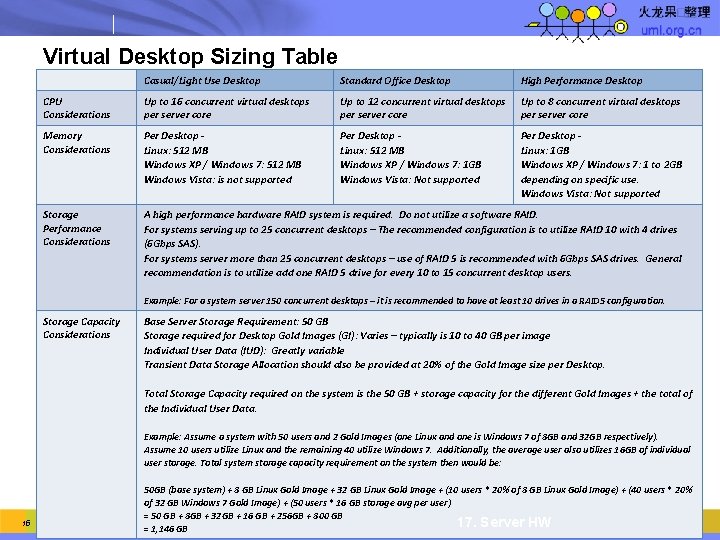
Virtual Desktop Sizing Table Casual/Light Use Desktop Standard Office Desktop High Performance Desktop CPU Considerations Up to 16 concurrent virtual desktops per server core Up to 12 concurrent virtual desktops per server core Up to 8 concurrent virtual desktops per server core Memory Considerations Per Desktop Linux: 512 MB Windows XP / Windows 7: 512 MB Windows Vista: is not supported Per Desktop Linux: 512 MB Windows XP / Windows 7: 1 GB Windows Vista: Not supported Per Desktop Linux: 1 GB Windows XP / Windows 7: 1 to 2 GB depending on specific use. Windows Vista: Not supported Storage Performance Considerations A high performance hardware RAID system is required. Do not utilize a software RAID. For systems serving up to 25 concurrent desktops – The recommended configuration is to utilize RAID 10 with 4 drives (6 Gbps SAS). For systems server more than 25 concurrent desktops – use of RAID 5 is recommended with 6 Gbps SAS drives. General recommendation is to utilize add one RAID 5 drive for every 10 to 15 concurrent desktop users. Example: For a system server 150 concurrent desktops – it is recommended to have at least 10 drives in a RAID 5 configuration. Storage Capacity Considerations Base Server Storage Requirement: 50 GB Storage required for Desktop Gold Images (GI): Varies – typically is 10 to 40 GB per image Individual User Data (IUD): Greatly variable Transient Data Storage Allocation should also be provided at 20% of the Gold Image size per Desktop. Total Storage Capacity required on the system is the 50 GB + storage capacity for the different Gold Images + the total of the Individual User Data. Example: Assume a system with 50 users and 2 Gold Images (one Linux and one is Windows 7 of 8 GB and 32 GB respectively). Assume 10 users utilize Linux and the remaining 40 utilize Windows 7. Additionally, the average user also utilizes 16 GB of individual user storage. Total system storage capacity requirement on the system then would be: 15 50 GB (base system) + 8 GB Linux Gold Image + 32 GB Linux Gold Image + (10 users * 20% of 8 GB Linux Gold Image) + (40 users * 20% of 32 GB Windows 7 Gold Image) + (50 users * 16 GB storage avg per user) = 50 GB + 8 GB + 32 GB + 16 GB + 256 GB + 800 GB 17. Server HW = 1, 146 GB
VDSB address Marketplace concerns about virtual desktops Complexity 16 Coverage Cost Other 19. Solution Differentiation
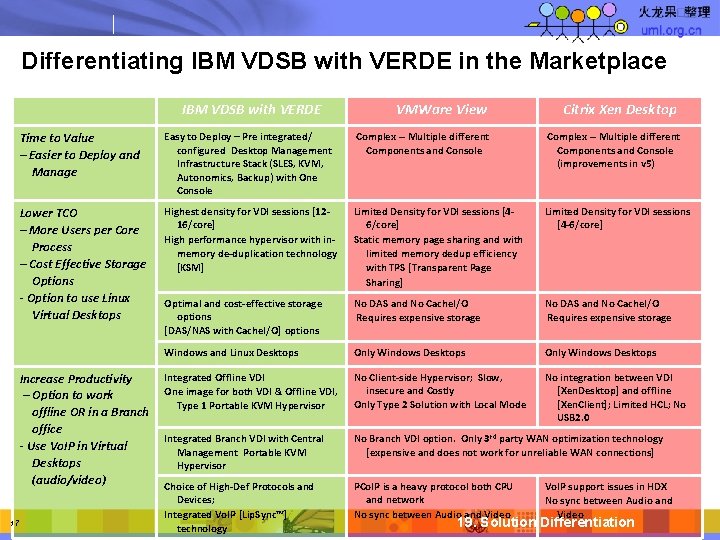
Differentiating IBM VDSB with VERDE in the Marketplace IBM VDSB with VERDE Citrix Xen Desktop Time to Value – Easier to Deploy and Manage Easy to Deploy – Pre integrated/ configured Desktop Management Infrastructure Stack (SLES, KVM, Autonomics, Backup) with One Console Complex -- Multiple different Components and Console (improvements in v 5) Lower TCO – More Users per Core Process – Cost Effective Storage Options - Option to use Linux Virtual Desktops Highest density for VDI sessions [1216/core] High performance hypervisor with inmemory de-duplication technology [KSM] Limited Density for VDI sessions [46/core] Static memory page sharing and with limited memory dedup efficiency with TPS [Transparent Page Sharing] Limited Density for VDI sessions [4 -6/core] Optimal and cost-effective storage options [DAS/NAS with Cache. I/O] options No DAS and No Cache. I/O Requires expensive storage Windows and Linux Desktops Only Windows Desktops Integrated Offline VDI One image for both VDI & Offline VDI, Type 1 Portable KVM Hypervisor No Client-side Hypervisor; Slow, insecure and Costly Only Type 2 Solution with Local Mode No integration between VDI [Xen. Desktop] and offline [Xen. Client]; Limited HCL; No USB 2. 0 Integrated Branch VDI with Central Management Portable KVM Hypervisor No Branch VDI option. Only 3 rd party WAN optimization technology [expensive and does not work for unreliable WAN connections] Choice of High-Def Protocols and Devices; Integrated Vo. IP [Lip. Sync™] technology PCo. IP is a heavy protocol both CPU and network No sync between Audio and Video Increase Productivity – Option to work offline OR in a Branch office - Use Vo. IP in Virtual Desktops (audio/video) 17 VMWare View Vo. IP support issues in HDX No sync between Audio and Video 19. Solution Differentiation
Technical Glossary 18 22. Technical Glossary
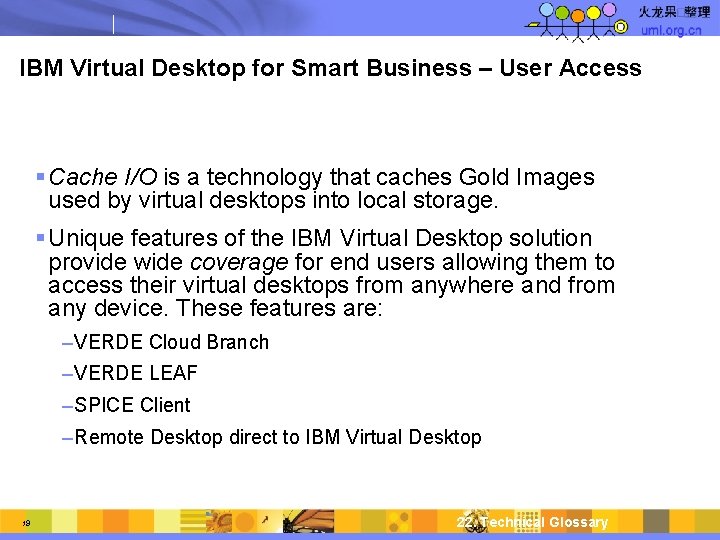
IBM Virtual Desktop for Smart Business – User Access Cache I/O is a technology that caches Gold Images used by virtual desktops into local storage. Unique features of the IBM Virtual Desktop solution provide wide coverage for end users allowing them to access their virtual desktops from anywhere and from any device. These features are: – VERDE Cloud Branch – VERDE LEAF – SPICE Client – Remote Desktop direct to IBM Virtual Desktop 19 22. Technical Glossary
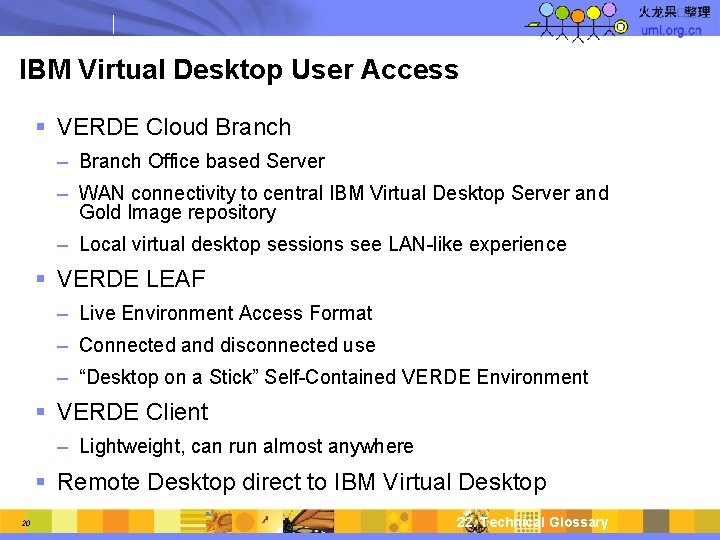
IBM Virtual Desktop User Access VERDE Cloud Branch – Branch Office based Server – WAN connectivity to central IBM Virtual Desktop Server and Gold Image repository – Local virtual desktop sessions see LAN-like experience VERDE LEAF – Live Environment Access Format – Connected and disconnected use – “Desktop on a Stick” Self-Contained VERDE Environment VERDE Client – Lightweight, can run almost anywhere Remote Desktop direct to IBM Virtual Desktop 20 22. Technical Glossary
VERDE Cloud Branch VERDE Cloud Branch: – Organizations that wish to deploy virtual desktops to branch offices that are connected over a slower and less reliable WAN connection can use the VERDE Cloud Branch server in the branch office. – The VERDE Cloud Branch server connects to the central IBM Virtual Desktop server and Gold Image repository to make sure that the users at the branch office are running the latest and authorized copies of the desktop sessions. – The virtual desktop sessions are served locally from the VERDE Cloud Branch server providing a user a LAN-like experience for virtual desktops. Cloud Branch distributes the processing down to the end point, moving the processing power to the location where it needs to be but not the management responsibilities. With VERDE Cloud Branch server, an enterprise gets the benefits of higher performance and response times while maintaining centralized control of the desktop images in the data center –and eliminates the need for expensive WAN optimization infrastructures. Cloud Branch provides the benefits of a native PC experience for the users in the branch, reduces network traffic, and provides business continuity. 21 22. Technical Glossary
VERDE LEAF VERDE Live Environment Access Format (LEAF) provides both connected (access to remote virtual desktop sessions) and disconnected (virtual desktop session is locally cached and executed on the client machine) access. The "Desktop On A Stick" LEAF client is a VERDE pre-packaged and self contained solution that can be installed on a USB stick, a portable drive or locally on the hard drive of the computer. One of the main advantages of the VERDE LEAF disconnected use capability is that LEAF uses the same centralized Gold Image model. VERDE LEAF provides centralized management, but provides disconnected/local execution that is useful for mobile and offline desktop users. – VERDE Client: The IBM Virtual Desktop (VERDE) client is a light-weight application that authenticates users and provides access to user desktop sessions running on the IBM Smart Desktop servers. The VERDE client protocol is optimized to provide the best user experience based on the end user location (LAN, WAN or at a branch location). The VERDE client can run on Windows, Linux, MAC workstations, Netbooks and PDAs. A user can launch more than one virtual desktop session simultaneously by running multiple client sessions. 22 22. Technical Glossary
SPICE Client The IBM Virtual Desktop (SPICE) client is a light-weight application that authenticates users and provides access to user desktop sessions running on the IBM Smart Desktop servers. The SPICE client protocol is optimized to provide the best user experience based on the end user location (LAN, WAN or at a branch location), particularly for high-res multi media. The SPICE client can run on Windows, Linux, MAC workstations, Netbooks and PDAs. A user can launch more than one virtual desktop session simultaneously by running multiple client sessions 23 22. Technical Glossary
Key elements of the VERDE environment VERDE = Virtual Enterprise Remote Desktop Environment: the suite of virtual desktop/management software from Virtual Bridges Gold Image – A master or ―template virtual machine installation that can then be deployed to multiple users for dynamic instantiation. A Gold Image combines a guest operating system, applications, system-wide desktop configuration, and policies—to later be layered with individual user data when deployed. Server – The computer hosting virtual desktop sessions to remote users or the computer used to administer virtual desktops in a single-node environment. Each server is responsible for authenticating and authorizing users to Gold Images and then running the selected virtual desktop sessions. VDI (Virtual Desktop Infrastructure) —the mechanism of serving desktop sessions to remote users from servers as discrete environments. 24 22. Technical Glossary
Key elements of the VERDE environment ( cont. ) Dynamic virtual desktop - One instance of a Gold Image virtual machine when started by a user. The guest operating system, application, system-wide desktop configuration, and policies may not be changed by the dynamic user. However, the dynamic user may apply personal settings and documents to the virtual desktop instance to form a full-featured, personalized session. Client - Remote access point that connects to a guest on the host; typically this is either an ordinary desktop PC/laptop, or a thin client device running Virtual Bridges access software to display and access a server-hosted virtual desktop. Virtual Machine – The container technology that runs desktop environments for remote users. A VERDE server will host many virtual machines, each containing a user desktop session and providing a common set of emulated hardware to the operating system and applications running inside. 25 22. Technical Glossary
Key elements of the VERDE environment (cont. ) Host - The server hardware and operating system which provide an environment to consolidate virtual desktops. Guest - The virtual desktop itself (as a guest of the host). One host may serve many guest virtual desktops. Management Console - Web-based graphical interface used to create and manage Gold Images. Administrators can view virtual desktop sessions grouped by user or server or based on type of Gold Image. In addition, the console provides real-time server utilization metrics Cluster – A group of servers acting as a single group that serves large numbers of virtual desktop environments to remote users. 26 22. Technical Glossary
End of Presentation
- Slides: 27