
IBM Software Group RDz Workbench Using the Data
® IBM Software Group RDz Workbench – Using the Data Source Explorer Author: Jon Sayles, Enterprise Modernization Eco. Systems Team Last Update: November, 2009 © 2009 IBM Corporation
IBM Trademarks and Copyrights 4 © Copyright IBM Corporation 2007, 2008, 2009. All rights reserved. 4 The information contained in these materials is provided for informational purposes only, and is provided AS IS without warranty of any kind, express or implied. IBM shall not be responsible for any damages arising out of the use of, or otherwise related to, these materials. Nothing contained in these materials is intended to, nor shall have the effect of, creating any warranties or representations from IBM or its suppliers or licensors, or altering the terms and conditions of the applicable license agreement governing the use of IBM software. References in these materials to IBM products, programs, or services do not imply that they will be available in all countries in which IBM operates. 4 This information is based on current IBM product plans and strategy, which are subject to change by IBM without notice. Product release dates and/or capabilities referenced in these materials may change at any time at IBM’s sole discretion based on market opportunities or other factors, and are not intended to be a commitment to future product or feature availability in any way. 4 IBM, the IBM logo, the on-demand business logo, Rational, the Rational logo, and other IBM Rational products and services are trademarks or registered trademarks of the International Business Machines Corporation, in the United States, other countries or both. Other company, product, or service names may be trademarks or service marks of others. © 2009 IBM Corporation 2
Course Contributing Authors § Thanks to the following individuals, for assisting with this course: 4 Reginaldo Barosa/IBM 4 David Bean/IBM © 2009 IBM Corporation 3

Course Overview § Audience 4 This course is designed for application developers who have learned or programmed in COBOL, and who need to do z/OS Traditional Development and Maintenance as well as build leading-edge applications using COBOL and Rational Developer for System z. § Prerequisites 4 This course assumes that the student has a basic understanding and knowledge of software computing technologies, and general data processing terms, concepts and vocabulary, as well as a working knowledge of COBOL and z/OS. 4 Knowledge of SQL (Structured Query Language) is assumed for database access is assumed as well. 4 Basic PC and mouse-driven development skills, terms and concepts are also assumed. © 2009 IBM Corporation 4

Course Topics § Course Name: Rational Developer for System z Foundation Training § Course Description: Learn how to use Rational Developer for System z to do z/OS traditional development, maintenance, support and for Enterprise Modernization of z/OS applications § Pre-requisites: Some experience developing COBOL applications using z/OS is expected. A working knowledge of SQL is also recommended. § Course Length: ~5 days – or if done in self-paced mode, at your own pace § Topics (Agenda) § § § § § Getting Started - installing and configuring RDz - and the course materials, and using Eclipse The RDz Workbench – Code analysis tools – Editing – Compiling programs – Debugging local COBOL programs The Data Perspective: – Working with relational data sources – Modifying test data – Editing and testing SQL statements Working with remote system resources: – Connecting to a mainframe – Data management – Accessing and editing files z/OS Application Development – Creating MVS Subprojects – Creating and customizing project properties Debugging z/OS Applications – Debugging Batch Applications – Setting Debug Tool for Online Applications Working with File Manager – Creating test data – Editing complex file-types Working with mainframe ABENDs using Fault Analyzer – Creating Fault History views – Analyzing and solving mainframe ABENDs Creating and modifying BMS Maps using the BMS Map Editor © 2009 IBM Corporation 5
Topic objectives After completing this topic, you should be able to: 4 Use the RDz Data Perspective to: § § § Connect to local and remote databases Edit test data interactively Display results of SQL queries Perform DBA activities on tables in a local database Display the data model for your application/DB 2 tables and views Note: In this topic you will be connecting to a local copy of a DB 2 (or UDB) database through the tools in the Data Perspective. The Data Perspective's procedures and tools are very simple. So simple in fact, that you may wish to connect to your own database while (!) you're working through these slides. If you wish to connect to the sample database shown in these slides, please contact IBM to obtain the: • DDL (Data Definition Language statements, used to define the table schema) • Extracted data for importing These tables and views are used in the COBOL/DB 2 unit of the course. Final note – this section assumes you have at least a working-knowledge of SQL. If you do not, please see the next slide for learning-source links. © 2009 IBM Corporation 6
Learning DB 2 and SQL § Many (in the thousands of) books exist that do an excellent job teaching SQL. § Additionally, sites exist on the Internet (GOOGLE: “SQL tutorials” – or “Learn SQL”) for online (and typically free) education. § IBM Also supplies excellent SQL and DB 2 documentation: 4 DB 2 Documentation 4 SQL Getting Started 4 SQL Reference Manual 4 Message (error code) Reference. Cached pdf version of full guide. 4 DB 2 Application Development Guide with example embedded SQL programs. 4 Triggers in DB 2 4 Constraints in DB 2 § Note: as before, in order for you to get the above links to work, run the Power. Point in Slide Show mode. § Here’s an example of COBOL database access: 4 http: //publib. boulder. ibm. com/infocenter/dzichelp/v 2 r 2/index. jsp? topic=/com. ibm. db 29. doc. a psg/db 2 z_samplecoboldrdathreepartnames. htm © 2009 IBM Corporation 7 *** Notes
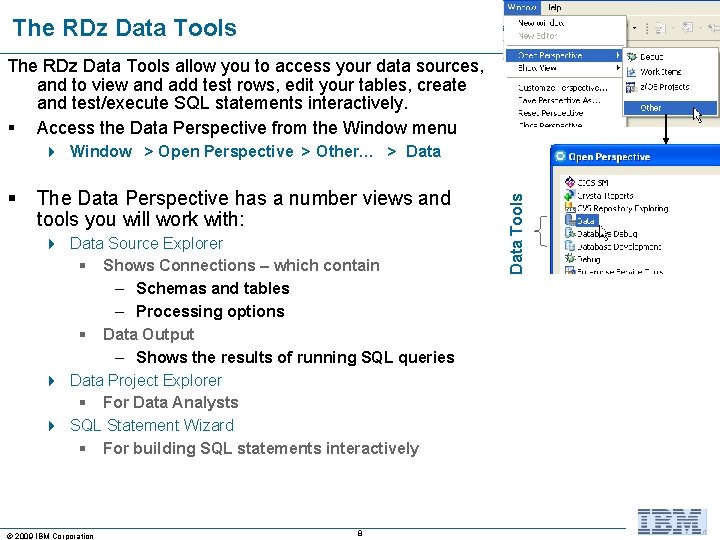
The RDz Data Tools allow you to access your data sources, and to view and add test rows, edit your tables, create and test/execute SQL statements interactively. § Access the Data Perspective from the Window menu § The Data Perspective has a number views and tools you will work with: 4 Data Source Explorer § Shows Connections – which contain – Schemas and tables – Processing options § Data Output – Shows the results of running SQL queries 4 Data Project Explorer § For Data Analysts 4 SQL Statement Wizard § For building SQL statements interactively © 2009 IBM Corporation 8 Data Tools 4 Window > Open Perspective > Other… > Data
Why use the RDz Data Tools? § But, we currently use SPUFI and QMF for doing DB 2 work, why should we change? § Simple… 1. Functionality: § The RDz Data Tools have vastly superior means of: – SQL statement testing – Managing your DB 2 table test data – Full-screen table editing – Simple data export/import – Doing DBA tasks – Understanding your relational data model § Easy access from the RDz Workbench – The tools are completely integrated into eclipse 2. Cost - z/OS MIPS reduction: § RDz is substantially less expensive than TSO/SPUFI or QMF for doing DB 2/SQL development © 2009 IBM Corporation 9
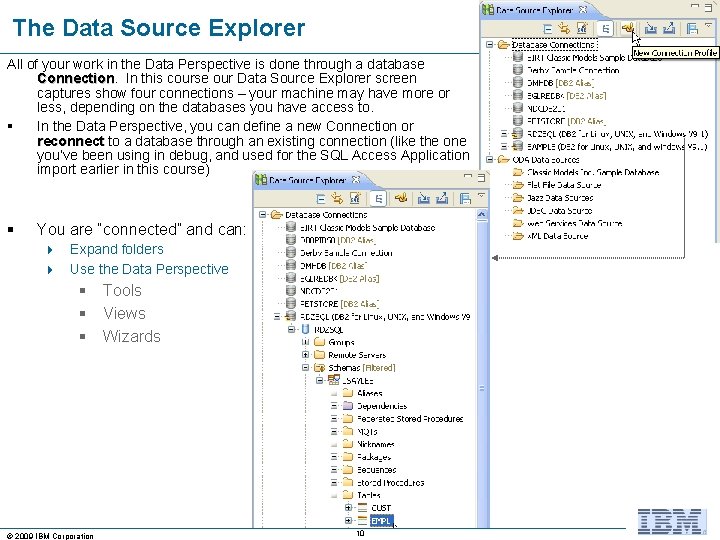
The Data Source Explorer All of your work in the Data Perspective is done through a database Connection In this course our Data Source Explorer screen captures show four connections – your machine may have more or less, depending on the databases you have access to. § In the Data Perspective, you can define a new Connection or reconnect to a database through an existing connection (like the one you’ve been using in debug, and used for the SQL Access Application import earlier in this course) § You are “connected” and can: 4 Expand folders 4 Use the Data Perspective § Tools § Views § Wizards © 2009 IBM Corporation 10
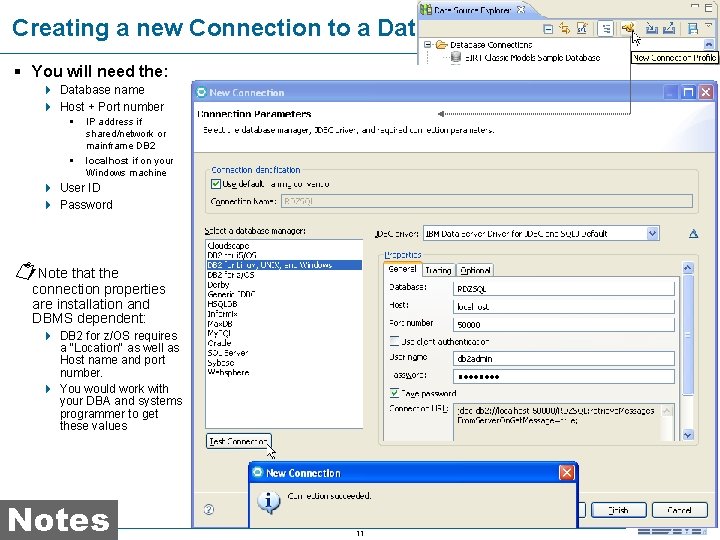
Creating a new Connection to a Database § You will need the: 4 Database name 4 Host + Port number § § IP address if shared/network or mainframe DB 2 localhost if on your Windows machine 4 User ID 4 Password Note that the connection properties are installation and DBMS dependent: 4 DB 2 for z/OS requires a "Location" as well as Host name and port number. 4 You would work with your DBA and systems programmer to get these values Notes © 2009 IBM Corporation 11
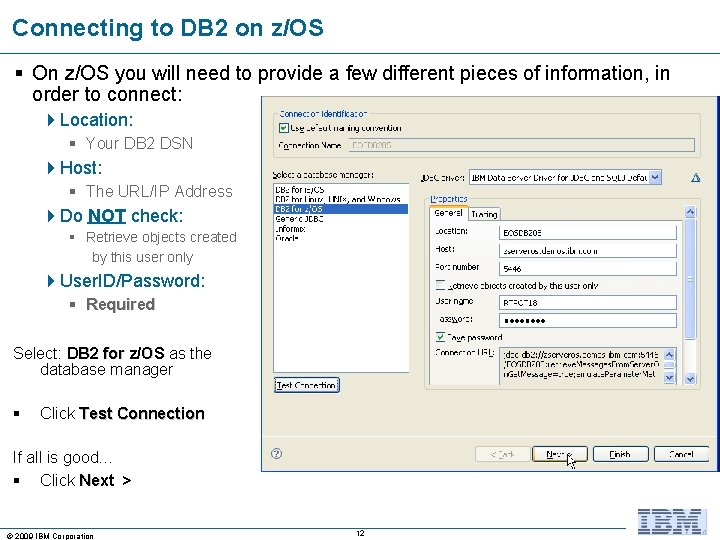
Connecting to DB 2 on z/OS § On z/OS you will need to provide a few different pieces of information, in order to connect: 4 Location: § Your DB 2 DSN 4 Host: § The URL/IP Address 4 Do NOT check: § Retrieve objects created by this user only 4 User. ID/Password: § Required Select: DB 2 for z/OS as the database manager § Click Test Connection If all is good… § Click Next > © 2009 IBM Corporation 12
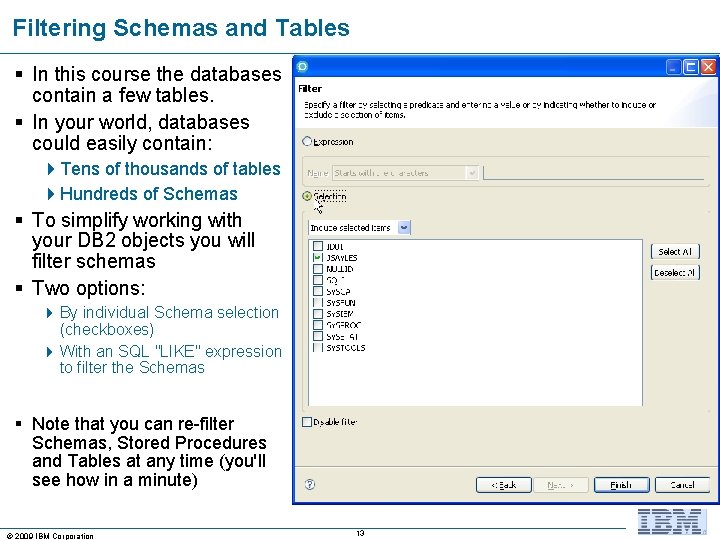
Filtering Schemas and Tables § In this course the databases contain a few tables. § In your world, databases could easily contain: 4 Tens of thousands of tables 4 Hundreds of Schemas § To simplify working with your DB 2 objects you will filter schemas § Two options: 4 By individual Schema selection (checkboxes) 4 With an SQL "LIKE" expression to filter the Schemas § Note that you can re-filter Schemas, Stored Procedures and Tables at any time (you'll see how in a minute) © 2009 IBM Corporation 13
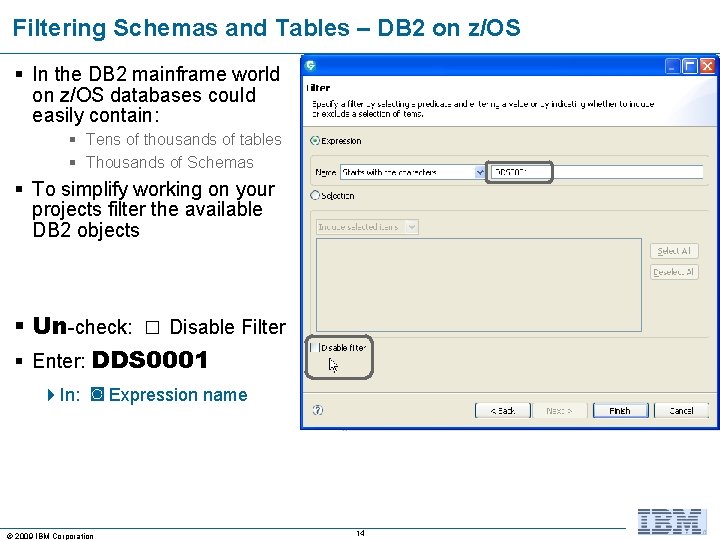
Filtering Schemas and Tables – DB 2 on z/OS § In the DB 2 mainframe world on z/OS databases could easily contain: § Tens of thousands of tables § Thousands of Schemas § To simplify working on your projects filter the available DB 2 objects § Un-check: □ Disable Filter § Enter: DDS 0001 4 In: ◙ Expression name © 2009 IBM Corporation 14
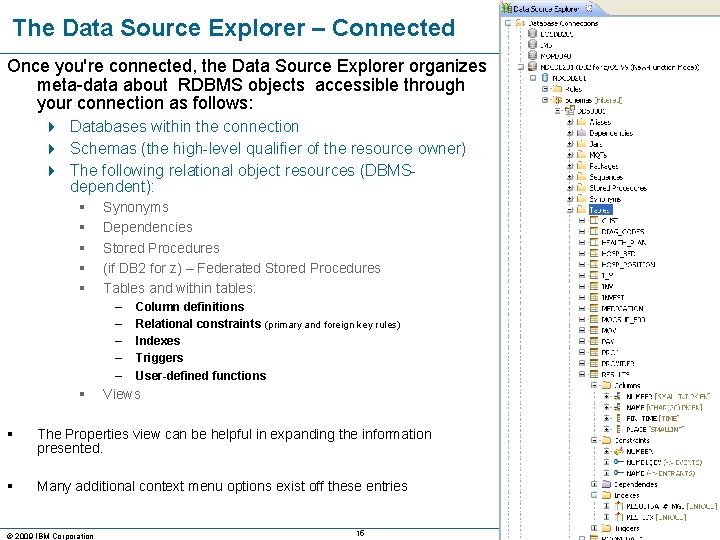
The Data Source Explorer – Connected Once you're connected, the Data Source Explorer organizes meta-data about RDBMS objects accessible through your connection as follows: 4 Databases within the connection 4 Schemas (the high-level qualifier of the resource owner) 4 The following relational object resources (DBMSdependent): § § § Synonyms Dependencies Stored Procedures (if DB 2 for z) – Federated Stored Procedures Tables and within tables: – – – § Column definitions Relational constraints (primary and foreign key rules) Indexes Triggers User-defined functions Views § The Properties view can be helpful in expanding the information presented. § Many additional context menu options exist off these entries © 2009 IBM Corporation 15
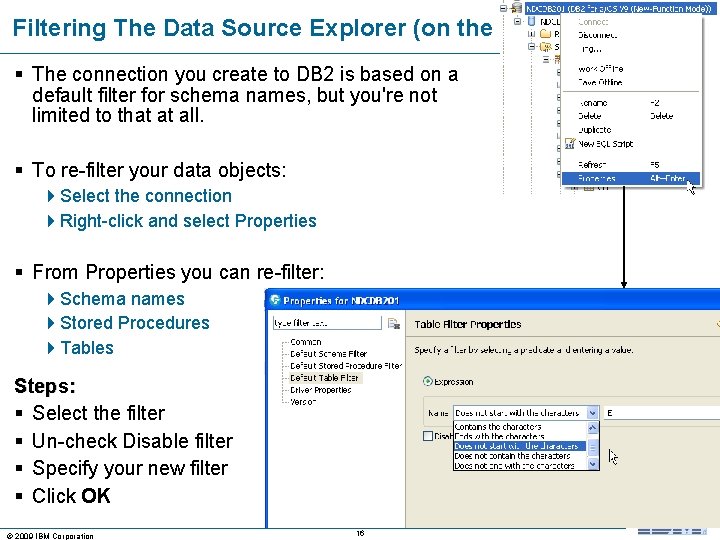
Filtering The Data Source Explorer (on the fly) § The connection you create to DB 2 is based on a default filter for schema names, but you're not limited to that at all. § To re-filter your data objects: 4 Select the connection 4 Right-click and select Properties § From Properties you can re-filter: 4 Schema names 4 Stored Procedures 4 Tables Steps: § Select the filter § Un-check Disable filter § Specify your new filter § Click OK © 2009 IBM Corporation 16
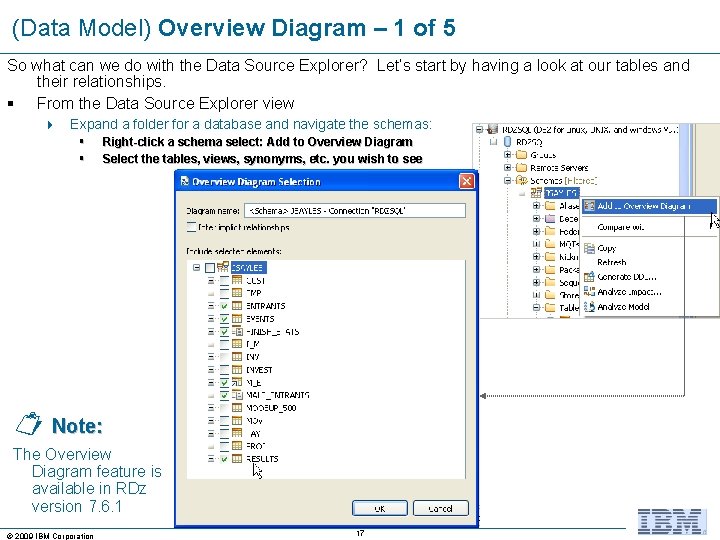
(Data Model) Overview Diagram – 1 of 5 So what can we do with the Data Source Explorer? Let’s start by having a look at our tables and their relationships. § From the Data Source Explorer view 4 Expand a folder for a database and navigate the schemas: § § Right-click a schema select: Add to Overview Diagram Select the tables, views, synonyms, etc. you wish to see Note: The Overview Diagram feature is available in RDz version 7. 6. 1 © 2009 IBM Corporation 17
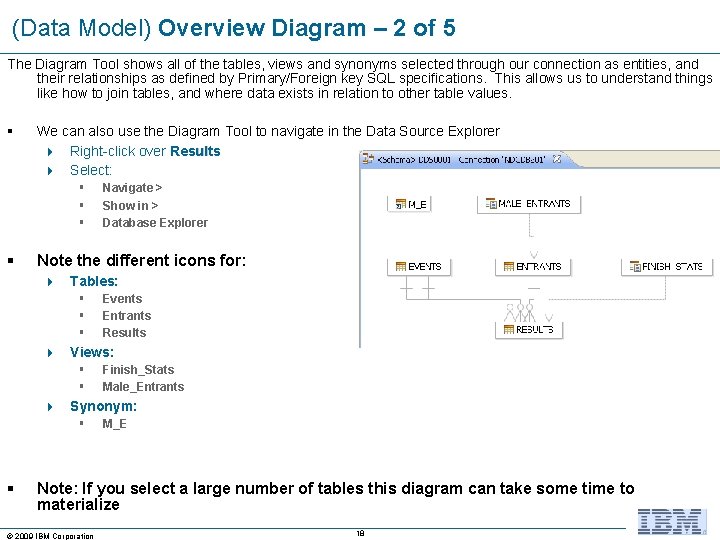
(Data Model) Overview Diagram – 2 of 5 The Diagram Tool shows all of the tables, views and synonyms selected through our connection as entities, and their relationships as defined by Primary/Foreign key SQL specifications. This allows us to understand things like how to join tables, and where data exists in relation to other table values. § We can also use the Diagram Tool to navigate in the Data Source Explorer 4 Right-click over Results 4 Select: § § Navigate > Show in > Database Explorer Note the different icons for: 4 Tables: § § § Events Entrants Results 4 Views: § § Finish_Stats Male_Entrants 4 Synonym: § § M_E Note: If you select a large number of tables this diagram can take some time to materialize © 2009 IBM Corporation 18
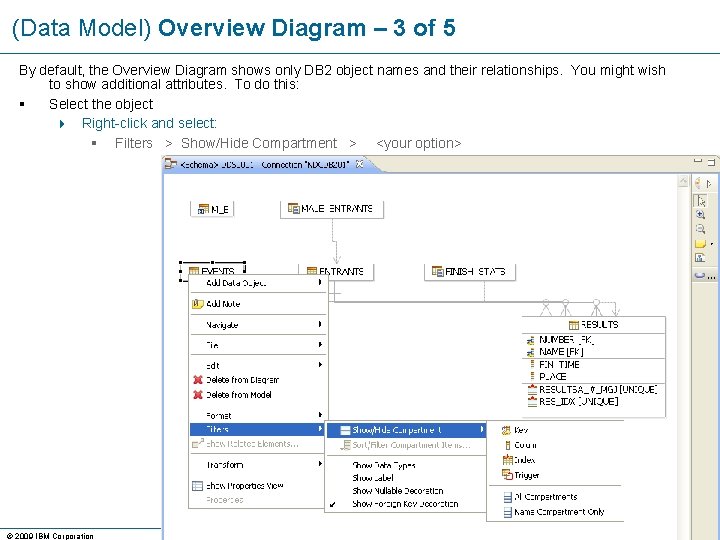
(Data Model) Overview Diagram – 3 of 5 By default, the Overview Diagram shows only DB 2 object names and their relationships. You might wish to show additional attributes. To do this: § Select the object 4 Right-click and select: § Filters > Show/Hide Compartment > <your option> © 2009 IBM Corporation 19
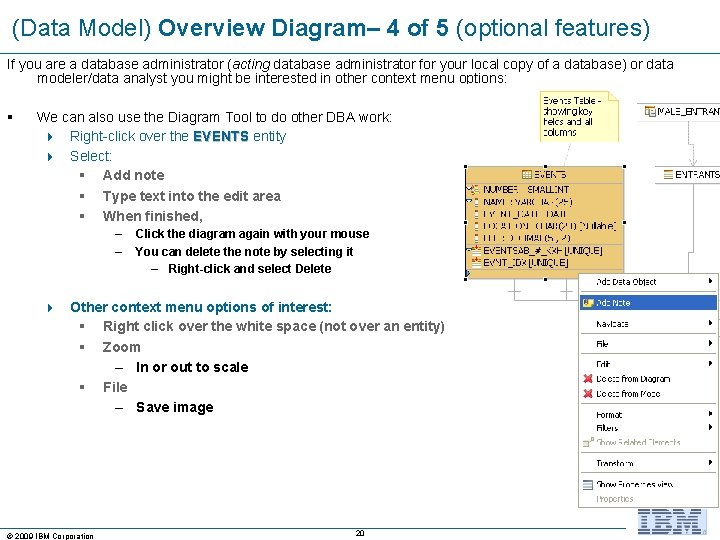
(Data Model) Overview Diagram– 4 of 5 (optional features) If you are a database administrator (acting database administrator for your local copy of a database) or data modeler/data analyst you might be interested in other context menu options: § We can also use the Diagram Tool to do other DBA work: 4 Right-click over the EVENTS entity 4 Select: § Add note § Type text into the edit area § When finished, – – Click the diagram again with your mouse You can delete the note by selecting it – Right-click and select Delete 4 Other context menu options of interest: § Right click over the white space (not over an entity) § Zoom – In or out to scale § File – Save image © 2009 IBM Corporation 20
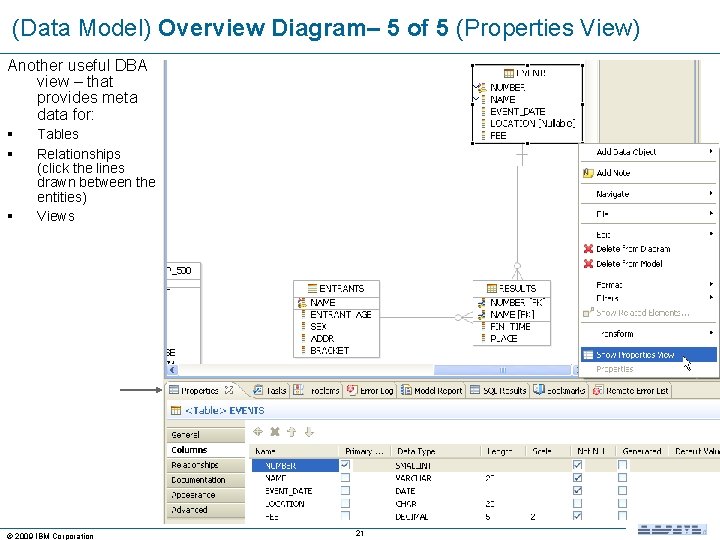
(Data Model) Overview Diagram– 5 of 5 (Properties View) Another useful DBA view – that provides meta data for: § § § Tables Relationships (click the lines drawn between the entities) Views © 2009 IBM Corporation 21
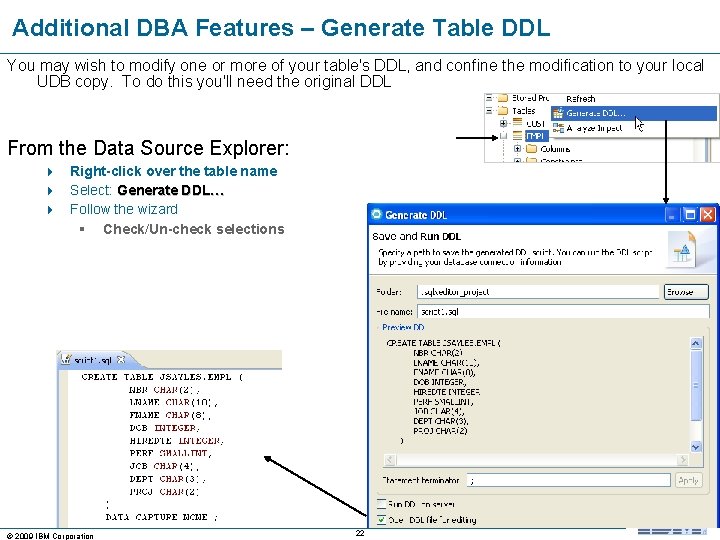
Additional DBA Features – Generate Table DDL You may wish to modify one or more of your table's DDL, and confine the modification to your local UDB copy. To do this you'll need the original DDL From the Data Source Explorer: 4 Right-click over the table name 4 Select: Generate DDL… 4 Follow the wizard § Check/Un-check selections © 2009 IBM Corporation 22
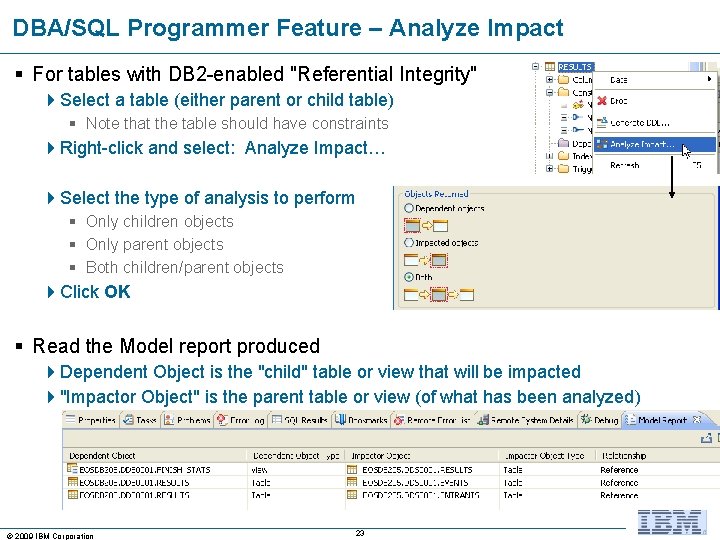
DBA/SQL Programmer Feature – Analyze Impact § For tables with DB 2 -enabled "Referential Integrity" 4 Select a table (either parent or child table) § Note that the table should have constraints 4 Right-click and select: Analyze Impact… 4 Select the type of analysis to perform § Only children objects § Only parent objects § Both children/parent objects 4 Click OK § Read the Model report produced 4 Dependent Object is the "child" table or view that will be impacted 4"Impactor Object" is the parent table or view (of what has been analyzed) © 2009 IBM Corporation 23
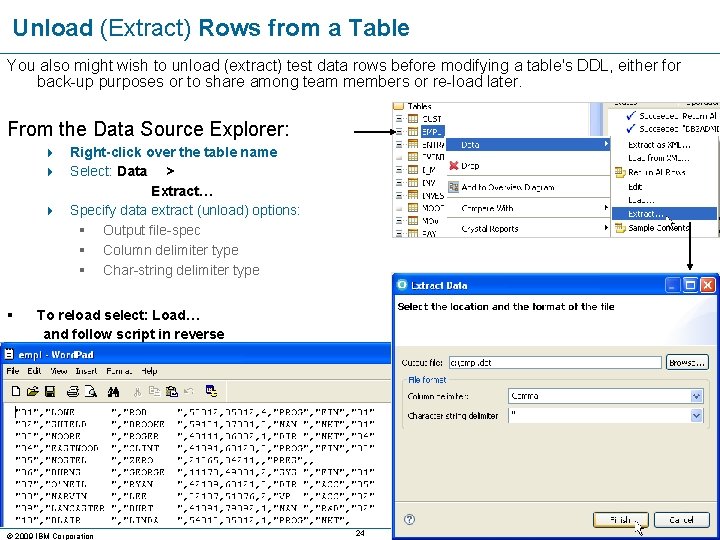
Unload (Extract) Rows from a Table You also might wish to unload (extract) test data rows before modifying a table's DDL, either for back-up purposes or to share among team members or re-load later. From the Data Source Explorer: 4 Right-click over the table name 4 Select: Data > Extract… 4 Specify data extract (unload) options: § Output file-spec § Column delimiter type § Char-string delimiter type § To reload select: Load… and follow script in reverse © 2009 IBM Corporation 24
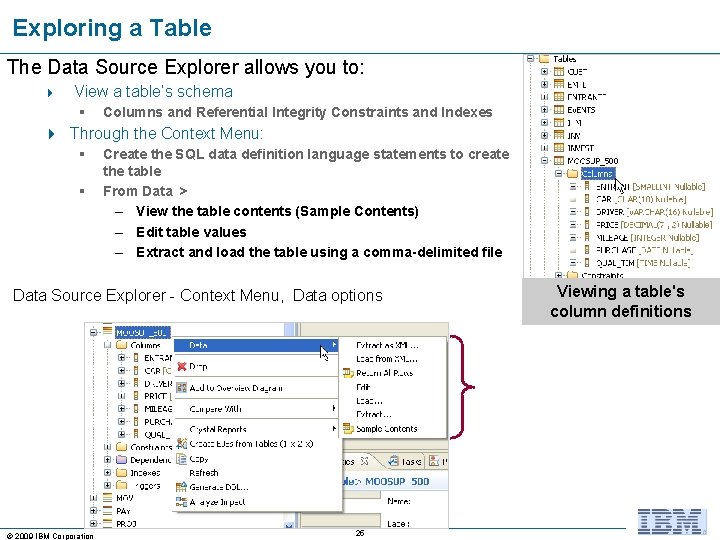
Exploring a Table The Data Source Explorer allows you to: 4 View a table’s schema § Columns and Referential Integrity Constraints and Indexes 4 Through the Context Menu: § § Create the SQL data definition language statements to create the table From Data > – View the table contents (Sample Contents) – Edit table values – Extract and load the table using a comma-delimited file Data Source Explorer - Context Menu, Data options © 2009 IBM Corporation 25 Viewing a table's column definitions
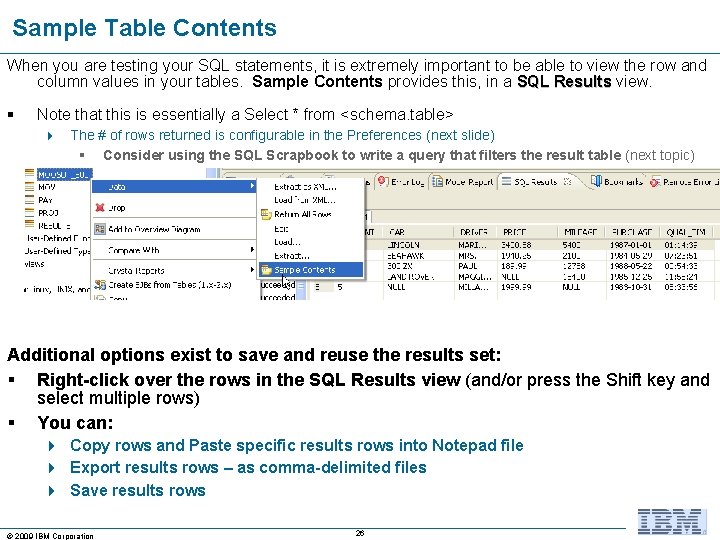
Sample Table Contents When you are testing your SQL statements, it is extremely important to be able to view the row and column values in your tables. Sample Contents provides this, in a SQL Results view. § Note that this is essentially a Select * from <schema. table> 4 The # of rows returned is configurable in the Preferences (next slide) § Consider using the SQL Scrapbook to write a query that filters the result table (next topic) Additional options exist to save and reuse the results set: § Right-click over the rows in the SQL Results view (and/or press the Shift key and select multiple rows) § You can: 4 Copy rows and Paste specific results rows into Notepad file 4 Export results rows – as comma-delimited files 4 Save results rows © 2009 IBM Corporation 26
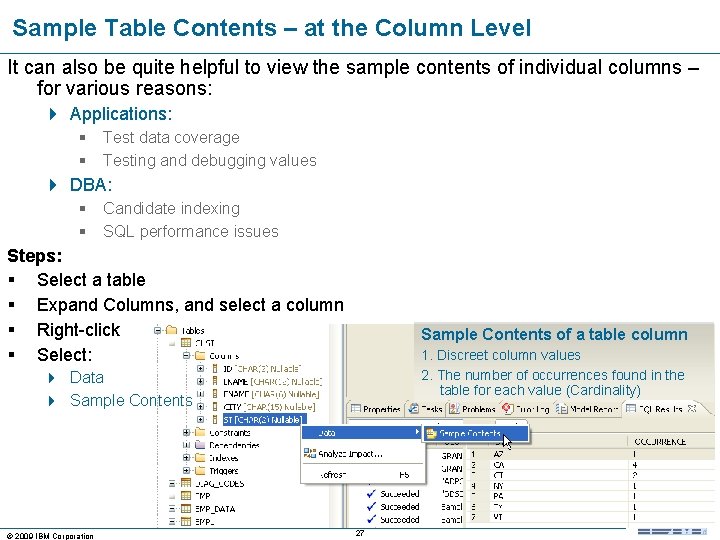
Sample Table Contents – at the Column Level It can also be quite helpful to view the sample contents of individual columns – for various reasons: 4 Applications: § Test data coverage § Testing and debugging values 4 DBA: § Candidate indexing § SQL performance issues Steps: § Select a table § Expand Columns, and select a column § Right-click § Select: Sample Contents of a table column 1. Discreet column values 2. The number of occurrences found in the table for each value (Cardinality) 4 Data 4 Sample Contents © 2009 IBM Corporation 27
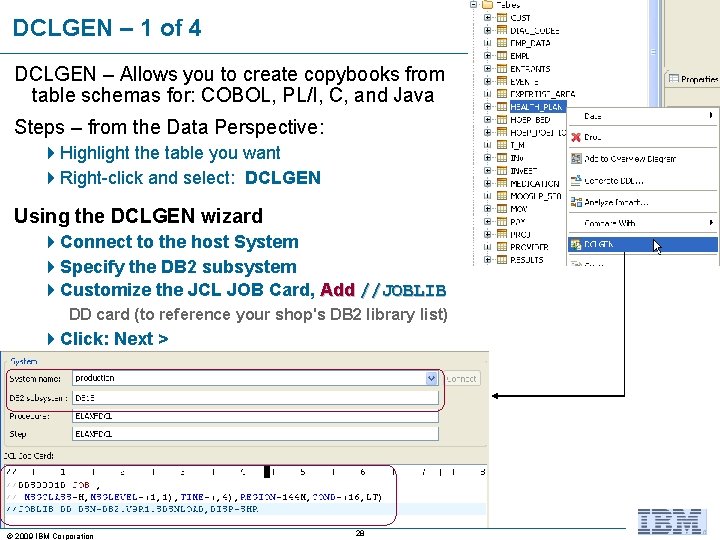
DCLGEN – 1 of 4 DCLGEN – Allows you to create copybooks from table schemas for: COBOL, PL/I, C, and Java Steps – from the Data Perspective: 4 Highlight the table you want 4 Right-click and select: DCLGEN Using the DCLGEN wizard 4 Connect to the host System 4 Specify the DB 2 subsystem 4 Customize the JCL JOB Card, Add //JOBLIB DD card (to reference your shop's DB 2 library list) 4 Click: Next > © 2009 IBM Corporation 28
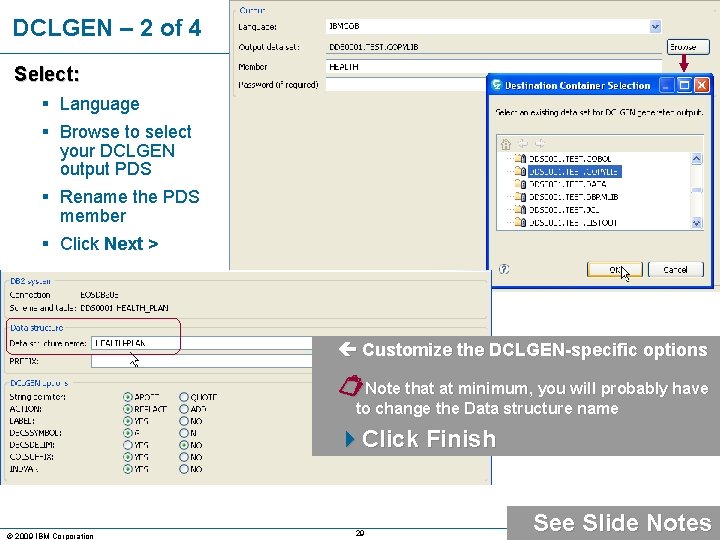
DCLGEN – 2 of 4 Select: § Language § Browse to select your DCLGEN output PDS § Rename the PDS member § Click Next > Customize the DCLGEN-specific options Note that at minimum, you will probably have to change the Data structure name 4 Click Finish © 2009 IBM Corporation 29 See Slide Notes
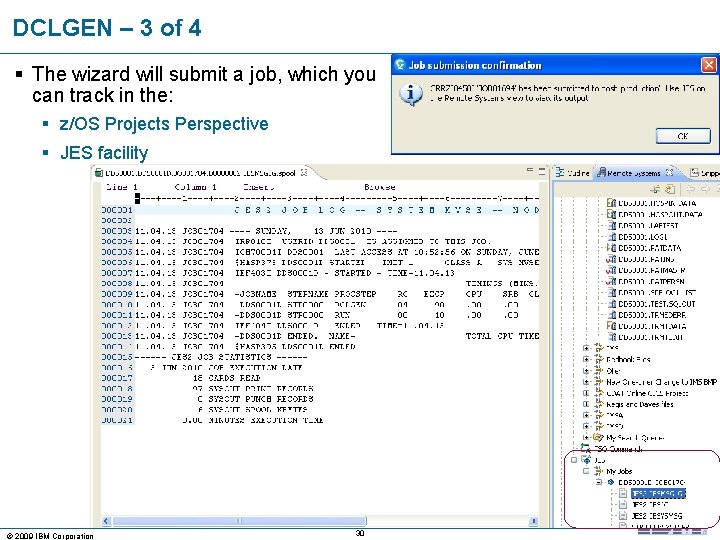
DCLGEN – 3 of 4 § The wizard will submit a job, which you can track in the: § z/OS Projects Perspective § JES facility © 2009 IBM Corporation 30
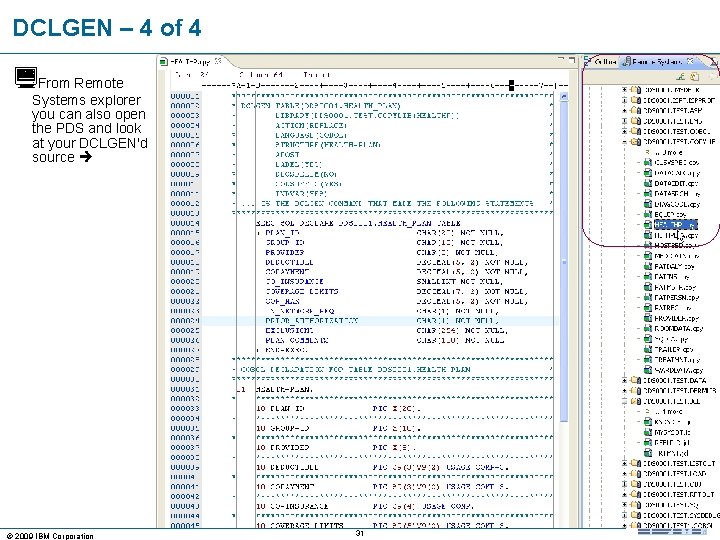
DCLGEN – 4 of 4 From Remote Systems explorer you can also open the PDS and look at your DCLGEN'd source © 2009 IBM Corporation 31
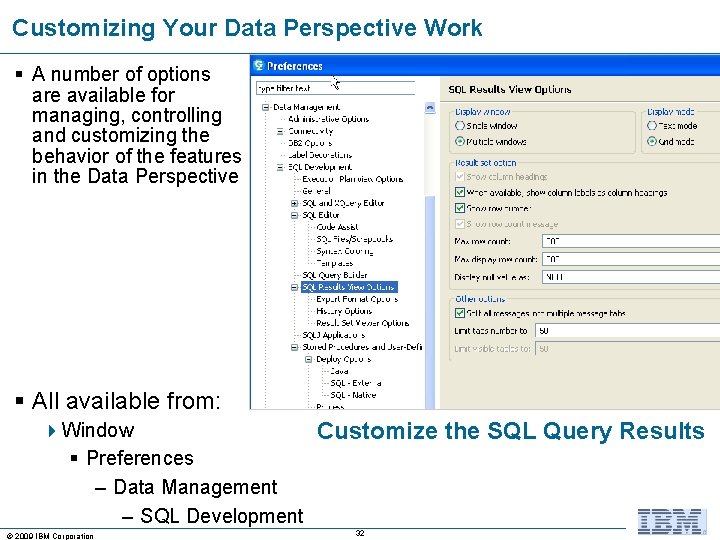
Customizing Your Data Perspective Work § A number of options are available for managing, controlling and customizing the behavior of the features in the Data Perspective § All available from: 4 Window Customize the SQL Query Results § Preferences – Data Management – SQL Development © 2009 IBM Corporation 32
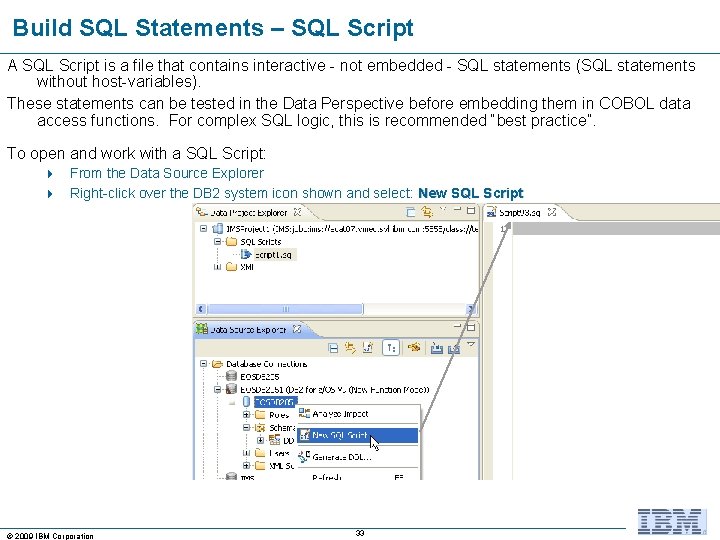
Build SQL Statements – SQL Script A SQL Script is a file that contains interactive - not embedded - SQL statements (SQL statements without host-variables). These statements can be tested in the Data Perspective before embedding them in COBOL data access functions. For complex SQL logic, this is recommended “best practice”. To open and work with a SQL Script: 4 From the Data Source Explorer 4 Right-click over the DB 2 system icon shown and select: New SQL Script © 2009 IBM Corporation 33
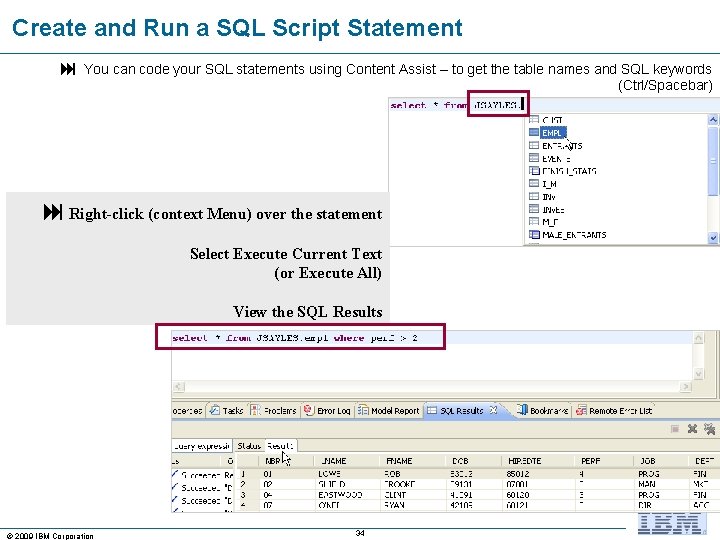
Create and Run a SQL Script Statement You can code your SQL statements using Content Assist – to get the table names and SQL keywords (Ctrl/Spacebar) Right-click (context Menu) over the statement Select Execute Current Text (or Execute All) View the SQL Results © 2009 IBM Corporation 34
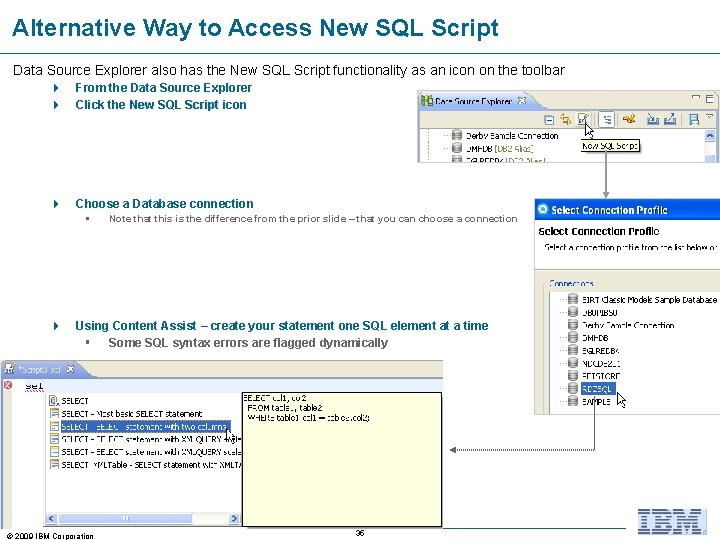
Alternative Way to Access New SQL Script Data Source Explorer also has the New SQL Script functionality as an icon on the toolbar 4 4 From the Data Source Explorer Click the New SQL Script icon 4 Choose a Database connection § 4 Note that this is the difference from the prior slide – that you can choose a connection Using Content Assist – create your statement one SQL element at a time § Some SQL syntax errors are flagged dynamically © 2009 IBM Corporation 35
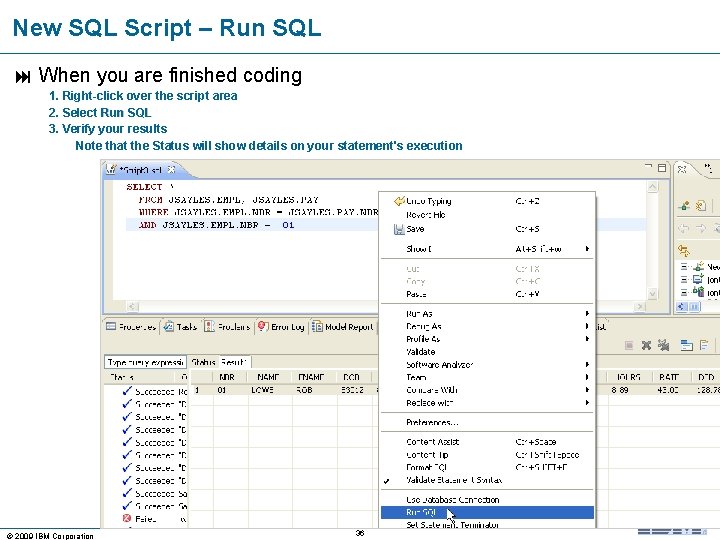
New SQL Script – Run SQL When you are finished coding 1. Right-click over the script area 2. Select Run SQL 3. Verify your results Note that the Status will show details on your statement's execution © 2009 IBM Corporation 36
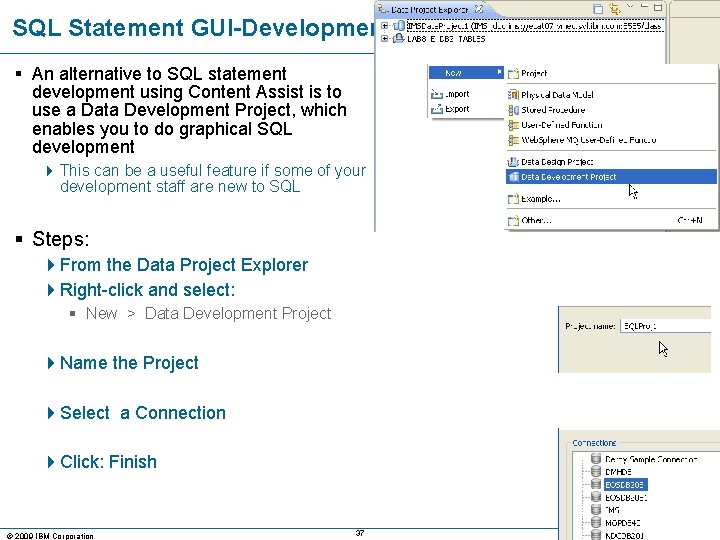
SQL Statement GUI-Development § An alternative to SQL statement development using Content Assist is to use a Data Development Project, which enables you to do graphical SQL development 4 This can be a useful feature if some of your development staff are new to SQL § Steps: 4 From the Data Project Explorer 4 Right-click and select: § New > Data Development Project 4 Name the Project 4 Select a Connection 4 Click: Finish © 2009 IBM Corporation 37
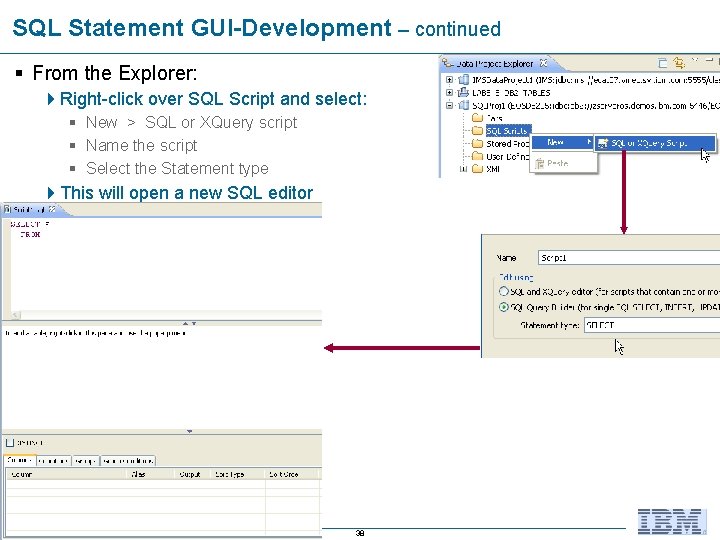
SQL Statement GUI-Development – continued § From the Explorer: 4 Right-click over SQL Script and select: § New > SQL or XQuery script § Name the script § Select the Statement type 4 This will open a new SQL editor © 2009 IBM Corporation 38
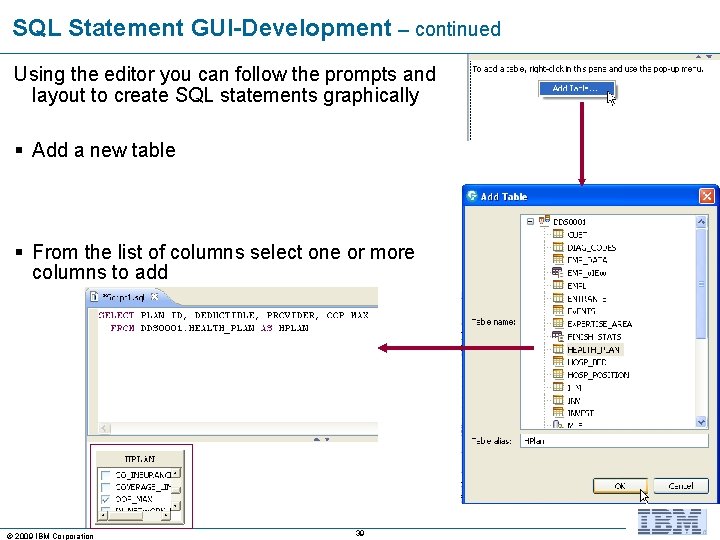
SQL Statement GUI-Development – continued Using the editor you can follow the prompts and layout to create SQL statements graphically § Add a new table § From the list of columns select one or more columns to add © 2009 IBM Corporation 39
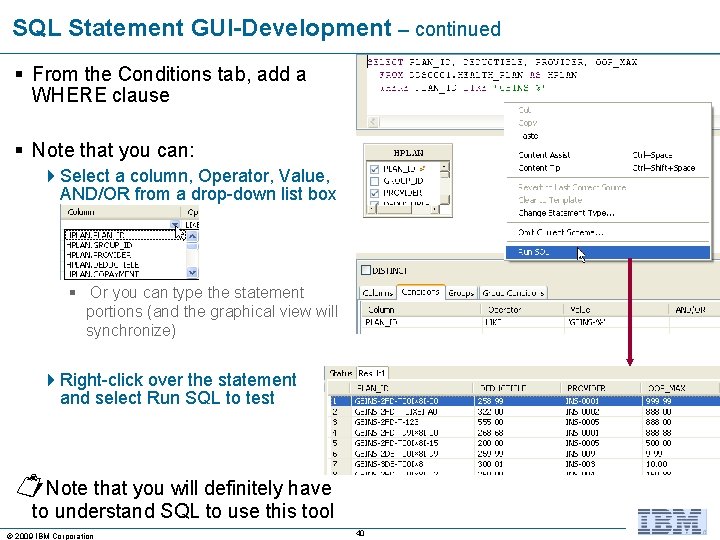
SQL Statement GUI-Development – continued § From the Conditions tab, add a WHERE clause § Note that you can: 4 Select a column, Operator, Value, AND/OR from a drop-down list box § Or you can type the statement portions (and the graphical view will synchronize) 4 Right-click over the statement and select Run SQL to test Note that you will definitely have to understand SQL to use this tool © 2009 IBM Corporation 40
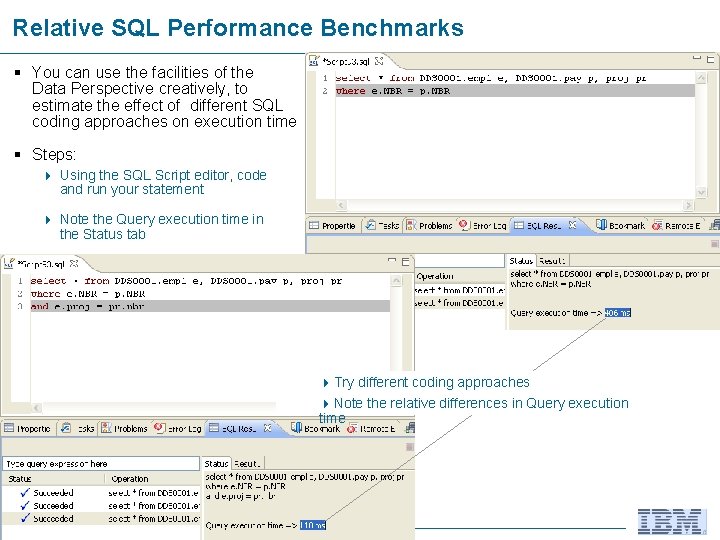
Relative SQL Performance Benchmarks § You can use the facilities of the Data Perspective creatively, to estimate the effect of different SQL coding approaches on execution time § Steps: 4 Using the SQL Script editor, code and run your statement 4 Note the Query execution time in the Status tab 4 Try different coding approaches 4 Note the relative differences in Query execution time © 2009 IBM Corporation 41
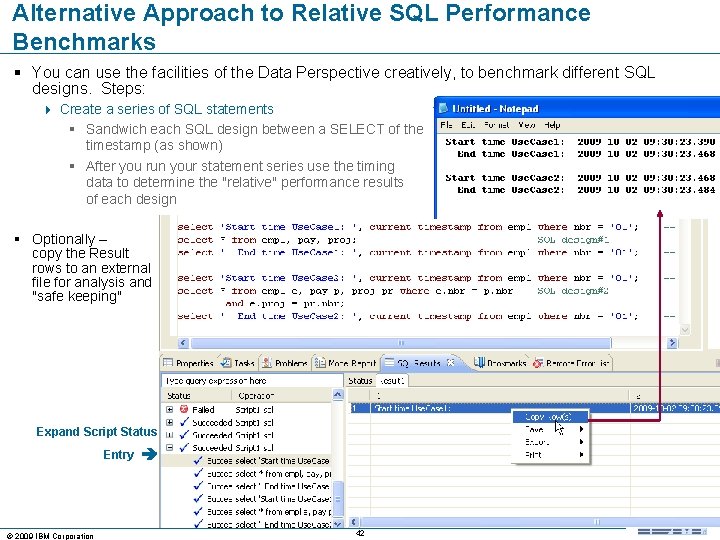
Alternative Approach to Relative SQL Performance Benchmarks § You can use the facilities of the Data Perspective creatively, to benchmark different SQL designs. Steps: 4 Create a series of SQL statements § Sandwich each SQL design between a SELECT of the timestamp (as shown) § After you run your statement series use the timing data to determine the "relative" performance results of each design § Optionally – copy the Result rows to an external file for analysis and "safe keeping" Expand Script Status Entry © 2009 IBM Corporation 42 current
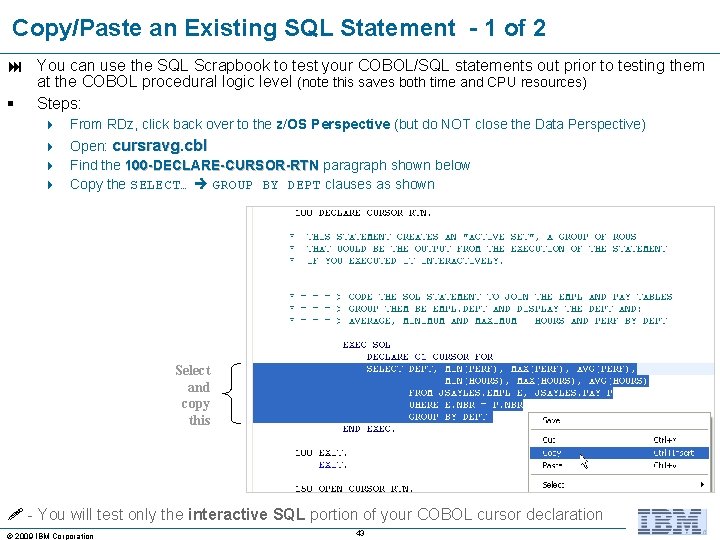
Copy/Paste an Existing SQL Statement - 1 of 2 You can use the SQL Scrapbook to test your COBOL/SQL statements out prior to testing them at the COBOL procedural logic level (note this saves both time and CPU resources) § Steps: 4 4 From RDz, click back over to the z/OS Perspective (but do NOT close the Data Perspective) Open: cursravg. cbl Find the 100 -DECLARE-CURSOR-RTN paragraph shown below Copy the SELECT… GROUP BY DEPT clauses as shown Select and copy this - You will test only the interactive SQL portion of your COBOL cursor declaration © 2009 IBM Corporation 43

Copy/Paste an Existing SQL Statement - 2 of 2 § § § From RDz, click back to the Data Perspective If you still have your other SQL Script page open, select and delete the existing statement, then Paste in the copied SQL cursor code Right-click and Run the SQL Statement and view results in the Data Output tab Note: As you did with the sample table contents, you can Right-click over the result rows, and save the result data to a file on your hard-drive. This can be VERY useful during SQL statement testing/debugging. © 2009 IBM Corporation 44
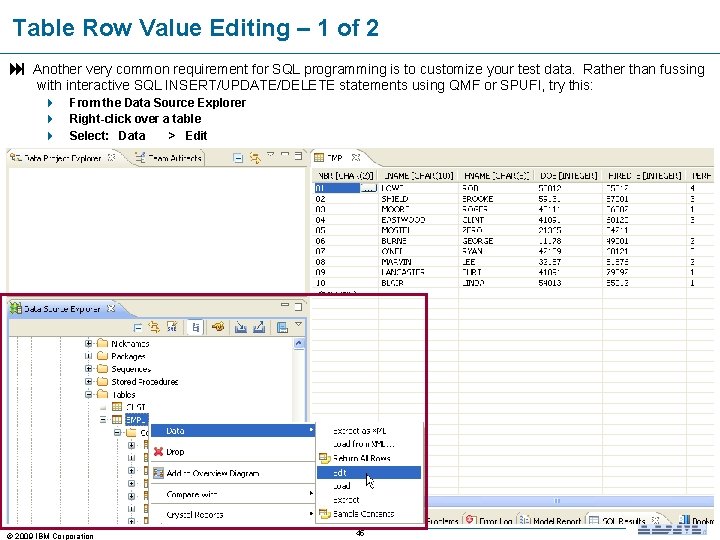
Table Row Value Editing – 1 of 2 Another very common requirement for SQL programming is to customize your test data. Rather than fussing with interactive SQL INSERT/UPDATE/DELETE statements using QMF or SPUFI, try this: 4 4 4 From the Data Source Explorer Right-click over a table Select: Data > Edit © 2009 IBM Corporation 45
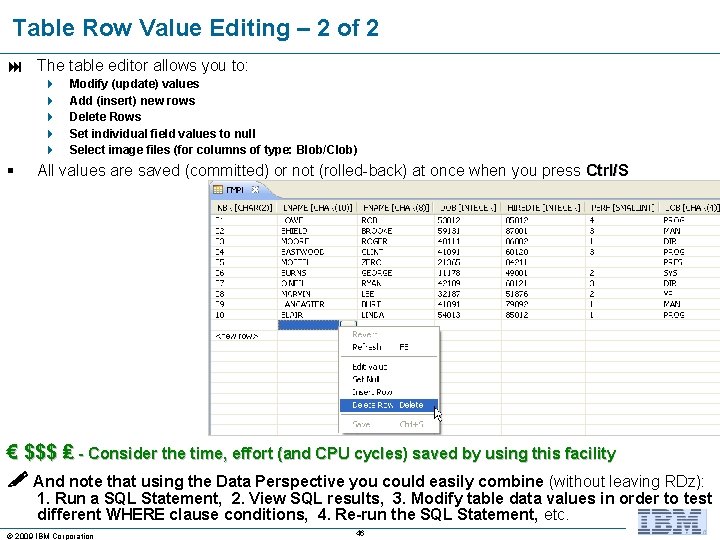
Table Row Value Editing – 2 of 2 The table editor allows you to: 4 4 4 § Modify (update) values Add (insert) new rows Delete Rows Set individual field values to null Select image files (for columns of type: Blob/Clob) All values are saved (committed) or not (rolled-back) at once when you press Ctrl/S € $$$ ₤ - Consider the time, effort (and CPU cycles) saved by using this facility And note that using the Data Perspective you could easily combine (without leaving RDz): 1. Run a SQL Statement, 2. View SQL results, 3. Modify table data values in order to test different WHERE clause conditions, 4. Re-run the SQL Statement, etc. © 2009 IBM Corporation 46
® IBM Software Group RDz Workbench – Using the Data Source Explorer Workshops - Last Update: November, 2009 © 2009 IBM Corporation
Data Perspective – Workshop Plan A – Using your own DB 2 Objects If you have your own DB 2 connection, with the help of your DBA and/or Systems Programming staff do the following: 1. 2. 3. 4. 5. Open the Data Perspective Connect to a DB 2 database View some of the tables and their relationships through the Overview Diagram Show a table’s Sample Contents Code a few simple SQL statements (or copy/paste from a COBOL program) and run them in a SQL Scrapbook 6. Create a simple new SQL statement using the statement builder 7. Edit one of the DB 2 tables you have update access to: § Add a few new rows § Update some values § Delete one or two rows § Save your changes – Ctrl/S Other Workshop Options (using your own RDBMS): 4 If you have DB 2/UDB installed – either on your workstation or server, you can create the DB 2 objects using the SQL/DDL in this Unit's Appendices 4 If you have RAD installed, you may use a Derby database (Derby is an Open-Source version of DB 2) § © 2009 IBM Corporation Slides that explain how to use Derby are also in the Appendix 48
Data Perspective – Workshop Plan B – Using IBM's DB 2 Objects If you have access to z. Server. OS – and DB 2, you can do the following: 1. Open the Data Perspective 2. Connect to the z. Server. OS DB 2 database 3. View some of the tables and their relationships through the Overview Diagram 4. Show a table’s Sample Contents 5. Code a few simple SQL statements (or copy/paste from a COBOL program) and run them in a SQL Scrapbook 6. Create a simple new SQL statement using the statement builder 7. Edit one of the DB 2 tables you have update access to: § Add a few new rows § Update some values § Delete one or two rows § Save your changes – Ctrl/S © 2009 IBM Corporation 49
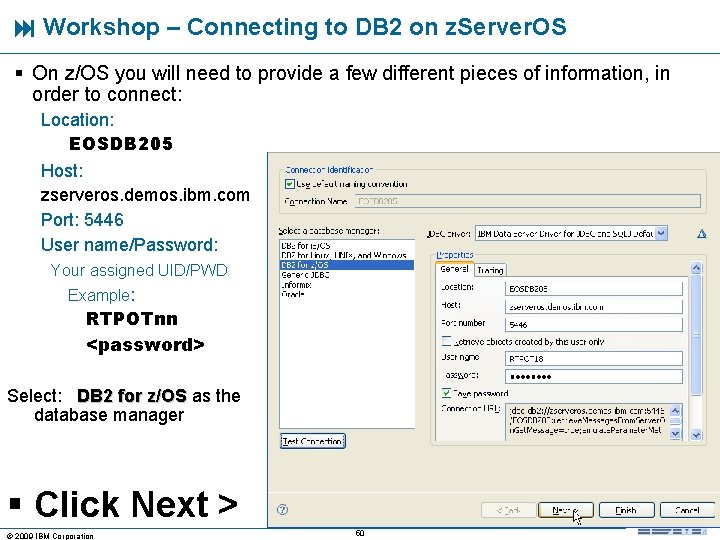
Workshop – Connecting to DB 2 on z. Server. OS § On z/OS you will need to provide a few different pieces of information, in order to connect: Location: EOSDB 205 Host: zserveros. demos. ibm. com Port: 5446 User name/Password: Your assigned UID/PWD Example: RTPOTnn <password> Select: DB 2 for z/OS as the database manager § Click Next > © 2009 IBM Corporation 50
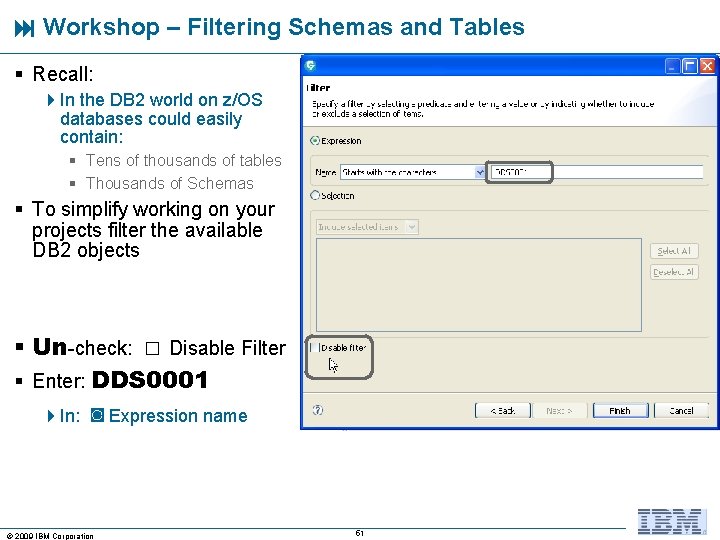
Workshop – Filtering Schemas and Tables § Recall: 4 In the DB 2 world on z/OS databases could easily contain: § Tens of thousands of tables § Thousands of Schemas § To simplify working on your projects filter the available DB 2 objects § Un-check: □ Disable Filter § Enter: DDS 0001 4 In: ◙ Expression name © 2009 IBM Corporation 51
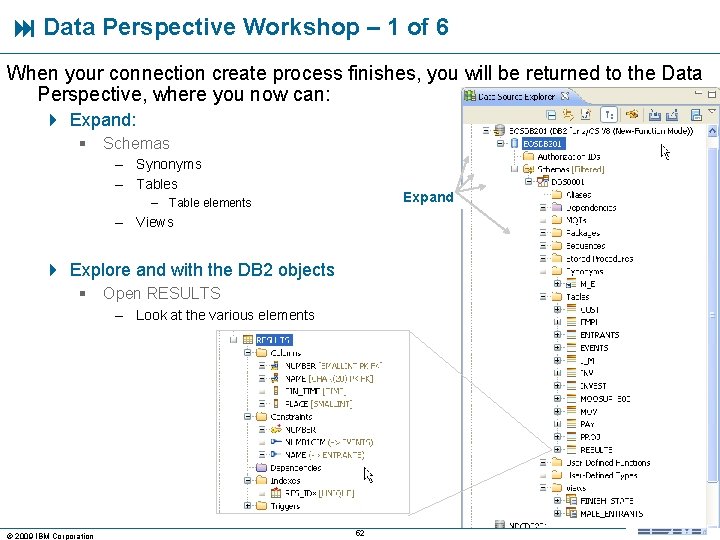
Data Perspective Workshop – 1 of 6 When your connection create process finishes, you will be returned to the Data Perspective, where you now can: 4 Expand: § Schemas – Synonyms – Tables Expand – Table elements – Views 4 Explore and with the DB 2 objects § Open RESULTS – Look at the various elements © 2009 IBM Corporation 52
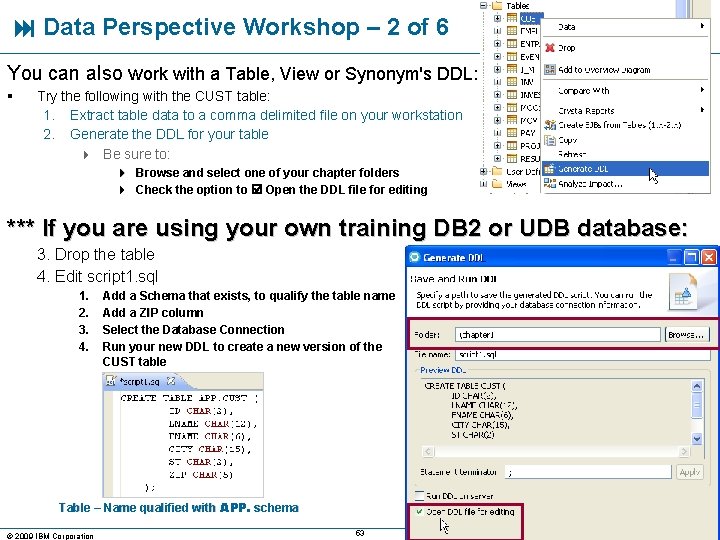
Data Perspective Workshop – 2 of 6 You can also work with a Table, View or Synonym's DDL: § Try the following with the CUST table: 1. Extract table data to a comma delimited file on your workstation 2. Generate the DDL for your table 4 Be sure to: 4 Browse and select one of your chapter folders 4 Check the option to Open the DDL file for editing *** If you are using your own training DB 2 or UDB database: 3. Drop the table 4. Edit script 1. sql 1. 2. 3. 4. Add a Schema that exists, to qualify the table name Add a ZIP column Select the Database Connection Run your new DDL to create a new version of the CUST table Table – Name qualified with APP. schema © 2009 IBM Corporation 53
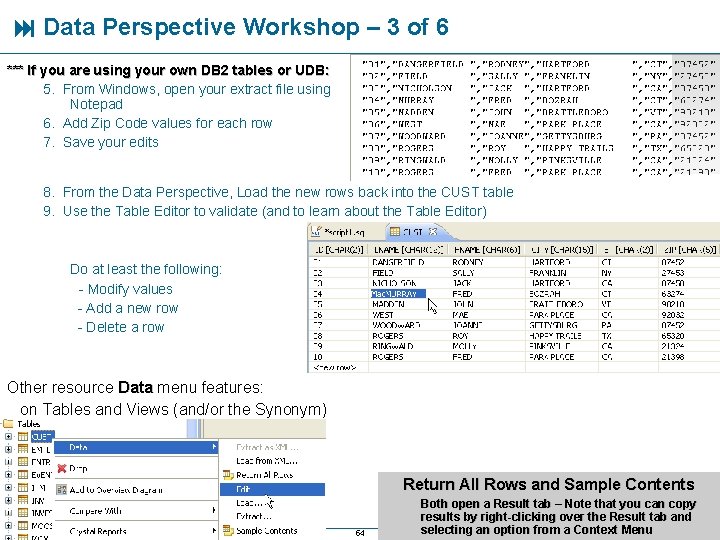
Data Perspective Workshop – 3 of 6 *** If you are using your own DB 2 tables or UDB: 5. From Windows, open your extract file using Notepad 6. Add Zip Code values for each row 7. Save your edits 8. From the Data Perspective, Load the new rows back into the CUST table 9. Use the Table Editor to validate (and to learn about the Table Editor) Do at least the following: - Modify values - Add a new row - Delete a row Other resource Data menu features: on Tables and Views (and/or the Synonym) Return All Rows and Sample Contents © 2009 IBM Corporation 54 Both open a Result tab – Note that you can copy results by right-clicking over the Result tab and selecting an option from a Context Menu
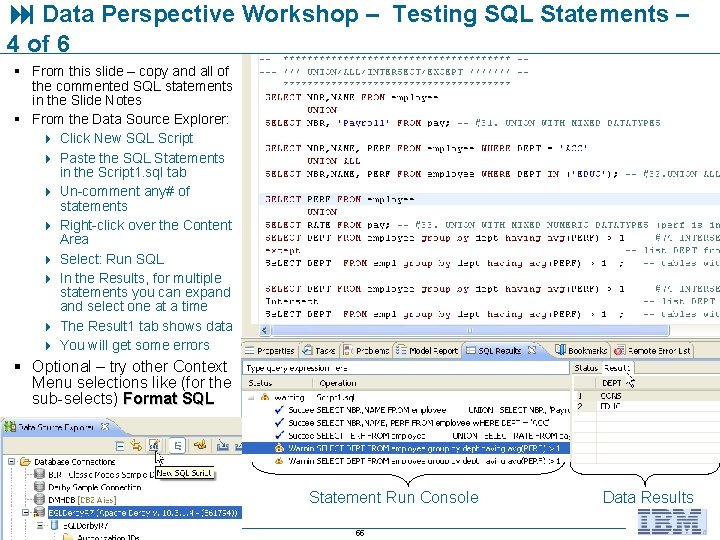
Data Perspective Workshop – Testing SQL Statements – 4 of 6 § From this slide – copy and all of the commented SQL statements in the Slide Notes § From the Data Source Explorer: 4 Click New SQL Script 4 Paste the SQL Statements in the Script 1. sql tab 4 Un-comment any# of statements 4 Right-click over the Content Area 4 Select: Run SQL 4 In the Results, for multiple statements you can expand select one at a time 4 The Result 1 tab shows data 4 You will get some errors § Optional – try other Context Menu selections like (for the sub-selects) Format SQL Statement Run Console © 2009 IBM Corporation 55 Data Results
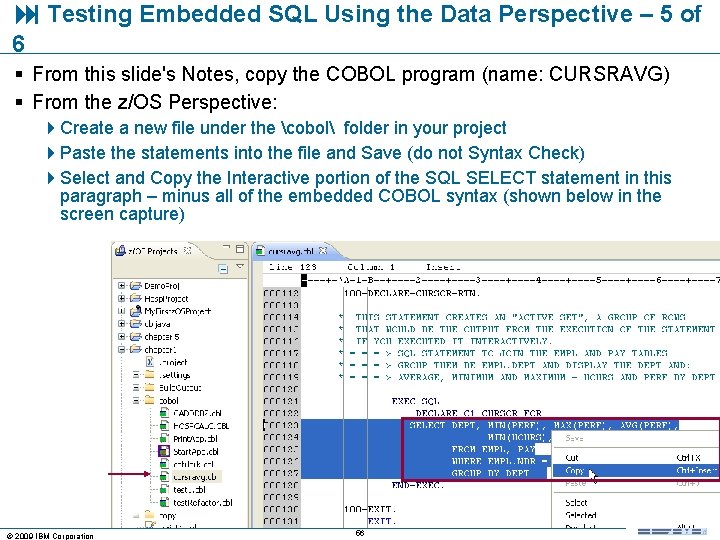
Testing Embedded SQL Using the Data Perspective – 5 of 6 § From this slide's Notes, copy the COBOL program (name: CURSRAVG) § From the z/OS Perspective: 4 Create a new file under the cobol folder in your project 4 Paste the statements into the file and Save (do not Syntax Check) 4 Select and Copy the Interactive portion of the SQL SELECT statement in this paragraph – minus all of the embedded COBOL syntax (shown below in the screen capture) © 2009 IBM Corporation 56
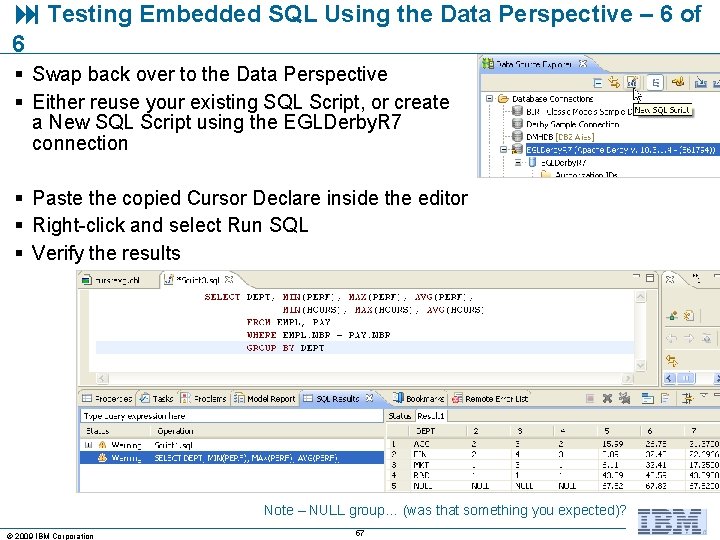
Testing Embedded SQL Using the Data Perspective – 6 of 6 § Swap back over to the Data Perspective § Either reuse your existing SQL Script, or create a New SQL Script using the EGLDerby. R 7 connection § Paste the copied Cursor Declare inside the editor § Right-click and select Run SQL § Verify the results Note – NULL group… (was that something you expected)? © 2009 IBM Corporation 57
Topic Summary § Now that you have completed this topic, you should be able to: 4 Launch the Data Perspective 4 Connect to a Data Source 4 Use the Data Source Explorer to: § § § View tables and relationships View sample table rows and values Edit (create, update, delete) row values Test interactive SQL Code/Build SQL statements Generate Table DDL Summary © 2009 IBM Corporation 58
® IBM Software Group RDz Workbench – Using the Data Source Explorer Appendices - Connecting to DB 2/UDB - Connecting to a Derby database Last Update: November, 2009 © 2009 IBM Corporation
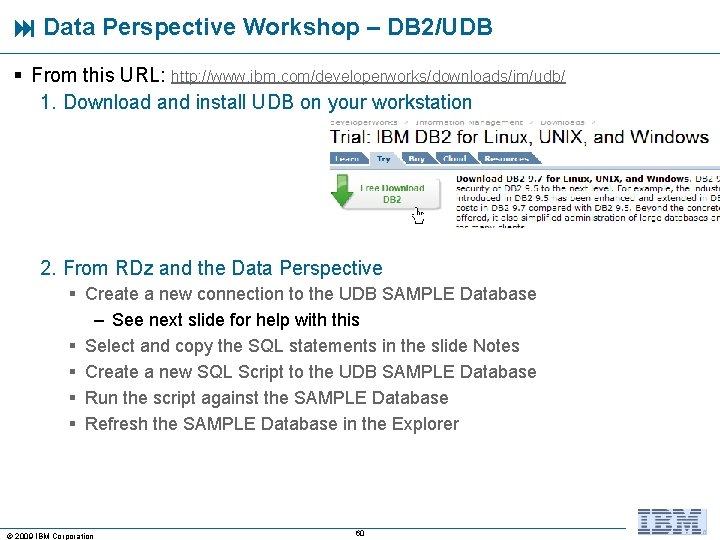
Data Perspective Workshop – DB 2/UDB § From this URL: http: //www. ibm. com/developerworks/downloads/im/udb/ 1. Download and install UDB on your workstation 2. From RDz and the Data Perspective § Create a new connection to the UDB SAMPLE Database – See next slide for help with this § Select and copy the SQL statements in the slide Notes § Create a new SQL Script to the UDB SAMPLE Database § Run the script against the SAMPLE Database § Refresh the SAMPLE Database in the Explorer © 2009 IBM Corporation 60
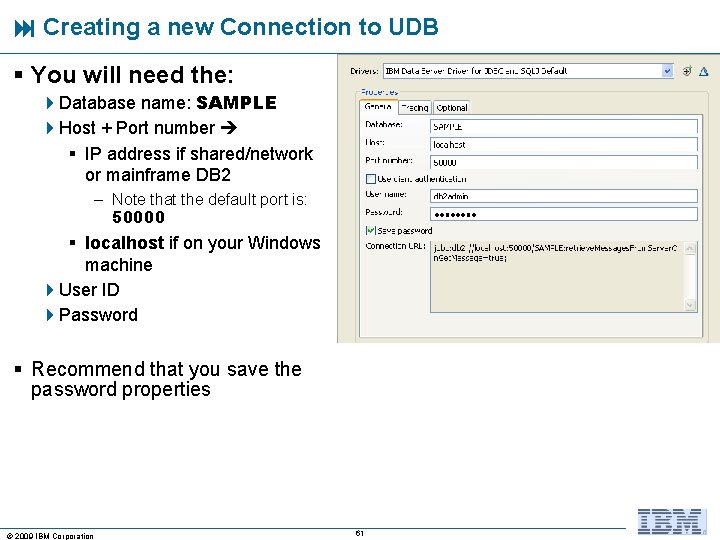
Creating a new Connection to UDB § You will need the: 4 Database name: SAMPLE 4 Host + Port number § IP address if shared/network or mainframe DB 2 – Note that the default port is: 50000 § localhost if on your Windows machine 4 User ID 4 Password § Recommend that you save the password properties © 2009 IBM Corporation 61
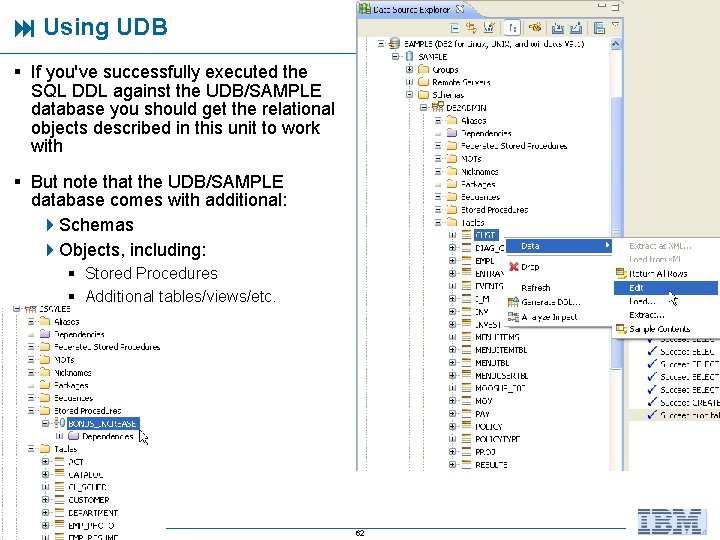
Using UDB § If you've successfully executed the SQL DDL against the UDB/SAMPLE database you should get the relational objects described in this unit to work with § But note that the UDB/SAMPLE database comes with additional: 4 Schemas 4 Objects, including: § Stored Procedures § Additional tables/views/etc. © 2009 IBM Corporation 62
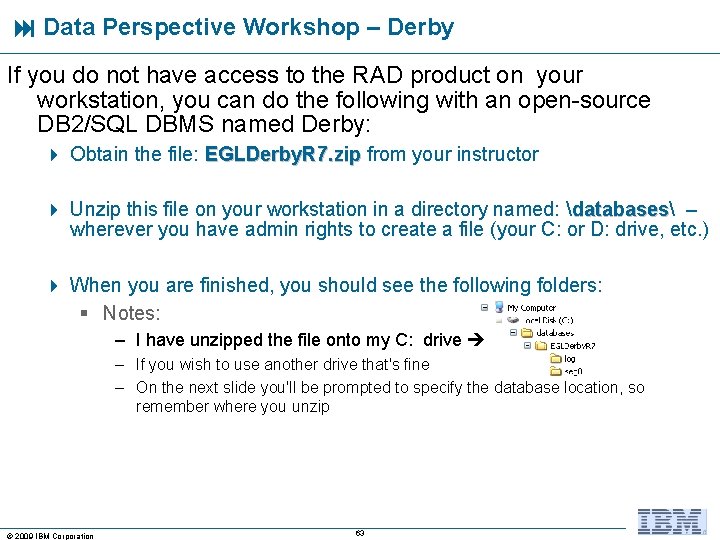
Data Perspective Workshop – Derby If you do not have access to the RAD product on your workstation, you can do the following with an open-source DB 2/SQL DBMS named Derby: 4 Obtain the file: EGLDerby. R 7. zip from your instructor 4 Unzip this file on your workstation in a directory named: databases databases – wherever you have admin rights to create a file (your C: or D: drive, etc. ) 4 When you are finished, you should see the following folders: § Notes: – I have unzipped the file onto my C: drive – If you wish to use another drive that's fine – On the next slide you'll be prompted to specify the database location, so remember where you unzip © 2009 IBM Corporation 63
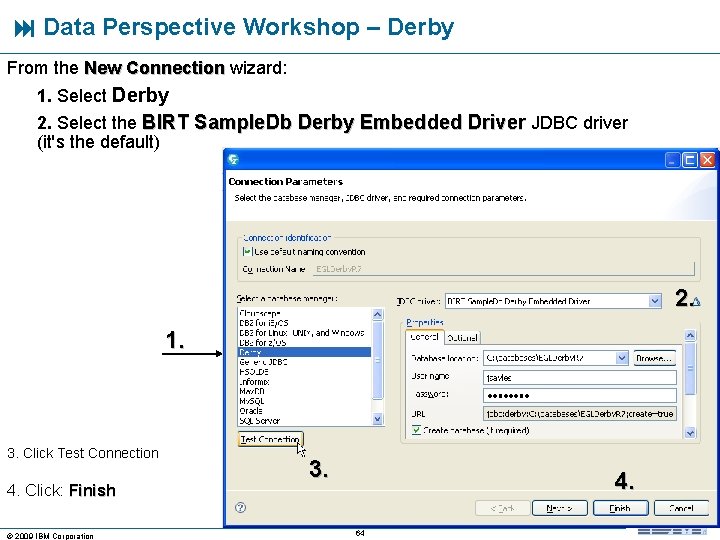
Data Perspective Workshop – Derby From the New Connection wizard: 1. Select Derby 2. Select the BIRT Sample. Db Derby Embedded Driver JDBC driver (it's the default) 2. 1. 3. Click Test Connection 4. Click: Finish © 2009 IBM Corporation 3. 4. 64
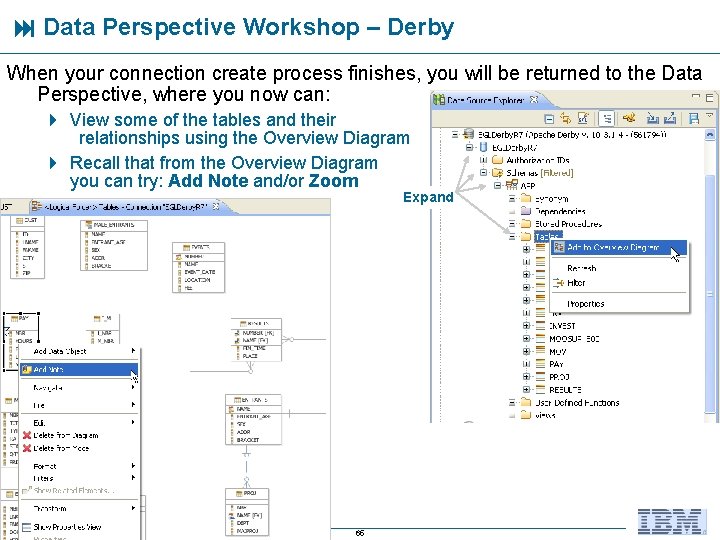
Data Perspective Workshop – Derby When your connection create process finishes, you will be returned to the Data Perspective, where you now can: 4 View some of the tables and their relationships using the Overview Diagram 4 Recall that from the Overview Diagram you can try: Add Note and/or Zoom Expand © 2009 IBM Corporation 65
- Slides: 65