
IBM Software Group Camtasia Enablement High fidelity Live
IBM Software Group Camtasia Enablement High fidelity “Live Recorded” demos, presentations and beyond… Additional presentations, tutorials and resources available at http: //Java. SOA. com Bill. Hahn@us. ibm. com Sr. Consulting Certified SW ITS IBM Blue. Star Investment Territory Team
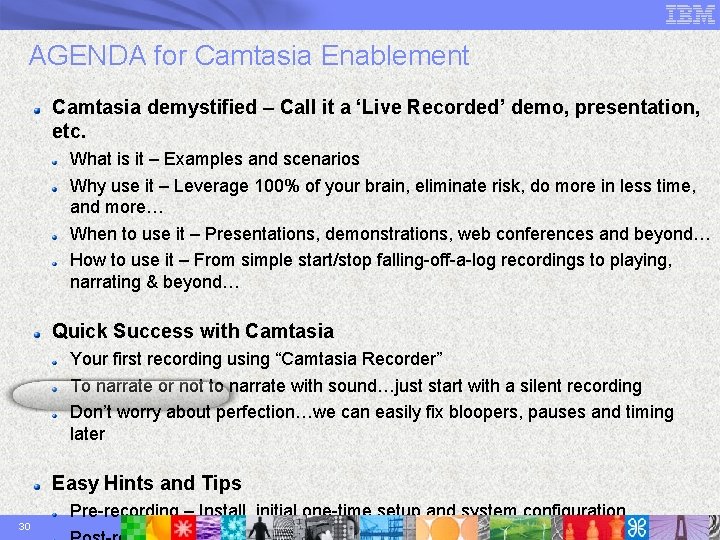
AGENDA for Camtasia Enablement Camtasia demystified – Call it a ‘Live Recorded’ demo, presentation, etc. What is it – Examples and scenarios Why use it – Leverage 100% of your brain, eliminate risk, do more in less time, and more… When to use it – Presentations, demonstrations, web conferences and beyond… How to use it – From simple start/stop falling-off-a-log recordings to playing, narrating & beyond… Quick Success with Camtasia Your first recording using “Camtasia Recorder” To narrate or not to narrate with sound…just start with a silent recording Don’t worry about perfection…we can easily fix bloopers, pauses and timing later Easy Hints and Tips 2 Pre-recording – Install, initial one-time setup and system configuration
IBM Software Group SOA In Action Scenario
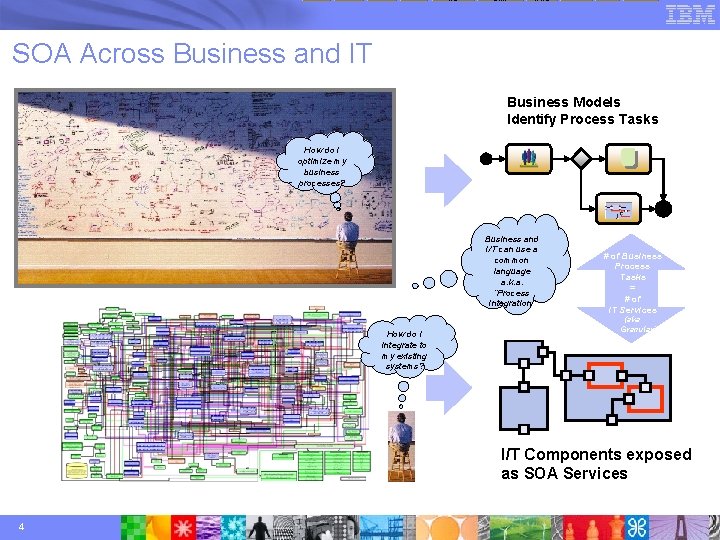
WS Sim Wire SOA Across Business and IT Business Models Identify Process Tasks How do I optimize my business processes? Business and I/T can use a common language a. k. a. “Process Integration” How do I integrate to my existing systems? # of Business Process Tasks = # of IT Services (aka Granularity ) I/T Components exposed as SOA Services 4
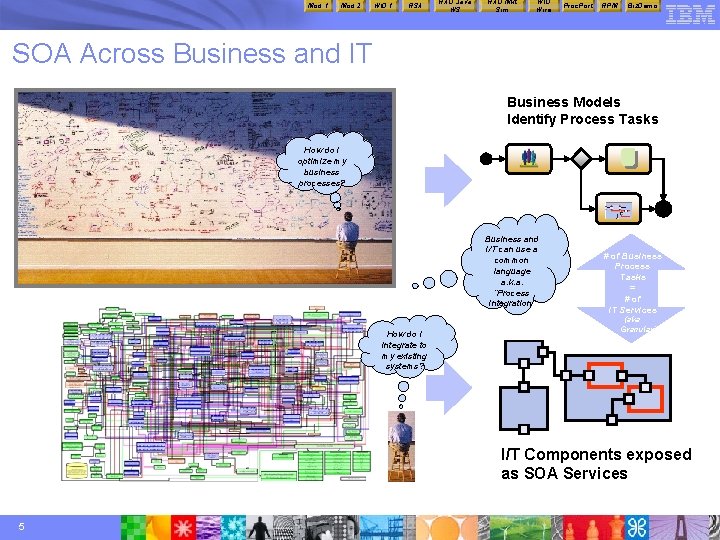
Mod 1 Mod 2 WID 1 RSA RAD Java WS RAD Mkt Sim WID Wire Proc. Port RPM Biz. Demo SOA Across Business and IT Business Models Identify Process Tasks How do I optimize my business processes? Business and I/T can use a common language a. k. a. “Process Integration” How do I integrate to my existing systems? # of Business Process Tasks = # of IT Services (aka Granularity ) I/T Components exposed as SOA Services 5
® IBM Software Group IBM/Microsoft Web Service Interoperability As seen at Allstate Java/. Net combined User Group
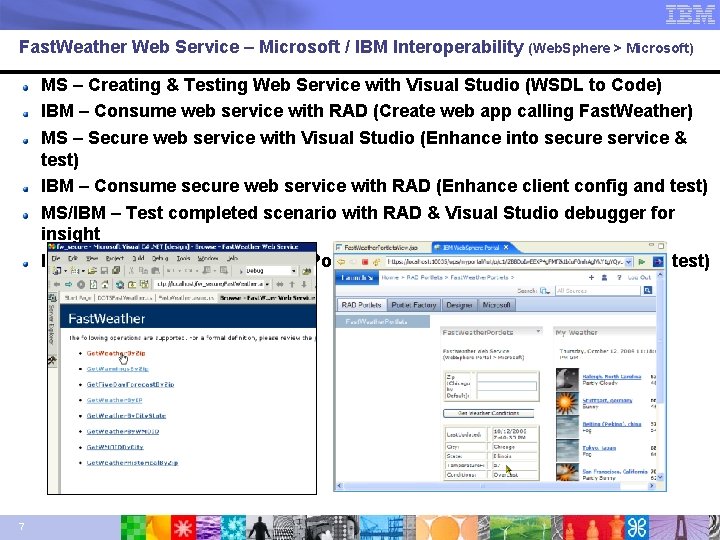
Fast. Weather Web Service – Microsoft / IBM Interoperability (Web. Sphere > Microsoft) MS – Creating & Testing Web Service with Visual Studio (WSDL to Code) IBM – Consume web service with RAD (Create web app calling Fast. Weather) MS – Secure web service with Visual Studio (Enhance into secure service & test) IBM – Consume secure web service with RAD (Enhance client config and test) MS/IBM – Test completed scenario with RAD & Visual Studio debugger for insight IBM – Consume web service in Portal with RAD (Create Portal/Portlet and test) 7
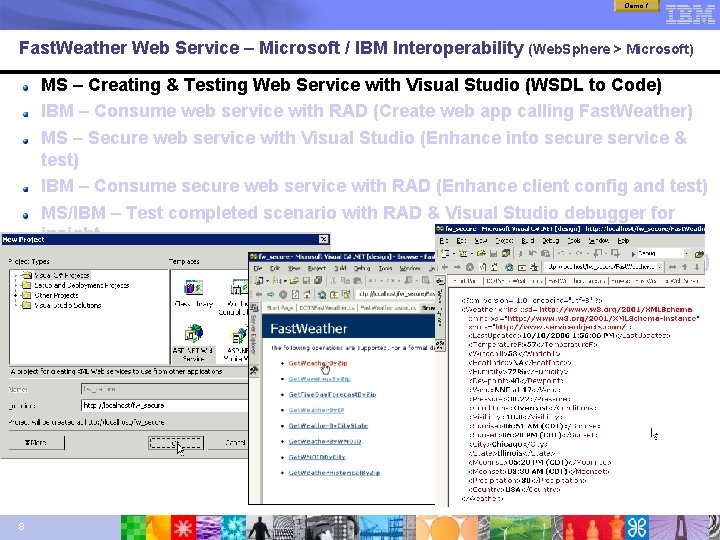
Demo 1 Fast. Weather Web Service – Microsoft / IBM Interoperability (Web. Sphere > Microsoft) MS – Creating & Testing Web Service with Visual Studio (WSDL to Code) IBM – Consume web service with RAD (Create web app calling Fast. Weather) MS – Secure web service with Visual Studio (Enhance into secure service & test) IBM – Consume secure web service with RAD (Enhance client config and test) MS/IBM – Test completed scenario with RAD & Visual Studio debugger for insight IBM – Consume web service in Portal with RAD (Create Portal/Portlet and test) 8
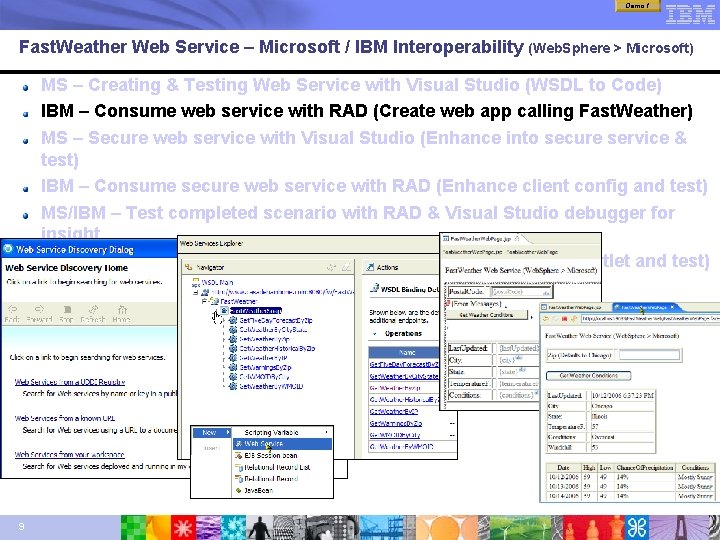
Demo 1 Fast. Weather Web Service – Microsoft / IBM Interoperability (Web. Sphere > Microsoft) MS – Creating & Testing Web Service with Visual Studio (WSDL to Code) IBM – Consume web service with RAD (Create web app calling Fast. Weather) MS – Secure web service with Visual Studio (Enhance into secure service & test) IBM – Consume secure web service with RAD (Enhance client config and test) MS/IBM – Test completed scenario with RAD & Visual Studio debugger for insight IBM – Consume web service in Portal with RAD (Create Portal/Portlet and test) 9
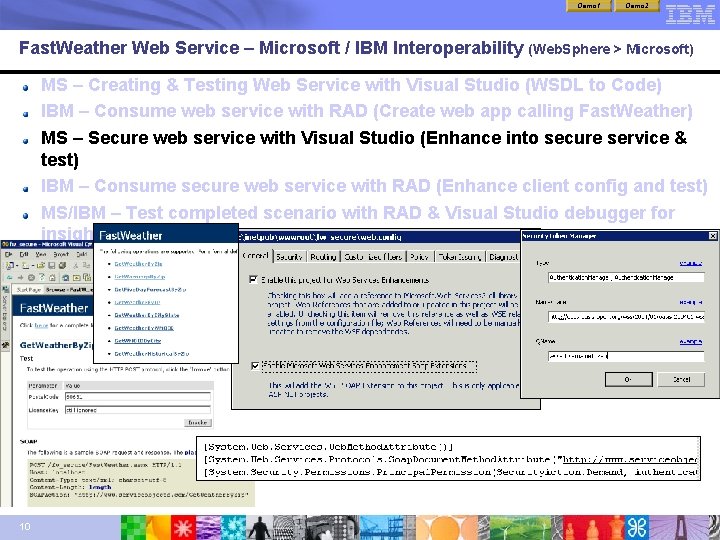
Demo 1 Fast. Weather Web Service – Microsoft / IBM Interoperability Demo 2 (Web. Sphere > Microsoft) MS – Creating & Testing Web Service with Visual Studio (WSDL to Code) IBM – Consume web service with RAD (Create web app calling Fast. Weather) MS – Secure web service with Visual Studio (Enhance into secure service & test) IBM – Consume secure web service with RAD (Enhance client config and test) MS/IBM – Test completed scenario with RAD & Visual Studio debugger for insight IBM – Consume web service in Portal with RAD (Create Portal/Portlet and test) 10
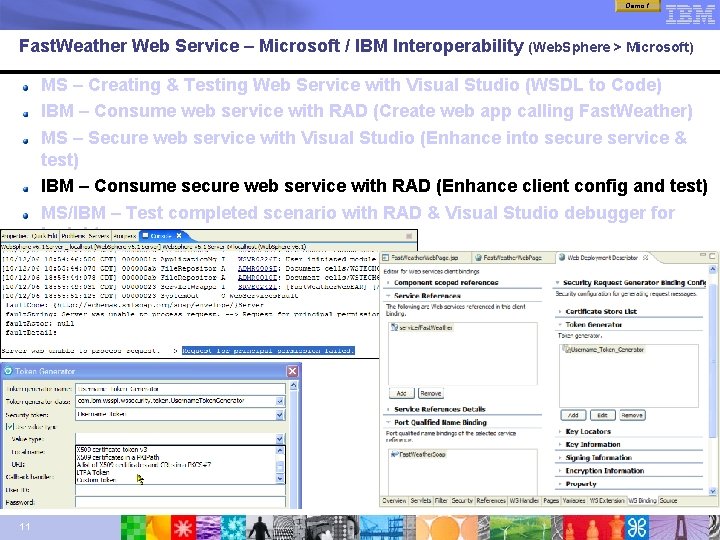
Demo 1 Fast. Weather Web Service – Microsoft / IBM Interoperability (Web. Sphere > Microsoft) MS – Creating & Testing Web Service with Visual Studio (WSDL to Code) IBM – Consume web service with RAD (Create web app calling Fast. Weather) MS – Secure web service with Visual Studio (Enhance into secure service & test) IBM – Consume secure web service with RAD (Enhance client config and test) MS/IBM – Test completed scenario with RAD & Visual Studio debugger for insight IBM – Consume web service in Portal with RAD (Create Portal/Portlet and test) 11
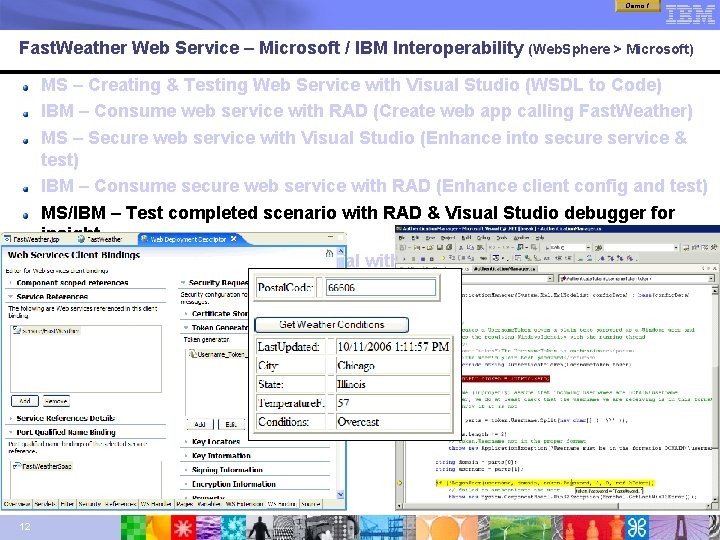
Demo 1 Fast. Weather Web Service – Microsoft / IBM Interoperability (Web. Sphere > Microsoft) MS – Creating & Testing Web Service with Visual Studio (WSDL to Code) IBM – Consume web service with RAD (Create web app calling Fast. Weather) MS – Secure web service with Visual Studio (Enhance into secure service & test) IBM – Consume secure web service with RAD (Enhance client config and test) MS/IBM – Test completed scenario with RAD & Visual Studio debugger for insight IBM – Consume web service in Portal with RAD (Create Portal/Portlet and test) 12
® IBM Software Group Realizing SOA within OTC (Order To Cash) An end-to-end system demo using IBM products and SAP
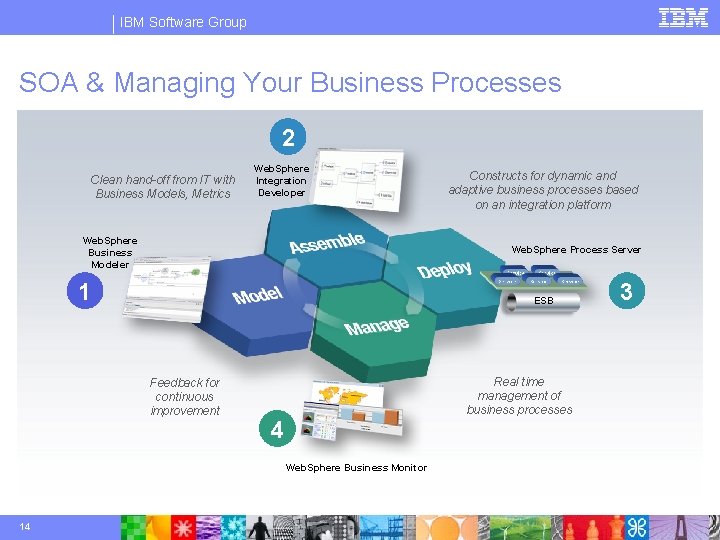
IBM Software Group SOA & Managing Your Business Processes 2 Clean hand-off from IT with Business Models, Metrics Web. Sphere Integration Developer Web. Sphere Business Modeler Web. Sphere Process Server 1 ESB Feedback for continuous improvement Real time management of business processes 4 Web. Sphere Business Monitor 14 Constructs for dynamic and adaptive business processes based on an integration platform 3
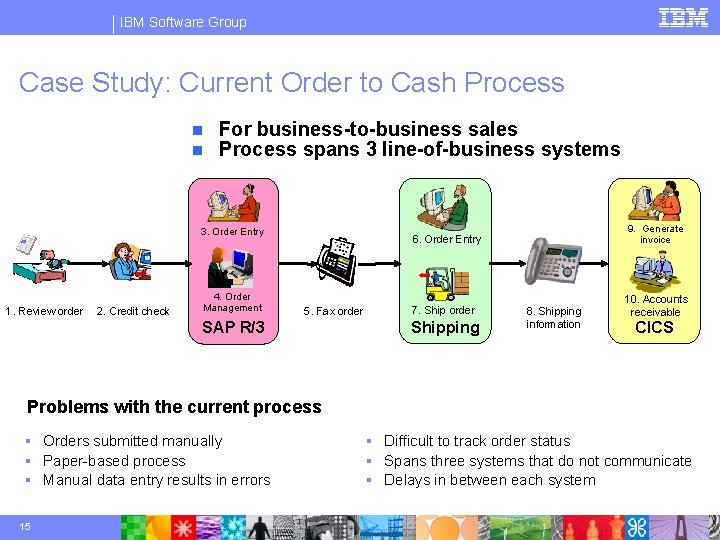
IBM Software Group Case Study: Current Order to Cash Process n n For business-to-business sales Process spans 3 line-of-business systems 3. Order Entry 1. Review order 2. Credit check 4. Order Management 9. Generate invoice 6. Order Entry 5. Fax order SAP R/3 7. Ship order Shipping 8. Shipping information 10. Accounts receivable CICS Problems with the current process § Orders submitted manually § Paper-based process § Manual data entry results in errors 15 § Difficult to track order status § Spans three systems that do not communicate § Delays in between each system
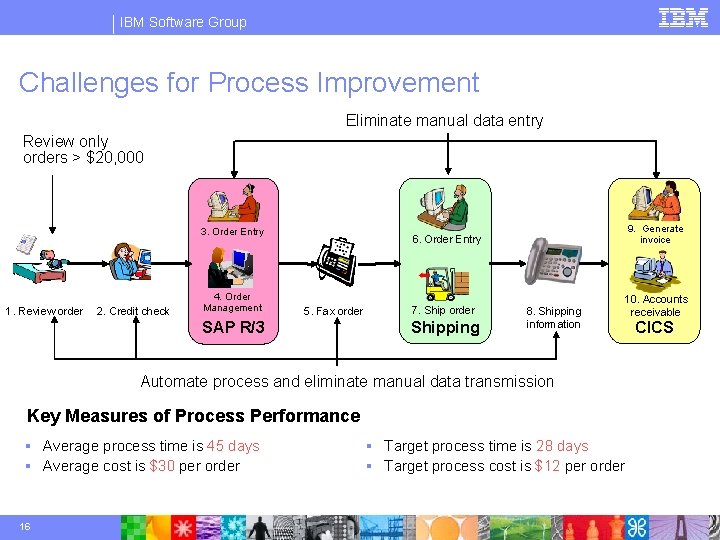
IBM Software Group Challenges for Process Improvement Eliminate manual data entry Review only orders > $20, 000 3. Order Entry 1. Review order 2. Credit check 4. Order Management 9. Generate invoice 6. Order Entry 5. Fax order SAP R/3 7. Ship order Shipping 8. Shipping information 10. Accounts receivable Automate process and eliminate manual data transmission Key Measures of Process Performance § Average process time is 45 days § Average cost is $30 per order 16 § Target process time is 28 days § Target process cost is $12 per order CICS
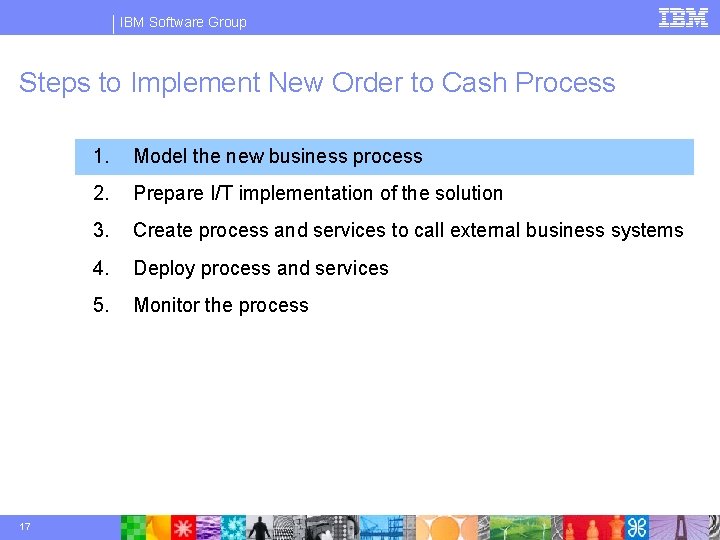
IBM Software Group Steps to Implement New Order to Cash Process 17 1. Model the new business process 2. Prepare I/T implementation of the solution 3. Create process and services to call external business systems 4. Deploy process and services 5. Monitor the process
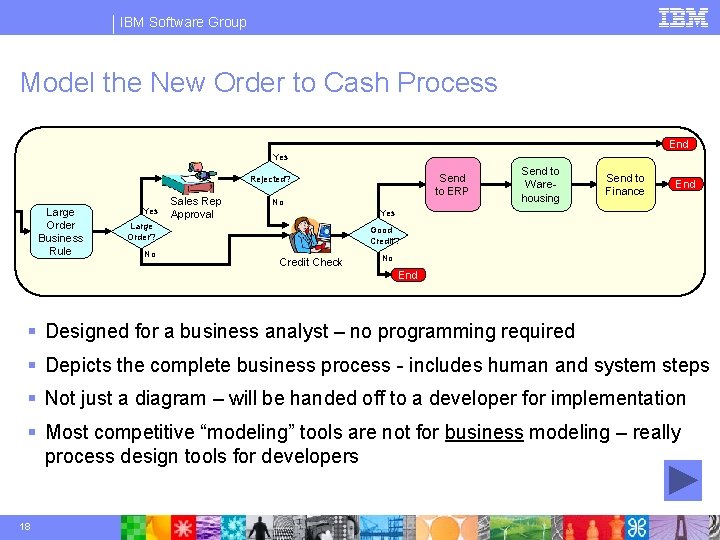
IBM Software Group Model the New Order to Cash Process End Yes Send to ERP Rejected? Large Order Business Rule Yes Sales Rep Approval No Send to Finance End Yes Large Order? No Send to Warehousing Good Credit? Credit Check No End § Designed for a business analyst – no programming required § Depicts the complete business process - includes human and system steps § Not just a diagram – will be handed off to a developer for implementation § Most competitive “modeling” tools are not for business modeling – really process design tools for developers 18
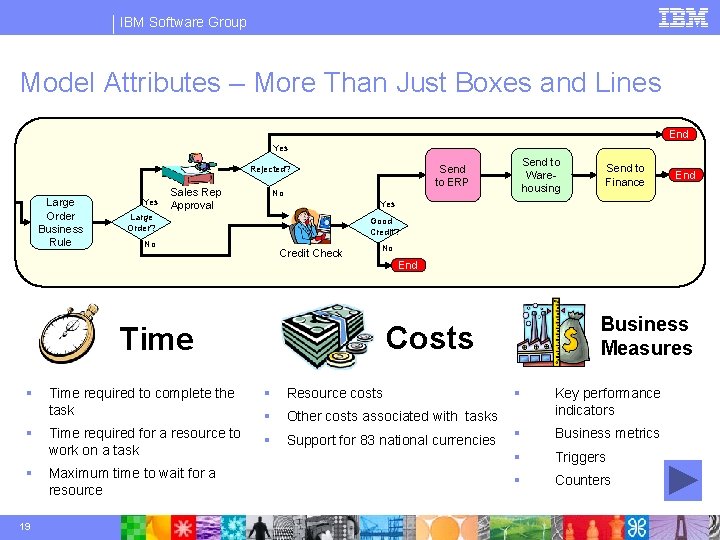
IBM Software Group Model Attributes – More Than Just Boxes and Lines End Yes Large Order Business Rule Yes Sales Rep Approval Send to Warehousing Send to ERP Rejected? No Send to Finance End Yes Large Order? Good Credit? No Credit Check No End Costs Time § § § 19 Time required to complete the task § Resource costs § Other costs associated with tasks Time required for a resource to work on a task § Support for 83 national currencies Maximum time to wait for a resource Business Measures § Key performance indicators § Business metrics § Triggers § Counters
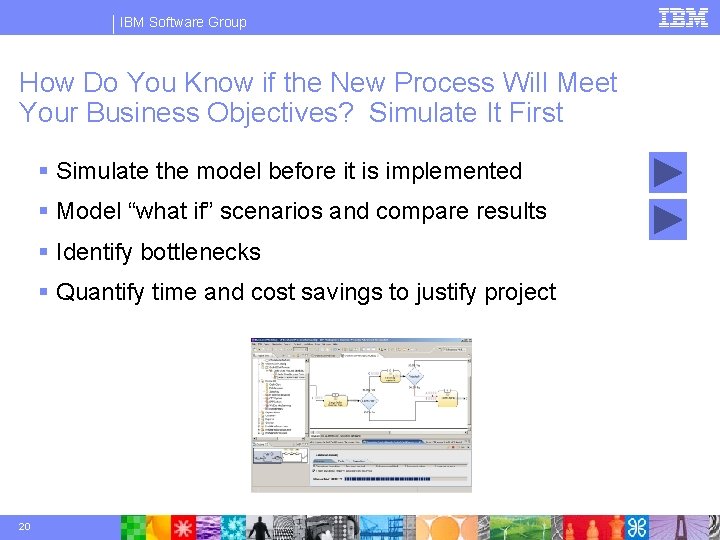
IBM Software Group How Do You Know if the New Process Will Meet Your Business Objectives? Simulate It First § Simulate the model before it is implemented § Model “what if” scenarios and compare results § Identify bottlenecks § Quantify time and cost savings to justify project 20
IBM Software Group Steps to Implement New Order to Cash Process 21 1. Model the new business process 2. Prepare I/T implementation of the solution 3. Create process and services to call external business systems 4. Deploy process and services 5. Monitor the process
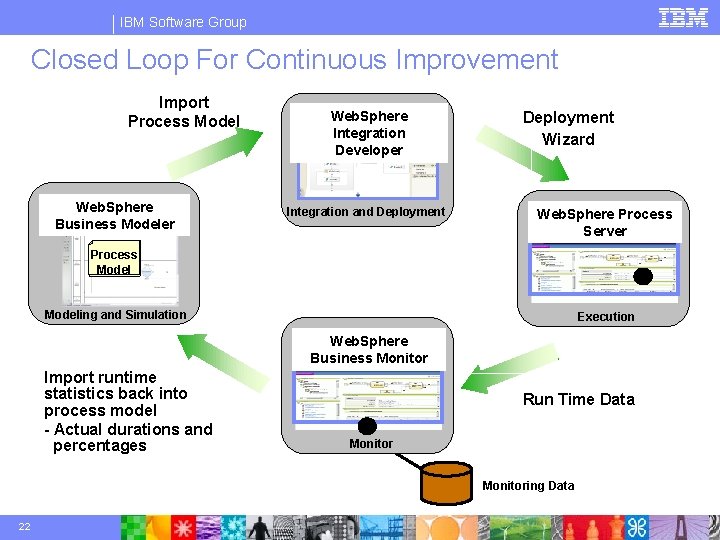
IBM Software Group Closed Loop For Continuous Improvement Import Process Model Web. Sphere Business Modeler Web. Sphere Integration Developer Integration and Deployment Wizard Web. Sphere Process Server Business Process Measures Modeling and Simulation Execution Web. Sphere Business Monitor Import runtime statistics back into process model - Actual durations and percentages Run Time Data Monitoring Data 22
AGENDA for Camtasia Enablement Camtasia demystified – Call it a ‘Live Recorded’ demo, presentation, etc. What is it – Examples and scenarios Why use it – Leverage 100% of your brain, eliminate risk, do more in less time, and more… When to use it – Presentations, demonstrations, web conferences and beyond… How to use it – From simple start/stop falling-off-a-log recordings to playing, narrating & beyond… Quick Success with Camtasia Your first recording using “Camtasia Recorder” To narrate or not to narrate with sound…just start with a silent recording Don’t worry about perfection…we can easily fix bloopers, pauses and timing later Easy Hints and Tips 23 Pre-recording – Install, initial one-time setup and system configuration
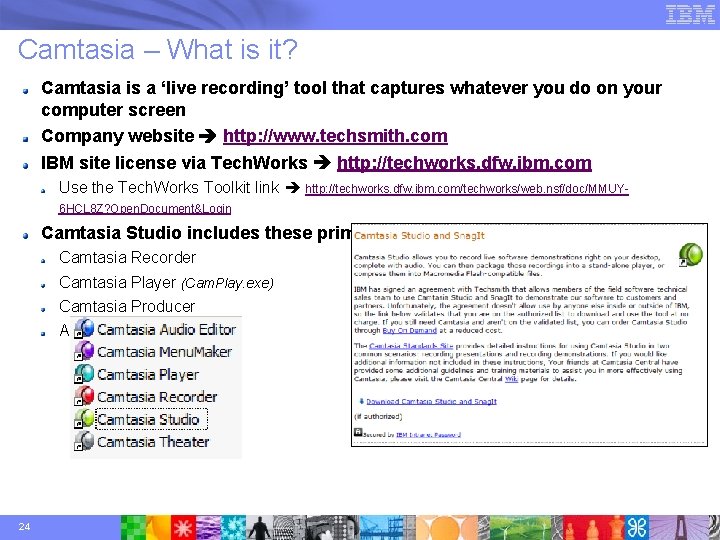
Camtasia – What is it? Camtasia is a ‘live recording’ tool that captures whatever you do on your computer screen Company website http: //www. techsmith. com IBM site license via Tech. Works http: //techworks. dfw. ibm. com Use the Tech. Works Toolkit link http: //techworks. dfw. ibm. com/techworks/web. nsf/doc/MMUY 6 HCL 8 Z? Open. Document&Login Camtasia Studio includes these primary programs: Camtasia Recorder Camtasia Player (Cam. Play. exe) Camtasia Producer And more… 24 © 2003 IBM Corporation
Camtasia – Why use it? Use 100% of your brain Instead of thinking about ‘driving’ your demo, what to click next, what sequence of steps you need to do in order for your demo to go well… You can simply ‘run’ the demo You spend all your time talking to the demo instead of driving it, and it looks exactly the same to the audience Eliminate RISK completely It is not going to break accidentally There isn’t going to be a network problem You won’t skip a step Skip, backup/review key segments or speed past ‘wait time’ in demo [Time-box your demonstrations] + [You know exactly how long it’ll take] = Do more in less time! Avoid switching between multiple VMWare images, tools, etc. to show our software in action Network connectivity at customer site may be problematic Share presentation, demonstration or web conferences Share with people that didn’t attend Share with people that did attend and want to review and/or pass it on to colleagues 25 © 2003 IBM Corporation
Camtasia – When to use it? Demonstrations Presentations Web Conferences – Ones you are watching and/or delivering Show customers or colleagues how to do something, without traveling Customer/colleague request for how to do something or why it’s not working You need to show them how to use or configure a software product You can create a Camtasia ‘live recording’ that shows how it’s done Capture a web conference you are watching, for later review and/or as a demo candidate Capture something that a guru you’re working with knows how to do but you don’t 26 Any time you do something more than once…within reason © 2003 IBM Corporation
AGENDA for Camtasia Enablement Camtasia demystified – Call it a ‘Live Recorded’ demo, presentation, etc. What is it – Examples and scenarios Why use it – Leverage 100% of your brain, eliminate risk, do more in less time, and more… When to use it – Presentations, demonstrations, web conferences and beyond… How to use it – From simple start/stop falling-off-a-log recordings to playing, narrating & beyond… Quick Success with Camtasia Your first recording using “Camtasia Recorder” To narrate or not to narrate with sound…just start with a silent recording Don’t worry about perfection…we can easily fix bloopers, pauses and timing later Easy Hints and Tips 27 Pre-recording – Install, initial one-time setup and system configuration
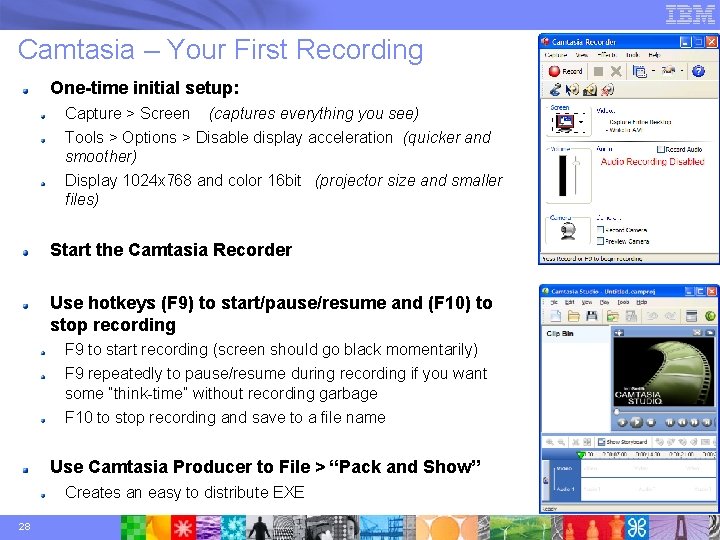
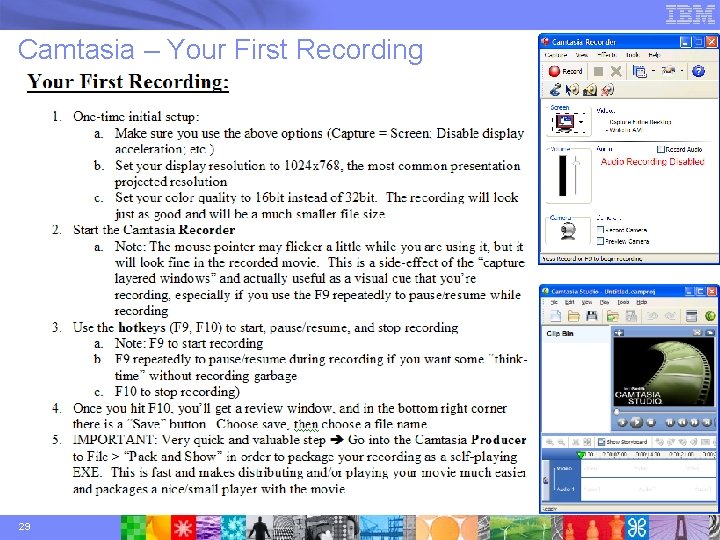
Camtasia – Your First Recording One-time initial setup: Capture > Screen (captures everything you see) Tools > Options > Disable display acceleration (quicker and smoother) Display 1024 x 768 and color 16 bit (projector size and smaller files) Start the Camtasia Recorder Use hotkeys (F 9) to start/pause/resume and (F 10) to stop recording F 9 to start recording (screen should go black momentarily) F 9 repeatedly to pause/resume during recording if you want some “think-time” without recording garbage F 10 to stop recording and save to a file name Use Camtasia Producer to File > “Pack and Show” Creates an easy to distribute EXE 28 © 2003 IBM Corporation
Camtasia – Your First Recording 29 © 2003 IBM Corporation
AGENDA for Camtasia Enablement Camtasia demystified – Call it a ‘Live Recorded’ demo, presentation, etc. What is it – Examples and scenarios Why use it – Leverage 100% of your brain, eliminate risk, do more in less time, and more… When to use it – Presentations, demonstrations, web conferences and beyond… How to use it – From simple start/stop falling-off-a-log recordings to playing, narrating & beyond… Quick Success with Camtasia Your first recording using “Camtasia Recorder” To narrate or not to narrate with sound…just start with a silent recording Don’t worry about perfection…we can easily fix bloopers, pauses and timing later Easy Hints and Tips 30 Pre-recording – Install, initial one-time setup and system configuration
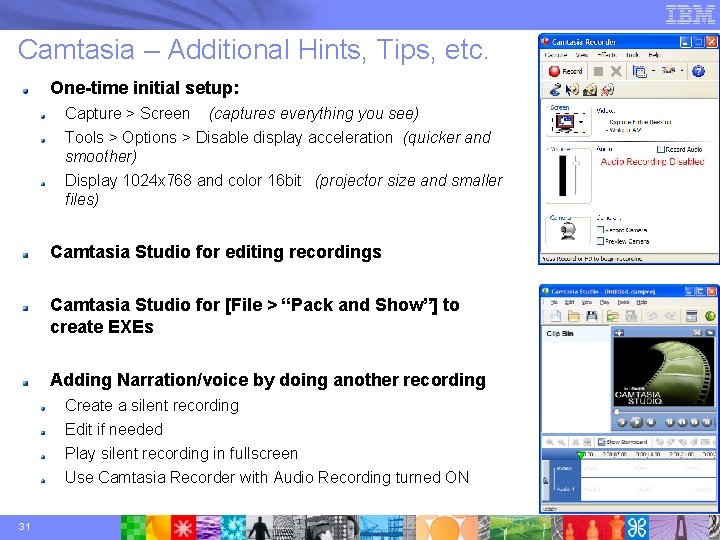
Camtasia – Additional Hints, Tips, etc. One-time initial setup: Capture > Screen (captures everything you see) Tools > Options > Disable display acceleration (quicker and smoother) Display 1024 x 768 and color 16 bit (projector size and smaller files) Camtasia Studio for editing recordings Camtasia Studio for [File > “Pack and Show”] to create EXEs Adding Narration/voice by doing another recording Create a silent recording Edit if needed Play silent recording in fullscreen Use Camtasia Recorder with Audio Recording turned ON 31 © 2003 IBM Corporation

Camtasia – IMPORTANT Keyboard Shortcuts IMPORTANT Playback Tips Use these keyboard shortcuts while a demo (AVI or EXE) is playing!!! [SPACEBAR] pauses/resumes playback Holding down Right cursor key (while paused) plays recording forwards at 1. 5 x speed, which is *very* convenient for playing demo segments faster if they are a little slower than ideal (This makes demo play a little faster without looking unnatural) [Pg. Dn] or [Pg. Up] keys skip forwards/backwards 1 second at a time (while paused) [Alt]+[Enter] keys pressed together force in/out of fullscreen [Esc] while in fullscreen, exits fullscreen 32 Right mouse click on recording while playing shows this popup menu (Just in case you forget some of these keyboard shortcuts) © 2003 IBM Corporation
- Slides: 32