
IAMS Workflow System Training IAMS Workflow System Training
- Slides: 93
IAMS Workflow System Training
IAMS Workflow System Training Agenda: • Background of IAMS initiative • New Employee & Contractor Onboarding Process Walkthrough • How to Manually Claim and Onboard an Employee (Because No-Manager Identified) • How to “forward” Onboarding Request to a Colleague • Navigating the IAMS Workflow System Dashboard • First Time IAMS Workflow System Login Activities! • How to Add a Direct Report who Already Has a Manager • Contractor Recertification Process • Open Floor for Questions 2
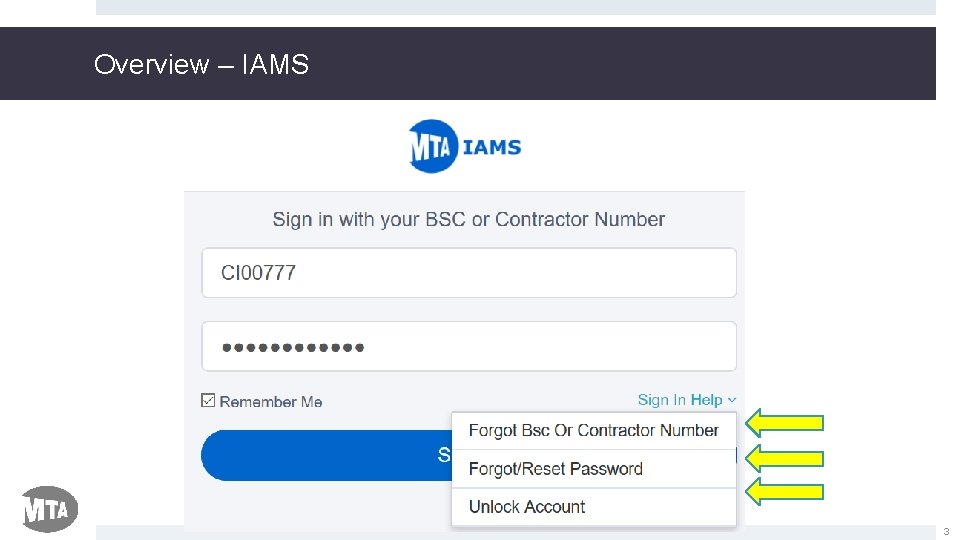
Overview – IAMS 3
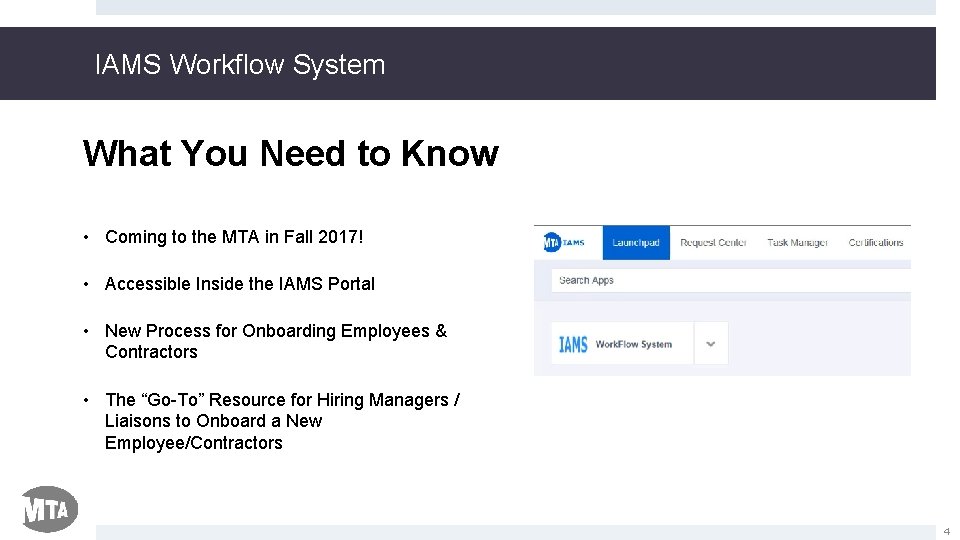
IAMS Workflow System What You Need to Know • Coming to the MTA in Fall 2017! • Accessible Inside the IAMS Portal • New Process for Onboarding Employees & Contractors • The “Go-To” Resource for Hiring Managers / Liaisons to Onboard a New Employee/Contractors 4
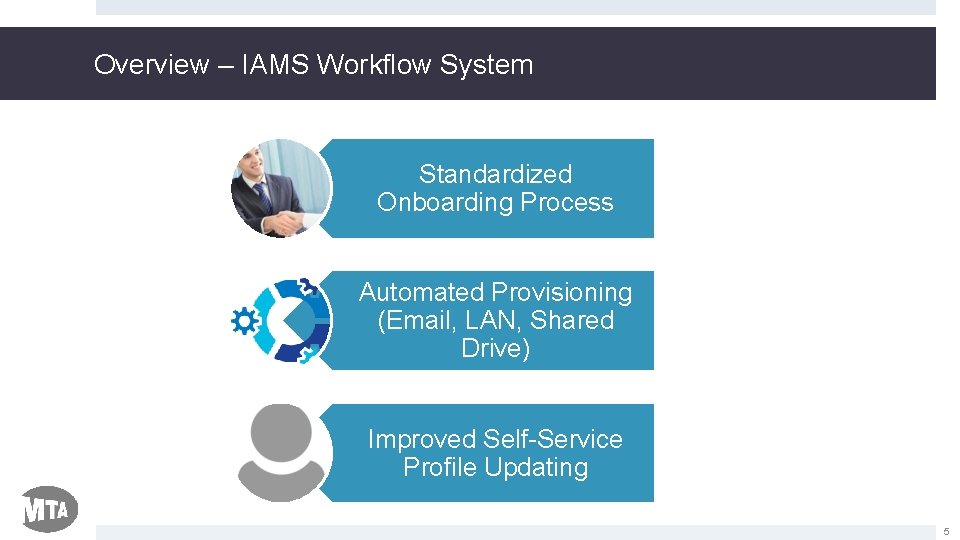
Overview – IAMS Workflow System Standardized Onboarding Process Automated Provisioning (Email, LAN, Shared Drive) Improved Self-Service Profile Updating 5
How To Access IAMS Workflow System
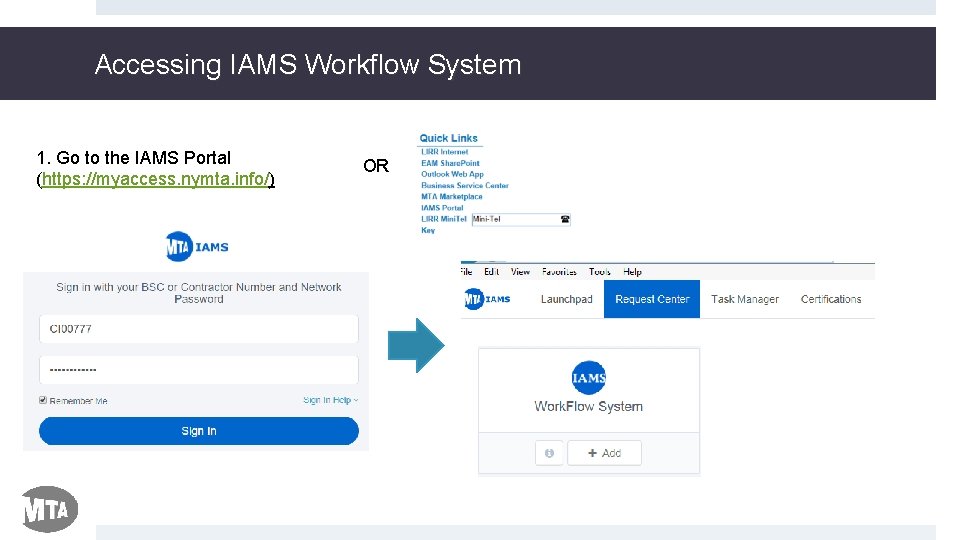
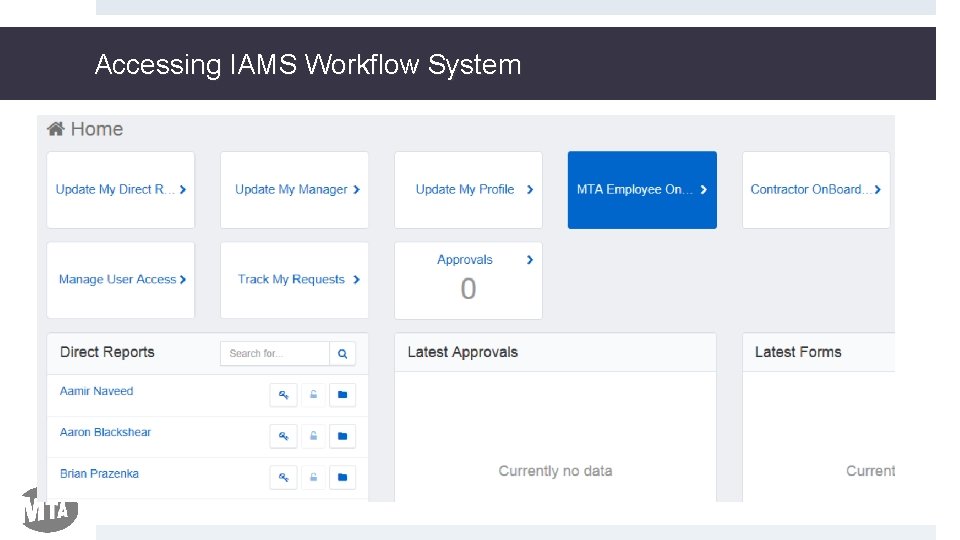
Accessing IAMS Workflow System 1. Go to the IAMS Portal (https: //myaccess. nymta. info/) OR
Accessing IAMS Workflow System
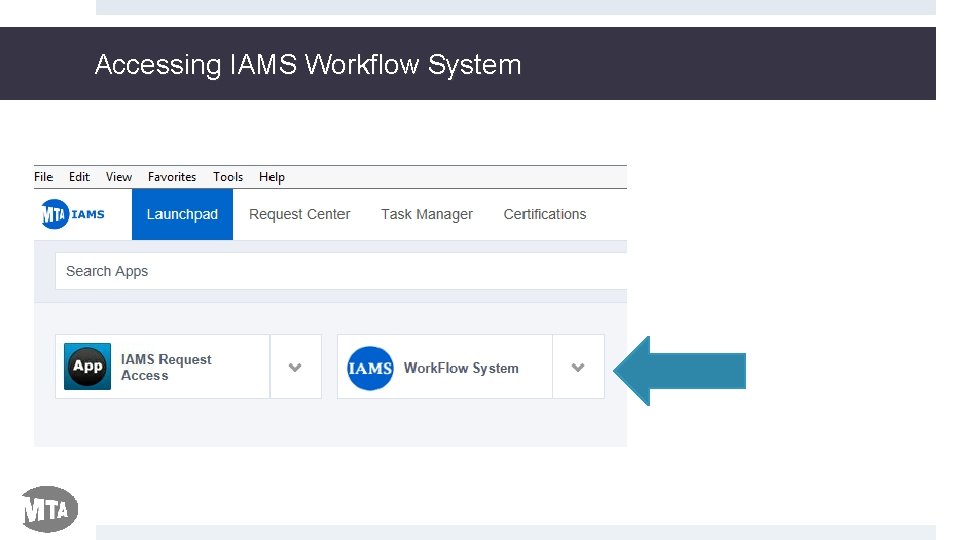
Accessing IAMS Workflow System
IAMS Workflow System Let’s walk through an example to better understand how the new onboarding process will work using IAMS Workflow System….
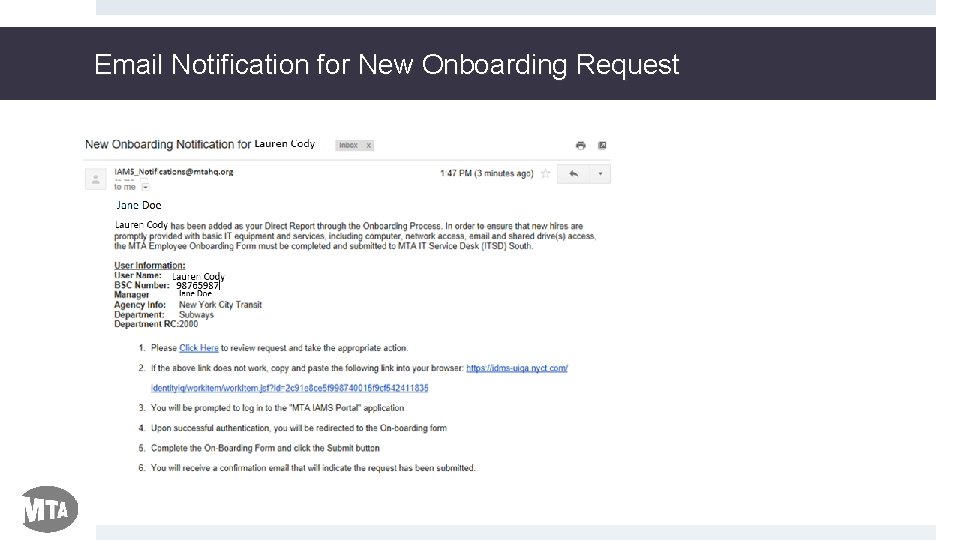
Email Notification for New Onboarding Request
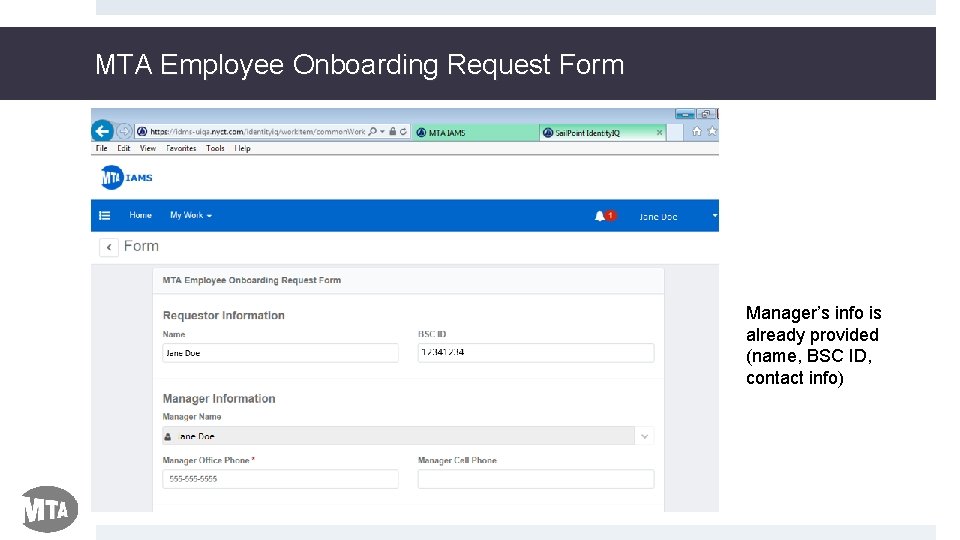
MTA Employee Onboarding Request Form Manager’s info is already provided (name, BSC ID, contact info)
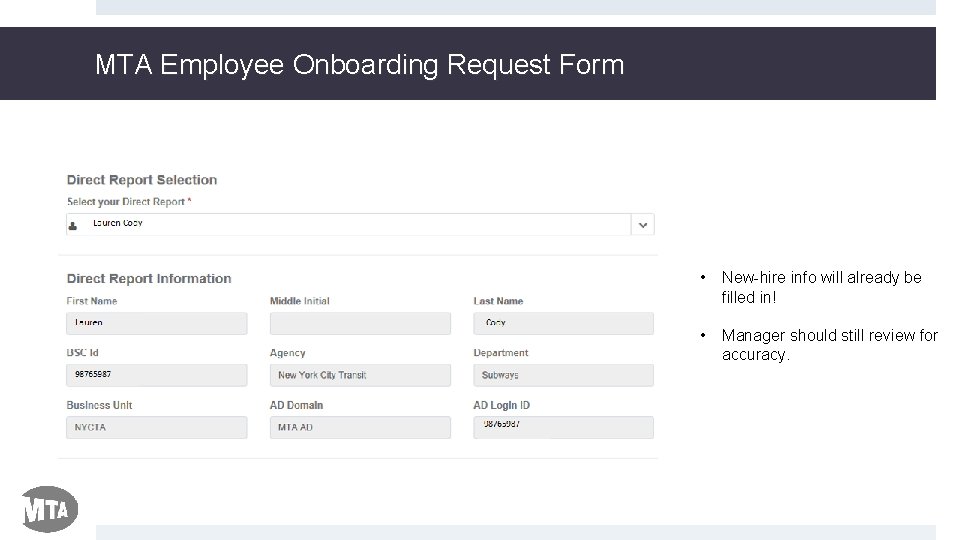
MTA Employee Onboarding Request Form • New-hire info will already be filled in! • Manager should still review for accuracy.
MTA Employee Onboarding Request Form
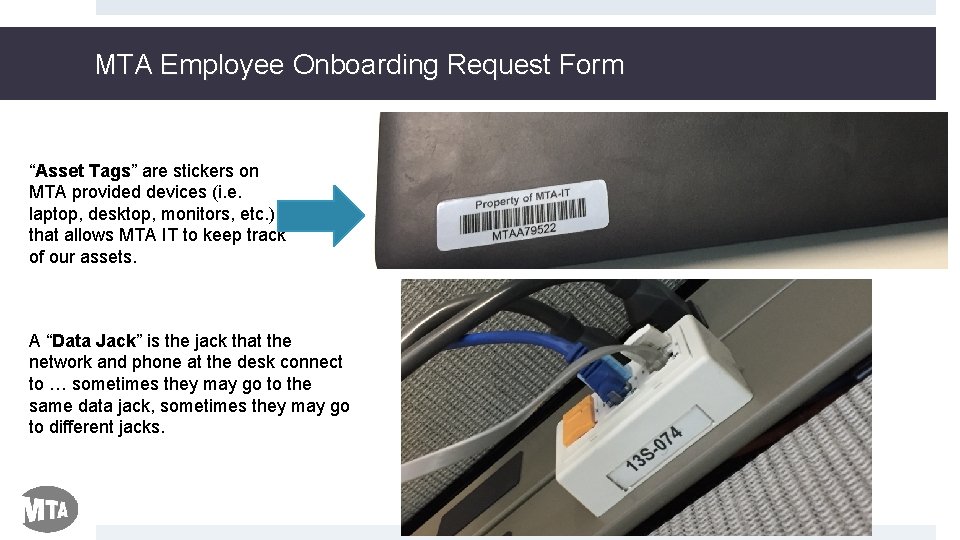
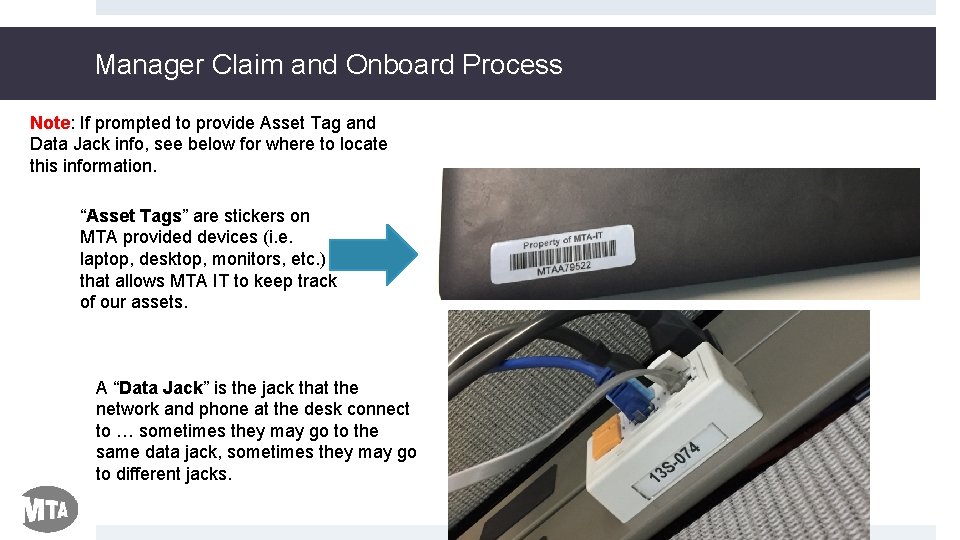
MTA Employee Onboarding Request Form “Asset Tags” are stickers on MTA provided devices (i. e. laptop, desktop, monitors, etc. ) that allows MTA IT to keep track of our assets. A “Data Jack” is the jack that the network and phone at the desk connect to … sometimes they may go to the same data jack, sometimes they may go to different jacks.
MTA Employee Onboarding Request Form
MTA Employee Onboarding Request Form
Email Confirmation of Completed Request
Recap of what was covered in this walkthrough! • IAMS Workflow System is the go-to resource for Managers to onboard new employees. • Email notification will alert the Manager that the Employee Onboarding Request Form is ready to be filled out • Manager will follow the link in the email, which will take them into IAMS Workflow System, and then complete the Employee Onboarding Request Form
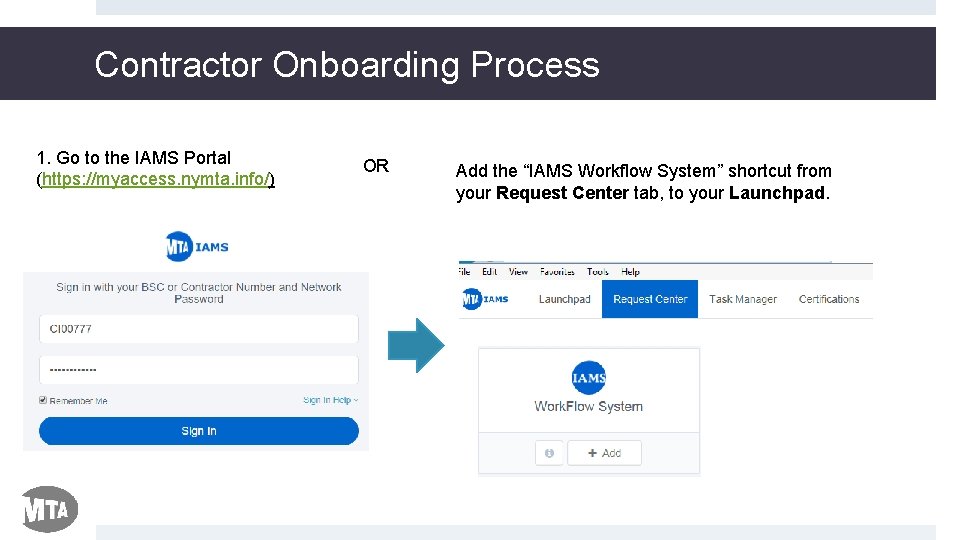
Contractor Onboarding Process 1. Go to the IAMS Portal (https: //myaccess. nymta. info/) OR Add the “IAMS Workflow System” shortcut from your Request Center tab, to your Launchpad.
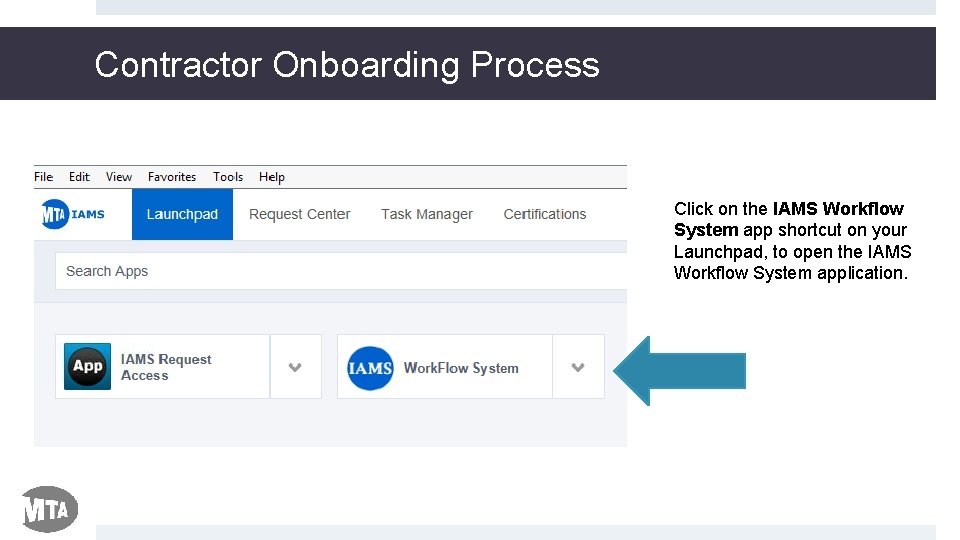
Contractor Onboarding Process Click on the IAMS Workflow System app shortcut on your Launchpad, to open the IAMS Workflow System application.
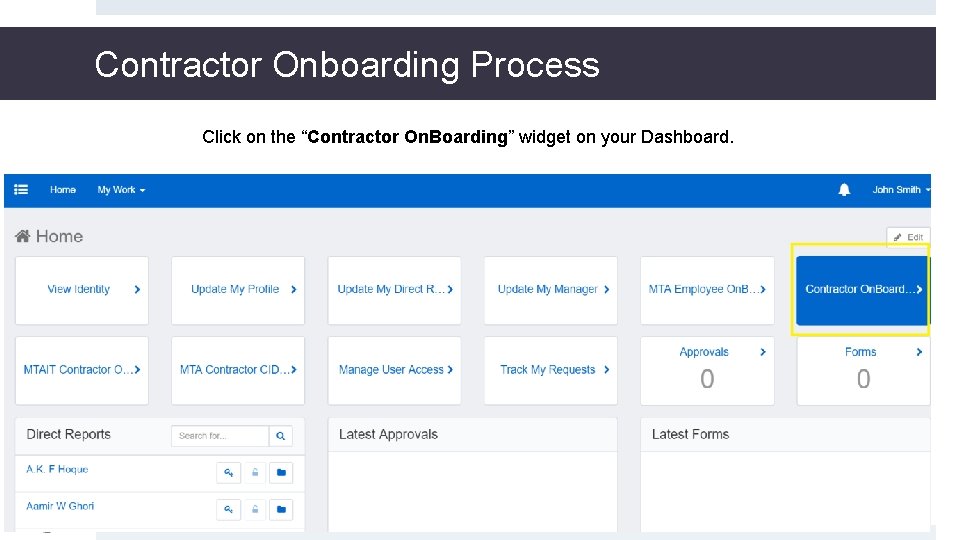
Contractor Onboarding Process Click on the “Contractor On. Boarding” widget on your Dashboard.
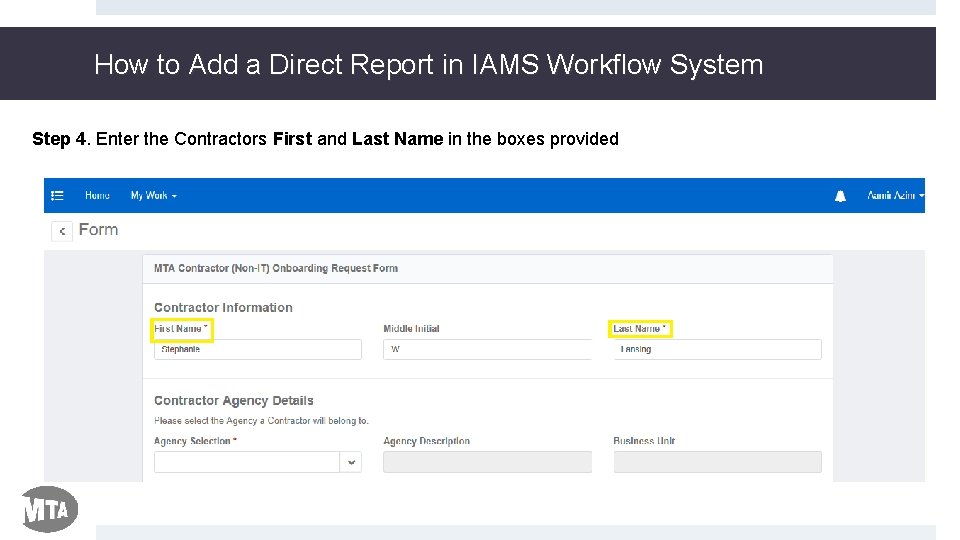
How to Add a Direct Report in IAMS Workflow System Step 4. Enter the Contractors First and Last Name in the boxes provided
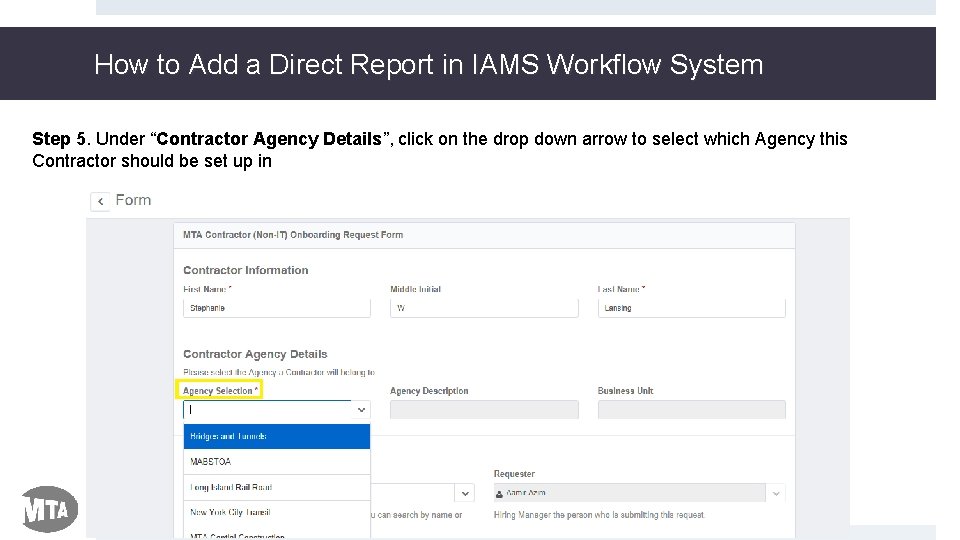
How to Add a Direct Report in IAMS Workflow System Step 5. Under “Contractor Agency Details”, click on the drop down arrow to select which Agency this Contractor should be set up in
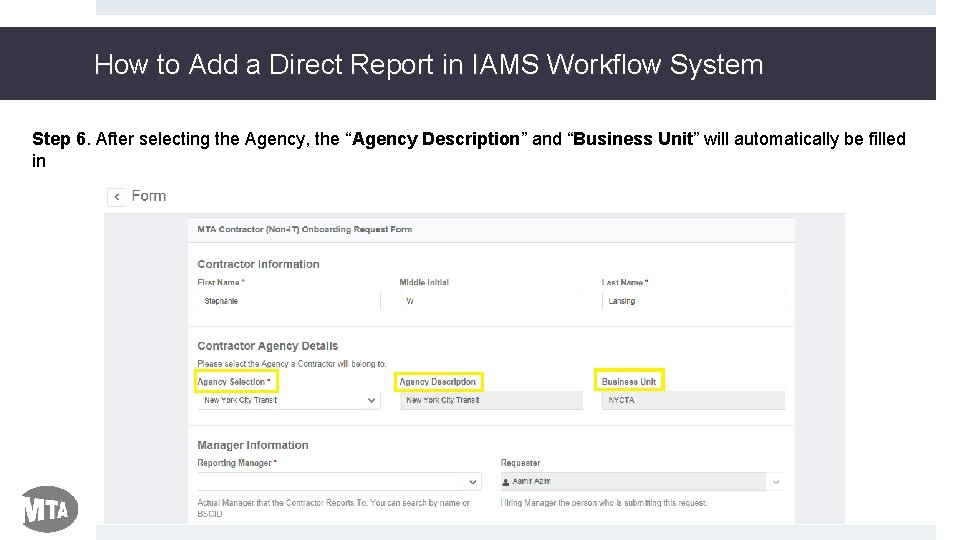
How to Add a Direct Report in IAMS Workflow System Step 6. After selecting the Agency, the “Agency Description” and “Business Unit” will automatically be filled in
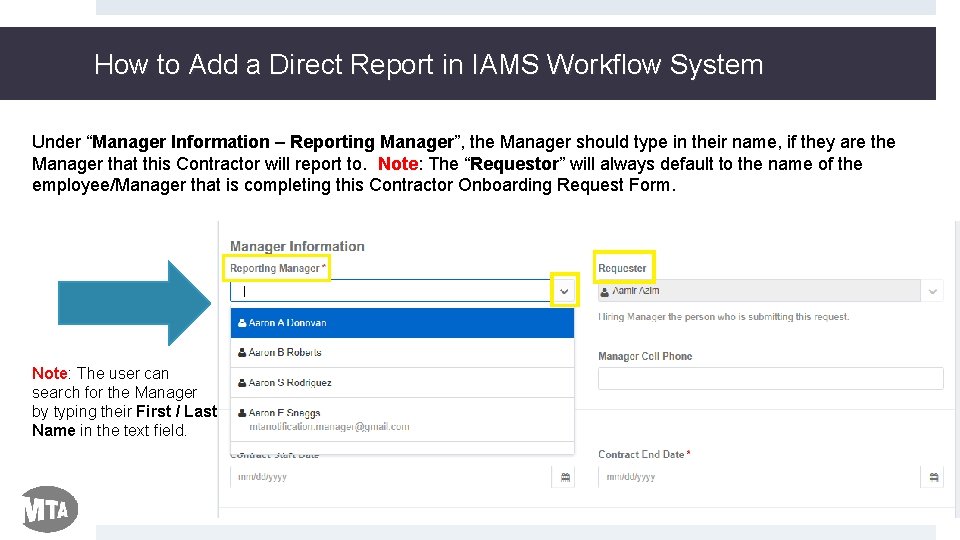
How to Add a Direct Report in IAMS Workflow System Under “Manager Information – Reporting Manager”, the Manager should type in their name, if they are the Manager that this Contractor will report to. Note: The “Requestor” will always default to the name of the employee/Manager that is completing this Contractor Onboarding Request Form. Note: The user can search for the Manager by typing their First / Last Name in the text field.
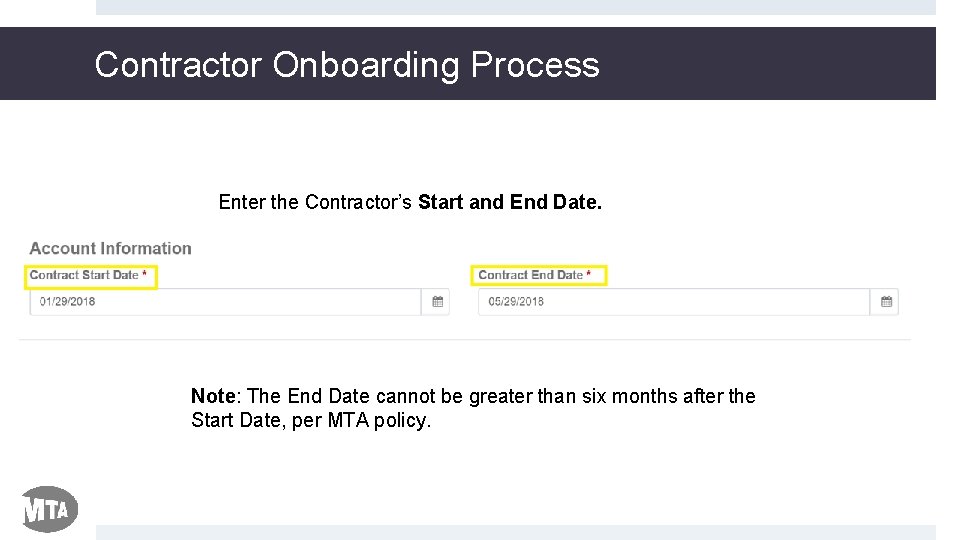
Contractor Onboarding Process Enter the Contractor’s Start and End Date. Note: The End Date cannot be greater than six months after the Start Date, per MTA policy.
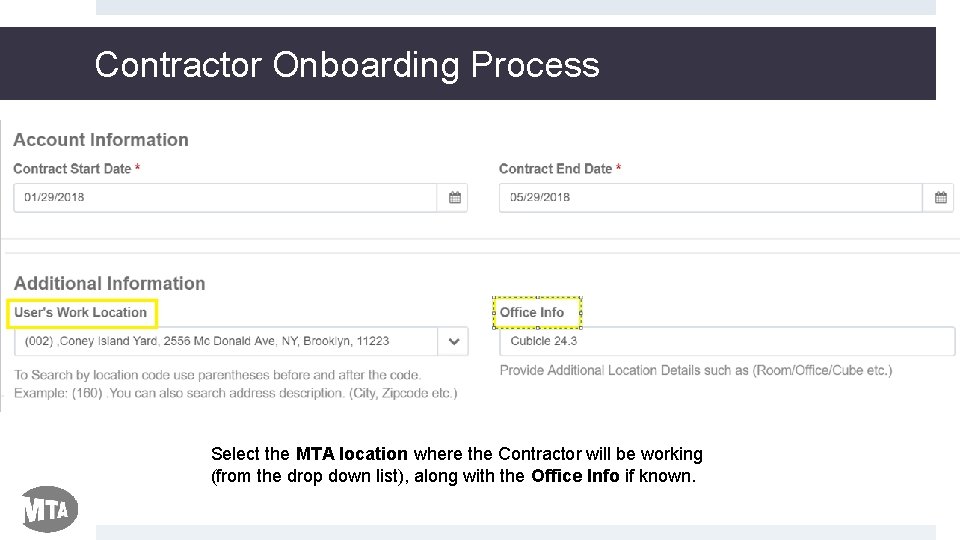
Contractor Onboarding Process Select the MTA location where the Contractor will be working (from the drop down list), along with the Office Info if known.
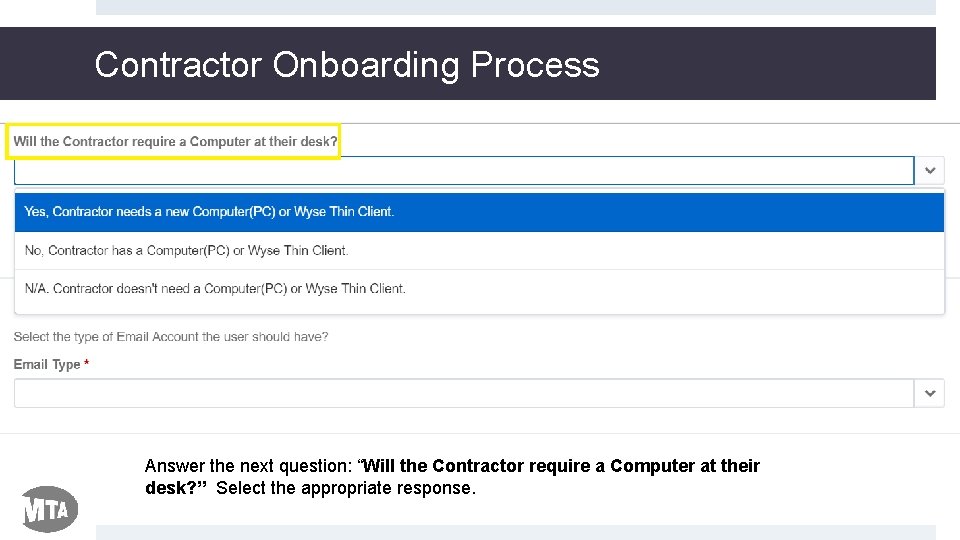
Contractor Onboarding Process Answer the next question: “Will the Contractor require a Computer at their desk? ” Select the appropriate response.
Manager Claim and Onboard Process Note: If prompted to provide Asset Tag and Data Jack info, see below for where to locate this information. “Asset Tags” are stickers on MTA provided devices (i. e. laptop, desktop, monitors, etc. ) that allows MTA IT to keep track of our assets. A “Data Jack” is the jack that the network and phone at the desk connect to … sometimes they may go to the same data jack, sometimes they may go to different jacks.
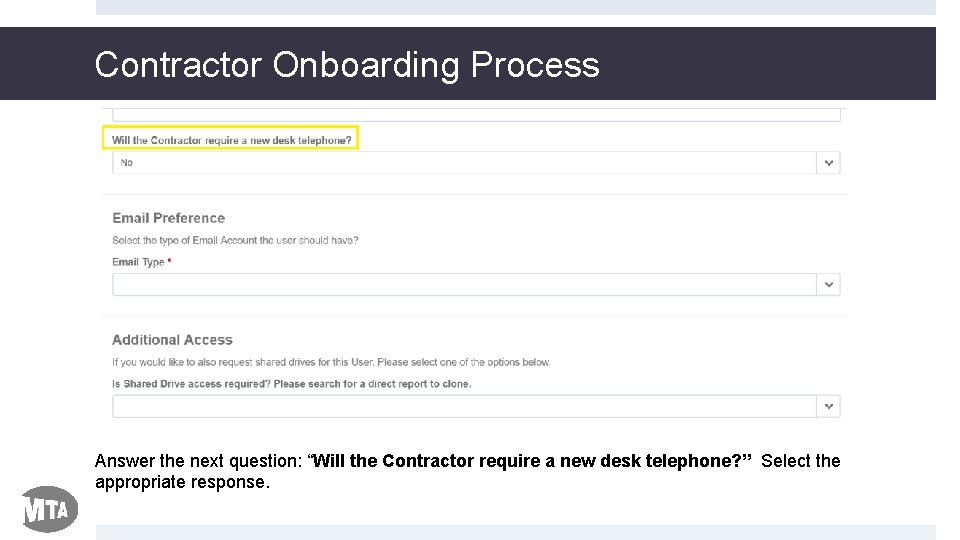
Contractor Onboarding Process Answer the next question: “Will the Contractor require a new desk telephone? ” Select the appropriate response.
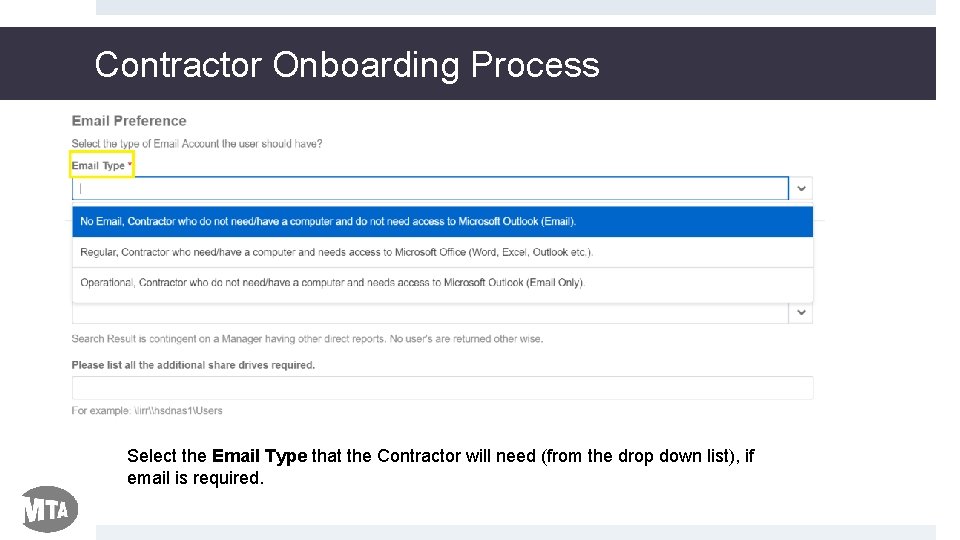
Contractor Onboarding Process Select the Email Type that the Contractor will need (from the drop down list), if email is required.
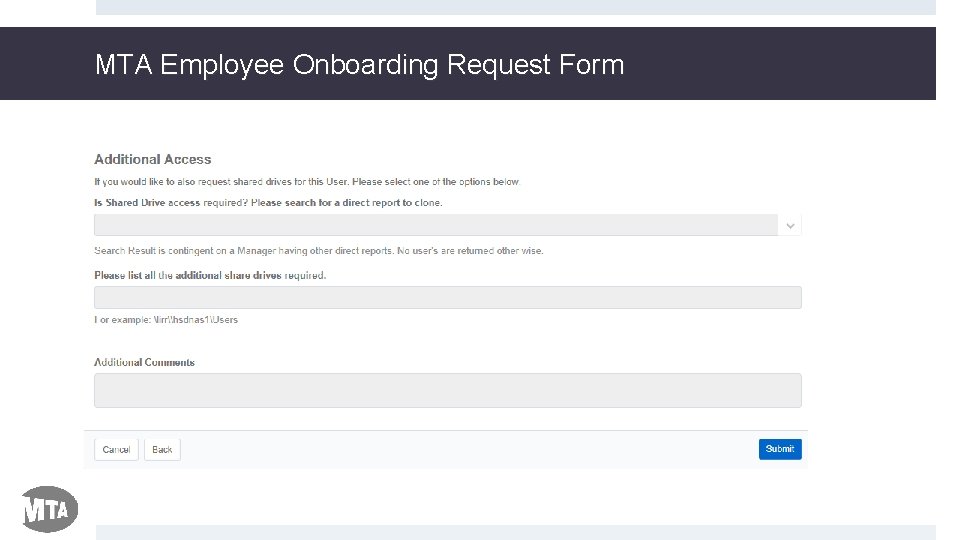
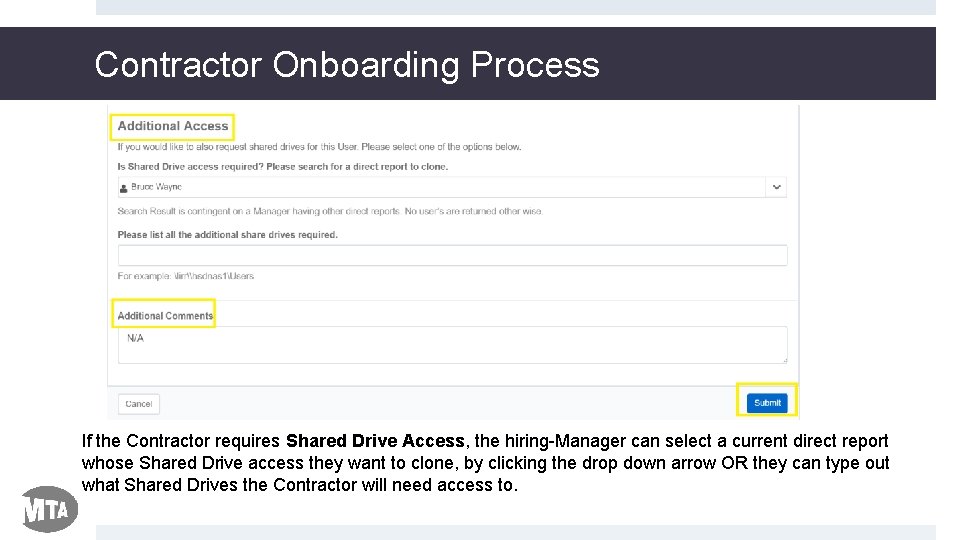
Contractor Onboarding Process If the Contractor requires Shared Drive Access, the hiring-Manager can select a current direct report whose Shared Drive access they want to clone, by clicking the drop down arrow OR they can type out what Shared Drives the Contractor will need access to.
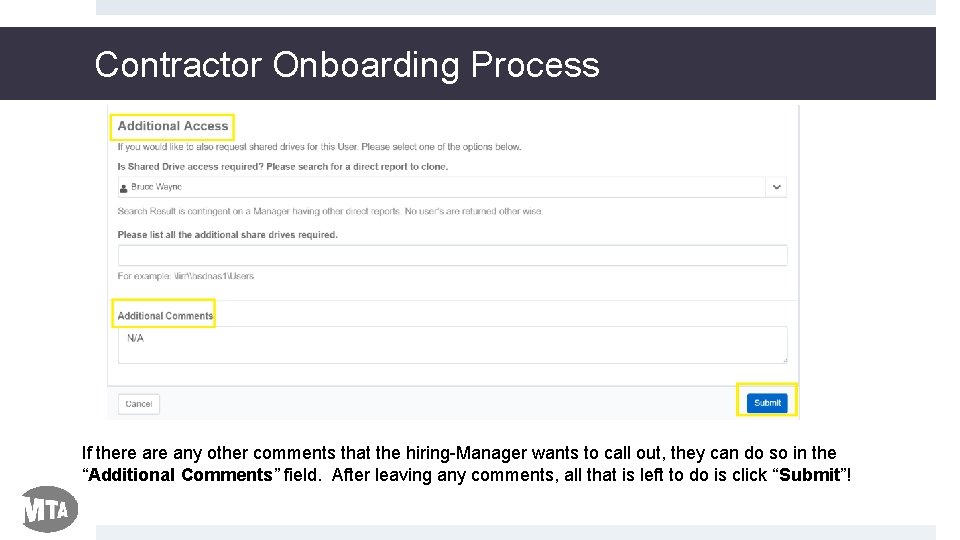
Contractor Onboarding Process If there any other comments that the hiring-Manager wants to call out, they can do so in the “Additional Comments” field. After leaving any comments, all that is left to do is click “Submit”!
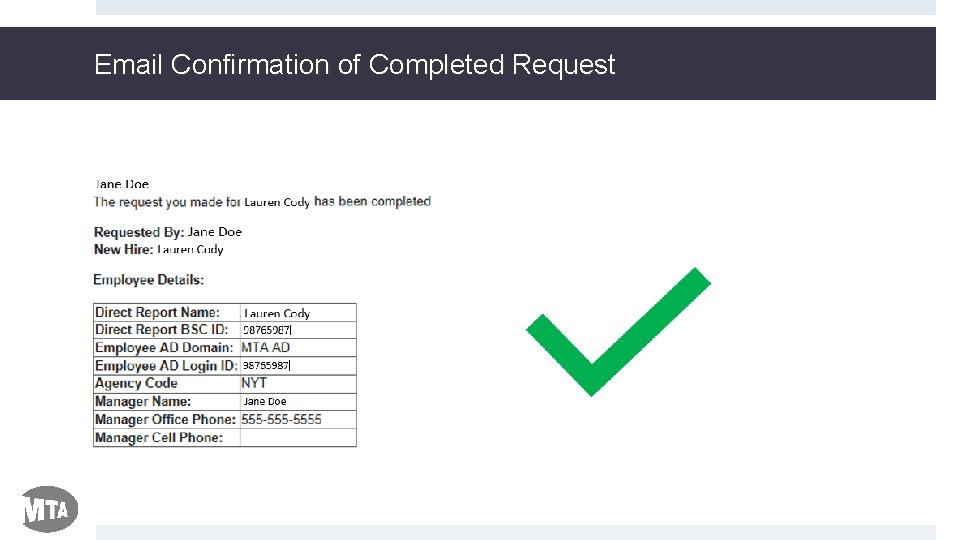
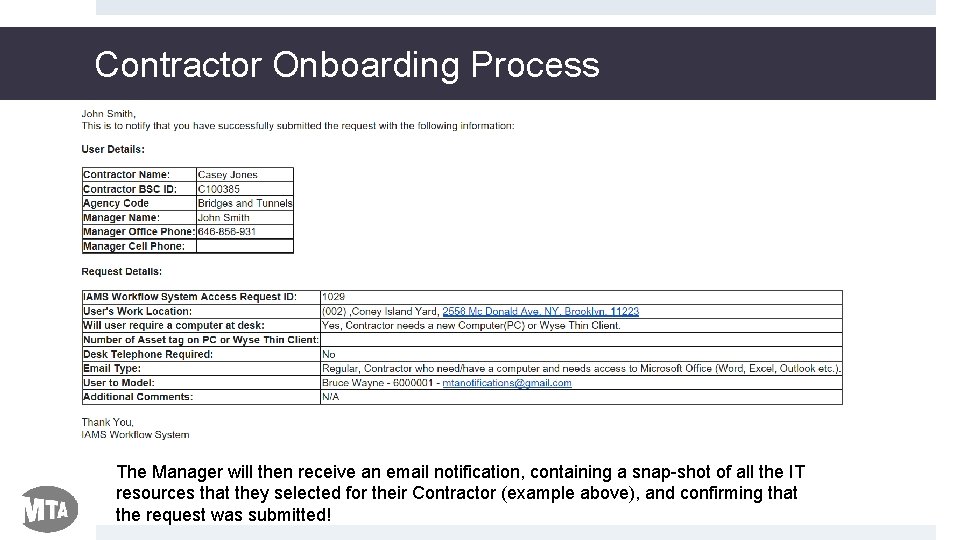
Contractor Onboarding Process The Manager will then receive an email notification, containing a snap-shot of all the IT resources that they selected for their Contractor (example above), and confirming that the request was submitted!
Contractor Onboarding Process Complete! Additional Notes / Recap: • It will be the responsibility of the hiring-Manager to initiate the Contractor Onboarding process in IAMS Workflow System. • Both the Contractor and the Manager will get email notifications starting 14 days out from the Contract End Date, reminding the Manager to update the Contract End Date (if required) • Only the very basic IT resources can be requested by the Manager at this time (Computer, Phone, Email Type, and Shared Drive Access) – In the future, the IAMS team will roll-out enhancements to the Onboarding Request Form and integrate additional resources into the onboarding process. • The Service Desk can be reached at 646 -252 -8888 for anyone that runs into technical difficulty during the Contractor Onboarding Process.
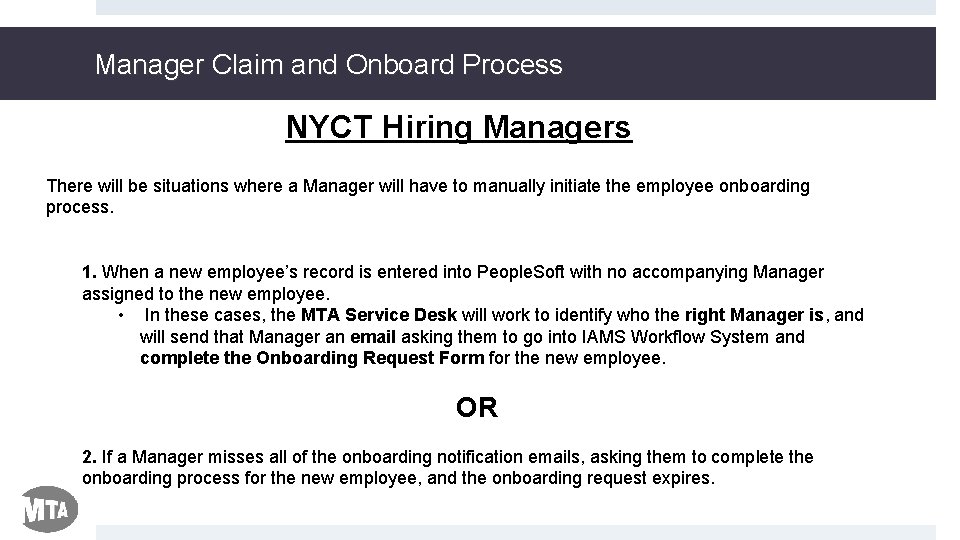
Manager Claim and Onboard Process NYCT Hiring Managers There will be situations where a Manager will have to manually initiate the employee onboarding process. 1. When a new employee’s record is entered into People. Soft with no accompanying Manager assigned to the new employee. • In these cases, the MTA Service Desk will work to identify who the right Manager is, and will send that Manager an email asking them to go into IAMS Workflow System and complete the Onboarding Request Form for the new employee. OR 2. If a Manager misses all of the onboarding notification emails, asking them to complete the onboarding process for the new employee, and the onboarding request expires.
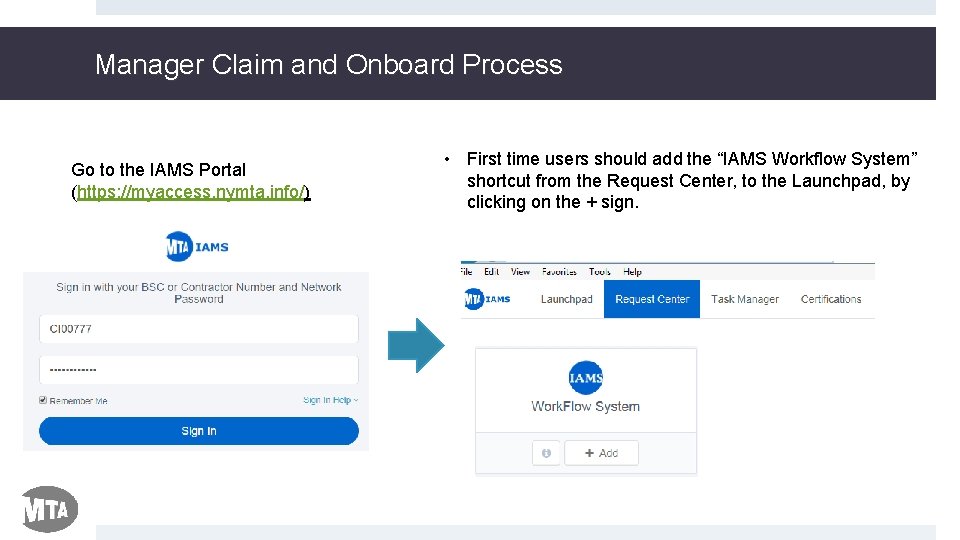
Manager Claim and Onboard Process Go to the IAMS Portal (https: //myaccess. nymta. info/) • First time users should add the “IAMS Workflow System” shortcut from the Request Center, to the Launchpad, by clicking on the + sign.
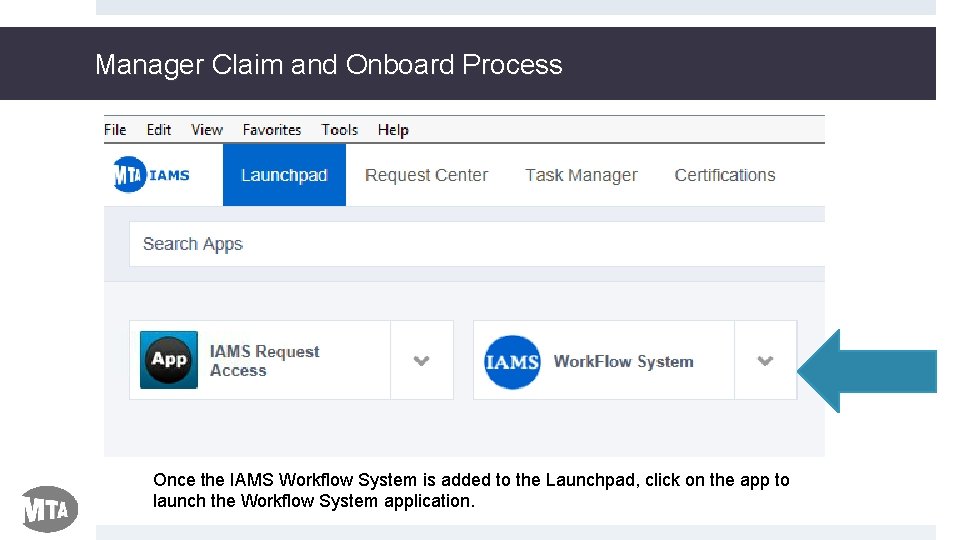
Manager Claim and Onboard Process Once the IAMS Workflow System is added to the Launchpad, click on the app to launch the Workflow System application.
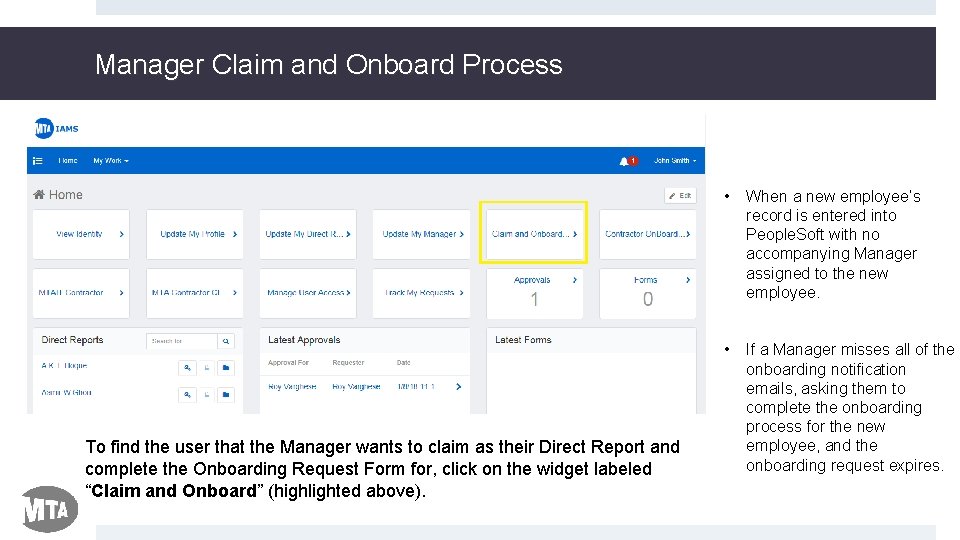
Manager Claim and Onboard Process To find the user that the Manager wants to claim as their Direct Report and complete the Onboarding Request Form for, click on the widget labeled “Claim and Onboard” (highlighted above). • When a new employee’s record is entered into People. Soft with no accompanying Manager assigned to the new employee. • If a Manager misses all of the onboarding notification emails, asking them to complete the onboarding process for the new employee, and the onboarding request expires.
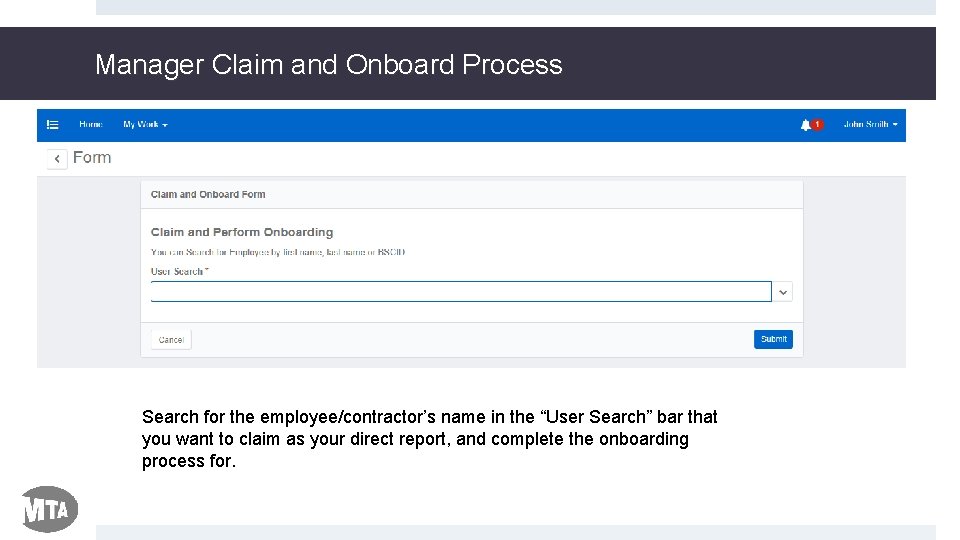
Manager Claim and Onboard Process Search for the employee/contractor’s name in the “User Search” bar that you want to claim as your direct report, and complete the onboarding process for.
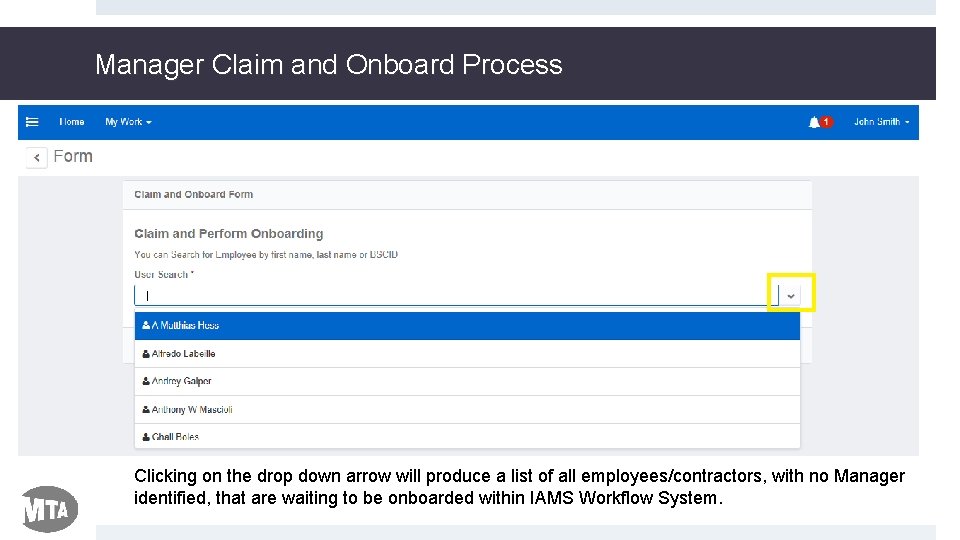
Manager Claim and Onboard Process Clicking on the drop down arrow will produce a list of all employees/contractors, with no Manager identified, that are waiting to be onboarded within IAMS Workflow System.
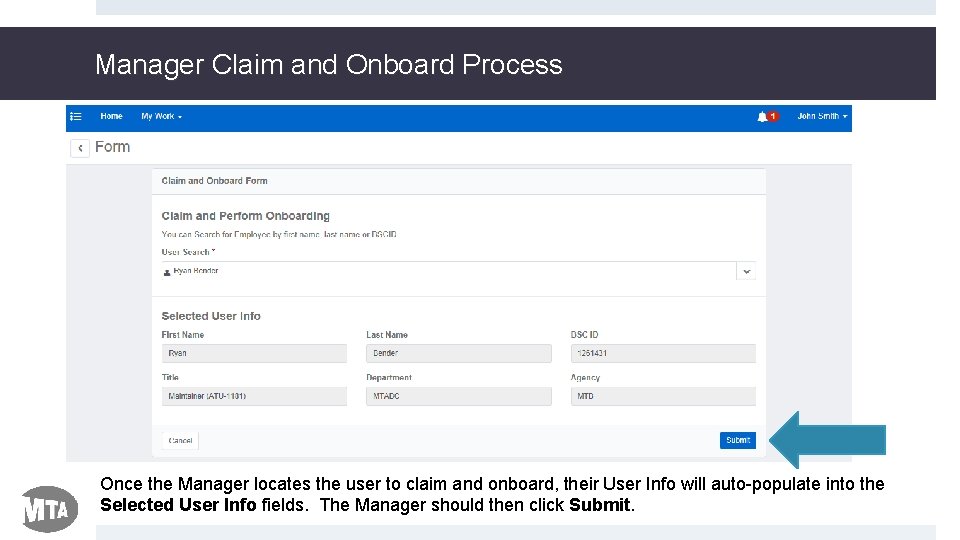
Manager Claim and Onboard Process Once the Manager locates the user to claim and onboard, their User Info will auto-populate into the Selected User Info fields. The Manager should then click Submit.
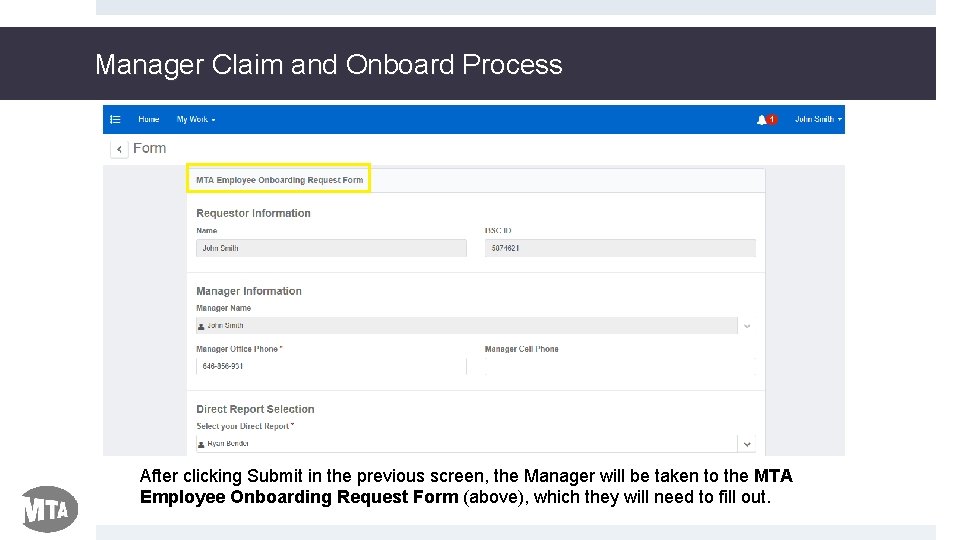
Manager Claim and Onboard Process After clicking Submit in the previous screen, the Manager will be taken to the MTA Employee Onboarding Request Form (above), which they will need to fill out.
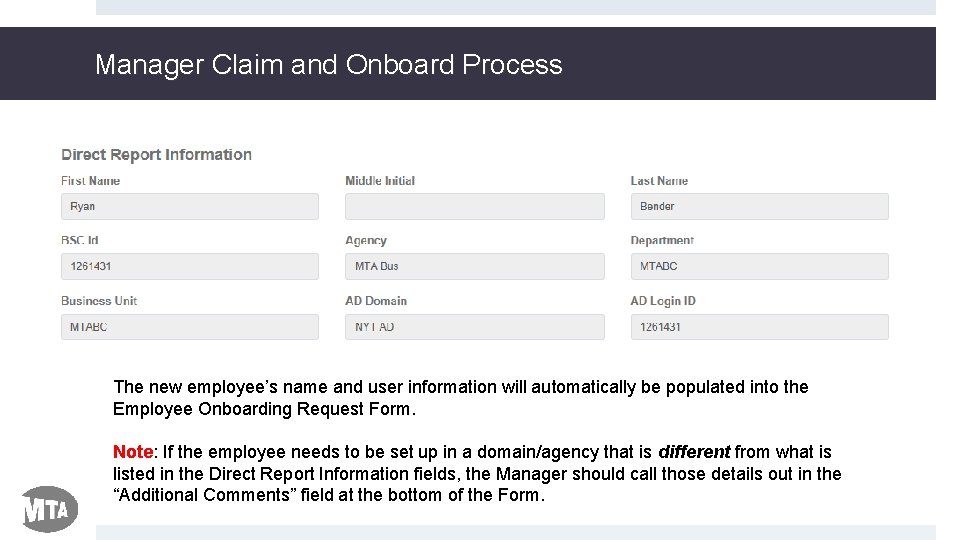
Manager Claim and Onboard Process The new employee’s name and user information will automatically be populated into the Employee Onboarding Request Form. Note: If the employee needs to be set up in a domain/agency that is different from what is listed in the Direct Report Information fields, the Manager should call those details out in the “Additional Comments” field at the bottom of the Form.
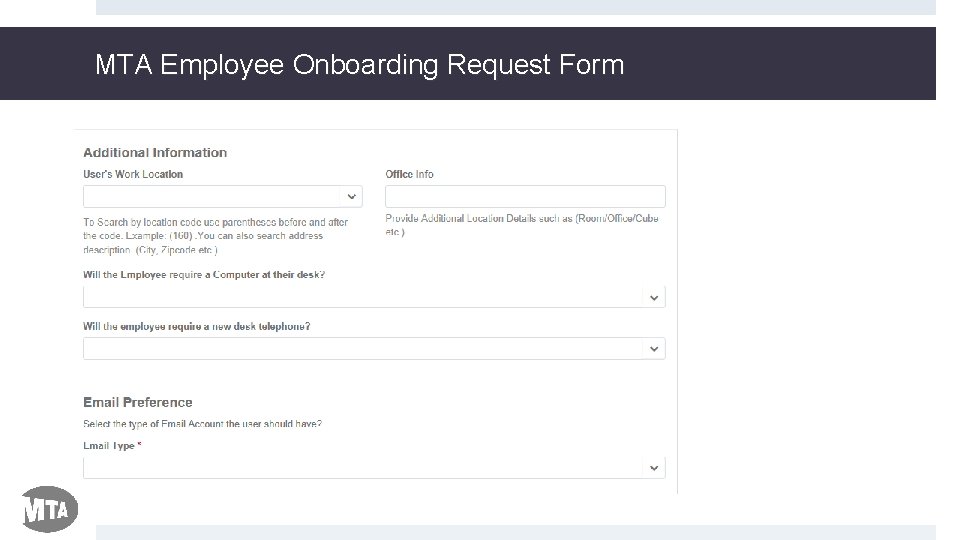
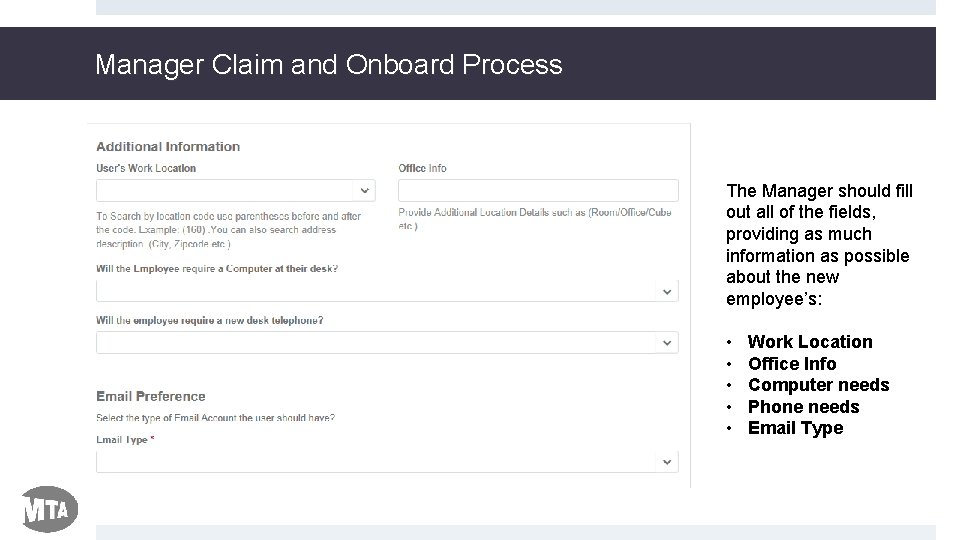
Manager Claim and Onboard Process The Manager should fill out all of the fields, providing as much information as possible about the new employee’s: • • • Work Location Office Info Computer needs Phone needs Email Type
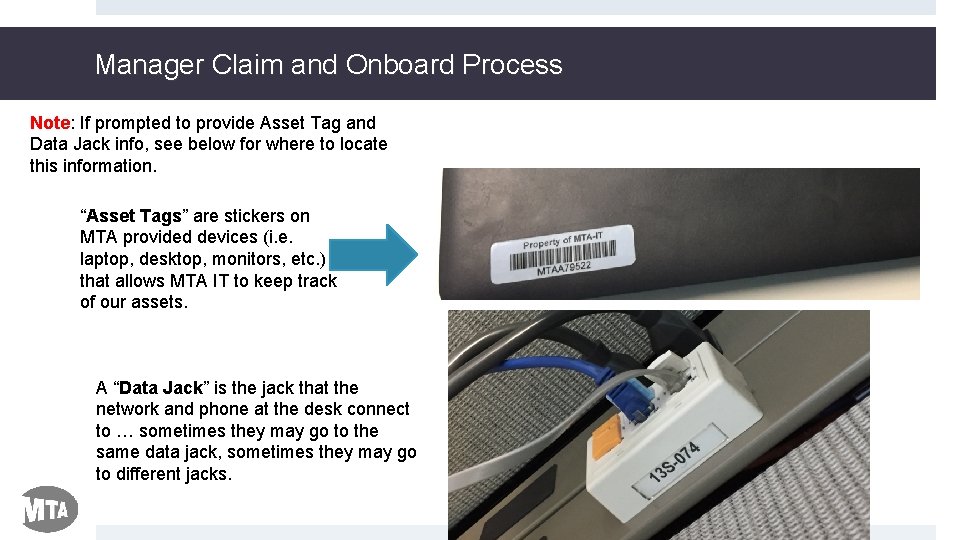
Manager Claim and Onboard Process Note: If prompted to provide Asset Tag and Data Jack info, see below for where to locate this information. “Asset Tags” are stickers on MTA provided devices (i. e. laptop, desktop, monitors, etc. ) that allows MTA IT to keep track of our assets. A “Data Jack” is the jack that the network and phone at the desk connect to … sometimes they may go to the same data jack, sometimes they may go to different jacks.
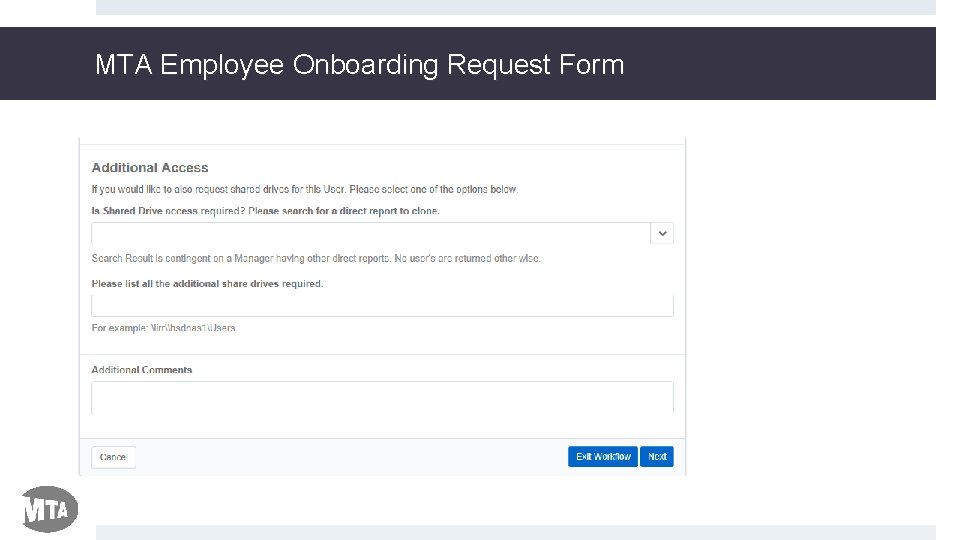
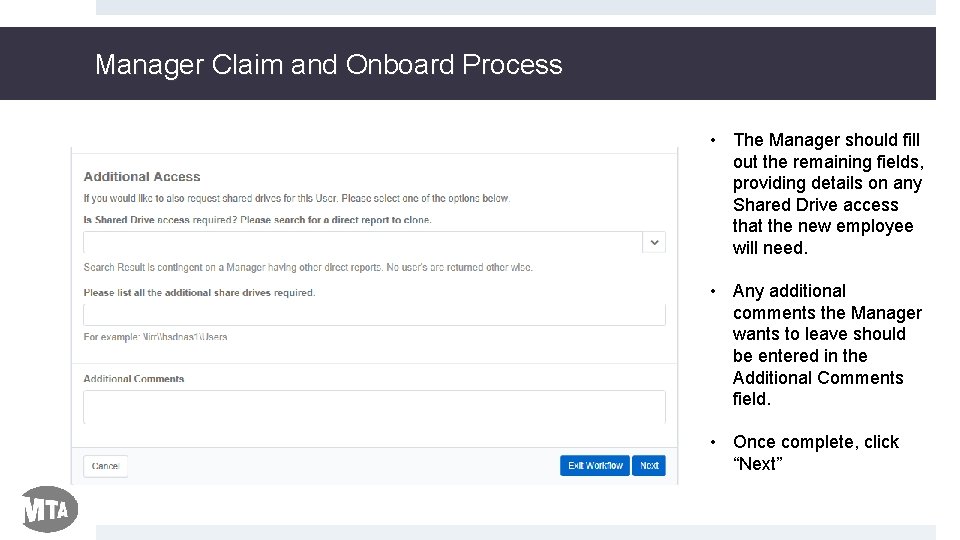
Manager Claim and Onboard Process • The Manager should fill out the remaining fields, providing details on any Shared Drive access that the new employee will need. • Any additional comments the Manager wants to leave should be entered in the Additional Comments field. • Once complete, click “Next”
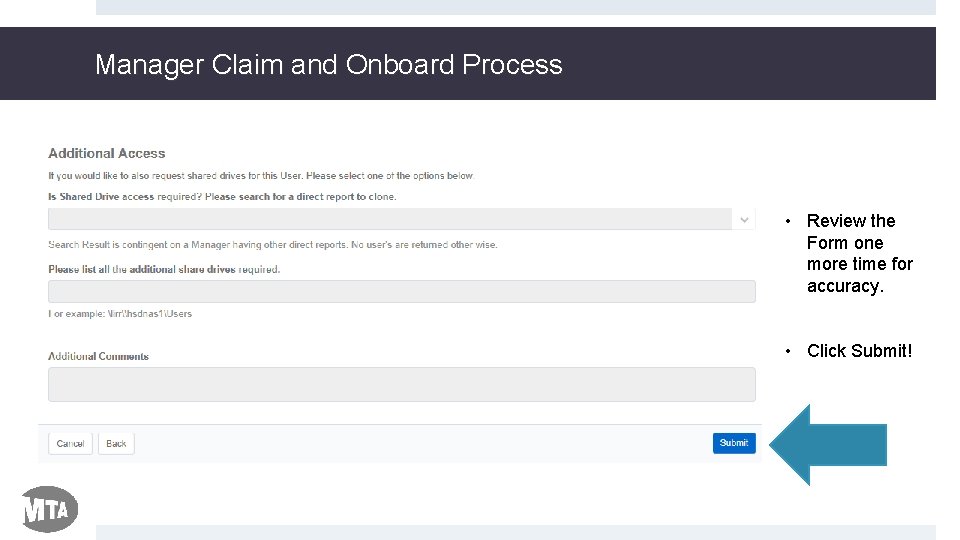
Manager Claim and Onboard Process • Review the Form one more time for accuracy. • Click Submit!
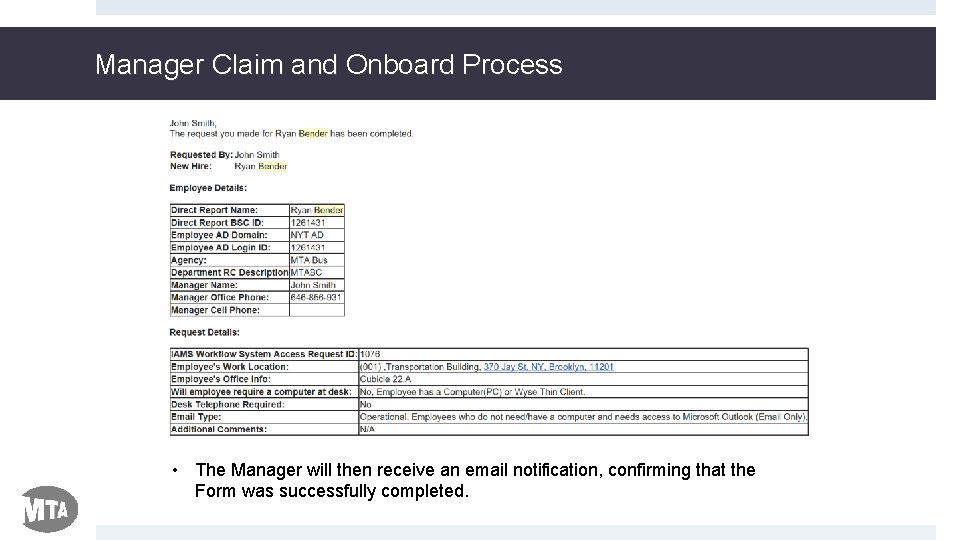
Manager Claim and Onboard Process • The Manager will then receive an email notification, confirming that the Form was successfully completed.
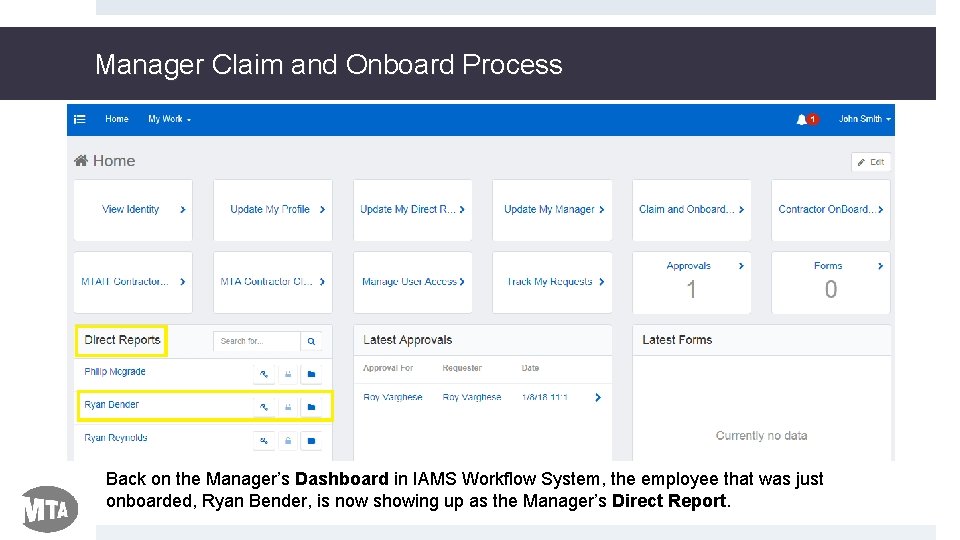
Manager Claim and Onboard Process Back on the Manager’s Dashboard in IAMS Workflow System, the employee that was just onboarded, Ryan Bender, is now showing up as the Manager’s Direct Report.
Manager Claim and Onboard Process Complete! • The Manager has now claimed this new employee as their Direct Report & completed the Employee Onboarding Request Form, where they identified the IT resources that their newhire will need • This onboarding request will now be sent to the Service Desk, so that they can open work orders to provision & set up the IT resources for this new employee • To ensure that Managers do not miss onboarding notifications in the future, Managers should ensure that they keep up with MTA email notifications and/or update their “Forward” preferences to have their notifications go to another colleague. • For additional information, please check out the IAMS Training Materials website at http: //web. mta. info/IAMS_Workflow. System. htm, or email the IAMS team at IAMSInquiries@mtahq. org.
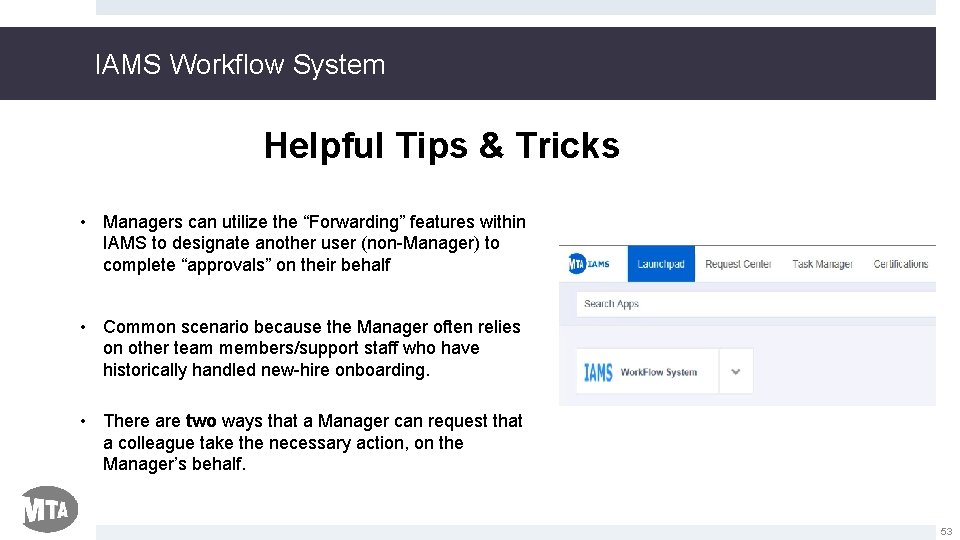
IAMS Workflow System Helpful Tips & Tricks • Managers can utilize the “Forwarding” features within IAMS to designate another user (non-Manager) to complete “approvals” on their behalf • Common scenario because the Manager often relies on other team members/support staff who have historically handled new-hire onboarding. • There are two ways that a Manager can request that a colleague take the necessary action, on the Manager’s behalf. 53
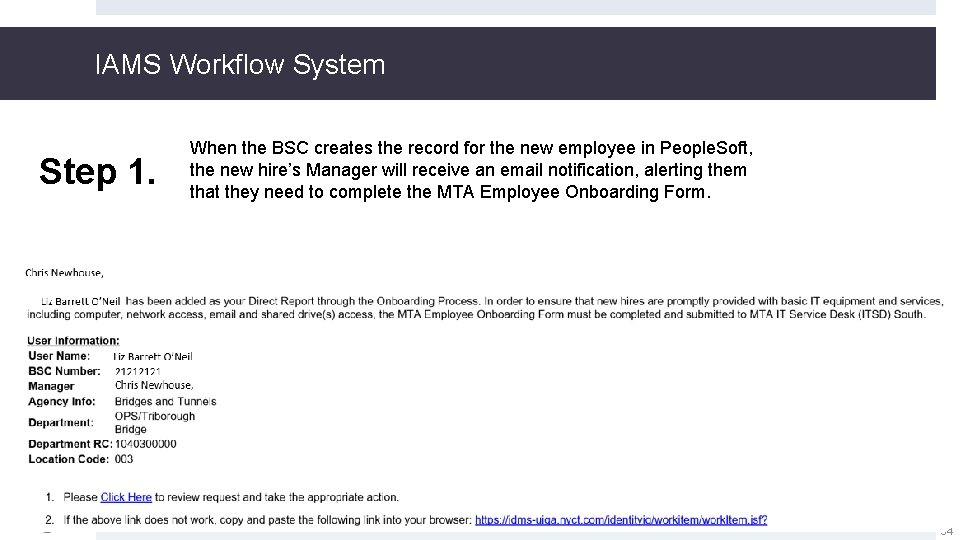
IAMS Workflow System Step 1. When the BSC creates the record for the new employee in People. Soft, the new hire’s Manager will receive an email notification, alerting them that they need to complete the MTA Employee Onboarding Form. 54
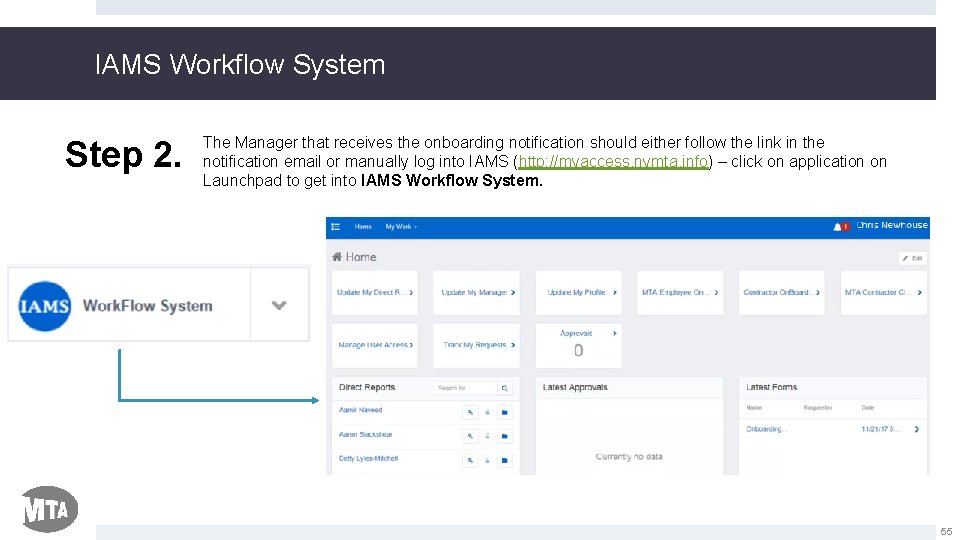
IAMS Workflow System Step 2. The Manager that receives the onboarding notification should either follow the link in the notification email or manually log into IAMS (http: //myaccess. nymta. info) – click on application on Launchpad to get into IAMS Workflow System. 55
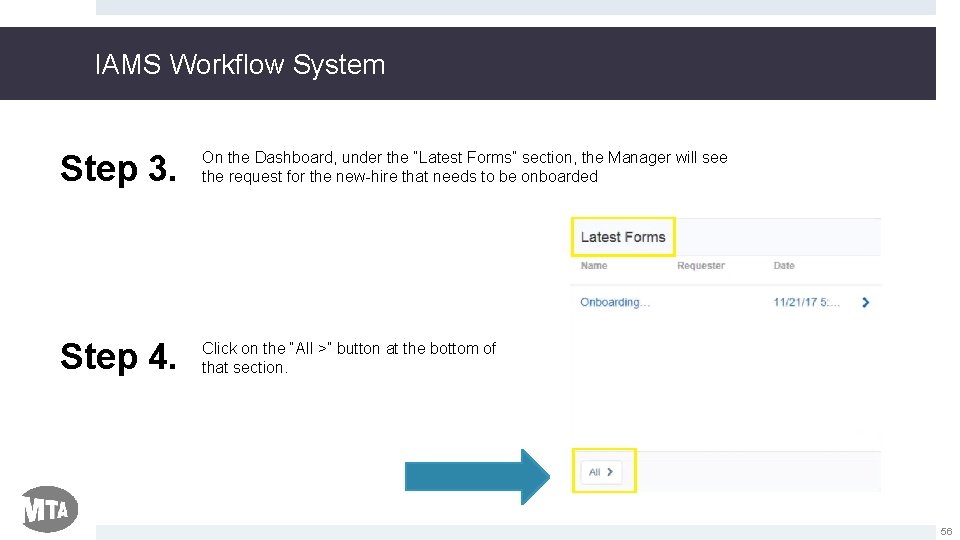
IAMS Workflow System Step 3. On the Dashboard, under the “Latest Forms” section, the Manager will see the request for the new-hire that needs to be onboarded Step 4. Click on the “All >” button at the bottom of that section. 56
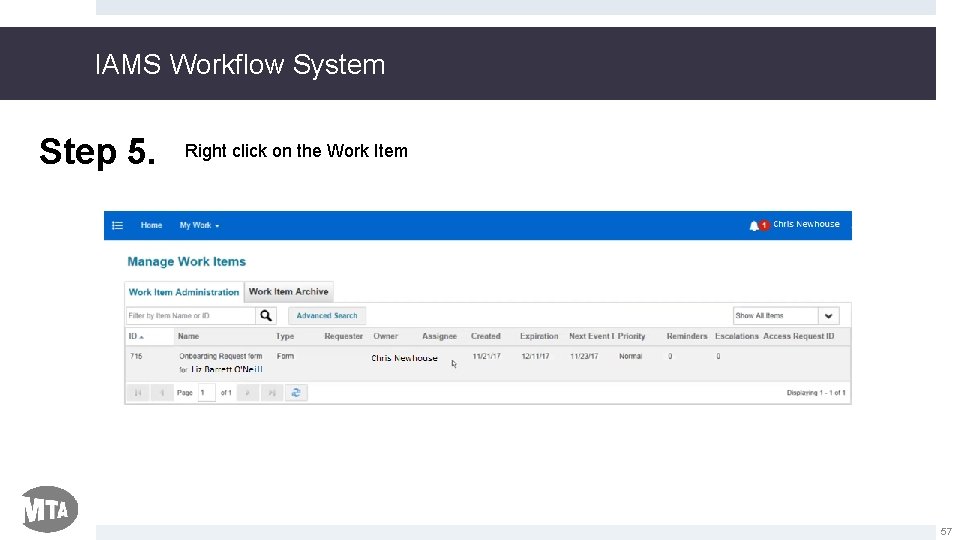
IAMS Workflow System Step 5. Right click on the Work Item 57
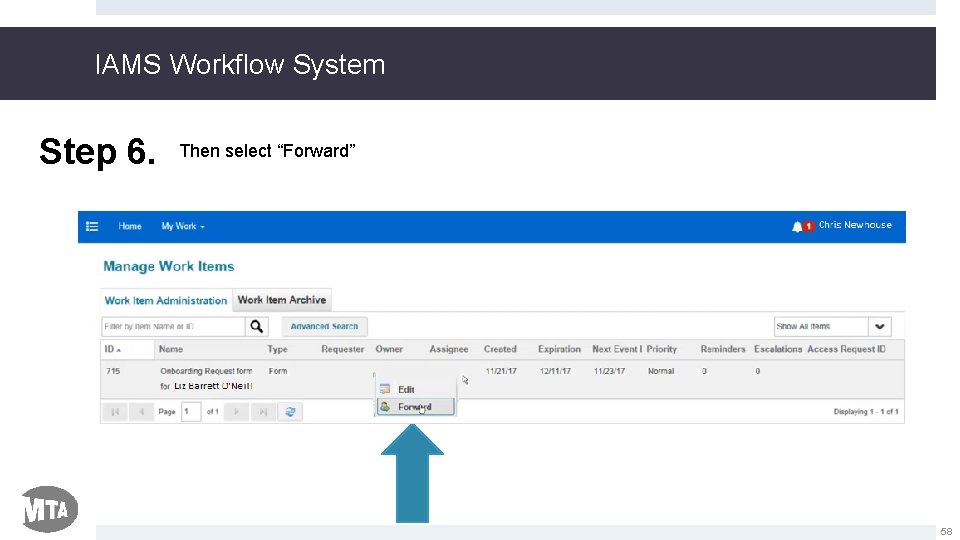
IAMS Workflow System Step 6. Then select “Forward” 58
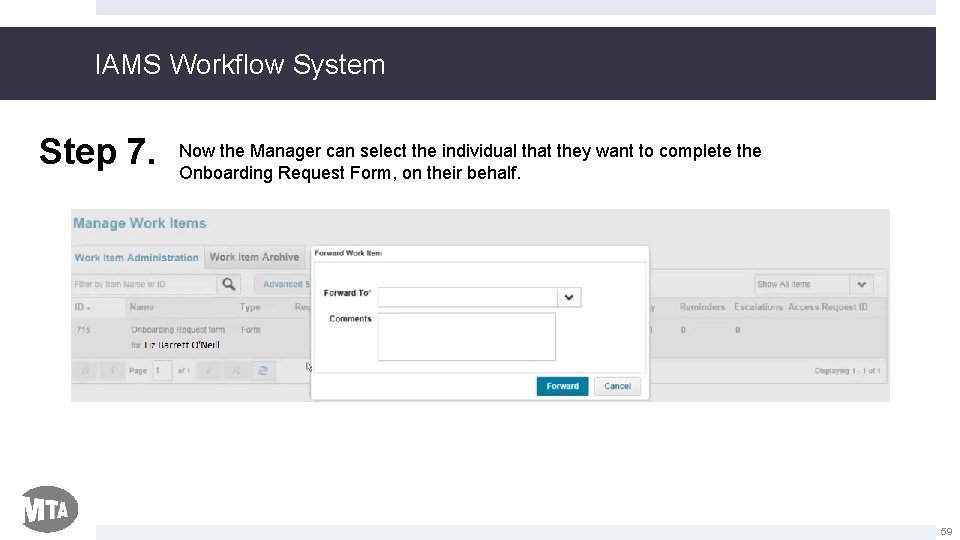
IAMS Workflow System Step 7. Now the Manager can select the individual that they want to complete the Onboarding Request Form, on their behalf. 59
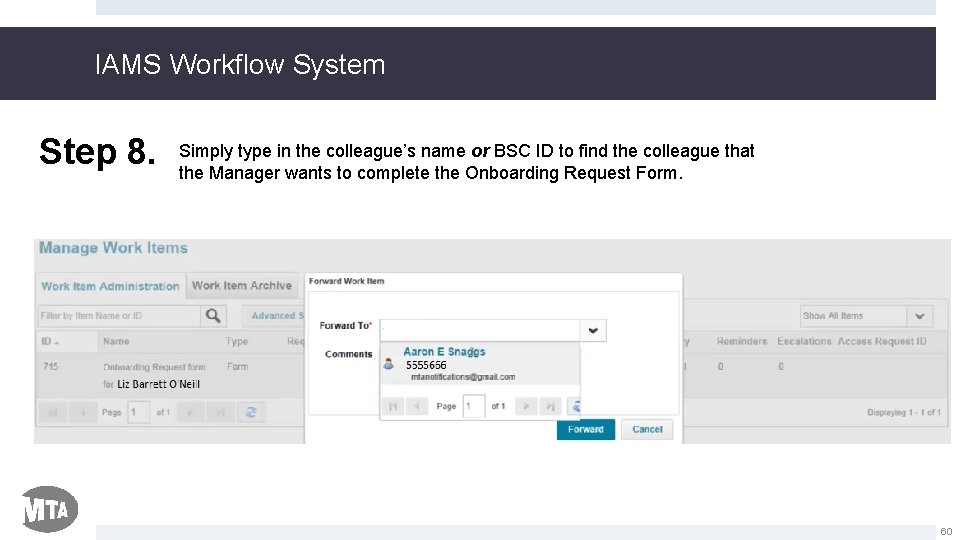
IAMS Workflow System Step 8. Simply type in the colleague’s name or BSC ID to find the colleague that the Manager wants to complete the Onboarding Request Form. 60
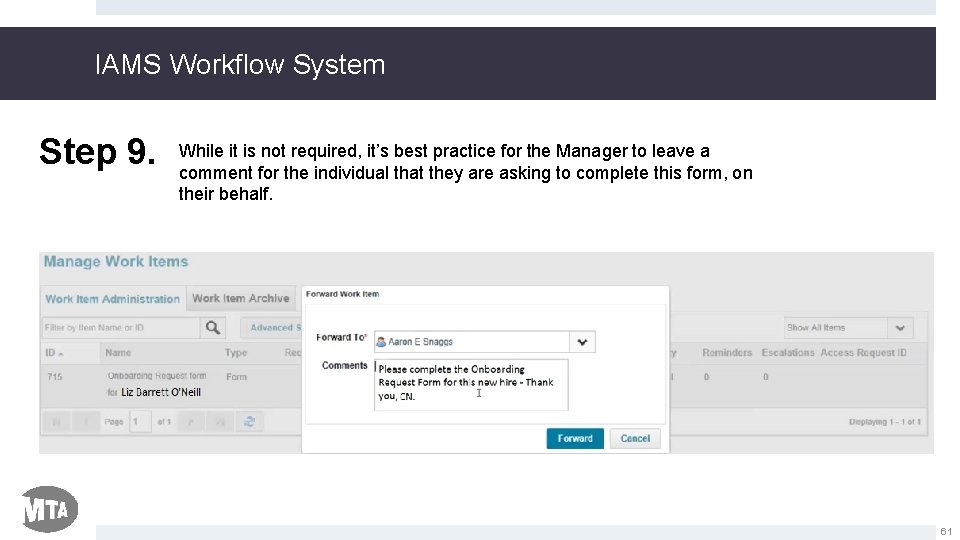
IAMS Workflow System Step 9. While it is not required, it’s best practice for the Manager to leave a comment for the individual that they are asking to complete this form, on their behalf. 61
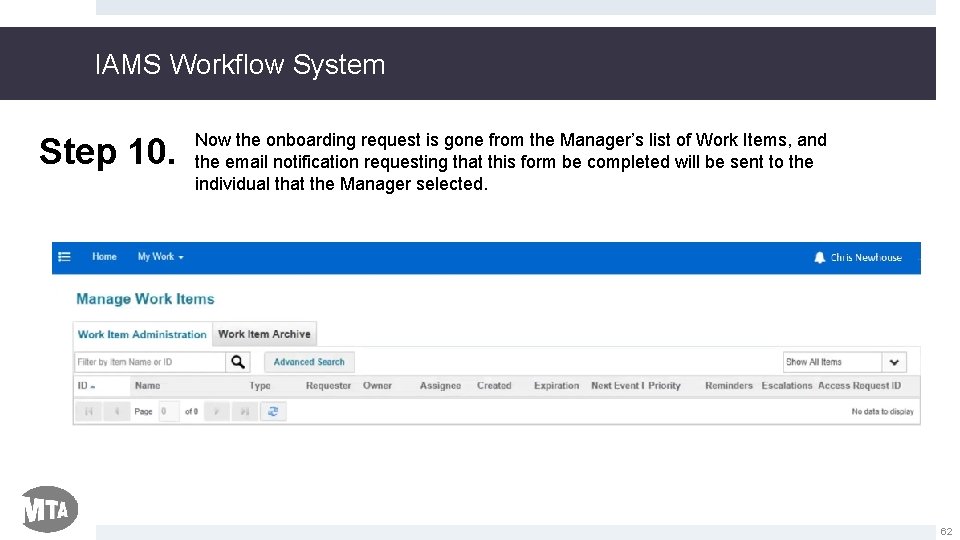
IAMS Workflow System Step 10. Now the onboarding request is gone from the Manager’s list of Work Items, and the email notification requesting that this form be completed will be sent to the individual that the Manager selected. 62
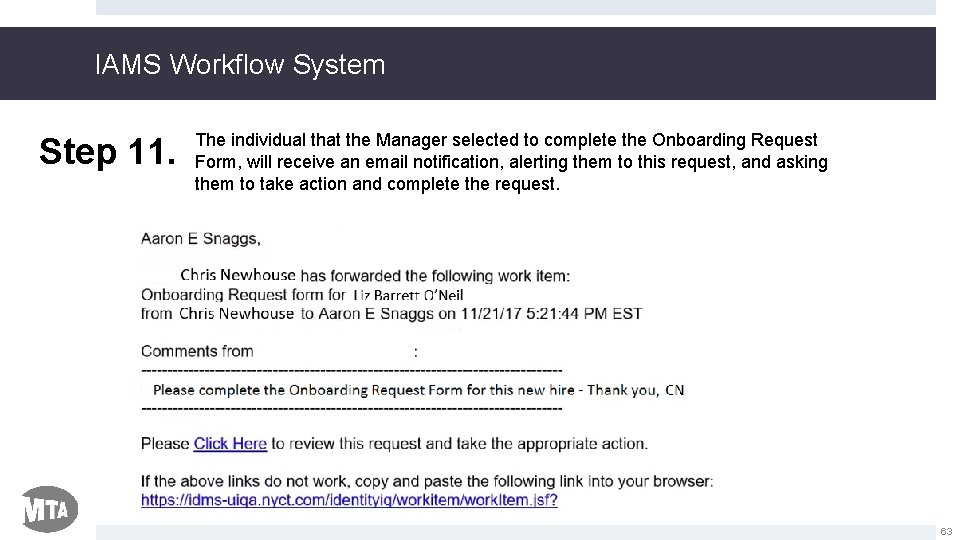
IAMS Workflow System Step 11. The individual that the Manager selected to complete the Onboarding Request Form, will receive an email notification, alerting them to this request, and asking them to take action and complete the request. 63
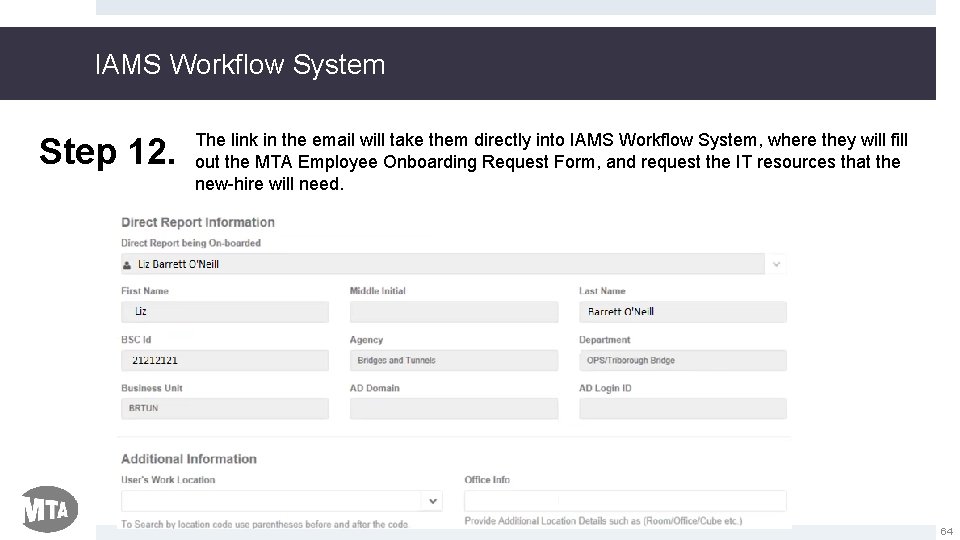
IAMS Workflow System Step 12. The link in the email will take them directly into IAMS Workflow System, where they will fill out the MTA Employee Onboarding Request Form, and request the IT resources that the new-hire will need. 64
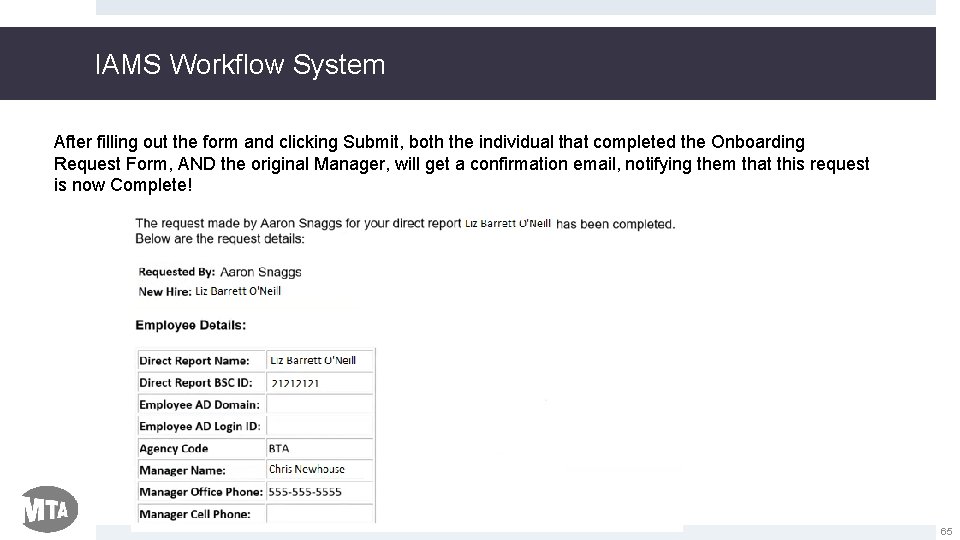
IAMS Workflow System After filling out the form and clicking Submit, both the individual that completed the Onboarding Request Form, AND the original Manager, will get a confirmation email, notifying them that this request is now Complete! 65
IAMS Workflow System • You’ve now seen how a Manager can forward an individual Work Item, which in our case was a request to complete the Employee Onboarding Request Form, for a new hire, to another individual to complete, on their behalf. • There’s another way, through updating their Preferences that a Manager can actually have ALL onboarding notifications go to a colleague to complete, on the Manager’s behalf. • Let’s take a quick look at how a Manager can update their Preferences so that all onboarding requests will go to an individual of the Manager’s choosing! 66
IAMS Workflow System How to Update Preferences in IAMS Workflow System So That All Onboarding Requests Go to A Different Individual to Complete 67
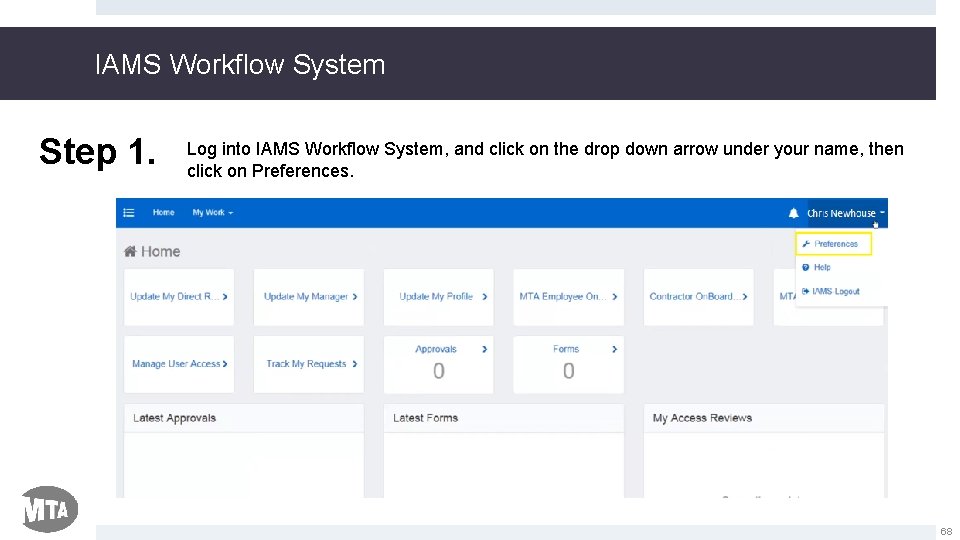
IAMS Workflow System Step 1. Log into IAMS Workflow System, and click on the drop down arrow under your name, then click on Preferences. 68
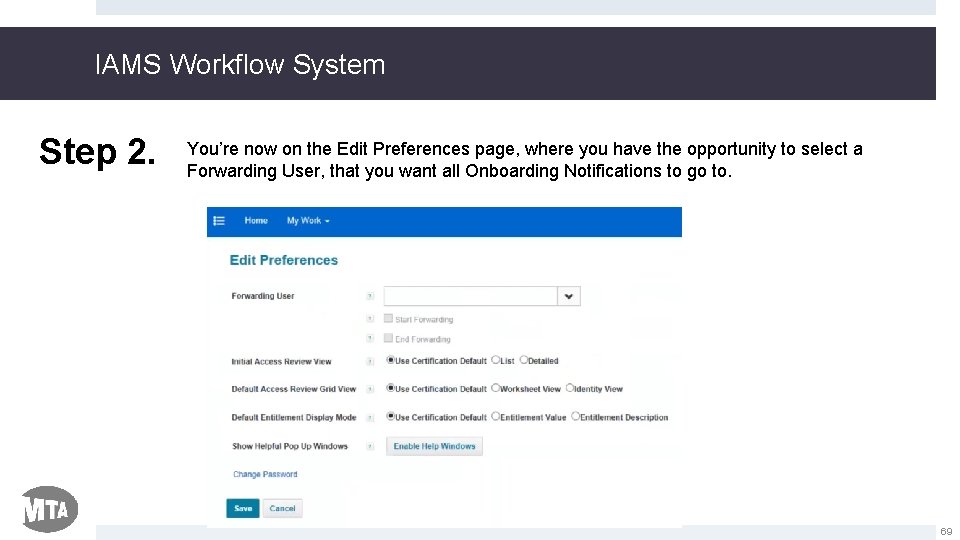
IAMS Workflow System Step 2. You’re now on the Edit Preferences page, where you have the opportunity to select a Forwarding User, that you want all Onboarding Notifications to go to. 69
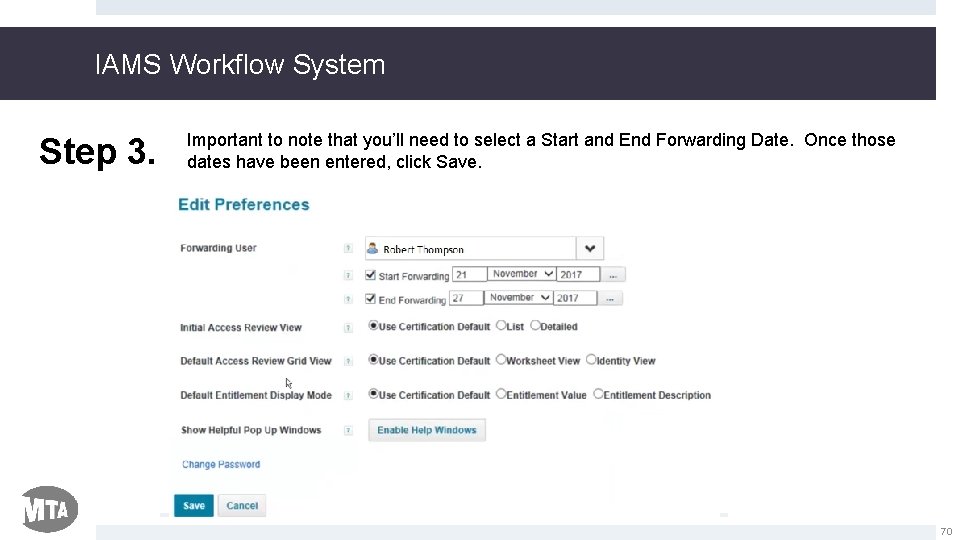
IAMS Workflow System Step 3. Important to note that you’ll need to select a Start and End Forwarding Date. Once those dates have been entered, click Save. 70
IAMS Workflow System • Process Complete! • The Manager has now updated their Preferences so that all Onboarding Requests that normally would come to them, will instead be forwarded to the user that the Manager selects, during the time period provided! • We hope you found these tips and tricks on how a Manager can forward both an individual Onboarding Request, 71
How to Add a Direct Report
How to Add a Direct Report in IAMS Workflow System • Managers logging into IAMS Workflow System for the first time will need to manually add their existing Direct Reports • This will allow Managers to be able to manage and keep track of all their employees that report to them. • The process of updating a Manager’s Direct Reports is quick and easy to follow! • Let’s get started and take a look at the step by step process Managers should follow to update their Direct Reports in IAMS Workflow System!
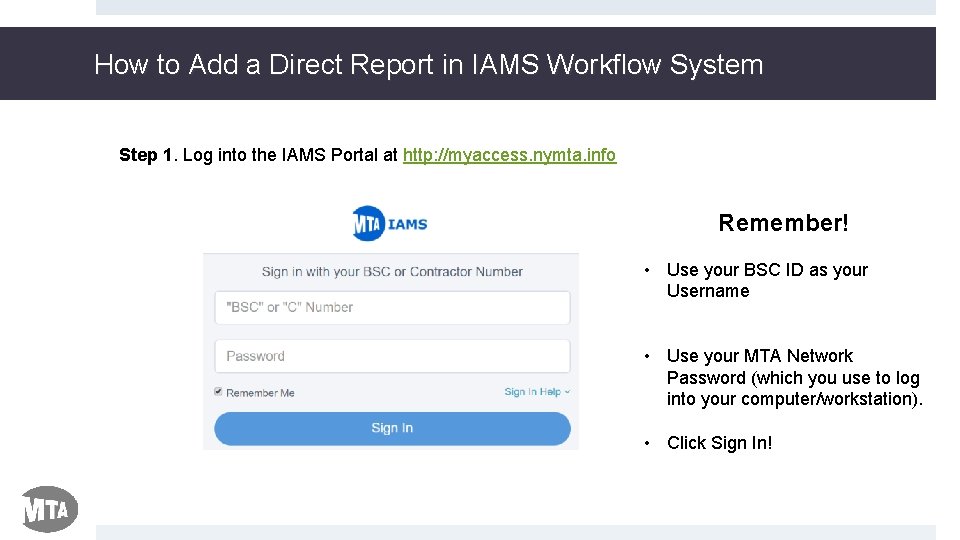
How to Add a Direct Report in IAMS Workflow System Step 1. Log into the IAMS Portal at http: //myaccess. nymta. info Remember! • Use your BSC ID as your Username • Use your MTA Network Password (which you use to log into your computer/workstation). • Click Sign In!
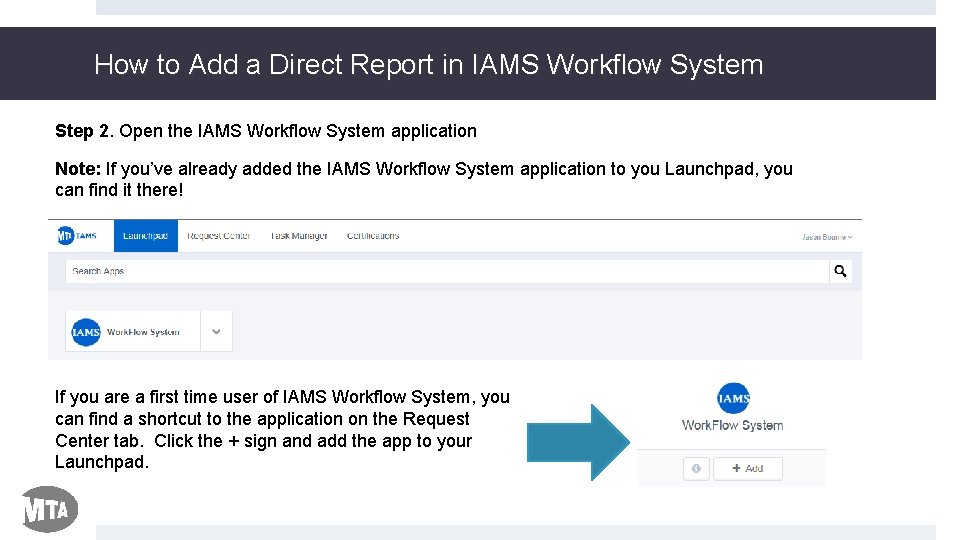
How to Add a Direct Report in IAMS Workflow System Step 2. Open the IAMS Workflow System application Note: If you’ve already added the IAMS Workflow System application to you Launchpad, you can find it there! If you are a first time user of IAMS Workflow System, you can find a shortcut to the application on the Request Center tab. Click the + sign and add the app to your Launchpad.
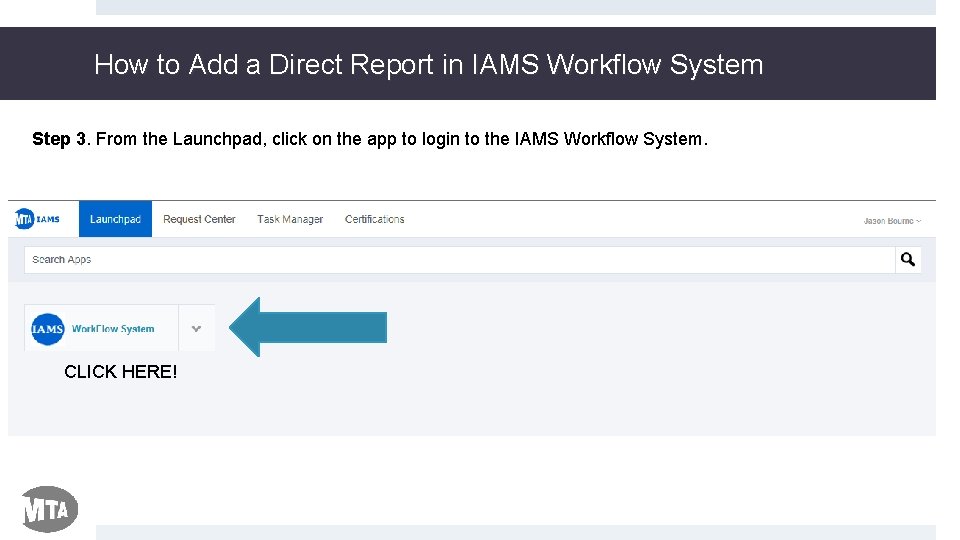
How to Add a Direct Report in IAMS Workflow System Step 3. From the Launchpad, click on the app to login to the IAMS Workflow System. CLICK HERE!
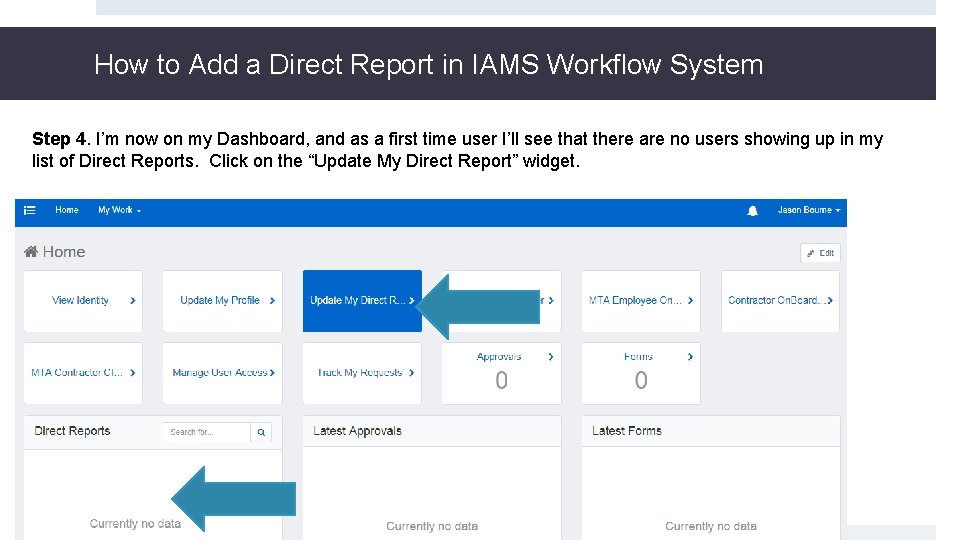
How to Add a Direct Report in IAMS Workflow System Step 4. I’m now on my Dashboard, and as a first time user I’ll see that there are no users showing up in my list of Direct Reports. Click on the “Update My Direct Report” widget.
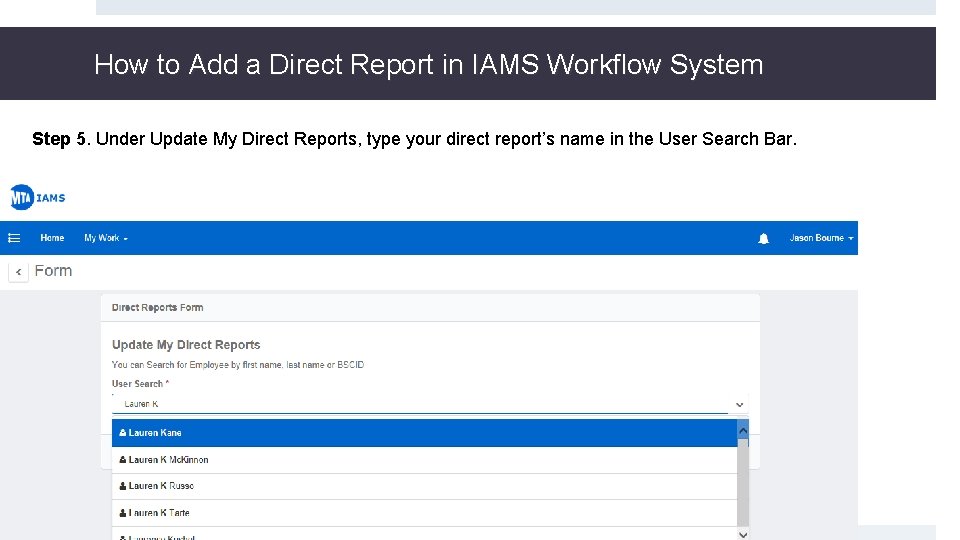
How to Add a Direct Report in IAMS Workflow System Step 5. Under Update My Direct Reports, type your direct report’s name in the User Search Bar.
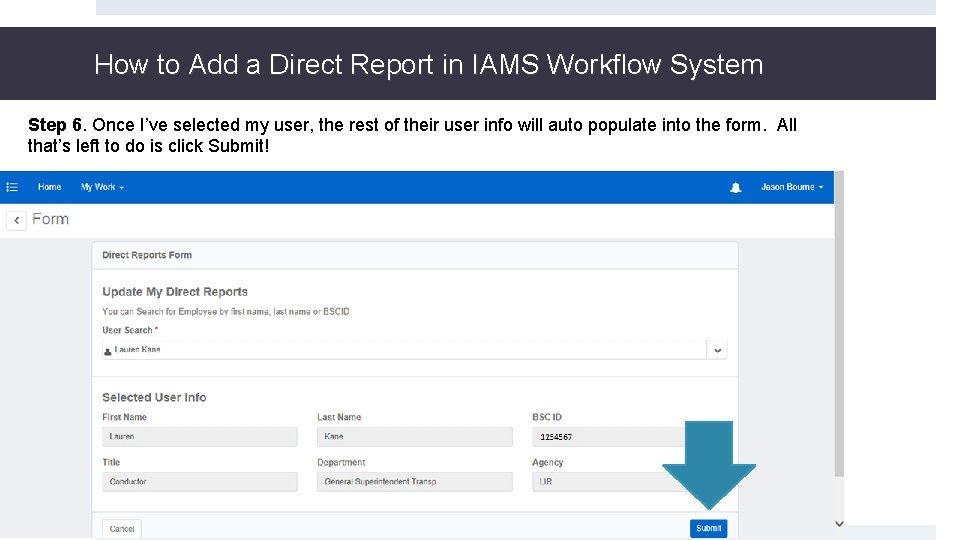
How to Add a Direct Report in IAMS Workflow System Step 6. Once I’ve selected my user, the rest of their user info will auto populate into the form. All that’s left to do is click Submit!
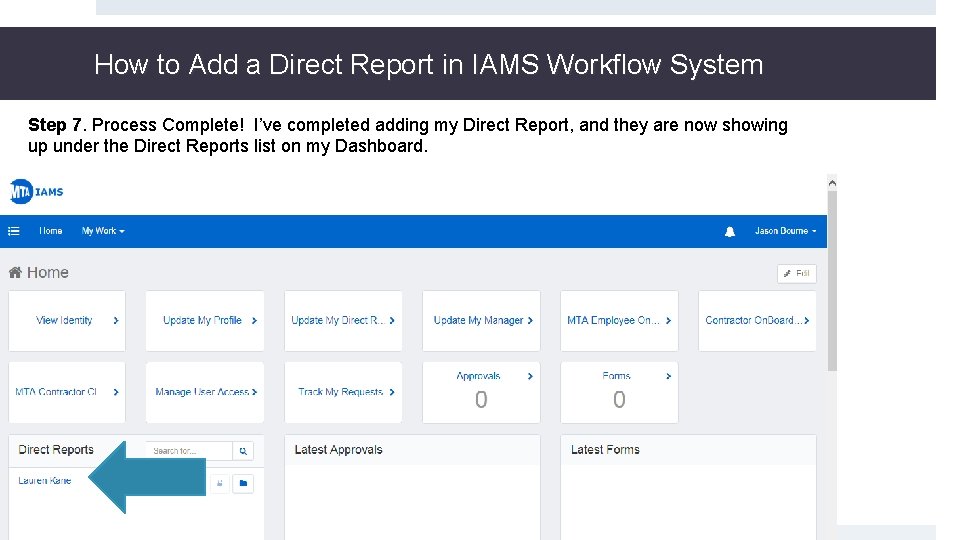
How to Add a Direct Report in IAMS Workflow System Step 7. Process Complete! I’ve completed adding my Direct Report, and they are now showing up under the Direct Reports list on my Dashboard.
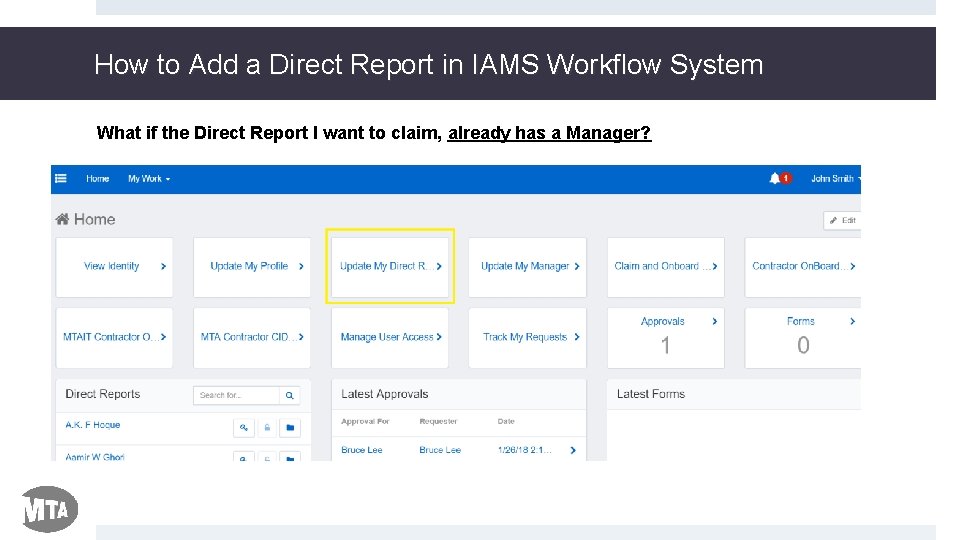
How to Add a Direct Report in IAMS Workflow System What if the Direct Report I want to claim, already has a Manager?
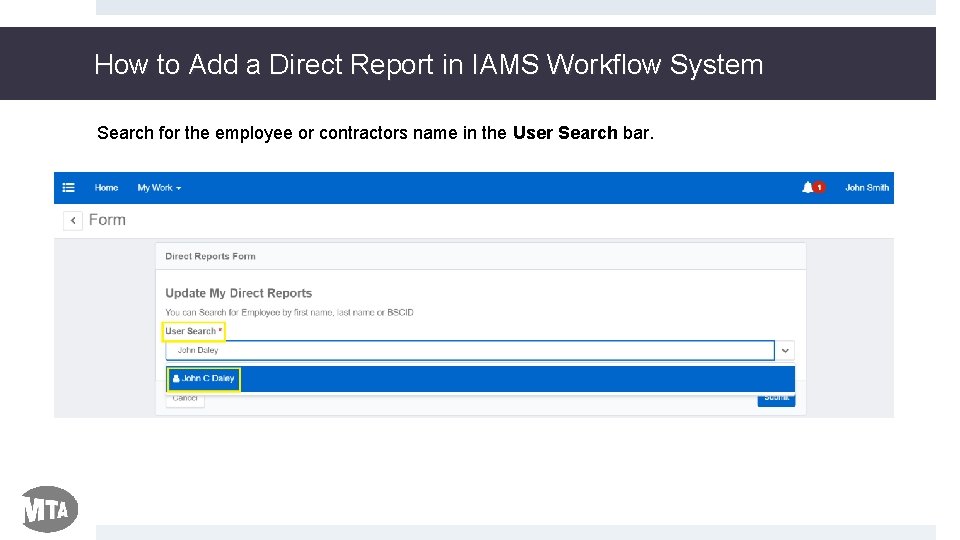
How to Add a Direct Report in IAMS Workflow System Search for the employee or contractors name in the User Search bar.
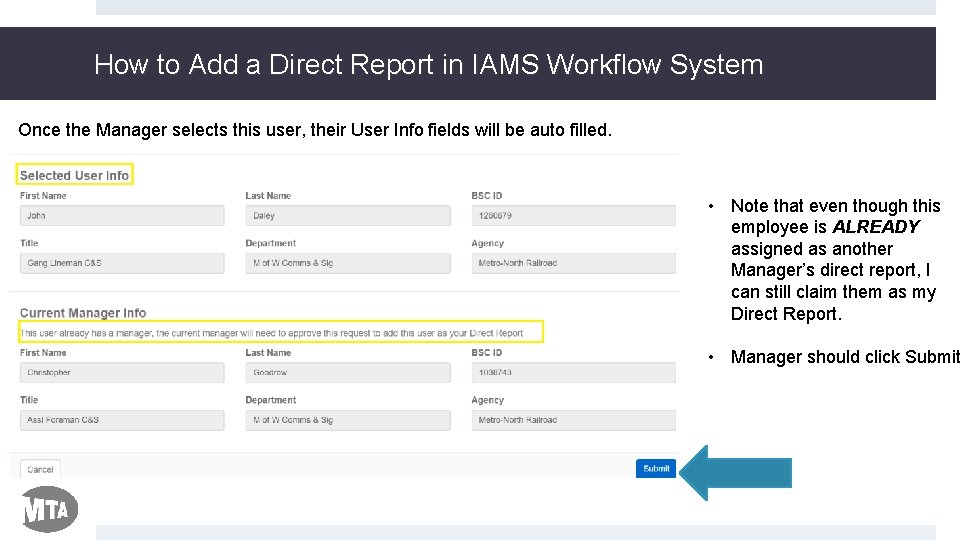
How to Add a Direct Report in IAMS Workflow System Once the Manager selects this user, their User Info fields will be auto filled. • Note that even though this employee is ALREADY assigned as another Manager’s direct report, I can still claim them as my Direct Report. • Manager should click Submit
How to Add a Direct Report in IAMS Workflow System Recap of Details Covered in this Walkthrough! • All Managers logging into IAMS Workflow System for the first time, should be sure and add all of the employees that report to them, to their list of Direct Reports. • Navigate to the “Update My Direct Report” widget on your Dashboard, and search for your Direct Report’s name, using their First & Last Name, or BSC ID • Once you’ve found your Direct Report, and you’ve reviewed their employee information to confirm it is correct, click Submit! • That user will then show up on your Dashboard page, under your list of Direct Report’s. You should repeat this process for until all of your Direct Report’s have been added to your Direct Report list. • Reach out to the IAMS team at IAMSInquiries@mtahq. org with any questions about how to add users to your list of Direct Reports within the IAMS Workflow System application.
Contractor Extension Process
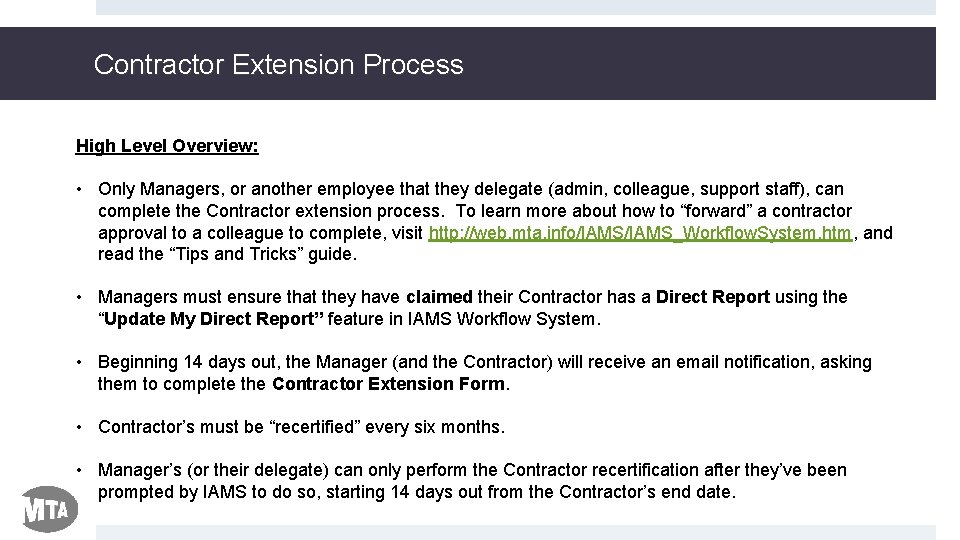
Contractor Extension Process High Level Overview: • Only Managers, or another employee that they delegate (admin, colleague, support staff), can complete the Contractor extension process. To learn more about how to “forward” a contractor approval to a colleague to complete, visit http: //web. mta. info/IAMS_Workflow. System. htm, and read the “Tips and Tricks” guide. • Managers must ensure that they have claimed their Contractor has a Direct Report using the “Update My Direct Report” feature in IAMS Workflow System. • Beginning 14 days out, the Manager (and the Contractor) will receive an email notification, asking them to complete the Contractor Extension Form. • Contractor’s must be “recertified” every six months. • Manager’s (or their delegate) can only perform the Contractor recertification after they’ve been prompted by IAMS to do so, starting 14 days out from the Contractor’s end date.
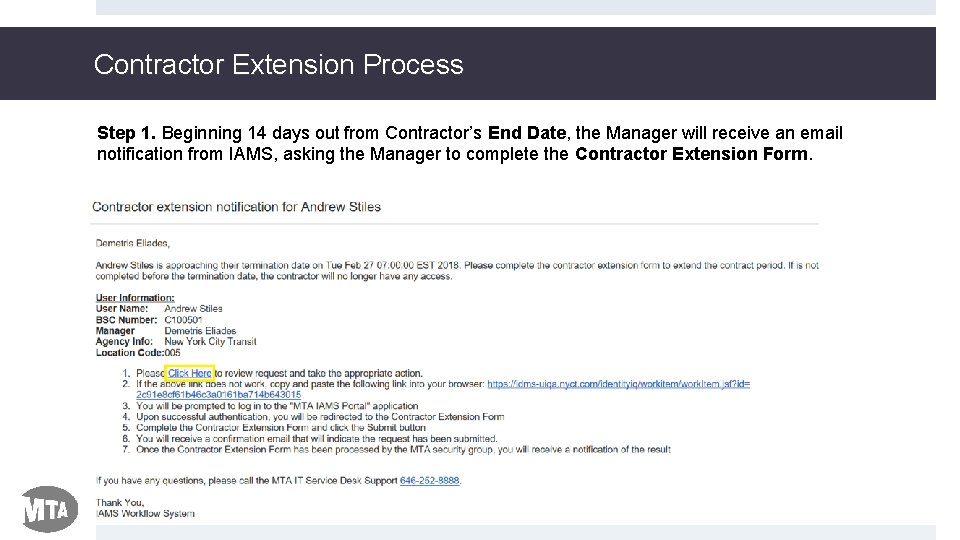
Contractor Extension Process Step 1. Beginning 14 days out from Contractor’s End Date, the Manager will receive an email notification from IAMS, asking the Manager to complete the Contractor Extension Form.
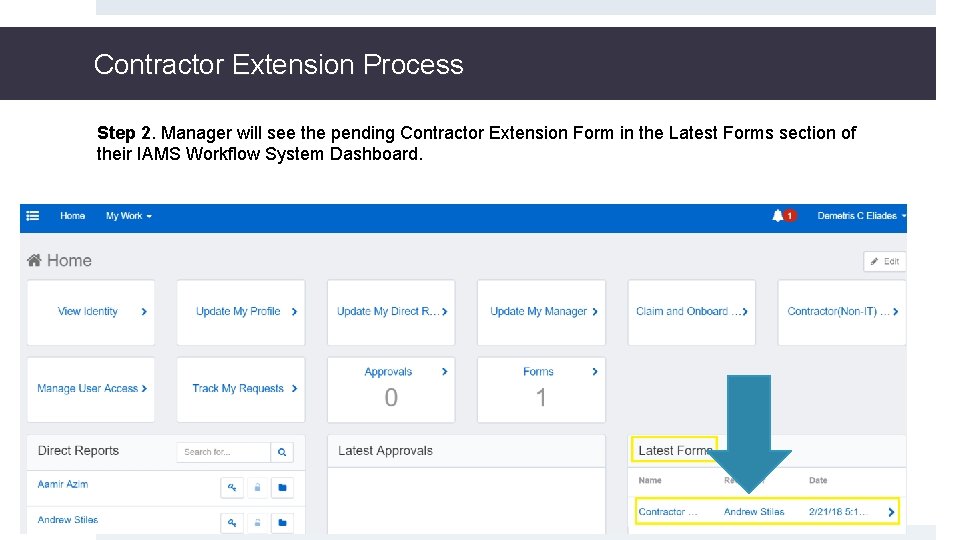
Contractor Extension Process Step 2. Manager will see the pending Contractor Extension Form in the Latest Forms section of their IAMS Workflow System Dashboard.
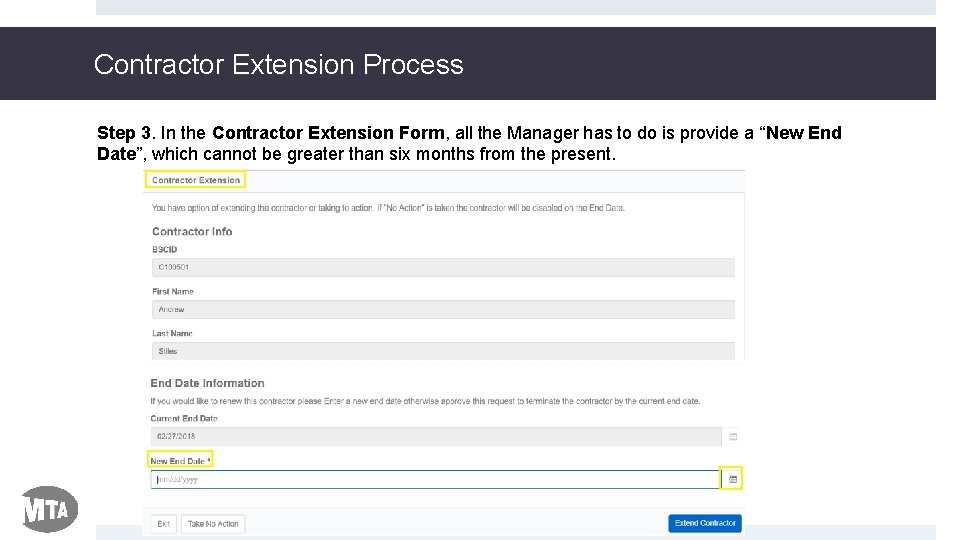
Contractor Extension Process Step 3. In the Contractor Extension Form, all the Manager has to do is provide a “New End Date”, which cannot be greater than six months from the present.
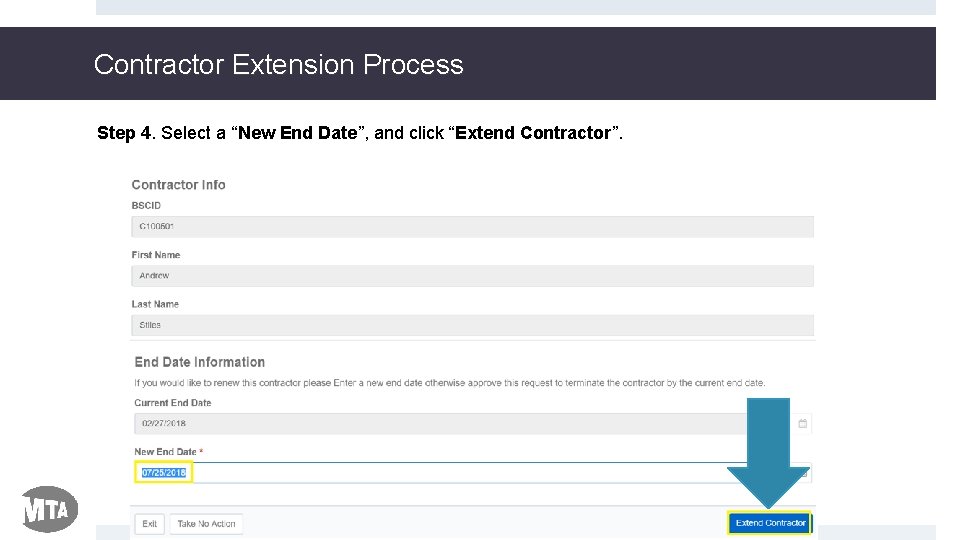
Contractor Extension Process Step 4. Select a “New End Date”, and click “Extend Contractor”.
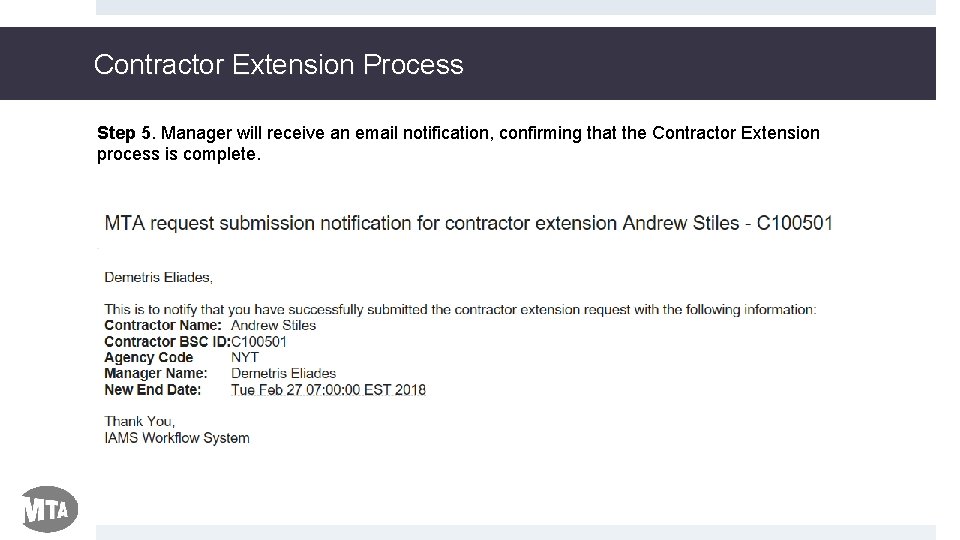
Contractor Extension Process Step 5. Manager will receive an email notification, confirming that the Contractor Extension process is complete.
Contractor Extension Process PROCESS COMPLETE
Resources Available The following resources are available to assist with questions about IAMS Workflow System • IAMS Workflow System FAQs • Manager Reference Guide • http: //web. mta. info/mta/IAMS. html