
i Quote Sales Training Hewlett Packard Enterprise Level








- Slides: 21
i. Quote Sales Training Hewlett Packard Enterprise Level 1 V 2. 2 December 2015
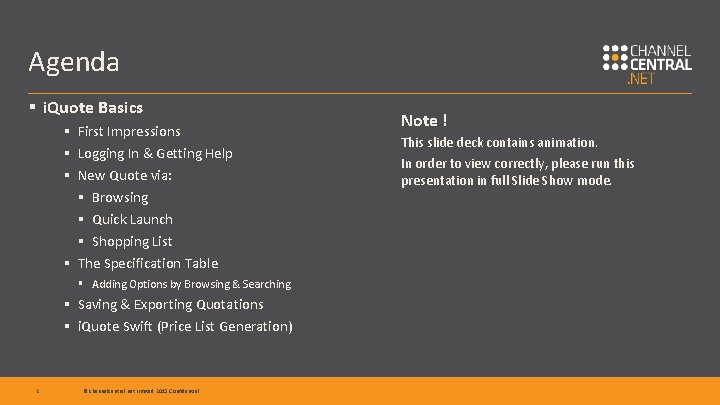
Agenda § i. Quote Basics § First Impressions § Logging In & Getting Help § New Quote via: § Browsing § Quick Launch § Shopping List § The Specification Table § Adding Options by Browsing & Searching § Saving & Exporting Quotations § i. Quote Swift (Price List Generation) 2 © channelcentral. net Limited 2015 Confidential Note ! This slide deck contains animation. In order to view correctly, please run this presentation in full Slide Show mode.
First Impressions i. Quote Portfolio § Hewlett Packard Enterprise: § Servers, Storage, Networking § HP Inc. commercial PC Computing: § Desktop PCs, Notebooks, Workstations & Mobile Workstations, Thin Clients § Options and Accessories for the above § Care Pack packaged services i. Quote is Browser based and delivers error free quotations maximising each Sales opportunity. 3 © channelcentral. net Limited 2015 Confidential § BTO supply chain (only) Next Slide
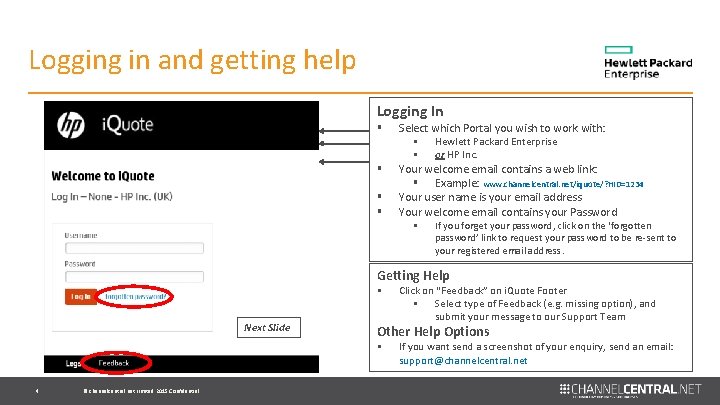
Logging in and getting help Logging In § § Select which Portal you wish to work with: § Hewlett Packard Enterprise § or HP Inc. Your welcome email contains a web link: § Example: www. channelcentral. net/iquote/? HID=1234 Your user name is your email address Your welcome email contains your Password § If you forget your password, click on the ‘forgotten password’ link to request your password to be re-sent to your registered email address. Getting Help § Next Slide Other Help Options § 4 © channelcentral. net Limited 2015 Confidential Click on “Feedback” on i. Quote Footer § Select type of Feedback (e. g. missing option), and submit your message to our Support Team If you want send a screenshot of your enquiry, send an email: support@channelcentral. net
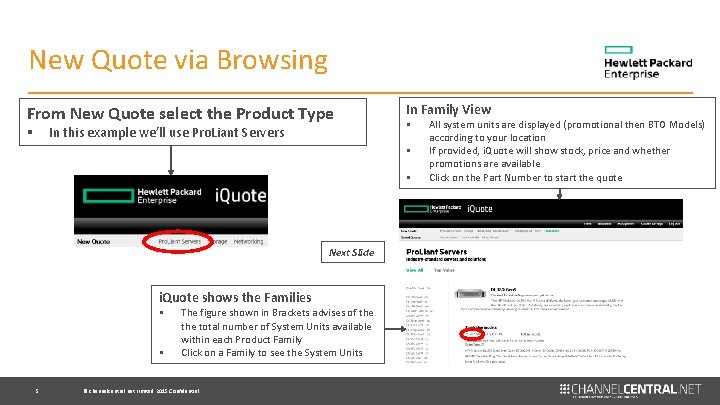
New Quote via Browsing From New Quote select the Product Type In this example we’ll use Pro. Liant Servers § In Family View § § § Next Slide i. Quote shows the Families § § 5 The figure shown in Brackets advises of the total number of System Units available within each Product Family Click on a Family to see the System Units © channelcentral. net Limited 2015 Confidential All system units are displayed (promotional then BTO Models) according to your location If provided, i. Quote will show stock, price and whether promotions are available Click on the Part Number to start the quote
New Quote via Quick Launch Next Slide Quick Launch § § 6 If you are familiar with the Products you wish to work with and know the System Unit Part Number, you can start a New Quote quickly using the ‘Quick Launch’ function Select ‘Quick Launch’, then simply paste or type your System Unit Part Number into the field, and click the arrow. i. Quote will load your chosen System Unit into a New Quote If i. Quote doesn’t find the System Unit part number you’ve entered in the current i. Quote portfolio, you will be returned to the Home Page © channelcentral. net Limited 2015 Confidential
New Quote via Shopping List § § § This function allows you to copy / paste a list of Part Numbers into i. Quote – similar to ‘Quick Launch’, but this time providing a list of products, not just one system unit Click on Shopping List, and paste your list of Part Numbers into the form and press the ‘compile’ button i. Quote will launch a New Quote, containing your list of part numbers. i. Quote will price, stock, validate and where available / applicable, also apply discounts to your configuration, too Shopping List Tips § § § 7 © channelcentral. net Limited 2015 Confidential Next Slide Shopping List is ideal for checking one System Unit configuration at a time There must be one system unit in the list Formatting – Is primarily designed for copy/paste from a MS Excel worksheet or an email table; convention is ‘system unit’; TAB; ’Qty’ Incompatible options are rejected If you put in System Unit quantity of more than 1 HP i. Quote will divide all options by number of Systems If you have a long list of unconnected parts to quote on, use i. Quote Swift as an alternative option – covered later
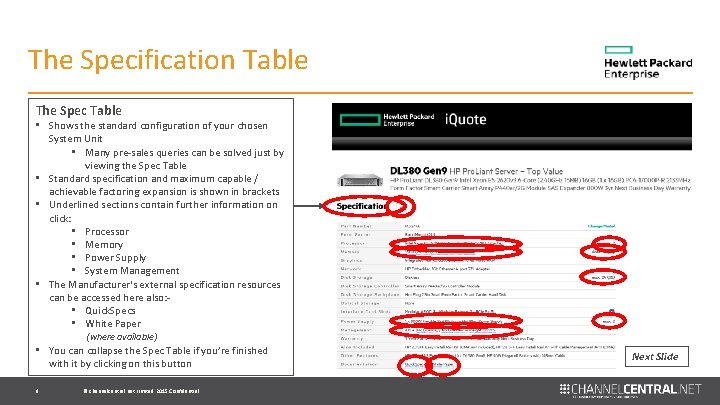
The Specification Table The Spec Table • Shows the standard configuration of your chosen System Unit • Many pre-sales queries can be solved just by viewing the Spec Table • Standard specification and maximum capable / achievable factoring expansion is shown in brackets • Underlined sections contain further information on click: • Processor • Memory • Power Supply • System Management • The Manufacturer's external specification resources can be accessed here also: • Quick. Specs • White Paper (where available) • You can collapse the Spec Table if you’re finished with it by clicking on this button 8 © channelcentral. net Limited 2015 Confidential Next Slide
1/3 Top Recommended How–to locate Options and. Options Accessories There are 3 ways to add options and accessories to your configuration. • Let’s look firstly at the default view: ‘Top Recommended Options’ Top Recommended Options • i. Quote ‘TRO’ is designed to make it easy to upsell and add value to the current system unit configuration • This feature provides the user with a pre-determined compatible list of the most popular / best-selling Options and Accessories for the currently selected System Unit • Clicking on the ‘+1’ icon automatically adds the item to your configuration • The Care Pack & Software Services Selectors can be found by clicking on these icons Next Slide 9 © channelcentral. net Limited 2015 Confidential
2/3 – View All Options – part 1 ‘View All’ Option • • This function allows you to view every option available in i. Quote for your chosen System Unit Click the ‘View all’ icon to select this function Selecting your options § § All Options are grouped logically into sections Click on the relevant section to view all options available Next Slide 10 © channelcentral. net Limited 2015 Confidential
2/3 – View All Options – part 2 Top tips § § All options will be added to the Current Quote in the quantity that you select Technical Validation: If you add an incorrect combination or invalid quantity of options, advice will be provided to you in the ‘Validation Notes’ - Covered later Browse Results • • 11 For this example, we’ll look at the Memory section. This is how it would look, when selected • Note that i. Quote continues to advise the user – in this case providing optimisation information here To Add Options to your configuration; Simply add the quantity that you require in the ‘Qty’ box, and click ‘Add Option’ © channelcentral. net Limited 2015 Confidential Next Slide
3/3 – Search for an Option You can manually search for a specific option in i. Quote • Select the ‘Search’ Icon Top Tips § § § Enter your search criteria § § 12 If you know the Option Part Number, enter it here for an immediate lookup Alternatively, if you don’t know the part number, you can use the text search function, which supports phrases and keywords (e. g. RAM, RAID, ROK) If you search for an Option Part Number that i. Quote doesn’t recognise, it sends our Support Team a request to check it and proactively add it From Search Results you can add products to the Cart/Basket in your current quote © channelcentral. net Limited 2015 Confidential Using the ‘Search’ function is the quickest way to locate a specific option or accessory in i. Quote If you know the part number, use this function to build your ideal configuration quickly and easily i. Quote has intelligent filters which won’t allow invalid or incorrect options to be added to a configuration Next Slide
Current Quote View Current Quote view § This is where your quote is built, using the System Unit and any additional Options and Accessories you have selected § Auto-add: You’ll see that i. Quote will sometimes ‘auto-add’ popular / frequently-ordered items to your configuration automatically, to save you time looking for them § The plus(+), minus (-) and remove (x) icons allow you to increase, decrease or remove options § The quantities in the Cart/Basket will be shown either in Red or Green text font, to denote available or unavailable stock § i. Quote will validate the technical compatibility of your Current Quote in the Validation Checklist. Next Slide 13 © channelcentral. net Limited 2015 Confidential
Technical Validation The Validation Checklist i. Quote Technical Validation § § i. Quote validate your –Current Configuration in real- time you! build GREEN will ‘P‘technically Icons: Self-explanatory no further action required all is as good your BLUEconfiguration ‘!’ Icons: These are Advisory Notes, and can be either circular or rectangular; i. Quote Technical Validation information in the/ optimise ‘Validation Notes’ areaof § These will provide you with suggestions is oncontained how to maximise the performance your current Configuration. These warnings are also designed to offer advice on any of the Current Quote screen potential trade-offs. Can be also RED in the case for very important information ! RED ‘X’ Icons: If you have a Red Cross in any part of your configuration, you have made a critical technical error § § § By rolling your mouse over the Icon, i. Quote will provide advice on how to correct your error, and in some cases may provide you with information on additional parts that may be needed Note: - Quotes made in i. Quote cannot be saved or exported until all critical errors have been corrected Grey ‘? ’ Icons: § i. Quote advises you that this is an item that is not covered by Technical Validation checking § i. Quote makes Validation Checks for the following products: § Next Slide 14 © channelcentral. net Limited 2015 Confidential Processors, memory, PCI slots, hard disk drives, secondary storage and power supplies. Memory and PCI slots are also checked for optimisation
Saving Quotations Save your Current Configuration § § If you are happy with your Configuration, you can save it in your i. Quote profile To do so, firstly provide a Quote Name in this box § However this is an optional action – If you do not enter a name to save your quote against, § § Save your quote by clicking the Green Arrow button Every i. Quote quote has a unique ‘Quote ID’ once you have successfully saved it i. Quote will auto-generate a unique Quote Name if you leave the box blank You. Why have. Save? more options when you SAVE your i. Quote quote ! Add Margin: Thehave Add a. Margin feature is enabled saved your “You’ll not only permanent record of the when quoteyou’ve but you quote can use it as a template, re-price it with ease and your quote § will Thehelp Margin Box appears; data to%profile stock”you can apply a retained margin across the entire § § § 15 cart/basket using this function This function is useful when applying a sales margin to a customer-facing quotation Next Slide When you export a quote, your Retained Margin calculation is included in the quote that is produced- ready to send to your customer © channelcentral. net Limited 2015 Confidential
Exporting Quotations Sample Microsoft Excel Quote export This is what an i. Quote quote looks like when exported to Microsoft Excel § Your i. Quote Host’s Logo appears here § Your Logo if you are the host ! § Part, Description, Qty, List Price, Sales Price, Stock Availability § Quote Date and Ref To export to Microsoft Excel (. xls) § Validation Checklist Notes §§ Accept the default option which is Excel Your i. Quote Host’s Terms and § If. Conditions you want to quote multiple systems, you can change of Sale appear here the quantity here – the default value is 1 system § Your T’s and C’s if you are the § We also allow a sales margin (retained %) to be added i. Quote host ! at this stage § Hit the ‘Export’ arrow, and i. Quote will open the Export with a unique filename**. Nexton. Slide **Depending your Browser and Excel version § 16 © channelcentral. net Limited 2015 Confidential Clear all Validation Errors: If the i. Quote Validation Checklist has any RED ‘X’ Critical Errors, i. Quote will not allow a technically incorrect quote to be exported You must correct all errors !
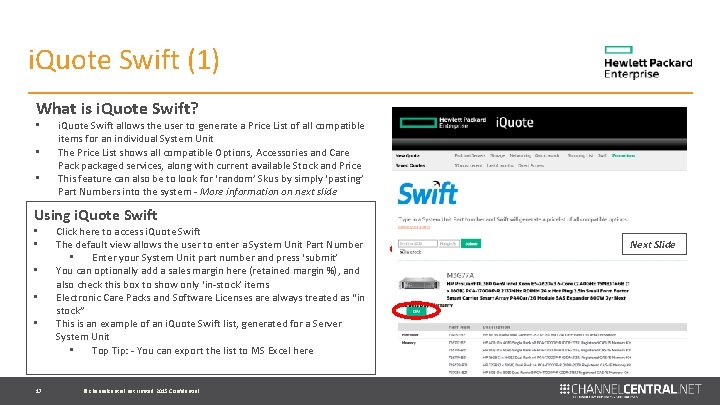
i. Quote Swift (1) What is i. Quote Swift? • • • i. Quote Swift allows the user to generate a Price List of all compatible items for an individual System Unit The Price List shows all compatible Options, Accessories and Care Pack packaged services, along with current available Stock and Price This feature can also be to look for ‘random’ Skus by simply ‘pasting’ Part Numbers into the system - More information on next slide Using i. Quote Swift • • • 17 Click here to access i. Quote Swift The default view allows the user to enter a System Unit Part Number • Enter your System Unit part number and press ‘submit’ You can optionally add a sales margin here (retained margin %), and also check this box to show only ‘in-stock’ items Electronic Care Packs and Software Licenses are always treated as “in stock” This is an example of an i. Quote Swift list, generated for a Server System Unit • Top Tip: - You can export the list to MS Excel here © channelcentral. net Limited 2015 Confidential Next Slide
i. Quote Swift (2) i. Quote Swift – for random part lists • • Use i. Quote Swift to generate price lists for any list of skus • Select ‘paste your parts’ to change the view Paste in any list of skus into the box i. Quote Swift is a great tool as it solves a basic problem for HPI/HPE’s Channel AND is the building block of the i. Quote service. It takes a task that would normally occupy hours of valuable sales time and completes it in seconds. Next Slide 18 © channelcentral. net Limited 2015 Confidential
Congratulations Level 1 Sales Training is Complete ! Level 2 Agenda § § § § Solving Red Errors in Validation Checklist Auto Add & Option/Service Packs Power Sizing Product Finders How adverts help Storage Pre-Configure Copy to Clipboard Contact channelcentral for your Level 2 i. Quote Training Pack 19 © channelcentral. net Limited 2015 Confidential
Staying informed i. Quote Social Media Follow @i. Quotechannel and let’s talk #i. Quote Join the i. Quote User Group and be part of the community Follow the channelcentral Blog for the latest i. Quote Updates www. channelcentral. net/blog Visit the channelcentral You. Tube Channel for Training and promotional materials http: //bit. ly/1 Mlzusn 20 © channelcentral. net Limited 2015 Confidential
Thank You Feedback on this Training Material? We welcome your feedback please email: marketing@channelcentral. net