
I dont know any thing about computers By
I don’t know any thing! (about computers) By Mohsin Ahmed Khan Ghori Computer Science Department Pakistan Shipowners’ Government Degree College.
Contents • • • Computer and its components How to connect to make a running system How to switch it on, operating system installation and Hardware installation Software installation. MS-Word. MS-Excel. MS-Power Point. Internet (HTML). Email.
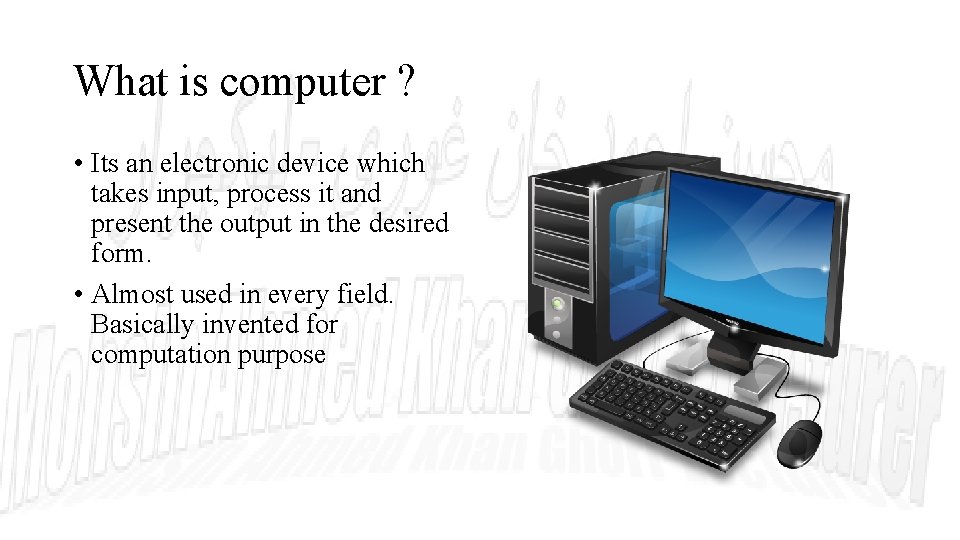
What is computer ? • Its an electronic device which takes input, process it and present the output in the desired form. • Almost used in every field. Basically invented for computation purpose
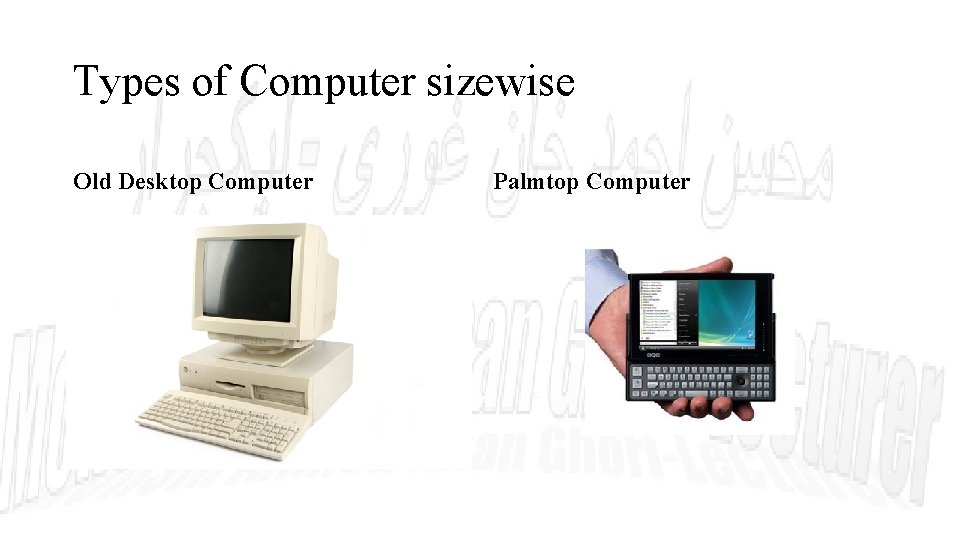
Types of Computer sizewise Old Desktop Computer Palmtop Computer
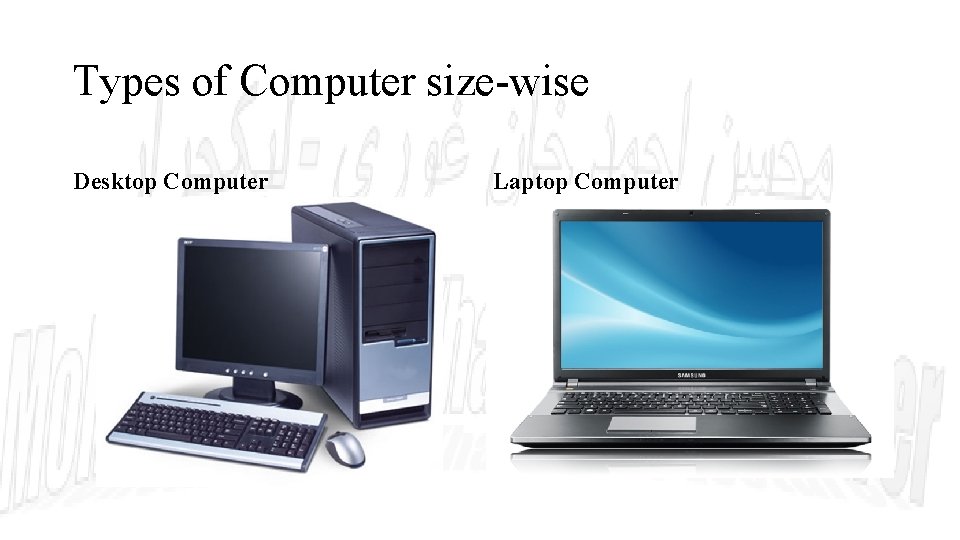
Types of Computer size-wise Desktop Computer Laptop Computer

Computer Components Laptop
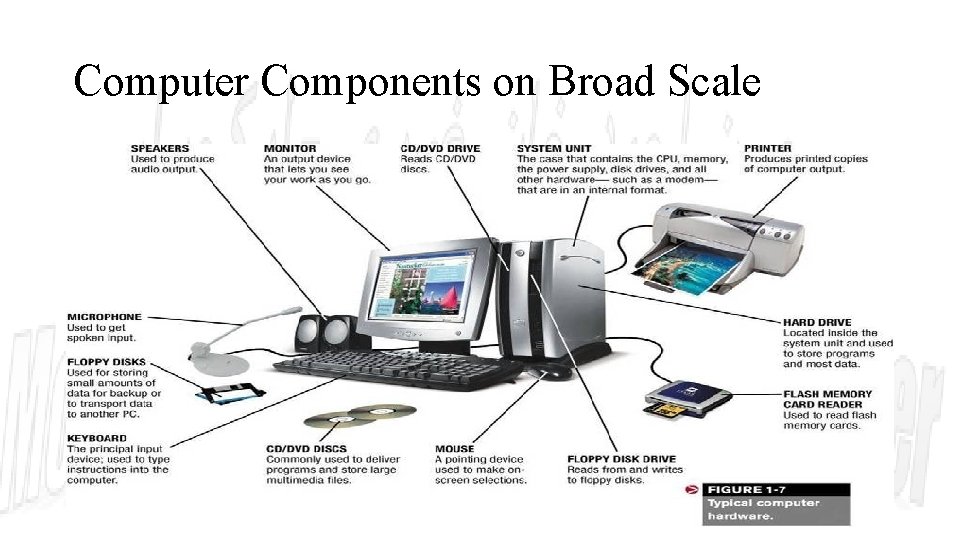
Computer Components on Broad Scale
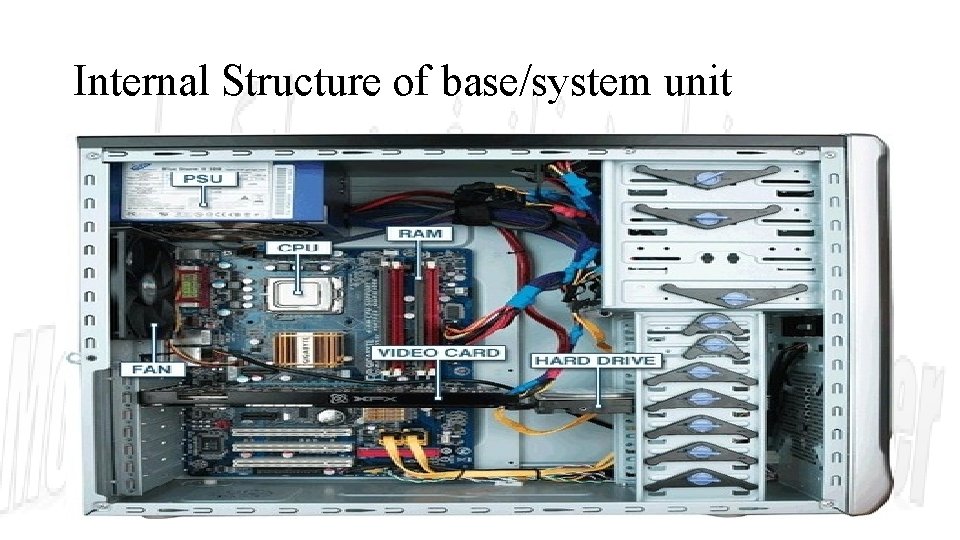
Internal Structure of base/system unit
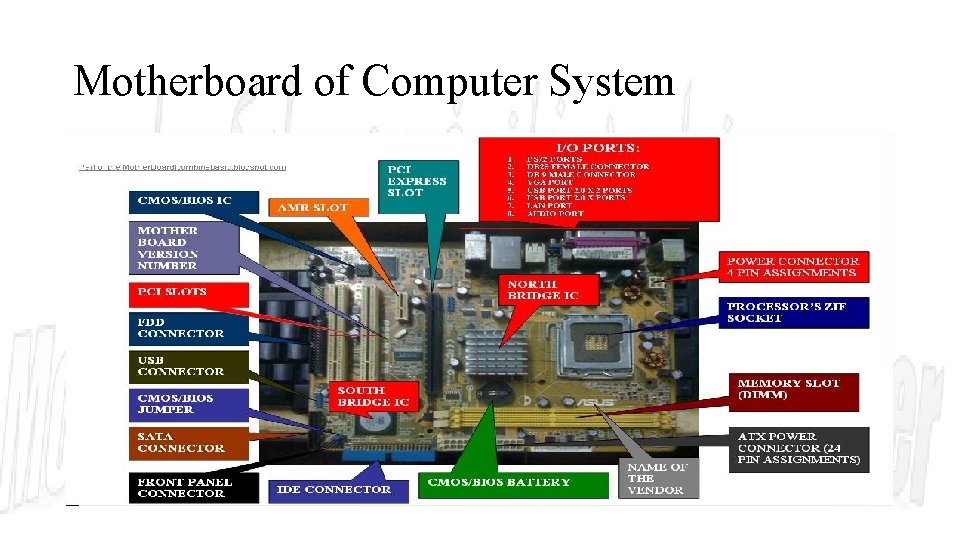
Motherboard of Computer System
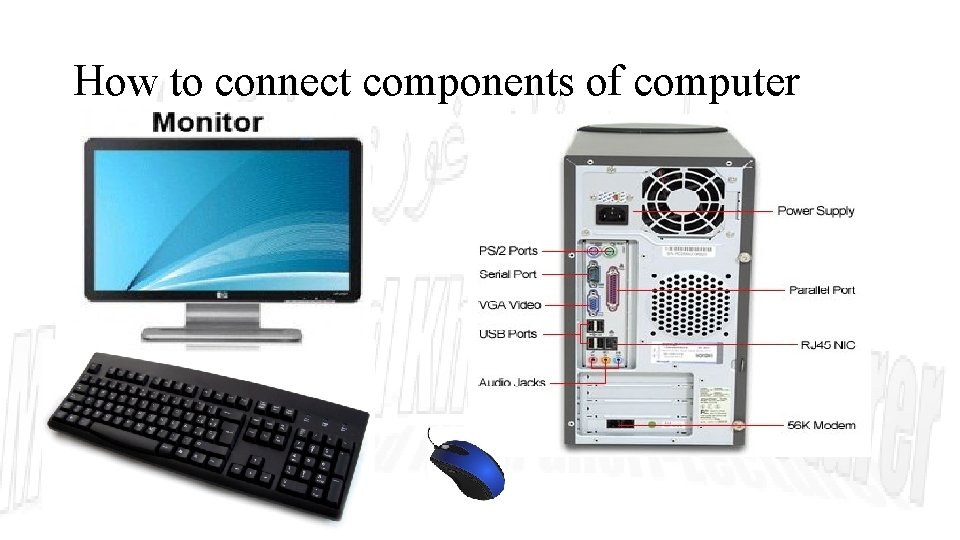
How to connect components of computer
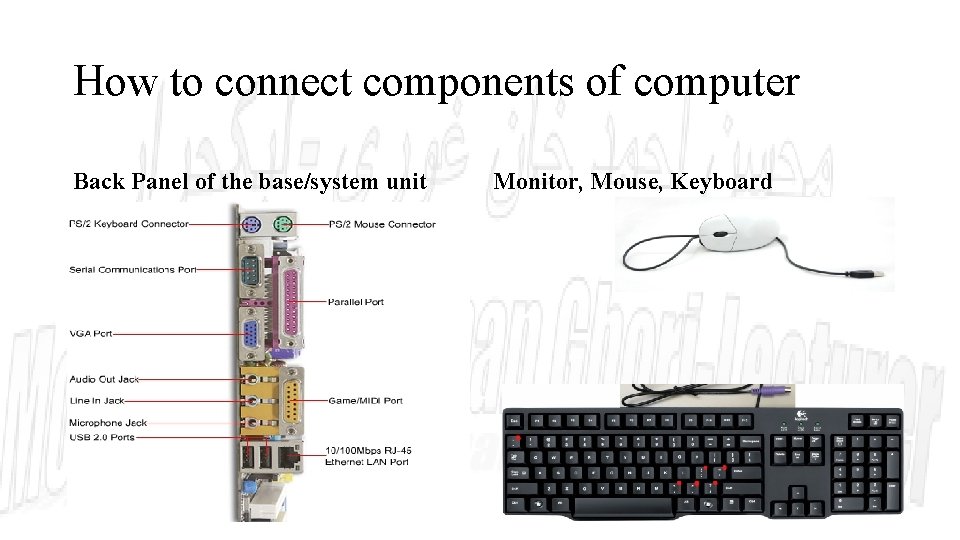
How to connect components of computer Back Panel of the base/system unit Monitor, Mouse, Keyboard
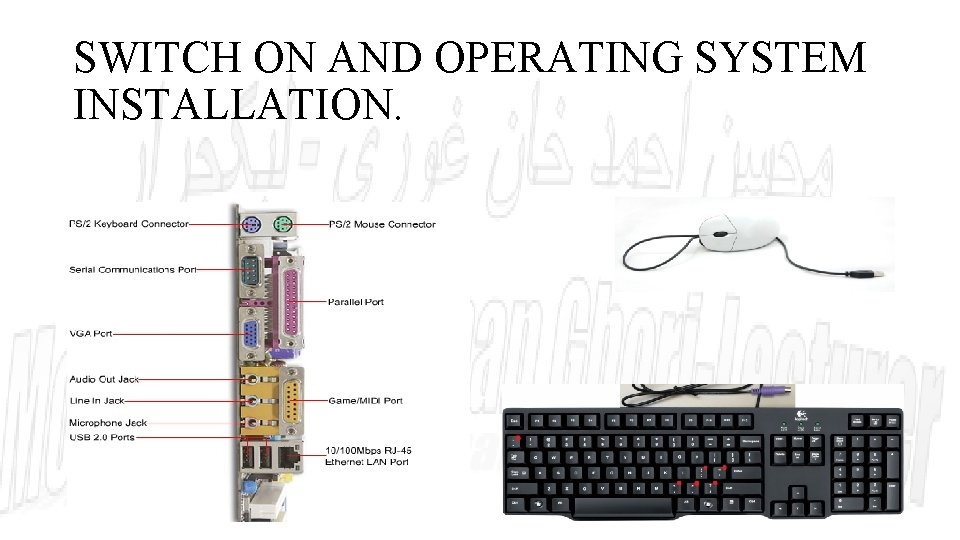
SWITCH ON AND OPERATING SYSTEM INSTALLATION.
HARDWARE INSTALLATION • Control Panel • Add device • Plug and Play • Use CD or Flash drive or Internet
SOFTWARE INTALLATION • Install • Setup
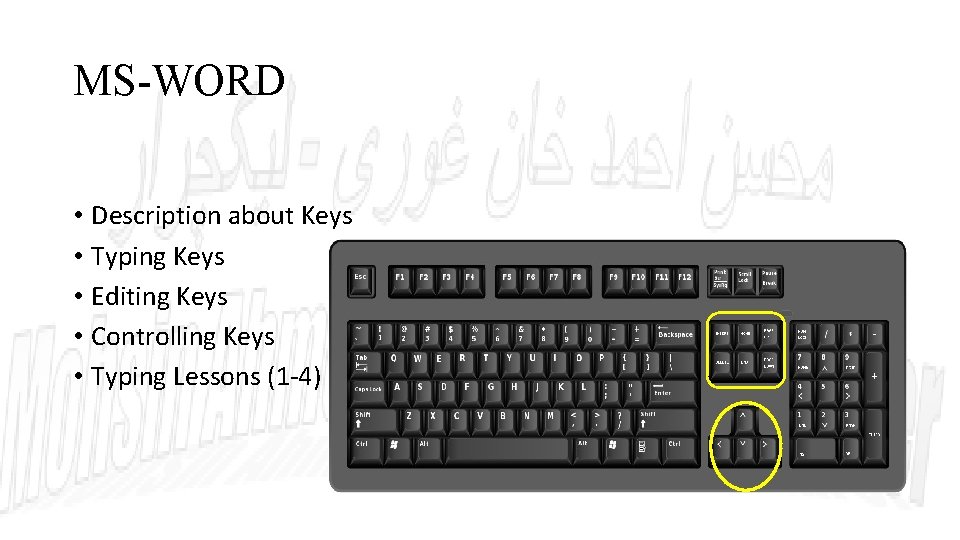
MS-WORD • Description about Keys • Typing Keys • Editing Keys • Controlling Keys • Typing Lessons (1 -4)
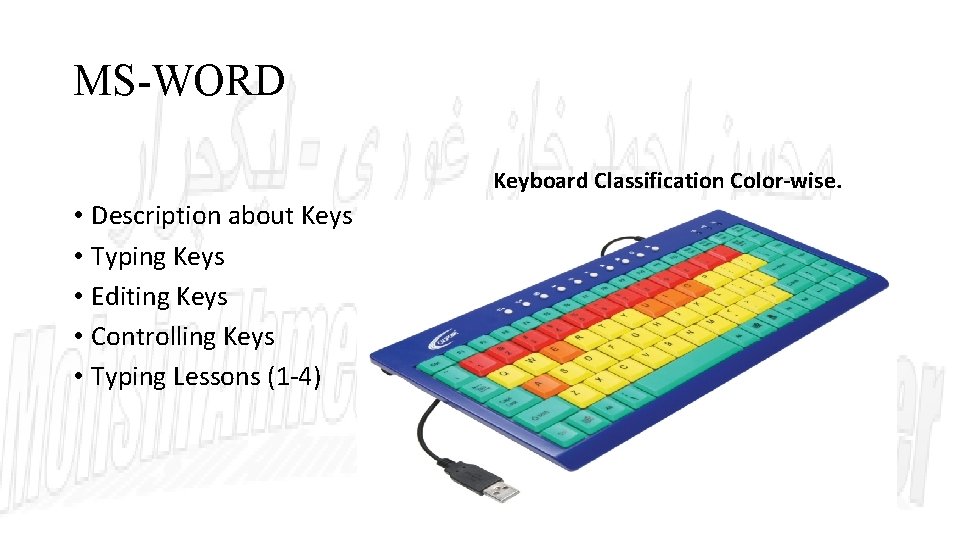
MS-WORD Keyboard Classification Color-wise. • Description about Keys • Typing Keys • Editing Keys • Controlling Keys • Typing Lessons (1 -4)
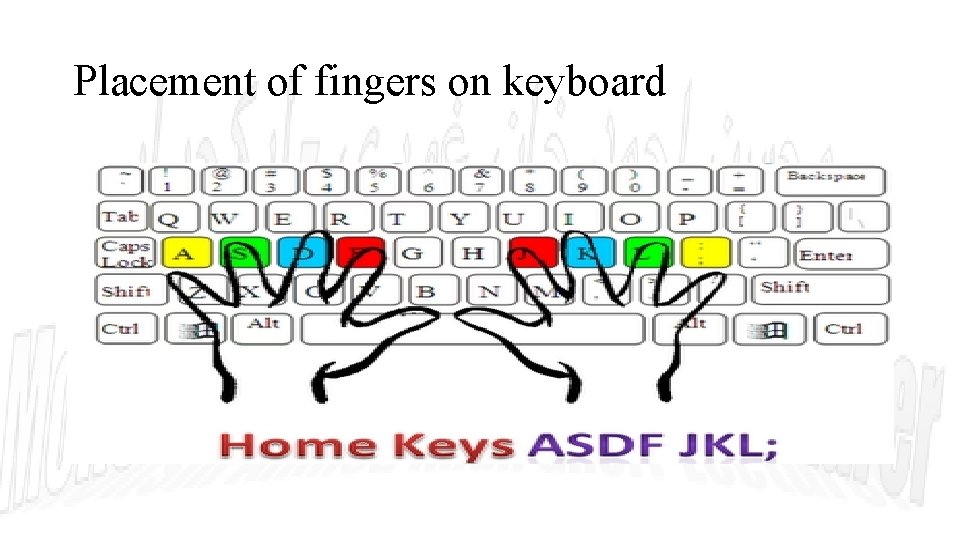
Placement of fingers on keyboard
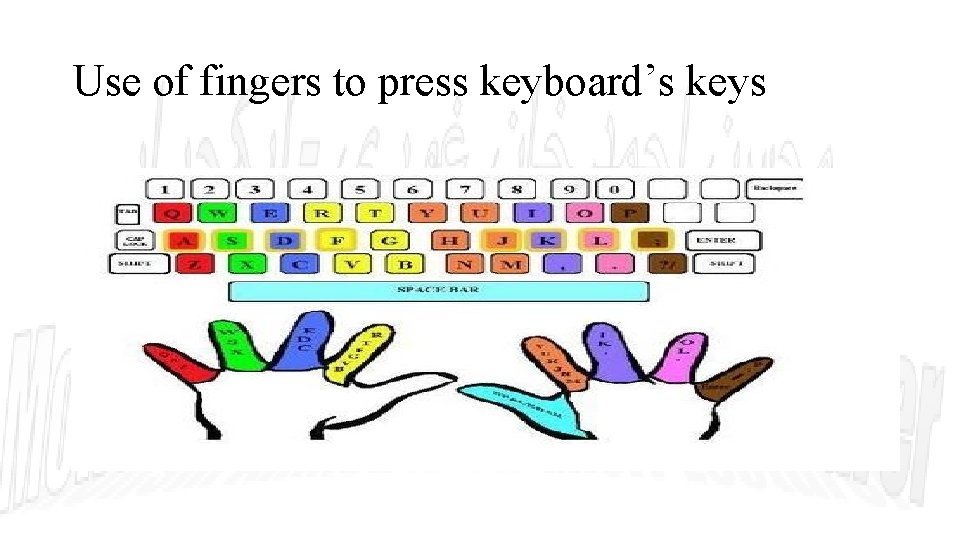
Use of fingers to press keyboard’s keys
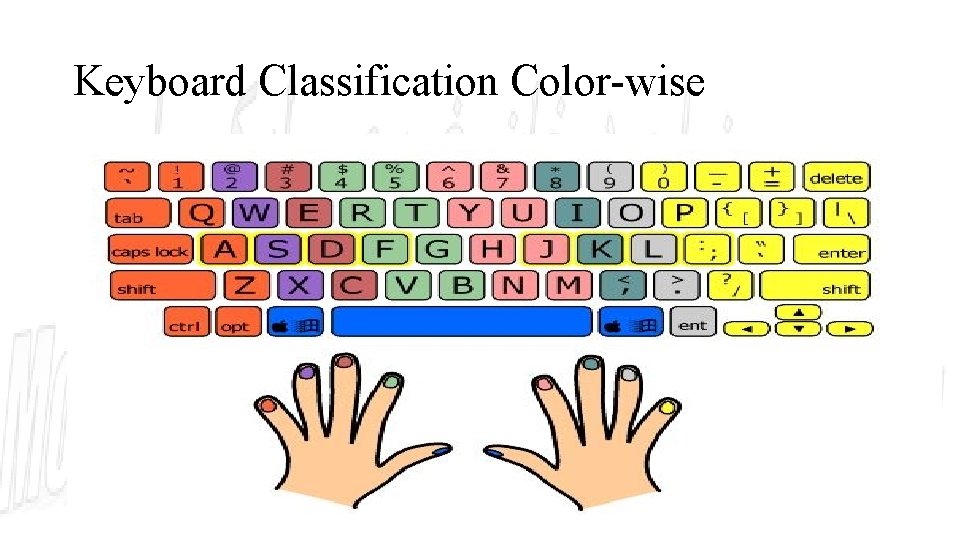
Keyboard Classification Color-wise
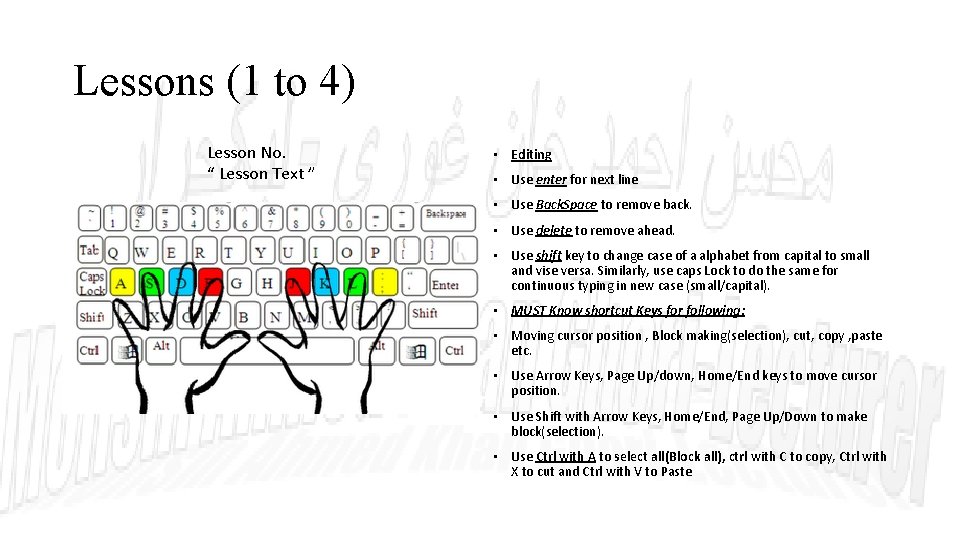
Lessons (1 to 4) Lesson No. “ Lesson Text ” • Editing • Use enter for next line • Use Back. Space to remove back. • Use delete to remove ahead. • Use shift key to change case of a alphabet from capital to small and vise versa. Similarly, use caps Lock to do the same for continuous typing in new case (small/capital). • MUST Know shortcut Keys for following: • Moving cursor position , Block making(selection), cut, copy , paste etc. • Use Arrow Keys, Page Up/down, Home/End keys to move cursor position. • Use Shift with Arrow Keys, Home/End, Page Up/Down to make block(selection). • Use Ctrl with A to select all(Block all), ctrl with C to copy, Ctrl with X to cut and Ctrl with V to Paste
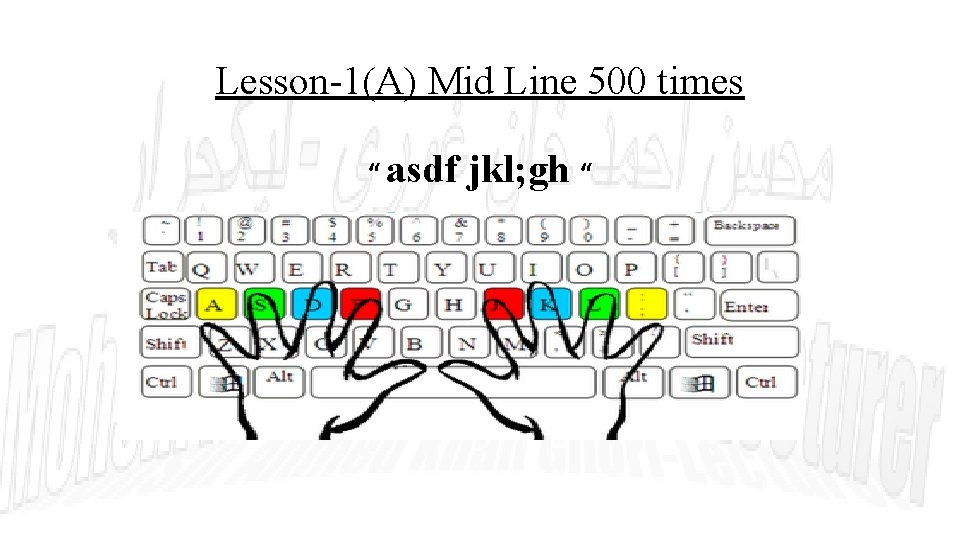
Lesson-1(A) Mid Line 500 times “ asdf jkl; gh “
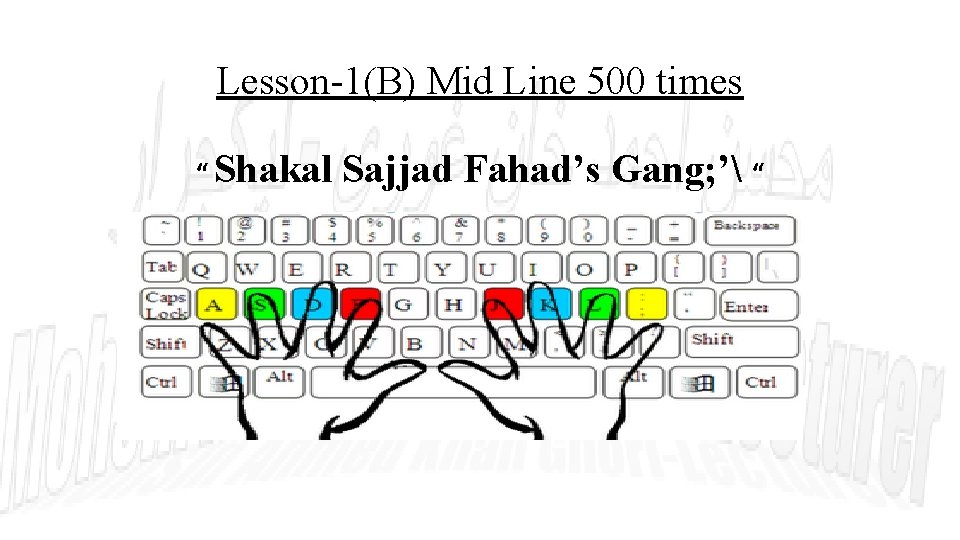
Lesson-1(B) Mid Line 500 times “ Shakal Sajjad Fahad’s Gang; ’ “
![Lesson-2(A) Top Line 500 times “ Qwert Yuiop[] “](http://slidetodoc.com/presentation_image_h/7dce284dedb0364e80a17d6e45a73290/image-23.jpg "Lesson-2(A) Top Line 500 times “ Qwert Yuiop[] “")
Lesson-2(A) Top Line 500 times “ Qwert Yuiop[] “
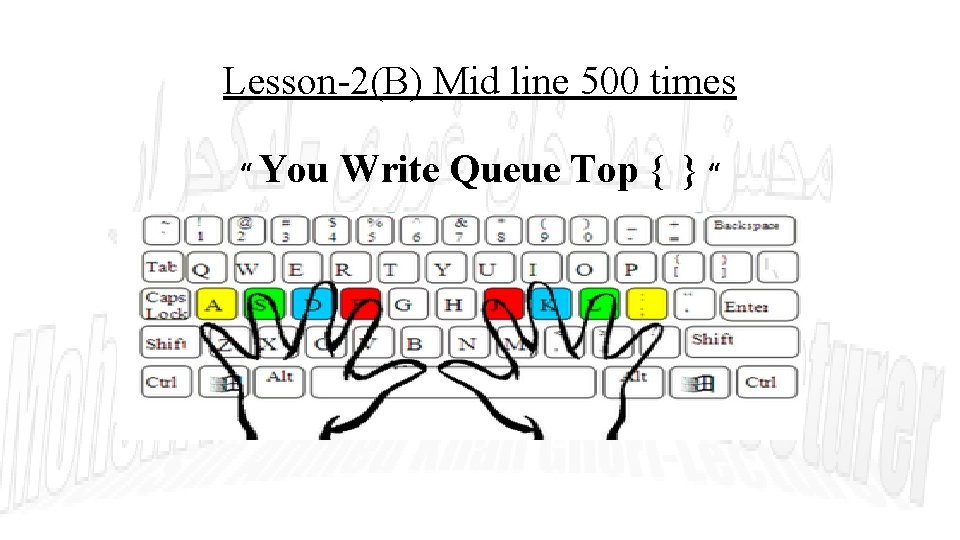
Lesson-2(B) Mid line 500 times “ You Write Queue Top { } “
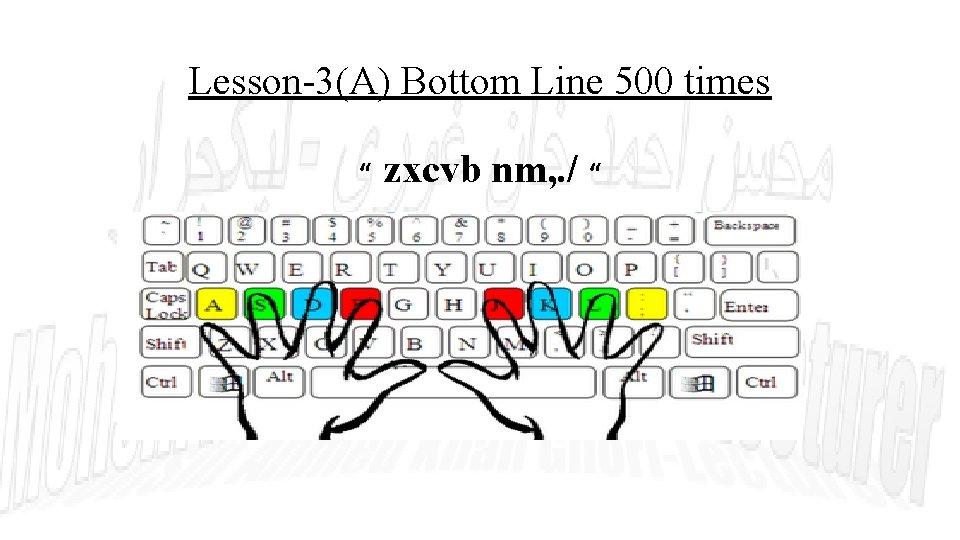
Lesson-3(A) Bottom Line 500 times “ zxcvb nm, . / “
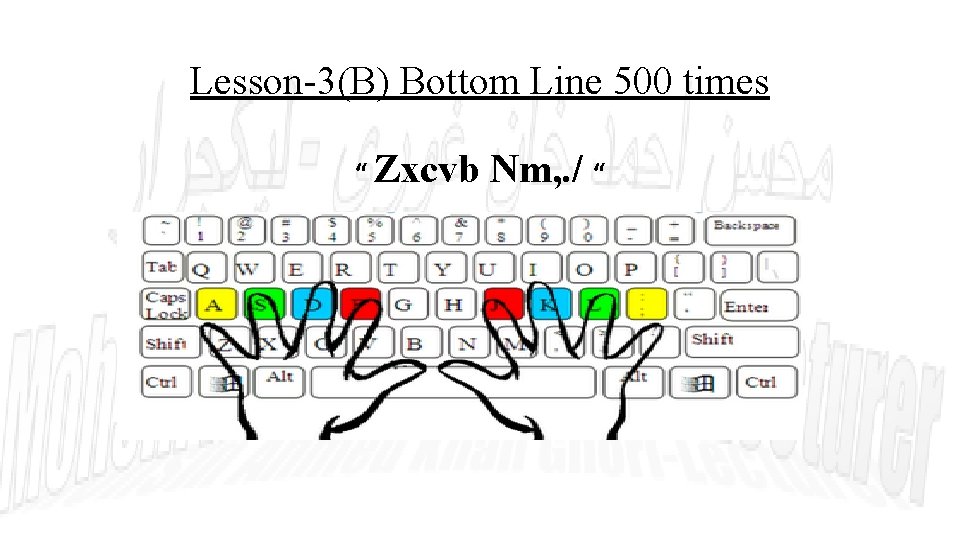
Lesson-3(B) Bottom Line 500 times “ Zxcvb Nm, . / “
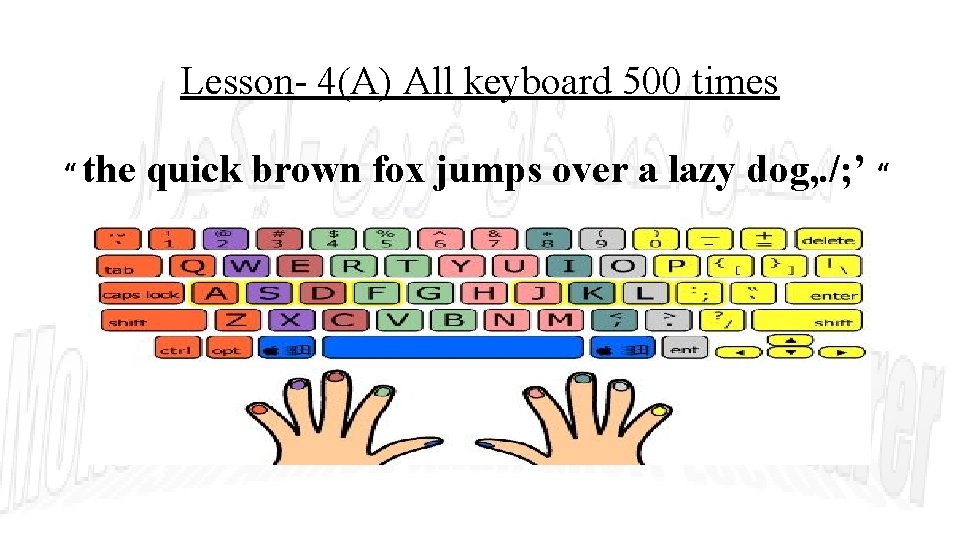
Lesson- 4(A) All keyboard 500 times “ the quick brown fox jumps over a lazy dog, . /; ’ “

Lesson- 4(B) All keyboard 500 times daily “ That the Quick Brown Fox Jumps over A Lazy dog, . /; ’ ”
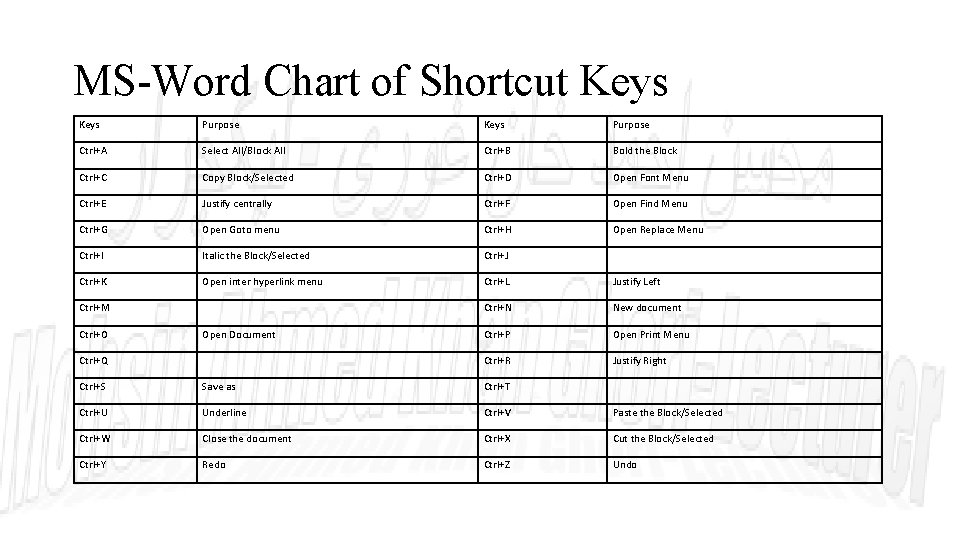
MS-Word Chart of Shortcut Keys Purpose Ctrl+A Select All/Block All Ctrl+B Bold the Block Ctrl+C Copy Block/Selected Ctrl+D Open Font Menu Ctrl+E Justify centrally Ctrl+F Open Find Menu Ctrl+G Open Goto menu Ctrl+H Open Replace Menu Ctrl+I Italic the Block/Selected Ctrl+J Ctrl+K Open inter hyperlink menu Ctrl+L Justify Left Ctrl+N New document Ctrl+P Open Print Menu Ctrl+R Justify Right Ctrl+M Ctrl+O Open Document Ctrl+Q Ctrl+S Save as Ctrl+T Ctrl+U Underline Ctrl+V Paste the Block/Selected Ctrl+W Close the document Ctrl+X Cut the Block/Selected Ctrl+Y Redo Ctrl+Z Undo
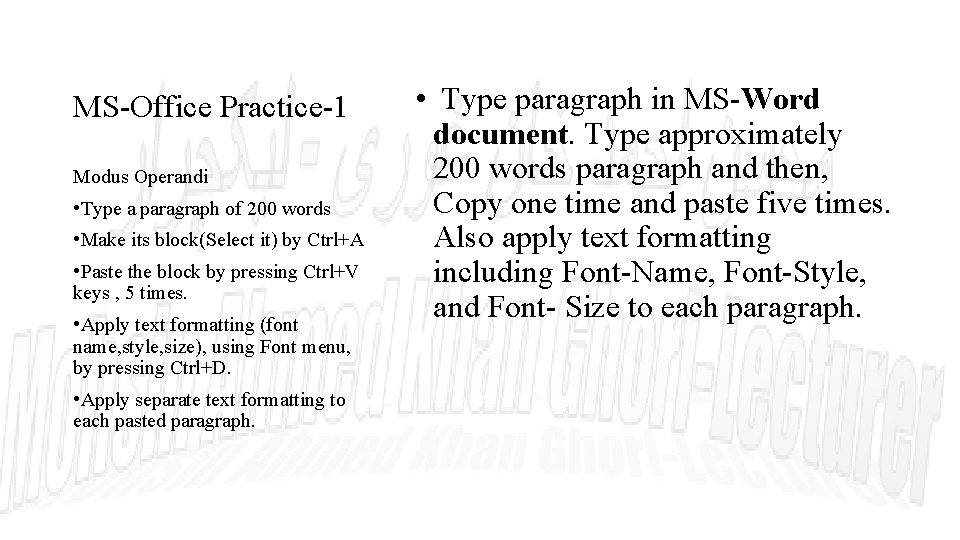
MS-Office Practice-1 Modus Operandi • Type a paragraph of 200 words • Make its block(Select it) by Ctrl+A • Paste the block by pressing Ctrl+V keys , 5 times. • Apply text formatting (font name, style, size), using Font menu, by pressing Ctrl+D. • Apply separate text formatting to each pasted paragraph. • Type paragraph in MS-Word document. Type approximately 200 words paragraph and then, Copy one time and paste five times. Also apply text formatting including Font-Name, Font-Style, and Font- Size to each paragraph.
• Write a letter to your Mother, requesting her to send Rs. 10000/- for purchasing books and registers. • Insert a table containing S. No. , Name of Books/Register, Quantity and Price.
MS-Office Practice-3 Modus Operandi • Type a paragraph of 200 words • Make its block(Select it) by Ctrl+A • Paste the block by pressing Ctrl+V keys , 5 times. • Apply text formatting (font name, style, size), using Font menu, by pressing Ctrl+D. • Apply separate text formatting to each pasted paragraph. • create vertically dotted line representing left and right margin on the paper for different paragraph Alignments. Use a paragraph for justification and also use the Borders and Shading.
MS-Office Practice-4 Modus Operandi • Type a paragraph of 200 words • Make its block(Select it) by Ctrl+A • Paste the block by pressing Ctrl+V keys , 5 times. • Apply text formatting (font name, style, size), using Font menu, by pressing Ctrl+D. • Apply separate text formatting to each pasted paragraph. • Write a passage from your book. Using Word Processor create any document using header and footer. Save and also print. • • Insert Date & Time in header. Insert page number in footer. Convert the document in two columns. Use drop caps in the document. • Insert clipart in the document
MS-Office Practice-5 Modus Operandi • Type a paragraph of 200 words • Make its block(Select it) by Ctrl+A • Paste the block by pressing Ctrl+V keys , 5 times. • Apply text formatting (font name, style, size), using Font menu, by pressing Ctrl+D. • Apply separate text formatting to each pasted paragraph. • Prepare an invitation card for friends, invite them to your birthday party. Give a Page Border in this invitation card, insert graphic objects from event category. Set Landscape as orientation. Also use the texture in the background of the invitation
MS-Office Practice-6 Modus Operandi • Type a paragraph of 200 words • Make its block(Select it) by Ctrl+A • Paste the block by pressing Ctrl+V keys , 5 times. • Apply text formatting (font name, style, size), using Font menu, by pressing Ctrl+D. • Apply separate text formatting to each pasted paragraph. • Create a Curriculum Vitae. • PERSONAL using Tab Keys and Format Tools. • ACDEMIC QUALIFICATIONS using Tables. • WORKING EXPERIENCES using Bullets. • HOBBIES using simple Format
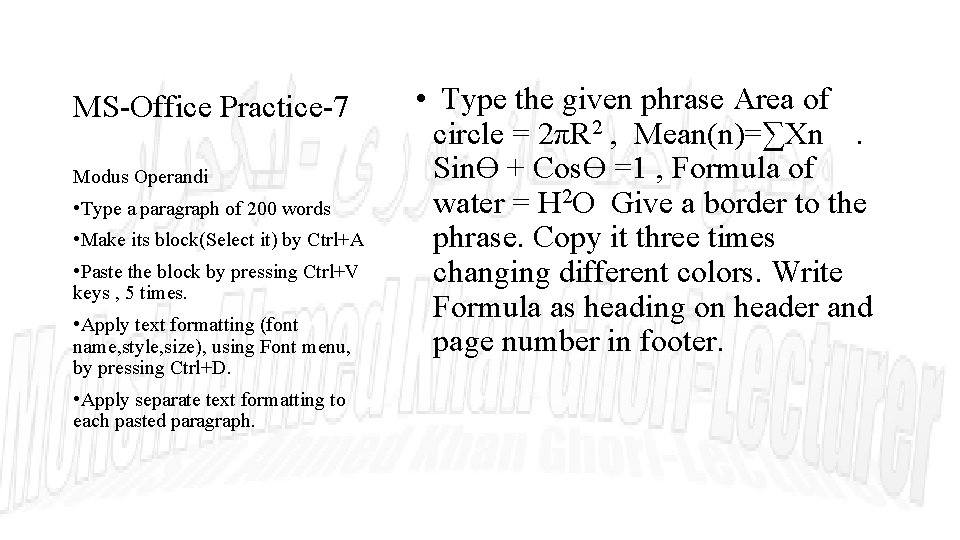
MS-Office Practice-7 Modus Operandi • Type a paragraph of 200 words • Make its block(Select it) by Ctrl+A • Paste the block by pressing Ctrl+V keys , 5 times. • Apply text formatting (font name, style, size), using Font menu, by pressing Ctrl+D. • Apply separate text formatting to each pasted paragraph. • Type the given phrase Area of circle = 2πR 2 , Mean(n)=∑Xn . SinƟ + CosƟ =1 , Formula of water = H 2 O Give a border to the phrase. Copy it three times changing different colors. Write Formula as heading on header and page number in footer.
MS-EXCEL • Column • Row • Cell, Cell Address • Formula • Formatting • Etc.
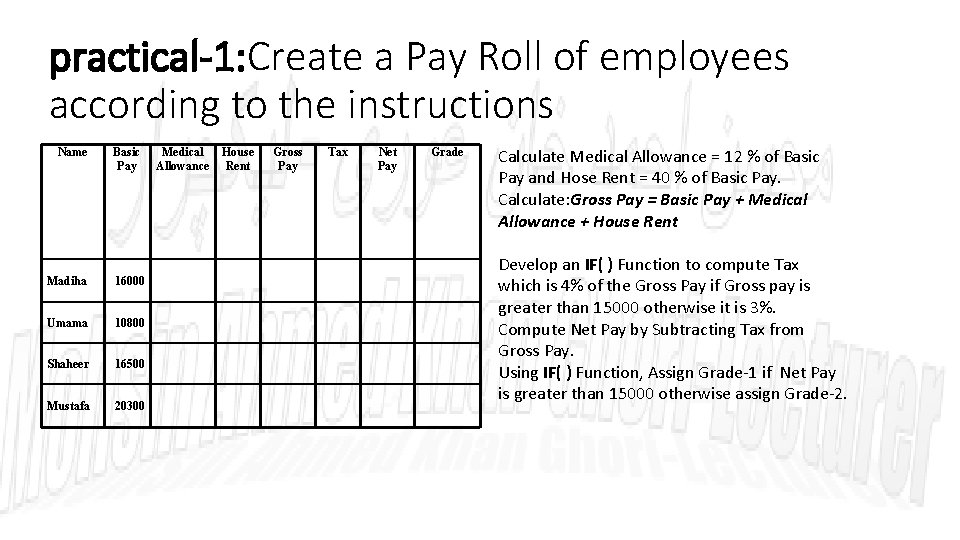
practical-1: Create a Pay Roll of employees according to the instructions Name Basic Pay Madiha 16000 Umama 10800 Shaheer 16500 Mustafa 20300 Medical Allowance House Rent Gross Pay Tax Net Pay Grade Calculate Medical Allowance = 12 % of Basic Pay and Hose Rent = 40 % of Basic Pay. Calculate: Gross Pay = Basic Pay + Medical Allowance + House Rent Develop an IF( ) Function to compute Tax which is 4% of the Gross Pay if Gross pay is greater than 15000 otherwise it is 3%. Compute Net Pay by Subtracting Tax from Gross Pay. Using IF( ) Function, Assign Grade-1 if Net Pay is greater than 15000 otherwise assign Grade-2.
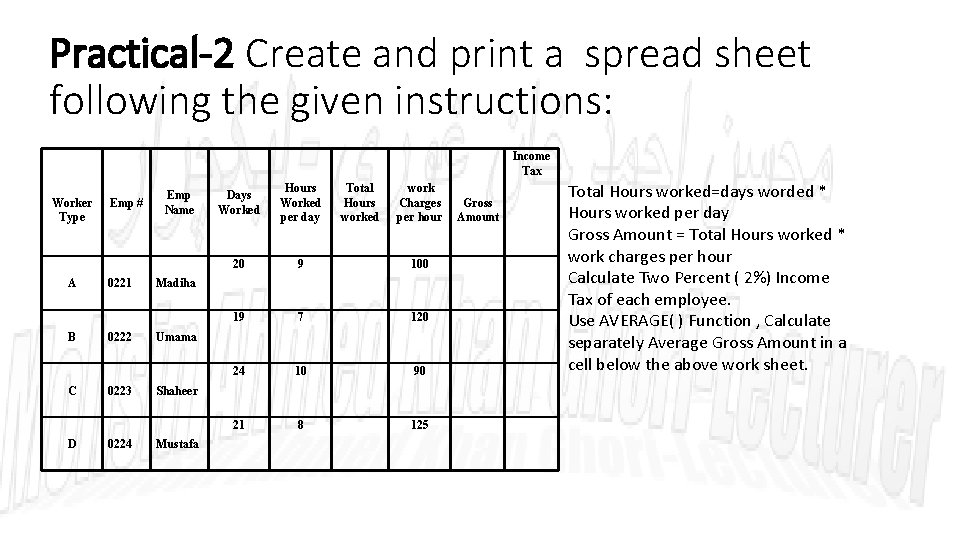
Practical-2 Create and print a spread sheet following the given instructions: Income Tax Worker Type A B C D Emp # 0221 0222 0223 0224 Emp Name Days Worked Hours Worked per day Total Hours worked work Charges per hour 20 9 100 19 7 120 24 10 90 21 8 125 Madiha Umama Shaheer Mustafa Gross Amount Total Hours worked=days worded * Hours worked per day Gross Amount = Total Hours worked * work charges per hour Calculate Two Percent ( 2%) Income Tax of each employee. Use AVERAGE( ) Function , Calculate separately Average Gross Amount in a cell below the above work sheet.
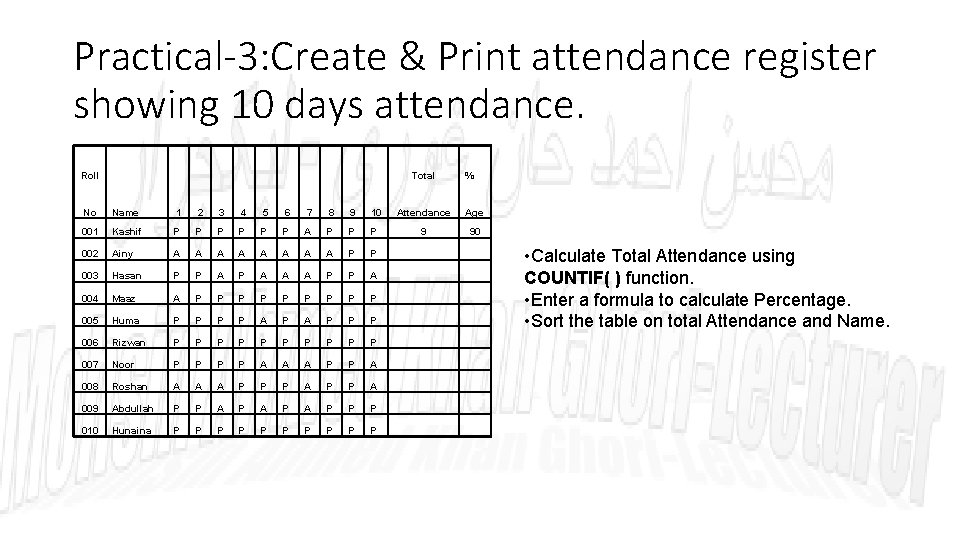
Practical-3: Create & Print attendance register showing 10 days attendance. Roll No Name 1 2 3 4 5 6 7 8 9 10 001 Kashif P P P A P P P 002 Ainy A A A A P P 003 Hasan P P A A A P P A 004 Maaz A P P P P P 005 Huma P P A P P P 006 Rizwan P P P P P 007 Noor P P A A A P P A 008 Roshan A A A P P P A 009 Abdullah P P A P A P P P 010 Hunaina P P P P P Total % Attendance Age 9 90 • Calculate Total Attendance using COUNTIF( ) function. • Enter a formula to calculate Percentage. • Sort the table on total Attendance and Name.
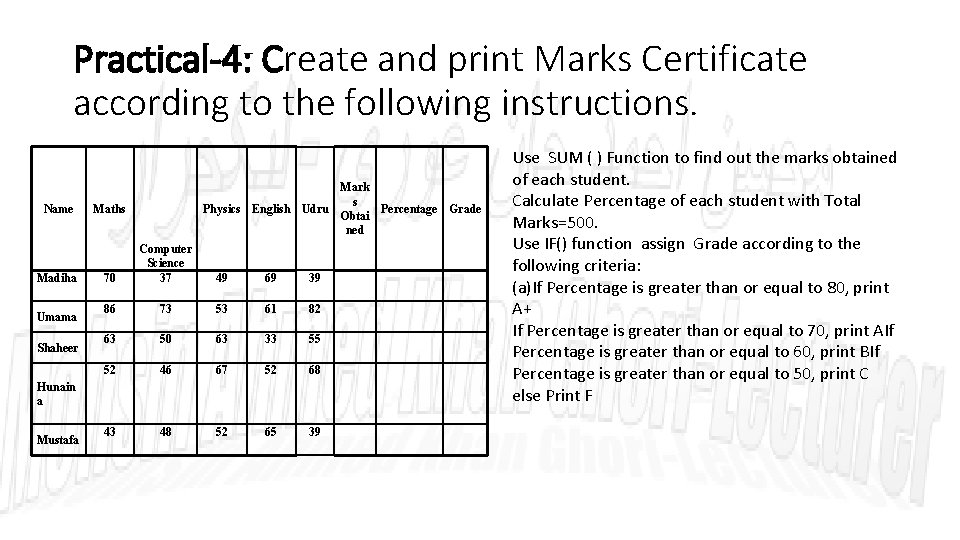
Practical-4: Create and print Marks Certificate according to the following instructions. Name Madiha Umama Shaheer Mark s Physics English Udru Percentage Grade Obtai ned Maths 70 Computer Science 37 49 69 39 86 73 53 61 82 63 50 63 33 55 52 46 67 52 68 43 48 52 65 39 Hunain a Mustafa Use SUM ( ) Function to find out the marks obtained of each student. Calculate Percentage of each student with Total Marks=500. Use IF() function assign Grade according to the following criteria: (a)If Percentage is greater than or equal to 80, print A+ If Percentage is greater than or equal to 70, print AIf Percentage is greater than or equal to 60, print BIf Percentage is greater than or equal to 50, print C else Print F
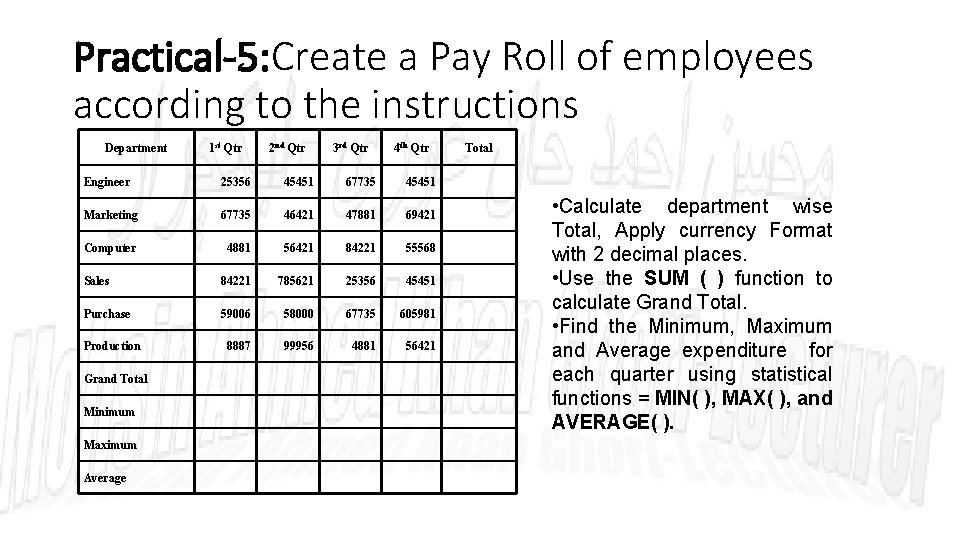
Practical-5: Create a Pay Roll of employees according to the instructions Department 1 st Qtr 2 nd Qtr 3 rd Qtr 4 th Qtr Engineer 25356 45451 67735 45451 Marketing 67735 46421 47881 69421 Computer 4881 56421 84221 55568 Sales 84221 785621 25356 45451 Purchase 59006 58000 67735 605981 8887 99956 4881 56421 Production Grand Total Minimum Maximum Average Total • Calculate department wise Total, Apply currency Format with 2 decimal places. • Use the SUM ( ) function to calculate Grand Total. • Find the Minimum, Maximum and Average expenditure for each quarter using statistical functions = MIN( ), MAX( ), and AVERAGE( ).
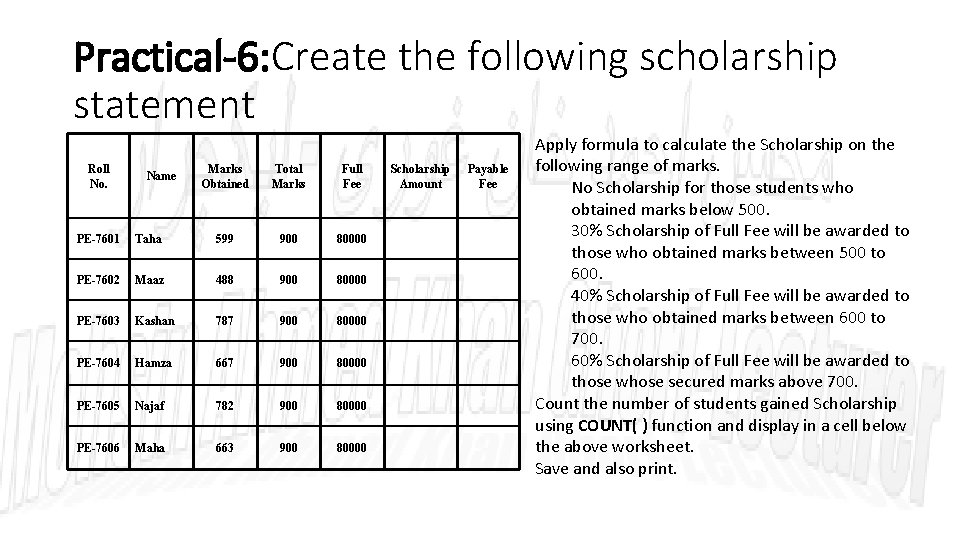
Practical-6: Create the following scholarship statement Roll No. Name Marks Obtained Total Marks Full Fee PE-7601 Taha 599 900 80000 PE-7602 Maaz 488 900 80000 PE-7603 Kashan 787 900 80000 PE-7604 Hamza 667 900 80000 PE-7605 Najaf 782 900 80000 PE-7606 Maha 663 900 80000 Scholarship Amount Payable Fee Apply formula to calculate the Scholarship on the following range of marks. No Scholarship for those students who obtained marks below 500. 30% Scholarship of Full Fee will be awarded to those who obtained marks between 500 to 600. 40% Scholarship of Full Fee will be awarded to those who obtained marks between 600 to 700. 60% Scholarship of Full Fee will be awarded to those whose secured marks above 700. Count the number of students gained Scholarship using COUNT( ) function and display in a cell below the above worksheet. Save and also print.
MS-POWER POINT • Simple Presentation • Adding picture • Adding sound/voice • Adding videos • Adding Multimedia

INTERNET • What is Internet • Domain Name • IP Address • Web Sites • Search Engines • Service Providers • Email, Cloud
SECOND LAST SLIDE • ITS TIME TO END TODAY’S PRESENTATION • BUT • WAIT • LET ME SAY SOMETHING ON BEHALF OF YOU AFTER ATTENDING THIS PRESENTATION.
I wasn’t know any thing! (about computers). but alhamdo LILLAH I know something! (about computers).
- Slides: 48