
HYSWEEP Configuring a System in HYSWEEP HARDWARE Multibeam
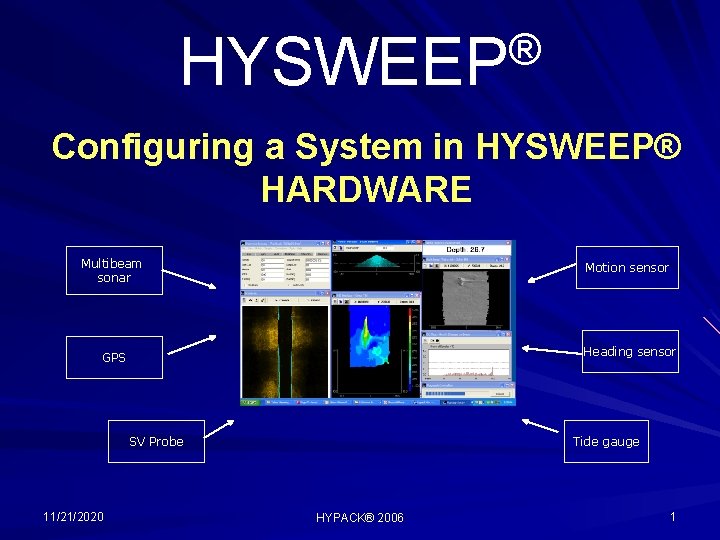
® HYSWEEP Configuring a System in HYSWEEP® HARDWARE Multibeam sonar Motion sensor GPS Heading sensor SV Probe 11/21/2020 Tide gauge HYPACK® 2006 1
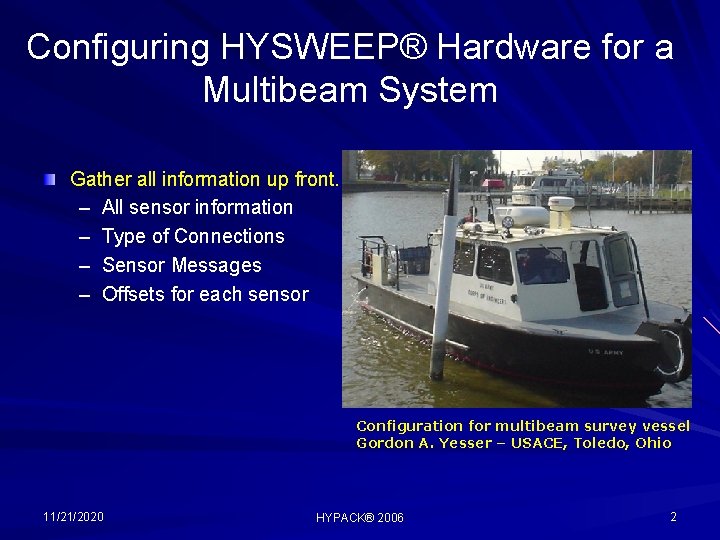
Configuring HYSWEEP® Hardware for a Multibeam System Gather all information up front. – All sensor information – Type of Connections – Sensor Messages – Offsets for each sensor Configuration for multibeam survey vessel Gordon A. Yesser – USACE, Toledo, Ohio 11/21/2020 HYPACK® 2006 2

Connection Block Diagram GPS, single beam and tides go into HYPACK® SURVEY. Multibeam, MRU, Gyro go into HYSWEEP® SURVEY. Information is passed between the two using the shared memory all on a single computer. This requires the Hysweep. dll in HYPACK® HARDWARE and HYPACK® Navigation driver in HYSWEEP HARDWARE. 11/21/2020 HYPACK® 2006 3

Driver List Multibeam systems Atlas Bomasweep Fansweep Hydrosweep Odom Echoscan Miniscan Reson 9000 series 8100 series (network and serial bathymetry) Ross Smartsweep 11/21/2020 HYPACK® 2006 4

Driver List (cont. ) • Any NMEA-0183 Seabeam – 2100 – SB 1000 series Simrad – SM 2000 – EM 3000 – EM 3002 Tritech Sea King compliant heading device. Motion sensors and Gyros SGBrown 1000 S Gyro Seatex MRU TSS series 335, DMS POS/MV (network and serial) 11/21/2020 HYPACK® 2006 5
Driver List (cont. ) Side Scan Systems Benthos C 3 D CMAX CM 2 Klein 3000 and 5000 Imagenex 881 Note: 11/21/2020 Sportscan Analog SSS Edgetech These sidescan sonars devices are listed in SIDESCAN HARDWARE as well. If you intend to use only sidescan, set-up the configuration in the SIDESCAN HARDWARE. HYPACK® 2006 6
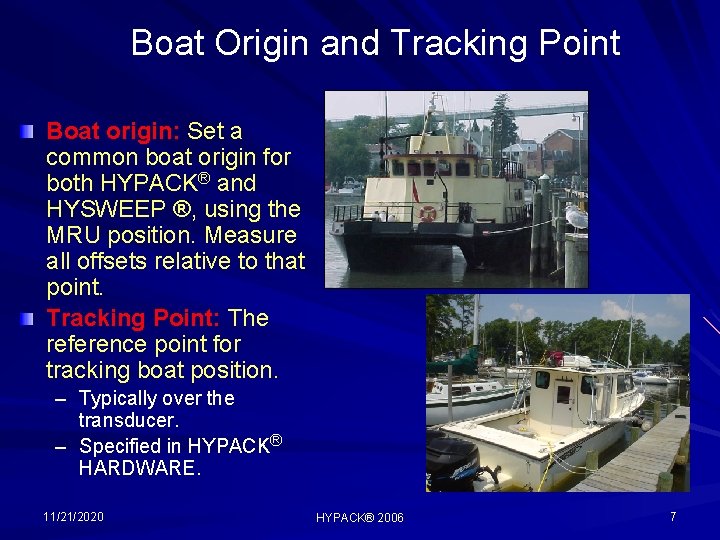
Boat Origin and Tracking Point Boat origin: Set a common boat origin for both HYPACK® and HYSWEEP ®, using the MRU position. Measure all offsets relative to that point. Tracking Point: The reference point for tracking boat position. – Typically over the transducer. – Specified in HYPACK® HARDWARE. 11/21/2020 HYPACK® 2006 7
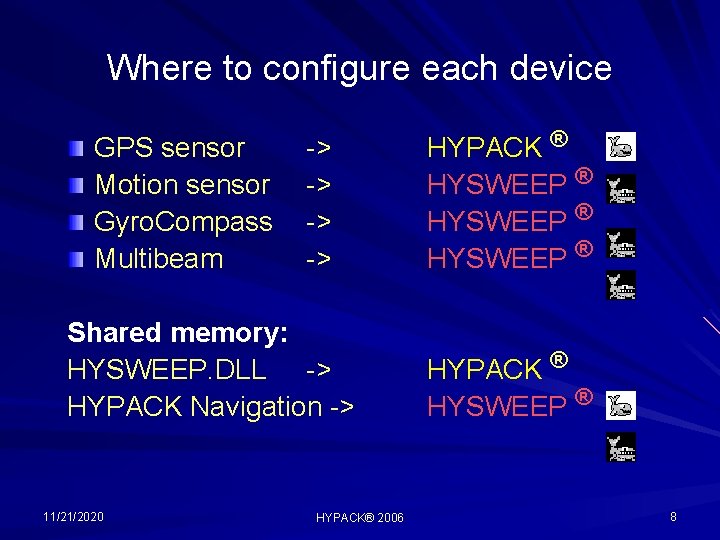
Where to configure each device GPS sensor Motion sensor Gyro. Compass Multibeam -> -> Shared memory: HYSWEEP. DLL -> HYPACK Navigation -> 11/21/2020 HYPACK® 2006 HYPACK ® HYSWEEP ® HYPACK ® HYSWEEP ® 8

Setting up the System Step 1 Configure HYPACK® HARDWARE for Position and HYSWEEP® data. Launch Hardware programs from either the menu bar or tool bar. Step 2 11/21/2020 Configure HYSWEEP® HARDWARE for Multibeam, Motion, Gyro and HYPACK® Navigation. HYPACK® 2006 9

Configuration of HYPACK® HARDWARE POSITION DATA Use GPS. DLL or Kinematic. DLL – May include heading Setup as per HYPACK® HARDWARE section: – COM port settings – GPS antenna offsets – NMEA message selection. 11/21/2020 HYSWEEP. DLL Configure to receive any of the following from HYSWEEP® SURVEY: – Heading – Depths – Heave/Pitch/Roll compensation HYPACK® 2006 10

® Configuration in HYSWEEP HARDWARE Add: 1. HYPACK® Navigation 2. Multibeam 3. Motion Sensor 4. Gyro sensor Note: 11/21/2020 The Gyro information can be set in HYPACK®. The data can be transferred with the shared memory. HYPACK® 2006 11
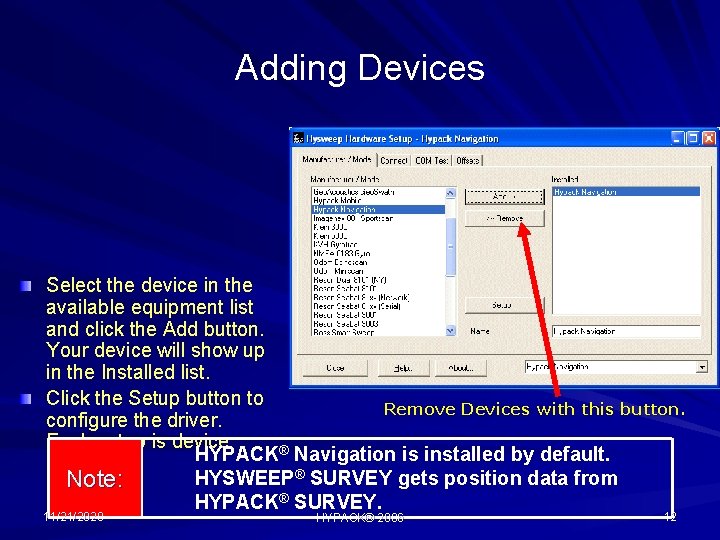
Adding Devices Select the device in the available equipment list and click the Add button. Your device will show up in the Installed list. Click the Setup button to Remove Devices with this button. configure the driver. Each setup is device ® Navigation is installed by default. HYPACK specific. HYSWEEP® SURVEY gets position data from Note: HYPACK® SURVEY. 11/21/2020 HYPACK® 2006 12
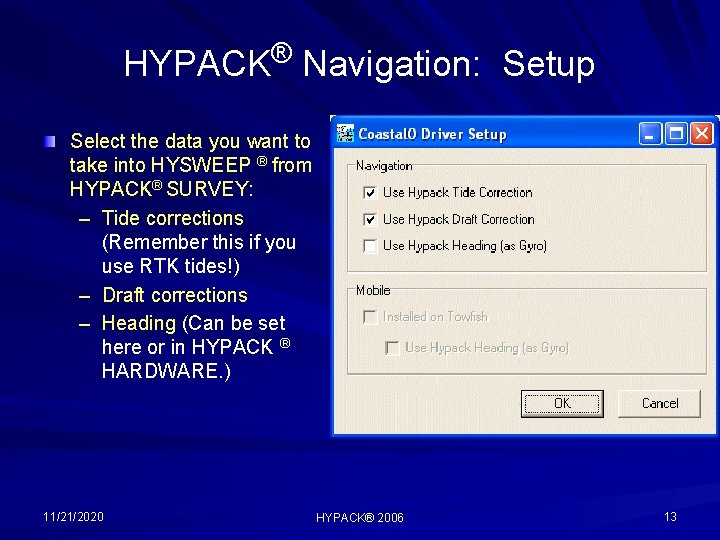
® HYPACK Navigation: Setup Select the data you want to take into HYSWEEP ® from HYPACK® SURVEY: – Tide corrections (Remember this if you use RTK tides!) – Draft corrections – Heading (Can be set here or in HYPACK ® HARDWARE. ) 11/21/2020 HYPACK® 2006 13
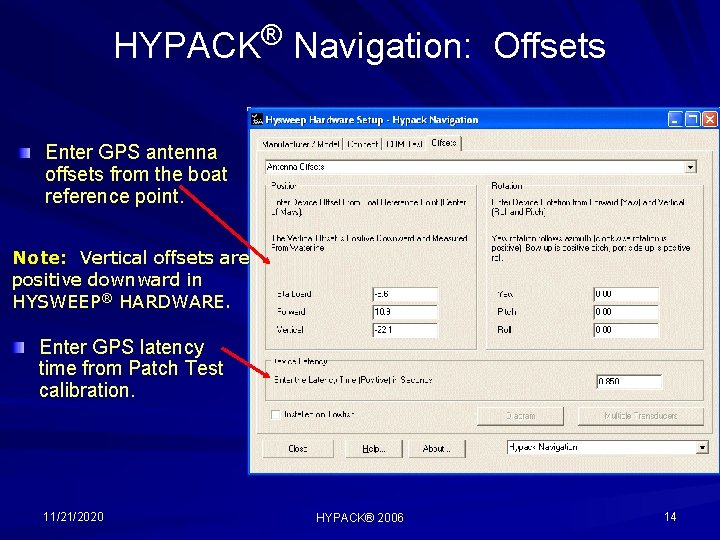
HYPACK® Navigation: Offsets Enter GPS antenna offsets from the boat reference point. Note: Vertical offsets are positive downward in HYSWEEP® HARDWARE. Enter GPS latency time from Patch Test calibration. 11/21/2020 HYPACK® 2006 14
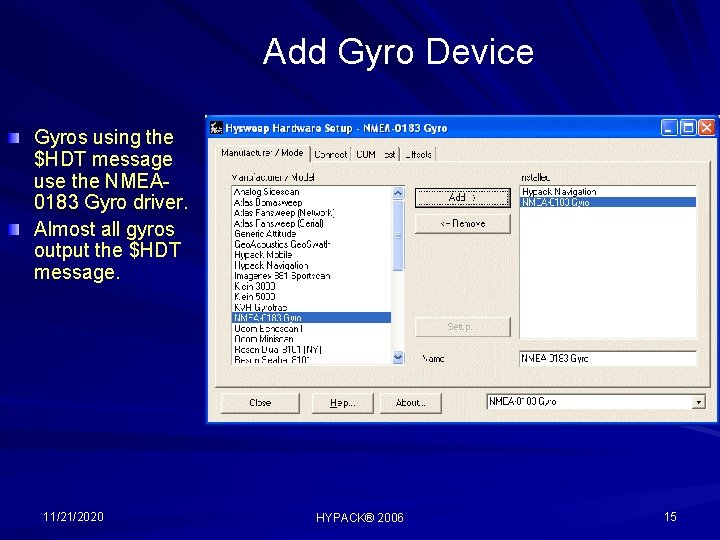
Add Gyro Device Gyros using the $HDT message use the NMEA 0183 Gyro driver. Almost all gyros output the $HDT message. 11/21/2020 HYPACK® 2006 15
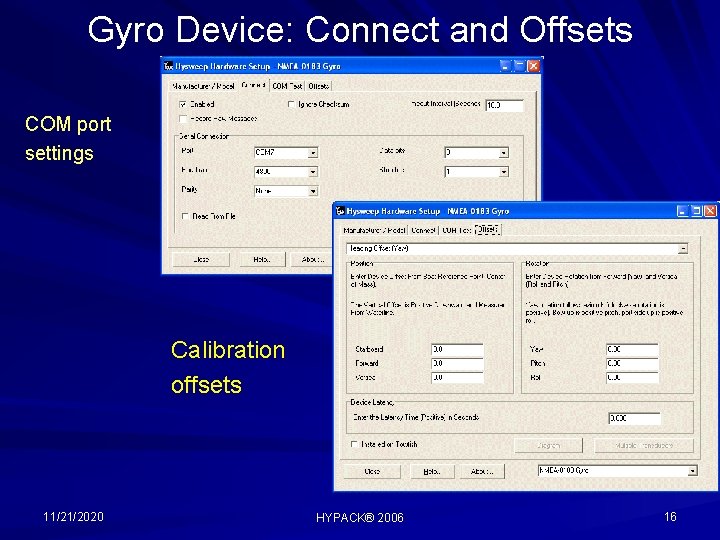
Gyro Device: Connect and Offsets COM port settings Calibration offsets 11/21/2020 HYPACK® 2006 16
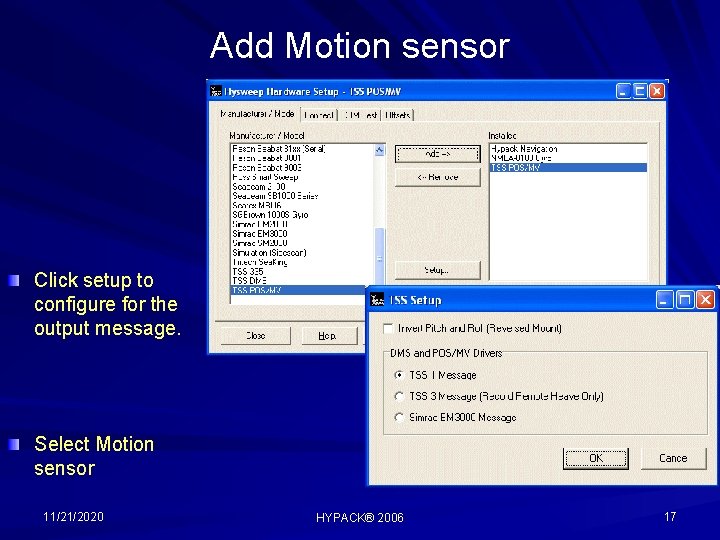
Add Motion sensor Click setup to configure for the output message. Select Motion sensor 11/21/2020 HYPACK® 2006 17
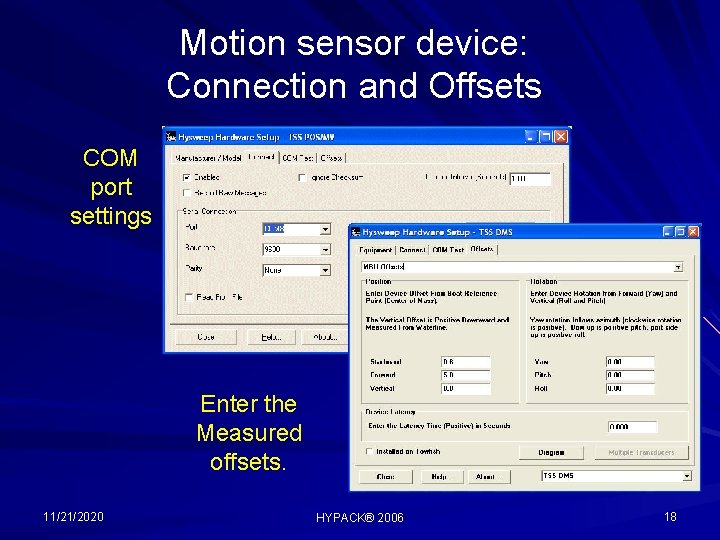
Motion sensor device: Connection and Offsets COM port settings Enter the Measured offsets. 11/21/2020 HYPACK® 2006 18
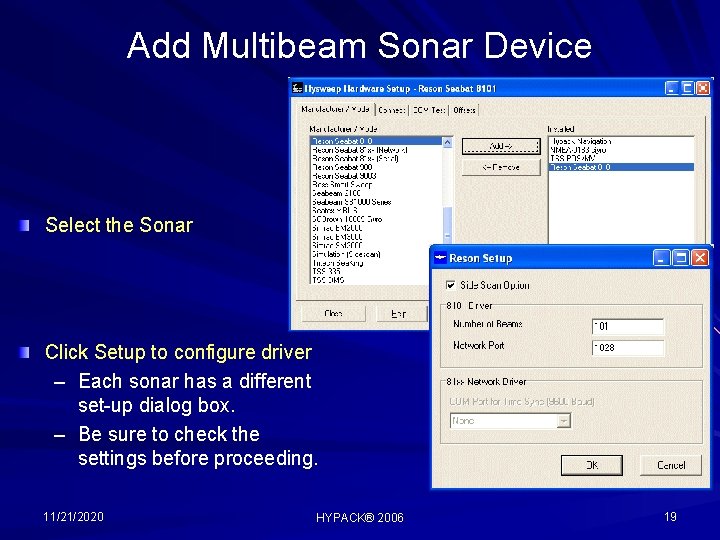
Add Multibeam Sonar Device Select the Sonar Click Setup to configure driver – Each sonar has a different set-up dialog box. – Be sure to check the settings before proceeding. 11/21/2020 HYPACK® 2006 19
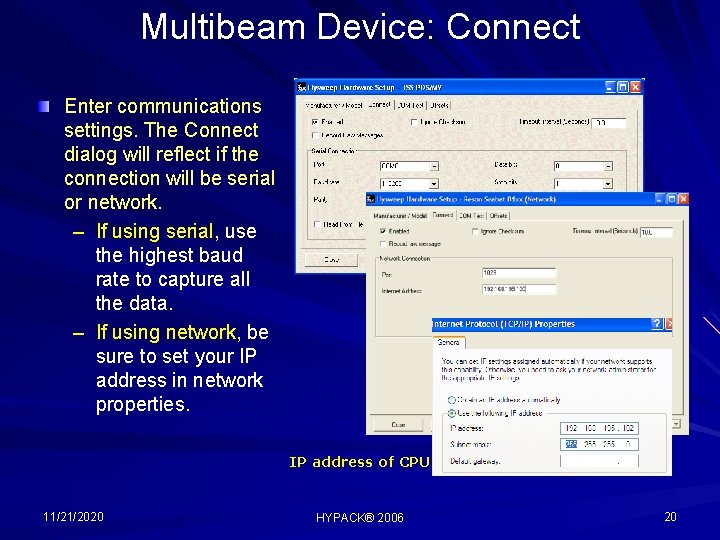
Multibeam Device: Connect Enter communications settings. The Connect dialog will reflect if the connection will be serial or network. – If using serial, use the highest baud rate to capture all the data. – If using network, be sure to set your IP address in network properties. IP address of CPU 11/21/2020 HYPACK® 2006 20
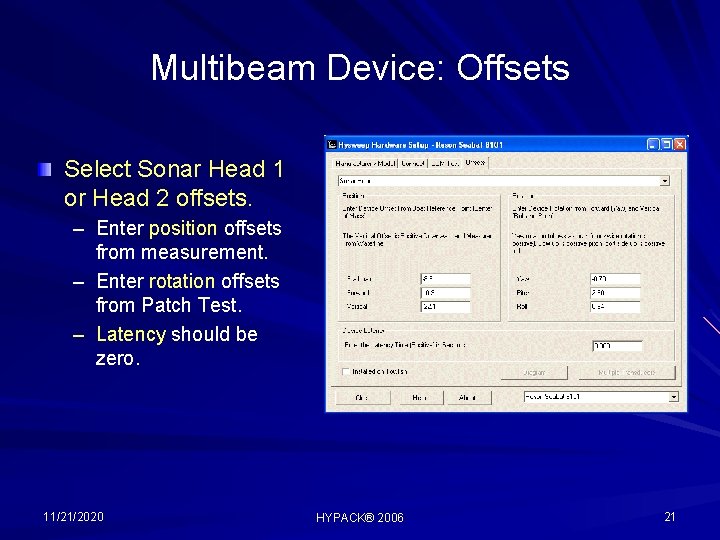
Multibeam Device: Offsets Select Sonar Head 1 or Head 2 offsets. – Enter position offsets from measurement. – Enter rotation offsets from Patch Test. – Latency should be zero. 11/21/2020 HYPACK® 2006 21
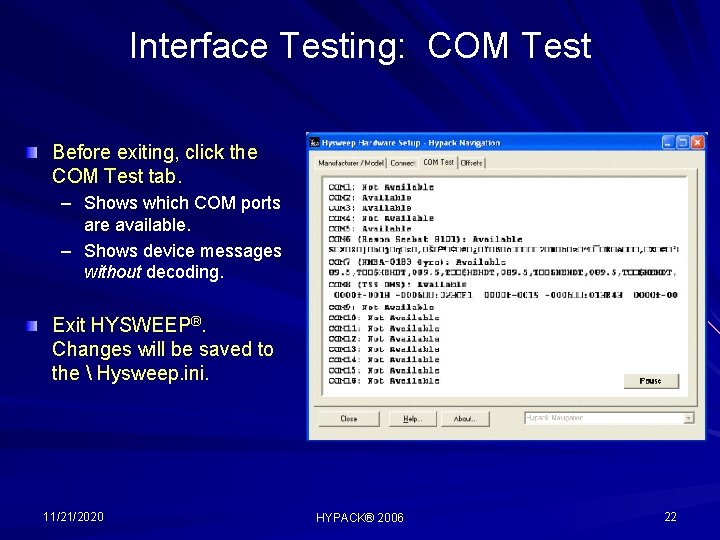
Interface Testing: COM Test Before exiting, click the COM Test tab. – Shows which COM ports are available. – Shows device messages without decoding. Exit HYSWEEP®. Changes will be saved to the Hysweep. ini. 11/21/2020 HYPACK® 2006 22
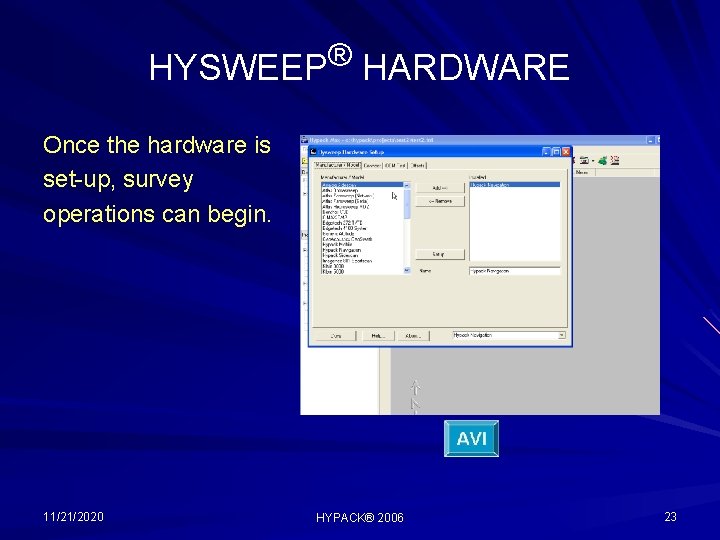
® HYSWEEP HARDWARE Once the hardware is set-up, survey operations can begin. 11/21/2020 HYPACK® 2006 23
Helpful hints and inside information When setting up a network connection for a sonar, you need to know the UDP port and IP address of the sonar. You may need to change your machine IP. – For the Reson, set the UDP the same as the sonar, and the IP address the same as the Remote device (in the BITE screen). – For the Simrad, use the defined IP address for the Computer and 127. 0. 0. 1 in the HYSWEEP hardware. – For the POS M/V use Read port number 5602 for real time ethernet data. Sonar Latency: Never change this value. This number is determined by the multibeam sonar, and is included in the datagram. HYSWEEP uses it during processing. 11/21/2020 HYPACK® 2006 24
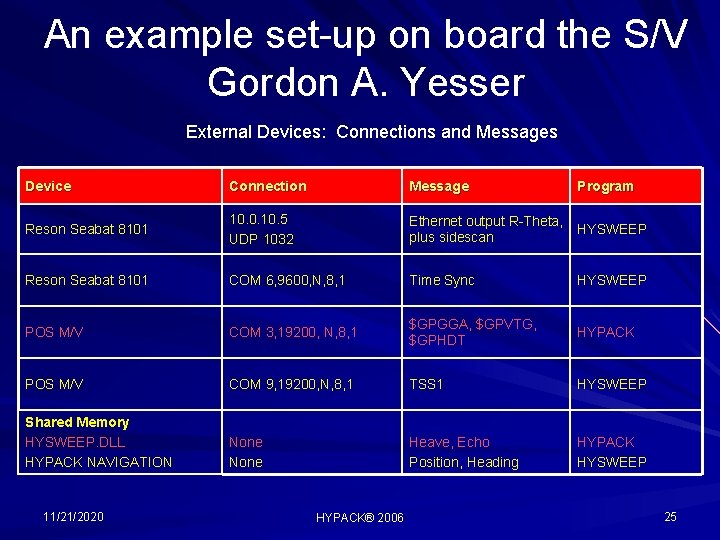
An example set-up on board the S/V Gordon A. Yesser External Devices: Connections and Messages Device Connection Message Reson Seabat 8101 10. 0. 10. 5 UDP 1032 Ethernet output R-Theta, HYSWEEP plus sidescan Reson Seabat 8101 COM 6, 9600, N, 8, 1 Time Sync HYSWEEP POS M/V COM 3, 19200, N, 8, 1 $GPGGA, $GPVTG, $GPHDT HYPACK POS M/V COM 9, 19200, N, 8, 1 TSS 1 HYSWEEP Shared Memory HYSWEEP. DLL HYPACK NAVIGATION None Heave, Echo Position, Heading HYPACK HYSWEEP 11/21/2020 HYPACK® 2006 Program 25
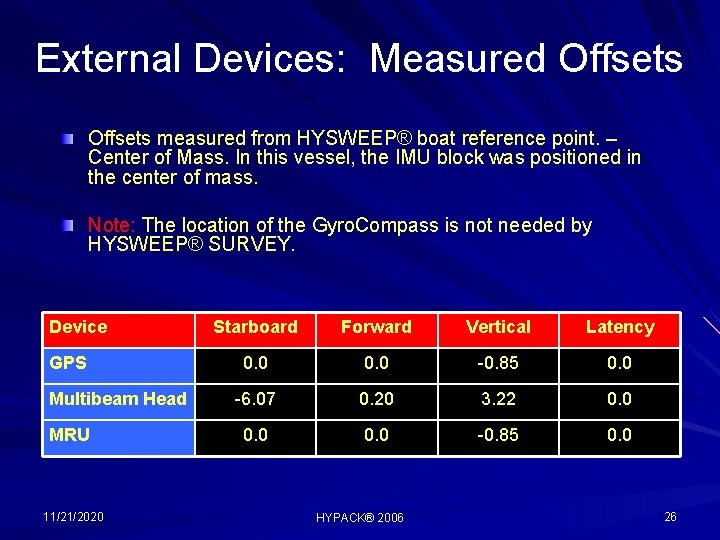
External Devices: Measured Offsets measured from HYSWEEP® boat reference point. – Center of Mass. In this vessel, the IMU block was positioned in the center of mass. Note: The location of the Gyro. Compass is not needed by HYSWEEP® SURVEY. Device GPS Multibeam Head MRU 11/21/2020 Starboard Forward Vertical Latency 0. 0 -0. 85 0. 0 -6. 07 0. 20 3. 22 0. 0 -0. 85 0. 0 HYPACK® 2006 26
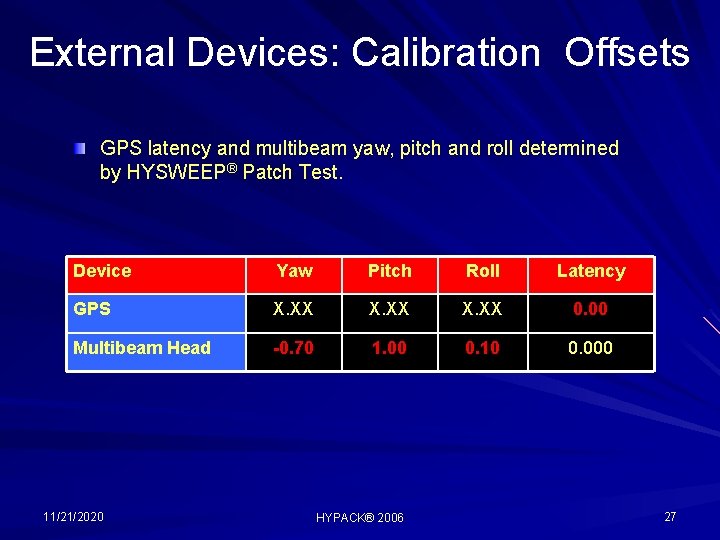
External Devices: Calibration Offsets GPS latency and multibeam yaw, pitch and roll determined by HYSWEEP® Patch Test. Device Yaw Pitch Roll Latency GPS X. XX 0. 00 Multibeam Head -0. 70 1. 00 0. 10 0. 000 11/21/2020 HYPACK® 2006 27

Configuring a Dual Head Multibeam System Some multibeam systems have two transducers. – If mounted in an engineering mount – where the angles are exactly known, then the set-up can be considered as a single head. – Otherwise, follow these steps for a two head Great Lakes Dredge configuration. and Drydock Survey Vessel “Diamond Reef” 11/21/2020 HYPACK® 2006 28
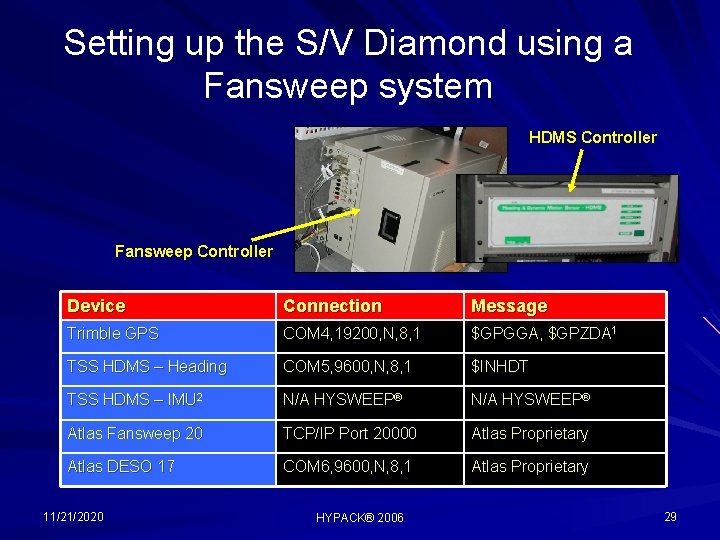
Setting up the S/V Diamond using a Fansweep system HDMS Controller Fansweep Controller Device Connection Message Trimble GPS COM 4, 19200, N, 8, 1 $GPGGA, $GPZDA 1 TSS HDMS – Heading COM 5, 9600, N, 8, 1 $INHDT TSS HDMS – IMU 2 N/A HYSWEEP® Atlas Fansweep 20 TCP/IP Port 20000 Atlas Proprietary Atlas DESO 17 COM 6, 9600, N, 8, 1 Atlas Proprietary 11/21/2020 HYPACK® 2006 29
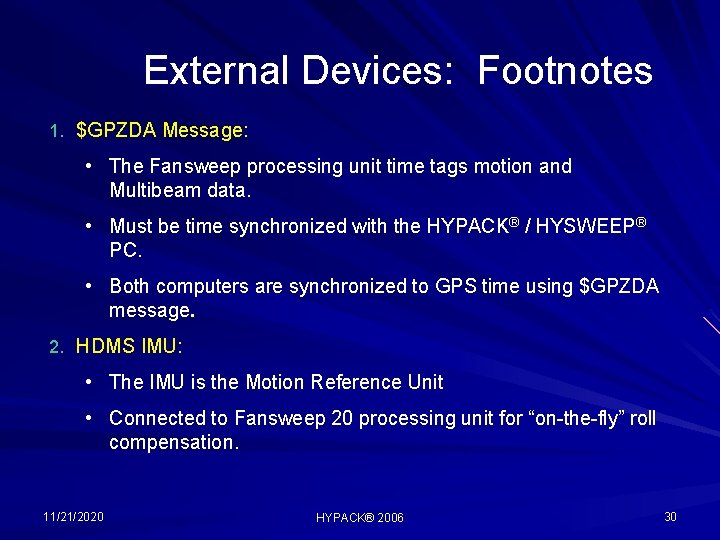
External Devices: Footnotes 1. $GPZDA Message: • The Fansweep processing unit time tags motion and Multibeam data. • Must be time synchronized with the HYPACK® / HYSWEEP® PC. • Both computers are synchronized to GPS time using $GPZDA message. 2. HDMS IMU: • The IMU is the Motion Reference Unit • Connected to Fansweep 20 processing unit for “on-the-fly” roll compensation. 11/21/2020 HYPACK® 2006 30

External Devices: Measured and Calibration Offsets Location offsets measured from HYSWEEP® boat reference point. Note that boat reference is at bow instead of center of mass. Calibration offsets from Patch Test. Stbd Fwd Vert Yaw Pitch Roll Latency GPS 0. 0 -9. 1 X. XX 0. 200 MRU 0. 0 X. XX 0. 000 Gyro X. X 0. 00 X. XX 0. 000 Head 1 0. 0 3. 5 0. 00 1. 70 0. 10 0. 000 Head 2 0. 0 3. 5 0. 00 1. 70 0. 10 0. 000 11/21/2020 HYPACK® 2006 32
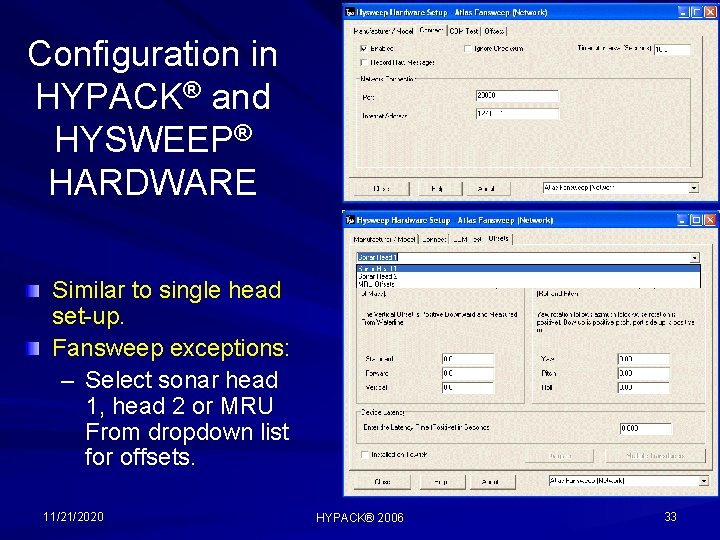
Configuration in HYPACK® and HYSWEEP® HARDWARE Similar to single head set-up. Fansweep exceptions: – Select sonar head 1, head 2 or MRU From dropdown list for offsets. 11/21/2020 HYPACK® 2006 33
- Slides: 32