
HyperV and Microsoft System Center Virtual Machine Manager

- Slides: 53
Hyper-V and Microsoft System Center Virtual Machine Manager 2008: Real World Tips, Tricks, and Best Practices Rand Morimoto President, Convergent Computing Author, “Hyper-V Unleashed” Session Code: VIR 302
Agenda Architecture and Planning Tips and Best Practices Security Lessons Learned Servercore Configuration Tips and Tricks Application High Availability and Disaster Recovery, a Better Approach than VMware V/Motion System Center Virtual Machine Manager 2008 Scalability and Best Practices Power. Shell in Hyper-V Optimization
What this Session is About Tips / Tricks / Best Practices / Lessons Learned from hundreds of implementations of Hyper-V and VMM/2008 Specific technical areas where Hyper-V and VMM/2008 can be configured to optimize operation and use Practical guidance across a number of topic areas as they relate to Hyper-V and VMM/2008 What this Session NOT is About Intro to Hyper-V or SC VMM/2008 Basic installation and configuration Product marketing or future roadmap
Architecture and Planning Tips and Best Practices
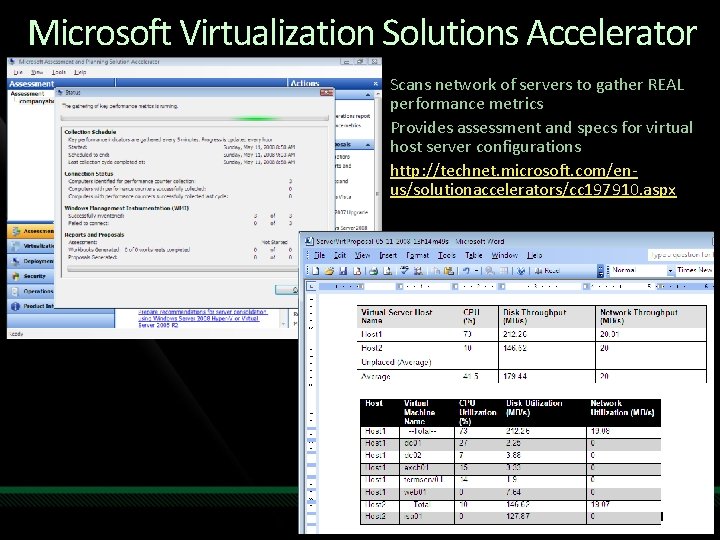
Microsoft Virtualization Solutions Accelerator Scans network of servers to gather REAL performance metrics Provides assessment and specs for virtual host server configurations http: //technet. microsoft. com/enus/solutionaccelerators/cc 197910. aspx
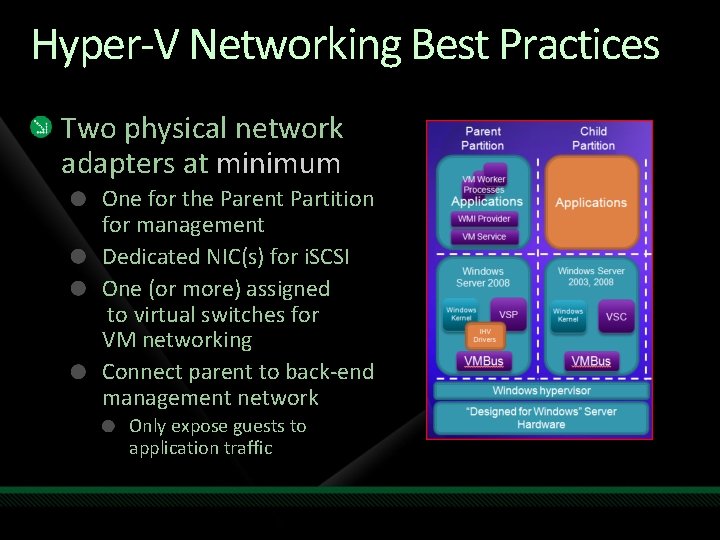
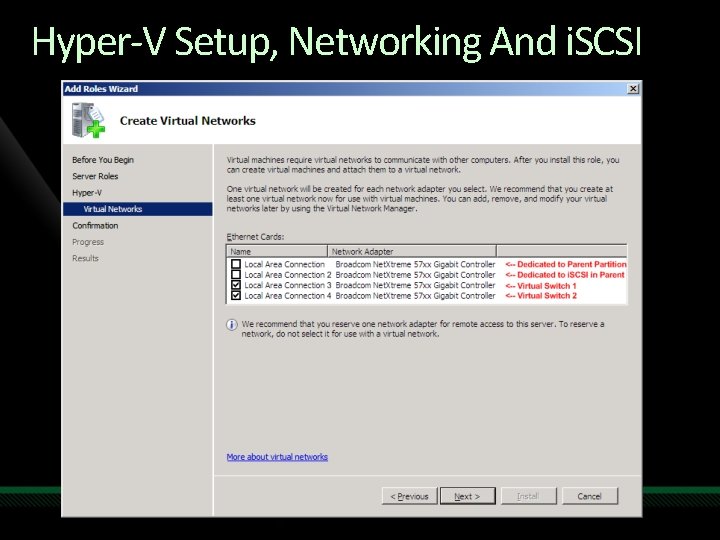
Hyper-V Networking Best Practices Two physical network adapters at minimum One for the Parent Partition for management Dedicated NIC(s) for i. SCSI One (or more) assigned to virtual switches for VM networking Connect parent to back-end management network Only expose guests to application traffic
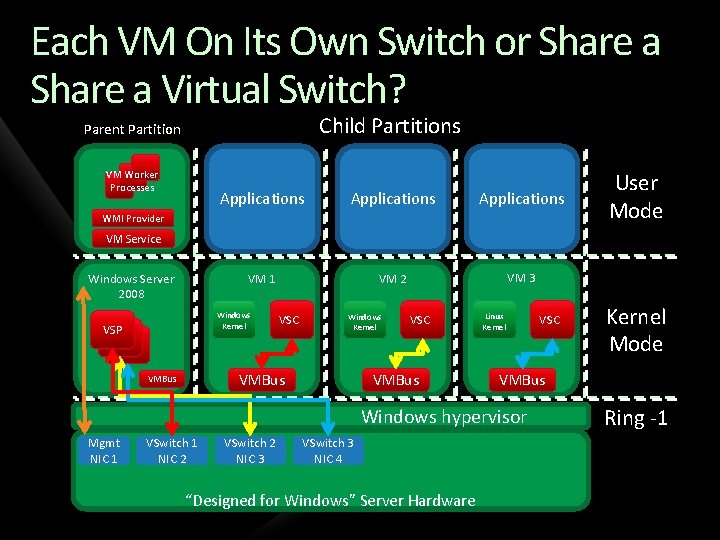
Each VM On Its Own Switch or Share a Virtual Switch? Child Partitions Parent Partition VM Worker Processes Applications VM 1 VM 2 VM 3 WMI Provider User Mode VM Service Windows Server 2008 Windows Kernel VSP VSP VSC Windows Kernel VMBus VSC VMBus Linux Kernel VSwitch 1 NIC 2 VSwitch 2 NIC 3 VSwitch 3 NIC 4 “Designed for Windows” Server Hardware Kernel Mode VMBus Windows hypervisor Mgmt NIC 1 VSC Ring -1
Hyper-V Setup, Networking And i. SCSI
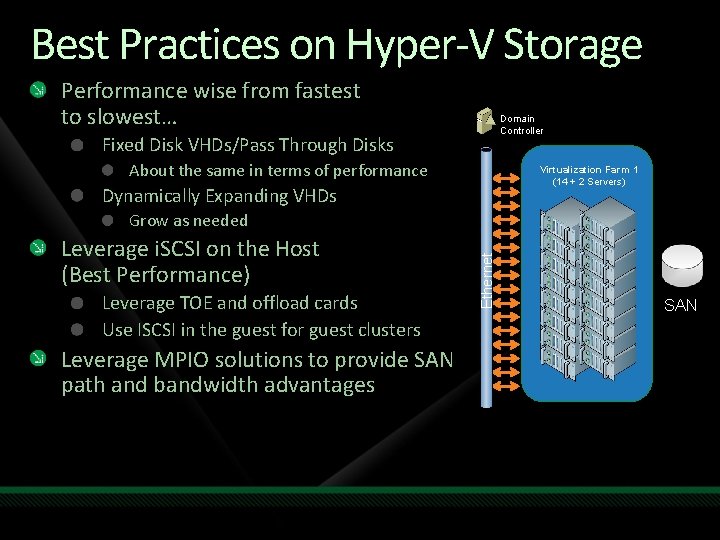
Best Practices on Hyper-V Storage Performance wise from fastest to slowest… Domain Controller Fixed Disk VHDs/Pass Through Disks About the same in terms of performance Virtualization Farm 1 (14 + 2 Servers) Dynamically Expanding VHDs Leverage i. SCSI on the Host (Best Performance) Leverage TOE and offload cards Use ISCSI in the guest for guest clusters Leverage MPIO solutions to provide SAN path and bandwidth advantages Ethernet Grow as needed SAN
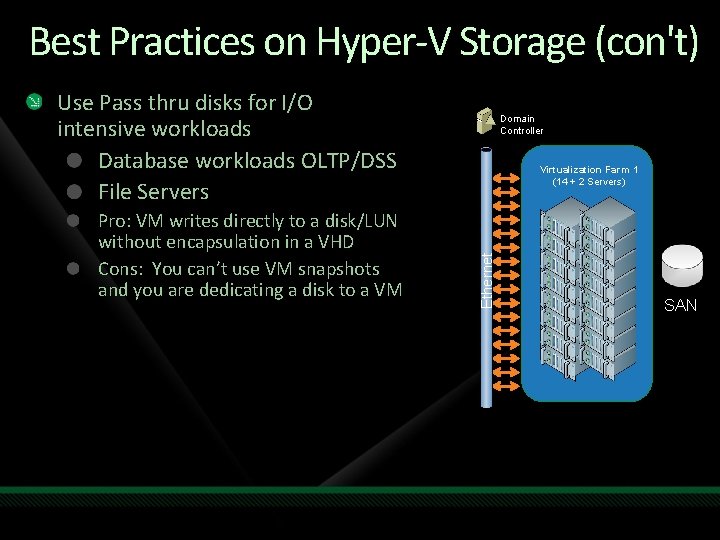
Best Practices on Hyper-V Storage (con't) Use Pass thru disks for I/O intensive workloads Database workloads OLTP/DSS File Servers Virtualization Farm 1 (14 + 2 Servers) Ethernet Pro: VM writes directly to a disk/LUN without encapsulation in a VHD Cons: You can’t use VM snapshots and you are dedicating a disk to a VM Domain Controller SAN
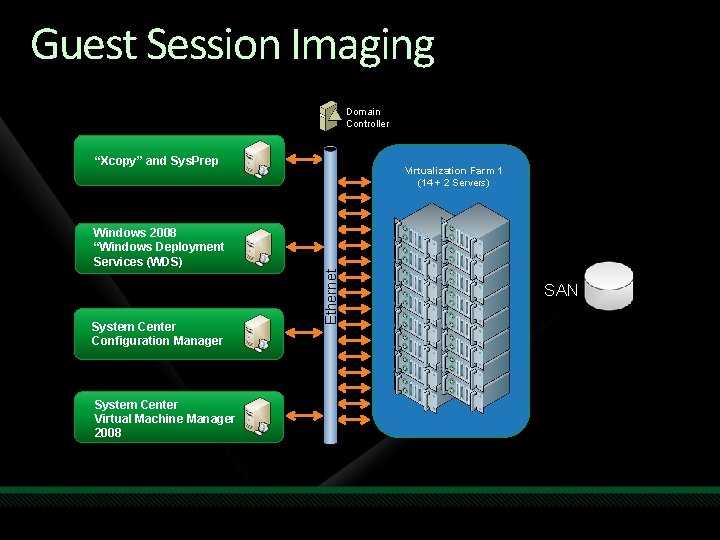
Guest Session Imaging Domain Controller “Xcopy” and Sys. Prep Virtualization Farm 1 (14 + 2 Servers) System Center Configuration Manager System Center Virtual Machine Manager 2008 Ethernet Windows 2008 “Windows Deployment Services (WDS) SAN
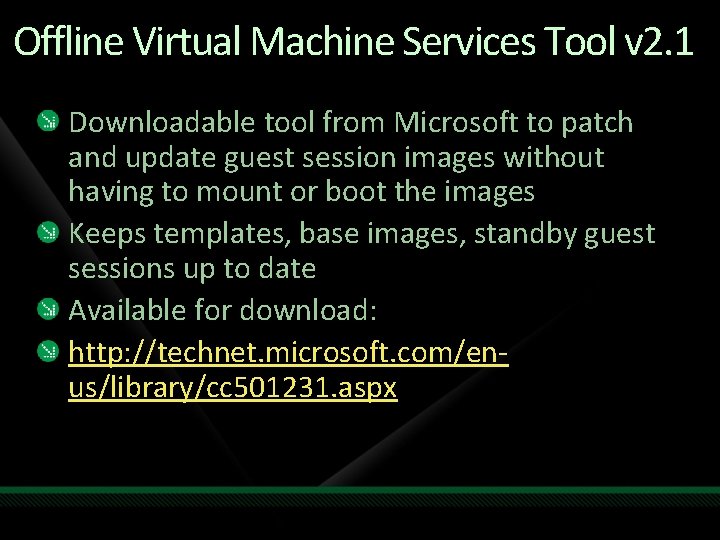
Offline Virtual Machine Services Tool v 2. 1 Downloadable tool from Microsoft to patch and update guest session images without having to mount or boot the images Keeps templates, base images, standby guest sessions up to date Available for download: http: //technet. microsoft. com/enus/library/cc 501231. aspx
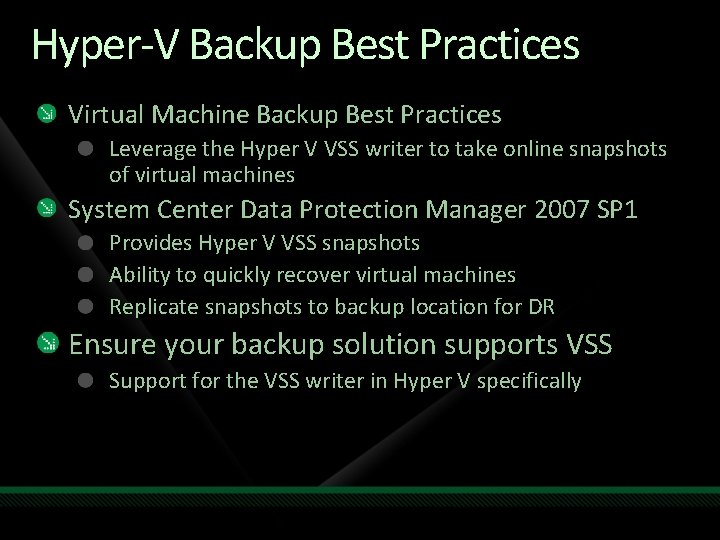
Hyper-V Backup Best Practices Virtual Machine Backup Best Practices Leverage the Hyper V VSS writer to take online snapshots of virtual machines System Center Data Protection Manager 2007 SP 1 Provides Hyper V VSS snapshots Ability to quickly recover virtual machines Replicate snapshots to backup location for DR Ensure your backup solution supports VSS Support for the VSS writer in Hyper V specifically
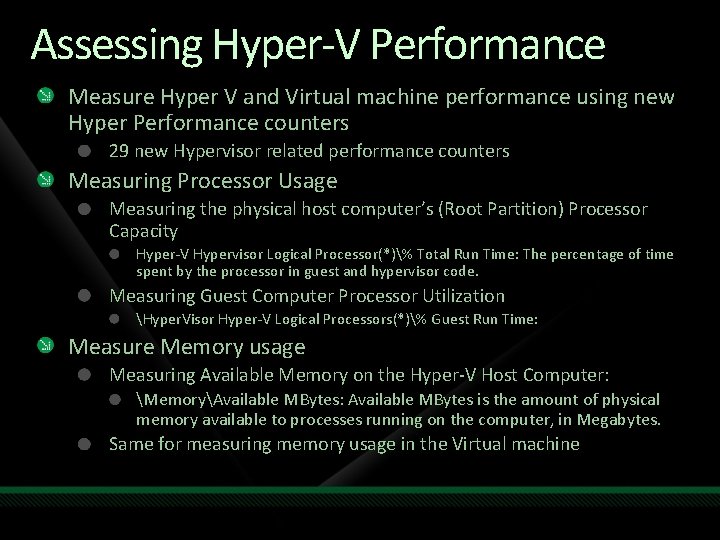
Assessing Hyper-V Performance Measure Hyper V and Virtual machine performance using new Hyper Performance counters 29 new Hypervisor related performance counters Measuring Processor Usage Measuring the physical host computer’s (Root Partition) Processor Capacity Hyper-V Hypervisor Logical Processor(*)% Total Run Time: The percentage of time spent by the processor in guest and hypervisor code. Measuring Guest Computer Processor Utilization Hyper. Visor Hyper-V Logical Processors(*)% Guest Run Time: Measure Memory usage Measuring Available Memory on the Hyper-V Host Computer: MemoryAvailable MBytes: Available MBytes is the amount of physical memory available to processes running on the computer, in Megabytes. Same for measuring memory usage in the Virtual machine
Security Lessons Learned
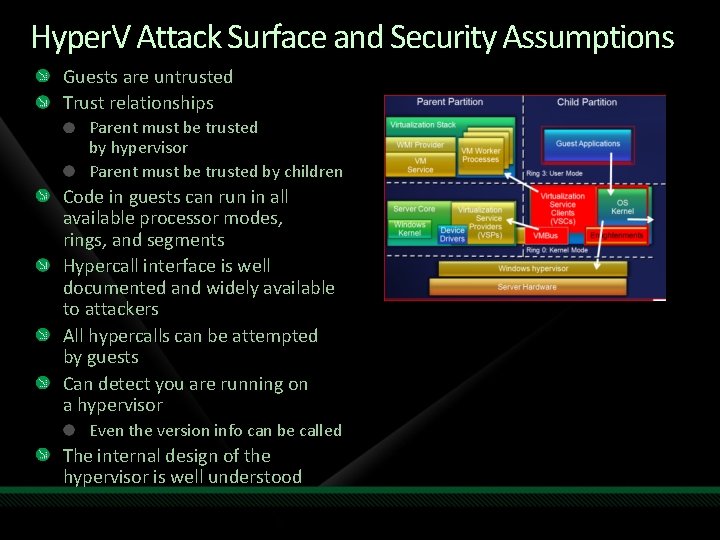
Hyper. V Attack Surface and Security Assumptions Guests are untrusted Trust relationships Parent must be trusted by hypervisor Parent must be trusted by children Code in guests can run in all available processor modes, rings, and segments Hypercall interface is well documented and widely available to attackers All hypercalls can be attempted by guests Can detect you are running on a hypervisor Even the version info can be called The internal design of the hypervisor is well understood
Security Out of the Box Isolation No sharing of virtualized devices Separate VMBus instance per vm to the parent No sharing of memory Each has its own address space VMs cannot communicate with each other, except through traditional networking Guests can’t perform DMA attacks because they’re never mapped to physical devices Guests cannot write to the hypervisor Parent partition cannot write to the hypervisor
Deployment Considerations Minimize risk to the Parent Partition Consider using Server Core Don’t run arbitrary apps, no web surfing Run your apps and services in guests Anti-Virus Parent partition Run AV software and exclude. vhd Child partitions Run AV software within each VM Server core Microsoft Fore. Front, Symantec 10. 2+, etc
Servercore Configuration Tips and Tricks
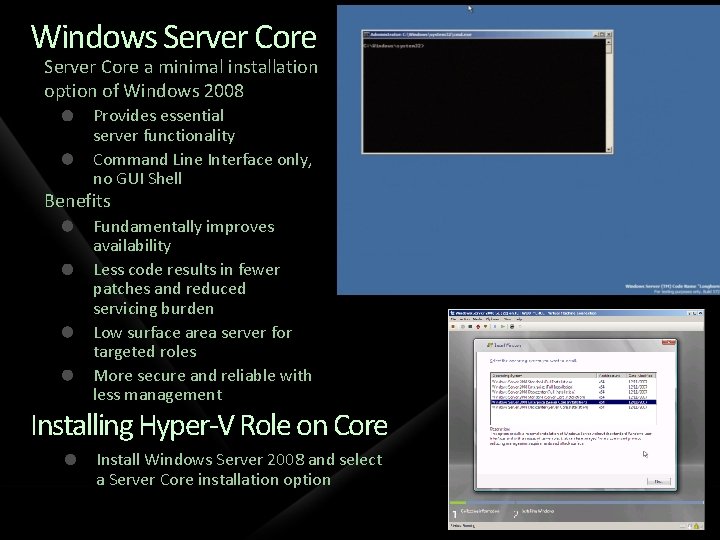
Windows Server Core a minimal installation option of Windows 2008 Provides essential server functionality Command Line Interface only, no GUI Shell Benefits Fundamentally improves availability Less code results in fewer patches and reduced servicing burden Low surface area server for targeted roles More secure and reliable with less management Installing Hyper-V Role on Core Install Windows Server 2008 and select a Server Core installation option
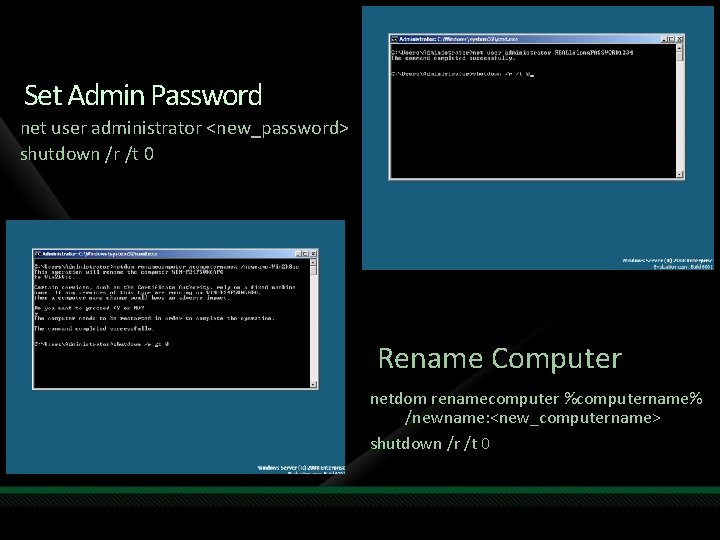
Set Admin Password net user administrator <new_password> shutdown /r /t 0 Rename Computer netdom renamecomputer %computername% /newname: <new_computername> shutdown /r /t 0
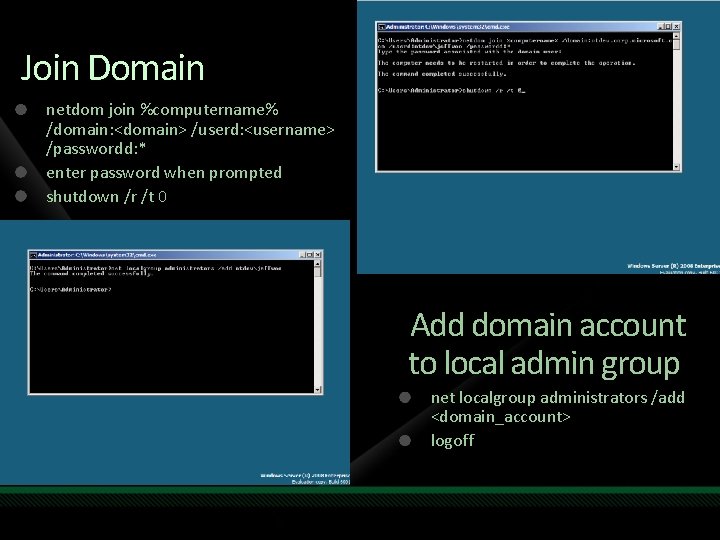
Join Domain netdom join %computername% /domain: <domain> /userd: <username> /passwordd: * enter password when prompted shutdown /r /t 0 Add domain account to local admin group net localgroup administrators /add <domain_account> logoff
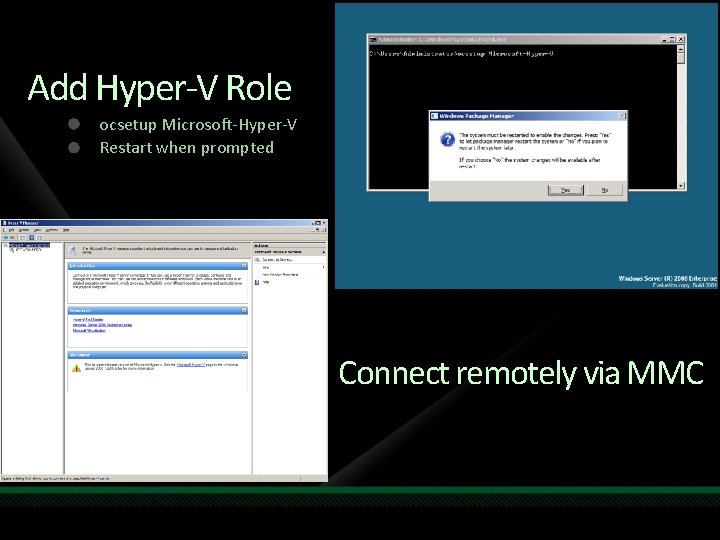
Add Hyper-V Role ocsetup Microsoft-Hyper-V Restart when prompted Connect remotely via MMC
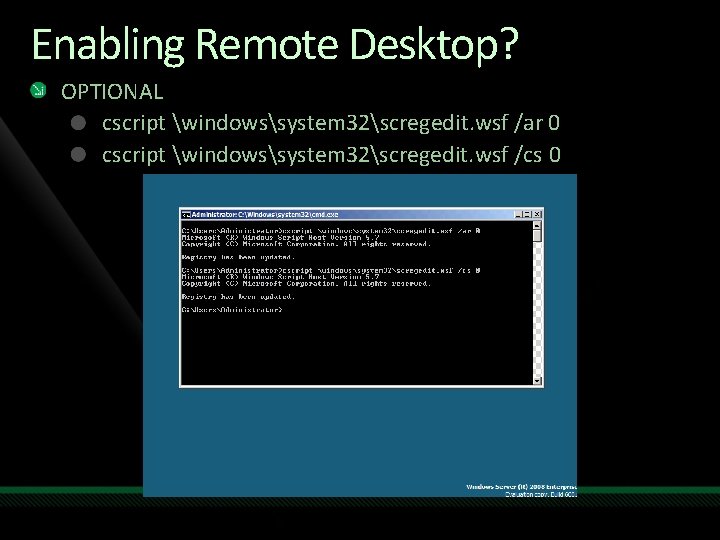
Enabling Remote Desktop? OPTIONAL cscript windowssystem 32scregedit. wsf /ar 0 cscript windowssystem 32scregedit. wsf /cs 0
Application High Availability and Disaster Recovery, a Better Approach than VMware V/Motion
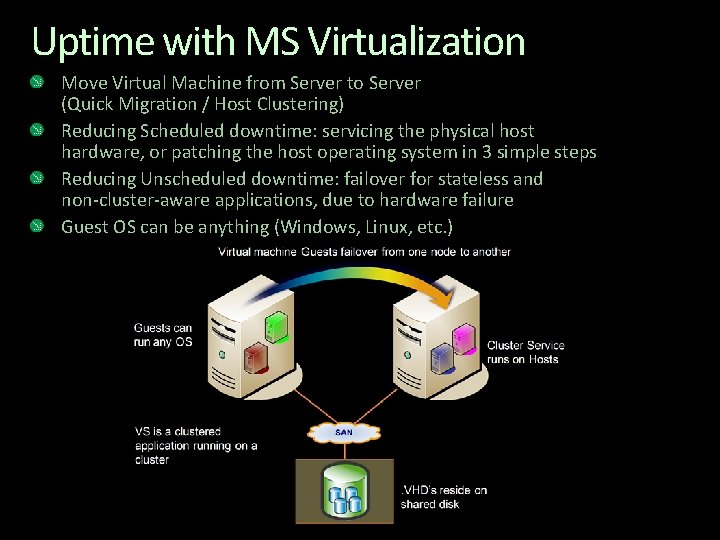
Uptime with MS Virtualization Move Virtual Machine from Server to Server (Quick Migration / Host Clustering) Reducing Scheduled downtime: servicing the physical host hardware, or patching the host operating system in 3 simple steps Reducing Unscheduled downtime: failover for stateless and non-cluster-aware applications, due to hardware failure Guest OS can be anything (Windows, Linux, etc. )
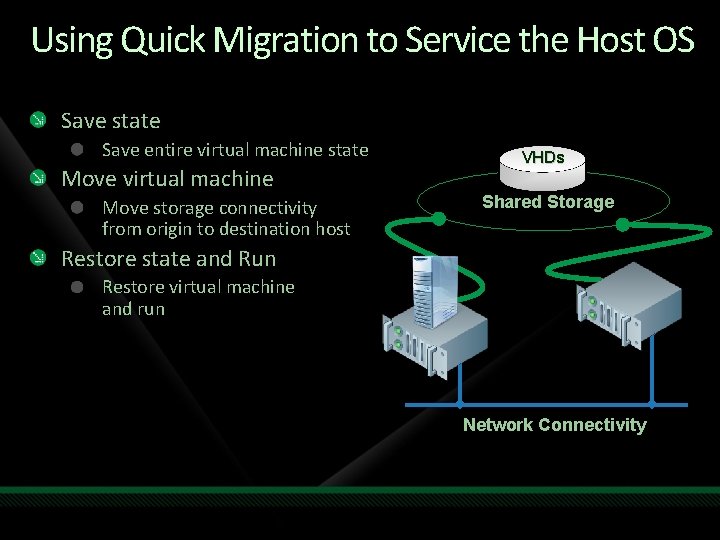
Using Quick Migration to Service the Host OS Save state Save entire virtual machine state Move virtual machine Move storage connectivity from origin to destination host VHDs Shared Storage Restore state and Run Restore virtual machine and run Network Connectivity
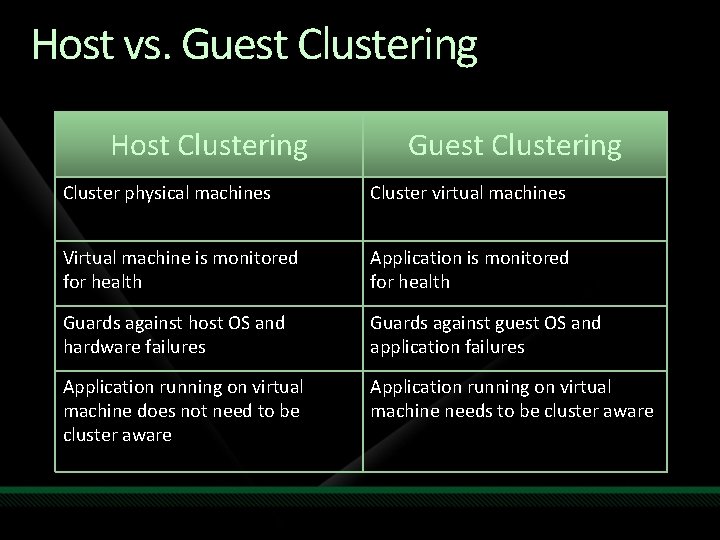
Host vs. Guest Clustering Host Clustering Guest Clustering Cluster physical machines Cluster virtual machines Virtual machine is monitored for health Application is monitored for health Guards against host OS and hardware failures Guards against guest OS and application failures Application running on virtual machine does not need to be cluster aware Application running on virtual machine needs to be cluster aware
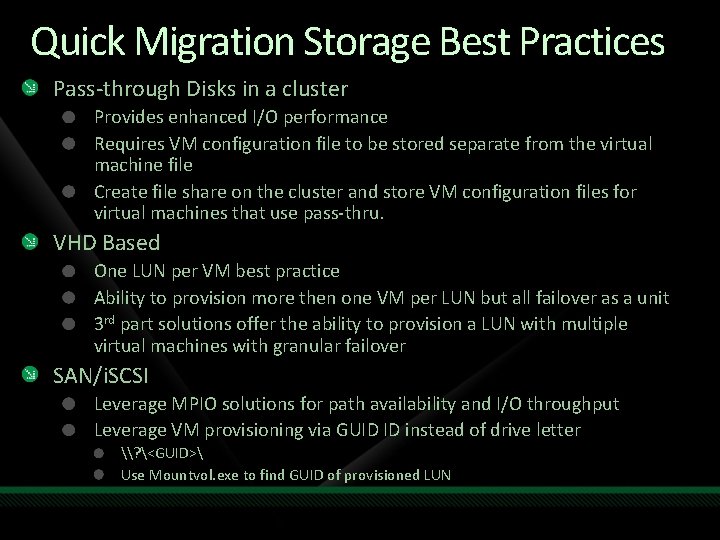
Quick Migration Storage Best Practices Pass-through Disks in a cluster Provides enhanced I/O performance Requires VM configuration file to be stored separate from the virtual machine file Create file share on the cluster and store VM configuration files for virtual machines that use pass-thru. VHD Based One LUN per VM best practice Ability to provision more then one VM per LUN but all failover as a unit 3 rd part solutions offer the ability to provision a LUN with multiple virtual machines with granular failover SAN/i. SCSI Leverage MPIO solutions for path availability and I/O throughput Leverage VM provisioning via GUID ID instead of drive letter \? <GUID> Use Mountvol. exe to find GUID of provisioned LUN
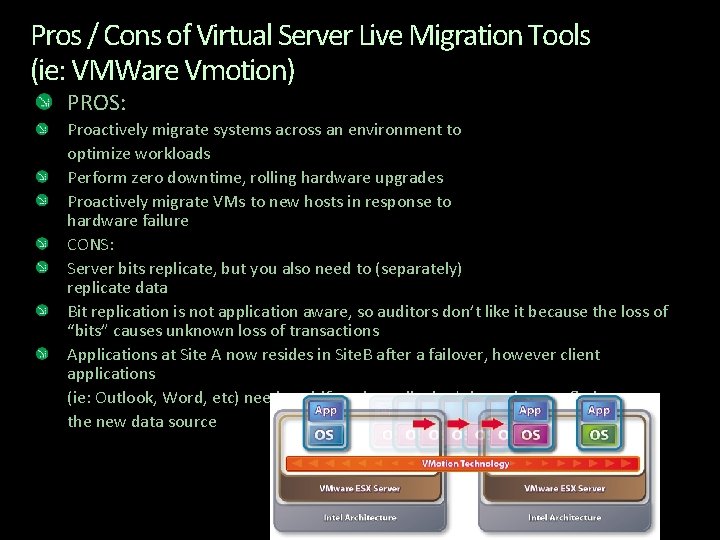
Pros / Cons of Virtual Server Live Migration Tools (ie: VMWare Vmotion) PROS: Proactively migrate systems across an environment to optimize workloads Perform zero downtime, rolling hardware upgrades Proactively migrate VMs to new hosts in response to hardware failure CONS: Server bits replicate, but you also need to (separately) replicate data Bit replication is not application aware, so auditors don’t like it because the loss of “bits” causes unknown loss of transactions Applications at Site A now resides in Site. B after a failover, however client applications (ie: Outlook, Word, etc) need to shift and usually don’t know how to find the new data source
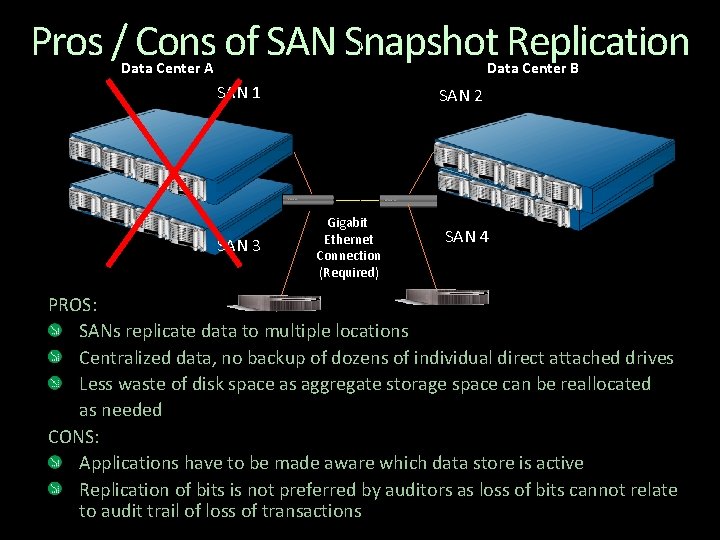
Pros / Cons of SAN Snapshot Replication Data Center A Data Center B SAN 1 SAN 3 SAN 2 Gigabit Ethernet Connection (Required) SAN 4 PROS: SANs replicate data to multiple locations Centralized data, no backup of dozens of individual direct attached drives Less waste of disk space as aggregate storage space can be reallocated as needed CONS: Applications have to be made aware which data store is active Replication of bits is not preferred by auditors as loss of bits cannot relate to audit trail of loss of transactions
Movement Toward Application Focused High Availability (HA) and Disaster Recovery (DR) Application aware failure is auditable and trackable Can do application aware failover with multiple virtual guest sessions, across virtual servers, or across a WAN Application aware failover now being built-in to applications out of the box Application aware failover frequently has client level failover options as well
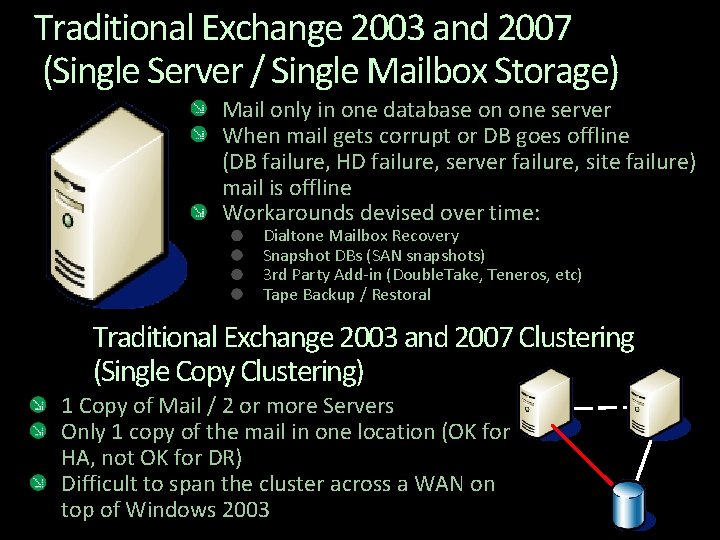
Traditional Exchange 2003 and 2007 (Single Server / Single Mailbox Storage) Mail only in one database on one server When mail gets corrupt or DB goes offline (DB failure, HD failure, server failure, site failure) mail is offline Workarounds devised over time: Dialtone Mailbox Recovery Snapshot DBs (SAN snapshots) 3 rd Party Add-in (Double. Take, Teneros, etc) Tape Backup / Restoral Traditional Exchange 2003 and 2007 Clustering (Single Copy Clustering) 1 Copy of Mail / 2 or more Servers Only 1 copy of the mail in one location (OK for HA, not OK for DR) Difficult to span the cluster across a WAN on top of Windows 2003
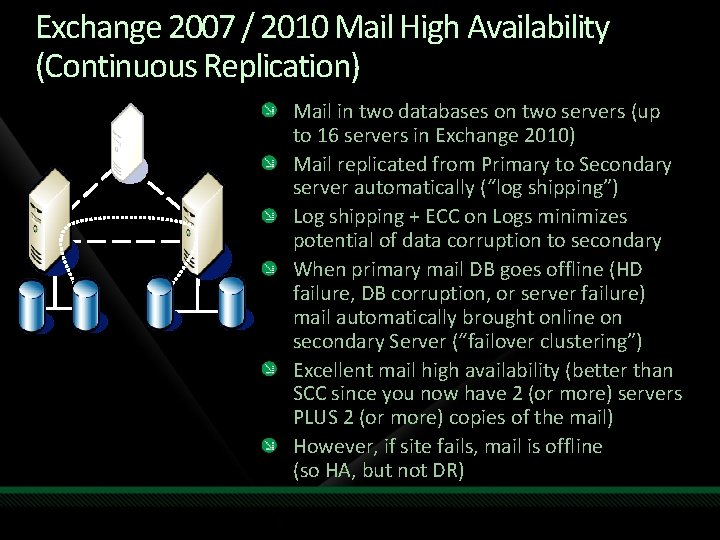
Exchange 2007 / 2010 Mail High Availability (Continuous Replication) Mail in two databases on two servers (up to 16 servers in Exchange 2010) Mail replicated from Primary to Secondary server automatically (“log shipping”) Log shipping + ECC on Logs minimizes potential of data corruption to secondary When primary mail DB goes offline (HD failure, DB corruption, or server failure) mail automatically brought online on secondary Server (“failover clustering”) Excellent mail high availability (better than SCC since you now have 2 (or more) servers PLUS 2 (or more) copies of the mail) However, if site fails, mail is offline (so HA, but not DR)
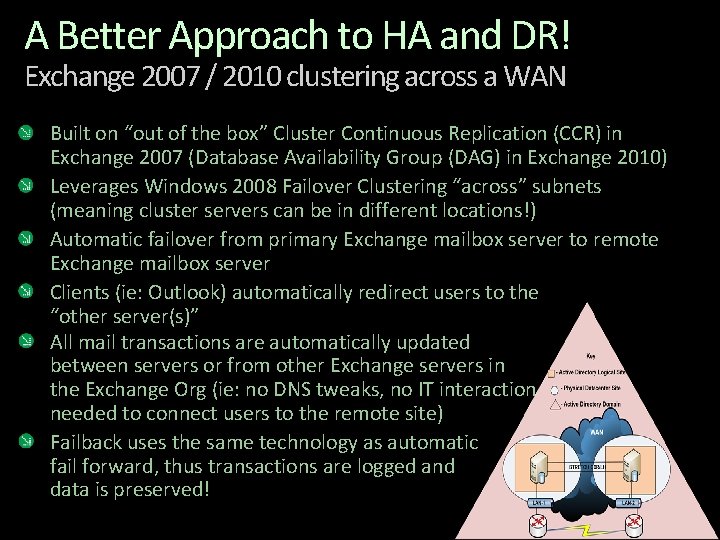
A Better Approach to HA and DR! Exchange 2007 / 2010 clustering across a WAN Built on “out of the box” Cluster Continuous Replication (CCR) in Exchange 2007 (Database Availability Group (DAG) in Exchange 2010) Leverages Windows 2008 Failover Clustering “across” subnets (meaning cluster servers can be in different locations!) Automatic failover from primary Exchange mailbox server to remote Exchange mailbox server Clients (ie: Outlook) automatically redirect users to the “other server(s)” All mail transactions are automatically updated between servers or from other Exchange servers in the Exchange Org (ie: no DNS tweaks, no IT interaction needed to connect users to the remote site) Failback uses the same technology as automatic fail forward, thus transactions are logged and data is preserved!
A Better Approach of HA and DR for SQL! SQL database mirroring Provides High Availability Support database by database Supported in SQL Server 2005 and SQL Server 2008 Standard Edition and Enterprise Editions Proximity is not a limitation (WAN bandwidth dependent) Supports three operating modes / configurations: High Availability – High Safety with Automatic Failover High Protection – High Safety without Automatic Failover High Performance – Commit Changes and then Transfer Principal Database handles user activity Mirror DB receives changes via secure TCP channel Server does NOT require a license if the server acts solely for redundancy Synchronous & Asynchronous Operation
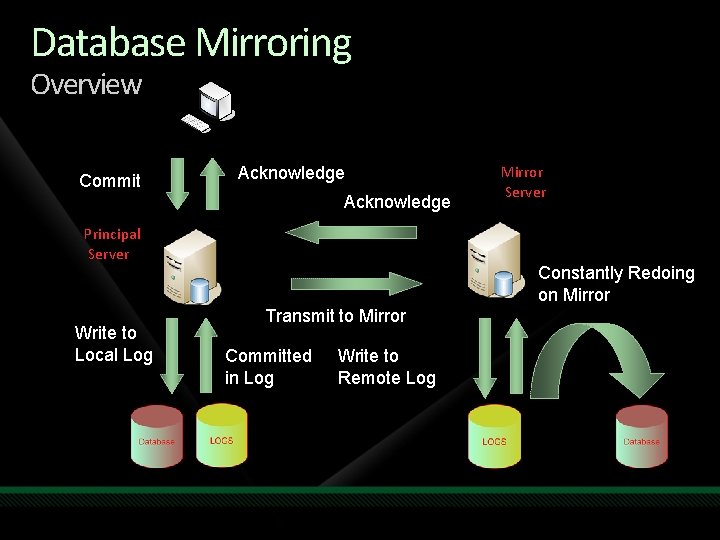
Database Mirroring Overview Commit Acknowledge Principal Server Write to Local Log Mirror Server Constantly Redoing on Mirror Transmit to Mirror Committed in Log Write to Remote Log
System Center Virtual Machine Manager 2008 Scalability and Best Practices
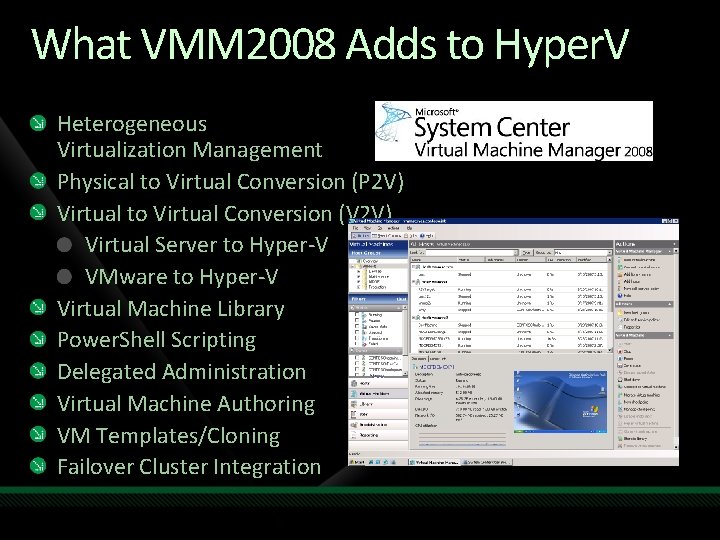
What VMM 2008 Adds to Hyper. V Heterogeneous Virtualization Management Physical to Virtual Conversion (P 2 V) Virtual to Virtual Conversion (V 2 V) Virtual Server to Hyper-V VMware to Hyper-V Virtual Machine Library Power. Shell Scripting Delegated Administration Virtual Machine Authoring VM Templates/Cloning Failover Cluster Integration
VMM 2008 Installation Requirements VMM 2008 Server requires Active Directory for security Can manage non-AD computers, but needs AD for installation Each VMM 2008 component can be separate servers or on a single server (demo/test) VMM 2008 can be run inside a VM Just be aware of the chicken & the egg issue (understand you will need Server Manager to start the VMM VM)
VMM 2008 Scalability Support 400 hosts 8000 virtual machines per VMM Server. Best practice VMM server per datacenter Split host management by location Create library servers close to hosts In branch offices load the library server on the VM host Assign to separate spindles for I/O Replication of library servers VMM does not provide a built in replication mechanism Leverage DFS-R 3 rd party replication tools (Doubletake)
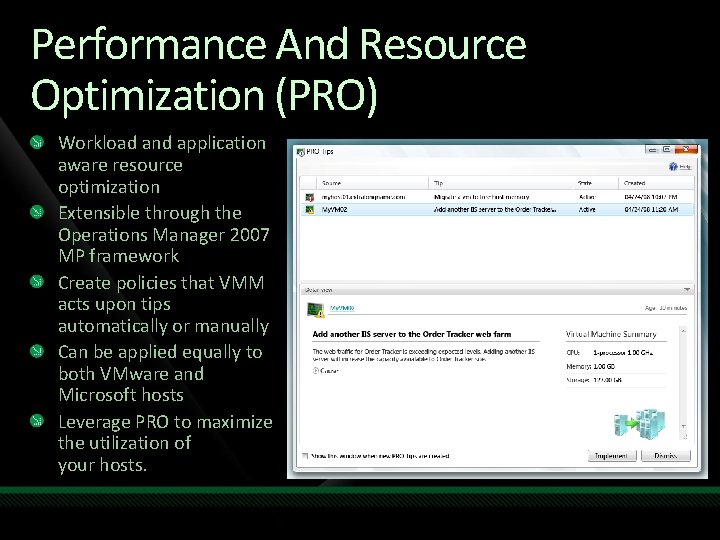
Performance And Resource Optimization (PRO) Workload and application aware resource optimization Extensible through the Operations Manager 2007 MP framework Create policies that VMM acts upon tips automatically or manually Can be applied equally to both VMware and Microsoft hosts Leverage PRO to maximize the utilization of your hosts.
Power. Shell in Hyper-V Optimization
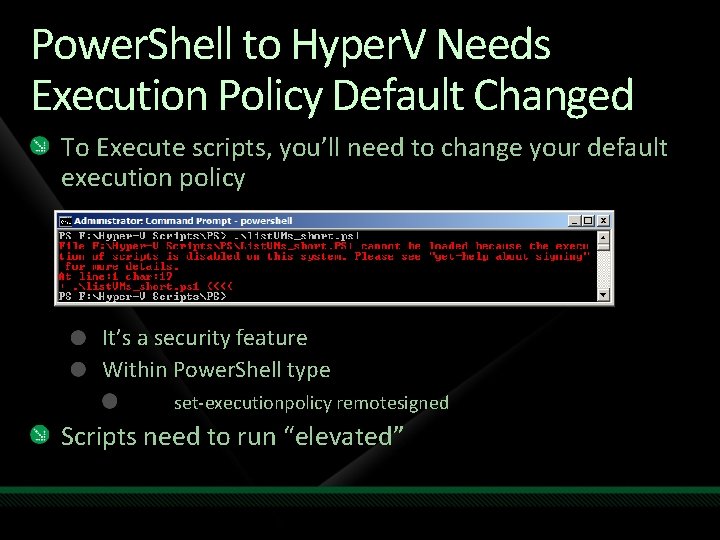
Power. Shell to Hyper. V Needs Execution Policy Default Changed To Execute scripts, you’ll need to change your default execution policy It’s a security feature Within Power. Shell type set-executionpolicy remotesigned Scripts need to run “elevated”
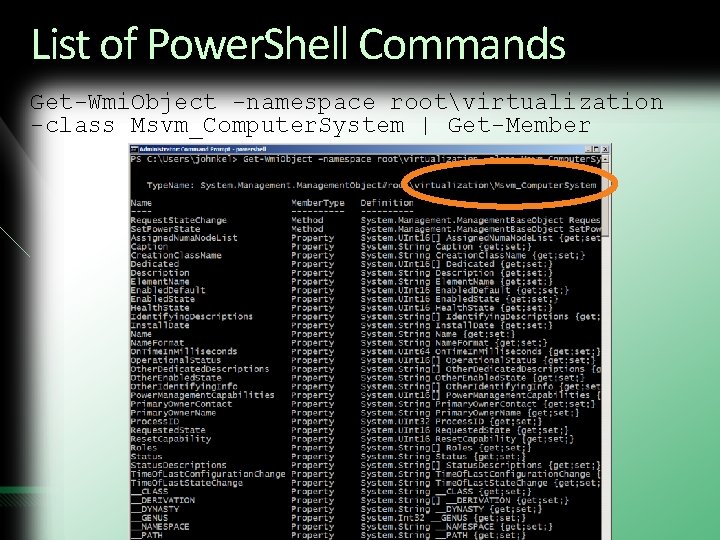
List of Power. Shell Commands Get-Wmi. Object -namespace rootvirtualization -class Msvm_Computer. System | Get-Member
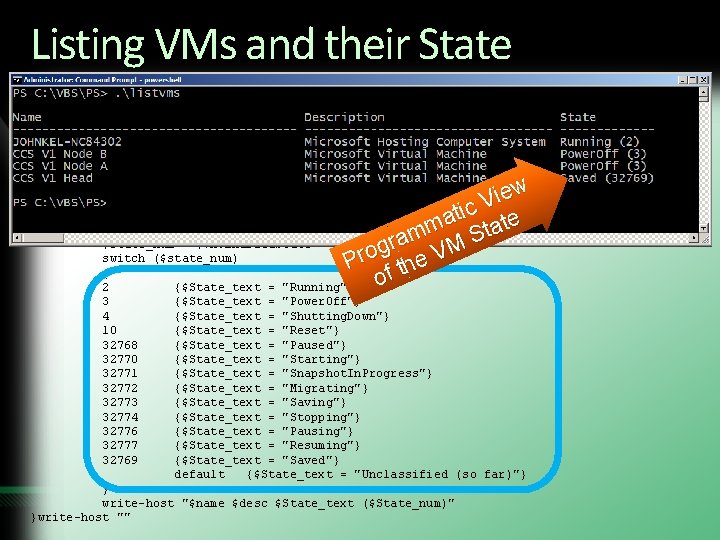
Listing VMs and their State $VMs = get-wmiobject -computername localhost -Namespace rootVirtualization -query "Select * from MSVM_Computersystem" write-host "Name Description State" write-host "-------------------- ------" foreach ($VM in $VMs) { $name = $VM. Elementname. Pad. Right(39, " ") $desc = $VM. Description. Pad. Right(34, " ") $state_num = $VM. Enabled. State switch ($state_num) { 2 {$State_text = "Running"} 3 {$State_text = "Power. Off"} 4 {$State_text = "Shutting. Down"} 10 {$State_text = "Reset"} 32768 {$State_text = "Paused"} 32770 {$State_text = "Starting"} 32771 {$State_text = "Snapshot. In. Progress"} 32772 {$State_text = "Migrating"} 32773 {$State_text = "Saving"} 32774 {$State_text = "Stopping"} 32776 {$State_text = "Pausing"} 32777 {$State_text = "Resuming"} 32769 {$State_text = "Saved"} default {$State_text = "Unclassified (so far)"} } write-host "$name $desc $State_text ($State_num)" }write-host "" w e i V c i t a e t m a t am M S r g Pro the V of
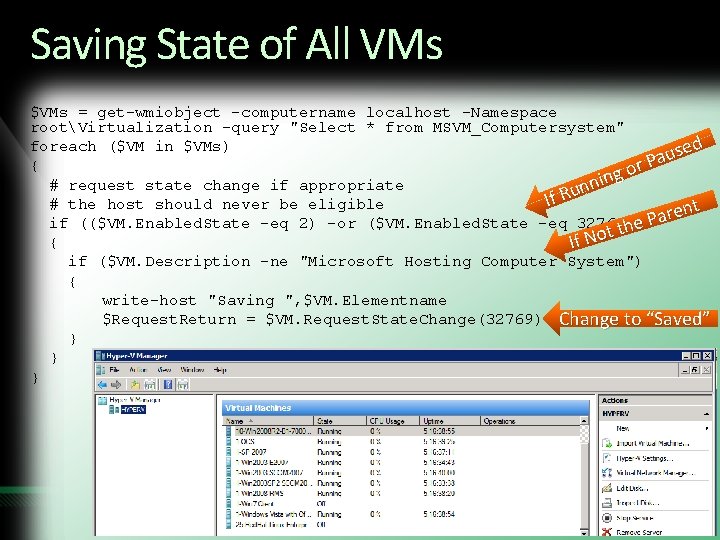
Saving State of All VMs $VMs = get-wmiobject -computername localhost -Namespace rootVirtualization -query "Select * from MSVM_Computersystem" d foreach ($VM in $VMs) e s u Pa { r o ing # request state change if appropriate n n If Ru # the host should never be eligible nt e r a if (($VM. Enabled. State -eq 2) -or ($VM. Enabled. State -eq 32768)) e. P h t t { If No if ($VM. Description -ne "Microsoft Hosting Computer System") { write-host "Saving ", $VM. Elementname $Request. Return = $VM. Request. State. Change(32769) Change to “Saved” } } }
question & answer
Resources www. microsoft. com/teched www. microsoft. com/learning Sessions On-Demand & Community Microsoft Certification & Training Resources http: //microsoft. com/technet http: //microsoft. com/msdn Resources for IT Professionals Resources for Developers www. microsoft. com/learning Microsoft Certification and Training Resources
Resources For more information on Microsoft Virtualization including: Whitepapers Product Downloads Case Studies ROI Calculators Solutions with Partners Visit: www. microsoft. com/virtualization Be sure to stop by the TLC area to speak with subject-matter-experts and see live product demos
Complete an evaluation on Comm. Net and enter to win!
© 2009 Microsoft Corporation. All rights reserved. Microsoft, Windows Vista and other product names are or may be registered trademarks and/or trademarks in the U. S. and/or other countries. The information herein is for informational purposes only and represents the current view of Microsoft Corporation as of the date of this presentation. Because Microsoft must respond to changing market conditions, it should not be interpreted to be a commitment on the part of Microsoft, and Microsoft cannot guarantee the accuracy of any information provided after the date of this presentation. MICROSOFT MAKES NO WARRANTIES, EXPRESS, IMPLIED OR STATUTORY, AS TO THE INFORMATION IN THIS PRESENTATION.