
Hyperlinks Mouse clicks to change what the browser
Hyperlinks Mouse clicks to change what the browser displays Types of Links • Link to the places in the same page • Link to pages within the same site • Link to the e-mail system – Caution: Will not work without a e-mail set up • Link to other sites – Caution: Check often for broken links
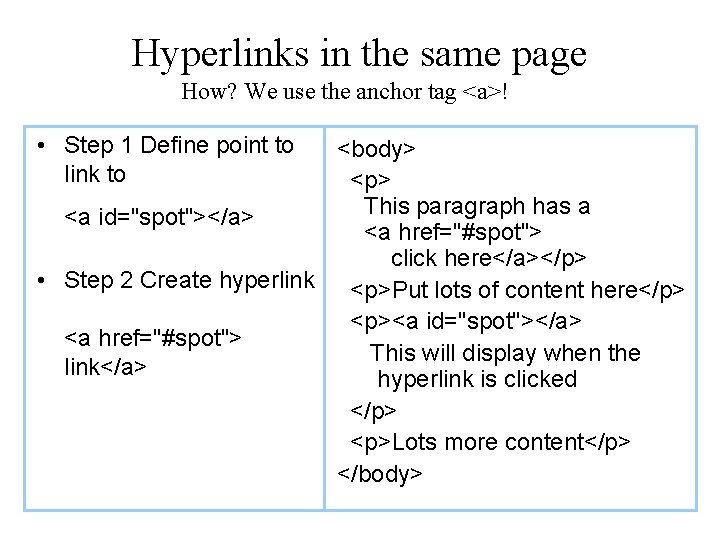
Hyperlinks in the same page How? We use the anchor tag <a>! • Step 1 Define point to link to <body> <p> This paragraph has a <a id="spot"></a> <a href="#spot"> click here</a></p> • Step 2 Create hyperlink <p>Put lots of content here</p> <p><a id="spot"></a> <a href="#spot"> This will display when the link</a> hyperlink is clicked </p> <p>Lots more content</p> </body>

Hyperlinks within the same Site • Link to pages in the same site – Example: link to a pages in a child folder <a href="page/intro. htm">Go to sub folder</a> – Example: link to a page in the parent folder <a href=". . /high. htm">Go to parent folder</a> – Example: link inside a page in the same folder <a href="site. htm#mars">) • Notes: – Page is a folder within the one that holds the HTML file – The characters ‘. . ’ Refers to the parent folder – site. htm must have a hyperlink using an id="mars" attribute
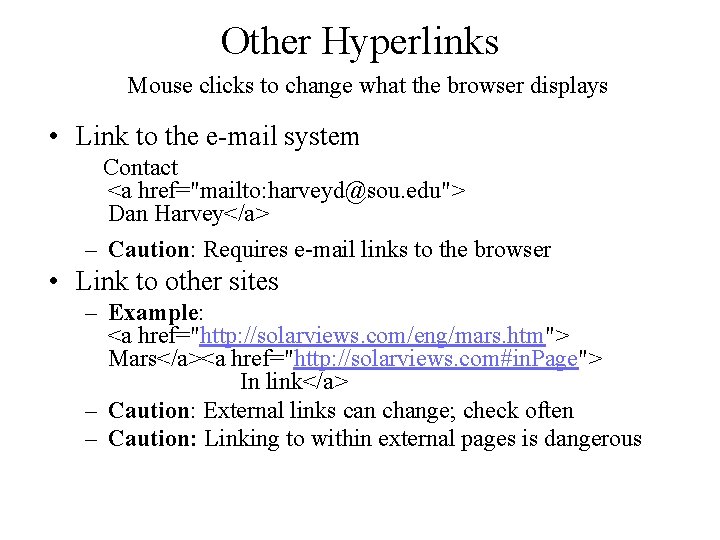
Other Hyperlinks Mouse clicks to change what the browser displays • Link to the e-mail system Contact <a href="mailto: harveyd@sou. edu"> Dan Harvey</a> – Caution: Requires e-mail links to the browser • Link to other sites – Example: <a href="http: //solarviews. com/eng/mars. htm"> Mars</a><a href="http: //solarviews. com#in. Page"> In link</a> – Caution: External links can change; check often – Caution: Linking to within external pages is dangerous
Displaying Pictures • Where do we get Pictures from – Digital photographs – Scanning drawings into the computer – Find clip art – Right click and download internet images – Make your own (Adobe, Photo Shop, Corel) • Which image formats should we use – See next slide
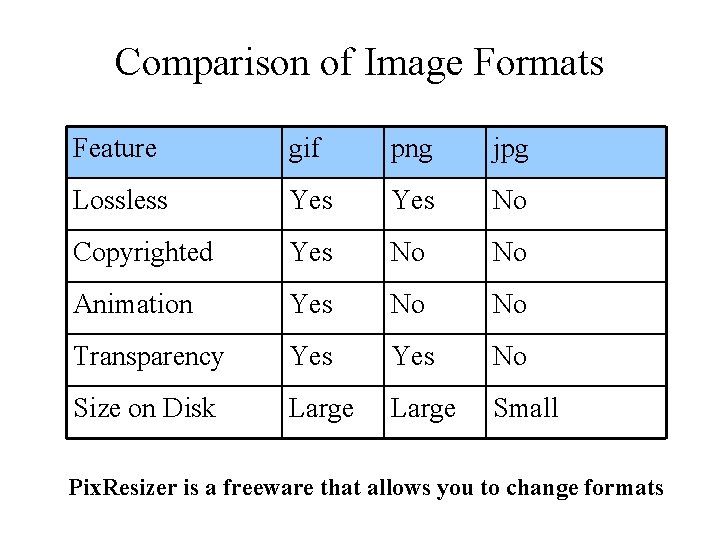
Comparison of Image Formats Feature gif png jpg Lossless Yes No Copyrighted Yes No No Animation Yes No No Transparency Yes No Size on Disk Large Small Pix. Resizer is a freeware that allows you to change formats
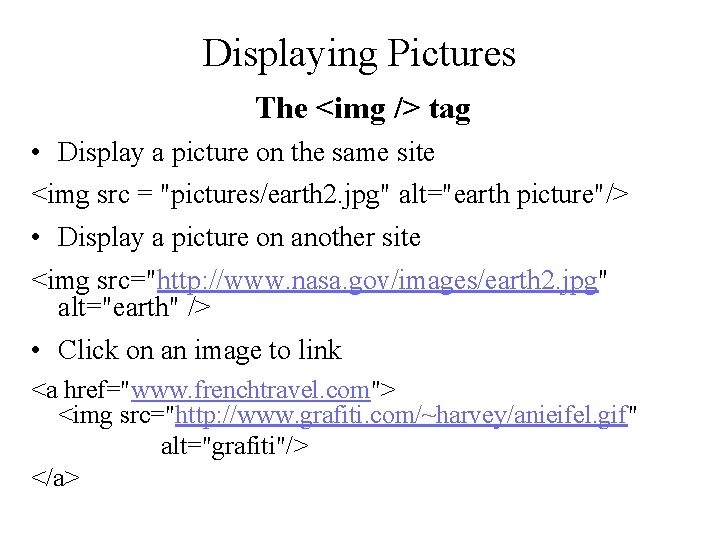
Displaying Pictures The <img /> tag • Display a picture on the same site <img src = "pictures/earth 2. jpg" alt="earth picture"/> • Display a picture on another site <img src="http: //www. nasa. gov/images/earth 2. jpg" alt="earth" /> • Click on an image to link <a href="www. frenchtravel. com"> <img src="http: //www. grafiti. com/~harvey/anieifel. gif" alt="grafiti"/> </a>
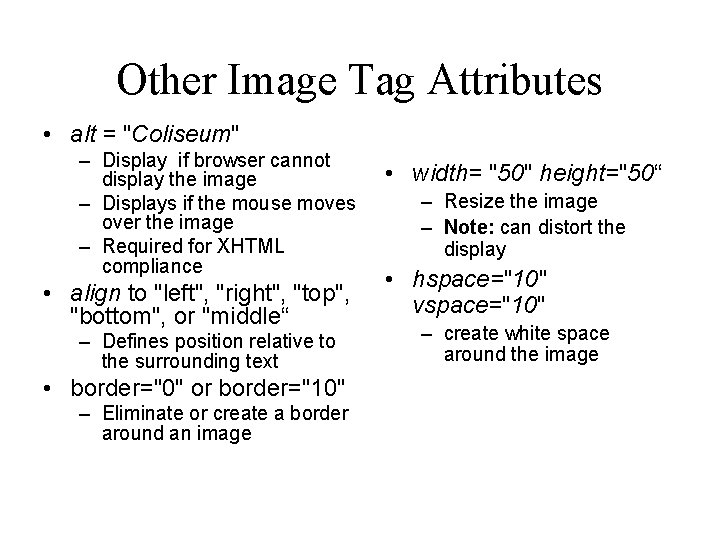
Other Image Tag Attributes • alt = "Coliseum" – Display if browser cannot display the image – Displays if the mouse moves over the image – Required for XHTML compliance • align to "left", "right", "top", "bottom", or "middle“ – Defines position relative to the surrounding text • border="0" or border="10" – Eliminate or create a border around an image • width= "50" height="50“ – Resize the image – Note: can distort the display • hspace="10" vspace="10" – create white space around the image
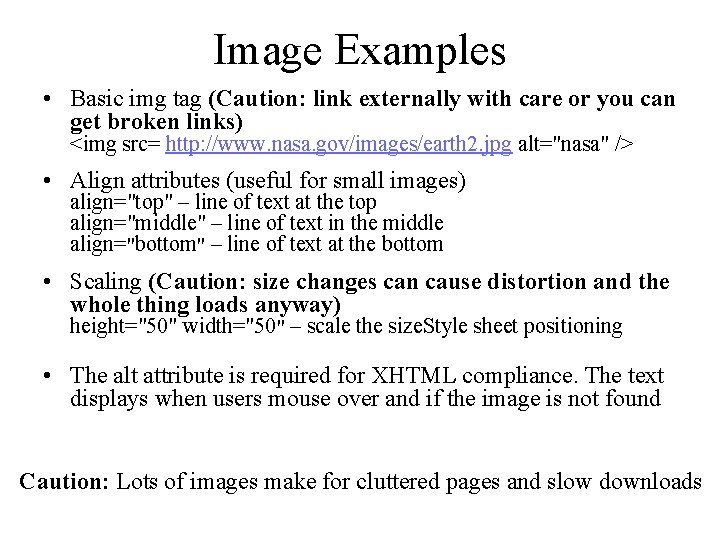
Image Examples • Basic img tag (Caution: link externally with care or you can get broken links) <img src= http: //www. nasa. gov/images/earth 2. jpg alt="nasa" /> • Align attributes (useful for small images) align="top" – line of text at the top align="middle" – line of text in the middle align="bottom" – line of text at the bottom • Scaling (Caution: size changes can cause distortion and the whole thing loads anyway) height="50" width="50" – scale the size. Style sheet positioning • The alt attribute is required for XHTML compliance. The text displays when users mouse over and if the image is not found Caution: Lots of images make for cluttered pages and slow downloads
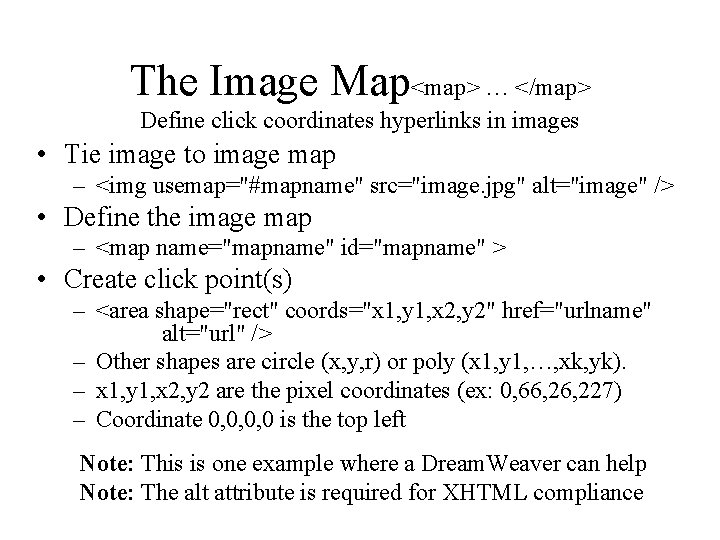
The Image Map<map> … </map> Define click coordinates hyperlinks in images • Tie image to image map – <img usemap="#mapname" src="image. jpg" alt="image" /> • Define the image map – <map name="mapname" id="mapname" > • Create click point(s) – <area shape="rect" coords="x 1, y 1, x 2, y 2" href="urlname" alt="url" /> – Other shapes are circle (x, y, r) or poly (x 1, y 1, …, xk, yk). – x 1, y 1, x 2, y 2 are the pixel coordinates (ex: 0, 66, 227) – Coordinate 0, 0, 0, 0 is the top left Note: This is one example where a Dream. Weaver can help Note: The alt attribute is required for XHTML compliance
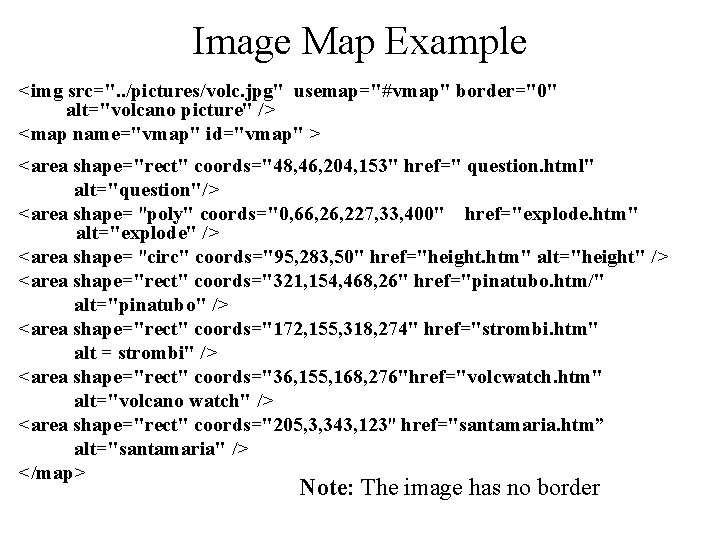
Image Map Example <img src=". . /pictures/volc. jpg" usemap="#vmap" border="0" alt="volcano picture" /> <map name="vmap" id="vmap" > <area shape="rect" coords="48, 46, 204, 153" href=" question. html" alt="question"/> <area shape= "poly" coords="0, 66, 227, 33, 400" href="explode. htm" alt="explode" /> <area shape= "circ" coords="95, 283, 50" href="height. htm" alt="height" /> <area shape="rect" coords="321, 154, 468, 26" href="pinatubo. htm/" alt="pinatubo" /> <area shape="rect" coords="172, 155, 318, 274" href="strombi. htm" alt = strombi" /> <area shape="rect" coords="36, 155, 168, 276"href="volcwatch. htm" alt="volcano watch" /> <area shape="rect" coords="205, 3, 343, 123" href="santamaria. htm” alt="santamaria" /> </map> Note: The image has no border
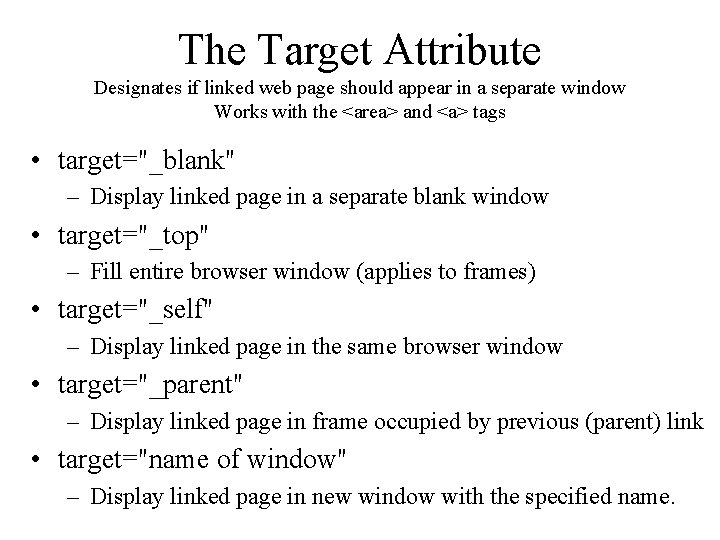
The Target Attribute Designates if linked web page should appear in a separate window Works with the <area> and <a> tags • target="_blank" – Display linked page in a separate blank window • target="_top" – Fill entire browser window (applies to frames) • target="_self" – Display linked page in the same browser window • target="_parent" – Display linked page in frame occupied by previous (parent) link • target="name of window" – Display linked page in new window with the specified name.
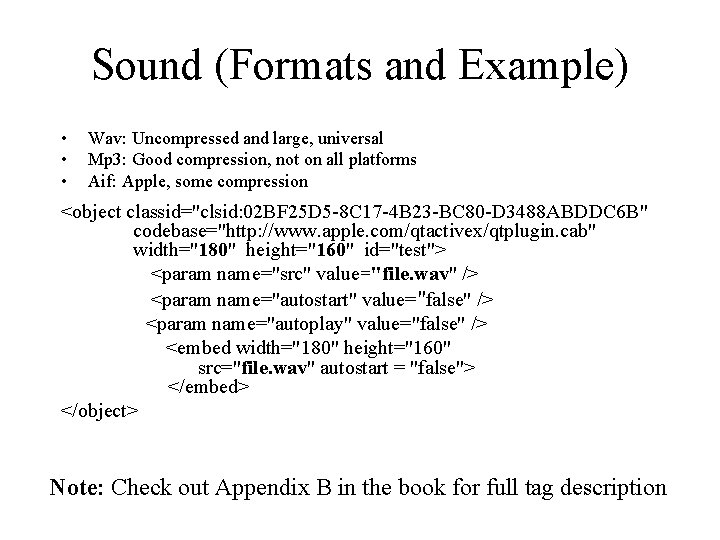
Sound (Formats and Example) • • • Wav: Uncompressed and large, universal Mp 3: Good compression, not on all platforms Aif: Apple, some compression <object classid="clsid: 02 BF 25 D 5 -8 C 17 -4 B 23 -BC 80 -D 3488 ABDDC 6 B" codebase="http: //www. apple. com/qtactivex/qtplugin. cab" width="180" height="160" id="test"> <param name="src" value="file. wav" /> <param name="autostart" value="false" /> <param name="autoplay" value="false" /> <embed width="180" height="160" src="file. wav" autostart = "false"> </embed> </object> Note: Check out Appendix B in the book for full tag description
Movies (Formats and Example) • Mpeg (Motion Pictures Expert Group) – Best compression, Proprietary, Not on all platforms • Avi (Audio Video Interleave by Microsoft) – Hi compression possible, some files don’t use it • Mov (developed by apple) – Largest user base with cross platform support <object classid="clsid: 02 BF 25 D 5 -8 C 17 -4 B 23 -BC 80 D 3488 ABDDC 6 B" width="160" height="144" codebase="http: //www. apple. com/qtactivex/qtplugin. cab"> <param name="src" value="sample. mov" /> <param name="autoplay" value="false" /> <param name="controller" value="true" /> <embed src="sample. mov" width="160" height="144" autoplay= "false" controller="true" loop="false" pluginspage="http: //www. apple. com/quicktime/download/"> </embed></object>
Some Review Questions • Browsers can play audio using a standard hyperlink. Why is it better to use the object tag? • Why is it a good idea to include both an <object> and <embed> tag when linking to multimedia audio and video? • What is an image map? How do you link an image to an image map? How do you set up an image map? • What are the uses and values of the target attribute? What tags make use of the target attribute? • How would you create an image in a web-page with text rolling around both the left and right sides? • What are the primary image formats? What are the advantages and disadvantages of each? • Why is it dangerous to link to external images? • How do you hyperlink to the middle of a page? How do you create an e-mail hyperlink? • What attributes are required for the img and area tags.
- Slides: 15