
Hummingbird Robotics Project December 2019 Mission 1 Use
Hummingbird Robotics Project December 2019
Mission 1. Use the Hummingbird robotics kit and cardboard/craft materials to build a robot and control its functions. 2. Each robot must include five LEDs into its design.

Bring them together for the finished product! Use the Hummingbird kit to create a code to control the LEDs and light sensor Use cardboard and craft materials to build a robot
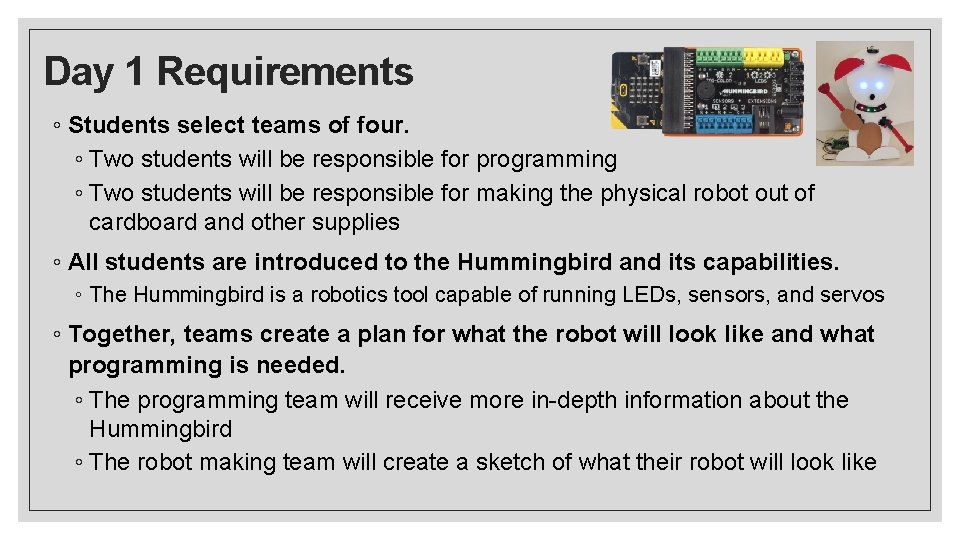
Day 1 Requirements ◦ Students select teams of four. ◦ Two students will be responsible for programming ◦ Two students will be responsible for making the physical robot out of cardboard and other supplies ◦ All students are introduced to the Hummingbird and its capabilities. ◦ The Hummingbird is a robotics tool capable of running LEDs, sensors, and servos ◦ Together, teams create a plan for what the robot will look like and what programming is needed. ◦ The programming team will receive more in-depth information about the Hummingbird ◦ The robot making team will create a sketch of what their robot will look like
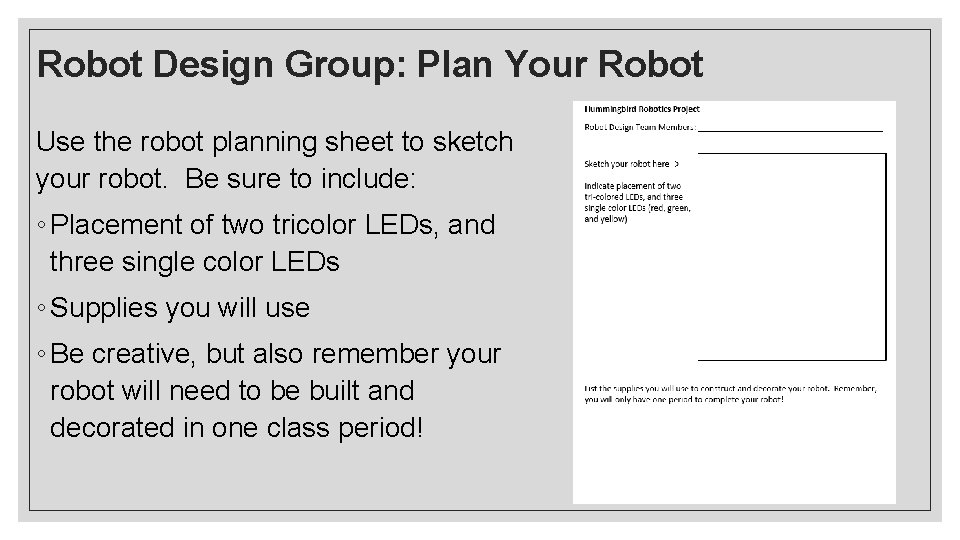
Robot Design Group: Plan Your Robot Use the robot planning sheet to sketch your robot. Be sure to include: ◦ Placement of two tricolor LEDs, and three single color LEDs ◦ Supplies you will use ◦ Be creative, but also remember your robot will need to be built and decorated in one class period!
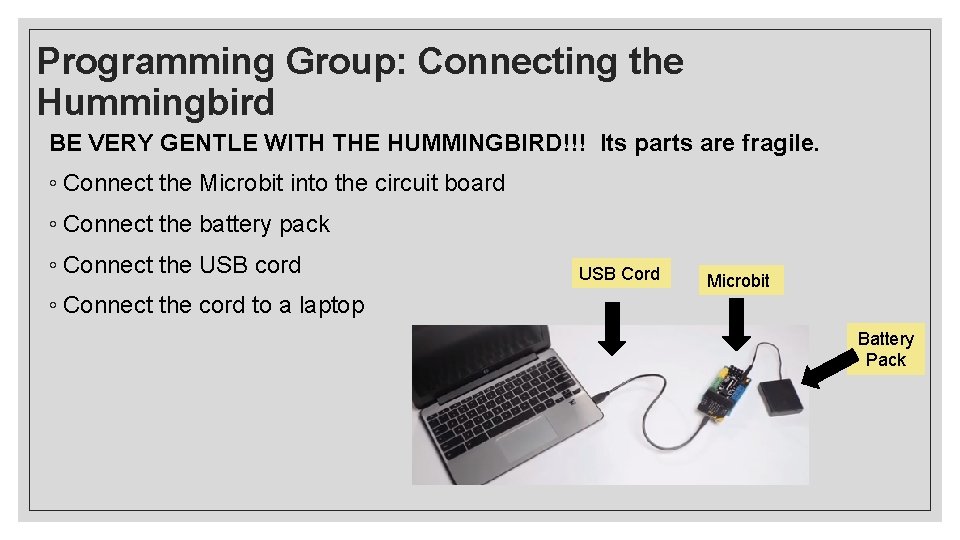
Programming Group: Connecting the Hummingbird BE VERY GENTLE WITH THE HUMMINGBIRD!!! Its parts are fragile. ◦ Connect the Microbit into the circuit board ◦ Connect the battery pack ◦ Connect the USB cord USB Cord Microbit ◦ Connect the cord to a laptop Battery Pack
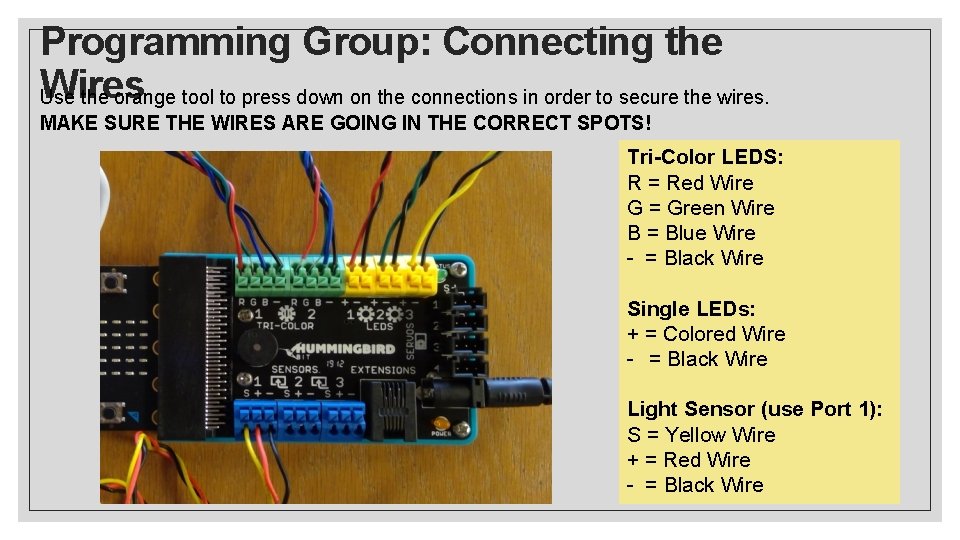
Programming Group: Connecting the Wires Use the orange tool to press down on the connections in order to secure the wires. MAKE SURE THE WIRES ARE GOING IN THE CORRECT SPOTS! Tri-Color LEDS: R = Red Wire G = Green Wire B = Blue Wire - = Black Wire Single LEDs: + = Colored Wire - = Black Wire Light Sensor (use Port 1): S = Yellow Wire + = Red Wire - = Black Wire
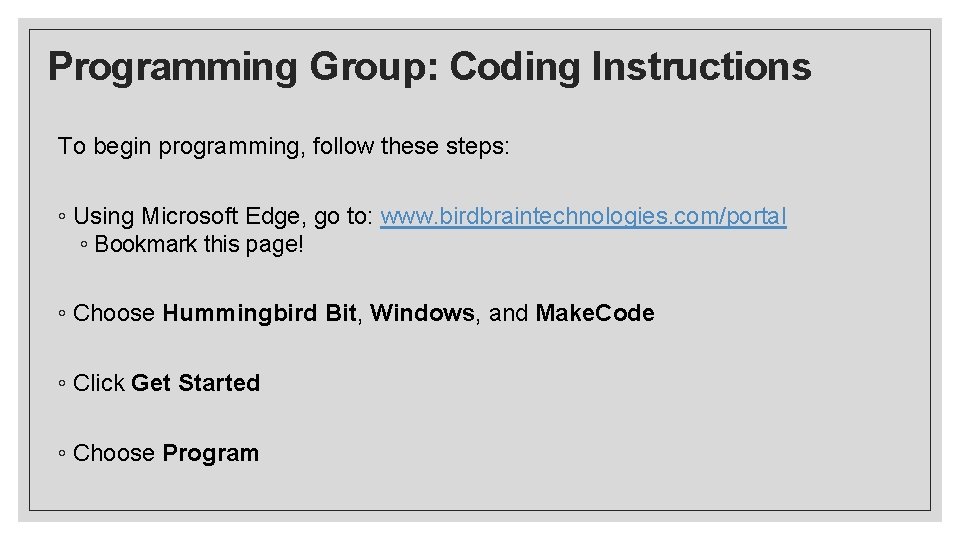
Programming Group: Coding Instructions To begin programming, follow these steps: ◦ Using Microsoft Edge, go to: www. birdbraintechnologies. com/portal ◦ Bookmark this page! ◦ Choose Hummingbird Bit, Windows, and Make. Code ◦ Click Get Started ◦ Choose Program
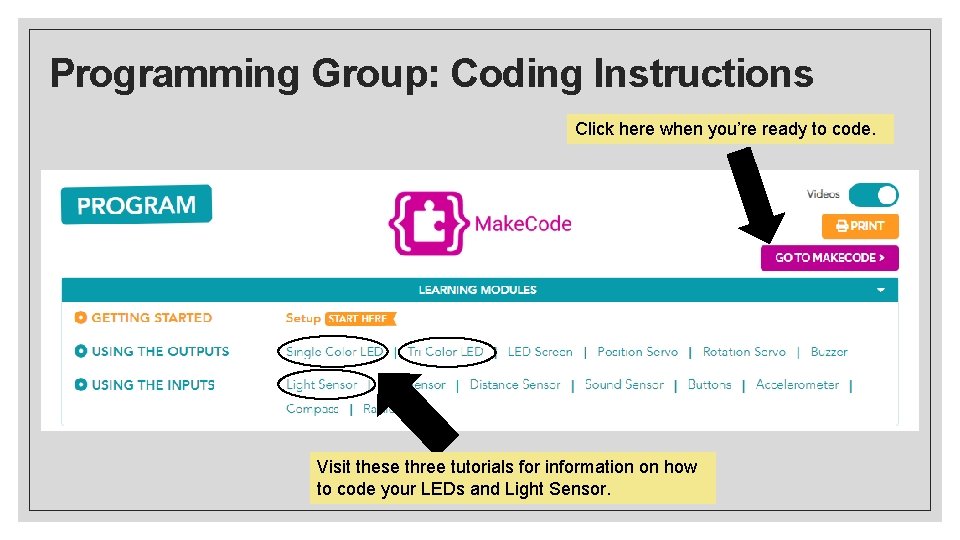
Programming Group: Coding Instructions Click here when you’re ready to code. Visit these three tutorials for information on how to code your LEDs and Light Sensor.
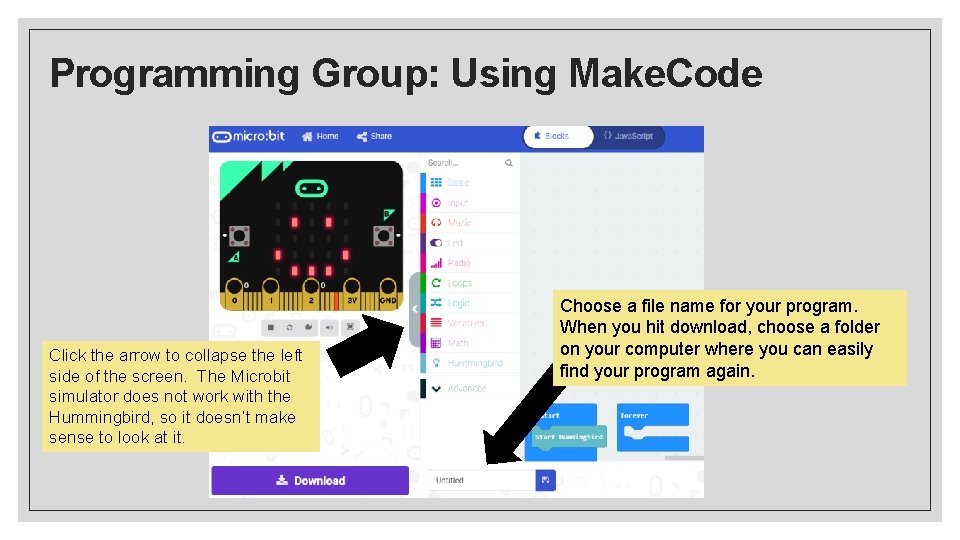
Programming Group: Using Make. Code Click the arrow to collapse the left side of the screen. The Microbit simulator does not work with the Hummingbird, so it doesn’t make sense to look at it. Choose a file name for your program. When you hit download, choose a folder on your computer where you can easily find your program again.
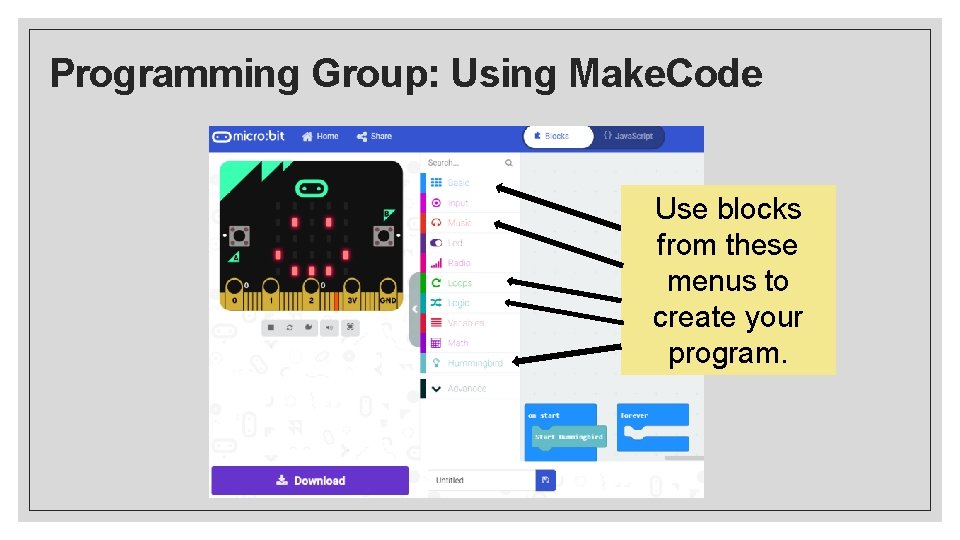
Programming Group: Using Make. Code Use blocks from these menus to create your program.
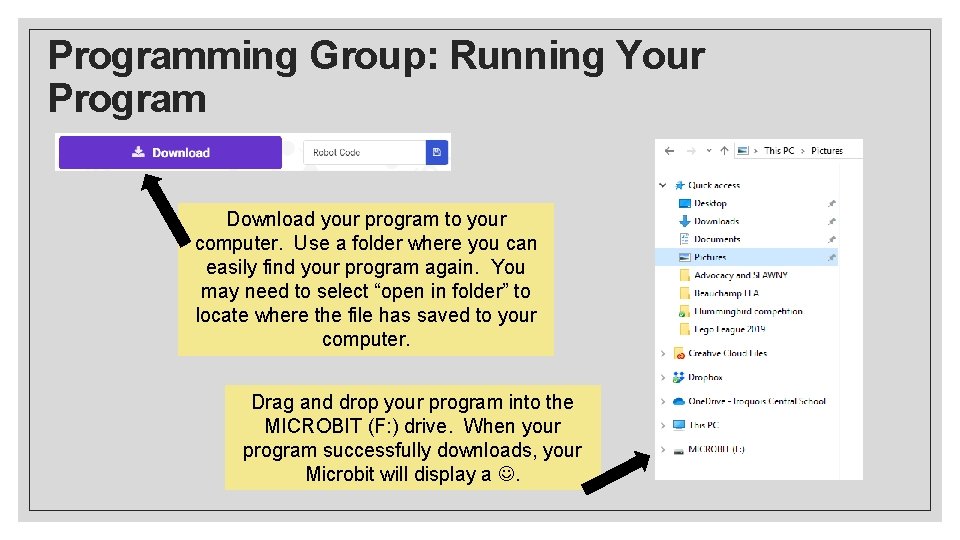
Programming Group: Running Your Program Download your program to your computer. Use a folder where you can easily find your program again. You may need to select “open in folder” to locate where the file has saved to your computer. Drag and drop your program into the MICROBIT (F: ) drive. When your program successfully downloads, your Microbit will display a .
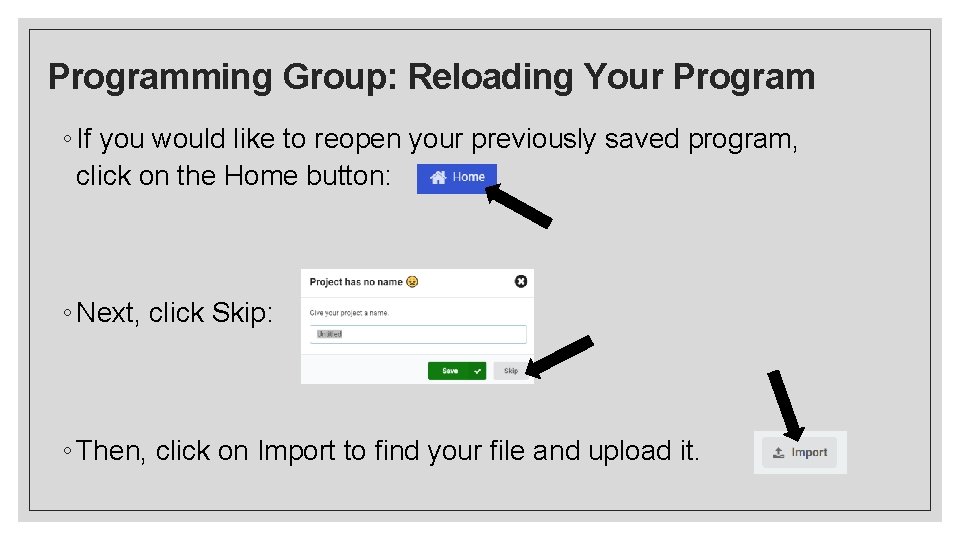
Programming Group: Reloading Your Program ◦ If you would like to reopen your previously saved program, click on the Home button: ◦ Next, click Skip: ◦ Then, click on Import to find your file and upload it.
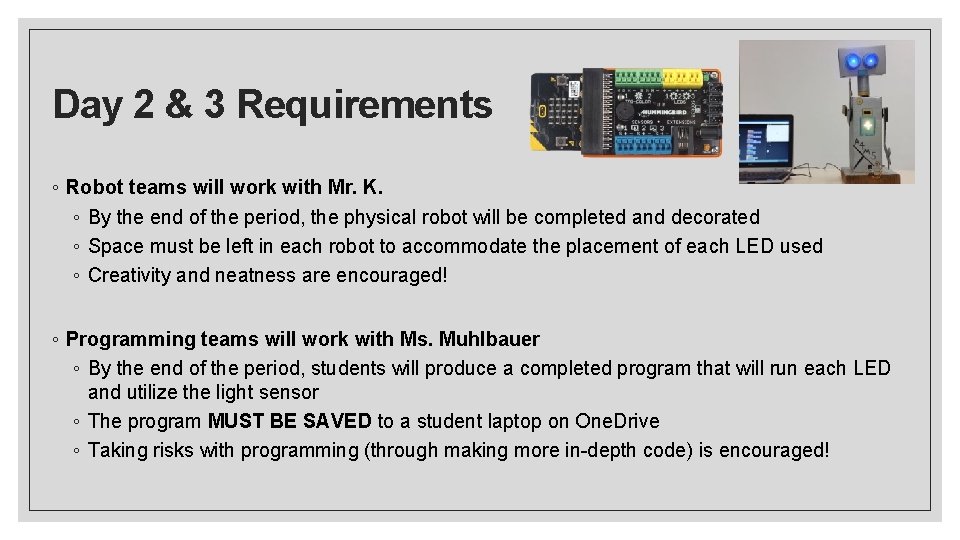
Day 2 & 3 Requirements ◦ Robot teams will work with Mr. K. ◦ By the end of the period, the physical robot will be completed and decorated ◦ Space must be left in each robot to accommodate the placement of each LED used ◦ Creativity and neatness are encouraged! ◦ Programming teams will work with Ms. Muhlbauer ◦ By the end of the period, students will produce a completed program that will run each LED and utilize the light sensor ◦ The program MUST BE SAVED to a student laptop on One. Drive ◦ Taking risks with programming (through making more in-depth code) is encouraged!
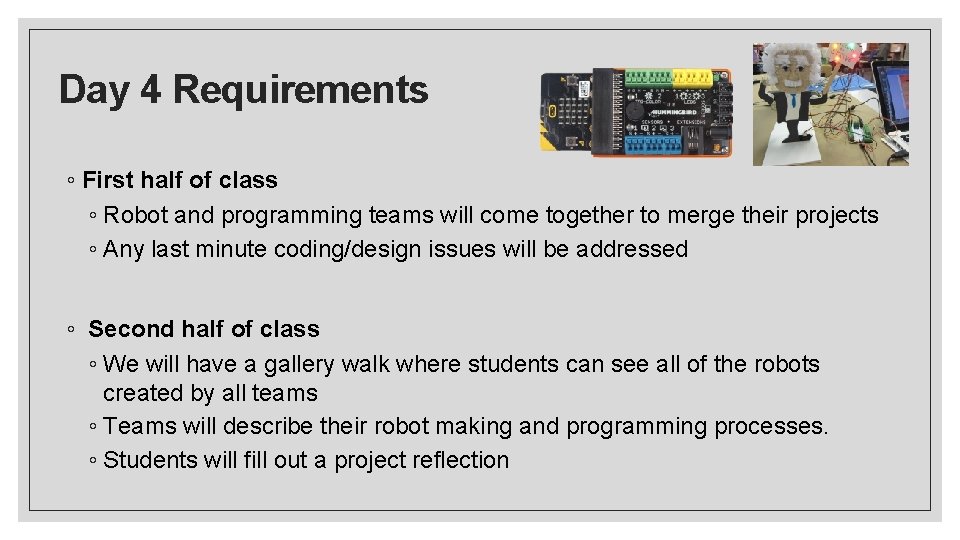
Day 4 Requirements ◦ First half of class ◦ Robot and programming teams will come together to merge their projects ◦ Any last minute coding/design issues will be addressed ◦ Second half of class ◦ We will have a gallery walk where students can see all of the robots created by all teams ◦ Teams will describe their robot making and programming processes. ◦ Students will fill out a project reflection
- Slides: 15