
Hubs Bridges Switches Last Update 2009 02 27
Hubs Bridges Switches Last Update 2009. 02. 27 1. 0. 0 Copyright 2005 -2009 Kenneth M. Chipps Ph. D. www. chipps. com 1
Hubs Bridges Switches • As the size of local area networks have grown the devices used to form the central connection point for the devices that will use the local area network have changed • The progression has been from hub to bridge to switch Copyright 2005 -2009 Kenneth M. Chipps Ph. D. www. chipps. com 2
Hubs Bridges Switches • We will use the marketing created names here • But the nerd names are more descriptive of the evolution of the functions they perform • Hubs are multiport repeaters at layer 1 • Bridges are collision domain dividers at layer 2 • Switches are multiport bridges also at layer 2 Copyright 2005 -2009 Kenneth M. Chipps Ph. D. www. chipps. com 3
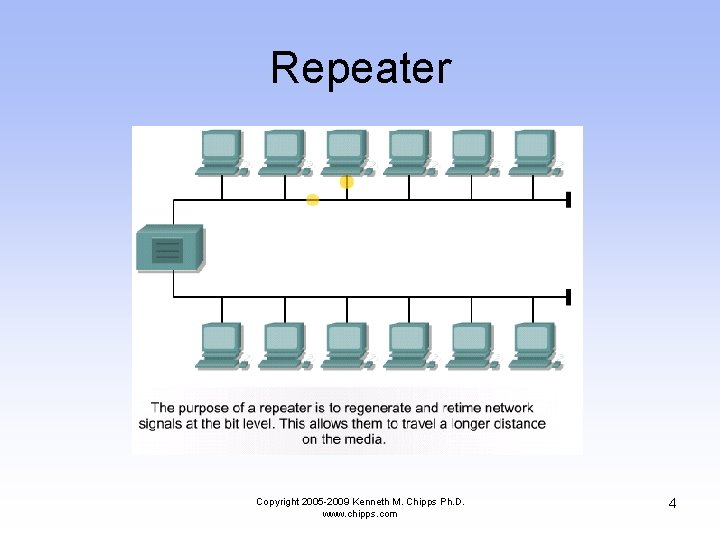
Repeater Copyright 2005 -2009 Kenneth M. Chipps Ph. D. www. chipps. com 4
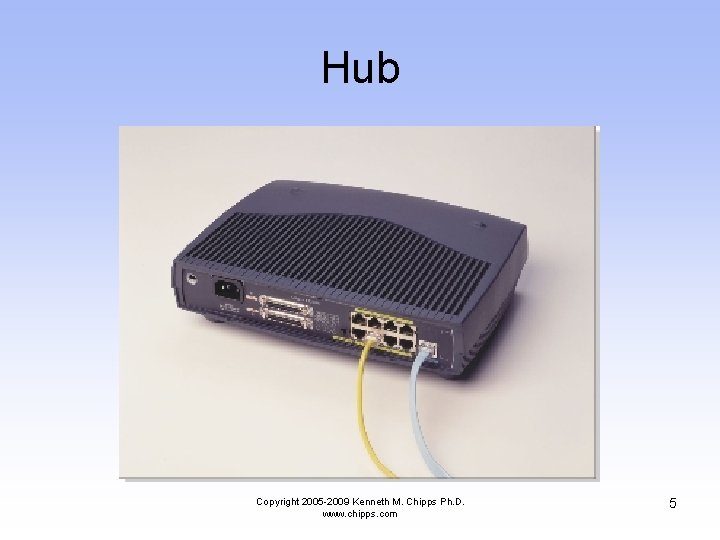
Hub Copyright 2005 -2009 Kenneth M. Chipps Ph. D. www. chipps. com 5
What is a Hub • A hub is the point of connection for all devices that will access a local area network • Once powered up the hub is the network • It creates the network • It is not very useful as a network by itself • But it is a complete network nevertheless • Hubs have just about disappeared Copyright 2005 -2009 Kenneth M. Chipps Ph. D. www. chipps. com 6
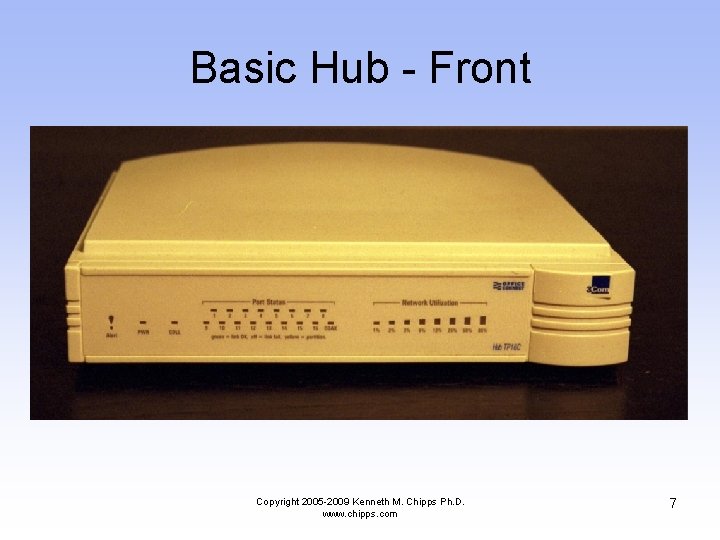
Basic Hub - Front Copyright 2005 -2009 Kenneth M. Chipps Ph. D. www. chipps. com 7

Basic Hub - Back Copyright 2005 -2009 Kenneth M. Chipps Ph. D. www. chipps. com 8
Characteristics of Hubs • A hub is a layer 1 device, as such it is not very intelligent • It only deals with bits – 1 s and 0 s • The hub forwards bits from one port to all the other ports • The ports are used to connect devices used on the network • A hub usually has from 2 to 96 ports Copyright 2005 -2009 Kenneth M. Chipps Ph. D. www. chipps. com 9
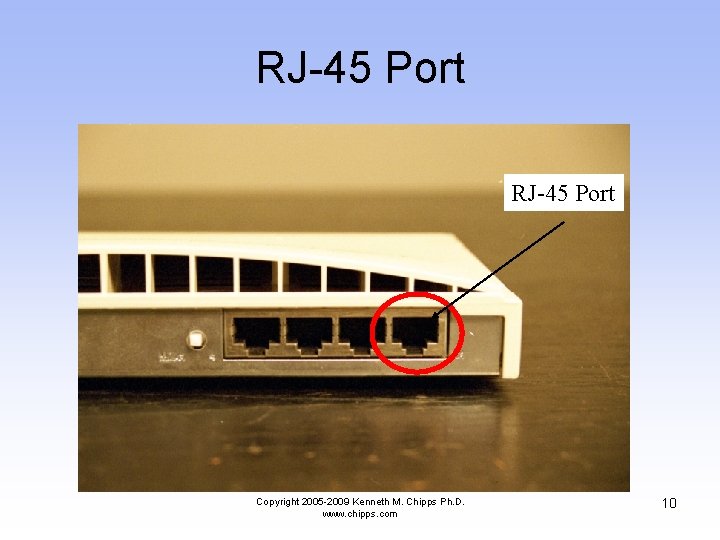
RJ-45 Port Copyright 2005 -2009 Kenneth M. Chipps Ph. D. www. chipps. com 10
Linking Hubs • Hubs can be hooked together in order to increase the number of ports available to the network • There are two ways to do this – Uplink – Stack • These methods are not mutually exclusive Copyright 2005 -2009 Kenneth M. Chipps Ph. D. www. chipps. com 11
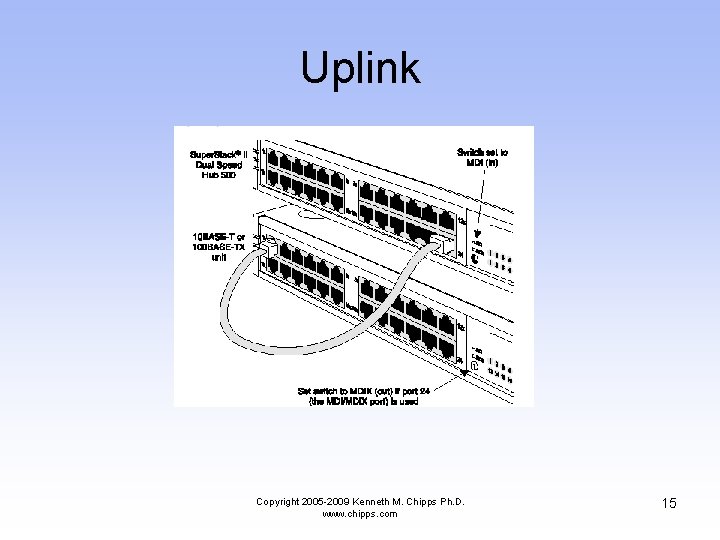
Uplink • When hubs are uplinked, each hub is still a distinct entity • To create an uplink connection between hubs a port from one hub is connected to a port on another hub • One of the ports must be an uplink port • This can be a port that is dedicated to this use Copyright 2005 -2009 Kenneth M. Chipps Ph. D. www. chipps. com 12
Uplink • Or a normal port can be converted to this by flipping a switch or through a software setting Copyright 2005 -2009 Kenneth M. Chipps Ph. D. www. chipps. com 13

Uplink The yellow cables are the uplink cables in this example Copyright 2005 -2009 Kenneth M. Chipps Ph. D. www. chipps. com 14
Uplink Copyright 2005 -2009 Kenneth M. Chipps Ph. D. www. chipps. com 15
Uplink • Each hub is different, for this one a switch called the MIDI switch is used to tell the hub whether a normal device like a PC is plugged into the port or if it is another hub • This allows you to use normal patch cables instead of crossover cables to uplink the hubs • If there is no MIDI switch, just use a crossover cable Copyright 2005 -2009 Kenneth M. Chipps Ph. D. www. chipps. com 16
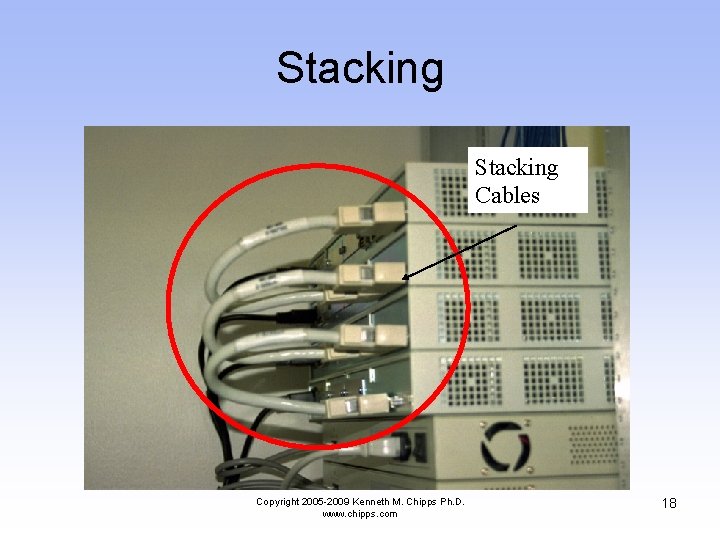
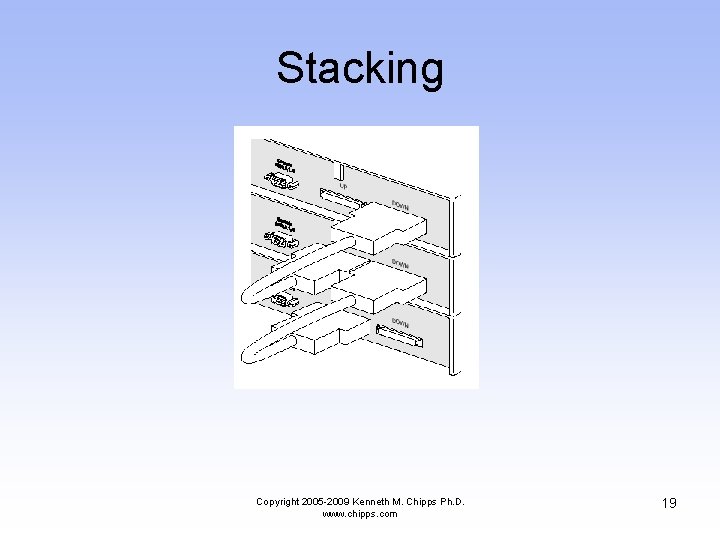
Stacking • When hubs are stacked they become one hub for purposes of management • One logical hub • Usually stacking requires a special proprietary cable • There is a limit to the number of hubs that may be stacked • Normally all must be the same type Copyright 2005 -2009 Kenneth M. Chipps Ph. D. www. chipps. com 17
Stacking Cables Copyright 2005 -2009 Kenneth M. Chipps Ph. D. www. chipps. com 18
Stacking Copyright 2005 -2009 Kenneth M. Chipps Ph. D. www. chipps. com 19
Stacking • In this case starting from the bottom unit attach the UP port on the bottom unit to the DOWN port on the unit just above • Continue on like this for each unit • Up to eight units can be stacked Copyright 2005 -2009 Kenneth M. Chipps Ph. D. www. chipps. com 20
Speeds • Hubs operate at – 10 Mbps – 100 Mbps • All ports in a hub must operate at the same speed Copyright 2005 -2009 Kenneth M. Chipps Ph. D. www. chipps. com 21
What is a Bridge • In the old days, before switches, bridges were used to segment LANs • A bridge was used to isolate traffic and thereby collisions by placing a server and most of the workstations needing access to that server all on the same side of the bridge Copyright 2005 -2009 Kenneth M. Chipps Ph. D. www. chipps. com 22
Bridges • Bridges were also used to connect different network access methods to each other, such as Ethernet to Token Ring Copyright 2005 -2009 Kenneth M. Chipps Ph. D. www. chipps. com 23
How a Bridge Operates Devices on this side of the bridge List of devices by MAC address Bridge List of devices by MAC address Copyright 2005 -2009 Kenneth M. Chipps Ph. D. www. chipps. com Devices on this side of the bridge 24
How a Bridge Operates Copyright 2005 -2009 Kenneth M. Chipps Ph. D. www. chipps. com 25
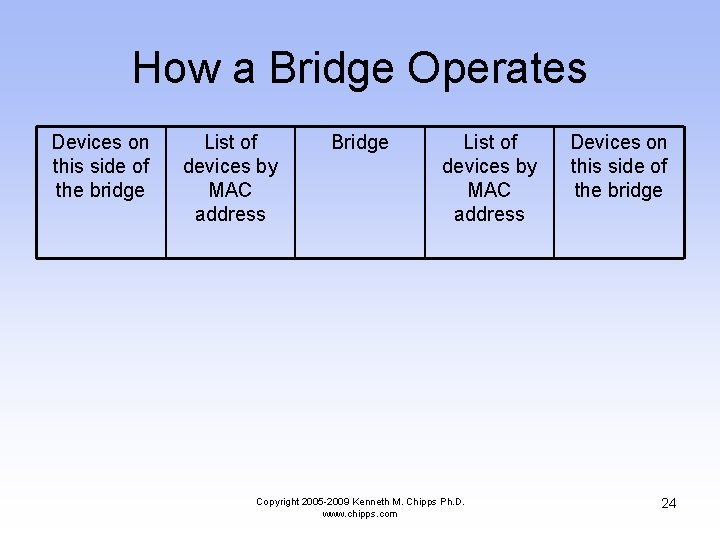
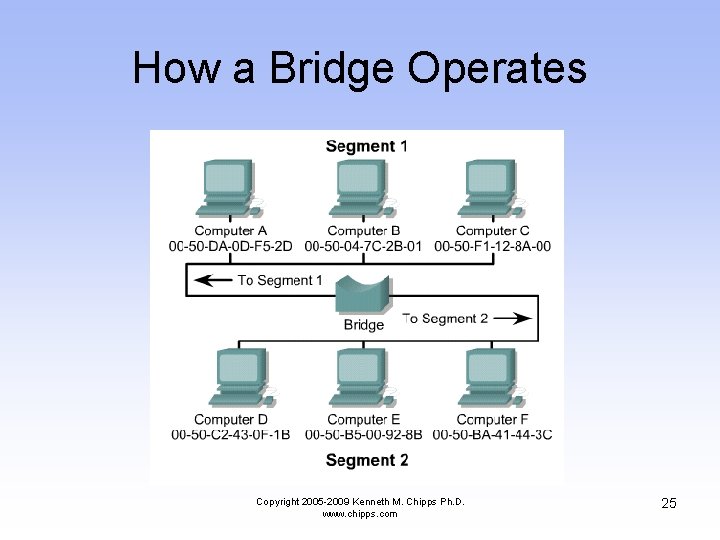
How a Bridge Operates • An Ethernet bridge connects two or more segments and operates by inspecting all frames on the network for their address • The bridge can receive all frames since it operates in promiscuous mode • This device operates at the MAC sublayer of the Data Link layer Copyright 2005 -2009 Kenneth M. Chipps Ph. D. www. chipps. com 26
How a Bridge Operates • As each frame is examined by the bridge, the source address is recorded and entered into a table of addresses • This process of observing and recording addresses is referred to as learning • This type of bridging is known as transparent bridging, since the devices that are communicating over the network are not aware of the bridge's existence Copyright 2005 -2009 Kenneth M. Chipps Ph. D. www. chipps. com 27
How a Bridge Operates • All frames are addressed to the destination address, not the bridge • When the bridge receives a frame, it will look up the destination address in its table • If a match is found, the frame will be discarded since the destination was on the same segment as the source, there is no need to forward the frame to another network Copyright 2005 -2009 Kenneth M. Chipps Ph. D. www. chipps. com 28
How a Bridge Operates • In essence, the frame has been filtered • If the destination address is not found in the table, the frame will be forwarded to all segments to which the bridge is attached • The process of forwarding to all active ports is referred to as flooding Copyright 2005 -2009 Kenneth M. Chipps Ph. D. www. chipps. com 29
How a Bridge Operates • When the destination station sends a response to the frame that was just flooded the bridge will then learn the address and the device's location • It will not have to flood the same address twice, since the location will be added to the address table Copyright 2005 -2009 Kenneth M. Chipps Ph. D. www. chipps. com 30
How a Bridge Operates • Typically, forwarding an unknown frame is a rare occurrence, and the learning process is very brief • Otherwise, the act of flooding frames out of all ports would have a negative effect on surrounding networks • An exception is broadcast frames, which must be sent to all devices • Therefore, broadcast frames will always be flooded onto all active ports 31 Copyright 2005 -2009 Kenneth M. Chipps Ph. D. www. chipps. com
Uses of Bridges • Today, except for wireless and campus area networks, bridges are not used anymore • The bridge of today is called a switch, which is discussed next Copyright 2005 -2009 Kenneth M. Chipps Ph. D. www. chipps. com 32
Switches Copyright 2005 -2009 Kenneth M. Chipps Ph. D. www. chipps. com 33
Switches Copyright 2005 -2009 Kenneth M. Chipps Ph. D. www. chipps. com 34
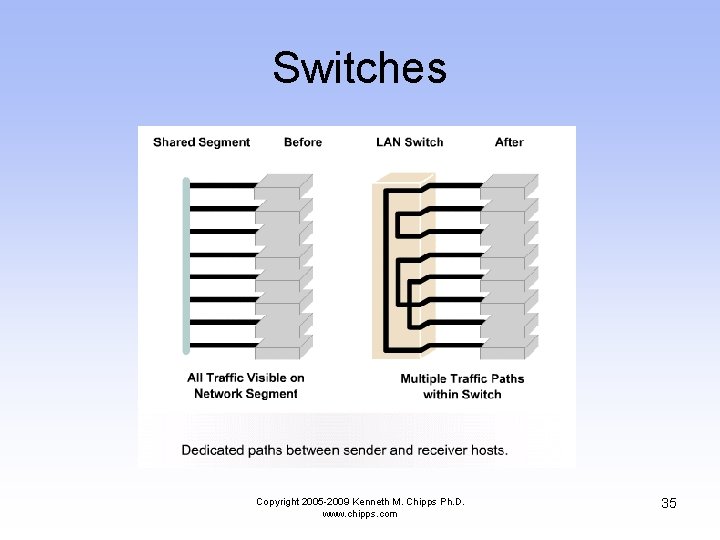
Switches Copyright 2005 -2009 Kenneth M. Chipps Ph. D. www. chipps. com 35
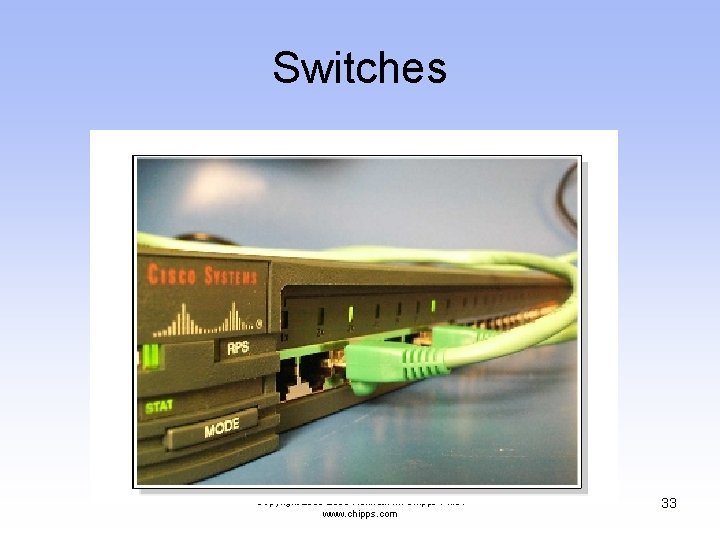
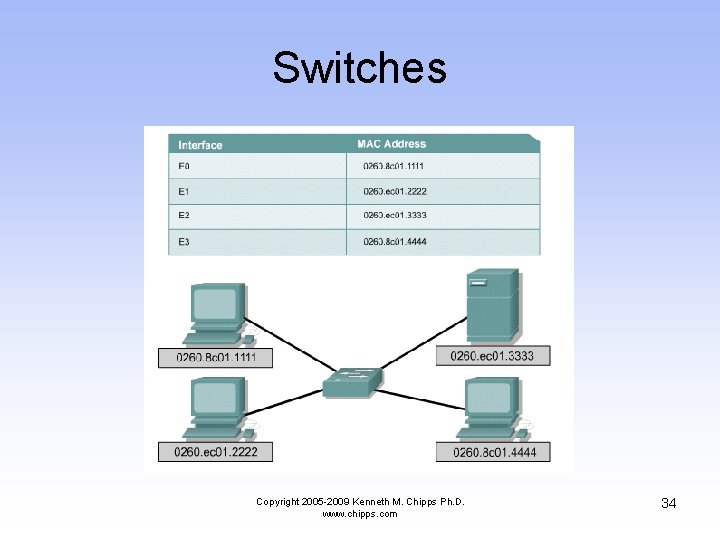
What is a Switch • A basic switch is a layer two device • It is the point of connection for all devices that will access the network • Once plugged into electrical power and turned on a switch is the network • It is not yet useful, but it is a network • That sounds exactly like my description of a hub doesn't it Copyright 2005 -2009 Kenneth M. Chipps Ph. D. www. chipps. com 36
Operation • Ports in the switch are used to connect devices • There are usually from four to 96 ports on a switch • The standard ports use RJ-45 connectors • A switch may have a connector for a backbone cable as well • This can be for copper or fiber cable Copyright 2005 -2009 Kenneth M. Chipps Ph. D. www. chipps. com 37
Uplinking • It is possible to uplink switches over a considerable distance using standard UTP cables • This is sometimes preferable to creating a multilayer backbone Copyright 2005 -2009 Kenneth M. Chipps Ph. D. www. chipps. com 38
Stacking • If the network runs out of ports more can be added by stacking another switch on top of the existing one • Switches use proprietary cables for this • There will be a limit on the number of switches that can be stacked Copyright 2005 -2009 Kenneth M. Chipps Ph. D. www. chipps. com 39
Operation • Switches typically operate at 10, 1000, or 10000 Mbps • Each port can be set to its own speed independent of the other ports • Hopefully, the switch will autosense the speed of the NIC connecting to it Copyright 2005 -2009 Kenneth M. Chipps Ph. D. www. chipps. com 40
Operation • It is better to just configure every NIC and switch port for the desired speed, as autosensing has been known to get confused Copyright 2005 -2009 Kenneth M. Chipps Ph. D. www. chipps. com 41
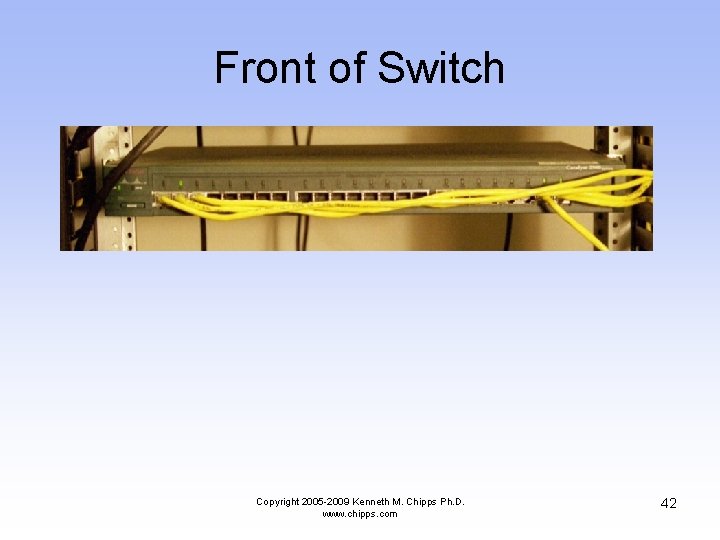
Front of Switch Copyright 2005 -2009 Kenneth M. Chipps Ph. D. www. chipps. com 42
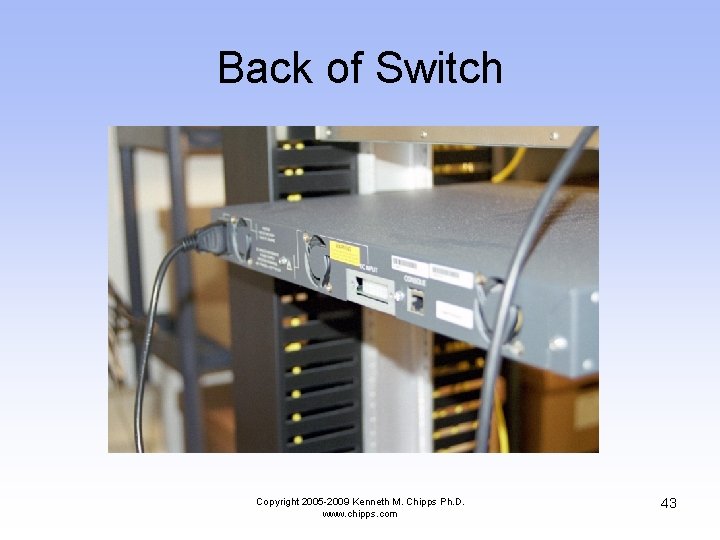
Back of Switch Copyright 2005 -2009 Kenneth M. Chipps Ph. D. www. chipps. com 43
Larger Switch • The switch just shown uses a fixed configuration • There is no way to increase the number of ports without buying another switch • Another larger style of switch uses blades that are inserted into a chassis • Up to the capacity of the chassis, ports can be added by just inserting more blades Copyright 2005 -2009 Kenneth M. Chipps Ph. D. www. chipps. com 44
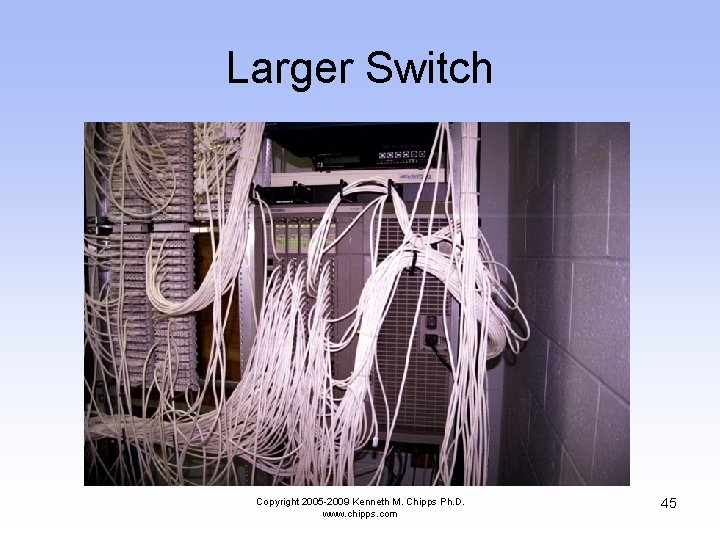
Larger Switch Copyright 2005 -2009 Kenneth M. Chipps Ph. D. www. chipps. com 45
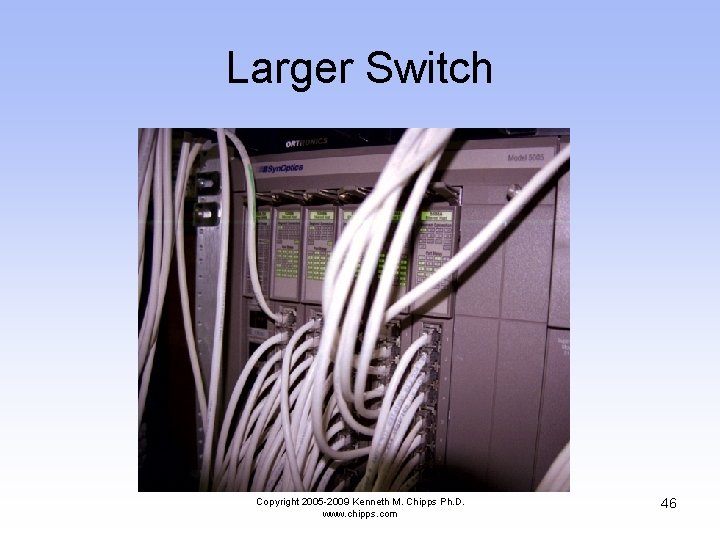
Larger Switch Copyright 2005 -2009 Kenneth M. Chipps Ph. D. www. chipps. com 46
- Slides: 46