
http vistools npaci edu Visualization Services Group Steve

- Slides: 36
http: //vistools. npaci. edu/ Visualization Services Group • Steve Cutchin – Manager • Amit Chourasia – Visualization Scientist • Alex De. Castro – Visualization Scientist
http: //vistools. npaci. edu/ Overview of Tools • Mesh Viewer – Interactive Volume Viewer • Vista – Volume Renderer
http: //vistools. npaci. edu/ What is Mesh Viewer? • • • Interactive volume viewer Load and view volume data Apply color maps to scalar data Save camera viewpoints and paths Connect to Vista to render a volume
http: //vistools. npaci. edu/ Steps to Use Mesh Viewer 1. Describe the volume dataset 2. Load the volume into Mesh Viewer 3. Select a color map and opacity transfer function 4. Select a camera viewpoint 5. Render the volume with Vista
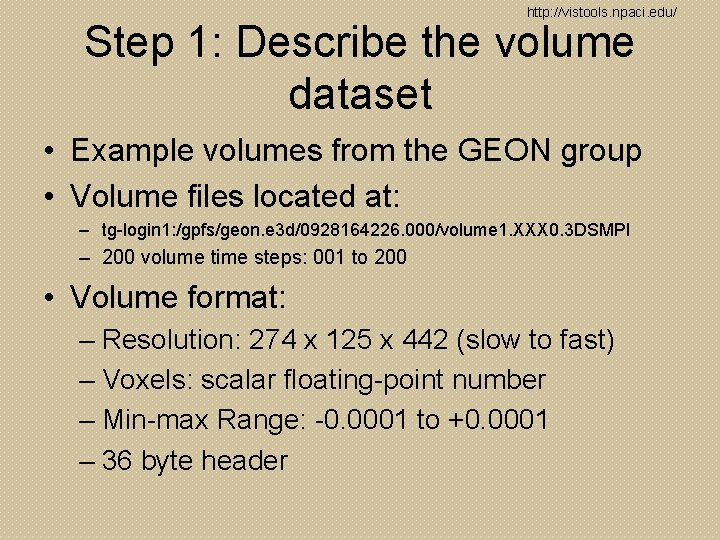
http: //vistools. npaci. edu/ Step 1: Describe the volume dataset • Example volumes from the GEON group • Volume files located at: – tg-login 1: /gpfs/geon. e 3 d/0928164226. 000/volume 1. XXX 0. 3 DSMPI – 200 volume time steps: 001 to 200 • Volume format: – Resolution: 274 x 125 x 442 (slow to fast) – Voxels: scalar floating-point number – Min-max Range: -0. 0001 to +0. 0001 – 36 byte header
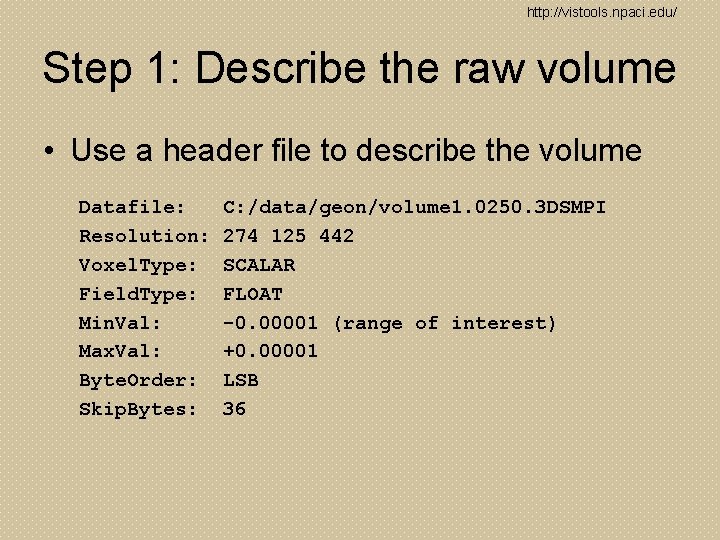
http: //vistools. npaci. edu/ Step 1: Describe the raw volume • Use a header file to describe the volume Datafile: Resolution: Voxel. Type: Field. Type: Min. Val: Max. Val: Byte. Order: Skip. Bytes: C: /data/geon/volume 1. 0250. 3 DSMPI 274 125 442 SCALAR FLOAT -0. 00001 (range of interest) +0. 00001 LSB 36
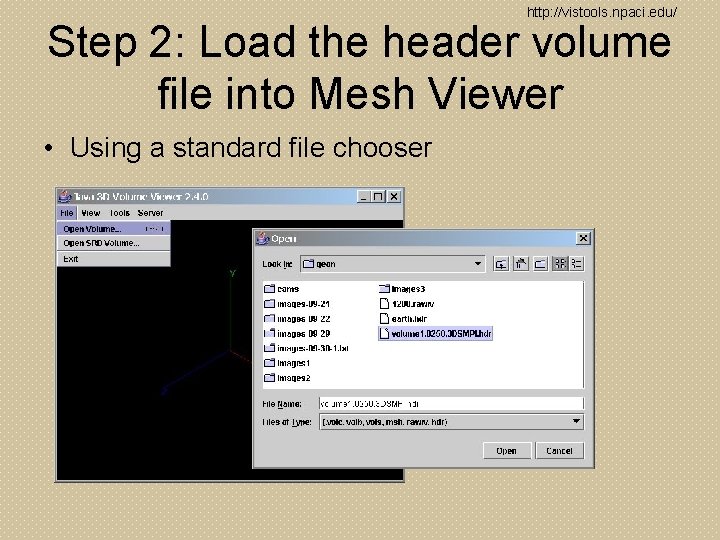
http: //vistools. npaci. edu/ Step 2: Load the header volume file into Mesh Viewer • Using a standard file chooser
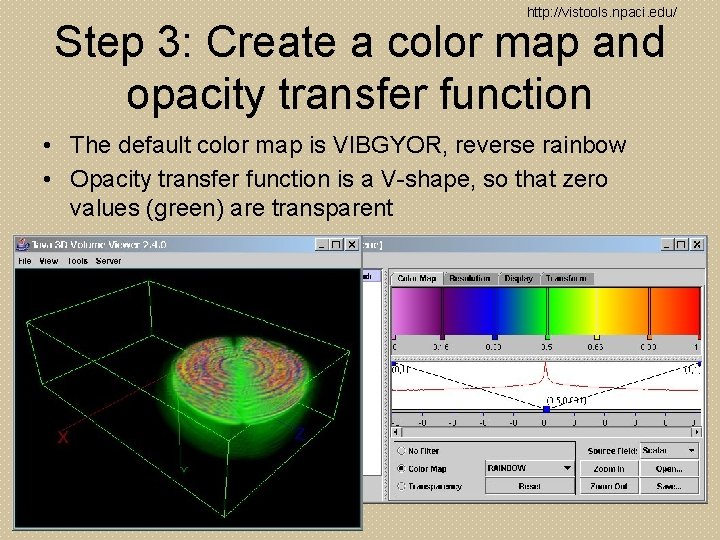
http: //vistools. npaci. edu/ Step 3: Create a color map and opacity transfer function • The default color map is VIBGYOR, reverse rainbow • Opacity transfer function is a V-shape, so that zero values (green) are transparent
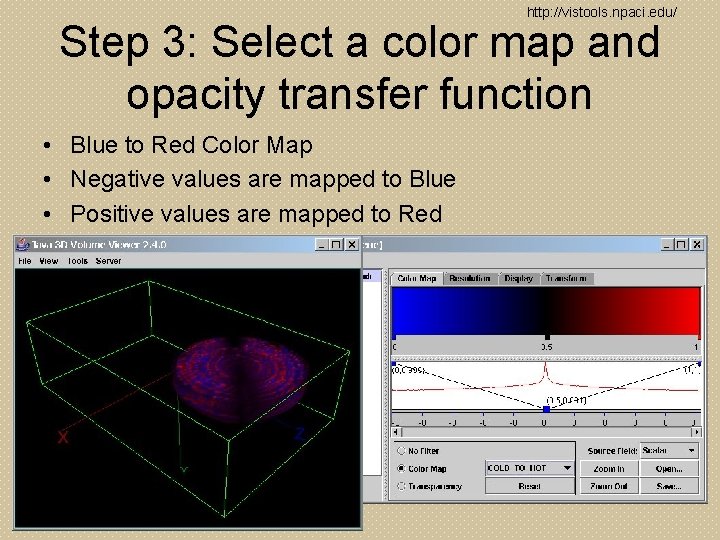
http: //vistools. npaci. edu/ Step 3: Select a color map and opacity transfer function • Blue to Red Color Map • Negative values are mapped to Blue • Positive values are mapped to Red
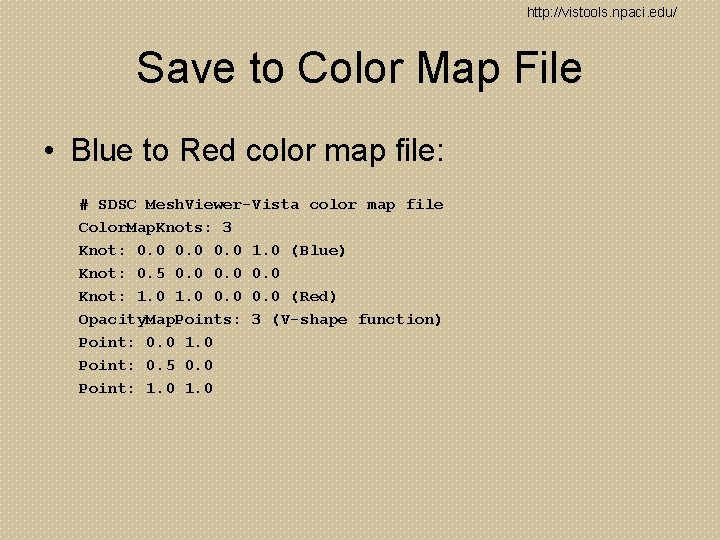
http: //vistools. npaci. edu/ Save to Color Map File • Blue to Red color map file: # SDSC Mesh. Viewer-Vista color map file Color. Map. Knots: 3 Knot: 0. 0 1. 0 (Blue) Knot: 0. 5 0. 0 Knot: 1. 0 0. 0 (Red) Opacity. Map. Points: 3 (V-shape function) Point: 0. 0 1. 0 Point: 0. 5 0. 0 Point: 1. 0
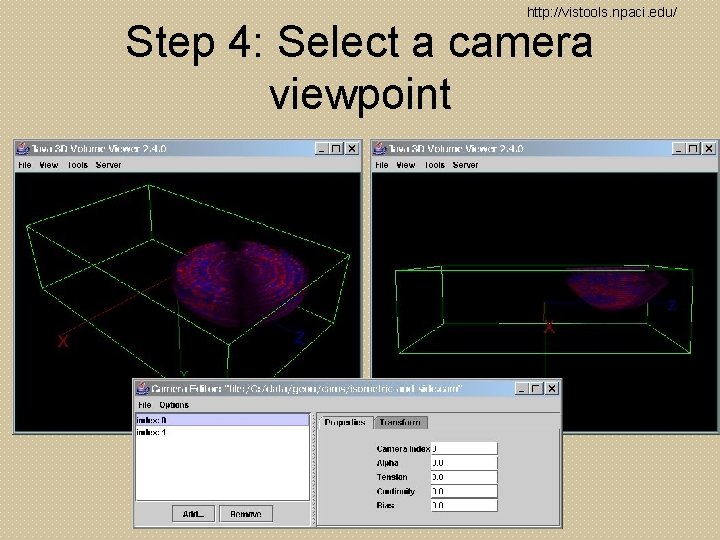
http: //vistools. npaci. edu/ Step 4: Select a camera viewpoint
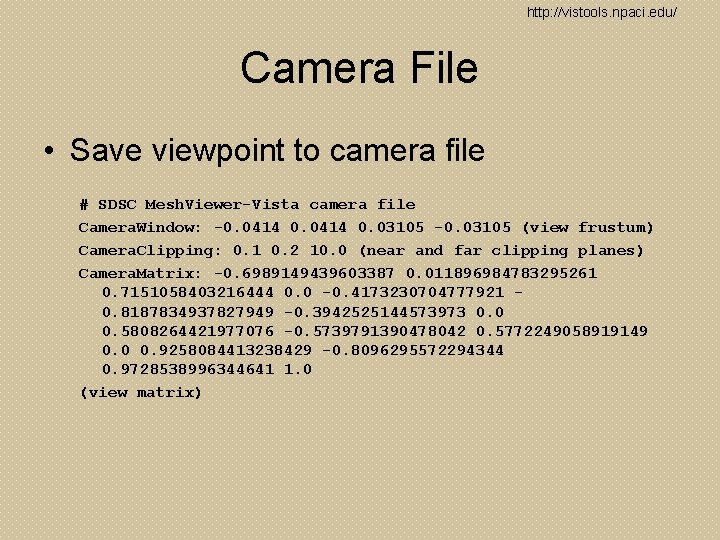
http: //vistools. npaci. edu/ Camera File • Save viewpoint to camera file # SDSC Mesh. Viewer-Vista camera file Camera. Window: -0. 0414 0. 03105 -0. 03105 (view frustum) Camera. Clipping: 0. 1 0. 2 10. 0 (near and far clipping planes) Camera. Matrix: -0. 6989149439603387 0. 011896984783295261 0. 7151058403216444 0. 0 -0. 4173230704777921 0. 8187834937827949 -0. 3942525144573973 0. 0 0. 5808264421977076 -0. 5739791390478042 0. 5772249058919149 0. 0 0. 9258084413238429 -0. 8096295572294344 0. 9728538996344641 1. 0 (view matrix)
http: //vistools. npaci. edu/ Step 5: Render the volume with Vista • Run Vista on Teragrid – Copy the color map files and camera file to the Teragrid machine and run Vista • Connect to the Vista server – Transmit color map and camera viewpoint to directly to Vista
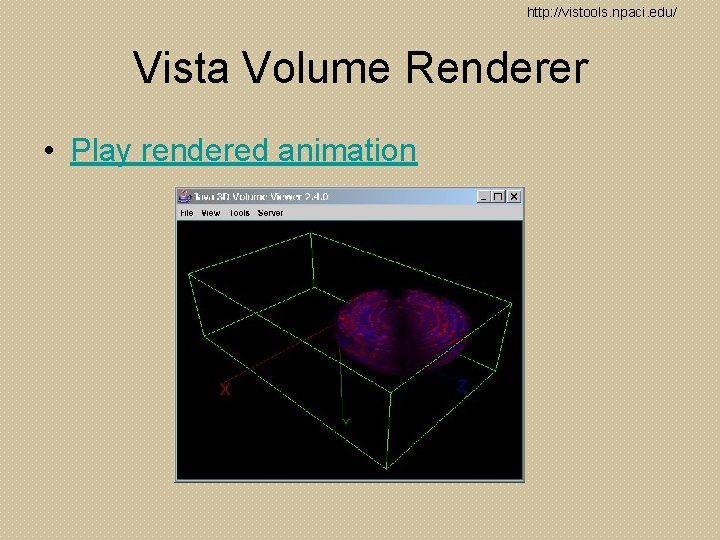
http: //vistools. npaci. edu/ Vista Volume Renderer • Play rendered animation
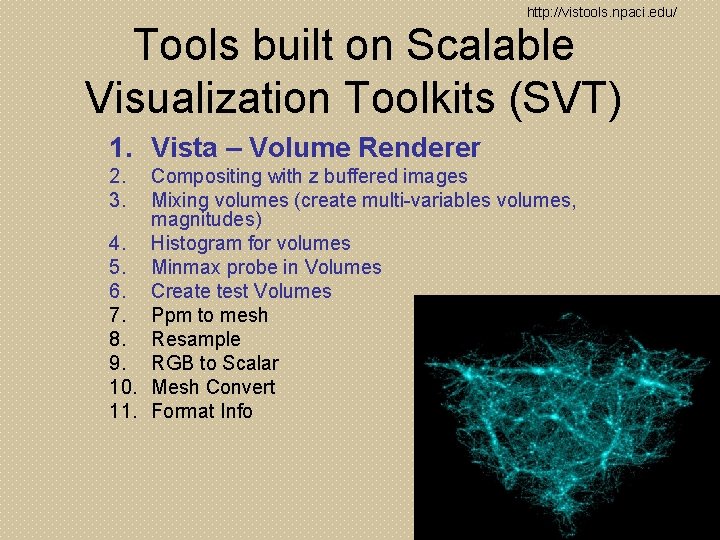
http: //vistools. npaci. edu/ Tools built on Scalable Visualization Toolkits (SVT) 1. Vista – Volume Renderer 2. 3. Compositing with z buffered images Mixing volumes (create multi-variables volumes, magnitudes) 4. Histogram for volumes 5. Minmax probe in Volumes 6. Create test Volumes 7. Ppm to mesh 8. Resample 9. RGB to Scalar 10. Mesh Convert 11. Format Info
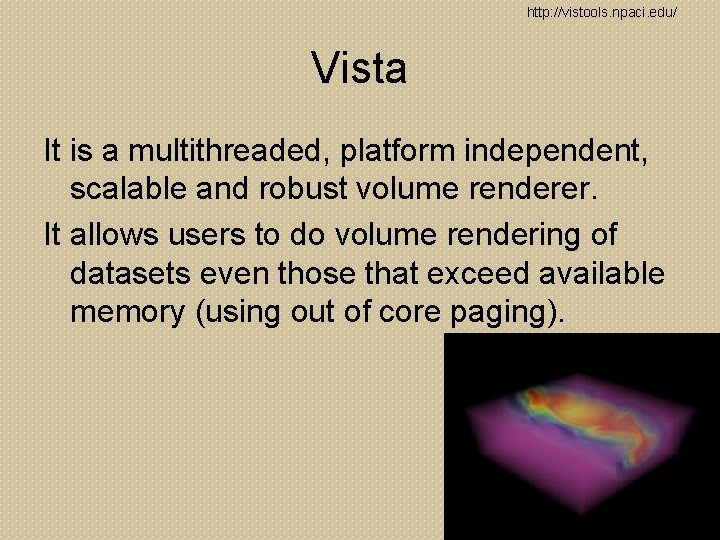
http: //vistools. npaci. edu/ Vista It is a multithreaded, platform independent, scalable and robust volume renderer. It allows users to do volume rendering of datasets even those that exceed available memory (using out of core paging).
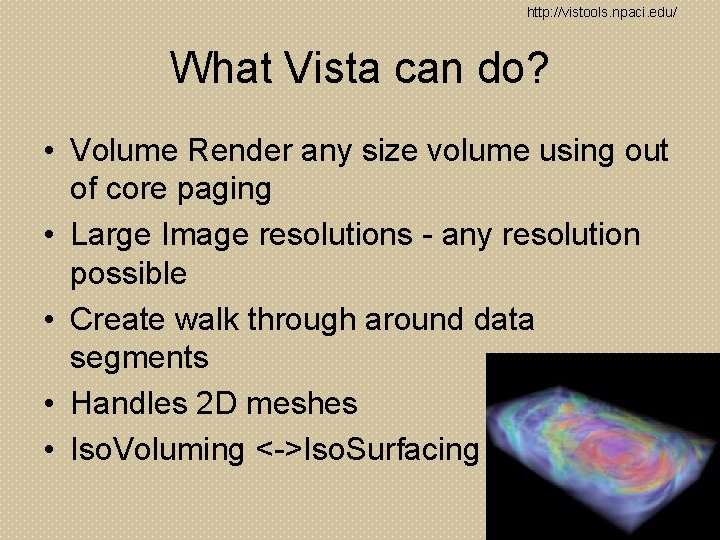
http: //vistools. npaci. edu/ What Vista can do? • Volume Render any size volume using out of core paging • Large Image resolutions - any resolution possible • Create walk through around data segments • Handles 2 D meshes • Iso. Voluming <->Iso. Surfacing
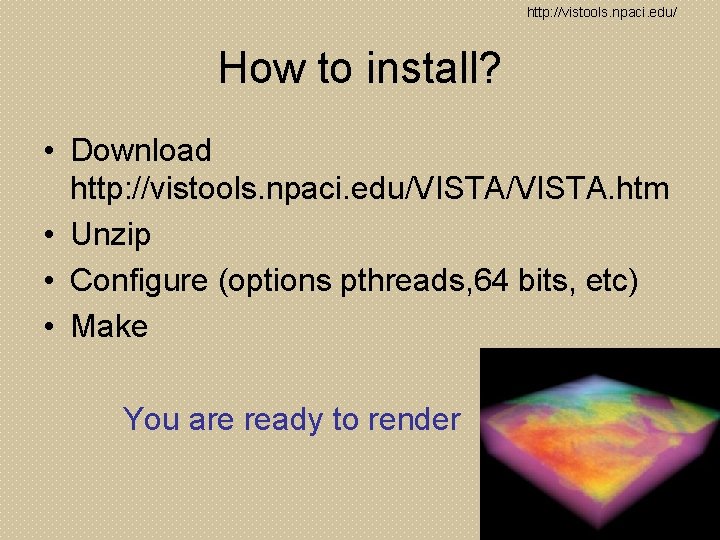
http: //vistools. npaci. edu/ How to install? • Download http: //vistools. npaci. edu/VISTA. htm • Unzip • Configure (options pthreads, 64 bits, etc) • Make You are ready to render
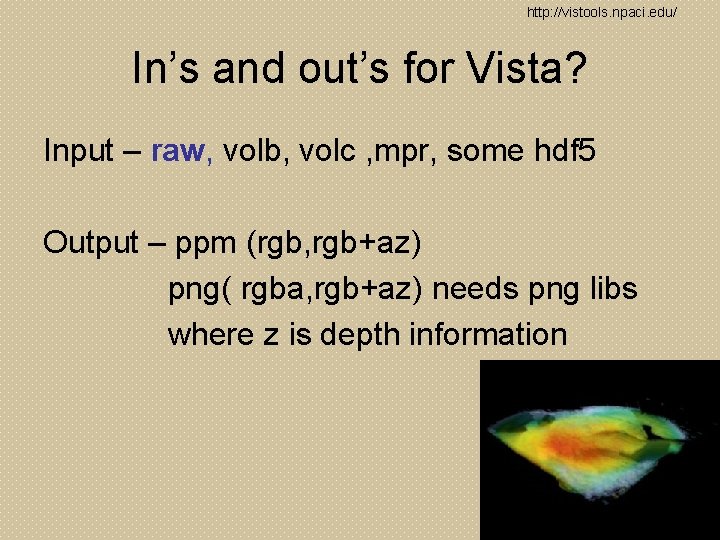
http: //vistools. npaci. edu/ In’s and out’s for Vista? Input – raw, volb, volc , mpr, some hdf 5 Output – ppm (rgb, rgb+az) png( rgba, rgb+az) needs png libs where z is depth information
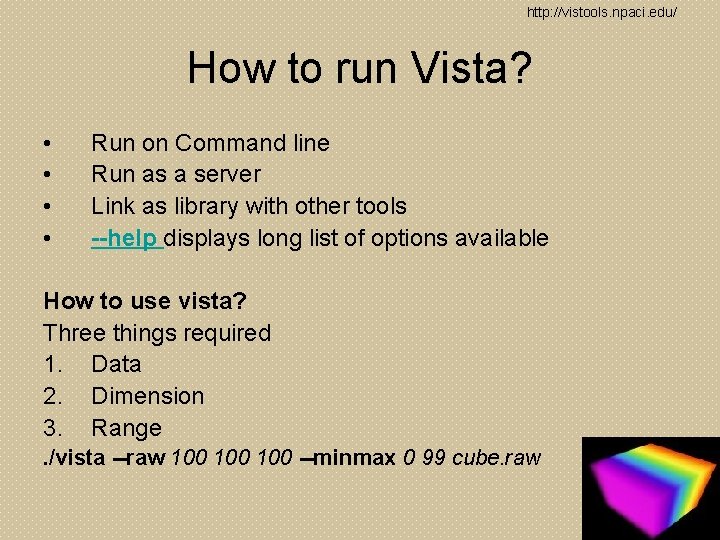
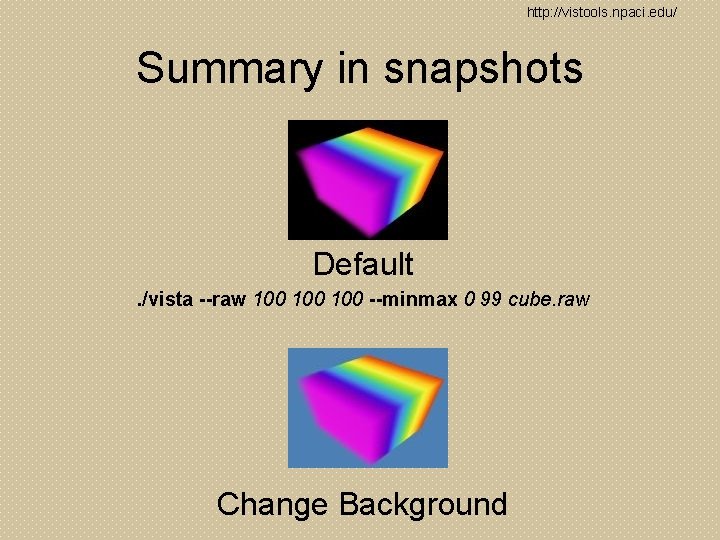
http: //vistools. npaci. edu/ How to run Vista? • • Run on Command line Run as a server Link as library with other tools --help displays long list of options available How to use vista? Three things required 1. Data 2. Dimension 3. Range. /vista --raw 100 100 --minmax 0 99 cube. raw
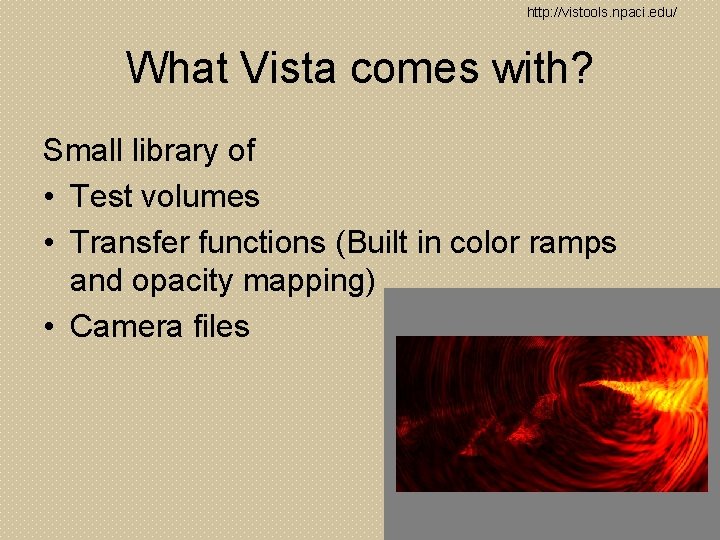
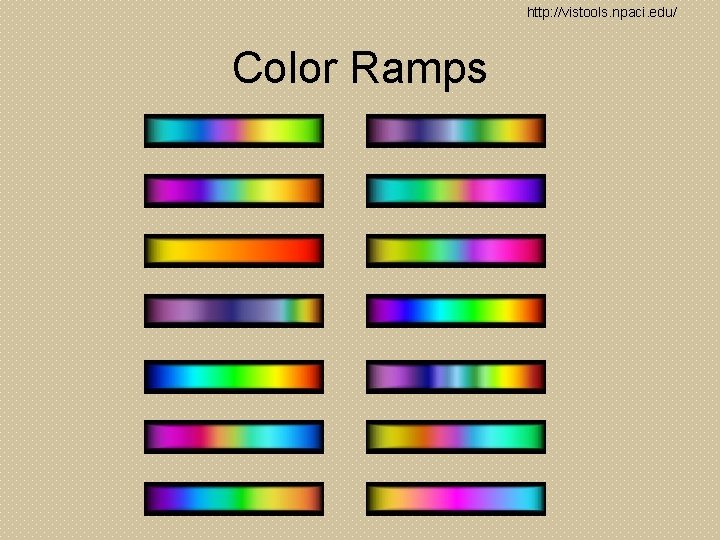
http: //vistools. npaci. edu/ What Vista comes with? Small library of • Test volumes • Transfer functions (Built in color ramps and opacity mapping) • Camera files
http: //vistools. npaci. edu/ Summary in snapshots Default. /vista --raw 100 100 --minmax 0 99 cube. raw Change Background
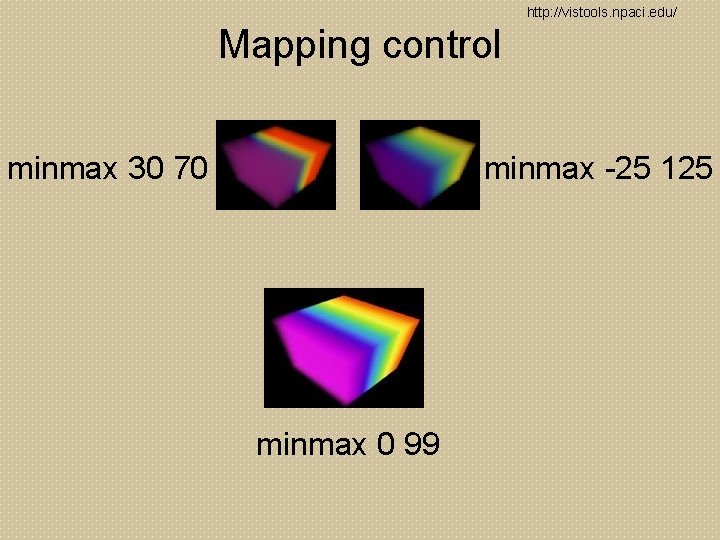
http: //vistools. npaci. edu/ Mapping control minmax 30 70 minmax -25 125 minmax 0 99
http: //vistools. npaci. edu/ Color Ramps
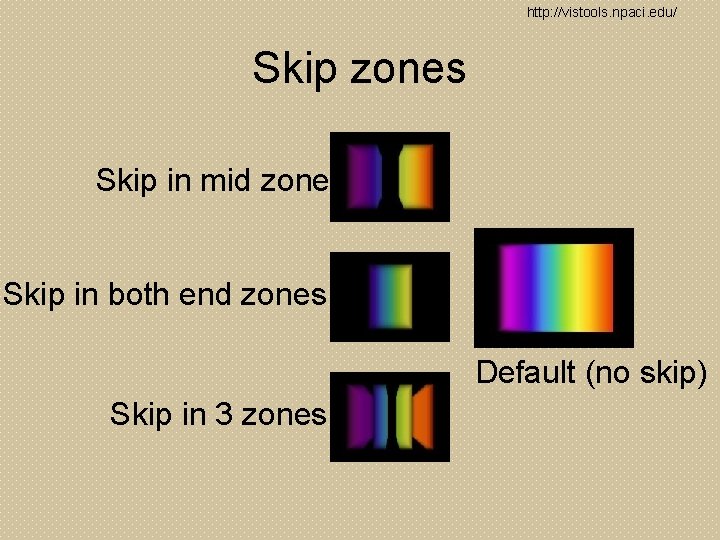
http: //vistools. npaci. edu/ Skip zones Skip in mid zone Skip in both end zones Default (no skip) Skip in 3 zones
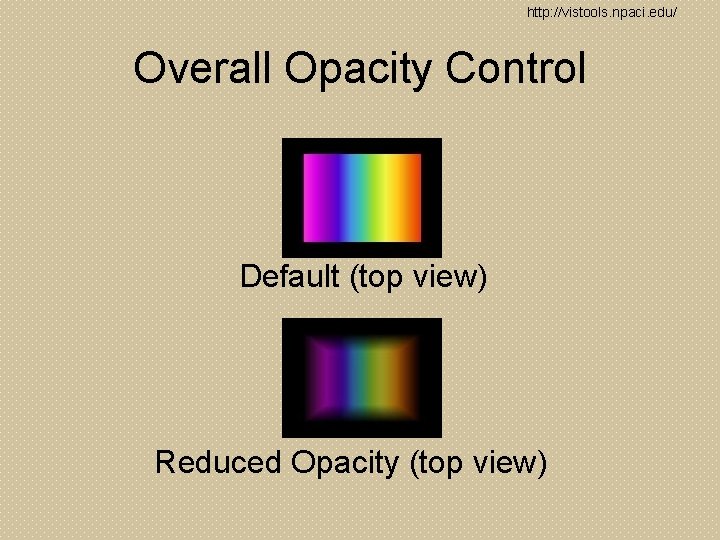
http: //vistools. npaci. edu/ Overall Opacity Control Default (top view) Reduced Opacity (top view)
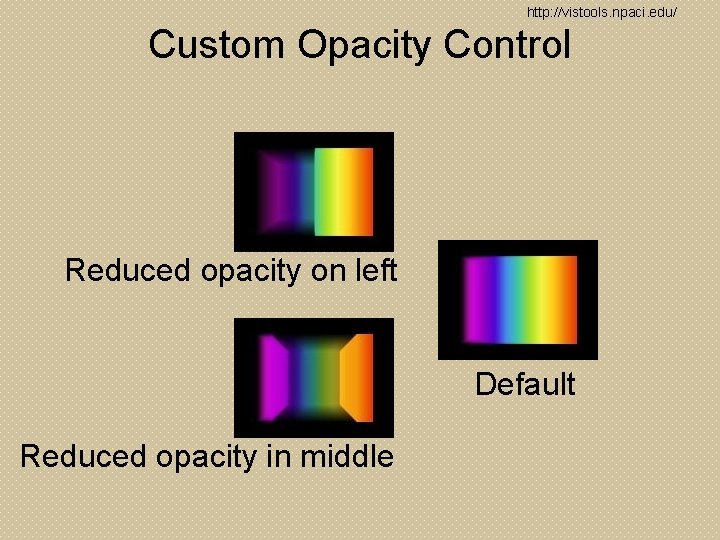
http: //vistools. npaci. edu/ Custom Opacity Control Reduced opacity on left Default Reduced opacity in middle
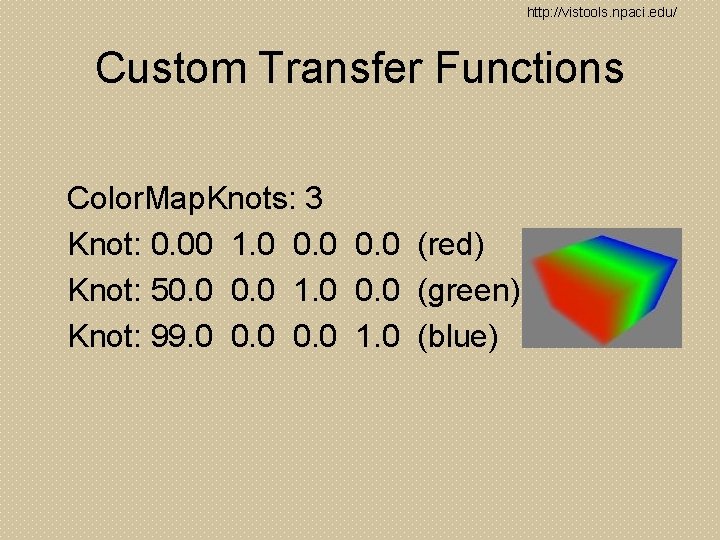
http: //vistools. npaci. edu/ Custom Transfer Functions Color. Map. Knots: 3 Knot: 0. 00 1. 0 0. 0 (red) Knot: 50. 0 1. 0 0. 0 (green) Knot: 99. 0 0. 0 1. 0 (blue)
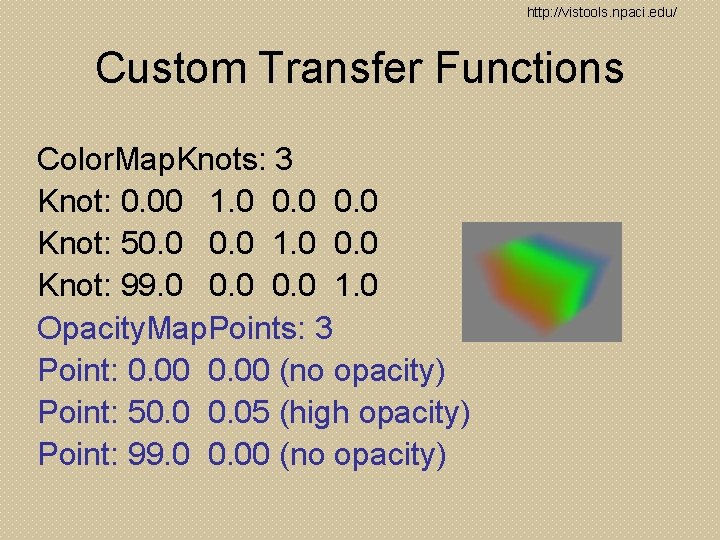
http: //vistools. npaci. edu/ Custom Transfer Functions Color. Map. Knots: 3 Knot: 0. 00 1. 0 0. 0 Knot: 50. 0 1. 0 0. 0 Knot: 99. 0 0. 0 1. 0 Opacity. Map. Points: 3 Point: 0. 00 (no opacity) Point: 50. 05 (high opacity) Point: 99. 0 0. 00 (no opacity)
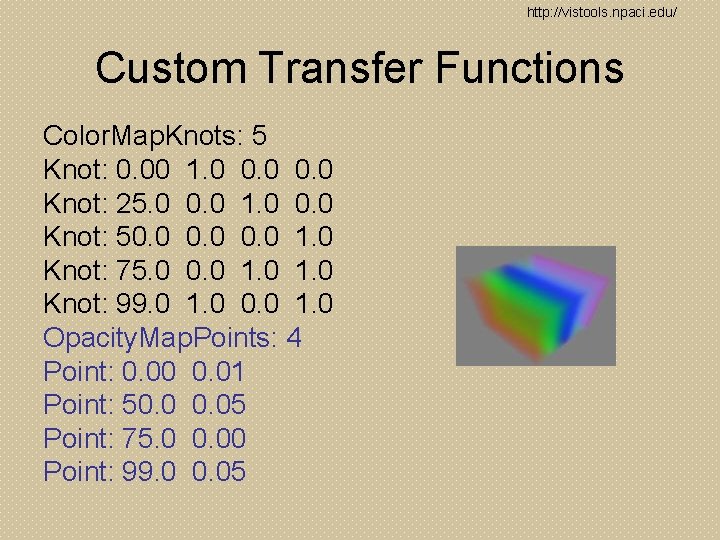
http: //vistools. npaci. edu/ Custom Transfer Functions Color. Map. Knots: 5 Knot: 0. 00 1. 0 0. 0 Knot: 25. 0 0. 0 1. 0 0. 0 Knot: 50. 0 1. 0 Knot: 75. 0 0. 0 1. 0 Knot: 99. 0 1. 0 0. 0 1. 0 Opacity. Map. Points: 4 Point: 0. 00 0. 01 Point: 50. 05 Point: 75. 0 0. 00 Point: 99. 0 0. 05
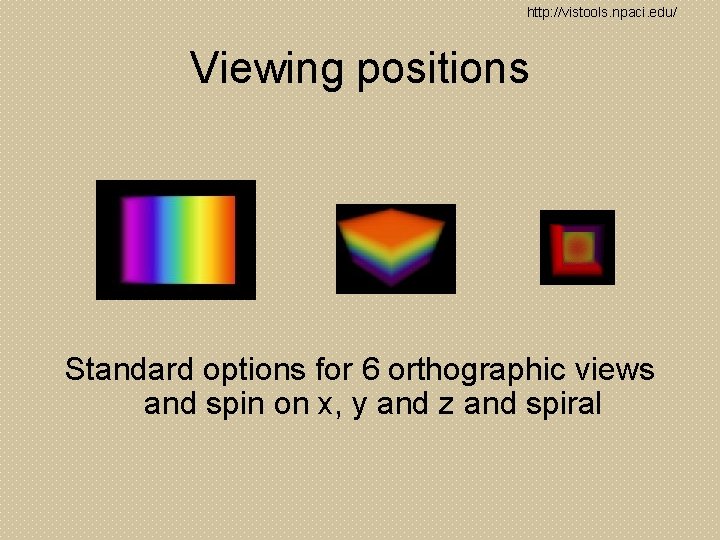
http: //vistools. npaci. edu/ Viewing positions Standard options for 6 orthographic views and spin on x, y and z and spiral
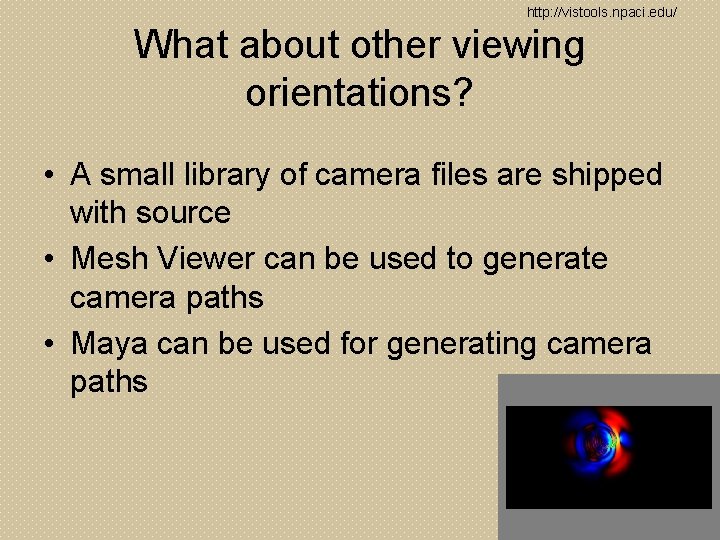
http: //vistools. npaci. edu/ What about other viewing orientations? • A small library of camera files are shipped with source • Mesh Viewer can be used to generate camera paths • Maya can be used for generating camera paths
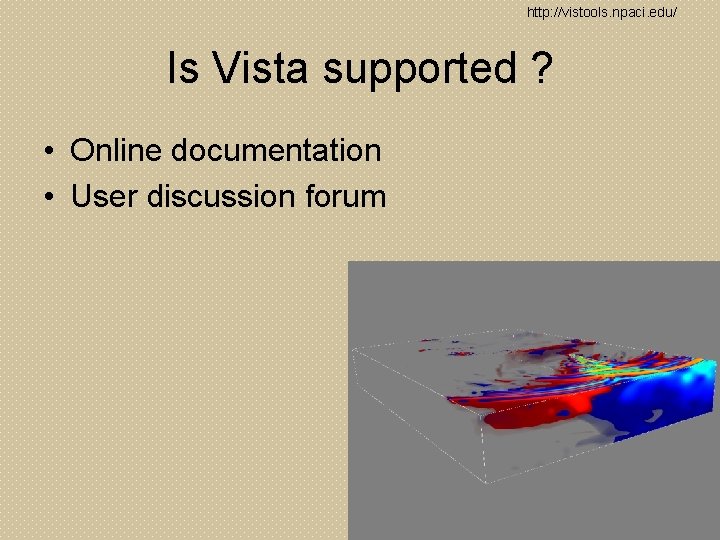
http: //vistools. npaci. edu/ Is Vista supported ? • Online documentation • User discussion forum
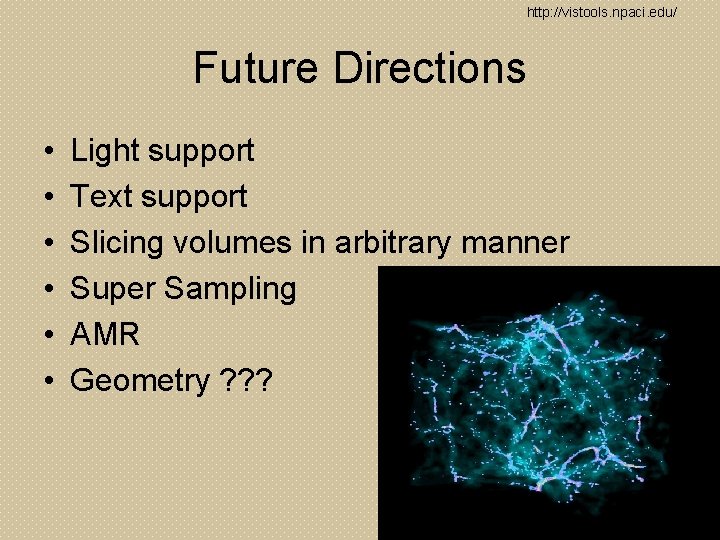
http: //vistools. npaci. edu/ Future Directions • • • Light support Text support Slicing volumes in arbitrary manner Super Sampling AMR Geometry ? ? ?
http: //vistools. npaci. edu/ Video Clips • • ENZO Terashake Surface Rendering Terashake Volume Rendering (on going) Rupture Dynamics
http: //vistools. npaci. edu/ Q’s and Discussion