
http aka mssacqaa http aka msSkype Academy https



- Slides: 72
http: //aka. ms/sa-cq-aa http: //aka. ms/Skype. Academy https: //aka. ms/aacq-update
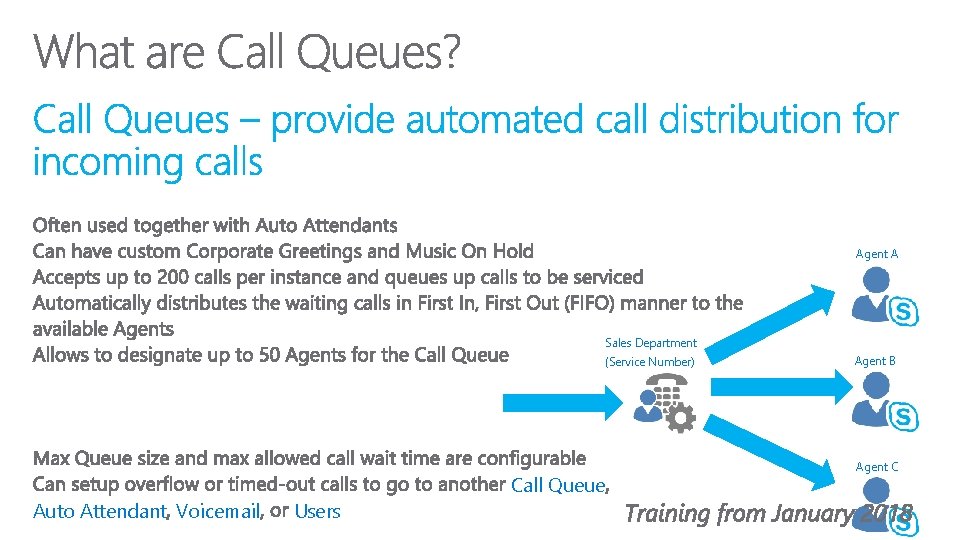
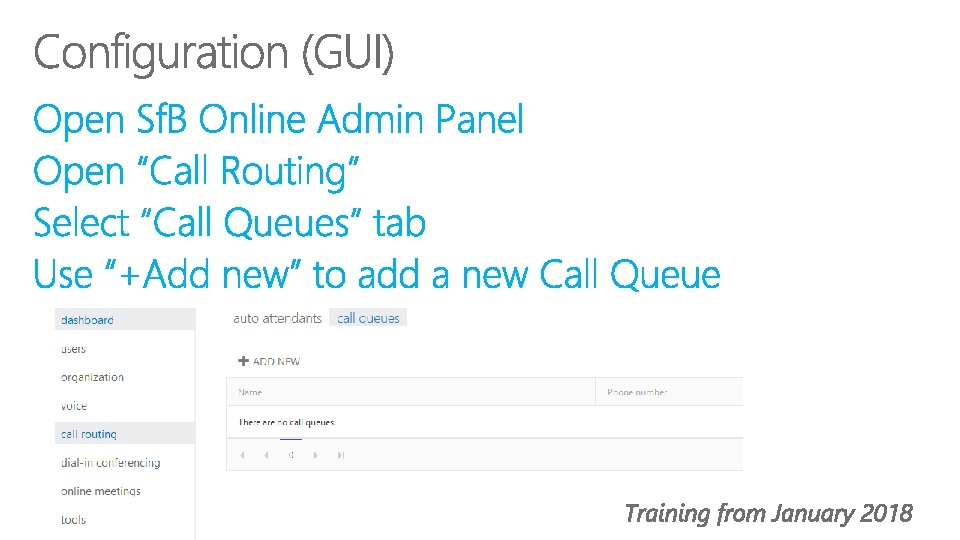
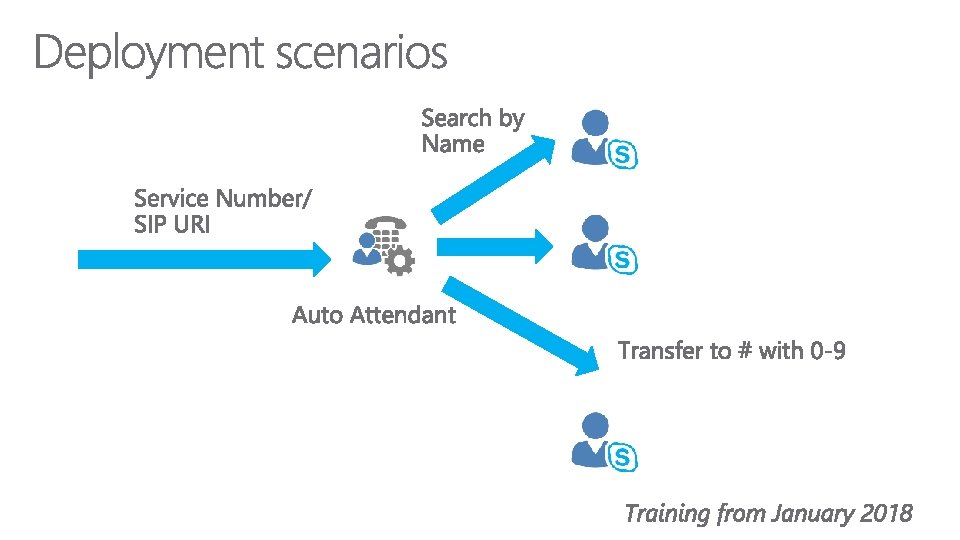
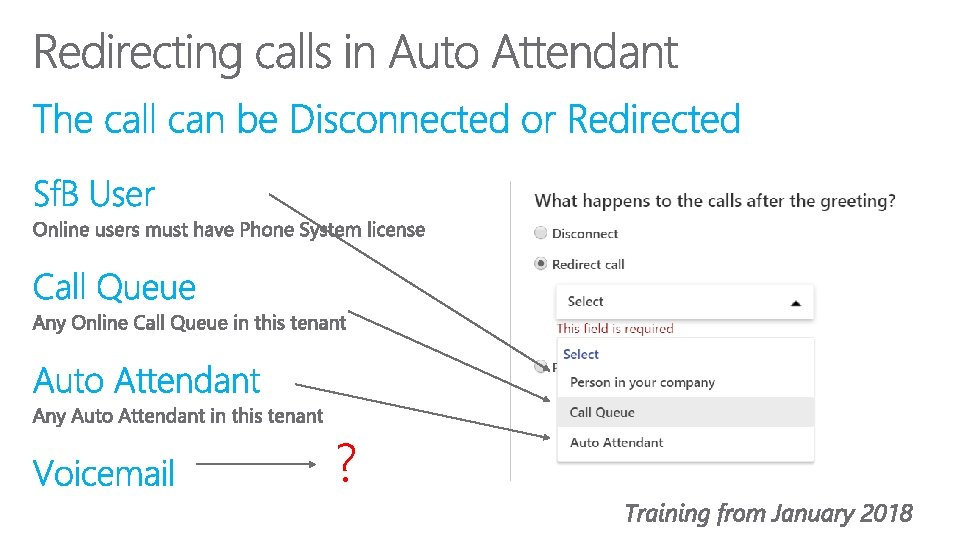
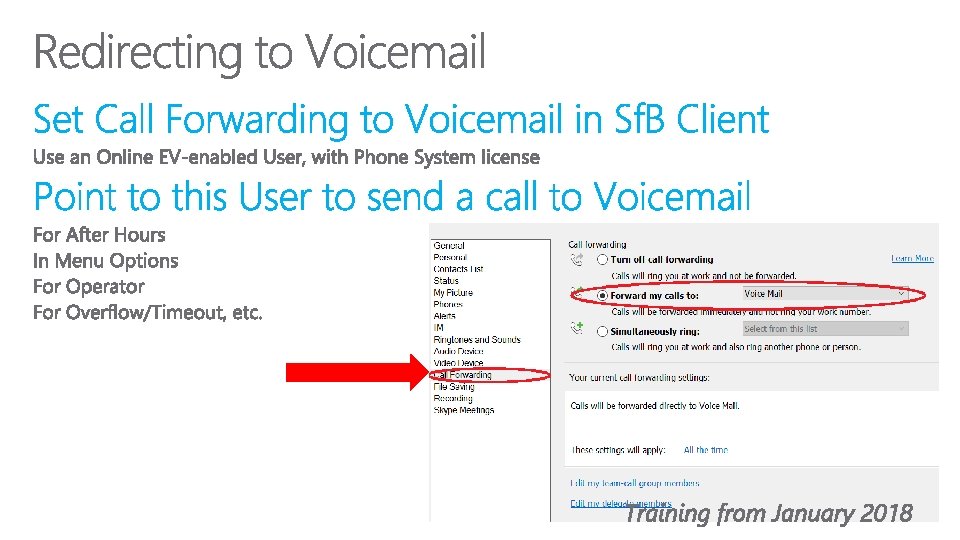
Agent A Sales Department (Service Number) Auto Attendant Voicemail Users Call Queue Agent B Agent C
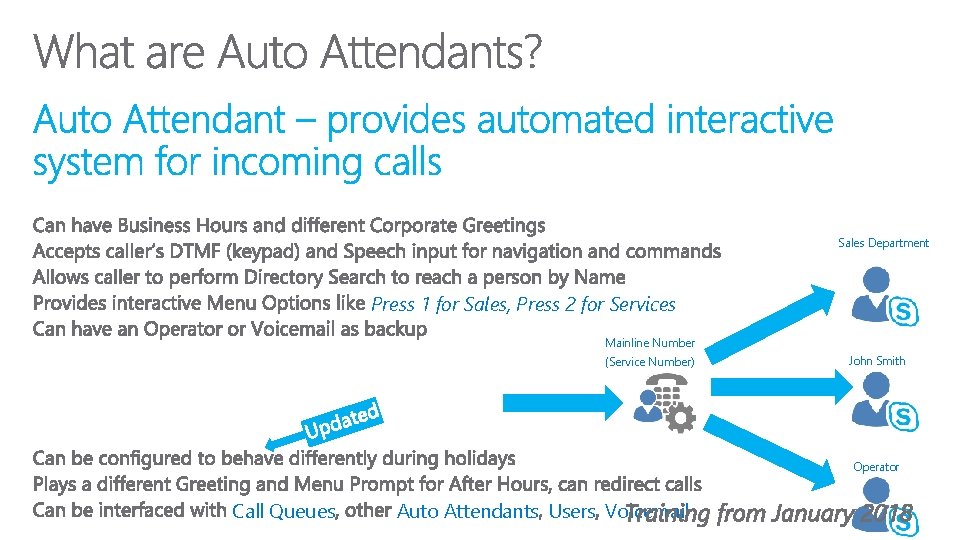
Sales Department Press 1 for Sales, Press 2 for Services Mainline Number (Service Number) John Smith Operator Call Queues Auto Attendants Users Voicemail
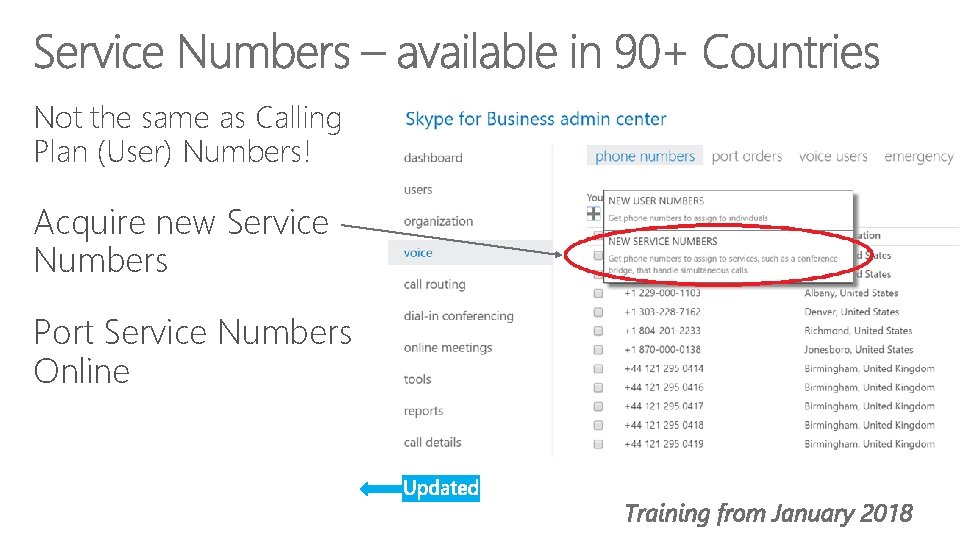
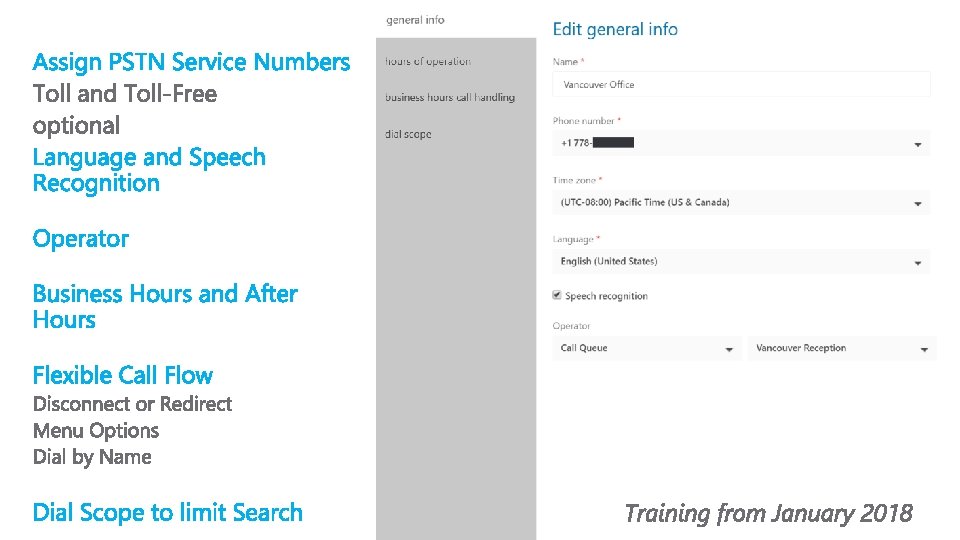
Not the same as Calling Plan (User) Numbers! Acquire new Service Numbers Port Service Numbers Online
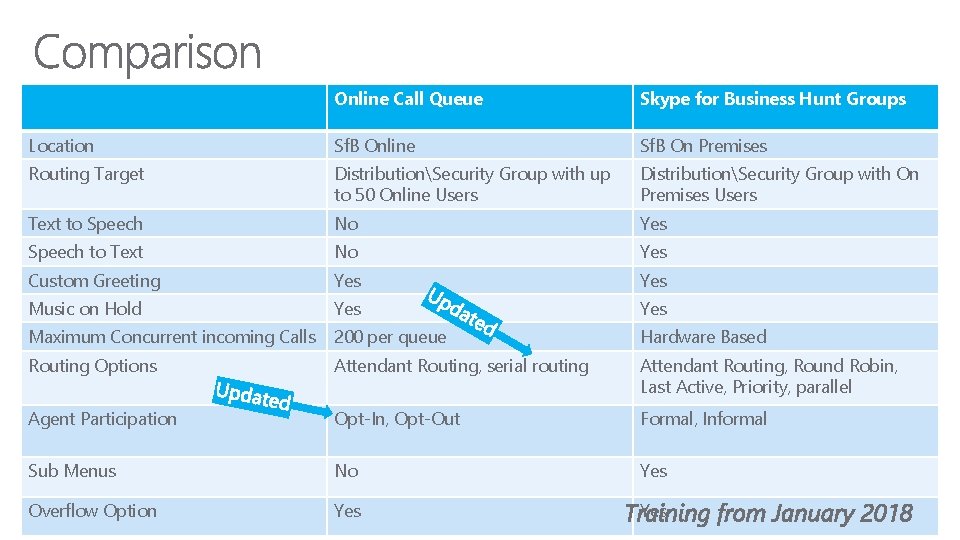
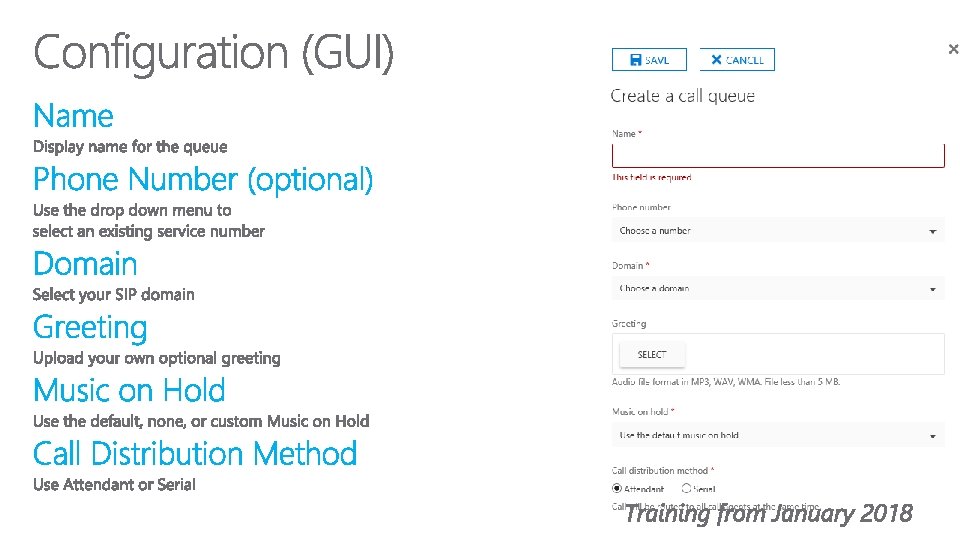
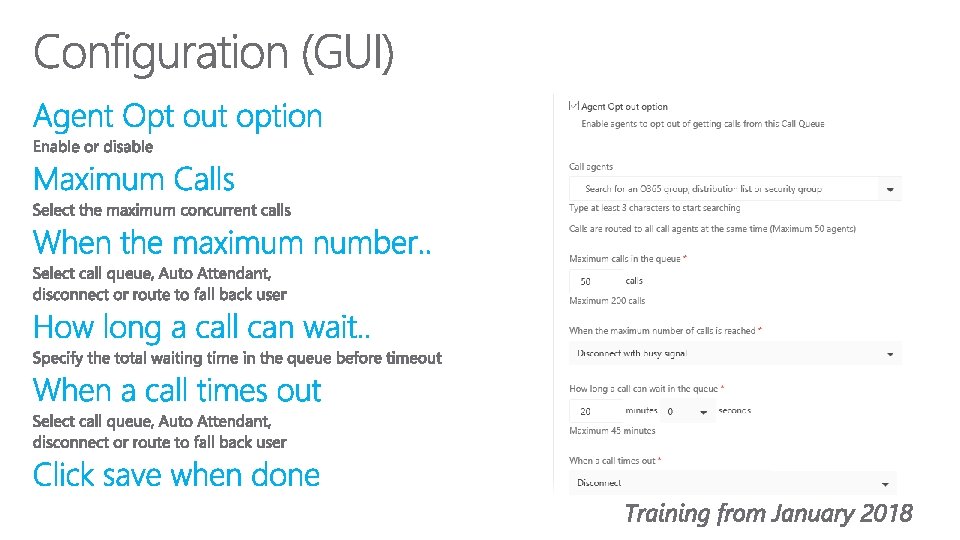
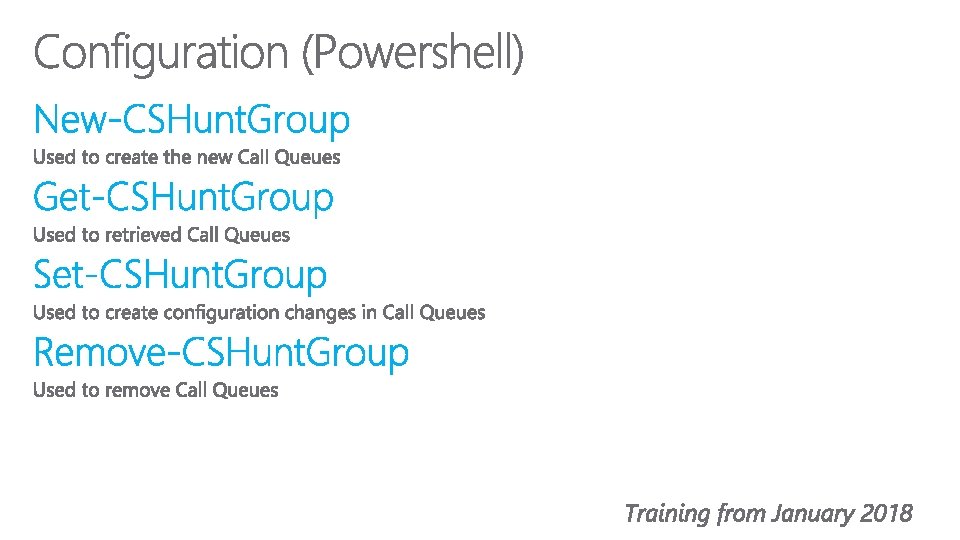
Online Call Queue Skype for Business Hunt Groups Location Sf. B Online Sf. B On Premises Routing Target DistributionSecurity Group with up to 50 Online Users DistributionSecurity Group with On Premises Users Text to Speech No Yes Speech to Text No Yes Custom Greeting Yes Music on Hold Yes Maximum Concurrent incoming Calls 200 per queue Hardware Based Routing Options Attendant Routing, serial routing Attendant Routing, Round Robin, Last Active, Priority, parallel Agent Participation Opt-In, Opt-Out Formal, Informal Sub Menus No Yes Overflow Option Yes
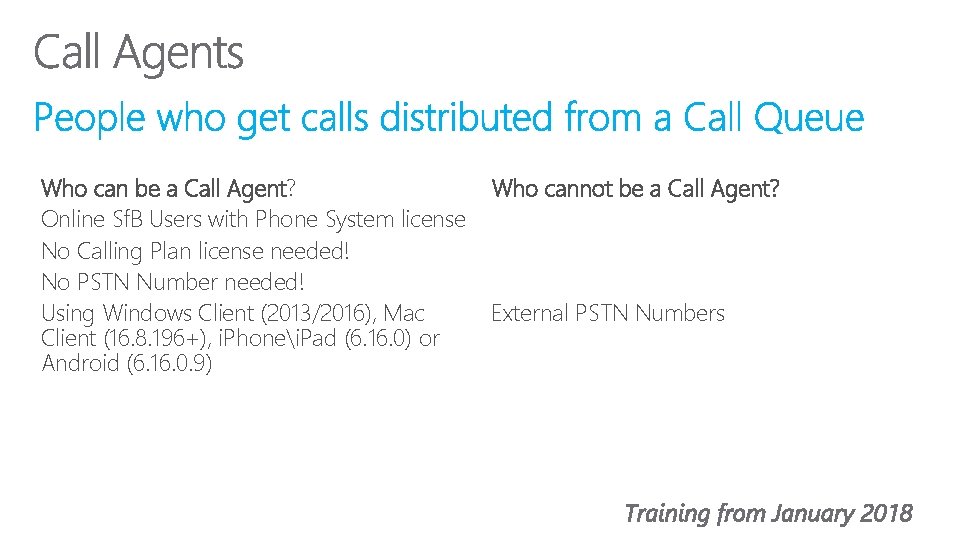
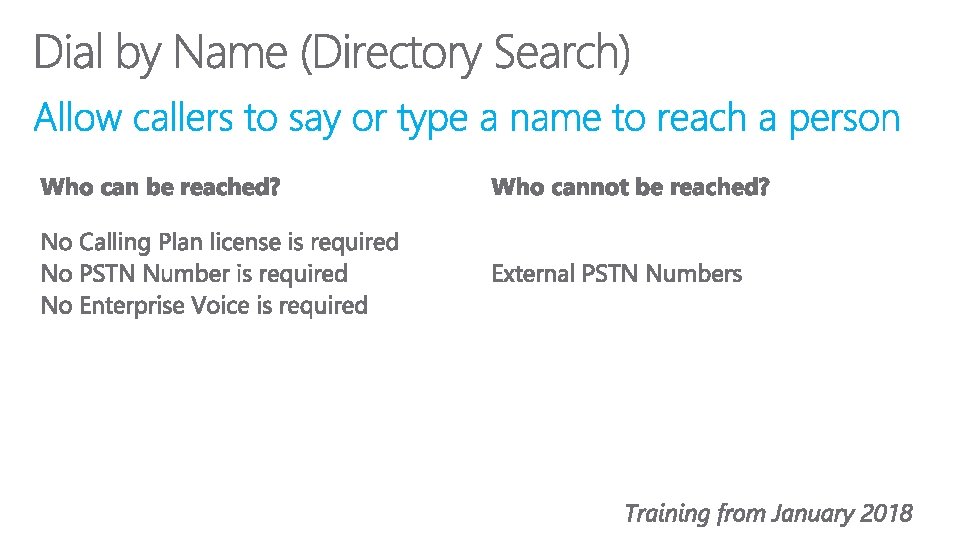
Who can be a Call Agent? Online Sf. B Users with Phone System license No Calling Plan license needed! No PSTN Number needed! Using Windows Client (2013/2016), Mac Client (16. 8. 196+), i. Phonei. Pad (6. 16. 0) or Android (6. 16. 0. 9) Who cannot be a Call Agent? External PSTN Numbers
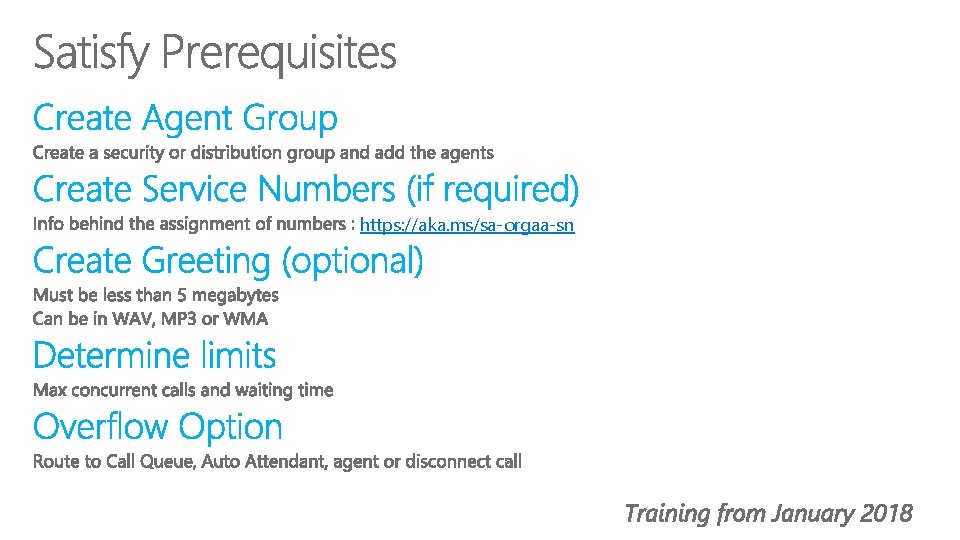
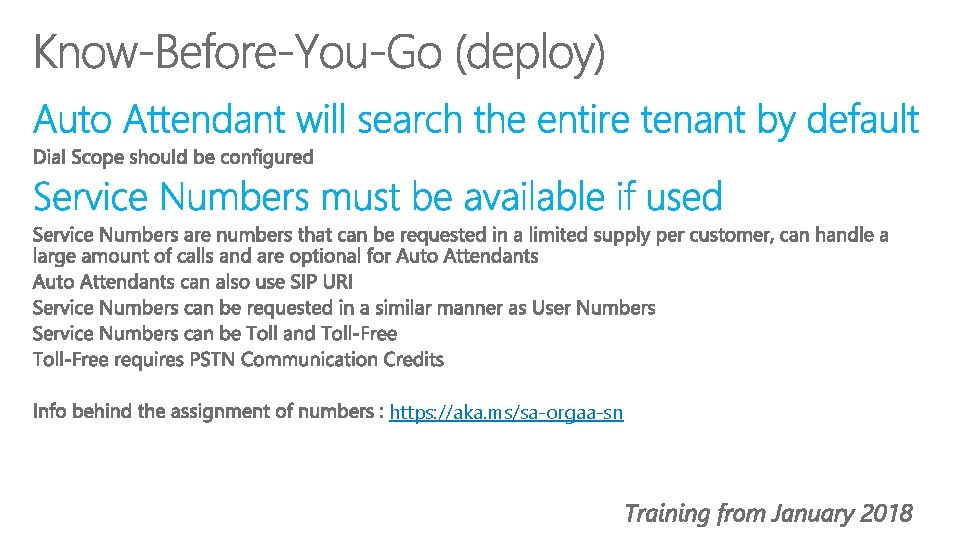
https: //aka. ms/sa-orgaa-sn
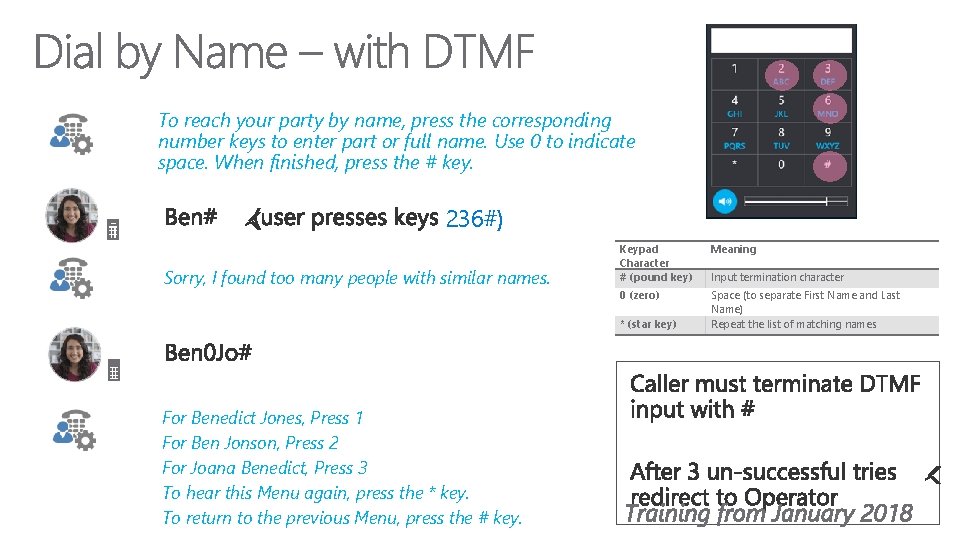
To reach your party by name, press the corresponding number keys to enter part or full name. Use 0 to indicate space. When finished, press the # key. 236#) Sorry, I found too many people with similar names. Keypad Character # (pound key) Meaning 0 (zero) Space (to separate First Name and Last Name) Repeat the list of matching names * (star key) For Benedict Jones, Press 1 For Ben Jonson, Press 2 For Joana Benedict, Press 3 To hear this Menu again, press the * key. To return to the previous Menu, press the # key. Input termination character
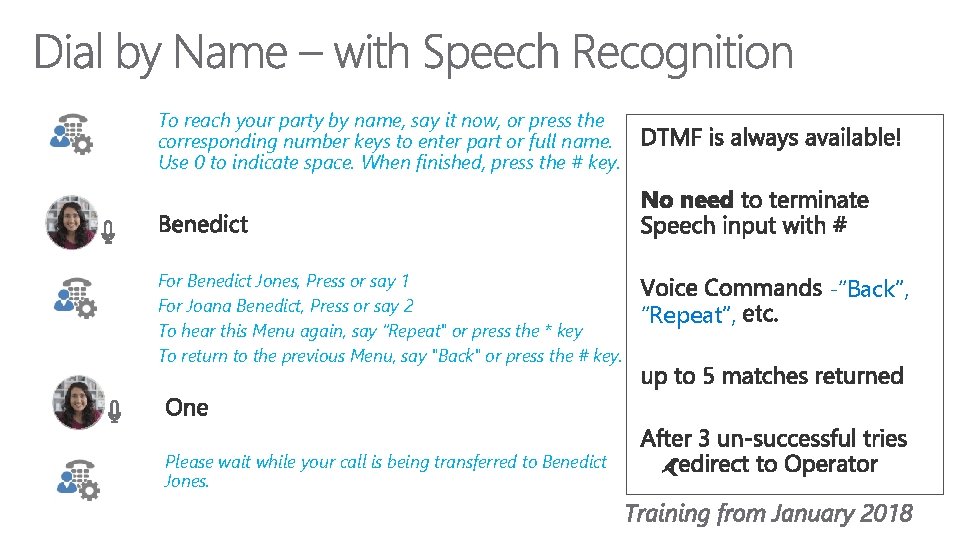
To reach your party by name, say it now, or press the corresponding number keys to enter part or full name. Use 0 to indicate space. When finished, press the # key. For Benedict Jones, Press or say 1 For Joana Benedict, Press or say 2 To hear this Menu again, say “Repeat" or press the * key To return to the previous Menu, say "Back" or press the # key. Please wait while your call is being transferred to Benedict Jones. “Repeat”, -“Back”,
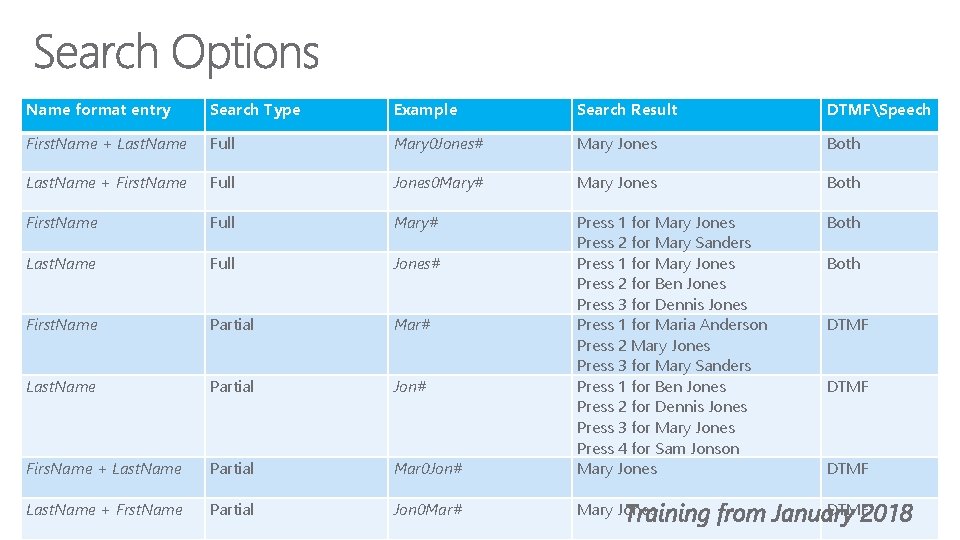
Name format entry Search Type Example Search Result DTMFSpeech First. Name + Last. Name Full Mary 0 Jones# Mary Jones Both Last. Name + First. Name Full Jones 0 Mary# Mary Jones Both First. Name Full Mary# Both Last. Name Full Jones# First. Name Partial Mar# Last. Name Partial Jon# Firs. Name + Last. Name Partial Mar 0 Jon# Press 1 for Mary Jones Press 2 for Mary Sanders Press 1 for Mary Jones Press 2 for Ben Jones Press 3 for Dennis Jones Press 1 for Maria Anderson Press 2 Mary Jones Press 3 for Mary Sanders Press 1 for Ben Jones Press 2 for Dennis Jones Press 3 for Mary Jones Press 4 for Sam Jonson Mary Jones Last. Name + Frst. Name Partial Jon 0 Mar# Mary Jones DTMF Both DTMF
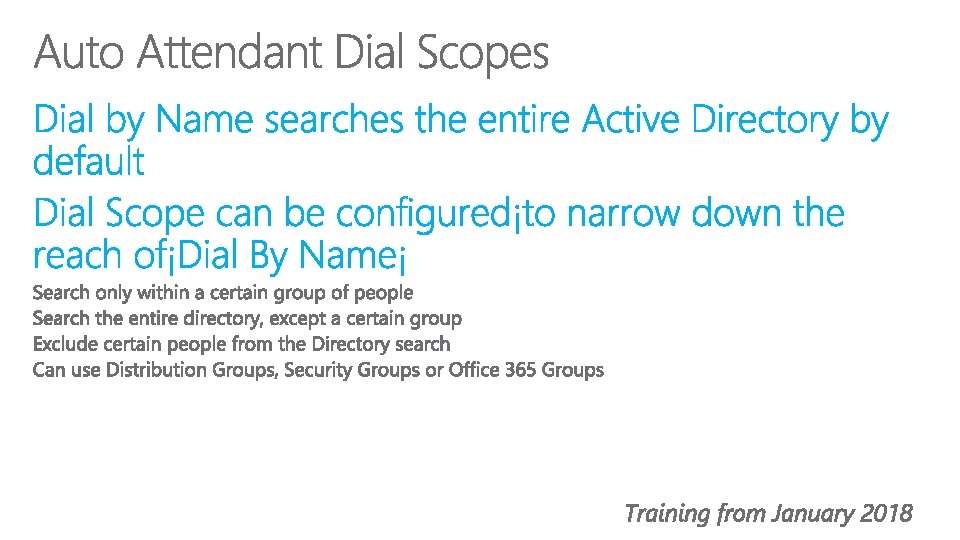
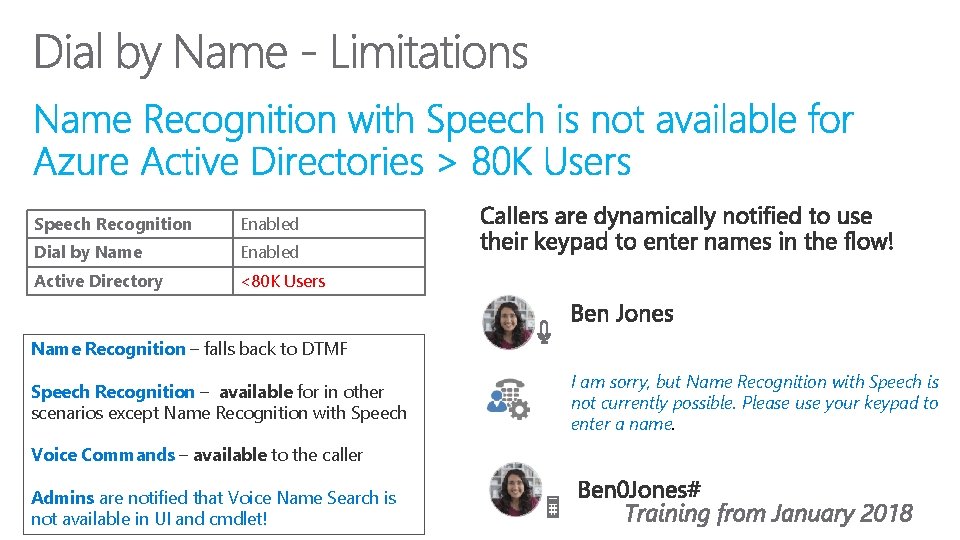
Speech Recognition Enabled Dial by Name Enabled Active Directory <80 K Users Name Recognition – falls back to DTMF Speech Recognition – available for in other scenarios except Name Recognition with Speech Voice Commands – available to the caller Admins are notified that Voice Name Search is not available in UI and cmdlet! I am sorry, but Name Recognition with Speech is not currently possible. Please use your keypad to enter a name.
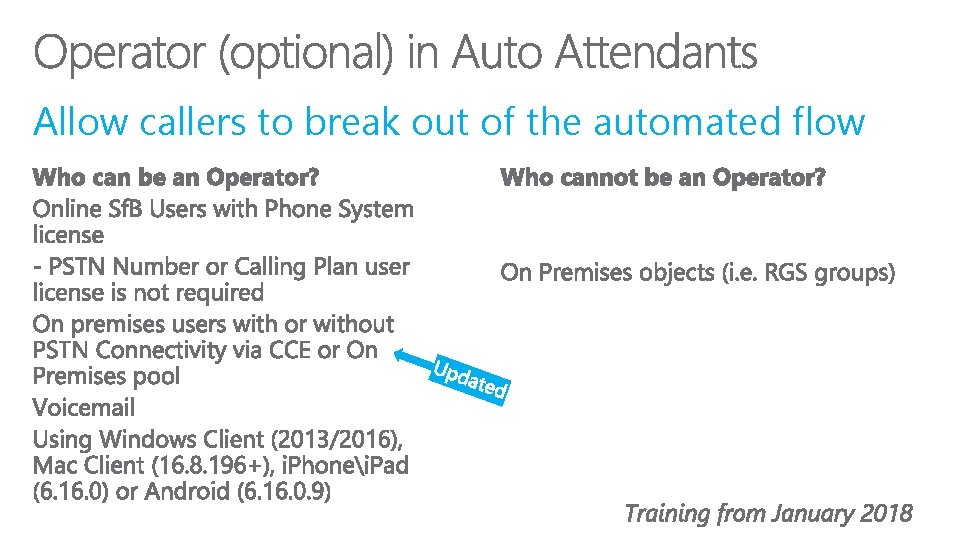
Allow callers to break out of the automated flow
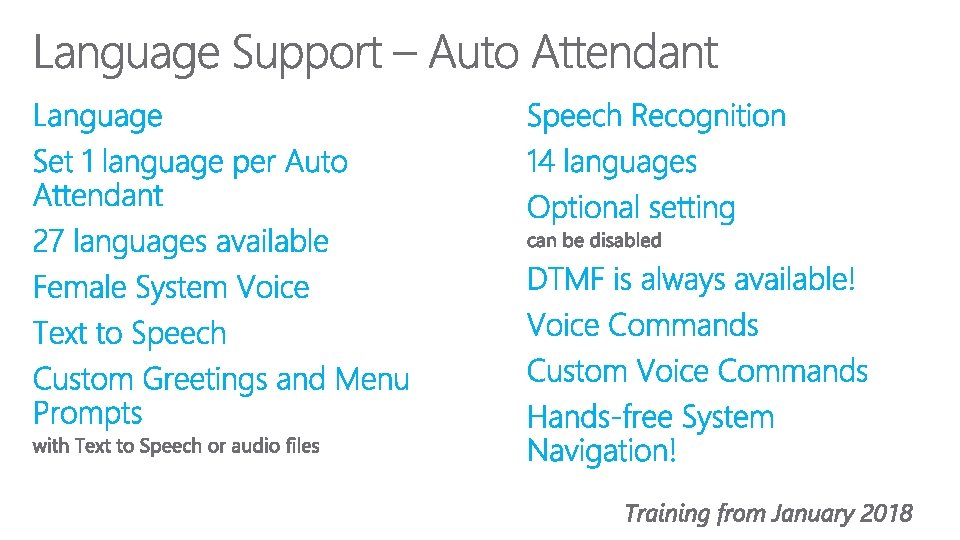
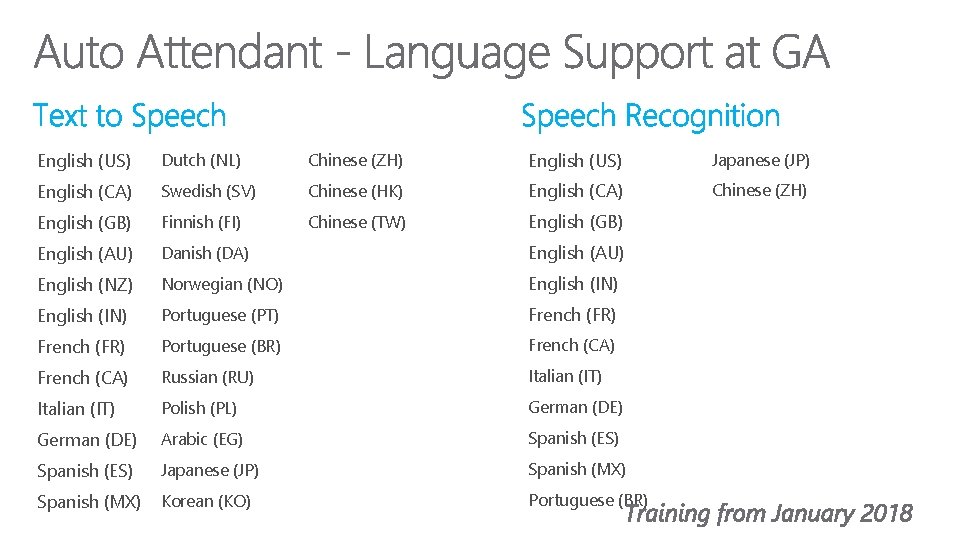
English (US) Dutch (NL) Chinese (ZH) English (US) Japanese (JP) English (CA) Swedish (SV) Chinese (HK) English (CA) Chinese (ZH) English (GB) Finnish (FI) Chinese (TW) English (GB) English (AU) Danish (DA) English (AU) English (NZ) Norwegian (NO) English (IN) Portuguese (PT) French (FR) Portuguese (BR) French (CA) Russian (RU) Italian (IT) Polish (PL) German (DE) Arabic (EG) Spanish (ES) Japanese (JP) Spanish (MX) Korean (KO) Portuguese (BR)
https: //aka. ms/sa-orgaa-sn
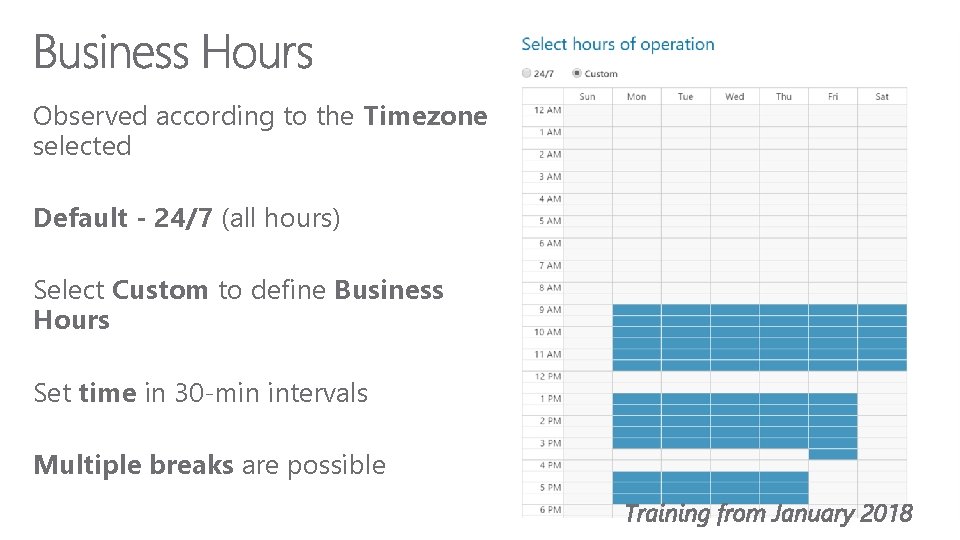
Observed according to the Timezone selected Default - 24/7 (all hours) Select Custom to define Business Hours Set time in 30 -min intervals Multiple breaks are possible
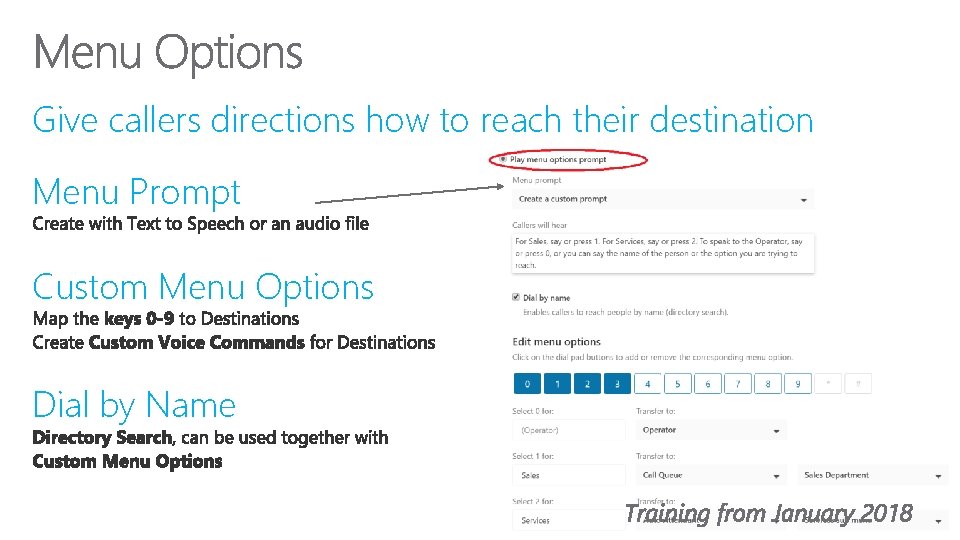
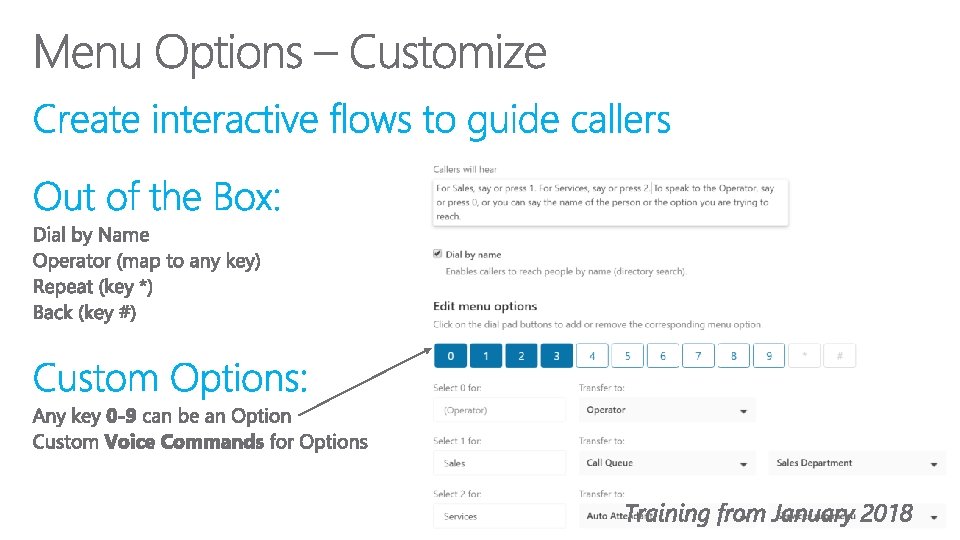
Give callers directions how to reach their destination Menu Prompt Custom Menu Options Dial by Name
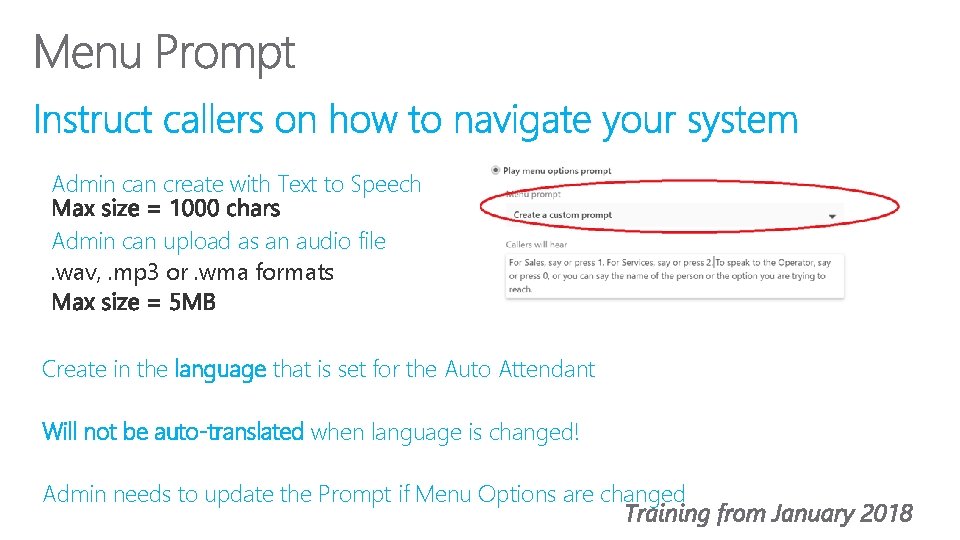
Admin can create with Text to Speech Admin can upload as an audio file. wav, . mp 3 or. wma formats Create in the language that is set for the Auto Attendant Will not be auto-translated when language is changed! Admin needs to update the Prompt if Menu Options are changed
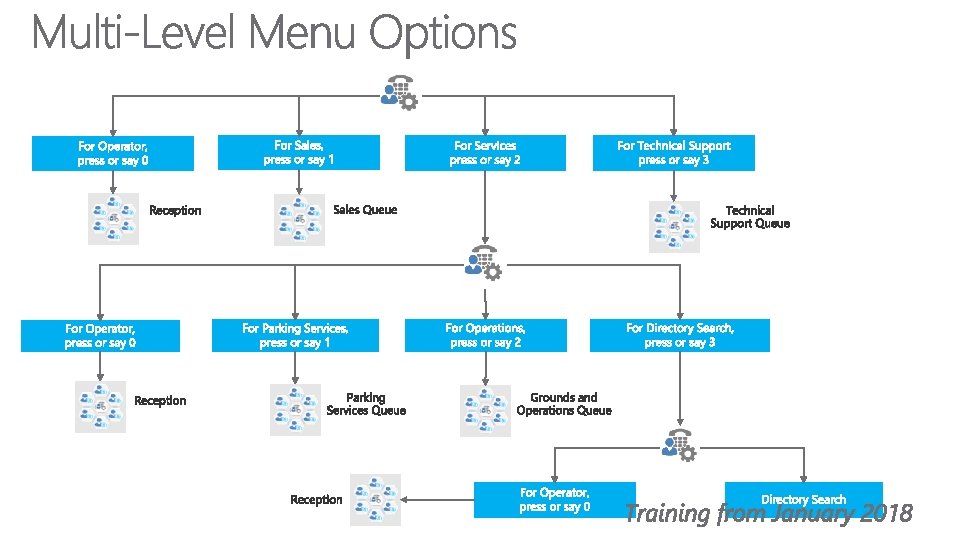
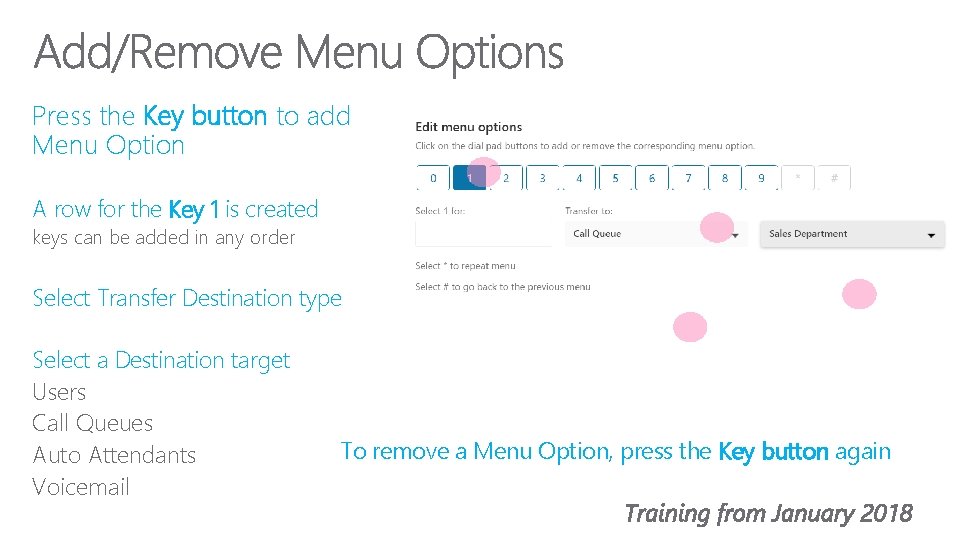
Press the Key button to add Menu Option A row for the Key 1 is created keys can be added in any order Select Transfer Destination type Select a Destination target Users Call Queues Auto Attendants Voicemail To remove a Menu Option, press the Key button again
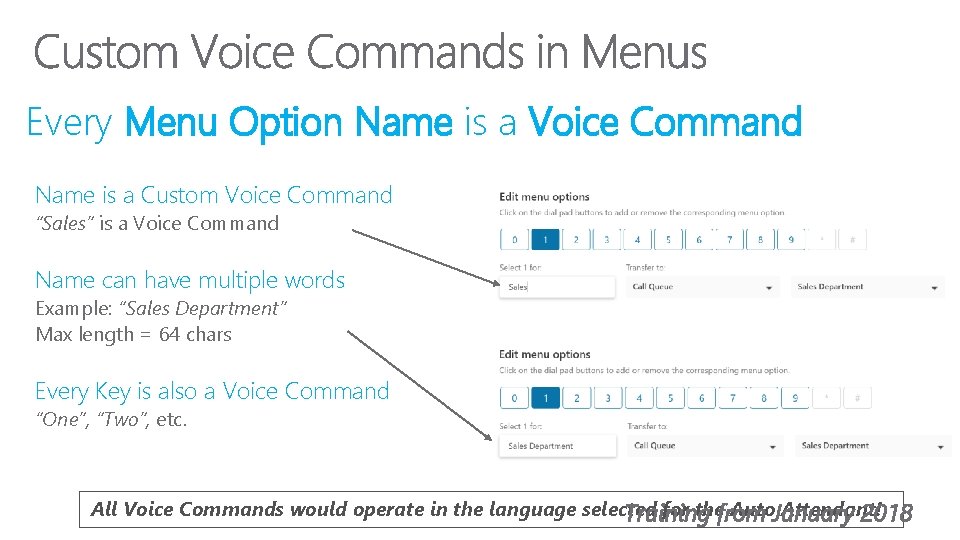
Every Menu Option Name is a Voice Command Name is a Custom Voice Command “Sales” is a Voice Command Name can have multiple words Example: “Sales Department” Max length = 64 chars Every Key is also a Voice Command “One”, “Two”, etc. All Voice Commands would operate in the language selected for the Auto Attendant!
https: //www. skypeoperationsframework. com/academy https: //aka. ms/sa-orgaa-sn http: //www. skypepreview. com https: //aka. ms/sfbcommunity https: //aka. ms/sfbblog