
HTML Vocabulary SGML Standard Generalized Markup Language HTML
HTML
Vocabulary �SGML: Standard Generalized Markup Language • HTML: Hypertext Markup Language • XHTML: e. Xtensible Hypertext Markup Language • XML: e. Xtensible Markup Language �DTD: Document Type Definition 2
Hypertext & HTML Hyper. Text Markup Language (HTML) is the language for specifying the static content of Web pages • hypertext refers to the fact that Web pages are more than just text can contain multimedia, provide links for jumping within & without • markup refers to the fact that it works by augmenting text with special symbols (tags) that identify structure and content type HTML is an evolving standard (as new technology/tools are added) § HTML 1 (Berners-Lee, 1989): very basic, limited integration of multimedia in 1993, Mosaic added many new features (e. g. , integrated images) § HTML 2. 0 (IETF, 1994): tried to standardize these & other features, but late in 1994 -96, Netscape & IE added many new, divergent features § HTML 3. 2 (W 3 C, 1996): attempted to unify into a single standard but didn't address newer technologies like Java applets & streaming video 3
What is HTML? � � � HTML is a language for describing web pages. HTML is not a programming language, it is a markup language A markup language is a set of markup tags HTML uses markup tags to describe web pages HTML tags are keywords surrounded by angle brackets like <html> HTML tags normally come in pairs like <b> and </b> The first tag in a pair is the start tag, the second tag is the end tag Start and end tags are also called opening tags and closing tags HTML documents describe web pages HTML documents contain HTML tags and plain text HTML documents are also called web pages 4

What is XHTML? �XHTML stands for Extensible Hypertext Markup Language • XHTML is aimed to replace HTML • XHTML is almost identical to HTML 4. 01 • XHTML is a stricter and cleaner version of HTML 5

From HTML to XHTML � XHTML elements must be properly nested <b><i>bold and italic</b></i> is wrong � XHTML documents must be well-formed <html> <head>. . . </head> <body>. . . </body> </html> Tag names must be in lowercase � � All XHTML elements must be closed • If an HTML tag is not a container, close it like this: , <hr />, <image src="smile. gif" /> • Note: Some browsers require a space before the / 6
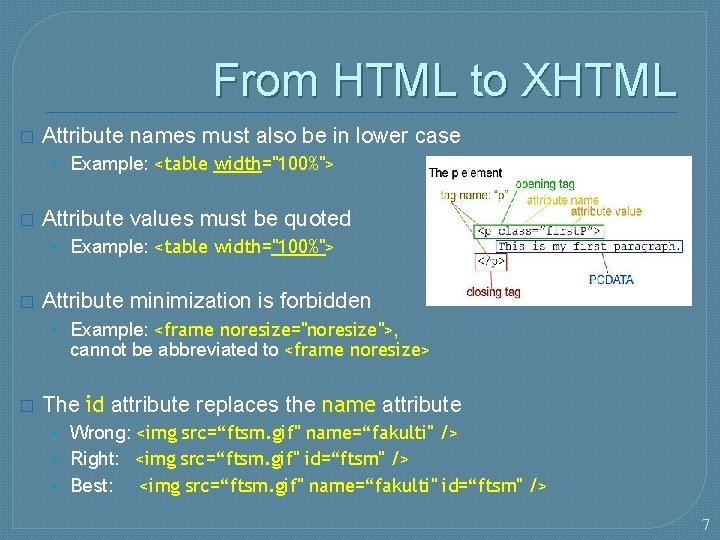
From HTML to XHTML � Attribute names must also be in lower case • Example: <table width="100%"> � Attribute values must be quoted • Example: <table width="100%"> � Attribute minimization is forbidden • Example: <frame noresize="noresize">, cannot be abbreviated to <frame noresize> � The id attribute replaces the name attribute • Wrong: <img src=“ftsm. gif" name=“fakulti" /> • Right: <img src=“ftsm. gif" id=“ftsm" /> • Best: <img src=“ftsm. gif" name=“fakulti" id=“ftsm" /> 7
SGML and DTDs � � SGML stands for “Standard Generalized Markup Language” HTML, XML and many other markup languages are defined in SGML A DTD, or “Document Type Definition” describes the syntax to use for the current document There are three different DTDs for XHTML--you can pick the one you want • These DTDs are public and on the web • You must start your XHTML document with a reference to one of these DTDs 8
DOCTYPE declaration, I �Every XHTML document must begin with one of the DOCTYPE declarations (DTDs): • <!DOCTYPE html PUBLIC "-//W 3 C//DTD XHTML 1. 0 Strict//EN" "http: //www. w 3. org/TR/xhtml 1/DTD/xhtml 1 -strict. dtd"> • <!DOCTYPE html PUBLIC "-//W 3 C//DTD XHTML 1. 0 Transitional//EN" "http: //www. w 3. org/TR/xhtml 1/DTD/xhtml 1 -transitional. dtd"> • <!DOCTYPE html PUBLIC "-//W 3 C//DTD XHTML 1. 0 Frameset//EN" "http: //www. w 3. org/TR/xhtml 1/DTD/xhtml 1 -frameset. dtd"> 9
DOCTYPE declaration, II � The three main DTDs are as follows: • Strict �Use for really clean markup, with no display information (no font, color, or size information) �Use with CSS (Cascading Style Sheets) if you want to define how the document should look • Transitional �Use with standard HTML and/or with CSS �Allows deprecated HTML elements • Frameset �Use if your document uses HTML frames 10
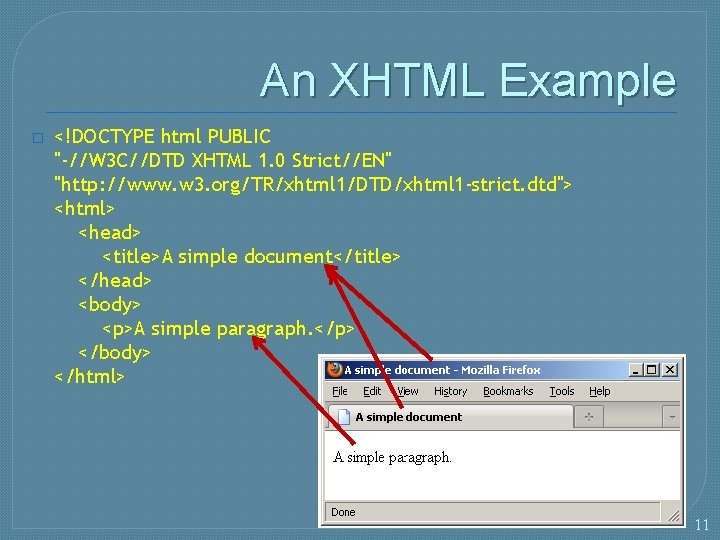
An XHTML Example � <!DOCTYPE html PUBLIC "-//W 3 C//DTD XHTML 1. 0 Strict//EN" "http: //www. w 3. org/TR/xhtml 1/DTD/xhtml 1 -strict. dtd"> <html> <head> <title>A simple document</title> </head> <body> <p>A simple paragraph. </p> </body> </html> 11
Tools � Dave Raggett's HTML TIDY http: //www. w 3. org/People/Raggett/tidy/ is a free UNIX tool for checking and cleaning up HTML pages � W 3 C HTML Validation Tool http: //validator. w 3. org/ is an HTML form for checking (but not fixing) HTML and XHTML documents 12
Hypertext Markup Language (HTML) � describes the content and structure of information on a web page • not the same as the presentation (appearance on screen) � surrounds text content with opening and closing tags � each tag's name is called an element • Syntax : <element> content </element> • Example : <p> This is a paragraph </p> � most whitespace is insignificant in HTML (ignored or collapsed to a single space) � we will use a stricter, more standard version called XHTML 13
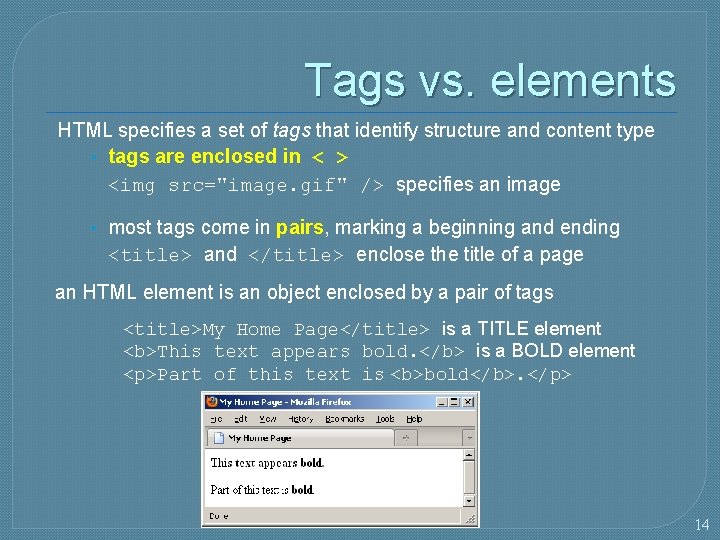
Tags vs. elements HTML specifies a set of tags that identify structure and content type • tags are enclosed in < > <img src="image. gif" /> specifies an image • most tags come in pairs, marking a beginning and ending <title> and </title> enclose the title of a page an HTML element is an object enclosed by a pair of tags <title>My Home Page</title> is a TITLE element <b>This text appears bold. </b> is a BOLD element <p>Part of this text is <b>bold</b>. </p> 14
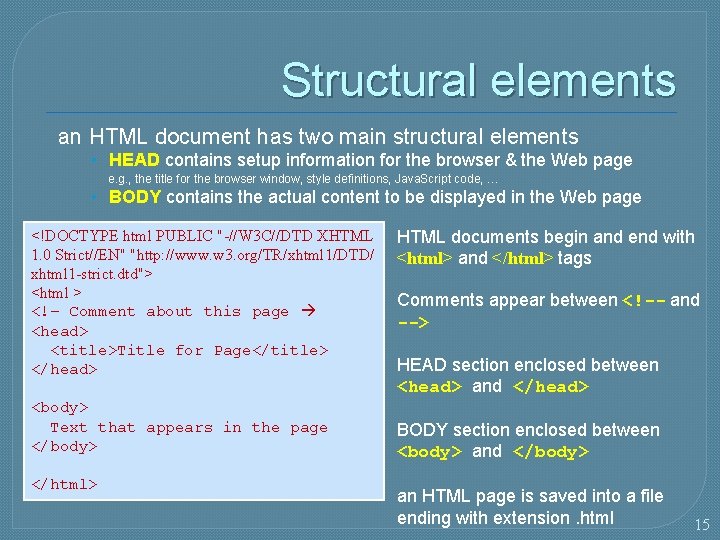
Structural elements an HTML document has two main structural elements • HEAD contains setup information for the browser & the Web page e. g. , the title for the browser window, style definitions, Java. Script code, … • BODY contains the actual content to be displayed in the Web page <!DOCTYPE html PUBLIC "-//W 3 C//DTD XHTML 1. 0 Strict//EN" "http: //www. w 3. org/TR/xhtml 1/DTD/ xhtml 1 -strict. dtd"> <html > <!– Comment about this page <head> <title>Title for Page</title> </head> <body> Text that appears in the page </body> </html> HTML documents begin and end with <html> and </html> tags Comments appear between <!-- and --> HEAD section enclosed between <head> and </head> BODY section enclosed between <body> and </body> an HTML page is saved into a file ending with extension. html 15

Structural elements <!DOCTYPE html PUBLIC "-//W 3 C//DTD XHTML 1. 0 Strict//EN" "http: //www. w 3. org/TR/xhtml 1/DTD/ xhtml 1 -strict. dtd"> <html > <!– Comment about this page <head> <title>Title for Page</title> </head> <body> Text that appears in the page </body> </html> 16
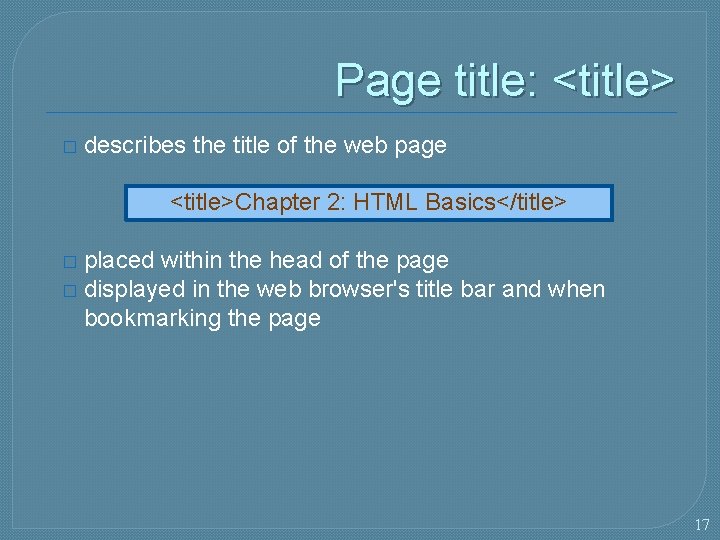
Page title: <title> � describes the title of the web page <title>Chapter 2: HTML Basics</title> placed within the head of the page � displayed in the web browser's title bar and when bookmarking the page � 17
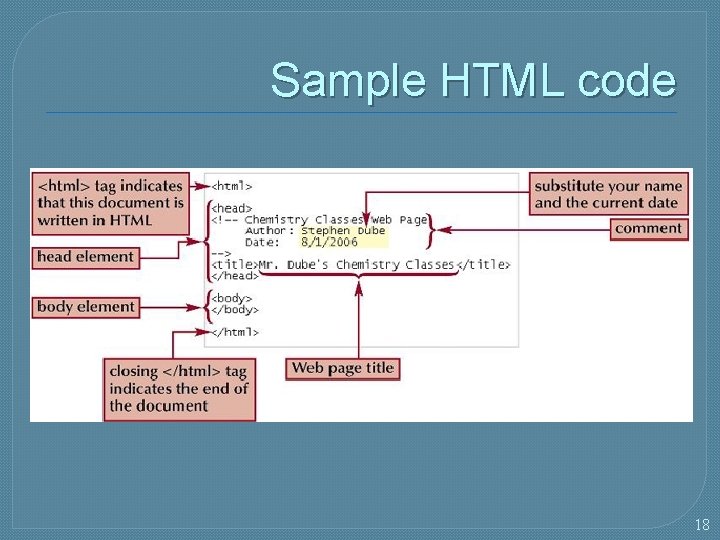
Sample HTML code 18
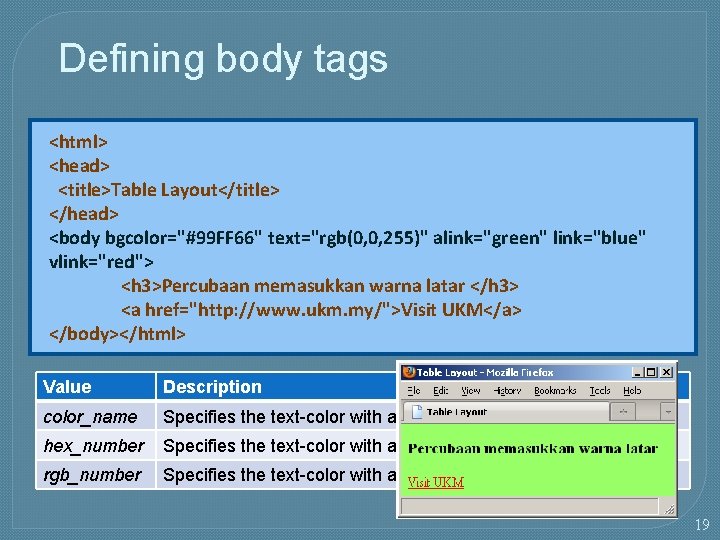
Defining body tags <html> <head> <title>Table Layout</title> </head> <body bgcolor="#99 FF 66" text="rgb(0, 0, 255)" alink="green" link="blue" vlink="red"> <h 3>Percubaan memasukkan warna latar </h 3> <a href="http: //www. ukm. my/">Visit UKM</a> </body></html> Value Description color_name Specifies the text-color with a color name (like "red") hex_number Specifies the text-color with a hex code (like "#ff 0000") rgb_number Specifies the text-color with an rgb code (like "rgb(255, 0, 0)") 19
Inserting a Background Image �The background attribute allows an image file for the background of a Web page �The syntax for inserting a background image is: background-image: url(url) �URL is the location and filename of the graphic file you want to use for the background of the Web page � For example, to use an image named “bricks. gif” as a background image, you would use the tag: <body background=“brick. gif”> 20
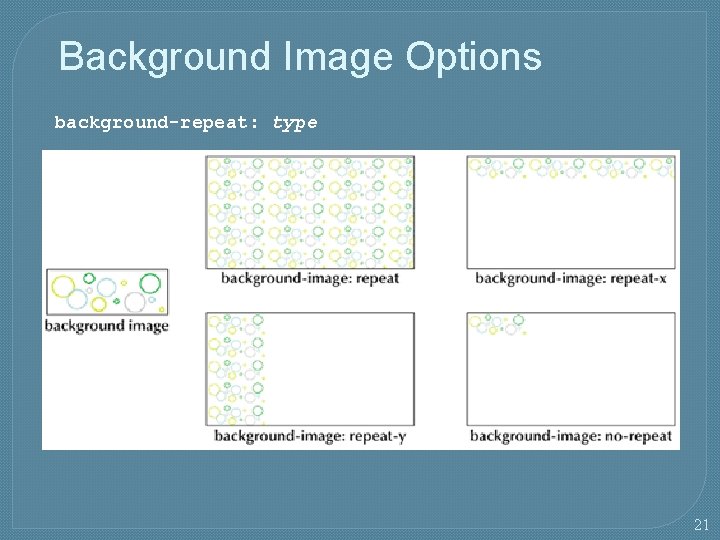
Background Image Options background-repeat: type 21
Text layout … <body> <p>This is a paragraph of text<br/> made up of two lines. </p> <p> This is another paragraph with a GAP between some of the words. </p> <p> This paragraph is <br/>indented on the first line <br/> but not on subsequent lines. </p> </body> for the most part, layout of the text must be left to the browser • every sequence of whitespace is interpreted as a single space • browser automatically wraps the text to fit the window size can override some text layout • can cause a line break using the <br/> tag (no closing tag) • can specify a new paragraph (starts on a new line, preceded by a blank line) using <p>…</p> • can force a space character using the symbol for a non-breaking space: 22
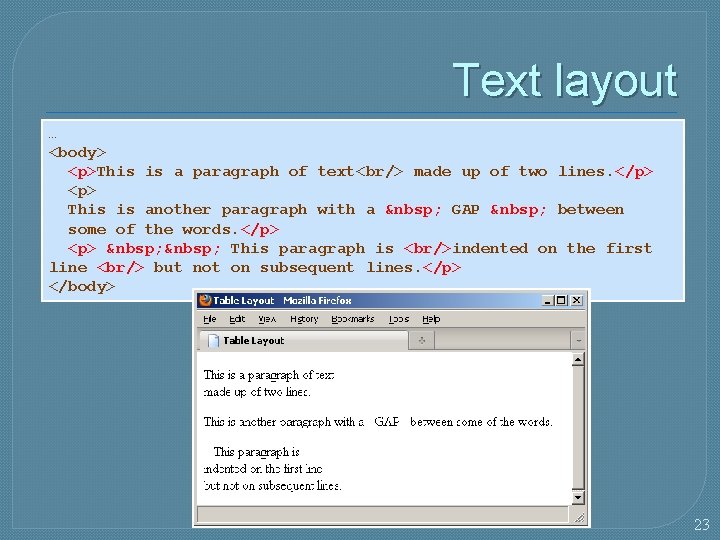
Text layout … <body> <p>This is a paragraph of text<br/> made up of two lines. </p> <p> This is another paragraph with a GAP between some of the words. </p> <p> This paragraph is <br/>indented on the first line <br/> but not on subsequent lines. </p> </body> 23
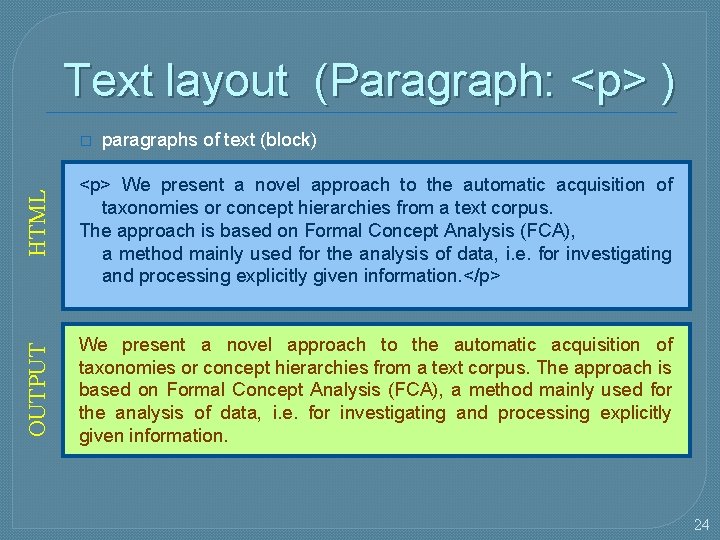
Text layout (Paragraph: <p> ) HTML paragraphs of text (block) <p> We present a novel approach to the automatic acquisition of taxonomies or concept hierarchies from a text corpus. The approach is based on Formal Concept Analysis (FCA), a method mainly used for the analysis of data, i. e. for investigating and processing explicitly given information. </p> OUTPUT � We present a novel approach to the automatic acquisition of taxonomies or concept hierarchies from a text corpus. The approach is based on Formal Concept Analysis (FCA), a method mainly used for the analysis of data, i. e. for investigating and processing explicitly given information. 24
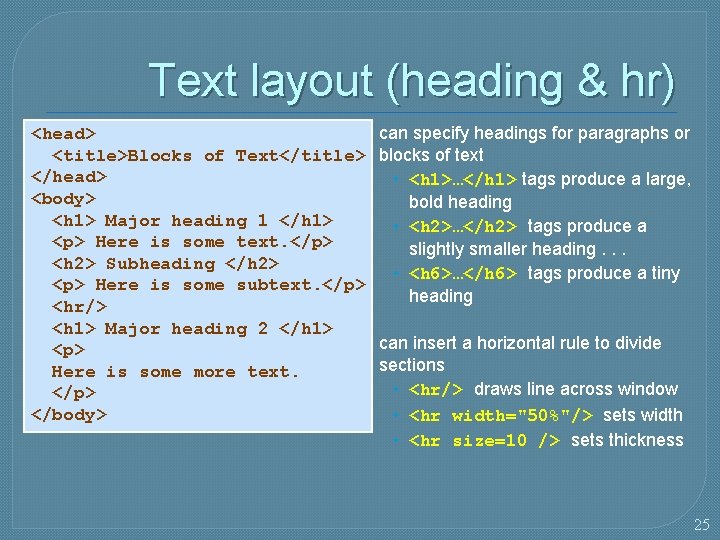
Text layout (heading & hr) <head> <title>Blocks of Text</title> </head> <body> <h 1> Major heading 1 </h 1> <p> Here is some text. </p> <h 2> Subheading </h 2> <p> Here is some subtext. </p> <hr/> <h 1> Major heading 2 </h 1> <p> Here is some more text. </p> </body> can specify headings for paragraphs or blocks of text • <h 1>…</h 1> tags produce a large, bold heading • <h 2>…</h 2> tags produce a slightly smaller heading. . . • <h 6>…</h 6> tags produce a tiny heading can insert a horizontal rule to divide sections • <hr/> draws line across window • <hr width="50%"/> sets width • <hr size=10 /> sets thickness 25
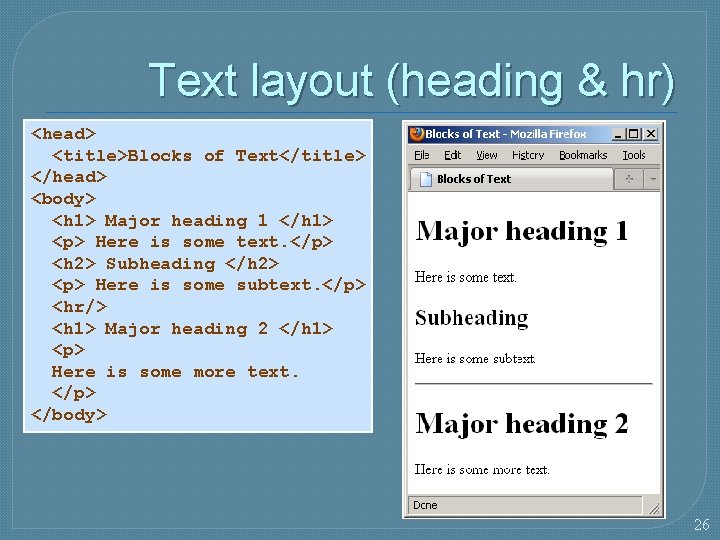
Text layout (heading & hr) <head> <title>Blocks of Text</title> </head> <body> <h 1> Major heading 1 </h 1> <p> Here is some text. </p> <h 2> Subheading </h 2> <p> Here is some subtext. </p> <hr/> <h 1> Major heading 2 </h 1> <p> Here is some more text. </p> </body> 26
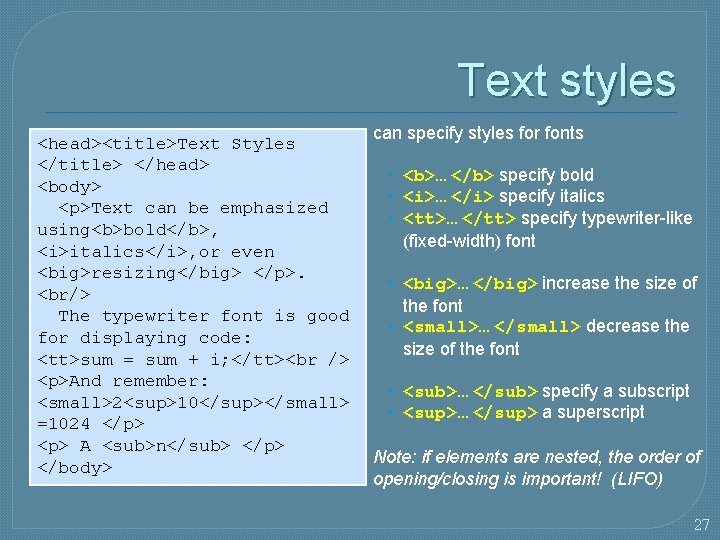
Text styles <head><title>Text Styles </title> </head> <body> <p>Text can be emphasized using<b>bold</b>, <i>italics</i>, or even <big>resizing</big> </p>. <br/> The typewriter font is good for displaying code: <tt>sum = sum + i; </tt> <p>And remember: <small>2<sup>10</sup></small> =1024 </p> <p> A <sub>n</sub> </p> </body> can specify styles for fonts • <b>… </b> specify bold • <i>… </i> specify italics • <tt>… </tt> specify typewriter-like (fixed-width) font • <big>… </big> increase the size of the font • <small>… </small> decrease the size of the font • <sub>… </sub> specify a subscript • <sup>… </sup> a superscript Note: if elements are nested, the order of opening/closing is important! (LIFO) 27
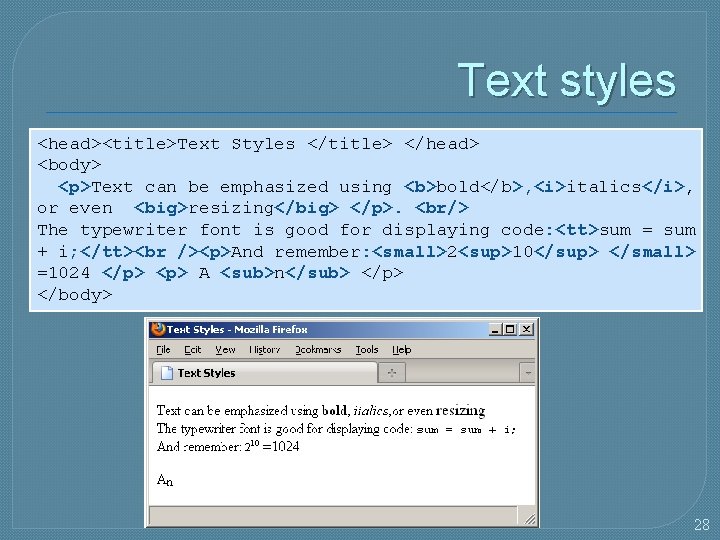
Text styles <head><title>Text Styles </title> </head> <body> <p>Text can be emphasized using <b>bold</b>, <i>italics</i>, or even <big>resizing</big> </p>. <br/> The typewriter font is good for displaying code: <tt>sum = sum + i; </tt> <p>And remember: <small>2<sup>10</sup> </small> =1024 </p> <p> A <sub>n</sub> </p> </body> 28
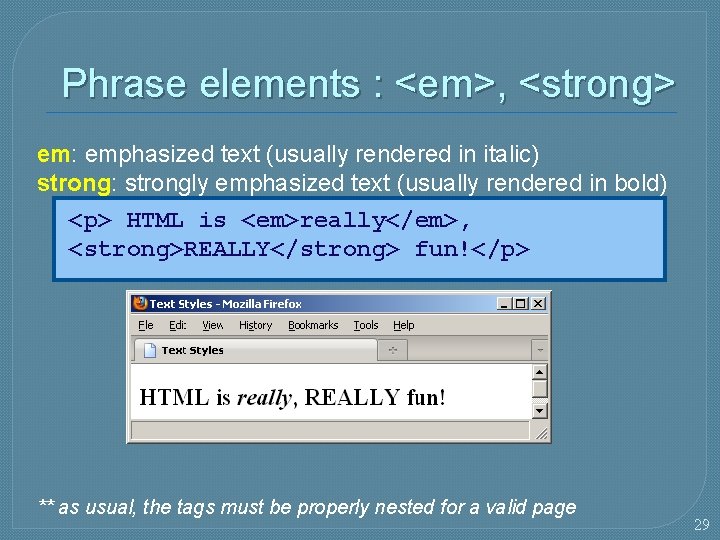
Phrase elements : <em>, <strong> em: emphasized text (usually rendered in italic) strong: strongly emphasized text (usually rendered in bold) <p> HTML is <em>really</em>, <strong>REALLY</strong> fun!</p> ** as usual, the tags must be properly nested for a valid page 29
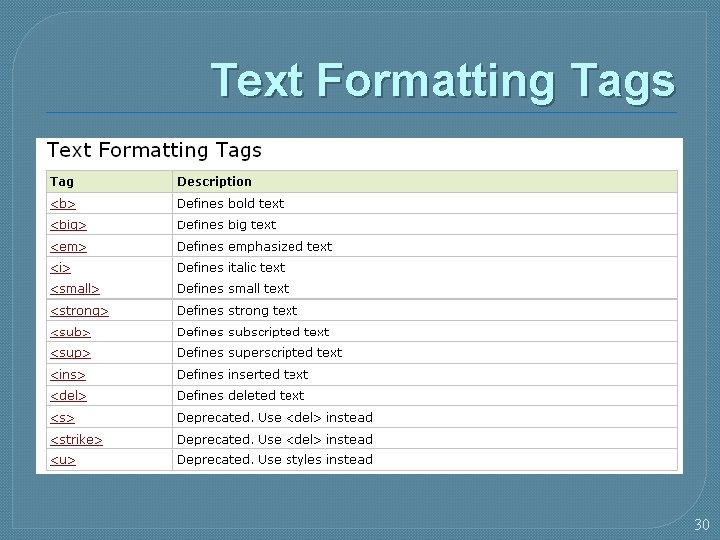
Text Formatting Tags 30
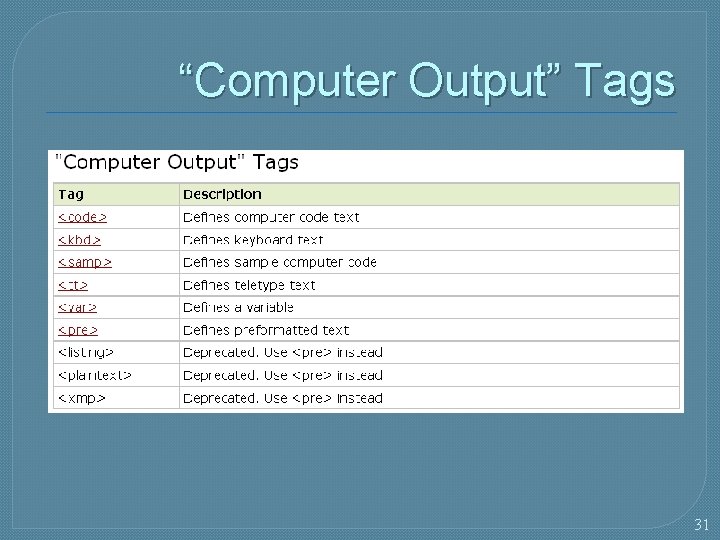
“Computer Output” Tags 31
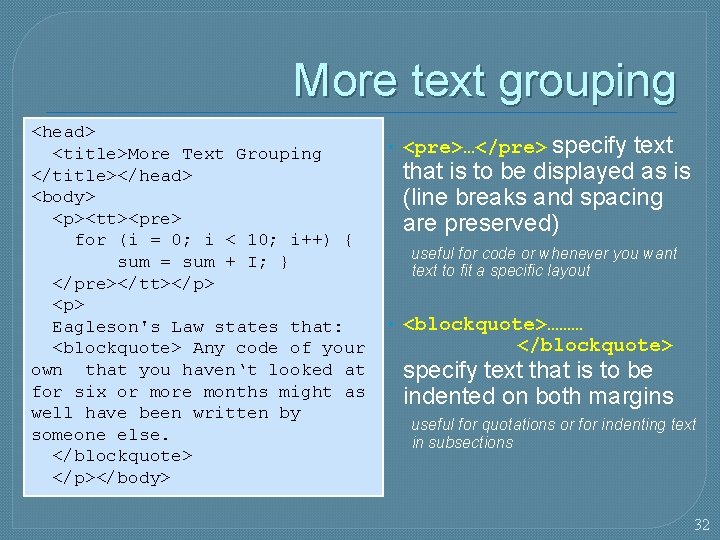
More text grouping <head> <title>More Text Grouping </title></head> <body> <p><tt><pre> for (i = 0; i < 10; i++) { sum = sum + I; } </pre></tt></p> <p> Eagleson's Law states that: <blockquote> Any code of your own that you haven‘t looked at for six or more months might as well have been written by someone else. </blockquote> </p></body> specify text that is to be displayed as is (line breaks and spacing are preserved) • <pre>…</pre> useful for code or whenever you want text to fit a specific layout • <blockquote>……… </blockquote> specify text that is to be indented on both margins useful for quotations or for indenting text in subsections 32
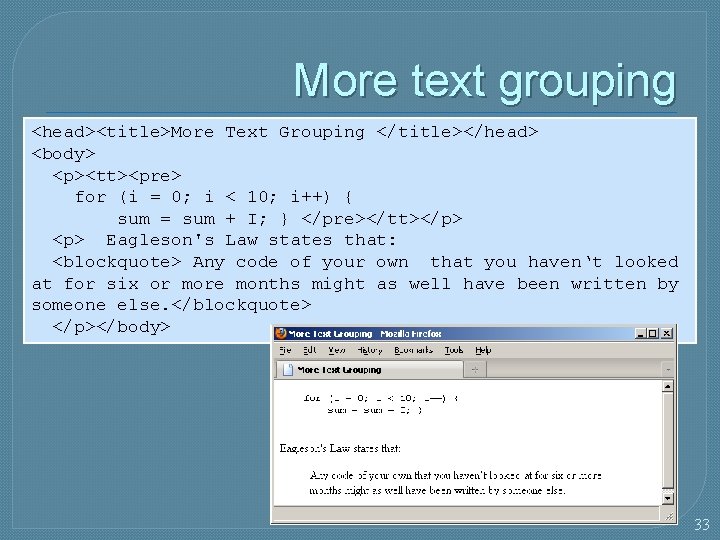
More text grouping <head><title>More Text Grouping </title></head> <body> <p><tt><pre> for (i = 0; i < 10; i++) { sum = sum + I; } </pre></tt></p> <p> Eagleson's Law states that: <blockquote> Any code of your own that you haven‘t looked at for six or more months might as well have been written by someone else. </blockquote> </p></body> 33
34
Any Questions 35
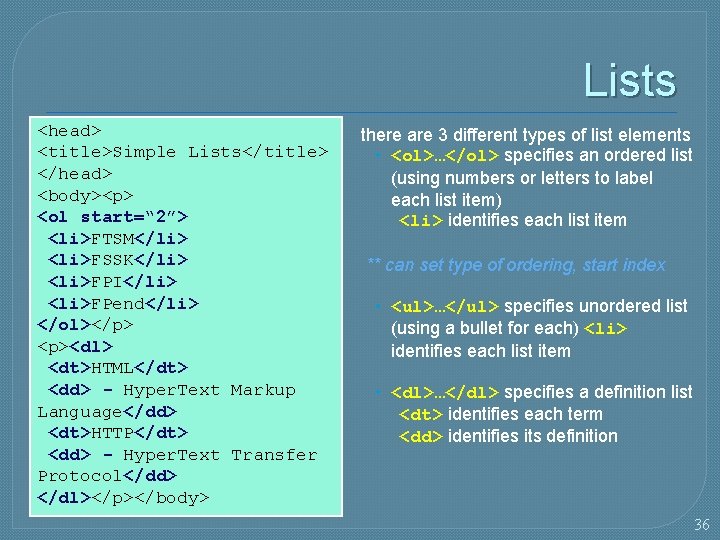
Lists <head> <title>Simple Lists</title> </head> <body><p> <ol start=“ 2”> <li>FTSM</li> <li>FSSK</li> <li>FPI</li> <li>FPend</li> </ol></p> <p><dl> <dt>HTML</dt> <dd> - Hyper. Text Markup Language</dd> <dt>HTTP</dt> <dd> - Hyper. Text Transfer Protocol</dd> </dl></p></body> there are 3 different types of list elements • <ol>…</ol> specifies an ordered list (using numbers or letters to label each list item) <li> identifies each list item ** can set type of ordering, start index • <ul>…</ul> specifies unordered list (using a bullet for each) <li> identifies each list item • <dl>…</dl> specifies a definition list <dt> identifies each term <dd> identifies its definition 36
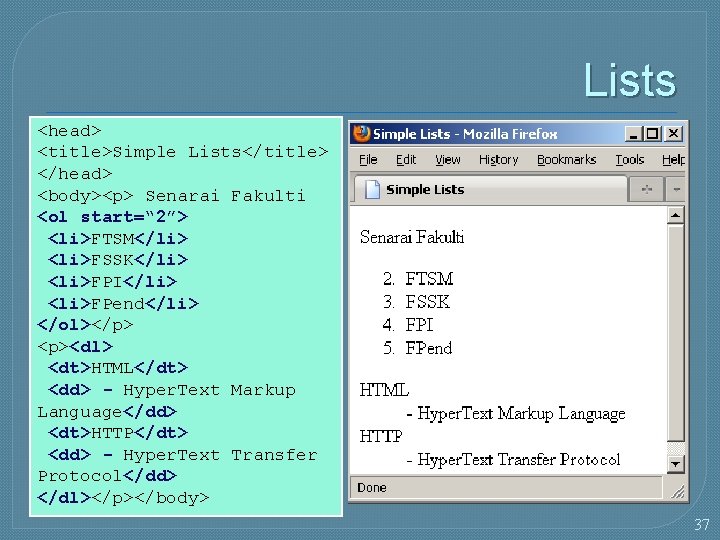
Lists <head> <title>Simple Lists</title> </head> <body><p> Senarai Fakulti <ol start=“ 2”> <li>FTSM</li> <li>FSSK</li> <li>FPI</li> <li>FPend</li> </ol></p> <p><dl> <dt>HTML</dt> <dd> - Hyper. Text Markup Language</dd> <dt>HTTP</dt> <dd> - Hyper. Text Transfer Protocol</dd> </dl></p></body> 37
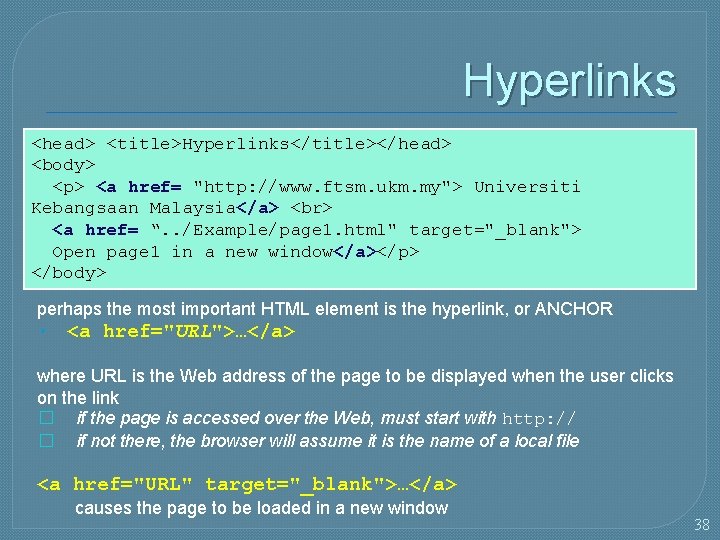
Hyperlinks <head> <title>Hyperlinks</title></head> <body> <p> <a href= "http: //www. ftsm. ukm. my"> Universiti Kebangsaan Malaysia</a> <a href= “. . /Example/page 1. html" target="_blank"> Open page 1 in a new window</a></p> </body> perhaps the most important HTML element is the hyperlink, or ANCHOR • <a href="URL">…</a> where URL is the Web address of the page to be displayed when the user clicks on the link � if the page is accessed over the Web, must start with http: // � if not there, the browser will assume it is the name of a local file <a href="URL" target="_blank">…</a> causes the page to be loaded in a new window 38
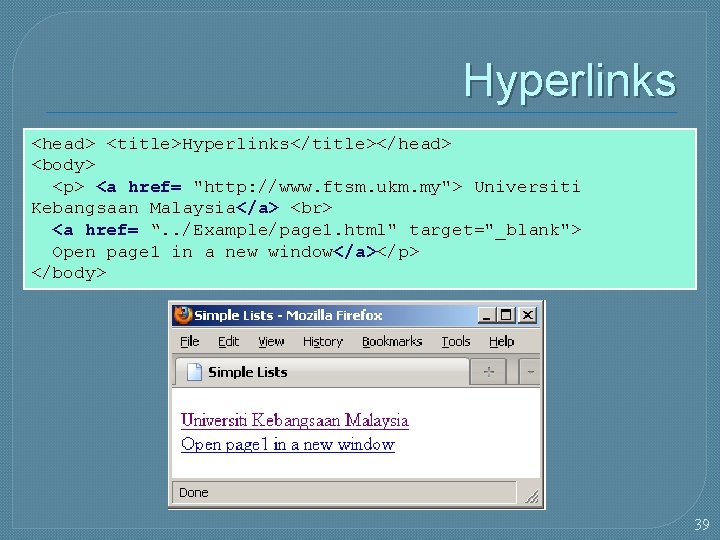
Hyperlinks <head> <title>Hyperlinks</title></head> <body> <p> <a href= "http: //www. ftsm. ukm. my"> Universiti Kebangsaan Malaysia</a> <a href= “. . /Example/page 1. html" target="_blank"> Open page 1 in a new window</a></p> </body> 39
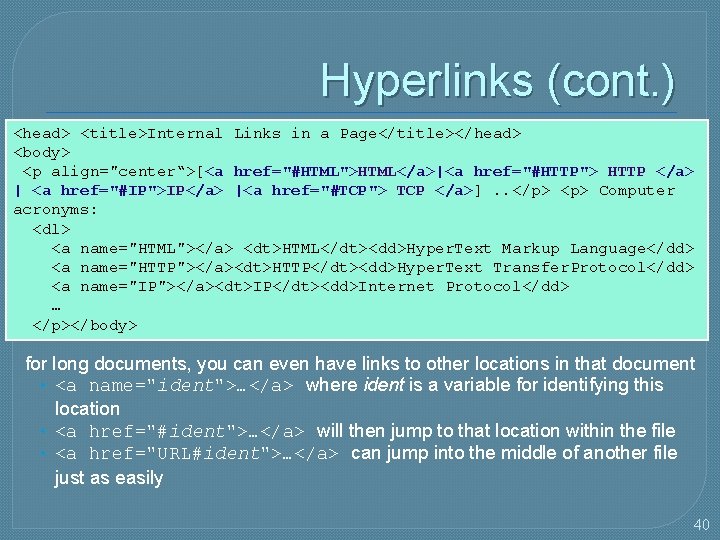
Hyperlinks (cont. ) <head> <title>Internal Links in a Page</title></head> <body> <p align="center“>[<a href="#HTML">HTML</a>|<a href="#HTTP"> HTTP </a> | <a href="#IP">IP</a> |<a href="#TCP"> TCP </a>]. . </p> <p> Computer acronyms: <dl> <a name="HTML"></a> <dt>HTML</dt><dd>Hyper. Text Markup Language</dd> <a name="HTTP"></a><dt>HTTP</dt><dd>Hyper. Text Transfer. Protocol</dd> <a name="IP"></a><dt>IP</dt><dd>Internet Protocol</dd> … </p></body> for long documents, you can even have links to other locations in that document • <a name="ident">…</a> where ident is a variable for identifying this location • <a href="#ident">…</a> will then jump to that location within the file • <a href="URL#ident">…</a> can jump into the middle of another file just as easily 40
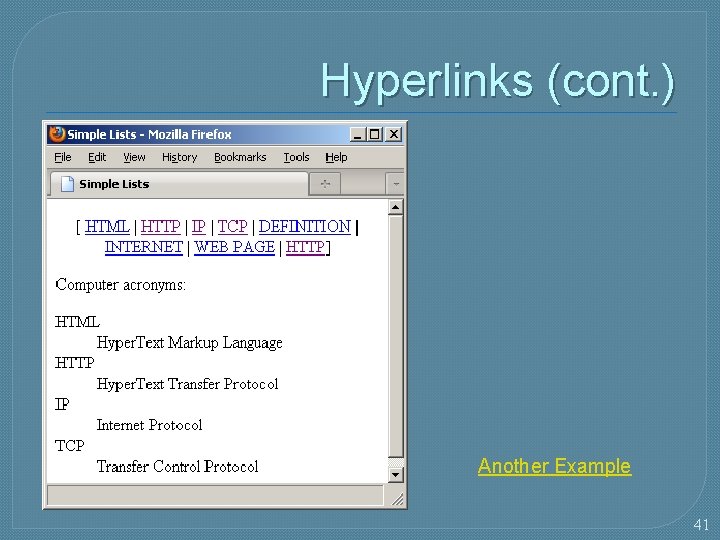
Hyperlinks (cont. ) Another Example 41
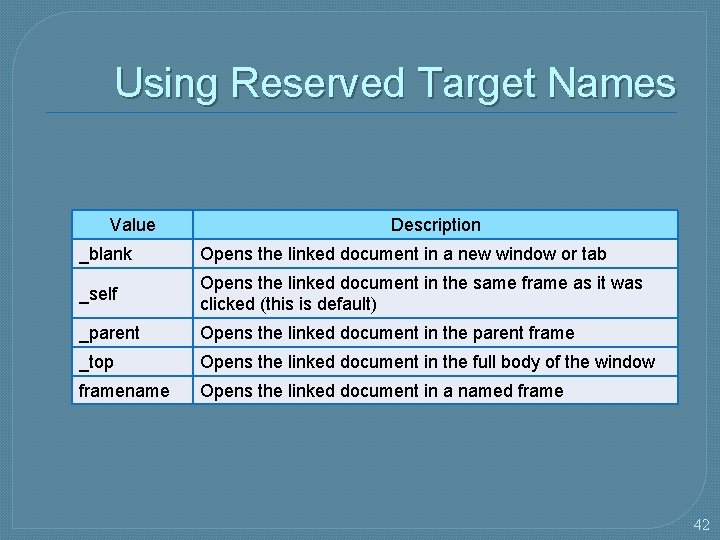
Using Reserved Target Names Value Description _blank Opens the linked document in a new window or tab _self Opens the linked document in the same frame as it was clicked (this is default) _parent Opens the linked document in the parent frame _top Opens the linked document in the full body of the window framename Opens the linked document in a named frame 42
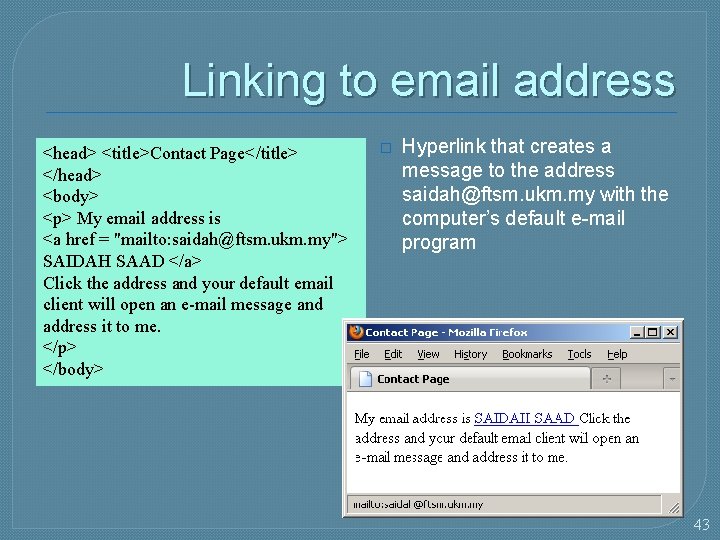
Linking to email address <head> <title>Contact Page</title> </head> <body> <p> My email address is <a href = "mailto: saidah@ftsm. ukm. my"> SAIDAH SAAD </a> Click the address and your default email client will open an e-mail message and address it to me. </p> </body> � Hyperlink that creates a message to the address saidah@ftsm. ukm. my with the computer’s default e-mail program 43
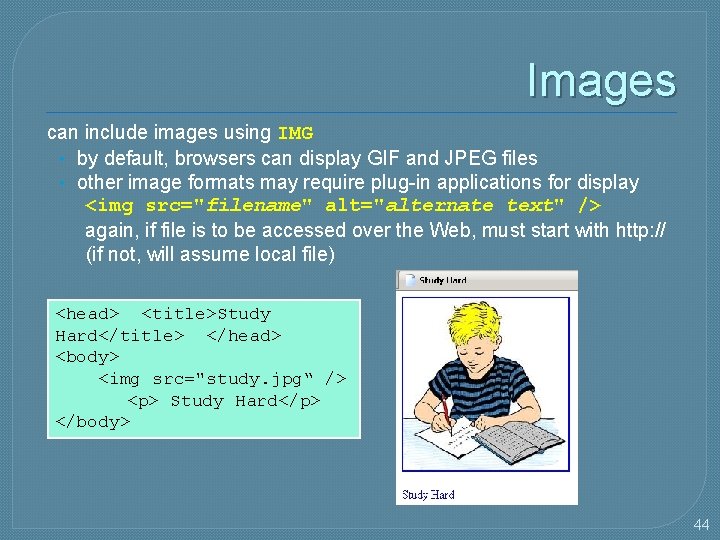
Images can include images using IMG • by default, browsers can display GIF and JPEG files • other image formats may require plug-in applications for display <img src="filename" alt="alternate text" /> again, if file is to be accessed over the Web, must start with http: // (if not, will assume local file) <head> <title>Study Hard</title> </head> <body> <img src="study. jpg“ /> <p> Study Hard</p> </body> 44
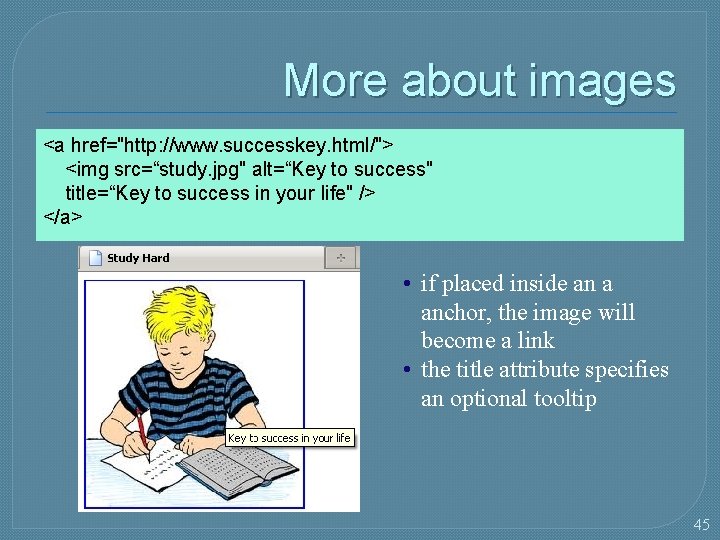
More about images <a href="http: //www. successkey. html/"> <img src=“study. jpg" alt=“Key to success" title=“Key to success in your life" /> </a> • if placed inside an a anchor, the image will become a link • the title attribute specifies an optional tooltip 45
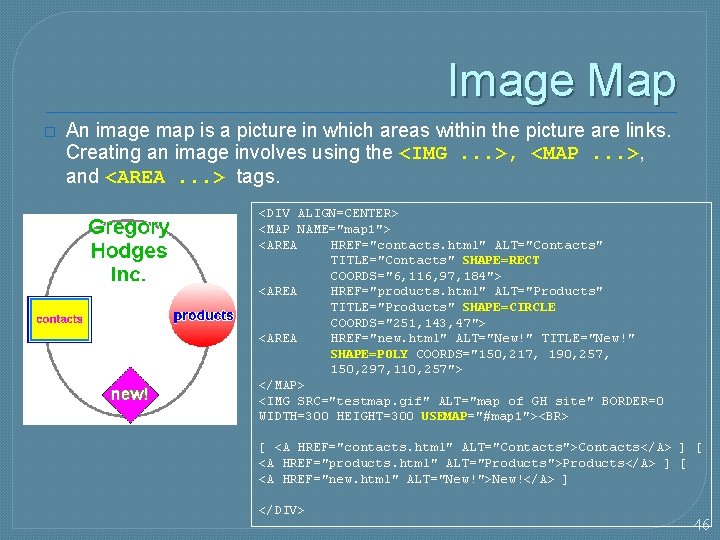
Image Map � An image map is a picture in which areas within the picture are links. Creating an image involves using the <IMG. . . >, <MAP. . . >, and <AREA. . . > tags. <DIV ALIGN=CENTER> <MAP NAME="map 1"> <AREA HREF="contacts. html" ALT="Contacts" TITLE="Contacts" SHAPE=RECT COORDS="6, 116, 97, 184"> <AREA HREF="products. html" ALT="Products" TITLE="Products" SHAPE=CIRCLE COORDS="251, 143, 47"> <AREA HREF="new. html" ALT="New!" TITLE="New!" SHAPE=POLY COORDS="150, 217, 190, 257, 150, 297, 110, 257"> </MAP> <IMG SRC="testmap. gif" ALT="map of GH site" BORDER=0 WIDTH=300 HEIGHT=300 USEMAP="#map 1"><BR> [ <A HREF="contacts. html" ALT="Contacts">Contacts</A> ] [ <A HREF="products. html" ALT="Products">Products</A> ] [ <A HREF="new. html" ALT="New!">New!</A> ] </DIV> 46
Table � table element • defines an XHTML table • Attribute summary summarizes the table’s contents and is used by speech devices to make the table more accessible to users with visual impairments • Element caption describes the table’s content �The text inside the <caption> tag is rendered above the table in most browsers 47
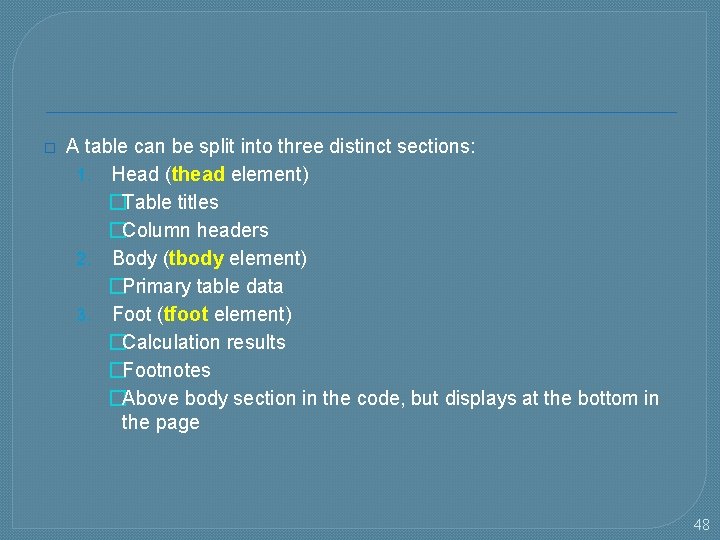
� A table can be split into three distinct sections: 1. Head (thead element) �Table titles �Column headers 2. Body (tbody element) �Primary table data 3. Foot (tfoot element) �Calculation results �Footnotes �Above body section in the code, but displays at the bottom in the page 48
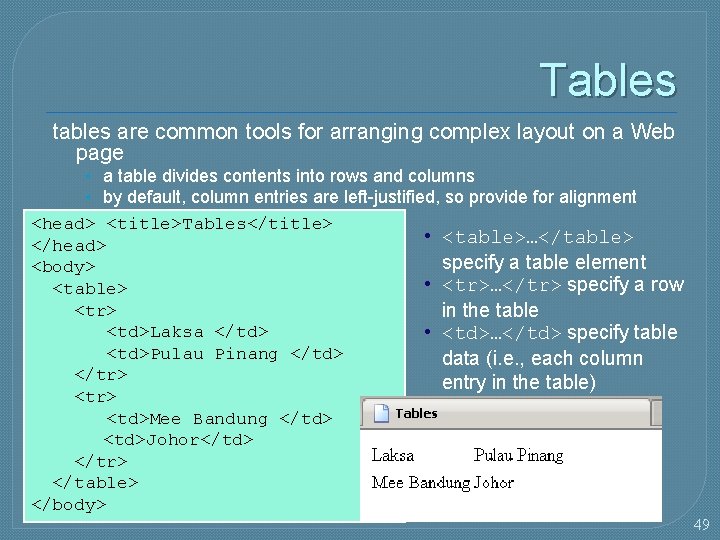
Tables tables are common tools for arranging complex layout on a Web page • a table divides contents into rows and columns • by default, column entries are left-justified, so provide for alignment <head> <title>Tables</title> </head> <body> <table> <tr> <td>Laksa </td> <td>Pulau Pinang </td> </tr> <td>Mee Bandung </td> <td>Johor</td> </tr> </table> </body> • <table>…</table> specify a table element • <tr>…</tr> specify a row in the table • <td>…</td> specify table data (i. e. , each column entry in the table) 49
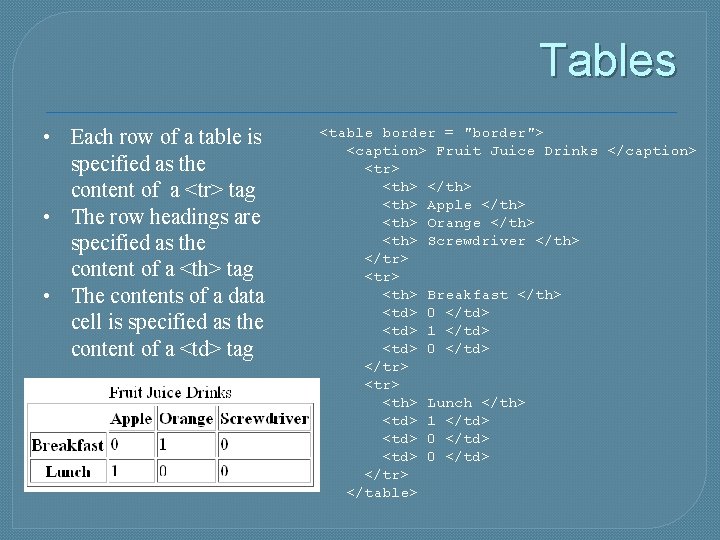
Tables • Each row of a table is specified as the content of a <tr> tag • The row headings are specified as the content of a <th> tag • The contents of a data cell is specified as the content of a <td> tag <table border = "border"> <caption> Fruit Juice Drinks </caption> <tr> <th> </th> <th> Apple </th> <th> Orange </th> <th> Screwdriver </th> </tr> <th> Breakfast </th> <td> 0 </td> <td> 1 </td> <td> 0 </td> </tr> <th> Lunch </th> <td> 1 </td> <td> 0 </td> </tr> </table>
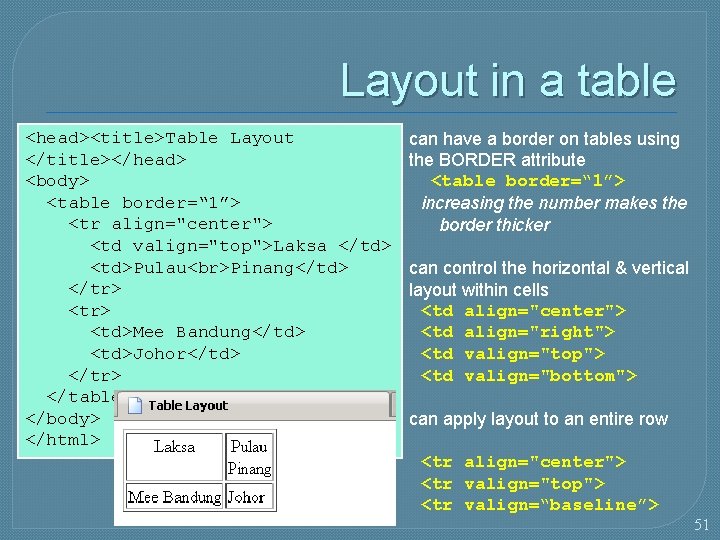
Layout in a table <head><title>Table Layout </title></head> <body> <table border=“ 1”> <tr align="center"> <td valign="top">Laksa </td> <td>Pulau Pinang</td> </tr> <td>Mee Bandung</td> <td>Johor</td> </tr> </table> </body> </html> can have a border on tables using the BORDER attribute <table border=“ 1”> increasing the number makes the border thicker can control the horizontal & vertical layout within cells <td align="center"> <td align="right"> <td valign="top"> <td valign="bottom"> can apply layout to an entire row <tr align="center"> <tr valign="top"> <tr valign=“baseline”> 51
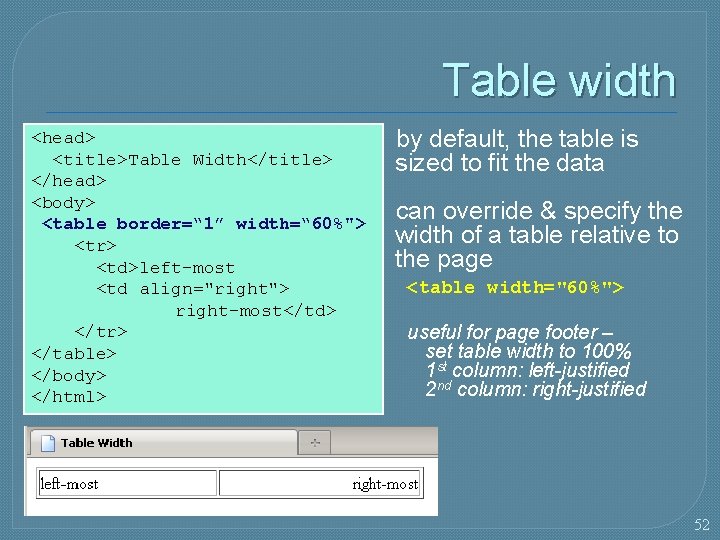
Table width <head> <title>Table Width</title> </head> <body> <table border=“ 1” width=“ 60%"> <tr> <td>left-most <td align="right"> right-most</td> </tr> </table> </body> </html> by default, the table is sized to fit the data can override & specify the width of a table relative to the page <table width="60%"> useful for page footer – set table width to 100% 1 st column: left-justified 2 nd column: right-justified 52
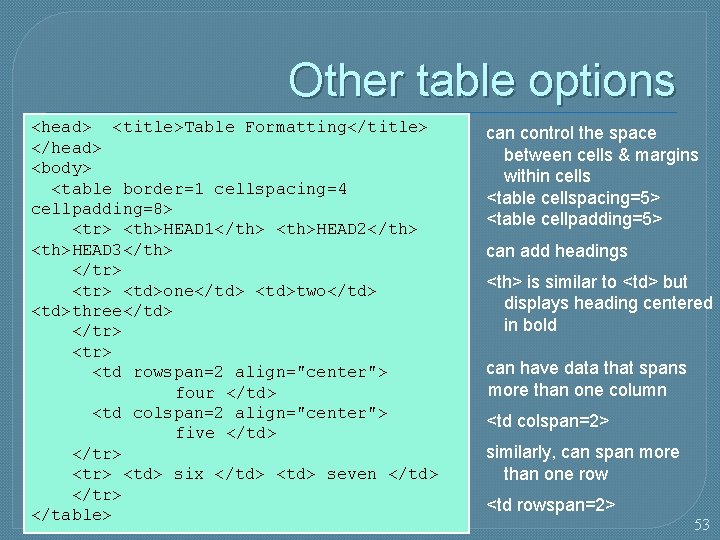
Other table options <head> <title>Table Formatting</title> </head> <body> <table border=1 cellspacing=4 cellpadding=8> <tr> <th>HEAD 1</th> <th>HEAD 2</th> <th>HEAD 3</th> </tr> <td>one</td> <td>two</td> <td>three</td> </tr> <td rowspan=2 align="center"> four </td> <td colspan=2 align="center"> five </td> </tr> <td> six </td> <td> seven </td> </tr> </table> can control the space between cells & margins within cells <table cellspacing=5> <table cellpadding=5> can add headings <th> is similar to <td> but displays heading centered in bold can have data that spans more than one column <td colspan=2> similarly, can span more than one row <td rowspan=2> 53
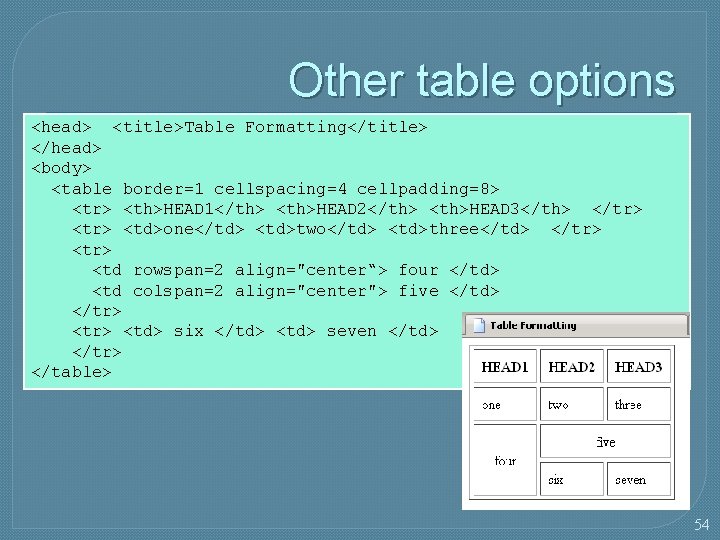
Other table options <head> <title>Table Formatting</title> </head> <body> <table border=1 cellspacing=4 cellpadding=8> <tr> <th>HEAD 1</th> <th>HEAD 2</th> <th>HEAD 3</th> </tr> <td>one</td> <td>two</td> <td>three</td> </tr> <td rowspan=2 align="center“> four </td> <td colspan=2 align="center"> five </td> </tr> <td> six </td> <td> seven </td> </tr> </table> 54
Table Frames � The frame attribute was introduced in HTML 4. 01 - therefore might not be supported in older browsers � With the frame and rule attributes you can control how borders and gridlines are applied to the table � The frames attribute allows you to determine which sides of the table will have borders � The frame attribute syntax is: <table frame=“type”> … </table> 55
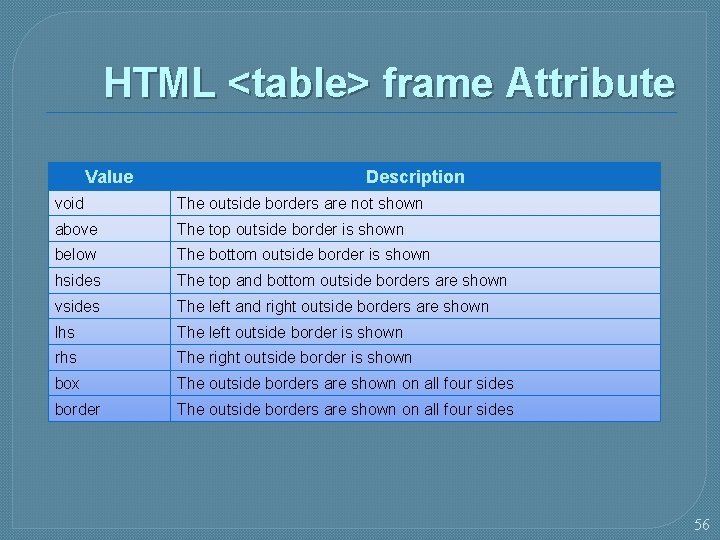
HTML <table> frame Attribute Value Description void The outside borders are not shown above The top outside border is shown below The bottom outside border is shown hsides The top and bottom outside borders are shown vsides The left and right outside borders are shown lhs The left outside border is shown rhs The right outside border is shown box The outside borders are shown on all four sides border The outside borders are shown on all four sides 56
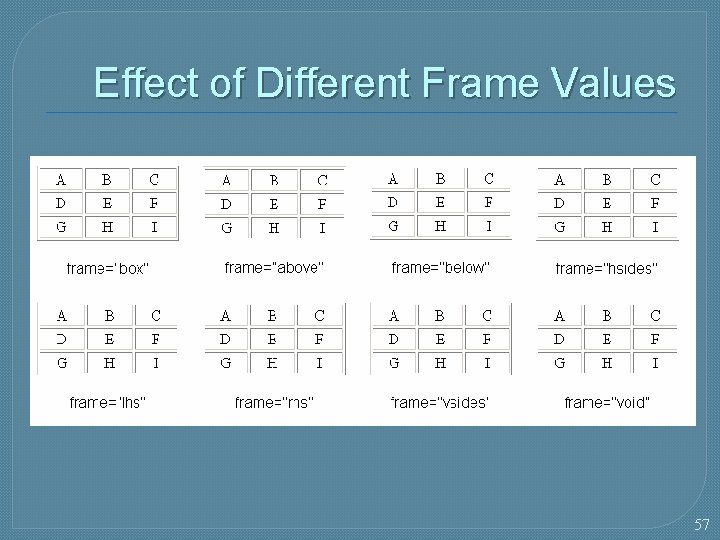
Effect of Different Frame Values 57
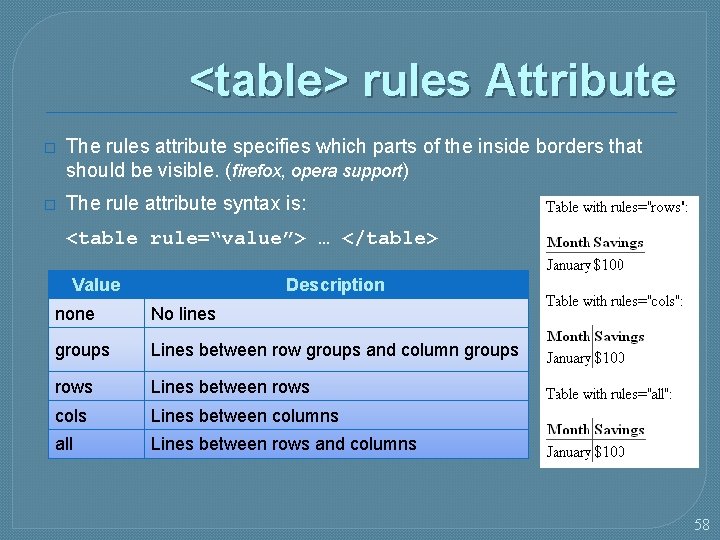
<table> rules Attribute � The rules attribute specifies which parts of the inside borders that should be visible. (firefox, opera support) � The rule attribute syntax is: <table rule=“value”> … </table> Value Description none No lines groups Lines between row groups and column groups rows Lines between rows cols Lines between columns all Lines between rows and columns 58
Any Questions 59
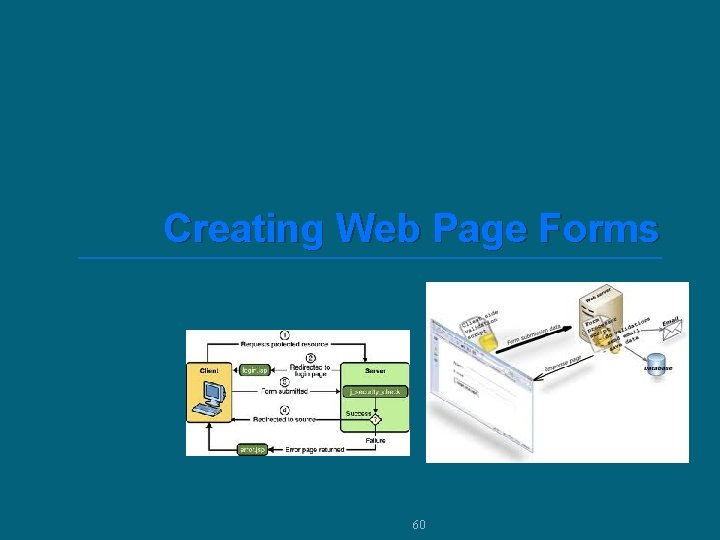
Creating Web Page Forms 60
Introducing Web Forms � � Web forms collect information from customers Web forms include different control elements including: • Input boxes • Selection lists • Drop-down lists boxes • Option buttons or radio buttons • Check boxes • Group boxes • Text areas • Form buttons 61
Forms and Server-Based Programs � � While HTML supports the creation of forms, it does not include tools to process the information The information can be processed through a program running on a Web server Server-based programs are written in many languages Most popular languages include: • Java. Script - VBScript • Apple. Script - PHP • ASP - TCL • Cold. Fusion - the Unix shell • C/C++ - Visual Basic 62
Creating the Form Element n Forms are created using the form element, structured as follows: <form attributes> elements </form> n n Where attributes are the attributes that control how the form is processed and elements are elements places within the form. Form attributes usually tell the browser the location of the serverbased program to be applied to the form’s data Two attributes are available to identify the form: id and name The syntax of the id and name attributes are as follows: <form name=“name” id=“id”>… </form> Where name is the name of the form and id is the id of the form. 63
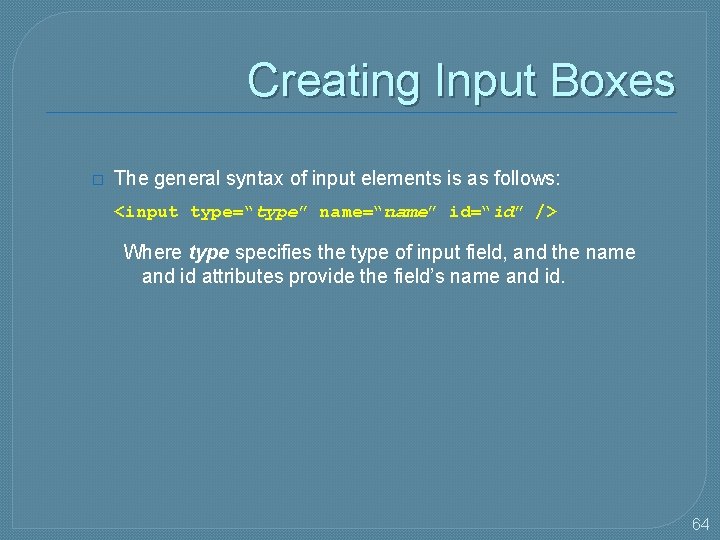
Creating Input Boxes � The general syntax of input elements is as follows: <input type=“type” name=“name” id=“id” /> Where type specifies the type of input field, and the name and id attributes provide the field’s name and id. 64
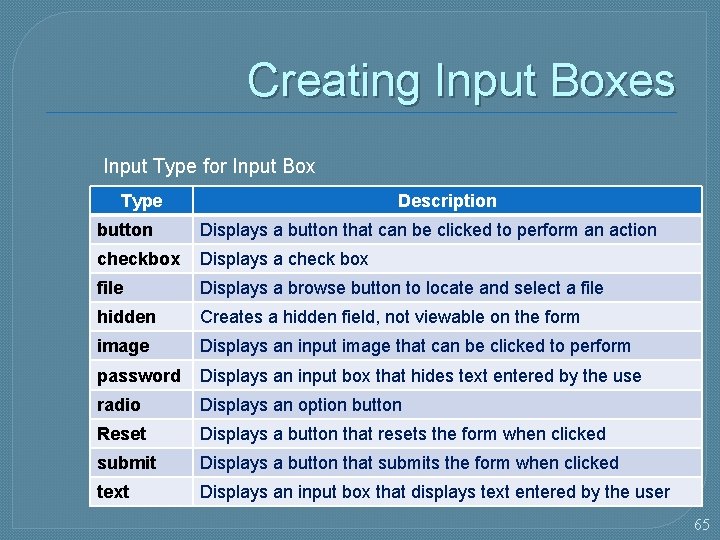
Creating Input Boxes Input Type for Input Box Type Description button Displays a button that can be clicked to perform an action checkbox Displays a check box file Displays a browse button to locate and select a file hidden Creates a hidden field, not viewable on the form image Displays an input image that can be clicked to perform password Displays an input box that hides text entered by the use radio Displays an option button Reset Displays a button that resets the form when clicked submit Displays a button that submits the form when clicked text Displays an input box that displays text entered by the user 65
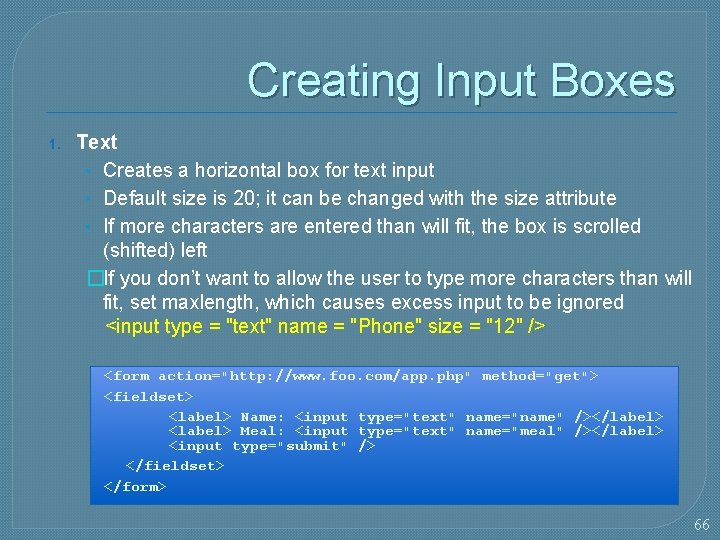
Creating Input Boxes 1. Text • Creates a horizontal box for text input • Default size is 20; it can be changed with the size attribute • If more characters are entered than will fit, the box is scrolled (shifted) left �If you don’t want to allow the user to type more characters than will fit, set maxlength, which causes excess input to be ignored <input type = "text" name = "Phone" size = "12" /> <form action="http: //www. foo. com/app. php" method="get"> <fieldset> <label> Name: <input type="text" name="name" /></label> <label> Meal: <input type="text" name="meal" /></label> <input type="submit" /> </fieldset> </form> 66
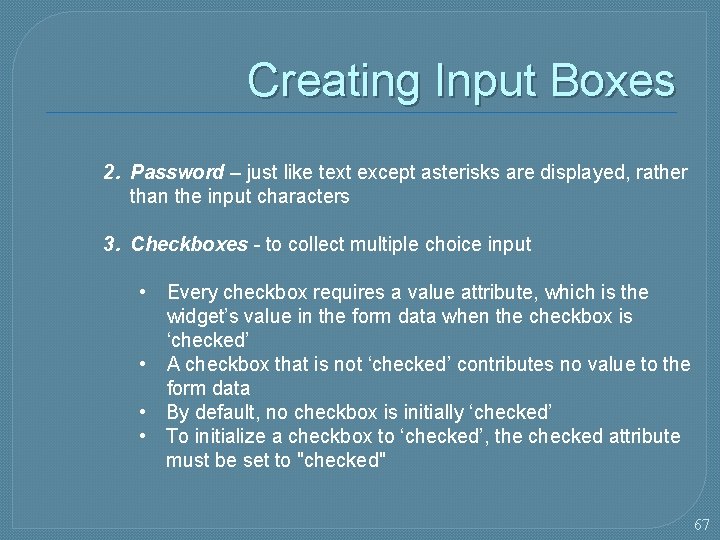
Creating Input Boxes 2. Password – just like text except asterisks are displayed, rather than the input characters 3. Checkboxes - to collect multiple choice input • Every checkbox requires a value attribute, which is the widget’s value in the form data when the checkbox is ‘checked’ • A checkbox that is not ‘checked’ contributes no value to the form data • By default, no checkbox is initially ‘checked’ • To initialize a checkbox to ‘checked’, the checked attribute must be set to "checked" 67
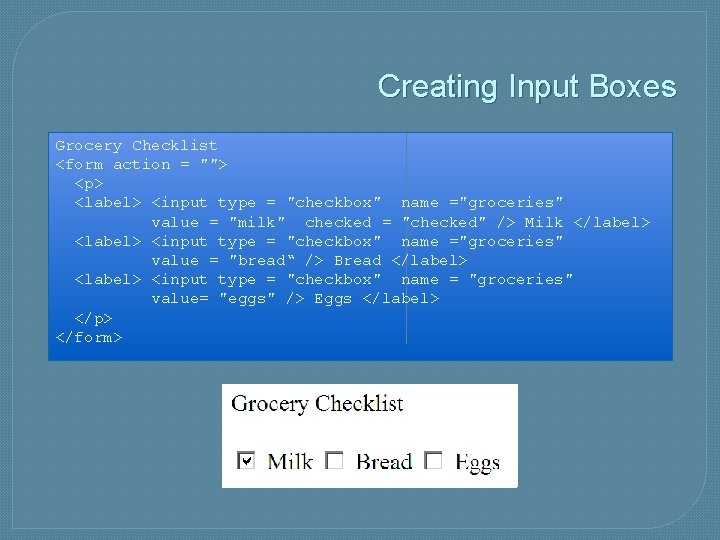
Creating Input Boxes Grocery Checklist <form action = ""> <p> <label> <input type = "checkbox" name ="groceries" value = "milk" checked = "checked" /> Milk </label> <input type = "checkbox" name ="groceries" value = "bread“ /> Bread </label> <input type = "checkbox" name = "groceries" value= "eggs" /> Eggs </label> </p> </form>
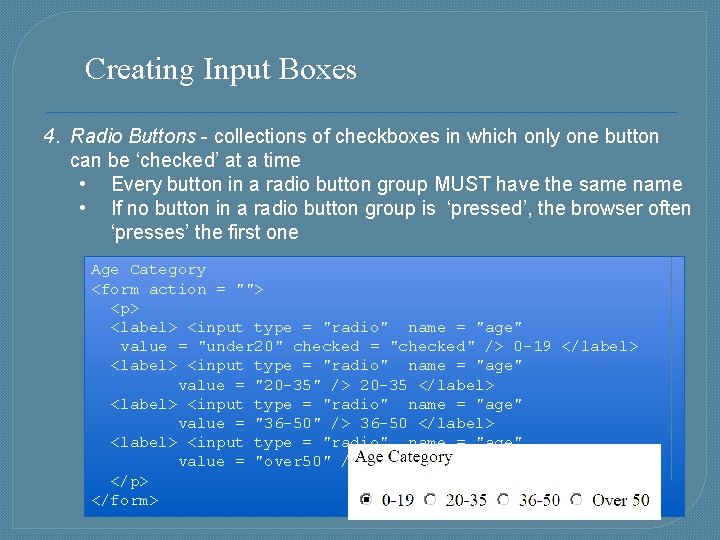
Creating Input Boxes 4. Radio Buttons - collections of checkboxes in which only one button can be ‘checked’ at a time • Every button in a radio button group MUST have the same name • If no button in a radio button group is ‘pressed’, the browser often ‘presses’ the first one Age Category <form action = ""> <p> <label> <input type = "radio" name = "age" value = "under 20" checked = "checked" /> 0 -19 </label> <input type = "radio" name = "age" value = "20 -35" /> 20 -35 </label> <input type = "radio" name = "age" value = "36 -50" /> 36 -50 </label> <input type = "radio" name = "age" value = "over 50" /> Over 50 </label> </p> </form>
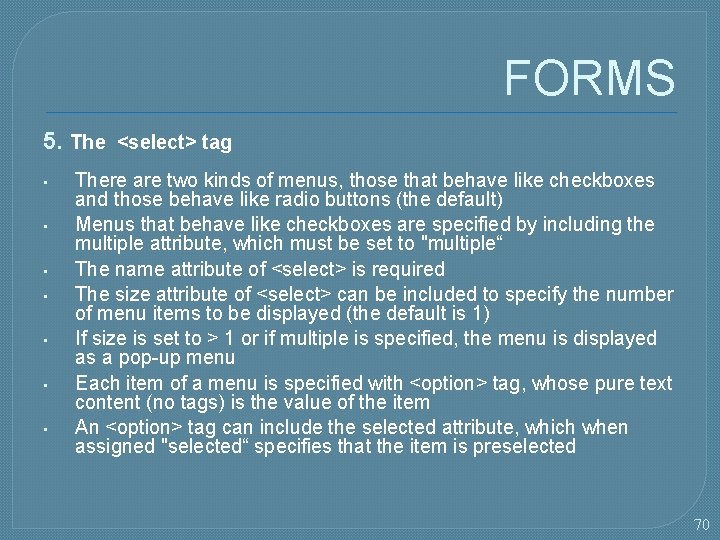
FORMS 5. The <select> tag • • There are two kinds of menus, those that behave like checkboxes and those behave like radio buttons (the default) Menus that behave like checkboxes are specified by including the multiple attribute, which must be set to "multiple“ The name attribute of <select> is required The size attribute of <select> can be included to specify the number of menu items to be displayed (the default is 1) If size is set to > 1 or if multiple is specified, the menu is displayed as a pop-up menu Each item of a menu is specified with <option> tag, whose pure text content (no tags) is the value of the item An <option> tag can include the selected attribute, which when assigned "selected“ specifies that the item is preselected 70
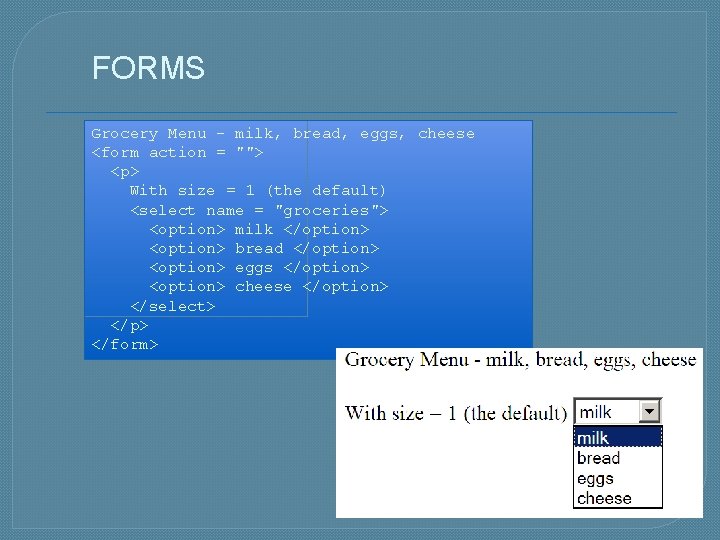
FORMS Grocery Menu - milk, bread, eggs, cheese <form action = ""> <p> With size = 1 (the default) <select name = "groceries"> <option> milk </option> <option> bread </option> <option> eggs </option> <option> cheese </option> </select> </p> </form>
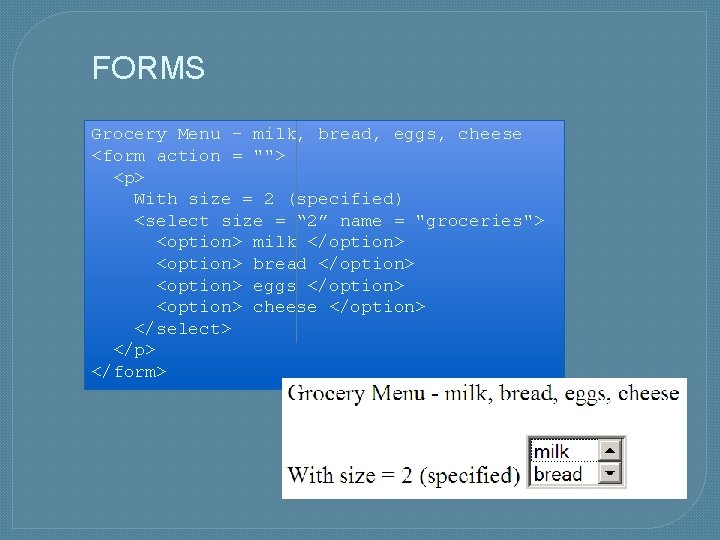
FORMS Grocery Menu - milk, bread, eggs, cheese <form action = ""> <p> With size = 2 (specified) <select size = “ 2” name = "groceries"> <option> milk </option> <option> bread </option> <option> eggs </option> <option> cheese </option> </select> </p> </form>
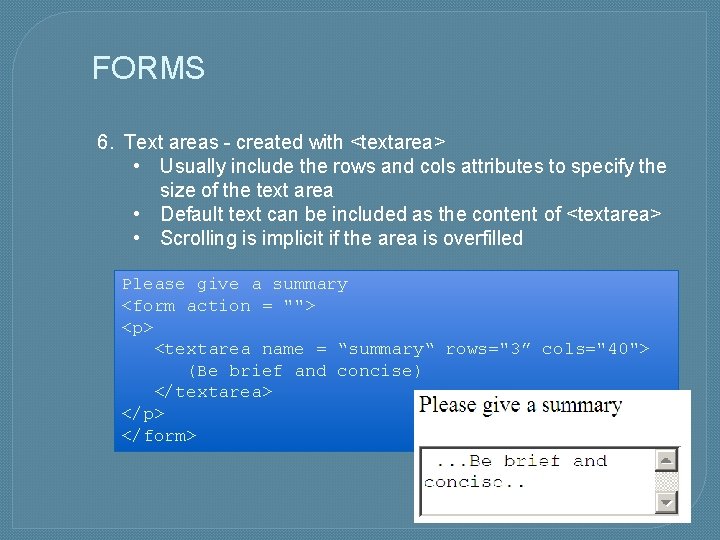
FORMS 6. Text areas - created with <textarea> • Usually include the rows and cols attributes to specify the size of the text area • Default text can be included as the content of <textarea> • Scrolling is implicit if the area is overfilled Please give a summary <form action = ""> <p> <textarea name = “summary“ rows="3” cols="40"> (Be brief and concise) </textarea> </p> </form>
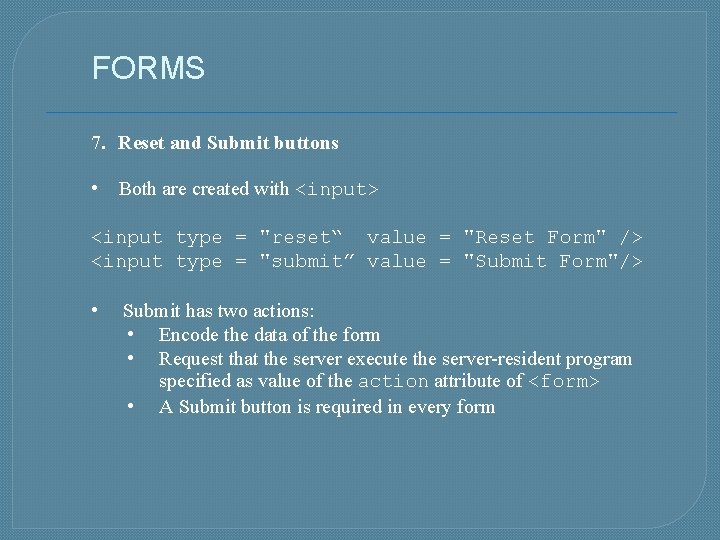
FORMS 7. Reset and Submit buttons • Both are created with <input> <input type = "reset“ value = "Reset Form" /> <input type = "submit” value = "Submit Form"/> • Submit has two actions: • Encode the data of the form • Request that the server execute the server-resident program specified as value of the action attribute of <form> • A Submit button is required in every form
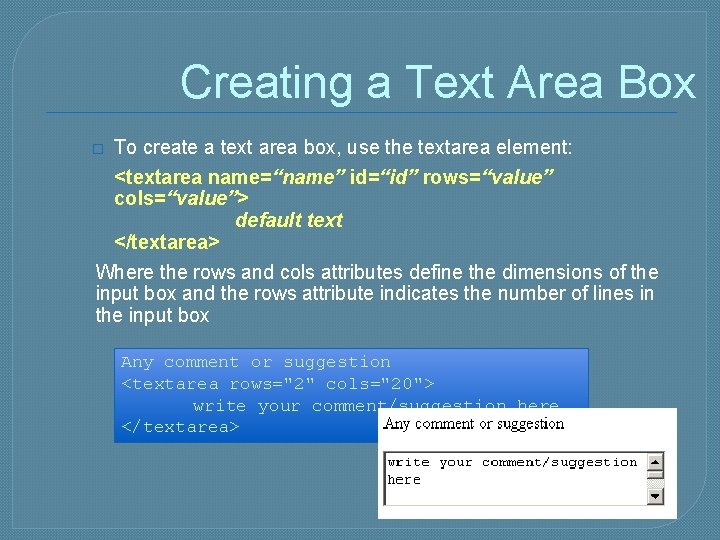
Creating a Text Area Box � To create a text area box, use the textarea element: <textarea name=“name” id=“id” rows=“value” cols=“value”> default text </textarea> Where the rows and cols attributes define the dimensions of the input box and the rows attribute indicates the number of lines in the input box Any comment or suggestion <textarea rows="2" cols="20"> write your comment/suggestion here. </textarea>
Designing a Command button � Use the button element for greater artistic control over the appearance of a button <button name=“name” id=“id” value=“value” type=“type”> content </button> Where the name and value attributes specify the name of the button and the value sent to a server-based program, the id attribute specifies the button’s id, the type attribute specifies the button type, and the content is page content displayed within the button. June Kassim 1/30/2022 76
Creating a Field Set � HTML and XHML allow you to organize option buttons into a group of fields called field sets • Most browsers place a group box around a field set to indicate that the fields belong to a common group <fieldset> fields </fieldset> • Where fields are the individual fields within a set. • Where fields are the form fields in the field set. Field sets are usually displayed in a group box � To add a caption to a field set, add the following tag after the opening <fieldset> tag: <legend>text</legend> Where text is the text of the field set caption. 77
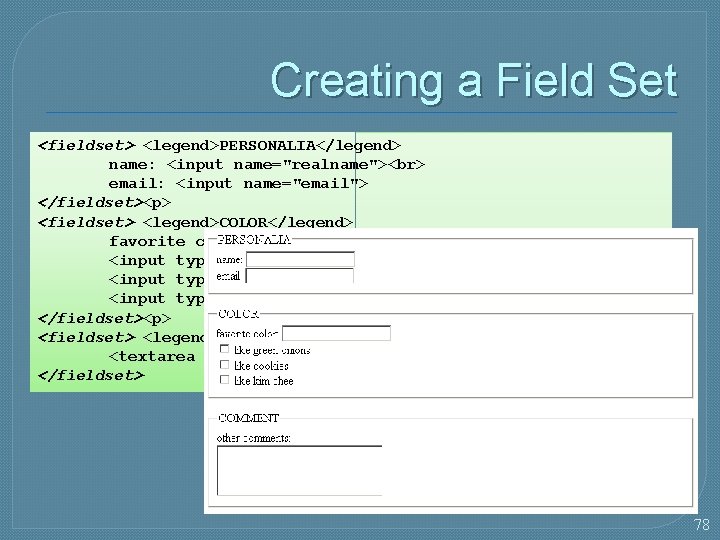
Creating a Field Set <fieldset> <legend>PERSONALIA</legend> name: <input name="realname"> email: <input name="email"> </fieldset><p> <fieldset> <legend>COLOR</legend> favorite color: <input name="favecolor"> <input type=checkbox name="onions"> like green onions <input type=checkbox name="cookies"> like cookies <input type=checkbox name="kimchee"> like kim chee </fieldset><p> <fieldset> <legend>COMMENT</legend> other comments: <textarea name="comments" rows=5 cols=25></textarea> </fieldset> 78
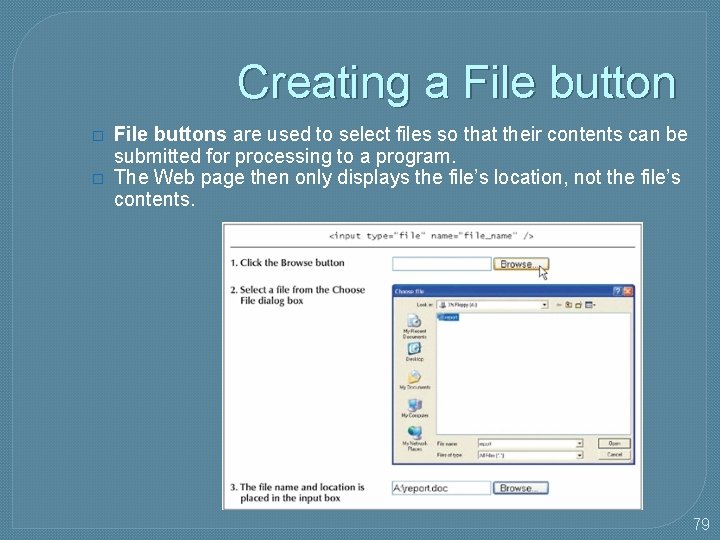
Creating a File button � � File buttons are used to select files so that their contents can be submitted for processing to a program. The Web page then only displays the file’s location, not the file’s contents. 79
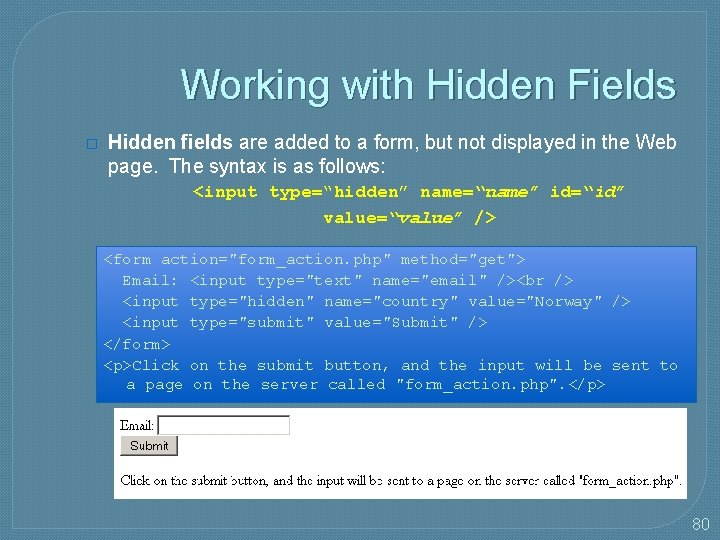
Working with Hidden Fields � Hidden fields are added to a form, but not displayed in the Web page. The syntax is as follows: <input type=“hidden” name=“name” id=“id” value=“value” /> <form action="form_action. php" method="get"> Email: <input type="text" name="email" /> <input type="hidden" name="country" value="Norway" /> <input type="submit" value="Submit" /> </form> <p>Click on the submit button, and the input will be sent to a page on the server called "form_action. php". </p> 80
Working with Form Attributes • After adding the elements to your form, you’ll need to specify where to send the form data and how to send it. Use the following attributes: • <form action=“url” method=“type”enctype=“type”>… </form> • url specifies the filename and location of the program that processes the form • the method attribute specifies how your Web browser sends data to the server. • The enctype attribute specifies the format of the data stored in the form’s field. 81
Working with Form Attributes � The method attribute can have one of two values: • Post • Get � The get method is the default; get appends the form data to the end of the URL specified in the action attribute The post method sends form data in a separate data stream, allowing the Web server to receive the data through “standard input” � 82
Using the mailto Action � The mailto action accesses the user’s own e-mail program and uses it to mail form information to a specified e-mail address • By-passes the need for server-based programs � The syntax is as follows: <form action-mailto: e-mail_address method=“post” enctype=“text/plain”> …………… </form> Where e-mail_address is the e-mail address of the recipient in the form 83
Tips for Creating Effective Forms � � � Label all control elements clearly and concisely Use horizontal lines, tables, and line breaks to separate topical groups from one another Use field sets to organize common groups of fields, especially option buttons Use the tab order to ensure that users will move correctly from one field to another Use option buttons, check boxes, and selection lists whenever possible to limit a user’s choice of entries, thus reducing the chance of an erroneous data value. Use input boxes only when the field has no predefined list of values. Use selection lists for items with several possible options. Use option buttons for items with few options. Use a check box for each item with only two possible values. 84
Tips for Creating Effective Forms � � � Let users know the correct format for input box text by inserting default text in the appropriate format (for example, insert the text string, “mm/dd/yyyy” in a Date input box to indicate the format for inserting date values Use password fields for sensitive or confidential information (such as passwords) Because form elements differ between browsers, view your form on different browsers and different browser versions to ensure that the form displays correctly in all situations
The End 86
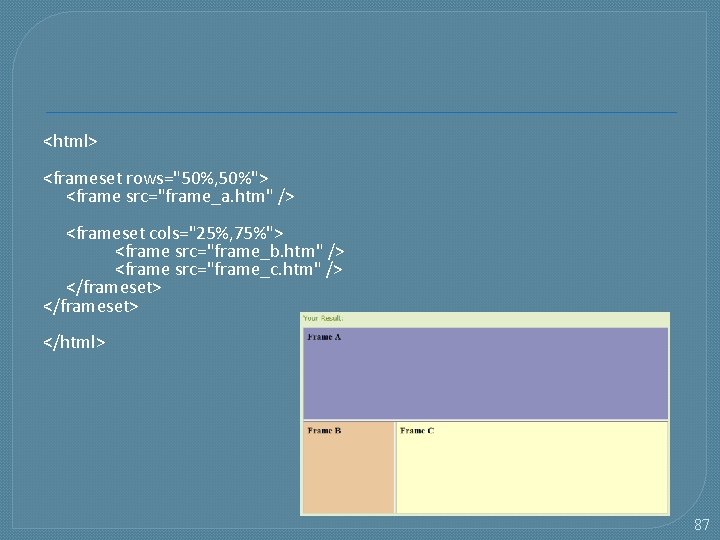
<html> <frameset rows="50%, 50%"> <frame src="frame_a. htm" /> <frameset cols="25%, 75%"> <frame src="frame_b. htm" /> <frame src="frame_c. htm" /> </frameset> </html> 87
iframe An iframe is used to display a web page within a web page. <iframe src="demo_iframe. htm" width="200" height="200"> </iframe> 88
- Slides: 88