
HTML Tutorial 1 Developing a Basic Web Page
HTML Tutorial 1 Developing a Basic Web Page Go see www. w 3. org -- look around New Perspectives on the Internet, 5 e HTML Tutorial 1 1
Objectives • Describe different HTML standards and specifications. • Learn about the basic syntax of HTML code. • Mark elements using two-sided and one-sided tags (empty). New Perspectives on the Internet, 5 e HTML Tutorial 1 2
Objectives • Insert an element attribute. • Create comments. • Describe block-level elements and inline elements. • Specify an element’s appearance with inline styles. New Perspectives on the Internet, 5 e HTML Tutorial 1 3
Objectives • Create and format different types of lists. • Create boldfaced and italicized text. • Describe logical and physical elements. New Perspectives on the Internet, 5 e HTML Tutorial 1 4
Objectives • Insert an inline image into a Web page. • Insert a horizontal line into a Web page. • Store meta information in a Web document. • Display special characters and symbols. New Perspectives on the Internet, 5 e HTML Tutorial 1 5
The Development of the Word Wide Web • Timothy Berners-Lee and other researchers at the CERN nuclear research facility near Geneva, Switzerland laid the foundations for the World Wide Web, or the Web, in 1989. • They developed a system of interconnected hypertext documents that allowed their users to easily navigate from one topic to another. • Hypertext is a method of organizing information that gives the reader control over the order in which the New Perspectives on the Internet, 5 e 6 information is presented. HTML Tutorial 1
Hypertext Documents • When you read a book, you follow a linear progression, reading one page after another. • With hypertext, you progress through pages in whatever way is best suited to you and your objectives. • Hypertext lets you skip from one topic to another. New Perspectives on the Internet, 5 e HTML Tutorial 1 7
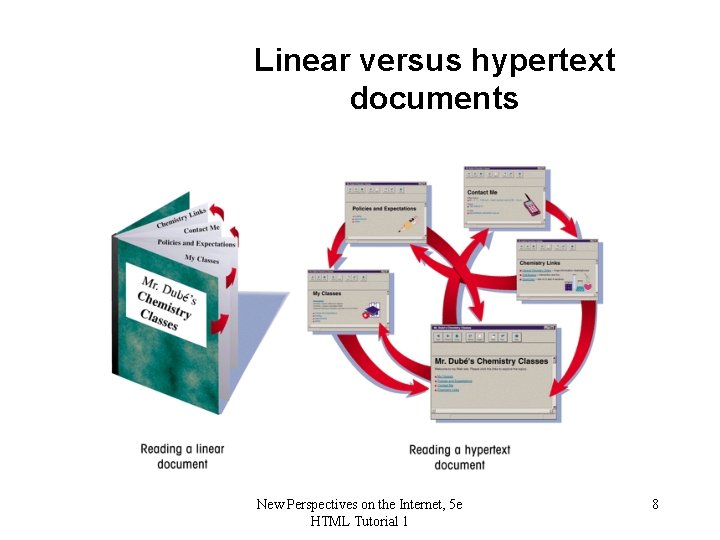
Linear versus hypertext documents New Perspectives on the Internet, 5 e HTML Tutorial 1 8
Hypertext Documents • The key to hypertext is the use of hyperlinks (or links) which are the elements in a hypertext document that allow you to jump from one topic to another. • A link may point to another section of the same document, or to another document entirely. • A link can open a document on your computer, or through the Internet, a document on a computer anywhere in the world. New Perspectives on the Internet, 5 e HTML Tutorial 1 9
Hypertext Documents • An entire collection of linked documents is referred to as a Web site. • The hypertext documents within a Web site are known as Web pages. • Individual pages can contain text, audio, video, and even programs that can be run remotely. New Perspectives on the Internet, 5 e HTML Tutorial 1 10
Web Servers and Web Browsers • A Web page is stored on a Web server, which in turn makes it available to the network. • To view a Web page, a client runs a software program called a Web browser, which retrieves the page from the server and displays it. • The earliest browsers, known as text-based browsers, were incapable of displaying images. • Today most computers support graphical browsers which are capable of displaying not only images, but also video, sound, animations, and a variety of graphical features. New Perspectives on the Internet, 5 e HTML Tutorial 1 11
HTML: The Language of the Web • A Web page is a text file written in a language called Hypertext Markup Language. • A markup language is a language that describes a document’s structure and content. • HTML is not a programming language or a formatting language. • Styles are format descriptions written in a separate language from HTML that tell browsers how to render each element. Styles are used to format your document. New Perspectives on the Internet, 5 e HTML Tutorial 1 12
The History of HTML • The first version of HTML was created using the Standard Generalized Markup Language (SGML). • In the early years of HTML, Web developers were free to define and modify HTML in whatever ways they thought best. • Competing browsers introduced some differences in the language. The changes were called extensions. New Perspectives on the Internet, 5 e HTML Tutorial 1 13
The History of HTML • A group of Web developers, programmers, and authors called the World Wide Web Consortium, or the WC 3, created a set of standards or specifications that all browser manufacturers were to follow. • The WC 3 has no enforcement power. • The recommendations of the WC 3 are usually followed since a uniform approach to Web page creation is beneficial to everyone. New Perspectives on the Internet, 5 e HTML Tutorial 1 14
The History of HTML • Older features of HTML are often deprecated, or phased out, by the W 3 C. That does not mean you can’t continue to use them—you may need to use them if you are supporting older browsers. • Future Web development is focusing increasingly on two other languages: XML and XHTML. • XML (Extensible Markup Language) is a metalanguage like SGML, but without SGML’s complexity and overhead. New Perspectives on the Internet, 5 e HTML Tutorial 1 15
The History of HTML • XHTML (Extensible Hypertext Markup Language) is a stricter version of HTML and is designed to confront some of the problems associated with the different and competing versions of HTML. • XHTML is also designed to better integrate HTML with XML. • HTML will not become obsolete anytime soon. Use a style that will be upwards compatible. New Perspectives on the Internet, 5 e HTML Tutorial 1 16
Guidelines • • Develop a clear statement of purpose. Know your audience – level, experience, age, Outline of content Design layout Test with various browsers and screen sizes Include author and date updated “Guide to Webstyle” “Webstyleguide” New Perspectives on the Internet, 5 e HTML Tutorial 1 17
Tools for Creating HTML Documents • Basic text editor like Notepad. ( Start, Programs, Accessories) • HTML Converter - converts formatted text into HTML code. § Can create the source document in a word processor and then convert it. § HTML code created using a converter is often longer and more complicated than it needs to be, resulting in large files that are hard to maintain. § Not acceptable in this course New Perspectives on the Internet, 5 e HTML Tutorial 1 18
Tools for Creating HTML Documents • HTML Editor – helps you create an HTML file by inserting HTML codes for you as you work. • Visual Web development tools which use WYSIWYG § Microsoft Front. Page § Macromedia Dreamweaver § Not acceptable in this course. New Perspectives on the Internet, 5 e HTML Tutorial 1 19
Designing an HTML Document • It is a good idea to plan out a Web page before you start coding. • Draw a planning sketch or create a sample document using a word processor. • Horizontal lines separate sections • Preparatory work can weed out errors or point to potential problems. New Perspectives on the Internet, 5 e HTML Tutorial 1 20
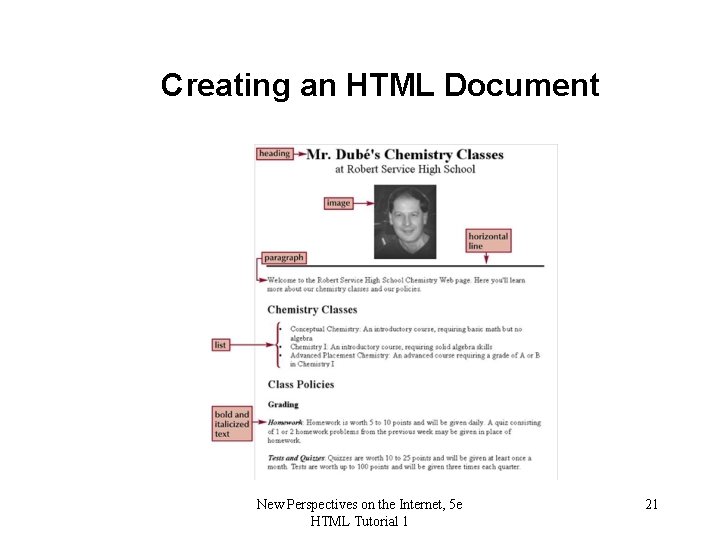
Creating an HTML Document New Perspectives on the Internet, 5 e HTML Tutorial 1 21
Creating an HTML Document • In planning, identify a document’s different elements. An element is a distinct object in the document, like a paragraph, a heading, or a page’s title. • Formatting features such as boldfaced font, and italicized text may be used. • HTML controls logical layout. Physical layout depends on browser and size of window. New Perspectives on the Internet, 5 e HTML Tutorial 1 22
Marking Elements with Tags • The core building block of HTML is the tag, which marks each element in a document. • HTML allows you to enter element names in either uppercase or lowercase letters. Use lowercase. • Define the format of a Web page. • Are predefined – have no relationship to the text they are marking. New Perspectives on the Internet, 5 e HTML Tutorial 1 23
Marking Elements with Tags • Consist of § A left angle bracket (<) § A tag name § A right angle bracket (>) • Tags can be two-sided or one-sided. • A two-sided tag encloses some document content. General syntax for a two-sided tag: <element> content </element> New Perspectives on the Internet, 5 e HTML Tutorial 1 24
Marking Elements with Tags • A two-sided tag’s opening tag (<p>) and closing tag (</p>) should completely enclose its content. This is a paragraph. Skips a line at the beginning. • A one-sided tag contains no content. General syntax for a one-sided tag: <element /> New Perspectives on the Internet, 5 e HTML Tutorial 1 25
Marking Elements with Tags • Elements that employ one-sided tags are called empty elements since they contain no content. An example is a line break <br/>. • A third type of tag is the comment tag, which you can use to add notes to your HTML code. <!-- comment --> • Comments are useful in documenting your HTML code. Won’t appear in browser window. New Perspectives on the Internet, 5 e HTML Tutorial 1 26
Image Tag • <IMG SRC=“URL” ALT=“message. ”> § SRC gives the location of the image. § URL can be a local file or a remote file. § Browser knows how to work with standard formats like. jpg, . gif, . png. § ALT=“message” shows a text message if the image isn’t viewable. § See our syllabus. New Perspectives on the Internet, 5 e HTML Tutorial 1 27
White Space and HTML • HTML file documents are composed of text characters and white space. • White space is the blanks, tabs, and newlines. • HTML treats each occurrence of white space as a single blank. • Use white space to make your HTML document more readable. • The symbol makes a space • The tag <br/> makes a newline. New Perspectives on the Internet, 5 e HTML Tutorial 1 28
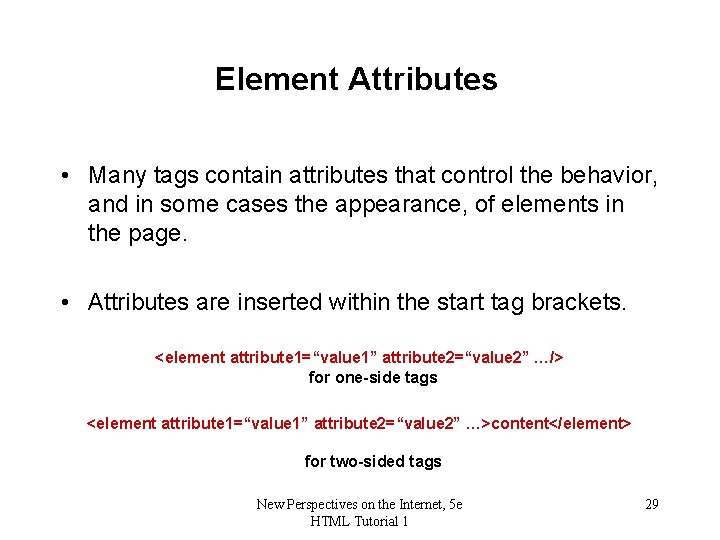
Element Attributes • Many tags contain attributes that control the behavior, and in some cases the appearance, of elements in the page. • Attributes are inserted within the start tag brackets. <element attribute 1=“value 1” attribute 2=“value 2” …/> for one-side tags <element attribute 1=“value 1” attribute 2=“value 2” …>content</element> for two-sided tags New Perspectives on the Internet, 5 e HTML Tutorial 1 29
The Structure of an HTML File • The opening <html> tag marks the start of an HTML document, and the closing </html> tag tells a browser when it has reached the end of that HTML document. • Anything between these two tags makes up the content of the document, including all other elements, text, and comments. New Perspectives on the Internet, 5 e HTML Tutorial 1 30
The Structure of an HTML File • An HTML document is divided into two parts: the head and the body. • The head element contains information about the document, for example the document title or the keywords. • The content of the head element is not displayed within the Web page. New Perspectives on the Internet, 5 e HTML Tutorial 1 31
The Structure of an HTML File • The head element contains the title element. • The title element contains the page’s title and is displayed at the top of the browser’s window in the title bar (along with the browser’s name) • The body element contains all of the content to be displayed in the Web page. • The body element contains code that tells the browser how to render the content. New Perspectives on the Internet, 5 e HTML Tutorial 1 32
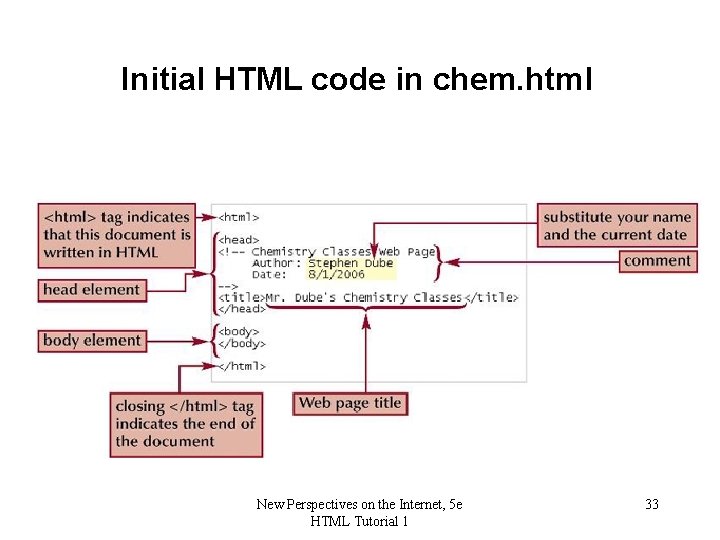
Initial HTML code in chem. html New Perspectives on the Internet, 5 e HTML Tutorial 1 33
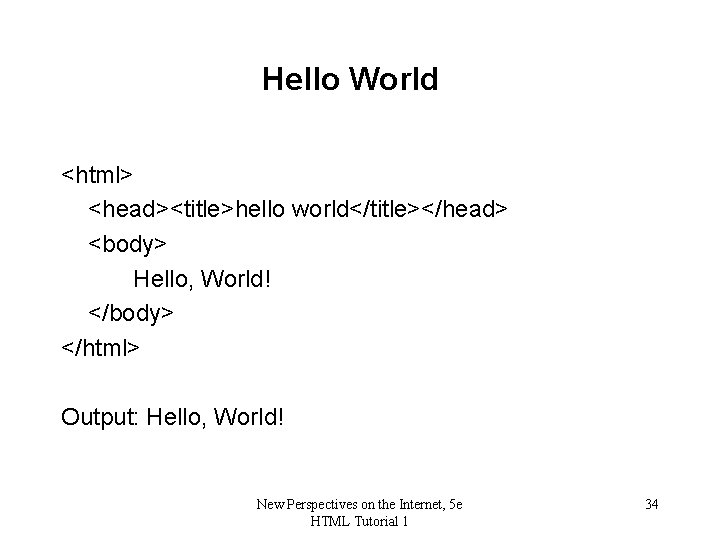
Hello World <html> <head><title>hello world</title></head> <body> Hello, World! </body> </html> Output: Hello, World! New Perspectives on the Internet, 5 e HTML Tutorial 1 34
Displaying an HTML File • As you work on a Web page, you should occasionally view it with your Web browser to verify that the file contains no syntax errors or other problems. • You may want to view the results using different browsers to check for compatibility. New Perspectives on the Internet, 5 e HTML Tutorial 1 35

Working with Block-Level Elements • In a Web page, most content is marked as either a block-level element or an inline element. • A block-level element contains content displayed in a separate section within the page, setting it off from other blocks. • An inline element is part of the same block as its surrounding content—for example individual words or phrases within a paragraph. New Perspectives on the Internet, 5 e HTML Tutorial 1 36
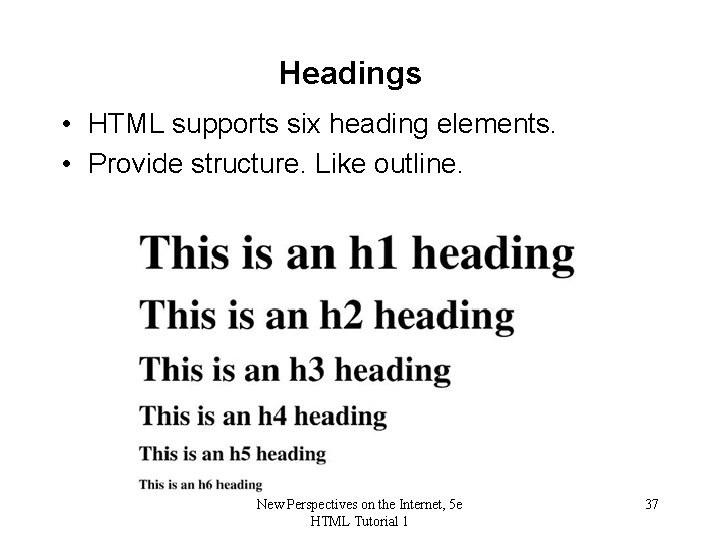
Headings • HTML supports six heading elements. • Provide structure. Like outline. New Perspectives on the Internet, 5 e HTML Tutorial 1 37
Title and Heading • Title must be short and descriptive. Used to find page. § § Search engines Favorites History Citations • Heading can be more creative. Already found page. New Perspectives on the Internet, 5 e HTML Tutorial 1 38
Styles • Use the style attribute to control the appearance of an element, such as text alignment. • Styles specified as attributes in a tag are also referred to as inline styles. • The text-align style tells the browser how to horizontally align the contents of an element. • Presentational attributes specify exactly how the browser should render an element. • More to come New Perspectives on the Internet, 5 e HTML Tutorial 1 39
Creating Lists • HTML supports three kinds of lists: ordered, unordered, and definition. numbered • You use an ordered list for items that must appear in a particular sequential order. Numbered • You use an unordered list for items that do not need to occur in any special order. Bulleted. • One list can contain another list. This is called a nested list. New Perspectives on the Internet, 5 e HTML Tutorial 1 40
Lists, etc. • Together do eg. html New Perspectives on the Internet, 5 e HTML Tutorial 1 41
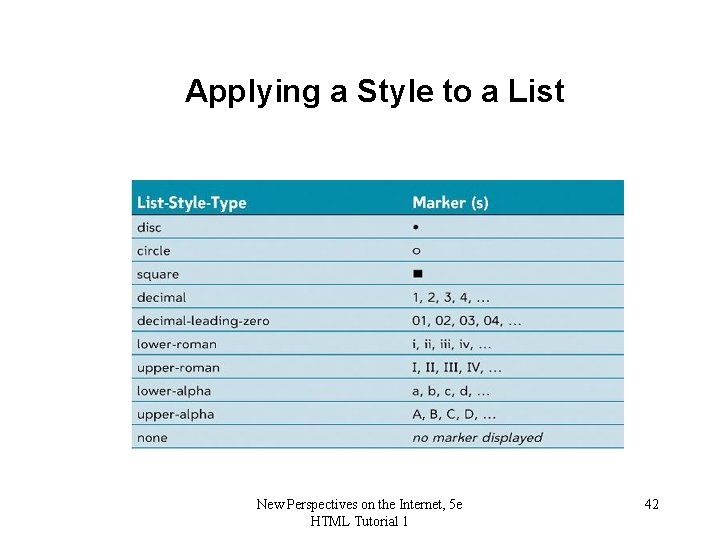
Applying a Style to a List New Perspectives on the Internet, 5 e HTML Tutorial 1 42
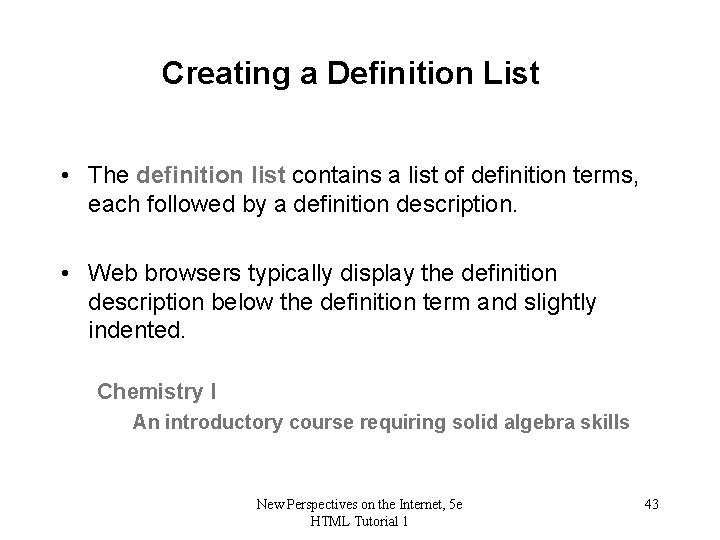
Creating a Definition List • The definition list contains a list of definition terms, each followed by a definition description. • Web browsers typically display the definition description below the definition term and slightly indented. Chemistry I An introductory course requiring solid algebra skills New Perspectives on the Internet, 5 e HTML Tutorial 1 43
Using Other Block-Level Elements • HTML supports the address element to indicate contact information. Most browsers display an address element in an italicized font. • You can indicate long quoted passages by applying the blockquote element. The text is typically indented. • <pre> and <pre/> resprct the formatting of the source. E. g a program or a poem. Displayed in fixed width (monospace) font (usually Courier). New Perspectives on the Internet, 5 e HTML Tutorial 1 44
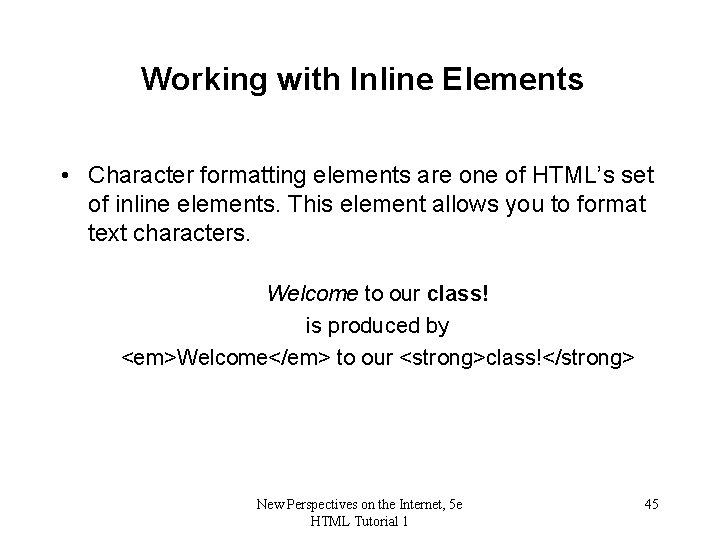
Working with Inline Elements • Character formatting elements are one of HTML’s set of inline elements. This element allows you to format text characters. Welcome to our class! is produced by <em>Welcome</em> to our <strong>class!</strong> New Perspectives on the Internet, 5 e HTML Tutorial 1 45
Understanding Logical and Physical Elements • A logical element describes the nature of the enclosed content, but not necessarily how that content should appear. • A physical element describes how content should appear, but doesn’t indicate the content’s nature. • You should use a logical element that accurately describes the enclosed content whenever possible. Leave it up to the browser to determine the appearance. New Perspectives on the Internet, 5 e HTML Tutorial 1 46
Examples • <h 1> </h 1> describes a logical element, a heading. • <strong> </strong> describes how the content should appear. Considered preferable to avoid this, but it’s still used. New Perspectives on the Internet, 5 e HTML Tutorial 1 47
Working with Empty Elements • To display a graphic, you insert an inline image into the page. An inline image displays a graphic image located in a separate file within the contents of a block-level element. • You can insert a horizontal line by using the onesided tag <hr />. • A pixel is a dot on your computer screen that measures about 1/72” square. New Perspectives on the Internet, 5 e HTML Tutorial 1 48
Working with Empty Elements • Other empty elements you may wish to use in your Web page include line breaks <br/> and meta elements. • Meta elements are placed in the document’s head and contain information about the document that may be of use to programs that run on Web servers. • Keywords are used by spiders (bots, webcrawlers) to classify webpages. New Perspectives on the Internet, 5 e HTML Tutorial 1 49
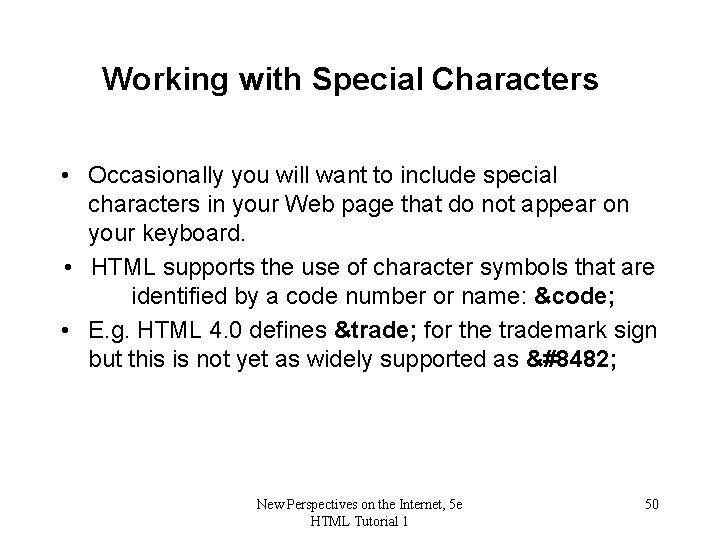
Working with Special Characters • Occasionally you will want to include special characters in your Web page that do not appear on your keyboard. • HTML supports the use of character symbols that are identified by a code number or name: &code; • E. g. HTML 4. 0 defines ™ for the trademark sign but this is not yet as widely supported as ™ New Perspectives on the Internet, 5 e HTML Tutorial 1 50
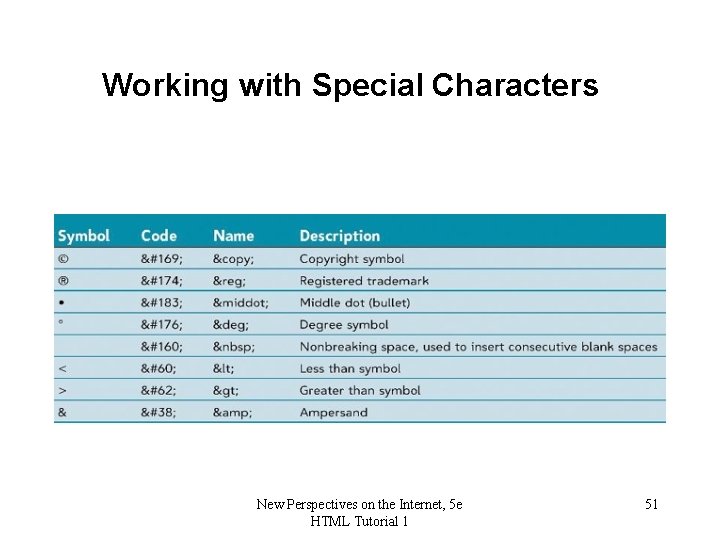
Working with Special Characters New Perspectives on the Internet, 5 e HTML Tutorial 1 51
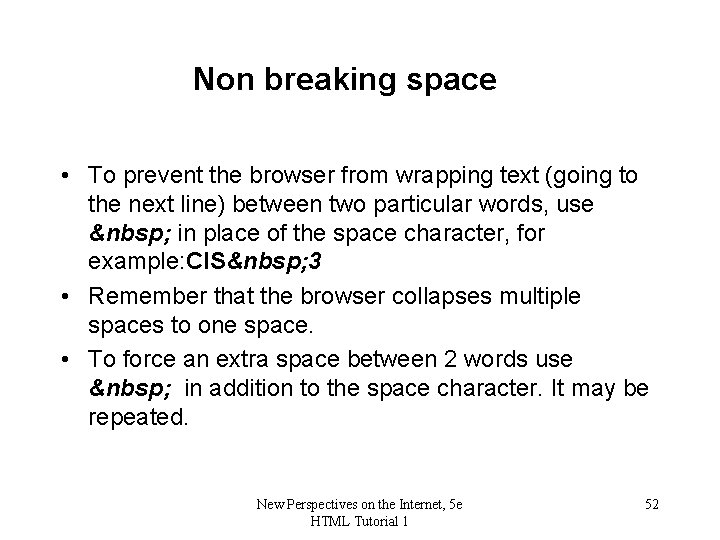
Non breaking space • To prevent the browser from wrapping text (going to the next line) between two particular words, use in place of the space character, for example: CIS 3 • Remember that the browser collapses multiple spaces to one space. • To force an extra space between 2 words use in addition to the space character. It may be repeated. New Perspectives on the Internet, 5 e HTML Tutorial 1 52
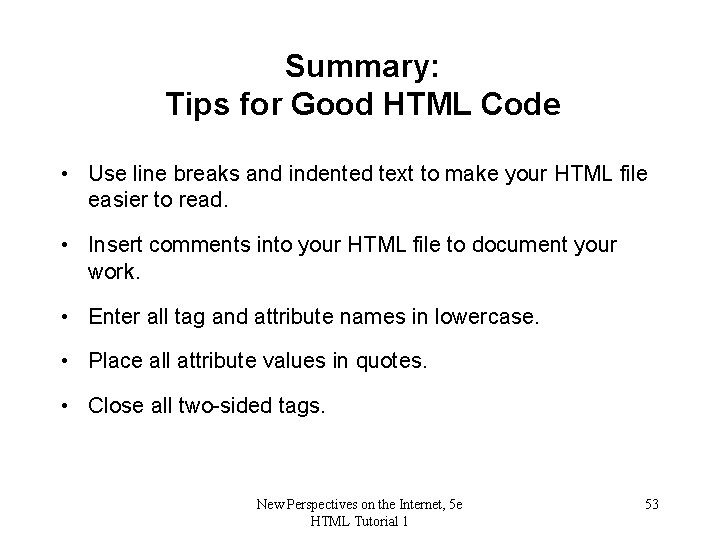
Summary: Tips for Good HTML Code • Use line breaks and indented text to make your HTML file easier to read. • Insert comments into your HTML file to document your work. • Enter all tag and attribute names in lowercase. • Place all attribute values in quotes. • Close all two-sided tags. New Perspectives on the Internet, 5 e HTML Tutorial 1 53
Summary: Tips for Good HTML Code • Make sure that nested elements do not cross. • Use styles in place of presentational elements whenever possible. (? ) • Use logical elements to describe an element’s content. • Use physical elements to describe the element’s appearance. New Perspectives on the Internet, 5 e HTML Tutorial 1 54
Summary: Tips for Good HTML Code • Include the alt attribute for any inline image to specify alternative text for non-graphical browsers. • Know your audience and the types of browsers that your audience will use to view your Web page. • Test your Web page on all relevant browsers. New Perspectives on the Internet, 5 e HTML Tutorial 1 55
- Slides: 55