
HTML Markup and Document Structure CHAPTER 1 CHARLES
- Slides: 21
HTML Markup and Document Structure CHAPTER 1 CHARLES WYKE-SMITH: STYLIN’ WITH CSS: A DESIGNER’S GUIDE (3 ND EDITION) 1
CSS & HTML ØCSS = Cascading Style Sheets Ø Ø CSS is used to separate the styling (look and formatting) of a web page from its content Typically used for web pages (HTML) but also with XML Ø Advantages of using CSS Ø Ø Ø Easier to see content Consistency of look and feel Reduced repetitive HTML tagging Use the same content for different rendering styles (on screen, print, voice, etc) Esthetic changes can be applied easily (e. g. , one edit to change all headings) Ø CSS specification describes a priority scheme to determine which style rules apply if more than one rule matches against a particular element (hence cascading) CHARLES WYKE-SMITH: STYLIN’ WITH CSS: A DESIGNER’S GUIDE (3 ND EDITION) 2
HTML ØHTML = Hyper Text Markup Language ØAn HTML page consists of: Ø A Document Type Declaration, which triggers the rendering mode e. g. , <!DOCTYPE html> Ø A system of directives (called tags) on how to render content in a web browser Ø Character based content Ø Entity references ØAn online reference for the full HTML syntax can be found at the link below: Ø http: //www. w 3 schools. com/tags/ CHARLES WYKE-SMITH: STYLIN’ WITH CSS: A DESIGNER’S GUIDE (3 ND EDITION) 3
TAGS ØThere are three types of tags: ØAn Enclosing Tag: a pair of words enclosed in angle brackets Ø Start (opening) tag: e. g. , <p> for paragraph Ø End (closing) tag: e. g. , </p> for end of paragraph Ø Syntax: <tag name attribute_1="value" attribute_2="value" > Your text here </tag name> ØNon Enclosing Tag: only the start tag, used to include a reference to an entity Ø Syntax: <tag name attribute_1="value" attribute_2="value" /> Ø E. g. , <img class="yorku" src=". /Images/York. U. jpg" alt="York University Logo" /> ØStructural Tags: for grouping related sets of content tags Ø E. g. , header, nav, article, section, aside, footer Always code the end tags, even though HTML 5 works in many cases without them. Align start and end tags to help you see the structure better. CHARLES WYKE-SMITH: STYLIN’ WITH CSS: A DESIGNER’S GUIDE (3 ND EDITION) 4
Attributes ØAttributes provide the browser with additional information about the tag ØThe <img> tag on the previous page has three attributes: Øclass="yorku" tells the browser how to associate this image with CSS information Øsrc=". /Images/York. U. jpg" tells the browser where to find the actual file containing the image to be displayed. Øalt="York University Logo" is the text displayed when the image is not available, or read out when the page is rendered in audio mode. Always code the alt attribute on any <img> tag. Otherwise audio rendering does not work well, nor does displaying when the file is missing. CHARLES WYKE-SMITH: STYLIN’ WITH CSS: A DESIGNER’S GUIDE (3 ND EDITION) 5
HTML Tags Used in This Chapter ØBlock Level Text Elements: Øh 1, h 2, h 3, h 4, h 5, h 6 : Headings (h 1 being the highest level) Øp : Paragraph Øol : Ordered List Øli : List Item Øblockquote : Stand alone quotation ØInline Text Elements: Øa : Anchor (link) Øimg : Image Øem : Italic Østrong : Importance Øabbr : Abbreviation Øcite : Citation Øq : Quotation within text CHARLES WYKE-SMITH: STYLIN’ WITH CSS: A DESIGNER’S GUIDE (3 ND EDITION) 6
Headings & Paragraphs ØBy far the most common tags ØYou will normally start the page with the h 1 tag ØStructure different levels of information using h 2, h 3, … etc. tags ØActual text goes into p tags Øh 1 headings will be typically the most prominent (unless you change their styling in CSS) ØSearch engines typically look for h 1 tags (after title tags) Øtitle tags are used to provide a descriptive name for a web page ØE. g. , <title> My York University Home Page </title> CHARLES WYKE-SMITH: STYLIN’ WITH CSS: A DESIGNER’S GUIDE (3 ND EDITION) 7
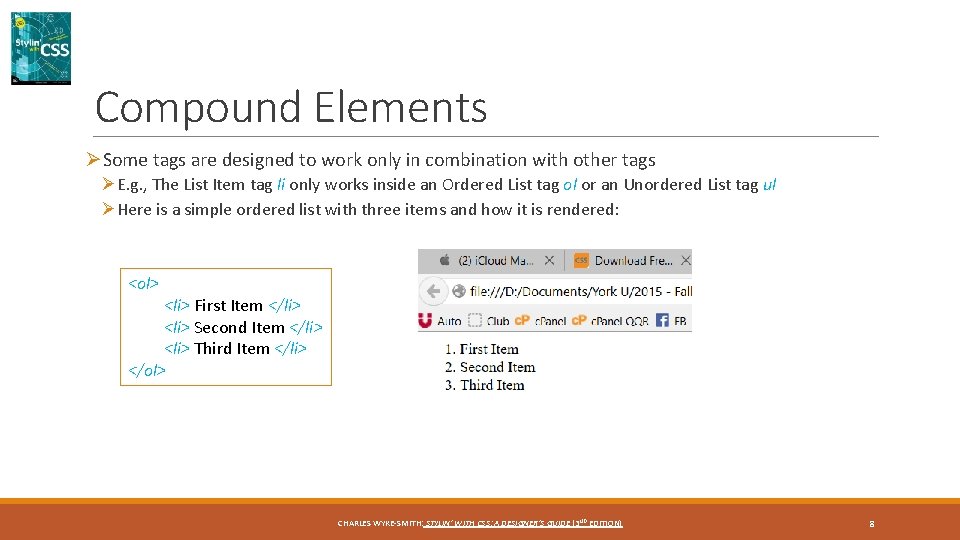
Compound Elements ØSome tags are designed to work only in combination with other tags ØE. g. , The List Item tag li only works inside an Ordered List tag ol or an Unordered List tag ul ØHere is a simple ordered list with three items and how it is rendered: <ol> <li> First Item </li> <li> Second Item </li> <li> Third Item </li> </ol> CHARLES WYKE-SMITH: STYLIN’ WITH CSS: A DESIGNER’S GUIDE (3 ND EDITION) 8
Nested Tags ØIn the previous example you can see that the <li> </li> pair of tags, including the text between them, appears in its entirety between the <ol> </ol> pair of tags ØThis approach is called nesting of tags ØIn nesting tags you must place end tags in reverse order of the start tags (i. e. , the end tag of the most recent start tag must come first). ØWrong: <p> That car is <em> fast </p>. </em> ØRight: <p> That car is <em> fast </em>. </p> CHARLES WYKE-SMITH: STYLIN’ WITH CSS: A DESIGNER’S GUIDE (3 ND EDITION) 9
Anatomy of an HTML Document ØThere are some elements that must be present in every web page ØThink of these elements as a template with which you start all web pages ØHTML 5 has greatly simplified this template <!DOCTYPE html> <head> <meta charset="utf-8" /> <title> An HTML Page </title> </head> <body> <! – Your web page contents follows this comment tag --> </body> </html> CHARLES WYKE-SMITH: STYLIN’ WITH CSS: A DESIGNER’S GUIDE (3 ND EDITION) 10
The HTML Template ØLine 1: Identifies this document as an HTML document ØLine 2: Root level tag marking the beginning and the end of the document ØIts end tag on line 10 is the very last tag in the document ØHas only two child tags: head and body ØLine 3: Starts the section that tells the browser how to display the page ØLine 4: Identifies the character encoding to use ØLine 5: identifies the text to display at the top of the browser window when this page is rendered ØLine 7: Starts the section that contains your actual content ØLine 8: This is a comment. Comments are not displayed on the web page. CHARLES WYKE-SMITH: STYLIN’ WITH CSS: A DESIGNER’S GUIDE (3 ND EDITION) 11
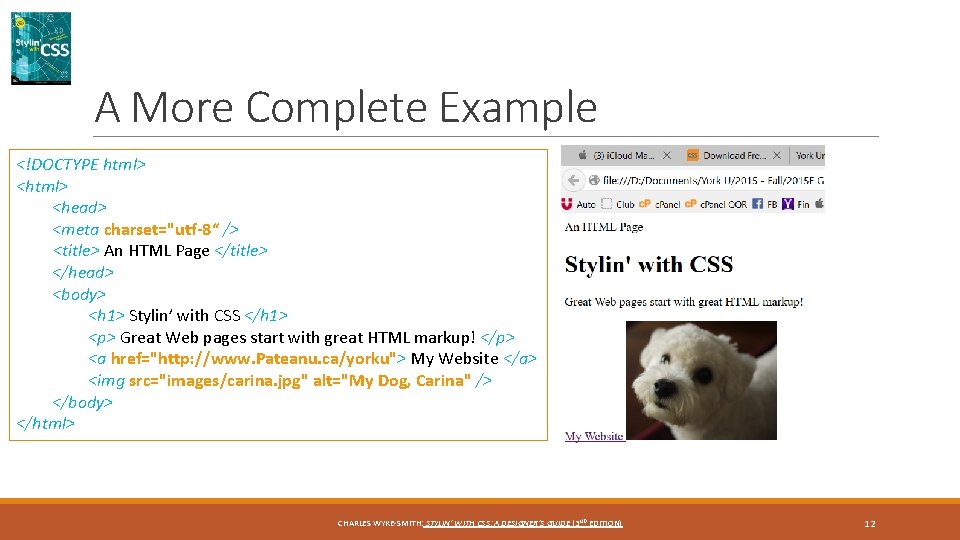
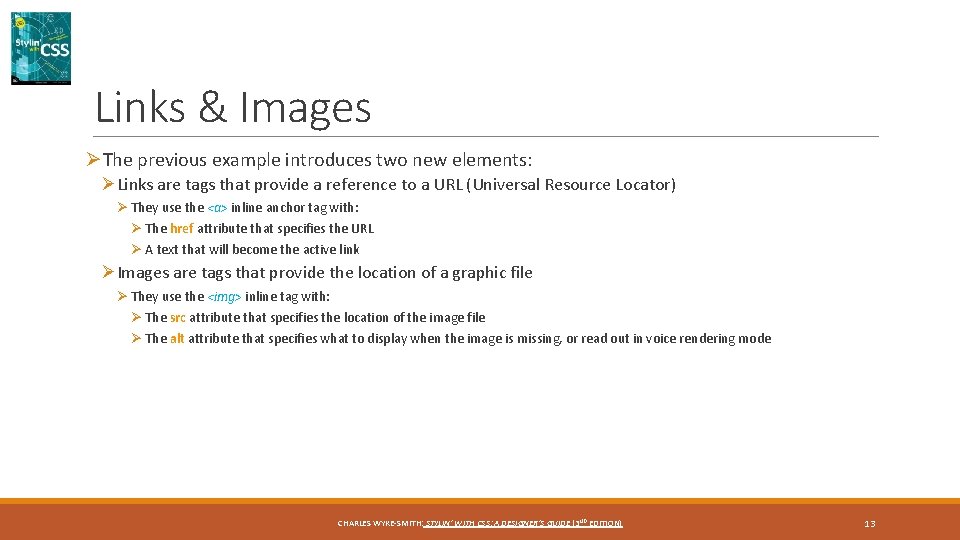
A More Complete Example <!DOCTYPE html> <head> <meta charset="utf-8“ /> <title> An HTML Page </title> </head> <body> <h 1> Stylin’ with CSS </h 1> <p> Great Web pages start with great HTML markup! </p> <a href="http: //www. Pateanu. ca/yorku"> My Website </a> <img src="images/carina. jpg" alt="My Dog, Carina" /> </body> </html> CHARLES WYKE-SMITH: STYLIN’ WITH CSS: A DESIGNER’S GUIDE (3 ND EDITION) 12
Links & Images ØThe previous example introduces two new elements: ØLinks are tags that provide a reference to a URL (Universal Resource Locator) Ø They use the <a> inline anchor tag with: Ø The href attribute that specifies the URL Ø A text that will become the active link ØImages are tags that provide the location of a graphic file Ø They use the <img> inline tag with: Ø The src attribute that specifies the location of the image file Ø The alt attribute that specifies what to display when the image is missing, or read out in voice rendering mode CHARLES WYKE-SMITH: STYLIN’ WITH CSS: A DESIGNER’S GUIDE (3 ND EDITION) 13
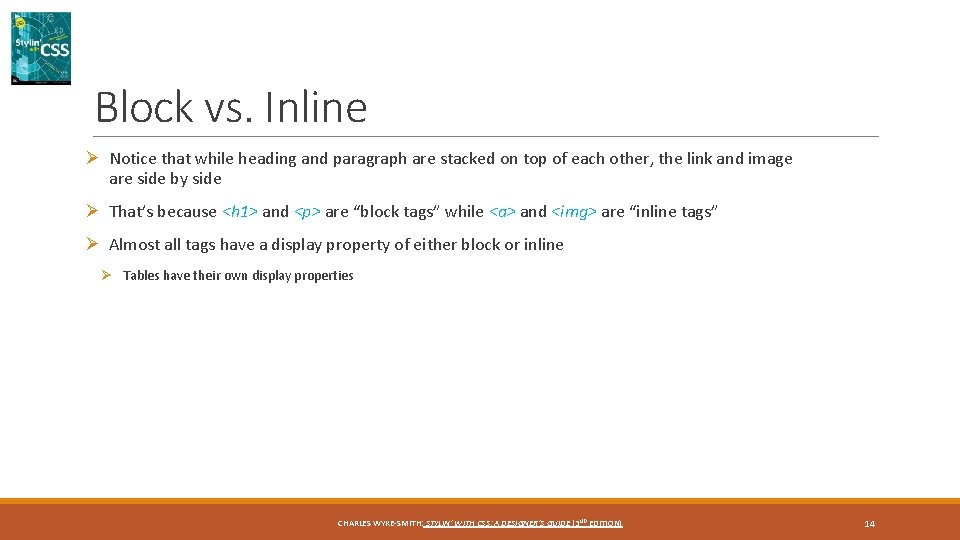
Block vs. Inline Ø Notice that while heading and paragraph are stacked on top of each other, the link and image are side by side Ø That’s because <h 1> and <p> are “block tags” while <a> and <img> are “inline tags” Ø Almost all tags have a display property of either block or inline Ø Tables have their own display properties CHARLES WYKE-SMITH: STYLIN’ WITH CSS: A DESIGNER’S GUIDE (3 ND EDITION) 14
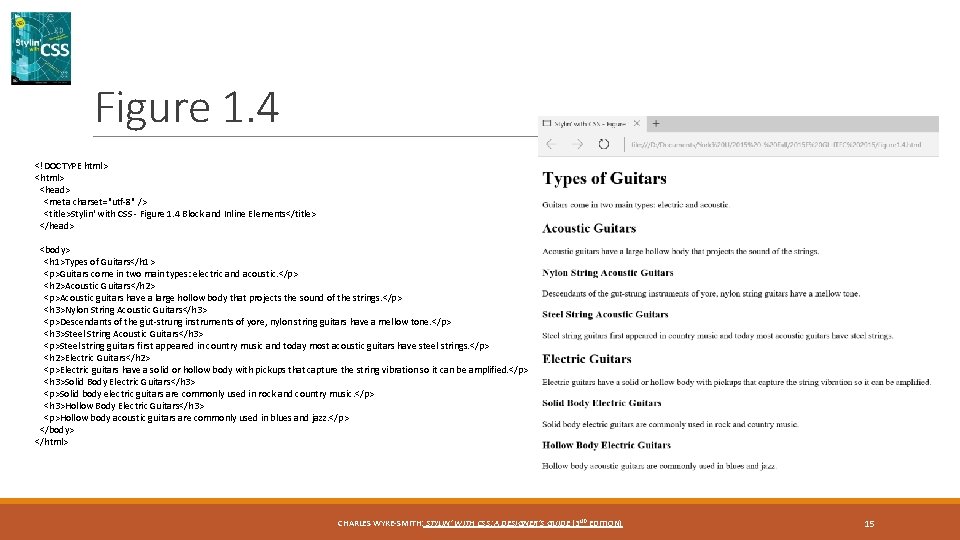
Figure 1. 4 <!DOCTYPE html> <html> <head> <meta charset="utf-8" /> <title>Stylin' with CSS - Figure 1. 4 Block and Inline Elements</title> </head> <body> <h 1>Types of Guitars</h 1> <p>Guitars come in two main types: electric and acoustic. </p> <h 2>Acoustic Guitars</h 2> <p>Acoustic guitars have a large hollow body that projects the sound of the strings. </p> <h 3>Nylon String Acoustic Guitars</h 3> <p>Descendants of the gut-strung instruments of yore, nylon string guitars have a mellow tone. </p> <h 3>Steel String Acoustic Guitars</h 3> <p>Steel string guitars first appeared in country music and today most acoustic guitars have steel strings. </p> <h 2>Electric Guitars</h 2> <p>Electric guitars have a solid or hollow body with pickups that capture the string vibration so it can be amplified. </p> <h 3>Solid Body Electric Guitars</h 3> <p>Solid body electric guitars are commonly used in rock and country music. </p> <h 3>Hollow Body Electric Guitars</h 3> <p>Hollow body acoustic guitars are commonly used in blues and jazz. </p> </body> </html> CHARLES WYKE-SMITH: STYLIN’ WITH CSS: A DESIGNER’S GUIDE (3 ND EDITION) 15
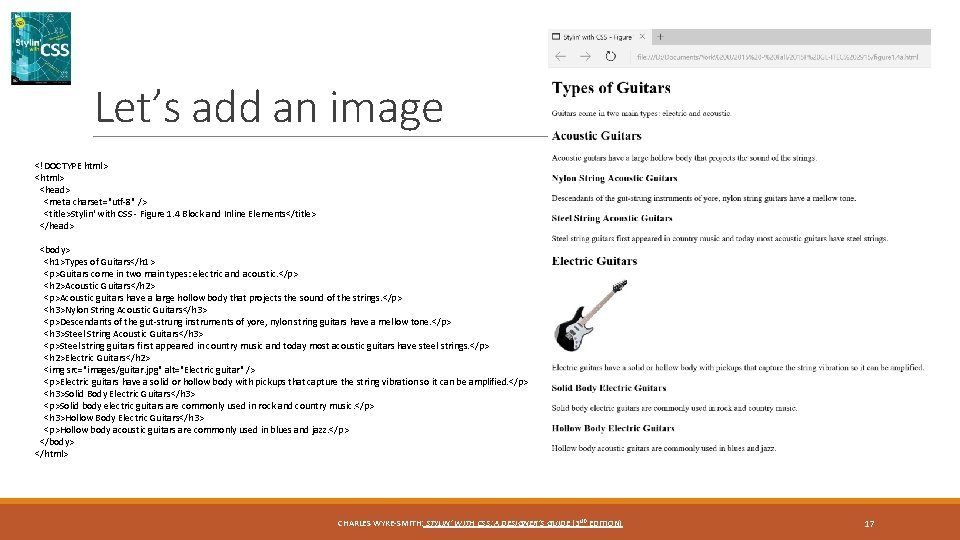
Rendering Analysis ØYou can see three different levels of headings, styled differently ØEach element starts on a new line, because headings and paragraphs are block tags ØSpace is added around the edges of the text, so that the text does not touch on the edges of the browser window ØSpace has also been added between lines CHARLES WYKE-SMITH: STYLIN’ WITH CSS: A DESIGNER’S GUIDE (3 ND EDITION) 16
Let’s add an image <!DOCTYPE html> <html> <head> <meta charset="utf-8" /> <title>Stylin' with CSS - Figure 1. 4 Block and Inline Elements</title> </head> <body> <h 1>Types of Guitars</h 1> <p>Guitars come in two main types: electric and acoustic. </p> <h 2>Acoustic Guitars</h 2> <p>Acoustic guitars have a large hollow body that projects the sound of the strings. </p> <h 3>Nylon String Acoustic Guitars</h 3> <p>Descendants of the gut-strung instruments of yore, nylon string guitars have a mellow tone. </p> <h 3>Steel String Acoustic Guitars</h 3> <p>Steel string guitars first appeared in country music and today most acoustic guitars have steel strings. </p> <h 2>Electric Guitars</h 2> <img src="images/guitar. jpg" alt="Electric guitar" /> <p>Electric guitars have a solid or hollow body with pickups that capture the string vibration so it can be amplified. </p> <h 3>Solid Body Electric Guitars</h 3> <p>Solid body electric guitars are commonly used in rock and country music. </p> <h 3>Hollow Body Electric Guitars</h 3> <p>Hollow body acoustic guitars are commonly used in blues and jazz. </p> </body> </html> CHARLES WYKE-SMITH: STYLIN’ WITH CSS: A DESIGNER’S GUIDE (3 ND EDITION) 17
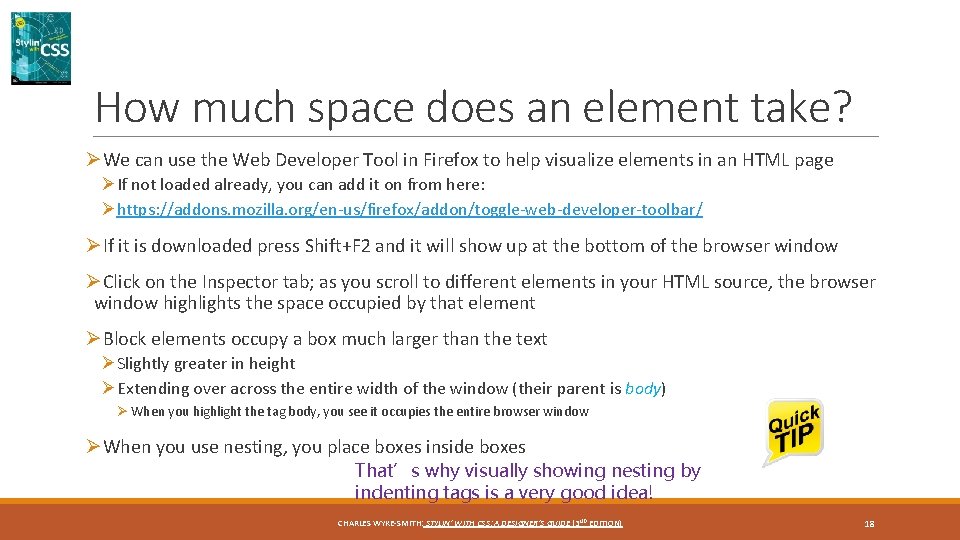
How much space does an element take? ØWe can use the Web Developer Tool in Firefox to help visualize elements in an HTML page ØIf not loaded already, you can add it on from here: Øhttps: //addons. mozilla. org/en-us/firefox/addon/toggle-web-developer-toolbar/ ØIf it is downloaded press Shift+F 2 and it will show up at the bottom of the browser window ØClick on the Inspector tab; as you scroll to different elements in your HTML source, the browser window highlights the space occupied by that element ØBlock elements occupy a box much larger than the text ØSlightly greater in height ØExtending over across the entire width of the window (their parent is body) Ø When you highlight the tag body, you see it occupies the entire browser window ØWhen you use nesting, you place boxes inside boxes That’s why visually showing nesting by indenting tags is a very good idea! CHARLES WYKE-SMITH: STYLIN’ WITH CSS: A DESIGNER’S GUIDE (3 ND EDITION) 18
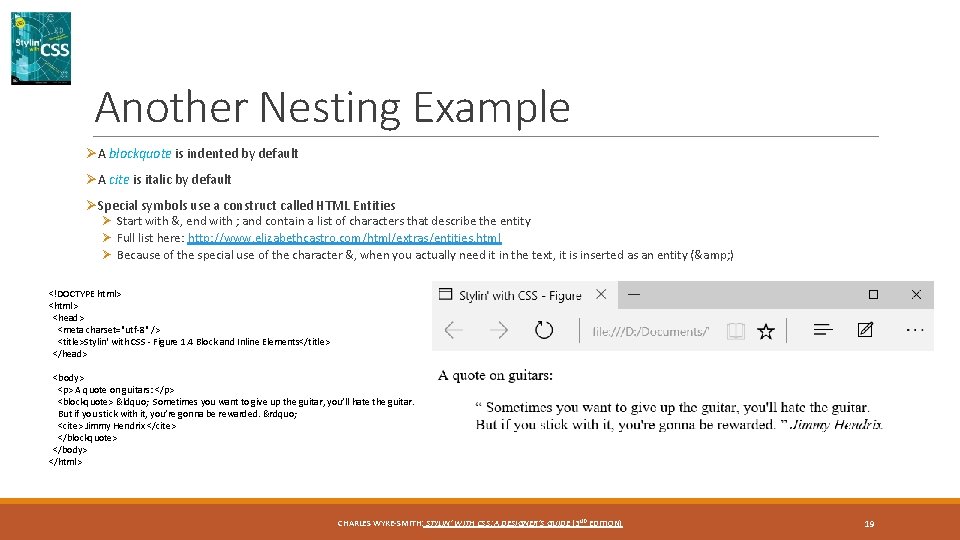
Another Nesting Example ØA blockquote is indented by default ØA cite is italic by default ØSpecial symbols use a construct called HTML Entities Ø Start with &, end with ; and contain a list of characters that describe the entity Ø Full list here: http: //www. elizabethcastro. com/html/extras/entities. html Ø Because of the special use of the character &, when you actually need it in the text, it is inserted as an entity (& ) <!DOCTYPE html> <html> <head> <meta charset="utf-8" /> <title>Stylin' with CSS - Figure 1. 4 Block and Inline Elements</title> </head> <body> <p> A quote on guitars: </p> <blockquote> “ Sometimes you want to give up the guitar, you’ll hate the guitar. But if you stick with it, you’re gonna be rewarded. ” <cite> Jimmy Hendrix </cite> </blockquote> </body> </html> CHARLES WYKE-SMITH: STYLIN’ WITH CSS: A DESIGNER’S GUIDE (3 ND EDITION) 19
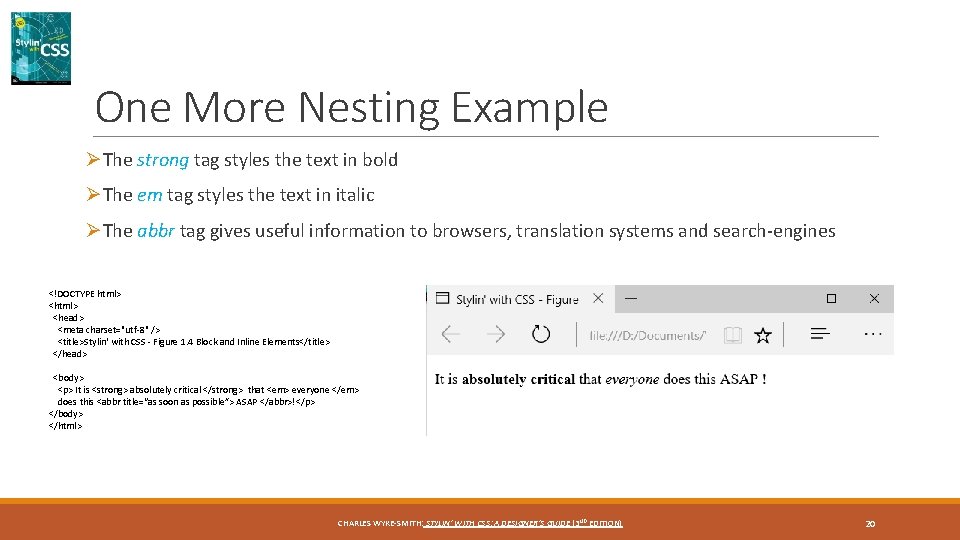
One More Nesting Example ØThe strong tag styles the text in bold ØThe em tag styles the text in italic ØThe abbr tag gives useful information to browsers, translation systems and search-engines <!DOCTYPE html> <html> <head> <meta charset="utf-8" /> <title>Stylin' with CSS - Figure 1. 4 Block and Inline Elements</title> </head> <body> <p> It is <strong> absolutely critical </strong> that <em> everyone </em> does this <abbr title=“as soon as possible”> ASAP </abbr>!</p> </body> </html> CHARLES WYKE-SMITH: STYLIN’ WITH CSS: A DESIGNER’S GUIDE (3 ND EDITION) 20
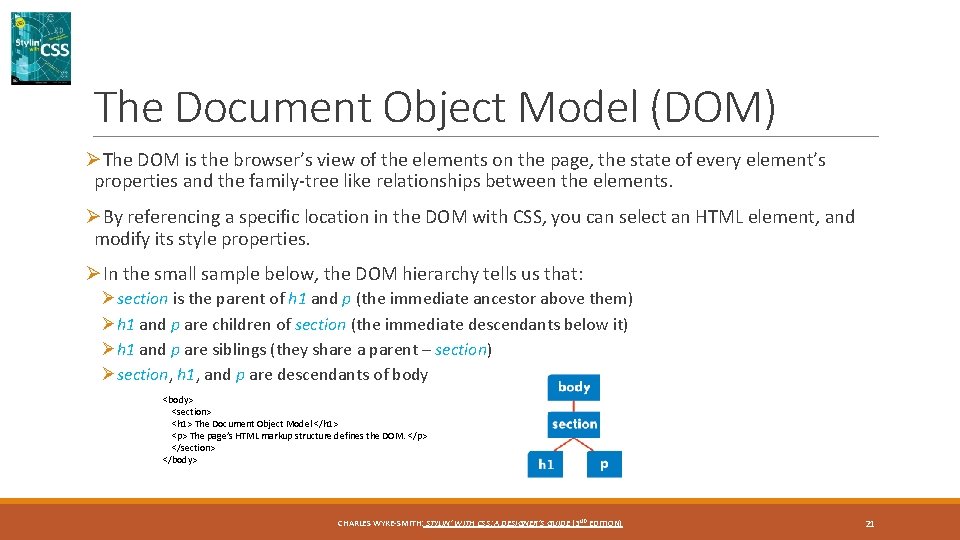
The Document Object Model (DOM) ØThe DOM is the browser’s view of the elements on the page, the state of every element’s properties and the family-tree like relationships between the elements. ØBy referencing a specific location in the DOM with CSS, you can select an HTML element, and modify its style properties. ØIn the small sample below, the DOM hierarchy tells us that: Øsection is the parent of h 1 and p (the immediate ancestor above them) Øh 1 and p are children of section (the immediate descendants below it) Øh 1 and p are siblings (they share a parent – section) Øsection, h 1, and p are descendants of body <body> <section> <h 1> The Document Object Model </h 1> <p> The page’s HTML markup structure defines the DOM. </p> </section> </body> CHARLES WYKE-SMITH: STYLIN’ WITH CSS: A DESIGNER’S GUIDE (3 ND EDITION) 21