
HTML Hyper Text Markup Language A simple introduction


- Slides: 49
HTML Hyper Text Markup Language A simple introduction
Agenda • • What is HTML? Basics Tools Important tags Tables & databases Forms Publishing at Stern
What is HTML? • HTML – stands for Hyper Text Markup Language • It allows a user to “markup” a text document to indicate how one might want different parts displayed by a web browser.
The Basics • HTML documents contain “tags” which instruct the Browser software on how to present the information within a tag. These are called “styles” • Styles can be imbedded within styles – <bold><h 1> TEXT </h 1></bold> • Tags begin with <tag> and end with </tag>
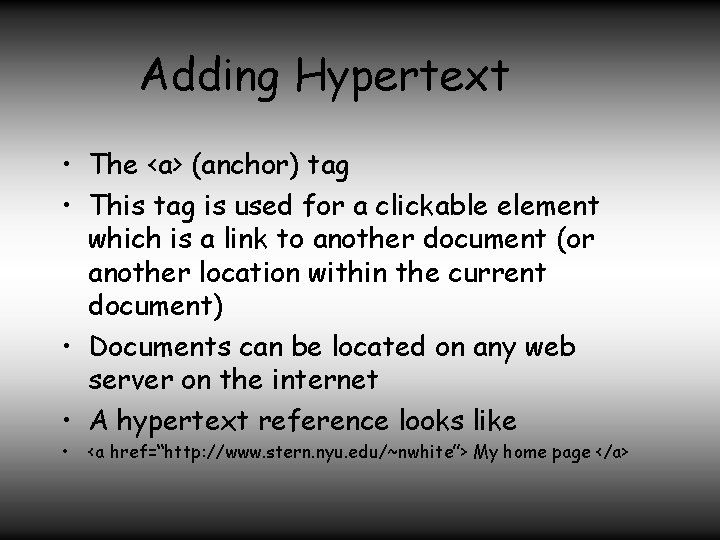
Adding Hypertext • The <a> (anchor) tag • This tag is used for a clickable element which is a link to another document (or another location within the current document) • Documents can be located on any web server on the internet • A hypertext reference looks like • <a href=“http: //www. stern. nyu. edu/~nwhite”> My home page </a>
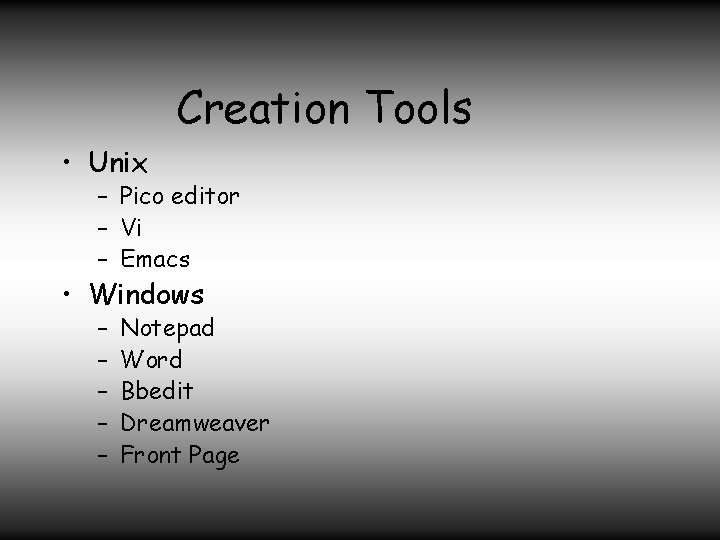
Creation Tools • Unix – Pico editor – Vi – Emacs • Windows – – – Notepad Word Bbedit Dreamweaver Front Page
Why do we need to know HTML? • There are many tools that will generate reasonable looking web sites • However, you usually need to know HTML in order to connect your web page to a data base • You will definitely need to know HTML to create a mobile app.
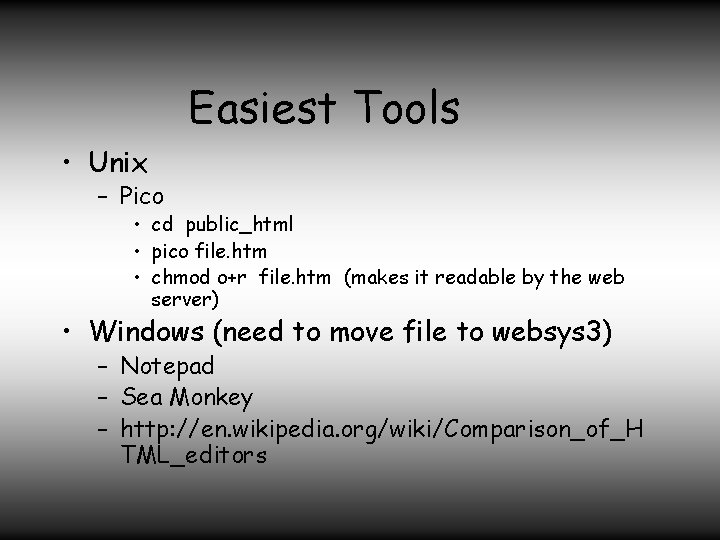
Easiest Tools • Unix – Pico • cd public_html • pico file. htm • chmod o+r file. htm (makes it readable by the web server) • Windows (need to move file to websys 3) – Notepad – Sea Monkey – http: //en. wikipedia. org/wiki/Comparison_of_H TML_editors
Advanced Tools We will use Dreamweaver • Dreamweaver CC – Handles Frames, Forms, Tables etc. – Generates Javascript behaviours – Handles site management details • Broken links, publishing etc. – Works with Flash and Fireworks – Latest version Supports HTML 5 – Also supports mobile devices
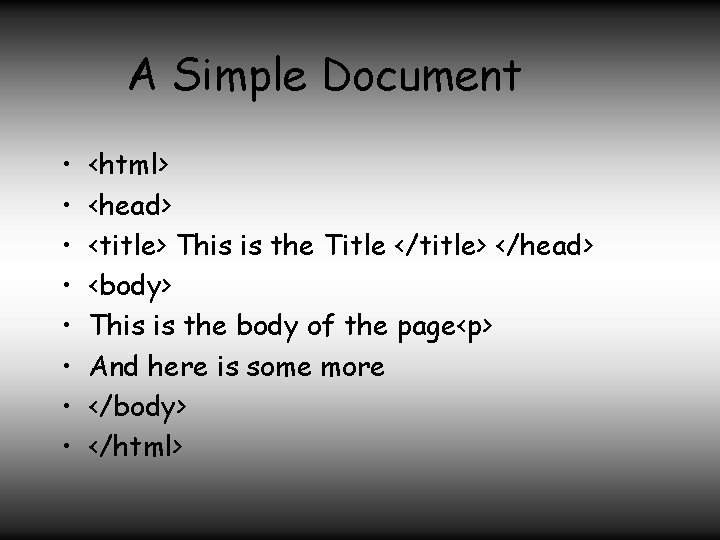
A Simple Document • • <html> <head> <title> This is the Title </title> </head> <body> This is the body of the page<p> And here is some more </body> </html>
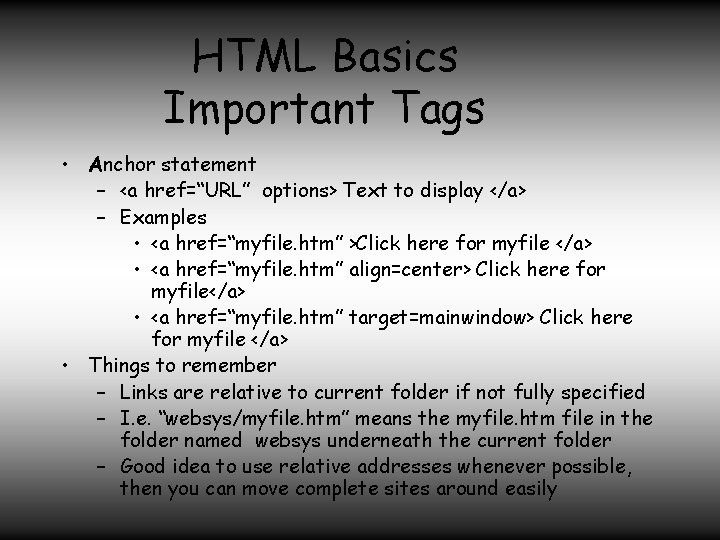
HTML Basics Important Tags • Anchor statement – <a href=“URL” options> Text to display </a> – Examples • <a href=“myfile. htm” >Click here for myfile </a> • <a href=“myfile. htm” align=center> Click here for myfile</a> • <a href=“myfile. htm” target=mainwindow> Click here for myfile </a> • Things to remember – Links are relative to current folder if not fully specified – I. e. “websys/myfile. htm” means the myfile. htm file in the folder named websys underneath the current folder – Good idea to use relative addresses whenever possible, then you can move complete sites around easily
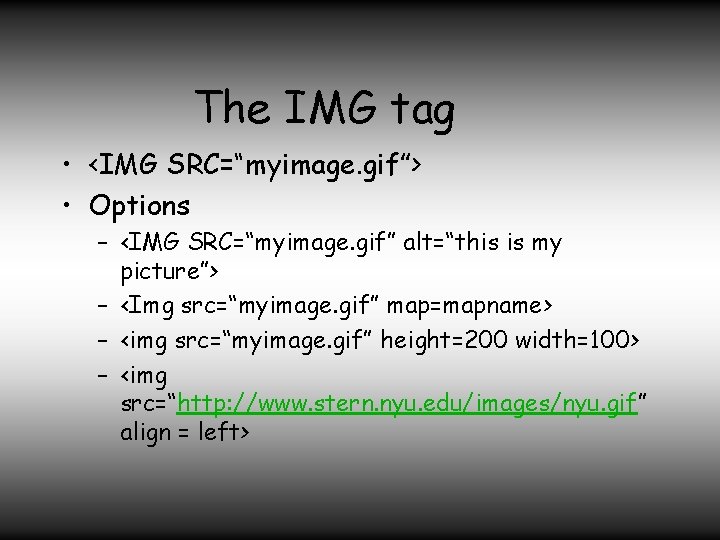
The IMG tag • <IMG SRC=“myimage. gif”> • Options – <IMG SRC=“myimage. gif” alt=“this is my picture”> – <Img src=“myimage. gif” map=mapname> – <img src=“myimage. gif” height=200 width=100> – <img src=“http: //www. stern. nyu. edu/images/nyu. gif” align = left>
Other interesting tags • <table> – Use to define multicolumn tables – Useful for aligning items – Easy to make and very flexible • Example
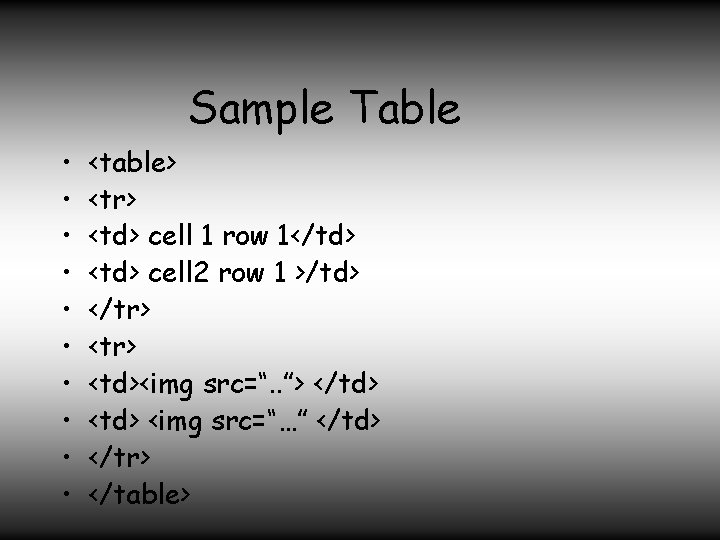
Sample Table • • • <table> <tr> <td> cell 1 row 1</td> <td> cell 2 row 1 >/td> </tr> <td><img src=“. . ”> </td> <img src=“…” </td> </tr> </table>
Better than table tag the div tag • The div tag just creates a rectangular section of your web page that you can manipulate and address separately. It is more flexible than the <table> tag, and in almost all cases should be used instead of the table tag. Your can create tables by embedding divs within divs. See the next page. • •
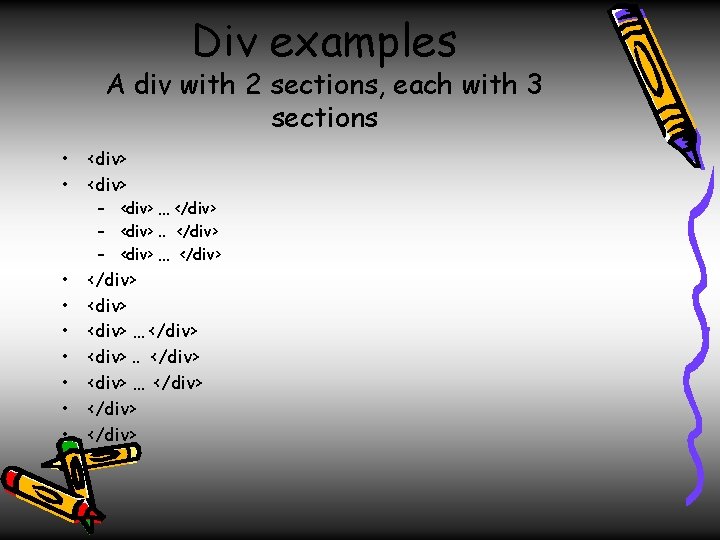
Div examples A div with 2 sections, each with 3 sections • • <div> • • </div> <div> … </div> <div>. . </div> <div> … </div> – <div> … </div> – <div>. . </div> – <div> … </div>
Tables and Databases • Since relational data bases are stored in tables, and the result of any relational query is also a table, guess what, we tend to display data base results as HTML tables. – Actually, this is outdated, now we use divs… • But that is jumping ahead, first we need to understand the Common Gateway Interface (CGI) model and other related server side solutions. We will talk about that in a few sessions.
Advanced tags • • Frames Forms Layers …
Forms • A form allow users to enter data through a web page so it can be processed by a program on a server • Forms and tables are the two necessary ingredients for web enabled databases
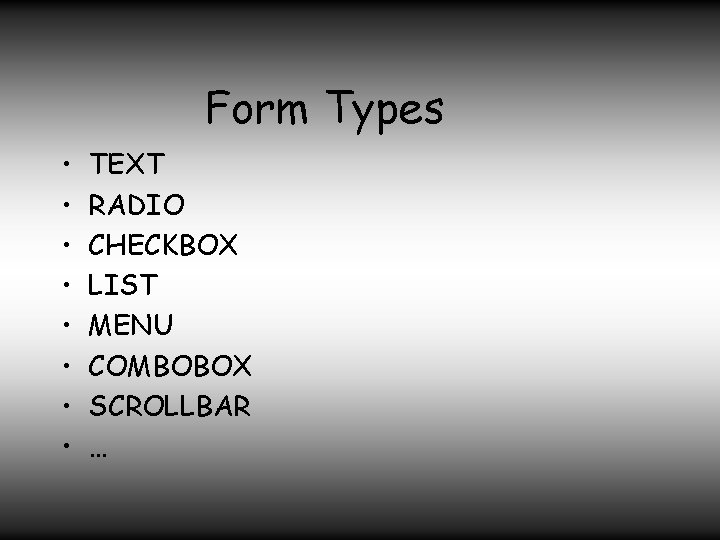
Form Types • • TEXT RADIO CHECKBOX LIST MENU COMBOBOX SCROLLBAR …
Conclusion • HTML is pretty simple • Knowledge of a few tags can get you a long way. . • Have fun… • So let’s publish a web page.
Publishing Hypertext • Need to move it to web server (computer) and place in a location the web server program can read it • You need to give the WEB server program read access to the directory and page(s), since the program runs under a different userid (than yours).
Publishing at Stern • Dreamweaver (This is what we will use throughout the course) • Notepad
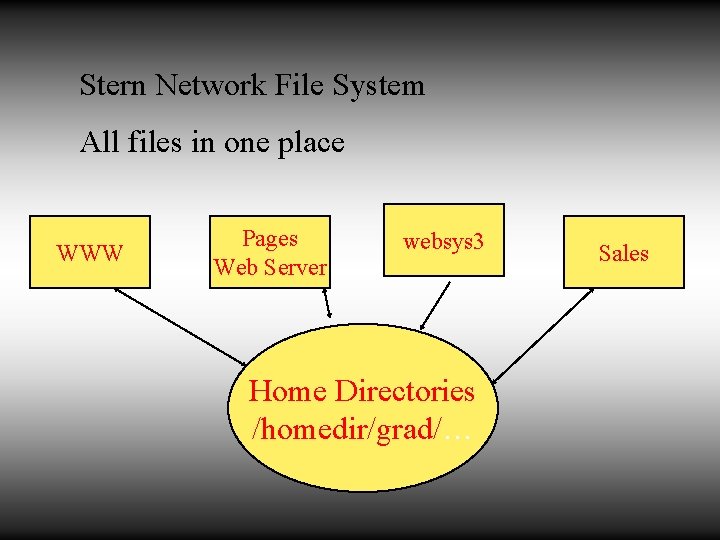
Stern File Servers Your files are shared across several servers: pages. stern. nyu. edu (the student web server) and websys 3. stern. nyu. edu (the class unix machine. ) sales. stern. nyu. edu (The general unix machine for students) You can only login to sales and websys 3.
Stern Network File System All files in one place WWW Pages Web Server websys 3 Home Directories /homedir/grad/… Sales
File System Standards • All grad student home directories are at: • /homedir/grad/fchar/userid – Where fchar is the first character of your userid • Undergrad files are at: • /homedir/ugrad/fchar/userid • But web pages are in – …/userid/public_html (why? ? )
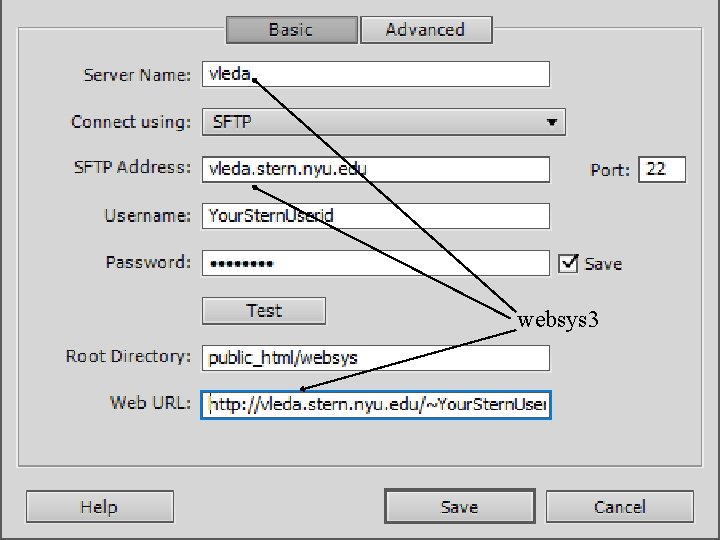
Publishing • You need to use the following address for publishing – sftp: //websys 3. stern. nyu. edu/The. Address. Of. Your. Page – I. e. • sftp: //websys 3. stern. nyu. edu/homedir/grad/e/ep 5/public_html • Where “homedir/grad/e/ep 5/public_html” is the output of the pwd command you issued – But you can view it at • http: //www. stern. nyu. edu/~userid/filename. html • http: //pages. stern. nyu. edu/~userid/filename. html – For this class, I would like you to put all of your files in a websys folder in your public_html directory.
Editing HTML in Dreamweaver • You can either buy Dreamweaver in the bookstore, or run it from the Stern APPS server. • The advantage of buying it is that it will keep all of your settings from one session to another. • But, we will use Dreamweaver on apps for examples. • If you are budget constrained, you can use APPS for the first part of the course, and then download a demo version of Dreamweaver that will run for 30 days. • You can also buy a Dreamweaver academic license by the month
For more info • Let’s try to create a web page…
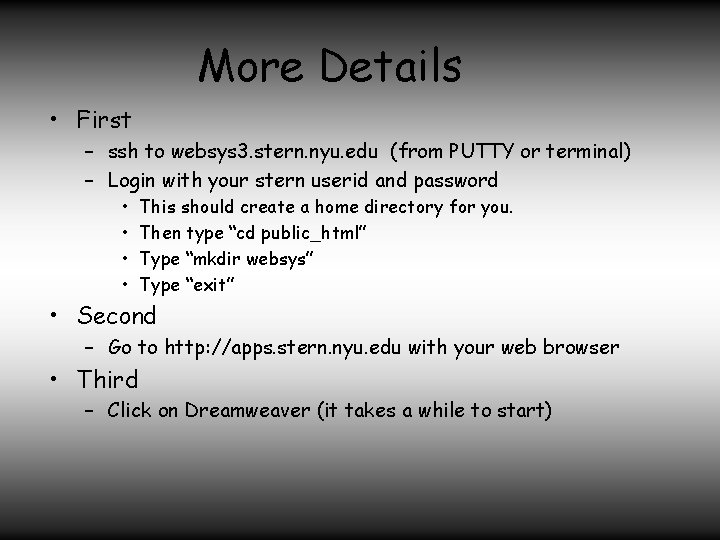
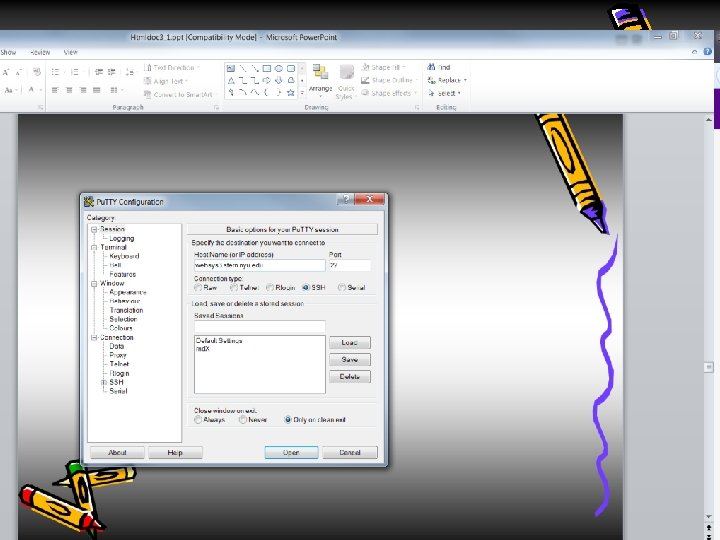
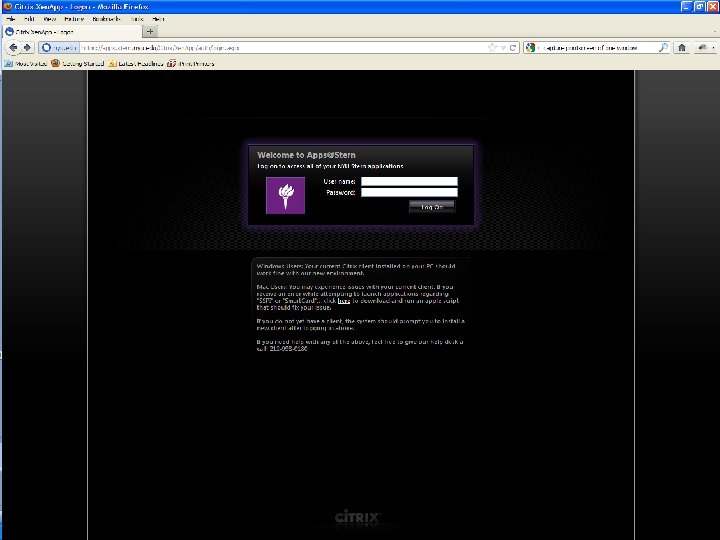
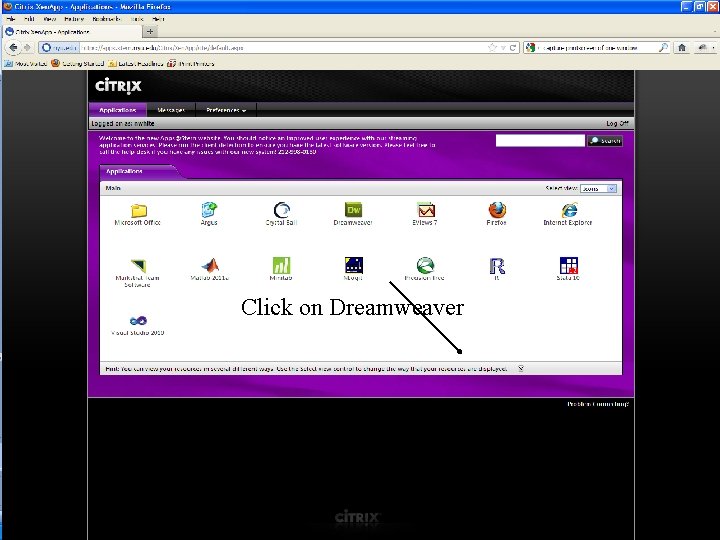
More Details • First – ssh to websys 3. stern. nyu. edu (from PUTTY or terminal) – Login with your stern userid and password • • This should create a home directory for you. Then type “cd public_html” Type “mkdir websys” Type “exit” • Second – Go to http: //apps. stern. nyu. edu with your web browser • Third – Click on Dreamweaver (it takes a while to start)
Click on Dreamweaver
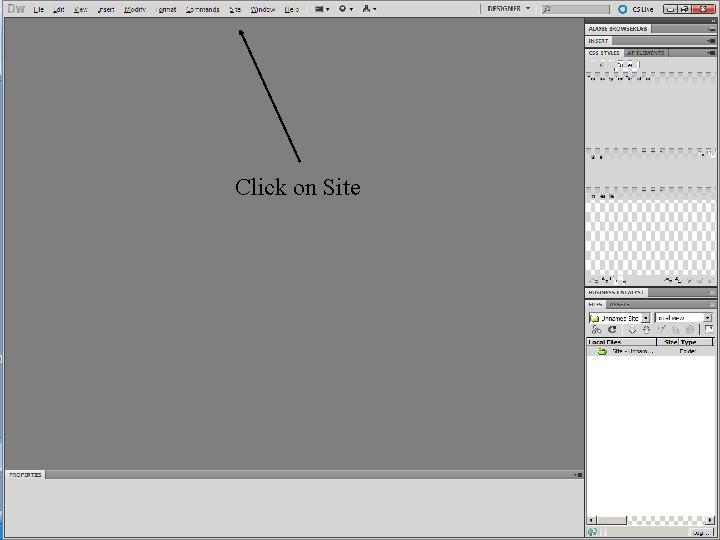
Click on Site
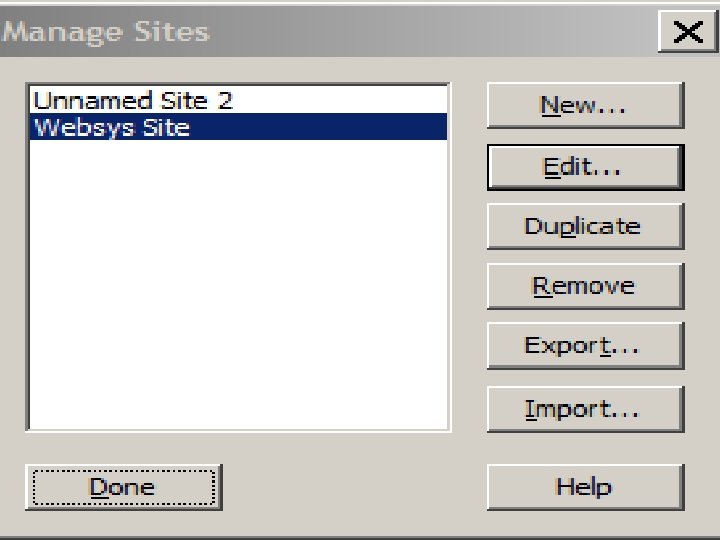
• Click on Site, add a new site
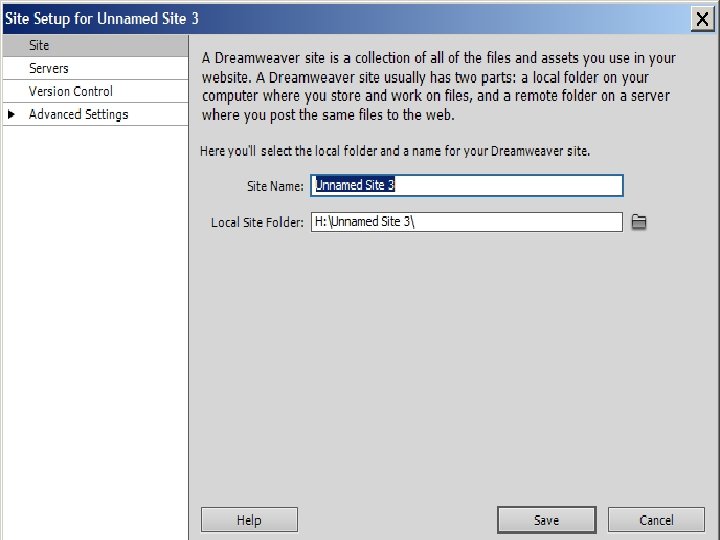
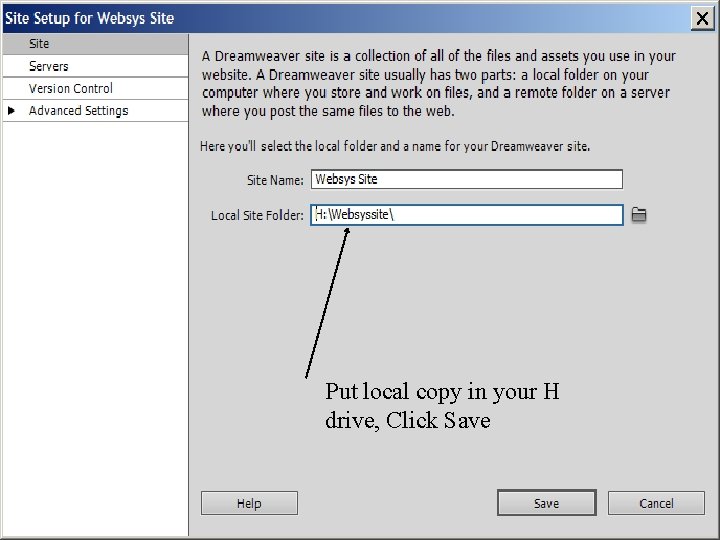
Put local copy in your H drive, Click Save
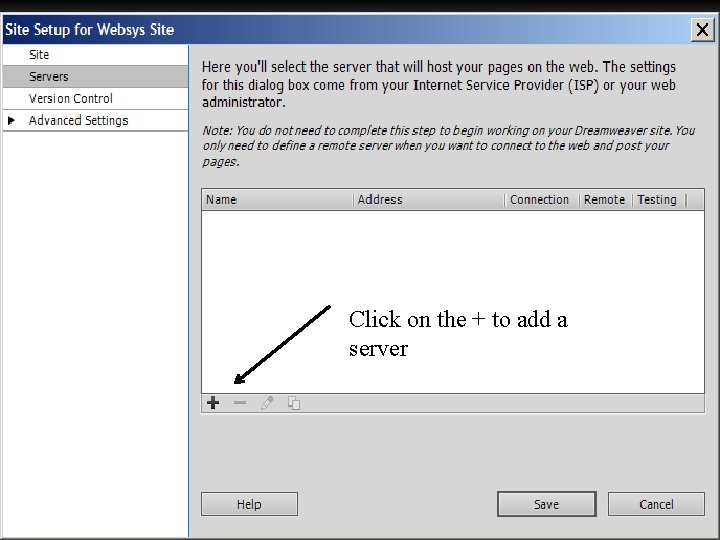
Click on the + to add a server
websys 3
• You now should be able to use Dreamweaver to create a web page. • The default web page is usually “index. html”. It will be displayed when you go to a location and don’t specify a file name. • You can create your own home page at Stern by putting an index. html file in your public_html directory. • But we don’t want to put one in your websys directory, so that we can list it’s contents for grading.
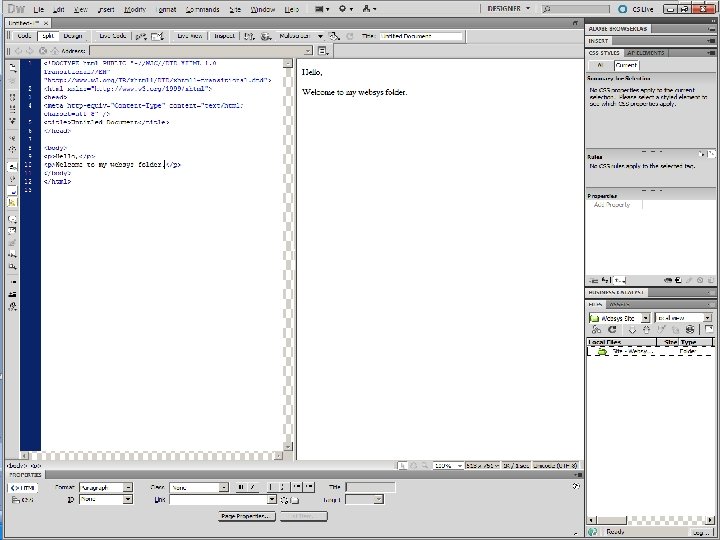
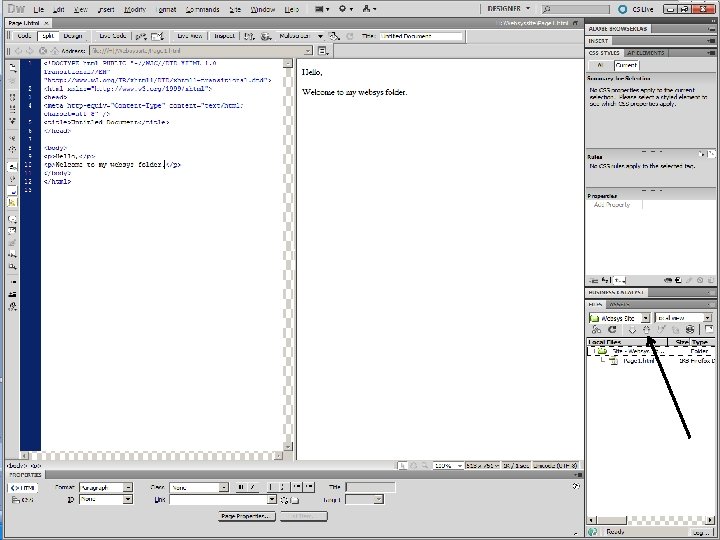
• Next, we click on • File, New in Dreamweaver and create a file. • Dreamweaver can show us both what the web browser will display, as well as what the html code is if we click on the “split” tab.
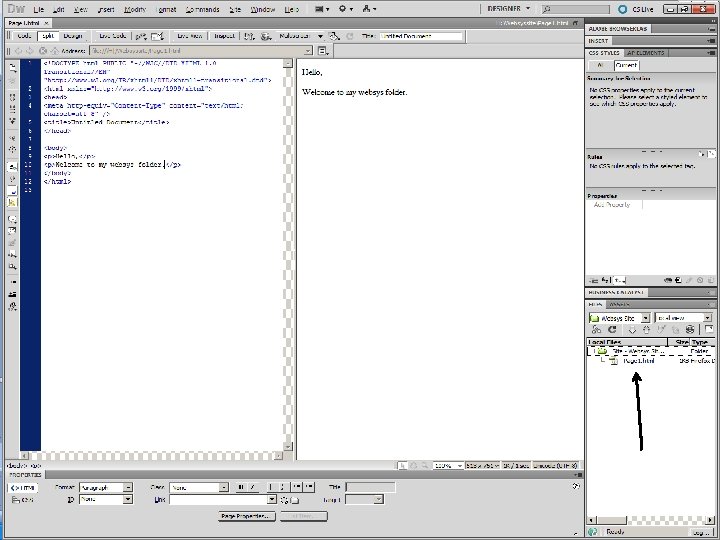
• The click on save as • And call it Page 1
Now we are ready to publish to the web server • If we click on the UP ARROW, it should move files to the web server where we can see them with a web browser.
Your Homeworks • Please put all of your homeworks in the websys folder so we can find them. – Name them hw 1. htm, hw 2. htm etc. • Do NOT put an index. html file in that folder. It will hide your homeworks from us. • If you wish, you can use Dreamweaver to put an index. html file in the public_html folder, and then you will have your own web page. • To do that, create another site and make the root directory public_html
You should now be ready to work