
HTML For the World Wide Web Cascading Style
HTML For the World Wide Web
Cascading Style Sheets (CSS) A style sheet is a set of code that describes the layout and appearance of a web page. HTML specifies the content and structure of a web page but not necessarily the appearance. To create a document design we use a different language. The most common style sheet language is Cascading Style Sheets (CSS) We have already used some CSS in the first two lessons style="text-align: center"
CSS Standards HTML, XHTML and CSS are all languages that are international standards The standards are maintained by the World Wide Web Consortium (W 3 C) http: //www. w 3. org CSS 1 the first version of CSS was introduced in 1996 CSS 2 was available in 1998 An update to CSS 2, CSS 2. 1 unveiled in 2002 to correct errors in CSS 2 CSS 3 is currently under development
CSS 1 Document Features CSS 1 introduced the following styles ◦ Fonts: Setting the font size, type, & other properties ◦ Text: Controlling text alignment and applying decorative elements such as underlining, italics and capitalization ◦ Color: Specifying the background and foreground colors of various elements ◦ Backgrounds: Setting the background image for an element ◦ Block-level elements: Setting the margins, internal space, and borders of block-level elements.
CSS 2 Document Features CSS 2 added the following styles to CSS 1 ◦ Positioning: Placing elements at specific locations on the page. ◦ Visual formatting: Clipping and hiding element content. ◦ Media types: Creating styles for various output devices Printers Mobile devices ◦ Interfaces: Controlling the appearance and behavior of browser features such as scroll bars and mouse cursors
3 Ways to use CSS Inline Styles ◦ Easy to use by applying directly to the element that the style affects ◦ Not easy to duplicate across the entire website ◦ Inserted directly in the HTML content code Embedded Style Sheet ◦ Collect all of the styles used in a web page in the <head> section of the page. ◦ Allows styles to be applied to multiple elements ◦ Limited to one page External Style Sheet ◦ Can apply styles to multiple elements on multiple pages ◦ Allows for quick changes to the entire website
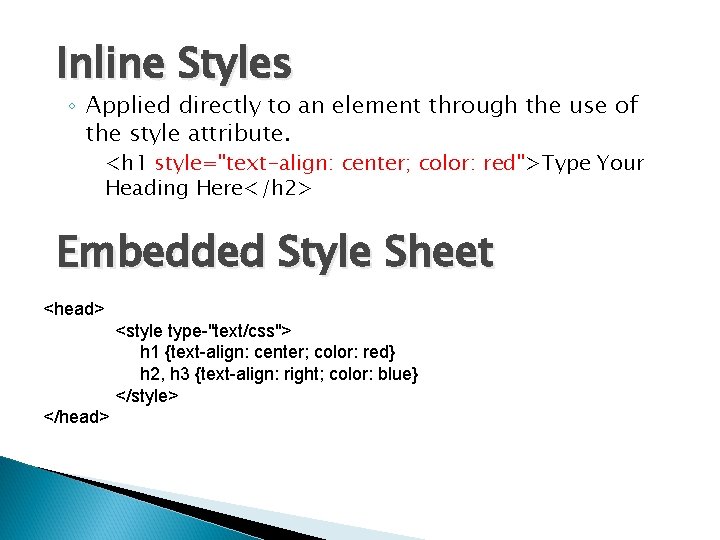
Inline Styles ◦ Applied directly to an element through the use of the style attribute. <h 1 style="text-align: center; color: red">Type Your Heading Here</h 2> Embedded Style Sheet <head> <style type-"text/css"> h 1 {text-align: center; color: red} h 2, h 3 {text-align: right; color: blue} </style> </head>

Levels of Style Precedence User-defined Styles Highest Precedence Inline Style Sheet Embedded Style Sheet External Style Sheet Browser’s internal style sheet Lowest Precedence
Comments in External Style Sheets External CSS are separate files from the HTML files. Comments in an External CSS are coded using the /* to start the comment and */ to end the comment. Any text in between these two comment marks will be ignored by the CSS. /*Text typed between these two CSS comment marks will be ignored. White space is also ignored so CSS styles can be placed on different lines and indented */
Sunny Acres Tammy Nielsen and her husband Brent live and work at Sunny Acres, a 200 acre farm near Council Bluffs, Iowa. Over the past 25 years, the Nielson family has expanded the farm’s operations to include: ◦ A farm shop, which sells fresh produce, baked goods, jams and jellies, and gifts. ◦ A pick-your-own garden, which operates from May through October and offers great produce at discounted prices. ◦ A petting barn, with over 100 animals and the opportunity to bottle-feed the baby animals. ◦ A corn maze, with over 4 miles of twisting trails through harvested corn fields. ◦ A Halloween Festival featuring the corn maze haunted with dozens of spooks and tricks. ◦ Special holiday events during the winter
Sunny Acres Tammy created a website for Sunny Acres several years ago to make information about the farm easily accessible to her current customers. The website has become outdated, so Tammy would like your help to enliven it with a new design. She has several pictures she wants to use on the site and has ideas for the look and feel of each page. She needs your help to apply CSS to improve the site.
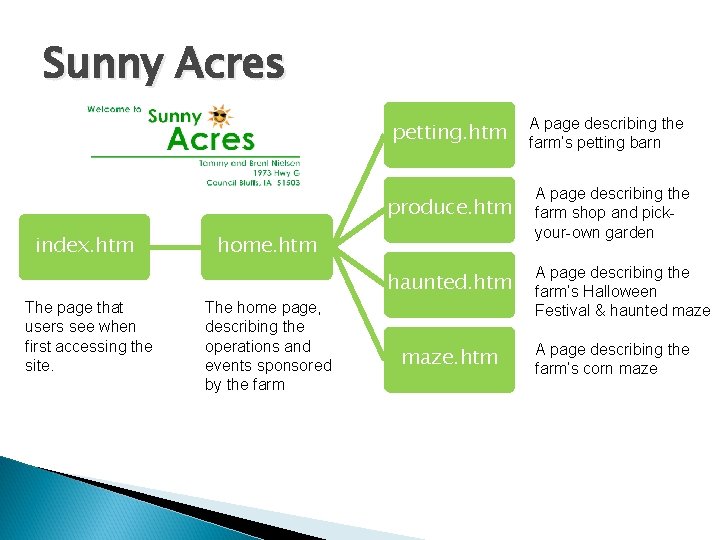
Sunny Acres petting. htm index. htm The page that users see when first accessing the site. produce. htm A page describing the farm shop and pickyour-own garden haunted. htm A page describing the farm’s Halloween Festival & haunted maze home. htm The home page, describing the operations and events sponsored by the farm A page describing the farm’s petting barn maze. htm A page describing the farm’s corn maze
View the Sunny Acres Web Pages Download the Sunny Acres folder, extract the files and move the folder to the Documents folder on your computer Open each of the seven files using notepad and add your name and date to the comment sections. Review the HTML code in each file to become familiar with their structure. Open the home. htm file in your browser and click the links at the top of the page to view the current appearance of each page.
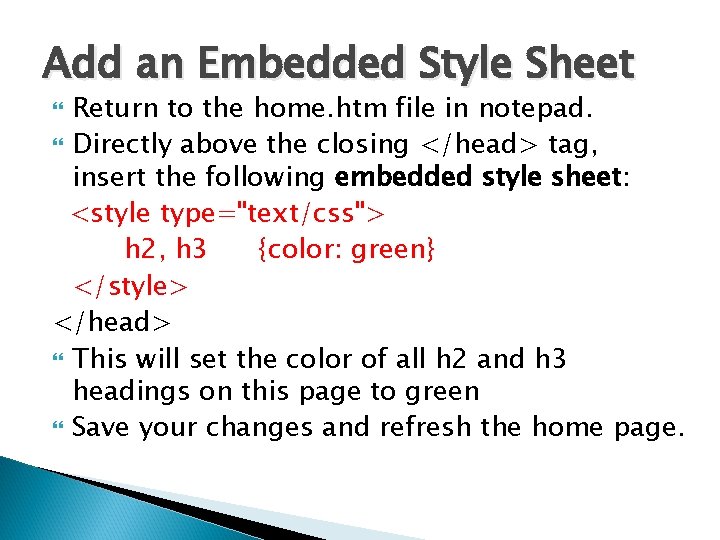
Add an Embedded Style Sheet Return to the home. htm file in notepad. Directly above the closing </head> tag, insert the following embedded style sheet: <style type="text/css"> h 2, h 3 {color: green} </style> </head> This will set the color of all h 2 and h 3 headings on this page to green Save your changes and refresh the home page.
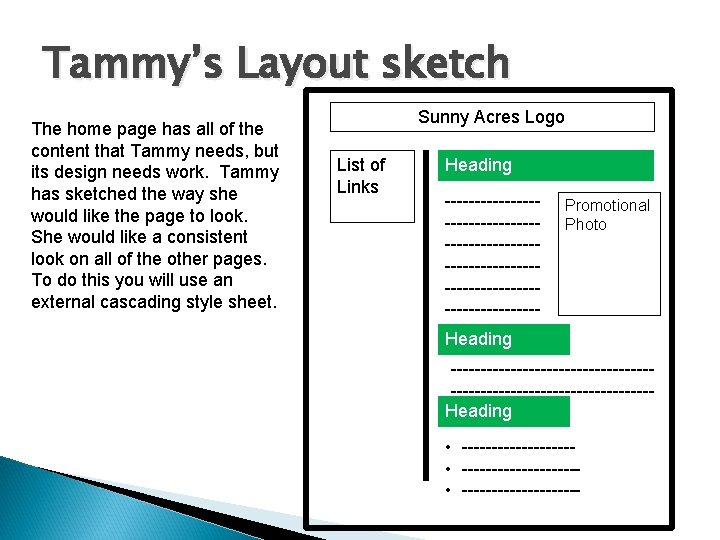
Tammy’s Layout sketch The home page has all of the content that Tammy needs, but its design needs work. Tammy has sketched the way she would like the page to look. She would like a consistent look on all of the other pages. To do this you will use an external cascading style sheet. Sunny Acres Logo List of Links Heading ---------------------------------------------- Promotional Photo Heading ---------------------------------Heading • ------------------- • ----------
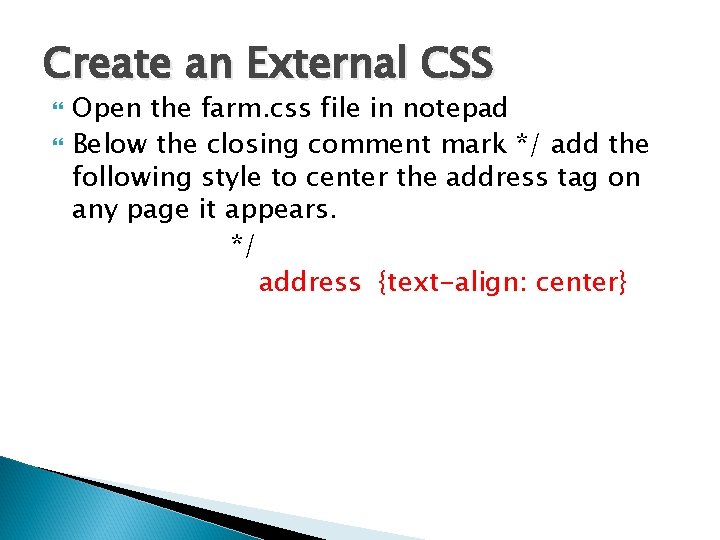
Create an External CSS Open the farm. css file in notepad Below the closing comment mark */ add the following style to center the address tag on any page it appears. */ address {text-align: center}
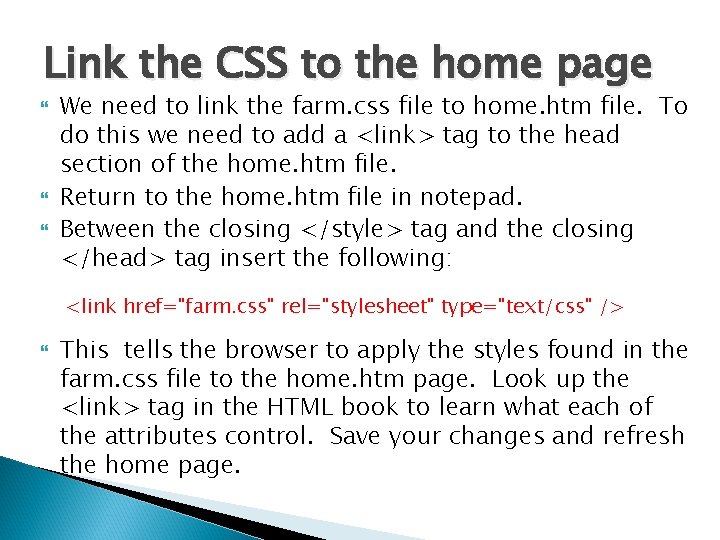
Link the CSS to the home page We need to link the farm. css file to home. htm file. To do this we need to add a <link> tag to the head section of the home. htm file. Return to the home. htm file in notepad. Between the closing </style> tag and the closing </head> tag insert the following: <link href="farm. css" rel="stylesheet" type="text/css" /> This tells the browser to apply the styles found in the farm. css file to the home. htm page. Look up the <link> tag in the HTML book to learn what each of the attributes control. Save your changes and refresh the home page.
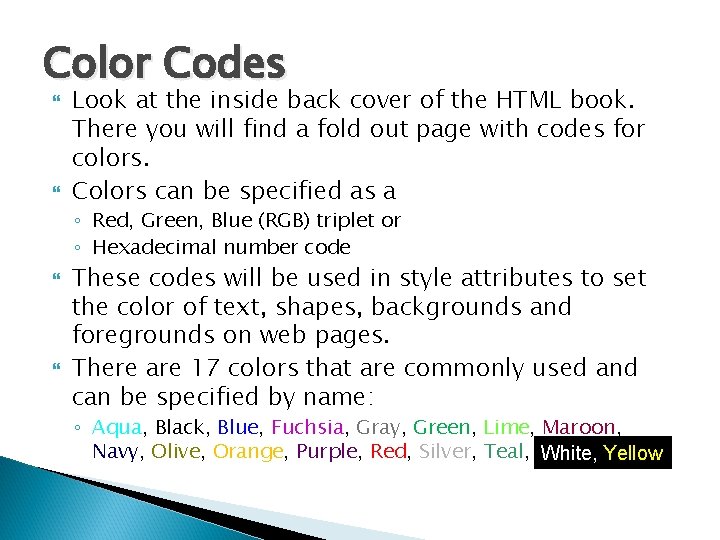
Color Codes Look at the inside back cover of the HTML book. There you will find a fold out page with codes for colors. Colors can be specified as a ◦ Red, Green, Blue (RGB) triplet or ◦ Hexadecimal number code These codes will be used in style attributes to set the color of text, shapes, backgrounds and foregrounds on web pages. There are 17 colors that are commonly used and can be specified by name: ◦ Aqua, Black, Blue, Fuchsia, Gray, Green, Lime, Maroon, Navy, Olive, Orange, Purple, Red, Silver, Teal, White, Yellow
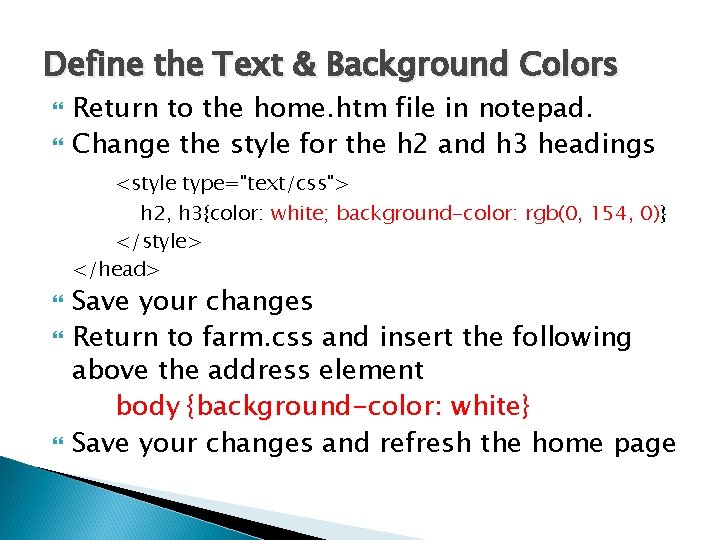
Define the Text & Background Colors Return to the home. htm file in notepad. Change the style for the h 2 and h 3 headings <style type="text/css"> h 2, h 3{color: white; background-color: rgb(0, 154, 0)} </style> </head> Save your changes Return to farm. css and insert the following above the address element body {background-color: white} Save your changes and refresh the home page
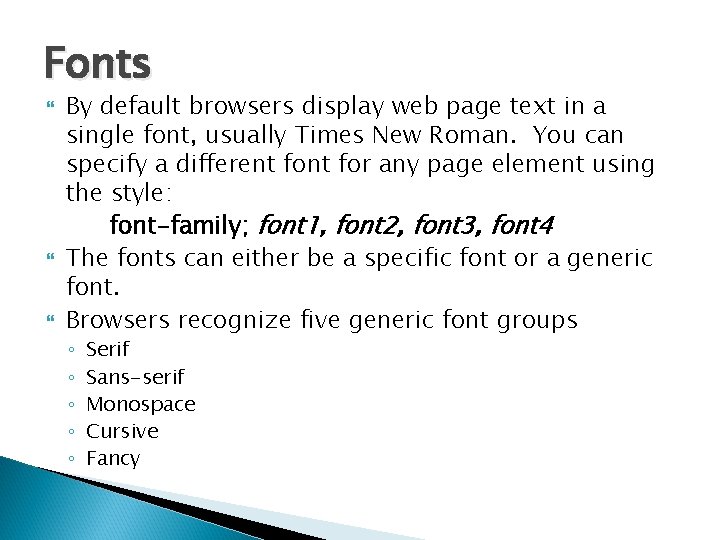
Fonts By default browsers display web page text in a single font, usually Times New Roman. You can specify a different for any page element using the style: font-family; font 1, font 2, font 3, font 4 The fonts can either be a specific font or a generic font. Browsers recognize five generic font groups ◦ ◦ ◦ Serif Sans-serif Monospace Cursive Fancy
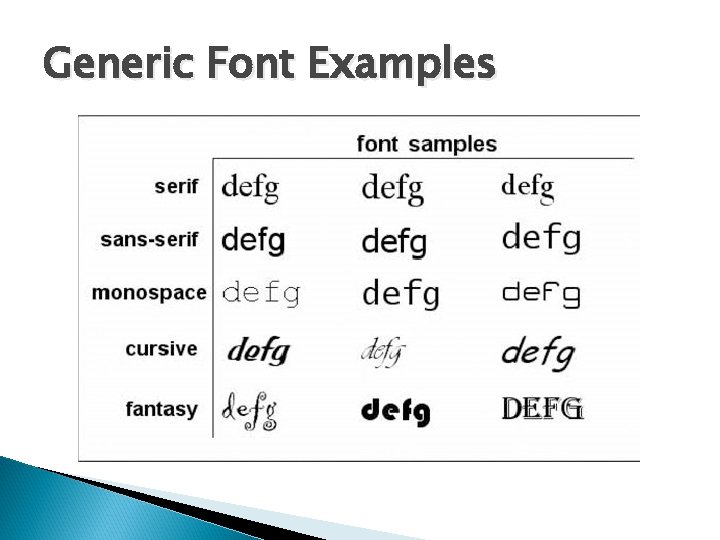
Generic Font Examples
Font Selection Within a font family there a variety of different fonts and you do not know if a specific font is loaded on the users’ computers. CSS allows you to choose a list of fonts to be used in the order that they appear in the style. For example: font-family: Arial, Helvetica, ‘Trebuchet MS’, sans-serif This tells the browser to first look for the Arial font; if Arial is not available look for Helvetica, then Trebuchet MS. If none of these fonts are available use the generic sans-serif font. Note that font names with more than one word must be enclosed in single or double quotes.
Working with Fonts & Text Styles Apply the san-serif font to the body text using the external style sheet Return to the farm. css file in notepad Add the following style to the body element. body {background-color: white; font-family: Arial, Helvicia, sans-serif} Save your changes and refresh the home. htm file in your browser. All of the text should now be displayed in a sans-serif font.
Setting the Font Size Tammy would like the Welcome heading on the home page to be displayed in slightly larger text than the rest of the text on the site. The style to change the size of text is: font-size: length Where length is a length measurement ◦ ◦ A unit of measurement A keyword description A percentage of the size of the element A keyword expressing the size as a percentage of the element.
Font Size Units There are five standard font units ◦ ◦ ◦ mm (millimeters) cm (centimeters) in (inches) pt (points) pc (picas) For comparison ◦ 72 points = 1 inch ◦ 12 points = 1 pica ◦ 6 picas = 1 inch Units can be expressed as ◦ whole numbers (1, 2, 3…) ◦ Decimals (0. 5, 1. 6, 3. 9…)
Relative Units To cope with a variety of devices that are used to display web pages, designers choose to use relative units which are expressed relative to the size of other elements on the web page. The em is a unit that can adapt to different output devices. ◦ 1 em is equal to the current font size. ◦ 2 em means 2 times the size of the current font. ◦ If an element is displayed with a font of 12 pt, then 2 em is 24 pt.
Font Size Key Words There are seven keywords that can be used to specify font size. ◦ ◦ ◦ ◦ xx-small medium large x-large xx-large Browsers are configured to display a specific font size for each of these seven keywords.
Set the Font Size for h 2 Hedings Return to the farm. css file in notepad Below the body style add the following: h 2 {font-size: 2 em} This will make all of the h 2 heading fonts two times the size of the body font. Save your file and refresh the home page. Verify that the headings are larger than the body.
Controlling Spacing & Indentation You can control the spacing of letters in words and the spacing of words in a line. The styles are: letter-spacing: value word-spacing: value Where value is the size of the space between letters or words. The units used for spacing values are the same as the units used for font size.
Controlling line height The spacing between lines in an element can be controlled using the following style line-height: length Where length is a specific length or a percentage of the font size. For example to double space a paragraph the style would be: p {line-height: 2}
Controlling Text Indentation To control the indentation of the first line of a block of text use the following style: text-indent: value Where value is a length expressed as an absolute or relative units or as a percentage of the width of the text block. The units used for spacing values are the same as the units used for font size.
Change the spacing of h 2 headings Tammy thinks the headings are too crowded and would like to increase the spacing between letters to spread them out across the page. Return to the farm. css file in notepad. Add the following to the h 2 style: h 2 {font-size: 2 em; letter-spacing: 0. 4 em; text-indent: 1 em} Save the file and refresh the home page.
Change the Address Style Tammy thinks that the address text at the bottom of the page is too large and would like it to be smaller, non-italics, small caps, sans-serif font. To accomplish this change we can modify the address style to make all of these changes. Return to the farm. css file in notepad address {text-align: center; font: normal small -caps 0. 8 em sans-serif} Save the file and refresh the home page. Verify that the address line changed.
Working with Images Open the index. htm file in notepad After the <div> tag insert the following inline image: <img src="salogo. gif" alt="Sunny Acres" /> <br/> Tammy wants to add an animated GIF to be a link to the home page. To do this add the following below the salogo. gif image tag: <a href="home. htm"> <img src="scarecrow. gif" alt="animated GIF" style="border-width: 0" /></a> Save your file and open the index. htm file in your browser. Verify that the scarecrow image is a link to the home page.
Changing the Image Size Browsers will display images at the same size that the images are saved. You can specify the number of pixels used to display an image. Return to the index. htm file in notepad Specify the size of the salogo. gif file by adding the following: <img src="salogo. gif" alt="Sunny Acres" width="599" height="223" /> <br/> Specify the size of the scarecrow. gif file by adding the following: <img src="scarecrow. gif" alt="animated GIF" width="500" height="300" style="border-width: 0" />
Add a Background Image Tammy has another suggestion for the splash page. She would like to change the background from plain white to the image found in the background. jpg file. Return to the index. htm file in notepad. Insert the following in the opening <body> tag. <body style="background-image: url(background. jpg)"> Save your file and refresh the index. htm file in your browser. Verify that the background has changed.
Floating an element on a page Tammy wants to change the way the promotional image displays on the home page. She does not like the way the image forces a large space between the heading and the paragraph. She would like the image placed along the right side margin and the paragraph to wrap around it. You can do this by floating the image. To float an element apply the following style: float: position Where position is left, right or none
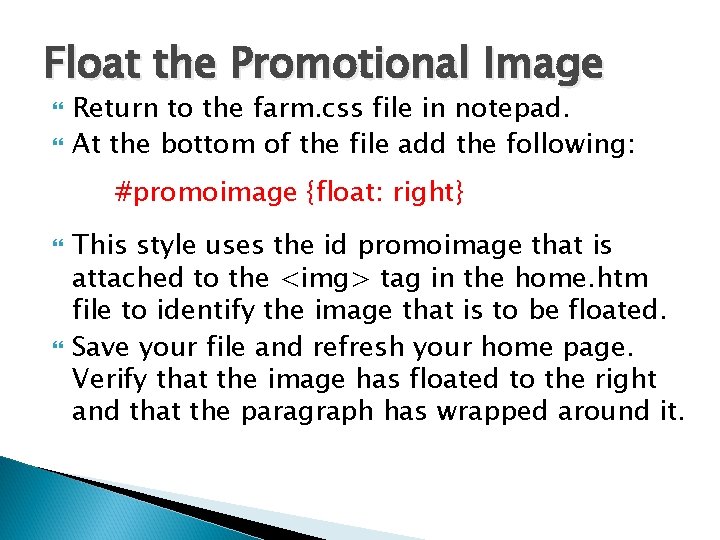
Float the Promotional Image Return to the farm. css file in notepad. At the bottom of the file add the following: #promoimage {float: right} This style uses the id promoimage that is attached to the <img> tag in the home. htm file to identify the image that is to be floated. Save your file and refresh your home page. Verify that the image has floated to the right and that the paragraph has wrapped around it.
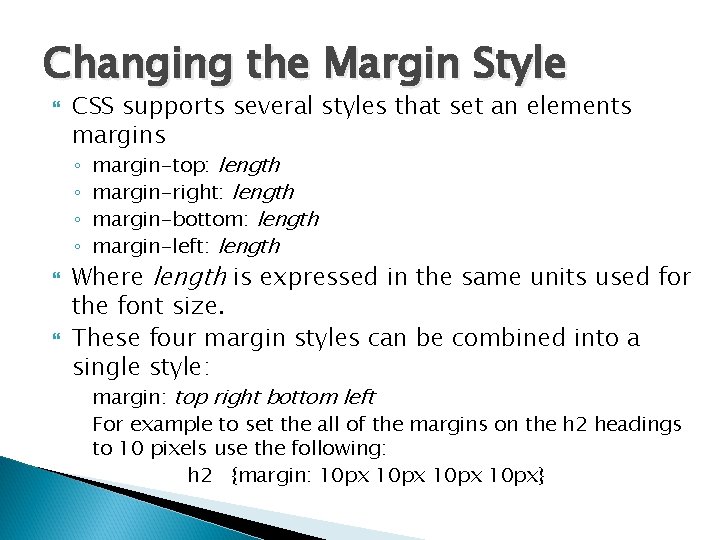
Changing the Margin Style CSS supports several styles that set an elements margins ◦ ◦ margin-top: length margin-right: length margin-bottom: length margin-left: length Where length is expressed in the same units used for the font size. These four margin styles can be combined into a single style: margin: top right bottom left For example to set the all of the margins on the h 2 headings to 10 pixels use the following: h 2 {margin: 10 px}
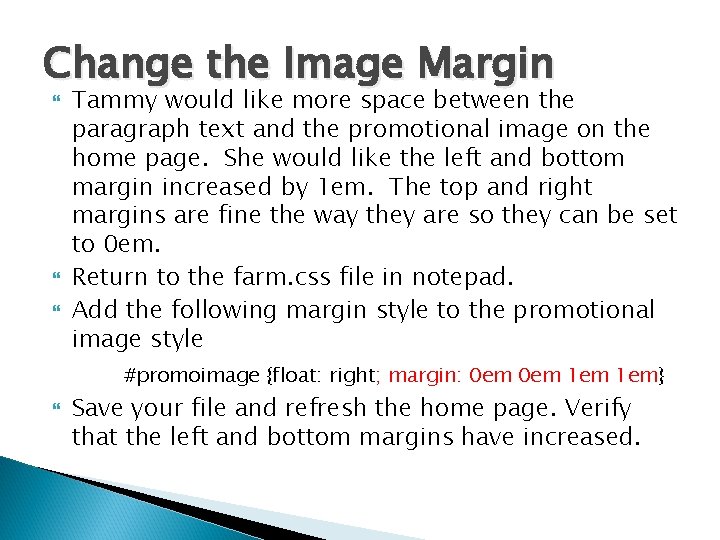
Change the Image Margin Tammy would like more space between the paragraph text and the promotional image on the home page. She would like the left and bottom margin increased by 1 em. The top and right margins are fine the way they are so they can be set to 0 em. Return to the farm. css file in notepad. Add the following margin style to the promotional image style #promoimage {float: right; margin: 0 em 1 em} Save your file and refresh the home page. Verify that the left and bottom margins have increased.
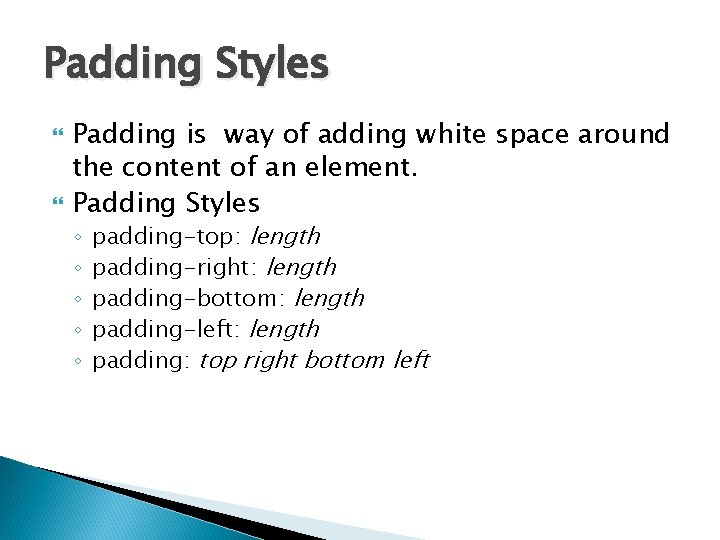
Padding Styles Padding is way of adding white space around the content of an element. Padding Styles ◦ ◦ ◦ padding-top: length padding-right: length padding-bottom: length padding-left: length padding: top right bottom left
Border Styles CSS supports three types of styles for box model borders ◦ Border width ◦ Border color ◦ Border style There are four styles that affect the ◦ ◦ border-top border-right border-bottom border-left By combining these three types of styles with the four sides we get 12 different ways to change a border
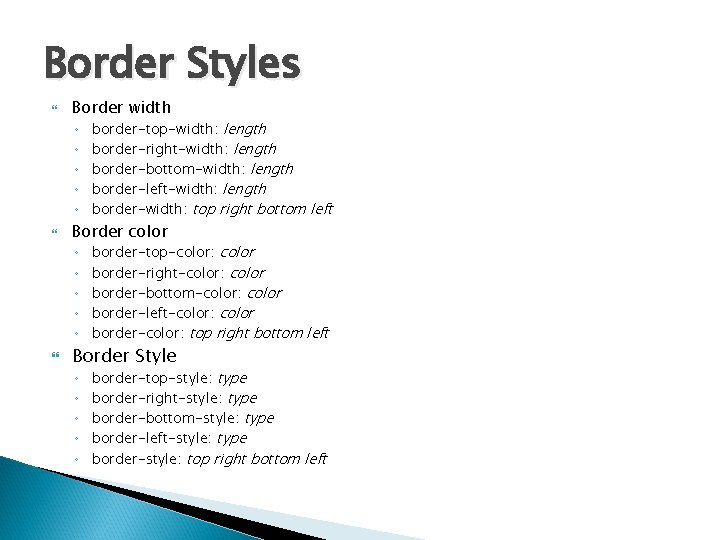
Border Styles Border width ◦ ◦ ◦ Border color ◦ ◦ ◦ border-top-width: length border-right-width: length border-bottom-width: length border-left-width: length border-width: top right bottom left border-top-color: color border-right-color: color border-bottom-color: color border-left-color: color border-color: top right bottom left Border Style ◦ ◦ ◦ border-top-style: type border-right-style: type border-bottom-style: type border-left-style: type border-style: top right bottom left
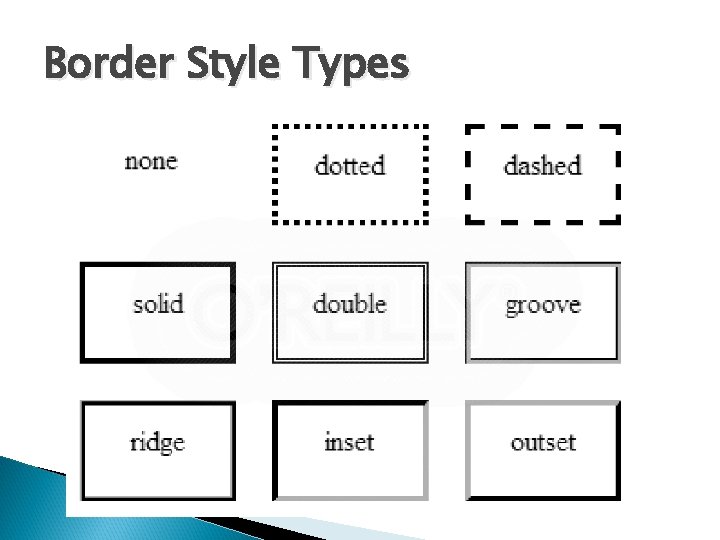
Border Style Types
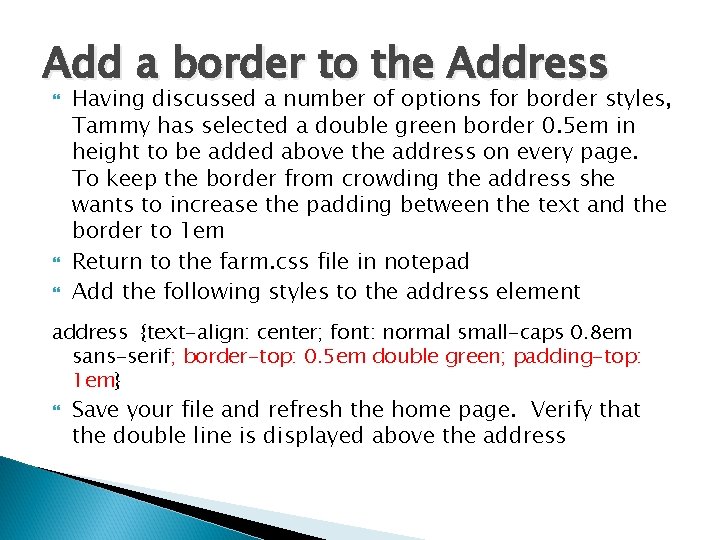
Add a border to the Address Having discussed a number of options for border styles, Tammy has selected a double green border 0. 5 em in height to be added above the address on every page. To keep the border from crowding the address she wants to increase the padding between the text and the border to 1 em Return to the farm. css file in notepad Add the following styles to the address element address {text-align: center; font: normal small-caps 0. 8 em sans-serif; border-top: 0. 5 em double green; padding-top: 1 em} Save your file and refresh the home page. Verify that the double line is displayed above the address
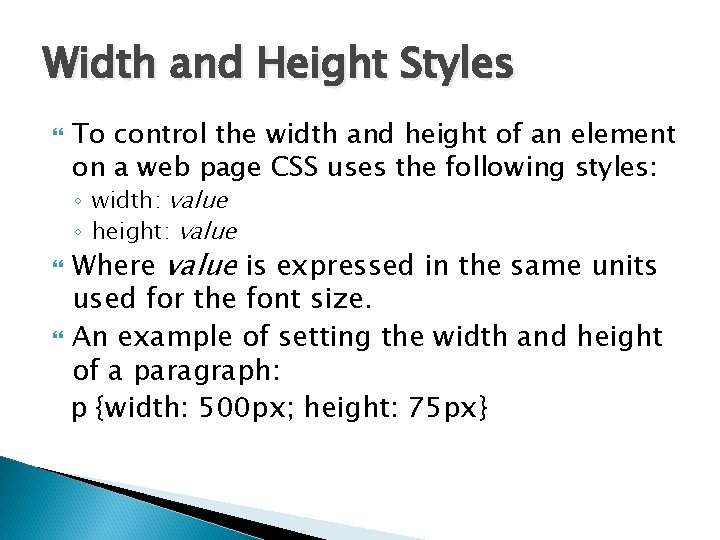
Width and Height Styles To control the width and height of an element on a web page CSS uses the following styles: ◦ width: value ◦ height: value Where value is expressed in the same units used for the font size. An example of setting the width and height of a paragraph: p {width: 500 px; height: 75 px}
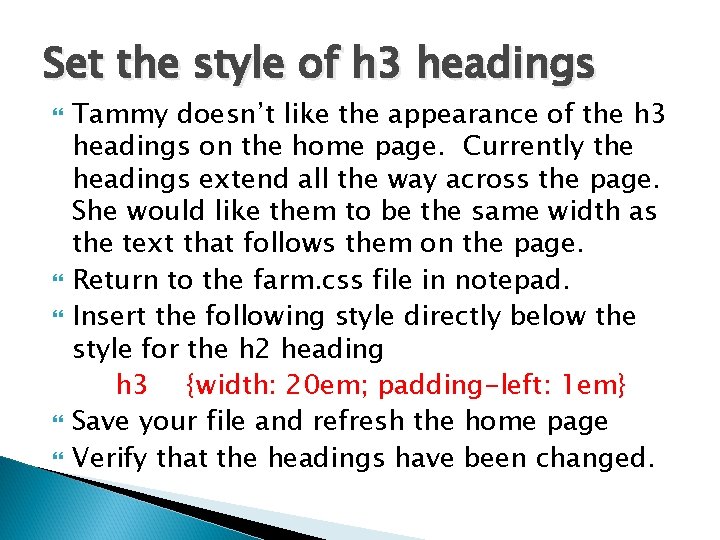
Set the style of h 3 headings Tammy doesn’t like the appearance of the h 3 headings on the home page. Currently the headings extend all the way across the page. She would like them to be the same width as the text that follows them on the page. Return to the farm. css file in notepad. Insert the following style directly below the style for the h 2 heading h 3 {width: 20 em; padding-left: 1 em} Save your file and refresh the home page Verify that the headings have been changed.
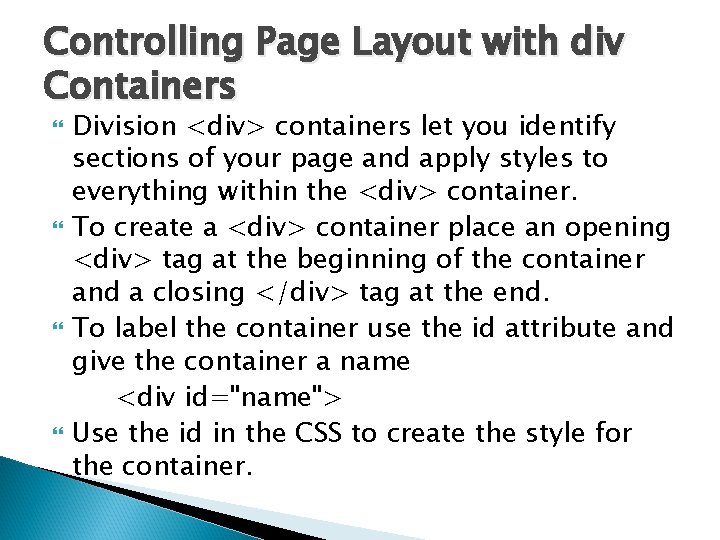
Controlling Page Layout with div Containers Division <div> containers let you identify sections of your page and apply styles to everything within the <div> container. To create a <div> container place an opening <div> tag at the beginning of the container and a closing </div> tag at the end. To label the container use the id attribute and give the container a name <div id="name"> Use the id in the CSS to create the style for the container.
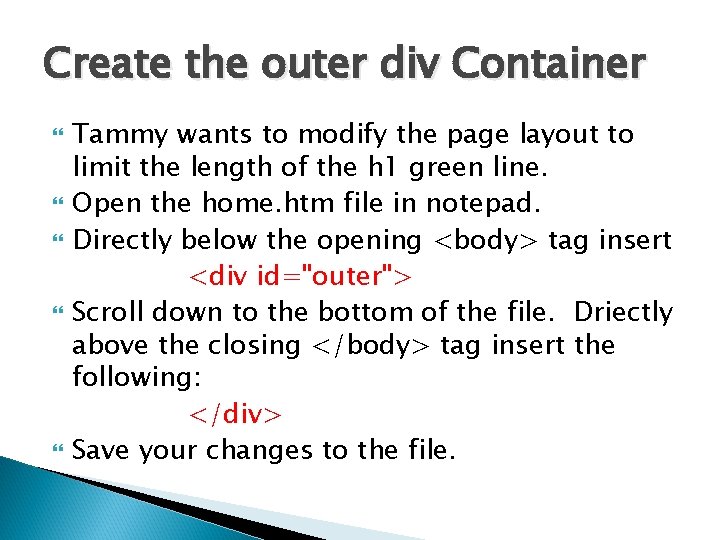
Create the outer div Container Tammy wants to modify the page layout to limit the length of the h 1 green line. Open the home. htm file in notepad. Directly below the opening <body> tag insert <div id="outer"> Scroll down to the bottom of the file. Driectly above the closing </body> tag insert the following: </div> Save your changes to the file.
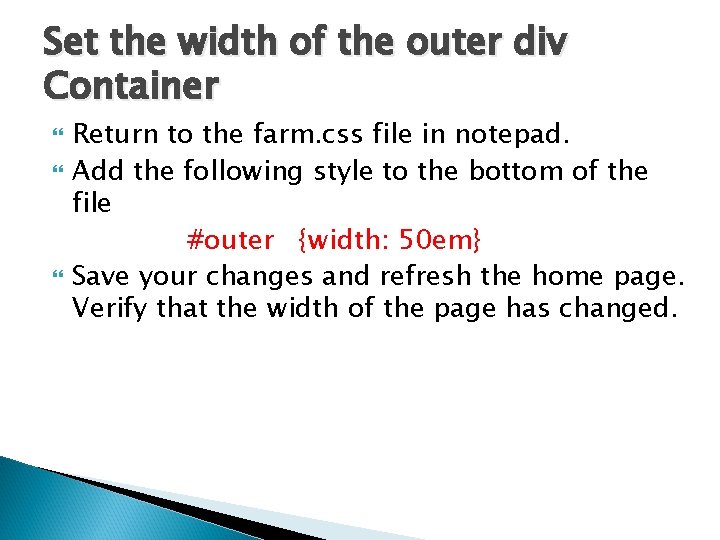
Set the width of the outer div Container Return to the farm. css file in notepad. Add the following style to the bottom of the file #outer {width: 50 em} Save your changes and refresh the home page. Verify that the width of the page has changed.
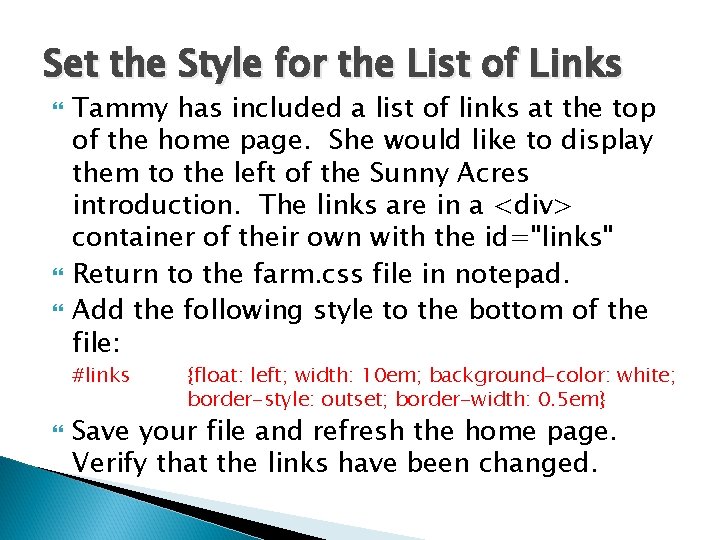
Set the Style for the List of Links Tammy has included a list of links at the top of the home page. She would like to display them to the left of the Sunny Acres introduction. The links are in a <div> container of their own with the id="links" Return to the farm. css file in notepad. Add the following style to the bottom of the file: #links {float: left; width: 10 em; background-color: white; border-style: outset; border-width: 0. 5 em} Save your file and refresh the home page. Verify that the links have been changed.
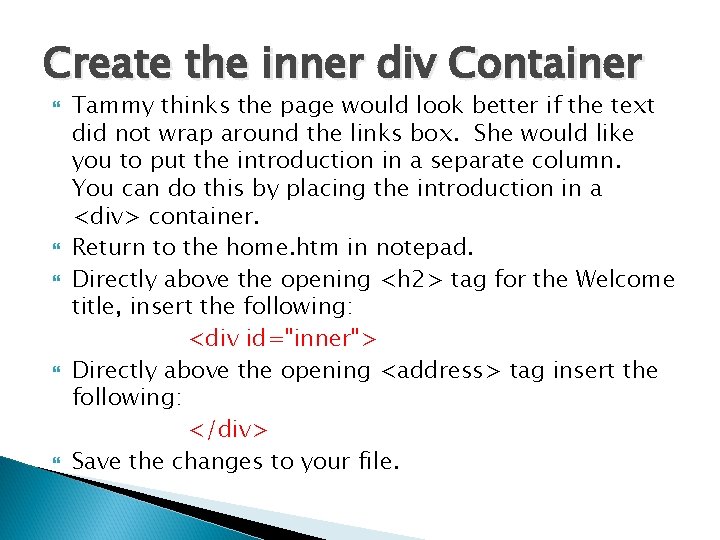
Create the inner div Container Tammy thinks the page would look better if the text did not wrap around the links box. She would like you to put the introduction in a separate column. You can do this by placing the introduction in a <div> container. Return to the home. htm in notepad. Directly above the opening <h 2> tag for the Welcome title, insert the following: <div id="inner"> Directly above the opening <address> tag insert the following: </div> Save the changes to your file.
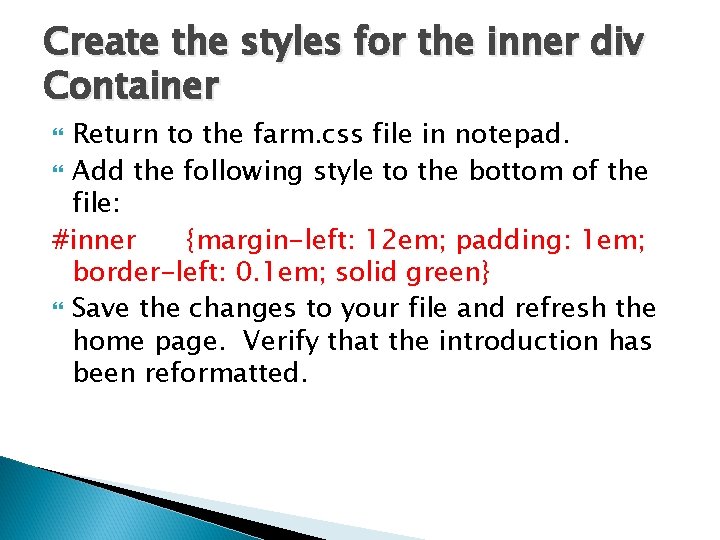
Create the styles for the inner div Container Return to the farm. css file in notepad. Add the following style to the bottom of the file: #inner {margin-left: 12 em; padding: 1 em; border-left: 0. 1 em; solid green} Save the changes to your file and refresh the home page. Verify that the introduction has been reformatted.
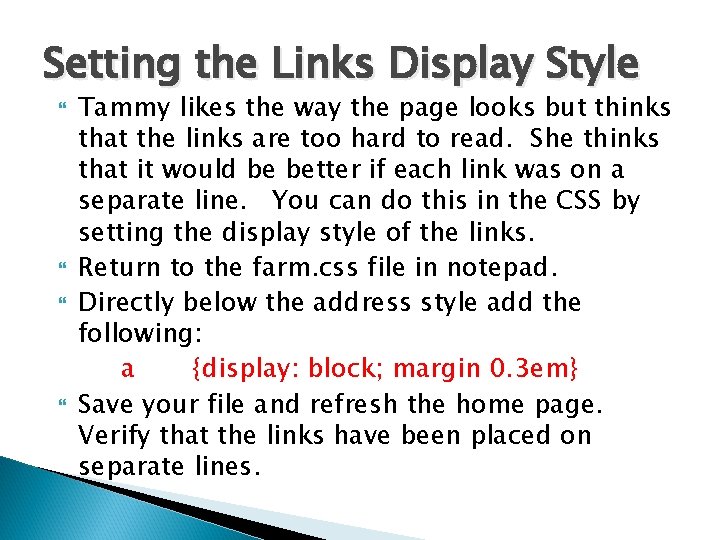
Setting the Links Display Style Tammy likes the way the page looks but thinks that the links are too hard to read. She thinks that it would be better if each link was on a separate line. You can do this in the CSS by setting the display style of the links. Return to the farm. css file in notepad. Directly below the address style add the following: a {display: block; margin 0. 3 em} Save your file and refresh the home page. Verify that the links have been placed on separate lines.
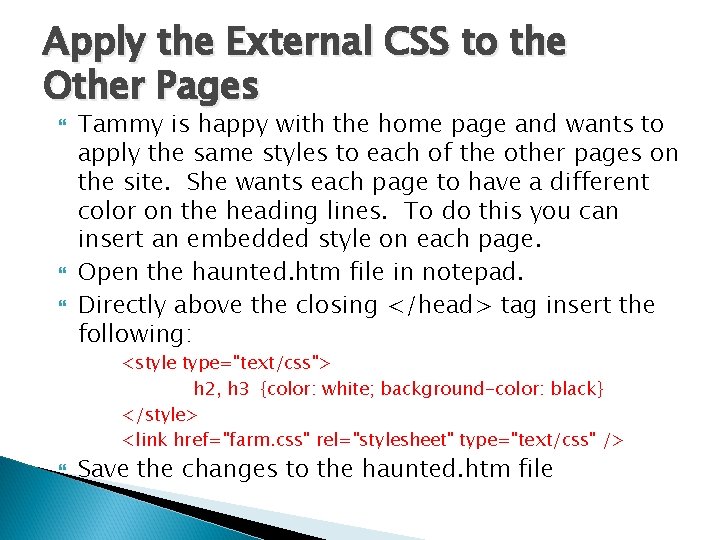
Apply the External CSS to the Other Pages Tammy is happy with the home page and wants to apply the same styles to each of the other pages on the site. She wants each page to have a different color on the heading lines. To do this you can insert an embedded style on each page. Open the haunted. htm file in notepad. Directly above the closing </head> tag insert the following: <style type="text/css"> h 2, h 3 {color: white; background-color: black} </style> <link href="farm. css" rel="stylesheet" type="text/css" /> Save the changes to the haunted. htm file
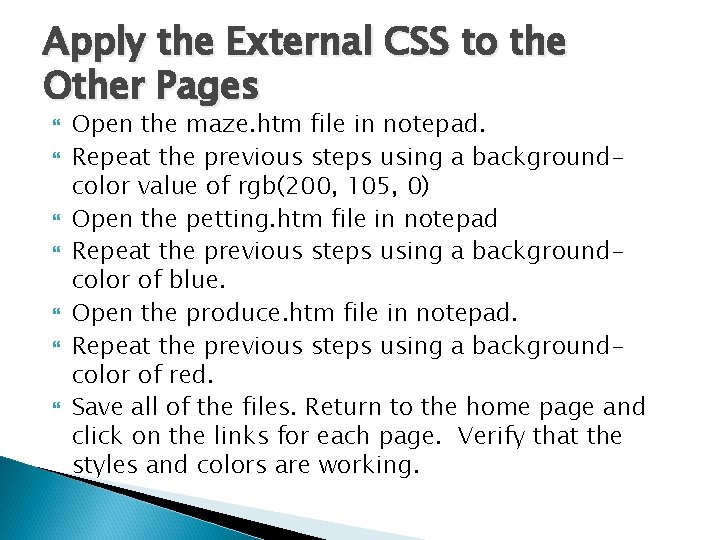
Apply the External CSS to the Other Pages Open the maze. htm file in notepad. Repeat the previous steps using a backgroundcolor value of rgb(200, 105, 0) Open the petting. htm file in notepad Repeat the previous steps using a backgroundcolor of blue. Open the produce. htm file in notepad. Repeat the previous steps using a backgroundcolor of red. Save all of the files. Return to the home page and click on the links for each page. Verify that the styles and colors are working.
Turn in your work Upload your Sunny Acres folder to Google Drive When the folder is finished uploading, click on the Share button. Click on Advanced Change the permission from Private to Anyone with the link can view. Copy the link and past it into your Google Docs Journal.
- Slides: 57