
HTML Concepts and Techniques Fourth Edition Project 6

- Slides: 24
HTML Concepts and Techniques Fourth Edition Project 6 Using Frames in a Web Site
Project Objectives • • Design and create a frame structure Change frame scrolling options Name a frame content target Identify Web pages to display at startup Set frame rows Create a header page with text Create a navigation menu page with text links Create a home page Project 6: Using Frames in a Web Site 2
Creating a Frame Definition File • Example: www. student. gsu. edu/~wkim 5/project 06/framedef. htm • A frameset is used to define the layout of the frames that are displayed Project 6: Using Frames in a Web Site 3
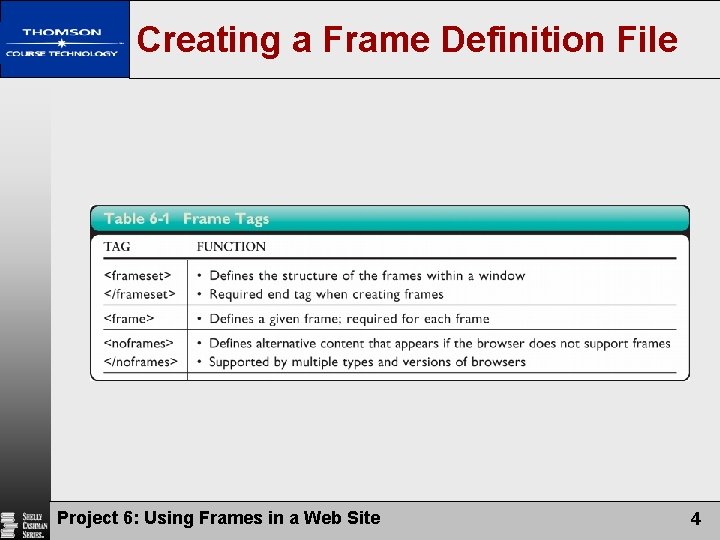
Creating a Frame Definition File Project 6: Using Frames in a Web Site 4
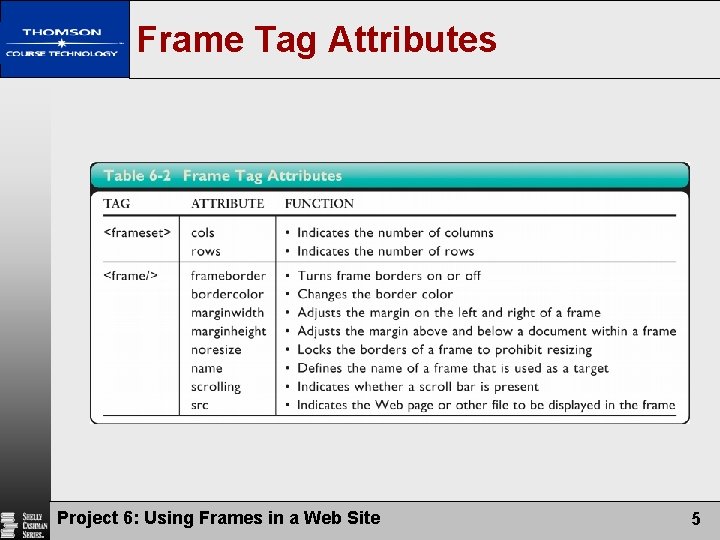
Frame Tag Attributes Project 6: Using Frames in a Web Site 5
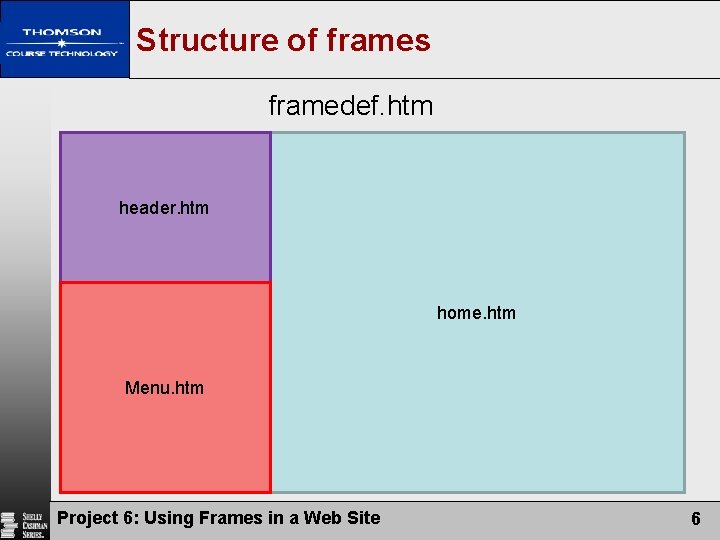
Structure of frames framedef. htm header. htm home. htm Menu. htm Project 6: Using Frames in a Web Site 6
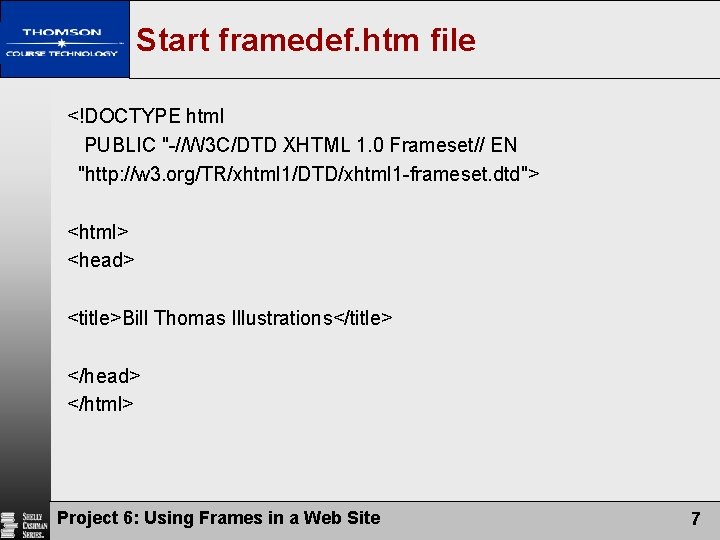
Start framedef. htm file <!DOCTYPE html PUBLIC "-//W 3 C/DTD XHTML 1. 0 Frameset// EN "http: //w 3. org/TR/xhtml 1/DTD/xhtml 1 -frameset. dtd"> <html> <head> <title>Bill Thomas Illustrations</title> </head> </html> Project 6: Using Frames in a Web Site 7
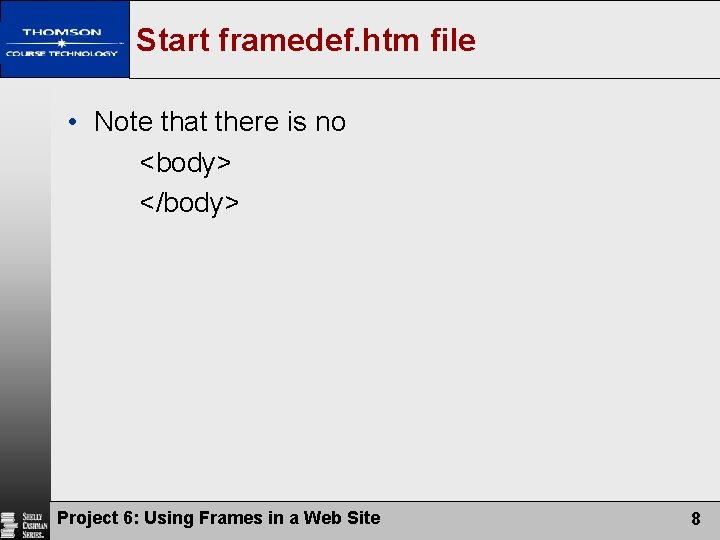
Start framedef. htm file • Note that there is no <body> </body> Project 6: Using Frames in a Web Site 8
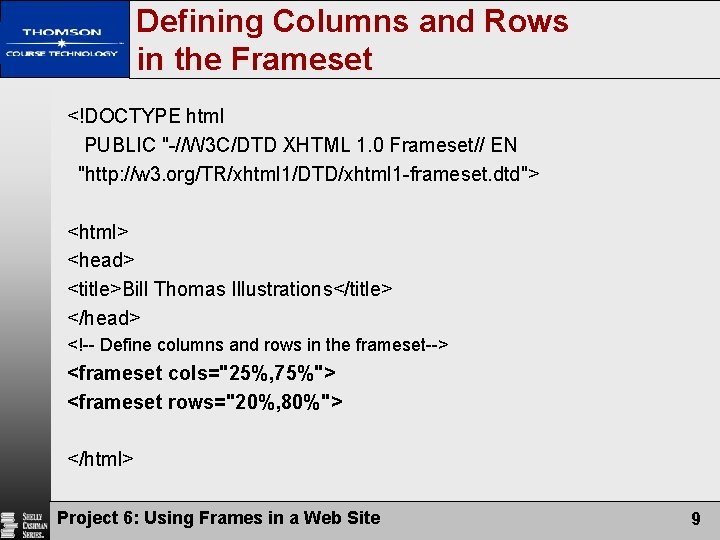
Defining Columns and Rows in the Frameset <!DOCTYPE html PUBLIC "-//W 3 C/DTD XHTML 1. 0 Frameset// EN "http: //w 3. org/TR/xhtml 1/DTD/xhtml 1 -frameset. dtd"> <html> <head> <title>Bill Thomas Illustrations</title> </head> <!-- Define columns and rows in the frameset--> <frameset cols="25%, 75%"> <frameset rows="20%, 80%"> </html> Project 6: Using Frames in a Web Site 9
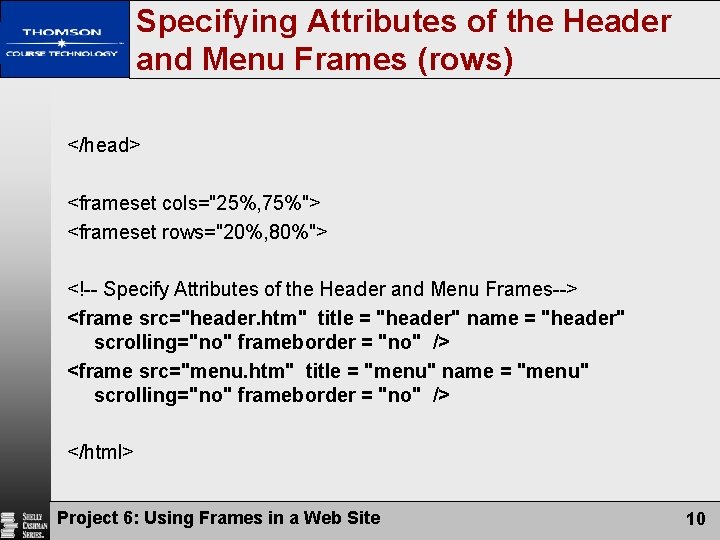
Specifying Attributes of the Header and Menu Frames (rows) </head> <frameset cols="25%, 75%"> <frameset rows="20%, 80%"> <!-- Specify Attributes of the Header and Menu Frames--> <frame src="header. htm" title = "header" name = "header" scrolling="no" frameborder = "no" /> <frame src="menu. htm" title = "menu" name = "menu" scrolling="no" frameborder = "no" /> </html> Project 6: Using Frames in a Web Site 10
Specifying Attributes of the Header and Menu Frames (rows) What if frameborder = “yes”? What if scrolling = “yes”? Project 6: Using Frames in a Web Site 11
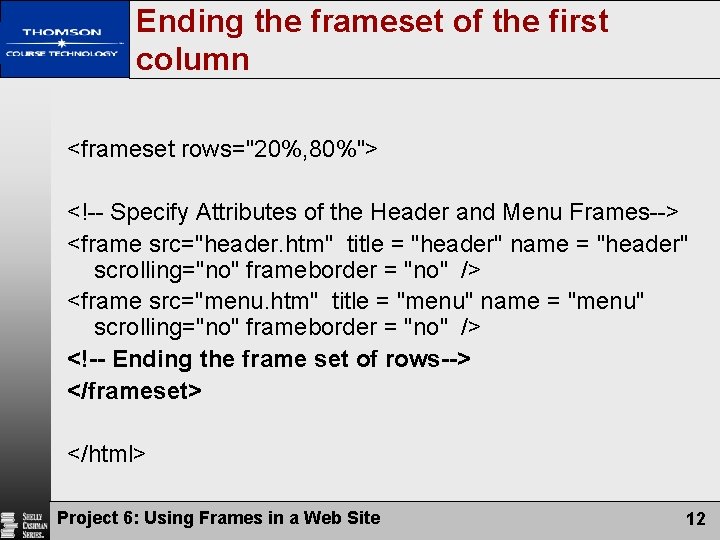
Ending the frameset of the first column <frameset rows="20%, 80%"> <!-- Specify Attributes of the Header and Menu Frames--> <frame src="header. htm" title = "header" name = "header" scrolling="no" frameborder = "no" /> <frame src="menu. htm" title = "menu" name = "menu" scrolling="no" frameborder = "no" /> <!-- Ending the frame set of rows--> </frameset> </html> Project 6: Using Frames in a Web Site 12
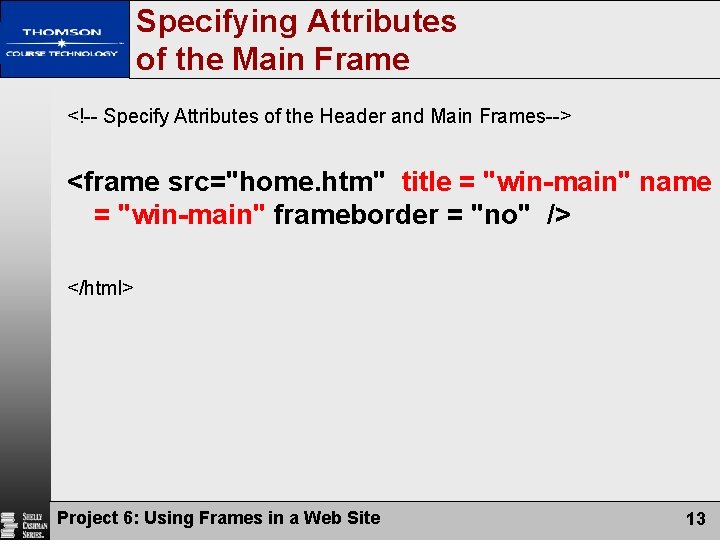
Specifying Attributes of the Main Frame <!-- Specify Attributes of the Header and Main Frames--> <frame src="home. htm" title = "win-main" name = "win-main" frameborder = "no" /> </html> Project 6: Using Frames in a Web Site 13
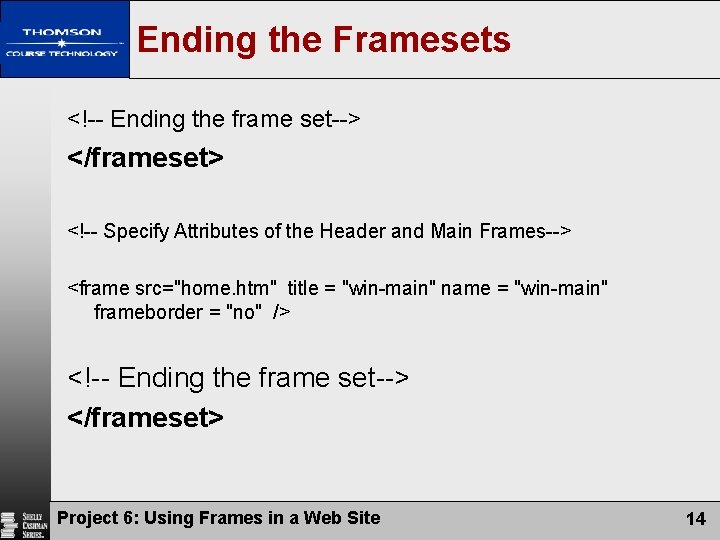
Ending the Framesets <!-- Ending the frame set--> </frameset> <!-- Specify Attributes of the Header and Main Frames--> <frame src="home. htm" title = "win-main" name = "win-main" frameborder = "no" /> <!-- Ending the frame set--> </frameset> Project 6: Using Frames in a Web Site 14
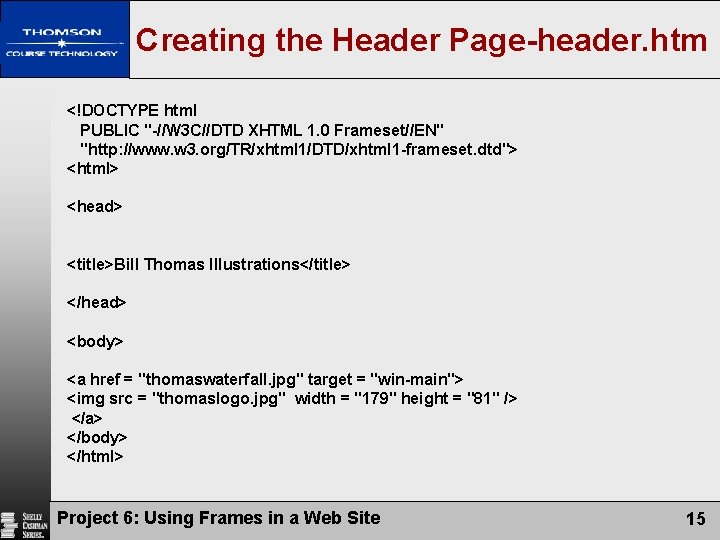
Creating the Header Page-header. htm <!DOCTYPE html PUBLIC "-//W 3 C//DTD XHTML 1. 0 Frameset//EN" "http: //www. w 3. org/TR/xhtml 1/DTD/xhtml 1 -frameset. dtd"> <html> <head> <title>Bill Thomas Illustrations</title> </head> <body> <a href = "thomaswaterfall. jpg" target = "win-main"> <img src = "thomaslogo. jpg" width = "179" height = "81" /> </a> </body> </html> Project 6: Using Frames in a Web Site 15
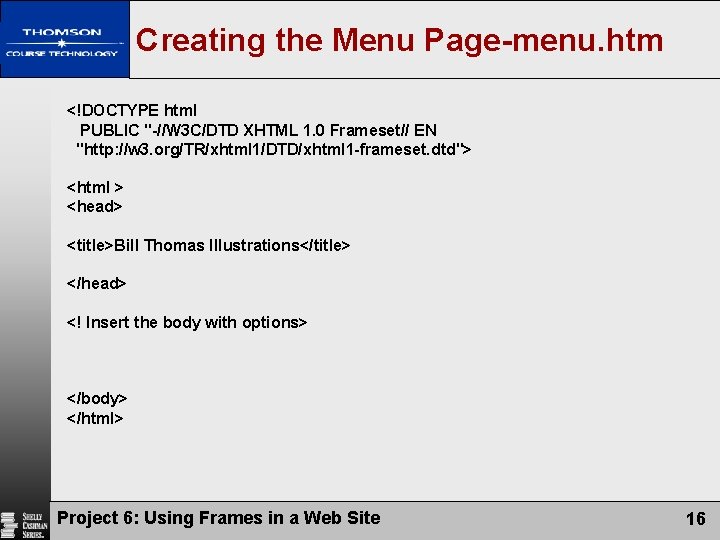
Creating the Menu Page-menu. htm <!DOCTYPE html PUBLIC "-//W 3 C/DTD XHTML 1. 0 Frameset// EN "http: //w 3. org/TR/xhtml 1/DTD/xhtml 1 -frameset. dtd"> <html > <head> <title>Bill Thomas Illustrations</title> </head> <! Insert the body with options> </body> </html> Project 6: Using Frames in a Web Site 16
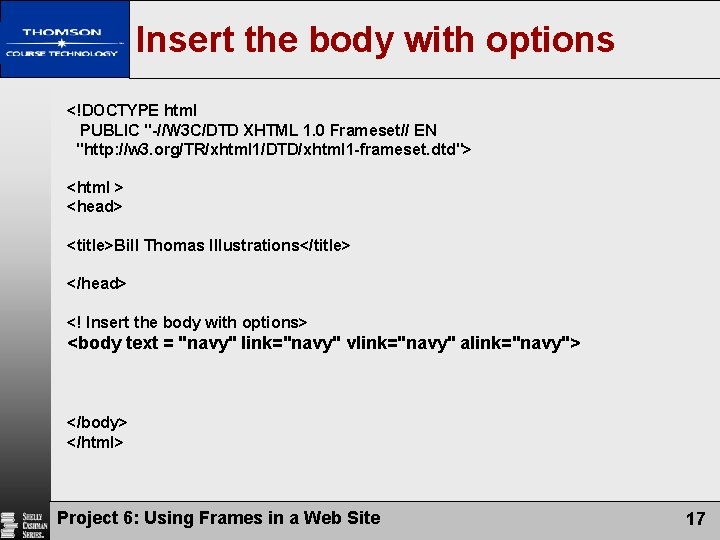
Insert the body with options <!DOCTYPE html PUBLIC "-//W 3 C/DTD XHTML 1. 0 Frameset// EN "http: //w 3. org/TR/xhtml 1/DTD/xhtml 1 -frameset. dtd"> <html > <head> <title>Bill Thomas Illustrations</title> </head> <! Insert the body with options> <body text = "navy" link="navy" vlink="navy" alink="navy"> </body> </html> Project 6: Using Frames in a Web Site 17
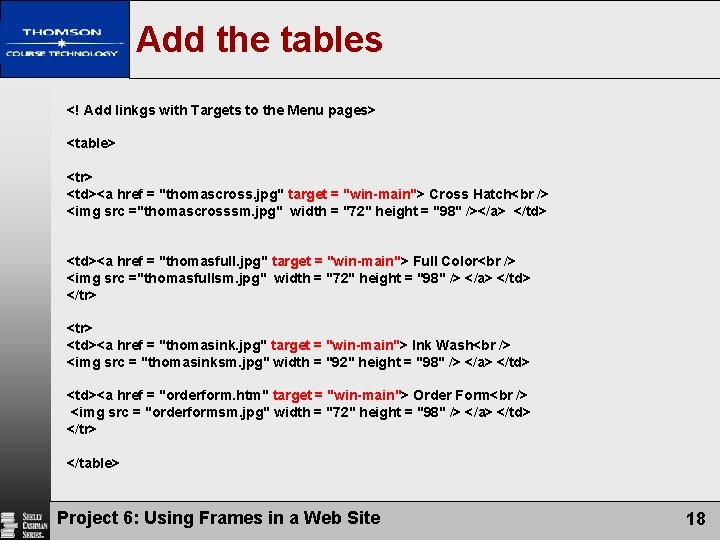
Add the tables <! Add linkgs with Targets to the Menu pages> <table> <tr> <td><a href = "thomascross. jpg" target = "win-main"> Cross Hatch <img src ="thomascrosssm. jpg" width = "72" height = "98" /></a> </td> <td><a href = "thomasfull. jpg" target = "win-main"> Full Color <img src ="thomasfullsm. jpg" width = "72" height = "98" /> </a> </td> </tr> <td><a href = "thomasink. jpg" target = "win-main"> Ink Wash <img src = "thomasinksm. jpg" width = "92" height = "98" /> </a> </td> <td><a href = "orderform. htm" target = "win-main"> Order Form <img src = "orderformsm. jpg" width = "72" height = "98" /> </a> </td> </tr> </table> Project 6: Using Frames in a Web Site 18
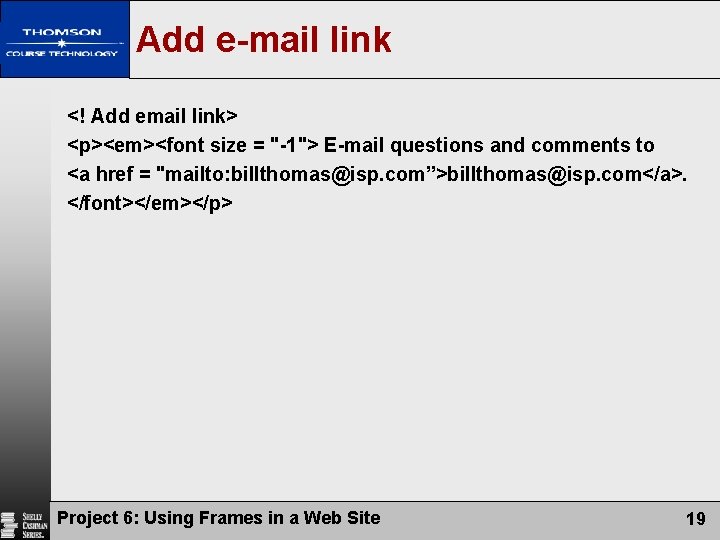
Add e-mail link <! Add email link> <p><em><font size = "-1"> E-mail questions and comments to <a href = "mailto: billthomas@isp. com”>billthomas@isp. com</a>. </font></em></p> Project 6: Using Frames in a Web Site 19
Create the home. htm • Insert an image (see the file) Project 6: Using Frames in a Web Site 20
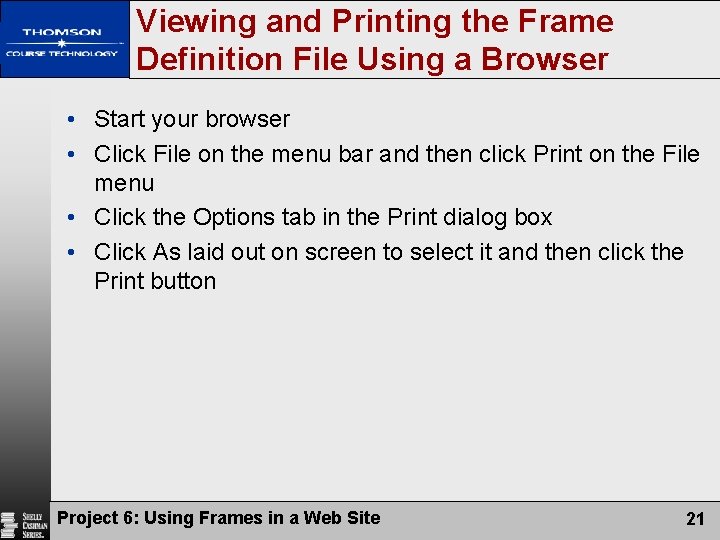
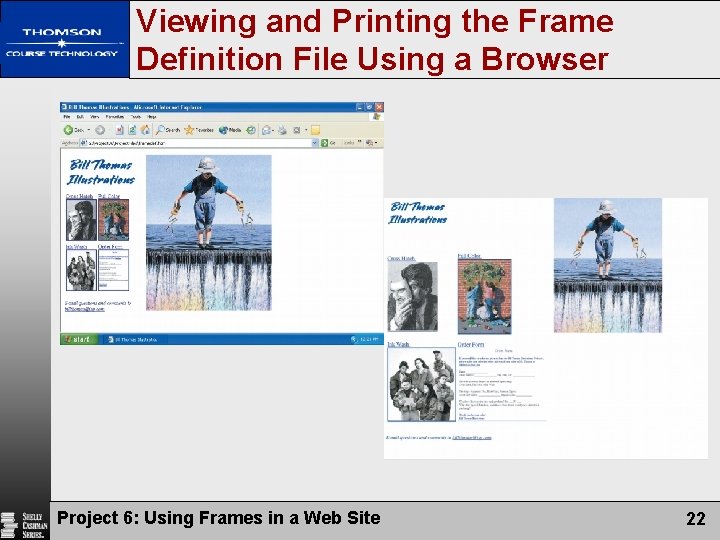
Viewing and Printing the Frame Definition File Using a Browser • Start your browser • Click File on the menu bar and then click Print on the File menu • Click the Options tab in the Print dialog box • Click As laid out on screen to select it and then click the Print button Project 6: Using Frames in a Web Site 21
Viewing and Printing the Frame Definition File Using a Browser Project 6: Using Frames in a Web Site 22
Testing the Links • Click the Cross Hatch link on the navigation menu • Click the Full Color link on the navigation menu • Click the Ink Wash link on the navigation menu Project 6: Using Frames in a Web Site 23
HTML Concepts and Techniques Fourth Edition Project 6 Complete Using Frames in a Web Site