
HSL 2 Port KVM COMBINER 2 Port KVM
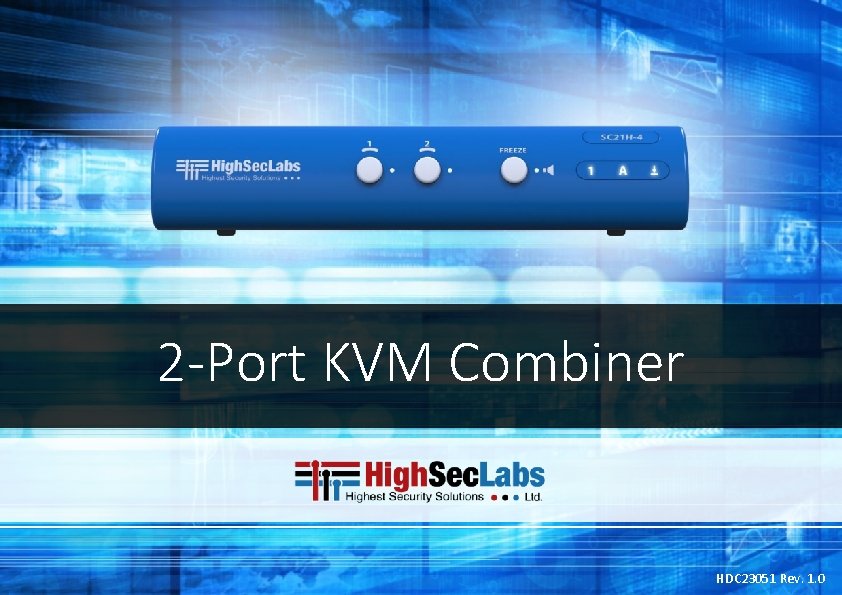
HSL 2 -Port KVM COMBINER 2 -Port KVM Combiner HDC 23051 Rev. 1. 0
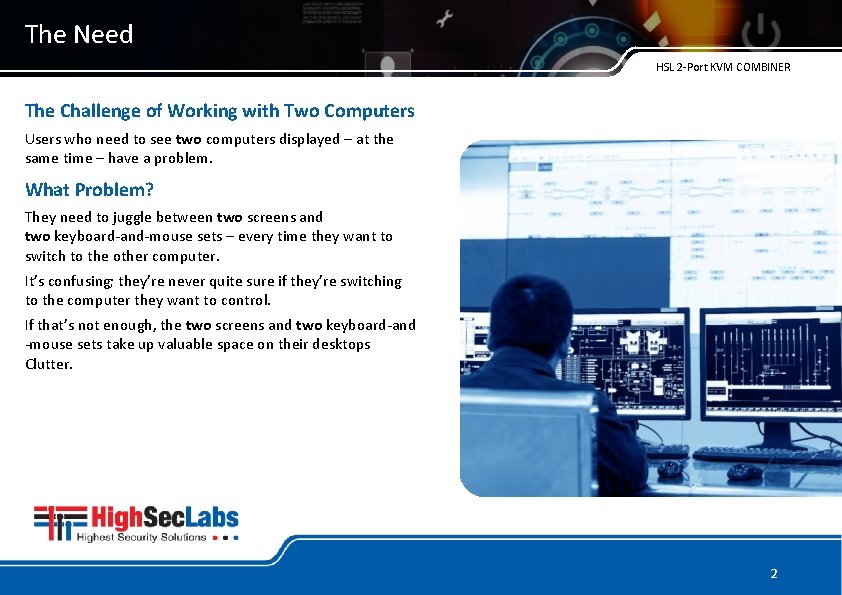
The Need HSL 2 -Port KVM COMBINER The Challenge of Working with Two Computers Users who need to see two computers displayed – at the same time – have a problem. What Problem? They need to juggle between two screens and two keyboard-and-mouse sets – every time they want to switch to the other computer. It’s confusing; they’re never quite sure if they’re switching to the computer they want to control. If that’s not enough, the two screens and two keyboard-and -mouse sets take up valuable space on their desktops Clutter. 2
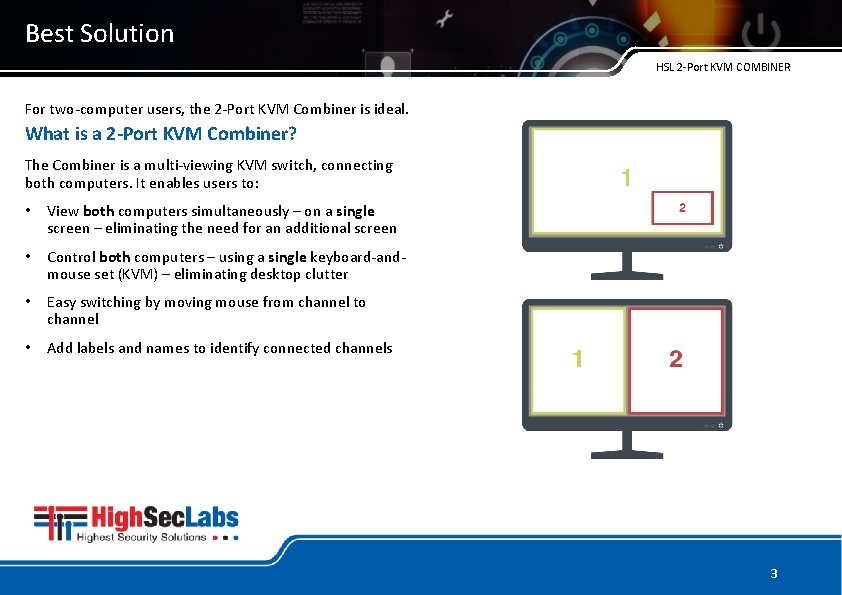
Best Solution HSL 2 -Port KVM COMBINER For two-computer users, the 2 -Port KVM Combiner is ideal. What is a 2 -Port KVM Combiner? The Combiner is a multi-viewing KVM switch, connecting both computers. It enables users to: • View both computers simultaneously – on a single screen – eliminating the need for an additional screen • Control both computers – using a single keyboard-andmouse set (KVM) – eliminating desktop clutter • Easy switching by moving mouse from channel to channel • Add labels and names to identify connected channels 3
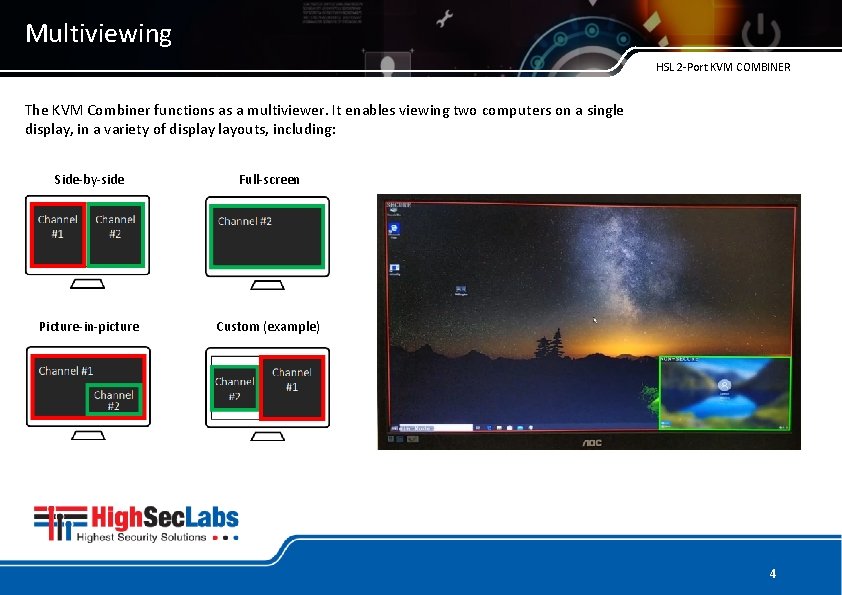
Multiviewing HSL 2 -Port KVM COMBINER The KVM Combiner functions as a multiviewer. It enables viewing two computers on a single display, in a variety of display layouts, including: Side-by-side Full-screen Picture-in-picture Custom (example) 4
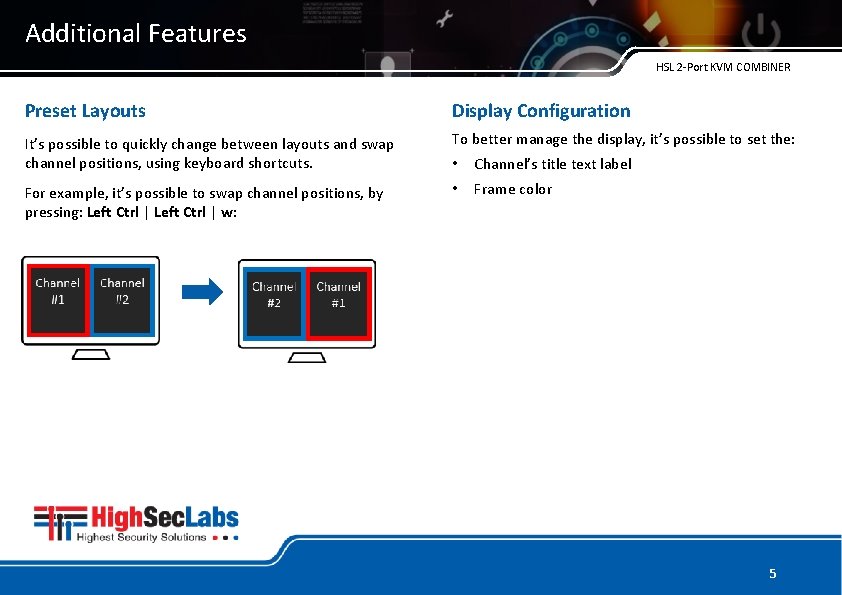
Additional Features HSL 2 -Port KVM COMBINER Preset Layouts Display Configuration It’s possible to quickly change between layouts and swap channel positions, using keyboard shortcuts. To better manage the display, it’s possible to set the: • Channel’s title text label For example, it’s possible to swap channel positions, by pressing: Left Ctrl | w: • Frame color 5
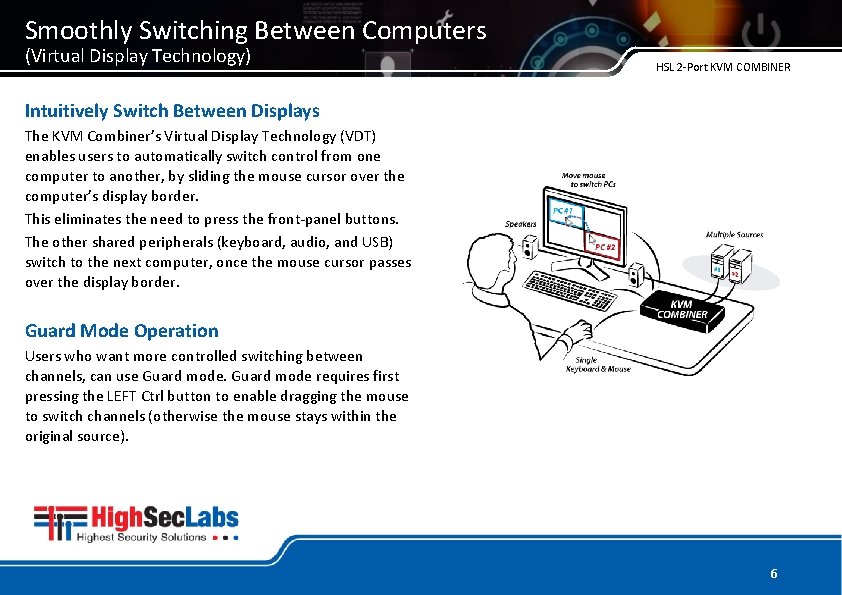
Smoothly Switching Between Computers (Virtual Display Technology) HSL 2 -Port KVM COMBINER Intuitively Switch Between Displays The KVM Combiner’s Virtual Display Technology (VDT) enables users to automatically switch control from one computer to another, by sliding the mouse cursor over the computer’s display border. This eliminates the need to press the front-panel buttons. The other shared peripherals (keyboard, audio, and USB) switch to the next computer, once the mouse cursor passes over the display border. Guard Mode Operation Users who want more controlled switching between channels, can use Guard mode requires first pressing the LEFT Ctrl button to enable dragging the mouse to switch channels (otherwise the mouse stays within the original source). 6
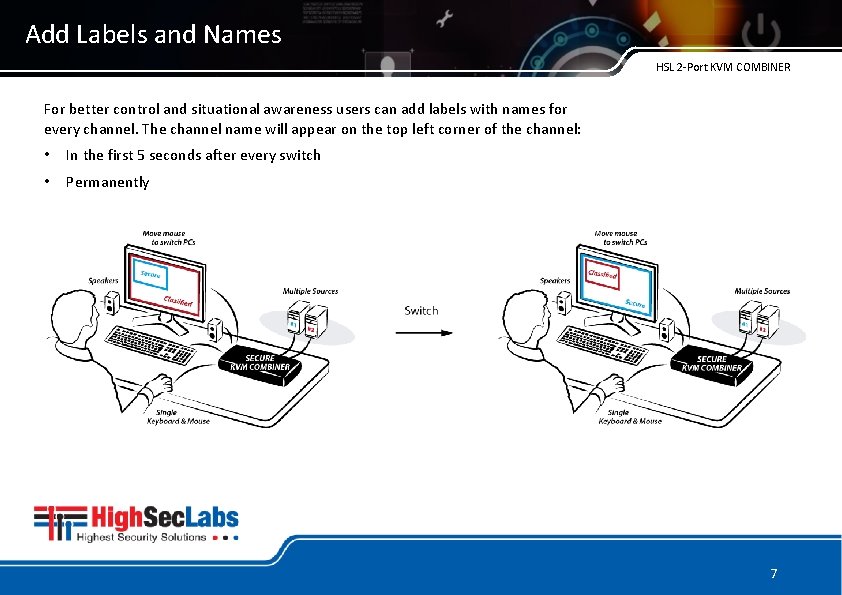
Add Labels and Names HSL 2 -Port KVM COMBINER For better control and situational awareness users can add labels with names for every channel. The channel name will appear on the top left corner of the channel: • In the first 5 seconds after every switch • Permanently 7
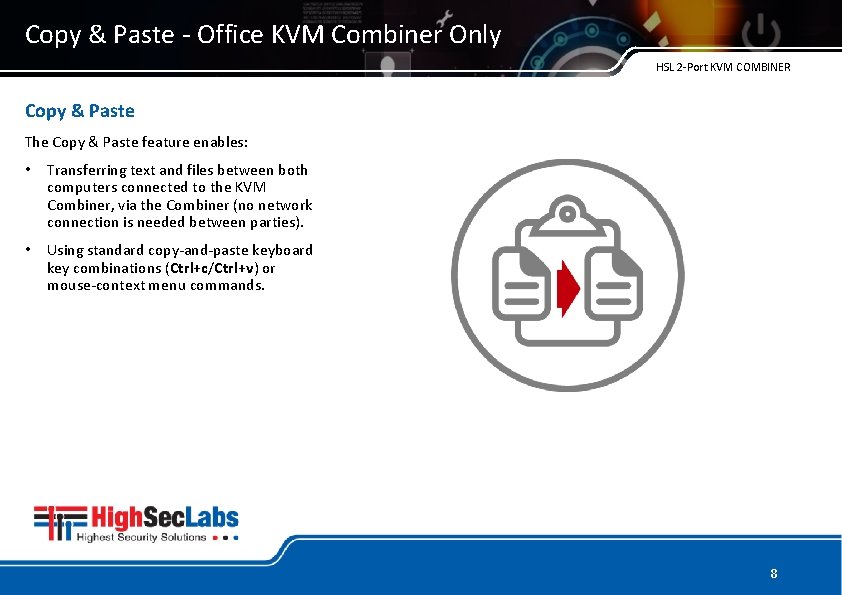
Copy & Paste - Office KVM Combiner Only HSL 2 -Port KVM COMBINER Copy & Paste The Copy & Paste feature enables: • Transferring text and files between both computers connected to the KVM Combiner, via the Combiner (no network connection is needed between parties). • Using standard copy-and-paste keyboard key combinations (Ctrl+c/Ctrl+v) or mouse-context menu commands. 8
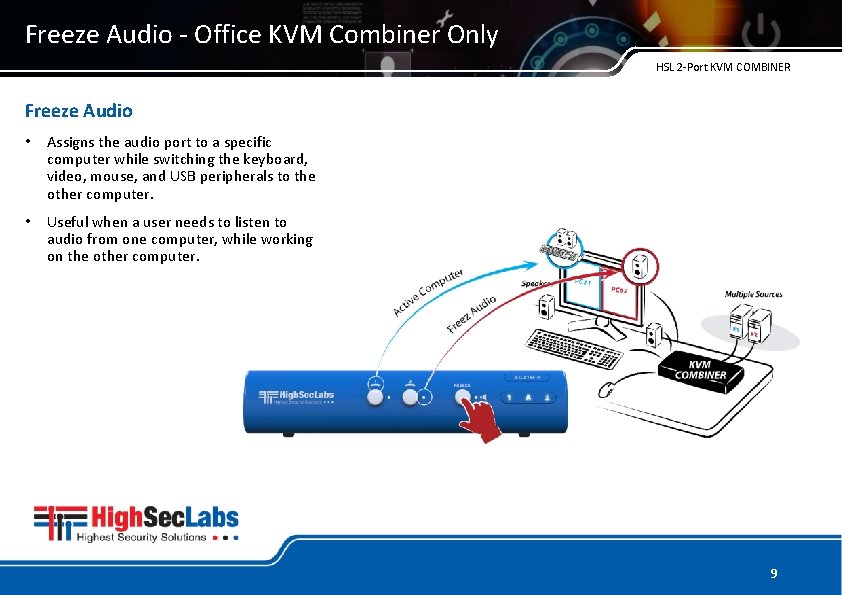
Freeze Audio - Office KVM Combiner Only HSL 2 -Port KVM COMBINER Freeze Audio • Assigns the audio port to a specific computer while switching the keyboard, video, mouse, and USB peripherals to the other computer. • Useful when a user needs to listen to audio from one computer, while working on the other computer. 9
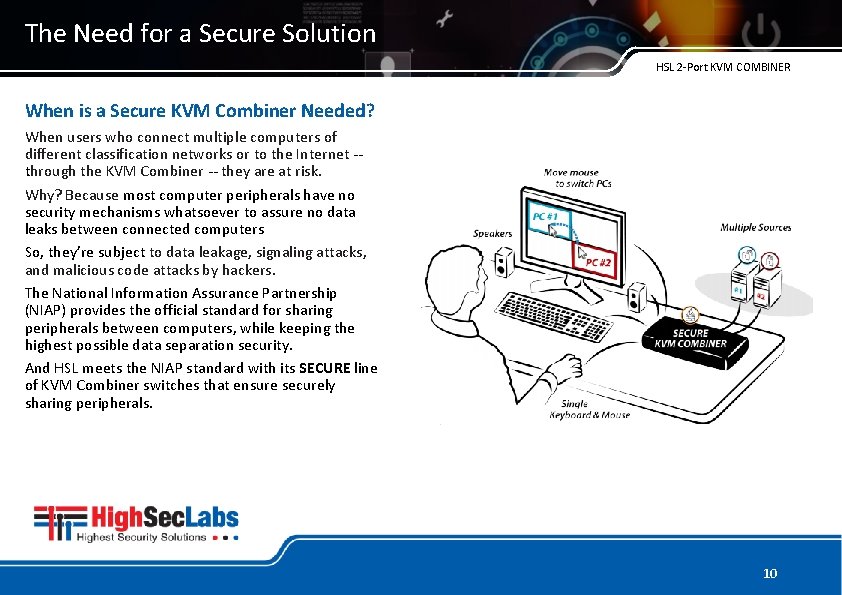
The Need for a Secure Solution HSL 2 -Port KVM COMBINER When is a Secure KVM Combiner Needed? When users who connect multiple computers of different classification networks or to the Internet -through the KVM Combiner -- they are at risk. Why? Because most computer peripherals have no security mechanisms whatsoever to assure no data leaks between connected computers So, they’re subject to data leakage, signaling attacks, and malicious code attacks by hackers. The National Information Assurance Partnership (NIAP) provides the official standard for sharing peripherals between computers, while keeping the highest possible data separation security. And HSL meets the NIAP standard with its SECURE line of KVM Combiner switches that ensure securely sharing peripherals. 10
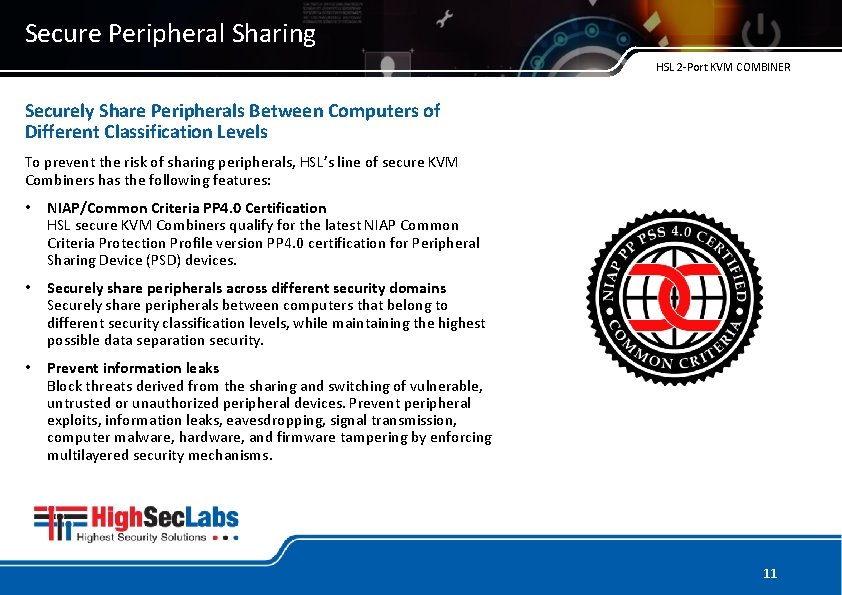
Secure Peripheral Sharing HSL 2 -Port KVM COMBINER Securely Share Peripherals Between Computers of Different Classification Levels To prevent the risk of sharing peripherals, HSL’s line of secure KVM Combiners has the following features: • NIAP/Common Criteria PP 4. 0 Certification HSL secure KVM Combiners qualify for the latest NIAP Common Criteria Protection Profile version PP 4. 0 certification for Peripheral Sharing Device (PSD) devices. • Securely share peripherals across different security domains Securely share peripherals between computers that belong to different security classification levels, while maintaining the highest possible data separation security. • Prevent information leaks Block threats derived from the sharing and switching of vulnerable, untrusted or unauthorized peripheral devices. Prevent peripheral exploits, information leaks, eavesdropping, signal transmission, computer malware, hardware, and firmware tampering by enforcing multilayered security mechanisms. 11
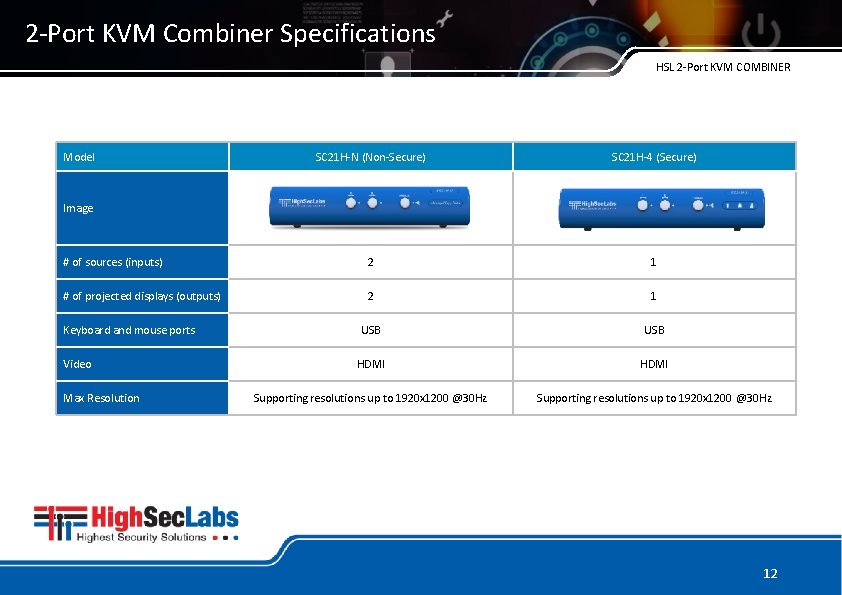
2 -Port KVM Combiner Specifications HSL 2 -Port KVM COMBINER Model SC 21 H-N (Non-Secure) SC 21 H-4 (Secure) # of sources (inputs) 2 1 # of projected displays (outputs) 2 1 USB HDMI Supporting resolutions up to 1920 x 1200 @30 Hz Image Keyboard and mouse ports Video Max Resolution 12

HSL 2 -Port KVM COMBINER THANK YOU For more information, please visit www. highseclabs. com
- Slides: 13